


HTC just had its biggest drop in sales in more than two years
Sales fell by 62% this past June.
It’s no secret that HTC has been struggling for quite some time, but the past few days have been particularly brutal on the company. On July 6, the Taiwan-based OEM announced that its sales for June have fallen by a whopping 62%.
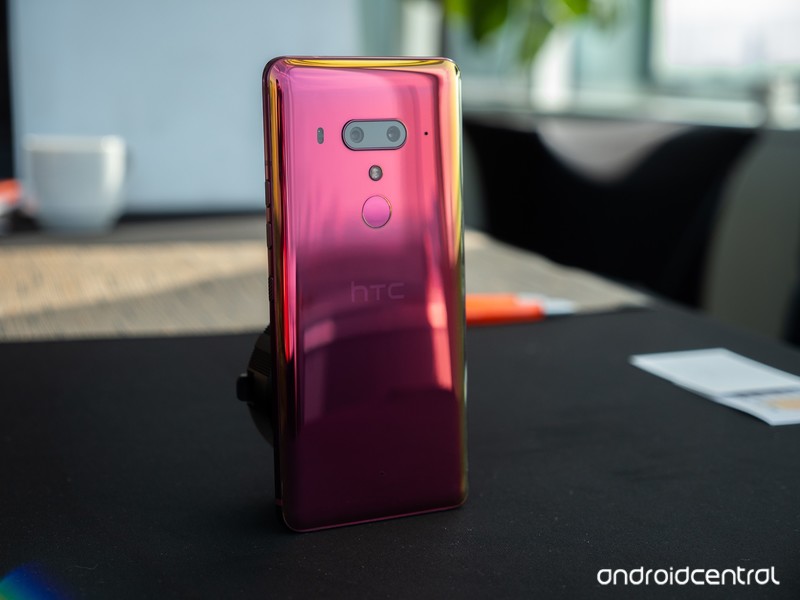
That drop in sales is the biggest HTC’s seen in over two years, with the exact number being $2.2 billion NT compared to $6.9 billion NT from June of last year.
Per an analyst from Trendforce:
In the high-end segment, the sales of their flagship phone this year has been lower than expected, leading to lower market share. As for HTC’s middle-end and entry-level series, the new models feature neither new specs nor high performance-price ratio, influencing the sales.
HTC’s most recent flagship, the U12+, proved to be quite the letdown in our full review. Although it’s a fast performer and has a great design, its poor battery life and game-breaking pressure-sensitive “buttons” result in a product that is far from justifying its $800 price tag.
Just four days ago, HTC also announced that it was laying off 1,500 employees from its manufacturing division in an effort to become profitable.
Things haven’t looked good for HTC for a while, but between the massive layoffs and dwindling sales numbers, the end might be sooner than we thought for the brand that used to be the king of the Android world.
HTC U12+ review: Buttonless blunder
V-Moda Crossfade 2 Wireless Codex Edition review: Exquisite sound, supreme comfort
V-Moda’s Crossfade 2 gets an upgrade for 2018.

V-Moda initially started out with headphones aimed at DJs and music producers, and got its first break in consumer tech making third-party headphones for iPhones and iPods. Over the years, the brand became associated with flamboyant designs that offered a high degree of customization, and that’s the case with its latest product as well.
The Crossfade 2 Codex is an upgraded variant of last year’s Crossfade 2 Wireless that offers AptX and AAC codec compatibility as standard. V-Moda is slotting in the headset at the same $350 price point as last year, and V-Moda is kicking off an upgrade program for those looking to make the switch from its earlier products. This is the Crossfade 2 Wireless Codex Edition.
V-Moda Crossfade 2 Wireless Codex Edition

Price: $350
Bottom line: The Crossfade 2 Codex Edition builds on the standard model by offering AptX and AAC support across all color options. Otherwise, this is the same great headset that V-Moda fans have come to love.
The Good
- Balanced sound signature
- AptX and AAC compatibility
- Extraordinary build quality
- Comfortable fit
- All-day battery life
The Bad
- Mushy volume controls
- Charges over Micro-USB
See at Best Buy

V-Moda Crossfade 2 Codex What I love
As the name suggests, the Crossfade 2 Codex is all about high-fidelity codecs. Unlike the standard Crossfade 2 — which limited AptX compatibility to the rose gold option — all models of the Crossfade 2 Codex feature AptX as well as AAC, bringing improved audio quality to both Android and iOS devices.
When paired with a device that has more than one codec, like the Pixel 2, the headphones will let you choose the codec you’d like to use. And in an event where neither codec is available, the Crossfade 2 Codex will fall back to SBC, the universal Bluetooth streaming codec that’s present on all phones.
Unlike V-Moda’s earlier offerings, the tonal signature is surprisingly balanced, with a wide soundstage comprising of tight lows, clear mids, and crisp highs. Kavinsky’s synthesized vocals in Nightcall are wonderfully detailed, and the bass is powerful while not being too overbearing. Listening to Queen’s A Night at the Opera is a delight — there’s clear instrument separation, and the headset manages to do a great job capturing Freddie Mercury’s remarkable vocal range.
The Crossfade 2 Codex gets incredibly loud — it’s one of the loudest headsets I’ve used — and thankfully the sound doesn’t get distorted at high volumes. I haven’t faced any issues with Bluetooth connectivity either in the week I used the headset.
The Crossfade 2 Codex is built like a tank and fits like a glove.
As for the design itself, the Crossfade 2 Codex features a metal frame with exposed screws on either ear pad. The headset is one of the most durable you’ll find in the market today — it even sports a MIL-STD-810G rating — and it can withstand a lot of abuse. The aluminum frame makes the Codex one of the heavier options in this segment, coming in at 309g.
That said, there’s more than adequate padding around the headband, and the ear pads offer memory foam cushioning that provides a comfortable fit. In fact, the Crossfade 2 Codex fits so snug that I didn’t face any discomfort even after prolonged listening sessions. V-Moda touts a 14-hour battery life, more than enough to last an entire day. I got well over 12 hours of music playback from a full charge, and the battery life should be more than adequate for most use cases.
A 30-minute charge provides up to four hours’ worth of music playback, and a full charge takes a smidgen under three hours. Of course, if you’re running low on battery life, you can always plug in the included audio cable and turn the Crossfade 2 Codex into a wired headset. The Codex becomes an even better headset thanks to the improved frequency response.
As the Codex edition is essentially an upgraded variant of the standard Crossfade 2, V-Moda is rolling out a Da Vinci Codex Upgrade Program that lets current Crossfade 2 owners make the switch for just $100. Those rocking a first-gen Crossfade will be able to get their hands on the Crossfade 2 Codex for $150.
V-Moda is also throwing in custom 3D printed or laser-engraved shields — valued at $70 — for free with every purchase of the Crossfade 2 Codex. You’ll be able to customize the shields over on V-Moda’s website, or walk into a Microsoft or Best Buy Magnolia store to choose from the options on offer.
Talking about customization, there’s a whole range of shields available for the Crossfade 2, ranging all the way up to $26,000 for a set of platinum shields. That may be a bit ostentatious on a $350 headset, but the sheer variety of options available means there’s something for everyone. The Crossfade 2 Codex comes with a standard one-year warranty, and like other V-Moda gear, it is covered by the brand’s Immortal Life program, which offers a 50% discount on a replacement pair should the headset get damaged while out of warranty.

V-Moda Crossfade 2 Codex What needs work
My main issue with the Crossfade 2 Codex is the fact that the music playback and volume buttons aren’t tactile enough. The buttons are located at the top of the right ear pad, and the single button that controls music playback is flanked by the volume buttons. The positioning of the buttons as well as their tactile feedback leaves a lot to be desired, and it’s the one area where the V-Moda lags behind its competitors.
I used Sony’s MDR-1000X for the better part of last year, and its touch-sensitive gesture scheme is still one of the best around. V-Moda could benefit with a similar implementation on upcoming Crossfade models.
Another issue on the Crossfade 2 Codex is that the headset doesn’t automatically power down when you end the Bluetooth connection. The power toggle is located at the bottom of the right ear pad, and unlike the MDR-1000X, you have to manually turn off the headset after a listening session. Having failed to do that the first day, I came back to a headset with a fully depleted battery.
I also dislike the fact that the headset charges over Micro-USB, but it looks like it will be another generation before audio manufacturers make the switch to USB-C.

V-Moda Crossfade 2 Wireless Codex Edition Review
The Crossfade 2 Codex is what the standard model should have been from the beginning. By offering AptX and AAC compatibility, V-Moda is making what is one of the best headsets in this segment even better.
If you already have the rose gold Crossfade 2 and use an Android phone, there’s little reason to pick up the Codex edition. But if you’re using the variant without AptX or use an iPhone along with Android, the Crossfade 2 Codex becomes a much more attractive option.
4.5
out of 5
The Crossfade 2 Codex is one of the best wireless options available today: it is built to last decades, the sound quality is exceptional, and the inclusion of AptX as well as AAC makes it a great choice for both Android and iOS users.
See at Best Buy
Apple Releases Second Beta of macOS Mojave to Public Beta Testers
Apple today seeded the second beta of an upcoming macOS Mojave update to its public beta testing group, one week after seeding the first macOS Mojave public beta. Today’s second public beta is the same as the third developer beta, released earlier this week.
Beta testers who have signed up for Apple’s beta testing program will be able to download the macOS Mojave beta through the Software Update mechanism in the Mac App Store. Subsequent betas are installed in a different way, using the Software Update icon in System Preferences.
Those who want to be a part of Apple’s beta testing program can sign up to participate through the beta testing website, which gives users access to iOS, macOS, and tvOS betas.
Potential beta testers should make a full Time Machine backup before installing macOS Mojave, and it should not be installed on a primary machine because betas are unstable and often have many bugs.
macOS Mojave’s main new feature is a systemwide Dark Mode, which gives Mac users a new way to view the operating system. A revamped Mac App Store makes it easier than ever to discover great apps, while Dynamic Desktops give you wallpapers that subtly change throughout the day.
An improved Finder window with Gallery View, Sidebar, Quick Look, and Quick Actions makes it easier to manipulate, edit, and organize your files, while Desktop Stacks organizes all of the files on your desktop.

The Apple News, Stocks, Home, and Voice Memos apps have made their way to the Mac in Mojave, and for the first time, you can use Siri on Mac to control HomeKit products. Group FaceTime, an iOS 12 feature, is also available in Mojave and lets you chat with up to 32 people at one time.
Apple is keeping your data safer than ever with new security and privacy improvements, and Safari in macOS Mojave makes it much easier to track you through share/like buttons and via your system configuration.
macOS Mojave is compatible with 2015 and newer MacBooks, 2012 and newer MacBook Air, MacBook Pro, Mac mini, and iMac models, the 2017 iMac Pro, and Mac Pro models from late 2013 and mid-2010 and mid-2012 models with Metal-capable GPUs.
Mojave will be available in a beta capacity for the next several months so Apple can work out bugs ahead of a fall release.
Related Roundup: macOS Mojave
Discuss this article in our forums
Review: Tap is a Futuristic Hand-Worn Keyboard That Lets You Type With Gestures
Tap is a hand-worn, futuristic replacement for a keyboard, mouse, and game controller that connects to iPhones and iPads, Macs, and PCs, and other devices using Bluetooth.
Tap fits over your fingers and can be used on any surface, meaning you can do away with a traditional desk, but mastering its use takes some intensive practice that may turn some people away.
Design
Tap is meant to be worn on the left or right hand, with an adjustable ring for each finger. There’s a flexible rubber material for the front of each finger (plus a sensor for detecting movement), with each finger connected via a soft woven cord.
The thumb piece of the Tap is the largest of the bunch and houses most of the electronics, while the adjustable rings for the other fingers are smaller. Tap is meant to fit snugly at the bottom of your fingers, where you would wear a ring. Side note: You’re probably going to have to take off rings to wear the Tap because of the way that it fits.

The woven cord that is between each ring can be pulled tighter or looser, so it’s able to fit a range of fingers. Tap comes in small and large sizes, and will fit many hand sizes.

I have small hands and with the small-sized tap, I was able to adjust the Tap to fit well on all of my fingers. Given that it fits my small hand, it should fit older children and adults alike.

Tap is comfortable to wear, even for longer periods of time, and I didn’t experience any discomfort when using it, aside from some mild cramping from holding my hand in a position it isn’t used to while I learned the Taps to create letters.
The Tap keyboard ships with a nicely designed carrying case that also doubles as a charger that powers the Tap over a micro-USB connection. Battery life in my experience was decent, and I only needed to charge once or twice a week even using it for a couple hours a day.

To charge the Tap, the thumb piece fits onto an inductive charger, while the other finger rings fit neatly onto ring-shaped holders within the case. Everything closes up magnetically for easy travel.

Functionality
Tap is in no way like a traditional keyboard, and learning to use it takes a lot of practice. It’s an entirely new input method that correlates different combinations of finger taps with letters and numbers of the alphabet.
For example, a single tap of the thumb creates an A, while a tap of the index finger is makes an E. Tapping the middle finger creates an I, tapping the ring finger makes an O, and tapping the pinky finger makes a U.
 An “N” gesture, which is a tap of the thumb and index finger.
Other letters are input through increasingly difficult tapping combinations that I’ve found hard to master. To type a K, for example, you tap your thumb and your ring finger, while a B is input using a tap of the index finger and the pinky.
There are some tap letter combinations that I’m not physically able to do. I can’t tap my middle finger and my pinky finger without my ring finger. I’m not sure if this is something that I’d be able to learn with time, but I don’t think so. I also can’t make the Vulcan salute, so I clearly have less finger dexterity than some people and others may not run into this issue.
 A “K” gesture, which is a tap of the ring finger and thumb
I’m not the only one with issues using the Tap with letters that involve the ring finger, because for all of the tricky ring finger letters, there are alternates. I can, for example, create a J by tapping my middle finger twice, a Z by tapping my thumb and pinky, or an A by double tapping my thumb.
Tap’s founder demos how to type with the Tap.
Punctuation and numbers are also built into the tap, with punctuation generally done through a double tap of a standard letter. A single tap of the index and ring finger together, for example, creates an M, but a double tap makes a comma. A single tap of the index finger makes an e, but a double tap makes an exclamation point.
As for numbers, you tap your middle, ring, and pinky fingers to enter number mode, and then the first five numbers correspond to the thumb, index finger, middle finger, ring finger, and pinky. A six is the thumb and the pinky together, a seven is the index finger and the pinky together, and so on. An eight, a gesture that I will never master, is the middle finger and the pinky finger. Unfortunately, there are no default replacements for difficult number gestures.
 The TapGenius app showing progress on learning numbers
Using this device requires a full range of hand motion and a good bit of dexterity, so as far as accessibility goes, it’s probably not suitable for people with a limited range of motion. For those with low vision, though, the Tap has the potential to be valuable because it’s entirely based on finger taps.

Learning to Use the Tap
There’s an iOS app, TapGenius, that’s designed to teach you the finger movements for each letter and number, as well as how to use the Tap as a replacement for a mouse or gaming controller.
TapGenius walks you through the different taps a few letters at a time with several rounds of practice to help you master them. I thought the TapGenius app was smartly designed, easy to use, and fantastic at teaching me how to use the Tap.

To be honest, when I first started practicing with the Tap, I thought that it would take a lot longer (like weeks) to learn than it did. I was impressed with how fast I was able to pick it up and how well I remembered the tap gestures from day to day. Memorizing 26 gestures along with the gestures for symbols and numbers sounded like a daunting task, but it wasn’t.

You’re technically supposed to be able to learn all the taps in about an hour, but it took longer for me. I spent 30 to 45 minutes a day for four days before I got through the entire tutorial system and learned the taps for letters, numbers, and common punctuation. Thanks to iOS 12’s Screen Time feature, I know that it took me just under three hours.
One of the TapGenius tutorials
I learned the Tap in increments of 30 minutes or so because I did sometimes get frustrated with the more complicated gestures, but I looked forward to the practice sessions every day because the TapGenius app is kind of fun. I kept practicing after learning the letters, but it’s still a slow process.
At this point in time, I can do all of the taps for all of the letters, but I can’t do all of them well. Learning the Tap is easy, but I think mastering it is going to be a much, much longer process. I can write with the Tap Keyboard, but it is a slow and tedious process and using the different taps without thinking about what I’m doing for each and every letter is going to take time.
Customizing Tap
Just recently, Tap Systems announced a new TapMapper tool, which is designed to let Tap users create their own custom layouts and TapMaps that can be loaded on the Tap or shared with other Tap users.
 The interface for making a Tap map.
TapMapper supports mappings for different languages, keybinds for games, triggers for controlling devices, shortcuts for coders, and custom inputs for enterprise apps, all of which is going to let the Tap do more than before.

Creating a custom mapping for the Tap can be done on the TapMapper website, and it doesn’t require coding experience. TapMapper supports mapping keystrokes and hotkeys to single taps, double taps, triple taps, and taps combined with shift and switch.
I haven’t delved into this because it’s not for beginning Tap users, but it’s a nice option to have for advanced Tap users.
Tap on iOS
The Tap works as a keyboard replacement just like any other Bluetooth keyboard that you might connect to an iPhone or an iPad, so you can use it for any text input, such as emails, Notes, messages, and more once you’ve learned all the letters, numbers, and punctuation.
 The TapManager app.
In addition to the TapManager app for iOS to manage the Tap, check battery level, changing hands, and other management features, and the app for learning to use the Tap, there are several games that you can download to use with the Tap.

On iOS, the Tap can be used a game controller in addition to a keyboard replacement, but game developers have to build in the functionality, so it’s all Tap-made games that work with the Tap.
Tap Bunny demo from Tap’s founder
There’s a game called TapLoops, where you need to clear rows of circles by using different taps, and TapChase, where you control an character in an endless runner and use taps to jump, dash, shoot, shield, and more. In TapBunny, the hardest of the bunch, you need to use different taps to guide a bunny through a maze, controlling the bunny’s jumps through taps.
Tap on Mac
Tap can be connected to a Mac like any other Bluetooth keyboard, but there are no Tap-specific apps on the Mac. You can use it to type as you normally would so long as you have all of the different taps memorized.
On the Mac, the Tap can be used in place of a mouse, but I gave up on this after about an hour of trying to use it. It’s not a comfortable way to use mouse gestures in lieu of a trackpad or a traditional mouse, and I just couldn’t get the accuracy down even after several attempts.
Using the Tap as a mouse requires your thumb (and the larger thumb Tap) to be in contact with a hard surface, and you drag the thumb piece around as you would a mouse. Clicking is done with various finger taps. For example, a single click is a tap with the index finger, while a right click is a tap with the middle finger.
Scrolling is done by tapping the ring finger or the pinky, while drag and drop can be done with the index finger and the middle finger.

It didn’t matter how I adjusted the mouse sensitivity, using the Tap as a mouse was uncomfortable, imprecise, and frustrating, plus leaving mouse mode on would occasionally interfere with keyboard mode, so I just turned it off all together.
With Tap on Mac combined with Tap maps, custom maps for games like Fortnite can be created, as seen in the Fortnite demo video below.
Tap Issues
At this point, I know all of the gestures to make a particular letter, and with a few notable exceptions, I’m decent at executing them. Unfortunately, the Tap isn’t always decent at recognizing them. There are instances where I am definitely using the right taps, but it’s not detecting the proper letter.
I don’t know if this is a Tap issue, an issue with how I happen to be holding my hand, a failure to do the gesture in exactly the way the Tap wants, or something else, but it’s definitely a frustration I’ve noticed.
In videos, Tap is demonstrated on both hard and soft surfaces, like a leg. I’m not sure if using Tap on soft surfaces is something that comes with practice, but I had a much harder time using it on a malleable surface than on a tabletop. On a soft surface, it wouldn’t register certain gestures or it would misread them, but it’s entirely possible that soft surfaces need to be adapted to much like learning the Tap in the first place.
I never was able to successfully or reliably use the Tap on a non-hard surface though, even after good two weeks of practice.
All of the Tap apps need updating and have rather poor interfaces. The TapGenius app, for example, hasn’t been updated for the iPhone X, and some features of TapGenius (word per minute count) don’t work for me on iPhone. TapGenius was, overall, still a great learning tool, though.

The games were a nice proof of concept, but nothing that I’d spend more than a few minutes playing. As far as the Tap apps go, the games had the best design for sure, especially Tap Loops.
Bottom Line
The average person probably isn’t looking to replace their current device keyboard with a wearable option that’s somewhat inconvenient, difficult to master, and slower to type with, so the Tap is definitely a niche product.
People who like unique keyboard setups, those interested in new technology, and people delving into wearable computing may want to take a look at the Tap, because this may be how we’re all going to be interfacing with our devices when wearable computing options like AR headsets become more common.

In a world where wearable computing is the norm, a gesture-based solution like the Tap has the potential to offer more utility and convenience than a tethered hardware option. Right now, though, the Tap is something of a novelty and it’s not a necessity for our devices with clear built-in hardware-based control methods. The exception, of course, is when it comes to accessibility — for people with low vision, the Tap could be an appealing keyboard alternative.
The Tap is not without problems, including its frustrating mouse mode, its trouble with soft surfaces, and its penchant for getting some letters wrong, but these are software issues, not hardware issues, and can likely be worked out as the Tap matures.
I enjoyed learning to use the Tap thanks to the clever tutorial software, but I can tell that it’s going to take me a lot more practice to type even a third as fast as I can with a traditional Mac keyboard. And, honestly, I don’t think I’ll ever reach Mac-like typing speeds (80-100WPM), but some people can type at speeds up to 60 words per minute.
For anyone interested in trying the Tap, it’s worth noting that a good amount of hand dexterity is required. I’m still learning to master certain gestures because my fingers just don’t work that way (I have no motor problems), and I can’t quite tell if that’s something that will improve with more practice.
Tap is difficult to recommend to the average person because of its learning curve (plan to spend weeks, if not months mastering it) and its price point ($180), but I think it’s absolutely going to appeal to some people out there, and it’s definitely an intriguing piece of tech for those who like novel products.
How to Buy
The Tap can be purchased from the Tap website for $179.
Discuss this article in our forums
What is white balance and how do you change it?
Gannon Burgett/Digital Trends
White balance is a term you’ll come across often while taking photos. To help you better understand what white balance is and isn’t, and how to set white balance, we’re breaking down the basics so you can snap better photos in whatever lighting conditions life throws your way.
What is white balance?
Before diving into what white balance is, let’s get straight what it isn’t. Sometimes the term white balance is used interchangeably with color temperature, but they’re not the same. Color temperature is the measurement, expressed in kelvin (K), of the color characteristics of a given light source — specifically, how warm (yellow/orange) or cool (blue) a light source is. White balance, on the other hand, is a setting within your camera and post-production software designed to ensure the colors in your images look as natural as possible — a difficult task to achieve, as cameras see the world different than we do.
For a little context on where certain light sources fall on the color temperature scale, candlelight measures in at roughly 1,500K while a clear blue sky will register somewhere around 9,500K.
Like any other aspect of photography, there’s no definitive right or wrong choice as to how your white balance should be set. It’s all up to personal preference and can be tweaked to better fit the mood of a particular image or scene. For example, a shot under the changing leaves of fall might be better suited for a warmer tone, while a late-night shot of the blue ocean might be better suited with cooler tones.
That said, there are some basic elements that will help guide you in the right direction so your photos aren’t too extreme in one direction or another.
Camera white balance settings
You may have noticed your camera has a barrage of various white balance modes. The most common are: Auto, Tungsten, Daylight, Cloudy, Flash, Shade, Fluorescent, and Custom. Below, we’re going to run through each of these modes, explaining what temperature they tend to be based on and how they act in various scenes when selected.
Auto (AWB) — As the name suggest, AWB will automatically adjust the color temperature using data pulled in by your camera’s sensors. AWB is a good option if you want versatility or plan on going from one lighting environment to another quickly, but rarely will it get you exactly where you want to be. For those times, you might find a more specific setting more appropriate.
Tungsten — Also referred to as “Indoor” by some manufacturers, Tungsten leans toward cooler tones, except for when used inside when only artificial light is illuminating the scene. Even then though, it can come out a bit cooler than you’d like, but it should get you closer to what you want. Tungsten tends to set the color temperature around 3,200K.
Daylight/Sunny — If you’re shooting anytime the sun is shining bright, be it outdoors or indoors (such as through a window), Daylight mode is your best bet. It’s considered the most neutral of the settings in terms of being on the kelvin scale. Daylight measures in at roughly 5,200K.
Cloudy — Considering cloudy days tend to have slightly cooler tones, the Cloudy setting on your camera will likely add a slight bit of warmth to your images. Cloudy assumes a temperature of approximately 6,000K.
Shade — Like the flash setting, Shade tends to warm the scene up to compensate for the cooler, blue tones that subjects tend to have when hidden away from the sun.
Flash — Whether it’s built into your camera or an external unit, flashes and strobes tend to err on the cooler side of things. It’s for this reason that the Flash preset will warm images up a bit to compensate for the cooler tones of the flash. The flash setting is usually set to somewhere around 6,000K.
Fluorescent — Fluorescent light is one of the more complicated lights to work with, as there are multiple types of bulbs — each with a slightly different color output, and change as they get older. In general, fluorescent bulbs tend to give off a cooler light, so the Fluorescent mode will add a little warmth to your images at around 4,000K.
Custom — Different camera manufacturers have different means of adjusting the custom white balance settings on cameras. Some opt for selecting a specific temperature while others rely on +/- scales on a spectrum. If you’re working in a stable, controlled environment, this is likely your best bet to achieve the most accurate colors possible. Note: Not all cameras offer this option.
For more detailed accounts for each camera manufacturer, be sure to check out the resources available. Sony, Nikon, and Canon offer dedicated sections regarding their respective approach to white balance settings, icons, and adjustments.
Using a gray card
One of the most proven solutions to getting accurate white balance is to use what’s called a gray card. As the name suggests, a gray card is a little piece of paper or plastic that’s 18-percent gray. Along the same lines, you can use a color chart to more accurately assess the white balance and colors in your photos.
They can cost as little as a few dollars (like this color and gray card set from Movo) and will vastly improve your workflow if you plan on editing white balance in post production, which we will explain a bit more below.
Using a gray card is simple. Once you have your card, take it along with you on all of your photo adventures. When you come to a location you plan on shooting, hold the card out in front of the camera, or have a subject hold it in front of themselves. Snap a photo of the card being used and you’re good to go for the rest of the shoot. Just be sure to take another photo with the card in the event the light changes or you switch locations.
How to set white balance
Getting white balance correct in-camera isn’t always easy, regardless of what mode you’re shooting in. Thankfully, white balance can be adjusted when editing images. In fact, even the most basic post-production software is capable of making the required changes, including the hundreds of apps available for download on both iOS and Android devices.
It’s worth noting that the accuracy of the screens and monitors on your devices is of great significance here. If your monitor isn’t calibrated, what looks a bit yellow might actually be more neutral and vice versa. Check out our monitor calibration guide for a rundown on how to get the best colors from your screens.
If you shoot in a RAW format, even on your smartphone, changing the white balance in post-production becomes even easier, as you can actually edit the temperature using kelvin, without losing any quality in the image. JPEG can also be changed, but you start at a central point and can only make it warmer or cooler, not set a specific temperature.
Regardless of whether you’re editing your photo on a desktop program or in a mobile app, the process of changing the white balance will essentially be the same — move a slider left and right to give the color cooler or warmer tones, respectively.
The slider used to adjust white balance will most often be referred to as “white balance.” But there are exceptions. For instance, Instagram calls its white balance setting “Warmth,” while Apple’s in-app photo editor refers to it as “Cast.”
As mentioned above, a gray card can further simplify the process. Most photo-editing programs can automatically change the white balance of an image when a dropper is placed over a black, gray, or white part of the scene. Using a gray card ensures you have a perfectly gray source from which to select the sample point from.
Once you have the correct white balance from the gray card image, you can then bulk edit the remaining images from that particular scene, as odds are it has the same white balance across the board.
A quick tip for perfect white balance
White balance, like many settings in photography, is just as much about personal preference as it is about getting it “right.” Some photographers prefer cooler tones, while others lean toward warmer tones.
If you’re struggling to get the white balance just right in editing software without the help of a gray card, here’s a little trick used by photographer Kirk Mastin. Change the white balance slider as far as possible in one direction. From there, slowly adjust the slider until you reach what you consider to be a natural balance. By seeing the extremes, it helps to isolate the most natural-looking option.
If you want a more advance rundown of white balance and how it affects your images, Pye Jars of SLR Lounge has a wonderful 25-minute video on YouTube. To better understand the other settings on your camera, be sure to take a look at our thorough guide of the buttons and settings available on your DSLR.
Editors’ Recommendations
- Tips on how to take jaw-dropping monochrome pictures with the Huawei P20 Pro
- Cheap plastic perfection: An ode to the MacBook that started it all
- Here are the best (and least likely to explode) hoverboards you can buy
- 13 best road trip cars, from the practical to the drool-worthy
- Red, white, or champagne: These wine fridges will help you sip in style
Watching the World Cup on your phone while at the theater isn’t a good idea
Before the age of mobile phones, perhaps the worst distraction for a theater actor would be an audience member coughing at a crucial moment in the performance.
Today, despite numerous warnings to switch smartphones off before a show begins, actors have to deal regularly with the excruciating annoyance of handsets suddenly going off.
Imagine: “To be or not to be, that is the — RIIIINNGGGG!!! RIIIINNNGGGG!!!”
News from the BBC this week suggests the situation has taken a turn for the worse, with people now happily following the trials and tribulations of their World Cup soccer team while sitting in the front row of a theater during a show.
It happened on Tuesday, July3 at the Theatre Royal in Nottingham, U.K., during a performance of Titanic: The Musical just as England embarked on a nail-biting penalty shootout against Colombia for a place in the quarter finals of the soccer tournament. And worse than simply watching the shootout, they celebrated each England penalty success with an enthusiastic “yesss!” … and fist pumps.
Whereas 15 years ago all actors would likely do about such an interruption was grumble in the dressing room, now they can take to social media to vent their anger.
And that’s exactly what they did.
One of the show’s performers, Niall Sheehy, hit Twitter to let everyone know what had happened, describing the two soccer fans as “the most ignorant audience members I have ever had the misfortune to perform in front of.”
To the two women in the front row tonight who not only followed the penalty shootout on their phone, but also said “yesss” on each goal scored, you are the most ignorant audience members I have ever had the misfortune to perform in front of.
— Niall Sheehy (@niallsheehy) July 3, 2018
In another, Sheehy was even more incredulous, telling the pair to “avoid attending any future theatrical productions.”
And when a cast member signalled “put your phone away” during the bows and you smiled, gave a thumbs up and replied “I know – we won!!”, I think you may have let us all know you are the stupidest woman on the planet. Please avoid attending any future theatrical productions.
— Niall Sheehy (@niallsheehy) July 3, 2018
That apparently caused him some social media strife, prompting another post:
Has a tweet ever been blown more out of proportion?
My phrasing may have been too aggressive re: the audience members. For that, I happily apologise, but I stand by my opinion that they were inconsiderate to others in the audience.
How any of this is newsworthy is crazy!
— Niall Sheehy (@niallsheehy) July 5, 2018
Another actor in the show, Kieran Brown, said he was “dumbfounded” that the two women could behave in such a way during one of the show’s most poignant moments.
Dumbfounded. 2 ladies, 1 older 1 middle aged, slap bang front row clearly watching football on phones during the most poignant moment of lifeboats scene, cheering & giggling like stupid schoolgirls. To say I’m raging is an understatement! They should be marched out in disgrace!
— Kieran Brown (@Kierbro) July 3, 2018
The theater also weighed in, apologizing to both the actors and to any audience members who may have been distracted by the front row shenanigans.
We’re sorry to hear that two audience members last night showed such disrespect by watching their phone during a performance, not only to the actors on stage but also to other audience members. Our stewards are always vigilant, but we also rely on people using their common sense https://t.co/IQGGISvnJD
— TRCH (@RoyalNottingham) July 4, 2018
The incident brings to mind a similar episode in 2014 when an audience member’s phone started ringing during a play featuring Kevin Spacey. The actor, who was on stage for a courtroom scene, reportedly stayed in character and barked at the culprit, “If you don’t answer that, I will.”
Someone’s noisy phone even halted a performance by the New York Philharmonic, while in 2015 actor Benedict Cumberbatch pleaded with audience members to stop filming him when he was on stage.
Pointing out that some smartphone users seem to spend much of their time experiencing one-off events through their smartphone display rather than enjoying them without holding their handsets in front of their face, Cumberbatch said, “I can’t give you what I want to give you, which is a live performance that you’ll remember, hopefully, in your minds and brains whether it’s good, bad, or indifferent, rather than on your phones.”
Editors’ Recommendations
- ‘Avengers: Infinity War’: Everything we know so far
- The best stand-up comedy on Netflix (June 2018)
- How the ‘Avengers: Infinity War’ VFX team made Thanos a movie star
- The best shows on Netflix right now (July 2018)
- Here everything we know about ‘Mission: Impossible — Fallout’ so far
Japan rocket team releases crash-tastic video of latest launch effort
Having witnessed the rise of SpaceX, Blue Origin, and other private space companies, Japan’s Interstellar Technologies decided it wanted to have a bit of that, and set about building their own rocket system.
The trouble is, it’s not very good. Not yet, anyway.
Highlighting just how challenging it is to develop such technology, Interstellar Technologies has so far suffered two rocket launch failures. Out of two rocket launches.
Fortunately, the rockets were unmanned and no one has been injured during the failed efforts.
The latest disaster occurred at the end of last month when its Momo-2 rocket ran out of puff just a few seconds after launch, leaving gravity to do what gravity does so well. Yes, it all ended in a spectacular fireball.
But at least the private space company — founded by Japanese internet entrepreneur Takafumi Horie — can’t be accused of trying to sweep the whole thing under the carpet, as it has just released a video showing the fiery event from pretty much every conceivable angle.
The edited footage shows Momo-2’s short-lived test flight from far away, close up, low down, and high up. There’s even a rocket’s-eye view of the incident, though the video cuts out just before it hits the deck.
Curiously, about halfway through, a dance track fades in, so you might even find yourself tapping your feet during the final couple of explosions.
Not giving up
Interstellar Technologies’ first rocket launch took place in 2017, but engineers lost contact with it after about a minute, prompting them to shut down its engine at an altitude of around 12.5 miles (20 km). It came down in the sea.
The company’s goal is to build a rocket system capable of deploying small satellites in low Earth orbit, a growing market that similar outfits around the world are also exploring.
Interstellar Technologies is the first private space company in Japan to attempt the feat, and despite the setbacks, appears determined to get it right.
“I feel that I would like to keep giving it a shot,” Interstellar Technologies president Takahiro Inagawa told reporters shortly after the early-morning, June 30 accident. Horie also said he was reluctant to throw the towel in, but added, “We have to find ways to improve.”
Editors’ Recommendations
- Japan’s latest attempts at a private aerospace industry goes down in flames
- Get your Sagan on with 60 awe-inspiring photos of the final frontier
- SpaceX nails another launch, but fails to catch the fairing
- SpaceX wins confidence-boosting Falcon Heavy contract with U.S. Air Force
- A luxury space hotel is now taking reservations — if you’ve got $10 million
The best chat clients
In last few years, everyone has seemingly ditched the typical instant messenger like AIM and ICQ for Facebook Messenger, iMessage, and plain-old text messages. And while person-to-person instant messaging is something we all do on our phones now, desktop clients are far from dead. In fact, they’re currently enjoying something of a renaissance.
With so many choices available at your fingertips, which chat app or apps should you be using? That depends on your needs. Are you working with teams? Do you want to chat with other gamers while playing online? We cover four of the best chat clients you can use across multiple platforms.
The best
Slack
For teams, Slack is the de facto king for now, and for good reason: The software is slick, feature-rich, and pretty much ubiquitous. These days, you can’t throw a rock without hitting a business using Slack. It’s everywhere, not because it’s the default team chat application for many businesses and organizations, but because it’s simply the best on the planet.
Why? The interface is clean, stylish, and straightforward. You have your channels on the left, your direct messages directly below. You also have Slackbot, which essentially amounts to Siri and Alexa’s less-helpful cousin. You can have Slackbot set reminders, and you can even customize it to respond to certain commands.
With dozens of integrations — including support for a host of other productivity suites — Slack works well with just about every service out there, and businesses can further customize it to fit their needs.
Plus, it’s free. There are also no ads or limits on how many users you can have. There are paid plans, and they provide a more robust experience and added storage space, but most users can get by with the free version. Need another reason why Slack is the best team chat app on the market today? It runs on Windows, MacOS, iOS, Android and Linux in various flavors — even directly in your web browser — without any major variations between platforms.
Download now from:
Slack
The rest
Discord
If Slack is the best choice for the workplace, then Discord is the best solution for gamers. Discord provides a feature set that should be familiar to Slack users, or anyone who’s been a member of a guild in World of Warcraft.
Discord is less formal than other chat apps, which is refreshing since the current market is very business-oriented. But that doesn’t mean it isn’t powerful. Featuring robust chat support and a built-in Streamer-mode, this is a finely-crafted application that puts apps like Skype to shame. Unlike other popular chat apps, you only need to create one username from which you can join multiple different “servers” at a time. No need to create a work login, or a personal login — it’s the same one used across the entire platform.
Once you create or join a server, you can set up individual channels for specific topics, and even join each one like a no-fuss conference call. It’s reliable, attractive, and well-designed. Best of all, it just works.
With Discord, you can also turn off your mic if you’re not in the mood to talk, or just jump right into a real “chat room”-style conversation with just the touch of a button. Simple, easy, and reliable. It’s also worth noting that Discord also features apps on every major platform, including Windows, MacOS, iOS, Android, and even Linux.
Download now from:
Discord
If you’re looking for a straight-up one-on-one chat without all the servers and chat rooms, WhatsApp is a great solution. The client is tied directly to your phone, meaning you’ll need an active phone number to create an account. It serves as a replacement for your phone’s current SMS text messenger, but it doesn’t send messages through your wireless carrier. Instead, WhatsApp delivers messages using end-to-end encryption through your cellular or Wi-Fi internet connection.
Like any other SMS messenger, you can start a chat with a single individual or a group. But what’s interesting with this service is that you can broadcast your current status to all contacts. For instance, if you’re hiking in the mountains and come across a bear feasting on another hiker, you can take a quick snapshot and instantly broadcast your current distressful situation to everyone on your list for the next 24 hours.
But WhatsApp isn’t all about texting. The platform provides a free telephony service no matter where you’re located across the globe. You can communicate the old-fashioned way though voice-based calls or conduct a video chat when you need to see a pretty (or ugly) face. Like the texting aspect, all voice and video calls travel across the internet rather than through your mobile carrier.
Overall, WhatsApp is a great, slick communication platform for those worried about their mobile carrier stashing text messages, photos, and videos. There’s plenty to love, and the platform even provides desktop apps that synchronize with the installed mobile app so you’re not constantly picking up your phone. End-to-end encryption also means your communications stay out of the wrong hands, making it a great chat tool for parents and their children.
Download now from:
Skype
If you’re on Windows 10, chances are Skype is already installed on your PC. This chat client originally made its debut as stand-alone desktop software for Windows in August 2003, but the platform was eventually scooped up by Microsoft and turned into a Windows-centric communication tool used by businesses and individuals alike. It’s now served up in desktop and app flavors across seven major platforms.
While WhatsApp puts the smartphone first and the desktop second as a paired “receiver,” Skype doesn’t take that route. Instead, you get full-fledged Skype apps across all platforms that synchronize your conversations via Microsoft’s cloud. Consider Skype as Microsoft’s answer to Apple’s iMessages service — only Skype isn’t locked to just Microsoft’s operating system.
Similar to WhatsApp, you can text individuals or participate in group conversations. Skype doesn’t require a phone number but instead links to your Microsoft Account. That said, your messages are sent through cellular and Wi-Fi internet connections instead of relying on a wireless carrier’s SMS service. And like WhatsApp, you can throw pictures, videos, your location, and other files and media into your conversations.
In addition to messaging, Skype provides voice and video calling too. You can do this in two ways: call someone for free who also has Skype installed, or call/text a specific land or mobile phone number using Skype Credit starting at $2.99 per month. If no one answers on the other end, you can leave an audio or video message.
Of the two mainstream clients, Skype may be a better choice if you don’t mind Microsoft’s attachment. The Windows 10 app has made significant progress since its launch while the “classic” desktop versions are somewhat “old school” compared to the mobile apps. But if you’re looking for a chat tool that covers multiple platforms in desktop and app variants — even the Xbox One — Skype is definitely your best bet.
Download now from:
Skype
Editors’ Recommendations
- Yahoo Messenger will soon die as Squirrel lives on in its wake
- Everything you need to know about Discord, the chat app for gamers
- Google wants to replace texting
- You’ll soon be able to send texts on your Chromebook
- The best email clients
TaoTronics Active Noise Canceling Headphones review: Punching way above the price tag
TaoTronics’ headphones are comfy, kick out powerful sound, and come with a free (albeit huge) carrying case.

If you’re in the market for a new pair of headphones, the only ones you should seriously be considering are noise canceling Bluetooth ones. The combination of freedom from pesky wires and being able to block out the noises of the world around you is fantastic, but more times than not, headphones that offer this combo end up costing a pretty penny.
TaoTronics has made a pretty big name for itself on Amazon for selling a variety of audio products for not a ton of cash, and its latest gadget is an updated version of its Bluetooth noise canceling headphones.
These headphones promise to offer long-lasting battery life, powerful audio, and a comfortable design for well under $100. That’s a challenging feat, but for the most part, TaonTronics absolutely achieves it.
TaoTronics Active Noise Canceling Bluetooth Headphones

Price: $69.99
Bottom line: These headphones look, feel, and sound great while being relatively easy on your wallet.
The Good
- Very comfortable to wear
- Good sound quality
- Noise canceling works really well
- Comes with a carrying case
The Bad
- Uses Micro-USB for charging
- Not the most portable headphones around
See at Amazon

These things do it all
TaoTronics Noise Canceling Bluetooth Headphones What I like
Starting first with the headphones’ design, TaoTronics did a great job with both the look and feel. Everything’s made out of plastic, but even so, the headphones never feel cheap. Instead, they’re lightweight and very comfortable to wear.
There are generous amounts of faux leather padding around the earcups and headband, creating for a soft (if a tad snug) fit. When you decide to take a break from your tunes, the earcups swivel 90-degrees toward you so you can keep wearing them while giving your ears a rest. The earcups are also spaced generously apart in this mode, and I find that they don’t pinch around my neck the same way the QC35s have a tendency of doing.
The silver accents stand out nicely against the all-black paint job and the power/volume buttons are easy to press with good tactility and feedback.
In regards to sound quality, I really enjoy listening to music on these headphones. Bass is nice and punchy, the surround-sound effect works great, and you can listen at high volumes without songs sounding distorted. Add that together with active noise-canceling that does an excellent job at blocking out ambient noises, and you end up with a great pair of cans for jamming out to your favorite music.
Some other tidbits about these headphones that I really like:
- TaoTronics promotes 30 hours of battery life, and in my experience, that results in about a week’s worth of moderate listening before needing to charge up.
- You get a free carrying case for safely storing the headphones while on the go
- If you don’t want to use Bluetooth, you can use the included 3.5mm cable to plug the headphones into your phone/computer for a wired experience.

Corners need to be cut somewhere
TaoTronics Noise Canceling Bluetooth Headphones What I don’t like
There’s no such thing as a perfect pair of headphones, and this TaonTronics option is no exception to that rule.
While I’m glad you get a carrying case for safely storing the headphones in a bag/backpack, it’s one of the bulkiest ones I’ve ever used. You can move the headphones so that one of the earcups folds up towards the headband, but for whatever reason, the case is designed to store them with both cups extended.

This carrying case is h u g e
I’m also not a fan of Micro-USB being used to charge the headphones up once you do deplete the battery. I get that it’s still the more widely-used port, but if you’ve got a phone that was released within the past couple years, it means you’ll likely need to lug around yet another cable with you.
If you’re releasing a pair of headphones (or any gadget for that matter) in mid-2018, there’s no excuse to not use USB-C.

TaoTronics Noise Canceling Bluetooth Headphones
For $70, TaoTronics has an excellent product here that really is worth your time and money. I’m admittedly not much of an audiophile, but if I was looking to buy a new pair of headphones and only had around $100 to spend, I’d go for these in a heartbeat.
4
out of 5
Not only are these good headphones for the money, they’re just good headphones in general. They sound good, the noise canceling component works better than I anticipated, and they feel great to wear.
The carrying case is bulkier than I’d like and the use of Micro-USB is a pain in the butt, but aside from those two complaints, TaoTronics did an excellent job with everything else.
TaoTronics sent us this review sample and the following discount code, but in no way impacted our review content or final score.
If you decide to buy these headphones, be sure to use promo code C48VLFPG at checkout after clicking the button below to save $25 for a final price of just $44.99! (Code is valid until August 31, 2018 at 11:59 PM PDT).
See at Amazon
What colors do you want to see for the Galaxy Note 9?
Samsung’s colorful Note.
Samsung’s Galaxy Note 9 is expected to be unveiled next month, and for the most part, it’ll look nearly identical to last year’s Note 8.
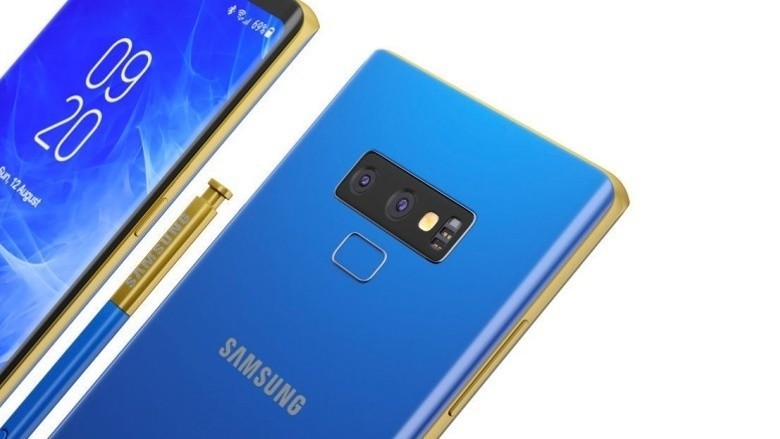
That’s not necessarily a bad thing, but to help shake things up, some rumors are hinting at the Note 9 coming in a variety of eye-catching colors.
Some of our AC forum users recently got to speculating about the colors they’d like to see, and this is what they said!
Gray Area
07-05-2018 04:22 PM“
I’m interested in seeing the two tone options. I saw a concept with a nice blue and gold with the gold spen with blue dial. I’d be interested in that.
Reply
sweetypie31
07-05-2018 05:15 PM“
I just need black. Even though I use a case I couldn’t stand looking at an off the wall color peaking out.
Reply
hasasimo
07-05-2018 08:19 PM“
Samsung makes the S9 in a burgundy red, but it’s not available in the US to my knowledge. Red phones are indeed nice. My favorite was the red Nokia Lumia 1520.
A number of OEMs are making their phones in red, so it’s definitely not just an Apple thing. In fact they were one of the last to the game.
As the Note9 is viewed mainly as a productivity device, it seems Samsung isn’t as…
Reply
mgbosshogg
07-05-2018 02:24 AM“
I’m hoping that no phone is ever released in the colour in the clip.
Reply
What about you? What colors would you like to see the Galaxy Note 9 released in?
Join the conversation in the forums!
Samsung Galaxy Note 9
- Samsung Galaxy Note 9 rumors: Release date, specs, price, and features!
- Is it best to buy the Galaxy S9 or wait for the Note 9?
- Do you plan on upgrading to the Note 9?
- Galaxy Note 8 review
- Join our Galaxy Note 9 forums

