


Tech, streaming, and the beautiful game

Goooooooooooaaaaaaaaaalllllllllllllllll
As I’m writing this, it’s a few minutes into the World Cup final between France and Croatia, a match that, if the bookies are right, will easily edge in France’s favor. Even as a casual soccer fan — I grew up obsessed with the Manchester United of the early 1990s, featuring an impenetrable Peter Schmeichel and poetry-in-motion Ryan Giggs, among many others — this tournament had me hooked from the beginning. There have been so many upsets, so many great penalty shoot-outs, and innumerable goals that just test the very foundations of physics; it’s just hard not to be emotionally invested in the outcome.
While I’m a little disappointed that Brazil isn’t in the finals — the team is just so much fun to watch — I like the David and Goliath nature of this scrappy, young Croatian squad and the mature, confident French side. It’s sure to be a great match.
But what really struck me about this World Cup was the availability of it; I watched it everywhere I had a screen thanks to the ubiquity of streaming. The bulk of it was viewed through the TSN app on my Apple TV 4K (which was a long time coming) and on my phone. I listened to games with headphones while walking down the street. I watched games at the dog park, or sitting in the backyard. I projected games onto the side of my house. I watched in the corner of my screen while working (sorry). Unlike four years ago, I didn’t have to fight with my technology to get the same experience as a cable subscriber, and that completely changed the way I experienced this tournament.
That’s why I think our new site, CordCutters, is so important. Millions of people around the world are realizing that cable is too expensive and too bundled to be useful, and the proliferation of streaming TV services is, ultimately, the better way.
How to watch the 2018 FIFA Men’s World Cup finals if you’ve cut the cord
Here’s what else is keeping me interested this week.
- I like Microsoft’s Surface lineup, and I’m curious to see whether the company can find success with its cheaper-but-still-overpriced Surface Go.
- The product is squarely aimed at the education market, but Chromebooks (and iPads) still hold the advantage.
- That said, it took Chromebooks a long time to get to where they are today, and Microsoft can learn a thing or two from Google’s partners.
- Google is facing yet another multi-billion dollar fine from the EU for anti-competitive practices, this time for forcing manufacturers to bundle Google services in exchange for shipping phones with the Play Store. This is an absurd assertion in a free market, especially one where the iPhone is sold without even the ability to set default applications, but hey, sure, scapegoat it up.
- The red OnePlus 6 is stunning, and I really want one. I just wish the company cared as much about haptics (I know, world’s tiniest violin) as it did about aesthetics.
- My review is coming next week, but I really like the Moto Z3 Play. It’s not an easy phone to love mainly because, on paper, it’s difficult to understand its $499 price (and its apples-to-apples comparison to the $529 OnePlus 6, but there’s more to the phone than the spec sheet.
That’s it from me. Hope you enjoyed the weekend, and I’ll see you in a few weeks!
-Daniel
Keep your internet browsing encrypted with VPNSecure, now for just $20!
Banking information. Mortgage payment history. Your important documents. Nearly all of your life is online these days, and while convenient that can be scary. There are tons of people out there who are looking to do malicious stuff, and we need to be sure that is in the back of our brains at all times. While you can’t avoid using the internet (in most cases), you can ensure that it is a secure connection when you do use it.
Save 91% right now Learn More
VPNs have become more and more popular as the time passes because people want to make sure that the information they are transmitting is getting to the right places. VPNSecure is a great option, and right now you can score a sweet deal on a lifetime subscription to the service. With it, you’ll be able to connect up to five devices at the same time, use unlimited bandwidth and more.

Some of the key features include:
- Allows you to bypass geolocation blocks on your favorite streaming networks
- Encrypts your traffic so hackers can’t access your data
- Hides your location & IP address
- Supports torrents
- Allows you to connect five devices simultaneously
- Grants you the ability to choose Data Cipher
- Uses Stealth VPN to render your VPN traffic unrecognizable
- Delivers unlimited bandwidth
- Does not keep any logs of your activity
- Includes servers in 46+ countries & counting
- Protects against DNS leak fixes, kill switches & more
Secure your browsing sessions for less! Learn More
You are getting a whole lot for your money here. VPNSecure normally costs $450 for the lifetime subscription, but right now you can pick one up for only $19.99. You’ll want to hurry though because this price won’t last long.
Browsing the web can get you in loads of trouble if you aren’t careful, so be sure to grab this at its 91% discount to secure your browsing sessions.
Score $20 off your $60 purchase of razors, Rogaine and more in this early Prime Day deal

The easiest decision you’ll make today.
Prime Day 2018 is one day away, but some Prime Day deals have already started. Shopping the early deals now is smart, because tomorrow is guaranteed to be as chaotic as it is fun. Give yourself one less thing to worry about amidst the Lightning Deal craziness that is sure to ensue by getting in on these discounts now.
This new early Prime Day deal is one of the best yet. If you spend $60 on a selection of health and beauty products, Amazon will give you $20 off. Your discount will be applied automatically in your shopping cart once you add at least $60 worth of goods to your order.
A few things are already on sale before your additional $20 discount. Note that some of these items have clippable coupons that can save you even more money, so be on the lookout for those as well.
There are almost 100 eligible items to choose from. Options include shaving essentials, shampoo and conditioner, makeup, skincare, personal care, and basically everything in between. If you’re planning on buying any of these items at some point in the future, this discount is a no-brainer.
Notable items include:
- Gilette Fusion5 ProGlide Men’s Razor Blade Refills 8-pack
- Neutrogena 2-pack Ultra Sheer Dry Touch Water Resistant SPF 45 Sunscreen
- 3-Month Men’s Rogaine Extra Strength Hair Treatment
- Remington Shortcut Pro Self-Haircut Kit
- L’Oréal Paris Makeup Infallible Long-Lasting Liquid Eyeliner
- L’Oréal Paris Men Expert Vitalift Anti-Wrinkle Moisturizer
- Maybelline Makeup Lash Sensational Washable Mascara
- Tom’s of Maine 6-pack Simply White Natural Toothpaste
- Tom’s of Maine 6-pack Natural Unscented Deodorant Stick
See at Amazon
Geekbench Shows 2018 MacBook Pro Has Biggest Yearly Performance Gain Since 2011
2018 MacBook Pro models feature the biggest yearly CPU performance gains since 2011, according to Geekbench founder John Poole.
Geekbench 4 scores indicate the latest 15-inch models have a 12 to 15 percent increase in single-core performance, while multi-core performance is up 39 to 46 percent, compared to the equivalent 2017 models.
A new 15-inch MacBook Pro with the best-available 2.9GHz six-core Intel Core i9 processor, with Turbo Boost up to 4.8GHz, has a multi-core score of 22,439, for example, a 44.3 percent increase versus a 2017 model with a then-best 3.1GHz quad-core Core i7 and Turbo Boost up to 4.1GHz.

Likewise, for the latest 13-inch models, Geekbench scores show a 3 to 11 percent increase in single-core performance, and an impressive 81 to 86 percent increase in multi-core performance versus equivalent 2017 models.
A new 13-inch MacBook Pro with the best-available 2.7GHz quad-core Intel Core i7 processor, with Turbo Boost up to 4.5GHz, has a multi-core score of 17,557, for example, an 83.8 percent increase versus a 2017 model with a then-best 3.5GHz dual-core Core i7 and Turbo Boost up to 4.0GHz.

Poole attributes the increases in performance to additional cores, higher Turbo Boost frequencies, and the switch to DDR4 memory.
2018 MacBook Pro models feature eighth-generation Intel Core processors, with up to six cores on 15-inch models and up to four cores on 13-inch models, both firsts. The refresh marked the first increase in cores since 2011, when the first quad-core 15-inch MacBook Pro models were released.
Interestingly, as Poole notes, the new 13-inch MacBook Pro with Touch Bar models are now competitive with 15-inch models from 2017 in both single-core and multi-core performance, essentially making it a smaller replacement.
Poole also notes that these Geekbench scores are preliminary, and likely to rise over the coming weeks, as on brand new machines, macOS completes several setup tasks in the background that can temporarily degrade performance. He says these tasks vary and can take up to several days to be completed.
Apple advertises the new 15-inch MacBook Pro as up to 70 percent faster, and the new 13-inch model as up to two times faster, than the equivalent 2017 models, but Poole told MacRumors that other benchmarks may show different results than Geekbench. Performance in real-world usage will also vary.
Geekbench 4 is a popular cross-platform CPU and GPU benchmark from Primate Labs, with apps available for Mac and iPhone and iPad.
Related Roundup: MacBook ProTag: GeekbenchBuyer’s Guide: MacBook Pro (Buy Now)
Discuss this article in our forums
Alexa for PC invades your notebook, signs a truce with Cortana
Mark Coppock/Digital Trends
Digital assistants have historically kept to their own turfs, with a great deal of competition between them by platform but much less on a given device itself. Siri owned iOS and MacOS, Google Assistant was the default Android choice, and so on
That’s rapidly changing.
You can now install Cortana on iOS and Android, and Alexa has been making its way to Android smartphones. The most recent development sees Alexa popping up on Windows 10 notebooks, with Lenovo, HP, Acer, and Asus being notable examples of PC makers baking Alexa into their machines.
We recently reviewed Acer’s Spin 5 convertible 2-in-1, which owns the distinction of being the first notebook that can run Alexa out of the box. As we spoke to Alexa on a Windows 10 machine, one big question swirled: Should you add her to your list of PC requirements?
Competing with Cortana?
To begin with, let’s get one thing straight: Cortana remains Windows 10’s primary digital assistant. She’s built into Windows 10 at a low level, providing notifications, search and command capabilities, and integration with iOS and Android. You can turn Cortana off, but she’s turned on by default — she’s even the first thing that will greet you when setting up a new Windows 10 PC.
Alexa for PC is different. First, you have to explicitly set up her desktop application and connect her to your Amazon account. That extra step makes her seem like a trespasser; running as a separate app gives Alexa a tacked-on feel. She’s not an innate aspect of a PC’s intelligence.
Second, all of her capabilities are external to the PC itself, which is probably the single biggest contrast to Cortana. Alexa has no local control whatsoever, other than the ability to access the PC’s microphone and speaker, and everything she does is contained within the Alexa app. Close that app and she disappears.
There’s no doubt that Alexa is an alien presence
That’s a stark contrast from Cortana, who can open other apps; lock, shut down, and restart a PC; search for local files; and provide notifications that pop up in the Action Center. For the most part, Alexa coexists with Cortana just fine, without a lot of overlap in capabilities to foment any rivalry. But there’s no doubt that Alexa is an alien presence.
Almost indistinguishable from an Amazon Echo
So what can Alexa do on a Windows 10 PC? The short answer is, she can do just about everything she can do on an Amazon Echo device. In fact, the experience will be entirely familiar if you’re already accustomed to using an Echo for things like getting weather updates, ordering Amazon products, checking your calendar (as long as you’ve connected to Google Calendar or Outlook), controlling smart home devices, and more.
With a couple of Echo devices scattered around the house and a Fire TV Cube on the family room TV, it’s easy to use Alexa extensively. We rely on her to stay updated on the weather and to run skills like grabbing quick recipes from Allrecipes and listing movie times from Fandango, and she’s a great music curator by accessing Amazon Music Unlimited.
Get around to installing that smart thermostat (Nest vs Ecobee — how to choose?) and some automated lighting, and you can use Alexa for that as well. Having Alexa on the notebook you carry around would mean there’s no need to pick up extra Echos.
Note that Alexa for PC does have some limitations compared to the full Echo feature set. One notable absence is that calling and messaging aren’t currently supported on PCs, and music support is currently limited to Amazon Music, SiriusXM, and iHeartRadio. Spotify, Pandora, and TuneIn Radio users are out of luck for now.
But other than those limitations, you’d be hard-pressed to tell the difference between interacting with Alexa on a Windows 10 PC and on an Echo. You say the wake word — the PC does need to be fully awake already — and then your command, and she responds accordingly. The Spin 5 specifically utilizes four near-field microphones to support Alexa voice commands from across a room, and it works well. Depending on the notebook, music quality can be better or worse than with an Echo.
Mark Coppock/Digital Trends
Tell Alexa to play a 1980’s pop playlist and she will, responding to volume and playback commands along the way. Tell her to turn up the lights or turn off the coffee maker, and she’ll do those things as well. And you can access the tens of thousands of Alexa Skills on the Windows 10 version as well — and as with all of the cloud-based digital assistants, she’s constantly being updated with new capabilities and skills in the background.
Mark Coppock/Digital Trends
Yes, but is Alexa for PC worth it?
Is she worth it? That’s the real question, right? And the only answer is this: If you love Alexa on your Echo devices and Android smartphones, as many do, then you’ll love having Alexa live on your notebook as well. For one thing, it gives you access to Alexa capabilities wherever you are, and saves you the investment in Echo devices for that one lone room of your house she hasn’t yet reached. Or outside your house, for when you’re working remotely.
Don’t tell Cortana, but she’d take a backseat on our PCs.
If you’re not a big Alexa user, though, then you’ll probably skip the configuration steps altogether. And if you do, then you’ll still have Cortana to keep you company.
Editors’ Recommendations
- Microsoft wants Cortana and Alexa to be friends. Is that cool or just awkward?
- Xbox One may soon welcome Alexa and Google Assistant
- What is Alexa? It’s Amazon’s virtual voice assistant
- Everything you need to know about the Windows 10 April 2018 Update
- Google Home review
You can use Chrome OS on a tablet, but it’s not an iPad competitor yet
Mark Coppock/Digital Trends
Google’s presence in tablets has long consisted of its Android smartphone OS stretched to fit larger displays. The marriage has been an unhappy one, leaving Apple’s iPad and even Windows 2-in-1 devices as the main options for tablets. That makes Google’s recent improvements in how well Chrome OS supports pure tablet devices even more important. Adding tablet-centric features to Google’s easy-to-use, secure, and easy-to-administer operating system could give the company an important new weapon in taking on Apple and Microsoft.
It’s timely, then, that Acer sent us the industry’s first shipping Chrome OS tablet, the Chromebook Tab 10, for us to check out. The device itself is meant for education, built with sturdy plastic and priced at just $330. The product itself isn’t going to compare to an iPad anytime soon, but it provides a pretty interesting glimpse into what it’s actually like to use Chrome OS on a tablet.
The good
The core elements of using a Chrome OS on a tablet are solid.
For the most part, Chrome OS lets you get things done when you’re using it with touch alone.
Swiping and tapping feel reliable and consistent — and the Wacom EMR stylus included with the Acer Chromebook Tab 10 works well with Chrome OS’s somewhat limited touch support (compared to, say, Windows 10 Ink). It even comes with a built-in slot for storing.
Though it’s a bit smaller than we like, the stylus works for taking notes and creating simple drawings. For the most part, Chrome OS lets you get things done when you’re using it with touch alone.
One of Google’s first real nods to tablets is a new launcher. Whereas Chromebooks once showed a row of recent apps to go with a very Google-like search bar, the new launcher looks suspiciously like the one you’ll find on an Android device. Hit the button on the taskbar, and you’ll get a pop-up launcher making all of your installed apps available at a touch. The new launcher works in standard Chromebook mode as well as in tablet mode — but it’s better with touch than a touchpad.
Next, Chrome OS tablet mode now supports the same basic kind of task view and split-screen mode that exists on other modern operating systems. That means that you can hit the task view button to see thumbnails of your open apps, long press on the thumbnail for a Chrome OS or a select Android app, and drag it to one side or another. You can then grab another app and populate the other side. It works well enough and makes for a generally productive environment, just like the feature does on other platforms.
These additions aren’t just nice additions — they’re essential for making the experience feel more like a true mobile operating system. They’re the bare bones, but they’re there.
The last addition — and most important — is Android apps themselves. The Google Play Store came to Chromebooks early in 2018 and began a real conversation about the future of the Chrome OS platform. The amazing thing to report is that while we ran into issue from time to time, the experience is fairly smooth.
You can download any of your favorite Android apps — and with tablet in hand — use them like you would on an iPad. When you’re in an app, everything feels fairly normal. When you exit out of it into the world of Chrome OS, you run into some problems.
The bad
While all the basics are all there, it doesn’t take much time with a Chrome OS tablet to see the problems. Beyond the new launcher and the split-screen mode, there’s not much else that’s been optimized for tablets. If all you use is iOS or Android, then Chrome OS will provide most or all of what you need. But if you’re expecting desktop-level capabilities without the keyboard, you’ll find it a bit frustrating.
Even something as simple as switching to an open app becomes less efficient than it should be.
Where everything on an iPad works best with touch and would likely sometimes be clunky with a mouse (which, of course, iOS doesn’t actually support), the opposite is true with Chrome OS. Touch works well enough, but the OS remains dedicated to the keyboard and mouse — making it a good thing that you can add a keyboard and mouse to a Chrome OS tablet.
And if you’re coming from an iPad, you’ll miss the extra multitouch gestures likes using four fingers to switch between apps. Chrome OS only offers a few gestures, and while it covers the basics, they just seem kind of tacked on at this point.
Even something as simple as switching to an open app becomes less efficient than it should be, as open app icons populate the taskbar at the bottom of the screen. Once you’ve exceeded the maximum that can be shown at once, which is only a few in portrait mode, you need to tap on an arrow icon to see the rest. The tablet mode task view is another option, but the need to poke around the taskbar is kludgy on a tablet — and see the next section for what happens when you’ve messed around with the display resolution.
Mark Coppock/Digital Trends
You can swipe, select objects, launch processes, and enter text using touch without much fuss, but compared to a platform for iOS or Android, it’s sorely lacking in touch functionality. It’s just not as tablet-optimized as it needs to be and constantly reminds us that Chrome OS is a desktop computing interface with touch capabilities, not a system built from the ground-up for touch.
Again, it’s helpful to compare Chrome OS to iOS. Apple has built in a slew of useful multitouch gestures beyond the simple two-finger right-click, pinch to zoom, and swipe up gestures that Chrome OS supports. The difference isn’t dramatic, but when you switch from the Chromebook Tab 10 to an iPad, you’re left with the impression that the iPad really wants you to use that touch display to move around the interface. Chrome OS is just trying its best to oblige.
The ugly
Beyond some of the basic problems of using Chrome OS as a tablet, we also ran into an incident that was downright ugly.
Everything gets tiny, and hitting buttons, typing text, and controlling things becomes a nightmare.
In a clear demonstration of how Chrome OS retains its link to a keyboard-and-mouse past, we ran into some problems when adjusting the display resolution. You can increase or decrease the resolution on the Chromebook Tab 10 from its default of 1,152 x 864, and that makes user interface elements smaller or larger.
It appears that the setting changes the scaling as opposed to the actual display resolution, because everything remains just as sharp — it’s more like changing the size of text and other items in Windows 10 by percentage, as opposed to changing the resolution away from the display’s native setting.
The point is that it’s easy to change the scaling and make the interface downright impossible to control using touch alone. Everything gets tiny, and hitting buttons, typing text, and controlling things becomes a nightmare. And the interface isn’t consistent in using the extra real estate — for example, the launcher doesn’t expand to fill the screen, it just shows the same icons as before, only smaller. The setting doesn’t seem to stick between reboots, though, and so if you run into trouble merely rebooting the tablet appears to be a simple solution.
Apple knew this was a problem from the very beginning, and that’s likely why you can’t change scaling on an iPad. Unlike iOS, which assumes that you’ll only ever be using your finger to control the interface, Chrome OS seems to assume that you’ll have access to a mouse for controlling smaller on-screen items. That makes sense given that Chrome OS supports a mouse — which iOS does not — but it can back you into a corner when your mouse isn’t available.
Note as well that changing the scaling caused some issues with Android apps. When the screen was set to a higher resolution, some apps, such as Microsoft OneNote, recognized the change and loaded up a functional — but very, very tiny — interface.
Google has work to do if it wants Chrome OS to be a competitive tablet OS.
Others, such as games like Cut the Rope 2, failed to load at all. In those cases, there was no way to shut down the offending app and the only way to recover was to perform a hard reboot. When set to a lower resolution, Android apps only take up part of the display.
That’s a small, relatively harmless example of the bigger problem that Google just hasn’t thought through every instance of not having access to a keyboard at all times.
On its way, but not there yet
Obviously, Google has work to do if it wants Chrome OS to be a competitive tablet OS.
As it stands today, the most we can say is that the Chromebook Tab 10 — and devices like it — are really for Chrome OS lovers only. Everyone else will want to look elsewhere, starting with the iPad, which can do all of the less complex things that a Chrome OS tablet can do but with an interface that feels vastly more cohesive and natural (and for almost the same price).
Meanwhile, if you’re going to have access to a mouse, then you might as well stick with a Windows 10 device, which can do so much more than any Chromebook.
At this point, we can’t see Chrome OS making more of a dent in the tablet market than Google managed with Android tablets. But little by little, as Google imports more and more Android features to Chrome OS, it just might slowly transform into a fully-functioning, 2-in-1 operating system. For now, you’ll be more frustrated than inspired by the experience.
Editors’ Recommendations
- New Chrome OS features make your Chromebook a better Windows replacement
- Chrome OS keeps improving, but it still doesn’t work for me
- The best tablets you can buy
- Microsoft Surface Go hands-on review
- The 100 best iPad apps for your Apple tablet
What is portrait mode? How tech helps smartphones capture a better you
Smartphones may have smaller sensors and lenses than DSLRs, but what the cameras in our pockets lack in hardware, they can (sometimes) make up for with software and computing power — as well as tweaks to that tiny hardware. Portrait mode is now a common feature on most smartphones, but what exactly does it do? Is it just another catchphrase to get you to pay more money for a phone, or does portrait mode really capture better photos?
While the technology behind the camera feature differs between smartphones, portrait mode is a form of computational photography that helps smartphone snapshots look a bit more like they came from a high-end camera. Here’s how portrait mode works.
What is portrait mode?
Portrait mode is a feature in quite a few smartphones that helps you take better pictures of people by capturing a sharp face and a nicely blurred background. It’s specifically made to improve close-up photos of one person — hence the name portrait (though you can use it for objects). Portrait mode started as one of the scene modes you typically find on a digital camera, but now the feature has been adapted to smartphone photography. While both the portrait mode on a digital camera and the portrait mode on a smartphone may share the same name, they vary drastically in howthe image is taken.
Portrait mode is a form of computational photography that artificially applies blur to the background.
When first offered as a photo mode on digital cameras, portrait mode helped novice photographers take better portraits by adjusting the camera settings. The aperture, or the opening in the lens, widens to blur the background. A blurred background draws the eye to the subject and eliminates distractions in the background, so wide apertures are popular for professionally shot portraits. Over time, additional optimization was added in, such as improving the processing to make faces even clearer by eliminating red eye and adjusting the autofocus.
A smartphone camera, however, cannot adjust those settings to take a better portrait. For starters, the aperture on most smartphone cameras is fixed, so you can’t actually change it (the Samsung Galaxy S9 and S9 Plus are notable exceptions). Even on the few models that allow for an adjustable aperture, however, the lens and sensor inside a smartphone camera are too small to create the blur that DSLRs or mirrorless cameras are capable of capturing.
Smartphone manufacturers can’t fit a giant DLSR sensor inside a smartphone and still have it fit in your pocket — but smartphones have more computing power than a DSLR. That difference is what powers a smartphone’s portrait mode. On a smartphone, portrait mode is a form of computational photography that artificially applies blur to the background to mimic the background blur of a DSLR. Smartphone portrait mode relies on a mix of software and hardware.
Julian Chokkattu/Digital Trends
Blurring the background of a photo is tougher than it sounds — for starters, the smartphone needs to be able to tell what’s the background and what’s not in order to keep the face sharp. Different manufacturers have found different ways to determine what to blur and what to leave sharp, which means that, brand by brand, smartphone portrait modes can look considerably different.
If you really want to learn how portrait mode works on modern smartphones, it’s important to understand the tricks phone manufacturers use to enable this feature.
How phones make portrait mode work
TheUnlockr
Apple was widely recognized as fueling the portrait mode trend when it introduced the feature on the iPhone 7 Plus in 2017. It proved popular, and a number of other manufacturers began releasing phones that included their own portrait optimization. Let’s break down the different methods used to blur that background:
Two-lens depth mapping
The original smartphone portrait mode requires a dual-lens camera. Depth mapping uses both the telephoto lens and the wide angle lens on a smartphone to examine the same visual field and compare notes. These two different viewpoints can work together to create a “depth map,” or an estimation of how far away objects in the shot are. With the depth map, the smartphone can then determine what’s the background and what’s not.
Combined with face detection technology, the phone runs the image through a blurring algorithm that attempts to blur the background and highlight the face. This is the technique used by the latest Samsung Galaxy phones, and the latest iPhone devices, including the iPhone X.
Pixel splitting
Rather than requiring two lenses, pixel splitting requires a specific type of camera sensor and just one lens. Instead of creating a depth map using two different lenses, this technique creates a depth map from two different sides of the same pixel. In smartphones with dual-pixel autofocus, like the Google Pixel 2, a single pixel actually has two photodiodes. Just like with a dual-lens camera, the software can compare the slightly different views from both sides of the pixel to create a depth map. The camera can then use the depth map without needing to consult an image from a separate lens and apply blur. Phones with this capability can take portrait mode photos from the front-facing camera as well, which may be better suited for your selfies.
Software-only portrait mode
Ideally, portrait mode uses a mix of hardware and software for the best results. But what if you can’t control the hardware? Apps designed to work on multiple devices use artificial intelligence and facial recognition to guess where the person is and where the background is. The result isn’t as accurate as methods that use both hardware and software because there’s no depth map, but this type of portrait mode is available from a wider range of smartphones. Instagram has a version of portrait mode inside the built-in camera that it calls Focus.
What’s the difference?
Because the software and algorithms used for these techniques can differ, you can still wind up with different results for any of these methods. How different? The Unlockr took a look for us, comparing the Galaxy Note 8, iPhone X, Huawei Mate 10 Pro, and Pixel 2 XL. Note the shading and background differences for these shots, and you can see that there are differences in how portrait mode performs on different models.
Along with getting different results, different devices will have distinct features. Becuase the Pixel 2 doesn’t need two lenses, the portrait mode works with both the rear-facing and front-facing cameras. The iPhone X can also use portrait mode on the front facing camera, but by using a 3D depth map from Face ID.
The bottom line on portrait mode
The best portrait modes are images from interchangeable lens cameras because of the aperture control and larger sensors — no other portraits will look as good. However, computational photography allows smartphones to come closer than ever before by artificially blurring the background. The Pixel 2 XL appears to take the best portrait photos, thanks to intelligent software and one of the best smartphone cameras around. The iPhone X also performs well, although it has a tendency, in our experience, to darken images a little.
While portrait mode differs between models, the biggest difference is between a phone with portrait mode, and one without. Without the hardware to create a depth map, portrait modes can’t quite reach the same level of realistic background blur. If you snap a lot of images of people, portrait mode makes for a dramatic improvement in photo quality, even coming from a smartphone. That difference is enough to warrant opting for a particular phone.
Editors’ Recommendations
- How to take perfect Portrait Mode selfies with an iPhone X
- Smartphone shootout: Huawei P20 Pro vs. Samsung Galaxy S9 Plus vs. Google Pixel 2 vs. Apple iPhone X
- Apple patents hint at smarter iPhone camera, blood pressure-sensing Watch band
- Huawei P10 camera guide
- How to take better pictures with your camera’s automatic mode
Call of Duty Black Ops 4: Everything you need to know
Boots are back on the ground.

It wouldn’t be a year in gaming without the annual Call of Duty release blessing the fall launch schedule. The last title we got was a non-Black Ops game, which means we’re due for another from the talented team over at Treyarch.
Call of Duty: Black Ops 4 is poised to build on the previous game by implementing changes inspired by fan feedback and introducing some interesting new game modes that’ll change your expectation of what a Call of Duty experience is supposed to be. Here’s everything you need to know.
What is Call of Duty: Black Ops 4?
This is the latest game in the Call of Duty series, and, specifically, the fifth such game made by Treyarch, the studio which got its start with Call of Duty: World at War and exclusively made Black Ops games ever since.
Black Ops games have never followed traditional Call of Duty standards in terms of story. They’re set in a dystopian-like universe that explores alternate realities. One of the games even straddled the line of supernatural, with Black Ops 3’s events all taking place inside someone’s head.
While the original Black Ops game was set in a period during the Cold War, subsequent titles have gone for a more futuristic setting so as to introduce interesting new gameplay mechanics.
Is there a story mode?
Earlier Black Ops games featured original stories, but Call of Duty: Black Ops 4 will not. In fact, this will be the first ever Call of Duty game that doesn’t have a single-player campaign.
It was originally rumored that Treyarch had started on a campaign for the game, but scrapped it during development as it wouldn’t be finished in time. We later learned that this wasn’t the case, and it was instead a conscious decision by the team to focus their time on multiplayer as a majority of players don’t finish the single-player campaigns in Call of Duty games.
If you love a good single-player campaign and nothing more, it’s wise to skip this one. But Treyarch has mentioned that this isn’t necessarily the start of a trend and that single-player campaigns can and will return to future Call of Duty titles.
Gameplay

With multiplayer being the sole way to play Call of Duty: Black Ops 4, Treyarch wants to ensure they make the deepest shooter possible, and also looked to address some of the more unpopular things they tried in Black Ops 3. Jetpacks and wall-running have been completely removed from the game.
The fan cry for “boots on the ground” has been quite loud, which is why many were ecstatic for Call of Duty: World War 2’s launch. Treyarch’s removal of the feature is a testament to their ability to listen to feedback and not only understand what their fans want, but take action on it.
A lot of the good stuff is returning, though, including the game’s use of Specialist characters. These characters are unique and feature special traits, abilities, and finishing moves. We’re getting four new characters with this launch for a grand total of 10:
- Torque: This is the builder of your team. You can make barricades to control firing lanes in the game, as well as more advanced deployment of barbed wire. Torque’s barricades have heat and distortion fields built-in, so anyone looking to challenge the area you’re denying will have a tough time.
- Ajax: When you need someone to push into an enemy zone, Ajax is the pick. He has a shield, and the shield has a hole in it, so whoever uses him can still be a deadly force. Ajax also has a flashbang that can be cooked, and the longer you cook it, the more flashes it will set off.
- Recon: A new fog of war mechanic means enemies won’t always show up on your radar whenever they shoot, so Recon’s goal is to reveal them.
- Crash: Medic fans will love Crash. He can not only heal allies, but he can also buff them in certain ways. And if you’re wondering why he has to heal anyone, it’s because Black Ops 4 will not have regenerative health.
All of these specialists share much of the same weapon and equipment pool, but there will be some mods and attachments specific to each character. And not all attachments will be made equally, with tier 2 versions of mods offering greater benefits than their standard ones.

Speaking of which, gunplay is getting a big upgrade in Black Ops 4. Treyarch has implemented predictive recoil patterns for each gun, which means you’ll have a rough idea of how your gun will react whenever you shoot it. The recoil mechanic in previous games was based on RNG, something Treyarch felt was important to eliminate as they wanted all of the game systems in Black Ops 4 to be learnable.
Scorestreaks are back. This staple Call of Duty feature nets you game-changing perks and bonuses as you rack up kills. Treyarch hasn’t yet revealed any new scorestreaks or changes to existing ones.
Players will do battle on a number of maps, five of which are fan favorites from previous Black Ops games that have been remade. Those include Jungle, Slums, Summit, Firing Range, and, of course, Nuketown. The former four will be available at launch, though Nuketown will arrive a bit later.
When you want to take a break from multiplayer, you can play Solo Missions, a collection of missions that’ll let you test your skill with any of the specialists. These missions will contain light backstories for each specialist if you’re interested in learning more about them.
It’s clear Treyarch wants more for Call of Duty than its roots as a simple twitch shooter. The continued focus on unique character abilities and an upgraded ballistics system puts it in league with the likes of Rainbow Six: Siege, and should help position it well to become a fun game to follow and play for eSports.
Zombies
What’s a Black Ops game without a zombie mode? Zombies in Black Ops 4 will have the most launch content we’ve seen yet. This coop mode lets you and up to three other friends take on a horde of zombie enemies across several big maps, with each wave being interspersed with time-sensitive objectives.
Black Ops 4 will feature three such maps at launch, two of which are entirely new and one that has been remade from a previous game. The new maps – Voyage of Despair and IX – have a short storyline of their own to follow, and will feature all-new original characters Scarlett, Shaw, Diego, and Bruno.

The remake is Blood of the Dead, which is based on the Mob of the Dead map from Black Ops 2. Its story will feature the original Primis gang, including Nikolai, Takeo, Richtofen, and Dempsey. A fourth map made for the Primis characters named Classified is also on the way, but will only be available for Black Ops Pass owners and anyone buying the Special Edition versions of the game.
You’ll get more customization than ever before, as players can now customize their starting loadouts before each game. And the game at large can be played to your exact liking with over 100 variable “mutations” that can be applied. These mutations can alter things like zombie speed, health, damage, and overall difficulty.
And to give players a reason to keep coming back, Treyarch will run events called Callings. These limited time events may offer rewards or introduce new gameplay twists to help keep things fresh.
Blackout Mode
Peg Call of Duty as another game jumping on the Battle Royale bandwagon. Black Ops 4 will have its own royale mode called Blackout, and it’ll feature the single largest map we’ve ever seen in a Call of Duty game. It’s said the original test map for Blackout mode was 144 square miles wide. We don’t know how much it’s been shrunken or enlarged since then, but it sounds massive either way. The map will have iconic locations from previous Black Ops games, and it can be traversed by land, sea, or air.
Treyarch doesn’t seem to be touting any crazy twists on the genre. The teaser trailer for the mode suggests players will parachute down into the play area to find their starting loot before the game eventually shepherds players into tighter areas. Their whole selling point, then, is that this is a Battle Royale game with the tried and true gunplay, smooth controls, and fast-paced action that Call of Duty is known for. They’re also taking care to ensure each game feels different through the mode’s core mechanics, something they hope will keep players hungry for more.
In the mode, you’ll be able to play as series favorites Alex Mason, Raul Menendez, and all of the original Primis crew, among other characters. Treyarch didn’t have much to say regarding how, exactly, the mode will operate, but we do know the company is looking to incorporate bullet drop, a first for a Call of Duty game.
Black Ops Pass
Treyarch is trying a different monetization model with Black Ops 4. Instead of offering up new maps in flat-rate map packs, you will now have to buy a Black Ops Pass. The pass will offer up access to new content as soon as it becomes available.
Pricing information for the Black Ops Pass hasn’t yet been revealed, but we do know that the pass will eventually offer up 12 additional multiplayer maps, four exclusive characters to use in Blackout mode, and four Zombies maps throughout 2019, as well as the Classified Zombies map at launch.
Activision has also confirmed that you will need to buy special editions of the game starting at $100 if you want the Black Ops Pass at launch. They have plans to make the pass available separately, but not until a later date.
Beta
Yes, there’s a private beta, and you’ll be able to play it by doing one simple thing: pre-order the game. Treyarch hasn’t ruled out other ways to access the beta, but this is your safest best to try it out early if you don’t mind committing your money to a pre-order.
A beta launch date has yet to be set, but previous rumors suggest we’ll see it at some point in August. An open beta is also still a possibility leading up to the game’s launch.
Pre-order deals
There are lots of good things to be had for pre-ordering Call of Duty: Black Ops 4. All standard edition pre-orders will be in line for a Black Ops 3 map pack that will feature Jungle Summit, Slums, and Firing Range. You’ll also get access to the private beta in August.
See at Amazon

Get the Digital Deluxe Edition for $100 and you’ll get 2,400 Call of Duty Points and the Black Ops Pass to go along with it.
See at Amazon
The Digital Deluxe Enhanced Edition is the same as the Digital Deluxe Edition, but comes with 8,500 Call of Duty Points. It’ll run you $130.
See at Amazon

Finally, there’s a $120 Call of Duty: Black Ops 4 Pro Edition that adds in a steelbook, a pop socket, 10 specialist patches, three Zombies-inspired collectible art cards, 1,100 Call of Duty Points, and a Call of Duty Endowment (C.O.D.E.) calling card. This version of the game is available exclusively at GameStop.
See at GameStop
When can you play it?
The boots hit the ground for Call of Duty: Black Ops 4 on October 12th for PlayStation 4, Xbox One, and PC. Let us know if you’ll be joining in on the fun.
PlayStation 4

- PS4 vs. PS4 Slim vs. PS4 Pro: Which should you buy?
- PlayStation VR Review
- Playing PS4 games through your phone is awesome
Amazon
Find My Device: Everything you need to know
Find My Device lets you remotely track, lock, and erase the data on a lost or stolen phone.
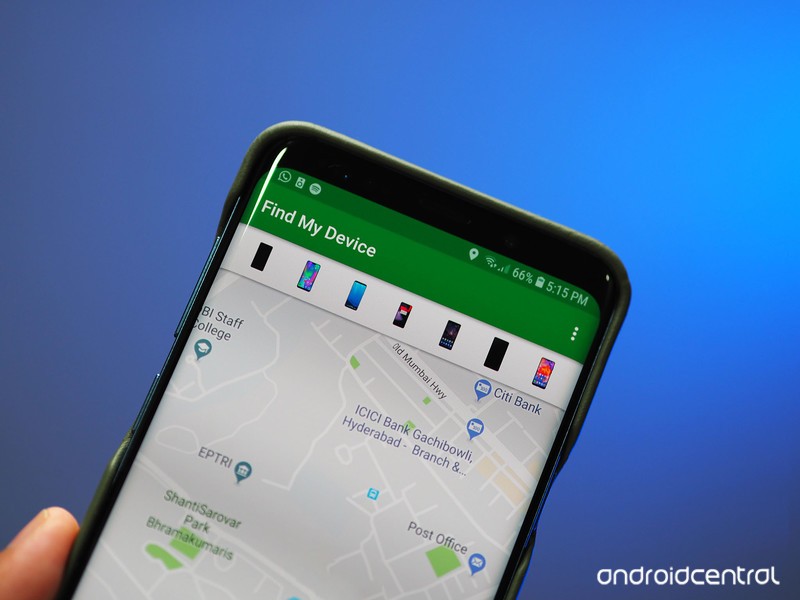
Find My Device easily lets you remotely track, lock, and erase the data on a lost or stolen phone. You can also see the battery life remaining on your phone and the Wi-Fi network it is connected to. It’s the easiest way to track a lost Android phone, though there are other ways, too.
With the rebranding, Find My Device is now a part of Google Play Protect, a suite of services designed to protect your phone from malicious content. Google is leveraging its machine learning expertise to scan and verify the apps installed on your phone, and while the Verify Apps feature has existed since the Jelly Bean era, Google is making the process much more visible to users.
Here’s what you need to know about Find My Device, and how you can set it up on your phone.
- Will my phone work with Find My Device?
- How to install Find My Device
- How to sign in to Find My Device
- How to see if your phone is discoverable with Find My Device
- How to locate over the internet
- How to ring your phone with Find My Device
- How to lock your phone with Find My Device
- How to erase your lost phone’s data remotely
Will my phone work with Find My Device?
Before we show you how to get started installing and setting up Find My Device, it’s important to know whether your phone will work with it. If you’re running a device running Android 4.0 Ice Cream Sandwich or later, you’ll be able to install Find My Device. That means roughly over 99% of active Android devices — or 2 billion devices worldwide — are eligible to install Find My Device.
How to install Find My Device
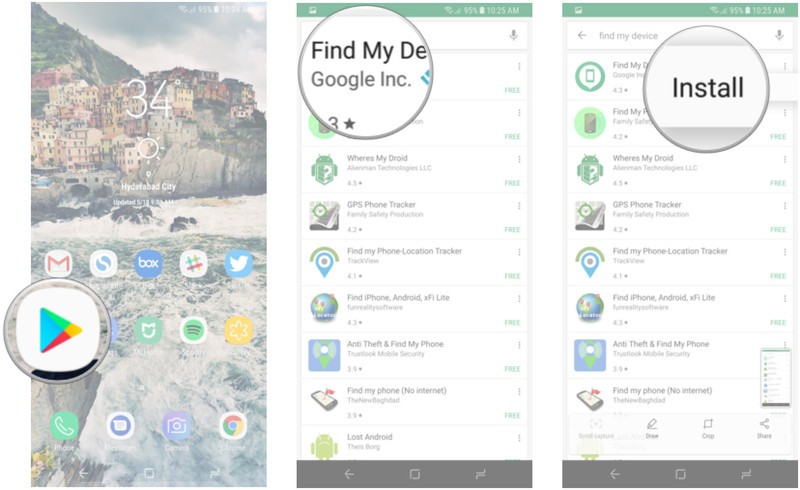
This is the easy part. Just head to the Play Store and search for Find My Device to download the app. We’ll break it down for you:
Open Play Store from your home screen or app drawer.
Search for Find My Device.
Tap the three dots next to the first search result and select Install.
How to sign in to Find My Device
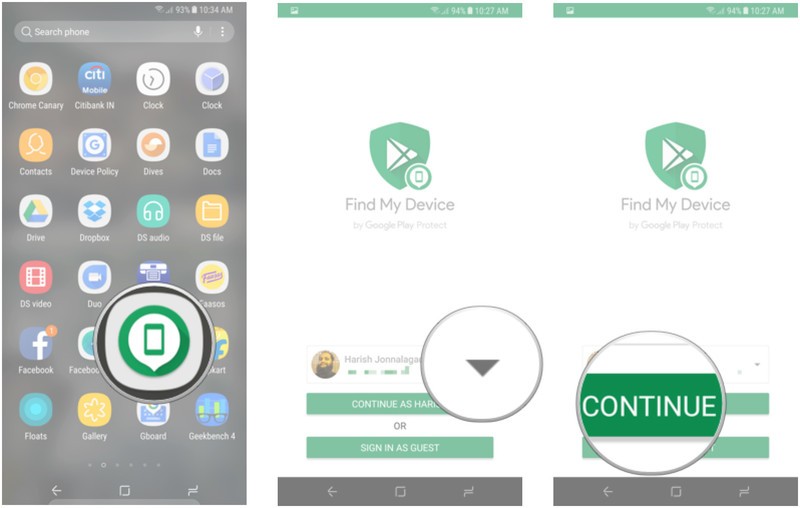
After installation, you’ll need to sign in to Find My Device from your Google account. If you’re signed into more than one account on your phone, you get a drop-down menu from which you can select the account you want to associate with the phone.
Open Find Device from your home screen or app drawer.
Select the Google account you want to use the service with.
Hit the Continue as button.
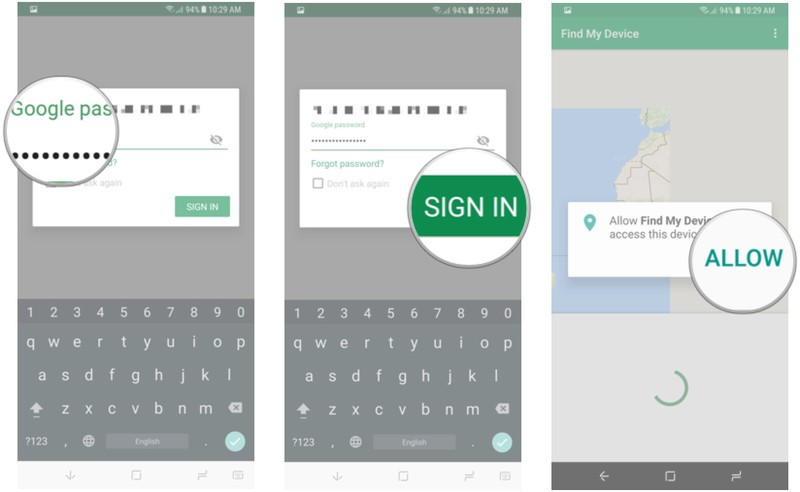
Enter your Google account password.
Tap Sign in.
Give location access to the service.
How to see if your phone is discoverable with Find My Device
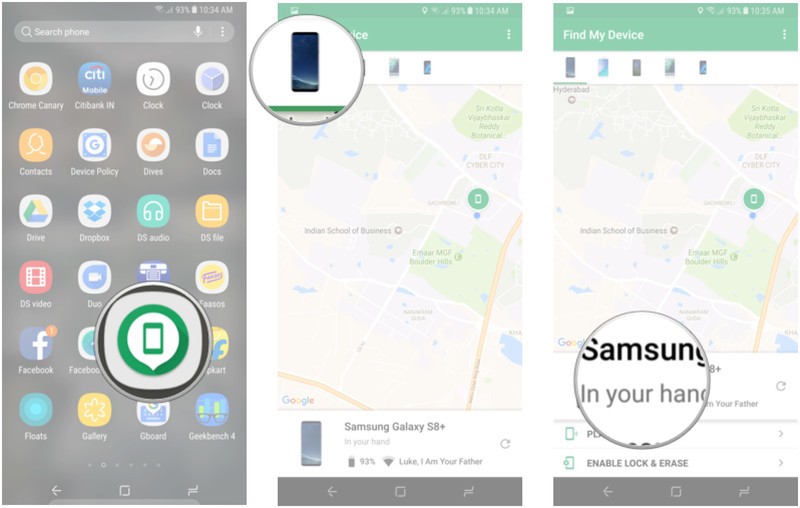
Once you’re signed in to Find My Device, you’ll see a map with your current location as well as the make and model of your phone, and two options — Play Sound, and Enable Lock & Erase. Hitting the latter option will allow you to start using the Lock and Erase functions.
If you’ve signed into more than one phone, you can select a particular device by browsing the list at the top of the screen.
Open Find My Device from your home screen or app drawer.
Select your phone from the list of devices at the top of the screen.
See if your phone is discoverable.
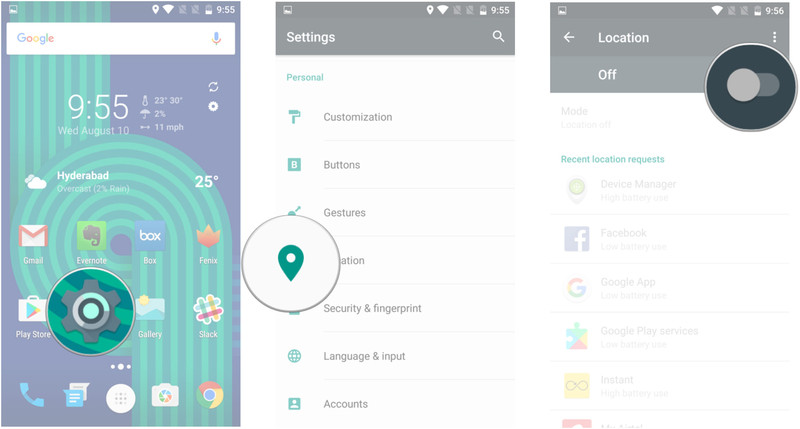
If you’re not able to find your phone or if it says that the device is unavailable, it is likely that the location services are disabled. Find My Device relies on GPS to track your phone, so now would be a good time to enable location services.
Open Settings from your home screen or app drawer.
Tap Location.
Toggle Enable location services.
How to locate your phone over the internet
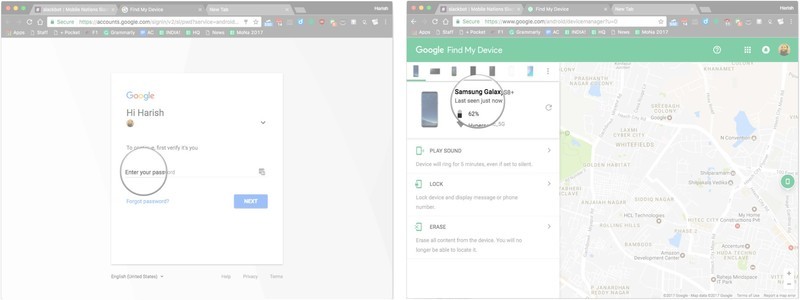
If you’ve lost your phone, you can remotely locate it through the Find My Device website. You’ll need to sign in to the Google account that was used to set up Find My Device. It takes a few seconds, but the service should be able to track your phone. Alternatively, you can also do a Google search for “find my phone” to locate your handset.
Head to the Find My Device website.
Sign in to your Google account.
Check if your device is visible.
How to ring your phone with Find My Device
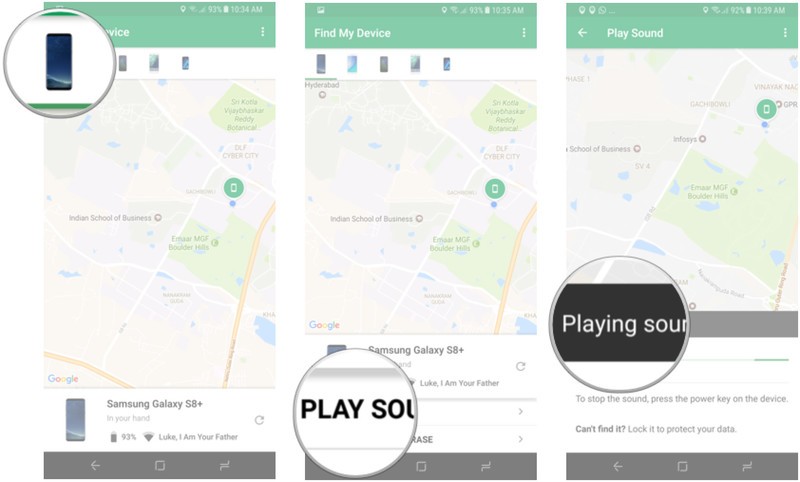
The best part about Find My Device is that it is easily accessible. If you need to locate your phone, just head to the website or log in to the service from another phone. Once you sign in to Find My Device and locate your device, you can use the Play Sound option, which plays a loud tone on your phone continuously at full volume for five minutes even if you turned the ringer off. Once you find your phone, you can hit the power button to stop the ringing.
Locate your phone on Find My Device.
Tap Play Sound.
Your device will start ringing. You can hit the power button to stop the sound.
How to lock your phone with Find My Device
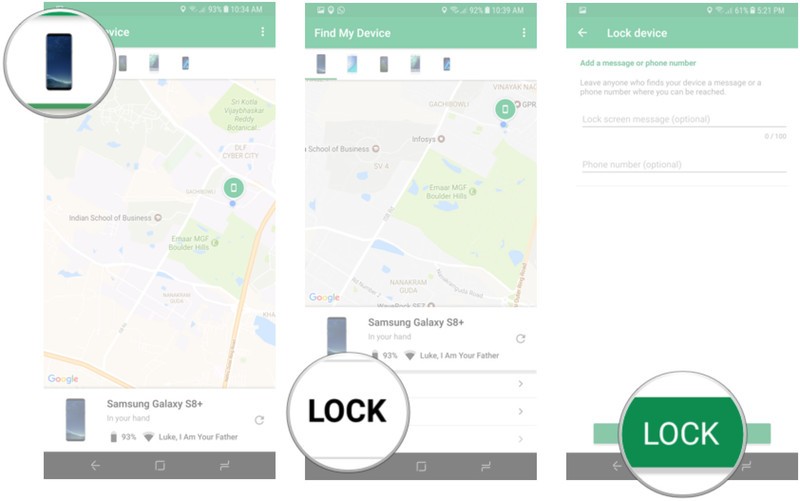
There’s also a Lock option that lets you set a new password to unlock the phone. You can also display a message over the lock screen and add a button to call back your number so that anyone that comes across your phone can easily get in touch with you.
Locate your phone on Find My Device.
Tap Lock.
Enter a message and phone number to display on the lock screen and tap Lock.
How to erase your lost phone’s data remotely
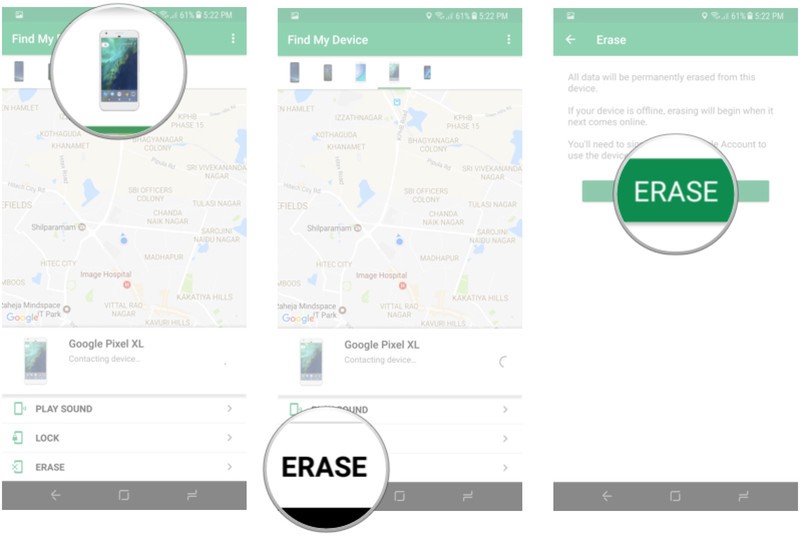
If you’re certain that you’re not going to see your phone again, there is the nuclear option of erasing the data remotely. Selecting the Erase option deletes all the data on your phone. The service also deletes data from a connected SD card, but there is a chance that it may not be able to, based on the manufacturer and Android platform version. Even if your phone is switched off when you send the Erase command, the factory reset process will be initiated as soon as it goes online.
Locate your phone on Find My Device.
Tap Erase.
Confirm deletion of data by hitting the Erase button.
Are you prepared if your phone goes missing?
How has your experience been with Find My Device? Have you successfully used it to recover a lost phone? Let us know in the comments.
Updated July 2018: This article was updated with the latest information pertinent to Find My Device.
‘When In Rome’ is a board game you play with Alexa, when she wants to cooperate
There are tons of games you can play with your Amazon Alexa devices, some better than others. While a few require special buzzer-in buttons, When in Rome is the first to require a $30 board game. It’s a travel-centric trivia game that takes about 40 minutes and two teams to play. But it’s also completely dependent on Alexa. If you don’t have a speaker (or screen, or microwave) with Amazon’s assistant, all you’ll have is a board game and some plastic pieces.
One of the best things about this game is that it encourages you not to read the rules. There’s a little booklet that comes with it, but it’s fairly straightforward and you have Alexa to guide you through. You set up the board, enable the skill in your Alexa app, and you’re ready to go. Alexa will ask you to split into teams and then help you choose who starts.
“Alexa is very robotic,” a friend commented about the speaker’s monotone delivery.
Teams move from city to city — as long as there’s a connecting flight, denoted by dashed lines on the board — answering multiple-choice questions from locals. There are both three-point easy questions and five-point difficult questions from categories such as arts and culture, sports and games, myths and legends, and food and drink. If you answer correctly, you get the points and the local becomes your friend. You can then use the city as a sort of connecting flight in subsequent turns, and the local will refuse to let the other team answer a question for points. At various points in the game, Alexa will tell you there’s a seven-point souvenir in a certain city, so you’ll want to make it there faster than your opponents. If you have a friend in Montreal, you can make it from New York to London in a single turn.
Our game was almost over before it really began. Alexa prompted us to say, “Alexa, we’re ready,” once we were sorted into teams. “Alexa, ready,” someone said. Oh, fiddlesticks. “I’m ready when you are!” came the reply. After much overlapping speech of trying to get Alexa to snap out of it (“I was born ready, or at least very well-prepared. Let’s do it!” the assistant said at one point), we finally got the speaker back on track by asking to play When in Rome again.
There were a few other moments where saying the wake-word literally took us out of the game. “Alexa is very robotic,” a friend commented about the speaker’s monotone delivery. The speaker perked up and paused our game. Alexa’s tone is especially noticeable when it butts up against the lively chatter of Laura from Sydney, Australia or Hin from Hong Kong (who are, apparently, “genuine, local people.”) Plus, the game gets in its own way when a character says “Alexa,” causing the flow of words to stop and Alexa to respond, “Sorry, I didn’t get that.” When we asked for the score, Alexa told us France had beaten Belgium — she was referring to the World Cup and not whether the red or blue team was winning.
In some ways, it’s a game that would be enhanced by having a screen.
It could be a bit difficult to tell the easy from the hard questions. Sometimes both had throw-away answers; Montreal’s baseball team was clearly not the Flappy Chickens and Rio de Janeiro’s residents likely go by a term other than “gorgeous.”
In some ways, it’s a game that would be enhanced by having a screen. It took a bit of Googling — after the game was over, we weren’t cheating — to find out how to spell nyama choma, Nairobi’s famous dish. Also, we’re convinced the game has the answers to one of its questions about a neighborhood in Cairo mislabeled. The blue team guessed “B,” but Alexa said that was wrong. The local, Mohammad, went on to explain why “B” was actually correct. It wasn’t a question of Alexa mishearing, though that happened once, too. Alexa’s mistake ended up costing the blue team the game, though in reality they won.
Are these minor quibbles? It depends on how much patience you have. Alexa doesn’t always like to be interrupted but tends to repeat some instructions over and over. The questions themselves can be a bit information-dense and filled with unfamiliar words, so you might ask your speaker to repeat it. (This might be especially true if it’s the Fourth of July and some players have been drinking.)
Alexa-centric quirks aside (is it Lie-ma or Lee-ma? For Alexa, it’s both), When in Rome is a fun trivia game. We played two games and didn’t have any repeat questions, and presumably its makers, Voice Originals, could add more to the Alexa skill in the future. Having locals ask the questions and add in some of their own stories may inspire some wanderlust. You may just be able to tote along some fun facts on your next trip, provided it’s to one of the 18 cities on the board.
Editors’ Recommendations
- Alexa helps players travel the globe in the new board game, ‘When in Rome’
- When is the best time to post on Instagram?
- Epic Games reveals when ‘Fortnite’ will finally come to Android
- RocketBody tracks your metabolism to tell you when to eat and work out
- Curious what you’re missing when you blink? This new wearable records it

