


Live Channels is the best thing on Android TV you’re not using
 Live Channels on Android TV. It’s awesome.
It’s just one more frustrating thing about the smart TV OS that doesn’t get the recognition it deserves.

Android TV itself isn’t anywhere near as popular as it should be. Let’s just get that out of the way. And we’re not even going to worry about whose fault it is.
If you are a proud owner of Android TV, however — be it built in to your set or through an NVIDIA Shield — you’ve probably come across the Live Channels app. And it’s either the greatest thing you’ve ever seen, or completely worthless. (OK, it’s actually a little of both.)
Live Channels is one of those apps that attempts to aggregate multiple sources of video in one place. And it does that. And it does that pretty well, actually.
The problem? Too few are using the damn thing.
Read at CordCutters.com: Android TV’s Live Channels is a great app that you’re probably not using
Introducing CordCutters.com
- The hardware you need
- All about streaming services
- What channels are on which service
- FREE over-the-air TV
- How to watch sports
- Join the discussion
Get the latest deals
Raspberry Pi 3 Model B vs. 3 B+: Which should you buy?

Changes to the network interface and a small processor revision sound minor but could make a difference for your project.
We don’t expect to see an all-new model Raspberry Pi until late 2019 according to the company’s roadmap, but the Raspberry Pi Foundation released a bit of a version bump with the new Raspberry Pi 3 B+. In the smartphone world that + means you should expect something bigger, but in this case, the differences are a bit more nuanced. Let’s take a peek at what’s new for the 3 B+ and see if you should look for one to build your next project instead of just grabbing a tried and trusted Raspberry Pi 3 and start wiring things.
See at Amazon
Raspberry Pi 3B vs. 3 B+
Tiny cosmetic changes aside, there are two important differences between the 3 and the 3 B+: a new network interface and a slight processor revision. These changes aren’t enough to rip out your Pi from any existing projects, but they could matter for whatever you have planned next. Especially if you’re building your own Internet of Things device like a remote sensor or camera controller.
The changes to the network interface are a much bigger deal than the SoC bump so we’ll start there. The model 3 B+ brings three important changes to networking:
- PoE (Power over Ethernet) is supported via a stand-alone 4-pin connector. Of course, the connector also supports the use of a HAT (Hardware Attached on Top) and the company’s GitHub page has been updated with the new details.
- Gigabit Ethernet is supported by the new Ethernet connector. Speeds on the Pi’s slim hardware won’t reach the maximum, but it’s claimed to average around 300Mb/second. No more jamming up your traffic by having a slow 100Base “Fast Ethernet” device on your 1000Base network.
- Dual-band 802.11ac Wi-Fi is now standard via a new wireless chip, and the same antenna design used on the Pi Zero is built into the PCB. The placement and design on the new chip also allow the B 3+ to meet the FCC’s modular conformance compliance requirements which would eliminate the usual long wait times for approval if you’re thinking of integrating a Pi into a commercial product.
The processor upgrade isn’t enough to warrant a new part number, but the SoC package itself has visibly changed so you might need a new heatsink of your project calls for one. The revision (marked as a020d3 if you happen to have access to the Broadcom specifications) brings one thing to the Broadcom BCM2837 SoC — it’s now clocked at a maximum of 1.4GHz instead of 1.2GHz.
A 200 MHZ jump usually brings a significant performance increase. In early tests based on a beta release of the OS, pure data-driven benchmarks like verifying prime numbers show a performance boost of 15%. Unfortunately, the CPU is rarely the bottleneck on a small single board computer and without changes like a new storage interface adapter or a bump in the SoC cache, you probably won’t see much real-world benefit.
Do I need a model 3 B+?

The big draw though, and why you might want to consider sourcing a Raspberry Pi B 3+, is PoE. In case you aren’t familiar, PoE allows you to power a device over its Ethernet connection. It’s a boon to DIY’ers and Makers because it means you only need to run a single wire for networking and power and that you can control the power programmatically without wiring in any sort of switch or relay.
You probably don’t need the 3 B+, but you should buy it anyway.
With a standard model 3 B, you would have to use an enclosure big enough to accommodate a special splitter or use an enclosure that has PoE integrated. That’s an increase in cost and takes away a bit of the usability a small single board computer has due to its size. If you’re planning on building any sort of remote smart IoT box you’re better served to buy a 3 B+. If you don’t use PoE now, you still have the option in the future without any changes to the board.
The changes to the network interfaces also mean a 3 B+ is the right board if you’re building your own NAS or media streaming box using a Raspberry Pi. Clients can take advantage of the faster and wider Wi-Fi connection, and the new NIC supports 9KB “Jumbo” frames in addition to a 1000Base-TX network. Jumbo frames allow for more than the standard 1500 bytes of Ethernet payload per packet, and in this case payloads up to (theoretically) 9 KB (9000 bytes) are supported. These changes mean that any streaming box driven by a Raspberry Pi 3 B+ can send and receive data faster over an Ethernet connection.
More: How to install Kodi on the Raspberry Pi
The best thing about the changes between the two is that all accessories, like enclosures or HATs, built for the model 3 B will also fit the model 3 B+. Even if your project doesn’t require a new NIC or PoE, that means you could buy a 3 B+ anyway in case you want to use it for something else in the future. And that’s what I would recommend. You can pick up a kit that includes the board, a power supply with its own noise filter, a clear enclosure, and two aluminum heatsinks for about $50 from Amazon. If you only need the board itself, you can get one for about $40 from Amazon. These prices are just a dollar or two more than the model 3 B, so it’s a no-brainer unless you have a specific need for the wireless and network chips used on the older model.
Whatever you buy, do us all a favor and share once you’re finished doing something cool with it!
See at Amazon
Samsung Galaxy S10: News, Rumors, Release Date, Specs, and More!
2019 is going to be the year of Samsung.

Samsung’s Galaxy S phones always give us something exciting to look forward to at the beginning of each year, and 2019 officially marks the 10-year anniversary of when the first Galaxy S flagship was released.
Similar to what Apple did with the iPhone X, we’re expecting the Galaxy S10 to be truly special. The Galaxy S9 and S8 were both excellent phones, but in honor of such a big anniversary, Samsung will likely pull out all the stops to release a truly special and jaw-dropping gadget.
If you’re ready to learn more about the Galaxy S10 and find out what we could look forward to next February, here’s everything you need to know.
The latest Galaxy S10 news
July 16, 2018 — New report says Samsung will use Qualcomm’s in-display fingerprint sensor tech for the S10, Note 10, and more
We’ve already been expecting Samsung to introduce an in-display fingerprint sensor with the S10 series for some time, but thanks to a new report from Ming Chi Kuo at TF Securities, we now have specifics as to what kind of tech will be used for this system.
Per Kuo:
We expect Samsung will promote the ultrasonic FOD aggressively starting from 2019. Shipments of models equipped with this function are likely to reach 60mn units; specifically, the high-end S10 models.
Furthermore, Kuo goes on to say that this technology will also be present in “the most high-end model of the A series” as well as the Galaxy Note 10.
These ultrasonic sensors are developed by Qualcomm, and unlike optical ones from Synaptics, can even measure things like your heart-rate and current blood flow.
July 6, 2018 — The three S10 models will use a mixture of side-mounted and in-display fingerprint sensors
Late last month, a report came out suggesting that Samsung will release three different models of the Galaxy S10 — including Beyond 0, Beyond 1, and Beyond 2. Now, according to reliable Samsung tipster Ice Universe, we have new details on how the fingerprint sensor situation will be handled.
For Beyond 0, the cheapest of the three models, there will be “side fingerprints. “Although we don’t know for sure, this will likely be similar to the fingerprint sensor found on the Moto Z3 Play. As for the Beyond 1 and Beyond 2, it’s noted that we’ll see in-display fingerprint sensors.
Lastly, Ice Universe also confirms that Beyond 0 and 1 will have dual rear cameras while Beyond 2 will offer a triple camera setup.
All the important details
How many versions is Samsung going to launch?

For the past four years, Samsung’s launched two models of its Galaxy S series:
- 2015 — Galaxy S6 and S6 Edge
- 2016 — Galaxy S7 and S7 Edge
- 2017 — Galaxy S8 and S8 Plus
- 2018 — Galaxy S9 and S9 Plus
With the Galaxy S10 in 2019, Samsung is expected to shake-up its formula by releasing three different models at the same time — codenamed Beyond 1, Beyond 2, and Beyond 3.
Beyond 1 and Beyond 2 will be similar to older S flagships with the former having a flat screen while the other has Samsung’s iconic curved display. Beyond 3 is where Samsung’s putting all the marbles, with things like a larger screen and triple camera system on the back.
When will the Galaxy S10 be released?
Perhaps the biggest question on your mind is “When will I be able to buy the Galaxy S10?”.
Save for the Galaxy S8 that was announced at its own special event, Samsung usually unveils its Galaxy S flagship phones during Mobile World Congress each year.
MWC 2019 is scheduled to take place between February 25 and 28 in Barcelona, and there’s a good chance that’s where we’ll get our first look at the S10. To back up this thought, reliable leaker Ice Universe said on July 5 that the S10 will be unveiled at MWC — just a month before the Galaxy X.
As for when you’ll be able to purchase the S10, it should officially launch around two or three weeks from when it’s announced. Should Samsung decide to reveal the phone during MWC, that’d place it with a launch date of around early-March.
How much will the S10 cost?
When it comes to price, that’s where things could get interesting next year.
Samsung’s only ever released one or two variants of its S flagships at a time, such as the S7/S7 Edge, S8/S8 Plus, etc. However, as noted above, the Galaxy S10 series will likely consist of three different phones.
This could result in vastly different pricing across all models, and depending on how you look at things, that’s either a dream come true or a nightmare.
The Samsung Galaxy S9 has a starting price of $720, and my guess is that the lowest-end Galaxy S10 will come in with a similar or slightly lower price of around $650-$700. The mid-tier S10 will probably cost a bit less than the S9+ at $800-$820, whereas the highest-end variant may very-well sell for $999.
Samsung Galaxy S9 and S9+
- Galaxy S9 and S9+: Everything you need to know!
- Galaxy S9 review: A great phone for the masses
- Complete Galaxy S9 and S9+ specs
- Galaxy S9 vs. Galaxy S8: Should you upgrade?
- Join our Galaxy S9 forums
Verizon
AT&T
T-Mobile
Sprint
Amazon Fire TV Stick vs. Fire TV 4K vs. Fire TV Cube: Which should you buy?
 The current generation of Amazon Fire TV — the Stick, the Cube and the pendant. (Starts at $39 at Amazon.)
Well, that depends on what you’re using now.
The Amazon Fire TV Cube is here. We’ve used it. We’ve reviewed it. And there still are so many questions. Such as this: Should you upgrade to an Amazon Fire TV Cube?
That depends on a lot of things, actually. It depends on what you currently have. And in this case, we’re going to focus on the other Fire TV entries.
PRIME DAY DEAL ALERT: Amazon Prime members with up to 50% off Fire TV.
Let’s just dive into it.
 |
 |
 |
|
| Price | $119 | $69 | $39 |
| Max resolution | 2160p (4K) | 2160p (4K) | 1080p |
| Operating system | Fire OS 6 (Android 7.1) | Fire OS 6 (Android 7.1) | Fire OS 5 (Android 5.1) |
| Processor | Amlogic S905Z | Amlogic S905Z | Mediatek 8127D |
| GPU | Mali-450 MP3 | Mali-450 MP3 | Mali-450 MP4 |
| Storage | 16GB | 8GB | 8GB |
| RAM | 2GB | 2GB | 1GB |
| External storage | microUSB | microUSB | No |
| Bluetooth | BT 4.2 | BT 4.2 | BT 4.1 |
| Wifi | 802.11ac | 802.11ac | 802.11ac |
| Ethernet | Adapter included | Optional adapter | No |
| Dolby Atmos | Yes | Yes | No |
| Dolby Vision | No | No | No |
| HDR 10 | Yes | Yes | No |
| CEC Control | Yes | No | No |
| Amazon Alexa | Built in | Via voice remote | Via voice remote |
| Internal speaker | Yes | No | No |
| See at Amazon | $119 | $69 | $39 |
Fire TV Cube vs. Fire TV 4K pendant
Putting the Fire TV Cube up against the 2017 Fire TV 4K pendant is less about the Fire TV part of things, and more about the Amazon Echo Dot part of things. Because the Cube and the pendant (which is the third-generation Amazon Fire TV released in late 2017) have basically the same internal hardware. Same processor. Same GPU. Same RAM. Same storage. Same voice remote. (Sigh.)
And that means you’re not going to see any real improvement in performance if you get a Fire TV Cube. If what you were doing on a pendant was slow — which has to be said for a lot of the streaming services’ apps — then it’s still going to be slow on the Fire TV Cube. (And maybe even more so if you’re relying on voice commands to get everything done.)
No, the big “upgrade” here is the inclusion of the Echo Dot-like hardware. The external microphones and speaker. And those are cool additions. On the other hand, you can get nearly the same functionality from a refurbished Echo Dot for just $40.
Should you upgrade? Not unless you just have to have the “hands-free” Alexa stuff. But even then, it’s really not all it’s cracked up to be, and you’ll be reaching for another remote quite often.
Fire TV Cube vs. Fire TV Stick
Look, we get it. The Fire TV Cube is $119. The Stick is a mere $39. But you get what you pay for. The Cube handles 4K resolution, the Stick does not. The Cube has newer software, based off Android 7.1. The Stick is older and probably won’t get updates as long as the Cube. The Cube is simply way more powerful and will do things faster than the Stick.
And then there’s all the Alexa stuff, right? All the hands-free TV control. You can’t do that with the Fire TV Stick.
Should you upgrade? If your TV maxes out at 1080p and you’re OK with the performance of the Fire TV Stick, then, erm, stick with it. If you’ve got a newer TV and an older Fire TV Stick, however, then it’s time to upgrade, for sure.
Fire TV Cube vs. the old Fire TV box
We’d sort of been hoping that the Fire TV Cube would be a straight replacement for the original Fire TV set-top box. And in many ways it is. It does 4K resolution. It’s more powerful. But Amazon kind of blew it when it comes to one feature that’s going to matter to a lot of folks — the ability to plug it in directly to a router, using an Ethernet cable.
Yeah, you can still do it with the Fire TV Cube, but you have to use an included Ethernet adapter, which then plugs into a microUSB port. Spacial limitations most certainly are a thing when it comes to physical design, but this needing an adapter is more than just an annoyance. It’s one more cable to deal with and most definitely detracts from the overall look and feel of the Fire TV Cube.
That said. …
Should you upgrade? Probably. If you still have an original Fire TV box — as in the first-generation model — then, yes. Upgrade. Soonest. Both the hardware and software are out of date. The second-generation Fire TV box is still long in the tooth, but at least it handles 4K resolution. So maybe ride that puppy into the ground — but just know that it’s getting up there, too.
Updated July 17, 2018: The Amazon Fire TV Cube is a thing, and so we break it down here as well.
Introducing CordCutters.com
- The hardware you need
- All about streaming services
- What channels are on which service
- FREE over-the-air TV
- How to watch sports
- Join the discussion
Get the latest deals
Most Secure Android Phone in 2018
- Best overall
- Best for typing
- Best for simplicity
Best overall
Google Pixel 2

See at Google
See at Verizon
The Google Pixel 2 is the most secure Android phone you can buy, and one of the most secure phones of any available today.
Without disabling any security protections, the Pixel 2 and Pixel 2 XL are updated to keep you protected against known public security exploits and remote installations are monitored by Google’s scanning software which blocks potential malicious content. While security and privacy are two very different things, when you decide you want private things to stay private you need to make sure your phone is secure to keep them that way.
Bottom line: The open-source nature of Android and the dedicated Android security team work in tandem to make the Pixel 2 and Pixel 2 XL the best phones when it comes to security and privacy.
One more thing: The Pixel 2 and Pixel 2 XL also show us that a secure phone that’s great to use is a reality.
Why the Google Pixel 2 is the best
A phone you want to use can also keep your data safe — and it comes in two sizes to fit everyone.
Every device that can connect to the internet has exploits available that break the default security configuration. If your phone isn’t getting timely updates to combat them, you’re simply not secure. We keep a vast amount of private — and priceless — data on our phones, and we all should care about keeping it safe from outside attacks. After you read all the agreements and decide what you’re willing to give away, you should expect the remainder to stay private.
Pixel 2 phones are updated directly from Google with the latest version of Android. Outside of any new features that may come with, the device security model has been updated and strengthened by a dedicated team who regularly audits and enhances the code used to build Android. On top of this, Google releases updates to the security model at the beginning of every month for the people who build Android phones to apply to its software. These are important. More important than any other update.
Equally important, but often overlooked, is transparency. You shouldn’t have to trust a company when it says something is secure or updated, and the Android code for both the platform version and all updates is available for anyone to take a look at. Plenty of people do, and despite any opinions to the contrary, Android, as written, has proven to be a very secure platform. A phone like a Pixel 2 is the embodiment of this.
Most important of all is that both Pixel phones are not only secure but are also phones that you’ll want to use. No compromise is needed and the 5-inch Pixel 2 and 6-inch Pixel 2 XL both share the same fast processor and other internal components. A great — and secure — experience is available for fans of both sizes.
Best for typing
BlackBerry KEY2

See at Amazon
BlackBerry is legendary when it comes to mobile device management and security, and follows that trend when using Android to power its phones. With the KEY2, you also get the keyboard experience that only BlackBerry can offer. The KEY2 is a great way to enjoy Android for people who still want a physical keyboard on their phone, and peace of mind that knowing a company is concerned about security.
Bottom line: BlackBerry continues its reputation for excellent mobile security and having a great keyboard with the KEY2.
One more thing: The KEY2 is also the first BlackBerry with dual-cameras so photos for business or pleasure will look better than ever.
Best for simplicity
BlackBerry Motion

See at Bell
See at SaskTel
See at TELUS
See at Koodo
The BlackBerry Motion resembles the KEYone at first glance, if you were to remove the keyboard.
This 5.5-inch phone has the bells and whistles — IP67 water resistance, a fast fingerprint scanner, a great camera, etc. — that you expect and BlackBerry’s reputation of security in a more traditional smartphone package. The Snapdragon 625 with 4GB of RAM means it can handle both work and play, and Android 7.1 with BlackBerry’s enhancements will keep you secure while doing any of it
Bottom line:The BlackBerry Motion brings the security you want in a modern and familiar package.
One more thing: The Motion’s 4,000 mAh battery will keep you up and running all day plus!
Conclusion
Media outlets like to give Android a bad reputation when it comes to security, and it’s difficult to blame them. Old, outdated software from manufacturers with no real concern for your security or privacy are the norm when it comes to phones running Android. But it doesn’t have to be this way.
The Google Pixel 2 delivers a great smartphone experience that ticks all the boxes for reviewers and users alike, and with no modifications, your personal data is very safe. A team of security professionals and engineers are dedicated to keeping it that way. Any of the phones on our list will do a great job when it comes to security, but the overall experience makes the Google Pixel 2 the best.
Best overall
Google Pixel 2
See at Google
See at Verizon
The Google Pixel 2 is the most secure Android phone you can buy, and one of the most secure phones of any available today.
Without disabling any security protections, the Pixel 2 and Pixel 2 XL are updated to keep you protected against known public security exploits and remote installations are monitored by Google’s scanning software which blocks potential malicious content. While security and privacy are two very different things, when you decide you want private things to stay private you need to make sure your phone is secure to keep them that way.
Bottom line: The open-source nature of Android and the dedicated Android security team work in tandem to make the Pixel 2 and Pixel 2 XL the best phones when it comes to security and privacy.
One more thing: The Pixel 2 and Pixel 2 XL also show us that a secure phone that’s great to use is a reality.
Update July 2018: The Google Pixel 2 is still our top pick, with the BlackBerry KEY2 and BB Motion rounding out the list.
Armani’s new Wear OS watch has GPS, NFC, and costs $295+
Qualcomm’s Wear 2100 processor strikes again.
We’re expecting big things to happen with Wear OS later this fall, but until then, we’re left with fashion brands continuing to keep the platform alive. Most recently, Armani announced its latest entry in its Emporio Armani Connected series.

Armani’s kicked out a number of Wear OS watches over time, and its latest entry looks a lot like other options in its portfolio.
There’s a 1.19-inch AMOLED display on the front, metal construction, a heart-rate sensor, GPS, and NFC to support mobile payments with Google Pay.
Interestingly enough, Armani says that its watch will come equipped with Mobvoi’s Tic Health app and Mobvoi Assistant in China.
Other highlights include water resistance up to 5 ATM, Google Assistant, and the incredibly outdated Snapdragon Wear 2100 processor that was first introduced back in 2016.
If you’re interested, pre-orders are going live today at Armani’s site with prices ranging from $295 up to $395 depending on the model you choose.
See at Armani
Android Wear
- Everything you need to know about Android Wear 2.0
- LG Watch Sport review
- LG Watch Style review
- These watches will get Android Wear 2.0
- Discuss Android Wear in the forums!
This $24 SanDisk 128GB microSD card was made for your new Amazon hardware
This versatile memory card is ready to save.

The SanDisk 128GB microSD card for Fire tablets/TV is down to $23.88 on Amazon. That’s one of the lowest prices we’ve ever seen and a huge drop from its $40 street price. The 64GB version is also on sale for $13.99 from a street price around $22.
While these SD cards were made exclusively to appeal to people using Amazon hardware like the Fire tablets or Fire TV, they are Class 10 cards and should work with anything. Obviously it’s a bonus that they’ve been specifically tested to work with Amazon hardware, especially if you’re looking at buying some on sale today.
See at Amazon
PSA: Gestures aren’t turned on in Android P by default
Google’s not forcing you to swipe quite yet.
Android P is almost here, and one of its biggest features is the new navigation gestures. The new gestures are a welcome touch, but if you can’t live without your Home, Back, and Recents buttons, you’ve got nothing to fear.
When you update your phone to Android P, the gestures are turned off by default. If you want to enable them, you’ve got to go to Settings -> System -> Gestures -> Swipe up on Home button.
We can’t say for certain if Android P’s gestures will still be turned off by default with newer phones like the Pixel 3, but even if they aren’t, you’ll still be able to toggle them off if you really can’t stand them.
The gestures are at least worth checking out so you can get a feel for Google’s vision of Android in 2018, and while they still aren’t perfect, we’re excited to see how they improve down the road.
Do you plan on using Android P’s gestures?
Android P’s gestures are a jagged pill you should learn to swallow
Android P
- Android P: Everything you need to know
- Android P Beta hands-on: The best and worst features
- All the big Android announcements from Google I/O 2018
- Will my phone get Android P?
- How to manually update your Pixel to Android P
- Join the Discussion
Get your next three months of Audible for just $5 each with this early Prime Day deal
You’ll want to hear this.
Amazon is offering Prime members an exclusive discount on their next three months of Audible. New subscribers (as well as those who re-activate) can save 66%, dropping the cost to just $4.95 per month. Normally, this subscription costs $14.95 a month, and that’s what Amazon will bill after the first three months are over, so if you don’t want to continue your subscription you’ll want to be sure to cancel it before that time comes.
In order to take advantage of this promotion, you do need to be a Prime member. If you aren’t currently a member, you can get a free 30-day trial to be able to take advantage of this and other early Prime Day deals right now, and have all the other benefits like free 2-day shipping and more on the big day.
You’ll be billed monthly for the service, so if you decide during the first month that it isn’t for you, you can cancel your subscription immediately after only having paid $5. You’ll get one credit each month, which is each good for any audiobook on Audible regardless of its price. You’ll also get access to podcasts and other audio programs ad-free.
Additional audiobooks beyond the credits you receive are discounted by as much as 30%. If you want, you can swap books out for no extra charge, and if you cancel your subscription, you get to keep any books you’ve already collected forever.
Audible makes listening easy, as you can download the app on a range of devices, from Amazon Kindles to smartphones and more, and even your Sonos speakers.
Other early Prime Day deals are available right now too, like the Echo Show on sale for $130. For more info on the special event, check out our Prime Day hub and sign up for our Prime Day newsletter to stay on top of all the latest news, leaks, and deals.
See at Amazon
How to clear search and location history in Google Maps on the web

It takes some time, but you can completely control the location history Google collects from your devices.
We’ve already covered how to remove individual locations and history items from Google Maps on Android, but when you need to access and manage all of your location history, you need to hop onto the computer. As the old saying goes, “knowledge is power” — and we’re going to give you all of the tools necessary to know what information Google knows about your location, and how to clean it up or stop further reporting.
Accessing and managing your Google location history
First thing’s first, you’ll need to make sure you’re signed into your Google account and go to the Google Location History dashboard on the web. On this page, you’ll see every bit of history Google has logged for where your Google-connected devices have been located, so long as you have opted in to location reporting on the device.
You can go day-by-day through the history using the calendar on the left side of the screen, with the map on the right populating the information collected on that day. Red dots are places that your devices have been, and Google does its best job at coordinating timestamps to show where you moved throughout that day. If you have more than one Android device turned on with location reporting, your map will be far less useful for determining where you went — Maps thinks you constantly bounce back and forth between the location of the two devices.
If you don’t want Google to remember data from a specific day or set of days, use the drop-down menu under the calendar to select a time period — 1, 2, 3, 5, 7, 14 or 30 days — and then click the Delete history from this time period link below it. A pop-up window will ask you to confirm, and explain that it may take up to 24 hours for the data to be deleted completely from the dashboard.
If for some reason you wish to delete all location data Google has from your devices — which may not be a bad idea from time-to-time if you want to keep things fresh — you can simply click the Delete all history link on the left. Again you’ll be asked to confirm, and it may take up to 24 hours for everything to be cleared out. But once you do it, Google will no longer have any of that data.
Double check your phone’s location history settings
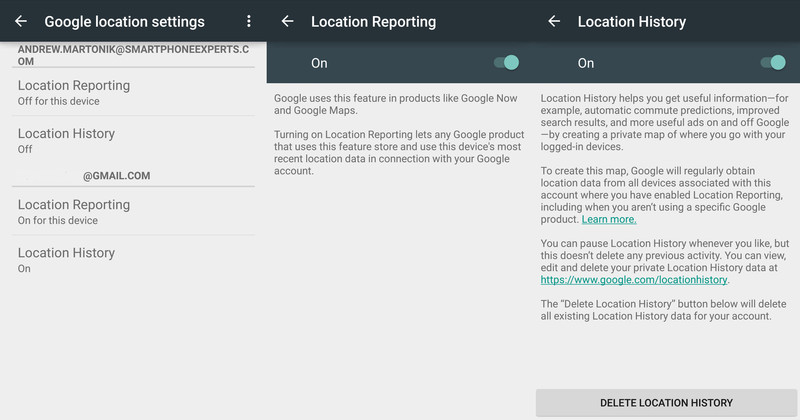
If looking at your location history is a bit of a shocking experience as to how much location data is being stored from your devices, you may want to consider looking at the location history settings on your devices. Though the interface may look slightly different depending on your phone, everyone can access the location history settings by going into their app drawer and opening the Google Settings app (it’s a grey icon shaped like a gear). You can then tap Location, which will launch you into your phone’s location settings screen.
Once there, look for an entry called Google Location Reporting and tap it. You’ll then see all of your active Google Accounts on the device listed, and two entries under each: Location Reporting and Location History. You can turn either one or both off, but it’s important to first understand what each one does.
Location Reporting is the service that lets Google know where your phone is right now, which will let Google apps like Google Now and Google Maps know roughly where your phone is so it can offer up location-based information. This feature is what helps you quickly get located on a map without first locking on GPS, or gives location-based information when you walk by certain stores or areas. If you were to turn off this setting your phone wouldn’t give its current location to Google apps, but it will still keep that location history when you view it from the Google Location History Dashboard.
Location History is the setting that lets Google create a long-term log of places where your phone has been. When you have Location History turned on Google will aggregate location data of your device(s) and use it for things like commute time predictions in Google Now and better search results in Google apps. Location history is kept private and you can access it any time you wish, as we’ve shown above. You can turn off this Location History setting at any time without deleting your history, but if you wish to delete all location history you can do so from this setting or from the web, as we’ve shown.
Take the time, take control of your location history
Now that you have the tools and know-how, we encourage you to spend a little time checking your device’s settings and seeing what location information Google has collected from those devices. It isn’t always approachable or simple, but now that you know the right places to go you have the power to manage it yourself!

