


All of the Changes to Notifications in iOS 12
In iOS 12, Apple has introduced new notification features, providing an expanded set of tools for monitoring and managing notifications in quicker and more intuitive ways.
There have been no changes to the way that Notifications work on the whole, but many of these features make it easier to clear notifications, determine which notifications you want, and make adjustments on the fly.
Subscribe to the MacRumors YouTube channel for more videos.
Grouped Notifications
iPhone and iPad owners have been asking for the return of grouped notifications for years, and in iOS 12, Apple delivered.
Multiple notifications from the same app will be grouped together on the Lock screen of the iPhone, cutting down on clutter. You can tap a set of notifications from a particular app to expand them to see all of the notifications in the list.

You can tap on the “X” next to a notification group to clear all of those notifications at one time, or do the same thing with a swipe to the left.
In the Settings app, you can change the behavior of grouped notifications. Go to Settings > Notifications and tap on any app to see the “Notification Grouping” preferences. Tap that to choose “Automatic,” “By App,” or “Off” if you’d rather see all of the incoming notifications for a particular app like Messages.
Automatic sorts by app for the most part, but with this setting enabled, you might get two notification groups if you have email threads going with two different people in the Mail app, or multiple conversations in Messages, for example. Or different incoming Messages conversations.
By App will make sure all notifications from an app are in one stack, without the sorting that Automatic mode uses.
Instant Tuning
Instant Tuning is a feature that lets you manage a pesky notification right on the Lock screen, giving you the tools to turn notifications for that app off entirely or send notifications right to the Notification Center.
On any notification that’s on the Lock screen or in the Notification Center when you swipe down, swipe left on a notification to see settings that include “Manage,” “View,” and “Clear All.”

Select “Manage” from this list to see Instant Tuning options. Notifications set to “Deliver Quietly” will be visible in Notification Center, but you won’t see them on the Lock screen, there will be no banner, and there won’t be a badge.
To reverse this, tap on a notification from the muted app again, follow the same instructions, and choose “Deliver Prominently.” Notification settings can also be changed in the Settings app, also accessible from the Instant Tuning popup. Turn Off, as the name suggests, turns off notifications for that app entirely.

You can also get to your Instant Tuning settings by 3D Touching or long pressing on any notification and selecting the three ellipses. For more details on using Instant Tuning, make sure to check out our detailed how to.
Note: In iOS 12, Apple will send you alerts asking you if you would like to continue receiving notifications from a particular app if you’ve been getting a lot of notifications and haven’t been interacting with them. When this happens, the alert will feature a “Manage” section so you can access your Instant Tuning settings for that particular app.
Critical Alerts
Critical Alerts are a new type of opt-in notification in iOS 12 that can ignore your Do Not Disturb settings to send important must-see notifications.

These alerts are limited in scope and are available for medical and health related information, home security, and public safety. For example, a person who is diabetic might want to set critical alerts for a glucose monitor when blood sugar is low, so the notification will be delivered even if Do Not Disturb is turned on.

Critical alerts bypass Do Not Disturb and the ringer switch, and will always play a sound. They are meant to be disruptive and for that reason, are going to be highly limited to apps that need these kinds of immediate alerts.

Developers with apps appropriate for critical alerts will need to apply for an entitlement that needs to be approved by Apple. Users will be able to turn off critical alerts on a per app basis separately from other notifications.
Notification Count in Screen Time
Screen Time, Apple’s new feature designed to provide you with the tools to monitor when and how you’re using your iOS devices, keeps track of all of the notifications that apps are sending you, letting you know which apps are the noisiest.
This information can help you decide if you want to keep notifications turned on for a particular app, or if you might want to mute an app to cut down on interruptions.

You can get to this section of Screen Time by opening the Settings app, choosing Screen Time, selecting “All Devices,” and then scrolling down to the bottom. You can see your notifications from the last 24 hours or the last 7 days.
For more on using Screen Time, make sure to check out our Screen Time how to and our how to on App Limits and Downtime.
Richer Notifications
In iOS 12, app developers can build notifications that are able to accept user input, so you can interact with notifications in new ways, doing more on the Lock screen without having to open up your iPhone.
With Instagram, as an example, if the app sends you a notification that a friend posted, you might be able to view the photo and then add a like all from the notification.
 In this example, you can tap the heart to like the photo, something that wasn’t possible in iOS 11.
Rich notifications were available in earlier versions of iOS, but Apple has removed the limits that previously restricted interactive touches.
What do you think of the changes to notifications in iOS 12? Are there other notification features you’re hoping for in the future? Let us know in the comments.
Related Roundup: iOS 12
Discuss this article in our forums
Dish Network versus DirecTV
Sean Pavone/Shutterstock
So, you’ve chosen to go with a satellite television provider over cable or a live TV streaming service. Now the question is: Dish Network or DirecTV? The companies offer remarkably similar programming packages, but there are still some serious differences between the two. If you’re looking for specifics about what its like to be a subscriber to each service, you’ve come to the right place. We’ve put together this handy guide to give you a thorough rundown of each service, and how they compare in terms of specialty content, hardware, and pricing.
Content
The programming packages Dish and DirecTV offer are very similar, but there are a few notable differences that will likely drive your decision in selecting one company over the other.
First, here’s what you’ll get by going with either:
- More than 300 available channels (exact number ranges between packages)
- 200 available high-definition channels
- Three free months of HBO, STARZ, Cinemax, and Showtime
- Access to locally broadcast programming
- 4K Ultra HD support
That’s quite a bit in common, but there are perks to choosing one over the other, depending on your viewing preferences.
One major difference between the services is the channel options included in their sports packages — specifically those outside the domain of Disney’s ESPN channel suite. The lion’s share of sports packages — including MLB Extra Innings, ESPN GamePlan, NBA League Pass, Fox Soccer Plus, NHL Center Ice, and MLS Direct Kick — are available on both. Both providers also include common pay TV options like Fox Sports and NFL Red Zone, the latter of which offers a commercial-free way to watch scoring plays from every NFL team that plays each Sunday.
When it comes to differences, Dish’s exclusive sports packages include Outdoor Sports and Racetrack Television Network. DirecTV, however, has the monopoly on NFL Sunday Ticket, which includes every regular season NFL game, regardless of your market. That’s a pretty big point in favor of DirecTV. It’s worth noting, however, that each of these packages are supplemental add-ons to your base channel package, and costly ones at that.
Lastly, the languages each service supports vary quite a bit. Dish supports 29 different languages ranging from Spanish and Italian to Tagalog and Urdu. DirecTV offers a mere eight options, including Spanish, Brazilian, Korean, Chinese, Russian, Filipino, Vietnamese and South Asian.
DirecTV’s Support for NFL Sunday Ticket tilts the scales in DirecTV’s favor, here, albeit at an extra cost to your subscription. Unless you’ve got a specific language need that Dish covers, those looking for the most content will want to go with DirecTV.
Winner: DirecTV
Hardware
We’ve included this handy table so you can compare the hardware specs of teh two services side by side, but below we’ll dig a little deeper into specifics.
Dish
DirecTV
DVR
Hopper
Genie
Internal storage
2TB, supports USB storage expansion
1TB
Apps
Netflix
N/A
Watch Anywhere-supported devices
Mac, PC, iPad, iPhone, Android Phone, Android Tablets, Kindle
Mac, PC, iPad, iPhone, Android Phone, Android Tablets, Kindle (Watch Anywhere on DirecTV requires extra GenieGo hardware)
4K streaming
Yes
Yes
Local programming
Yes
Yes
Auto-skip recorded commercials
Yes (after 24 hours)
No
On Demand
Yes
Yes
Home security
No
Yes
Tivo
No
Yes
Picture in picture
No
Yes
Max TVs
7
8
Max simultaneous recordings
16
5
When comparing Dish Network and DirecTV’s DVR boxes — the Hopper and the Genie, respectively — the major sticking point is recording capacity. You’ll have to shell out a monthly rental charge and supplemental fees for various DVR services, but exactly what those extra services are, and the amount of storage capacity available, differs between each.
Dish’s Hopper can save up to 500 hours of HD content or 2,000 hours of SD content for a $12 monthly fee. That’s more than double the storage of DirecTV’s Genie, which offers 200 hours of HD programming or 800 hours of SD programming for a $15 monthly fee. Plus, the internal storage on Dish’s Hopper can be expanded with USB storage devices, which could push it well beyond its base 2TB drive, while DirecTV’s Genie remains at a static 1TB. If you aren’t recording dozens of shows, this might be a minor sticking point, but Dish easily carries the day there.
The two boxes also offer varying feature sets. Dish’s Hopper includes a dedicated Netflix app, and commercial auto-skip for select recorded content after 24 hours. DirecTV’s Genie supports picture-in-picture mode, and even offers home security options when paired with your AT&T service.
Both set-top boxes feature some support for voice control, with Amazon Alexa available on both DirecTV and Dish hardware. Dish does currently have a leg up here, however, as its hardware also supports Google Assistant, making it a winner for Android users and those heavily invested in the Google ecosystem.
There’s also a difference in the number of devices and simultaneous streams the two DVR boxes support, as well as mobile viewing options. Dish’s Hopper will allow up to seven TVs to be connected in a single home, and up to 16 simultaneous recordings. The Hopper also allows mobile viewing of DVR content on Mac and Windows PCs, iOS devices, and Android devices including Kindle.
DirecTV’s Genie, on the other hand, allows a maximum of eight TVs (one more than Dish), but only supports five simultaneous recordings. While the Genie features mobile viewing as well, and supports all the same devices that the Hopper does, it requires mobile devices to be connected to the same Wi-Fi network as your receiver to view DVR content. Dish’s Watch Anywhere has no such network restrictions, and grants access to the same content no matter where you are watching. Dish even offers a special mobile storage device, the HopperGo, which can store up to 100 hours of your DVR recording that can be accessed by your mobile device without an internet connection.
Despite allowing for one less TV connection than DirecTV, Dish’s Hopper is all about allowing for easy access to a multitude of devices, content, and recordings. Storage size and simultaneous recordings available top the Genie, plus it doesn’t require any extra hardware for remote watching on mobile devices. Those are some major points for Dish. While DirecTV has a number of features, like picture-in-picture mode and home security options if you bundle with your AT&T service, Dish still gets the win.
Winner: Dish
Huawei is gaining on Apple as it aims for 200 million smartphone sales in 2018
Jack Taylor/Getty Images
Feel as if you’ve seen more Huawei and Honor smartphones in the wild than ever before? That might not just be the Baader-Meinhof phenomenon — Huawei’s global sales are rising, and the Chinese company is slowly gaining on Apple to become the second-largest phone manufacturer in the world.
According to a statement from Richard Yu Chengdong, chief of Huawei’s mobile segment, the Chinese company’s 2018 sales passed 100 million on July 18 — which means Huawei’s phones are selling faster than ever before.
“Previously Huawei reached the 100 million shipments mark on December 22, 2015, October 14, 2016 and September 12, 2017,” said Yu during a product launch on Wednesday, July 18. “As it’s only taken just over six months to reach the target this year, we are now aiming for shipments of 200 million units by the end of 2018.”
Reaching the 200 million mark would put Huawei within striking distance of its closest rival in the mobile marketplace — the almighty Apple. Apple sold 215 million smartphones in 2017, but should Apple’s sales decline again in 2018, as they did in 2017, then Huawei could end up surprisingly close.
Thankfully for Apple, 2018 has started strong, with sales in the first quarter of 2018 increasing by 2.8 percent over the previous year. Still, Huawei’s rapid ascent of the ranks should be a worry for Apple, as the Chinese company’s strong sales numbers come in spite of a failure to break into the U.S. market after a planned deal with AT&T fell through due to security concerns.
But how likely is it that Huawei will be able to achieve sales of 200 million in 2018? According to Zaker Li, a senior industry analyst with IHS Markit, as the market hasn’t yet entered its busiest period, Huawei’s goals could be easily within reach.
“Given that the second half is normally the peak season for smartphone sales as major brands will all release their flagship phones, it will not be difficult for Huawei to exceed 200 million units of phone shipments if it has already completed half of that now,” said Li.
Huawei’s sales figures are calculated by adding the sales numbers of both Huawei and sister company Honor, and the company has apparently found much success in India, but hasn’t shied away from trying new things, having recently released a triple-lens camera phone in the Huawei P20 Pro.
Editors’ Recommendations
- Huawei hasn’t forgotten — expect a foldable phone from company in 2019
- Here’s everything you need to know about the Huawei P20
- Slow Chinese sales signal slump in global smartphone shipments
- HTC to cut a quarter of jobs after huge plunge in 2018 sales
- Huawei MateBook X Pro review
Google, Microsoft, Twitter, and Facebook team up on new data transfer project
Some of the biggest tech companies in the world want to make it a little easier to transfer your data between services. Google, Twitter, Microsoft, and Facebook have all teamed up for a new initiative called the Data Transfer Project, which is aimed at helping users more easily transfer content, contacts, and more.
The Data Transfer Project has revealed its plans for a new open-source data portability platform that any online service can join. That could be very helpful for users — plenty of services allow you to download your data, but not many then let you upload it into different accounts.
Google announced the project in a blog post, describing it as a way to transfer data directly between services, essentially meaning that users don’t have to worry about downloading and re-uploading it. Microsoft also called for other companies to join the project, noting that it could be central to better competition — after all, if there’s an industry standard for data portability, companies could instead have to compete on offering useful services, instead of forcing users to stick with their services or risk losing data.
If it reaches its full potential, the project could change the tech industry. Imagine being able to easily switch to a new music streaming service while being able to bring your playlist with you. Or being able to switch to a new mobile operating system without the need to start from scratch.
Of course, there’s one major tech company missing from the initiative — Apple. While that’s certainly not surprising, it is still a little frustrating. Still, the initiative is very much in its infancy, and we could certainly see more companies jump on board.
The initiative could also be groundbreaking for startups. Companies like Google have an advantage in that they already have lots of data on their customers. New companies, however, have no such luxury — but if a user transfers their data to a new service, it could make users feel more at home thanks to the ease of adopting a new service.
We’ll have to see how the initiative evolves, and if more companies jump on board. In the meantime, you can check out the new group’s white paper for more information.
Editors’ Recommendations
- Twitter sold tweets to the guy who made the Cambridge Analytica app
- Google’s new tools for Datally put your mobile data on lockdown
- When we run out of room for data, scientists want to store it in DNA
- Despite promising to stop sharing your data, Facebook continues to do so
- Worried about extra data charges? Here’s how to check your usage on an iPhone
Microsoft stops a Russian attempt at hacking 2018 midterm elections
Less than a week after the United States government charged 12 Russian officers for hacking in the 2016 presidential election, Microsoft is accusing the same Russian intelligence agency of using a phishing scheme to hack at least three additional candidates in the 2018 midterm election. Microsoft vice president for customer security and trust Tom Burt revealed the company’s findings at the Aspen Security Forum’s Defending Democratic Institutions: Election 2018 and Beyond panel.
“Earlier this year we did discover that a fake Microsoft domain had been established as the landing page for phishing attacks,” Burt said. “We saw metadata that suggested those phishing attacks were being directed at three candidates.” Details of the attack were not revealed, but phishing attacks usually involve hackers sending an email with a web address containing a malicious link that’s designed to install malware when it is activated. As part of its work with the United States government, Microsoft was able to seize the domain before it could inflict damage.
Microsoft also did not reveal the names of the affected candidates nor their political party affiliations, but Burt noted that “because of their positions, [the candidates] might have been interesting targets from an espionage standpoint, as well as an election disruption standpoint.” The company traced the hacks back to the Russian group Strontium, which is widely believed to be closely linked to Russia’s GRU military intelligence agency.
Burt’s announcement comes less than a week after U.S. Special Counsel Robert Mueller indicted 12 members of the GRU for their involvement in hacking the Democratic National Committee in 2016. Similar to the discovery of Russian-linked hacking on the 2018 elections, Microsoft’s security team found that spoofed domains were used in the 2016 election hacks. Though hacking politicians has been part of spy organizations, leaking the information is seen as a violation of the practice, Buzzfeed News reported. “A hacker group from a second Russian intelligence agency had penetrated the DNC as early as 2015, but didn’t spread that information, and has avoided the kind of international condemnation aimed at the GRU,” the site noted.
Despite continued warnings by U.S. intelligence officials, including FBI Director Christopher Wray and National Intelligence Director Dan Coats, that election hacking will be a likelihood in the 2018 elections and beyond, the Republican-controlled House voted to eliminate new funding for states to strengthen election security, The New York Times reported. In addition to U.S. hacks, the GRU is also believed to have targeted the campaign of French president Emmanuel Macron.
Editors’ Recommendations
- Facebook wants to spot political misinformation as it happens
- Wait, what? These ridiculous hacks will make you do a double-take
- Hackers allegedly used cryptocurrency in attack against Clinton campaign
- Use this Rubik’s Cube-style device to create ultra-secure computer passwords
- Twitter bans Kaspersky Lab from advertising on its platform
How to make a Minecraft server
Minecraft has changed significantly since its inception, but one thing that hasn’t changed over the years is its capacity for online multiplayer. Players can create their own persistent worlds with space for hundreds of other people to gather and create with only a few clicks of a mouse or controller button.
Whether you’re hosting a server for a few friends or launching a massive effort to recreate your favorite TV show’s world, you have several different options for hosting your own Minecraft server. Here are a few ways you can create your own private oasis for you and your friends to play around in.
Minecraft Realms
Brittany Vincent/Digital Trends
Minecraft Realms is your best bet for cheap and simple hosting. It’s an official subscription-based offering straight from Mojang, and a fast and simple way to both create and manage servers without any prior knowledge of hosting. Minecraft Realms server owners are essentially renting a server via Mojang, so there is a reduced degree of freedom should you choose to opt for Mojang’s hosting solution.
For instance, Realms will currently allow up to a maximum of 11 players in one server at a time (you and 10 additional players.) Powered by cloud server platform Microsoft Azure, you’ll deal with low server latency, and you can usually count on the servers to be up just about any time you’re ready to jump on and have an adventure. The cheapest server currently available is $3.99 per month that supports up to 3 simultaneous players on a server that runs on Windows 10 as well as mobile and console versions.
It jumps up to $7.99 to start for a server that supports up to 11 players, but you can save a bit of money if you decide to set up a recurring subscription or simply pay for a few months at once. You can purchase subscriptions in one, three, or six month versions, just in case you want to pre-pay for a long-term server. Windows 10 doesn’t allow for recurring subscriptions, so you’ll have to remember to renew. Only the server admin pays. Players invited to the server will not be charged.
There are two separate Realms versions available, one for the original classic PC edition, and one for the cross-platform Bedrock edition, which lets players group up across iOS, Android, Nintendo Switch, Xbox One, and Windows 10 to play together.
Realms also has a number of different and simple ways to further customize your server in unique ways. Utilizing the Minecraft Add-Ons service, you can create your own skins, activate modifiers for character behaviors, and more.
There’s not much to lose if you want to test out the service without any repercussions. If you’ve never tried it out before, you’ll be able to take part in a 30-day free trial — so long as you’ve never had a free trial on your Mojang account in the past.
If you just want a quick and easy way to create an exclusive area for you and your friends to mingle, Realms is your best bet, by far.
Mojang’s Minecraft Server Software
If Minecraft Realms doesn’t sound like it will fit your needs, you can go a completely alternate route and set up your own customized server. It will require at least a modicum of technical prowess, however, so be prepared to do a little tinkering.
If your version of Minecraft is up to date, the easiest way to get your friends in on the fun is to simply pause and click “Open to LAN” and then “Start LAN World” to invite other players into your game. However, there are many advantages to more permanent server options that may be appealing if you find yourself playing with others often.
If you only need to have a few friends connected at a time and don’t mind breaks in persistence, you can set up a listen server using a simple program that you can download from the same page as the game client (linked above). Save that .exe file into a folder all by itself, and then double-click to run it for the first time. The program will generate a world and configuration files, as well as text files to use as lists to either allow or block players.
Once you have the world generated, you can stop the server by typing “stop” in the commands text box and changing settings, or you can start playing. While the server software is running, you can use the direct connect button under the multiplayer menu and connect to “localhost” to join. If you want to invite your friends to play from different locations you’ll have to first identify your external IP address using a website, and set up your router to port forward. If you’re all on the same network, you can simply find your IP address and share it with your friends. This should make connecting to each other a lot simpler than it may have been otherwise.
This method of hosting a server is configurable – provided you’re willing to learn a little bit about different server parameters and how they work – but in the long term it suffers a few shortcomings. Playing on the same computer that you use to host can cause significant lag for yourself and other players if you don’t have spare RAM to use for your own client. While the amount of RAM allocated for the server can be changed, it may not be enough, and may cause your own client to become unplayable.
Home internet connections also frequently use a dynamic IP address, which may cause remote players to become disconnected when your IP address is changed by your service provider. Finally, if your computer turns off or becomes disconnected from your network, the server won’t continue to run and persistent world features will be lost.
Craftbukkit
Craftbukkit is a more hands-on option for server hosting software that is designed to accommodate a larger number of add-ons and mods. The Minecraft community creates and curates any number of game-changing and content-adding modifications, and running a number of them together can create performance issues even on high-end servers.
CraftBukkit maintains a forum of add-ons designed specifically for their server software, creating a solution for managing the effects of many add-ons together in game, without causing conflicts or reducing performance. Setting up CraftBukkit takes a little bit of Java knowledge, but you can set it up with help from the Bukkit wiki.
Bukkit is extremely customizable on the backend, and in-game. Multiple pages of server commands greet you once you’re playing, allowing you to make any number of changes to the world and the way the server operates. If you’re so inclined you can begin to browse Bukkit’s forums for mods that add anything from new blocks and vehicles to property and other kinds of portals. This works similarly to Minecraft Realms‘ number of easy Add-ons that can be implemented in-game.
Connecting to a Bukkit server is similar to connecting to a standard server, and mostly doesn’t require that users also install the mods that are running host-side. Although instructions on the site are straightforward, there are still a few hiccups in installing the server that may take a bit of troubleshooting to get resolved. Once it’s up and running, you can connect to it from another computer on the network and even run a few mods. Connecting to the server on the same computer isn’t an option, but with a bit of work it could be set up to work that way. Ideally, you would run Bukkit or the regular Minecraft server software on a remote machine to cut down on latency.
Additional Paid Server Options
If you decide not to opt for the Minecraft Realms route, there are a number of websites offer hosting for game-specific servers, and for a monthly fee they’ll host a server for you with a variable number of players to connect. There are many benefits to this type of server, including easy setup, consistent access, and technical support. There are more paid services available than the free offerings, and a lot of them can be found on the Minecraft forums starting at under five dollars a month, with rates increasing for use of extra server software and for more allowed connections.
Brittany Vincent/Digital Trends
While setting up your own server can be complicated and require some networking and FTP knowledge, most of the paid services designed specifically for Minecraft automate the process. Setup is usually as simple as picking the number of players, deciding the type of world, then hitting go. Configuring and restarting the server is also easy thanks to web interfaces that deal with configuration files and parameters in more robust ways than a user might if they were just editing the files themselves. Some systems like Multicraft (pictured below) are implemented by hosting companies to allow users to access the controls to their servers in limited ways while leaving some configuration decisions in the hands of the host.
Connecting is a breeze with these options, as the connection IP and port are listed on the server administration page, and there are options to ban or allow players and restart the server, all conveniently located. If you’re feeling a bit more do-it-yourself, any service that offers servers with a decent amount of RAM can be fitted with a Bukkit or Minecraft server instance loaded over FTP. Amazon offers these kinds of servers with flexible memory use based on what’s needed for competitive rates, if you prefer the control over files and settings and feel comfortable not using web-based control software. There’s a number of things you can accomplish with this kind of setup, especially since it allows for almost limitless customization.
Do you have any additional recommendations for setting up a Minecraft server? Tell us in the comments.
Editors’ Recommendations
- Everything you need to know about Discord, the chat app for gamers
- How to make a Discord bot
- Here’s how to rip a Blu-ray or DVD movie
- How to record your computer screen
- AOL’s instant messenger rises from the ashes, but your buddies didn’t survive
Best 4K TVs For Chromecast in 2018

Getting your 4K content on a TV is easy with a Chromecast, but which TV should you buy?
A television can be a major purchase, especially when you’re looking for one that can display in 4K HDR. The latest Chromecast Ultra can do exactly that, but you need a TV that supports it.
And you’ll be getting a lot of TV for the money as prices on mid-tier models drop and software like webOS and Android TV seem to be present in almost every model. It’s a buyer’s market, so if you’re thinking about it now is the time to act! here is our pick for the best televisions to use with your Chromecast Ultra.
- LG 65-Inch 4K Ultra HD Smart OLED TV
- Samsung FLAT 65 -inch 4K UHD 7 Series Smart TV
- Sceptre 55-Inch 4K Ultra LED UTV
LG 65-Inch 4K Ultra HD Smart OLED TV

LG’s OLED TVs are a thing of beauty. They bring absolute perfect black and vivid color and the bright self-illuminating pixels make for sharp images and crystal clear motion. If you want the very best of the best in a television, you’ll look for an LG OLED set.
But you can get the same display and the accompaniments that make LG TVs great at a more reasonable price if you go with a smaller model. The 65-inch series comes complete with ThinQ, LG’s AI platform, and Google Assistant built in and supports Dolby Atmos for cinematic sound, Dolby Vision, HDR10 and HLG for 4K HDR content and uses LG’s unique tone-mapping to make sure your picture looks amazing. it even works with Amazon’s Alexa platform. $3,000 is still a lot of money to spend, but this is a lot of TV.
See at Amazon
Samsung FLAT 65 -inch 4K UHD 7 Series Smart TV

Samsung’s 65-inch flat LCD brings the rich color of 4K HDR in a super slim design. Samsung’s UHD engine brings the same beautiful color and high contrast of the company’s Q Engine but at a fraction of the price as this 65-inch model sells for just $1,000.
It includes Samsung’s SmartTV software and smart remote, but these won’t interfere with a Chromecast in any way. you can also install the Samsung TV app on your phone and have a full-function remote in your pocket all of the time. The 65-inch model also works with SmartThings so it will fit right into any smart home. This television is one of the best values you’ll find and offers all the extras — and a beautiful display — at an affordable price.
See at Amazon
Sceptre 55-Inch 4K Ultra LED UTV

You don’t have to spend a thousand dollars to get a 4K television, you just have to give up some of the bells and whistles that most TVs come with. This Sceptre 55-inch model has a great picture and checks in at just $300!
What you get is a very nice LED-backlit panel at 3840 x 2160 resolution that’s HDMI 2.0 and HDCP 2.2 compliant and has an MEMC 120Hz refresh rate. That means it’s motion interpolated and not true 120Hz so you won’t be playing games at 120HZ, but you’ll see a difference in quality when you watch a video or movie. Iy’s also nice and slim and comes with a full-function remote. Getting a TV this good at a budget price is a great way to move to 4K.
See at Amazon
Your pick
What TV do you use with your Chromecast? Have you taken the plunge to 4K yet? Let us know in the comments below!
Android P: Everything you need to know about Android 9
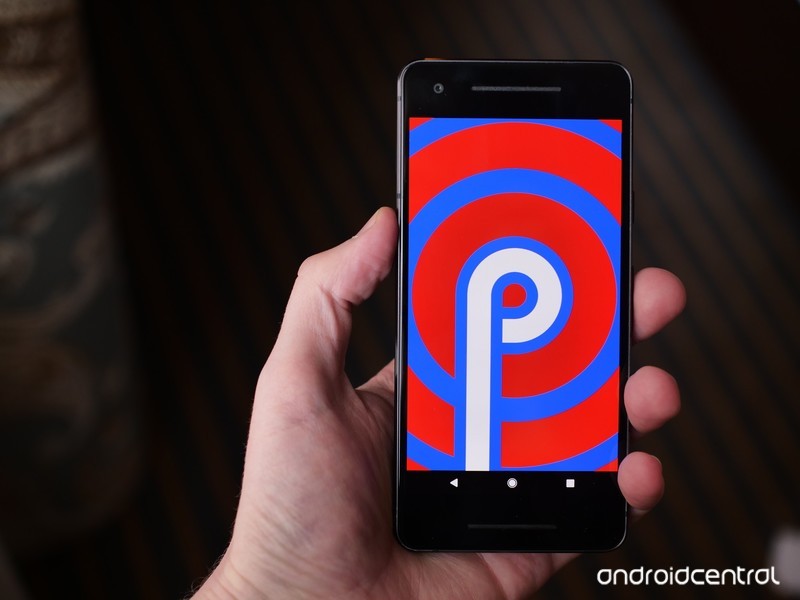
From new gestures to extending battery life, here’s everything you need to know about Android P!
Following last year’s Oreo release, 2018 is the year of Android P. We’re still some time away before Google rolls out the new software to all users, but even in its current form, P is showing a lot of promise.
Things are bound to change leading up to Android P’s official launch, but for the time being, here’s everything you need to know about this year’s big update.
The latest Android P news
July 20, 2018 — Android P engineers discuss dark mode, gestures, and more in Reddit AMA
Leading up to the official launch of Android P in about a month or so, the development team behind the new update recently got together for an AMA on Reddit to answer technical questions about P.
The dev team covered a ton of stuff, but there are a few highlights worth pointing out here. First off, when it comes to Android P’s gesture navigation, they had this to say:
We evaluated many, (MANY!) options for navigation as part of this overall change to the system spaces (worth noting that our main impetus was about making All Apps/Overview more accessible from wherever you are in the system, similar to the notification shade). HOME and BACK are so central to Android navigation (both the system and the apps) – that ensuring the dependability of them via buttons with enough space led us to the current design. All that said – we really value both the aesthetic and functional appeal of a smaller nav bar / more gross-gesture navigation and are continuing to explore opportunities to bring that in.
A system-wide dark mode has also been on the minds of many, and to not much surprise, it was said that Google doesn’t “have anything to announce about a unified dark mode.”
The team also explained how maintaining Project Treble is actually more difficult than past efforts, said a fix is coming for Android’s awful sharing menu, and more.
Read through the full AMA here
All the big details
Android P is officially Android 9
As spotted in the third developer preview, Android P is Android 9. This signifies that Android P is a big upgrade from 8.0 Oreo, and based on what we’re about to dive into, we’ve got no problem agreeing with that.
It completely changes Android’s navigation system
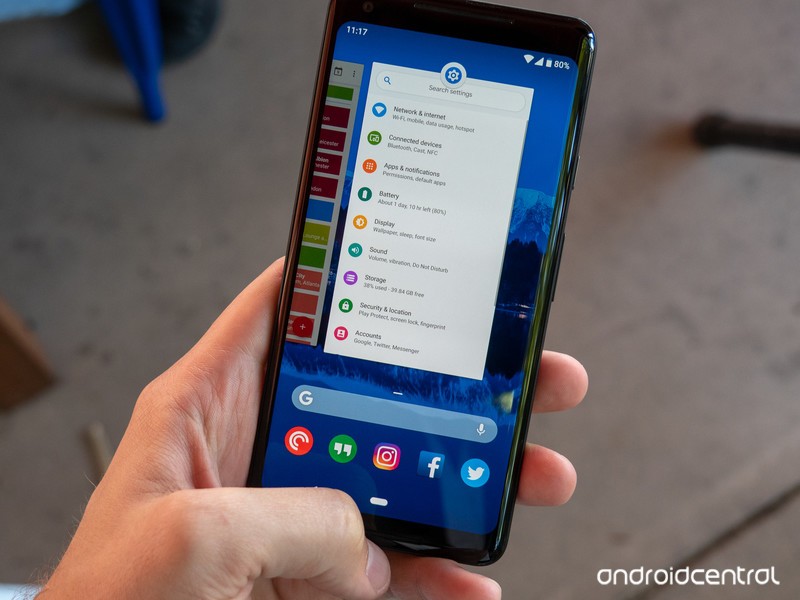
Back in 2011 with Android 3.0 Honeycomb, Google introduced Android’s iconic three button navigation system we’ve come to know and love – Back, Home, and Recents. Seven years later with Android P, these are being eliminated in favor of a gesture-based system.
Android P is the first time Google’s heavily relying on gestures for navigating the UI, and in their current form, they work as follows:
- Tap the Home button/pill to go home
- Swipe up to access the recent apps page
- Swipe up twice or do a long swipe for the app drawer
- The Back button only appears in certain apps/menus when it’s needed
This combination of taps and swipes is a bit confusing right now, but we’re expecting Google to roll-out a more refined version of this in later Developer Previews or in the final build. You can still use the traditional three buttons in Developer Preview 2 and 3 if the gestures aren’t your thing, but it’s rather obvious that this is the future Google wants for Android.
Android P’s gestures are a jagged pill you should learn to swallow
The user interface is more rounded and colorful
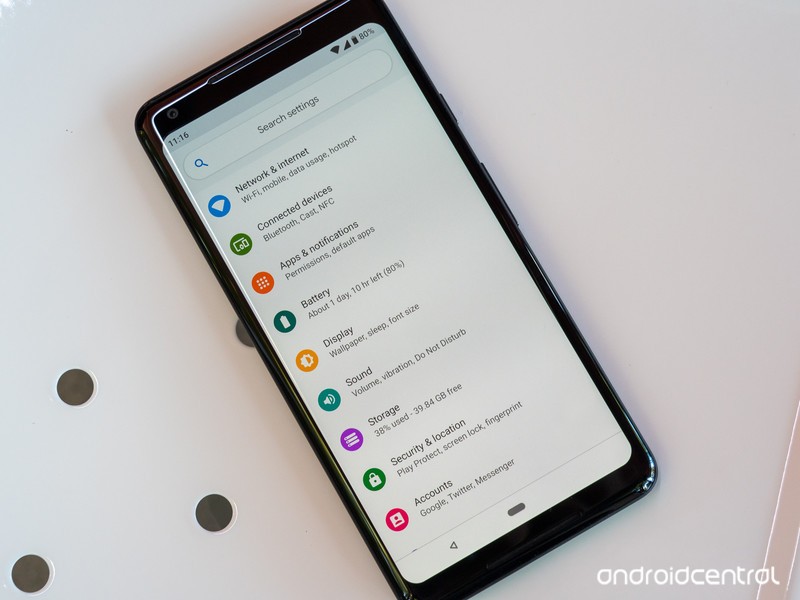
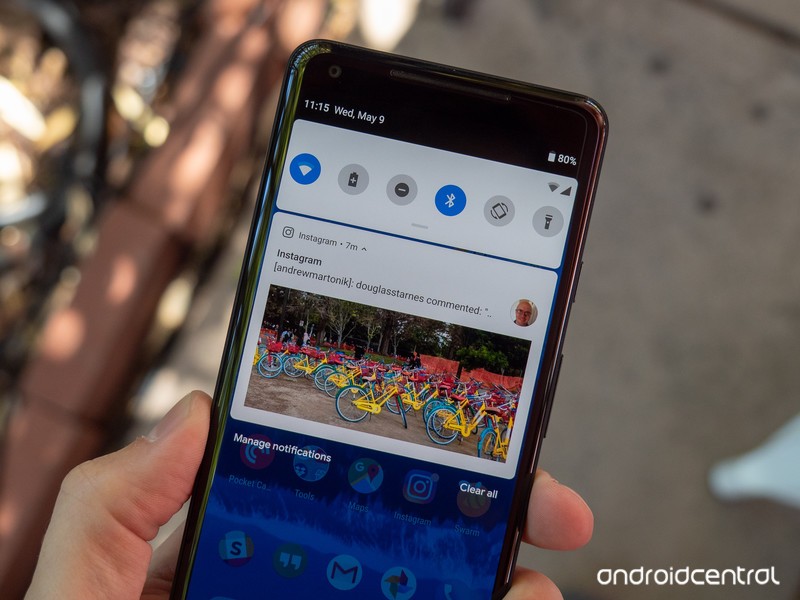
Android P isn’t as drastic of a visual change like we saw with the jump from KitKat to Lolipop, but compared to Oreo, there are some elements that are noticeably different.
At first glance, things like the colorful icons in Settings, circular Quick Settings icons, and rounded corners for just about every menu jump out like a sore thumb. These elements do take some getting used to, but I ultimately came around to liking them quite a bit.
Something else you’ll notice with Android P is just how alive it feels. Between the new gestures and updated animations, Android moves in a way that I’ve never seen before. Oreo was smooth and buttery, but Android P flies underneath your fingertips in a way that can only be experienced in-person.
There are tools for helping you use your phone less
Google talked a lot about helping people with their “digital wellbeing” at this year’s I/O conference, and a lot of those efforts are baked right into Android P.
Although not live in Developer Preview 2 or 3, later versions of Android P will introduce a new system called Android Dashboard. Android Dashboard will offer a quick glimpse into how you’re using your phone, including stats on which apps you’re using the most, how many times you’ve turned on the screen, how many notifications you’ve received, and how much time you’ve spent on each app.
You’ll also find a feature called App Timers that’ll restrict you from using a certain app after you’ve spent x amount of time on it, as well as tools for easily turning on Do Not Disturb and switching your screen to a monochrome color palette to help you wind down for bed.
Google’s ‘digital wellbeing’ initiative feels incomplete and insincere
Google’s trying to squeeze as much juice as possible out of your battery
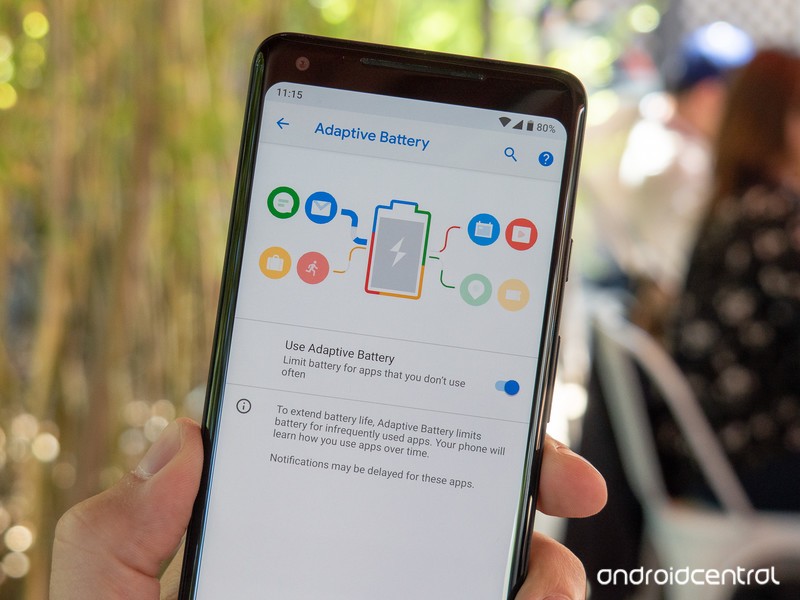
It seems like Google’s always trying to find ways to maximize your phone’s battery life as much as possible, and with Android P, those efforts are present in a new Adaptive Battery mode.
Similar to how Adaptive Brightness automatically adjusts your display’s brightness level based on your environment and usage, Adaptive Battery will examine how you use your phone and limit CPU usage to apps you infrequently use.
Google notes that Adaptive Battery can lower CPU usage by as much as 30%, and thanks to the use of Machine Learning, it’ll only get better the more you use your phone.
App shortcuts are everywhere
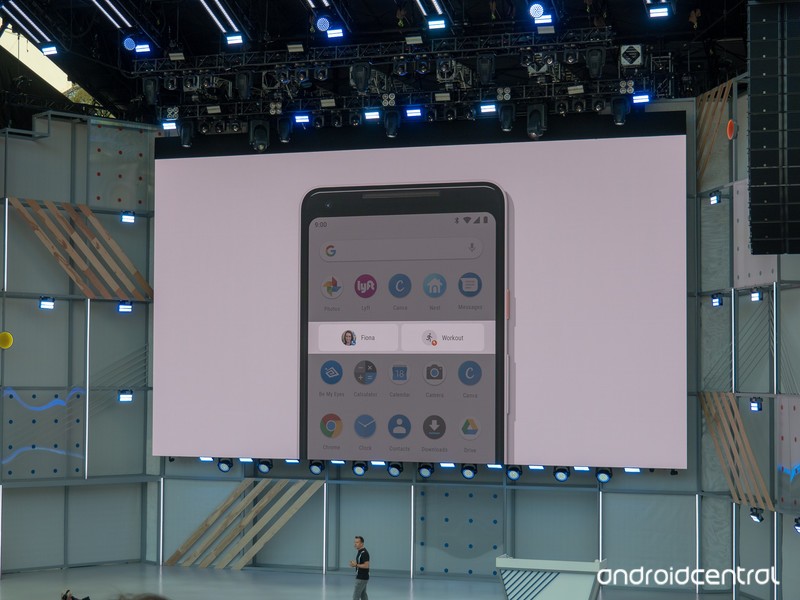
With Android Nougat, Google introduced us to App Shortcuts for the first time. Holding down on an app icon to quickly access certain elements of it can be genuinely useful at times, and with Android P, Google’s taking these to the next level with App Actions and Slices.
App Actions will try to determine what you’ll do next with your phone and give you recommend shortcuts for doing so within the app drawer, Assistant, and more. For example, if you watch Good Mythical Morning each day with breakfast, you might see an App Shortcut in your app drawer for searching Rhett and Link on YouTube during the morning.
On the other hand, Slices will allow you to perform more complex actions from the Assistant or Google Search. In the example Google gave at I/O, searching “I want to book a ride” will give you a special link to call a ride home via Lyft (assuming you’ve got the app installed).
157 new emoji

In Developer Preview 3, Google added a ton of new emojis to keep your conversations bright and colorful — 157 of them, to be exact.
Although we won’t run through the entire list, some of the highlights include red hair, superhero, face with three hearts, bagel with cream cheese, mooncake, lobster, and llama.
There are also improvements to existing emoji, including two new gender-neutral family and couple designs and updated looks for the bacon, salad, turtle, and cricket emojis.
A new standard for biometric authentication
Fingerprint sensors and face unlock systems make it easier than ever to access private information on our phones, and in Android P Developer Preview 3, Google added a brand-new standard for this called “BiometricPrompt API.”
Thanks to the new API, developers no longer have to create their own dialog for using biometric systems with their apps. This isn’t something you’ll notice in day-to-day use, but it’s an important background change we’re more than happy to see.
All the little things
In addition to the big changes found in Android P, there are a ton of smaller elements also scattered throughout the update. Some of my favorites include:
- Built-in screenshot editor
- Zoom pop-up when highlighting text
- Changing the volume now defaults to your media volume
- Volume controls appear on the right of your screen instead of the top
- Do Not Disturb is more customizable and easier to understand
You can sign up for the beta now
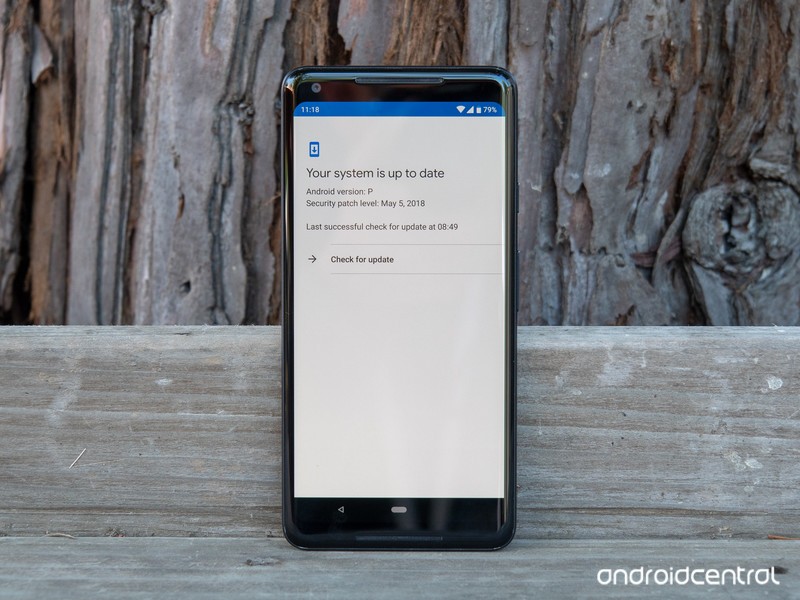
Similar to last year’s Oreo beta, anyone with a Pixel phone can opt-in to the Android P beta right now to get an OTA update to download and play with the new software.
However, Google’s Pixel phones aren’t the only ones that get to have fun with this early access. Google’s opening up its Android Beta Program to third-party OEMs for the first time ever thanks to Project Treble, including Nokia, OnePlus, Sony, Essential, Xiaomi, Vivo, and Oppo.
How to get Android P on your Pixel right now (or roll back to Oreo)
The official build should be released in August
If you’d rather not mess with the beta and just wait for the final version to drop, we’re not too terribly far out from it.

Google notes that the final release for Android P will be published in Q3, and based on the above timeline and Oreo’s release schedule, we should see Android P get a proper launch at some point in August.
Updated June 6, 2018: Added new features included with Android P Developer Preview 3.
Android P
- Android P: Everything you need to know
- Android P Beta hands-on: The best and worst features
- All the big Android announcements from Google I/O 2018
- Will my phone get Android P?
- How to manually update your Pixel to Android P
- Join the Discussion
Pre-order the ‘Amazing Red’ PlayStation 4 Pro in time for the new Marvel’s Spider-Man
That color really is amazing.
Sony just announced in conjunction with the release of the upcoming video game Marvel’s Spider-Man, fans can also pre-order a limited edition PlayStation 4 Pro 1TB Spider-Man-themed gaming console. If you’re already sold and don’t need to read more, which I kinda am, then you can go ahead and pre-order it for $399.99 directly from Best Buy, GameStop, and soon Amazon.

Back in April they released a limited edition God of War bundle, and it was awesome. Sony really knows how to appeal to gamers, though, because I think they’ve upped the ante a bit with the Spider-Man look. The paint job is a beautifully vibrant red that matches the new Spider-Man suit. Sony calls it “Amazing Red” and it shows. The top of the PlayStation has Spider-Man’s spider logo emblazoned on it. The controller uses a mixture of that same red color along with white buttons to pair nicely with the console.
The console doesn’t release until the game does, Sept. 7. This console is going to be really hard to find if you wait too long, though. Just look at the God of War bundle I mentioned above, which was just released a couple months ago and is already discontinued and selling for around $700. Not only will this bundle come with the game, you’ll also get some extra in-game content including the Spidey Suit Pack, five Skill Points to spend, a Spider-Drone Gadget, a custom theme for your PlayStation 4, and a Spider-Man PSN Avatar. Get that early edge fighting criminals throughout New York City.
The best things to come out of the early 2000s Sam Raimi Spider-Man movies were the video games. Spider-Man 2, despite weird balloon-catching side missions, was the first time I got to truly swing around New York City as the web-crawler, and I loved it. This game seems to promise that same sort of accessibility to the city. This is also the first Spider-Man game (and first licensed game) from Insomniac, who have the sort of gaming repetroire that should make you drool with excellent examples like Resistance, Sunset Overdrive, Ratchet & Clank, and more. This is going to be Sony’s next big game, so I hope you’re getting excited for it.
The ongoing San Diego Comic-Con revealed some of the story with a new trailer, if you are interested in seeing more about the game. Otherwise, you can pre-order your new bundle from Best Buy, GameStop, and Amazon (eventually).
Microsoft, Google and more team up to help you transfer data between services

Tech giants are teaming up to make it easier to port your data between services.
Microsoft, Google, Twitter, and Facebook have partnered to form the Data Transfer Project (DTP), a new initiative whose goal it is to make transferring your data between services much easier. Initially founded in 2017, DTP’s aim is to create an open-source platform that apps and services can adopt, ultimately stoking competition by giving consumers the ability to easily try out new services while keeping data they’ve built up on another (via The Verge).
“Data Transfer Project (DTP) extends data portability beyond downloading a copy of your data from your service provider, to providing consumers the ability to directly transfer data in and out of any participating provider,” the project’s website states.
DTP takes advantage of the existing APIs and authorization mechanisms for each service, transferring the data supplied into a common format, then moving it into the new service’s API. This can be used for everything from contact information and email to media like photos and music.

DTP is currently in “very active development,” but it’s not hard to see how useful an open standard for portable data could be for consumers. As an example, porting playlists between music services, which is currently a major barrier for many, could be automated through DTP. Similarly, giving another email app a try could be made much easier by automating the transfer of your contact data.
Of course, all of this depends on major services eventually adopting DTP. However, given the open nature of the project, it’s easy to envision more companies hopping on board.

