


Huawei nova and nova plus review
HUAWEI recently announced two new mid-range Android smartphones: the nova and the nova plus. The nova is a 5.0 inch device with 3GB of RAM, 32GB of storage and a Qualcomm Snapdragon 625 processor. The nova plus is a 5.5 inch variant with the same basic internals. Following our hands-on first look at these two device, here is our full review.
Also check out:
- HUAWEI P9 review
- HUAWEI Mate 8 review
- Nexus 6P review
Design
On the inside these two phones are almost identical, however on the outside they are quite different. The norm until now has been that the “plus” variant of a smartphone was essentially a carbon copy of its smaller sibling except with a bigger screen (and maybe a few extras), however that certainly isn’t the case here.
Both smartphones feature full metal unibody constructions, which makes them very sturdy, and allows for a nice and solid feel in the hand. The chamfered edges and the rounded corners give both phones a premium feel. Beyond that, the Nova looks a lot like a mini Nexus 6P, while the Nova Plus borrows its design language from the HUAWEI Mate series.
Although the design language is different on each device, the overall layout is the same on both. On the front is the 5.0/5.5 inch display along with the front facing camera and HUAWEI logo. Neither have capacitive keys as the navigation controls are on screen. On the left is the dual SIM tray which also doubles as the micro SD card tray (replacing one of the SIM cards). On the right is the volume rocker and then power button. On the top is the 3.5mm headphone jack along with a microphone. On the bottom is the USB Type-C port and the speaker grill. The nova plus has two grills, but there is only one speaker on each handset. Flip the phone over and you find the rear-facing camera, the fingerprint reader, a LED flash and another HUAWEI logo.
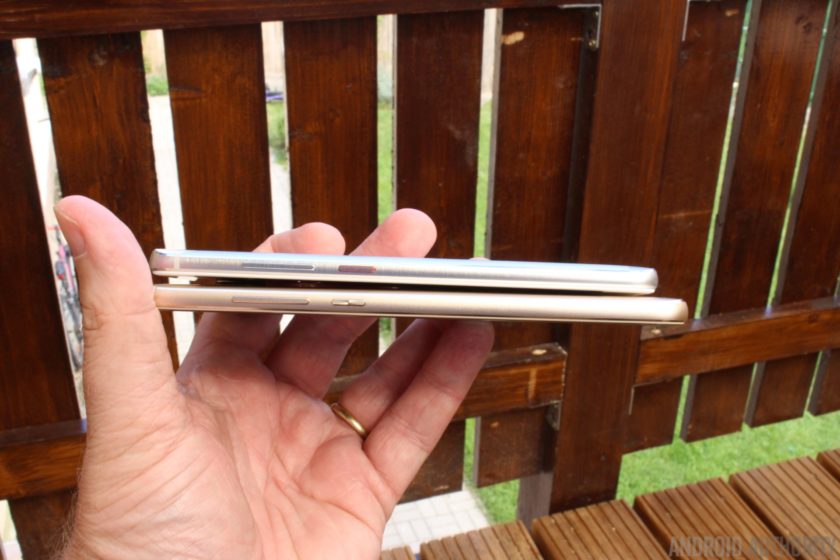
It is from the back that the two phones look most different. The fingerprint reader is round on the nova but more square on the nova plus. The camera is central (with a bump) on the plus, but flush and more to one side on the nova.
Display

On paper the displays for the phones are very similar (except the size). They are both IPS LCD panels and both have a Full HD resolution (i.e. 1920 x 1080). Both displays can be configured in the settings to alter the color temperature and both displays have the same level of brightness (450 nits). Obviously the screen on the nova plus is bigger (at 5.5 inches compared to 5.0 inches) and that means it has a lower pixel density (401 ppi compared to 443 ppi). When placed side-by-side the displays look very similar, however it I had to choose I would say that the nova plus has the better screen, but not by much.
Overall, both screens are crisp with good color reproduction that will provide a good experience regardless of what you’re doing on the screen. My only word of caution is that in very bright, direct sunlight you might find the displays a little hard to read.

Hardware and performance
The HUAWEI nova and nova plus both feature a Qualcomm Snapdragon 625 built using a 14nm process. This is certainly a mid-range processing package. That isn’t necessarily a bad thing, since today’s mid-range phones offer greater performance than some of the high-end devices of only a few years ago. In the CPU side you get eight 64-bit Cortex-A53 cores, clocked upto 2.0GHz. On the GPU side you get the Adreno 506, which supports OpenGL ES 3.1.
In terms of every day use you will find the Snapdragon 625 more than capable. The UI response was good, apps open and close quickly and with 3GB of RAM the multi-tasking capabilities are more than sufficient. If you are a power user then you will struggle with the Snapdragon 625, but for most users will handle just about everything you ask of it. Plus there is the added bonus that the Cortex-A53 core is one of the most power efficient 64-bit cores from ARM, which helps with battery life!
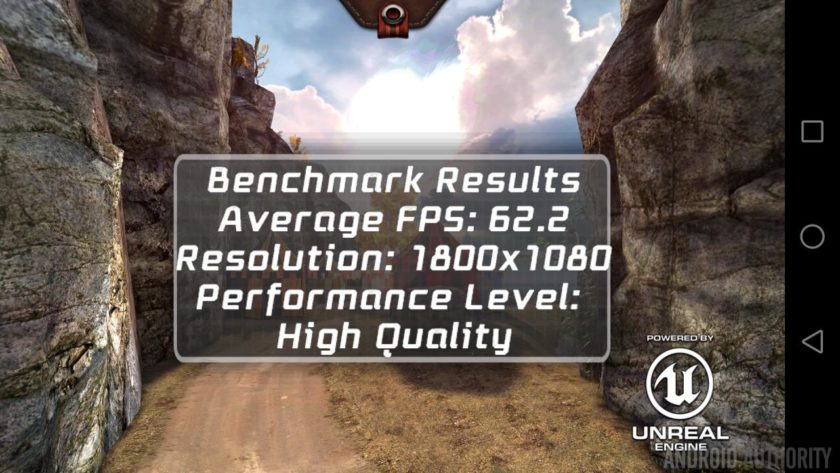
Since the internals of both phones are very similar, both score the same in the popular benchmarks. For AnTuTu you can expect scores of 64969, while for GeekBench 4 the devices scored an average of 840 for the single core tests and 3112 for the multi-core tests. As for Epic Citadel you will get around 60 frames per second in High Quality mode, which is great. However when you bump the details up to Ultra High Quality mode then the GPU starts to struggle a little, scoring just 50 fps.
What that means in real world terms is that the nova and nova plus can handle normal productivity tasks (email, social media, web browsing) without any problems. It will also play 3D games reasonably well, but don’t expect the same level of performance as you would from a leading flagship device. I played Asphalt 8: Airborne and Riptide GP without any problems.
The fingerprint readers HUAWEI’s recent phones (including the Mate 8 and the P9) have been exceptional and I have come to expect nothing less from HUAWEI. The fingerprint readers on the nova and nova plus are equally as good. Since the fingerprint reader is on the back, you can wake and unlock your phone just by putting your finger on the reader. You can also use the fingerprint reader to trigger the shutter while taking photos, to swipe left and right when viewing photos in the gallery, or to answer a call.
Both phones feature a single speaker on the bottom edge, next to the Type-C USB port. The speakers are quite loud and the sound is reasonable considering that they aren’t front facing speakers. Like many smartphones, music can lack bass and sound a bit thin. I found that at full volume some tracks tended to distort and that the sound quality improved when the volume was actually turned down a notch or two. Comparing the nova with the nova plus, the sound quality is approximately the same, however the nova plus is the better of the two.
The nova has a 3020 mAh battery, which is impressive when you consider that the Samsung Galaxy S7 and the LG G5 both have smaller battery capacities. I ran a 3D test to measure the battery life while playing 3D games. According to my calculations you will be able to play 3D games for over 5 hours from a single charge. As for simpler tasks like browsing the web and watching video you should be able to get about 11 hours.
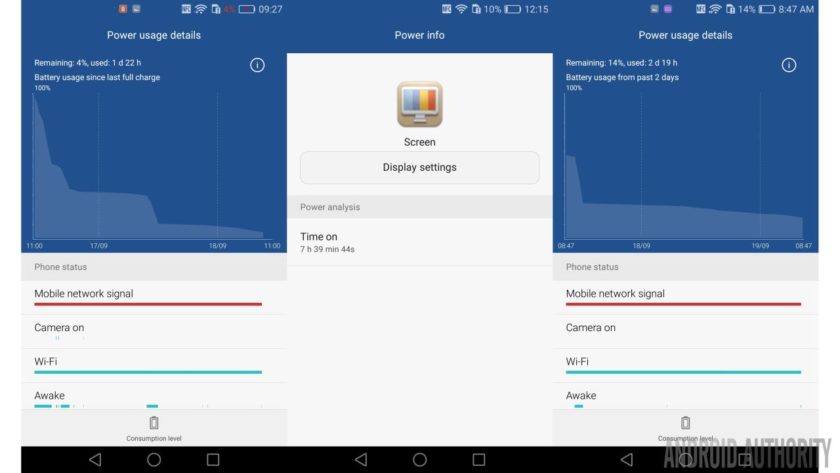
The nova plus has a 3340 mAh battery, even bigger than the nova, mainly to compensate for the larger 5.5 inch display. I ran the same 3D test to measure the battery life while playing 3D games. According to my calculations you will be able to play 3D games for over 5 hours from a single charge. As for simpler tasks like browsing the web and watching video you should be able to get 11 hours.
Overall you will easily be able to get through a full day on either phone, maybe even two. My tests show that you should be able to get around 7 to 9 hours of screen-on time for both devices during a 24 hour period, of course depending on your usage.
Software
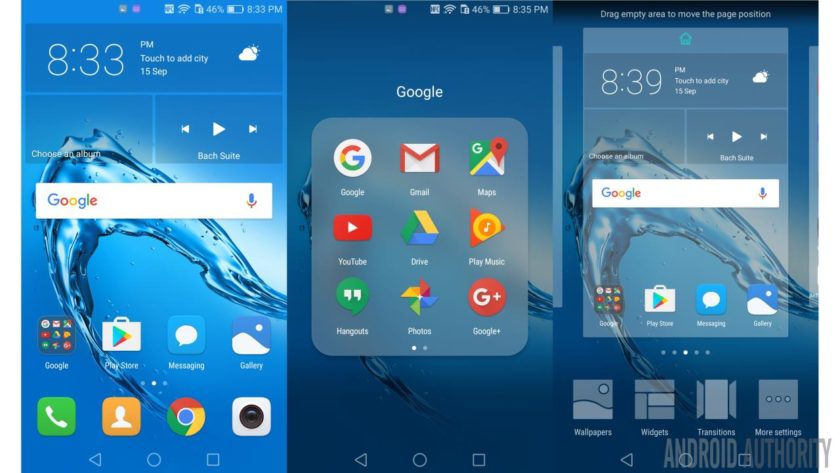
The software experience is identical on the nova and the nova plus, with both running Android 6.0 Marshmallow, with HUAWEI’s Emotion UI 4.1 on top. If you have used a HUAWEI phone before, you will know what to expect here, and once again, you get a very iOS-like user interface, with no app drawer, transparency effects, and home pages filled with colorful icons. For some people the lack of a stock Android experience will be a stumbling block, especially the lack of an app drawer.
If you lack the EMUI launcher then it is also possible to replace it with an alternative like the Google Now Launcher. The trick is to make the Google Now Launcher the default under Settings -> Apps -> Advanced -> Default app settings -> Launcher.
However besides the cosmetic UI changes there are lots of additional features that you don’t get with stock Android including a floating dock, motion gestures, voice wake-up, a one-handed mode and HUAWEI’s own take on a “do not disturb” mode.
Under motion gestures you can enable motions like flip to mute, raise to ear to answer calls, and a tilt motion to move icons and widgets. The tilt motion feature works from the home screen editing mode. If you touch and hold an icon or widget you can move it to another screen by tilting the phone to the left or right. There is also the Knuckle gestures which allow you to take a screenshot by double tapping the screen with your knuckle, or drawing a letter to open an app. Both types of knuckle gesture can be disabled if you find they misfire.
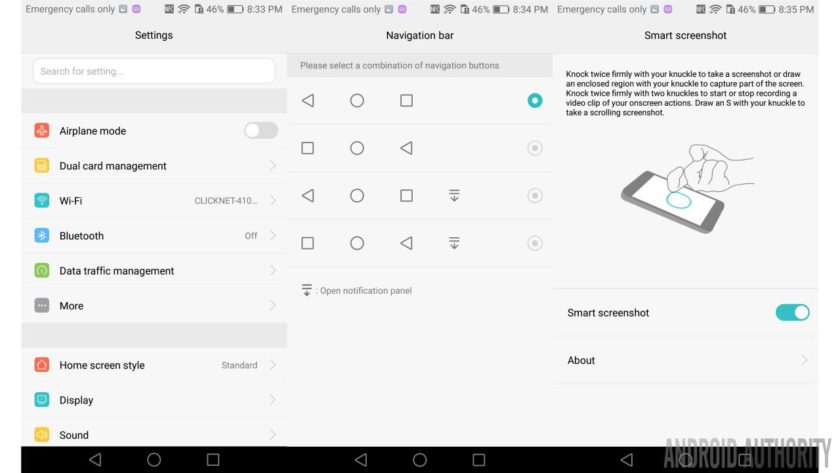
Since the nova and nova plus both use on-screen keys, HUAWEI as added the ability to customize the order of the navigation buttons. By default the recent apps is on the right and the back button is on the left. However this can be reversed. It is also possible to add a fourth button for opening the notification panel. Tapping the icon is the equivalent to dragging the notification shade down from the top.
HUAWEI has included a battery manager which gives you a high level of control over battery related features. For example you can set a power plan which will tweak the CPU according to your usage (and so save battery when possible). Other battery related options include a whitelist function to ensure that certain apps keep running after the screen is turned off and a power usage firewall which warns you about power hungry apps.
There is also an ultra power saving mode which will disable everything except calls and messages plus activate a simply monochrome UI. When running low on battery power this mode can add several more hours of usage.
Camera
The camera is one area where the nova and nova plus differ significantly. The nova comes with a 12MP rear facing camera that can record video at 4K, plus an 8MP front facing camera. The nova plus has the better setup with a 16MP rear facing camera that includes OIS and 4K video, plus the same 8MP front facing camera.
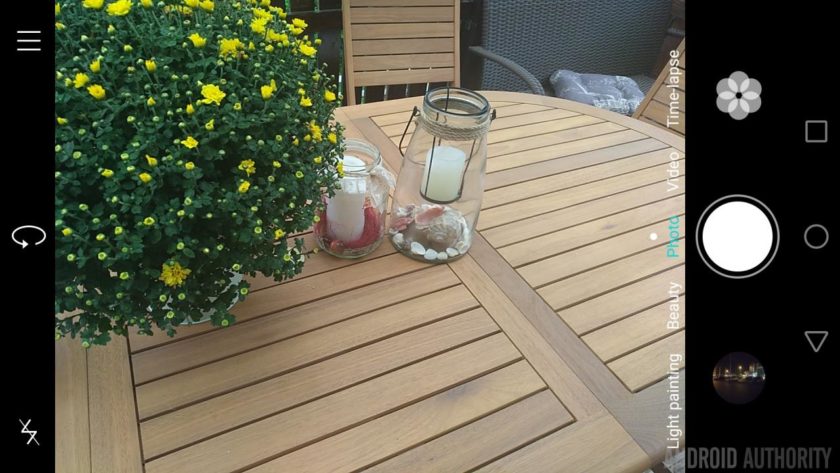
The camera app is quite nice and includes some interesting features. As well HDR, panorama and the seemingly obligatory beauty mode, there is also a light painting mode, for long exposure shots. The built-in filters include car light trails, for capturing the trails of lights made by moving cars at night; light graffiti, for capturing trails of light in a dark environment; silky water, for silky smooth effects from running water; and star track, to capture the trails of stars and galaxies in the night! However you will need a very steady hand (or better still a tripod) to get the best results.
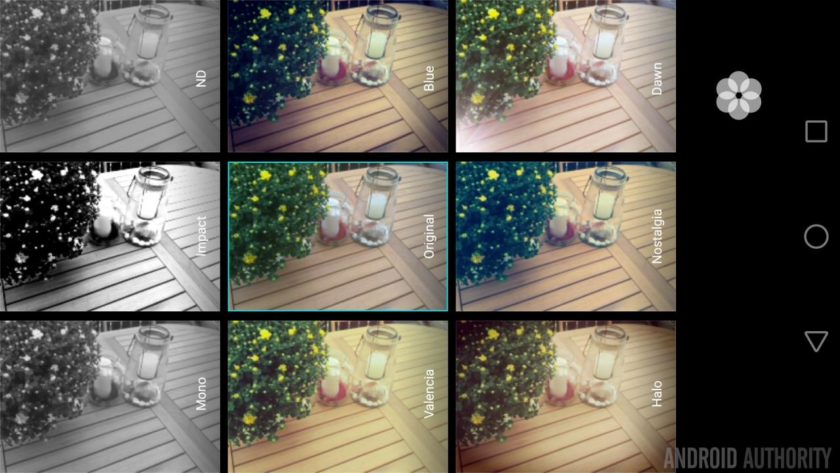
There is also a super night mode, with a long exposure time for night time photos, a slow-motion mode, plus a special Good Food mode for taking close-up shots of your food! Two other interesting modes are the All-focus mode and the full manual (professional mode). The former allows you to refocus pictures post capture and change which object is in focus. The latter gives you control over the metering mode, the ISO speed, the shutter speed, plus the white balance. It also gives you full manual focusing control.
While the camera app is very capable, the actual pictures produced by these devices leave a lot to be desired. Pictures taken in ideal conditions come out quite nice, meaning the cameras are good for outdoor use in good light. However once you move indoors and the lighting is artificial then lots of noise creeps into the pictures.

Both handsets are capable of videoing at 4K in 16:9 from both the rear camera and Full HD using the front facing camera. While the nova doesn’t include Optical Image Stabilization (OIS) it does have a software based image stabilization option when recording video.
Here are some sample shots from the nova so you can see for yourself:

And here are some sample shots from the nova plus:

Specifications
| Display | 5.0 inch IPS panel 1920×1080 resolution |
5.5-inch IPS panel 1920×1080 resolution |
| SoC | Qualcomm Snapdragon 625 | Qualcomm Snapdragon 625 |
| CPU | 8x ARM Cortex A53, upto 2.0 GHz | 8x ARM Cortex A53, upto 2.0 GHz |
| GPU | Adreno 506 GPU with support for OpenGL ES 3.1 |
Adreno 506 GPU with support for OpenGL ES 3.1 |
| RAM | 3GB | 3GB |
| Storage | 32GB + microSD | 32GB + microSD |
| Cameras | 12MP rear facing camera with 4K video, 8MP front facing camera | 16MP rear facing camera with OIS & 4K video, 8MP front facing camera |
| Battery | 3020mAh | 3340mAh |
| Features | Fingerprint scanner, USB Type C, Bluetooth 4.1 | Fingerprint scanner, USB Type C, Bluetooth 4.1 |
| OS | Android 6.0 Marshmallow with EMUI 4.1 | Android 6.0 Marshmallow with EMUI 4.1 |
| Dimensions | 141.2mm x 69.1mm x 7.1mm. | 151.8 x 75.7 x 7.3mm |
| Weight | 146g | 160g |
Gallery

Wrapping up
With 3GB of RAM, 32GB of internal storage, 4K video recording and Full HD displays then the nova and nova plus certainly have the hallmarks of a couple of upper mid-range devices. That is even more so for the nova plus with its built-in OIS and larger display. When I look at the specifications for the Qualcomm processor I myself wanting more, octa-core Cortex-A53 is very yesteryear, however the Snapdragon 625 is built using the latest 14nm fabrication process and as such it is more efficient than octa-core Cortex-A53 processors built on 28nm. I was hoping for a better Snapdragon processor from the 600 series, however after using the nova and nova plus for several days I must admit that the processor package works just fine. It isn’t the fastest and the GPU could be better, but for those looking to buy a phone in the mid-range (and not a flagship), it is more than adequate.
What do you think of the HUAWEI nova and nova plus? Do you plan to buy one, if so which one? Let us know your views in the comments below!
Google Allo review – CNET
The Good Google Allo is available on both Android and iOS, and features a digital Assistant that fetches information for you in a conversational way. Its Incognito Mode erases conversations and has end-to-end encryption.
The Bad Allo doesn’t integrate video calling, and it doesn’t have as many features as its competitors, like baked-in GIF support or control over read receipts.
The Bottom Line It’s not a perfect communications app on Day 1, but the integrated, all-knowing Google Assistant bot sets Allo apart from the messaging competition.
Visit manufacturer site for details.
Does the world need another messaging app? Google says yes. And it believes its Allo messaging app is different enough to compete against Apple’s iMessage, Facebook Messenger, WhatsApp and all the rest. That’s because it’s the first to include Google Assistant, which I can only describe as a mega chatbot that uses artificial intelligence to bring you answers in a conversational manner.
Available as a free download today on Android and iOS, Allo was first introduced during Google I/O in conjunction with Google’s web-calling app Duo (which, since launching a month ago, has now reached 10 million downloads on Android).
Though it sends and receives messages as well as the others, Allo has its own promising features that I found useful. Read on to see what makes Allo stand out and if it has what it takes to be your new chat app.
Google I/O 2016: Daydream, Home and other…
See full gallery


1 – 5 of 15
Next
Prev
Google Assistant: The ultimate bot
Allo’s standout feature is Google Assistant, which is basically a bot you can chat with that uses Google’s vast search database to answer several kinds of questions you throw its way. For example, you can type, “Cafes nearby?” and it will find popular coffee shops in your area (just make sure you have location turned on). You can ask it to translate phrases in different languages, show your latest emails, look up airfare prices and other common queries.
If you’re feeling particularly playful (or lonely), you can play games with it too. (The geography quiz game is educational, but I particularly like the one where you have to guess the movie based only on emojis.)

Assistant confirming sports scores (left) and fetching movie times (right).
Lynn La/CNET
If you’re not already in Allo, it’s faster to press the home button and relay questions to Apple’s Siri or Google’s other digital assistant, Google Now. But Assistant does come in handy when the app is open in front of you (plus you can still ask it questions verbally), and you want to look something up without leaving.
This is especially useful when you’re in a group chat. A search for “popular bars” shows results to everyone on the chat thread, so the group can plan from there. Allo can settle debates, too — like when you and your friend can’t remember what last night’s sports score was or when a particular movie came out. Assistant will immediately put the issue to rest, in writing.
Smart Reply: Never at a loss for words
Smart Replies are generic responses that pop up above the keyboard and text field. Though the replies are canned (for example, autogenerated responses to the question, “Are you busy?” include “What’s up?” “Not really, you?” and, “Yes. Why?”), they can be quite colloquial and somewhat natural-sounding time-savers.

A generic string of Smart Replies (left) and Allo recognizing a photo’s content (right).
Lynn La/CNET
This is a little unnerving since you’re never quite sure if the responses you receive are authentic or just a Smart Reply. The phrases also feel pretty inane if you try to form a full conversation with them (replying to a conversation formed completely from Smart Reply started to feel like chatting with the SmarterChild bot circa 2001). However, they are useful when you’re on the go and have to quickly respond, or you just don’t have the brainpower to trudge through online small talk. Just don’t try and use it for more sensitive, serious conversations.
GE GDE21EMKES Bottom Freezer Refrigerator review – CNET
The Good GE’s slate bottom-freezer sailed through our performance tests and looked good doing it. The slate finish does an excellent job of repelling fingerprints.
The Bad The GDE21EMKES is smaller, less affordable and less efficient than the competition.
The Bottom Line This is a good fridge that can be had for less than $1,500, but strong competitors from LG and Whirlpool can be had for even less. Shop around, or wait for a good sale.
Bottom freezer refrigerators flip the script on the top freezer fridge most of us grew up with. Like the name suggests, bottom freezers move the frozen food compartment down below the fridge, making it easier to access your fresh ingredients.
At $1,650, the GE GDE21EMKES is a slightly expensive example of such a fridge, and all in all, it’s a decent option. The slate finish is a classy change of pace from stainless steel (and one that’s a lot better at repelling fingerprints), and the fridge’s performance leaves little to complain about. That said, there are other bottom freezers like the Whirlpool WRB322DMBB that we like as much as this one, if not more — and most of them cost a little less. The GDE21EMKES is a good choice, but shop around a bit before you pull the trigger.
Here’s a svelte, slate bottom freezer from…
See full gallery


1 – 5 of 12
Next
Prev
Design and features

It’s a simple interior, and not quite as big as the competition.
Tyler Lizenby/CNET
Bottom freezers don’t differ much from model to model. You get your fridge up top, your freezer down below, and, in most cases, not a whole lot of features to speak of. The GDE21EMKES is no different.
Still, it’s an attractive fridge, thanks to the stylish slate finish — it looks good and repels fingerprints to boot. You also get a built-in icemaker in the freezer and a deli drawer in the fridge that slides left and right beneath a shelf to help make it easier to fit large items below.
That sort of storage-minded feature was definitely appreciated, because, at 20.9 cubic feet of total storage space, this bottom freezer is a little bit smaller than the competition. It wasn’t small enough to give me any headaches, though. The in-door drawers are well-sized, offering plenty of room for drinks and condiments, enough so that I had no problem whatsoever fitting our entire load of test groceries inside. I even had room to cram in a couple of our large-size stress test items, as well.
Apple MacOS Sierra review – CNET
The Good Apple’s new Mac operating system, MacOS Sierra, adds space-saving optimizations, Siri support, and closer ties with iPhone and Apple Watch.
The Bad Setting up the Apple Watch unlock feature is complex and time-consuming. Space-saving features push towards buying extra iCloud space.
The Bottom Line This free OS update for Macs launches a new era, tying Apple’s computer OS more closely into iOS and WatchOS.
Visit manufacturer site for details.
Even without new hardware (yet), there are a lot of changes coming to Apple’s Mac line of computers. The operating system that powers MacBooks and iMacs (as well as the Mac Mini and Mac Pro) has gotten a big new refresh. So big, in fact, that it now has a whole new name.
Out is OS X (pronounced oh-ess-ten), followed by an ever-increasing version number, currently 10.11; in is MacOS, a new name that’s much more in line with Apple’s other operating systems, which include iOS (for iPhones and iPads), WatchOS (Apple Watch) and TVOS (Apple TV).
It’s yet another step in a long path to a grand unified theory of Apple operating systems, and it highlights increasing cooperation between Macs and other Apple devices and services. The code name for the first version of MacOS is Sierra, and it’s available starting today as a free update to current Mac owners (for all Macs from 2010 or later, and a handful of 2009 systems), and will come preinstalled on Mac systems going forward.
 Tyler Lizenby/CNET
The last couple of near-annual Mac operating systems upgrades, 2015’s El Capitan and 2014’s Yosemite, were less an overhaul and more a collection of handy features and enhancements. MacOS Sierra takes that a bit further, adding new features that are inspired by iOS or are designed to help Macs work better with iOS products, adding further incentive to keep your hardware inside Apple’s walled garden, which includes the iPhone, Apple Watch and Mac computers.
Siri on Mac
Voice assistants are hot right now, from Alexa on the Amazon Echo to Cortana on Windows to the original, Apple’s Siri. Once restricted to iPhones, she’s now ready to move into your Mac.
It’s still the same familiar Siri voice (depending on your region), and she does most of the same things as the iOS version. You activate Siri through a keyboard command, Cmd+Space, or by clicking the Siri icon in the dock, then simply speak your query.
 CNET/Dan Ackerman
All the standard things — weather, news, local shops and landmarks — work as expected. You can pin results, from sports scores to stock prices, to the notifications panel and see them anytime. That’s a handy extra if you find yourself looking up the same info over and over again.
More about MacOS Sierra
- How to download MacOS Sierra
- What to expect from a new MacBook Pro
- All you need to know about MacOS Sierra
The most useful new trick with desktop Siri is for searching files, which you can do by type, by date, or by keyword. For example, you can easily call out all spreadsheets, or all image files from the last two weeks with the word “screenshot” in the title. It’s a handy way to zero in on files, especially if, like me, you’re not very good at keeping files organized.
New sharing and optimization in iCloud
Using iCloud for storing and sharing photos and files is well-established at this point, and people use Google Drive, Dropbox and other cloud services for similar purposes. But, by checking off a new checkbox in the iCloud settings menu, files on the desktop or in the documents folders of multiple Macs can now be automatically synced. That’s handy if you have, for example, a work and home Mac that you need to jump between easily.
Drop a file or add a screenshot to the desktop of one MacOS system, and a few seconds later, it pops up on the other ones. The documents folder, the other place you’re likely to store important files, works similarly, but each machine gets a named folder within the documents folder on its sister machines.
 CNET/Dan Ackerman
There are plenty of ways to sync files between machines, but I liked how effortless this was, and especially how it gave me access to identical desktops (where I keep a lot of in-progress files) across different Macs.
A handful of new optimized storage options can keep more files on the cloud, rather than on your physical hard drive. For example, MacOS can be set to automatically delete iTunes movies and TV shows that have been watched, keep larger mail attachments in the cloud, or to clear items from the trash folder after 30 days.
macOS Sierra review: Mac users get a modest update this year
This is almost like part two of my macOS Sierra review. I had a chance to test Apple’s newest desktop operating system at the beginning of the summer, just before it was released in a public beta. The software hasn’t changed much since, but a few of the headline features were missing from that earlier build; Apple said they wouldn’t be available until the final version shipped in the fall. As it happens, Sierra arrives today as a free upgrade, so I’m picking up right where I left off. What follows is my full review of Sierra, though if you read my earlier preview, or have been using the software yourself, you won’t find many big surprises here.
Getting started
Sierra will work on Macs up to seven years old. (If your computer is older than that, it’s probably time to replace it anyway.) To be precise, it’ll run on MacBooks and iMacs from as far back as late 2009. If it’s any other kind of Mac — an Air, Pro, Mini or Pro desktop — your machine needs to be from 2010 or later. As you’ll see too, there are some features that simply won’t work without an iOS device. Think: an Apple Pay device for Apple Pay, a Touch ID–enabled device for Auto Unlock, and an iOS 10 device to use Universal Clipboard, Memories or the new Messages on the go.
As for setup times, downloading Sierra onto a recent iMac over my office’s usually fast WiFi network took about 20 minutes, while installing it took a little more than half an hour. As always, your mileage may vary. Suffice to say, though, if this is the only computer available to you, I suggest not upgrading in the middle of a workday — you’re going to be without a desktop for a while.
Features that are finally ready to use
Auto Unlock
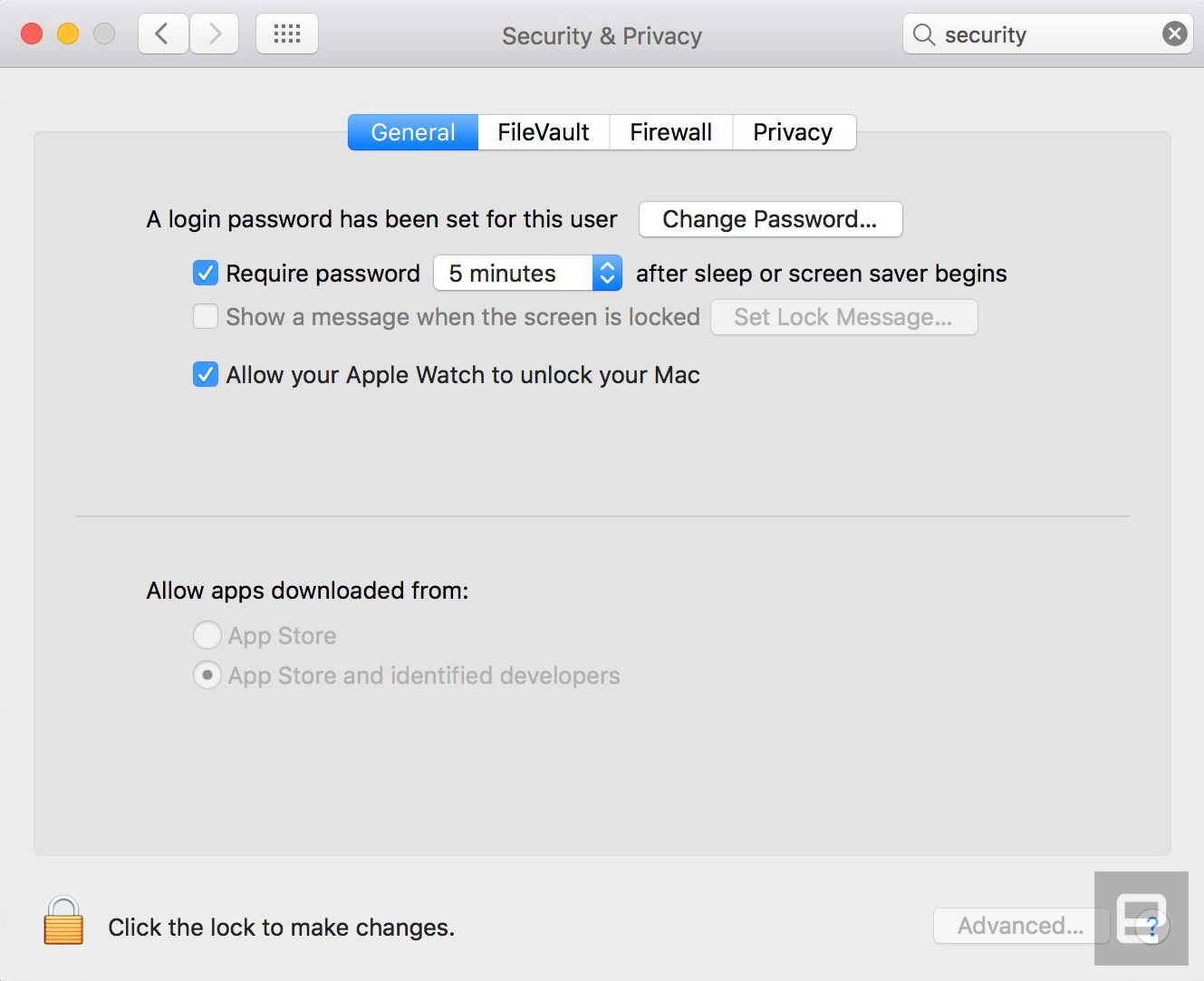
Until now, iPhones and iPads have had Touch ID; Macs have had passwords. Which is fine, but certainly not as convenient. There’s still no fingerprint sensor on the MacBook or Magic Trackpad, but a new feature promises to be similarly convenient: using your Apple Watch to unlock your Mac when you’re in close proximity. To turn on Auto Unlock, as the feature is called, go into your Mac’s Security & Privacy settings and check off the box that says “Allow your Apple Watch to unlock your Mac.” It’d be pretty troubling if this feature were enabled by default.
So it’s easy to set up — or so you’d think. When I first tried to use this feature, I would wake my sleeping Mac and see the message “Unlocking with Apple Watch,” only to be forced to enter my password anyway. Apple says you need two-factor authorization enabled on your iCloud account in order for Auto Unlock to work. But I already had that in place. What could be the problem, then? I still am not sure. What I do know is that after I signed into appleid.apple.com and reset my iCloud password, I was able to log into my machine using Auto Unlock.
Apple Pay on the web

If you already use Apple Pay on your iPhone or Apple Watch, now you can do it from your Mac too. Starting today, some 300,000 websites are expected to add an Apple Pay button, according to a company spokesperson. To actually use it, you’ll need to have the site open in Safari specifically (because of course), and you’ll also need a mobile device that supports Apple Pay — either an Apple Watch or a recent iPhone. The reason for this is that although you’ll hit “pay” from the Safari page, you’ll need to either use Touch ID or a passcode on your iPhone or double-click your (authenticated) Apple Watch to complete the transaction.
Aside from being convenient, this has security benefits, according to Apple. For starters, not having to type in your address or credit card number could feel like a blessing should the retailer ever suffer a data breach. Additionally, all transactions are encrypted, and your credit or debit card number won’t be stored on your device or Apple’s servers, or be shared with retailers. Instead, you’re assigned a unique Device Account Number that’s stored on the so-called Secure Element of your device. Lastly, Apple Pay doesn’t keep a history of your transactions, though you can choose to keep your most recent purchase details in Wallet if you prefer.

During my pre-launch testing, five sites had already added the Apple Pay button: Indiegogo, Lululemon, Spring, Warby Parker and Instacart. To test it out, I found the least expensive thing in Lululemon’s (very expensive) lineup, added it to my cart, and then had my choice of two buttons: “Add to Bag” or “Apple Pay.” Because Apple Pay already had my credit card and address stored, clicking that button meant I jumped straight to a summary box, where all I would have had to do was click another button to confirm the purchase on my watch. It was super-easy, but it also scares me how quickly I could have purchased a $12 headband I didn’t need. In real life, you’d have but one chance to reconsider that impulse purchase before pulling the trigger.
All the stuff we covered earlier
Siri

Among all the new features in Sierra, this ranks as one of the most notable: Siri finally has a home on the desktop. And it’s hard to miss: There’s a Siri button both in the system tray in the upper-right corner and in the app dock at the bottom of the screen. Additionally, there’s a keyboard shortcut you can use: command-space-hold. As it happens, this is actually one of the few things that’s changed since I tested that pre-beta build. The command used to be Fn-spacebar. Now it’s command-spacebar and hold, which is similar to the existing Spotlight search shortcut (command-spacebar). That’s good, I think; may as well tap into Mac users’ muscle memory.
Just like on iOS, you can use Apple’s virtual assistant to search the web, draft emails and texts, create calendar events, set reminders, search the web and check things like the weather, stocks and sports scores. Siri has some Mac-specific tricks too, including searching your files, adjusting your system settings and giving you information about your computer, like how much local storage you have available. Throughout, you can pin Siri’s search results, as well as copy or drag and drop them into other parts of the OS.
Ultimately, Siri on the Mac is no smarter than it is on mobile. Which is to say, Siri can handle a diverse range of requests, and understands natural language, to a point (e.g., “Show me Snowden movie times”). Over time, though, Siri’s limitations become more obvious, and you learn not to bother asking it certain things. Siri might be able to show me local Snowden showtimes, for instance, but forget about narrowing the results to evening shows, or locations in a particular neighborhood.
Universal Clipboard
Apple already has a lot of so-called Continuity features that allow you to jump between apps on iOS and macOS, picking up on one platform where you left off on the other. Now, in addition to, say, having your notes and web history synced across devices, you can copy and paste between them too. So if you spot something on your Sierra Mac, you can copy and paste into iOS 10, and vice versa. (This also works from Mac to Mac, and from one iOS device to another.)
It’s really, really easy to use too. You just have to be signed into the same iCloud account on both devices, which need to be running Sierra and/or iOS 10 specifically. Then, just copy something and it’ll appear on the clipboard across all your connected devices. To use an oft-repeated Appleism: It just works.
So far I haven’t needed this feature often, but when I do, it’s handy. In one case, for instance, I had a lengthy App Store download code waiting for me in my email, which I had access to on my iPhone but not on my test machine. (I was logged out at the time.) Obviously, without Universal Clipboard I would have had other options, including logging into my email on the laptop or dropping the code into the Notes app, which I use on both platforms. But being able to copy and paste directly is far more efficient.
Picture in Picture

New to both iTunes and Safari is a Picture in Picture view that lets you pop out video into a floating stay-on-top window, which you can then resize and drag around the screen. Apple has a developer API for this, so over time you should see the little pop-out icon appear on more websites. For now, it works on iTunes and a select few sites, including Vimeo. (I successfully tried Picture in Picture on ESPN during my earlier round of testing, but didn’t see the pop-out button there while testing the final build.)
When the pop-out button is available, the feature works well, and I particularly like that the floating window closes automatically once the video is finished. Still, it’s a shame that when viewing in Picture in Picture mode, you can’t jump forward or a back to a different point in the video.
Apple Music makeover
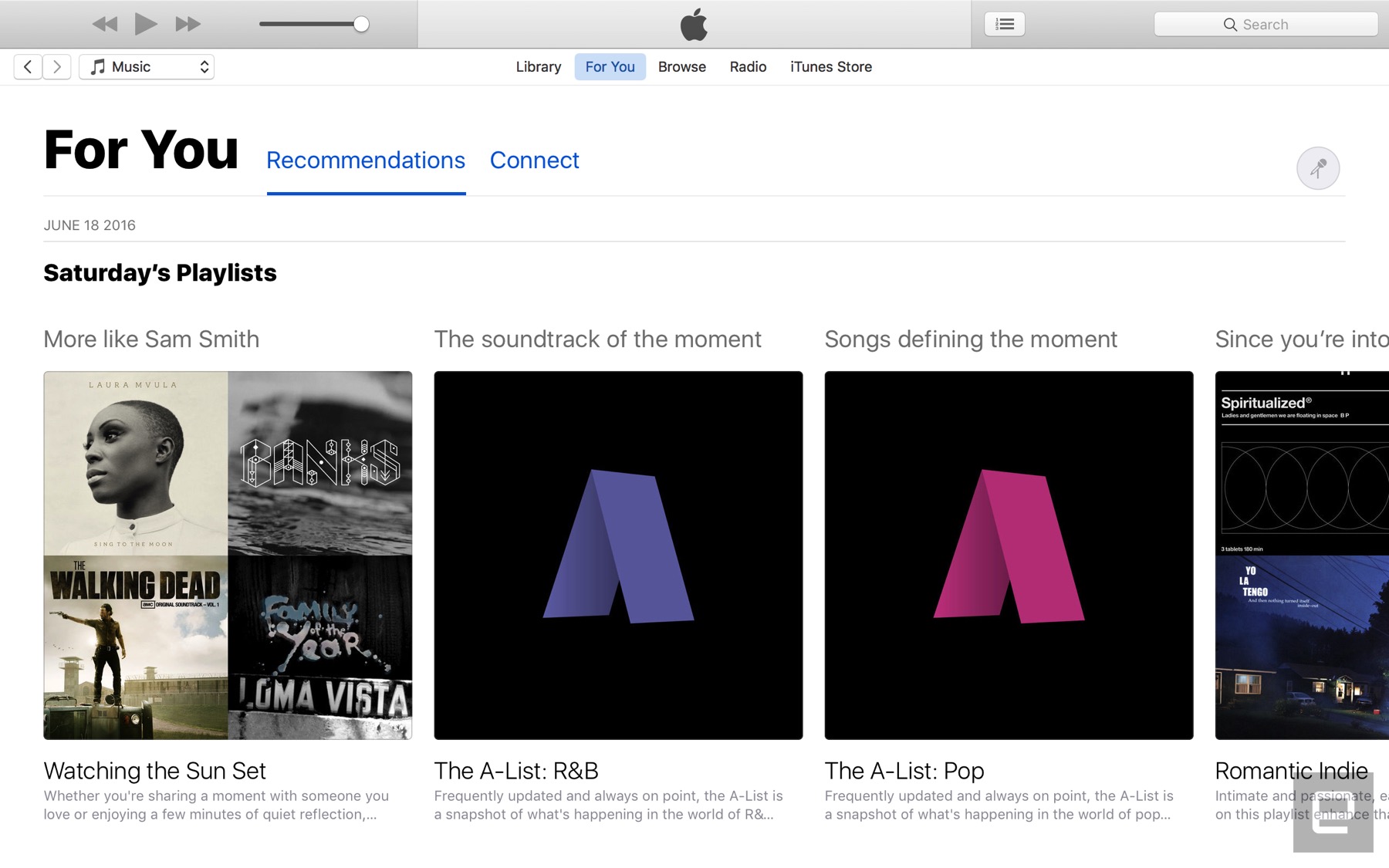
Speaking of iTunes, Apple Music has received a major redesign on both mobile and desktop. In the case of desktop (that would be the iTunes app), you’ll see three major sections: “For You,” “Browse” and “Radio.” Those last two need no explanation, but in the case of “For You,” it includes a mix of personalized recommendations and playlists, as well as updates from whatever artists you might be following. Throughout, the look is much cleaner, with large headers and oversize album art. Make no mistake: iTunes itself still feels like a bloated mess, but at least Apple Music now feels streamlined.
iCloud Desktop and Documents

If you like, you can now have your entire Desktop and your Documents folder sync directly to iCloud so that you don’t have to cherry-pick specific files for upload. Basically, then, Sierra works a lot more like Dropbox (or OneDrive, Google Drive or any other cloud storage service that allows you to automatically back up folders wholesale). As ever, you’ll find Desktop and Documents in Finder’s left-hand pane; now, though, they’re listed under “iCloud.”
Obviously, it’s up to you whether you want to take advantage of this feature (it’s not turned on by default), but personally I’ve found it very useful. Because I have an iMac on my office desk and a MacBook that I take home and into conference rooms, it’s nice to be able to quickly retrieve things like TextEdit files and know my progress was saved across devices.
Optimized Storage

While we’re on the subject of iCloud, Sierra does a bunch of things to help you better manage your large iCloud library. If you head into iCloud settings, you’ll see an option for “Optimize Mac Storage” that enables not just one feature, but a whole series of background processes that help free up space on your local drive.
By default, your whole iCloud library will be available on your machine if you have the space, but if you don’t, older files will automatically be uploaded to the cloud. Optimized Storage also moves seldom-used files and already watched iTunes videos off your local disk. You can also store Mail attachments on the server until you choose to download them. Ditto for things like dictionaries, instructional videos and special fonts, which are now available on demand instead of on the system itself.
Other low-hanging fruit include items that have been in the trash 30 days — Sierra can automatically erase that, as well as clear your cache and logs. Additionally, it flags duplicate downloads in Safari and reminds you of used application installers. Lastly, the macOS installer itself is smaller than in years past, meaning you have slightly more free space after upgrading than you might have had otherwise.
Photos

If you’re an iPhone or iPad owner, you’ve presumably updated to iOS 10, which, among other things, brings a redesigned Photos app. The new Photos makes an appearance here on Sierra too, albeit with a more sprawling, desktop-friendly design. As on iOS, Photos now uses artificial intelligence to analyze your pictures, identifying places, faces and various objects, like dogs and beaches. The app then takes all that information and puts together so-called Memories — automatically generated albums showcasing what Apple’s AI thinks are the highlights.
Though you might not always agree with the particulars (surely there was a better version of a shot Apple could have chosen?), this is a convenient way to look back on good times without having to go take on the chore of sorting and curating your photos. Scroll down and you’ll see that Apple includes “Related Memories” below the Memory you’re looking at. Be warned: This can be addictive.
Aside from Memories, you’ll also find dedicated People and Places albums. When it comes to people, Apple’s AI gets smarter over time as you tag more and more faces. To make this easier, Photos surfaces faces with a prompt to fill in that person’s name. Once you get a good backlog, you’ll notice that the People album sorts faces in descending order according to how frequently they appear in photos. That said, if you add someone as a favorite, they’ll always float to the top regardless of their ranking.
There are some UI changes here as well. There’s a search bar that can bring up pictures based on keywords — say, “cats,” “snow” or whatever else might be in the shot. As mentioned, Siri can find your photos too (try asking for photos from a certain year, or with a certain person taken at a certain place). The Albums view looks a little different as well, with rounded tiles and a view counter on videos. Also, if you’re viewing one big photo on the screen, you’ll notice that the scrubber on the bottom looks a lot like the one on iOS. (Pick “Show Thumbnails” from the View menu to make the scrubber appear in the 1-up layout.)
Lastly, Photos on Sierra ushers in some new editing tools. Among them: “Brilliance,” which applies region-specific adjustments to brighten dark areas, and “Markup” for adding text, shapes and signatures to images. You can also edit Live Photos (both stills and video), and Apple has released an API allowing third-party developers to incorporate this feature into their own image-editing apps.
Messages

Messages is yet another app that received updates on both Sierra and iOS 10. New features include larger emoji (three times bigger than before), inline previews of videos and websites, and so-called Tapbacks, which let you respond to a message by adding a thumbs-up, heart or other pictorial reaction by tapping rather than hit ‘reply.’ The fact that your reaction appears on top of the message bubble means less clutter as you scroll through a message thread.
Unfortunately, some of the most addictive new features in Messages for iOS didn’t make it into the desktop version. On mobile, for instance, you can send messages with stickers, handwriting, flashy screen backgrounds and animated text effects (think: “slam” for emphasis). Not on Sierra, though. If it’s any comfort, you can at least view these effects on the desktop when your friends send wacky messages from their iOS 10 devices. You just won’t be able to respond in kind.
Tabs

It’s not just Safari anymore — many Mac apps, including Mail, TextEdit, Maps and the iWork suite also now support tabs. So if you open a new window in Maps, you’ll see not a new window, exactly, but a neat little tab. This will automatically work across many third-party document-based apps too, without any tweaks required on the part of developers. The only apps where this won’t work are ones that didn’t already have a multi-window option. That’s why you’ll see tabs in Maps, for instance, but not FaceTime.
If you really love this feature, you can choose to always turn new windows in these apps into tabs. (That’s what I opted to do.) There are other options, though. You can elect instead to have this happen in full-screen mode only.
Odds and ends
And finally, some other miscellaneous changes that might (or might not) be of interest:
- The ability to share notes from the Notes app.
- You can now find Safari browser extensions in the Mac App Store.
- Safari automatically plays HTML5 video if the website you’re looking at supports it. If a plug-in is required to view video, you can opt to enable it just once or on an ongoing basis.
- A filter button in Mail allows you to see just unread or flagged emails, messages that are addressed to you or ones you’re copied on, or messages sent with attachments. It’s also possible to apply more than one of these criteria at a time.
- Push email support and calendar updates for Exchange accounts.
- Send read receipts for individual conversations in Messages.
- “Coordinated alerts” mean that notifications make a sound only on the device you happen to be using.
- Spotlight Search now finds files you’ve created, printed, shared, emailed, messaged and sent via AirDrop, or posted to Twitter or Facebook.
- The keyboard settings menu now has an “auto-capitalization” option.
- A new keyboard shortcut (not enabled by default) allows you to add a period by hitting the spacebar twice.
- Apple says Sierra’s autocorrect algorithm is generally smarter than it was in last year’s OS.
- Sierra adds a few new dictionaries, including Traditional Chinese and Danish. There are also two new bilingual dictionaries: Italian-English and Dutch-English.
- Japanese users are getting transit directions in Apple Maps. This includes major train, subway, ferry and national and local bus lines in Tokyo, Osaka and Nagoya.
- Right-to-left support for Arabic and Hebrew.
- Time Machine now supports the SMB protocol, making it compatible with third-party network-attached storage devices.
Wrap-up
There’s little reason to ever skip a macOS update (in fact, there are lots of reasons that’s a bad idea). But as far as annual releases go, Sierra is a fairly minor one. You probably won’t appreciate Siri on the desktop unless you already use it on mobile, and even then, Apple’s virtual assistant isn’t always as smart as we’d like. Auto Unlock is useful, but difficult to set up, and you need an Apple Watch, which many folks don’t have. Apple Pay is convenient but also conducive to impulse purchases, which is probably better news for retailers than shoppers.
Take all that away and some of the most useful features are actually the least showy. Think: Optimized Storage and the ability to automatically back up your Desktop and Documents folder to iCloud. Many people will use these features, myself included. Are these updates exciting, though? I think even the most loyal of Mac users would have to say no.
LuDela Smart Candle Release Date, Price and Specs – CNET
The LuDela Smart Candle is a real candle with a real flame — none of that cheap-looking LED candle stuff — but you can light it with an app. You read that right: You can now literally light a flame with an app.
The app connectivity isn’t just a gimmick, though. It also features extra safety features to prevent house fires or injury to young children, as well as scheduling features. According to LuDela’s CEO, voice integration is even planned for the near future.
All these features come at a price. For $100, you get the base device, including a colored wax shell and a beeswax-and-soy 30-hour candle. Each additional shell you get (for seasonal decor, for instance) costs $20, and each additional candle is $8 (or $6, if you subscribe to LuDela’s service).
 LuDela
The mechanics behind LuDela are simple, but creative. Essentially, the device comes in three layers: The outermost layer is a purely aesthetic shell; the second layer is the silicone device itself; and the third layer is the candle, which sits in a spring-loaded cradle to keep the wick at the top even as the wax burns away. The result is a pillar candle that’s only a few inches in diameter. Only when you look closely near the wick do you notice the differences between LuDela and a standard candle.
LuDela lights the flame by channeling heat between four electrical nodes that surround the wick. It extinguishes the flame with a small fan nestled right beside the wick. Other than these two mechanisms, the device consists of various sensors for safety purposes. If the candle tilts to the side, for example, it will automatically extinguish the flame. If anything passes over the top of the flame within a few feet, the flame will go out. Essentially, it seems like the LuDela’s Smart Candle will attempt to diminish the dangers of regular candles.
 LuDela
I’m not thrilled about LuDela’s price; $100 for app control and extra safety features seems a bit pricey — especially when standard pillar candles or smart LED candles will only set you back between $10 and $40. That said, as someone who hates hunting around for a lighter or matches, I like the idea of starting fire with my phone.
LuDela is available for preorder beginning today, and the company plans to ship out units by the end of 2016.
Fizzics Waytap Release Date, Price and Specs – CNET
 Fizzics
A year after surprising us with a sonic-powered beer enhancer, Fizzics is launching a crowdfunding campaign today for a new device called the Fizzics Waytap. Like the first Fizzics, you’ll put your bottled beer into Waytap, and it’ll use sound waves to give you a smooth pour topped by a creamy head — making your store bought beer taste like it came from the tap at your favorite bar.
The biggest difference between the original Fizzics and the new Waytap is the appearance — it’s smaller, thinner, and lighter than before. You’ll also put your beer into the device differently. You open the lid of the first Fizzics, place your bottle into the body of the device, then guide the tap’s hose into place while closing the lid. Waytap wants to make the process more simple and sanitary. The whole top of the cylinder comes off, you put your beer on the base, then as you put the top back, the hose should go into the bottle on its own.
A smooth pour

Fizzics on the left; Waytap on the right.
Fizzics
With both devices, once the container is sealed, pull the tap handle forward and the Fizzics Micro-Foam technology will steadily pour your beer out under pressure. Once your glass is almost full, push the handle in the opposite direction, and Fizzics will agitate the carbonation of the beer remaining in the bottle, and top off your glass with a frothy head of foam.
When I tested the first Fizzics, I thought the whole idea of using sound to make bottled beer taste better sounded like elaborate fiction, but it works. Fizzics genuinely made beer frothier and creamier. I didn’t always find that to be a positive thing, as it sometimes muted hoppier beers, but it made any chocolate or spicy notes pop and did make some bottled beers taste better and closer to their draft variety.
Outlook

Can Fizzics unlock your bottled beer’s true potential?
Fizzics claims it can make bottled beer taste like draft. We head to the corner bar to put that claim to the test.
by Andrew Gebhart
Close
Drag
Given that the Waytap will be using the same technology as Fizzics, I have every reason to suspect it will have similar success. I didn’t really find the original Fizzics too big or too difficult to use, though, so the Waytap doesn’t look to fix any of my issues with the original product. The smaller size actually eliminates one of the cool uses of the original Fizzics — pouring growlers. The Waytap can’t fit them.
Beer tech
- Synek Counter Top Beer Dispenser
- PicoBrew Pico
- Brewie
However, I’m sure the smaller size will appeal to some and it can still fit both bottles and cans. Plus, Waytap is cheaper than Fizzics — it’ll retail for $130 whereas Fizzics costs $170. Via the Kickstarter campaign, you can preorder Waytap now for discounts off of that price and it’ll ship anywhere in the world. The US price converts to roughly £100 and AU$170. The Fizzics price converts to £130 and AU$230 (plus tax).
The original Fizzics was a crowdfunding success too, so if you like the look of the new Waytap and like your beer frothy, I’d call preordering Waytap a pretty safe bet.
Forza Horizon 3 review – CNET
The Good Great open world and lots to explore. The cars are gorgeously detailed and feel great on (and off) the road.
Excellent options for driving against or with friends both virtually and online.
The Bad It’s amazing how weirdly they’ve mashed the real world into this map. Track racing fans might wish for something more serious.
The Bottom Line A great open-world racing festival that captures the Australian landscape beautifully and makes it a fun driving experience.
Visit manufacturer site for details.
Strewth mate! When I first caught wind Playground Games was making a dog’s breakfast of the Aussie map for Forza Horizon 3 I was bloody outraged! But now I’ve had a good gander ya gotta give ’em a fair shake because it turns out they’ve made a corker that really does get the Aussie vibe of the thing. Go ‘Straya!
Translation: If you know the reality, you’ll know Playground has done some very weird things with the Australian map for its Forza Horizon 3 setting. But what the game lacks in geography lessons it makes up for in sheer driving pleasure, while still capturing the spirit of what it means to make a racing game with an Australian backdrop.

The Holden Special Vehicles GTS Maloo. Please, play it like an Aussie and make this your starting car.
Microsoft
Driving games love their stats, so here’s a few: Over 350 cars, twice the map size of the previous Horizon game, 12-player online multiplayer, four-player online campaign co-op, new events and car types galore. If you want more, Forza Horizon 3 gives you more. Case closed.
The cars all feel wonderfully different too. It’s not just that they handle differently. The sounds they make are unique to each make and model. After performing upgrades the sounds change too. There’s no mistaking the difference between a BMW RLL Z4 GTE, a BMW M4 Coupe or a BMW Isetta 300 Export. Turbos pop violently, V8s thunder and race engines roar.
But there’s something else here. The game feels more open than ever. Forza Horizon games are about enjoy the open driving experience, this time around the game lets you really go wherever you want. Take shortcuts across fields, through forests or even off clifftops. Drive through the surf. There’s less of a sense of being hemmed in by invisible walls than ever before.
Fun on the open road
Your first mission in the game sets quite the tone. It’s you in a buggy versus a Jeep that spends most of the race being flown through the bush under a helicopter. It’s dumb, it’s crazy and it’s a lot of fun as you chase it through bush terrain on your way to your first Horizon Festival location.
The game is also notably not just fun, but funny. Beauty spot commentaries, radio announcers (my favourite is the classical community radio station — nothing like doing burnouts to some Beethoven) plus banter with your festival assistant (you’re now the boss, by the way). Little touches that make you laugh rather than cringe at the idea that real people with the kind of money to enjoy cars like these are sometimes jerks and, to use the Australian vernacular, wankers.

A buggy versus a jeep under a chopper? The crazy tone is set from the very start.
Microsoft
The race events are fun and a good mix of styles and locations, with environments like beaches, coastal roads, city streets, forests and the outback. But I’ll happily argue the best of the game is found out on the open road. Nothing is too gated either. Yes, you must unlock events by gaining fans to open up more festival upgrades and new venues, but the world itself is made to be explored.

It’s not all beaches, forests and outback. There’s a city on a beach too.
Microsoft
The game again features “Barn finds” as a way to discover 15 classic cars hidden out in the world. It really should have been renamed “Shed finds” for the Australian setting, but the fun of the hunt lets me overlook that faux pas. There’s danger sign jumps for doing particularly crazy stunts and bucket list objectives with races and events that are even more over the top than usual. But the best of the new additions has to be Convoy.
With Drivatars of friends still a big part of the game, you can now beep your horn while driving past Drivatars to form up in a convoy of racers heading wherever you want to go. Suddenly the basic act of driving through the open world feels like you are racing along with friends, without worrying about actually winning a race. If you go off-road your convoy will still follow along, making for some particularly fun times bouncing through the scrub in search of a hidden barn.
Canary Flex Release Date, Price and Specs – CNET
Canary, the startup behind the Canary all-in-one security system, is back with a new product — the $199/£159 Canary Flex. Here’s an overview of the Flex’s basic specs:
- 116-degree field-of-view camera
- 720p resolution
- Live streaming
- Night vision
- Motion sensor
- Motion-related alerts
- Free 24-hour event-based storage
- $10 per month 30-day event-based storage
- Related Android and iPhone app
That’s not all, though. As its name suggests, Canary’s Flex is also extremely versatile.
Canary flexes its smart-home muscle with…
See full gallery


1 – 4 of 14
Next
Prev
To begin with, it’s rated for both indoor and outdoor use. And, because your purchase includes a magnetic base and mounting hardware, you can install it pretty much anywhere. The Flex also comes with a rechargeable battery, a small-scale version of what Tesla uses in its cars, according to John Carter, Canary’s head of Communications. Carter told me the battery should last for up to 2 months, but you can also use the adapter 24-7 if you’d rather not deal with the whole recharging batteries thing.
Netgear’s Arlo, another indoor/outdoor security camera, requires four CR123 batteries to operate. The Nest Cam Outdoor has to be connected to a power adapter at all times. Offering both gives the Canary Flex an edge over its competition.
35 connected cameras for a safer smart home…
See full gallery


1 – 4 of 36
Next
Prev
But, there’s one more thing that sets the Flex apart: a 4G LTE mount. As part of a partnership with Verizon, you can opt in to cellular backup for an additional monthly fee. It’s a solid option if you want to install your camera outside of traditional Wi-Fi range — or simply have a backup when your internet connection is spotty.
In addition to the 4G LTE mount (the price of the hardware hasn’t been set just yet), Canary will also offer three other mounts — a $30 Security Mount with a “security screw” that’s supposed to deter theft, a $20 Stake Mount to install in the grass and a $20 Twist Mount, a bendy mount that you can wrap around handles, knobs and other random things in your house.
Cameras, cameras and more cameras:
- Nest’s hardy outdoor camera watches over your roost
- Netgear’s Arlo defies typical security camera limitations
- This snazzy porch light doubles as a DIY security camera
As far as integration with products from other manufacturers goes, the Canary Flex should be Wink-compatible shortly after launch. The team is also in talks with IFTTT and Apple HomeKit for potential partnerships in the future.
Canary’s Flex is available for preorder now on Canary’s site, as well as at Best Buy, Home Depot and Verizon, with shipping slated for early November. We’re hoping to get our hands on one next month, so check back soon for our full review.
GoPro Hero5 Session Release Date, Price and Specs – CNET
GoPro’s Session camera got off to a rocky start.
The tiny cube-shaped shooter — the smallest the company had ever made — received praise for its design while simultaneously being bashed for middling video quality and too few features for too high a price. It wasn’t until GoPro cut the price in half to $200 that consumers were able to look past its shortcomings.
For the Hero5 Session, let’s just say GoPro has learned its lesson. It’s still going to seem pricy to some at $300, AU$460 and £250, but at least now it has some higher-end features to back it up, including 4K-resolution video.
 Joshua Goldman/CNET
Before I dive into the features, though, you should know its design is essentially unchanged. If you didn’t like the original with its built-in battery, no screen for previewing and reviewing, and limited onboard controls, you’re not going to like the Hero5 version any better.
What you do get is the same supersmall camera that turns on and starts recording with a single button press and is much easier to mount than its rectangular linemate, the Hero5 Black. It’s still waterproof without a housing down to 10 meters (33 feet), and GoPro CEO Nick Woodman said when he announced it that it’s the toughest camera they’ve ever made.
A sliver of a screen lets you see your settings, storage and battery amounts and select your shooting mode, but it can be frustrating to use. The camera does have Bluetooth and Wi-Fi, though, so you can always connect to a phone to access that stuff and more.
 Joshua Goldman/CNET
Don’t want to mess with buttons? GoPro added voice controls for starting and stopping recordings, snapping photos and even tagging highlights for editing. Maybe you’ve mounted the camera out of reach or you don’t want to take off gloves to switch from recording video to a time-lapse or you just enjoy yelling commands at inanimate objects. Whatever the case, the Hero5 Session has you covered.
GoPro also added electronic image stabilization and a new Linear-view setting that supposedly puts an end to the wide-angle distortion in video and photos. I haven’t had a chance to test these, yet, but I’m hopeful.
The camera also supports GoPro Plus, the company’s new $5-per-month cloud service. Plug in the camera to charge and your photos and movies will automatically upload to the service for viewing and sharing your phone, tablet or computer. It doesn’t replace storing your clips locally (video uploads are transcoded to 1080p at 30 frames per second, regardless of what you recorded them at), but it does mean they’re not trapped on a microSD card somewhere.
And, just in case you were curious, the Hero5 Session is compatible with GoPro’s Karma drone and can actually be purchased as a package for $999 (about £765 or AU$1,325 converted).
We’ll be back soon with a full review.
 AIVAnet