


Roku Express+ review – CNET
The Good The Roku Express+ has an analog audio/video output, allowing it to connect to older TVs. It’s cheap, easy to use and loaded with streaming apps, including the latest version of Netflix.
The Bad It’s slower, especially with Netflix, than other HDMI-only devices that cost just a few bucks more.
The Bottom Line With its affordable price, analog video capability and access to Roku’s best-in-class platform, the Express+ is a no-brainer buy for people who want to bring streaming video to an older TV.
These days just about everything you connect to a TV has an HDMI output. Those little connections deliver pristine digital audio and video in a single cheap cable, with better fidelity than any analog jacks. If you have the choice, you should always connect your AV gear via HDMI.
But thousands of people don’t have that choice. They own and watch TVs every day, some 20 years old or more, that don’t have HDMI inputs. They might consider these televisions perfectly good and be loath to upgrade to a new HDTV.
The $40 Roku Express+ is made just for them. This little box, smaller than its own remote control, is packed with streaming apps including Netflix, Hulu, Amazon Video, YouTube and thousands more. Numerous other devices can do the same thing, but unless you buy an adapter, none of them work with analog video, so none can connect directly to older TVs.
 View full gallery Sarah Tew/CNET
The Express+ is basically an analog-capable version of the $30 Roku Express, complete with Roku’s best-in-class app selection, simple interface and comprehensive search. If the TV you’re going to connect has an HDMI input, there’s little reason to get the Express+.
On the other hand the Express+ also has HDMI, so it might be worth grabbing if you anticipate needing the analog outputs at some point — for example, that trip to Grandma’s house. Of course, Grandma’s house will need good Wi-Fi to stream video.
The only physical difference between the two tiny Rokus is the Express+ has a little minijack port on the back labeled AV out, into which you plug the included red, white and yellow cable that in turn gets plugged into the TV. It even includes a sticker you can use to affix the little box to a TV or AV cabinet, and avoid having it get dragged around by cables. A short HDMI cable comes in the box too.
Acer Aspire S 13 review – CNET
The Good Acer’s Aspire S13 has a touchscreen that resists glare, a thin, light body that resists fingerprints and more solid-state storage than the competition — plus a fast Intel Core processor, impressive audio and exceptional battery life.
The Bad This 13-inch Acer is saddled with a stiff, shallow keyboard, and the touchpad’s poor palm rejection means the cursor jumps around in documents. Uneven keyboard backlighting and a thick screen bezel detract from the appeal.
The Bottom Line This Acer Aspire S13 isn’t the most inspiring thin notebook, but it’s a remarkably practical and cost-effective choice.
Technically, you can buy an Acer Aspire S13 in the United States for just $580, and the laptop typically comes in black.
Realistically, just forget about both of those things. I’m reviewing the Acer Aspire S13 in white — which starts at $800, £650 or AU$1,399 — because it’s the one doing something particularly neat.
Many laptops this thin don’t have great performance. Many laptops this powerful don’t have great battery life. Many laptops this price skimp on the storage and memory you need. And the ones that don’t — our favorite laptops — typically are made of smooth metal and glass that attracts loads of glare and gobs of oily fingerprints.
The 13-inch Acer Aspire S13 — the white one — doesn’t suffer from any of those weaknesses.

The Acer Aspire S13. Also pictured: an amazingly photogenic cushion.
Josh Miller/CNET
At 3.0 pounds and 0.57 inche thick, with a dual-core 2.3GHz Intel Core i5 processor, 8GB of RAM, 256GB of solid-state storage and a crisp 1,920×1,080-pixel resolution IPS touchscreen, it’s as thin, fast and spacious as the competition. (I tested the $1,000 Core i7 model with 512GB of storage — impressive specs for the price.)
In fact, the Aspire S13’s battery life is better than most. We got 9 hours, 45 minutes in our standard streaming video drain test, and I found I could typically work 6 to 7 full hours before needing to recharge. That’s just a stone’s throw away from the battery life we get with a MacBook Air, only this Acer has a far better screen and speakers.
But the white Acer Aspire S13 also does something I’ve never seen before. It’s a thin metal touchscreen laptop that doesn’t trap light and grease. The pure white matte aluminum surfaces simply don’t pick up fingerprints. (Aside from a fine coating of dust, our S13 looks just as good today as when we took it out of the box weeks ago.) And where most every single laptop manufacturer covers their touchscreens in sheets of mirrorlike glass, the S13 has an antiglare coating.
HP Elite X3 Release Date, Price and Specs – CNET
What if there was one device to replace them all? What if you no longer needed a laptop or a desktop to get work done? That’s what HP is trying to provide with the new Elite X3 phone.
The phone features high-end specs that put it head-to-head with the iPhone 7 and top Android phones, but that’s only half the story. This isn’t your typical phone. For one, it’s running Windows 10 Mobile, an operating system most people don’t even know exists.
It’s also designed for business, specifically for people who travel a lot. The phone can be placed in a desk dock and connected to a laptop dock, which transforms it into something that resembles a traditional Windows computer, albeit one with severely gimped features.
The Elite X3 is available now for $699 (£575 or AU$1,100 converted — UK and Australian pricing is yet to be announced). HP is also offering the phone bundled with the desk dock for $799 (about £710 or AU$1,200) while a bundle with the phone, Desk Dock and Lap Dock will be available from October 21 for $1,299 (around £1,070 or AU$1,700).
Hands-on with HP’s new Windows phone
See full gallery


1 – 4 of 18
Next
Prev
Why it’s a cool idea
The idea of transforming a phone into multiple devices with different functions isn’t a new one. Asus attempted something similar with the PadFone, as did Motorola with the Atrix. Both products, however, didn’t have Windows 10, which happens to be both the key and the Achilles’ heel to HP’s potential success.
The Elite X3 includes support for Continuum, a feature that allows the phone to connect to an external display and act more like a traditional Windows 10 computer. HP’s Desk Dock and Lap Dock are what makes this possible.
 Sarah Tew/CNET
The Desk Dock features an Ethernet adapter, two USB ports, a USB Type C port, and a DisplayPort. There’s no HDMI port, but you can buy a DisplayPort-to-HDMI cable if you want to connect to a hotel TV (for instance) and use it as an external monitor.
The other option is to use the Lap Dock, which is essentially a laptop with no internals. It features a 12.5-inch Full HD display, full keyboard, a Micro-HDMI port and three USB Type C ports. Connecting the phone to either accessory will also charge it.
 Dan Graziano/CNET
Once you connect the phone to the dock you will see a familiar Windows interface. You can then run multiple apps at the same time and have the convenience of a mouse and keyboard. I actually used the Elite X3 and Desk Dock to write this article. It was an enjoyable experience at first and I didn’t want to let go of the phone. At first, I was convinced this could be the perfect travel companion, but the more I used the phone the more it frustrated me.
Why I wouldn’t buy it
On paper, the Elite X3 is a great phone. It has a 5.96-inch Quad HD display with a quad-core Snapdragon 820 processor, 4GB of RAM and 64GB of storage. Also on board is a 16-megapixel rear camera, 8-megapixel front camera, dual front-facing speakers, a rear fingerprint sensor, a USB Type-C port, and a microSD card slot for up to 2TB of additional space. There’s also an iris scanner (like we saw on the Galaxy Note 7) and wireless charging. If it were running Android, it would be a compelling device.
 Sarah Tew/CNET
What hurts the phone is the fact that it’s running Windows. Out of the 20 apps I use on a weekly basis, the Elite X3 has only six: Facebook, Instagram, Uber, Slack, Spotify and Twitter. There’s no Venmo, Snapchat, Nest, Lyft or any Google apps. Sure, a lot of these wouldn’t be important for enterprise customers, but it prevents the Elite X3 from replacing your personal phone.
Even the flagship Continuum feature became frustrating once I ventured outside of Microsoft’s ecosystem of apps. While Word, PowerPoint and Outlook worked perfectly, there are still some apps that don’t support the feature, such as the collaboration tool Slack. To get around this I was able to use the web version of Slack, which worked fine, but this didn’t work for Google Docs and I was forced to do all of my typing in Microsoft Word, which isn’t ideal given CBS Interactive uses Google Apps for Work.
While the Elite X3 is an interesting concept, you’re better off using an iPhone or Android phone with a Surface Pro or another portable laptop.
If HP can get Android running on the X3, however, I’d love to give it another look.
Lenovo Yoga Book review – CNET
The Good This is a very slim, very light hybrid laptop, available in both Windows 10 and Android versions. The backlit touch keyboard vanishes at the touch of a button and the included stylus works well on both the Wacom surface and with an ink tip on actual paper.
The Bad The keyboard isn’t suited for more than minimal typing, there’s only a single Micro-USB port for accessories and charging, and the Atom processor is slower than mainstream laptops. The hefty pen, extra tips and paper pad are a lot of additional gear to carry around.
The Bottom Line Lenovo’s slim Yoga Book two-in-one is great with a pen, but its faux keyboard keeps it from being a practical laptop.
Right out of the gate, the Lenovo Yoga Book gets credit for offering one of the most unusual designs we’ve ever seen: This superportable two-in-one laptop/tablet hybrid includes a Wacom sketching pad that can instantly transform into a QWERTY keyboard. The result is a fun, highly portable device that instantly appeals to creative professionals — but one that’s not nearly as practical as Lenovo makes it out to be.
That doesn’t mean it can’t be an option for your secondary or travel computer, instead of a Chromebook, iPad or other small-screen budget laptop. But that largely depends on your creation versus consumption patterns, and — for creators — what you’re actually working on.
 View full gallery
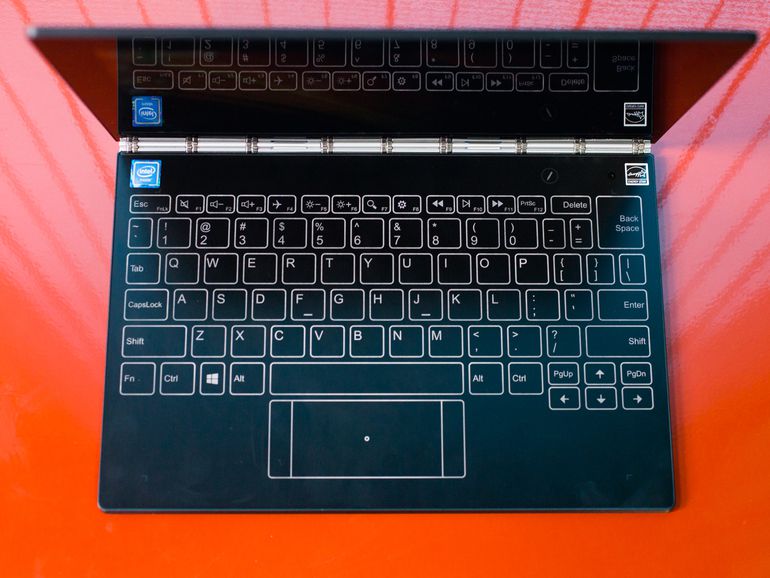
Instead of a keyboard, the Lenovo Yoga Book has a completely flat space that can be a keyboard when you want it to be.
Sarah Tew/CNET
The most striking feature of this slim 10.1-inch hybrid (available in both Windows and Android versions) is its keyboard, or at least the space on the clamshell body where the keyboard would normally be. Instead, there’s a completely flat, button-free surface that alternates between a drawing tablet and a touch-powered backlit keyboard. It’s a bit like an iPad’s on-screen keyboard, except that it doesn’t actually take over part of the screen.
Vanishing keyboard aside, the Yoga Book includes a pretty standard set of components for a budget laptop, with an Intel Atom x5 processor, 64GB of solid-state storage and 4GB of RAM. The price reflects these lower-end internal components, at $499 in the US for the Android version and $549 for the Windows 10 version. They’re £449 and £549 in the UK, and AU$799 and AU$999 in Australia, respectively. Both versions have the same internal components, but the Android model has a few keyboard/touchpad changes, some Android-centric software tweaks, and comes with a grey lid, versus the black lid in the Windows version.

View full gallery
When not serving as a keyboard, the flat space can also be a drawing pad.
Sarah Tew/CNET
Lenovo Yoga Book
| $549, £549 and AU$999 |
| 10.1 inch, 1,920×1,200 touch display |
| 1.44GHz Intel Atom x5-Z8550 |
| 4GB DDR3 SDRAM 1600MHz |
| 128MB Intel HD Graphics 400 |
| 64GB SSD |
| 802.11ac wireless, Bluetooth 4.0 |
| Windows 10 Home |
The overall shape and size of the Yoga Book can’t be beat. It’s 0.9 mm thick and weighs a hair over 1.5 pounds (680 grams). This is the only laptop I can recall taking to a coffee shop without a case, bag or anything to carry it in. I just tucked it under my arm like a slim paperback.
If Lenovo made a system roughly the same size and shape, but with a physical keyboard (even a very flat one, as in the 12-inch MacBook), it might be my favorite laptop.
The keyboard that wasn’t there
One messes with the traditional design and functionality of the classic QWERTY keyboard at one’s own risk, however. Many have tried in the past to prove that an on-screen, or zero-travel, keyboard is as good as having physical keys, and all have failed to one degree or another. There are dozens of add-on keyboards for Apple’s iPad, all predicated on the idea that the on-screen keyboard just isn’t good enough. Phones probably come closest to hitting the mark, especially with one-thumb swipe-based typing such as what is offered in Swype and SwiftKey, but that’s not how you want to write anything more than a quick email or a social media status update.

View full gallery
You will be looking at the keyboard often when typing on this flat surface.
Sarah Tew/CNET
Typing on a flat faux keyboard surface has been done before. My favorite example is a long-forgotten Acer laptop, called the Iconia 6120, from 2011. It was essentially two 14-inch LCD screens clamshelled together. Both were standard laptop touch displays, but the bottom one could show a large, touch-sensitive on-screen keyboard, as well as media transport controls and other widgets. There was never a second generation of that, which should tell you something about how well the concept worked in real life.
The keyboard here — called the Halo Keyboard — isn’t an image overlay on an LCD, but instead a backlit outline against a Wacom digitizer surface. It’s the kind of low-feedback experience that requires you to look down at your hands while typing, which may be a deal-breaker to some, but it’s also how many of us actually type.
View full gallery
The keyboard lights up on the surface.
Sarah Tew/CNET
While the Halo keyboard lacks the physical feedback of pushing a key down, there are two forms of feedback built in. One works, the other is awful. There’s a small haptic kick from typing, and that makes it easier to tell if a keystroke has registered, which is especially important while typing long sentences. That works fine, although it’s a general all-over kick, not localized to the area of the backlit keyboard you’re trying to hit.
The second is a loud beep with every keystroke. At least it’s every keystroke as long as you pause a few beats between each letter. Otherwise, your typing quickly outpaces the audio cues, and you end up with a trailing series of beeps, which totally throws off any typing rhythm. It makes the very minimal keyboard lag feel much worse than it is.

View full gallery
The Windows and Android Yoga Book keyboards differ slightly.
Sarah Tew/CNET
Fortunately, you can turn one or both of these effects off via a control panel, as well as adjust the brightness of the backlit keyboard icons. With the haptic feedback on but the beeping off, the keyboard feels much more exact, with just a tiny bit of lag under fast typing. I trained my fingers to adjust to the quirks of this system quickly, but this isn’t a device for longform typing.
The small touchpad below the keyboard is wide but very short, and it’s easy to misread exactly where it starts unless you’re staring directly down at it. Two-finger scrolling on long web pages and documents works surprisingly well, but the pad lacks the ability to tap-and-drag, or tap-drag-and-select, which are both common moves for standard physical touchpads. Instead, you’ll have to use the faux left and right mouse buttons on either side of the touch pad, which leads to some awkward two-hand maneuvers just to highlight some text.
Ecobee3 Lite review – CNET
The Good A responsive touchscreen and integrations with Amazon Alexa, Apple HomeKit, Samsung SmartThings, Wink and IFTTT give the lower-priced $169 Ecobee3 Lite Smart Thermostat serious appeal.
The Bad “Smart” is a bit of a stretch for the Ecobee3 Lite, since it doesn’t rely on activity-tracking sensors or any other sort of adaptive tech to learn your routine. $169 is still a lot to spend, especially on a programmable thermostat.
The Bottom Line No other Wi-Fi thermostat available today offers this many smart home partnerships for this low of a price, but you should weigh the importance of the integrations against the MSRP — many 7-day app-enabled programmable thermostats cost just $100.
Visit manufacturer site for details.
I’m not saying $169 is cheap, but it’s a darn good price in smart thermostat-land. There, Wi-Fi models regularly sell for over two hundred bucks and very few work with Amazon Alexa, Apple HomeKit, Samsung SmartThings, Wink and IFTTT.
That’s where Ecobee’s new Ecobee3 Lite Smart Thermostat comes in. Available beginning October 31 at Home Depot, Best Buy, Amazon and Ecobee’s online store, the $169 Ecobee3 Lite is the least expensive Wi-Fi thermostat you can find today that supports five major smart home platforms.
So what’s the downside? Like the $160 Emerson Sensi Wi-Fi Programmable Thermostat, the Ecobee3 Lite is only semi-smart — it doesn’t come with a remote sensor or any other advanced features. Instead, it bridges the gap between $100 app-enabled thermostats with no smart home integrations and $250 high-end models with smart home integrations and tech that learns your routine and makes automatic temperature adjustments.
The Ecobee3 Lite is easily the most appealing basic 7-day programmable thermostat on the market, one I can comfortably recommend. Just be sure to consider how much these connected home partnerships matter to you before you buy.
This Ecobee thermostat runs your heating…
See full gallery


1 – 5 of 9
Next
Prev
Same Ecobee style
The Ecobee3 Lite looks identical to the brand’s existing $249 Ecobee3 Wi-Fi Smart Thermostat. Both have a 3.5-inch glossy black digital display with a touchscreen interface, similar to a phone. Simply tap on the various options to change the temperature, view the current forecast, set schedules and otherwise adjust the settings.
It’s worth noting that the layout on the Android and iPhone app mirrors the Ecobee3 Lite’s hardware, so there’s little-to-no learning curve on that front.
Overall, I like the look of this thermostat and its companion app — it’s particularly great if you’re a fan of integrated touchscreen panels. Personally, I prefer more tactile displays with buttons or at least some sort of haptic feedback a la Nest’s $249 Learning Thermostat. But the Ecobee3 Lite’s interface is intuitive, easy to navigate and extremely responsive.
In other thermostat news:
- How to find a great thermostat for just 30 bucks
- Sensi found a smarter way to heat and cool your home
- Honeywell finds a new look for its latest Lyric thermostat
- Ecobee’s smart thermostat closes in on Nest
- Thermostat buying guide
- Install Emerson’s Sensi thermostat in a snap
Installation
Always consult a professional if you have questions about installing a thermostat. But, if you’re familiar with the general process, getting the Ecobee3 Lite up and running is pretty simple.
There’s one caveat: The Ecobee3 Lite doesn’t offer a rechargeable battery like Nest, so you’ll need to have a C wire to power the digital display or install the included Power Extender Kit.
Shut off power to your thermostat at the circuit breaker.
Remove your original thermostat’s faceplate.
Take a picture of your existing thermostat wiring.
Label your thermostat wires if they aren’t already.
Disconnect your thermostat wires from your old thermostat.
Uninstall your original thermostat’s baseplate.
Feed the wires through the new baseplate and screw it to the wall.
Connect the wires to the appropriate ports.
Attach the faceplate to the baseplate.
Turn power on to your HVAC system at the circuit breaker.
It took me roughly 15 minutes to replace a third-gen Nest thermostat with the Ecobee3 Lite at the CNET Smart Home. You may need to use a power drill to create new holes, though, and that could add time to your install.
The Ecobee3 Lite is a decent smart thermostat that costs less than most
Most thermostat makers now have at least a single entry in the smart-home category, with some already on their second- and even third-gen products. All are vying to provide consumers with smarter, simpler controls for home heating and cooling. The new Ecobee3 Lite isn’t the company’s first such device, but it does mark the brand’s attempt to hit a much lower price point. With a $169 MSRP, it costs $80 less than the original Ecobee3 as well as the Nest, and is $30 less than the Honeywell Lyric. But in order for the company to hit that price and still keep the flagship model relevant, some features had to go.
Hardware

The thermostat is wrapped in a white plastic housing with a prominent semireflective black face. Most of the front side is taken up by a 3.5-inch touchscreen. The display is easy to read from most angles and the information displayed is clear and easy to parse. At rest, the thermostat displays the current indoor temperature and weather, but when you walk up to it, the device recognizes your approach, at which point the screen morphs to also show temperature controls and icons for accessing system settings.
The underside is populated with pins that interface with the Ecobee3 housing mounted on the wall. Depending on the finish and condition of the wall surrounding your existing thermostat, you can opt to install the included plastic base that extends 2 or so inches around the edge of the housing. This helps make the installation look tidier if your wall has holes from a previous thermostat.
Setup

Speaking of the sort, the installation here is fairly straightforward: Either download the Ecobee app on your iOS or Android device for step-by-step instructions or use the how-to guides and videos on the company’s website. In broad strokes, you’ll need to shut down your HVAC system, attach the included base to the wall, level it with the built-in tool, wire in your existing thermostat, and turn the system back on. Then you’re ready to configure it. While that might sound intimidating, Ecobee’s compatibility guides will walk you through most of the important steps and considerations before you start. If you follow along carefully you shouldn’t encounter any surprises, as the process is well-documented — suitable for anyone who already considers themselves somewhat handy. If you’ve ever wired a plug or light switch in your home, the installation here will be a breeze.
The most common issue older systems may present during the install is that some home thermostat wiring might be missing the “C,” or common wire that provides the 24 volts the thermostat system needs to function. Thankfully, you can handle this in a couple ways: Pull a C wire up to your thermostat’s location from the furnace (or hire someone to do it for you) or use Ecobee’s handy Power Extender Kit (PEK), which comes in the box. The PEK’s role is to take power from the C tap inside your furnace and pass it through the existing wiring so you don’t need to add a new wire. The PEK installation should cover most home configurations and only take a few minutes to complete. But keep in mind that you’ll need access to your furnace and its wiring to complete this step.

Once installed and powered on, the thermostat will confirm all the wires you’ve connected and whether or not you are using the PEK, this gives you one last opportunity to check your work before proceeding with the configuration. With that out of the way it’ll ask about your heating and cooling setup, have you name the thermostat and set up WiFi password via your iOS device or with the small on-screen keyboard. Now that it’s connected to your network, the thermostat will generate a registration code, which you can use to add it to your Ecobee account via either the Ecobee app or website. OK, we’re done!
In use
Using the Ecobee3 Lite is as simple as you’d hope. Just slide a finger up and down on the right side of the 320-x-480 display to adjust the temperature of whichever mode you’re in: heat, cool or auto. The device will learn your patterns over time and adapt continuously. All its settings are accessible via icons on the thermostat display, in the app and on the Ecobee site. The thermostat can be paired with the Amazon Echo Dot or used with Apple HomeKit for voice control, too. IFTTT support is also here for even greater levels of customization. Additionally, the device works with Samsung SmartThings and Wink, among others.

The app and web console match the display on the device itself, meaning the experience is essentially the same across platforms. The website offers much quicker access to all the functionality because of the greater screen real estate available, but the same controls are present everywhere. In my very unscientific tests, the furnace’s reaction times to changes made from the web or the phone app were indiscernible to those made locally on the device.
Missing from the Lite is a component that some of the flagship’s more advanced features relied on: remote sensors. The Ecobee3 included one in the box and more could be added to the system if needed. Sadly, the savings in the sticker price for the new version means that Ecobee has completely omitted support for remote sensors. And that’s a shame: These small stick-on devices were useful for a few important things. In particular, they monitored temperatures in other parts of your home, and their motion-sensing allowed the Ecobee3 to be aware of your location in the house if the “Follow Me” feature was enabled. So, instead of heating or cooling based on wherever the Ecobee3 was installed, the motion sensor in the remote device would tell the Ecobee3 that you were near it and then heat or cool to that remote temperature instead.
The loss of these sensors won’t be a deal-breaker for everyone, but in cases where your thermostat is out of the way and you’re not walking past it regularly, it may decide you’re out and put your home into away mode while you’re still there.
The competition
Nest is likely Ecobee3 Lite’s chief rival, but while it costs quite a bit more for what are essentially similar features, it seems to have become a household name in this space, not unlike Kleenex vis-a-vis tissues. In addition to brand awareness, Nest has the upper hand when it comes to build quality. Whereas Ecobee’s products are made from plastic, Nest’s devices are fashioned out of metal and glass for the housing. This isn’t to say the Ecobee3 Lite looks cheap, per se, but to the extent that these devices need to blend in with your home decor, a premium design counts for a lot. Still, the Lite’s lower price, coupled with its good performance, will surely help it win over some shoppers.
Wrap-up

Your home’s layout and size will ultimately guide you to decide which device will serve you best. Larger multifloor homes may be better served with the Ecobee3, while smaller abodes could get by with the Ecobee3 Lite. Either one is simple to use and works as advertised. As with its predecessors, the job of heating and cooling is performed so handily here that we barely need to think about them being there. But unlike its predecessors, the Lite gets smarter with time as it develops a better understanding of how your schedule works. The Ecobee3 Lite offers essentially the same features and functionality as its competitors but for a lot less money, and that makes it worthy of your consideration.
HP’s Elite X3 gets closer to the dream of a Windows Phone as a PC
Everything about HP’s Elite X3 seems like a gamble. It’s the company’s first phone in two years, and it’s the first major Windows Phone device since Microsoft’s Lumia 950 debuted last year. HP is betting big that premium hardware and the ability to use the phone as both a pseudo-desktop and laptop will actually be a boon for enterprise customers. Naturally, too, HP is hoping to tempt businesses away from BlackBerry. But while it’s nice to see the company swing for the fences (like with its gorgeous Spectre 13 ultraportable), it’s not enough in this case to make the $699 Elite X3 a useful device.
Let’s make this clear up front: The Elite X3 isn’t a phone meant for consumers. It’s the sort of thing HP wants businesses to buy in bulk. The company is pushing it as three devices in one: an enterprise-grade smartphone, a desktop replacement (with the $799 Desk Dock bundle) and an ultraportable laptop (with the $1,299 Lap Dock bundle, which also includes the Deck Dock). Those two accessories are powered by Microsoft’s Continuum feature, which transforms the mobile OS into something closer to desktop Windows.
On paper, it all sounds like an IT manager’s dream, since they’ll only have to manage a single device for every employee. But speaking as a former IT worker, it’s clear that HP still has a long way to go before a phone can truly replace dedicated laptops and desktops.

At the very least, the Elite X3 is a sign that HP can build a decent-looking phone. It’s a large device, with a 5.96-inch WQHD (2,560 by 1,400) AMOLED display. But it actually feels good to hold, with curved rear edges wrapped in smooth plastic. Aside from the gaudy chrome strip along the bottom of its case (which houses stereo Bang & Olufsen speakers), the Elite X3 seems like a natural evolution of HP’s designs from the Pre 3 era. Along the back, there’s a fingerprint sensor below the 16-megapixel camera. Up front, an 8MP shooter sits beside an iris camera that serves as a second biometric authentication method.
HP didn’t skimp when it came to internal hardware either. The Elite X3 is powered by Qualcomm’s Snapdragon 820 chip, just like most of this year’s flagship phones. The device also packs in 4GB of RAM and 64GB of storage, which is expandable with microSD cards as large as 2TB. The phone is also available in single- and dual-SIM models, making it especially useful for international travel. At 192 grams (0.42 pounds), the X3 definitely makes its presence known in your pocket. But at least the weight distribution is such that it doesn’t feel heavy while you’re holding it.
As a mobile device, the Elite X3 is, well… a Windows phone. The platform feels pretty much unchanged from last year, even with the few tweaks from August’s Anniversary Update. That’s not a huge surprise: Microsoft’s Lumia 950 and 950 XL were failures, and the company has been silent about its mobile plans this year. The Windows app store is slowly getting better, but Windows 10 Mobile still has all the same limitations it did last year. The X3’s camera is also surprisingly slow. It stutters before autofocusing (HP says a software fix is coming), and there’s a noticeable delay when you’re shooting photos.

So, you might ask, why even build a Windows phone today? It turns out HP has a secret trick up its sleeve called Workspace. It’s a virtualized environment that lets you run full Windows apps when using the X3 in Continuum mode with its docks. That’s useful, because Microsoft’s much-touted Continuum feature is still as limited as ever, in that it only works with Universal Windows apps, and there still aren’t nearly enough of those around.
You’ll have to pay dearly for the privilege of using Workspace, though. Pricing starts at $49 a month per user, and you’ll be limited to 4GB of RAM, 10 apps at most and 40 hours of usage. Bumping up to the “Premium” tier, which starts at $79 a month per user, gets you 8GB of RAM, unlimited apps and 80 hours of usage. While HP is pushing the X3 as a truly no-compromise, do-everything device, I can’t imagine many people (or their IT departments) will be keen on having their software usage clocked.

I was only able to test the Elite X3 with its Desk Dock, not the sleek Lap Dock (that’s coming later this week, on October 21st). The beefy Desk Dock includes two USB 3.0 ports, one USB-C connection, a full-sized Displayport slot and, surprisingly enough, an Ethernet jack. It has a metallic chrome finish, as well as a rubbery material along its base to keep it in place on your desk. One strange thing: Though this is a device that’s solely meant to connect to an external monitor, HP didn’t include any DisplayPort cables or adapters in the box.
With all the necessary cables connected, I simply placed the X3 on the Desk Dock for it to wake up my monitor and display a Windows login screen. At first, I was astounded at how closely the interface resembled full-fledged Windows, but it wasn’t long before I noticed the limitations. The “Start” menu simply shows you the list of Universal Windows apps you have installed. You also can’t resize and tile apps as you would on the desktop; it’s just a slightly nicer way to use one mobile app at a time.

After a few minutes of testing, the Desk Dock stopped recognizing my Microsoft Sculpt wireless keyboard, even though the accompanying mouse continued to work fine. Eventually, I just plugged in an old Logitech keyboard I had lying around (which severely hampered my typing speed). You’d think even Microsoft’s own hardware would work properly in Continuum mode.
While testing Microsoft-built apps like Edge and Outlook, I also noticed some slowdown, which was surprising given the X3’s Snapdragon 820 CPU. Opening and closing tabs in Edge often took several seconds, and that’s not counting the surprisingly long time pages actually took to load. On its own, it’s clear that Continuum is far from what Microsoft originally promised, so it’s no wonder HP decided to add its own productivity solution on top of it.
HP’s Workspace environment is pretty barebones at this point. Once you sign in, you can launch apps like Notepad (yay?), Google Chrome, the Office 2013 suite, Slack and Acrobat Reader. There’s even Internet Explorer 11 support, which could be useful for companies stuck with legacy web apps (this is how you really know HP wants those enterprise dollars).
If you’ve used any virtualized app before, you’ll notice the same sort of slowdown when using Workspace. It’s fast enough to actually get work done, but there’s a noticeable delay when doing something as simple as typing. I was able to edit Word and Powerpoint documents with ease, and hop into Slack conversations with my colleagues, but I never got used to the slow typing speeds. That may not sound like a huge issue, but it could easily hinder the workflow of fast touch-typists. And take note: These are the speeds I saw when only a few reviewers and HP employees were using Workspace. It could easily get worse once more people hop on.
For all of its faults, Workspace is a decent solution to the endemic compatibility issues with Windows 10’s Continuum feature. It did feel a bit weird to see a countdown timer ticking off how much longer I could actually use the virtualized environment, though. Instead of freeing me from the shackles of juggling many devices, it felt more like being a hopeless corporate drone in Terry Gilliam’s Brazil.
 I’ll admit, my testing of the Elite X3 doesn’t cover the multitude of ways businesses could actually integrate it. But speaking as someone with experience choosing, deploying and supporting a wide variety of IT equipment, this device seems to introduce more problems than it solves. An aging desktop computer would be far more useful to most office workers than the X3’s Desk Dock. And while the Lap Dock sounds good in theory, it’ll likely suffer from similar performance issues (I’ll be testing that soon). With ultraportables getting cheaper every year, it’ll be even harder for IT departments to swallow the $500 cost for a compromised accessory.
The Elite X3 is basically pure potential. It’s the best stab I’ve seen yet at making Microsoft’s Continuum feature genuinely useful. And it could be a compelling mobile option as businesses look beyond BlackBerry. But right now, it’s hampered by Microsoft’s disinterest in mobile and the inherent limitations of virtualized software.
Lenovo’s futuristic Yoga Book is a novelty item not worth buying yet
At a time when Apple, Microsoft and Google are pairing their new tablets with keyboards, Lenovo has done the unthinkable. It’s completely ditched a true keyboard for a digital sketchpad, trading snappiness, travel and actuation for a smooth, futuristic touch surface. The idea is to offer a note-taking experience that’s so effective, you’d feel comfortable leaving the keyboard behind. The Lenovo Yoga Book, available in Android ($500) and Windows ($550) versions, is inventive. But Lenovo claims that the Yoga Book is the “ultimate tablet for productivity and creativity,” and that’s where the company is wrong. Despite plenty of well-intended enhancements, such as multi-window support in the Android model, Lenovo still failed to make device that truly facilitates productivity.
Hardware

The Yoga Book is available with either Android or Windows, and the only differences on the hardware front are their color options (the Windows version is only available in black) and the detailing around the trackpad. Either way, both flavors are gorgeous in an understated, elegant sort of way. The design combines a subtle matte finish and clean lines, with a touch of sparkle along the hinge. The best part is how thin and light the magnesium alloy frame is, at 0.38 inches thick and 1.5 pounds. Though it should be easy to take to meetings, as a tablet the Yoga Book feels heavy.
You’ll need two hands to pry open the device, since it’s magnetically sealed and meanwhile there isn’t an indentation in the edge where you can stick your finger as you’re lifting the lid. Once you get it open, the first thing you’ll notice is how smooth and flat the keyboard area is. That emptiness can be a little startling at first, but you’ll get used to it soon enough. Whether you’ll get used to the way it feels, though, is another matter entirely.
Like Lenovo’s previous Yoga convertibles, the Book has a sturdy 360-degree hinge that lets you set it up in four different “modes.” Flip the screen all the way around to use it as a tablet, prop it up with the screen facing you for a makeshift TV, or spread the two sides completely flat if you want a surface to draw on. You can also use the Yoga Book as a traditional clamshell laptop, but because there isn’t a keyboard to anchor it, the device sometimes topples over if you jab at the screen too hard.
Speaking of, the Yoga Book’s 10.1-inch full HD IPS display is plenty bright, and was easy to see even in direct sunlight. However, its glossy finish means if you’re watching something with dark sets, such as The Dark Knight or Stranger Things, you’ll see quite a bit of glare.
The Book comes with what Lenovo calls a “Real Pen,” which is thicker and more comfortable to hold onto than Samsung’s S Pen or the Apple Pencil. It even comes with a cap that doubles as a tool for changing out the stylus filament. I just wish Lenovo had been able to squeeze in an onboard dock for the stylus, but the Yoga Book is barely thick enough to house a pen on board.
Keyboard and trackpad

But let’s get to the feature that sets the Yoga Book apart: the disappearing touch keyboard. Lenovo calls it the Halo Keyboard, presumably after the rings of light that surround each key region. Instead of physical buttons that you can push down on, you’ll see outlines of them on the smooth, touch-sensitive surface. These virtual buttons are large and evenly spaced, and you don’t have to hit them hard to make your keystrokes register. Managing to type quickly and accurately, though, is quite difficult.
It’s a lot to get used to. Lenovo, for its part, claims that two hours is enough to become familiar with the setup here. Those who type with just two fingers will probably have an easier time surmounting the learning curve, but touch typists like myself might never get acclimated. For us, resting your fingers on the F and J keys during a typing pause is second nature, but in this case, that would trigger those letters on the Halo deck. That means if you’re going to use the Yoga Book, you’d better be prepared to unlearn old habits.
Still, Lenovo at least tried to make the experience efficient. It added adjustable haptic feedback and backlighting to help the Halo setup mimic a real keyboard, as well as predictive text and autocorrect for accuracy. While the Windows version relies on Microsoft’s onscreen keyboard, the Android flavor uses third-party TouchPal software, whose autocomplete suggestions I found intrusive. Any momentum I had built up was frequently interrupted when I had to hit the return key twice to break to a new line, since the first key press only served to confirm that I wanted to use the first suggested word. I was, however, pleased to find that common shortcuts such as Alt-Tab, Ctrl-Del and Ctrl-F were supported. My typing eventually got pretty accurate, but never very fast.

The onscreen keyboard provided little relief. Not in the Android version, at least. Its large buttons showed both letters and special characters, like ampersands and percent symbols. Seeing those special characters didn’t make them easier to access, and their presence only really served to clutter up the interface. It was distracting and a little confusing. You can switch back to Google’s default option, but even so: I wish Lenovo had handled this better. Fortunately, at least, this wasn’t an issue on the Windows version.
Another thing that bugged me about the Halo keyboard was the trackpad below it, which is small, sluggish and jumpy. Taps sometimes registered clicks, but other times nothing happened. This occurred across both OSes, but it was more pronounced on the Windows device. Other than using the touch display, there really isn’t a great way to interact with the Yoga Book.
Sketchpad experience

Still, doing away with a real keyboard is sometimes worth it, if only because of the cool sketchpad integration. The Halo panel turns into what Lenovo calls the Create Pad when you press the pen button on the top right of the deck. You can use the included stylus to draw on this; it’s like having a Wacom digitizer attached to its own screen.
What’s more impressive is that you can write on the Pad even when the tablet is asleep. Press and hold the pen button until it vibrates and you can write on the plain black sketchpad. Your scribbles will be saved to Lenovo’s note-taking app. That’s interesting, but not all that useful since you can’t see what you’re writing.
Separately, there’s a feature that lets you write with real pen and paper and have that all simultaneously show up on the Yoga Book. This is perhaps the feature that traditionalists will love most. Using the pen’s included cap, you can swap out the stylus for an ink cartridge and use it as an actual pen. Place any notepad on the keyboard and start writing, and it’ll show up on the screen. This, too, works while the tablet is asleep.
All of these features work as promised. And yet, as close as that last one gets to matching a real pen-and-paper experience, I still felt limited by the physical boundaries of the writing surface. In a note-taking session where I needed to be fast, I found it easier to just write on paper, which stayed put, and on which I could write horizontally, vertically and in corners. On the Yoga Book, I had to pause and make sure the pen was hovering at the right spot before I could continue scribbling. Most of the notes I took ended up not making much sense.
Ultimately, the sketchpad is useful for drawing and writing short phrases; not so much for extended note-taking sessions.
Software
Other than the note-taking and drawing implementations, both editions of the Yoga Book run pretty standard versions of their respective operating systems. Windows 10 in particular is a better option for those who want multi-tasking tools and support for desktop apps. Despite Lenovo’s efforts to integrate multi-window apps in the Android Marshmallow version, the feature only works for select programs, such as Gmail, YouTube and File Manager. Not many third-party apps can do this at launch, and you can only open up to three apps side by side anyway. When Lenovo updates the device with Android Nougat (it’s unclear when that will be), multi-window will be a native feature that works with all apps.
One feature I really like is the camera’s Smart Capture mode, which lets you shoot pictures of important info, such as lecture slides, and converts it into a flat, PDF-like image. I tried this out at a recent product briefing, taking shots of presentation pages from an odd angle. The app quickly and accurately detected the sides of the projected screen, highlighted them in green, straightened the image and then zoomed in on the highlighted area.
Initially I wasn’t wild about the camera placement. It’s on the Halo keyboard deck, next to the pen button, which means it faces up when you’re using the Yoga Book as a laptop. But use it as a tablet and it’s well-placed as a rear camera. As you’d expect, the front camera sits above the display, ready for selfies.
Performance and battery life
| Lenovo Yoga Book (Windows 10) | 2,104 | P485 | 149 MB/s (reads); 42.9 MB/s (writes) |
| Microsoft Surface 3 | 2,839 | P552 | 163 MB/s (reads); 39.2 MB/s (writes) |
Thanks to its 1.4GHz quad-core Intel Atom x5-z8550 processor, 4GB of RAM and 64GB of storage (expandable via the microSD card slot), the Yoga Book was generally zippy and multitasked well. Switching between Note Saver, Camera and Google Docs was easy, and I could quickly snap pictures of presentation slides, even while Drive, Play Store, Gallery and those other apps I mentioned were open. I didn’t encounter any delay when swiping through pages of apps, and zooming in on web pages felt smooth. There was some lag in launching apps such as Camera and Amazon’s Kindle, though.
| Lenovo Yoga Book (Android 6.0) | 3,857 | 770.8 | 47.5 | 3,959 | 26,663 | 49,658 |
| Google Pixel C | 6,294 | 670 | N/A | N/A | 40,980 | 34,948 |
* SunSpider: Lower scores are better.
Benchmarks tell largely the same story. The Android Yoga Book trailed the Pixel C and the iPad Pro in Sunspider, while its Vellamo score was half that of the Pixel. Its performance on graphics tests 3DMark Ice Storm Unlimited and GFX Bench were similarly lackluster. The Windows version kept pace in PCMark 7 with last year’s Surface 3, which uses an older quad-core Atom CPU.
Battery life
Lenovo Yoga Book (Android)
11:09
Lenovo Yoga Book (Windows)
8:06
Microsoft Surface 3
9:11
Google Pixel C
8:15
With its large 8,500mAh battery, the Yoga Book took two days of light to moderate use to get down to a 10 percent charge. That’s in line with Lenovo’s maximum battery life claim of 15 hours. The Android version lasted 11 hours and nine minutes on Engadget’s standard battery test, which involves looping an HD video at 50 percent brightness. We tested the Windows version at 65 percent brightness, and it clocked 8 hours and 6 minutes. The Pixel C and the Surface 3 both fell a few hours short of the Android’s runtime. You’ll want to make sure to use the included adapter when recharging, because that big battery will take a while to re-juice. Lenovo said the device will get fully charged in about three hours with the supplied cable.
The competition

There really isn’t anything quite like the Yoga Book. Even though the Surface Pro 4 also takes in pen input and is often marketed with a keyboard that you have to buy separately, it also uses a laptop-grade processor that’s much more robust than the one inside the Yoga Book.
The Android model faces off against Google’s Pixel C, which also starts at $499. While the Pixel is much more powerful than the Yoga, it, too, suffers from some input issues — in particular, the occasional sticky key. The Pixel doesn’t come with a stylus either, so those who are looking to doodle might prefer the Yoga Book.
There are other devices that convert your real-world scribblings to digital, such as Wacom’s Bamboo Spark ($200) and the Moleskine Smart Writing Set ($200). These require internet connectivity to save your notes to the cloud, and, unlike the Yoga Book, are built for one specific purpose. Artists could also opt for a Wacom Intuous digitizer (starting from $99) that attaches to their computers to make digital drawing easier, but this isn’t as portable a solution.
In the end, the Yoga Book exists in a category of its own, so none of these comparisons will be perfect.
Wrap-up

At first blush, the Yoga Book is a compelling device. The sketchpad integration feels smart and intuitive. But, as a fervent note-taker, I just couldn’t see myself taking it to important meetings. I simply couldn’t depend on it when I needed to quickly take copious notes — whether it be by hand or by keyboard. This specific complaint wouldn’t be as significant if not for the way Lenovo is positioning the device. It’s a “tablet for ultimate productivity and creativity,” according to the company’s website and marketing materials.
But real productivity lies in being able to very specifically and quickly control what you are entering into a device. And you can’t quite do that with the Yoga Book. Its middling performance and display don’t help either. Still, it’s an intriguing first step, and artists or doodlers might be interested. The Yoga Book is innovative, but innovative isn’t always reason enough to buy. Maybe Lenovo will fare better with a future version, if it decides to make one, but it will have to come up with a much better keyboard and improve the tablet’s performance for it to be worth considering. Until then, the Yoga Book is little more than a novelty item.
German officials: Tesla shouldn’t say ‘Autopilot’ in its ads
Just days ago, Germany’s Federal Motor Authority sent letters to Tesla owners warning them that their cars’ “Autopilot” feature is strictly there for driver assistance, not driver replacement. As it turns out, those letters were just the opening salvo. According to a report from Reuters, the German government is asking Tesla to stop using the term “autopilot” in its advertising entirely out of concerns that people misinterpret its purpose.
To be absolutely clear, your Tesla will not drive you around town on its own… yet. A Tesla spokesperson maintained that the word “autopilot” has been used in the aerospace industry for years in reference to systems that assist pilots in flight, and that the company has always been clear that people still have to pay attention to the road.
Still, it’s not hard to see what German authorities are concerned about. After all, Tesla is clearly heading down the self-driving path: CEO Elon Musk said last year that he was aiming to have fully autonomous cars ready in 2018, though he later seemed to shy away from his claim. It’s completely feasibly to expect that some people, especially those who don’t follow advances in technology as closely as we do, could get a little confused. Thanks to near-constant coverage and announcements, it’s pretty common knowledge that Teslas can auto-steer to keep the cars running at a steady speed in the same lane, automatically change lanes when the turn signal is engaged and parallel park by themselves.
With any luck, some new changes to Tesla software should help make things more clear. An update issued last month disables the Autopilot mode if the driver keeps removing their hands from the wheel. It’s also worth noting that domestic authorities are probably keeping a close eye on Tesla’s response to this situation; a draft regulation released by California’s Department of Motor Vehicles in September prohibits advertising cars that can sort of drive themselves a la Teslas as “autonomous” or “self-driving.”
Source: Reuters
Oxo Good Grips Pour-Over Coffee Maker review – CNET
The Good Thanks to its clever design, manually brewing coffee with the Oxo Good Grips Pour-Over is extremely easy. The coffee maker consistently brews delicious cups of properly extracted java with plenty of complex flavor. Since it has few parts, all of which are dishwasher safe, cleaning the Oxo Pour-Over is a cinch.
The Bad The Oxo Good Grips Pour-Over is more expensive than basic single cup pour-over coffee funnels. The coffee brewer is made from plastic instead of premium materials such as glass, metal, or wood.
The Bottom Line Drip, pour over, indeed any coffee fan should jump on the Oxo Good Grips Pour-Over Coffee Maker’s combination of low cost and excellent brew quality, but large volume java drinkers are best served by large automatic appliances from Bonavita and Technivorm.
Java purists will tell you all that’s required to make outstanding coffee are fresh grounds, hot water, and a reliable filter. That’s it, everything else is extra complication. In fact many of this subset swear by the most manual of brewing methods — pour-over. Performing pour-over properly, however, takes some skill and practice. Here to help is the $16 Oxo Good Grips Pour-Over Coffee Maker, a deceptively simple yet very capable kitchen gadget.
Thanks to a clever design, the Oxo elegantly removes many stumbling blocks from the pour-over process. Yet despite the loss of a few variables, brewing coffee with the Good Grips Pour-Over remains a very hands-on experience, and one which consistently delivers excellent results.
Design and brewing
Brewing pour-over coffee is pretty self-explanatory process — you’ll just pour hot water over fresh coffee grounds, then wait for it to drip through a filter into a cup waiting below. As such, classic pour-over coffee brewers are pretty basic, typically consisting of just a single funnel-shaped filter holder. For this reason, they don’t tend to cost very much.
For instance, a plastic Melitta cone runs for just $3 while porcelain versions cost $20. Even luxury Chemex brewers, which are crafted from premium materials such as glass and wood, start at $39. That’s certainly a far cry from the multiple hundreds you’ll have to sell out for a quality automatic drip machine from Bonavita, Technivorm, and Ratio.

The Oxo Good Grips Pour-Over looks simple but brews complex-tasting coffee.
Tyler Lizenby/CNET
You’ll pay a premium for the Oxo Good Grips Pour-Over compared to its cheapest plastic competitors, but the unique design offsets the higher price tag. That’s because Oxo helps account for one of the trickiest challenges to brewing pour over correctly: decanting the right volume of water into your brewing filter.
Other crucial factors include hitting the correct brewing time, water temperature, not to mention the even saturation of your coffee grounds. If any of these variables skews out of control, you can kiss your chances of enjoying a tasty cup of joe goodbye.

The Oxo’s ace in the hole is its handy water tank.
Tyler Lizenby/CNET
The Good Grips Pour-Over has one physical enhancement which effectively neutralizes these issues, transforming it into the best coffee gadget of its kind I’ve used personally. That ace in the hole is a small water reservoir which sits above its filter. Made of clear plastic and sporting graduated labels for easy measurement, the tank is durable enough to accept water just off the boil.
Once you fill it to the precise volume (6 to 10 ounces, 180 to 360 mL), water slowly drips through eight tiny holes on the bottom of the tank to wet the brewer’s bed of coffee grounds. Acting more like a shower head inside electric drip brewers, the rate of hot water flow is fixed by the physical size of these apertures along with the single opening at the foot of the filter funnel.

Pour hot water right of the boil directly into the reservoir.
Tyler Lizenby/CNET
Likewise, since Oxo recommends always brewing with water straight from a boiling kettle you don’t have to fuss with thermometers or trying to hit an ideal brew temperature. Still, to ensure consistent quality I strongly suggest grinding beans the moment before brewing, weighing the coffee you intend to use, and processing them through a burr grinder to achieve a uniform grind size.
 AIVAnet