


With VR dinosaurs and ‘Minecraft,’ one hospital is making medicine less scary
Going to the hospital can be pretty traumatic for kids. That’s something a new high tech overhaul of one of the world’s most famous children’s hospitals hopes to help with. How is it doing this? With cutting-edge technology, of course.
The result of a collaboration between the U.K.’s National Health Service, University College London, Microsoft, Samsung, and chipmaker Arm, London’s Great Ormond Street Hospital is becoming a veritable Disneyland of cool gadgetry. Who knows? Soon your kids may be begging to go to the hospital to get their tonsils out!
Called DRIVE (Digital, Research, Informatics, and Virtual Environments), the initiative is designed to explore how new technologies can help with the medical treatment of young kids. What makes the project especially innovative is the breadth of its ambitions — which frequently include technologies you might not expect to find in a hospital. For example, kids using an augmented reality app to look around will see a big blue whale and hopping rabbits moving around the building.
There’s also a research project designed to examine whether a dinosaur-themed VR experience can help keep children’s minds occupied while they are being treated, as well as a gamification platform which lets patients control video games by doing chest physiotherapy exercises. Not enough? Heck, there’s even a painstaking replica of the entire hospital, built in Minecraft, so that kids can look around it to make the whole experience less daunting.
“The DRIVE unit is a way of bringing together clinical staff, academics from computer science, and technology industry partners to work on common projects and provide a common space to bring these to life,” Neil Sebire, a Consultant Pediatric Pathologist at GOSH, told Digital Trends. “In addition, the DRIVE unit itself acts as a healthcare ‘sandpit’ or ‘living lab’ in which to develop and evaluate new technology for potential healthcare use before bringing this into the real world clinical environment.”
Given Great Ormond Street’s reputation for pioneering research, hopefully it won’t be long before similar technologies — once their efficacy is proven — roll out to other hospitals around the world. And, hey, let’s get a few grown-up hospitals in there, too. That dino VR simulation sounds pretty good to this 33-year-old!
Editors’ Recommendations
- A new way to ‘freeze’ water could help transform organ preservation
- Moxi the ‘friendly’ hospital robot wants to help nurses, not replace them
- Hollywood tough guy actor Burt Reynolds has died at age 82
- Robots can peer pressure kids, but don’t think for a second that we’re immune
- The best Oculus Rift games available today
Check out the British Army’s beefy new bomb-disposal robot
The British Army is about to get an impressive new explosive ordnance disposal robot that’s able to climb stairs, negotiate slopes of more than 40 degrees, and … oh, yes, diffuse bombs, too.
The T7 robot is not autonomous, but is rather radio controlled by a human operator. One of its most promising features is its haptic feedback capabilities, which allows the operator to accurately feel what they are doing when they use the T7’s robotic arm to unpick a bomb fuse.
The Harris Corporation’s T7 robot reportedly passed the initial qualifying tests in July. This “all-encompassing battery” of challenges, included coping with extreme temperatures and working in situations involving blowing sand and rain, humidity, vibration, and electromagnetic interference. It is now set to carry out more advanced trials later this year, as part of the U.K. Ministry of Defence’s (MoD) Project Starter program. Harris revealed the news at the annual Association of the United States Army (AUSA) exhibition in Washington, D.C. this week.
“T7’s selection by the MoD represents the first of many opportunities for Harris to deliver lifesaving technology to warfighters and law enforcement personnel worldwide,” Ed Zoiss, president of Harris Electronic Systems, said in a statement.
The T7 robot tips the scales at 710 pounds, making it a heavy piece of machinery. The MoD has reportedly agreed to acquire 56 of the robots as part of a contract valued at $73 million. The goal is to find technology that can assist service personnel and first responders by taking away some of the most dangerous tasks — such as bomb disposal — from human operators. The MoD hopes to get the robots out in the field as soon as 2020. In the future, the Harris Corporation aims to also sell the T7 robots to the U.S. Army for its U.S. Army’s Common Robotic System-Heavy requirement.
From snake robots designed to help decommission nuclear power plants to robots capable of assisting firefighters in blazes, there are plenty of robot projects we have covered that are designed to wade into risky scenarios that most would be afraid to. T7 is a reminder that there is plenty more innovation to come.
Editors’ Recommendations
- The best e-cigarettes
- iRobot Roomba i7+ review
- HDMI ARC and eARC: What they are and why you should care
- Make the most of your compost by transforming it into 3D printing filament
- How to create disposable email addresses
Was your Facebook account hacked in the latest breach? Here’s how to find out
After revealing that a security vulnerability discovered in late September allowed hackers to gain access to an estimated 50 million accounts, Facebook’s current report suggests that the number of impacted users is closer to 30 million.
“We now know that fewer people were impacted than we originally thought,” Facebook said in a blog post. “Of the 50 million people whose access tokens we believed were affected, about 30 million actually had their tokens stolen.”
The company revealed, as part of its ongoing investigation with the FBI, that hackers gained access to personal data, such as name, contact information, demographic details, hometown, birthdate, and details of other friends found on a user’s profile. Facebook has also set up a Help Center to check if you’re a victim of the hack.
Find out if you’re a victim?
To check to see if your account was impacted by the hack, you’ll need to navigate to the Help Center and log into your Facebook account.
Once you’re in the Help Center, you’ll want to scroll down. Toward the bottom of the page, there is a section titled “Is my Facebook account impacted by this security issue.”
Facebook will give you a quick yes or no response, along with any added details. “In the coming days, we’ll send customized messages to the 30 million people affected to explain what information the attackers might have accessed, as well as steps they can take to help protect themselves, including from suspicious emails, text messages, or calls,” Facebook said.
If the response was yes, then Facebook will tell you what kinds of information hackers had access to as part of the hack. The types of access are broken down into three categories. The first is that hackers stole name and contact information. This impacted 15 million people of the 30 million impacted account. The second category is more serious, affecting 14 million Facebook users. In addition to names and contact information, Facebook revealed that hackers may have had access to “username, gender, locale/language, relationship status, religion, hometown, self-reported current city, birthdate, device types used to access Facebook, education, work, the last 10 places they checked into or were tagged in, website, people or Pages they follow, and the 15 most recent searches.” Finally, Facebook found that hackers did not obtain any information in the third category of 1 million users.
Facebook passwords were not compromised as part of the hack. However, if you’re one of the 14 million users affected in the second category, you may want to keep an eye on banking, financial, and other sites. Given that they already have access to a lot of personal information, hackers can use complex social engineering techniques to pretend to be you, TechCrunch cautioned.
Facebook has not revealed the identity of the hacker or hackers behind this recent attack because of the ongoing investigation. The social network noted that hackers were not able to access data on other platforms that it owns, including Messenger, Messenger Kids, Instagram, WhatsApp, Oculus, Workplace, Pages, payments, third-party apps, or advertising or developer accounts. Private messages were also not impacted.
Editors’ Recommendations
- Facebook’s latest security breach leaves 50 million accounts compromised
- Dixons Carphone hack exposes 5.9 million cards, 10 million accounts
- Facebook, Twitter boot accounts tied to Iran, Russia for coordinated deception
- How to delete your Facebook account
- Facebook’s latest data breach could earn Europeans thousands in compensation
4K streaming doesn’t get much easier than this for $39

Roku now does 4K streaming for less than $50. That’s pretty much all you need to know.
This is going to be one of those reviews where we spoil everything from the jump. Roku Premiere (and the Walmart-exclusive Premiere+) bring 4K streaming down to under $50.
That’s it. That’s the important part. Everything else is secondary.
The Roku user experience? Same as it ever was. All those streaming “channels”? (What Roku calls “apps,” really.) Still there. Easy-to-use remote control? Yep.
This is a Roku streaming player that does 4K resolution and Dolby Atmos audio. And it’s relatively inexpensive.
Streaming TV
Roku Premiere (and Premiere+)

Roku’s entry-level 4K streamer sports ultra-high definition video and Dolby Atmos support.
You can now get a Roku streaming player with 4K resolution for less than $50. Roku Premiere lands at just $39, and the Premiere+ (an exclusive at Walmart) adds a voice remote for just $10 more. Both work great and don’t break the bank.
$39 at Amazon
The Good
- Great price, with a small footprint
- Roku’s excellent ease of use
- All the streaming services Roku supports
The Bad
- Wifi limited to 802.11n (aka Wifi 4)
- Wireless only — no ethernet port

So good, so inexpensive
Roku Premiere: What I like
The story of the Roku Premiere pretty much starts and ends with the price. The Premiere is a mere $39. The Premiere+ — again, which is exclusive to Walmart and is the model I’m reviewing here — comes in at $49. The only real differences between the two are that Premiere+ comes with a voice remote, and it has a shortcut on the remote to Vudu — which is owned by Walmart.
It’s the same Roku experience you’ve come to know and love.
Otherwise, we’re looking at the same specs here. 4K resolution. Wifi 4, which until early October 2018 had been known as 802.11n. Dolby Atmos support for Audio. All the usual caveats apply of course. To take advantage of 4K streaming, you’ll need a 4K-capable television. To use Dolby Atmos, you’ll need a speaker setup that uses Atmos.
Assuming you’ve handled all that, what you end up with is your usual rock-solid Roku experience. Same user interface. Same menus. Same setup process. In fact, sign in with an existing Roku login and it’ll automatically add all your channels. (You’ll still have to sign back in, though.)
That’s Roku’s strength. It’s simple to use, and it doesn’t cost a whole lot.

Limited network
Roku Premiere: What I don’t like
Here’s all you need to know about the difference between the Roku Premiere and the Roku Streaming Stick+. It’s all about the networking.
Roku Premiere tops out at Wifi 4 — aka 802.11n. Roku Streaming Stick Plus can do Wifi 5, heretofore known as 802.11ac. Wifi 5 is better than Wifi 4. Better range. Better connection.
Let’s just hope your network is up to snuff.
Do you need Wifi 5 to properly stream 4K video? Not necessarily. It’s going to depend on the strength of your wireless network as much as anything. So I can’t tell you if you’re going to need to spend $59 to get the Streaming Stick+ instead of Roku Premiere. I can’t tell you if $39 for the Premiere will be good enough. It might well be.
I had occasional hiccups streaming 4K video. Nothing consistent, and nothing I wouldn’t call ordinary hiccups in my home — I’ve got a lot of people streaming a lot of things a lot of the time. (Kids, ya know.)
The only other compliant would be that because of the form factor of the Premiere+ (it’s what I call a “mini box”), there’s no Ethernet port. Just HDMI, and power. So be it.

It’s just a great box
Roku Premiere: The bottom line
4.5
out of 5
Roku Premiere (and Premiere+, too) is a simple product. It’s 4K video, with HDR and Dolby Atmos, tucked into a small box. I wouldn’t go so far to say it’s hobbled by only having Wifi 4, but that’s definitely a limiting factor when it comes to network performance.
Maybe that’ll be a problem for you. Or maybe it won’t.
What most certainly won’t be an issue is the Roku end of things. It’s the same excellent experience you’ll find in every other Roku device. And it’s going to get better.
$39 at Amazon
Facebook October 2018 security breach: Everything you need to know
Around 30 million people had their information compromised.

Earlier this year, Facebook came under fire for sharing heaps of data for over 87 million users with Cambridge Analytica. As if the company wasn’t already having a tough time regaining the trust of its user base, Facebook’s now announced that information for around 30 million people was exposed during an attack it shut down in September.
Here’s everything you need to know.
What happened?
Between July 2017 and September 2018, attackers accessed Facebook and created a security vulnerability that allowed them to retrieve access tokens to take over people’s accounts.
Facebook says it noticed “an unusual spike of activity” on September 14, and on September 25, determined that it was being attacked.
Within two days, we closed the vulnerability, stopped the attack, and secured people’s accounts by restoring the access tokens for people who were potentially exposed.
Facebook originally estimated that up to 50 million users had their information exposed, but that number has since dropped down to around 30 million. Of that number, 15 million users had their name and contact info (phone number and/or email) compromised while another 14 million lost that and their gender, Facebook username, location, language, relationship status, hometown, religion, current area of residence, birthdate, devices used to access Facebook, work, education, and more.
For the remaining 1 million, Facebook says that no information was compromised.
This attack did not affect Facebook Messenger, Messenger Kids, Instagram, WhatsApp, Oculus, Workplace, Pages, payments, any third-party apps, or developer/advertising accounts.
What’s Facebook doing?
Facebook is working with the FBI to determine exactly how this happened, and per the official press release, the FBI’s asked Facebook “not to discuss who may be behind the attack.”

The 30 million affected users will see customized messages on the Facebook app and website to let them know what info of theirs was stolen, and the company’s Help Center has also been updated with new information about the attack.
What can you do to protect yourself?
Facebook says it’ll be reaching out to users to tell them what next steps they should take, but as always with these attacks, there are a few things you can do right now to ensure you’re taking the right steps.
For starters, it’s never a bad idea to reset your password when something like this happens. Also, if you’re still not using a password manager or two-factor authentication, now’s a good time to change that.
WWE 2K19 Universe Mode puts you in control of your own wrestling promotions
Show Vince McMahon how it’s done.

WWE 2K19’s Universe Mode is one of the most interesting ones in wrestling video games. The mode essentially lets you play the role of pro wrestling booker. That is, you’re in charge of which matches go on the show card, who wins championships, and who becomes the face of your company.
Feeling a bit overwhelmed trying to put on the best wrestling shows you can? Don’t worry. We have a few things you can do to make your Universe Mode experience more enjoyable.
Start out with one show at first

To be honest, WWE 2K19 throws way too much at you out of the starting gate. The game starts you out with three weekly shows to manage all at once, each with half a dozen matches between as many as 50 different superstars.
That’s… a lot. If you’re having problems keeping up and juggling all your talent, delete some shows. I find it helpful to start with just one flagship show. Not only will it be easier to remember all your storylines and booking plans, but it won’t be as much of a drag to get to each monthly pay-per-view event and advance your storylines.
Don’t have much more than 30 superstars per show

In the continued spirit of cutting back, try and keep your roster size manageable, too. Universe Mode seems to work best with around 30 superstars competing for 3-4 different championships.
An optimal roster tends to have 5-6 main event and World Championship competitors, 9-10 mid-card superstars to fight for something like the Intercontinental Championship, 6-7 women to compete for the Women’s Championship, and four different tag teams competing for the Tag Team Champions. Alongside championship divisions, I like to keep 2-3 non-regular superstars in the rotation for flavor.
The goal here is to focus on key rivalries while you fill the rest of your show cards out with interesting matches for superstars who aren’t squabbling with enemies or fighting for gold.
If you try to put 100 wrestlers on your show, well, things just feel far too inconsistent from one week to the next, and you’re never going to be able to give all of them the shine they need. Feel free to play around with these values and find what’s best for you.
Rotate superstars in and out on a regular basis to keep things fresh
Notice when I said I keep a rotation? It’s a good idea to shake the roster up now and then to keep things fresh. Try out some new superstars you haven’t used before or in a while. Bring in a legend or two to build a big WrestleMania main event. Find some new wrestlers in Community Creations to keep new faces coming and going.
As you get deeper into your Universe, you’ll likely add more shows and you could eventually use the brand split feature to feature more superstars at the same time. Don’t forget to do an annual roster shakeup!
Customize your match tables for more realistic or crazy booking

New to WWE 2K19, you can customize your show’s match table to change which matches show up on your shows and how often they appear.
Want something more realistic? Crank the bar up on normal singles and tag team matches. If you’re running a hardcore promotion, maybe make every match of the Extreme Rules variety. It’s up to you!
Let the CPU do its own thing a bit
While a full hands-on approach to Universe Mode can be fun, it can be far more interesting to see how things play out in your Universe if you let the AI handle booking.
It doesn’t hurt to let the CPU take care of setting the weekly events during lull periods where you don’t have a specific rivalry you want to see. I’ve found that it helps bring to light interesting matchups and rivalries I might not have thought about on my own.
Stick to auto booking until you’ve finished your first PPV event
As a matter of fact, why not just let your entire first month of Universe be completely random? It’ll help settle you in and get some initial rivalries going without the stress of having to plan everything out on your own. It’ll also give you time to learn all the different systems at play.
Simulate matches to guarantee a winner

WWE 2K19 now allows you to choose the winner of matches you decide to simulate. While it may sound like a small feature, this is a life saver for those with more meticulous booking plans who don’t want to manually play some of the matches. While we’d always prefer to watch every match unfold, this tool ensures nothing ever happens in your Universe that you didn’t intend.
Watch or play all the rivalry matches

Look, we get it — not everyone has the time to go through entire match cards. Many of the matches in Universe Mode can be simulated with little consequence, but you’ll at least want to watch or play all the matches which are directly tied to a rivalry, denoted by a “Rivalry” badge when looking at the match on the show card..
These matches will always trigger some sort of cutscene, run-in, promo, or beatdown to help move the rivalry forward. You’ll have a much better time in Universe Mode telling your stories when you witness actual animosity between these matches.
Customize your shows and events to make them your own

It’s easy enough to start up your WWE Universe and leave it exactly the way the game has it, but the whole point of the game is that it’s your baby. Don’t be afraid to change from the status quo.
Upload a custom show logo and make a custom arena. Create your own monthly themed PPV events. Make an all-women’s brand, or something more akin to an independent promotion. Use different music, graphics, and championship titles. Use crazy custom superstars you’ve never used before. No matter what you decide to do, just remember that it’s all about what you want.
Remember, it’s YOUR universe
At the end of the day, just do whatever it is that tickles your fancy in this mode. Nothing is irreversible in WWE 2K19, so if you don’t like the direction you’re headed, it’s easy enough to make a new Universe or shake up an existing one. You can have as many as three separate Universes running at the same time, so play around with it and see if you can produce the sorts of memorable wrestling shows we’ve come to know and love.
PlayStation 4

- PS4 vs. PS4 Slim vs. PS4 Pro: Which should you buy?
- PlayStation VR Review
- Playing PS4 games through your phone is awesome
Amazon
Get protection without bulk with these thin Google Pixel 3 cases
Google made the Pixel 3 beautifully thin, but unfortunately, it also made the Pixel 3 a glass-backed phone, and glass-backed phones need cases before they face the concrete jungles of the real world. Nobody likes a clunky tank of a case, but you can protect your phone without losing that thin feel. There are many cases on the market for the Pixel 3 that are so thin, you’ll forget you have a case!
Like totally perfect
Totallee Case

$29 at Totallee
It doesn’t get much thinner than Totallee, a casemaker that is 110 percent about making phone cases so totally and completely thin, you’ll forget you even put a case on your phone. This 0.02-inch case comes in three styles: Frosted Clear, Solid Black, and a softer Glossy Clear, but it won’t be shipping until later this month.
Lightweight companion
Spigen Thin Fit
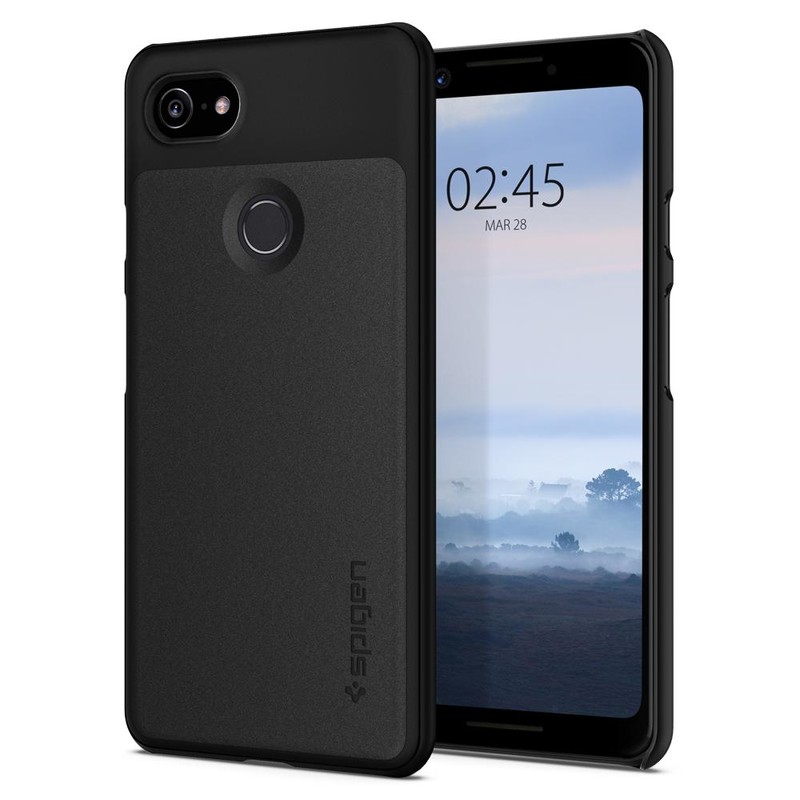
$12 at Amazon
It’s right there in the name: Spigen Thin Fit case. This aptly-named case offers corner protection and just enough lip around the camera and screen to help avoid scratches and scuffs. Just keep in mind that the top and bottom of the case are open and exposed.
Matte magic
Avalri Ultra Thin

$12 at Amazon
This hardshell case wraps around the back and corners of your Google Pixel 3, giving some scuff and scratch protection without any bulk at all. Avalri’s ultra-thin case is just 0.03 inches in thickness and comes in black or a beautiful blue.
Like nothing’s there
Cimo Slim Grip

$8 at Amazon
There are slim cases, and then there’s the Cimo Slim Grip. This is one of the thinnest cases on the market to protect and showcase your Pixel 3. Its translucence lets the Pixel 3’s natural beauty shine through one of three cool colors — blue, purple, and white.
Crystal clear
Spigen Liquid Crystal

$12 at Amazon
Eschewing bulkier hard-plastic backs, the Liquid Crystal’s flexible TPU is easy to apply and easier to grip. This crystal clear case gives your Google Pixel 3 light protection that is as thin as it is beautiful.
Clearly a good choice
MoKo Clear Case

If you want to show off your new Pixel 3, MoKo’s clear case is for you. Its soft TPU material adds grip without covering up the Pixel 3’s beauty, and precise cutouts ensure it doesn’t get in the way of the charging port, camera, and speakers.
$8 at Amazon
Again, we’ve love the Totallee case for as long as they’ve been making cases for Android phones, but if you’re looking for a thin case that has a thinner price tag, the Cimo Slim Grip gives lightweight protection without any bulk, and its translucent tints allow you to show off your Pixel 3 while still keeping it safe.
Whitestone Dome Glass Screen Protector for Note 9 review: The clear winner
An expensive solution to a potentially more expensive problem.

Tell me if you’ve heard this one before. Company releases phone claiming that its glass screen is “stronger” and “less prone to scratches and cracks” than the one before. So you believe the claim and forgo buying a screen protector only to drop the phone onto concrete shortly thereafter. Your heart stops and you inhale sharply as you lean down to pick up the face-down phone. You turn it around and it’s a spiderweb of debris, money down the drain.
Or this one. Company releases phone claiming that its glass screen is “stronger” and “less prone to scratches and cracks” than the one before. You don’t believe the claim because it’s still just glass and glass scratches and breaks. You log onto Google, search for “best screen protector for phone” and buy the recommended one. When it arrives in the mail, you eagerly unbox it, follow the vague and poorly-written instructions, and end up with a bunch of frustrating air bubbles that distract you every time you look at the phone.
Both of these scenarios are pretty common. The issue has been exacerbated with the proliferation of curved glass phones — phones like the Galaxy Note 9. Phones that cost way too much money to risk having their screens shatter, or having bubbles under their screen protector.
That’s where Whitestone’s Dome Glass comes in.
Liquid courage
Dome Glass Screen Protector

$45 at Amazon
An accurate install and high-quality part
Whitestone uses a very complicated and involved install process to accomplish what few other accessory makers can do: a clean, bubble-free install on a curved-glass phone. And it works.
Pros:
- Finished product is perfect
- Installation is straightforward
- Glass appears high quality
Cons:
- Installation is very involved
- Very difficult to correct if you make a mistake
- Expensive

Whitestone Dome Glass What’s good
Whitestone approaches a screen protector installation like surgery, and for good reason: I’ve tried installing so-called “professional” and “easy-to-apply” screen protectors on Galaxy devices going back to the S8 and they’ve all turned out badly.
Name a company — Zagg, IQ Shield, Skinomi — and I’ve had a poor experience. They’re not bad products, but the reality is it’s really hard to get a screen protector, especially one made of tempered glass, to adhere properly to a curved screen.
Well, by approaching the installation like a surgery, Whitestone has managed the impossible: a perfect installation. The process is seriously involved: there are about 10 steps you have to follow, and to the letter, or you risk something going wrong.
First, there are all the precautionary measures to ensure that, when the adhesive is eventually applied to the screen, it doesn’t damage the Note 9’s buttons or ports. So you have stickers and absorbing sheets and a full-tilt station to acquaint yourself with.

But once you read the instructions a few times — they’re not translated well, so I made sure to read them more than a few times — it’s pretty straightforward. The tricky part is making sure that, once the adhesive is applied, the tempered glass adheres bubble-free to the screen. Because unlike some film-based screen covers, air bubbles can’t be forced out of this one. If they’re there, they’re there for life.
Note: I highly recommend buying the 2-pack when investing in Whitestone’s screen protector. It saves you from having to salvage a disastrous first attempt (as you’ll read below) and lets you replace an installation if it becomes too scratched.

Once the protector is installed, the cool part begins: using the included UV curing light, which sets the adhesive in under a minute and ensures that touch response is identical to the display in its natural state. It’s USB-powered, so you’ll have to plug it into a nearby AC adapter or battery pack, but you only need it for a couple of minutes.
You pay more not necessarily for a higher-quality screen protector but a better installation that ensures the protector adheres properly.
The best part of Whitestone’s Dome Glass is the fact that, once properly installed, it’s not going anywhere, even on the notoriously finicky rounded edges of the Note 9. To wit, I’ve been using it for over a week now and there’s no evidence of the edge lift that you commonly see in cheaper solutions.
And how is the tempered glass itself? Honestly, it’s fine. It’s a standard 9H-rated glass slab, thick and weighty but likely no higher quality than anything you’d find for a quarter the price. That’s not really what Whitestone is selling here, because a properly-installed curved screen protector is going to be much less likely to crack or dislodge when dropped. The fact that the Dome Glass adheres to the Note 9’s screen uniformly ensures that are no areas of particular weakness. And that is this product’s greatest strength.

Whitestone Dome Glass What’s not good
As far as screen protectors go, there isn’t a lot to complain about here. I did have to throw away my first install because I made an error in my first attempt, letting the adhesive run too far down my phone. The most important thing to know about the Dome Glass is precision: every step needs to be followed perfectly, or you risk ruining the process.
Then there’s the question of cost, and whether you need a screen protector at all. Whitestone makes a good product, but it costs $45 for a single and $60 for a two-pack. (There’s also a $35 “refill” that arrives without the UV curing light). If you want the best, this is it.
But with Gorilla Glass 5, the Note 9 has a pretty tough glass exterior on its own. It may hold up to a few minor falls, and you’ll probably not notice the average scratch against it.

Should you buy it? Absolutely
If you regularly drop your phone, a screen protector is a must. If you regularly drop your Note 9, Whitestone’s Dome Glass is basically your only reliable bet. In this case, you’re not paying for a higher-quality product but for the tools to successfully install it.
4.5
out of 5
Yes, the Note 9 is one of the most expensive phones out there. And yes, its curved display is often more hassle than it’s worth.
But if you want the best, you have to pay for it — and that’s true of the phone and the screen protector.
See at Amazon
Samsung Galaxy Note 9
- Samsung Galaxy Note 9 review
- Galaxy Note 9 vs. Note 8
- Where to buy the Galaxy Note 9
- Galaxy Note 9 specifications
- Is the Note 8 still a good buy?
- Join our Galaxy Note 9 forums
AT&T
Verizon
T-Mobile
Samsung
Amazon
Does Nest Secure work with my existing home security system?

Best answer: No, the Nest Secure system doesn’t work with any existing security solutions. Nest Secure offers a comprehensive package for home security, but it uses Thread and Weave for communication instead of the more popular Zigbee or Z-Wave protocols. For the most interoperability with existing wireless security systems, we recommend Simplisafe.
Amazon: SimpliSafe Wireless Home Security ($274)
An awesome, but seemingly closed, ecosystem
There’s no denying that the Nest Secure, a system consisting of a Nest Guard base station and one or more sensors and cameras, is a great family of products. The pieces look great, are easy to install, and you’ll find every sensor, camera, or extra you could ever want to be built by Nest. Everything works well, too. Your Nest Hello doorbell can act as a security camera along with the Nest Cam itself; you can tell the Nest Guard to ignore that open door by swiping your Nest Tag across it; you can know exactly what’s going on even if you’re not home via the Nest app. However, part of the reason the Nest ecosystem works so well is that it’s using a different set of protocols for communication.
Thread and Weave are more futureproof, but not many other companies are using them. Yet.
Zigbee and Z-Wave are industry standards when it comes to internet-of-things communication. They work well and best of all, are designed for devices to communicate regardless of who makes them. Nest Secure doesn’t use either of these communication protocols and instead the pieces talk to each other using Thread and Weave. Thread is a collaboration from Google, Samsung, ARM, and others that natively handles IPv6 through an open wireless protocol. Without getting too deep, Thread is based on the 6LoWPAN adaption layer. Thread and Zigbee are working on what’s called the ZigBee Cluster Library so ZigBee devices can run using Thread for communications, but not the other way around.
Weave is Nest’s proprietary application communications protocol that allows devices to communicate securely through their own peer-to-peer network. Nest has opened Weave support to other companies, but this doesn’t mean that your Nest Cam can work with another company’s system. It means the other company’s camera can work with Nest products.
Adding a piece vs. upgrading it all
If you’re looking for a new security system or are thinking of replacing an existing system with something new, the Nest Secure system is a great choice. You’ll love how the pieces look and how easy it is to get it all working. You’ll probably love everything except the price, but this isn’t something you’ll be replacing very often so price shouldn’t be the biggest part of a buying decision. You won’t go wrong by buying a Nest Secure starter system.
However, if you’re just looking to add a camera or sensor to an existing system or extending it, Nest isn’t what you’re looking for. there are plenty of other companies that use the more popular Zigbee and Z-Wave communication protocols, but I’d recommend products from SimpliSafe as your best bet for interoperability. The company also makes an outstanding full system if you’re looking at starting from scratch, too.
Our pick
SimpliSafe

$274 at Amazon
Better interoperability
If you’re looking to extend or add to an existing system, SimpliSafe uses industry standard communication protocols. A SimpliSafe system is a great buy if you’re starting fresh, too!.
Starting fresh
Nest Secure

$399 at Best Buy
Still a great choice.
Nest Secure might not work well with other systems but its still a great choice when starting from the ground up.
Xbox One bundles, the Fitbit Charge 2, and more are discounted today
Whether you’re looking for new tech gear or household items, we’ve got you covered.
There’s never a shortage of deals available, but sorting through all of them can be difficult at times. We’ve handpicked all the best tech, and everyday essentials discounts that you can take advantage of right now and brought them to one central location. From Xbox consoles to Swiss Gear backpacks, these are today’s best deals.
Tech Deals
View the rest of the deals
Everyday Essentials
If you want to know about the deals as soon as they are happening, you’ll want to follow Thrifter on Twitter, and sign up for the newsletter, because missing out on a great deal stinks!

