


Hands-on photos show ‘Project V’ — a foldable Samsung phone that never was
It’s widely expected that 2019 will be the year Samsung finally launches the Galaxy X — its long-awaited foldable/bendable smartphone. Patents from years past have indicated Samsung’s been toying around with the idea of a foldable phone for some time, and thanks to a user on Twitter, we now have an idea of what one of those prototypes looked like.

Referred to as “Project V”, the above phone was being developed by Samsung between 2015 and 2016 as evident by the UI and clock widget on the home screen. Rather than being a phone with a bendable screen, Project V was similar to ZTE’s Axon M in the sense that it had two screens on the front and back.
Project V could be used like a regular phone, but using a hinge mechanism, the second display could be moved to the front for double the screen real-estate.


The photos show that Project V was a pretty chunky gadget, and although its construction isn’t quite as refined as the Axon M, it’s impressive Samsung had such a similar device ready to go about two years before ZTE.
Samsung’s Project V won’t ever see a proper release, but it’ll be interesting to compare this to the Galaxy X whenever it’s actually released.
Based on what we’re seeing here, are you glad Samsung canceled Project V or do you think you would have purchased it?
Samsung Galaxy X foldable phone: Rumors, Images, Details, and More!
Lock screen customization is dead

From start to finish, this kind of theming was a complete mess.
If you don’t like a launcher on Android, you get a new one. Hate your keyboard? Use a third-party keyboard. After all, Android is all about choice, and customization is an essential part of the Android experience… but lock screen customization is bad. Third-party lock screen customization is especially bad. There was a very, very brief moment in history when it was less bad, but it’s bad today.
And that’s OK, because it’s not worth your time.
Do you even see your lock screen anymore?
Lock screens used to be something we’d see dozens if not hundreds of times a day, so customizing them made a little more sense. These days, though, lock screens are more of a “blink and you’ll miss it” part of Android — quite literally on phones with Iris scanning like the Samsung Galaxy S9. With fingerprint sensors in most Android phones these days, you can go days without seeing the lock screen; you press your finger to the sensor while you’re picking the phone up, and by the time you put it up in front of your face, the phone is awake and unlocked.
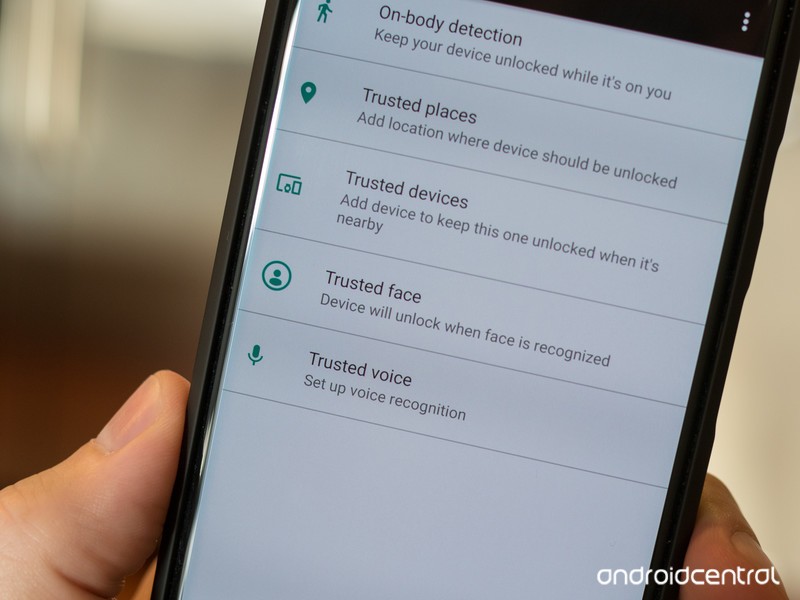
Even before biometrics and widespread fingerprint sensors, though, the lock screen was already something we were seeing less and less thanks to Smart Lock and its many forms. Smart Lock can keep your phone unlocked while connected to a Trusted Bluetooth device — like the stereo in your car or your trusted smartwatch. It can keep your phone unlocked while you’re carrying it around, and you can unlock it with your voice using Google Assistant’s Voice Match. It can even keep your phone unlocked at your house or workplace — though you’d need to be very trusting of your coworkers to enable that.
Long story short, we don’t spend enough time on lock screens to bother customizing them anymore. And thank goodness, because lock screen customization was a hot mess.
Bad theming and worse security
Lock screen customization faced a lot of hurdles, but the only one that really mattered was this: most of the time it flat-out didn’t work. Third-party lock screen widgets were only really supported in the Jelly Bean era, and the vast majority of lock screen replacement apps that sprung up after that died aren’t worth the ads they come with and certainly aren’t worth paying any money for.
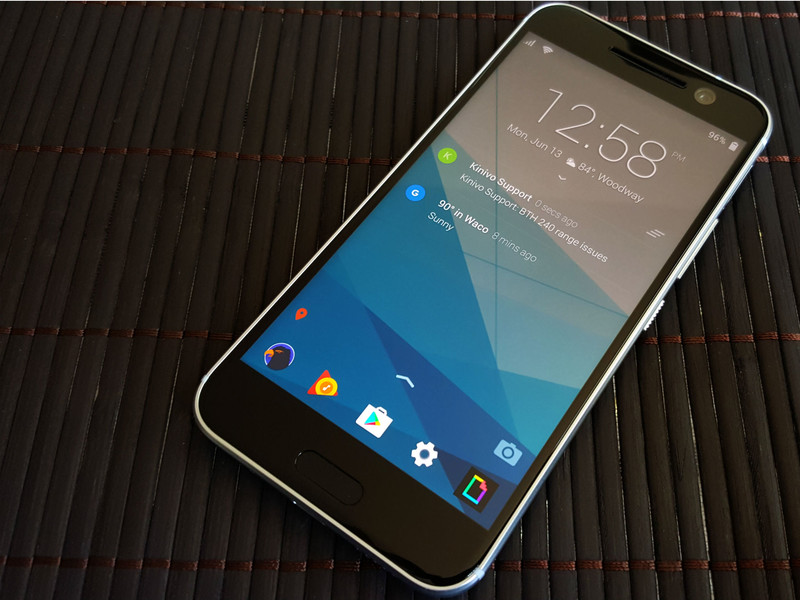
App screen replacements come with another set of security headaches since most require you to disable the system lock screen in order to use them. If you have any apps that require your phone to have a locking method — like Google Pay or corporately managed email accounts — lock screen replacements aren’t an option. Even if you don’t, they’re just a bad idea, and most of them aren’t as fast or as functional as the lock screen your phone came with. It’s not worth it.
The only lock screen theming worth your attention or time
Use Smart Lock. Use fingerprint scanners. Use iris scanners or face recognition if you want. Just don’t use a lock screen replacement, and don’t bother with any hacky lock screen widgets that haven’t been supported for years. It’s not worth your time. It’s not worth your effort. Just. Don’t.

If you really, really, really want to customize your lock screen, here are the things you can do:
- Set a custom lock screen wallpaper — most wallpaper apps and third-party launchers will let you set a wallpaper on the lock screen separately from the home screen wallpaper
- Add text to the lock screen via the Contact information option in the lock screen settings. Most people will set this to “If lost, contact X,Y, or Z”, but you could sneak a motto or quote in there instead.
- If your phone allows you to pick the style clock on your lock screen — Samsung and a few others do this — then go ahead and pick a lock screen clock that suits your wallpaper.
- Samsung also has what it calls “FaceWidgets”, a couple of simple, task-minded widgets that you can scroll through on the lock screen like Music controls and Next alarm.

But let’s face it, folks, the lock screen is something you’re going to see less and less of as Android continues to roll out quicker authentication methods and continues to expand Smart Lock. Just pick a wallpaper and clock style and get on with your life.
Android Messages for web desktop site is now live
The service isn’t working quite yet, but we’re getting somewhere.
In late-April, Google’s plans for turning Android Messages into something of an iMessage competitor were revealed. There are a lot of moving parts with this effort, but one of the big ones appears to finally be coming to light — desktop messaging.

If you head to messages.android.com, you’ll see a new website with a large bit of text saying you can “Text on your computer with Messages for web.” There’s a QR code to the right of this and instructions for scanning it through the Android Messages app on your phone.
As exciting as this is, you can’t actually do anything with the site. The “Messages for web” tab in Android Messages should be accessible after tapping on the three dots at the top right of the app, but this isn’t live at the time of publication.
Even so, we should expect all of this to go live anytime now. We first heard talk of a desktop site for Android Messages way back in February before Google made its announcement in April, and based on what we’re seeing right now, it looks like all Google needs to do is flip the imaginary switch to give us access to this new toy.
Are you excited to start using Android Messages for web?
Chrome OS to soon offer ‘integration’ with Android Messages
Google Pixel 3: News, Rumors, Release Date, Specs, and more!
Everything we know about what’ll likely be one of the year’s best phones.
Google first introduced its Pixel series in 2016, and since then, has been hard at work to establish itself as a serious player in the smartphone market. Google may be one of the most powerful and iconic companies in the world, but when it comes to hardware, is still very much a newcomer.
We saw vast improvements with the Pixel 2 compared to the original Pixel line, and we’re expecting to get that again with the Pixel 3. Google’s quickly learning what it takes to compete with the likes of Samsung and Apple, and seeing as how the Pixel 2 was one of 2017’s best phones, there’s a lot riding on this year’s entry.
Ladies and gentlemen, here’s everything we know so far about the Google Pixel 3.
The latest Pixel 3 news
June 18, 2018 — Case render confirms Pixel 3 XL design

Ice Universe on Twitter has built up a reputation for being pretty accurate about leaks/rumors in the mobile space, and on June 18, they shared a case render that further confirms the Pixel 3 XL’s design.
Like we saw with the hands-on photos on June 7 and 8, the Pixel 3 XL will have a notch in its screen, dual front-facing cameras, stereo speakers, rear-mounted fingerprint sensor, and a single rear camera.
It’s rather peculiar that Google’s choosing to use two cameras on the front while keeping just one on the back, but based on how excellent the Pixel 2’s single rear camera is, I don’t expect this will be a downside at all.
June 8, 2018 — Pixel 3 XL shown off in six more hands-on pictures
Less than a day after those first two hands-on photos of the Pixel 3 XL surfaced, six more have appeared.


These additional photos showcase the Pixel 3 XL from every possible angle, and when XDA Developers reached out to their forum member that shared them, they were able to confirm that the phone has a full glass back. In other words, it’s possible this year’s Pixel line may finally adopt wireless charging.


The front and back photos are pretty similar compared to what we saw yesterday, but the other images showcase a reflective glass frame around the phone, volume rocker and power/lock button on the right side, and a USB-C port and SIM slot on the bottom.
Also, as 9to5Google pointed out, that mysterious logo on the back of the Pixel 3 XL was used previously with old Pixel 2 prototypes.
When will the Pixel 3 be released?
In 2016 and 2017, Google held its hardware event on October 4. We don’t have a concrete date for this year’s event quite yet, but there’s no reason to believe Google will deter from this pattern.
Another October 4 event isn’t out of the question seeing as how that falls on a Thursday this year, but at the very least, we should be looking at some point in early October.
Pre-orders for the Pixel 3 will likely open shortly after it’s announced that same day with shipments going out at least a couple of weeks later.
How much will the Pixel 3 cost?
Over the past couple years, pricing for Google’s Pixel phones has remained mostly the same. The MSRP for the Pixel and Pixel 2 series is as follows:
- Pixel w/ 32GB — $649
- Pixel w/ 128GB — $749
- Pixel 2 w/ 64GB — $649
- Pixel 2 w/ 128GB — $749
- Pixel XL w/ 32GB — $769
- Pixel XL w/ 128GB — $869
- Pixel 2 XL w/ 64GB —$849
- Pixel 2 XL w/ 128GB — $949
I imagine we’ll see similar numbers with the Pixel 3, but don’t be too surprised if we get a Pixel 3 XL variant that crosses the $1000 threshold.
Google Pixel 2 and Pixel 2 XL
- Pixel 2 FAQ: Everything you need to know!
- Google Pixel 2 and 2 XL review: The new standard
- Google Pixel 2 specs
- Google Pixel 2 vs. Pixel 2 XL: What’s the difference?
- Join our Pixel 2 forums
Best Buy
Verizon
Google Store
Project Fi
Beyoncé and Jay-Z’s Collaborative Album Launches on Apple Music After Two Days of Tidal Exclusivity
On Saturday, Beyoncé and Jay-Z launched a new collaborative album called “Everything is Love” exclusively to Tidal subscribers, the streaming service that Jay-Z owns. Just under two days later, Everything is Love has now launched on Apple Music, Spotify Premium, and Amazon Music Unlimited, making this a very short timed exclusive for Tidal (via Variety). In two weeks, the album will be available on Spotify’s free tier.
In relation to Apple Music, The Carters have had a somewhat rocky relationship with Apple’s streaming music service. Beyoncé’s “Lemonade” album never launched on Apple Music and remains available for Apple customers only as a $17.99 paid download in iTunes. Although Jay-Z quietly removed many of his albums from Apple Music in April 2017, most eventually came back, and his own album “4:44” had one week of Tidal exclusivity before appearing on Apple Music last summer.
Tidal has had a rough couple of months as well, beginning with a report last December that claimed the company was facing money problems due to “stalled” user growth, and could run out of working capital in six months. Nearly six months later, Norwegian news site Dagens Næringsliv reported that Tidal was months behind on its royalty payments to record labels.
Furthermore, Tidal last month confirmed to its customers that it was investigating a “potential data breach” on the platform. The company said it had gone so far as to hire an “independent, third party cyber-security firm” to find out what happened. It’s still unknown how widespread the potential breach was and what aspects of Tidal users’ data might have been compromised. Tidal CEO Richard Sanders said that the company would share the results of the security firm’s discoveries “once completed.”
Amid the turmoil, Tidal exclusives have grown short or ended completely, as with Kanye West’s latest album “ye,” which launched on Apple Music, Spotify, and Tidal on the same day. In 2016, West launched “The Life of Pablo” as a Tidal exclusive, but eventually allowed the full album to stream on Apple Music and other services.
Years later, West reportedly sought to end Tidal’s exclusivity rights over his new music and break from the service. West claimed he was owed “more than $3 million” because his album “resulted in 1.5 million new subscribers to Tidal, for which he was supposed to get a bonus”, but Tidal never paid. At the time of those claims, sources close to West said the artist successfully ended exclusivity rights with Tidal and cited “Tidal’s failure to honor its financial obligations.”
Tidal’s subscriber base isn’t known, but it is believed to be much smaller than Apple Music (50 million including those on free trials) and Spotify Premium (75 million). Major exclusives like The Carters’ new album likely help increase the company’s paid subscriber count for both its $9.99/month standard sound quality tier and $19.99/month Hi-Fi tier, despite the short exclusivity window. Still, with a 30-day free trial and no confirmation of subscriber numbers, it’s unclear how many new users will stick around.
Tidal subscribers will have one advantage over other users, since the bonus track “Salud” remains a Tidal exclusive.
Tags: Apple Music, Tidal
Discuss this article in our forums
Apple Seeds Third Beta of iOS 11.4.1 to Developers
Apple today seeded the third beta of an upcoming iOS 11.4.1 update to developers, one week after seeding the second beta and three weeks after releasing iOS 11.4, an update that introduced AirPlay 2 and Messages in iCloud.
Registered developers can download the new iOS 11.4.1 beta from Apple’s Developer Center or over-the-air once the proper configuration profile has been installed from the Developer Center.
No new features were discovered in the first two iOS 11.4.1 betas, suggesting it focuses on bug fixes and performance improvements to address issues discovered since the release of iOS 11.4.
We’ll update this post should we discover any new features in the third iOS 11.4.1 beta, but we’re not expecting major changes now that Apple has shifted its focus to iOS 12, which is also available to developers for beta testing purposes.
Related Roundup: iOS 11
Discuss this article in our forums
Apple Seeds Third Beta of tvOS 11.4.1 to Developers
Apple today seeded the third beta of an upcoming tvOS 11.4.1 update to developers for testing purposes, one week after seeding the second tvOS 11.4.1 beta and three weeks after releasing tvOS 11.4, an update that introduced support for AirPlay 2.
Designed for the fourth and fifth-generation Apple TV models, the new tvOS 11.4.1 developer beta can be downloaded onto the Apple TV via a profile that’s installed using Xcode.
No new features or changes were discovered in the first two tvOS 11.4.1 betas, suggesting the update focus on fixes for bugs that have been discovered since the release of tvOS 11.4.
Apple’s tvOS updates have historically been minor in scale, and Apple does not often provide us with detailed notes outlining what’s new. We’ll update this post should anything be found in the third beta.
Apple’s work on tvOS 11 is winding down as the company is now focusing on tvOS 12, which was unveiled at the Worldwide Developers Conference in early June.
Related Roundups: Apple TV, tvOS 12Buyer’s Guide: Apple TV (Neutral)
Discuss this article in our forums
Winnebago and Motiv Power Systems partner with all-electric outreach vehicles
San Francisco-based Motiv Power Systems introduced an all-electric mobile blood bank on June 15, following an electric bookmobile Motiv delivered to the Oakland Public Library in May. Developed in partnership with Winnebago Industries, the eBloodmobile will tour California this summer to demonstrate the vehicle’s ability to run on battery power alone, saving diesel fuel and reducing tailpipe emissions to zero.
The eBloodmobile has a similar layout to blood collection outreach vehicles powered by diesel fuel. The demonstration model has four patient beds, two interview rooms, and small waiting and recovery areas.
According to Motiv Power Systems, diesel-powered blood bank vehicles burn eight gallons of fuel per collection day while idling. The engines run on idle to provide power and climate control for the mobile collection site. In the course of an average 10-year daily usage life for such vehicles, using electric power instead of an internal combustion engine (ICE) would save about 34,000 gallons of diesel fuel a year and eliminate the ICE’s harmful emissions.
The eBloodmobile is the first example of Motiv’s partnership with Winnebago. The two companies intend to develop a range of specialty medical vehicles such as mobile asthma treatment centers, dental clinics, and methadone clinics. The partnership will also build community service outreach vehicles in various categories.
Traditionally, when mobile medical clinics and other outreach vehicles arrive at their points of service, they are set up in central locations convenient to walking traffic. And those locations highlight the problems.
“Diesel exhaust emissions while idling remains a pervasive problem for mobile outreach vehicles aimed at serving communities, especially for our most vulnerable populations like children and medical patients,” said Jim Castelaz, Motiv Power Systems founder and CEO. “It’s quite common for these vehicles to spend eight hours idling, in addition to running diesel generators, in order to provide the power needed to run electrical equipment and climate controls. An all-electric vehicle provides clean, silent, and vibration-free energy to power onboard equipment.”
The partnership will construct all-electric outreach vehicles by placing one of Winnebago’s three all-electric zero-emission commercial shell Superstructure Interlocking Design platforms on the appropriate Motiv EPIC Dearborn chassis.
In May, Motiv Power Systems delivered an all-electric multipurpose bookmobile, the Oakland MOVe, to the Oakland Public Libary. Designed to create the atmosphere of an outdoor living room, the pop-up bookmobile has side panels that open outward to expand the truck to 31 feet in length and 14.5 feet in width.
The Oakland MOVe provides access to books, areas to work on laptops and tablets, electronic charging stations, Wi-Fi hotspots, and more. The bookmobile also has shade umbrellas and portable seating. Bringing the library out into the street, the group hopes to interest and engage youth in the library’s materials and services while simultaneously modeling the environmental cleanliness of electric vehicles.
At the ribbon-cutting ceremony for the MOVe, Oakland City Mayor Libby Schaff cast a wider perspective when she said, “This vehicle is part of how we will achieve our goal of how to be diesel free by 2033.”
Editors’ Recommendations
- The difference between diesel- and gasoline-powered cars
- IoT Group revives a power plant to fuel a blockchain applications complex
- The best portable power stations
- 2018 Ford F150 Power Stroke Diesel first drive review
- Electric cars can serve as mobile power storage, save billions on infrastructure
AMD will only release Ryzen APU graphics drivers every three months
Bill Roberson/Digital Trends
AMD has made its plans for Ryzen APU graphics driver releases a little more clear with a statement from an AMD representative. He suggested that updates to Ryzen APU graphics drivers would come every three months and will only come as WHQL certified releases, with no options for beta drivers in between.
One of the big changes AMD made in recent years to try and keep pace with its big graphics rival, Nvidia, is to release graphics drivers much more regularly. For the most part it’s stuck to that commitment and now AMD fans are treated to regular driver releases and feature improvements for its Radeon Software back end. But APU owners don’t get to enjoy quite as frequent updates.
In fact, since the release of the Ryzen 2200G and 2400G APUs earlier this year, they’ve only received one update — not counting the motherboard firmware fix for non-boot issues. It debuted in May and it seems like owners may need to wait until August to receive another.
According to “AMDMatt,” an AMD representative on the Overclockers UK forum, the plan is to give AMD Ryzen APU owners a new driver update at a quarterly frequency. When asked by another forum member why there has been no support for the APUs under the most recent two driver releases, AMDMatt said that, “APU drivers are updated every 3 months as WHQL releases only.”
Other forum members weren’t greatly pleased by this news, and highlighted how important hot fixes or optimizations for new games could take months to arrive, leaving those running the APU in the lurch when it comes to new releases. Considering APUs are underpowered graphically compared to the dedicated graphics cards of even a few years ago, those running the Ryzen with Vega chips don’t have much graphical muscle to counteract a lack of optimization.
This news raises questions over how AMD and Intel plan to update their “Kaby Lake G” processors, which combine an Intel CPU with an AMD Vega graphics core on a single die. While a recent update gave owners hope that more frequent updates would be released for the hardware in the future, it may be that that chip is forced to languish with irregular updates as well.
Editors’ Recommendations
- AMD leaks Ryzen 2000-series expansion with mobile and Threadripper CPUs
- AMD is working on fixes for the reported Ryzenfall, MasterKey vulnerabilities
- AMD says the patches for its recent Ryzen flaws are almost ready
- AMD vs. Intel
- AMD has a fix for Spectre variant II, but will motherboard makers support it?
Key settings you need to change on your brand-new iPhone X, 8, or 8 Plus
So you snagged yourself a shiny new iPhone X, or maybe you’ve gone for the more classic lines of the iPhone 8 — no matter which new Apple iPhone you picked, there are several settings you should immediately tweak to get the best out of it.
Turn on battery percentage
If you find yourself squinting at that little bar at the top right of the screen wondering just how much battery life you have left and whether you need to top up before you head out, then it’s time to turn the battery percentage on. It’s a little weird that this isn’t turned on by default, but it’s easily sorted. Go to Settings > Battery and toggle on Battery Percentage. Now you will see a clear percentage next to the battery bar.
Set Auto-Lock
Your screen is the biggest battery drain around and you don’t want people snooping people on your iPhone when you put it down — both good reasons to set your Auto-Lock as low as possible. On the other hand, it’s so frustrating when you’re using your iPhone, get momentarily distracted, and look back to find your screen locked. Whatever the sweet spot is for you, Auto-Lock can be found in Settings > Display & Brightness.
Hide unwanted apps
If you want to get rid of an app, then simply long-press on the icon for it until your app icons start wiggling and then tap the X in the top corner to uninstall. For some stock apps this will hide or disable them — they’re not really uninstalled — and you can always bring them back via the App Store.
If you have an app you don’t actually want to get rid of, but you don’t want it appearing as you scroll around, then we suggest creating a folder. Tap and hold on the app icon until they all start wiggling, then drop it on top of another app icon to create a folder. Name it whatever you want. If you add more apps to the folder, then you can move the app you want to hide to a later page in the folder, making it even less likely to be found.
Schedule Do Not Disturb
Don’t let your iPhone be the boss of you. We all need some downtime and that is why it’s important to schedule periods when your iPhone won’t alert you. At the very least you should set this up for the hours you usually sleep, but we recommend scheduling it to go quiet for a couple of hours at night when you usually wind down. Go to Settings > Do Not Disturb and toggle on Scheduled, then select your Quiet Hours.
If you’re worried about some important calls or messages not getting through, then scroll down on the Do Not Disturb page and you can set up Allow Calls From and toggle on Repeated Calls.
Set blue light filter
Apple calls this feature Night Shift and what it does is to filter out the blue light and make the screen warmer, which can help you fall asleep more easily after reading on your iPhone late at night. Go to Settings > Display & Brightness> Night Shift and you can toggle it on, but we recommend toggling on Scheduled and picking times that suit you or selecting Sunset to Sunrise.
Back up your photos
For many of us, our photos are the most precious things on our iPhones, so it’s worth making sure that yours are being backed up. You can do this by going to Settings > Photos and toggling on iCloud Photo Library.
Apple is a little stingy when it comes to storage space in the cloud, giving you just 5GB for free. You might find that your iCloud fills up fast and maybe you don’t want to pay for more space. Consider installing the free Google Photos app. You can toggle on Back up & sync during the setup process and Google gives you 15GB for free. You can also get another 5GB for free from Microsoft OneDrive or Amazon Prime Photos. Both apps are free and offer automatic photo backup.
Adjust 3D Touch sensitivity
With 3D Touch, you can press on the screen to peek at further options for some apps and jump to shortcut actions. It can be really useful once you get used to it, but it definitely takes a little practice. You will get a feel for it faster if you tweak it to suit you. Go to Settings > General > Accessibility > 3D Touch and you can choose from Light, Medium, and Firm and practice on the test image below.
Set your email signature
Do you really want “Sent from my iPhone” as the signature on every email you send? Probably not. It’s easy to change, simply go to Settings > Mail > Signature and you can delete the message and switch it for something else or leave it blank.
Customize Control Center
You can swipe up from the bottom of the screen to access the Control Center for shortcuts to things like the Torch and Wi-Fi. Some of these are fixed, but you can also customize a few by going to Settings > Control Center > Customize Controls. Tap the green plus icon next to anything you want to add or the red minus icon next to anything you want to remove.
Set up Emergency SOS
No one wants to imagine that the worst will ever happen but if it does, you will be glad you set up Emergency SOS. Go to Settings > Emergency SOS and toggle on Auto Call. If you press and hold the side button and either volume button, your iPhone will call 911 or the appropriate emergency service in your region.
It’s worth setting up Emergency Contacts via the Health app, where you can also add details on any medical conditions you have and things like your blood type. If you add Emergency Contacts, then they will also receive a message automatically when you trigger Emergency SOS to let them know that you called the emergency services. You can add them by opening the Health app and tapping on the Medical ID tab at the bottom right.
If you’re hungry for more, then check out our iPhone X tips and tricks or read up on iPhone 8 tips.
Editors’ Recommendations
- 15 handy iPhone 8 and iPhone 8 Plus tips and tricks
- Apple iPhone 8 review
- How to buy the Apple iPhone 8 and iPhone 8 Plus
- The trickiest iPhone 8 problems, and advice on how to fix them
- Put your S Pen to good use with these Galaxy Note 8 tips and tricks

