


Google brings its high-accuracy emergency location tracking to the U.S.
In an emergency, every second can mean the difference between life and death, and Google’s latest tech could be a literal lifesafer.
In partnership with local carriers, Google has begun rolling out Emergency Location Services to Android devices — a service that will ultimately give first responders more accurate location information. The company first announced the new service two years ago, and since then it has rolled out to 99 percent of Android device with Android 4.0 or later, in a hefty 14 countries.
Now, in partnership with RapidSOS, ELS is finally coming to the United States. It will first be available on Android devices on T-Mobile, but will roll out to other carriers over time.
The move really brings calling 911 into the 21st century. In the past, emergency services were optimized for landlines, and the result was a large location radius. Now, 80 percent of emergency calls come from mobile phones — meaning those outdated systems really don’t compete in modern times.
The services have been really helpful in the countries that they’ve rolled out in. According to Google, the average uncertainty radius has shrunk from 522 feet to 121 feet — meaning that it’s far easier for emergency responders to find the emergency quickly.
“In Austria, a mountain biker in a remote, heavily forested area suffered a serious accident and called emergency services for help. The legacy emergency location systems provided a location with a radius of more than 900 meters (about half a mile), while ELS was able to provide a location within 12 meters (39 feet) to help first responders locate the biker,” said Google in a blog post announcing the U.S. launch.
Of course, the tech does raise some questions related to privacy, but Google is quick to point out that the location information is measured on the smartphone and passed straight to emergency services. In other words, it doesn’t pass through Google’s servers, which may be important for some.
So what do you need to do to ensure that ELS is enabled on your phone? Thankfully, nothing. As long as you have an Android phone with Android 4.0 or later, and your carrier supports the service, you’ll be able to make use of it. Hopefully, you’ll never need ELS, but if you do, it’ll most likely be there once more carriers support it.
Editors’ Recommendations
- Google tracks your location — even when you deny it permission
- How to find a lost phone
- Samsung brings 400 new jobs to South Carolina with a new customer care center
- How to track a phone
- What is Google Pay? Here’s what you need to know
How to Use Walkie-Talkie in watchOS 5
Apple’s watchOS 5 update, out now for all Apple Watch models with the exception of the original Apple Watch, introduces a fun new feature that mimics old school walkie talkies. With Walkie-Talkie, you can connect to your friends and family and have push-to-talk conversations right on your wrist.
The video below demonstrates Walkie-Talkie in action, while the post explains the steps to set it up and use it.
Subscribe to the MacRumors YouTube channel for more videos.
Turning on Walkie-Talkie and Adding Friends
Walkie-Talkie is an app on the Apple Watch with an icon that looks like a little walkie talkie on a field of yellow. Whenever you want to use Walkie-Talkie to communicate with someone, you’ll need to open up the Walkie-Talkie app. The first step, though, is adding a friend to chat with.
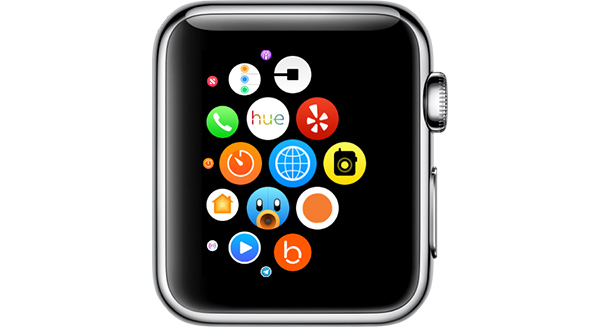
Open the Walkie-Talkie app.
Turn the Digital Crown to scroll through your contacts.
Choose a friend who has an Apple Watch and watchOS 5.
Tap on the person’s name in the contacts list. 
When a yellow card with their name appears on your Apple Watch in the Walkie-Talkie app, tap on the card.
Press on the “Talk” button to initiate a connection.
You’ll need to wait for your friend to receive your message and approve the Walkie-Talkie connection. It will say “Connecting to [Your Friend’s Name].
When a connection is established, it will go back to the Talk button and you will be able to have a Walkie-Talkie conversation with your friend.
If a connection cannot be established, you’ll see a popup that says “[Your Friend] is not available.” If this happens, it means the person on the other end did not answer the incoming Walkie-Talkie notification.
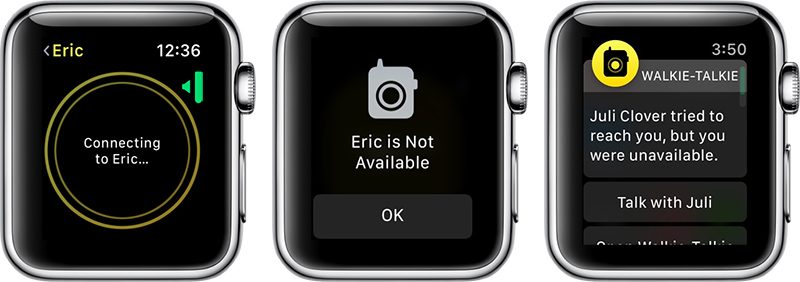
If the Walkie-Talkie connection screen hangs indefinitely on the connecting screen, it means the person does not have an Apple Watch or does not have watchOS 5 installed.
When a friend adds you to Walkie-Talkie, you’ll see an incoming notification that your friend wants to establish a connection with you. To chat, you will need to tap on “Always Allow.”

Talking With a Friend Using Walkie Talkie
Once a connection has been approved between you and your friend, you do not need to get approval for each and every message. You can just push to talk and whatever you say will be beamed to your friend’s Apple Watch.
Open up the Walkie-Talkie app.
Tap on the card for the friend you want to talk to.
Hold down the “Talk” button for the entire time that you’re speaking. You will see little concentric circles flashing, which means your message is being relayed to your friend. 
When you’re done speaking, stop pressing on the Talk button. This will allow your friend to press the Talk button on their end to send a response to you.
You can have multiple Walkie-Talkie connections with your friends, but you can only communicate with one friend at a time because Walkie-Talkie is a one-on-one feature. Group chats between multiple people are not supported.
Accessing Walkie-Talkie Quickly
Once you have a Walkie-Talkie connection established with at least one person, a little Walkie-Talkie icon will be displayed at the top of the Apple Watch’s main screen. If you tap it, it will take you right into the Walkie-Talkie app.
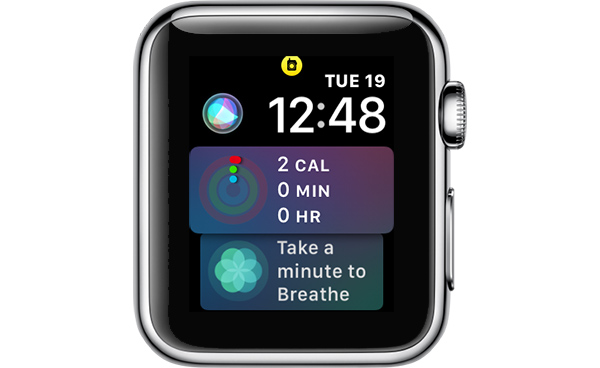
This icon also serves as an indicator that you’re available for Walkie-Talkie conversations and that any friends you’ve established a connection with can message you at any time.
Adjusting Walkie-Talkie Volume
Open the Walkie-Talkie app.
Choose a Walkie-Talkie contact card.
At the talk interface, turn the Digital Crown.
A downward turn lowers the Walkie-Talkie volume, while an upward turn makes it louder. Turning it all the way down effectively mutes the conversation.
Using Walkie-Talkie With AirPods or Bluetooth Headphones
If you have AirPods or other Bluetooth headphones connected to your Apple Watch, you will hear incoming Walkie-Talkie messages through the accessory rather than directly through the Apple Watch. You will also be able to speak into the microphone of the AirPods, keeping your conversations more private.
Turning Off Walkie-Talkie and Removing Contacts
If you want to shut off Walkie-Talkie conversations and refuse incoming messages, you can do so by setting yourself to unavailable.
Open up the Walkie-Talkie app.
Scroll all the way to the top to see the “Available” toggle. 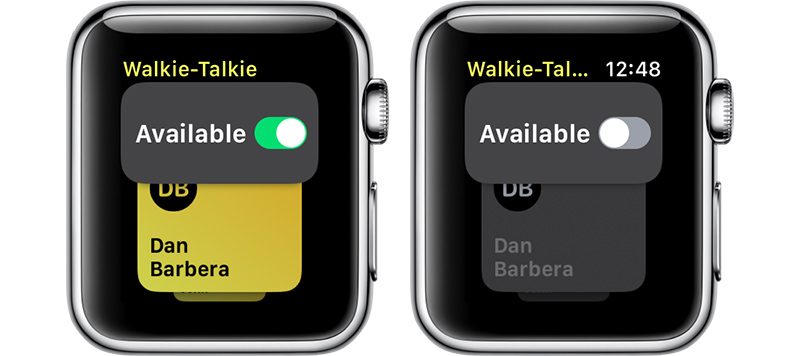
Toggle “Available” to off.
When your Walkie-Talkie availability is disabled in the Walkie-Talkie app, people who attempt to connect to you will see the message “[Your Name] is Not Available” and you will get a notification that someone attempted to reach you but you were unavailable with an option to go to the Walkie-Talkie app to resume the conversation.
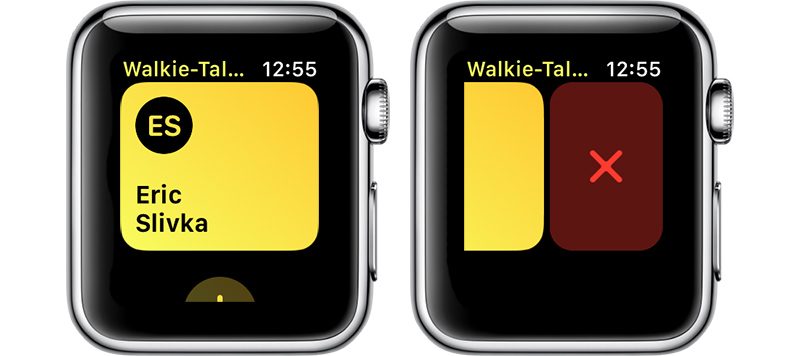
To remove a contact from Walkie-Talkie, at the main contact card interface, swipe to the left on a name in the list to bring up a red “X” button. Press on the X to remove the contact.
Walkie-Talkie Warnings
Walkie-Talkie takes precedence over other settings on your Apple Watch. You will hear your friend speaking even if your Apple Watch is set to silent, but it does not ignore Do Not Disturb settings.
Related Roundups: Apple Watch, watchOS 5Buyer’s Guide: Apple Watch (Buy Now)
Discuss this article in our forums
iOS 12 Installed on 10% of Devices 48 Hours After Launch
Apple’s newest operating system, iOS 12, is installed on just over 10 percent of devices 48 hours after it launched according to data collected by analytics company Mixpanel. The data suggests customers are adopting iOS 12 at a slower rate than iOS 11 and iOS 10.
Last year, iOS 11 was installed on 10 percent of devices just 24 hours after launching, and in 2016, iOS 10 was installed on 14.45 percent of devices within 24 hours.
Customers may be reluctant to adopt a new operating system after all of the bugs and issues that were seen with iOS 11 software updates, but Apple made an effort to focus on the underlying code of iOS 12 and thus far, the update has been stable.
As should be no surprise, MacRumors readers are early iOS 12 adopters. Over 80 percent of readers queried so far have installed iOS 12 just two days after it launched. Follow us on Twitter and vote to let us know if you’ve upgraded to iOS 12.
Did you install iOS 12 yet?
— MacRumors.com (@MacRumors) September 19, 2018
iOS 12 is an update that brings significant speed and performance improvements to older devices, so most customers installing the software should see notable speed improvements over iOS 11 after updating.
On the iPhone 6 Plus, for example, apps launch up to 40 percent faster, while the keyboard can appear up to 50 percent faster. Opening the camera on the Lock screen to take a photo can be done 70 percent faster.
Apple has made animations smoother and more responsive across the operating system, so accessing Control Center, scrolling in apps, or swiping up when multitasking feels more fluid.
iOS 12 also includes optimizations for when the operating system is under load. Apps launch up to twice as fast under a heavy load, as does the Share Sheet.
With iOS 12 installed on 10 percent of devices, iOS 11 adoption has dipped to 82 percent and will continue to fall as more people adopt iOS 12. Installation could jump this weekend as some people wait until they have a free block of time to complete a major software update.
iOS 12 is a free download that’s available for the iPhone 5s and later, iPad mini 2 and later, and the 6th-generation iPod touch. In addition to noticeable and useful speed and performance improvements, the update introduces Screen Time for monitoring device usage, Memoji and new Animoji, ARKit 2.0, and a new Shortcuts app for creating customized automations. For more on what’s new in iOS 12, make sure to check out our roundup.
Related Roundup: iOS 12
Discuss this article in our forums
How to Use the New Photos App Features in iOS 12
In iOS 12, Apple has introduced some new features to the Photos app that aim to make it easier for you to search, share, and enjoy your photo collection. Here’s how to make the most of them.
The most prominent addition in the Photos app is a new For You tab, which replaces the old Memories and Shared tabs and brings together their features – along with any iCloud Shared Albums you may have – in a single scrolling panel.
Subscribe to the MacRumors YouTube channel for more videos.
For You Tab: Sharing Suggestions
Top of the For You tab is where your latest Sharing Suggestions appear. If the app recognizes someone in the photos it will ask if you want to share the collection with them, otherwise an option to “Share with friends?” is shown.
The great thing about sharing photos this way in iOS 12 is that if your friends have any pictures that are from the same event, time, or location, they will also be prompted to send those back to you, allowing you to fill any holes in your collection.

Tap the Sharing Suggestions card and you’ll be taken to a screen where you can choose the pictures you want to share. Tap Select and then tap any photos you don’t want to include, or choose Deselect All and then tap the ones you want to share.
Choose Next to select people in your contacts that you want to share the pictures with. Tap Share in Messages when you’re done – just note that anyone with access to the shared photo link will be able to view the photos.
For You Tab: Memories
Immediately below Sharing Suggestions you’ll find Memories, which curates various photos and videos you’ve taken in the past into specific memory collections. Without any steps required on your part, Memories gives you an automatic homemade movie from these past family gatherings or vacations.
Tap a memory and you’ll see a list of all the photos and videos contained in the memory (tap Show More to see more than a summary), the geographic location the pictures were taken, nearby photos, and related memories you might be interested in.

If you press the play button to begin viewing a memory, you can also use a number of customization options to edit it. For more on editing memories in Photos, see our dedicated tutorial.
Note that tapping Select on this page and deleting a photo doesn’t just remove it from the memory, but also deletes it from your iPhone and iCloud Library. The last two options at the very bottom of the screen let you favorite the memory or delete it permanently.
If your device supports 3D Touch, you can also hard press on any memory in the For You tab to get a preview of its contents, and then swipe up for options to add it to your favorite memories, delete the memory, or block it.
For You Tab: Shared Album Activity
At the bottom of the For You tab is any Shared Album Activity related to your iCloud account.

This lists iCloud albums shared by you as well as albums shared with you by other users. From here you can view photos and videos, “like” them with a thumbs up, and read comments or add your own.
How to Use Enhanced Search
In iOS 12, the Photos search function in the Search tab is more intelligent than before, so it’s easier to find the most relevant photos to you from events, people, or places.

You can also combine multiple search terms to narrow down your results. Simply start typing a person’s name, a date, a place, or a word like “cat”, “beach”, “waistcoat”, or “selfie”, and the Photos app will offer up similar or identical indexed search terms that you can tap to add to the search field.
Related Roundup: iOS 12Tag: Photos
Discuss this article in our forums
How to Use the New Augmented Reality Measure App in iOS 12
One of the new features in iOS 12 is an augmented reality app called Measure, which Apple has designed to make it easier for you to measure various real-world objects using 3D spatial detection techniques.
Open up the Measure app.
Follow the on-screen instructions and move your iPhone around the room so that it can get the dimensions of various objects. 
Once it’s calibrated, denoted by a white dot in a circle, you’re ready to start measuring.
To take a measurement, line the white dot up with the corner of an object and then press the “+ button to create an anchor point.
From the anchor point, pan the iPhone over to the other edge of the object. 
Press the “+” button again to get the final measurement of the line.
You can continue using this method to get the full dimensions of different objects in your room, with the ability to set multiple anchor points if desired.
Haptic feedback is included in the Measure app, so you’ll feel little haptic taps whenever you set an anchor point, for physical feedback. Haptic taps are also included whenever the app detects an obvious stopping point for a measurement, such as the end of a wall.
To clear your anchor points and start over at any time, tap the “Clear” button.

Once all of your measurements are in place, tap the white camera button to take a photo that displays all of the measurements overlaid on the object you’re measuring.

You can also tap on the arrow of one of the measurements to get a pop up with the current readings that you can copy and paste into another app like Messages or Notes.
Measurement Automatic Detection
For certain square-shaped objects that the Measure app detects, the detection of the dimensions will be automatic. To get an automatic measurement, choose a square or rectangular object and hold the iPhone in front of it.

If it’s going to take an automatic measurement, you’ll see a yellow square appear, which you can then tap to get dimensions. If it’s not going to do automatic detection, you’re going to need to use the tap method to draw individual lines.
Accuracy
The accuracy of the Measure app depends heavily on the precision of where the end points are placed, so there’s room for error.
It’s great for quick measurements to get an idea of size, but where precise measurements are required, it’s probably best to double check with a physical measuring method.
Level Feature
In iOS 12, the Measure app is also home to the Level feature that lets you use the iPhone to detect whether a surface is level. Prior to iOS 12, the Level feature was in the Compass app, so it’s not new, just relocated.

To use it, tap over to the level portion of the app, which is located at the bottom. Hold the iPhone in either portrait or landscape orientation with no case and balance it on an object such as a picture frame to get a reading.
If you tap the screen when using the level app, you can set a 0 degree reference angle to make measurements from, and laying the iPhone flat allows it to be used as a bubble level.
Related Roundup: iOS 12
Discuss this article in our forums
Giant wind farm in Morocco will help mine cryptocurrency, conserve energy
Soluna Technologies
Unlike traditional mining, cryptocurrency mining doesn’t involve digging huge pits in the ground to remove valuable minerals or other geological materials from the Earth. But that doesn’t mean there’s no environmental impact. Far from it, in fact. While there’s no definitive number that’s been agreed upon, the mining of cryptocurrencies such as Bitcoin consumes a considerable amount of energy — possibly even as much as a country the size of Ireland. Could a new sustainable approach help?
With such an eco-friendly goal in mind, the company Soluna Technologies has announced that it is currently developing a $2 billion, 900MW wind farm power plant in one of the windiest regions of Morocco to help power the blockchain in a more eco-friendly and sustainable way. The broad stretch of land will produce power for carrying out high-density computing tasks — including the aforementioned cryptocurrency mining, along with distributed graphics rendering, file storage, and machine learning computation. This has the potential to be one of the world’s largest off-grid cryptocurrency mining operations.
“Our flagship location in Dakhla, Morocco is better known as the ‘Kitesurfing Capital of the World,’” John Belizaire, CEO of Soluna, told Digital Trends. “Wind travels at over 23 miles per hour for most the year, making the region one of the best wind locations. Our site is very flat, with no sand dunes, and therefore not much in the way of dust or sandstorms. It is twice the size of Manhattan, or 37,000 acres, across sixty miles.”
According to Belizaire, Soluna aims to be the world’s first vertically-integrated blockchain computing company powered by its own green power. This will set it in stark contrast to cryptocurrency miners who have turned to inexpensive but environmentally damaging fossil fuels to power their coin-gathering ambitions.
“Our current plan is to start construction of phase one in early 2019 and complete in early-to-mid 2020,” he continued. “We have started soliciting bids from some of the best turbines makers. They are all excited by the prospects of this project.”
Will Soluna’s ambitions become a reality? We certainly hope so, especially since a demonstration of sustainable innovation in this area should lead others to follow the company’s example.
Editors’ Recommendations
- The browser-based Monero miner Coinhive generates around $250,000 each month
- Building a new home in the U.K.? You may have to install an EV charging station
- Nimble’s battery packs and wireless chargers are eco-friendly
- FormLabs Form 2 review
- The best road trip cars of 2018
Morocco set to host a giant wind farm that will help mine cryptocurrency
Soluna Technologies
Unlike traditional mining, cryptocurrency mining doesn’t involve digging huge pits in the ground to remove valuable minerals or other geological materials from the Earth. But that doesn’t mean there’s no environmental impact. Far from it, in fact. While there’s no definitive number that’s been agreed upon, the mining of cryptocurrencies such as Bitcoin consumes a considerable amount of energy — possibly even as much as a country the size of Ireland. Could a new sustainable approach help?
With such an eco-friendly goal in mind, the company Soluna Technologies has announced that it is currently developing a $2 billion, 900MW wind farm power plant in one of the windiest regions of Morocco to help power the blockchain in a more eco-friendly and sustainable way. The broad stretch of land will produce power for carrying out high-density computing tasks — including the aforementioned cryptocurrency mining, along with distributed graphics rendering, file storage, and machine learning computation. This has the potential to be one of the world’s largest off-grid cryptocurrency mining operations.
“Our flagship location in Dakhla, Morocco is better known as the ‘Kitesurfing Capital of the World,’” John Belizaire, CEO of Soluna, told Digital Trends. “Wind travels at over 23 miles per hour for most the year, making the region one of the best wind locations. Our site is very flat, with no sand dunes, and therefore not much in the way of dust or sandstorms. It is twice the size of Manhattan, or 37,000 acres, across sixty miles.”
According to Belizaire, Soluna aims to be the world’s first vertically-integrated blockchain computing company powered by its own green power. This will set it in stark contrast to cryptocurrency miners who have turned to inexpensive but environmentally damaging fossil fuels to power their coin-gathering ambitions.
“Our current plan is to start construction of phase one in early 2019 and complete in early-to-mid 2020,” he continued. “We have started soliciting bids from some of the best turbines makers. They are all excited by the prospects of this project.”
Will Soluna’s ambitions become a reality? We certainly hope so, especially since a demonstration of sustainable innovation in this area should lead others to follow the company’s example.
Editors’ Recommendations
- The browser-based Monero miner Coinhive generates around $250,000 each month
- Building a new home in the U.K.? You may have to install an EV charging station
- Nimble’s battery packs and wireless chargers are eco-friendly
- FormLabs Form 2 review
- The best road trip cars of 2018
Best Bose QC35 replacement earpads
The Bose QC35s are extremely comfortable to wear, and a large part of this is thanks to the excellent earpads that come installed out of the box. The leather material both looks and feels great, but as we all know, leather isn’t indestructible. Should you need to ever get replacement earpads, these are the ones we recommend buying!
Looks just like the original
Tranesca Replacement Ear Pads

Tranesca’s replacement earpads are made out of top quality protein leather combined with a high-density memory foam. In other words, your ears will continuously thank you for this purchase. You get a 3-month return window, 12-month exchange policy, and only need to spend around $14. Nice.
$13.95 at Amazon
Directly from Bose
Bose Ear Cushion Kit

If you’d prefer to not go with a third party and would rather get the real deal, you can purchase replacement earpads directly from Bose. You’re going to pay a premium at nearly $35, but you’ll be able to rest assured knowing you’ve got the best of the best. Plus, the 1-year limited warranty doesn’t hurt either.
$34.99 at Amazon
Cheap and easy to install
Aurivor Ear Pad Replacement

Another good option for buyers on a budget are the Aurivor replacement pads. Aurivor markets its memory foam as being not too hard and not too loose and has leather that’s imported from Japan. You get a 1-year replacement warranty and three styles to choose from.
$12.99 at Amazon
The most affordable option
Geekria Replacement Ear Pads

Our last pick comes from Geekria and it’s a really great option. Not only will you find memory foam and protein leather, but you’ve also got your choice of five styles — black, dark gray, gray, and two other black and gray ones that also come with covers. Prices start at a little over $11 and there’s a 100% money back fit guarantee.
$11.39 at Amazon
Keep your ears covered
Should your QC35s earpads ever fall apart or break down, you really can’t go wrong with any of the above replacement options. The official Bose earpads are the very best you can get, but if you don’t want to spend over $15, there are plenty of great options from Geekria, Aurivor, and Tranesca. What pair are you going to get?
Call the shots with V-Moda’s $20 BoomPro microphone
Practice your communication skills!
The V-Moda BoomPro microphone for gaming and communication is down to $19.99 on Amazon. This is the lowest price we’ve ever seen for a device that has never dropped below $25.

This is a professional-grade mic enhanced with voice clarity and background noise reduction. If you have a pair of headphones like the $63 Status Audio CB-1 that have a headphone jack but no mic, you can add V-Moda’s device to open up how you communicate. It is detachable and flexible for ideal positioning. It uses a durable, reinforced cable with 24K gold-plated plugs and a SteelFlex boom arm. You can mute and adjust the volume with the in-line controls. Plus, the mic is compatible with smartphones, tablets, laptops, gaming consoles, and anything else with a 3.5mm headphone jack.
See on Amazon
The year-old Google Pixel 2’s camera still beats the brand new iPhone XS

This year-old phone is beating Apple’s latest and greatest.
With staggered release cycles, companies get a short-term upper-hand when they launch a phone against months-old hardware and software from the competition. Right now, the brand new iPhone XS is out — and we’re still about a month away from the Google Pixel 3, so it’s being compared to the nearly year-old Google Pixel 2 instead.
Normally, you’d think that’d put the iPhone XS way ahead — and in many ways, it is, because that’s just how the tech industry works. But one place it seems Apple still hasn’t caught up to Google’s best tech from 2017 is the camera. With iPhone XS phones out in the wild now, a common refrain among reviewers and observers alike is that the Google Pixel 2 still takes consistently better-looking photos than Apple’s new latest $1000 flagship.
Indeed, in the first handful of camera comparisons we’ve done with the two phones (a Pixel 2 XL and iPhone XS Max, in particular), the Pixel continues to flex its software-driven camera capabilities even as Apple touted its new “SmartHDR” camera processing on the latest iPhone. Most of us know the Pixel 2 takes deep, colorful photos with a really good feel for the proper exposure, and you can see in these side-by-side shots the area where it still shines against the iPhone XS’ 12MP f/1.8 setup.


iPhone XS Max (left) / Google Pixel 2 XL (right) — click images to view larger.




Across the board the iPhone XS seems overexposed and soft compared to the deeper colors and sharpness of the Pixel 2. The dimly lit indoor hallway shot in particular shows how well Google manages to smooth details and nail the lighting.
The iPhone XS takes great photos — they just aren’t as great as the Pixel 2.
As is the case in so many camera comparisons, if you were to take the iPhone XS photos alone and analyze them you’d be perfectly happy with the results. They’re better than what the iPhone X was capable of, and probably better than most other phones out there. But it’s interesting to see them beaten by the nearly year-old competition from Google. Other publications and reviewers have observed the same: the Pixel 2 just takes better photos, whether you measure by subjective feelings or objective metrics.
That has me increasingly excited for the Google Pixel 3 and 3 XL, which we’ll see in a matter of weeks. We were rather skeptical of the Pixel 2 and 2 XL’s cameras as the start given their lackluster hardware, but Google blew us away — now with another year of hardware advancement and software improvement, it could widen the gap.
What are your thoughts on the differences between the Pixel 2 and iPhone XS cameras?
Google Pixel 2 and Pixel 2 XL
- Pixel 2 FAQ: Everything you need to know!
- Google Pixel 2 and 2 XL review: The new standard
- Google Pixel 2 specs
- Google Pixel 2 vs. Pixel 2 XL: What’s the difference?
- Join our Pixel 2 forums
Best Buy
Verizon
Google Store
Project Fi
 AIVAnet