


Do you still plan on buying the Pixel 3 XL after all the leaks?

Has the giant notch turned you away from the rest of the Pixel’s merits?
If you’ve been following mobile tech news at all over the last couple of months, you’ve undoubtedly seen some of the countless renders and even hands-on photos of the Pixel 3 XL, which Google will be officially unveiling on October 9th. Its newly notched design has been … less than well-received so far, but like it or not, this is the new big Pixel.
In case you’ve somehow missed the leaks up until now, the Pixel 3 XL looks nearly identical to the Pixel 2 XL from the back, albeit with a glass panel rather than painted aluminum, but it looks like an entirely different phone from the front. The Pixel 2 XL’s massive top and bottom bezels have been replaced with a taller, nearly edge-to-edge display, which is great in theory, but problems arise once you run into the notch.
Personally, I have no problems with display notches in general — I’ve written in their defense before, and used plenty of notched phones like the iPhone X and OnePlus 6 — the latter of which is currently my daily driver. But even I have to admit that the Pixel 3 XL’s notch is pretty unreasonable, not just in its width but in its height; I’m ambivalent towards notches partially because they generally don’t take up much vertical real estate, which is far more important to me than horizontal space on a phone.

Elsewhere on Android Central, Jerry Hildenbrand has written about his disdain for the Pixel 3 XL’s notch, along with Android Pie’s new gesture-based navigation. While the latter is still optional for now, Jerry makes a good point that Google clearly wants to move in the direction of gestures everywhere, and even outside of the navigation strip at the bottom of the screen, stock Android software is continually shifting away from buttons as much as possible.
So, back to the question originally posed in the title of this article. With all of the changes being brought on with the Pixel 3 XL, do you still plan on buying one? I don’t think I will, but that’s almost entirely due to its size. As much as I love my OnePlus 6, I’m constantly wishing it were a bit smaller, and the regular Pixel 3 seems to be a perfect fit for me — especially in that teal/mint finish we’ve seen teased. That also solves the issue of the notch for those who care, since the smaller model seems to have an uninterrupted 18:9 display.
In any case, I’m curious to find out how many of you are still interested in getting the Pixel 3 XL over the smaller Pixel 3. Sound off with your thoughts in the comments below!
From the forums: Should you buy the Galaxy Note 9 or S9+?
You can’t go wrong with either Samsung flagship.

If you’re looking to buy a large Android smartphone, two of your best options right now are the Samsung Galaxy Note 9 and Galaxy S9+. Both of these devices have proven to be some of the best the year has to offer, and when stacked next to each other, it can be difficult to decide which one you should buy.
This is a topic our AC forum members have been rather talkative about as of late, and without further ado, here’s what they’ve got to say on the matter.
NIZMOZ44
09-17-2018 07:04 AM“
Note 9 unless you can get an awesome discount on the s9 plus.
Reply
amyf27
09-17-2018 07:55 AM“
Depending on the size and form factor you prefer. Note 9 is outstanding. It is a bit bigger overall than the S9Plus. If you like a big phone, go for it.
Reply
NexusGirlX
09-17-2018 08:50 AM“
I have both phones. For the S9+, I have the US unlocked model and it’s easily giving me two days of standby with 5-6 hrs screen time.
I have the AT&T Note 9 and it too is easily giving me the same usage stats as my S9+. I do not regret owning both. Amazing performance on both phones.
Reply
Morty2264
09-17-2018 03:23 PM“
I’d say it depends on your preferences. If you want a bigger battery, a bigger screen and a stylus, I would recommend the Note 9. The S9+ has a smaller battery (but it’s still pretty big, at 3500 mAh); and it will probably be at a back-to-school discount now/it may drop down in price due to the Note 9 coming out.
Keep us posted!
Reply
What say you? Should you buy the Galaxy Note 9 or Galaxy S9+?
Join the conversation in the forums!
Samsung Galaxy Note 9
- Samsung Galaxy Note 9 review
- Galaxy Note 9 vs. Note 8
- Where to buy the Galaxy Note 9
- Galaxy Note 9 specifications
- Is the Note 8 still a good buy?
- Join our Galaxy Note 9 forums
AT&T
Verizon
T-Mobile
Samsung
Amazon
The Google Assistant can now lock your kids’ devices with Family Link
There’s a lot going on with the Google Assistant — let’s break down the important stuff.

In May 2016, we got our very first taste of the Google Assistant with the debut of Allo. The Assistant was a big draw to Allo at the time, with Google marketing it as a helpful bot that could make restaurant reservations, search the web, and more within your conversations.
Since then, the Assistant has gained heaps of new features and expanded to smartphones, tablets, speakers, and more. Google’s shown no interest in slowing down development for the Assistant, meaning that it’s likely here for the long-haul.
Whether this is your first encounter with it or you just need a quick refresher, here’s everything you need to know about the Google Assistant.
The latest Google Assistant news
September 18, 2018 — The Google Assistant can now lock your kids’ devices with Family Link
Google regularly updates its parental control suite, Family Link, with new features to make parenting in the modern world as easy as can be. With the latest update, you can now connect Family Link to the Google Assistant so you can control your kiddos’ devices with just your voice.
Assuming you’ve got Family Link set up for your family, you’ll be able to say commands such as, “Hey Google, lock Timmy’s phone” to remotely lock his device. Timmy will have five minutes to finish up whatever he’s doing, and once those five minutes are up, the phone is locked. Similarly, the Google Assistant will also be able to detect if a kid is talking to it and provide more kid-friendly responses as it sees fit.
Along with the Assistant updates, Google’s also expanding Family Link so that it can now be used with kids older than 13-year-old.
September 16, 2018 — Google details improvements made to Sound Search

Now Playing was a nifty little feature when it debuted on the Google Pixel 2, and Sound Search through Google Assistant paled in comparison to it. Google AI knows there’s still plenty of work to be done with Sound Search, but have shared some of the steps they’ve undertaken in the last several months to try and improve the Sound Search on Google Assistant and the Google app, including:
- Detailing of Now Playing’s musical fingerprinting system through embeddings to match a sound sample against a vast database
- Leveraging server-side resources and procession power for Sound Search to increase accuracy and speed of song matching
- Weighting the song sample catalog by popularity so that popular songs match quicker and obscure songs need higher levels of embedded matches to trigger a result
Google AI admits that trying to replicate the accuracy and success of Now Playing, which matches on-device against a small database, against a Sound Search sever-side database that’s 1000 times bigger, is not without difficulties that they’re continuing to work through, but they claim that they’ve already seen marked improvement to Sound Search in the last year. The challenges of identifying sounds in noisy environments like a crowded dance floor or sporting event are still being worked through, but knowing Google, it can only get better.
Read Google AI’s full Sound Search journey
September 11, 2018 — Google Assistant now supports Danish and Norwegian languages
Increased language support is always something we love to see with the Google Assistant, and most recently, everyone’s favorite AI can now speak in Danish and Norwegian.
The official Assistant pages are now live in both languages, but as we see with all of these rollouts, it may take some time for it to reach your devices. To check and see if the Assistant’s arrived for you, simply hold down the home button on a phone that’s set to either language and see if you’ve got the Assistant UI instead of the old Google voice search one.
September 10, 2018 — Disney doubles its Google Assistant content with three new games
Google Assistant can help your kids with questions about their homework or the universe, can help remind you and your kids when you need to get going for soccer practice, and it can even tell them a bedtime story. Disney is bringing a little more magic to the Google Home and beyond with three new Google Assistant activities.
- Maui’s Music Game lets kids help Maui defeat monster and reunite with Moana after getting separated from his hook in Lalotai, the Realm of Monsters. While playing, you’ll be rewarded with musical conch shells that play music from the film. You’re Welcome!
- Disney Princess brings you along on a daily adventure with one of your favorite princesses. Help Ariel learn what human world objects are called, navigate Jasmine through a horse race, and hear fun stories from Cinderella and Tiana. You can also get nerdy with Belle answering her questions about your favorite books.
- Toy Story Freeze Dance gets active with an interactive dance game that initiates you as one Bonnie’s new toys. Learn the moves and the meaning of being a toy, but make sure you pay attention, because at any moment, you could have to FREEZE! to avoid exposing the biggest secret in toydom.
These games are designed for Google Home, but you can also play them on phones and Google Assistant-enabled Chromebooks and TVs, as well as those nifty new Smart Displays. These games join Disney’s current Google Assistant offerings:
- Mickey Mouse Adventure
- Cars Adventure
- Belle’s Castle Adventure
- Star Wars Trivia Challenge
August 21, 2018 — “Hey Google, tell me something good” now dishes out “good news”
Staying up to date on all of the current news is important no matter who you are, but with everything going on in our world, sometimes it’s easy to feel like nothing good is happening. In an effort to bring “good news” to light, Google’s launching a new Assistant command in the U.S.
When talking to the Assistant on your phone, Google Home, or Smart Display, you can now say “Hey Google, tell me something good” to hear about how people are solving real issues all around us.
Google partnered with Solutions Journalism Network for this feature, and per Google, solutions journalism, “highlights how problems are solvable and that doing better is possible.”
If you’re in the U.S., you can try out this command starting today.
August 14, 2018 — Pandora Premium now supported by Google Home and Smart Displays
Users have been able to stream Pandora through Google Home speakers for quite some time now, but starting today, you’ll be able to link your Pandora Premium account so you can listen to specific, on-demand songs/playlists in addition to the service’s popular radio stations.
Pandora Premium costs $9.99/month like the majority of its competitors, but if you own a Google Home, you can get a free 90-day trial to test out the service before handing over any of your hard-earned cash.
You can start listening to Pandora Premium on the Google Home, Home Mini, Home Max, Lenovo Smart Display, and other Google Assistant speakers right now.
August 9, 2018 — Deeper, more specific news coverage is now rolling out
Pretty much since the Assistant’s inception, you’ve been able to say “Hey, Google, what’s the news?” to get a quick overview of all the big headlines for any given day.
Starting today and rolling out to users across the U.S., you can now ask the Assistant about news for specific topics, such as “What’s the latest on NASA?” or “What’s the news on the women’s national soccer team?”. Asking these questions on a Smart Display will pull up related YouTube videos while audio-only speakers such as Google Home will read out excerpts from news articles.
Additionally, this command will also be available for Android Auto, Android phones, and Assistant-powered headphones like the Bose QC35 II.
August 3, 2018 — Google Home can now understand what room it’s in for contextual light controls
That title might make this not sound all that exciting, but this is actually pretty cool.
Up until now, asking your Google Home to “turn on the lights” or “tune off the lights” without specifying a certain room would result in every single connected light being turned on/off. However, a new update now allows the Google Home to only control the lights in the same room as it when this command is issued.
For example, if you have a Google Home assigned to the same room as the smart lights in your living room, asking that Google Home to turn on the lights will only activate the bulbs in the living room. You can still specify rooms with your voice, but this update should make these interactions a lot more natural.
Following numerous Redditors discovering this feature, Google confirmed to Android Police that this is indeed rolling out to users and will be making its way to everyone over the coming days.
July 27, 2018 — You can now schedule custom routines for specific times/days
Building upon Custom Routines that were added to Google Assistant earlier this year, users can now schedule these routines to go off at a certain time/day. Previously, custom routines you made could only be used after saying a specific command.
While creating a routine, you’ll now see a new “Set a time and day” option under the “When” section. Here, you can choose the time you want it to play and what day(s) it should repeat.
There are a lot of ways to take advantage of this, with one example being to have your coffee pot turn on, crank up the AC, and hear about the weather as you’re waking up without having to ever speak to your Google Home. Neat!
July 26, 2018 — Dutch is now an officially supported language
Good news, Dutch speakers! As of July 26, 2018, Google’s confirmed that the Google Assistant now speaks Dutch as one of its official languages.
Assuming you’ve got an Android phone running Marshmallow or later, you can now access the Assistant to ask it questions about the weather, create calendar appointments, control smart home devices, and more.
In addition to your phone, you’ll also be able to use Dutch on the Google Home later in the year once the smart speaker goes on sale in the Netherlands.
July 17, 2018 — New Google Assistant page shows commute times, packages, upcoming flights, and more

Starting today, the Assistant on your phone is getting a big visual overhaul. After prompting the Assistant, tap the icon near the top right that previously opened up the Explore page for finding new Assistant actions and it’ll now show a visual overview of your day.
Similar to old Google Now cards, this page shows things like your commute to work, the current weather, upcoming flights, packages that are on their way from recent online orders, calendar appointments, and much more.
In the near future, Google says it’ll let you see a quick overview of notes/lists from Google Keep, Todoist, Bring!, and more, a discovery page that’ll help you find nearby events/activities, reminders of where you last parked your car, and recommendations for songs and podcasts the Assistant thinks you’ll like.
This new interface is rolling out today and is available on Android and iOS for all languages the Assistant supports.
July 10, 2018 — Google updates the UX for selecting the Assistant’s voice

During Google I/O this past May, four new voices were added to the Assistant’s existing male and female voices to help give it some more personality. Starting today, English users in the United States will see a new user interface when changing the voice.
With the new UX, users will now see a horizontal row of colors that denotes each voice rather than a vertical list of Voice 1, Voice 2, etc. The colors are entirely random and consist of Red, Orange, Amber, Green, Cyan, Blue, Purple, and Pink.
Google says the new look should be live for everyone by the end of the week!
July 10, 2018 — Deezer Premium is now supported on Google Homes in the U.S., Canada, Australia, and Italy
Deezer may not be as popular as rivals like Spotify and Pandora, but for subscribers of the paid Deezer Premium service, you’ll be happy to know that you can now listen to all of your Deezer songs and playlists through your Google Home.
Deezer Premium streaming has been available through Google Home since August 2017, but it was initially only live in France and Germany. This was later expanded to the United Kingdom in April of this year, and with this latest rollout, Deezer Premium now works on Google Homes that are in the United States, Canada, Australia, and Italy.
To link Deezer Premium to your Google Home, open the Home app, go to Music, and link your Deezer account.
The service regularly costs $9.99/month, but if you’re a new member, Google’s offering three months for just $0.99. If you want to take advantage of this offer, it’s good until September 20.
June 26, 2018 — All Google Home speakers now support Spanish
While users have been able to talk to Assistant in Spanish on their phones, we’re just now getting the ability to do the same on Google Home speakers.
Now, users in the United States, Spain, Mexico and other countries can choose to speak to Google Assistant in Spanish. If you want to change what language Google Home uses, open the Home app on your phone. The tap Settings -> Preferences -> Español.
All Google Home Speakers now support Spanish
June 12, 2018 — Google Home can now handle up to three commands at once
It can get old trying to ask multiple questions to our smart speakers — “What’s the weather” and “How’s my schedule” — but nowGoogle Home can understand up to three commands. Now, you can get your calendar, find out the weather and start playing music by only saying “Okay Google” once.
Another new feature is support for Multiple Actions. So now, instead of asking, “What’s the weather in New York and the weather in San Francisco?”, you can ask, “What’s the weather in New York and San Francisco?” This is a subtle change, but it makes conversing with Google Assistant much more like conversing with a human.
Google Home can now handle up to three commands at once
May 9, 2018 — Google announced a heap of new features at I/O

To little surprise, the Google Assistant was the star of the show for a good chunk of I/O’s opening keynote this year.
A lot of new features were announced for the Assistant, including new voices, the ability to ask follow-up questions without having to say “Hey, Google” each time, and an option for making your own custom Routines.
However, the most exciting thing was a system called Google Duplex. With this, the Assistant can call businesses and make appointments/reservations on your behalf. It’s wickedly cool and definitely one of the wildest things to come out of this year’s conference.
What’s new in Google Home and Assistant at Google I/O 2018
All the important details
Google Now paved the way for Google Assistant


The Google Now page compared to the new Google Feed.
Before there was the Google Assistant, we had Google Now. Google Now was introduced to the world all the way back in 2012, offering contextual info through the Google Now page and helpful answers to random questions with an “OK Google” voice command.
A lot of what made Google Now so great can still be found in the Google Assistant today, with the exception of the Google Now page. The Google Now page used to be home to cards showcasing the weather, information on packages that had shipped from online orders, boarding passes, and more. It’s since been replaced by the Google Feed – a collection of news stories Google thinks you’ll be interested in – and it’s definitely the biggest departure between the two services.
The Google Assistant as a whole is still more powerful than Google Now ever was, but long-time Android users like myself are still mourning the loss of that Now page. RIP, old friend.
Read more: Google Now is being left to wither and die as Google Assistant takes the focus
It’s available on just about everything
In just a few short years, the Google Assistant’s gone from being exclusive to a now-failed chat app to being integrated into just about anything you can think of.
You’ll find Google Assistant built right into most Android phones, it’s the star of the show for the Google Home lineup, and it’s even making its way into sound bars.
Here’s the full list of devices with Google Assistant
Setting up the Google Assistant is as easy or complex as you want
When you set up a device for the first time that has the Assistant, getting started is pretty simple. Accessing it is just a voice command or tap away depending on what gadget you’re using, but if you want to really fine-tune your experience, Google’s got you covered.
Take a quick dive into your Assistant settings and you’ll find options for just about everything – including your weather preferences, changing the Assistant’s voice, retraining your voice model, picking out preferred news sources, and much more.
How to set up and customize Google Assistant
Google Assistant is available in multiple regions and languages
Of course, a smart voice assistant isn’t any good if you can’t actually use it. Fortunately, Google Assistant will be available in 52 countries —adding 38 countries this year — and 17 languages by the end of 2018.
More: Google Assistant will expand to 38 countries and 17 languages in 2018
Google Home’s the premier way to get the Assistant in your house (at least for now)

It’s great to have the Google Assistant on your phone, but if you want to truly experience just how helpful it can be, you’ll want to consider picking up a Google Home.
Google Home is Google’s line of smart speakers that put the Assistant on full-display, allowing you to control smart devices, ask random questions, set timers, play music, and more by just using your voice.
You can spend as little as $49 for the Google Home Mini, $129 for the original Google Home, or a whopping $399 for the Google Home Max.
However, as great as the Home series is, don’t forget that Smart Displays are just on the horizon.
Announced at CES 2018, Smart Displays are essentially smart speakers with the Google Assistant and a touch screen display that can show you helpful visuals when talking to them. It’s basically Google’s answer to the Amazon Echo Show and Echo Spot, and we can’t wait to see more from them.
Everything you need to know about Google’s Home speakers
Then again, is an always-listening speaker the right fit for your home?
However, the convenience of a Google Home (or any smart speaker for that matter) does come at the cost of privacy. Speakers like the Google Home are “always listening”, meaning they’re constantly on the lookout for a hot word to know when you’re talking to it (such as “Ok, Google” and “Hey, Google”).
This means the microphone on a Google Home is always active, but it’s not necessarily storing all the audio it hears when it doesn’t detect its hot word.
Most all speakers allow you to restore some privacy by being able to mute the microphone, but if you want to start asking the Assistant questions, you’ll need to unmute it first.
To learn more about these “always listening” speakers, I’ll pass the mic over to Jerry
Big upgrades are coming to the Assistant on Wear OS


Switching gears for a second, the Google Assistant on Wear OS (formerly Android Wear) is about to get a big upgrade.
In the near future, the Assistant on Wear OS will support Assistant Actions (basically apps for the Assistant) and give you the option to hear its responses through your watch’s speaker or a pair of connected Bluetooth headphones.
Along with this, Google will be adding something called “smart suggestions.” After asking the Assistant for the weather, for example, you’ll see little bubbles for “weather tonight”, “use celsius”, and more so you can continue the conversation with just the tap of your finger. Google Assistant on Android offers something similar, and it’s a great tool to have.
IFTTT supercharges the Assistant’s usefulness

IFTTT (If This Then That) is a powerful online tool that allows you trigger something (that) if a certain event (this) happens. You can connect IFTTT to the Google Assistant to create your own recipes using this formula, and it can allow for some incredibly helpful combinations.
Some of our favorite uses for IFTTT and the Assistant include adding contacts to your Google account, setting your Google Calendar status to Busy for a certain period of time, and much, much more.
Getting started with IFTTT can take some time and patience if you’re new to it, but once you’re all set up and ready to go, it can prove to be a lifesaver.
How to connect Google Home and IFTTT to do amazing things with your connected tech
You’ll get the same experience no matter what devices you use
With so many devices capable of running the Assistant, it’d be easy to think that the experience you get on one gadget would be different from another. This is something that Google struggled with for a while at first, but we’re finally in a position where the Assistant experience you get on a smart speaker, for example, is the same you’ll get on your phone.
There are a handful of features here and there that still create for some discrepency, but for the most part, the Assistant you use on your Pixel 2 is the same one found on Google Home.
Google Home and Google Assistant finally offer the same experience
Google Duplex is actually going to be a thing

Google showed off Duplex — Google Assistant making natural-sounding phone calls on your behalf — at I/O 2018, but quickly noted that it was just an experiment. Flash forward a couple months, and Google announced that certain users have started testing Duplex, and a public release will be here in the next few months. Before you know it, Google Assistant will be able to book hotels, dinner reservations, hair appointments and more without you lifting a finger.
More: What is Google Duplex?
Updated July 2018: Added the Google Duplex and language support sections, as well as links to recent Assistant news.
Ubtech’s latest JIMU robot kit is a fun way to teach kids how to code
Think of the JIMU BuilderBots Overdrive kit as LEGO for the 21st century.

Chinese robotics company Ubtech garnered a lot of attention last year with its $800 humanoid robot powered by Alexa, and the manufacturer is also known for its series of education-focused robots that are designed to get kids interested in STEM.
The JIMU robot lineup already has eight kits, and the company is now launching a new BuilderBots Overdrive kit that has over 410 interlocking parts. The parts can be used to build either of the two new robots — DozerBot and DirtBot — or kids can use their imagination to come up with entirely new creations. The Overdrive kit comes with two smooth-motion robotic servo motors and two DC motors, as well an ultrasonic sensor that can be used for obstacle detection and a programmable RGB light.
The free JIMU app includes detailed step-by-step instructions to build and control the DozerBot and DirtBot. The app includes a 3D model of the robot for 360-degree viewing, an in-app joystick that lets you easily control the robot from your phone, a set of pre-programmed actions for the robots, and Blockly coding lessons that teaches kids how to code new actions.
Chinese tech giant Tencent led a $820 million Series C investment into Ubtech earlier this year, pushing its valuation to over $5 billion. The company is using the infusion of funds to expand retail availability of its products, with the Overdrive hit heading to major retailers across the country.
The JIMU Robot BuilderBots Series: Overdrive Kit is now available for $119 from Amazon as well as Ubtech’s own website, and it is also up for sale at 5,000 retail stores including Target, Walmart, and Sam’s Club.
See at Amazon
UK Daily Deals: Xbox Live Gold membership, Echo Plus, power banks and more
Whether you’re looking for new tech gear or household items, we’ve got you covered.
We found plenty of great deals today that include big discounts on Xbox Live Gold membership with free Xbox credit, high-capacity power banks, TP-Link Wi-Fi Smart Plugs, Amazon Echo Plus and much more!
View the rest of the deals
Each day, the Thrifter UK team scouts out and shares amazing deals on products you know and love, helping you find the best prices on the ‘net.
For more UK deals coverage, be sure to keep an eye on Thrifter UK and follow the team on Twitter for the most up-to-the-minute coverage.
Twitter now allows you to only see tweets in reverse chronological order

All the way back in 2006, a little website by the name of Twitter was created. This July marks the 12-year anniversary of the social network, and since then, Twitter’s become one of the most popular apps/sites around.
Over the years, Twitter’s become the go-to place to learn about current events, new movie trailers, fresh memes, and to scream about politics with random people online.
Whatever you use Twitter for, here’s everything you need to know about it.
The latest Twitter news
September 18, 2018 — Twitter now allows you to only see tweets in reverse chronological order
There are a few things Twitter users have been asking the service to address for years. We’re still no closer to editable Tweets, but the company is fixing a pain point that we’ve been clamoring about for what seems like forever — the way we see posts in our timeline.
5/ Meanwhile, today we updated the “Show the best Tweets first” setting. When off, you’ll only see Tweets from people you follow in reverse chronological order. Previously when turned off, you’d also see “In case you missed it” and recommended Tweets from people you don’t follow.
— Twitter Support (@TwitterSupport) September 17, 2018
Starting today, when you disable the “Show the best Tweets first” setting in the Twitter app, you’ll only see Tweets from people you follow in reverse chronological order. Prior to this change, turning this setting off would still show you the “In case you missed it” section of Tweets that broke up the chronological flow.
In the coming weeks, Twitter also says it’ll introduce a feature that allows you to switch back and forth between two tabs on your timeline — one for the latest Tweets and another for what it thinks are most relevant to you.
July 13, 2018 — Bottom-navigation bar comes to the Android app

After testing it out for a few weeks, Twitter decided to flip the switch and officially roll out the bottom navigation bar to all of its Android app users.
While the four main pages are the same, you’ll now find tabs for Home, Explore, Notifications, and Messages at the very bottom of the app rather than the top. Along with this change, Twitter’s also annoyingly removed the swipe gesture to go from page-to-page.
Lastly, Twitter’s made it easier to switch back and forth between All and Mentions in the Notifications tab.
June 13, 2018 — Twitter announces new features to more easily discover news topics


Twitter’s always sort of been an unofficial way to get caught up with the latest news, but thanks to a few new features coming soon, finding the latest stories/current events will feel a lot more natural and fleshed-out.
If something particularly big is happening, you’ll see a card for it at the top of the Home page. When you tap on a story from here or the revamped Explore page, you’ll see a brief bit of text outlining what’s happening, a live video if there’s on to accompany it, and tweets that can be filtered by Recap and Latest.
Along with all this, Twitter will also begin to send out push notifications to users if there’s a story the app thinks you’d be interested in.
May 16, 2018 — Third-party apps are in trouble thanks to Twitter’s API changes
While the main Twitter app has become much more enjoyable to use over the years, it used to be a steaming pile of hot garbage. Thankfully, developers came to the rescue with third-party clients/apps that delivered all your Twitter needs in much prettier and more powerful manners.
Unfortunately, on May 16, Twitter threw a big middle finger to third-party developers by making drastic changes to the way its API is handled. Rene created an excellent explainer for all of this, but essentially, Twitter’s now charging people outrageous amounts of cash in order to keep some features of third-party apps active while completely killing off others.
Twitter finally details new API, screws third-party apps — again
All the big details
Home, Explore, Notifications, and Messages are the four main pages

In the Twitter app, you’ll be met with four main icons at the bottom to make your way around everything. They include:
-
Home — This is the page you’ll go to every time you open Twitter. It shows a list of tweets from your followers, things they’ve liked, and anything they’ve retweeted. If you see something that looks out of place, it’s probably an advertisement (yay!).
-
Explore — Want to know what’s happening around the world? Explore is the page for you. At the top is the day’s most popular story, below that are trends Twitter thinks you’ll be interested in, and as you keep scrolling, you’ll see other popular stories and curated tweets based on who you follow.
-
Notifications — Upon going to the Notifications tab, you’ll see chronological entries for when a tweet of yours was liked/retweeted and when someone replied to a tweet or mentioned your username. If you just want to see these mentions/replies, tap on the Mentions icon near the top.
-
Messages — Slide in those DMs! On the Messages tab, you can jump into any ongoing private conversations you have with other users or start a new thread by tapping the big blue circle near the bottom right.
Tweets can be a max of 280 characters

For the vast majority of its lifespan, one of the main draws to Twitter was its restricting limit of only being able to use 140 characters per tweet. However, in November 2017, Twitter made a pretty controversial decision to double it to 280 characters for all users after testing it with small groups.
If you have a particularly big rant to go on and need more than 280 characters to get all your thoughts out, you can tap a small + icon to quickly add another tweet to your thread and then send multiple tweets out at once in an uninterrupted stream.
All hail the built-in dark mode

Even though Google still can’t get its head around a system-wide dark mode for Android, the Twitter app has had one for years.
You can manually enable it by tapping the moon icon on the hamburger menu, or have it turn on and off automatically in accordance with the sunset and sunrise.
If you want to configure these settings, tap your profile icon near the top right and go to Settings and privacy -> Display and sound -> Night mode.
How to enable dark mode in the Twitter app for Android
Bookmarks is the best feature you’re not using

This past February, Twitter added a new feature called “Bookmarks.” It’s technically not a huge addition, but it’s one that’s proven to be extremely useful in day-to-day use.
I like just about every tweet that makes me chuckle or I find interesting, and while I’m more than happy to throw those virtual hearts around, this does make it extremely difficult to go back and find a specific tweet later on.
With bookmarks, you can add tweets to a separate page that only you can see so you can go back and view them at a later time.
How to use Bookmarks in the Twitter app for Android
It never hurts to make your account more secure
Whether there’s a data breach or you just think it’s time to beef up the security for your account, resetting your Twitter password is fairly simple.
Once you’ve got a new password created, you may also want to think about enabling two-factor authentication for your account. This requires you to enter a unique code each time you log in from a new device, and with Twitter, you have the option of getting this code texted to you or through an app like Google Authenticator.
How to change your Twitter password and activate two-factor authentication
A Lite version of the app is available for developing countries

If you live in a developing market and/or have a phone that has struggles handling the full-fledged Twitter app, you can download a slimmed-down version called Twitter Lite that aims to offer the core Twitter experience while trimming down some of the unnecessary fat.
All of the main Twitter features are included with Twitter Lite, such as your timeline, profile pages, direct messaging, and even the Explore page. On top of that, there’s also a Data Saver tool to help you use even less data.
Twitter Lite should work well on even 2G and 3G networks and the app weighs in at just 810KB.
As it currently stands, Twitter Lite is available in:
- Algeria
- Bangladesh
- Bolivia
- Brazil
- Chile
- Columbia
- Costa Rica
- Ecuador
- Egypt
- El Salvador
- Israel
- Kazakhstan
- Mexico
- Malaysia
- Nigeria
- Nepal
- Panama
- Peru
- Serbia
- South Africa
- Tanzania
- Thailand
- Tunisia
- Venezuela
Download: Twitter Lite (free)
How to measure height in centimeters in Google Fit

Google Fit is an excellent app for tracking all sorts of health data, including your height. If you want to change your height measurements from feet & inches to centimeters, here’s what you need to do.
What’s used in this guide
- Google Play: Google Fit (Free)
How to measure your height in centimeters
Open Google Fit.
Tap the Profile tab at the bottom.
Tap Height.


Tap the arrow next to Feet & Inches.
Tap Centimeters.
Tap OK.


With that done, you’ve successfully changed your height measurement from feet & inches to centimeters. If you ever want to switch things back, just follow this same process.
What you’ll need
New and improved
Google Fit

Free at Google Play
A fitness companion that’s finally worth revisiting.
Google Fit’s been in a rut for years, but its latest update finally makes it worth checking out again. With a new design and two clear goals to achieve each day, it just may be the perfect fit for your needs.
Google Fit has been reworked from the ground up with a simpler UI, new activity goals, and more. The app’s definitely worth a look even if you’ve been disappointed by its old version, and as you can see, updating your profile is now easier than ever before.
Google Play Points program launches in Japan to reward paid app purchases
Users also earn points for buying movies, ebooks, and more.

While the Google Play Store might have come a long, long way since the days of the Android Marketplace, it continues to pale in comparison to Apple’s App Store when it comes to actual money spent on paid applications. With a new program called Google Play Points, it would appear that Google’s starting to take steps to correct this.
Play Points are currently live for users in Japan, and as the name suggests, you earn points for various purchases that are made throughout the Play Store. You earn more points as you spend more money, and per Google’s official support page, the whole breakdown for the program is as follows:
Bronze Level (up to 249 points)
- 1 point earned for every ¥100 spent
Silver level (250 – 999 points)
- 1.25 points earned for every ¥100 spent
- One ¥300 credit for in-app items
- One ¥100 movie rental
Gold level (1,000 – 3,999 points)
- 1.5 points earned for every ¥100 spent
- Another ¥300 credit for in-app items
- Two ¥500 ebook credits
- Two ¥100 movie rentals
Platinum level (4,000 – 14,999 points)
- 1.75 points earned for every ¥100 spent
- Another ¥300 credit for in-app items
- Four ¥500 ebook credits
- Four ¥100 movie rentals
Diamond level (15,000 points and up)
- 2 points earned for every ¥100 spent
- Two ¥300 credits for in-app items
- Six ¥500 ebook credits
- Five ¥100 movie rentals
As you obtain Play Points, you can use these on in-app-purchases or convert them into regular Google Play credits. It’s still unclear if Play Points will expand to other regions outside of Japan, but based on what we’re seeing, this seems like a program that users in all countries would be interested in.
Do you hope Google Play Points comes to your country?
Withings announces the stylish Steel HR Sport, available now for $200
An activity tracker that doesn’t look like one.
Withings has reacquired itself from Nokia and is back with an all-new stylish fitness tracker, the Steel HR Sport. Back in 2014 the company launched its first fitness wearable that looked more like an analog watch, the Activité, and this follows pretty close in its footsteps, but with some obvious improvements. The Steel HR Sport maintains the look of a “regular” watch but continues to provide all of the fitness tracking features that you’d want in a wearable. It tracks your steps, distance, and calories burned, as well as your heart rate, sleep phases, swimming durations, and more.

It has a new feature called Smart Wake-up that will vibrate the watch on your wrist to help wake you up during optimal times of your sleep phases. The Sleep Smarter Program offers eight weeks of recommendations to help you sleep better, and during your awake hours the watch also can deliver notifications of SMS, calls, calendar events, and hundreds of other apps to your wrist so you don’t have to mess with your phone as much. It syncs with the free Health Mate app, but can also tie into Google Fit, Apple Health, and more.
The watch itself is 40mm in size and comes with either a black or white face depending on your preference. Both come with a standard black and gray silicone band, though Withings is offering a few additional bands that you can use instead. Withings is selling a black and brown leather, as well as a red/black and black/red silicone band. The Steel HR Sport is already available for $199.95 from Withings, and it’s also available at Amazon and other retailers, though shipping may be delayed on some configurations.
If you like the design of this new watch and the idea that it’s not such an obvious wearable, but want to save a few bucks you may want to consider the Activité Steel or Activité Pop instead.
See at Withings
See at Amazon
Amazon’s latest Prime-exclusive discount is the Fire TV 4K for just $40
It pays to be a Prime member.
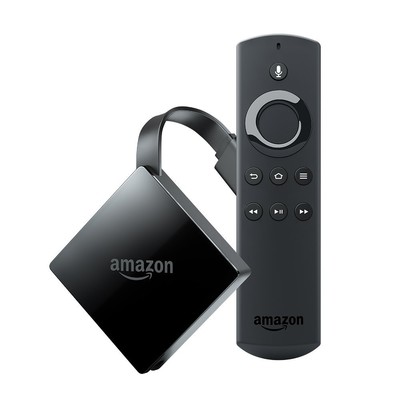
Amazon has been dishing out discounts on its own hardware to Prime members for about a week now, and the latest device to receive the treatment is the Fire TV 4K. Right now, Prime members can pick one up for just $39.99, which is the same price as what we recently saw the refurbished version go on sale for. This is one of the best prices we’ve seen on this hardware, outside of Prime Day where it was just a few bucks less.
It offers 4K Ultra HD support, HDR-10 support, and comes with an Alexa Voice Remote. Plus, the Fire TV can stream from media services like Netflix, Hulu, Amazon Prime Video, HBO and many others, and the included remote allows you to search for your favorite content by using just your voice.
If you’ve made the move to a 4K TV and don’t have a 4K streaming device, you’re missing out. Amazon also has a few of its Fire Tablets on sale with prices starting at just $35, so be sure to check them out. Remember, you’ll need to be a Prime member to take advantage of all these deals. If you aren’t already one, you can sign up now right now for a free 30-day trial.
See at Amazon
 AIVAnet