


CRISPR gene editing creates cocaine-proof mice, aims to crack addiction puzzle
Gene editing has already given us malaria-resistant mosquitoes and heat-resistant cows. Now, researchers from the University of Chicago may have topped both of those feats with their latest creation: Cocaine-resistant mice. Using the CRISPR-based gene-editing platform to modify the DNA of skin cells, researchers Xiaoyang Wu and Ming Xu have been able not only to create mice that are less likely to seek out cocaine than their counterparts, but are also immune to cocaine overdoses that killed mice without the same CRISPR-edited cells.
The process builds on previous work involving a modified enzyme called butyrylcholinesterase (BCHE), which is capable of naturally breaking down cocaine very rapidly. Unfortunately, its short half-life makes it ineffective in a clinical scenario, since it disappears before it has any long-term impact on the body’s response to cocaine. BCHE cannot be administered orally, which makes it ill-suited for use as a potential treatment.
Wu and Xu have found a way around this by demonstrating that modified skin cells can secrete BCHE into the bloodstream over a long period of time. These skin cells can be applied in the form of a skin graft.
It is still early stages, but the work could have a profound impact on solving the problems caused by thousands of coked-up mice flooding the streets every Saturday night to throw crazy shapes on tiny dance floors, while talking rapidly about how freaking amazing cheese tastes.
Okay, so that’s not really what the researchers hope to solve. (I mean, if that was real, why would you want to stop it?) Instead, they believe their research could play a part in helping battle the effects of cocaine addiction in humans via a similar skin graft procedure.
“It will work, like in mice, by highly efficiently degrading cocaine as soon as it enters the blood circulation, so that little would reach the brain to produce consequences,” Wu told Digital Trends. “[As a result], drug naïve-subjects would not develop cocaine addiction, cocaine addicts would stop using cocaine, and there would be no cocaine-induced relapse in addicts.”
A paper describing the work was recently published in the journal Nature Biomedical Engineering.
Editors’ Recommendations
- Spider silk could be used to create artificial skin to help heal wounds
- Gene editing can reverse balding and wrinkling in mice — and maybe humans, too
- Fortnite skins that will make you the envy of all your friends
- From robot insects to human-sniffing sensors, this rescue tech could save lives
- How to unlock the galaxy skin in Fortnite
Will your carry-on fit in that overhead bin? Kayak’s new AR tool can tell you
It’s the air traveler’s walk of shame — pushing through all the passengers boarding the plane in that narrow aisle to gate check the carry-on that wouldn’t fit in the overhead bin. Now, travel search engine Kayak may have a solution to this problem that will help travelers figure out which bag will meet each airline’s carry-on requirements. Kayak’s augmented reality (AR) bag measurement tool can be found inside the platform’s iOS app and officially launched in mid-September.
Tapping on “new bag measurement tool” inside the app’s flight search will now allow the device’s camera to measure the bag you have. The app instructs the user to point the camera at the floor first, an initial step that helps calibrate the tool for better measurements. Next, users move the camera around the bag, while the app takes the measurements.
After scanning the bag, the app tells travelers the dimensions of the bag, which can be compared with the airline’s carry-on requirements. Kayak says that the tool also includes price comparisons for different airlines.
“A pain point in the travel experience is that moment you begin to worry if your bag will fit in the overhead bin, and now we’ve got a tool that can help,” said Giorgos Zacharia, Kayak’s chief technology officer. “There are a lot of AR applications that are fun — but this one was designed to be truly useful for travelers.”
The new AR bag measurement tool is a result of what Kayak calls SWAT week — an engineering competition that encourages rapid, innovative development of new app and website features. The company says that AR, along with virtual reality and artificial intelligence, is a focus for the company’s investments.
Available now, the new AR bag tool is only available on the iOS version of the Kayak app. The feature requires iOS 11.3 or later to run, and joins other trip-planning tools like estimated security wait times, directions for finding your gate (or food) inside the airport, and finding out if your delayed flight means some cash back.
This isn’t the only AR bag measurement tool around — Southwest Airlines has one inside its dedicated app — but the Kayak app uses the tool across multiple airlines, each of which can have variations in luggage allowances.
Editors’ Recommendations
- With Dropit’s delivery service, you can literally shop till you drop
- Google Measure app now works on any ARCore-capable phone
- The best augmented-reality apps for Android and iOS
- The best laptop backpacks for traveling
- Try before you travel — Kayak launches virtual reality exploration tool
Photographer Austin Mann Shares First Photos Captured With iPhone XS
Photographer Austin Mann, who often goes hands-on with new iPhone models in exotic locations to test their capabilities in real world situations, has taken a first look at the iPhone XS and shared some images captured with the new device.
Mann took the iPhone XS to Zanzibar to test it out, and shared the images with PetaPixel.
The iPhone XS and iPhone XS Max are using the same 12-megapixel dual-camera system that was in the iPhone X, with an f/1.8 wide-angle lens and an f/2.4 telephoto lens, both of which feature optical image stabilization, but Apple has made some serious improvements that result in better-than-ever iPhone photos.
Apple has introduced a new image signal processor that integrates with the Neural Engine to introduce Smart HDR, a feature that offers up more detail in the highlights and shadows of images. The image signal processor also offers up more sophisticated bokeh (aka background blurring) to better match the results you can get from high-end DSLRs, and there’s a new Depth Control feature.

Depth Control is a new Portrait Mode option that lets you adjust the depth of field after you shoot, an impressive function that allows you to choose just the right amount of blur to bring out the subject of your photo. The Depth Control feature is available for both the front and rear-facing iPhone XS and iPhone XS Max cameras.
A bigger sensor with deeper, larger pixels lets in more light, which leads to better low-light photos, and sensor improvements paired with Smart HDR and no shutter lag result in sharper action shots.

We’ll get a better look at what the new cameras are capable of when iPhone XS and iPhone XS Max reviews hit later this week, and customers who pre-ordered the device will also be able to try it out when shipments start arriving this Friday.
The full range of images captured by Mann can be seen in high resolution via a Flickr album, which can be accessed here.
Related Roundup: iPhone XS
Discuss this article in our forums
Instagram Expands Shopping in Stories, Adds Shopping to Explore
Instagram today announced two major updates to the shopping feature in the Instagram app that’s designed to allow users to make purchases directly from Instagram.
Shopping within Stories, a feature that began rolling out in June, is expanding to businesses across 46 countries. When watching Stories from brands, items that are featured can be tapped so you can learn more about them.
Instagram is also adding a new Shopping channel in the Explore section of the Instagram app that’s personalized to each individual user. The Shopping channel is located alongside other topic channels, and it will feature brands you follow and brands you might like.
The Shopping channel in Explore is rolling out to Instagram users starting today and will expand globally “over the coming weeks.”
Instagram can be downloaded from the App Store for free. [Direct Link]
Tag: Instagram
Discuss this article in our forums
Apple Shares Updated iOS Security Guide With Info on Shortcuts, Siri Suggestions, Screen Time and More
Apple today published an updated version of its iOS security white paper [PDF] for iOS 12, with information on new features and updates introduced with the iOS 12 software.
According to Apple’s Document Revision History, the updated guide covers iOS 12 features like Siri Suggestions, Siri Shortcuts, the Shortcuts app, Screen Time, Password AutoFill Student ID cards, and more.
On Siri Suggestions, for example, Apple explains that suggestions for apps and shortcuts are generated using on-device machine learning, with no data going to Apple except info that can’t be used to identify the user.
On the Shortcuts app, Apple explains that shortcuts can be optionally synced across Apple devices using iCloud or shared with other users. Apple protects against malicious JavaScript within shortcuts by updating malware definitions to identify malicious scripts at run-time.
Custom shortcuts can also run user-specified JavaScript on websites in Safari when invoked from the share sheet. In order to protect against malicious JavaScript that, for example, trick the user into running a script on a social media website that harvests their data, updated malware definitions are downloaded to identify malicious scripts at run-time. The first time that a user runs Javascript on a domain, the user is prompted to allow Shortcuts containing javascript to run on the current webpage for that domain.
Screen Time, meanwhile uses CloudKit’s end-to-end encryption to protect usage data. Apple only collects Screen Time statistics if iPhone and Apple Watch analytics is turned on, with Apple monitoring whether Screen Time was turned on during Setup Assistant, whether Screen Time is turned on, whether Downtime is enabled, the number of times the “Ask for more” feature is used, and the number of app limits applied.
One interesting bit in the document relates to the new feature that lets a second appearance be added to Face ID in iOS 12. Adding a secondary appearance, says Apple, will decrease the probability that a random person can unlock the iPhone from 1 in 1,000,000 to 1 in 500,000.
The probability that a random person in the population could unlock your iPhone is 1 in 50,000 with Touch ID or 1 in 1,000,000 with Face ID. This probability increases with multiple enrolled fingerprints (up to 1 in 10,000 with five fingerprints) or appearances (up to 1 in 500,000 with two appearances).
Apple’s security document explains in detail how each and every iOS 12 feature works and how it’s protected. The guide is filled with many small but significant details on iOS 12 features, and for anyone interested in the security of the iPhone and the iPad, the full document is worth checking out.
Related Roundup: iOS 12
Discuss this article in our forums
Deebot 901 review: Cleaning your house just got smarter and easier
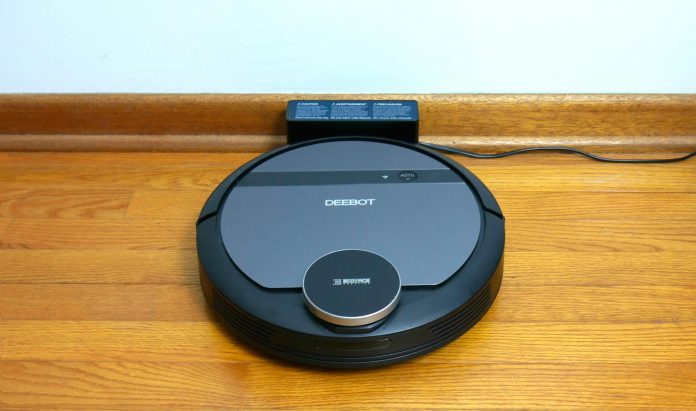
A few weeks ago I adopted the Ecovacs Deebot 901 when it arrived on my doorstep. I lovingly named it Suckatron and quickly realized it would become an essential member of the household. Before we go any further, I do want to mention the Deebot 901 was provided to us by Ecovacs but these are my unbiased opinions about it.
However, I have to admit between the performance, the app, and support for Alexa and Google Assistant I love this thing. So, that might make it a little difficult to stay unbiased.
Design
There is nothing particularly unique about the design of the Deebot 901, then again you could say the same for most robovacs. They all use a very similar design and it can be difficult to tell one from the other.
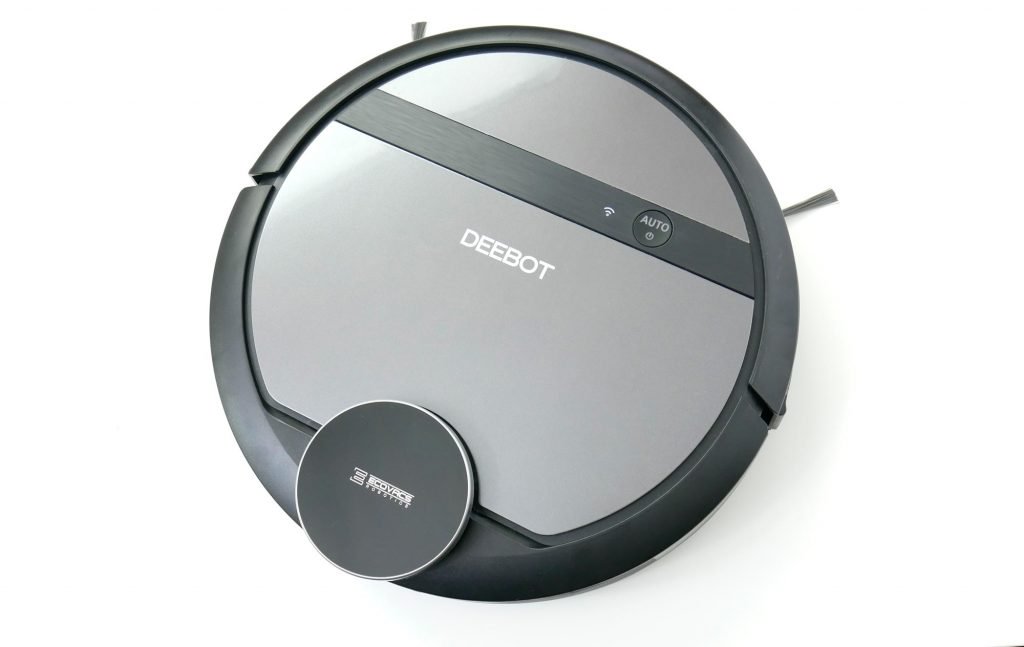
The one design element that does stand out is the Laser Distance Sensor at the top. This is not an exclusive feature to the Deebot 901 though as there are other units on the market that use this or something similar.
The sensor on the top is not the only smart feature, it also includes sensors on the bottom to detect ledges such as stairs to prevent it from falling. In my usage, I also found this works if you pick it up and causes the Deebot 901 to power down. The front bumper also acts as another sensor to help it find boundaries.
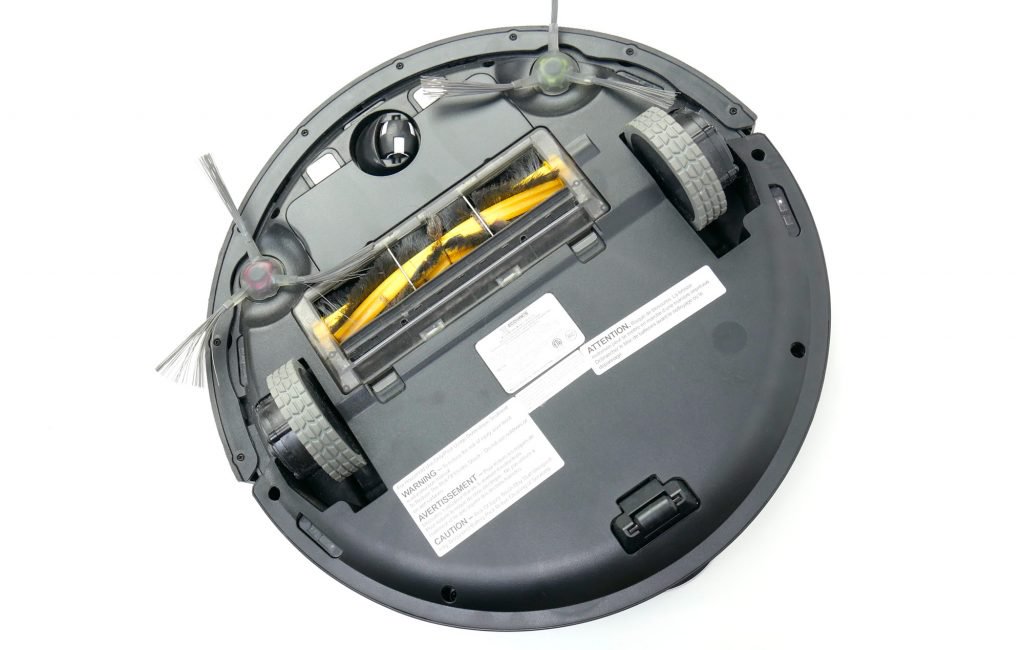
Hidden under the top compartment are the power switch and WiFi button along with the dustbin. The built-in handle makes removing the dustbin easy but there was often a little fuzz and dirt left at the opening I had to remove manually.
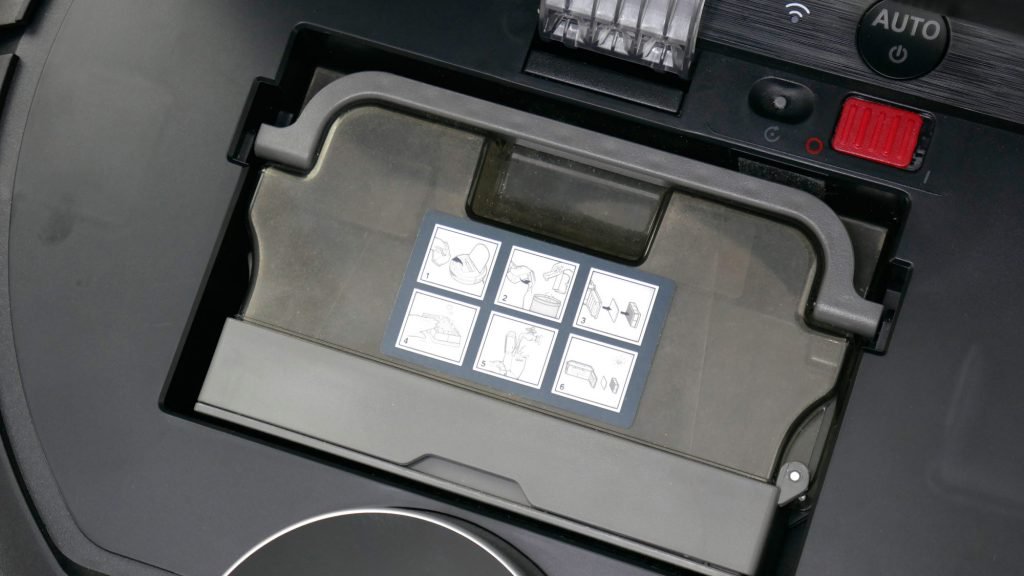
The Deebot 901 features some large wheels that extend and offer good traction. I was able to see it transition easily between carpet, hard floors, and power through over rugs after becoming caught on the corner. There will be no worries if you have area rugs or large thresholds in your home.
Setup
The Deebot 901 is a WiFi connected robovac and as such takes a little more work to set up. No worries though, it is actually quite simple. If you’ve ever set up a smart speaker then the process is very similar. You just have to get the Ecovacs app and run through the quick start guide to get it connected.
The Deebot 901 will boot up and connect to your phone where you can quickly and easily connect it to your WiFi network. Afterward, you will be able to control it through the app.
The App
The app works great and is pretty essential to working the Deebot 901. As I mentioned above the app is used to connect it to your WiFi network, but is also capable of much more. In order to begin the Deebot will have to run once through your entire home to map it.

While the Deebot 901 runs you get to see it map come to life in the app. Watching as it reveals walls and furniture, and then bumps into them to confirm. Which for a geek like me was just amazing. I was obsessed watching Deebot traverse the house and fill up the map as it went along.
Seeing how it detected the walls and barriers around my home and watching as it would slow its approach and then tap it to be certain. I also got a few good laughs as it would tap objects repeatedly and try to work its way around obstructions. I marveled while watching it through the app and followed it around the house, seeing as gray areas transitioned to white filling up the floorplan.
Back to the app though, after the first run you are left with the floorplan for your entire home that I’m still geeking out over. Not only because I have a full floor plan for the top floor but because the Ecovacs app actually creates zones automatically afterward.
Zones
With these zones, it is easy to send the Deebot 901 to only clean certain areas of your home without making it do a full pass. There is also a way to create custom cleaning plans sending it to several of the areas if you’d like.
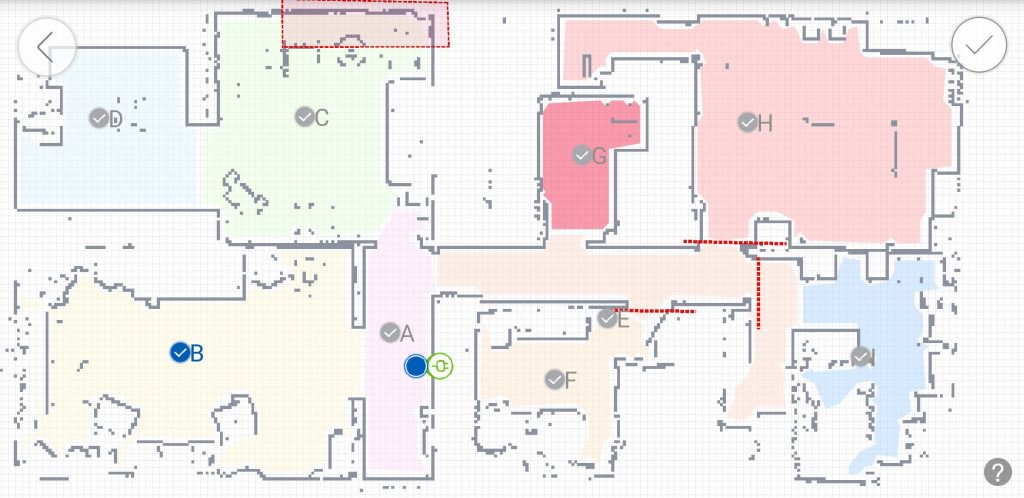
While I love the zone function and that it automatically creates them I wish it would allow us to name the zones to use in conjunction with the voice commands. Having the ability to use Alexa or Assistant to ask it to only clean the kitchen or the living room would be very helpful. While at this time the voice commands can only be used to have it clean the entire house or nothing at all.
Virtual Barriers
Another ingenious feature in the app is the ability to create virtual barriers. This really came in handy to prevent the Deebot 901 from entering areas where it might suck up cables or knock over items. Unfortunately, the first time you run it you cannot use this feature and need to keep an eye on it. I had to rescue it a few times when it tripped up on a couple of cords and some rubs with tassels on the ends.

However, after the first run, I was able to set up some barriers and make sure it would only focus on the high traffic areas and not run into any trouble. If you happen to have some frayed rugs in your home they suggest to tuck them under, but I found this didn’t prevent hang ups, only minimized them. For that reason, I choose to block off those rooms and only send it there if I can supervise it.
Schedules
Scheduling is a fantastic feature allowing you to set a time and day each week for your Deebot to run. This is the perfect way to make sure that you come home to a clean house by allowing it to run when no one is home.
One improvement I wish I could see to this feature would be the ability to schedule it to clean only certain zones. Then you could have it clean high traffic areas more frequently and other areas like your bedroom less frequently, instead of the whole house each time.
Maintenance
While the Deebot 901 helps you by vacuuming your house automatically it does come with a little work. Occasionally you have to perform some maintenance on it including emptying and cleaning the dustbin, filters, main brush, and side brushes. It is also recommended that you clean the bumpers, drop sensors, and charging contacts.

On top of that, you’re supposed to also replace parts on it such as the main brush, side brushes, and filter. The app provides you with a timeline based on your cleaning history to alert you when it is time to change these.
Alexa and Google Assistant
Let’s take a second to talk about the voice controls with the Deebot 901. It is oh so satisfying being able to boss around your robot servant through voice commands. While I loved the app and I would still pull it out to check where it was cleaning or the progress. Having the ability to ask it to start cleaning with only a simple voice command is extremely gratifying.
That doesn’t mean there aren’t a couple of issues, however. For example, from reading reviews for the Alexa skill it appears the skill only supports one vacuum. Meaning if you have two floors in your home and want to use two vacuums, you won’t be able to control them both. As someone with a home that has two floors that is very disappointing and honestly makes me think twice about getting a second one.
The Google Assistant skill wasn’t without its own issues. If you try installing and linking it from the Explore menu in the Google Home app it refuses to work. Instead, you must enter the Home control menu and add it within there. I don’t think Ecovac takes the blame on this one though, it seems to be more of an oversight in the Google Home app.
How Well Does it Clean
The Deebot 901 has two different suction levels. For the first few runs, I let it use the standard level and was shocked at how much it picked up. I was able to fill the entire dustbin both times with only a day in between cleanings. On the first run there was even some dried grass and a leaf I had brought in on my shoes and without skipping a beat it sucked all of it up.
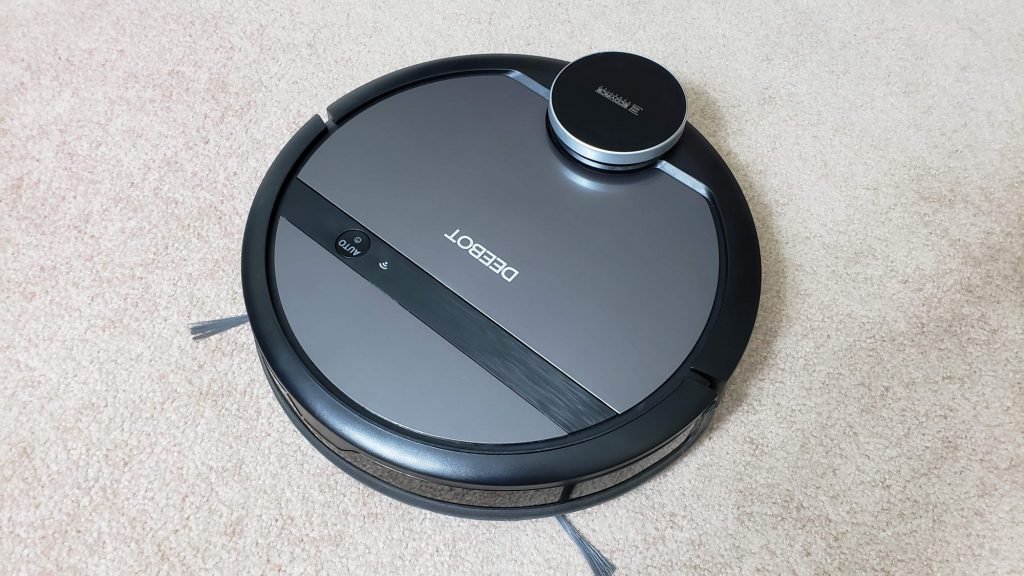
The third run left it only about half full which makes sense now that the floor is being cleaned more regularly. The true test came when I waited a week and ran the Deebot 901 on max power on the carpet in the living room. Afterward, I ran the regular vacuum and was surprised the regular vacuum picked up almost as much as the Deebot 901.
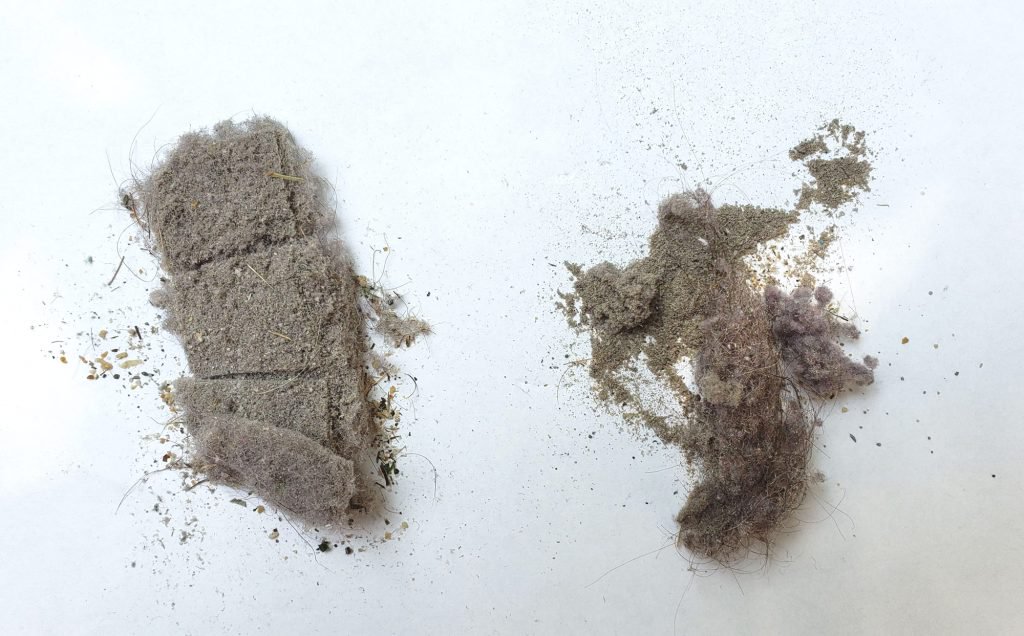 Deebot 901 on left Regular vacuum on the right
For this reason, I think it would be best to run a regular vacuum once a month or so for a deep clean. While allowing the Deebot to keep the floors looking good in between.
Not Perfect for Homes with Two Floors
Having the ability to transport the Deebot 901 between different floors in your house with saved maps would be ideal. As for now, you can only have it save the map of one floor of your home and for the other floor you have to let it run on auto mode. Even if you were to buy two of them you’d still be left unable to manage both with voice commands.
Final Thoughts
At the end of the day spending $400 for a robovac is a little on the pricey side. However, it is not unreasonable for such an advanced device. There are cheaper ones on the market, but they don’t offer the extensive mapping system and smart features that come with the Deebot 901.
Except for a couple of mishaps on the first run where the Deebot got snagged on some cords and the frayed rugs, I was thoroughly pleased. The Deebot 901 has changed the way I’ve cleaned my home and saves me a great deal of time.
They say money can’t buy happiness but this does buy you more time, and with that extra time you can spend it doing activities that make you happy. In this way, by spending $400 on this robovac you are indeed buying some happiness. Unless vacuuming is what makes you happy. If you’d like to adopt one of these into your very own home then hit the link below.
Buy from Amazon
Microsoft could debut transparent Surface Dial sequel at October event
Microsoft’s range of Surface 2-in-1s may not be the only hardware the company shows off at its October 2 Surface event. A new Federal Communications Commission filing suggests we could get our first glimpse of a new Surface Dial sequel as well. Although potential features and specifications are pure speculation at the moment, earlier patents filed by Microsoft suggest that it could debut with a transparent center to give a view through to the screen underneath it.
The Surface Dial is one of the more intriguing products Microsoft has released in recent years. The rotational puck provides additional input options for Surface Studio users. By placing it on to the screen in the right context, users could twist the puck to make choices on radial menus. It also worked in tandem with the Surface pen to provide even more intuitive input options.
With a new Surface Studio 2 expected to debut at the October Surface event (here is what we want it to have), a new Surface Dial could accompany it. MSPowerUser highlights a particular FCC filing for a new Bluetooth accessory that Microsoft filed just a few days ago. Although the document doesn’t give away any detail about what the device is, the fact that it’s circular and would feature labeling on the side, suggests it is a dial-like device at least.
Drawing on patent information highlighted earlier in the year, MSPowerUser suggests that the second-generation Dial could be transparent in its center, thereby making it possible to view the Surface Studio screen through it. That not only makes its placement on the potential Surface Studio 2 that much easier to manage — as you can see anything you put it on — but it opens up new potential functions such as magnification or layer manipulation.
Microsoft has also filed patents for a Surface Inkwell design, which would make it possible to charge and store multiple Surface Pens in a central hub location. In theory, a Surface Dial 2-like device could draw features from that, too, though that seems unlikely.
The Surface event is set to take place on October 2, where we also expect to see details of a new Surface Pro 6.
Editors’ Recommendations
- Refreshed Surface Pro 6 could arrive at Microsoft’s October 2 event
- Microsoft may go back to black with 2018 Surface Pro and Surface Laptop
- The Surface Go tablet unofficially leaks online
- Microsoft Surface Pro 6: Everything we know
- Microsoft’s Surface Mobile Mouse is the ideal companion for your Surface Go
Forget hands — this 3D-printed clock keeps time using nothing but marbles
Thanks to wearables like the Apple Watch, there’s no doubt that our timepieces are getting smarter and more high-tech. However, if you really want an attention-grabbing way to tell the time (albeit a slightly less convenient one), look no further than student Görkem Bozkurt’s amazing 3D-printed clock. Based on a “rolling ball clock” design by Harley Mayenschein dating back to the 1970s, it tells you where you are in the day courtesy of a smart rail system, some marbles, and a whole lot of 3D-printed components.
The clock features three rails: One row for hours, marked 1 to 12; one for 5-minute increments, marked 5 to 55; and one for single minutes, marked 1 to 4. As balls are dumped from one level the next, the number of balls on each level enables you to work out the time using a spot of basic math. It sounds complicated — but it really isn’t after you get used to it. (More instructions on how to tell the time with one of the contraptions can be found here.)
Over the years, we’ve seen a number of projects re-creating Mayenschein’s original clocks, ranging from Lego versions built by fans to new wooden versions made by Harley’s son, Joe. Bozkurt, a physics student at Turkey’s Bilkent University, is the latest to throw his hat in the ring with his 3D-printed version.
Görkem Bozkurt
“When I was a kid, I was fascinated by small moving mechanisms,” Bozkurt told Digital Trends. “Because of this, I was a fan of novelty stores. This is when I first saw the rolling ball clock. It was different than the other kinetic toys I loved watching because it [performed a function by telling you the time.]”
Bozkurt’s model is a nifty reimagining of the original. In an effort to make it more visually appealing, he has added some new features, such as a different elevator mechanism. Best of all? If you like what you see, you can create your own version since Bozkurt has shared the instructions online.
“I share all my projects with the creative commons license, so people can improve them and edit them as they wish,” he continued. “The feedback I get from the community is the most important aspect of this. People can point things out that I’ve never thought about. Everyone who knows how to use a 3D printer should be able to build it. I provided instructions in detail to guide anyone with little to no experience. The build should take around one day to print, and 15 to 30 minutes to assemble.”
Hey, to butcher an old phrase, you’ve got to spend time to make time!
Editors’ Recommendations
- The best 3D printers under $1,000
- 15 major milestones along the brief history of 3D printing
- The best 3D printers of 2018
- Forget flying cars: This shoe-tying robot is proof that the future is here
Too close to call: Samsung Galaxy S9 Plus vs LG G7 ThinQ camera shootout
Andy Boxall/Digital Trends
The Samsung Galaxy S9 Plus is an established, well-regarded camera phone. It takes great pictures, whether it’s day or night, and is an excellent purchase. The LG G7 ThinQ follows a long line of capable camera phones from Samsung’s competitor, and unusually has a wide-angle camera on the back. How do the two compare?
We found out during a trip to Rome, Italy, to see the Longines Global Champions Tour showjumping event, as well as take in some local sights at the same time. It challenged both phones to take photos in fast-moving environments, when the night fell, and in extremely bright sunlight.
Which phone turned out to be the one we were happiest to have by our side? Let’s find out.
Camera tech specs
Here’s how the two cameras match up on paper. The Samsung Galaxy S9 Plus has two camera lenses on the back, both with 12 megapixels, and an unusual variable aperture. This swaps between f/1.5 and f/2.4, to best cope with changing lighting conditions. It has optical image stabilization, a 2× zoom without quality loss, and 960fps slow-motion video. It also has a bokeh portrait mode it calls Live Focus.
The LG G7 ThinQ comes with some artificial intelligence to enhance photos using scene recognition. We have not used it in the test photos here, but often took comparison photos at the time. We found the resulting picture was an alternative, and not necessarily better of worse. The feature is good, but not for the purposes of this challenge. On the back are two 16-megapixel lenses, the main lens with an f/1.6 aperture and f/1.9 aperture on the secondary wide-angle lens. The camera has optical image stabilization, and the wide-angle lens can take photos with a 107-degree angle.
Swimming pool
-
1.
Samsung Galaxy S9 Plus -
2.
LG G7 ThinQ
An obligatory photo of the swimming pool at your hotel is a sure way to turn your social networks green with envy, so which camera is the one for the job? It’s a hard decision. The G7 makes the water very inviting, with a beautiful deep blue color, but there is a little more noise in the sky than the Galaxy S9 Plus’s picture, where the green trees are more striking too. That said, we prefer the color of the blue sky in the G7’s photo.
These two images set the tone for this comparison. The G7 and the S9 Plus are closely matched, perhaps more so than we initially expected, and the G7 comes out with some cracking pictures when the S9 Plus makes some very odd errors. Here, both photos are going to have the desired effect.
Winner: Draw
Portrait mode
-
1.
Samsung Galaxy S9 Plus -
2.
LG G7 ThinQ
LG caved with the G7 ThinQ and introduced a portrait mode, something it previously left out, while in the Galaxy S9 Plus, Samsung refined the portrait mode it launched with the Galaxy Note 8. The results varied, often depending on the lighting. The first example is of the Bluetooth Marshall Kilburn II speaker, taken in daylight upon returning, and the LG does a great job, but it did not perform as well outside the hotel in Rome.
We took a photo of a Longines clock, and the result was frustrating. The LG G7 ThinQ picked out the lines well, and blurred the background more effectively than the Galaxy S9 Plus, and also has more visually realistic and pleasing colors. However, the clock and its body are blurry. It’s not by much, but still noticeable. The S9 Plus’s picture is pin sharp, although we don’t like the overall image as much as the G7.
What’s also interesting is the G7 does not crop the image like the Galaxy S9 Plus, allowing you to maintain distance and still get an effective bokeh shot, something OnePlus has used in the OnePlus 5T and the OnePlus 6. The S9 Plus did the best job in the moment, and that’s what’s often important.
Winner: Samsung Galaxy S9 Plus
Horse
-
1.
Samsung Galaxy S9 Plus -
2.
LG G7 ThinQ
Attending a showjumping event meant seeing a lot of horses, and while they prepare they’re constantly moving around. This makes capturing the same horse, in the same pose, in the same position almost impossible. Despite this, the strengths and weaknesses remained consistent across all the photos from both cameras while standing in the same position.
Taking place at the epic Stadio del Marni in Rome, we had the chance to see the riders warm up the horses just moments before the start of the show jump. The Galaxy S9 Plus’ 2x hybrid zoom helped, as often the horses were a little far away to remain the focal point of the picture. It was also very bright at around 3 p.m. for an extra challenge.
Here, the LG G7 excels with color. The blue sky is wonderful, as is the blue on the Longines banner in the background, and the horse’s dark hair has a beautiful sheen. The Galaxy S9 Plus’s sky is much less blue, but the horse and rider pop more in the photo because of it, we think. It’s unfair to comment on the shadows, due to the bright sunlight and different directions of the horses.
We’re pleased with both here, but concede the Galaxy S9 Plus’s zoom mode made it easier to frame a good shot. That doesn’t stop us liking the G7’s colors and contrast though.
Winner: Draw
Food and drink
-
1.
Samsung Galaxy S9 Plus -
2.
LG G7 ThinQ -
3.
Samsung Galaxy S9 Plus -
4.
LG G7 ThinQ
Two sets of photos from two different phones and the results are seriously different. First, the LG G7 ThinQ wins with the champagne glass and tiny profiteroles. The Samsung focused on the glass, but then blurred out the treats a little too much, reducing the effectiveness of the shot, and that’s so brilliantly demonstrated by the G7. The foreground is perfectly in focus, the background is wonderfully blurred out. For clarification, we don’t select anything in the frame to focus on, and shoot only in auto.
However, in the hotel, the S9 Plus gets the shot of a rather delicious mushroom crostini just right. The toast is golden brown, the sautéed mushrooms glisten, and the white plate remains clean and stark. It contains the food we’d much rather eat. However, the G7’s photo is still fine, and combined with the champagne image, it really stands out as a food-related winner here.
Winner: LG G7 ThinQ
Action
-
1.
Samsung Galaxy S9 Plus -
2.
LG G7 ThinQ
Here’s where the Galaxy S9 Plus’s 2x zoom comes in handy, as despite having great seats, the action was still a little too far away to be captured effectively by the LG G7 ThinQ. Yes, you can still see what’s going on, but there is a lot of stuff happening around the jumping horse, detracting from the focus of the picture. Not so with the Galaxy S9 Plus, which centers the jumping horse and rider for a more cohesive image. Even zoomed in the S9 Plus’ photo looks great, and the horse’s hair is sharp and in focus. However, we do prefer the G7 ThinQ’s blue sky, and how it captured the true color of the sandy ground.
Winner: Samsung Galaxy S9 Plus
Sunset
-
1.
Samsung Galaxy S9 Plus -
2.
LG G7 ThinQ
This was a category we expected the Samsung Galaxy S9 Plus to walk away with, due to its variable shutter and lowlight performance, yet the LG G7 ThinQ produced the better picture after automatically activating HDR. The Galaxy S9 Plus’s photo looks realistic, but does not catch the eye in the same way as the bright, colorful G7 ThinQ’s picture, which is filled with emotion.
The buildings around the spire aren’t so shrouded in shadow, revealing plenty of detail when you zoom in, while the color and detail on the spire itself is revealed more effectively too. Arguably, the S9 Plus’ picture is technically more representative of the surroundings, and the cloud formation around the sun has a greater level of detail, but we’d be more inclined to share the G7’s photo without any editing.
Winner: LG G7 ThinQ
Night
-
1.
Samsung Galaxy S9 Plus -
2.
LG G7 ThinQ
Let’s look at the same scene as in the sunset photo, only now after darkness has fallen. Shot from a slightly different angle, the results are very different. The Galaxy S9 Plus’s photo is beautiful. Filled with an astonishing level of detail for a shot taken in the dark, the front piece of the building is pin sharp, but blurred in the G7 ThinQ’s picture. Notice the color and the white balance too. There is none of the orangey glow seen in the LG photo, and the black levels are excellent.
Winner: Samsung Galaxy S9 Plus
Couple looking at the building
-
1.
Samsung Galaxy S9 Plus -
2.
LG G7 ThinQ
Here’s a great example of how most high-end phone cameras take great photos in good conditions. The sun was shining brightly, and with just a quick glance both photos look great. However, look closely and some interesting differences show up. Look at the G7 ThinQ’s picture and there is more detail on the guy’s legs than in the S9 Plus’s photo. The Samsung has given them a far smoother look, resulting in a slightly less natural appearance. Look higher up in the photo, specifically at the plaque under the statue, and the G7’s photo is sharper and has more detail.
Winner: LG G7 ThinQ
Colosseum
-
1.
Samsung Galaxy S9 Plus -
2.
LG G7 ThinQ -
3.
Samsung Galaxy S9 Plus -
4.
LG G7 ThinQ
What trip to Rome would be complete without visiting the Colosseum? Upon arrival, the sun was directly behind the incredible structure, making face-on photography a challenge. But take a look at the astonishing job the Galaxy S9 Plus did when shown the scene. The detail is breathtaking, right down the the fiery glow of the sun coming through the building. The LG G7 ThinQ’s photo isn’t terrible, but next to the S9 Plus it looks washed out and dull.
However, standing outside a building with such scale and presence, the LG G7 ThinQ’s wide-angle camera showed exactly what it can do. Standing in the same spot, the G7’s wide-angle camera captures the full scene, while the Galaxy S9 Plus can’t fit the entire Colosseum into the frame. Yes, you could use panorama, but this often comes at the expense of quality and realism, plus the ratio of the end photo can make capturing a scene difficult.
Winner: Draw
Conclusion
The LG G7 took three category wins, as did the Samsung Galaxy S9 Plus, and there were three draws. See what we mean about these two being closely matched? The S9 Plus had already bested the LG G7 in our on-paper spec shootout, and impressed in other camera shootouts, but given the G7 is slightly cheaper, similarly powerful, and a joy to use in the same way, it should not be passed by when shopping for a new phone based on the camera performance.
It may come down to whether you see yourself using the G7’s wide-angle camera or not. It’s not for all situations; but it was excellent in Rome, as it would be in any similar place. It’s dramatically improved over the G6 too, with less fish-eye effect and no noticeable quality loss. We miss the 2x zoom though, which captured some great photos in Rome too.
Just like in the results of our comparison, it’s very difficult to choose between the two.
Editors’ Recommendations
- LG G7 ThinQ review
- LG V35 ThinQ review
- LG reveals its first Android One phone and a cheaper LG G7
- Samsung Galaxy S9 Plus review
- HTC U12 Plus review
Apple TV Remote App Gains Support for New Screen Sizes, Password AutoFill
Apple today updated its Apple TV Remote app for iOS devices to introduce several new features for the 2018 iPhone lineup and the iOS 12 update, which was released this morning.
The app now supports new screen sizes, making it compatible with the upcoming 6.5-inch iPhone XS Max and the upcoming 6.1-inch iPhone XR. The iPhone XS Max will be available starting this Friday, while the iPhone XR is coming in October.
Today’s Apple TV Remote update also brings support for AutoFill Passwords, a feature that is designed to let you fill saved passwords securely from an iOS device to the Apple TV, alleviating the need to type in a full username and password.
Apple TV Remote is also automatically being added to Control Center as a default option, providing quick access to controls for the fourth and fifth-generation Apple TV. Apple TV Remote access has been available in Control Center since iOS 11, but until now, it was not one of the default Control Center icons.
Apple TV Remote can be downloaded from the App Store for free. [Direct Link]
Related Roundups: Apple TV, tvOS 12Buyer’s Guide: Apple TV (Neutral)
Discuss this article in our forums
 AIVAnet