


Android Pie Review: The reason why I gave up my iPhone X
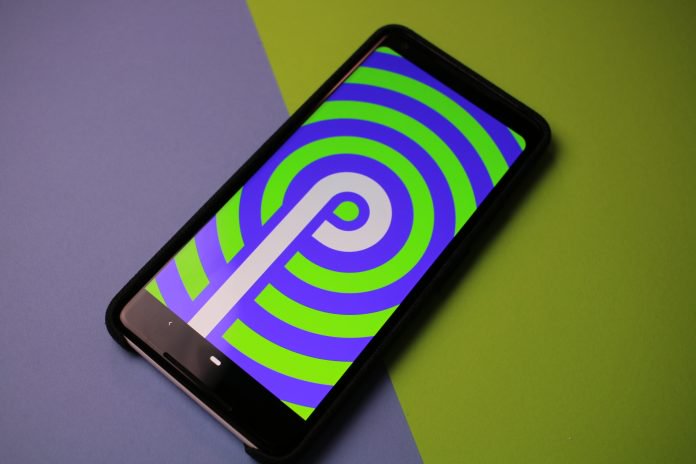

It’s August which means that we were greeted with a new version of Android. This has been Google’s MO for the last few years, and Pie is now available on your Pixel devices, along with the Essential Phone.
Android Pie made its debut after being unveiled at Google I/O 2018 and then came to handsets through Google’s beta program. Then, in a move that surprised most, Android 9 Pie was officially made available.
Read Later
- Nine features we love from Android 9 Pie
- How to install Android 9 Pie on your Pixel
- Android Pie Update Tracker
For the purpose of our review, we have been using Android Pie for the last month through the beta program and final release. This is also the reason why our review is a bit later than others, because we wanted to spend some time with Google’s final product.
What’s new?
At first glance, you probably won’t think that there is much packed into this latest release. But the real fun comes when you start diving deeper. Here is a list of some of the features coming with a “higher profile”:
- Adaptive Battery
- Adaptive Brightness
- Digital Wellbeing
- Gesture Navigation
- Notch Support (up to 3)
- App Actions
- New App Switcher
These are just some of the new features, and while that’s all fine and dandy, you probably want to know about the important ones. So let’s get started with the most surprising one – Battery Life.
Battery Life
Android Pie has provided a pleasant surprise in the battery department. In my usage, I was seeing all-day battery life with around 15% left with at least 4 hours of screen on time (SOT).
In fact, there were a few nights where I forgot to plug in my Pixel 2 XL, only to find that the battery drained just a little bit. Most recently, I went to bed at 1 AM with around 50% remaining, and woke up with 42% battery remaining.

This is no doubt in part to the new Adaptive Battery features. Google explained that this new functionality was intended to learn which apps you use, when you use them, and when to shut them down.
It seems that Android Pie really takes things into overdrive, as my battery life has just been incredible. From time to time, I noticed that an app (like Twitter) was closed when it had been a few hours, but notifications continued to come through.

Adaptive Brightness is another feature that is undoubtedly helping with the battery life race. The only issue that I found came when I was looking at my phone at night. The dark light of my room seemed to cause confusion with my device, as the brightness would fluctuate randomly and annoyingly.
What is making these new battery tweaks exciting is Google’s initiative to integrate Artificial Intelligence into its software. This is nothing new, but it will be interesting to see how everything holds up over time and with newer devices launched with Pie.
How are the gestures?
The next biggest change that users will be able to see is the removal of the good ole’ navigation bar. Instead of having three buttons to tap at the bottom, you are now greeted with a “pill”, which acts as the navigation for your device.
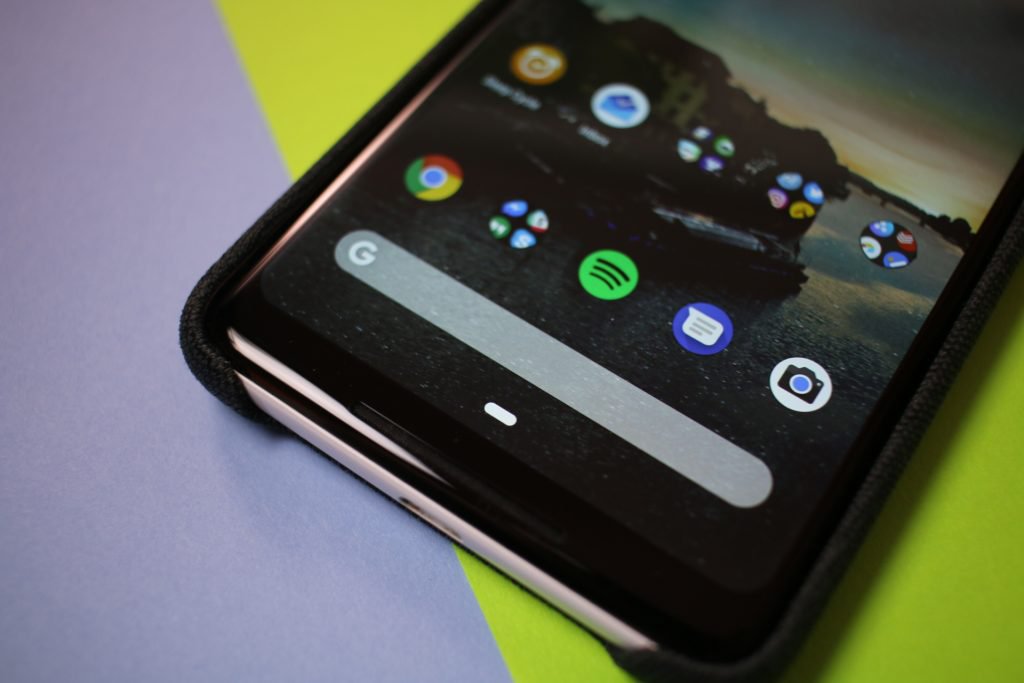 Android Pie ‘pill’ button
As someone who switched from an iPhone X to the Pixel 2 XL with Android Pie, the learning curb was not all that bad. Here are how the gestures work:
- Tapping the pill button will take you home
- Swiping to the right once will take you to the previous app
- Swiping and holding will allow you to scroll through your open apps
- Swipe up once to reveal the multi-tasking drawer
- Swipe up twice to reveal the App Drawer
In practice, this makes quite a bit of sense, other than the whole App Drawer debacle. You can do a slow drag to reveal the drawer, but having to swipe up twice to reach all of your apps is rather annoying.
 Android Pie Multi-tasking
To help combat the issue, I resorted to placing more apps on my home screens. My home screen has turned into folder-central and it is rather annoying for someone who doesn’t want a whole lot going on.
One extra feature that has been added is for those who make use of rotation lock. If you are using rotation lock but want to view one specific app in landscape mode, a new icon shows up in the navigation bar. This will allow users to view content how they want to, with just the tap of a button.
Visual enhancements in Android Pie
Something else that you may notice when you start poking around Android Pie is some slightly redesigned panels. Most notably, there has been a slight redesign to the notification tray, as the toggles are a bit brighter and more vibrant.
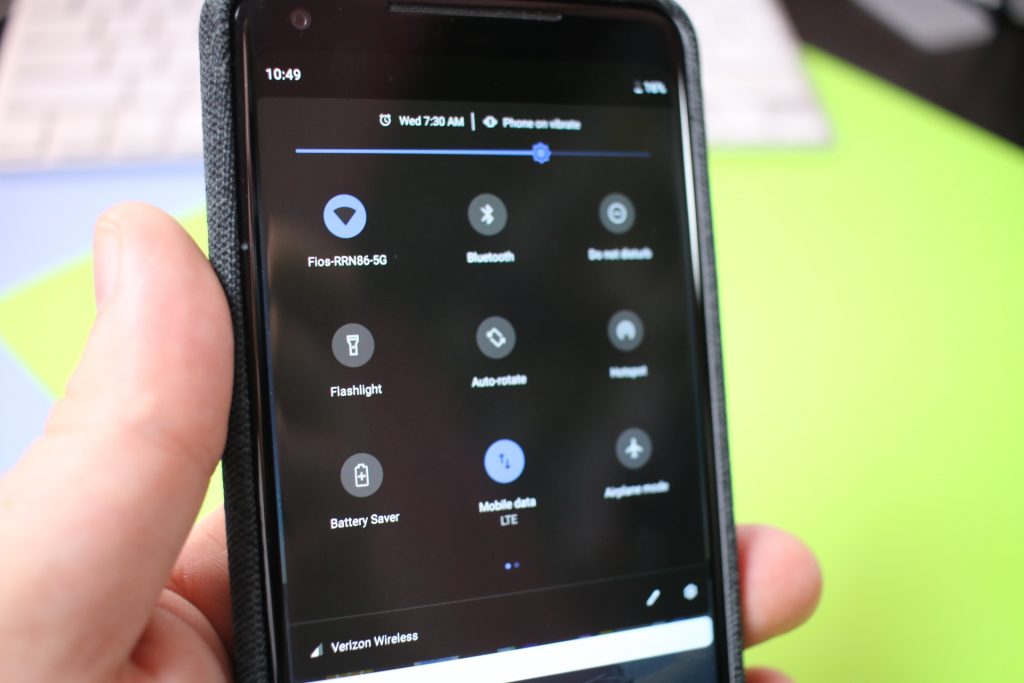
Additionally, since more devices are launching with notches, the clock has been moved from the right side to the left. This is to help make sure that you can see all the necessary notifications, while still seeing the time.
For some reason, Google has placed a limitation of three notches for Android OEM’s to be able to use with Android Pie. Hopefully, this doesn’t mean that Google knows something that we don’t and a phone is incoming with too many notches.

Notifications for messages have also been slightly revamped, as there are new quick reply features. You may remember an app called “Reply” which surfaced earlier this year that added smart replies to your favorite messaging apps.
This has been integrated into the system of Android 9 Pie, making it possible to quickly respond to your friends or family. The API has been also opened for developers, which hopefully means more apps will take advantage of this in the future.
The fight to improve your “Digital Wellbeing”
At Google I/O 2018, during the Android P introduction, a new feature/app was announced called Digital Wellbeing. Google stated that the purpose of this app was to help provide users with a way to see exactly how much you are using your phone.
Not only can you now see that you are spending way too much time on Twitter, but you can also limit yourself. This is done with the help of App Timer, which is a setting that you set up for your “problematic” or “time-wasting” applications.
1 of 3


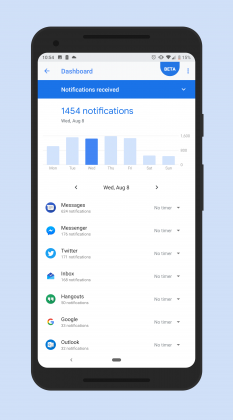
As someone who has no penchant for restraint, app timers seems like something that could be really useful. However, I ended up being more annoyed that I couldn’t access the app I was trying to view on my smoke break.
It was also a bit alarming to see just how many times I unlocked my screen or how many notifications that I received. Suffice to say, Digital Wellbeing really has given me a different look at how I should be staying off my phone when I don’t need to be on it.
READ MORE: What is Digital Wellbeing and how to sign up for it
The odd thing here is that it’s not automatically built into Android Pie. Instead, you have to sign up for a beta program and then wait for it to auto-magically appear in your settings menu.
As a side note, Chris Lacy (of Action Launcher fame) developed an app that allows you to view Digital Wellbeing as an application. It creates a direct shortcut, so you won’t have to dive into your settings to see what is going on.
Download Pixel Shortcuts
What’s next?
For owners of the Pixel, Pixel 2, and Essential Phone, you likely have already been enjoying the fruits of Android Pie. However, the real question remaining is when are other OEM’s going to jump on board.
As much as I would like to sit here and give you a rundown of what each manufacturer will be doing, I can’t. We have seen failed promises time and time again, and it just wouldn’t be fair for us to convey those failed promises to you, the readers.
So instead, I will say that it’s time to just sit back and play the waiting game.
Final Thoughts
Android 9 Pie is one of, if not the best, iterations ever released. My personal excitement drove me to pick up a Pixel 2 XL of my own, and put my iPhone X in a drawer.
In the time spent with Pie, I really fell back in love with Android and enjoyed all of the new features. I can safely say that once Pie arrives on more devices, it will be a joy to just about everyone to use.
Sure, gesture navigations may be annoying, but I feel that this is the way to full experience bezel-less devices. Google is making all of the right moves, and the Pixel 3 will be interesting to see how the latest version of Android works with the latest hardware
We want to hear from you. Sound off in the comments below and let us know what you think about Android Pie. Have you been using and enjoying it? Have you run into any issues? Let us know if you have any questions!
Don’t Miss
Google Home is awesome; here’s how to make it even better!
Check it out!
Gear Up: Consider myCharge’s wireless charging and Nintendo Switch solutions

Look around your home, school, or office, and you’ll probably find a number of devices that require regular charging. Maybe it’s a few phones, a tablet, wearable, or even a Nintendo Switch. Chances are that you’ve got something that needs an occasional, or daily charging.
Toss in a roommate, spouse, or co-worker, and we imagine things get pretty hairy around the wall chargers. No matter how big phones are or how great the battery life, you’re always going to want (or need) more.
What happens if you’re out and about and don’t have access to a wall or auto adapter? Consider adding something from myCharge.
SEE ALSO: myCharge portable chargers are perfect for Pokemon Go hunts
We’ve long been a fan of myCharge portable charging solutions, having had the privilege of reviewing them over the years. The 2018 selection is no different; it’s bigger capacities, faster charging, and smaller footprints. Not only that, but myCharge has a few recent tricks, too. What’s more, we’re happy to see the brand moving into other areas, such as the Nintendo Switch.
For your consideration
Our team has spent a few weeks using a number of myCharge portable charger options, each of which speaks to a different type of user. Here’s a couple that we’re more than happy to recommend.
UnPlugged 10K | $69.99
Having 10,000mAh of juice in your bag or pocket is pretty cool, but you’re probably still lugging around a cable. Even if it’s short, or attached to the charger, it’s one more piece to worry about breaking down.

The UnPlugged 10K is not your standard power bank. Sure, it can juice up your phone some 3-4 times, but that’s not all. There’s a Qi-ready charging platform on the top of the unit which lets you top off the battery simply by placing your phone on it.
Like other portable units, though, you still have a couple of USB-A ports to work with, too. This way, you can plug in your older phones for a direct charge. Or, mix and match at dinner time and you’ll all be ready to go for the rest of the night — or weekend.
Sold in white, you can purchase the UnPlugged 10K for $69.99 at myCharge’s website.
PowerDisk+ | $49.99
With so many phones offering wireless charging today, it just makes sense to take advantage of the technology. Sometimes it’s pretty expensive to go with the OEM’s preferred charger; myCharge offers a more affordable alternative.

The PowerDisk+ delivers incredibly fast charging speeds with Qualcomm 3.0 Quick Charge support. With up to 10W of output, it’s strong enough for any device you place on the platter.
Not only do you have the wireless surface to work with, but you’ve also got a USB port on the side. Indeed, you can plug in a secondary phone or device and charge (2.4A) at the same time.
Offered in white, the high-end charging pad won’t break your budget. At just $50 it’s the Qi-enabled charger your new phone deserves.
PowerGame | $49.99
A departure from the stuff you’d use for a phone or tablet, this one is more niche. That’s not to suggest there’s not a market for it, though. No, this one is designed strictly for the Nintendo Switch.

Featuring a 7,000mAh battery, the PowerGame plugs directly into your Switch and hugs the back of your console. Good enough for 10 hours of gaming, it’s everything you need for a week’s worth of commutes.
In addition to charging your Switch, it also pulls double duty with its kickstand. Feel free to put the unit down on a table and remove the controllers. It’s equal parts practical and convenient. Grab one for only $49.99 from myCharge today.


Products from Amazon.com
-

myCharge HubMax Portable Charger 10050mAh / 3.4A External Battery Pack with Built-In USB Port, Integrated Apple Lightning and Micro-USB Cables, Foldable Wall Plug for iPhone, iPad, Samsung Galaxy
Price: $69.99
-

myCharge AmpPlus Portable Charger 4400mAh/2.4A Output External Battery Pack with Dual USB Ports and Integrated Recharge Cable for Smartphone, Tablet and USB Devices (iPhone, iPad, Samsung Galaxy)
Price: Check on Amazon
-

-20%
myCharge Qi Wireless Charger Powerbank 10W/2.4A/10000mAh Unplugged Portable Charger with Dual USB Ports for Qi enabled Apple iPhone and Android (Samsung Galaxy, Note, Edge) – White
Price: $55.99
Was: $69.99
‹
›
Don’t Miss
Google Home is awesome; here’s how to make it even better!
Check it out!
Third-party calling apps no longer work with Android 9.0 Pie
If you’re one of the lucky few that have Android 9.0 Pie on your phone, you may still be getting used to all of the new updates and features on your phone. For those who frequently use third-party call recording apps, however, you may notice something different: These apps no longer work on your phone.
The change is sure to disappoint those who rely on call recording apps for business and personal purposes. The Android Play store currently has more than 200 call recording apps with an aggregate total of more than 200 million installs.
While there have been reports of the problems with third-party calling apps since Android Pie was in beta, some people believed it was just an issue that would be resolved with the official release of Pie. The team at Atlassian confirmed that Google closed a workaround in Android Pie that developers had been using for years to power third-party call recording apps.
An official call recording API was included in earlier versions of Android, however, Google removed the API with the release of Android 6.0 Marshmallow in 2015. The tech giant stated the API was removed on the grounds of user privacy, however, it left an easy workaround for app developers that worked through the release of Android 8.1 earlier this year.
It’s likely Google did indeed close the workaround due to privacy concerns. In the U.S. call recording laws vary by state: While most states have single- party consent laws, some states continue to require two-party consent. And with the enactment of new GDPR laws, express verbal consent is required for any call where either party is located in the European Union.
If you’re using a phone with Android 9.0 Pie, there are still a few options if you want to record calls. You can place calls on speaker and record with a third-party device such as your computer or laptop. You can also find hardware that connects to your phone via Bluetooth or USB-C that will let you record calls.
We reached out to Google to learn more about its decision for more information and will update our coverage as we learn more.
Editors’ Recommendations
- When is your phone getting Android 9.0 Pie? We asked every major manufacturer
- Android 9.0 Pie: Everything you need to know
- Here’s how to download and install Android 9.0 Pie
- Samsung rebrands Gear app as ‘Galaxy Wearables,’ it now supports Android 9.0 Pie
- How to use Do Not Disturb mode in Android
A new way to ‘freeze’ water could help transform organ preservation
Freezing can be a great way of preserving assorted foodstuffs or biological tissues and organs, but it’s not without its risks. The formation of sharp ice crystals can damage cell membranes, while the defrosting process comes with its own potential dangers.
Scientists from Massachusetts General Hospital (MGH), the original and largest teaching hospital at Harvard Medical School, may have changed the game with a new piece of research, however. They have developed a method of maintaining water and water-based solutions in their liquid form for long periods of time, at temperatures far below the usual freezing point. The breakthrough could have major implications for long-term safe preservation of everything from blood cells and organs to the food we eat.
“We have kept water at temperatures as low as minus-20 degrees Celsius (minus-4 degrees Fahrenheit) for as long as 100 days as water, [without] freezing,” O. Berk Usta, assistant professor of Surgery at the Center for Engineering in Medicine at MGH, told Digital Trends. “The approach relies on simply putting a layer of hydrocarbon solution, such as oils, short alkanes or alcohols, on top of the water in a solid container. This drastically suppresses the ice-nucleation events at the water-air interface by replacing it with a water-hydrocarbon interface.”
In an experiment, the researchers demonstrated that it is possible to more than double the amount of time, from the clinical standard approach, that red blood cells can be stored. At present, red blood cells can be stored for a maximum of 42 days. Using this new approach, it was possible to extend this up to 100 days.
Alongside the immediate practical applications, the researchers also believe that this discovery could enable fundamental scientific research by making it possible to study liquid phase reactions at a much lower temperature than is currently possible.
Heck, who knows — although this approach studiously avoids actual freezing, maybe it could prompt advances in the kind of long-term cryogenic preservation process that scientists, sci-fi authors, and, allegedly, Walt Disney have speculated about for years.
“We are now focused on increasing the volume of the preserved liquid phase from the 1-100 milliliter range to 500 milliliters to enable mass preservation of samples,” Usta continued. “[We also want to translate] our approach to the preservation of exotic cell types and organs, such as the liver, since our center already has a very active cell and organ preservation research thrust. Through collaborations, we are also looking into further understanding our observations by conducting [additional] computational and laboratory experiments.”
A paper describing the work was recently published in the journal Nature Communications.
Editors’ Recommendations
- Watching liquid crystals undulate under a microscope will melt your brain
- Is this the future of medicine? Synthetic blood could buy patients 48 extra hours
- Get your Sagan on with 60 awe-inspiring photos of the final frontier
- Italian researchers discover what they believe is a lake under ice cap on Mars
- With artificial bone marrow, scientists aim to decode blood disease
A turn for the better: Loupedeck+ adds custom dials, more to Lightroom console
HIllary Grigonis/Digital Trends
Brought to life by an incredibly successful Indiegogo campaign, the original Loupedeck introduced a bespoke hardware interface for Adobe Lightroom. The console used a host of buttons and dials for performing common and advanced commands that otherwise would rely on often esoteric keyboard shortcuts and slow mouse maneuvers. In our review, we found it to be a useful accessory for photographers needing to edit a large number of photos. Now, there’s a new version out: the Loupedeck+.
With it has come a price adjustment to the original: Introduced at $299, it can now be found for just $180, while the Loupedeck+ sells for $230. So how does the Loupedeck+ improve on the original, and will it win over any photographers who may have taken a pass on it?
Dialing up the customization
The Loupedeck+ features a very similar control layout to the original Loupedeck, but has turned up the customization options considerably. A new custom mode button will switch the function of the 11 pre-programed dials that control different elements of exposure, color, and white balance. That means you can switch the contrast dial — and ten others like it — to a different control by tapping a shortcut button on the upper left. That custom mode is helpful for users who need more than those 11 dials or simply want to better tailor the experience to their editing style. Beyond Lightroom, the Loupedeck+ also introduces support for Skylum Aurora HDR.
Custom mode aside, the Loupedeck+ has several new controls designed specifically for custom settings while leaving all the pre-labeled tools intact. While the original had one D1 dial, the update has two. We set these two to control sharpness and noise reduction.
HIllary Grigonis/Digital Trends
Along with the original’s two custom buttons in the center, the Loupedeck+ adds two more to the right and a set of three on the left. The three left “L” buttons are preset to tools like the brush and radial dial but, they can also be adjusted to control different options. The rotate/crop dial on the original is also renamed as a control dial, which can be custom set for two different actions, one for turning the dial and another for a press of the dial.
The color and flag keys used for culling images also double as a “keyboard mode.” Holding Fn and tapping the button to toggle between star and color labels turns those five buttons into shift, control, command, alt, and tab keys — they function just like the keys of the same name on a typical keyboard.
Each color channel has a wheel and three buttons swap between whether you’re adjusting hue, saturation, or luminance.
Like the first generation, the Fn button doubles the controls, working sort of like control key on a typical keyboard to expand key commands by pressing both. For example, in our setup, we used this to toggle our aforementioned noise reduction dial to color noise reduction, giving us full control over both parameters of noise reduction in one dial.
Perhaps our favorite feature on the original Loupedeck, the individual controls for each color channel, remain intact here, as do the dials for exposure, contrast, and white balance. For photographers who often make adjustments in the hue, saturation, and luminance (HSL) panel, this is where the Loupedeck can really start to save some time. Each color channel has a wheel and three buttons swap between whether you’re adjusting hue, saturation, or luminance. The actual efficiency gains can probably be measured in milliseconds for any one command, but it adds up over multiple commands and photos.
As with the first Loupedeck, as you make an adjustment, the Lightroom control panel will scroll to that adjustment on the screen. This makes sure that you always get visual feedback of the control your adjusting, although it doesn’t work perfectly. With noise reduction, for example, it scrolls to the top of Sharpness panel, which may leave the noise reduction sliders out of view on some monitors.
Along with the additional customization options, the Loupedeck+ feels sturdier. It is also heavier, but the keys feel a bit nicer under to the touch. We didn’t find anything wrong with the original build quality, but there is a noticeable improvement in the second generation. The Loupedeck+ also ditches the silver edge for an all-black design.
One of our few complaints about the original Loupedeck was the crop dial, which could only straighten the horizon. On the Loupedeck+, that dial can be customized to other options, such as scrolling through the image library, but you’ll still need to reach for the mouse when cropping an image. We still feel the crop dial could do more for actual cropping; even being able to use it select different aspect ratios would be nice.
Lower prices across the board
As with the original, the Loupedeck+ brings speed improvements that range from modest to meaningful depending on your editing workflow and workload. It is undeniably, however, a more fun way to work inside of Lightroom, rather than relying on a mouse, keyboard, and software sliders. We’d still like to see a wireless option — another complaint we had with the original — but most photographers will use it close enough to their computers that a USB connection won’t be an issue, so long as you have an open port.
Overall, this is an excellent tool for photographers who use Lightroom or Aurora HDR on a regular basis.
Rather than replacing the original, the Loupedeck+ serves as a flagship version, priced about $50 more. If you want more custom controls, the Loupedeck+ is the better option, but otherwise the original is a great buy at $180. The closest competitor is the Palette Gear, which is modular and customizable, but only includes two buttons, three dials, and two sliders in its $299 configuration.
But perhaps our favorite thing about the Loupedeck+ is simply that it costs less than the launch price of the first one ($230 compared to $299). That means both options are much more approachable, particularly to non-professional photographers who may not be able to justify the expense as easily.
Overall, this is an excellent tool for photographers who use Lightroom or Aurora HDR on a regular basis. Like any tool designed to save time, the fewer photos you tend to work with, the less important an accessory like the Loupedeck becomes. However, thanks to the price drop, more photographers will find the Loupedeck to be a worthwhile investment.
Editors’ Recommendations
- 18 Lightroom keyboard shortcuts you can actually remember
- What is HDR photography and how can I shoot it with my camera?
- Microsoft Surface Book 2 13-inch review
- Dr. Dabber Switch vaporizer review
- The Nik collection lives on with DxO Labs update — but at a cost
Intel serves up ‘Bean Canyon’ NUCs revved with ‘Coffee Lake’ CPUs
If you’re looking for a super-compact PC for streaming media that doesn’t break the bank, Intel updated its Next Unit of Computing (NUC) family with new “Bean Canyon” kits. Currently, there are five units packing Intel’s eighth-generation Core “Coffee Lake-U” processors released in April. But drawback with these “barebones” NUCs is that memory, storage, and the operating system are an additional cost on top of NUC’s original price tag. You’ll need a display and peripherals too.
If you’re not familiar with NUCs, they are miniature PCs that are designed to mount behind a desktop monitor or blend into your office environment or entertainment center unnoticed. They’re small and quiet yet powerful enough to possibly serve as a desktop replacement, depending on your needs. They’re typically provided in two compact sizes, one of which is larger than the other to accommodate additional storage.
Intel now serves up five affordable Bean Canyon NUCs: Two based on the Core i3-8109U for $300, two based on the Core i5-8259U for $400, and one based on the Core i7-8559U for $500. Technically, these chips were designed for mobile, but they don’t require excessive amounts of cooling, keeping the NUC’s noise level down to a minimum.
Here’s the new Bean Canyon family:
- NUC8i3BEK ($299)
- NUC8i3BEH ($299)
- NUC8i5BEK ($399)
- NUC8i5BEH ($399)
- NUC8i7BEH ($499)
As an example of the size differences, the NUC8i5BEK model only supports a single stick-shaped M.2 SSD while the NUC8i5BEH provides enough space to support a stick-shaped M.2 SSD and a 2.5-inch hard drive or SSD. Yet both provide two empty memory slots supporting up to 32GB of DDR4 system memory clocked at 2,400MHz.
Port-wise, both units are identical despite their different physical sizes. On the back, they provide one HDMI 2.0a port, two USB-A ports (5Gbps) and a Thunderbolt 3 port (40Gbps). On the front, you will see two USB-A ports (one of which will charge devices), headphone/microphone combo jack, and dual-array front microphones. A Micro SD card slot is located on the left side. For connectivity, the NUCs provide a gigabit Ethernet port on the back, Bluetooth, and Wireless AC networking.
You’ll see this same port and connectivity setup across all five Bean Canyon NUCs. All models support a maximum three external displays despite the Thunderbolt 3 port, all of which are handled by the integrated graphics in Intel’s CPUs. If you’re looking for compact gaming machines with discrete graphics, the company’s more-expensive “Hades Canyon” units would be a better option.
If you don’t want to be bothered with installing the memory and storage, and simply want to purchase these NUCs as complete PCs, SimplyNUC is taking pre-orders now for units what will ship in October.
For instance, a fully configured NUC8i7BEH with 8GB of memory, 128GB of storage, and a free installation of Windows 10 will cost $720. Maxing out the options can send the final price above $4,000 such as adding a 2TB M.2 SSD, a 4TB SSD and 32GB of memory. That doesn’t include tacking on peripherals or an extended warranty.
Editors’ Recommendations
- Intel’s next mainstream compact PCs won’t have discrete Radeon graphics
- Razer claims ‘world’s smallest’ with its 2018-edition Blade 15 gaming laptop
- Dell’s refresh of the XPS 13 2-in-1 series dips its toes into Intel’s Amber Lake
- Lenovo’s first VR-certified 15-inch mobile workstation packs a six-core CPU
- Intel finally ships an updated Radeon driver for its all-in-one ‘module’ CPUs
Meet the Mantis Q: A drone you can control by yelling, waving, or even smiling
Previous
Next
1 of 5

Yuneec
Yuneec

Yuneec

Yuneec
Yuneec
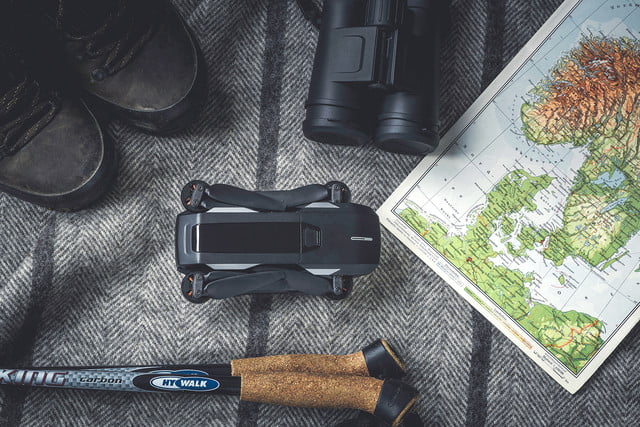
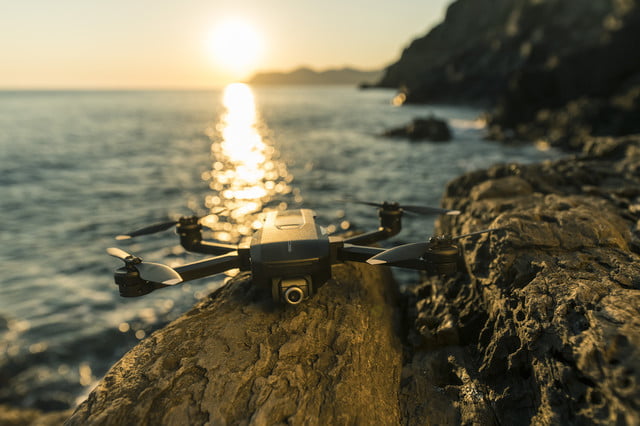
Talk, wave, or smile, and Yuneec’s newest drone will snap a photo. The Yuneec Mantis Q, as it’s called, integrates voice control and 4K inside a $500 folding drone designed for adventurers, families, and UAV enthusiasts.
While voice control has become increasingly common in devices like smartphones and smart speakers, it’s a rare feature (and to our knowledge, possibly a first) for drones. Yuneec’s new drone can reportedly respond to commands like “record a video,” “take a picture,” and “take a selfie.” You can even turn the Mantis Q on with a spoken “wake up” command.
Of course, the Mantis will have to hear you for those commands to work — and Yuneec doesn’t say how close you need to be in order for the drone to hear your commands, or how environmental noise like wind may play a role.
If yelling at the sky isn’t your style, Yuneec has also integrated facial recognition into the drone, allowing a smile to trigger a photo from up to 13 feet away. Similarly, the quad’s built-in gesture controls allow you to trigger a shot with a wave of your hand.
These fancy control options aren’t all that the Mantis brings to the table, though. The drone also boasts a number of preset flight modes, including journey, point of interest, and orbit me — as well as a tracking mode. The built-in camera shoots stills at over 4,000 pixels wide and video in 4K (3840×2160) at 30 FPS or in HD at 60 FPS — all of which can be saved onto an included MicroSD card in either JPEG or DNG format. The camera’s 1/3.1 inch CMOS sensor is relatively small compared to handheld cameras, but what the Mantis lacks in sensor size it makes up for with a 3-axis mechanical gimbal for stabilization.
Despite having enough computer power to recognize smiles, waves, and words, the Mantis Q is rated for up to 33 minutes of flight time (in ideal conditions) on one charge. The quadcopter also has a “sport mode” that allegedly allows it to reach up to 44 miles per hour. Sonar and infrared detection help the drone avoid obstacles and achieve stabilized flights indoors, without the aid of GPS.
The Mantis Q is also Yuneec’s first compact consumer drone that folds down into a smaller size — a feature that has become extremely popular ever since DJI’s Mavic series hit the market a couple years ago. The Mantis Q weighs about a pound and, once folded, measures 6.6 by 3.8 by 2.2 inches.
The drone ships with a controller — but you’ll have to attach your smartphone to it if you want a video uplink. The controller also includes a dedicated return-to-home button to make landing easier for novice pilots.
Pre-orders for the drone began Tuesday. The Mantis Q ships with a controller, battery, charger, cables, and an extra set of propellers for about $500, or with three batteries and a shoulder bag as part of the X-Pack for $650.
Editors’ Recommendations
- Parrot Anafi drone review
- The best drones under $500
- Resistance is futile: Amazon Fire TV Cube assimilates cord cutters, cable box users
- The Mito drone captures underwater action without the nausea-inducing footage
- The Best DJI Spark Accessories
The best Samsung Galaxy Note 9 screen protectors
Julian Chokkattu/Digital Trends
The Samsung Galaxy Note 9 is a whole lot of phone with a bunch of desirable features. No matter if the increased power, the A.I.-powered camera, or the improved DeX mode is your favorite, the Note 9 is promising to be one of the 2018’s biggest and best phones.
But with great power comes great responsibility. It’s an expensive phone, with prices starting at a startling $1,000 — and worst of all, it’s made from easily breakable glass. We’ve made sure most of your phone is covered with our selection of the best Galaxy Note 9 cases — but what about the all-important screen? At 6.4 inches, it’s a huge part of the phone, and just as easily broken.
Don’t worry, we’ve not forgotten about it. Here are some of the best Samsung Galaxy Note 9 screen protectors to keep your huge (and expensive) phone gorgeous.
Whitestone Dome Full Cover ($45)
When it comes to getting completely covered and seamless screen protection, Whitestone Dome is always near the top of our list. The Whitestone Dome screen protector is made from scratch-resistant tempered glass that curves to fit your screen. It has also been treated with an oleophobic coating to resist fingerprints and oily marks. However, the most important part isn’t the protector itself, but the application method, which puts a layer of liquid glass between the protector and your Note 9’s display. When cured by the UV lamp, this gives a close and tight fit, ensuring that no touch sensitivity or clarity is lost. It’s expensive, but it’s one of the best screen protectors you can get.
Buy it now from:
Amazon Mobile Fun
Spigen NeoFlex — Twin Pack ($30)
A name with a great pedigree, Spigen is one of the best brands around for phone protection, whether that’s in cases or screen protectors. The NeoFlex is made from a flexible material that fully covers your screen from edge to edge, providing great protection against scratches. It’s self-healing and should cover small scratches over time. The wet installation method ensures a close fit to your Note 9, but also avoids any rainbow effects or bubbles. It’s not going to be quite as protective as a glass protector, and might not help against the more serious drops — but it’s still a great choice. Best of all, you get two in case of accidents.
Buy it now from:
Spigen Amazon
Otterbox Alpha Glass ($45)
Otterbox‘s cases are some of the hardiest cases around, and its options for screen protection live up to the same reputation. You’ll find tempered glass here, with scratch-resistance and a special coating that stops the protector from shattering when broken, so you won’t need to pick broken glass off the floor. It’s super-hard, and Otterbox has also worked hard to ensure it’s clear, and doesn’t impinge on your Note 9’s touch sensitivity. The Alpha Glass is on the expensive side, but it’s a great choice to pair with one of Otterbox’s own cases.
Buy it now from:
Otterbox
Tech21 Impact Shield ($40)
Another great choice in flexible film protectors, the Impact Shield from Tech21 hides a secret behind its clear, flexible protection. It’s made from BulletShield — a material Tech21 claims is used in manufacturing bulletproof glass. While you still shouldn’t unload a handgun at it, this material does boost the strength of the Impact Shield, giving it great scratch-resistance. It fits perfectly, molding to your Note 9’s curved screen, and stretching from edge to edge. It’s easy to apply too, thanks to the included applicator and bubble-free method. It’s tough enough to last for a while, but if it doesn’t it’s backed up by Tech21’s Limited Lifetime Warranty.
Buy it now from:
Tech21
InvisibleShield Glass Curve ($50)
When curved screens were new, getting a curved glass screen protector was hard and not many manufacturers were up to the task. Thankfully, many have figured it out, and this InvisibleShield protector is one of the best. The curved glass is shaped to fit your Note 9 perfectly, while also being extremely hard and resistant to scratches. The adhesive covers the whole of the protector, so it sits close to your device with no air between that could block clarity and sensitivity. The other side comes with an oleophobic coating to stop unsightly smudges and fingerprints. It’s bubble-free and easy to apply, and if it breaks, it comes with a limited lifetime warranty.
Buy it now from:
Zagg
Skinomi TechSkin — Twin Pack ($8)
We’ve listed some of the best brands on the market in this list, but that doesn’t mean you can’t get a great screen protector from elsewhere. It’s made from a clear, flexible film that’s also used to coat luxury cars, military aircraft, and even the NASA space shuttle. That’s quite the family link, and it’s probably that which spurs Skinomi to claim the TechSkin is the toughest film protector on the market. It’s treated to resist any yellowing due to age, and it’s also self-healing, so any minor scratches should disappear. It’s cheap but effective — and you also get two for the price, making this an excellent choice.
Buy it now from:
Skinomi Amazon
Zizo Tempered Glass ($20)
Made to combine with Zizo’s protective cases for the Note 9, this screen protector is still worthy of your attention, even without one of Zizo’s cases. It’s made from extremely hard tempered glass, and should resist scratches well, as well as offering good protection in case of drops. It fits around the edges of your Note 9, offering complete protection — but these additional “wings” can cause issues with some protective cases, so be sure to check beforehand if your case covers these areas. It’s super-thin, measuring only 0.33mm, and it’s extremely easy to apply with a bubble-free application method.
Buy it now from:
Zizo Amazon
CoverOn InvisiGuard Series ($12)
Billed as the “anti-everything” screen protector, the InvisiGuard protector from CoverOn is anti-bubble, anti-scratch, anti-fingerprint, and anti-UV glare, giving it great protection from a variety of threats. Not only that, it has a slim fit which means it’s compatible with most protective cases, as well as being 99 percent clear. It’s rated to a 9H on the hardness scale, and it comes with a 90-day guarantee, so you can make sure it’s tough enough for your life. It’s also easy to apply, and comes with all the tools you need for the job.
Buy it now from:
CoverOn Amazon
BodyGuardz Pure Arc Privacy Premium ($55)
The Note 9 is an amazing productivity device, and even if you aren’t processing super-secret government data, you still probably have stuff on there you don’t want prying eyes to see. That’s where BodyGuardz‘s Pure Arc Privacy protector comes in. With this attached, your screen becomes unreadable from certain angles, making it harder for anyone peeking at you to see what you see — keeping your information safe. It’s also made from tempered glass, giving you strong protection — while still being extremely thin. While this will impact on your ability to share your screen with others, it might be worth it if you’re worried about your privacy.
Buy it now from:
BodyGuardz Amazon
LiQuid Shield Max Coverage ($8)
Last, but certainly not least — IQ Shield‘s LiQuid Shield protector is another film protector that molds around your device to provide a perfect fit. However, it’s got a few tricks up its sleeve, including a four-layer construction, comprising an anti-yellowing layer, a clear layer for transparency, a tough protective layer, and a layer of advanced adhesive that ensures a tight fit to your Note 9. Despite this, IQ Shield claims it’s near invisible to the naked eye, so you won’t regret putting it on when you glance at your screen. It’s covered by IQ Shield’s replacement policy, and is a wonderful budget choice for your non-budget phone.
Buy it now from:
IQ Shield Amazon
Editors’ Recommendations
- Best Samsung Galaxy Note 9 cases
- The best iPhone X screen protectors
- Samsung Galaxy Note 9 vs. Galaxy Note 8 vs. Note 5: All the changes of note
- The best OnePlus 6 screen protectors
- The best Galaxy S8 Plus cases and covers
Apple’s Share of Notebook Market Took a Hit Last Quarter Due to Lack of New MacBook and MacBook Pro
Apple recently reported sales of 3.72 million Macs in the third quarter, its fewest in any quarter since 2010. It was also the first time Apple sold fewer than four million Macs in any quarter since 2013.
For that reason, it should come as no surprise that Apple’s share of the worldwide notebook market took a hit last quarter.
Taiwanese research firm TrendForce estimates that Apple accounted for 6.5 percent of notebook shipments worldwide in the third quarter, a considerable decline over its estimated 10 percent market share in the year-ago quarter.
The decline resulted in Apple dropping below Acer and ranking sixth among notebook vendors, in terms of global shipments, in the third quarter. The top five spots were held by HP at 26.2 percent, Lenovo at 20 percent, Dell at 19.6 percent, Acer at 8 percent, and ASUS at 7.4 percent, according to TrendForce.
It’s important to note that Apple doesn’t break down its Mac sales on a model-by-model basis in its earnings reports, so TrendForce’s data is estimated, likely based in part on the average selling price of a Mac.

There’s a pretty simple explanation for the decline in sales last quarter: nearly every product in the Mac lineup was outdated.
Both the 12-inch MacBook and iMac lines haven’t been refreshed since June 2017, while the MacBook Air hasn’t received any substantial updates since 2015. Likewise, the latest Mac mini is from October 2014, and the Mac Pro hasn’t been updated since December 2013, but an all-new version is coming in 2019.
It certainly didn’t help that Apple refreshed the MacBook Pro in mid July, nearly two weeks after the quarter ended. Apple’s financial chief Luca Maestri highlighted this “difficult launch comparison” in the company’s earnings call:
Our year-over-year sales performance was impacted by the different timing of the MacBook Pro launch…
Mac sales should rebound in the near future, however, as TrendForce expects Apple to release a new MacBook Air at the end of the third quarter, while respected Apple analyst Ming-Chi Kuo expects the 12-inch MacBook, iMac, and Mac mini lines to be updated later this year—likely by the end of October.
Tag: TrendForce
Discuss this article in our forums
Apple Offers Rare Look Inside Mesa, Arizona Data Center
Apple doesn’t often allow people to visit its data centers, which are located across the country, but The Arizona Republic was recently given a tour of Apple’s Mesa Arizona data center, formerly the site of GT Advanced.
The Mesa Arizona facility spans 1.3 million square feet, with long, sparse hallways equipped with servers. Apple calls the Mesa site its “global data command” center, which employs a “handful” of employees working in 10-hour shifts to oversee Apple’s operations data. 150 employees total are employed at the data center.
Servers in the Mesa, Arizona data center, via The Arizona Republic
The facility is not recognizable as Apple’s from the outside, surrounded by thick, dark walls draped in vines. A guard patrols the entrance to the parking lot.
Server halls contain dozens and dozens of rows of large, humming electronics. Booming fans sit above the servers in an effort to cool the technology.
While The Arizona Republic was provided with a tour and was allowed to take photos inside the data center, Apple “would not share many specifics about what happens inside the facility” due to security concerns.
The Mesa data center, and others like it, house data from Apple apps and services that include iMessage, Siri, and iCloud.
Apple announced plans in 2014 to repurpose the Mesa, Arizona plant where GT Advanced worked to develop sapphire glass for Apple products before filing for bankruptcy. Hundreds of GT Advanced employees were laid off when the company failed, with Apple at the time pledging to bring more jobs to the city.
 The water-cooling system for the Mesa, Arizona data center, via The Arizona Republic
Not long after, Apple confirmed that it would transform the Mesa, Arizona plant into a “command center” for Apple’s global data network. It has been operational since 2016, and Apple has been renovating and adding on since then. According to The Arizona Republic, the most recent addition, several new halls of servers, was completed in April.
The Arizona Republic’s photos of the data center are worth checking out for anyone interested in Apple’s data operations.
Tags: data center, Mesa
Discuss this article in our forums
 AIVAnet