


A permanent Google retail store may be launching in Chicago
The building is two stories and nearly 14,000 square feet.
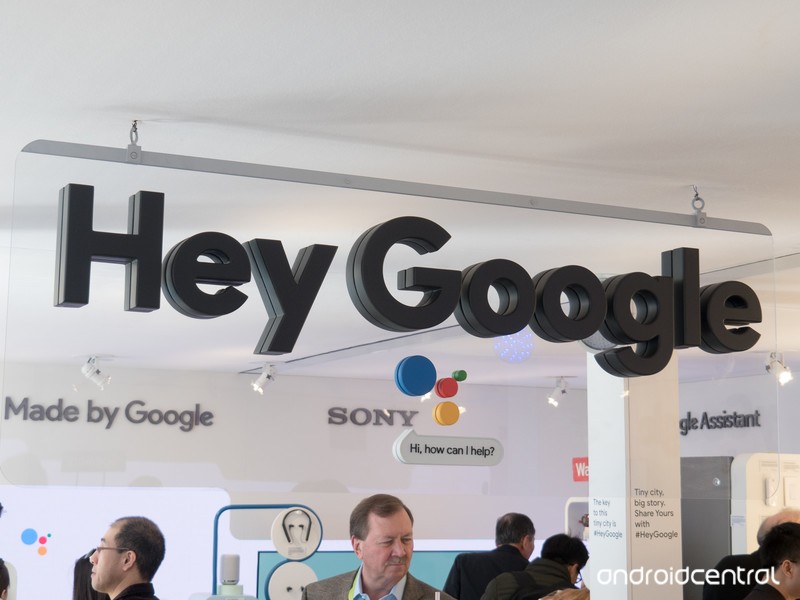
For the past two years, Google’s launched pop-up stores in major cities around the U.S. shortly after the launch of its new yearly hardware refresh. This is a good way to allow potential customers to get some hands-on time with the new tech, but Google may soon get a permanent home for its retail goods in Chicago.
Per a report from The Chicago Tribune:
Google is planning a two-level store in Chicago’s Fulton Market district, its first known location for a retail flagship. The technology giant is close to finalizing a lease for almost 14,000 square feet on the first and second floors of several connected, two-story brick buildings between 845 and 853 W. Randolph St., according to sources.
Should this turn out to be true, this would mark Google’s first-ever retail location and a big move forward in its plans to be a hardware company along with everything else it’s involved with.
A spokesperson for the company simply said, “We don’t comment on rumors or speculation” when asked about the plans, but seeing as how Google already has a headquarters in the city, a Chicago retail shop doesn’t seem out of the question at all.
What would you like to see from a Google store? Sound off in the comments below!
Google might be planning to launch its own Smart Display this year
This subtle Caseology Legion Case is stylish and nostalgic
Flashy cases that stand out are a dime a dozen, but a case that exudes style while blending into the life and style you’ve already built are a bit more rare.

The market for Samsung Galaxy S9+ cases is rife with cases that are all fighting to stand out. Clear cases struggle to shine brighter than the competition. Leather cases push the limits of fashion, but what if you want something a bit more dependable? Something that doesn’t show off, but will stand strong against the harsh world you carry your Samsung Galaxy S9+ through?
Well, that’s when you turn to Caseology, because the Caseology Legion case is a solid dual-layer case that brings subtle style and a nostalgic throwback to another Android flagship.
Caseology Legion Case for Galaxy S9+

Price: $14.99
Bottom line: This case is a diamond in the rough; a solid case that looks boring. Despite the angular look, this case feels great in the hand thanks to an HTC 10-esque chamfer.
See at Amazon
The Good
- Solid construction with great fit
- Flat back is sturdy on desktops and works great with phone grips
- Case blends in with a wide array of styles and outfits
The Bad
- Colors are a bit limited
- Case feels a little bulky than most dual-layer cases

Caseology Legion Case for Galaxy S9+ What I like
The Legion is a solid tank of a case, hugging the Galaxy S9+’s every curve and offering a high lip around each edge of the screen to ensure that the screen is protected from side drops as much as possible. The higher lip around the sides should make the case feel bulky, but Caseology fights that feeling using a bold chamfered edge around the back edge of the case. It felt so familiar in my hand, but it took me weeks to realize why: it’s the same edge my HTC 10 used.
That chamfer helps cut down on the feeling of thick sides while still allowing the case to have thick sides, and just as it did on the 10, that chamfered edge catches and shines the light. It adds the perfect amount of shine and style to a case that’s otherwise unassuming and happy to hide in plain sight.
The Legion — like most of Caseology’s offerings — features well-sculpted port cutouts at the bottom of the phone and a gentle slope that guides the finger up to the fingerprint sensor, but the cutout around the heart rate sensor is steep and makes getting a good reading while the Legion is on next to impossible. Not many use the heart rate sensor, but it is worth pointing out for those of you who do.
Caseology Legion Case for Galaxy S9+ What could still improve
While the chamfer is a detail that feels great in the hand, it doesn’t really add much flair to the case itself, and the carbon fiber detailing at the top and bottom of the case are whispers, meaning that that case is dominated by a solid, flat, metallic back. While that flat back is great when you’re using it flat on a desk, you can’t deny that the case can look downright boring at times.
The case’s colors don’t help things much, as there are now four colors available for the Legion: basic Black, a deep red Burgundy, deep Purple to compliment the Lilac model, and a deep Ocean Blue. What about the lighter Coral Blue pictured above? That color option is no longer listed on the Amazon listing for the Legion or on Caseology’s site, though it is available for the new Galaxy Note 9 Legion case.
The darker colors are fine, but having a lighter colored version was nice for contrast and that lighter blue played Silver from time to time depending on the light.

Caseology Legion Case for Galaxy S9+ Should you buy it?
When looking for a case that’s functional without being frumpy — a case that looks good without drawing unwanted attention, the Caseology Legion Case delivers rock-solid protection with an adaptable style. Even better, the dual-layer Legion case offers the same kind of robust drop protection as an Otterbox or UAG for a fraction of the price.
4
out of 5
Could it use some colors that aren’t quite so dark? Yeah, but I can take a dark case that delivers, and this is definitely a dark case that delivers.
See at Amazon
Samsung Galaxy S9 and S9+
- Galaxy S9 and S9+: Everything you need to know!
- Galaxy S9 review: A great phone for the masses
- Complete Galaxy S9 and S9+ specs
- Galaxy S9 vs. Galaxy S8: Should you upgrade?
- Join our Galaxy S9 forums
Verizon
AT&T
T-Mobile
Sprint
Amazon
These numbers show just how huge Samsung’s Galaxy Note 9 launch event was

Think it looked big on the livestream? It was even bigger in person.
Samsung’s “Unpacked” launch events are always part product showcase and part visual spectacle. The company seems to have an internal goal of one-upping itself with every Galaxy S and Galaxy Note launch, and the Galaxy Note 9 was no exception when the company took over Barclays Center in New York. It probably looked and sounded pretty epic on the livestream, but it was a true sight to behold in person. Samsung has released some numbers that explain just how huge it really was.
Yes, Samsung installed over 9000 square feet of screens for this event.
Barclays Center is home to both the Brooklyn Nets and NY Islanders, in addition to concerts and other special events, and has a capacity of roughly 16,000 people. That’s a whole lot larger than your typical smartphone launch, though Samsung sectioned off the arena (roughly) in half to use that portion of the floor as its massive stage. And it wasn’t just any stage … the stage was actually a massive screen. Somewhat like the Galaxy Note 8 launch at a different venue, the presenters walked out on a truly ridiculous screen that was 52.5 feet across and 80 feet deep (16 x 24.5 meters) — plenty big enough to make a single person walking out there look fully immersed.
The floor screen was paired up with an even larger screen functioning as a backdrop for the event: it was 107 feet wide and 46 feet high (32.6 x 14 meters). It was wide enough to easily reach across the width of the floor space at the Barclays Center, with an overhang of about 10 feet into the seats on both sides.
So for all the mathematicians out there, that’s 4,200 square feet of screen the presenters were walking around on, and another 4,922 square feet of screen in the backdrop. Yes, Samsung installed over 9,000 square feet of screens for this event — a feat that it says took over 48 hours to construct. Add in the audio portion of the event with 160 Galaxy Home speakers playing simultaneously, and it’s hard to see how Samsung will outdo itself for the next Galaxy launch … but something tells me it will find a way.
Samsung Galaxy Note 9
- Samsung Galaxy Note 9 review
- Galaxy Note 9 vs. Note 8
- Where to buy the Galaxy Note 9
- Galaxy Note 9 specifications
- Is the Note 8 still a good buy?
- Join our Galaxy Note 9 forums
AT&T
Verizon
T-Mobile
Samsung
Microsoft Launcher beta update cleans up the feed, lets Cortana read texts

A sleeker look and text-to-speech for messages are tagging along in the latest beta update.
Microsoft Launcher beta testers are getting their hands on a fresh set of new features with the Android app’s latest update. Ticking up to version 4.13, today’s update includes a couple of major highlights and some smaller tweaks, including a cleaner feed and Cortana dictation for incoming texts.
The most visually striking tweaks are to the Launcher Feed, which will no longer show card headers for widgets. This has the effect of delivering a sleeker look with less separation between different widgets. Moving widgets to the feed can also now be done by dragging and dropping them into place.
 Old Feed (left) vs. New Feed (right)
Cortana integration in Microsoft Launcher is also getting a little smarter, with the ability to read incoming texts aloud for you if you’re busy doing something else. Parents can also use Cortana with the launcher’s family tracking features, with the ability to ask for their kids’ locations via voice. Finally, Cortana also now supports English for Indian users.

Here’s the full rundown of what’s new according to Microsoft’s release notes:
- Now you can drag and drop widgets to and from the Launcher Feed. Widgets also no longer have card headers when placed in the Feed.
- Updates to the calendar card let you add a new event with one click when you no longer have any more events for the day.
- Tuning fixes for new app drawer animation.
- Parents can now ask Cortana for the location of their kids via voice (ex. “where are my kids?”).
- Cortana can now read incoming SMS messages and now supports en-IN.
If you’re already enrolled in the Microsoft Launcher beta, you can grab version 4.13 now. Should testing go well, these features should be hitting the release version soon.
See at Google Play
4 ways Android apps make Chromebooks more like Windows PCs

Google markets Chromebooks as more secure, simpler to use, and easier to maintain than Windows PCs, but Android apps may have changed things.
Unfortunately for Google (and fortunately for Microsoft), Android apps on the Chrome OS chip away at Chromebooks’ touted advantages. Windows PCs have been the standard for personal computing for decades. Apple’s attempts to subvert Microsoft’s PC dominance with Macs have succeeded in only carving out a tiny niche alongside Redmond’s market dominance.
Google entered the fray with its browser-focused take on personal computing with Chromebooks in 2011. Despite Microsoft’s disparaging ads mocking its “PC” claims, Chromebook’s have slowly become a Windows PC alternative in schools, small businesses, and with consumers. In fact, Chromebooks overtook Mac shipments in the first quarter of 2016, according to Google.
Though their small global market share leaves much room for growth, Chromebooks gained a foothold due to their appeal as a solution to problems that plague Windows PCs: security issues. Google used these weaknesses as a springboard to promote Chromebooks as “PCs’” with none of the issues of traditional PCs. Ironically, as Google’s evolving personal computing strategy brings elements of its successful mobile platform, some Chromebook advantages over Windows PCs are lost.
The more variables, the more complicated

One of the endearing aspects of Chromebooks is their simplicity. Conversely, Windows PCs, with all of their required updates, introduced a level of complexity for average users. Chromebooks aimed to answer this problem with a simple web-based OS that is easily updated by Google.
Additionally, web apps work seamlessly within Chrome, and there is little for users to think about when using Chromebooks. With Android apps now on Chrome, users are presented with a choice that may introduce confusion, or a level of complexity not previously present, as they try to determine if they should use a Chrome app or an Android app. This is similar to the dilemma some Windows PC users face as they try to decide between using a Store or a legacy app.
Android apps on Chrome also introduce weaknesses that are common to Windows PCs.
Viruses and malware
Google likes to talk about all of the viruses and malware Windows PCs are prone. Android apps and the Google Play Store, are notorious, however, for the amount of malware and viruses. Android on Chrome presents Google with the challenge of ensuring that its purported virus-free and secure OS remains that way as it brings virus-prone and insecure elements to the platform.
Inconsistent app experience
Microsoft has been criticized for its legacy apps with tiny UI elements that are not optimized for the touch environment pushed in Windows 10. These older apps are not optimized for the experience Microsoft is trying to promote. This is why Microsoft introduced app bridges, like Project Centennial, to begin the process of modernizing these legacy apps by making them Universal Windows Platform (UWP) Store apps.
Android apps on Chrome introduce a similar problem: Many Android apps are not optimized for larger screens and most Android developers code for smartphones. Whereas web-apps on Chrome are optimized for Chromebooks, Android apps introduce the same dichotomy found on Windows PCs, where a host of apps available to users will not be optimized for a particular scenario.
That’s one pricey Chromebook …

Finally, Chromebooks were initially touted as the inexpensive alternative to Windows PCs. This has one of the big selling points for cash-strapped school districts which have largely embraced Google’s solution in the United States. There are still many cheap Chromebooks, but others are now comparable in price to higher-end PCs, eliminating another perceived advantage of Chromebooks over PCs.
Many of the advantages that inspired consumers, schools, and small businesses to embrace Chromebooks rather than PCs have been undone as Android on Chrome makes Chromebooks more like Windows PCs.
Of course, more apps on Chrome is advantageous for Google, but a more complex, virus-prone and inconsistent Chrome experience is beneficial for Windows, and for Microsoft.
Chromebooks
- The best Chromebooks
- Chromebooks in education: Everything you need to know
- Should you buy a Chromebook?
- Chromebook Buyers Guide
- Google Pixelbook review
- Join our Chromebook forums
The Nokia 9 could be announced on August 21
Nokia’s hyping this up as its “most awaited phone.”
Thanks to devices like the Nokia 7 Plus and Nokia 6.1, the Nokia brand has been dominating the mid-range smartphone market so far in 2018. In just a few short days, Nokia’s expected to take its sights off budget handsets for a second and talk about its newest flagship device.
On the official Nokia Mobile Twitter account, the company shared the following:
We are thrilled to bring you the Nokia smartphones event for one of the most awaited phones on Tuesday 21st August. Stay tuned for more! #Nokiamobile #BringItOn pic.twitter.com/LXgnzguDvm
— Nokia Mobile (@Nokiamobile) August 16, 2018
The teaser image doesn’t reveal much at all about the phone in question, and while Nokia simply states that this mystery device is its “most awaited phone”, our money is on this being the long-awaited Nokia 9.
Nokia’s last Android flagship, the Nokia 8 Sirocco, was a stunning piece of hardware that felt instantly outdated thanks to its 16:9 display and Snapdragon 835 processor.
It’s unclear what sort of design and specs we’ll see with the Nokia 9, but thankfully we won’t have to wait too much longer to learn all about the phone. Stay tuned!
Nokia 7 Plus review: Come for the value, stay for the excitement
Transit App Expands Real-Time Crowdsourced Data to 175 Cities
The developers of the Transit app this week announced the expansion of real-time crowdsourced data for buses, trains, streetcars, ferries, and so forth to 175 cities across the United States, Canada, and Europe.
Normally, the locations of public transportation vehicles are pulled from a transit agency’s data feed, which can take anywhere from 10 seconds to five minutes to update. This can result in the app showing a bus approaching a certain stop, for example, when in reality it has already passed by—without you on it.
To solve this problem, the Transit app has turned to crowdsourced data from opted-in users of GO, its step-by-step navigation feature.
GO itself isn’t new. The feature automatically tracks your transit vehicle, walking speed, and location in real time, notifying you exactly when to leave to catch your ride, and when to disembark. The feature can also reroute you and provide adjusted ETAs when unforeseen changes or delays arise.
Now, when users enable GO, they will also be helping others. Once a rider opts into GO on a bus or train, for example, the Transit app will start broadcasting the vehicle’s real-time location, second-by-second, to riders down the line. In general, this greatly improves the location of a vehicle versus agency data.

This means you can watch your vehicle approach—in actual, second-by-second real-time—on the map, whenever someone on that vehicle is using GO.
The team behind Transit has been testing real-time crowdsourced data for nearly two years. Over that time, they’ve generated data for “millions of trips,” starting in the Canadian cities of Montréal and Victoria. Other test regions have included New York City and Los Angeles. The tests are said to have “went well.”
For those with privacy concerns, the Transit team ensures that your location is completely anonymous. Data is only shared with its servers while GO is active and you are actually on board the vehicle. As soon as you disembark, GO shuts off, and your vehicle’s location stops being sent, according to the app’s FAQ.
It’s unclear if there’s a way to continue using the GO navigation helper without opting in to the real-time crowdsourced data sharing aspect, so if you do not wish to participate, it may be best to keep the feature disabled entirely.
Transit also notes that the location sharing feature relies on extended GPS use, which can use up to five percent of battery life on a 20-minute ride, assuming the rider is actively using the device during the trip. In terms of data, though, Transit says GO uses only about 100 kilobytes on a 20-minute trip.
Despite this, the Transit team is hoping that many riders will opt into the feature. They’ve even added some gamification features to the app as an incentive. GO users will now see a smile face in the top-left corner of the map, for example, indicating how many nearby riders they are helping out.

The app also shows GO users how many nearby riders they’ve helped on a monthly basis, and provides a “helpfulness” rank compared to other GO users. Transit is hoping that a little bit of competition will motivative riders to participate.
Transit bills itself as a real-time urban travel companion. The app is especially popular in Canada, making navigation via public transit easier with real-time data, trip planning and comparisons, step-by-step navigation, service disruption notifications, departure and stop reminders, and much more.
Transit works with not only buses, commuter trains, and subways, but streetcars, ferries, ride-sharing, bike-sharing, scooter-sharing, and more. The app is free to download on the App Store for iPhone and Google Play for Android.
Tags: Transit App, transit
Discuss this article in our forums
Google claims censored search in China is ‘not close’ as employees protest
Dan Baker/Digital Trends
Google CEO Sundar Pinchai has attempted to tamp out the fires of dissent in his company after employees scheduled a protest against an alleged project that would see Google develop a censored search engine for use in the Chinese market. Pinchai claimed that such a project was “not close to launching,” in China, but that Google was looking into how it could operate more in the country than it does at this time.
The relationship between Google and China over the years has been a rocky one. Google once enjoyed a more than 36 percent share of the Chinese search market, but due to a combination of China’s Great Firewall and Google’s decision to pull some of its services in response to alleged hacks by Chinese state-sponsored hackers, today it has just over one percent. Many of Google’s key services aren’t available in China, either.
More recently though, reports appeared to suggest that Google was working on a new, censored search engine for use in China. More than 1,000 Google employees protested this news, stating that they did not want their work to be used in support of state censorship. Pinchai responded by speaking at a weekly meeting at Google’s California headquarters, where he said that Google was “not close to launching a search product in China,” as per CNet.
That sort of language may not go far enough though, as it doesn’t do anything to quiet fears that such a project is in the works, but only states that it won’t be launching anytime soon. If Pinchai doesn’t want to see employees leave or protest again, he may need to offer them more than such an empty suggestion. As was evidenced when Google employees protested the company’s involvement with Project Maven, a project which helped the U.S. Government use A.I. to improve the accuracy of drone strikes, Google’s workforce can be steadfast in their demonstrations.
If Google does end up re-entering the Chinese search market, it will find stiff competition. Baidu currently occupies almost two-thirds of the market, with other Chinese-developed engines like Sogou and Qihoo 360 picking up much of the rest. More common western search engines like Bing and Yahoo also have a piece of the pie, but their shares are far smaller than what they enjoy in the U.S. and other territories.
Editors’ Recommendations
- Google may reverse course and launch a restricted Google Search in China
- Bitter lawmakers tell Google to justify Huawei link after A.I. military deal ends
- ZTE could see ban lifted soon, but it’s still on thin ice
- Xiaomi is confident it can succeed where Huawei has struggled
- Google reportedly plans to end involvement with Project Maven
Adobe Spark Page makes web design easy — here’s how to use it
There are plenty of easy web design tools out there, but when Adobe decided to jump in the mix with Spark Page, it added artificial intelligence, a mobile app, and integration with programs like Adobe Lightroom and Adobe Stock. The result is an easy-to-use web designer with scroll effects that looks good on both smartphone and desktop platforms. Spark Page is one of a trio of Spark apps that also includes Spark Post and Spark Video.
Web pages made with Spark Page are hosted by Adobe, which means you don’t have to buy a domain to create yours (that’s also the downside: You can’t create a specific URL for the page). The simplicity and built-in hosting makes Spark Page an ideal tool for simple tasks like creating an online travel journal, an easy-to-share photo album, or a webpage for an event. We created a travel journal using Spark Page after Adobe walked us through the software during an event in the Virgin Islands — you can see our Page here.
While getting started with Spark Page is simple, there are a few features you may miss out on if you jump in head first. Here’s what you need to know.
1. Download the app or head to the website
Spark Page is available as both an iOS app and a web app located at spark.adobe.com. That means you can create a web page from your iPhone or from your desktop machine via a web browser (an Android version is in the works but not yet available at the time of writing). The online format and artificial intelligence can make the program slow, particularly if you live in an area with a slower internet connection, but the simplicity often makes up for the speed.
Once inside, start a new project by clicking the plus button or by choosing a template. In the browser version, which is combined with the other Spark apps, make sure you choose a template that’s for a Page, or choose the “create a web page” option to start a page without a template.
All projects are saved to the cloud, so you can start a page in the mobile app and finish it in a web browser or vice versa.
2. Start with the template or a blank page
Spark Page will automatically get you started with a few items, even if you picked a blank page instead of a template. Start by editing what’s there — it’s as simple as clicking the existing text or image boxes and adding your own images and text. Pop-up menus will allow you to adjust different elements.
When you’re ready to add something new to the page, just click or tap on the plus icon and choose what you want to add next. Once an item is added, you’ll see a plus icon above and below that item, so it’s still possible to go back up and add something to the middle of the page at any time by using the plus icon in that location.
You don’t have to start over if you decide you don’t like the template that you picked out. On the app, click the magic wand icon at the top to switch to a different theme or click the themes from the menu bar on a desktop computer.
If you don’t want a banner on the website with your name on it, tap the settings option and toggle the option to turn off the header and footer.
3. Add your content
Adding content to the page is simple using the plus icon. Here’s a quick run down of the different options:
- Photo: Use this for a single photo of any size and shape, but not for a group of images.
- Text: All text boxes are added here, with the exception of image captions.
- Button: Add a link with a graphic.
- Video: Currently, videos can only be added through links, such as YouTube, Vimeo, and Spark Video links.
- Photo grid: This adds a static grouping of photos, good for albums.
- Slideshow: Don’t think of old school Powerpoints — the slideshow is the best way to display lots of large images in Spark Page. Slideshows use a scrolling fade out effect and you can add other photos or text on top of the images, or leave them blank. Click the plus to add something new to that slide.
4. Edit
Clicking on each item brings up a toolbar with any available editing options. You can also drag and drop most items to rearrange them, including altering the placement of text over an image or changing the order of a photo grid.
For images, you can use the toolbar to swap images, or to change from a standard image to stretch it as wide as the page. Don’t ignore that focal point tool in the pop-up menu — that allows you to choose what part of the image is the most important. Then, if the viewer’s screen is vertically oriented, like on a smartphone, that section of the image will still be visible. The focal point tool helps you choose how an image looks when the viewer’s screen is the opposite orientation.
For text, use the H1 and H2 buttons to create headlines instead of small body text and the quote icon to create a pull quote. Just tap the icon again to revert back to body text. To the right, you’ll find the options to adjust the alignment or to add a link. Fonts are part of the theme, so if you don’t like a particular font, choose a new theme. Brand accounts with paid Spark subscriptions or Creative Cloud plans can use custom brand themes, as well.
Don’t sweat over anything showing up blank that you don’t want it in the page. If you leave items like captions and the boxes over a slideshow photo blank, they won’t show up in the final webpage.
5. Finish and share
Adobe
Once you are finished adding and editing, hit the preview button to see what the final website looks like or the share button to get a custom link to share. From here, you can also choose to embed the Spark Page into another webpage or share the page on social media.
Spark Page is designed to create websites without a lot of hassle and from any device. The platform is easy to use and easy to publish, though the AI and web-based software may make it slightly slow, particularly for uploading high-resolution images. The platform also has fewer customization options, like fonts and a unique URLs, but those are sacrificed for the sake of speed and simplicity.
Spark Page is free to use, but you will have some Spark branding on the final webpage if you use the free version. Creative Cloud subscribers can create web pages with their own branding. Spark by itself is $10 a month, but subscribing to the Photography Plan is the same price and includes Lightroom and Photoshop — we recommend going with that.
Need your own .com and something with more customization? Try our beginner’s guide to making a website.
Editors’ Recommendations
- How to use Adobe Spark Post to spice up your social media images
- Adobe Scan can now automatically turn business cards into phone contacts
- Lightroom CC gets synced presets on mobile and batch editing on desktop
- How to convert a PDF file into a Word document
- The best photography portfolio websites for showing off your work
Best Buy drops the price of MacBooks for its anniversary sale
With brands like HP, Dell, Lenovo, and Samsung all vying for your attention, finding the right laptop can be a real struggle. Whether you’re looking for something with a little processing power or an impressive graphics card, you’ll need to carefully consider all of the options before making your purchase. If you have your heart set on a MacBook, however, the decision becomes a lot more simple. Sure, you have to decide between the MacBook Pro, MacBook Air, and the classic MacBook, but once you do that, all you have to do is wait for an awesome sale to avoid paying full price. That’s where the Best Buy anniversary sale comes into play. From now until Saturday, August 18, you can save up to $600 on select MacBooks.
It’s not every day you see a MacBook sale like this, so you’ll definitely want to consider these savings — especially if you’re a student. A $600 discount is great, but a $750 discount is even better, right? If you are an active student, you can save an additional $150 just by signing up for Best Buy student deals. This offer excludes any open-box items, but if you’re looking for an Apple laptop fresh out of the box, this is a really great deal. The only question is, which MacBook should you buy?
Choosing between the MacBook Air, MacBook Pro, and classic 12-inch MacBook is fairly easy if you know what you’ll be using it for. The MacBook Pro is great for anyone looking to do design work, whereas the MacBook and MacBook Air will work just fine for everyday use. Once you’ve decided which model you want, you’ll notice there are multiple price points for each. If you want a MacBook with more storage space and a more powerful processor, the cost is going to go up considerably. If you aren’t planning on running any intense programs or storing any large video files in your hard drive, you likely don’t need to pay the extra cost.
You’ll find Best Buy deals on more than just MacBooks, so if you’ve got a hankering for savings on iPads, Apple Watches, and 4K TVs, you should definitely check it out. Though we won’t blame you if the only thing you want from this sale is a deeply discounted MacBook.
Go to Sale
Looking for more great stuff? Find MacBook deals and more on our curated deals page, and be sure to follow us on Twitter for regular updates.
We strive to help our readers find the best deals on quality products and services, and choose what we cover carefully and independently. If you find a better price for a product listed here, or want to suggest one of your own, email us at dealsteam@digitaltrends.com.Digital Trends may earn commission on products purchased through our links, which supports the work we do for our readers.
Editors’ Recommendations
- Best Buy slashes the price of the iPad Mini 4 for its anniversary sale
- Here are the 5 best Fourth of July sales you won’t want to miss
- Buy a professionally refurbished iPhone 6 and save $100
- Apple’s newest MacBook Pro is now $150 off if you’re a student
- Ready to cut the cord? Apple AirPods are on sale for the first time ever
 AIVAnet