


Spacesuit-inspired streetwear collection celebrates NASA’s 60th birthday
Previous
Next
1 of 6

Heron Preston

Heron Preston

Heron Preston

Heron Preston

Heron Preston

Heron Preston
Some kids dream of being astronauts. Others dream of styling them.
For streetwear designer Heron Preston, that latter dream has finally come true. Sort of. After contacting NASA five years ago, offering to design their future spacesuits, Preston managed to swing a collaboration with the agency, releasing a new line of outerwear to celebrate 60 years of space exploration, reports Collection Space.
The collection — which can be found on Preston’s website — includes hats, T-shirts, jackets, hoodies, pants, socks, belt, and a backpack modeled off of the Apollo astronaut’s life-support system. To promote the line, Preston launched a streetwear-clad mannequin up to the stratosphere.
“I designed the entire collection based on their spacesuits and so I did a bunch of research,” Preston said in a video accompanying the launch. “These guys are going up to space to push humanity into the future.
“You have to move around a lot, you have to be able to hold tools, and so that is why the bag is designed to be multi-convertible, multi-functional into three parts,” he added. “It is a tote bag, the fanny pack and then it is also a backpack — all in one. And it is designed in the shape of a square, which is just like the backpacks that astronauts wear when they do spacewalks.”
It should come as no surprise that working with NASA entail a few constraints. For one thing, Preston had to follow strict guidelines put in place by the space agency when it reintroduced of the iconic “worm” logo used from 1976 to 1992. Colors were limited to red, gray, white, and black print — and the iconic NASA logo couldn’t sit alongside any other logo or shape.
For Preston, the opportunity to work with NASA was well worth whatever creative restrictions he faced. “I think one of the first exciting moments of working with NASA was just getting a reply that they were open to doing to the project with me,” he said.
The designer even went out of his way to ensure some factual accuracy. ”This is the Fall/Winter 2018 collection,” Preston said, “but it says ‘Fall/Winter 1990’ in respect to the actual time that the logo was actually used. 1990 was one of the last years they could use the ‘N-A-S-A’ logo.”
The collection went on sale at his website and fashion retailers on July 27 (NASA was founded on July 29, 1958.). But, if you’re interested, be prepared for astronomical prices. The parka retails for $1,878, the sweatpants for $422, and the socks for $85.
Editors’ Recommendations
- Get your Sagan on with 60 awe-inspiring photos of the final frontier
- The beginner’s guide to backpacking gear
- NASA (again) delays launch of the world’s most powerful telescope
- Therm-a-Rest Parsec 20 sleeping bag hands-on review
- The best backpacking sleeping bags
Samsung Galaxy Tab S4 hands-on: Dex gets to work
It’s 2018 and the tablet-laptop hybrid craze is still going strong. We recently saw Microsoft unveil the Surface Go, a tablet hybrid bringing premium Windows to the masses, and even Apple launched a more affordable version of the iPad. Now, Samsung wants to get in the mix with the introduction of the Galaxy Tab S4.

Dex makes Android a usable PC
The Tab S4 is an Android tablet, but you probably won’t use the standard Android interface much. The biggest party trick of Samsung’s new contender is its ability to switch into Dex mode, an Android-based interface from Samsung mirroring a traditional PC experience.
Don’t miss
Samsung DeX review – can your smartphone replace a PC?
Alongside its new Galaxy S8 and Galaxy S8 Plus smartphones, Samsung also unwrapped a new docking accessory designed to harness the power of the Galaxy S8. Called Samsung DeX, it’s meant to allow you to use …
Dex is more than a new interface for Android. It allows for floating windows for apps, pinned files on the desktop, and the ability to use Bluetooth accessories like mice. The experience feels pretty full-proof, but we’ll have to test this more before we can recommend it as a dedicated replacement for your laptop.
If you want to use an external monitor, you can use a USB Type-C adapter to interact with Dex on a bigger display. Unfortunately, you won’t be able to use it as an extended monitor. Connecting the tablet forces the Tab S4 into the Android interface while the external monitor maintains the Dex desktop style. Samsung told us that this was to use classic Android apps like YouTube on the tablet while you’re working, but this doesn’t seem very productivity focused. We’re hoping it enables an extended desktop mode in the future.

Made for content consumption and creation
Samsung is known for its panels, and it brought a great one to the Tab S4. The tablet rocks a 10.5-inch 2,560 x 1,600 Super AMOLED display and it looks pretty great. The contrast ratios seemed good during our short span of time with the device, and it’s clear that content consumption was given just as much consideration as productivity.
The bezels on the device have also been significantly reduced from the Tab S3, making it seem much more premium than the last generation. This resulted in the removal of the home button and fingerprint reader, but I prefer the sleekness of the new design. Smaller bezels are less distracting for both work and play, though the loss of biometric authentication is a bit of a drag. You’ll have to type your password for things like banking apps, but you could always use a password manager instead.
More: Samsung Galaxy Tab S3 review

Surrounding those bezels are quad stereo speakers tuned by AKG. The tablet also has Dolby Atmos support, meaning it should sound pretty stellar for the size, especially since the sound emits from all sides.
Fortunately, the Tab S4 packs a big 7,300mAh battery to run this display and speaker system. Samsung says you can expect up to 16 hours of video playback from this device, but video playback is not a good representation of actual battery life, so we’ll have to run our own tests separately.
The new tablet also includes a new S-Pen, which has a much more traditional look and feel than the one in the Galaxy Note line. It supports 4,096 levels of pressure for digital painting, but it feels a little cheap. The housing is made of a light glossy plastic, and it feels like you could accidentally crack this thing if you pressed too hard. The inclusion of the S-Pen is still nice, because other options require a separate purchase.

Phone-level specs on a bigger display
The Samsung Tab S4 is powered by a Qualcomm Snapdragon 835 and 4GB of RAM, which is probably completely fine for light productivity. You won’t be able to run full applications like Adobe Premiere Pro or Photoshop, but the Android versions of some of these apps are optimized for less powerful hardware as it is. You could absolutely edit photos on apps like Adobe Lightroom CC, but don’t expect a whole lot more out of this thing.
Dex mode would also give you a pretty big advantage during mobile gaming sessions. Android accepts Bluetooth mice and such standard, but the bigger screen and more native compatibility could give you an edge in games like Vainglory. I’ll be testing how useful this actually is in my full review, but for now this seems like a pretty nice option.
All this compatibility is perhaps stunted by the 64GB of storage that comes standard in this device. If you’re going to be using this as a desktop replacement 64GB is probably not enough, but you can upgrade the storage up to 400GB via the microSD expansion slot. There is also a 256GB storage variant, but Samsung hasn’t yet disclosed how much this model will cost.
Samsung Galaxy Tab S4 specs
| Display | 10.5-inch Super AMOLED 2,560 x 1,600 resolution 287ppi |
| Processor | Snapdragon 835 quad-core |
| RAM | 4GB |
| Storage | 64 or 256GB |
| MicroSD | Yes, up to 400GB |
| Camera | Rear: 13MP AF with f/1.9 aperture Front: 8MP with f/1.9 aperture |
| Battery | 7,300mAh Non-removable |
| Connectivity | Wi-Fi 802.11 a/b/g/n/ac Wi-Fi Direct Bluetooth 5.0 USB 3.1 USB Type-C |
| Software | Android 8.0 Oreo |
| Dimensions and weight | 249.3 x 164.3 x 7.1mm Wi-Fi: 429g LTE: 434g |
The mediocre keyboard should have been included

Probably the most polarizing part of this device for me is the keyboard case. I’m a tactile junkie at heart, and the keys on the keyboard case felt cramped and mushy. They don’t have the nice tactile bounce of Microsoft’s Surface Keyboard accessory. Unfortunately the keyboard is one of the primary reasons to get this device.
There are POGO pins right above the keyboard section of the case to dock the tablet for a secure connection. The magnets are great and feel really secure, yet easy to remove if you need to close the device quickly. You can change some settings to automatically switch to Dex mode when the keyboard is attached which is really cool, but you’ll have to switch back to the primary Android mode manually.
$150 is a lot to pay for such an essential accessory.
The worst part about the keyboard is the fact that it’s available separately, for $150. The Surface Go also pushes the keyboard as a separate accessory, but the Tab S4 starts at $650. To experience the device as intended, you’ll have to pay a hefty $800, as much as a decent Windows laptop. The focus here is obviously portability though, so you’ll have to decide if the cost is worth it for a Snapdragon-based desktop experience.
If you purchase the Tab S4 before September 8 you can receive 50 percent off the keyboard accessory, bringing the total cost down to $725. This is a nice bonus if you’re really hot on the idea of an Android / Dex combo device, but is still pretty pricey if you’re looking for something to replace your laptop. Still, we need some more time with this thing to really determine if it’s worth your time and money.

The full review is coming soon
The Samsung Tab S4 launches Aug. 10, just one day after the company’s Galaxy Note 9 event. If you’re really antsy, you can reserve your tablet through Samsung.com, but we’ll be putting together our final thoughts before then.
What are your thoughts on the Samsung Tab S4? Let us know in the comments section below.
See it at Samsung
Next: Samsung Galaxy Note 9: All the rumors in one place
IrisVision uses VR to help people with fading eyesight to see again
From gaming to workplace training, virtual reality can be used for a broad range of applications. Here’s one we’ve not previously come across, however: Helping restore sight for people who are legally blind. That’s what a company called IrisVision is doing, with a smartphone-based VR system that uses the phone’s camera to help people with severe macular degeneration to see better. While it doesn’t actually cure blindness, it does enable users with this vision disorder to carry out tasks — such as reading — that they would otherwise find impossible.
Macular degeneration is a medical condition that often occurs in older people, which is why it is sometimes known as age-related macular degeneration (ARMD). It doesn’t result in total blindness, but it does cause blurred or no vision in the center of a person’s visual field. As a result, it can make it difficult to recognize faces, drive, read, and perform a variety of other activities.
The IrisVision solution is a VR headset which holds a smartphone, in this case a Samsung Galaxy handset. The phone records a person’s surroundings and displays this in real time in a person’s periphery, where they still have vision. The user is able to magnify the image as much as is required in order to see. As a result, the brain no longer perceives the blind spot in the center of a person’s vision. The software the company has developed automatically focuses in on what someone is looking at. This means that they can switch between looking at objects that are extremely close-up, such as a book, or far away, such as a landscape, without having to manually adjust the magnification.
In a study carried out with 30 people who used the IrisVision technology for two weeks, the device was reportedly shown to improve vision to 20/30 — which is extremely close to 20/20 vision.
The technology is now being used in 80 ophthalmology centers around the United States. It costs $2,500, including the price of a Samsung Gear VR headset, plus a Samsung Galaxy S7 or S8 smartphone. The company next plans to modify the software so that it works with other vision disorders.
Editors’ Recommendations
- Samsung Galaxy S9 review
- Samsung Galaxy S9 Plus review
- Debating between Apple and Samsung phones? Open your eyes a little wider
- Blackberry Key2 vs. Samsung Galaxy S9 and S9 Plus: Is it a contender?
- Oculus Go review
Awake’s stunning new electric surfboard promises good surfing even on flat water
What do you get when you cross surfing with cutting-edge technology? Something like the Awake Rävik, a stunning new stand-up electric carbon surfboard that promises to let you get in a scintillating surf session even when the water is flat and free of waves.
“Our premier creation, Awake Rävik, is a high-performance electric surfboard,” Daniel Aronsson, founder and COO of Swedish electric watercrafts company Awake Boards, told Digital Trends. “The speed is controlled by a wireless throttle, which also provides the rider with detailed information, such as battery life and riding speed. You steer the board by simply shifting your body weight.”
Awake Rävik isn’t the first electric surfboard we’ve covered here at Digital Trends, although it may well be up there with the best. It’s powered by a patent-pending drivetrain called Awake Direct drive, which offers “raw power and acceleration that is unmatched in our industry.” It is capable of hitting its top speed of 30 knots, or 35 miles per hour, regardless of whether you are riding the board in choppy surf or on a flat, glass-like lake. Acceleration is every bit as impressive, with the Awake Rävik capable of accelerating from stationary to 31 miles per hour in a mere 4 seconds.
“Other than the performance, ease of use has been one of the main focuses throughout the design process,” Aronsson said. “Every part of the design has a function in mind, basically aiming to maximize user experience.”
In terms of battery life, the Awake Rävik board’s in-built batteries take around 80 minutes to charge, after which you get a maximum ride time of 40 minutes. That should certainly be enough for you to get a good surf session in.
The Awake Rävik board is available to order now. With a retail price of $24,600, this is sadly going to be out of reach for many people. However, if you’ve got the cash to spare, we suspect that this is one way to become very, very popular at the beach. Or the lake. Or anywhere else you find large bodies of water. A limited number of the boards will be manufactured later this year.
Editors’ Recommendations
- You don’t even need waves to ride this electric hydrofoil surfboard
- The best electric skateboards
- Acton BLINK QU4TRO review
- Boosted 2 Dual+ electric longboard review
- The best stand-up paddleboards
Which Apple iPhone should you buy?
You’re on the edge of becoming an iPhone owner, except the choice of phones is causing a dilemma. The iPhone X is so tempting, but the screen of the iPhone 8 Plus is so lovely and large, and you could always save a little money and just get the more pocket-friendly iPhone 8. Then there’s the amount of storage space, and the color to consider.
It’s not a decision to be taken lightly. This is an expensive purchase, so which model is the right one for you? Here’s our easy guide to help you make the right choice, quickly.
Specifications
Regardless of whether you choose the iPhone 8, iPhone 8 Plus, or iPhone X, they all come with the same version of Apple’s iOS operating system installed, and they will all get the same software updates, at the same time, for the next couple of years. So don’t worry about software, you’re covered.
The battery size differs, but the average performance remains the same because each model has different power requirements. Don’t expect more than a day of heavy use out of any iPhone, but you should survive without charging during a long day if use is only average. There’s no best choice here, just keep in mind that none will be winning any awards for long battery life. All three of these models support wireless charging, so make sure you pick up a wireless charging pad for added convenience.
Each iPhone comes with the option of two different sizes of internal memory — 64GB or 256GB — and none have a MicroSD card slot. You can pay for extra iCloud storage — 5GB is included and free — which can free up internal storage space on the device later on. We always recommend paying for as much storage as you can afford, due to the inability to physically increase it on an iPhone.
Design
Julian Chokkattu/Digital Trends
The iPhone 8 and iPhone 8 Plus are evolutions of the iPhone 7. They’re iPhone 7S models in all but name. On the back, only the camera lens — single on the iPhone 8, and double on the iPhone 8 Plus — separates them outside of size. Neither phone has a bezel-less display, and the don’t look as modern as many Android devices. The iPhone 8 Plus is 50 grams heavier than the iPhone 8, and it’s very noticeable.
Take a good look at the iPhone X. It’s representative of how future iPhone models will look, with a screen notch and an otherwise bezel-less design. We think it’s a great-looking phone, and the notch isn’t as evil as it’s made out to be. At 174 grams, it’s between the iPhone 8 and iPhone 8 Plus in weight, and is very manageable in-hand. On the back, the dual-camera lenses are stacked vertically, a decision that kicked off another industry trend.
The iPhone 8 and 8 Plus look old. The iPhone X looks cutting-edge, and it’s the one we’d choose.
Screens
Julian Chokkattu/Digital Trends
The screen sizes vary between the three phones. The small 4.7-inch, 1,334 x 750 pixel iPhone 8 is exactly that — a bit small these days. Great if you have small hands, or never carry a bag, but if you’re coming from any modern Android phone, it’ll look miniature in comparison. The 5.5-inch, 1,920 x 1,080 pixel iPhone 8 Plus is more spacious, but it’s also a larger phone to handle. Finally, the 5.8-inch, 2,436 x 1,125 pixel iPhone X fits in the middle — because it has a taller, thinner 19.5:9 aspect ratio, it doesn’t look as big as the iPhone 8 Plus, despite being “larger.”
It’s an OLED screen on the iPhone X, compared to LCD screens on the iPhone 8 and 8 Plus, and it does look superb. The black levels are stunning, and video performance is excellent. The LCD iPhone screens are still some of the best available, and only by comparing them side-by-side will you really notice the difference. Yes, the iPhone X has a notch, which has become a symbol of hate and derision, but the truth is once you’ve used the phone for a week, you’ll forget it’s there.
Not only that, but you’ll be quietly thankful because the notch makes the iPhone X’s Face ID security system work. It’s currently the best face-recognition system in the business, and while we don’t think it’s a reason to buy the phone, it’s natural, fast, and reliable to use on a daily basis. On the iPhone 8 and 8 Plus, you have Touch ID for your fingerprint as the security system.
This is the first major decision you’re going to have to make before settling on which iPhone to buy — the size of the screen that suits you. In reality, the best way to judge this is to visit a store that carries all three and hold them. You’ll quickly know which one is right. We’d usually recommend getting the iPhone 8 Plus, as the larger, higher-resolution screen improves the user experience a lot. However, the iPhone X is very tempting due to its modern look and that glorious OLED panel.
Camera
Julian Chokkattu/Digital Trends
If you’re still not sure after looking at the screens, or are now stuck between two models, then it’s time to turn you attention to the camera. Apple makes excellent, capable cameras that take great photos you’ll want to show off, but it’s worth going for a dual-lens iPhone over the iPhone 8. The iPhone 8’s 12-megapixel, f/1.8 aperture single-lens camera is rather feature-light by today’s standards. It’s still good, but definitely not that exciting on a creative level, unlike its sister phones.
The iPhone 8 Plus and the iPhone X have the same dual-lens 12-megapixel camera array. The main lens has an f/1.8 aperture, while the secondary telephoto lens has an f/2.8 aperture. These lenses give a 2x hybrid zoom, and produce a portrait mode with some special lighting effects. It’s excellent, and consistently performs well in head-to-head tests. You’ll get a lot more enjoyment out of taking photos with the 8 Plus or the iPhone X than you will with the iPhone 8.
Price
Perhaps the most important decision you’ll make is how much you want to spend on a new iPhone. The cheapest is the iPhone 8 with 64GB for $700 without a contract, directly through Apple. The most expensive is the iPhone X with 256GB, which costs $1,150. In the middle is the cheapest iPhone 8 Plus with 64GB at $800. It costs an extra $150 to buy a 256GB iPhone 8 or iPhone 8 Plus, and if you just want the cheapest 64GB iPhone X, then you’ll hand over $1,000.
Which one is best?
For photographs: Either the iPhone X or the iPhone 8 Plus will satisfy those looking to take great photos. They both have the same rear cameras; but the front camera in conjunction with the depth sensor on the iPhone X has the ability to generate Animoji and Memoji — a selling point, if we ever heard one.
For business: The iPhone X is going to turn more heads in the boardroom, but the iPhone 8 Plus’s big screen makes reading and typing easier than on the X or iPhone 8’s smaller screens. It’s still got the better camera too, so it’s not just going to be useful at work. We’d pay up for the 256GB model though, if it has to deal with more apps and digital content.
For the first-time iPhone owner: If this is going to be your first iPhone and you need to stretch your budget, or perhaps you don’t need the latest tech, Apple still sells the iPhone 7 and the iPhone 6S. A 128GB iPhone 7 Plus is $770, while a 128GB iPhone 6S Plus is $650. While neither are cheap, you’re getting a higher specification for a lower price than purchasing an iPhone 8 or 8 Plus. We’d suggest ignoring the iPhone 6S, as the design is dated now, while the iPhone 7 — especially in jet black — still looks good.
For the stuck-in-the-past: We’ve not mentioned the iPhone SE yet, and that’s because it’s not really worth buying if you’re seriously considering any of the other current iPhone models. However, if you’re committed to never owning an iPhone with a screen larger than 4-inches, then it’s your only choice. It’s small, two years old, and has a camera that was decent three years ago. And yes, that’s us “selling” it.
Money no object, best iPhone purchase: If you’re happy to pay $1,000 or more, then we say buy the iPhone X. It’s better-looking, lighter, and more compact than the iPhone 8 Plus, and still comes with the great camera. The OLED screen is a winner, and you get to play with features only enabled with Face ID, such as Animoji. Additionally, it’ll always be desirable and will retain a high percentage of its value, so you’ll be able to sell it easily and for a decent price when you want to upgrade again in the future.
Anything else to know?
Julian Chokkattu/Digital Trends
It’s preferable to buy an iPhone unlocked and without a contract, if you can afford it, so it’s easier to sell it in the future. However, there are some strong carrier deals where it’s possible to upgrade your phone after a year without incurring a hefty penalty. This would be an acceptable alternative.
Finally, if you’re settled on an iPhone to buy, then the last decision to make is the color. There is no right or wrong choice here, although the Product Red iPhone 8 or iPhone 8 Plus model may end up being slightly more desirable if you decide to resell it in the future. Otherwise, you’re left with a silver, gold, or black version. The iPhone X only comes in silver or black, and we prefer the silver model with its classy polished metal chassis.
Ready to buy?
Is that the end? No. The last question you should be considering are whether you really need a new iPhone right now, or if you’d be happy with an older iPhone? Apple refreshes its iPhone models every year, usually around September or October, meaning that time is drawing near now. If you can wait for a few months, you may be able to grab a brand-new, just released iPhone instead. That’s always cool, right?
Whichever iPhone you end up buying, we’re positive you’ll enjoy it.
Editors’ Recommendations
- Apple iPhone X Plus: News, rumors, specs, and more
- The best unlocked phones you can buy
- The most expensive iPhone may lose one of its unique features in 2019
- Best Samsung phones
- HTC U12 Plus vs. HTC U11: Is it time to upgrade?
Scientists pinpoint exoplanets where life could bloom like here on Earth
A few decades ago, the search for extraterrestrial life was a fringe science. (Remember Jodie Foster’s eccentric and ostracized character in Contact?) Today, it’s captured the interest and imagination of astronomers and laymen alike.
If and when we do discover alien life, there is a good chance it will have taken hold on an exoplanet — that is, a planet outside our own solar system. With improved instruments, scientists have made some tantalizing discoveries over the past year, identifying a handful of exoplanets that may harbor life, and instigating speculation about where to look.
Now, new research from the University of Cambridge and the Medical Research Council Laboratory of Molecular Biology suggests that the likelihood that life will develop on an Earth-like planet is closely tied to the light given off by its host star. This might not seem like a revelation — we all know life on Earth depends on the sun — but the researchers say the finding help pin down candidate planets while weeding out those less likely to harbor life.
“This work allows us to narrow down the best places to search for life,” Paul Rimmer, a postdoctoral researcher at Cambridge and the MRC LMB, and the paper’s first author, said in a statement. “It brings us just a little bit closer to addressing the question of whether we are alone in the universe.”
In their study, Rimmer and his team state that stars that emit sufficient levels of ultraviolet (UV) light could be used as the spark to kickstart a series of chemical reactions to produce the building blocks of life as we know it.
In a paper published this week in the journal Science Advances, the researchers identified a handful of planets where the host star’s UV light could fuel this process. Each lie within the “habitable zone,” a specific range of orbit that allows liquid water to exist on the planet’s surface.
Building on the work of John Sutherland, a chemist and study co-author, who hypothesized that cyanide was an important first ingredient for the building blocks of life, Rimmer and the rest of the team ran a series of lab experiments to record the rate at which life-giving compounds could form from hydrogen cyanide and hydrogen sulphide — ingredients in Earth’s “primordial soup” — when exposed to various levels of UV light.
The results showed that the experiment under UV light produced these chemical building blocks, while the one in the dark resulted in inert compounds. They then analyzed exoplanets to identify which ones orbited in the habitable zone around stars emitting sufficient UV light. Kepler 452b, long recognized as Earth-like, was among the candidate planets identified.
This isn’t to say life couldn’t exist elsewhere, however. Some 700 million trillion rocky planets are thought to exist in the observable universe and we only know the specific about how life formed on one. Still, it offers a suggested path to discovery.
“I’m not sure how contingent life is, but given that we only have one example so far, it makes sense to look for places that are most like us,” Rimmer said. “There’s an important distinction between what is necessary and what is sufficient. The building blocks are necessary, but they may not be sufficient: It’s possible you could mix them for billions of years and nothing happens. But you want to at least look at the places where the necessary things exist.”
Editors’ Recommendations
- Mars rover Curiosity finds the building blocks of life on the red planet
- TESS, NASA’s planet-hunting space satellite, begins science operations
- NASA’s planet-hunting TESS satellite: What you need to know
- NASA’s planet-hunting satellite sends back its first image — and it’s amazing
- Take a VR journey to an exoplanet with NASA’s new ‘Travel Bureau’
Best Cases for Samsung Galaxy Tab S3 in 2018

Which case you get depends on how you want to use your Tab S3.
There aren’t a ton of great Android tablets options out there, but one of the best is the Samsung Galaxy Tab S3. The Tab S3 includes the S Pen along with the stylish hardware we’ve all come to expect from Samsung.
You can get the Samsung Galaxy Tab S3 for just $450 on Amazon, and use the $50 in savings to buy a functional cover for your tablet that both protects and props it up to assist with productivity or watching Netflix. Here are your best case options for the Galaxy Tab S3.
- Samsung Keyboard Cover
- Samsung Book Cover Case
- BRAECNstock Hybrid Protective Shield w/ Hand Strap
- Fintie Keyboard Case
- ProCase Hard Shell Case
- Poetic TurtleSkin Rugged case
- MoKo Galaxy Tab S3 Slim Folding Cover Case
- SUPCASE Unicorn Beetle Pro Series Case
- BELK Leather Viewing Stand w/ Wallet
Samsung Keyboard Cover

We’ll start with Samsung’s keyboard accessory for its newest tablet. Offering protection as well as functionality, this case includes Samsung’s latest keyboard, featuring chiclet-style keys, along with intuitive POGO pin connectors, which let you set up your tablet in keyboard mode right quick.
Samsung offers a fairly standard look for this keyboard case, featuring a white folding back panel that provides protection for your tablet, while the keyboard is made of gray, physical keys.
While the Galaxy Tab S3 might not be enough to fully replace the functionality of a laptop, this stylish and functional keyboard will let you do more on the go for around $75. If adding a keyboard to your tablet is important to you, this is your best option.
See at Amazon
Samsung Book Case

Starting out with Samsung’s own accessories for its latest tablet, this is the classic folio-style case that offers full-screen protection for storage and travel with a little kickstand-style stand for hands-free media watching.
Because it’s designed by Samsung, it includes some really handy features like a magnetic connection that keeps the cover closed and also turns the screen on or off when it’s opened or closed. Get yours on Amazon in either black or white for just under $38. If stock is low on Amazon, you can buy direct from Samsung — for twice the price.
See at Amazon
BRAECNstock Hybrid Protective Shield w/ Hand Strap
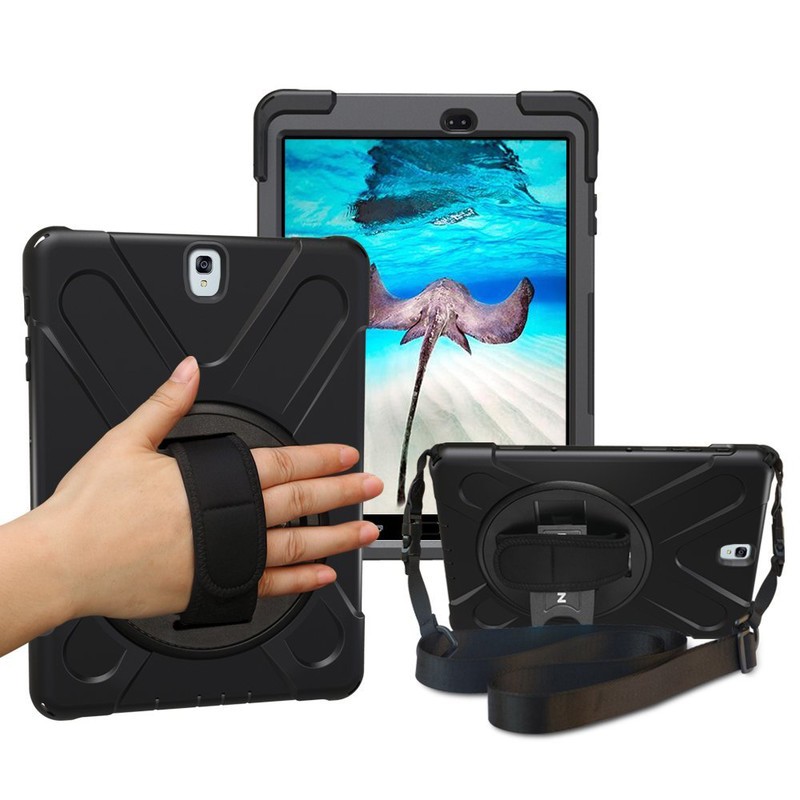
If you fancy using your tablet on the go — whether you take it with you whenever you leave the house, or simply like to walk and watch YouTube around your house — you want a case that ensures you won’t accidentally drop it.
This awesome case features a hand strap mounted on a swiveling mount that lets you firmly hold onto your Galaxy Tab S3 with less grip while still ensuring you won’t drop it. It also includes a shoulder strap that you can clip onto the case for easy carrying when you’re on the go. The case itself is dual-layered with a silicone and polycarbonate shells working together to provide excellent protection for your tablet. There’s still a kickstand hidden underneath the hand strap and it’s a super functional and affordable option at just $24.
See at Amazon
Fintie Keyboard Case

For those looking for a keyboard case at a discount price, Fintie has got you (and your tablet) covered.
This cover includes a Bluetooth keyboard that connects to your Tab S3 magnetically giving you access to a full QWERTY keyboard for all your typing desires.
Unlike other third-party keyboard cases you might have seen, Fintie used classic hard keys like you’d find on a laptop in lieu of those grody silicone keys that can get grimy and gross real quick.
The Fintie keyboard case is available in four colors along with a selection of cool print designs starting at just $32.
See at Amazon
ProCase Hard Shell Case

You don’t need to spend more than $15 for a reliable case for your tablet. Check out this sleek and stylish case from ProCase. Its a basic folio-style case with a synthetic leather finish. The cover can be folded over to create a kickstand for watching your favorite Netflix shows.
Starting at $13, you can choose your favorite color and rock your Tab S3 in style. It’s a great budget option for protecting your Galaxy Tab S3.
See at Amazon
Poetic TurtleSkin Rugged Case

Not a huge fan of all this folio cover business, but want something rugged to protect your tablet in case you drop it or it slips off your living room table? Consider the Poetic TurtleSkin case.
Much like a standard case for your phone, the TurtleSkin case is made of silicone material that’s both grippy and very shock resistant. On the back, it’s got a unique pattern of raised supports helps with grip (and also explains the TurtleSkin name). Most importantly, there are air vents that help keep your Tab S3 cool. You can get yours from Amazon available in four color options starting at just $11.
See at Amazon
MoKo Galaxy Tab S3 Slim Folding Cover Case

MoKo’s lightweight case for the Galaxy Tab S3 features a premium PU leather exterior that keeps your tablet protected from drops and scuffs, while the interior is lined with soft microfiber material to keep your screen scratch-free. Like most folio cases, you’re able to fold the front cover into a viewing stand with multiple angles. The front cover closes with magnets in the corners that allow you to wake your Tab S3 when the front cover is opened, but it won’t interfere with the S Pen. The S Pen also gets some attention itself, with MoKo including a stylus loop to ensure your S-Pen stays with your tablet.
All buttons and ports are left exposed so that there won’t be any fit issues with your accessories, and there’s also a convenient hand strap for one-handed use.
You can get this case in classic single color options or choose from more stylish designs — the choice is yours — for around $11.
See at Amazon
SUPCASE Unicorn Beetle Pro Series Case

SUPCASE makes some outstanding rugged cases for phones under its Unicorn Beetle branding, and you should expect the same level of protection for your Galaxy Tab S3 here as well.
SUPCASE offers full-body protection for your tablet, which includes a protective front casing with a built-in screen protector and a raised bezel to keep that beautiful screen protected. On the back, a dual-layer hybrid casing designed with a shock-absorbing TPU bumper will keep your tablet well-protected from any accidental drops and also features a pop-out kickstand for hands-free viewing.
All your ports and buttons are covered to prevent dust and debris from getting in, making this an ideal case for anyone who likes to take their tablet into the great outdoors. It’s also available in your chose of color — black, blue, pink, and white — so you can pick the one that fits your style. Get it starting at $20.
See at Amazon
BELK Leather Viewing Stand w/ Wallet

Featuring high-quality PU leather, BELK offers a very stylish option for keeping your Tab S3 protected. Your tablet is held in place by the rugged inner shell made of rigid polycarbonate, which leaves ample cutouts around the headphone jack and USB-C charging port.
What also sets this case apart from the others on the list is the slip pockets on the inside cover, which let you store credit cards, business cards or even IDs, along with a pocket for storing cash, passports — whatever you want to have on you at all times. There’s also elastic hand strap which lets you confidently hold your tablet with one hand.
This folio case also lets you fold up the front cover as a kickstand for hands-free viewing, and the whole thing is available in a couple stylish colors, all for $13.
See at Amazon
How do you keep your tablet safe?
During the first week of owning my first tablet, it slipped out of my hands and landed screen-side down. The display (and my excitement for the new device) was shattered. Have you had any tablet trauma stories that taught you to always keep your devices safe… or are you just careful?
Let us know in the comments!
Update August 2018: Updated pricing information. These are your best options for the Galaxy Tab S3!
How to load movies onto your Oculus Go

Loading videos on to your Oculus Go is a breeze. Here’s how to do it!
So you couldn’t resist that great price point and you bought yourself an Oculus Go. You’ve spent a little time with it. You’ve played with a few apps and gotten ensconced in a few games. However, you’re now ready to watch some movies on this modern wonder.
Whether you are working with a Windows system or MacOS, it’s a breeze to do. Here’s how!
Windows
Connect your Oculus Go to your PC with a micro USB cable.
In your headset, you will have to give your PC permission to gain access. Select Allow Access to Data.
Once you are connected to your PC, the Autoplay feature should open. If it does, select Open Device to View Files.
If Autoplay does not start, you can manually browse to Oculus Go Storage through File Explorer. It will be named VR-Headset.
Once you have your VR-Headset open, select Internal Shared Storage.
Open the folder named Movies.
You can now drag and drop videos into the storage of your Oculus Go.
MacOS
Download the File Transfer Tool from Android and install it on your Mac.
Connect your Oculus Go to your Mac with a micro USB cable.
Open the File Transfer Tool you just installed.
In your headset, you will have to give your computer permission to gain access. Select Allow Access to Data.
A folder named VR-Headset should automatically open

Now open the folder called Movies.

You can now drag and drop videos directly into your Oculus Go
Whether you’re watching some home movies or Avengers: Infinity War, you can now kick up your virtual feet and enjoy watching whatever you choose. The virtual world is now your oyster.
August 2018: This article was updated with the most recent information.
Oculus Go

- A parent’s guide to Oculus Go
- Oculus Go vs. Lenovo Mirage Solo
- Best Gamepad for Oculus Go
- Best Battery Backup for Oculus Go
Oculus Go 32GB
Oculus Go 64GB
Bose headphones, mesh networking, Bluetooth speakers, and more are all discounted today
Whether you’re looking for new tech gear or household items, we’ve got you covered.
We found plenty of great deals today that include big discounts on Bose’s QC35 Bluetooth headphones, the TP-Link Deco M5 mesh networking system, the Oontz Angle 3 Bluetooth speaker, and more! Most of these prices will be gone when the day ends, so don’t miss your chance to save big!
View the rest of the deals
If you want to know about the deals as soon as they are happening, you’ll want to follow Thrifter on Twitter, and sign up for the newsletter, because missing out on a great deal stinks!
Google Assistant: Everything you need to know
There’s a lot going on with the Google Assistant — let’s break down the important stuff.

In May 2016, we got our very first taste of the Google Assistant with the debut of Allo. The Assistant was a big draw to Allo at the time, with Google marketing it as a helpful bot that could make restaurant reservations, search the web, and more within your conversations.
Since then, the Assistant has gained heaps of new features and expanded to smartphones, tablets, speakers, and more. Google’s shown no interest in slowing down development for the Assistant, meaning that it’s likely here for the long-haul.
Whether this is your first encounter with it or you just need a quick refresher, here’s everything you need to know about the Google Assistant.
The latest Google Assistant news
August 3, 2018 — Google Home can now understand what room it’s in for contextual light controls
That title might make this not sound all that exciting, but this is actually pretty cool.
Up until now, asking your Google Home to “turn on the lights” or “tune off the lights” without specifying a certain room would result in every single connected light being turned on/off. However, a new update now allows the Google Home to only control the lights in the same room as it when this command is issued.
For example, if you have a Google Home assigned to the same room as the smart lights in your living room, asking that Google Home to turn on the lights will only activate the bulbs in the living room. You can still specify rooms with your voice, but this update should make these interactions a lot more natural.
Following numerous Redditors discovering this feature, Google confirmed to Android Police that this is indeed rolling out to users and will be making its way to everyone over the coming days.
July 27, 2018 — You can now schedule custom routines for specific times/days
Building upon Custom Routines that were added to Google Assistant earlier this year, users can now schedule these routines to go off at a certain time/day. Previously, custom routines you made could only be used after saying a specific command.
While creating a routine, you’ll now see a new “Set a time and day” option under the “When” section. Here, you can choose the time you want it to play and what day(s) it should repeat.
There are a lot of ways to take advantage of this, with one example being to have your coffee pot turn on, crank up the AC, and hear about the weather as you’re waking up without having to ever speak to your Google Home. Neat!
All the important details
Google Now paved the way for Google Assistant


The Google Now page compared to the new Google Feed.
Before there was the Google Assistant, we had Google Now. Google Now was introduced to the world all the way back in 2012, offering contextual info through the Google Now page and helpful answers to random questions with an “OK Google” voice command.
A lot of what made Google Now so great can still be found in the Google Assistant today, with the exception of the Google Now page. The Google Now page used to be home to cards showcasing the weather, information on packages that had shipped from online orders, boarding passes, and more. It’s since been replaced by the Google Feed – a collection of news stories Google thinks you’ll be interested in – and it’s definitely the biggest departure between the two services.
The Google Assistant as a whole is still more powerful than Google Now ever was, but long-time Android users like myself are still mourning the loss of that Now page. RIP, old friend.
Read more: Google Now is being left to wither and die as Google Assistant takes the focus
It’s available on just about everything
In just a few short years, the Google Assistant’s gone from being exclusive to a now-failed chat app to being integrated into just about anything you can think of.
You’ll find Google Assistant built right into most Android phones, it’s the star of the show for the Google Home lineup, and it’s even making its way into sound bars.
Here’s the full list of devices with Google Assistant
Setting up the Google Assistant is as easy or complex as you want
When you set up a device for the first time that has the Assistant, getting started is pretty simple. Accessing it is just a voice command or tap away depending on what gadget you’re using, but if you want to really fine-tune your experience, Google’s got you covered.
Take a quick dive into your Assistant settings and you’ll find options for just about everything – including your weather preferences, changing the Assistant’s voice, retraining your voice model, picking out preferred news sources, and much more.
How to set up and customize Google Assistant
Google Assistant is available in multiple regions and languages
Of course, a smart voice assistant isn’t any good if you can’t actually use it. Fortunately, Google Assistant will be available in 52 countries —adding 38 countries this year — and 17 languages by the end of 2018.
More: Google Assistant will expand to 38 countries and 17 languages in 2018
Google Home’s the premier way to get the Assistant in your house (at least for now)

It’s great to have the Google Assistant on your phone, but if you want to truly experience just how helpful it can be, you’ll want to consider picking up a Google Home.
Google Home is Google’s line of smart speakers that put the Assistant on full-display, allowing you to control smart devices, ask random questions, set timers, play music, and more by just using your voice.
You can spend as little as $49 for the Google Home Mini, $129 for the original Google Home, or a whopping $399 for the Google Home Max.
However, as great as the Home series is, don’t forget that Smart Displays are just on the horizon.
Announced at CES 2018, Smart Displays are essentially smart speakers with the Google Assistant and a touch screen display that can show you helpful visuals when talking to them. It’s basically Google’s answer to the Amazon Echo Show and Echo Spot, and we can’t wait to see more from them.
Everything you need to know about Google’s Home speakers
Then again, is an always-listening speaker the right fit for your home?
However, the convenience of a Google Home (or any smart speaker for that matter) does come at the cost of privacy. Speakers like the Google Home are “always listening”, meaning they’re constantly on the lookout for a hot word to know when you’re talking to it (such as “Ok, Google” and “Hey, Google”).
This means the microphone on a Google Home is always active, but it’s not necessarily storing all the audio it hears when it doesn’t detect its hot word.
Most all speakers allow you to restore some privacy by being able to mute the microphone, but if you want to start asking the Assistant questions, you’ll need to unmute it first.
To learn more about these “always listening” speakers, I’ll pass the mic over to Jerry
Big upgrades are coming to the Assistant on Wear OS


Switching gears for a second, the Google Assistant on Wear OS (formerly Android Wear) is about to get a big upgrade.
In the near future, the Assistant on Wear OS will support Assistant Actions (basically apps for the Assistant) and give you the option to hear its responses through your watch’s speaker or a pair of connected Bluetooth headphones.
Along with this, Google will be adding something called “smart suggestions.” After asking the Assistant for the weather, for example, you’ll see little bubbles for “weather tonight”, “use celsius”, and more so you can continue the conversation with just the tap of your finger. Google Assistant on Android offers something similar, and it’s a great tool to have.
IFTTT supercharges the Assistant’s usefulness

IFTTT (If This Then That) is a powerful online tool that allows you trigger something (that) if a certain event (this) happens. You can connect IFTTT to the Google Assistant to create your own recipes using this formula, and it can allow for some incredibly helpful combinations.
Some of our favorite uses for IFTTT and the Assistant include adding contacts to your Google account, setting your Google Calendar status to Busy for a certain period of time, and much, much more.
Getting started with IFTTT can take some time and patience if you’re new to it, but once you’re all set up and ready to go, it can prove to be a lifesaver.
How to connect Google Home and IFTTT to do amazing things with your connected tech
You’ll get the same experience no matter what devices you use
With so many devices capable of running the Assistant, it’d be easy to think that the experience you get on one gadget would be different from another. This is something that Google struggled with for a while at first, but we’re finally in a position where the Assistant experience you get on a smart speaker, for example, is the same you’ll get on your phone.
There are a handful of features here and there that still create for some discrepency, but for the most part, the Assistant you use on your Pixel 2 is the same one found on Google Home.
Google Home and Google Assistant finally offer the same experience
Google Duplex is actually going to be a thing

Google showed off Duplex — Google Assistant making natural-sounding phone calls on your behalf — at I/O 2018, but quickly noted that it was just an experiment. Flash forward a couple months, and Google announced that certain users have started testing Duplex, and a public release will be here in the next few months. Before you know it, Google Assistant will be able to book hotels, dinner reservations, hair appointments and more without you lifting a finger.
More: What is Google Duplex?
Updated July 2018: Added the Google Duplex and language support sections, as well as links to recent Assistant news.
 AIVAnet