


Best Cheap Android Phones in 2018
We’re a virtual company made up of tech experts from across the globe. We live and breathe Android phones, and use nearly every one to find the best budget picks for you.

The Motorola Moto G6 currently offers the best combination of performance, features and value. It overshadows the competition with its wide availability, fast performance, and support for nearly every network in the world, beating out a number of rivals from Nokia and Honor.
 Advertisement
Our Pick
Moto G6

Amazon — $235
- $235 from Amazon
- $249 from Motorola
The best budget Android phone for most people.
A winner in every respect, from the modern design to the dual camera setup and excellent performance, the Moto G6 represents the pinnacle of Motorola’s dominance in the budget phone space.

Advertisement
Who should buy this phone
Not everyone needs a big, expensive Android phone — especially if they’re looking to buy it outright. At $249 (or less from Amazon’s Prime Exclusive program), the Moto G6 provides 90% of what flagship devices offer at a third of the price. This phone is for anyone coming from an older budget phone, or just looking to simplify and downsize, without losing the core Android experience.
Read our full Moto G6 review to learn more about the phone!
Is it a good time to buy this phone?
Yes. As of July 2018, the Moto G6 is brand new and will continue to be supported and updated by Motorola for two years or more. And because it’s a budget phone already, the price is unlikely to drop dramatically over the course of its life, so anyone looking for an inexpensive Android phone, now is a great time to pick up the Moto G6.
7 reasons to buy
- Great build quality and design for the price
- Excellent main rear camera
- Good battery life
- Compatible with all major U.S. and international carriers
- Moto Display adds tremendous value
- USB-C fast charging
- Available as Amazon Prime exclusive
2 reasons not to buy
- Moto G line isn’t known for swift software updates
- Lacks NFC
Most people don’t need to spend a lot on a phone anymore
Flagship phones like the Pixel 2 and Galaxy S9 series can be up into the $700 or $800 range, and many of the features that come with them, like wireless charging or waterproofing, aren’t fundamental to a device’s enjoyment. They’re bonus features.
The best Android phones you can buy
Increasingly, you’re paying so much more for those bonus features that the Law of Diminishing Returns comes into play. At its core, the Moto G6 offers 90% of phones double and triple its cost. A few years ago, that delta would have been a lot more, but the prices of budget components have dropped so much, and retained so much of their more expensive counterparts’ characteristics, that it’s often not worth recommending those expensive flagships anymore.
The Moto G6 and its other budget counterparts on this list have awesome, high-resolution touchscreens, reliable software, and great cameras. Some features, like NFC, drive up manufacturing costs, so you have to weigh whether you need NFC-enabled features like mobile payments. And the Moto G6 also lacks the same graphical power as its more expensive competitors, but most games play without issue, even at medium or high settings, because Android games are designed to function on hardware of all sizes and prices.
The Moto G6 has all the major features you need from a modern smartphone, and the ones it lacks you can easily live without.
Motorola has had five years of practice making the Moto G line into a budget powerhouse; when it designed the first Moto G back in 2013, it eschewed expensive materials like metal and glass and focused instead on the core experience. Starting in 2016, Motorola began finding ways to add important features like fingerprint sensors, and last year, in 2017, the company transitioned the Moto G line to metal. With the sixth-gen lineup, that includes the cheaper Moto G6 Play and more expensive Moto G6 Plus, it’s back to a combination of plastic and glass, it’s a nice visual improvement over previous models.
At the same time, Motorola understands its audience, which is why it added a dual camera setup to the Moto G6. The second camera adds depth effects like portrait mode without sacrificing the excellent pedigree of the main 12MP sensor.
Finally, if you’re in the U.S., the Moto G6 is one of the few sub-$300 phones to work on all four U.S. carriers, and it’s even sold at directly at a couple of carriers, another advantage of Motorola’s long-standing relationship with companies like Verizon.
Alternatives to the Moto G6
Motorola isn’t the only player in town when it comes to cheap phones. In recent years, Honor, a subsidiary of Huawei, and HMD Global, which has reinvigorated the Nokia brand, have kept Motorola on its toes in the budget space. Then there’s Alcatel, which continues to bring down the cost of phone ownership with its new Android Go-powered devices.
Runner-up
Nokia 6.1

See at Amazon
Nokia’s lineup of inexpensive Android phones has received an impressive refresh for 2018, and the $250-ish Nokia 6.1 is the best of the lot. It’s made of a single piece of Series 6 aluminum, which should hold up better than the Moto G6’s glass back, and its Snapdragon 630 processor is quite a bit more powerful. It also runs Android One, which means the updates come directly from Google, so they’ll be more timely, and the Nokia 6.1 will receive Android P before the Moto G6.
Everyone knows the Nokia brand, so we were cautiously optimistic when HMD Global, which is made up of a bunch of former Nokia engineers and executives, debuted a full line-up of Android-powered phones. With its second-generation lineup, which includes the inexpensive Nokia 2.1 and beautifully-designed Nokia 7 Plus, the company has hit it out of the park.
We love the Nokia 6.1 because it hits the right sweet spot between performance and value. On the other hand, the phone only works on T-Mobile and AT&T in the U.S., and doesn’t have the same caliber of camera as the Moto G6. And given that it’s running Android One, it lacks some of the value-added software features like Moto Display that we love on the Moto G6.
The top carrier option
Moto E5 Plus

A larger, more battery-focused version of the Moto G6 is the Moto E5 Plus, which has a massive 5,000mAh battery inside. This phone is sold at carriers in the U.S., including T-Mobile, Sprint, Cricket, and Boost Mobile, so you can’t buy it outright, but it’s also one of the best values in smartphones today. Featuring a 6-inch HD screen and a 12MP camera, the Moto E5 Plus is a fantastic option if you’re going the carrier route.
See at T-Mobile
If you’re locked into the carrier ecosystem, or want to get your phone with a low-cost financing option, getting the Moto E5 Plus from T-Mobile is likely your best bet. At just $9/month for 24 months, the $225 phone is huge and powerful, and retains the same excellent software and camera experience of the Moto G6. Its rear fingerprint sensor is built into the phone’s logo, too, for some extra style.
A battery that keeps going
Honor 7X

Another great option in the budget space is the Honor 7X, which features a beautiful, tall 5.93-inch 18:9 screen, a really powerful Kirin processor and, best of all, a 3,340mAh battery, all for $199. Honor, which is owned by Huawei, is able to keep its costs low because it sells more phones than Motorola and Nokia combined. The Honor 7X lacks the nuanced software of either of the above recommendations, but its metal frame covers some really powerful internals.
See at Amazon
Honor is one of those companies that, because of Huawei’s problems in the U.S., hasn’t really received its fair share of coverage, and that’s a shame. The Honor 7X is a tremendous phone, especially for its $199 price, and there’s very little it does badly. In other markets, the more expensive Honor 10, takes everything we love about the Honor 7X and improves upon it, while U.S. customers can also enjoy the confusingly-named Honor View10, which shares a lot of the Honor 10’s best traits.
Value pick
Alcatel 1X

No one thought it was possible, but you can now buy a great Android phone for just under $100. The Alcatel 1X is the latest in the company’s budget lineup, and it’s the first to run Android Oreo Go Edition, Google’s suite of apps and software optimizations to make Android run well on inexpensive hardware.
See at Amazon
With the 1X, you lack a lot of the amenities of even the $250 Moto G6 — it’s all plastic, for starters, and only has 1GB of RAM — but if all you need is a basic smartphone to make calls, browse Instagram, and take a few photos, the Alcatel 1X is a fantastic option.
Bottom line
There’s no shortage of awesome Android phones these days, whether you want to spend more than $700, less than $300, or even $100. The above phones represent the best of a set limitation — that of not wanting to overspend on a product that, inevitably, will need to be replaced in a couple of years.
But that’s the beauty of a device that costs a third of what you’d spend on a Galaxy S9 or Pixel 2. It offers 90% of what those phones cost and can be replaced more easily. While you may miss out on some of the more advanced features like waterproofing and wireless charging, and you may not receive as many updates, or for as long, these phones represent a new breed of budget devices you can feel confident in buying. The Moto G6 is the best of the bunch but they are all great in different ways.
Updated July 2018: This guide was updated to add the Moto E5 Plus, which is a great option if you want to buy through a carrier.
Credits — The team that worked on this guide

Andrew Martonik is the Executive Editor, U.S. at Android Central. He has been a mobile enthusiast since the Windows Mobile days, and covering all things Android-related with a unique perspective at AC since 2012. For suggestions and updates, you can reach him at andrew.martonik@androidcentral.com or on Twitter at @andrewmartonik.

Jerry Hildenbrand is Mobile Nation’s Senior Editor and works from a Chromebook full time. Currently he is using Google’s Pixelbook but is always looking at new products and may have any Chromebook in his hands at any time. You’ll find him across the Mobile Nations network and you can hit him up on Twitter if you want to say hey.

Daniel Bader is the Managing Editor of Android Central. As he’s writing this, a mountain of old Android phones is about to fall on his head, but his Great Dane will protect him. He drinks way too much coffee and sleeps too little. He wonders if there’s a correlation.
These New Smart Displays include Google Assistant

Smart Displays are coming first from JBL, Lenovo, LG, and Sony.
One of the big trends from CES 2018 was Google’s response to the Amazon Echo Show. In 2017, Google matched the Amazon’s Echo Dot with the Google Home Mini, and this year it took aim at the Show with its new smart displays with Google Assistant built in.
Smart Displays are Google Assistant-powered speakers that also feature screens, and while we likely won’t see a Google Home-branded one until later in the fall, there are already four companies that have announced Smart Displays of their own. Let’s take a look at what we know so far.
- Lenovo Smart Display
- JBL Link View
- LG ThinQ View WK9
- Sony’s yet-to-be-announced Smart Display
Lenovo Smart Display
The first of these gadgets announced was the Lenovo Smart Display. You’ll be able to get Lenovo’s Smart Display with either an 8-inch or 10-inch display, and while the 8-inch model opts for a traditional plastic back, the 10-inch unit has a gorgeous bamboo one.
Both models have an odd wedge on the back, and this allows you to position the Lenovo Smart Display either vertically or horizontally. There are buttons for adjusting speaker volume, and there’s even a switch that places a physical lens cover over the front-facing camera that’s used for video calls.
Lenovo will sell the 8-inch Smart Display for $199, and upgrading to the larger 10-inch one will cost you $249. It’s on sale starting July 27.
See at Lenovo
JBL Link View

JBL’s Smart Display goes by the name of the Link View, and while it serves the same general purpose as the Lenovo Smart Display, its design is quite a bit different. JBL has only announced one version of the Link View and it comes with an 8-inch screen. There’s a 5MP camera above it, a JBL logo at the bottom, and both the left and right side are flanked by two 10W stereo speakers that are paired with a passive radiator on the back to enable “rich, deep bass.”
The body as a whole favors an oval shape versus the rectangular nature of the Lenovo Smart Display, and while you won’t find any bamboo back here, it’s arguably the sleeker of the two thanks to the all-black paint job. Along with this, there’s also support for Bluetooth, Google Cast, and IPX4 splash resistance.
Pre-orders for the JBL Link View are live right now for $249.95 and shipments are currently set to go out on September 3.
See at JBL
LG ThingQ View WK9
LG’s first foray into the world of Smart Displays comes in the form of the LG ThinQ View WK9, and while we’ll have to get hands-on time with the device before we can make any final judgments, it currently looks like the most underwhelming of the Smart Displays we’ve seen so far.
The large, boxy design looks boring and not all that aesthetically pleasing, and while the 8-inch touchscreen display itself should be fine, the fact that there’s no tilt to it like there is on Lenovo and JBL’s options could make for some difficult viewing angles.
Speaker tuning from Meridian Audio still has us interested, however, and this paired with the two front-facing stereo speakers will likely create a solid audio experience. Similar to the other Smart Displays on this list, you’ll also find Chromecast support.
LG simply says that the WK9 is “coming soon” with a hefty price of $299.99.
Sony’s yet-to-be-announced Smart Display
Google confirmed that Sony will be releasing a Smart Display, but a month on from CES and we still know literally nothing about it. Neither specs or renders for the speaker have been released, and as such, there’s not a whole lot we can say about it right now.
As soon as details are released, we’ll be sure to share them with you!
Might Google Assistant and the Lenovo Smart Display be the whole-home hub the Echo Show isn’t?
Updated July 2018: Added the latest information available.
Get these games free with your PlayStation Plus membership this August!
These are the free games you can get right now with your PlayStation Plus membership.

One of the biggest perks of having a PlayStation Plus membership is the free games you get every month. I’ve got a list of the games PlayStation is offering this month, and it includes a Quantic Dream classic. Start downloading these games, and enjoy your free games for the month of August!
PlayStation 4 free games this month
- Mafia III
- Dead by Daylight
PlayStation 3 free games this month
- Bound by flame
- Serious Sam 3
PlayStation Vita free games this month
- Draw Slasher
- Space Hulk
PlayStation VR free games this month
- Here They Lie
Full game line-up
Read on below to see some quick previews of the games you get for free this month!
Mafia III

Dirty deeds and they’re not dirt cheap. In Mafia III you’ll be taking on the role of a man who lost everything and had to forge his own way in life. That… may have lead to some poor life choices. But, alas, we live and learn. Right?
See on PlayStation Store.
Dead by Daylight

Find the perfect hiding spot and don’t breathe too hard. Maybe, just maybe, if you play your cards right you’ll make it out alive. It’s either that or you find your way to the hooks, kid. So, can you survive?
See on PlayStation Store.
Bound by Flame

Become the fighter, ranger and pyromancer you always wanted to be. Here you’ll learn how to wield your blade and the fire of your soul like perfect weapons to destroy your enemy.
See on PlayStation Store.
Serious Sam 3: BFE

Monsters and aliens alike have always attempted to take over the Earth, and this time it seems like they’re close to succeeding. Good thing we’ve got Serious Sam and his groovy sunglasses on our side, though! This first person shooter is bound to be just as interesting as it is silly.
See on PlayStation Store.
Draw Slasher

The graphics of Draw Slasher remind me a lot of Fruit Ninja, and that’s not a bad thing. How you play the game is where things get interesting. Here you are a ninja money and, in order to take out your opponents, you need to swipe through them. It’s a pretty basic game if you’re just looking for something to pass the time with.
See on PlayStation Store.
Space Hulk

Have you ever known what it was like to be a Dark Angel? Would you like to? Try your skills at this turn-based strategy game for the PlayStation Vita for a chance at being a Dark Angel and experiencing all this fun. (Plus, those graphics and weapon skills are truly beyond gorgeous.)
See on PlayStation Store.
Here They Lie

Take on a creepy and terrifying role of investigating an abandoned home for the mystery that lies beneath. Nothing screams a better horror game than playing literally any of them in VR. If you’re a thrill seeker you should totally download this game. There’s only a rare few horror games I’ve regretted when using my VR.
See on PlayStation Store.
Which is your favorite game you’ve gotten for free with PlayStation Plus?
Let us know which game you’ve loved and which one you’re excited about this month! Drop a comment below or shoot me a Tweet and tell me all about it!
Updated August 2018: We’ve added the free games for this month!
PlayStation 4

- PS4 vs. PS4 Slim vs. PS4 Pro: Which should you buy?
- PlayStation VR Review
- Playing PS4 games through your phone is awesome
Amazon
YouTube Music: Everything you need to know
YouTube Music is here — and it’s packing the biggest music library in the world.

YouTube is one of the most-viewed websites on the planet, and by far the most popular video platform today, so it’s no surprise that millions upon millions of users turn to it every day for music. It’s the default platform for music videos — especially viral music videos like This is America and Girls Like You — and it’s also a place to find just about any song, remix, mashup, or fan cover you could ever want. Whether you’re looking for lyrics to a song before karaoke night, music to sleep to, or a new remix to play at your next party, YouTube has what you’re looking for.
Now, YouTube is ready to make another run at a music app built upon their video empire with YouTube Music. It’s a music app with a truly unique interface, an unparalleled selection, and more than a few kinks to work out, but YouTube Music is here to stay and here to compete.
The latest YouTube Music news
August 1, 2018 — YouTube Music plans bi-weekly update schedule, reconfirms some coming features
YouTube Music has a lot of bugs to fix and features to add before it can begin to truly compete with Spotify or begin migrating Google Play Music subscribers over, and while those updates will take time, we at least have something of a timetable for when YouTube Music will be receiving updates.
YouTube Music product manager Elias Roman tells Engaget that the service plans to push out updates for the service every two weeks. Among the changes Roman confirmed:
- An album sorting option beyond recently added
- A drop-down menu option to filter out musicians you follow on YouTube Music from the main YouTube Subscriptions feed
- Low/medium/high audio quality settings for streaming and downloads (coming in a few weeks)
Roman was also quoted as saying that “We are not focused on exclusives. We don’t believe exclusives are good for the industry or good for consumers.” This makes sense for YouTube Music given that everything available on YouTube Music is available on the main YouTube app to both paid and free users, which would make exclusives available to everyone.
July 17, 2018 — Google promises Android Auto support, better sound quality, SD card support, and more with future updates
There are plenty of areas in which Google can improve YouTube Music, and thanks to the team behind the app, we now have a short list of features to expect in future updates.
Over on the YouTube Music Help forum on Google Support, the YouTube Music team says that the following features will be available in no particular order over the coming months:
- Better audio quality, and ability to select the quality for downloading and streaming
- Sonos support
- Android Auto support
- SD card support for Android
- More obvious shuffle vs. play-in-order options for playlists
It’s unclear when exactly all of this will be available, but the option to save downloaded songs to an SD card is rolling out now.
All the big details
The service starts at $9.99/month — but no one should pay that

There’s no real sugar-coating it: using YouTube Music as a free user on Android is bad. There are ads every three to six songs, and you can’t leave the Now Playing screen, so it hogs your screen and your battery. YouTube Music is worlds better when you unlock its paid features. YouTube Premium is absolutely worth paying for.
YouTube Music Premium, however, is not.
For the love of Duarte, buy YouTube Premium instead of YouTube Music Premium
What’s happening to Google Play Music? Where’s my likes and playlists?

Google wants all of its Play Music subscribers to migrate over to YouTube Music at some point in 2019. That means YouTube Music will be adding most of Google Play Music’s tentpole features — the biggest of which is Google Play Music’s free 50,000 song music locker.
What does YouTube Music mean for Google Play Music
That said, Google Play Music and YouTube Music’s libraries and catalogs at the moment are completely disconnected and there’s quite a bit that has to happen before that can change. The library migration is a long ways off, but in the meantime, Play Music users get two music apps to play with instead of one. So which one should you use?
YouTube Music vs. Google Play Music: Which should you use?
A mixtape full of promise

YouTube Music is built on a gold mine. YouTube is not only the most used video platform in the world, it might be the biggest catalog of professional, semi-professional, and amateur music available in the world. This isn’t the first time Google has tried to capitalize on this, but this time is different. YouTube’s music team has finally gotten its act together and made us all a mixtape full of promises.
But can it follow through on them?
YouTube Music review: A mixtape full of promise
Getting started

YouTube Music is an adjustment from traditional music services — especially because it is based around video rather than audio — but thanks to the Google’s search prowess and downright uncanny predictions and recommendations, getting used to Google’s newest music service should be as painless as possible. And since it’s built around years of your YouTube history, YouTube Music already knows you better than you think.
Getting started with YouTube Music
Going offline

Networks fail. Your plane says it’s going to have Wi-Fi, but nope. You get stuck in the car with your parents in the middle of nowhere, and you’re outside cell range, and the radio stations are nothing but static and muffled AM country. Having music to listen to when you offline is important, and when the music service you’re using is based around video — which eats data like nobody’s business — how you save your music for offline playback is even more important.
How to download music for offline playback in YouTube Music
What is it missing?

YouTube Music is a brand-new service — albeit one built on an old app of the same name — and like most things that are shiny, new, and different, there are a lot of bugs to be worked out. There are a lot features that are still missing — from basic audio quality settings to more complicated endeavours like gapless playback and library management — and we’ve got a handy list of what’s missing and when we could maybe see some of it.
On that note — YouTube Music’s library does not include every video on YouTube, nor does it include every song and album on Google Play Music right now.
What YouTube Music still needs
Making the most of things

YouTube Music is “Early Access” right now, which means the service is essentially a beta and it is definitely buggy. While time and updates will fix some of those bugs, there are some things you can do to make the most of its current state.
6 tips and tricks for using YouTube Music
Also, even if you’ve never used YouTube Music before, it has years and years of your YouTube history to work off of. That means that YouTube Music could already have a good idea what you like, or it could have things completely wrong because you’ve mostly used YouTube to pull up music when your nieces are over or you’re hosting a party for your country-obsessed friends. Here’s how to help YouTube help you with better suggestions.
How to improve YouTube Music recommendations
Can it dethrone Spotify?

Spotify has spent the last decade building up a loyal user base, building algorithms that few companies can even begin to touch, and building up a reputation as the best brand in streaming music. YouTube, however, is one of the most used sites on the internet, period, a selection you can’t find anywhere else — a selection that will be absolutely unbeatable in the future — and Google is bringing its best algorithmic game with YouTube Music.
It’s still early days, but YouTube Music will be enough to dethrone Spotify soon?
YouTube Music vs. Spotify
Updated June 2018: We’ve reorganized and expanded this guide to better organize information for new, old, and prospective YouTube Music users as the service launches in a new batch of countries.
Amazon will give you $10 off when you spend $40 on razors or sunscreen
Stock up and be prepared.

Amazon is offering $10 off when you spend $40 on a selection of summer essentials. Autumn is just around the corner, so stock up on these items now and soak up every last drop of sunshine to make Summer 2018 end on a high note. You don’t need to use any coupon codes to get in on the deal. It’ll be applied automatically during checkout if you have $40 worth of eligible items in your cart. Each item must be sold and shipped by Amazon to qualify.
There are lots of items to choose from, like Schick razors and Bulldog skincare, Wet Ones and sunscreen, and a selection of women’s shave essentials and feminine care products.
Some products are even discounted further thanks to Subscribe & Save, like this Schick Hydro 5 shaving starter kit or a 24-pack of Banana Boat sport sunscreen. The $10 discount stacks with select Subscribe & Save discounts, too, if your subscription totals at least $40. Pack everything in your day bag and hit the beach, the hiking trails, or the backyard. You’ll be covered.
See at Amazon
18 Chromebook keyboard shortcuts every student should know

From Google Drive to Chrome to Files, these are keyboard shortcuts that can be useful when doing just about anything on a Chromebook.
There are keyboard shortcuts that are universal — Crtl + C for copy, Ctrl + V for paste — but just as often there are shortcuts that change between systems, websites, and programs. Chromebooks have some fairly standard shortcuts — and a handy shortcut Ctrl + Alt + / to show you the more basic ones — but looking at the full list of shortcuts can make your eyes glaze over like staring down the 400-page book you were supposed to read and write your book report on over summer vacation.
Well, after years of Chromebook use and abuse, I’ve hit on some shortcuts that every student should know to get what they need done quicker and better. After all, if there’s anything I learned from school, it’s that you’ve got to work smarter, not harder.
Read first: 10 essential Chromebook keyboard shortcuts you need to know
- General Chromebook shortcuts
- Google Drive/Docs shortcuts
- Files app shortcuts
- Remapping Chromebook keys
General Chromebook shortcuts
These system-wide shortcuts are good to know because they can be used no matter what website or web app you’re in. They can help you lay things out more productively on your screen, help you more quickly find what you’re looking for, and help you keep that game you were playing during the lecture from being seen when the teacher’s aid walks past.
- Tab shortcuts: Ctrl + T opens a new tab, Ctrl + Shift + T reopens the last closed tab, and Ctrl + W closes the currently selected tab.
- Options menu: Alt + E open options menu, the three-dot menu in Google Chrome and Google Files. This shortcut does not work in Android apps.
- Cursor selection and movement: Shift + arrow keys selects text in the direction you move the cursor, and Ctrl + arrow keys moves the cursor one word to the left or right or to the beginning of the line above or below. Using *Shift + Ctrl + arrow keys** allows you to select larger portions of text quickly.
- Screenshot: Ctrl + Overview (the button that looks like a stack of windows) takes a screenshot of your current full Chromebook screen, and whether you need this for capturing the result you got on a web quiz, how a homework module is misbehaving, or capturing something funny that someone said in a group chat, it’s an essential shortcut to know.
- Screen zoom: Ctrl + + zooms in and magnifies the current tab of Chrome, while Ctrl + – zooms out and shrinks the current tab of Chrome. If you want to quickly return to 100% default zoom, you can do so with Ctrl + 0.
- Hide your game/tab: Alt + – will minimize the current window. If you have multiple windows open, then hitting Alt + – again will minimize the next open window. If you only have one window open on your Chromebook, hitting Alt + – again will restore that minimized window once your teacher, little brother, or parent has left and the coast is clear.
- Split-screening windows: Alt + [ pins the current window to the left side of the screen and Alt + ] pins the current window on the right side of the screen, making it far, far easier to reference your notes while you write your history report or write helpful technology articles. Alt + = will make a window full-width again without making it fullscreen, which hides the address bar, tabs, and toolbars.
Google Drive/Docs shortcuts
Google Drive and Google Docs have some pretty expansive keyboard shortcuts available to users on their websites, and while these aren’t all Chromebook exclusive, they are certainly shortcuts worth knowing.
Google Drive shortcuts
- Document creation: Shift + T creates a new Doc, Shift + S creates a new Sheet, and Shift + F creates a new Folder, and if you’re going to be using Google Drive for all your notes, homework, and random daydreaming stories throughout the year, create folders early and often to keep things organized.
- Rename items: Tapping N pops up the window to rename the currently selected item. Naming screenshots and other randomly named images and downloaded attachments will help keep things better organized and easy to find in your Google Drive.
Google Docs shortcuts
- Clear formatting: Ctrl + will clear any weird formatting off of a section that copy-pasted in weird or that had its formatting messed up somehow. On that note, remember that Ctrl+ Shift + V is the shortcut for pasting text without formatting.
- Formatting lists: Ctrl + Shift + 7 will toggle on a numbered list or format highlighted text into a numbered list. Ctrl + Shift + 8 will do the same with a bulleted list.
- Word count: Ctrl + Shift + C will bring up the word count screen, showing how many pages, words, and characters are in a highlighted section and the full document, so you know how close you are to that absolutely insane 10,000-word count your English teacher assigned.
- Voice typing: Ctrl + Shift + S will start voice typing, allowing you to add more text to your document without having to type it all out.
- Go to top or bottom: Ctrl + Search + left arrow will go to the beginning of your document while Ctrl + Search + right arrow will go to the end.
- Insert links: Ctrl + K will open the insert link window in Google Docs, allowing you to create a new hyperlink for new text or add a hyperlink to the text you had currently highlighted.
Files app shortcuts
The files app in a Chromebook is a bit of a hidden gem. It ties into Google Drive seamlessly, and it can also be used with Chrome webstore add-ons to remote into other cloud storage systems like Dropbox and OneDrive. I find that if I need to do a lot of Google Drive cleanup like folder creation, file renaming, and moving large numbers of files from one folder to subfolders, the Files app is going to be far quicker than the Google Drive website or even the Windows Explorer app on a computer I’ve synced Google Drive to.
- Folder creation: Ctrl + E creates a new folder.
- Rename items: Ctrl + Enter to rename the selected item. I find this goes quicker in Files than on the Google Drive site because you don’t have to deal with pop-up windows or the window reloading after renaming a file. Ctrl + Enter, type in the new name, tap Enter, the arrow key over to the next item and repeat.
- Delete items: Alt + Backspace to delete an item from a folder. Items deleted from a Google Drive folder in the Files app still go to the Google Drive trash folder, so they can be recovered within a number of days if you find you deleted something on accident.
Remapping Chromebook keys
Chromebook keyboards vary from traditional keyboards in a few ways, but perhaps the most important change for many — especially for younger users with hands too small to reach every letter while holding down the Shift key one-handed — is the “Launcher” key being a Search or App Launcher key instead of Caps Lock. Thankfully, Google knows that this is a key that lots of people use, so Google allows Chromebook users to remap the Launcher key as well as the other function-related keys — Alt, Ctrl, Escape, and Backspace — so that they can be what we use rather than the default function. Here’s how to get your Caps Lock back.
Tap the time in the bottom-right corner of the screen to open the Chromebook menu.

Tap the settings gear to open Settings.

Scroll down and under Device, tap Keyboard.

Tap the drop-down menu to the right of the Launcher key.
Tap Caps Lock.

You can remap the other function keys if you want, but Caps Lock is the only major deviation most users will want to correct.
Take the keys
So, which shortcuts do you use most? Are you a word-count champion, or are you a formatting fiend? Do you split screen all the windows, or do you prefer to keep things full size all the time? Let us know your favorite shortcuts in the comments — they might just help someone else find their new favorite, too!
Read more: The top three reasons to buy a Chromebook over a cheap Windows laptop
Chromebooks
- The best Chromebooks
- Chromebooks in education: Everything you need to know
- Should you buy a Chromebook?
- Chromebook Buyers Guide
- Google Pixelbook review
- Join our Chromebook forums
Solid state drives, laptop stands, Sennheiser headphones and more are all discounted today
Whether you’re looking for new tech gear or household items, we’ve got you covered.
We found plenty of great deals today that include big discounts on Sennheiser’s HD 8 headphones, KitchenAid’s stand mixers, WD’s solid state drives, and more! Most of these prices will be gone when the day ends, so don’t miss your chance to save big!
View the rest of the deals
If you want to know about the deals as soon as they are happening, you’ll want to follow Thrifter on Twitter, and sign up for the newsletter, because missing out on a great deal stinks!
Reddit’s August 2018 security incident: What you need to know
Here’s what you can do to keep your digital life safe.

Reddit, one of the world’s most popular websites, announced on August 1, 2018, that it experienced a security breach in which some user data was compromised.
The breach mostly affects Redditors that have been on the site since 2007 or earlier, but even if you made your account at a later date, you should still keep reading as there’s a chance some info was still exposed.
What happened?
Between June 14 and June 18 of this year, Reddit says an attacker “compromised a few of our employees’ accounts with our cloud and source code hosting providers.” Although two-factor authentication was set in place, it was done so via SMS and the attacker in question was able to capture the codes using an SMS intercept attack.
The attacker was unable to get write-permissions to Reddit but did manage to obtain read-access to certain site systems.
While doing so, Reddit notes that the attacker obtained:
A complete copy of an old database backup containing very early Reddit user data — from the site’s launch in 2005 through May 2007.
With that database backup, usernames, salted + hashed passwords, email addresses, public content, and private messages were obtained (only if you had a Reddit account between 2005 and May 2007).
Additionally, the attacker also acquired:
Logs containing the email digests we sent between June 3 and June 17, 2018. The digests connect a username to the associated email address and contain suggested posts from select popular and safe-for-work subreddits you subscribe to.
What you can do to protect yourself
None of that’s great, but thankfully, Reddit’s already working to make sure any potentially affected users are protected.
If your account was created between 2004 and May 2007, Reddit’s currently sending out PMs/emails with further instructions on what to do. Furthermore, any accounts that were active during this time are being forced to reset its password.
Even if Reddit doesn’t force you to reset your password, doing so anyways is a good idea just to make sure all of your bases are covered. If you’re not yet using a password manager, now’s the time to change that.
Furthermore, two-factor authentication is something that everyone should be using by now. And, if you have the option, always use this with a token-based system rather than over SMS.
Why you (and your family) should be using 2FA and a password manager
Samsung Galaxy Tab S4 hands-on preview: The two-faced tablet
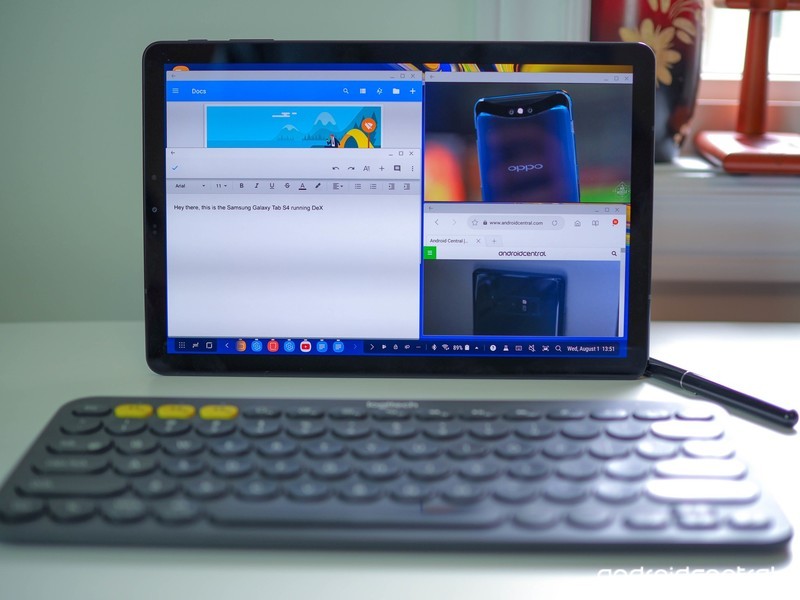
Samsung’s best tablet in years is trying to be all things to some people.
Samsung has returned to the tablet game after a near 18-month hiatus. In that time, the market has shifted to 2-in-1s, and Chromebooks have largely superseded Android tablets in bringing a great mobile experience to the Google ecosystem.
But Samsung lives in its own world, and the stylish, expensive Galaxy Tab S4 tries to work many of the same ideas we’re seeing in the Chromebook and Always Connected PC space into its new tablet.
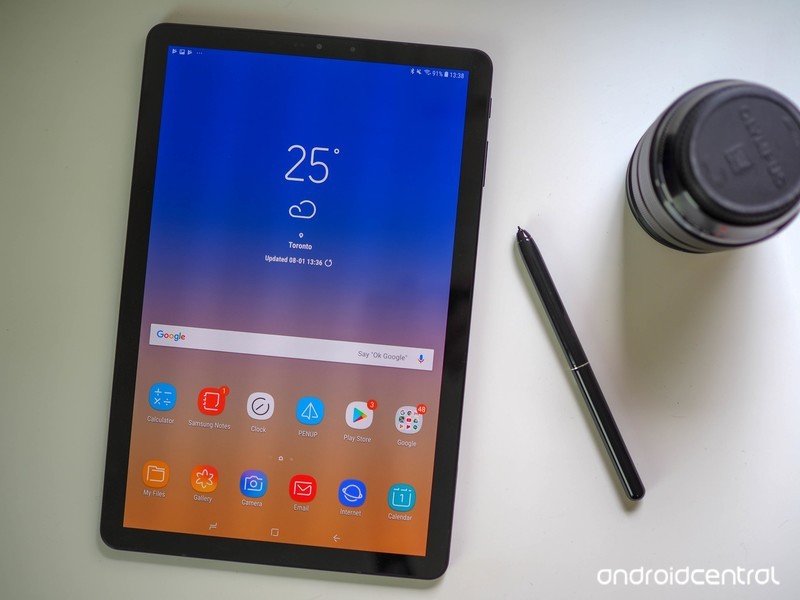
Samsung Galaxy Tab S4 The hardware
| Operating System | Android 8.1 Oreo |
| Display | 10.5-inch Super AMOLED, 2560×1600 16:10 aspect ratio |
| Processor | Snapdragon 835Octa-Core 2.35GHz + 1.9GHz |
| Storage | 64GB / 256GB |
| Expandable | microSD card up to 400GB |
| RAM | 4GB |
| Rear Camera | 13MP, Auto-focus, Flash 1.12µm pixels, f/1.9 aperture |
| Front Camera | 8MP, fixed-focus Iris scanner for face unlock |
| Connectivity | Wi-Fi 802.11ac dual-band, Bluetooth 5.0 Wi-Fi Direct, USB Type-C 3.1, GPSLTE (optional) |
| Charging | USB-C Adaptive fast charge |
| Battery | 7300mAh |
| Input | S Pen4096-level pressure sensitivity |
| Security | Intelligent scan (face unlock + iris scan) |
| Dimensions | 249.3 x 164.3 x 7.1 mm |
| Weight | 482g (Wi-Fi)483g (LTE) |
| Colors | White, Black |
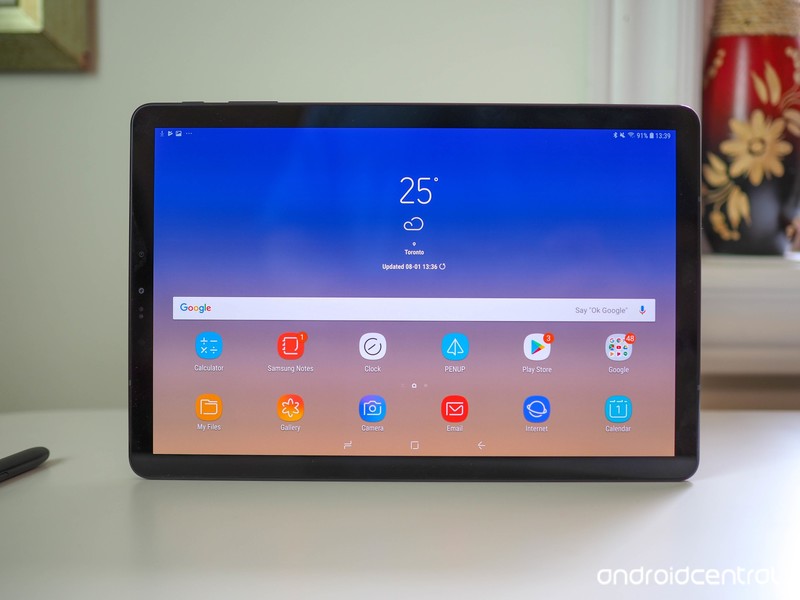
The first thing you’ll notice about this tablet is its display. At 10.5 inches, it’s one of the largest Super AMOLED panels out there, and the fidelity is striking, particularly because Samsung uses bright, colorful wallpapers to show off its vivid 287 pixel per inch density.
The now-16:10 aspect ratio is considerably longer and narrower than its predecessor, the Galaxy Tab S3, which was meant to be used as often in portrait as landscape (and was meant to compete directly with the iPad, which shares a similar shape).
Nearly two years later, the market is full of 2-in-1 Windows and Chrome laptops, and Samsung’s aim is squarely for those always-docked slates — the ones that spend more time in landscape with a keyboard case at a desk than sitting on a coffee table or in portrait mode propped up in your lap.
Both to modernize the tablet’s look and to encourage unfettered use as laptop replacement, Samsung has done away with any buttons on the front — there’s no fingerprint sensor to be found on here — in favor of a larger screen and slimmer bezels. All your unlocking will be done via the combination of iris scanner and front-facing camera, but the effect is a much more streamlined, attractive product, one that looks less a Samsung tablet than a small monitor.
At 7.1 mm thin and 482 grams, the Tab S4 is thicker and heavier than its predecessor, but it’s well balanced. And to be honest, you may not even notice considering the new aspect ratio and laptop-like configuration. It’s still easy to grasp in one hand, though the awkward aspect ratio certainly discourages portrait use as much as possible.
There are four AKG-tuned, Dolby Atmos-optimized speakers positioned on the top and bottom (or two sides, depending on how you’re holding the thing), and from my brief time listening to demos, they sound excellent. On one of the longer sides sits a dock connector, one that facilitates the Tab S4’s transition into a laptop replacement.
These are some of the best-sounding speakers you’ll hear on a tablet today.
Thankfully, there’s still a headphone jack on board, along with a USB-C port for fast charging, and a 13MP camera protruding slightly from the glass back. This is possibly the most understated, unSamsung piece of hardware Samsung has ever built — and that’s a compliment. Note that Samsung didn’t even put its logo on the front of the tablet, only the back (and on the stylus).
Inside, the specs are 2017 smartphone: a Qualcomm Snapdragon 835 platform with 4GB of RAM and 64GB of storage. The 7300mah battery is considerably larger than the one in the Tab S3, and Samsung says it should get many days of mixed use, and about 16 hours of constant video playback.
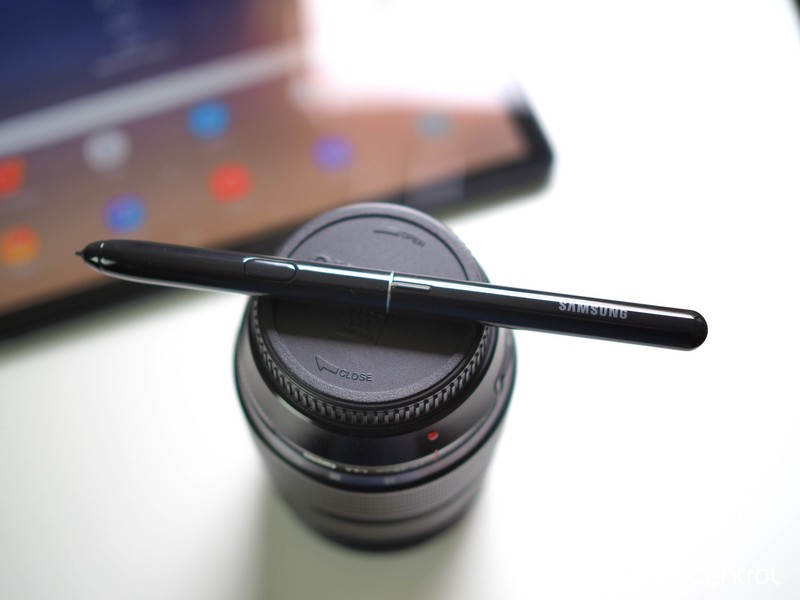
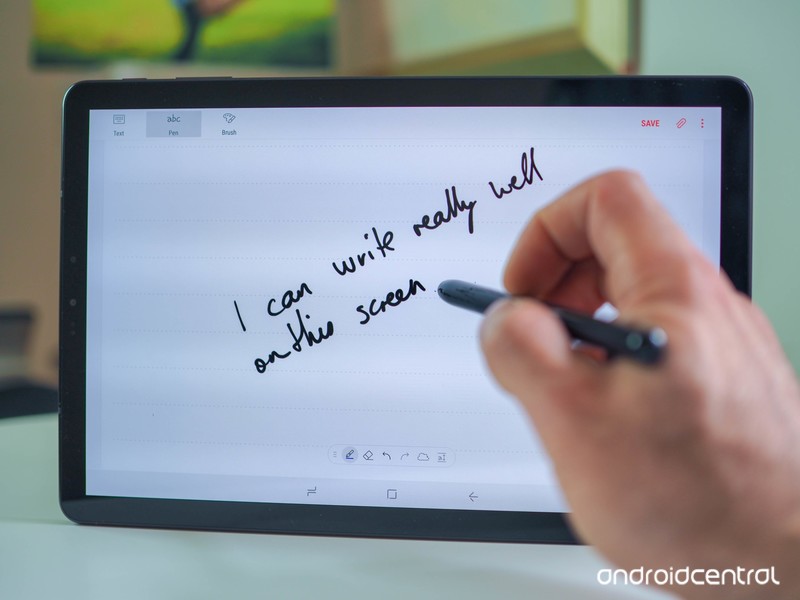
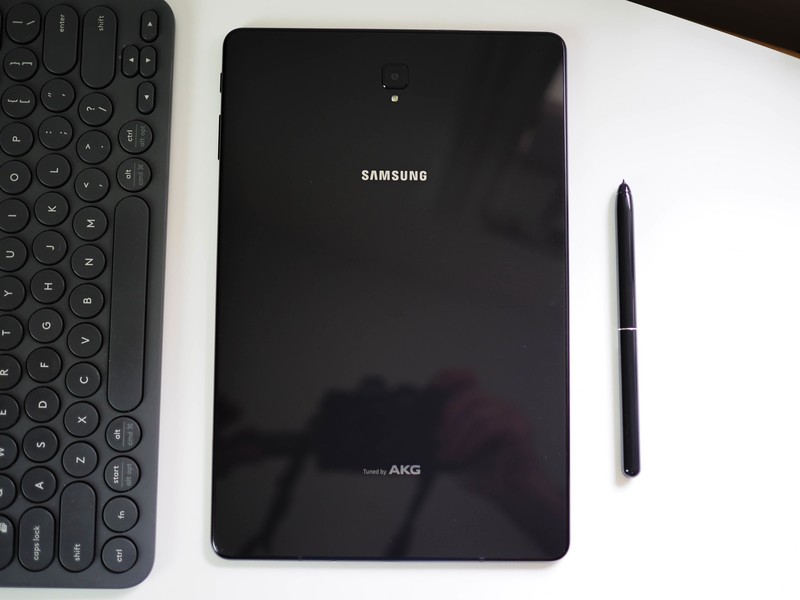
There’s also a redesigned S Pen stylus in the box, and I have to say, despite there being nowhere to stash it like there is in the Note phone series, it’s quite the performer. Thick and weighty like a real pen, Samsung said its aesthetic overhaul was one of its biggest priorities when building this tablet. And it shows.
Despite no technical improvements over the last generation — it’s still passive, so no charging, and has 4096 points of pressure — it feels much nicer to use while note-taking or doodling. And if you buy the $150 Book Cover Keyboard, there’s a little slot to stash the stylus, like on the Tab S3’s keyboard, so it won’t get lost.
Enter the laptop
For a great software experience, you’re still at the mercy of Android developers optimizing their apps for tablets.
And chances are, if you’re spending $650 on this tablet already, you’re probably going to want to pick up the Book Cover. While Samsung wouldn’t outright say it, the Tab S4 is basically designed for one function: productivity. It wants to be part of the conversation when you’re thinking about buying a Surface Go or a HP Chrombook X2 or any number of “detachables” that are hitting the market.
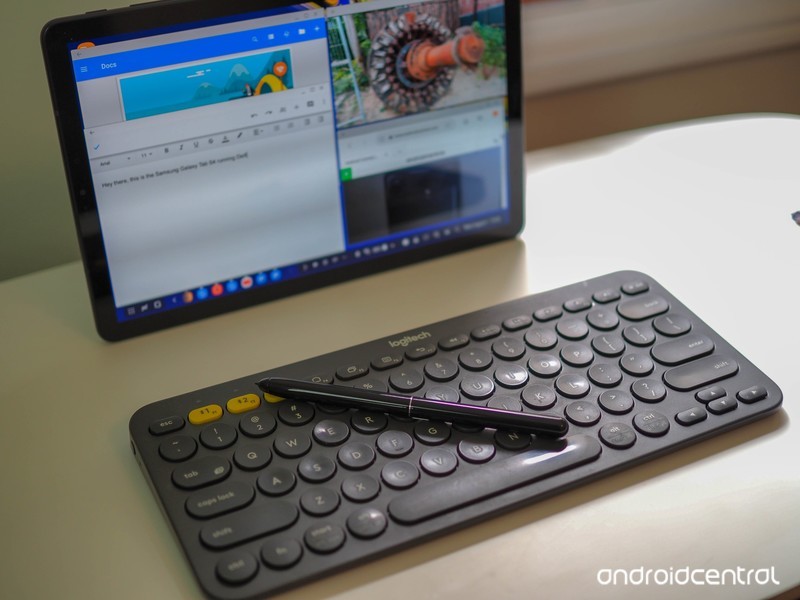
That’s why, by default, when you dock the Tab S4 in the Book Cover, it launched DeX, the desktop experience that launched with the Galaxy S8 in 2017 but required an external dock and monitor. DeX works even if you don’t have a keyboard, but it’s a lot better with one. Thanks to the tablet’s beefy hardware (though it really should be launching with a Snapdragon 845 at this price) it can run many windowed apps at the same time, and with a Bluetooth mouse can pass for a Windows or Chrome laptop quite easily.
The problem isn’t the experience — DeX is quite nice to use, in fact — but the quality of the apps. On the Windows 10 side, every app was built with a landscape-oriented screen in mind. Chrome apps were too. (Plus Chromebooks can run Android apps, which for the most part play nice with Chrome.)
Here, you’re at the mercy of whether Android developers have optimized their apps for the big screen, and chances are, given the state of Android tablets these past few years, they haven’t. Even if they have, unless the app is made by Samsung, Microsoft, or Google (or had money thrown at it by Samsung or Google), the feature set of the average tablet-optimized app may not compare to its iOS or Windows counterpart.
Samsung has curated a bunch of DeX-optimized applications, including Microsoft’s suite of Office 365 apps and a bunch of news, to-do, and email apps, but the pickings are slim. The big question I’m going to need to figure out is whether regular windowed Android apps are adequate substitutes for a true Windows, macOS, Chromebook, or even iOS experience. There’s just so much competition in this space right now it’s hard to see how, at $800 with the keyboard, the Tab S4 is worth its asking price.
All about the transition
It takes a few seconds to jump between productivity-forward DeX mode and Samsung’s good ol’ regular Android software. And while that may not seem like a long time, it’s a good example of the two worlds this tablet is attempting to bridge. There’s no question that Android tablets are in a bad place right now, but Samsung doesn’t seem to care; it’s moving in parallel, utilizing Android’s extensibility and scalability to build an entirely new desktop experience on top of its traditional software layer.
As an Android tablet, the Tab S4 is fine. It has a beautiful screen, great speakers, and has hardware more than capable enough to run every demanding game and social media app on the Play Store. But no one is spending $650 for an Android tablet just to browse, read, and watch — there are dozens of sub-$200 choices that will do that just fine.

Instead, if you’re considering the Tab S4, you’re likely doing so because you see a world in which it can function as both tablet and laptop, and that experience lives and dies by DeX’s ability to recreate a great desktop experience. At this point, I’m not convinced — but I’m willing, as always, to be proven wrong.
The Wi-Fi version of the Galaxy Tab S4 goes up for pre-order August 3, and fully on sale August 10 in the U.S. and August 22 in Canada. An LTE version will be available later this year for an undisclosed price. The tablet will be available at Verizon, Best Buy, Amazon and Samsung.com, and until August 9, pre-orderers can get the Book Cover for 50% off its $150 retail price.
See at Samsung
Best NFL apps for Android in 2018

Are you ready for some football?.
The 2018 NFL season is nearly upon us. If you don’t already have a healthy rotation of apps and sources to keep up with your favorite teams and players, let us help you. We’ve gone and rounded up the best apps to help you keep up on game day. Whether it’s keeping tabs on the score, watching the action unfold yourself, or fueling your love for the sport with a mobile game to keep you busy, these apps will get you what you need.
Never miss a moment when you use the best apps for NFL on Android!
NFL Mobile


NFL Mobile is the official NFL app which includes news, video clips, and live streaming for NFL Network subscribers. Set your favorite team for quick access to the latest news and analysis from the Stories and NFL Now sections. Tablet users can access NFL Network 24/7/365 and NFL RedZone if they’re eligible subscribers of AT&T U-verse, Charter, Cox, DirecTV, Optimum, Verizon FiOS, DISH, and many more providers. If you’re not a subscriber of any of those service providers, you can check into the NFL Now tab for breaking news and analysis.
Download: NFL Mobile (free)
theScore


If you’re looking to catch up on the news after the game, theScore is widely regarded as the best app out there. You can follow specific teams, get home screen widgets for the latest information at a glance, and notifications when things get crazy with your favorite teams. The best part is, you can keep tabs on any other sports you might happen to be into, including college sports and all the other “football” leagues that the rest of the world follows.
If keeping up to date on football news is your top priority, get theScore.
Download: theScore (free)
Madden NFL Mobile


Fans of EA’s Madden series on PlayStation or Xbox might be wary of diving into the mobile version of the celebrated NFL video game, but there’s a lot to love here. It uses the same card upgrading system that’s become so popular in both mobile games and EA’s Ultimate Team systems alike — not ideal in my mind — but it offers many ways to play and earn coins and XP. There are daily and weekly live challenges (think the mini-games from Madden 2004), a single-player season mode, and time-delayed head-to-head matchups in which you and your opponent take turns on offense. If that sounds a little too casual, you’re right, but it allows you to keep multiple games going at one time without dedicating a huge chunk of time to play a game to completion. And, of course, there’s the constant temptation of microtransactions to upgrade your team in a hurry.
Other than those downsides, the gameplay and graphics are on point and the control scheme is pretty smart as well. Football fans would be remiss if they didn’t at least give Madden Mobile a shot.
Download: Madden NFL Mobile (free)
ESPN

When it comes to sports — especially Football — ESPN is the go-to for ensuring you see the pre-game predictions and analysis, the real action of the game itself, and dissect every moment in the post-game. That attention to detail and love of the game is baked right into their app as well. From up to the minute game scores, news coverage, podcasts, and live play-by-plays of every pass, there is a ton here for you to really dive into.
ESPN’s mobile app gives you access to as much action as it possibly can. You can watch live video — provided you pay for a compatible cable provider — see highlight reels, check the stats after the game, and so much more. Delving into everything they offer will take some time, but for the discerning fan, it is worth it.
Download: ESPN (free)
Are you ready for some football?
Those are our picks, but there are plenty of ways to get in on the action. Do you like to use just one specific app, or do you pick and choose from multiple apps to get everything you want during the season? Let us know about it in the comments below!
Updated August 2018: The NFL season is in full swing. Try these apps to make sure you’re fully equipped for the season at hand.
 AIVAnet