


Apple Says More Than 400 Vehicle Models Now Support CarPlay With Latest Being 2019 Subaru WRX
Apple today confirmed that over 400 vehicle models now support its CarPlay software platform in the United States.
While not reflected on Apple’s list of available models yet, the latest vehicle with CarPlay is Subaru’s new 2019 WRX, introduced on Thursday and available at dealerships across the United States this summer. Previous model years of the WRX did not have CarPlay, making this a new addition.
CarPlay and Android Auto come standard on all 2019 WRX models, accessible through Subaru’s new Starlink infotainment system. The base trim, priced from $27,195, is equipped with a 6.5-inch touchscreen, while Premium and Limited trims have seven-inch touchscreens from $29,495 and $31,795 respectively.

Subaru’s infotainment system also features Aha Radio, Pandora, hands-free phone calls and audio streaming via Bluetooth, AM/FM, a single-disc CD player, SiriusXM satellite radio compatibility, and a rear-view camera. Blind spot detection with lane change assist technology is available in higher trims.
Subaru’s other vehicle models with CarPlay in the United States:
- 2017-2018 Impreza
- 2018 Outback
- 2018 Crosstrek
- 2019 Ascent
- 2019 Forester
CarPlay mirrors several iPhone functions onto a vehicle’s dashboard display, enabling drivers to get directions, make calls, send and receive messages, listen to music, and more while staying focused on the road. The platform can be controlled via touchscreen, Siri voice commands, or steering wheel buttons.
Surveys suggest CarPlay is a highly desired feature with strong customer satisfaction. Most automakers currently support wired CarPlay, meaning the iPhone must be connected with a Lightning cable, but wireless CarPlay is available in select BMW models or via aftermarket receivers from Alpine and Pioneer.
With the recent additions of Toyota, Lexus, and Mazda, nearly every major automaker in the United States offers or will soon offer CarPlay.
Related Roundup: CarPlayTag: Subaru
Discuss this article in our forums
Twitter Testing Easy-to-Access Data Saver Toggle on iOS
Twitter is testing a new “Data saver” toggle on iOS devices, as one user shared on the social media platform this morning. For users in the test, the data saver setting is housed at the very bottom of the left-handed profile menu, which you can access by swiping left-to-right on your main Twitter timeline in the iOS app.
When toggled on, the mode prevents videos from autoplaying when scrolling through tweets, and lower-quality images load instead of automatically choosing high-quality images. The toggle affects all accounts linked within the iOS app on an iPhone or iPad, helping to reduce data usage on cellular connections and in turn preventing you from going over the allotted monthly data cap on your phone bill.
Data saver test (left) vs current Twitter app for iOS (right)
@Twitter Data Saver mode coming to iOS @MacRumors @iDownloadBlog @verge pic.twitter.com/tHAPNyySfQ
— Ravi Lakra (@iamRaviLakra) May 25, 2018
Tweets about the toggle span multiple countries since earlier in the spring, so it appears Twitter has been testing the dedicated mode for a few weeks now.
Twitter’s iOS app currently lets you toggle off video autoplay and high-quality videos, or set them to load only on Wi-Fi, but the settings are stored in “Settings and privacy” > “Data usage.” It appears that the social media company is testing out a way for data saver functionality to be more at-hand and quicker to access with one toggle on the app’s frontend menu.
Twitter users also have the option of using Twitter Lite on iOS, Android, and other smartphones. Lite loads Twitter on the mobile web, outside of a dedicated app, and provides all of the main features of Twitter while reducing data usage and speeding up load times.
Some of the big social media apps offer similar data reduction settings in their iOS apps. In Facebook’s “Videos and Photos” settings on the iPhone app, you can set videos to “Never Autoplay” and reduce the upload quality of photos and videos as well. Instagram has a “Use Less Data” toggle found within the gear icon on your user profile.
The mode has also extended to music streaming apps like Spotify, and on-demand video apps like Netflix. Streaming TV services are also beginning to allow users to download their favorite shows and movies to watch offline and avoid using their data to binge shows while traveling. Platforms that support this feature include Netflix, Showtime, Amazon, Starz, Epix, and soon Hulu.
For now, Twitter’s data saver toggle is just a test, so it’s unclear when or if the feature will launch for all users.
(Thanks, Ravi!)
Tag: Twitter
Discuss this article in our forums
Avoid the latest Android malware scare by remembering this one thing
Antivirus company Avast has discovered hundreds of Android-based devices — mostly tablets — have malware hidden deep inside the firmware, spreading annoying ads and potentially leading the unwary to download compromised apps. The list of manufacturers affected includes ZTE, a company facing its own problems at the moment, along with Archos and many others. Don’t throw your Android device away, though — it’s highly unlikely you’re personally affected by this, and if you’re not, there’s a very easy way to avoid it in the future too.
On the infected hardware, Avast identified adware called Cosiloon, which is downloaded and installed by what’s called a “dropper,” a special program encoded in the device’s firmware. Cosiloon links itself to advertising networks provided by Google, Facebook, and Chinese technology company Baidu, then shows pop-up ads, banners, and other annoying interruptions over the top of the Android operating system. These ads are often for potentially compromised apps.
Nasty, right? No one wants extra ads, least of all ones that are difficult to remove without the use of an antivirus program. Additionally, it’s more bad press for ZTE, a company that has sold phones and tablets all over the world for years. Avast says it identified devices infected with the malware in Europe and the U.S., suggesting the problem is widespread. Plus, while it serves ads now, the dropper could be used to install far worse in the future, including spyware.
Don’t panic
While it’s reasonable to be concerned about malware and security issues on any device we own, and for Avast to track these incidents, you probably don’t have to worry this time. Avast points out that the majority of devices it tracked didn’t come with Google Play installed, and were not Google certified. Also, while many are listed, the bar for inclusion was set at “more than 10 unique users in the last month.” It also tracked another 800 devices that had fewer than 10 unique users.
While ZTE features several times on the list, the devices are old and often regional variants. Almost all other affected devices are made under contract by companies most will not know, and based on the low bar of acceptance onto Avast’s list, may not have sold in great numbers either. If you haven’t bought an incredibly cheap Android product without Google Play Services installed over the past few years, you can go about your day worry-free.
How about avoiding the problem in the future? The solution is to buy a Google-certified product (which will have Google Play Protect in place to keep you safe) from a recognized manufacturer. Google lists its certified partners here. No, it’s not a guarantee — Archos is a Google-certified partner, for example — but the chance of encountering Cosiloon or any other preinstalled adware is far, far lower.
If you do own one of the devices Avast lists, or have seen activity that makes you suspect the presence of Cosiloon on your Android tablet or phone, then Avast provides information on how to remove it and the dropper that installed it in the first place. It’s also working with providers and domain registrars to get the problematic servers closed down permanently.
Editors’ Recommendations
- When is your phone getting Android P? We asked every major manufacturer
- Windows users are going to hate what Microsoft just confessed
- When is your phone getting Android 8.0 Oreo? We asked every major manufacturer
- You can now set Amazon Alexa as the default home assistant on your Android
- Android Go: Everything you need to know
IBM banned USB drives. Is it the future of security or a knee-jerk reaction?
Pixabay
Despite the wide use of cloud services like Dropbox, sometimes a handy old USB drive is the quickest way to get large amounts of data from one computer to another. But imagine if one day you went to work and found out that all USB drives had been banned from the premises? That’s what happened over at IBM recently.
A recent leaked memo indicated that IBM would be banning all employees from using USB drives. That kind of reaction might be understandable given the current state of cybersecurity, but is that really the most effective strategy?
A quick fix for a huge problem
“That’s the easiest way to cover your rear end: Make an announcement that you’re banning everything to show that you’ve put a policy in place,” Kingston’s strategic product marketing manager, Ruben Lugo, told Digital Trends. In actuality, he said, these kinds of policies can hinder a company far more than they helps it.
“People will just start using their own Dropbox, their own Google Drive, and then you start circumventing your own firewall.”
“Companies aren’t looking to apply the right resources from the beginning,” he said. “It’s always ‘what’s the quick fix? Do I need to do anything really?’ And usually that revolves around banning things […] We’ve found that that actually hinders productivity and efficiency that the mobile workforce needs while they’re out there in the field.”
The past few years have seen some of the biggest data thefts and breaches ever, leaving hundreds of millions of individuals vulnerable to identity theft, exploitation, and even political manipulation. That’s led to many companies and individuals taking privacy and data security online more seriously and even brought politicians to the table to discuss how it can be improved. But not all practices to do so are necessarily recommended. Banning USB drives is just one example of such a practice.
An advertisement for the USB Rubber Ducky, a tool used in carrying out a USB drop attack.
Banning USB drives may seem like an easy way to stop leaks. It makes data theft much more difficult when the people working with the data can’t physically remove it from where it’s stored. But some would argue that such a policy merely opens up companies like IBM to new avenues of attack and doesn’t get to the root of the problem: the vulnerability of unsecured data.
That sentiment is echoed by Malwarebytes’ VP of Products and Research, Pedro Bustamante, who told us that “disconnecting systems from having access to the internet would also be highly effective. It’s just not practical in most cases. With the evolution of technology and internet speeds, USB drives represent a relatively small risk at this point. The frustration to end-users (or your employees) isn’t likely to be worth the small improvement to your security posture.”
Ruben Lugo, strategic product marketing manager for Kingston. Kingston
The reason for IBM’s ban on removable storage was said to be to reduce instances of leaks and data loss, whether that’s deliberate leaking of information or through misplaced hardware. We reached out to IBM for comment on the ban, but haven’t received a response.
Either way, Kingston’s Lugo believes that banning external drives won’t stop people from getting data out of the company if they want or need to.
“Where there’s a will there’s a way,” he said. “People will just start using their own Dropbox, their own Google Drive and then you start circumventing your own firewall, your own protection and it’s really just creating another issue.”
Controlling the media
In Lugo’s mind, it would be far better for IBM and companies like it to control physical media and the data they contain, rather than try to ban the devices outright. He recommends the use of drives like Kingston’s own Ironkey devices, which combine physical protections like metal casings and epoxy coatings for the drive’s circuit board, with hardware-driven encryption that makes the digital data completely unreadable to prying eyes.
“When that user plugs in another random USB drive, the endpoints security will look at it and recognize it’s not an issued drive.”
The Ironkey is at the extreme end of the products that Kingston offers, but whatever the brand or make of the device, as long as it leverages hardware-driven encryption, it should prevent unintentional data loss almost entirely. It doesn’t matter if an employee misplaces a drive with sensitive data on it, because even if someone were to find it and try to access that information, without the correct passcode they would find the data completely unreadable.
Kingston also has other measures in place to prevent that data from being accessed, such as a maximum number of password entries to prevent brute-force hacking and remote wipe capabilities – something that could prevent against some deliberate leaks from disgruntled or ex-employees.
Kingston
“We have management software and what that allows is for the geo-locating of drives, the ability to audit the drives to see what’s on there, enforce complex passwords,” Lugo said. “If someone were to leave the company or was fired or disgruntled, there is an ability to send a message to the drive to render it useless and wipe the drive clean.”
Controlling the end point
The physical media itself though, is only one part of protecting a company’s data. Something that a number of securities companies, including the likes of Symantec, MalwareBytes, and McAfee, have been developing in recent years, is endpoint protection.
“The best security polices combine people, processes and technology; one does not exist without the other two.”
Endpoint protection is the practice of securing a network at the point of connection by a device. While typically that might be when a new laptop or smartphone is connected to a system, it can also be applied to physical drives like USB devices. That’s something Kingston believes companies like IBM could use to prevent some of the data theft that it’s looking to thwart with its outright ban.
“[Endpoint protection] allows the administration, IT, whoever is involved with cyber security, to recognize who does need access to USB ports, who needs access to X, Y, Z data,” Lugo said. “Then they can actually build a user profile, a user group to then allow only just one specific USB drive, be it a Kingston drive or other, so that when that user plugs in another random USB drive, the endpoints security will look at it and recognize it’s not an issued drive. Thus not letting the user transport any data back and forth onto that drive.”
By controlling the physical media itself and the point of contact it has with the internal network, a business has far greater control over the data that flows in and out of its protected systems than it does by, ostensibly at least, prohibiting the use of all physical media.
Part of the new General Data Protection Regulation legislation that was recently enacted involves companies having real accountability of data, controlling who has access to it, and how it is stored. Having a policy of no physical media makes it impossible for IBM to be truly accountable were someone to flout such a policy and get around any internal safeguards it has against it.
The combination of an encrypted drive and strong endpoint security would allow for powerful auditing of physical devices, preventing the use of unauthorized physical media, and protecting data that is removed from a network by making it unreadable to all but validated parties.
GDPR and beyond
Now that the GDPR has been implemented and is fully enforceable with any entities doing business with EU customers, more companies than ever need to pay attention to the way that they handle digital information. Outright bans on USB devices might offer some measure of protection against some of the harsher fines and arbitration systems in place, but as Lugo points out, they don’t give companies the control they need to truly protect their data and that of their employees and users.
As for IBM, Lugo is hoping that Kingston can turn it around on its recent policy changes and is already in the process of trying to do so.
“IBM is an amazing company,” he said “[But] some of our sales team is [in contact with it] at the moment, so we’ll see how that goes.”
Raising awareness of the alternatives to IBM’s ban is important among its employees too. As MalwareBytes’ Bustamante highlighted to us, the best way to secure a network is with a combination strategy that brings together people, hardware, and software, to comprehensively lock down important data and the networks it’s stored on.
“Businesses need to ensure they have the right internal processes in place to deal with a breach and ensure that staff are given regular security training – after all your employees are your first line of defense so equip them with the knowledge to be able to spot a dodgy email or attachment,” it said. “The best security polices combine people, processes and technology; one does not exist without the other two.”
Editors’ Recommendations
- What Is the GDPR? The EU’s Online Privacy Law: Explained
- Google Drive vs. Dropbox
- Localblox data breach is the latest nightmare for Facebook, LinkedIn
- Facebook was always too busy selling ads to care about your personal data
- Logging in with Facebook may let Javascript trackers steal personal data
How to get started with YouTube Music
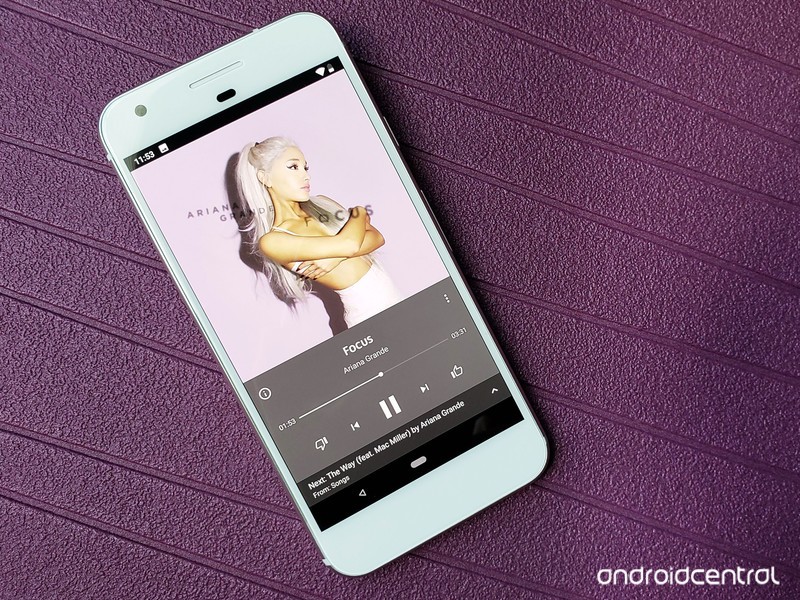
The new YouTube Music experience is here, so let’s get the music flowing.
YouTube is one of the most-used video sites in the world, and a great many of the videos that we flock to on the platform center around the music that drives our lives. Whether you subscribe to a music streaming service or not, chances are you’ve gone to YouTube to find that one song that’s stuck in your head, or to check out a cover by some up-and-coming artist, or to watch the latest mind-blowing music video.
YouTube is now leveraging its uniquely unparalleled music and music video selection to offer the completely-revamped YouTube Music, a music app that brings the best music on the most popular video platform in the world together with traditional album and songs from top labels.
And since it’s all powered by YouTube, setting it up is almost embarrassingly easy.
- How to set up YouTube Music
- How to search for music in YouTube Music
- How to control playback modes in YouTube Music
- How to add a song to your YouTube Music library
- How to add an album to your YouTube Music library
- How to create a playlist in YouTube Music
- How to make YouTube Music your primary music service in Google Assistant
First, download it
The new YouTube Music is only available in five countries right now:
- U.S.
- Australia
- New Zealand
- Mexico
- South Korea
If you’re in one of those countries, you can head to the Play Store to download the app and get started using the instructions below.
Download YouTube Music (free)
How to set up YouTube Music
The beauty of YouTube Music is that since it’s tied to the same YouTube search and watch histories that you’ve built up over the life of your Google account — which for most of us is upwards of a decade — YouTube Music doesn’t really need to ask you which artists you like or what genres you’re into. It already knows. In fact, even if you’ve never used YouTube Music before, for most users opening YouTube Music for the first time are really only going to be asked a few things:
- If you’re not already a YouTube Music, Google Play Music, or YouTube Premium subscriber, Google will ask if you’d like to start a free 30-day trial of YouTube Music Premium.
-
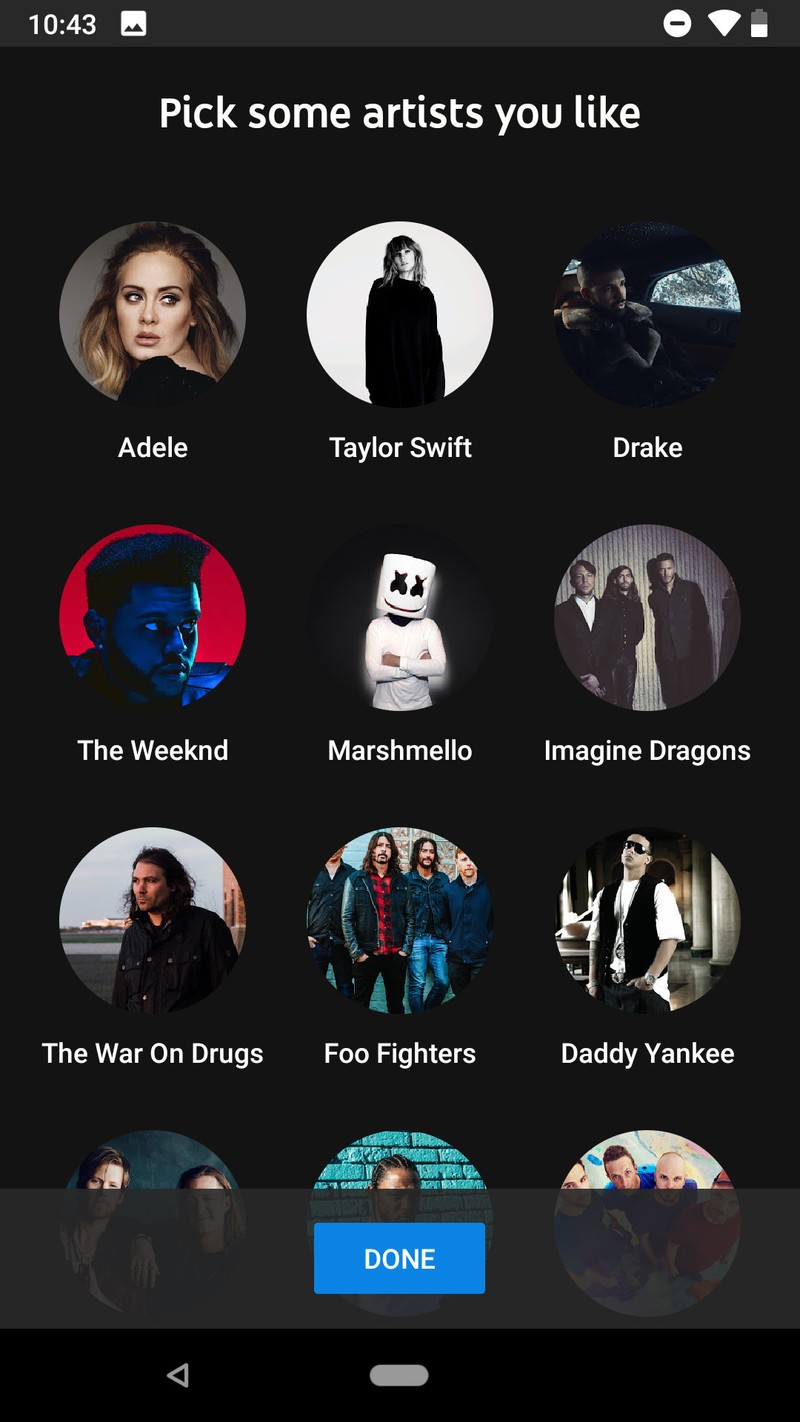
If you don’t have any YouTube history at all — or you’ve recently deleted your YouTube history — you’ll be asked if you’d like to tell YouTube music which artists you like so that YouTube can start recommending music based on your tastes rather than simply what’s popular:
- Tap Let’s go.
- Tap the artists you’d like to follow.
- Tap Done.

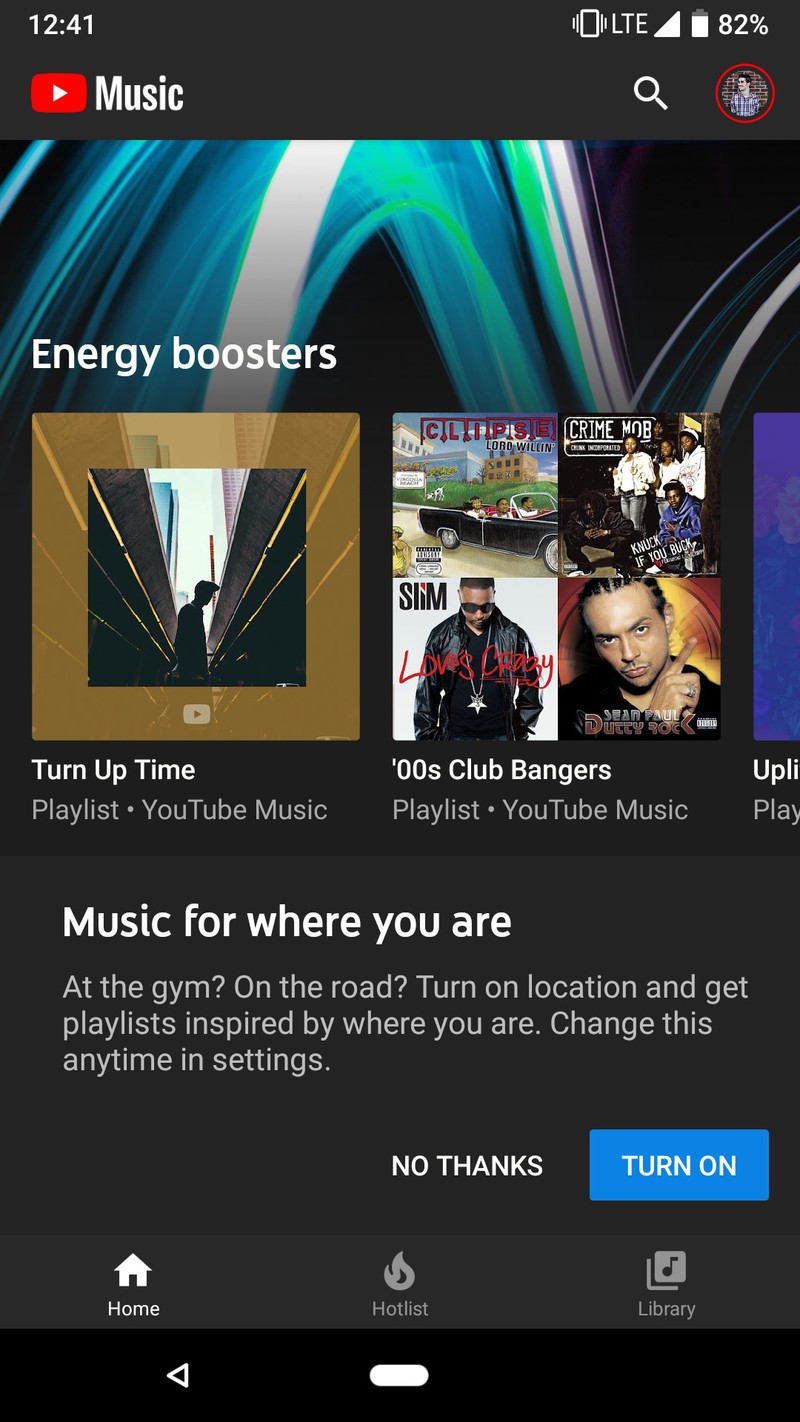
Regardless of if you’re a free or paid user, YouTube will ask to access your location in order to offer up activities-based suggestions, such as energetic music at the gym or calming music at the airport. Tap Allow if you want to get activity-based recommendations on the Home tab of YouTube Music.
You’ll immediately be served up a plethora of suggested playlists based on your artist preferences, your YouTube history, your location, and the latest music trends on YouTube. From here, you can select something on the Home tab to play or go search for whatever earworm is stuck in your head right now.
How to search for music in YouTube Music
Search is something Google does better than anyone when it puts its mind to it, and they have certainly put their mind to it in YouTube Music. When you tap that search icon in top bar of the YouTube Music app, you can search for songs, artists, albums, and music videos, but that’s really just the beginning.
- Tap the microphone at the right edge of the search bar and sing out some lyrics. Singing “Oh, baby give me one more chance” immediately brought up Jackson 5’s “I Want You Back”.
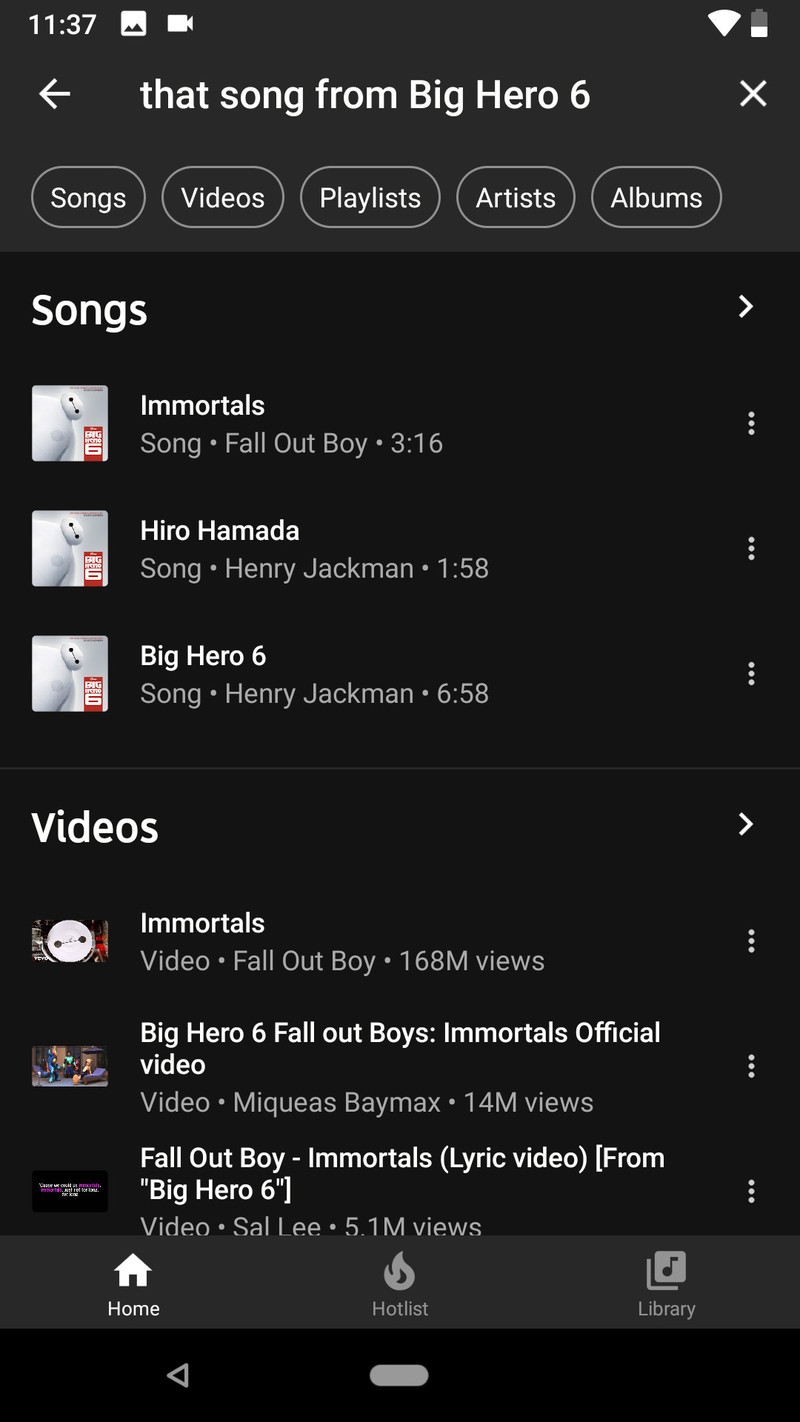
- Ask for a song from a particular movie. Ask for “the song from Big Hero 6” and Immortals by Fall Out Boy will top the search results, with the movie’s soundtrack lower in the results.
-
Search for collaborations by naming the artists. “That song with Lin-Manuel Miranda and Jennifer Lopez” resulted in “Love Make The World Go Round” and “Almost Like Praying”, musical team-ups they’ve done for charity in the last two years.


The one search feature YouTube Music doesn’t quite seem to have yet is scatting a melody for it, which is a bummer since sometime we can’t remember the lyrics, only the melody. I guess that’s what Shazam is still around for.
How to control playback modes in YouTube Music
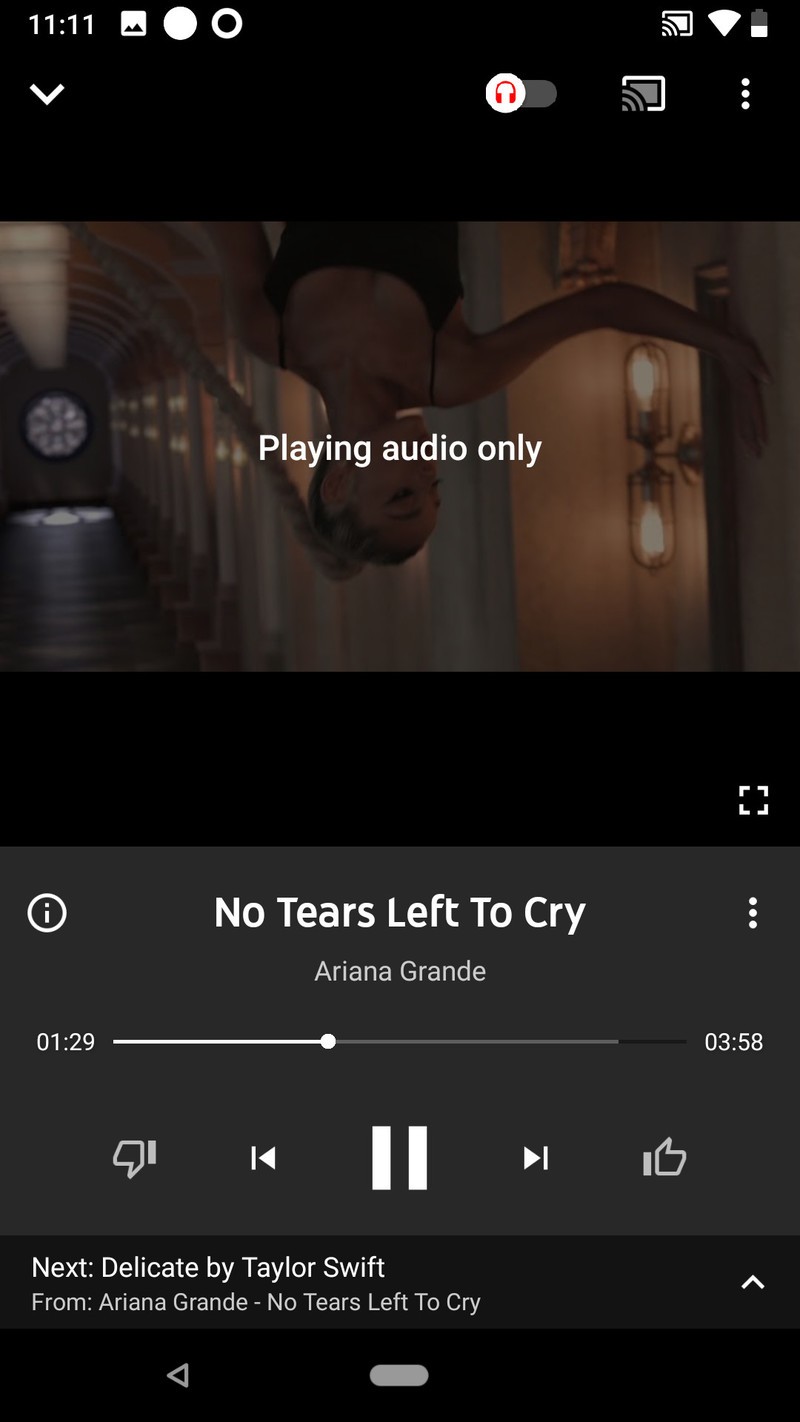
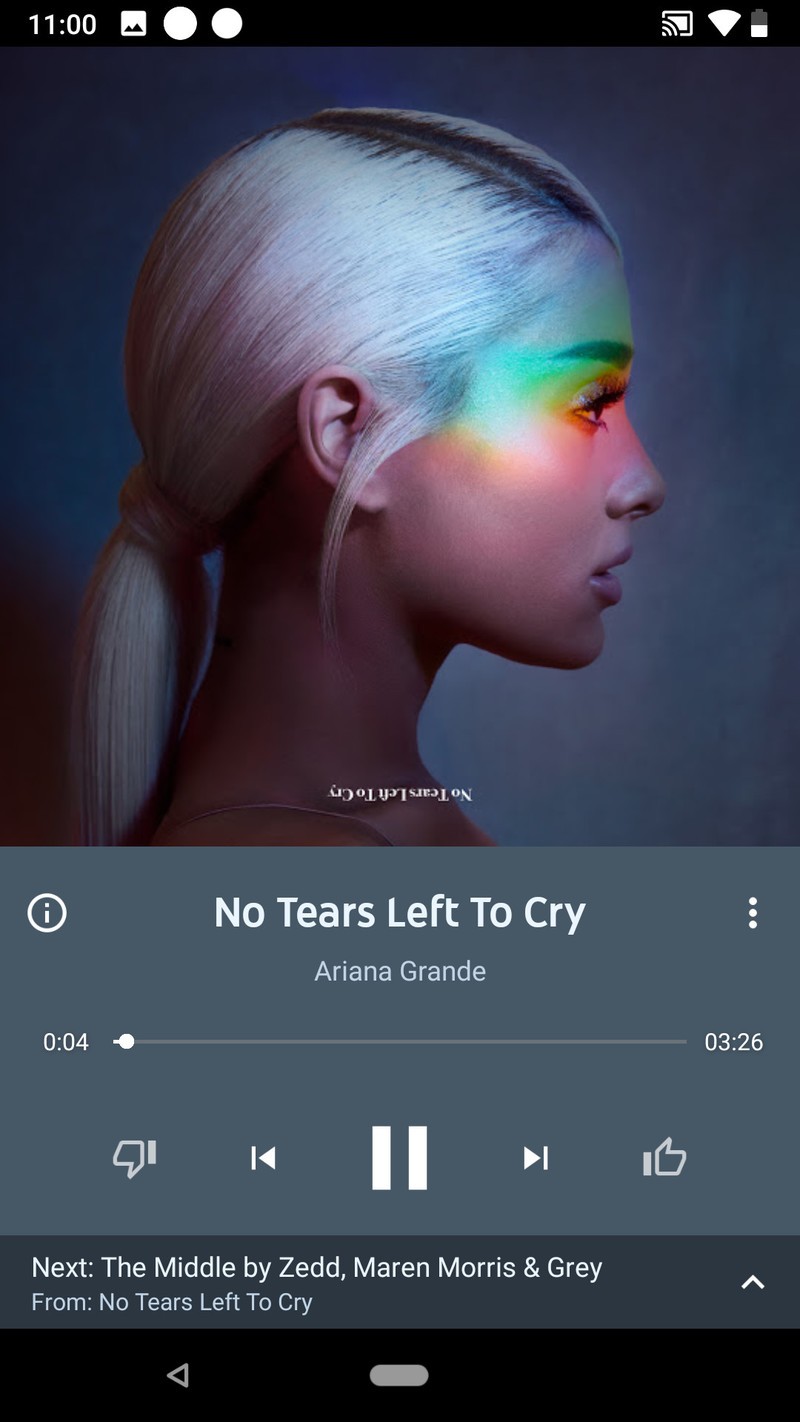

The playback screens on YouTube Music are a little different from traditional music apps. On the main playback screen, you’ll see a toggle in the top bar; this is the toggle that switches between playing video and playing audio only. This allows you to switch back and forth if you come across a video on a station or playlist that you want to watch the video for, like a totally sweet music video or a lyrics video. To the left of the track information is an info icon that will pull up quick links to the artists and album for the song. To the right is a three-dot menu icon, which you can use to add the currently playing song to your library, playlist, or start a song radio station.
Where are the shuffle and repeat buttons, you ask?
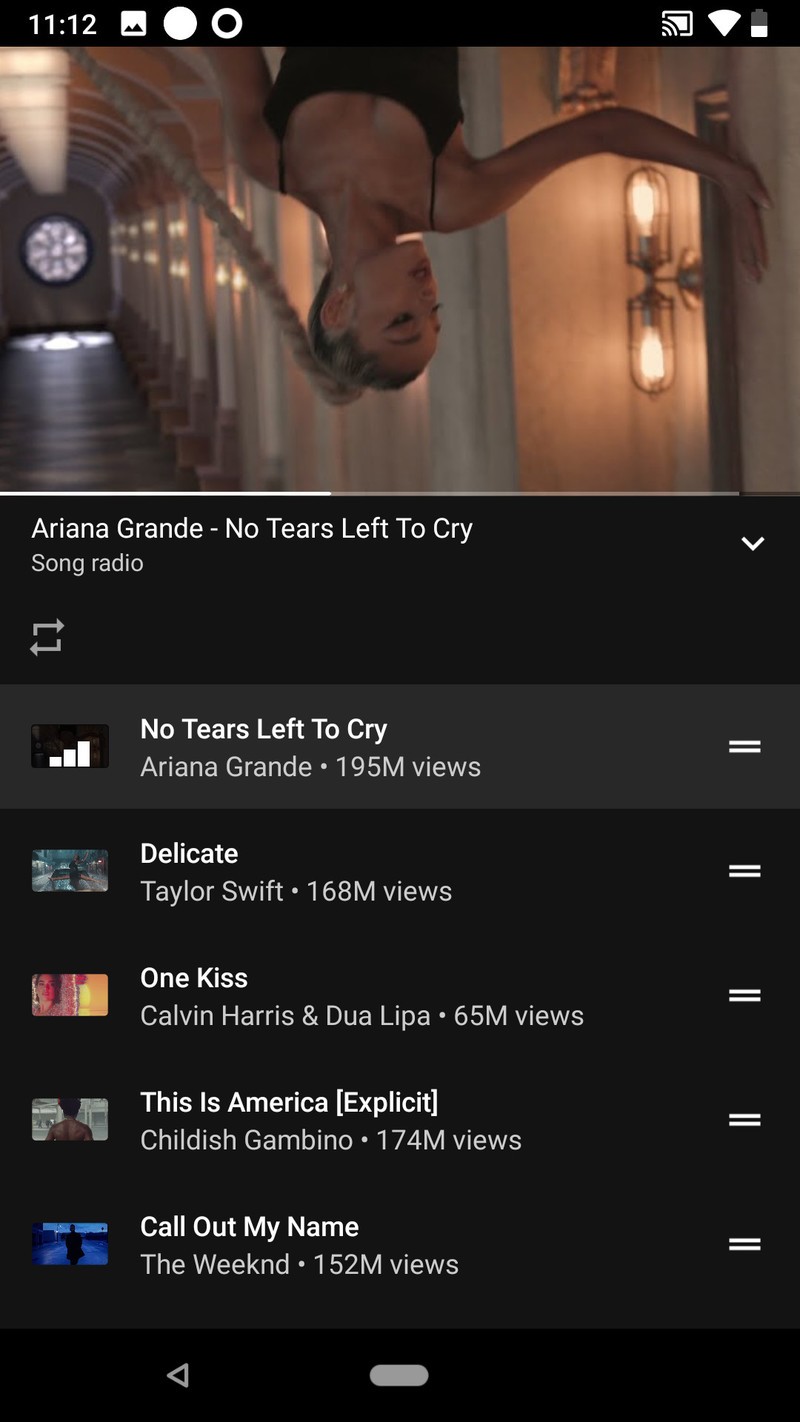


Swipe up on the main playback window and the controls will move up to sit on the of the video/audio only thumbnail, revealing the queue below the playback screen. The repeat button will appear between Queue and the currently playing video, along with the shuffle button when listening to a playlist or album. On stations, such as the songs stations that start when you tap a search result, shuffle isn’t available since stations are always on shuffle.
No matter what you’re listening to, Repeat One or “Listen on repeat”, is available, which is great news for those of us that will listen to a song 30 times in a row while learning the lyrics. If you tap shuffle on an album or playlist, you can watch the songs shuffle around with a nice little animation.
How to add a song to your YouTube Music library (add to Liked songs)
If you want a song in your library, adding it to your library is as easy as hitting the thumbs up button in the playback window. Every song you give a thumbs up to is added to your library in the “Liked songs” playlist. If you want to add a song to your library that you’re not currently playing, it’s easy to do that, too.
Tap the three-dot menu icon next to a song in a search result, list, or album you want to add to your library.
Tap Add to liked songs.
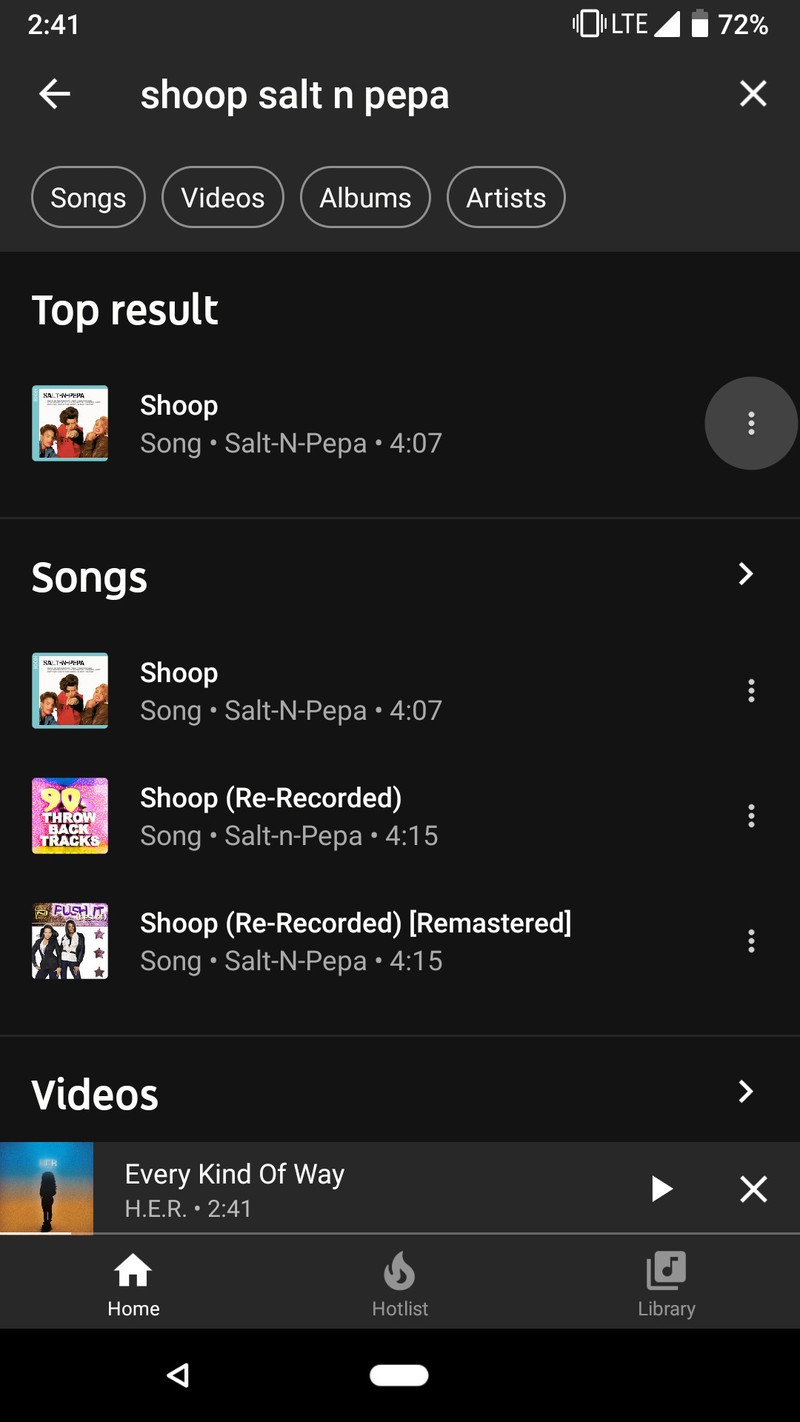
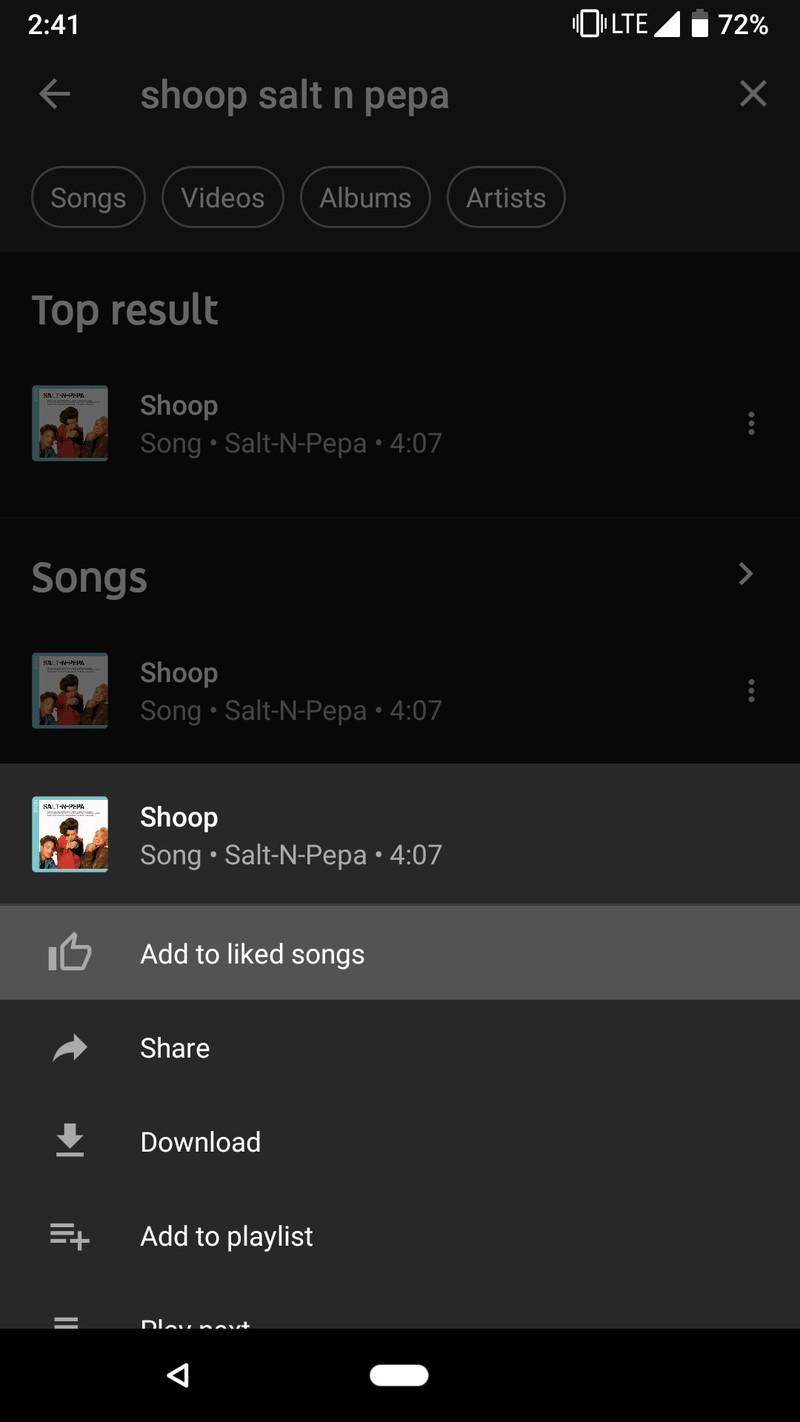
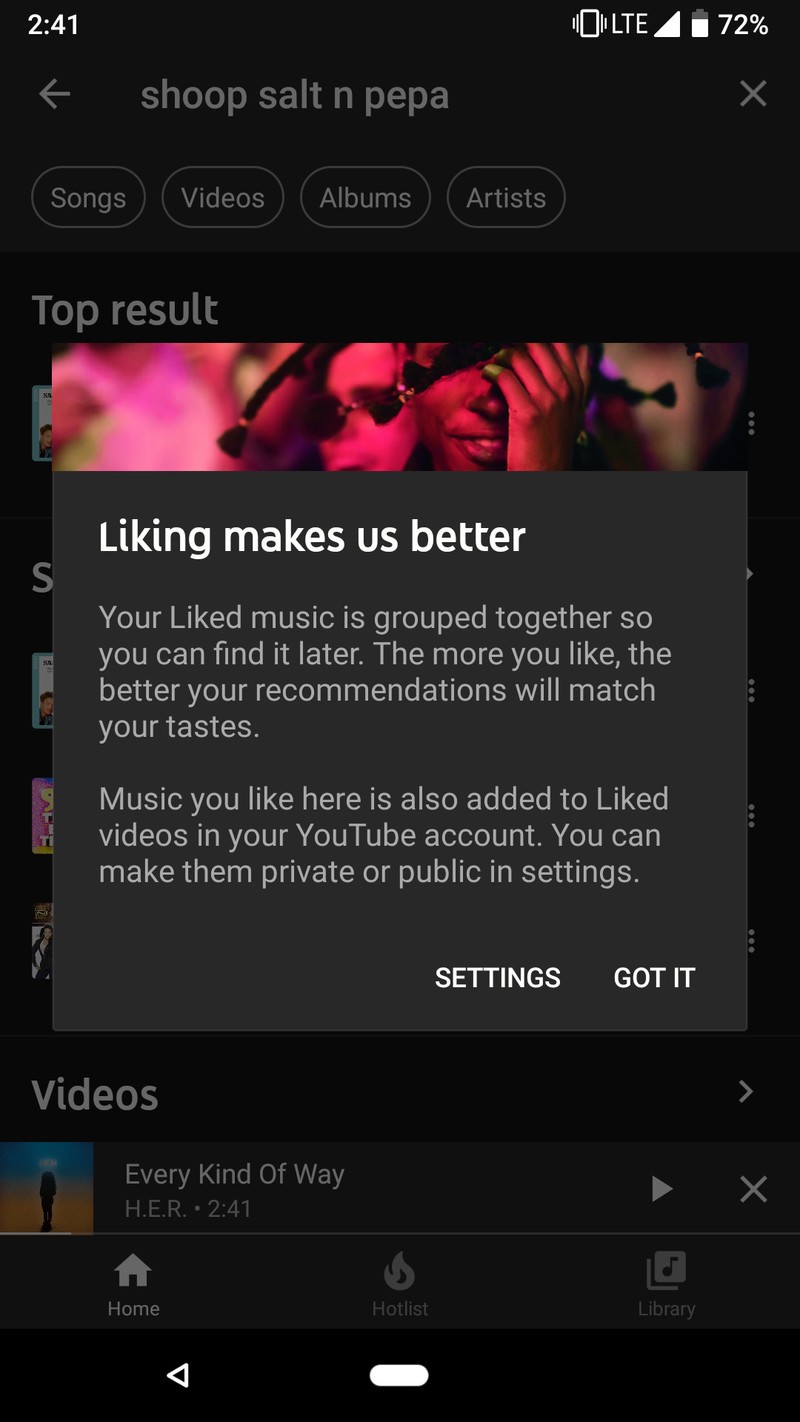
Adding individual songs to your library is good for singles and YouTube videos that aren’t part of a traditional album, but if you like multiple songs in an album, you can add the whole album to your library to make them easier to find.
How to add an album to your YouTube Music library
Adding albums to your library is almost easier than adding a song or a playlist, and while album availability seems oddly spotty for some labels right now, we’re expecting things to get more consistent as YouTube Music continues to roll out and establish itself.
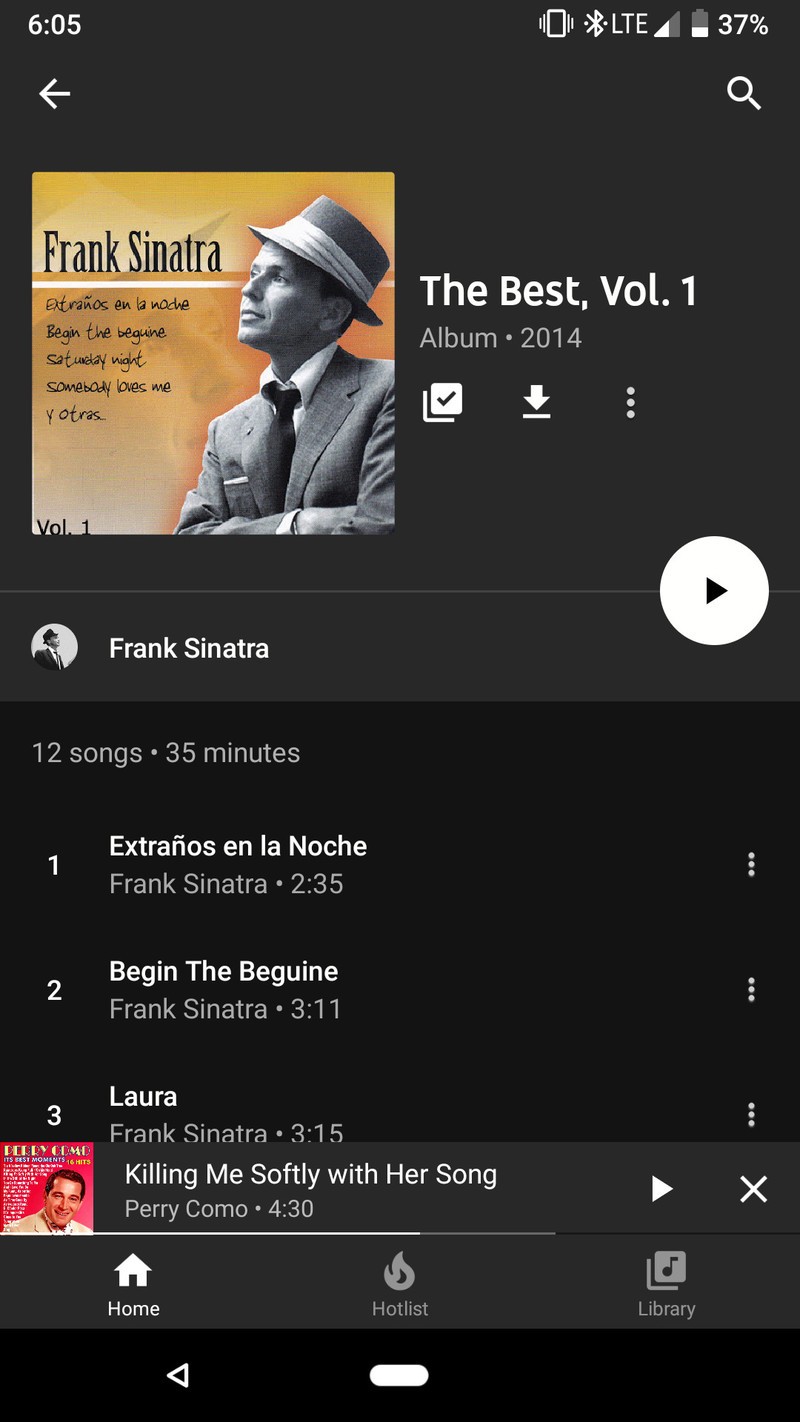
Tap the album you want to add, either from a search result or an artist page.
Tap the Add to library icon between the album art and the download album icon.


How to follow an artist on YouTube Music
If you like an artist and want to hear when they release new albums or upload new videos, you can follow them, just like any of the music channels you’ve subscribed to on YouTube over the years.
Tap the artist you want to follow in an album listing or search result.
Tap Subscribe.

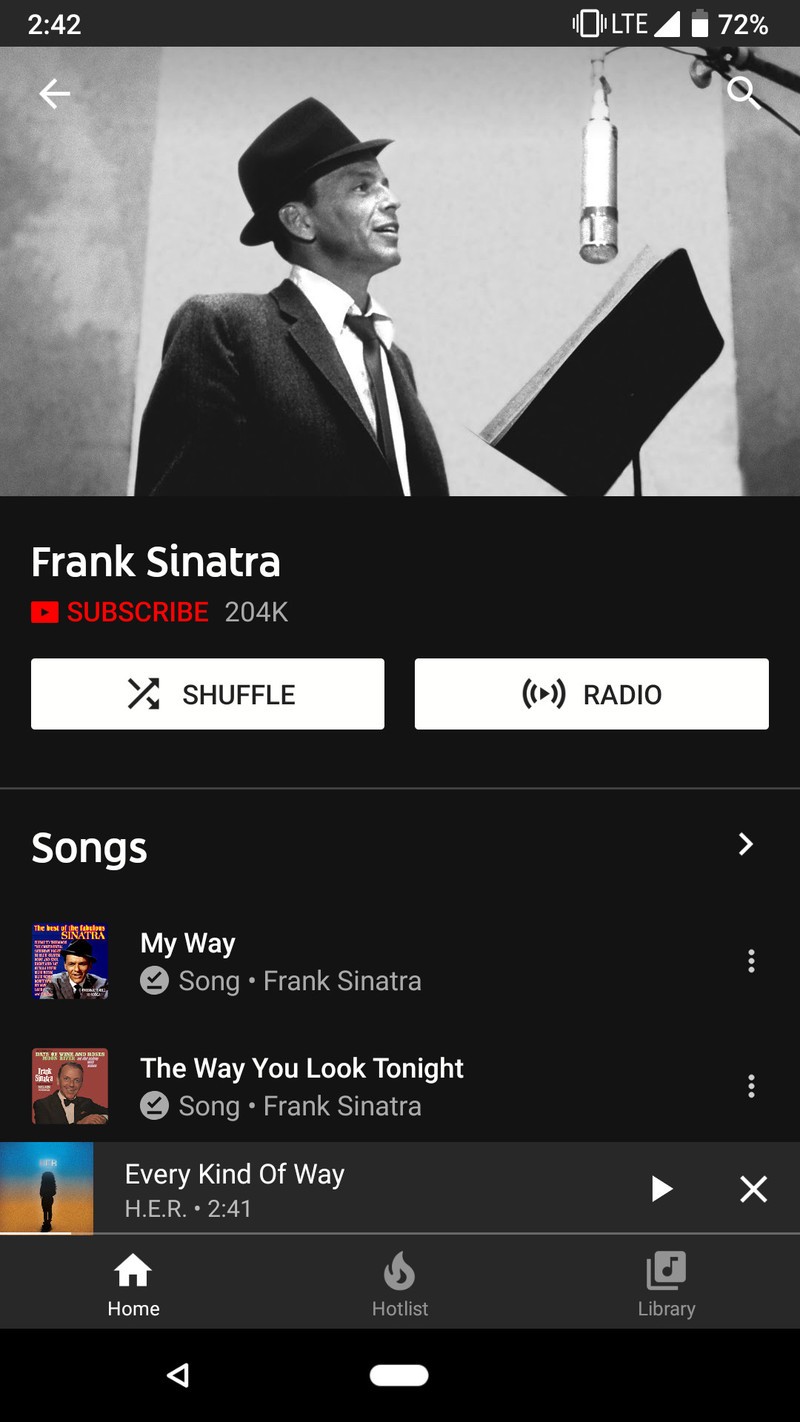

Subscribing to an artist will also subscribe you to their channel in the main YouTube app, so you’ll be able to keep up with their latest content on either app.
How to create a playlist in YouTube Music
If an album or a station doesn’t get quite the mix you want, you can build your own playlist in YouTube Music, and building them is a snap. The playlists you build in YouTube Music are visible in the main YouTube app, and playlists that have eligible videos in them appear in the YouTube Music app. Until YouTube Music’s new desktop interface is available, editing a playlist on a computer is only available through the regular YouTube site.
Tap the three-dot menu icon next to a song in a search result, list, or album you want to add to your library.
Tap Add to playlist.
Tap Create new playlist.
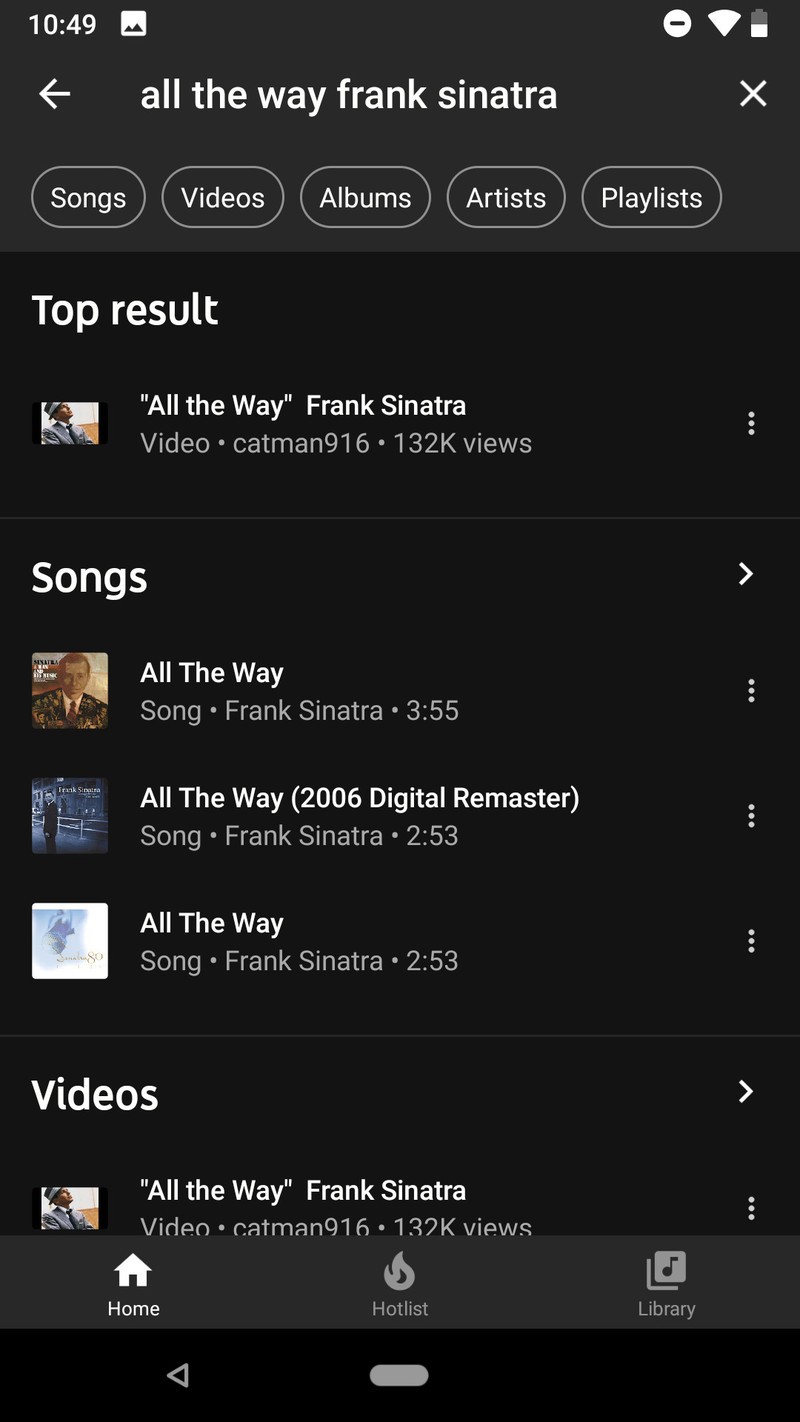
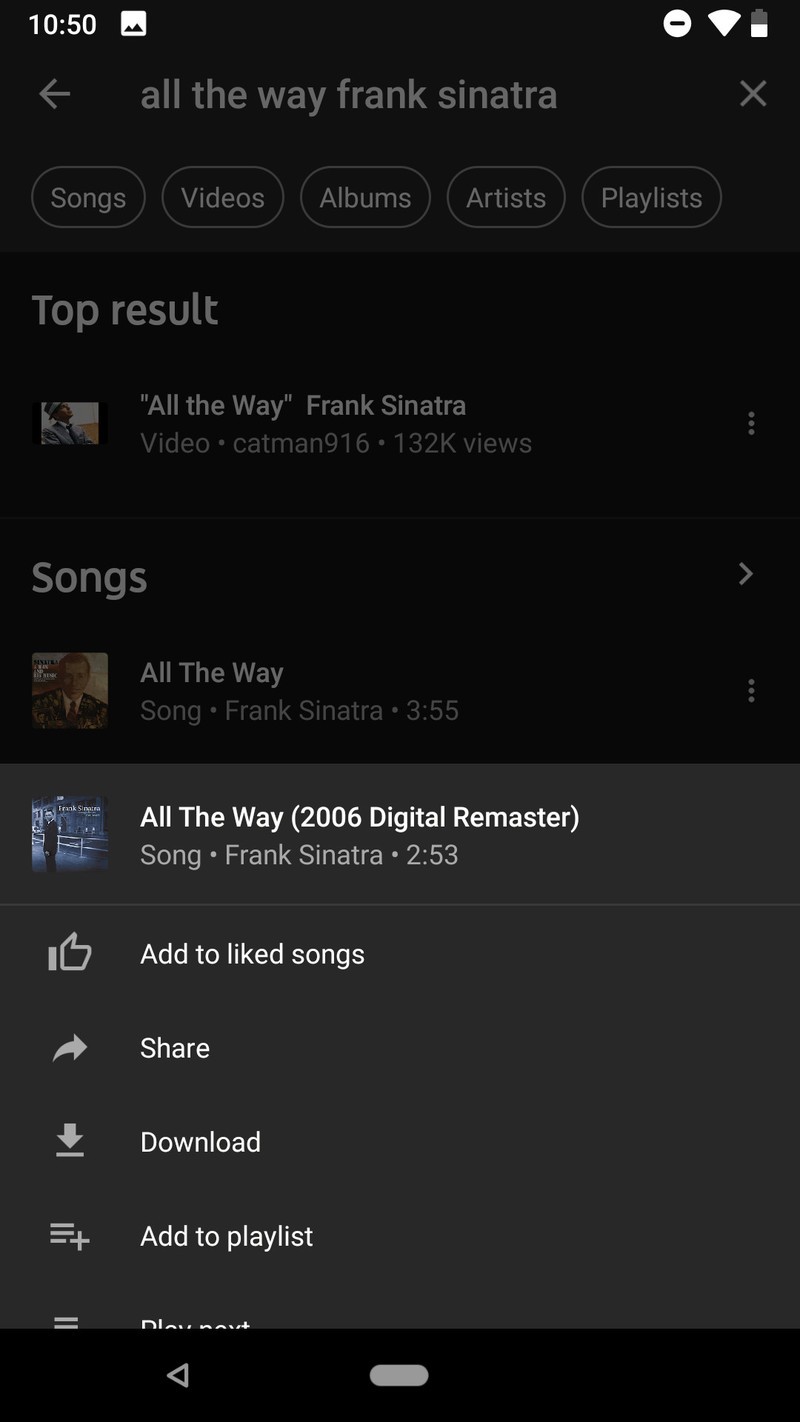

Name your new playlist.
Select a privacy level for your new playlist.
- Public playlists are visible to everyone and accessible through YouTube and YouTube Music searches. Public playlists are also visible on your public YouTube profile.
- Unlisted playlists are only visible to other through the sharing URL. They do not appear in searches or your public YouTube profile.
- Private playlists are only visible to you. This is what you’ll want to select for your Guilty Pleasures mixtape.
Tap Create to create the playlist and add the first track.
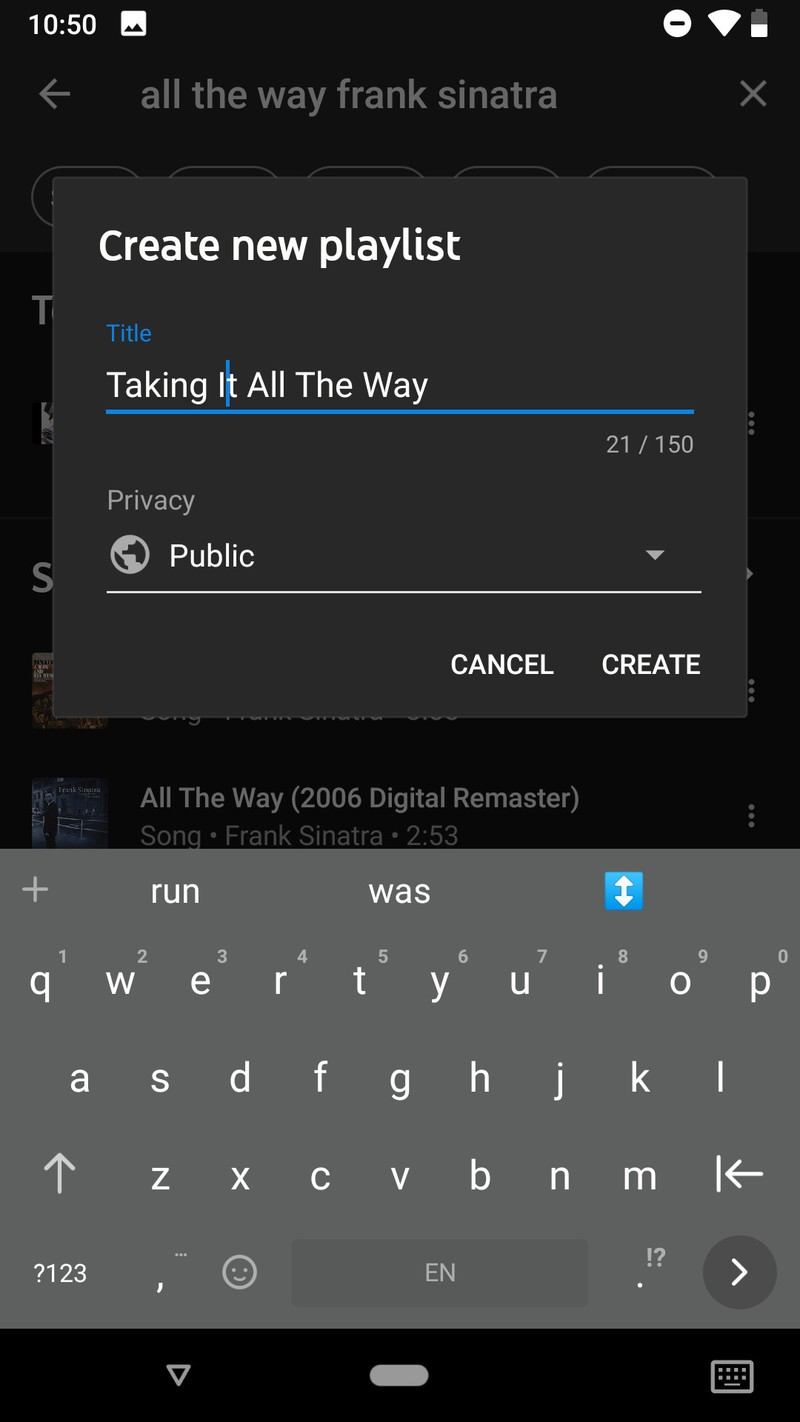
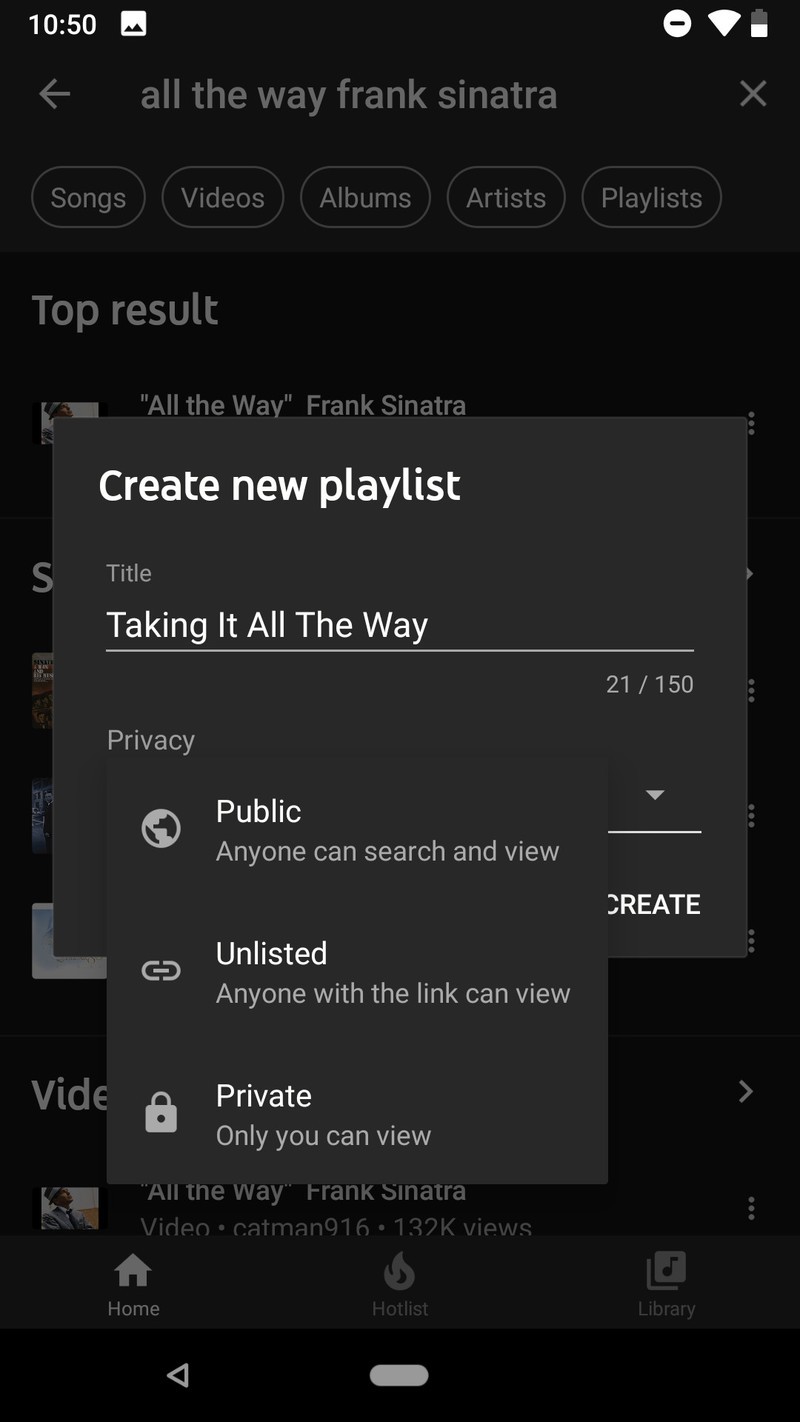
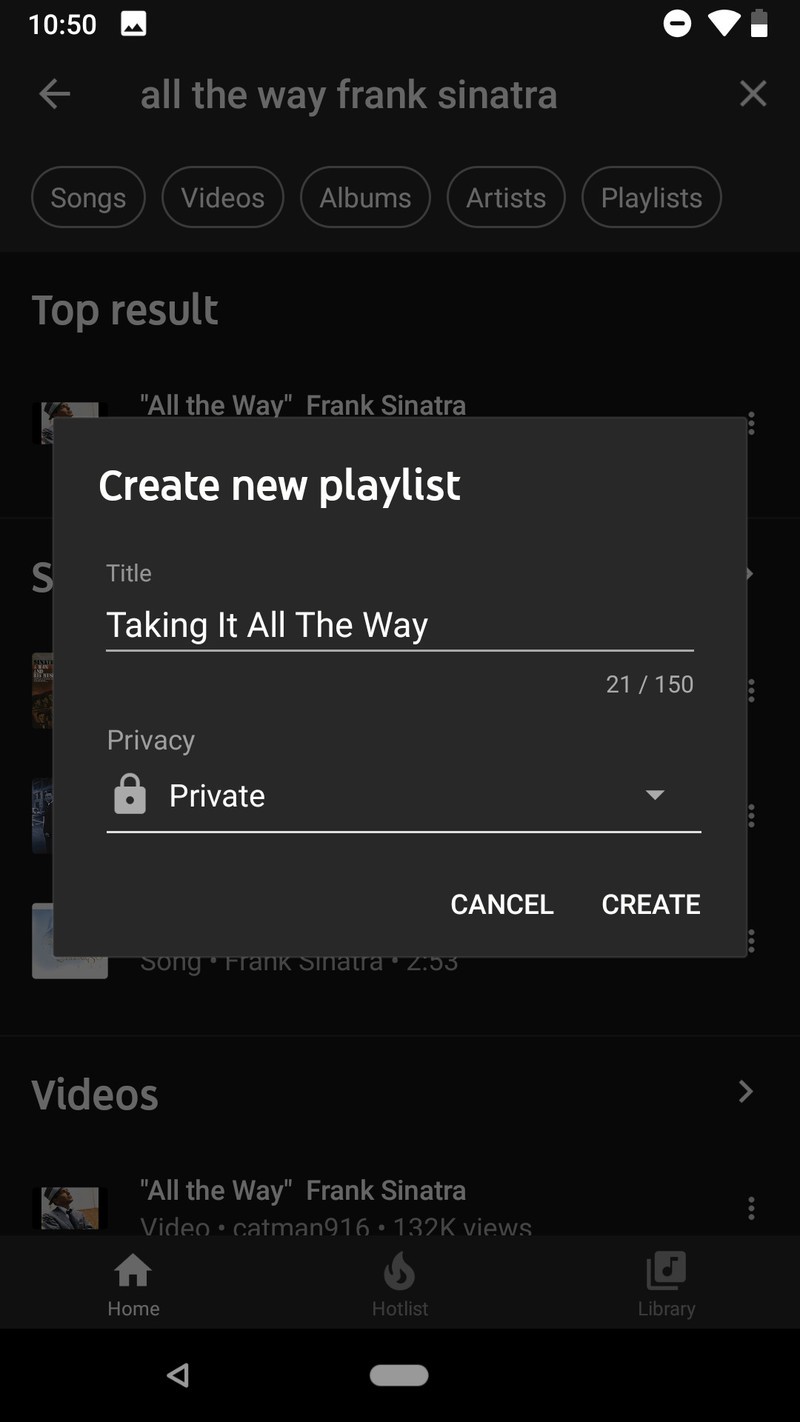
Once a playlist is created, you can add songs, remove songs, and edit the playlist on YouTube Music, YouTube’s main app, YouTube’s website, and coming soon on the new YouTube Music website.
How to make YouTube Music your primary music service in Google Assistant
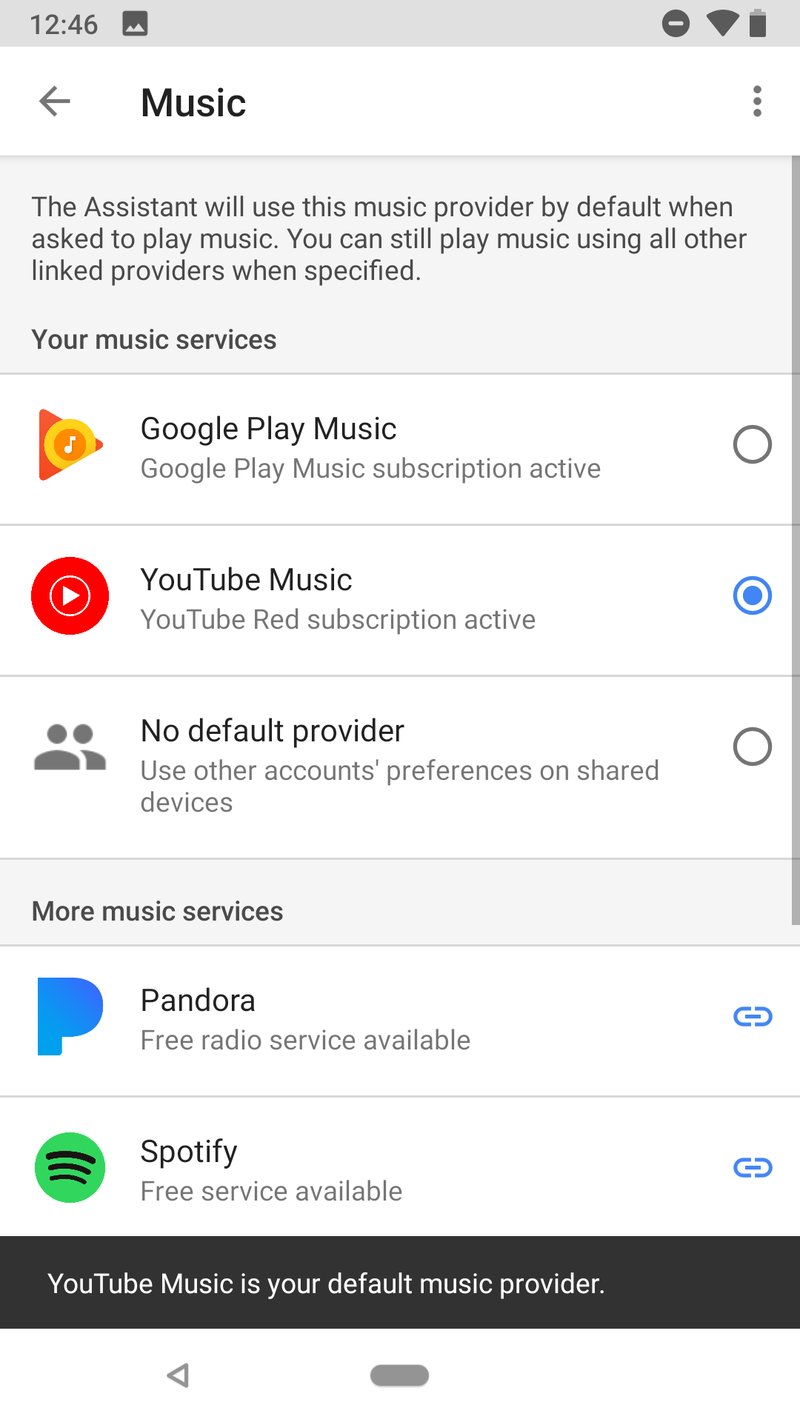
Among the many services that Google Assistant can control, music may be one of the most important. Your default music service in Google Assistant will be used every time you ask Google for a song, playlist, or album. If you’re going to give YouTube Music a try, you should set it as your default music provider, so you can see how well it responds to your requests and commands, especially with albums and YouTube Music’s fancy search skills.
Open the Google Home app.
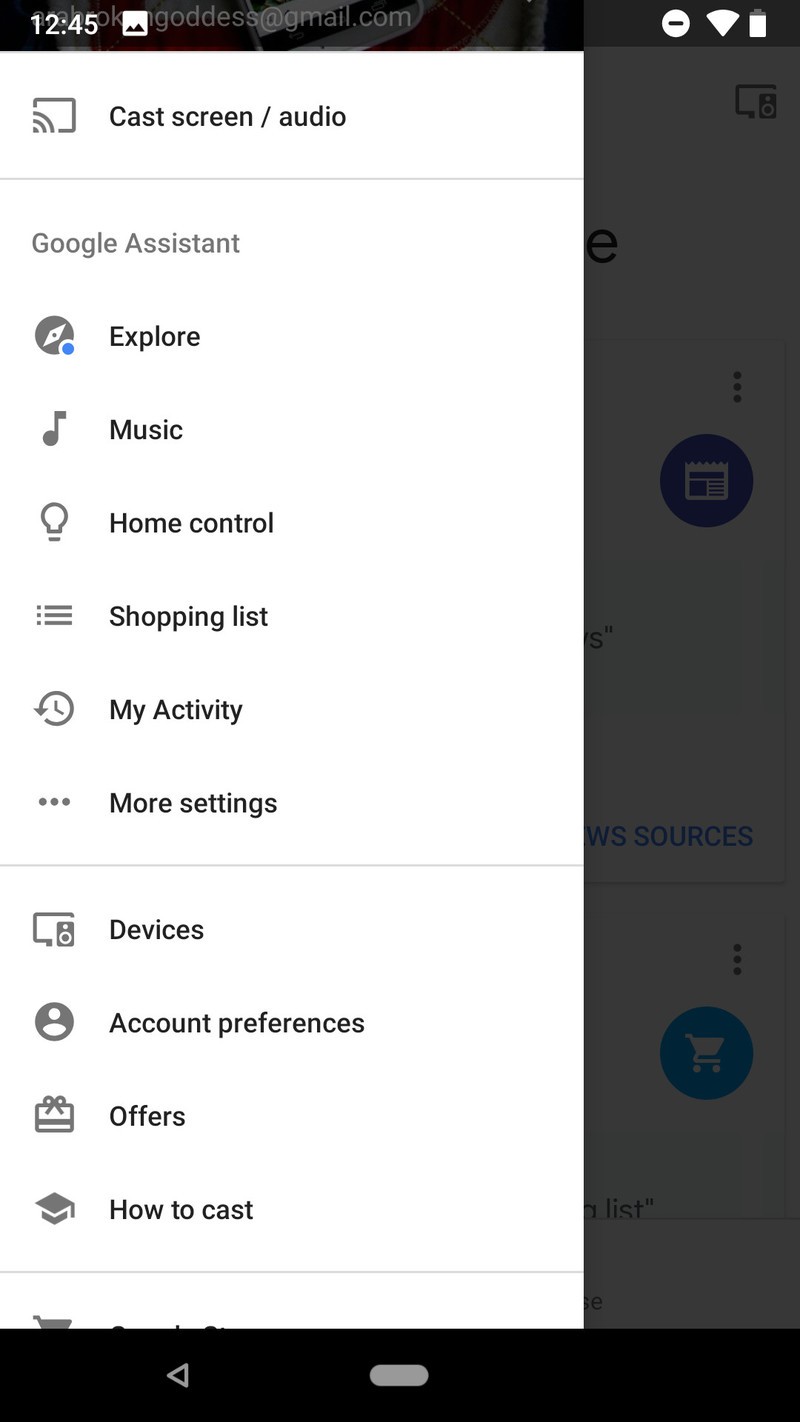
Tap Menu (the three-line icon) in the top left corner of the screen.

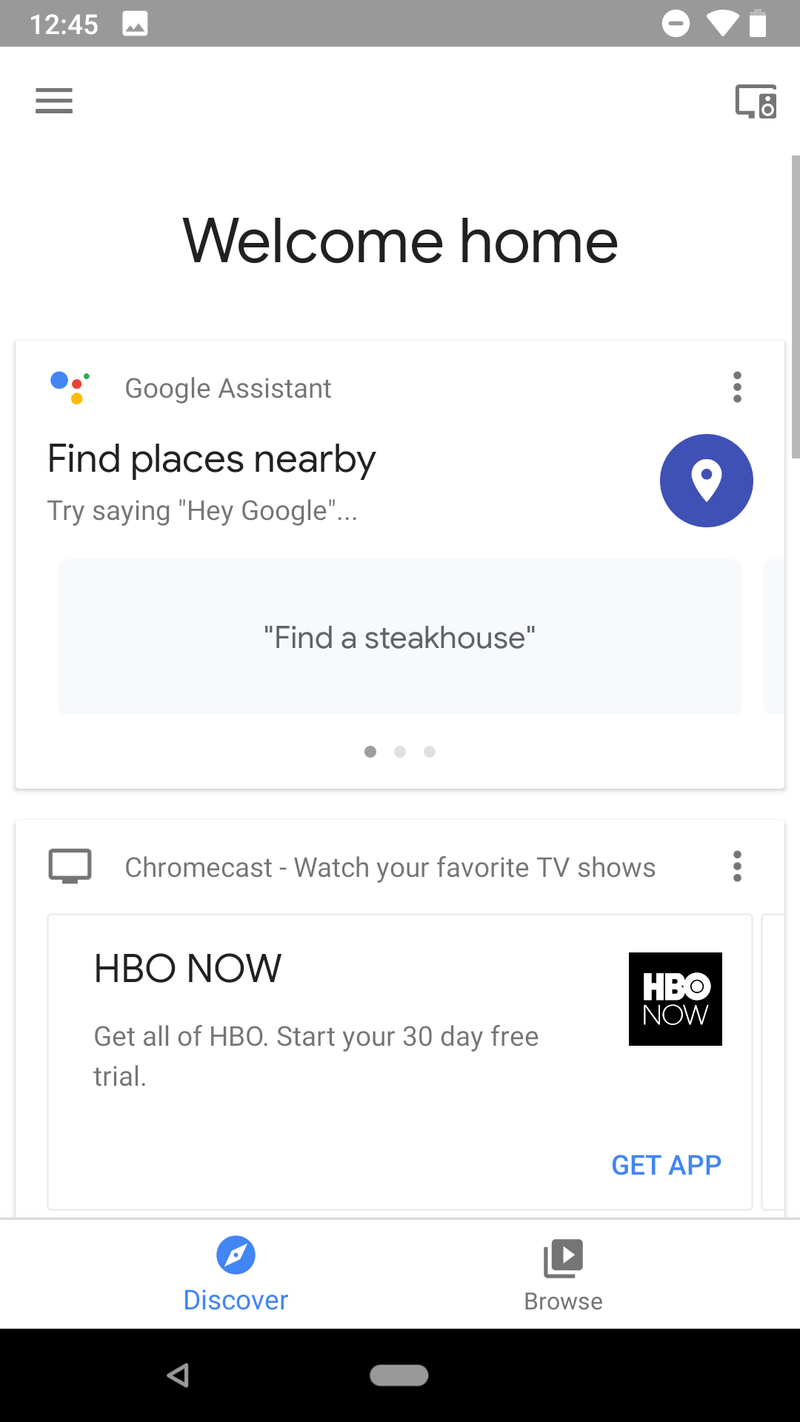
Tap Music.
Tap YouTube Music.
Your turn
YouTube Music is an adjustment from traditional music services, but thanks to the Google’s search prowess and downright uncanny predictions and recommendations, getting used to Google’s newest music service should be as painless as possible. If you have more questions about new app, ask them in the comments and we’ll try to answer them in our continuing coverage of YouTube Music.
Which color OnePlus 6 should you buy?
Make sure you make the right OnePlus 6 decision.

“Most people put their phones in a case, so why does it matter what color you buy?” I hear a variation of that sentence very time I talk about phone colors and materials.
But if that were the case, companies would release phones in one color — “Model T” black — and call it a day. Instead, we’ve seen color trends come and go, and increasingly a variety of hues, materials, and shimmer to suit anyone’s tastes. And while many people do cover their phones with gaudy cases, there are an increasing number that choose to go naked, or use a clear case, to see the phone as it was intended.
The OnePlus 6 comes in three colors, and each feels as distinct as it looks. Choosing which one to buy won’t be easy, but hopefully, we can help.
Mirror Black
Mirror Black is the obvious choice for the OnePlus 6 because it’s the default choice — if you want the cheapest variant of the phone, you have to choose Mirror Black.
Given that the OnePlus 6 is covered in glass, the Mirror Black variant looks the most traditionally reflective, with OnePlus “coating it with a mirror sheen, giving it the look and feel of ceramic.” While the coating means it picks up fingerprints quite easily, it’s also surprisingly grippy, allowing you to safely use the phone without a case. You’ll be wiping it down every few minutes, but when fresh and clean the phone looks incredible, and picks up on the strongest light source in the room.
Who should buy the Mirror Black OnePlus 6?
If you’re looking to get a OnePlus 6 that looks as far from a previous OnePlus device as possible, Mirror Black is where it’s at. Or, conversely, if you loved the short-lived OnePlus X (OnePlux), this is your only real option.
At the same time, given that the Mirror Black model is the only one offered at the $529 starting price, for 6GB of RAM and 64GB of storage, it should be considered the frugal pick.
Midnight Black
Midnight Black is the more traditional-looking variant of the OnePlus 6, harkening back to the halcyon days of the OnePlus 3T, where the “matte black everything” was all the rage. While this particular variant is covered in glass, it looks very much like metal, and offers a cleaner, more sophisticated look to the OnePlus 6.
It’s also available in both 128GB and 256GB variants, both of which have 8GB of RAM.
Who should buy the Midnight Black OnePlus 6?
If you long for the days when the OnePlus line was made of metal, the Midnight Black OnePlus 6 is the closest thing you’ll get. At the same time, it actually looks better than the metal versions because despite the matte underlay, the glass catches the light and looks really nice in almost any lighting condition.
That said, it’s not as striking as the Mirror Black model, so it’s easily covered in a case without regret.
Silk White
Coming June 5, and only available in one storage combination — 8GB of RAM and 128GB of storage — the limited-edition Silk White OnePlus 6 features a glass back, but underneath is a crushed pearl design that looks slightly pocked in the light. With rose gold accents, the Silk White OnePlus 6 is striking and unique, and will definitely be more coveted given its limited-edition nature.
Who should buy the Silk White OnePlus 6?
If you’re looking for the only OnePlus 6 color that actually has any color, Silk White is the obvious choice. If you enjoy rose gold, or just want a phone that looks a bit different, it’s the way to go.
At the same time, it’s possible, given the Silk White’s limited manufacturing run, that it may become something of a collectors’ item, so you better get on it fast if you want one when it goes on sale June 5.
See at OnePlus
What’s your color?
Have you chosen a OnePlus 6 color? Are you waiting for the Silk White version? Let us know in the comments below!
OnePlus 6
- OnePlus 6 review
- OnePlus 6 vs. OnePlus 5T: How much changes in six months?
- OnePlus 6 vs. OnePlus 5: Should you upgrade?
- These are the official OnePlus 6 cases
- The OnePlus 6 doesn’t work on Verizon or Sprint
- Join the discussion in the forums
Beats ‘Decade Collection’ Headphones Appear on Best Buy Website Ahead of WWDC
A special “Decade Collection” range of Beats Headphones are currently being promoted by online retail merchants ahead of scheduled availability on June 4, suggesting Apple will officially announce the collection during its keynote at the Worldwide Developers Conference.
A new Beats “Decade Collection” page on the Best Buy website spotted by AppleInsider provides a thorough breakdown of the Beats By Dre 10th anniversary limited edition range, which has yet to appear in Apple’s online product listings. Details about the new Beats models also went live on the website of New Zealand-based retailer Smiths City.

Beats was launched so people could hear music the way the artist intended. A decade later they’re still changing the game. Styled in Defiant Black-Red in tribute to their bold beginnings and music’s dynamic emotion, the Beats Decade Collection celebrates their first 10 years of innovation.
The collection showcases a “Defiant Black-Red” color scheme to existing products in the Beats lineup, including Studio3 Wireless, Solo3 Wireless, Powerbeats3 Wireless, BeatsX Wireless, and urBeats3. All the headphones are available to pre-order at the same price as their more typically styled equivalents.

A report last week claimed that Apple’s rumored “low-priced” version of the HomePod will be placed under the Beats by Dre brand instead of the expected Apple branding – although it seems unlikely that Apple would combine the two brands into one product.
Apple is also rumored to be working on a set of high-end over-ear headphones that, like the company’s HomePod and AirPods, will be Apple branded rather than Beats branded.
Tags: Beats, WWDC 2018
Discuss this article in our forums
How to Add an AirDrop Shortcut to Your Mac’s Dock
Apple’s AirDrop feature lets you wirelessly send and receive files between nearby Macs as well as to and from local iOS devices. It’s usually accessed from the sidebar of an open Finder Window (or using the Command + Shift + R keyboard shortcut within Finder), but here we’re going to share with you a trick that enables you to launch AirDrop straight from your Mac’s Dock.
Having the AirDrop shortcut in your Dock will allow you to access it from any screen, regardless of the application you’re using, and without having to open a Finder window first. Regular AirDrop users in particular should appreciate the convenience it provides.
How to Add AirDrop to Your Mac’s Dock
Open a Finder window or click the Desktop.
In the Finder menu bar, select Go -> Go to Folder.
Paste the following directory path into the dialog and press Enter: /System/Library/CoreServices/Finder.app/Contents/Applications/
The Contents/Applications folder within the Finder.app package will appear. Using your mouse, drag the AirDrop app to the desired location in your Dock.
Close the Finder window.Next time you want to open the AirDrop window to share something, simply click the app icon in your Mac’s Dock. Note that you can also drag the iCloud Drive app from the Finder package in the same way, for quick one-click access to the files and folders in your cloud storage.
Related Roundup: macOS High SierraTag: AirDrop
Discuss this article in our forums
Apple ‘pleased’ that Samsung is paying it $539M ‘for copying our products’
It’s a case that’s been bouncing around the courts like a ball in a pinball machine, but it looks like it could finally be over.
We’re talking about the seven-year patent battle involving Apple and Samsung where the former accused the latter of taking ideas from its iPhone for its own smartphone designs.
On Thursday, May 24, a unanimous decision by a jury in the U.S. District Court in San Jose, California, means that Samsung must pay Apple $539 million for infringing five patents affecting a number of Android handsets that the Korean tech firm sold in 2010 and 2011.
In a statement issued shortly after the decision was handed down, the iPhone maker said the case had always been about protecting hard work and innovation.
“We believe deeply in the value of design, and our teams work tirelessly to create innovative products that delight our customers,” the Cupertino, California-based company said.
It added, “This case has always been about more than money. Apple ignited the smartphone revolution with iPhone and it is a fact that Samsung blatantly copied our design. It is important that we continue to protect the hard work and innovation of so many people at Apple.”
The tech giant closed by thanking the jury and saying it was “pleased” that they agreed that Samsung “should pay for copying our products.”
Samsung said Thursday’s decision “flies in the face” of an earlier Supreme Court ruling “in favor of Samsung on the scope of design patent damages,” adding that it was now considering “all options to obtain an outcome that does not hinder creativity and fair competition for all companies and consumers.”
While the courts had already ruled that Samsung had infringed patents belonging to its rival, this latest legal tussle was all about determining how much Samsung should hand over. The battle revolved around the definition of the “article of manufacture,” in other words, whether the damages should relate to the entire phone or the individual components linked to the infringed patents. Apple sought damages related to profits made by the infringing phones, a figure it put at more than $1 billion, whereas Samsung wanted the final figure linked to the individual components and features, which it said amounted to $28 million.
In the end, following arguments from legal representatives on both sides, the court arrived at $539 million.
Most of the financial penalty — $533,316,606 to be precise — has been awarded for Samsung’s infringement of three Apple design patents, while the rest — $5,325,050 — is for the infringement of two of Apple’s utility patents that relate to the phones’ functionality.
Editors’ Recommendations
- Samsung and Apple’s lawsuit may finally be drawing to a close
- Judge says Samsung ‘rigged the deck, fixed the game’ with Galaxy
- Here’s everything we know about the Samsung Galaxy S10
- Here’s everything we know about the upcoming Samsung Gear S4 smartwatch
- How to use Samsung’s Bixby assistant for all of your smartphone tasks
Google Home vs. Amazon Echo: Which should you buy in India?
Google Assistant and Alexa have plenty to offer in India, but which platform is right for you?

Amazon launched the Echo family of devices in India last November, and Google introduced the Google Home in the country in April. The entry-level options — the Google Home Mini and the Echo Dot — cost ₹4,999 in the country, with the larger Google Home and Amazon Echo coming in at ₹9,999. The larger Echo Plus, meanwhile, is available for ₹14,999.
If you’re looking to pick up a smart speaker but haven’t made up your mind yet, here’s what you need to know about using the Google Home and Amazon Echo in India.
What the Google Home does better

One area where the Google Home wins out over the Echo is integrating with Google services. You’ll be able to get your calendar alerts, get real-time traffic alerts, route estimates for work, and more.
Google Home offers six routines — a set of customizable actions that are triggered by a phrase. Just say “Good morning,” and the Assistant will give you updates on the weather, take your phone off silent mode, deliver your news briefing, read your calendar entries for the day, your reminders, and traffic updates for your commute.
If you have Hue lights linked up to Assistant, you’ll also be able to control them with routines. It’s a great new addition and makes the Google Home that much more usable.
The Google Home also casts media to any Chromecast devices or Android TVs in your house. You can get it to play a particular show on Netflix on your Cast-enabled device by issuing a command as well. Then there’s a shopping list feature, which lets you add items to a list.
Google Home is great if you’re already invested in Google’s ecosystem.
The feature I use the most is “ring my phone:” You can just ask Assistant to ring your phone, and it will do so even if your device is on silent. I also like the fact that Google Home offers custom profiles, so when my wife asks Assistant to find her phone, it recognizes her voice and ring her device.
Another advantage is the fact that you can use any language for Assistant (ranging from English to France, Mandarin, German, and Italian), and it will work just fine. This isn’t possible with Alexa: you’ll only be able to use English (India).
You’ll also be able to listen to podcasts, and as the Play Store now sells audiobooks, you’ll be able to ask Assistant to play a particular audiobook in your library. Assistant is also better at answering search queries, and it is able to pick up on contextual cues.
All Google Home purchases in India come with a six-month subscription to Play Music All Access, and Assistant also has Saavn and Gaana integration if you want to play tunes from either streaming service.
As for music playback itself, I prefer the Google Home to the standard Amazon Echo. The Google Home offers a more natural sound, and at full volume it can easily fill a medium-sized room.
What the Amazon Echo does better

Amazon has invested significant resources in customizing Amazon Echo for the Indian market, and that’s clearly evident from the moment you start using Alexa. You’ll be able to link your Uber/Ola account and book a cab, get restaurant recommendations from Zomato, get cricket updates from CricInfo, and so much more.
You’ll even get Bollywood and cricket-themed jokes from Alexa, and the ability to add a host of Indian publications for daily news updates, unlimited music streaming with Amazon Music, and the list goes on.
Right now, Alexa has Google Home beat when it comes to value.
Oh, and you can also buy products from Amazon by just using your voice. Alexa will look through your Amazon purchase history to see if you’ve purchased a similar product in the past, and if not, it will surface the three top links on Amazon for that particular item.
Amazon also has an Alexa-to-Alexa calling feature, so if your friend or family members also have an Alexa device, you’ll be able to call them for free.
You’ll be able to hook up your Kindle account with Alexa and have the assistant read books to you. It isn’t the same as an audiobook — as Audible isn’t available in India yet — but it is a start.
If you’re looking to pick up the Echo Plus, know that it has a built-in Zigbee hub for your smart home products. So if you’re looking to connect Hue lights, for instance, you don’t need to buy a dedicated bridge anymore. In general, Alexa is much better when it comes to controlling your smart home gear, and that’s because Amazon has enabled hundreds of local skills from the likes of Syske, Oakter, Picostone, and the like.
Amazon Echo, Echo Dot, or Echo Plus: Which should you buy in India?
I recently got the Picostone Basic to control my living room downlights, and the system works with Alexa out of the box. It doesn’t work with the Google Assistant just yet, but that’s slated for the coming months.
That’s a common theme when talking about the Google Home — as I mentioned earlier this year, it still feels like the speaker is a work in progress in India. And that’s frustrating, because you’d expect that it would offer integration with services like Zomato, Uber, Ola, and others.
While I had no issues with either assistant recognizing and understanding my accent, Alexa has an edge on this front. It understands local names, nouns, and colloquial terms much better than Assistant.
Which should you buy? Amazon Echo

This is a tough one, because both the Google Home and Amazon Echo have plenty to offer in India. The main downside with Google Home is that it has zero customization for the Indian market, so you’re missing out on basic features like the ability to call a cab on Uber or Ola, or view nearby restaurants with Zomato.
Then there are other features — like hands-free calling — that aren’t live yet in India. Google says it is working to bring added functionality to Google Home in India, but right now there’s not a lot of support for third-party services on the platform. That said, Google Home handles search queries better, and it’s generally better for music playback.
While the smart home speaker market is still nascent in India, whoever comes up with Hindi support will automatically take the lead. The ability to interact with a voice assistant in Hindi will be a game-changer, as it will open up the market to a much wider audience. Both Google and Amazon have mentioned that they are working on enabling Hindi integration, and I figured Google would have that feature out of the box considering Assistant picked up Hindi support back in March. However, that wasn’t to be.
As much as I like the Google Home, I cannot recommend it for the Indian market, at least in its current state. It’s infuriating to know that Google made little to no effort integrating local services into Assistant, and it has a long way to go before it achieves feature parity with Alexa in the country. I’m also annoyed that the Google Home launch in India broke Spotify integration, as the service isn’t officially available in the country yet.
If you’re looking for a more localized smart speaker that offers better integration with services you’ll end up using daily, Amazon Echo is a much better purchase.
See at Amazon
Amazon Echo
- Tap, Echo or Dot: The ultimate Alexa question
- All about Alexa Skills
- Amazon Echo review
- Echo Dot review
- Echo Spot review
- Top Echo Tips & Tricks
- Amazon Echo vs. Google Home
- Get the latest Alexa news
See at Amazon
 AIVAnet