


Best Sony Phones in 2018
- Best overall
- Best small phone
- Best for less
Best overall
Sony Xperia XZ2

See at Best Buy
The Xperia XZ2 is Sony’s top-of-the-line flagship — that is, until the XZ2 Premium hits stores this summer. It lost some of its “Sony” look in the last generation, but in the process gained a nice rear-mounted fingerprint sensor, smaller bezels thanks to an 18:9 display, and a better overall design in terms of ergonomics.
With just a 5.7-inch display, it’s relatively compact — and the 3180mAh battery inside is pretty large for the size. Inside you get all of the latest specs, led by a Snapdragon 845 processor. The new 19MP camera still isn’t optically stabilized, but it’s Sony’s best yet in terms of final image quality.
Bottom line: Sony lost some of its unique design, but made what’s easily its best overall phone.
One more thing: The XZ2 Premium is on its way, but it doesn’t offer a huge upgrade and will cost a lot more — don’t let it keep you from the standard XZ2.
Best small phone
Xperia XZ2 Compact

See at Best Buy
Sony’s Xperia XZ2 Compact brings all of the features one expects of a flagship down to the palm-able size. The line is one of the few that balances features, performance, and dimensions, and the XZ2 Compact is no exception, with a Snapdragon 845 and all the camera improvements of its Xperia XZ2 counterpart. Even though it has a 5-inch display, it’s still much smaller than the Google Pixel 2.
Bottom-line: You won’t find another 5-inch phone with such high-end specs and small bezels, and it’s made even better with Android 8.0 Oreo on board.
One more thing: There’s now a fingerprint sensor on the back, and it works in the U.S.
Best for less
Sony Xperia XA2

See at Amazon
Sony has seen a considerable amount of traction with its mid-range line, and it’s easy to see why when you pick up the Xperia XA2. You get much of the design and solid build from the XZ2 series, but with lower-end specs to keep the price reasonable — about $350.
A solid 5.2-inch 1080p display on front is complemented by a Snapdragon 630 processor, 3GB of RAM, 32GB of storage and a sizeable 3300mAh battery. You get a decent 23MP camera on the back, along with a functional fingerprint sensor, and it even has a headphone jack.
Bottom line: The XA2 is a solid phone with very few shortcomings or caveats, and a great price.
One more thing: You can step up to a 6-inch display and larger battery for about $120 more with the XA2 Ultra.
Update, May 2018: We’ve overhauled our picks with new recommendations for May 2018, adding the XZ2 and XZ2 Compact as our top picks. The new XA2 also joins the list as a less expensive option.
Today’s best deals you won’t want to miss
Whether you’re looking for new tech gear or household items, we’ve got you covered.
Today you can get big discounts on bias light strips, Wemo mini smart plugs, 4K action cameras, and more! Don’t pass these up.
View the rest of the deals
If you want to know about the deals as soon as they are happening, you’ll want to follow Thrifter on Twitter, and sign up for the newsletter, because missing out on a great deal stinks!
A quick-and-easy guide to programming an RCA universal remote control
David Becker/Getty Images
If you’re tired of picking up a different remote for every piece of gear in your A/V arsenal, RCA’s universal remotes are perfect for reducing the number of remotes you need to work the various components, as well as the clutter on your coffee table. For this how-to, we’ll be using the automatic code search method, which allows you to pair devices in a relatively quick and painless manner. We will warn you that it does occasionally take some trial and error, so just be patient.
First, grab your new remote and make sure the components you want to be synced are all hooked up. If not, plug everything in just how you want it. There’s nothing worse than trying to set up a universal remote only to realize your TV and receiver — or another component — simply aren’t connected.
Now that everything is hooked up, get ready to program your remote control. Here’s a step-by-step guide to programming everything into that single RCA device:
1. Turn on the component that you want to set up.
2. Press and release the button that corresponds with the component that you’re programming. For example, if you want the remote to control the TV or Blu-Ray player, hit and release the TV button or Blu-Ray button. The on/off button will light up and should remain lit.
3. Now, simultaneously press and hold the component button and the on/off button. The illuminated on/off button will turn off. Then it should turn back on.
4. Release both buttons after the on/off button relights. It should remain on.
5. Now, press and release the play button on the remote. If the component that you’re programming does not turn off after 5 seconds, continue to hit the play button every five seconds until the component turns off.
6. Next press and release the reverse button. Wait to see if the component turns back on, and press it every three seconds until it does.
7. Press and release the stop button to save the programming for the device in the remote’s memory.
8. Repeat steps one through seven for each additional device you wish to program.
If you don’t press the buttons correctly, you might mess up the syncing process. This is the main reason why it might take some trial and error to get the remote set up.
Editors’ Recommendations
- Giveaway: Maximize March Madness With The Logitech Harmony Elite
- How to use Remote Desktop
- Here’s how to turn off subtitles on Netflix, no matter your chosen device
- How to watch Amazon Instant Video on Chromecast or Android TV
- Having problems with your Xbox One? We have some possible solutions
Top 3 ways to make Bixby more useful on the Galaxy S9

We can’t fix all of Bixby’s problems, but we can at least make it a little more useful.
If you bought a Galaxy S9 or S9+ in the last month, you’ve probably already gotten settled into one of the best Android experiences around. You’ve probably already captured dozens of photos with the incredible cameras Samsung placed on its latest flagships. You’ve probably already trained your phone to recognize your face, iris, and fingerprints so you never have to worry about anyone else accessing your private information.
You’ve also probably already disabled Bixby by now. Samsung’s smart assistant just hasn’t been met with the same fanfare as alternatives like Google Assistant — but to Bixby’s credit, it’s actually capable of handling some fairly complex tasks, and embracing the service could turn the Bixby key from a nuisance to a convenience in your daily routine.
Enable Voice Wake-Up
Voice assistants are especially great when you’re not holding your phone; just shout any question or command to receive an answer. If you aren’t already calling to Bixby from across the room, you should enable this feature immediately.
From the Bixby Home, tap the menu overflow icon in the upper right corner.
Tap Settings.
Tap Voice wake-up.
Tap the switch next to Off.

In the Bixby Voice prompt, tap theBixby logo at the bottom of the screen.
Follow the voice prompts, saying “Hi Bixby” and follow-up commands like “turn on Bluetooth.”
After reading each prompt, tap Done at the bottom of the screen.

With Voice Wake-Up enabled, you can prompt Bixby by saying “Hi Bixby,” even with the screen turned off. From the settings, you can also adjust sensitivity and further train it to recognize your voice.
Set the Bixby key to push-to-talk
The Bixby key is notorious for being too easy to accidentally press, largely thanks to its close proximity to the volume rocker. It’s easy to turn off, but you might not have known that even with the button disabled, you can still activate Bixby in a push-to-talk style.
From the Bixby Home, tap the menu overflow icon.
Under the General tab, tap Bixby key.
Tap Don’t open anything.

You’ll notice a caption under the Bixby key options, stating that even with the key disabled, you can still reach Bixby Voice by holding down the Bixby key. This means that you can prevent accidental triggers and still use the hardware button to quickly give a command.
Configure your Home Cards
Just like the Google Assistant, Bixby Home sorts information that might be relevant to your life into cards on its main feed. By default, you’ll see some social cards like LinkedIn and Twitter, as well as some cards for Samsung services like its theme store.
It’s easy to adjust what cards you’ll see in your feed with a quick trip to the settings.
From the Bixby Home, tap the menu overflow icon.
Under the Home Cards tab, tap Cards.
Under Show Cards, you can tap the switches next to any cards you want to see on your Bixby Home feed.
If there’s text underneath the app name, you can tap the app name to open a new menu and choose which aspects you want to see on your feed.

With a few minutes of combing through the Cards list, you can personalize your Bixby Home to only see relevant information.
How to disable Bixby
If you still just can’t stomach Samsung’s smart assistant, that’s okay — you’re not alone. Luckily, after some initial backlash, Samsung has made it easy to turn Bixby off entirely.
Read more: How to completely disable Bixby
Questions? Comments?
If you’ve got any burning questions about how else to use Bixby or just need to express in writing how passionately for or against the Bixby button you are, sound off in the comments below!
Samsung Galaxy S9 and S9+
- Galaxy S9 and S9+: Everything you need to know!
- Galaxy S9 review: A great phone for the masses
- Complete Galaxy S9 and S9+ specs
- Galaxy S9 vs. Galaxy S8: Should you upgrade?
- Join our Galaxy S9 forums
Verizon
AT&T
T-Mobile
Sprint
What to do when your PlayStation 4 Pro gets loud
Don’t panic – it probably just needs a good cleaning.

Today’s gaming consoles are designed with longevity in mind, and they’re also usually mindful of your ears. There’s always a chance for things to go wrong, though.
In the case of the PlayStation 4 Pro, it can be scary to hear it suddenly getting loud as its fans spin up or the disc drive is working overtime. If this happens infrequently and only when playing certain games then you may have nothing to worry about, but if you notice a sudden unusual cacophony coming from the innards of the PS4 Pro it’s always worth running through some maintenance steps.
Clean it out
One issue that may cause your PS4 Pro to roar is a buildup of dust. The dust can restrict airflow or put more weight on the fans, forcing them to spin harder in order to dissipate enough heat to make sure the console is safe.
In this case, you’ll want to clean it out as much as you can. Take a damp cloth or a painter’s brush and use it to wipe over the outside of the PS4 Pro’s chassis. Pay special attention to the ventilation ducts. Wipe those in a side-to-side motion. Be sure to get the vents on the back and the slightly hidden ones underneath the edge of the console. Get as much of the dust off of them as you can. Once you’ve done that, you’ll want to take a can of compressed air and spray into the ducts while the console is off to try and force some of the deeper-settled dust out.
See at Amazon
While this alone should help airflow, some consoles may end up with a ton of dust deeper within the system. If you feel like a deeper cleaning is needed then be sure to follow a guide for safely opening your PS4 to clean it out. Do note that this will void your warranty, so avoid this measure if at all possible if you want to keep it.
Make sure it’s well-ventilated

Overheating and increased fan activity can occur if the console doesn’t have enough room to breathe. Make sure you’re following these best practices for placing your PS4 Pro in your home:
- Don’t place it in a cubby hole on an entertainment stand and shut the door. And even if your stand doesn’t use a door, make sure the console has a few inches of legroom in the back to ensure the heat blowing out of the console isn’t being blown back onto itself.
- Don’t place it on carpet. If you can help it, try to find a flat surface for your PS4 Pro. Insulating that heat back onto your device will only make it hotter, and that’s precisely what we want to avoid.
Use a cooling pad

If you’re still having problems keeping the PS4 Pro quiet, a cooling pad may help. These stands are designed to help draw heat away from the console and push it into harmless space.
Aside from pulling heat, most cooling pads double as vertical stands and also come with several extra USB ports. Try to find a cooling pad with at least two fans working in tandem.
See at Amazon
If all else fails, contact Sony
If your issues can’t be rectified by any of the above remedies, it may be time to face the music that it just might be defective. If you’re under warranty then you’ll definitely want to give Sony a call. They’ll run you through troubleshooting steps, and if it’s determined that the issue can’t be helped then they’ll likely process a repair.
Even if you don’t have an active warranty, Sony may offer a repair for a nominal fee. Be sure to ask about your options if you’re in this boat.
Take care of your PS4 Pro
Sony has gone to great lengths to ensure the PlayStation 4 Pro’s durability and reliability, but it’s still your responsibility to keep your console as clean as you can. Do regular cleanings to make sure you don’t run into any issues and you’ll have nary a hiccup in your gaming experience!
PlayStation 4

- PS4 vs. PS4 Slim vs. PS4 Pro: Which should you buy?
- PlayStation VR Review
- Playing PS4 games through your phone is awesome
Amazon
OnePlus 6: News, Rumors, Release Date, Specs, and more!
This is everything you need to know about the OnePlus 6!
OnePlus has been on a cycle of releasing two smartphones per year: a major release in the spring, and a minor tweak of that previous phone in the fall. It’s nearly spring 2018, which means it’s nearly time for another OnePlus phone. Here’s everything you need to know about the upcoming OnePlus 6!
May 2, 2018 — OnePlus will host pop-up events in North America, Europe, and Nordic
Similar to the launch of the OnePlus 5T, there will once again be pop-up events to ring in the OnePlus 6. OnePlus will host the events in various parts of North America, Europe, and Nordic, with some including special guests like MKBHD, iJustine, and others.
During the events, OnePlus will let fans be among the first to try (and buy) the OnePlus 6, grab exclusive swag, and enjoy free snacks with members of the OnePlus team.
See the full list of locations here
April 23, 2018 — Pete Lau confirms glass back for the OnePlus 6
In a forums post detailing the design of the OnePlus 6, OnePlus CEO Pete Lau has confirmed that the upcoming flagship will offer a glass back.
April 21, 2018 — OnePlus is testing out ‘new materials’ for the OnePlus 6
A new tweet by OnePlus suggests its upcoming flagship could offer a ceramic back. Early leaks of the device hinted at a glass back, and the new teaser shows off a glimpse of the upcoming flagship, which is likely made out of ceramic or glass.
The design

The OnePlus 5T was the first time the company increased the size of its displays, and it looks like there will be more refinements coming with the OnePlus 6. The 6 will keep the stretched out design, but will add a notch up top, similar to… some other phones you may have seen. In addition to a high-quality display, OnePlus is also expected to move to a glass back, hopefully including Qi wireless charging in the process.
According to the image, the fingerprint reader will still be mounted on the rear of the phone, though earlier rumors suggested there would be an in-display fingerprint sensor. The dual cameras are still present, though this time in the center instead of the upper left. Of course, this is a leaked image and should be taken with a grain of salt until the official announcement is made.

Not too long after that first photo was shared, Evan Blass shared the above one on Twitter – further confirming much of what we were already expecting. The dual cameras are positioned in a vertical fashion, the fingerprint sensor lies below them, and there’s a 3.5mm headphone jack (yay!).
However, unlike the previous photo, Blass’s shows the back of the OnePlus 6 to have a textured, wood-like finish. OnePlus experimented with a lot of different back materials with the OnePlus One in 2014, and finishes like Sandstone White and Lava Red for the 5T show that the company is trying to stand out with its design. I’m guessing this isn’t the only special back material we’ll see for the 6, and it’ll be exciting to see what else OnePlus has up its sleeve.

Official picture of the OnePlus 6’s notch.
And, of course, the OnePlus 6 will have the infamous notch. This is something we were already anticipating, but OnePlus confirmed our suspicions while speaking to The Verge on March 28.
OnePlus’s reasoning for the notch is that it gives users more screen real-estate as opposed to using a more traditional design, and co-founder Carl Pei argues that it’s more thought-out than a lot of the notches we saw during MWC 2018.
The notch will be hidden whenever you’re watching a video, the clock has been moved to the left of the status bar, and we’ll also see the same gesture system that OnePlus added to the 5T with its OxygenOS Open Beta in late January.
More: OnePlus 6 supposedly leaks with iPhone X notch and glass back
Specifications

Of course, a phone isn’t just a pretty external design. The internal hardware needs to be up to snuff to push pixels and take all of our lovely Instagram photos. Fortunately, it seems the OnePlus 6 will be up to the task. Early benchmarks suggest the phone will ship with Qualcomm’s Snapdragon 845, the same chip that will likely be found in every other flagship device this year. Benchmarks have been gamed in the past — so take this all with the same grain of salt as before — but it’s a safe bet for OnePlus to include all the latest internal hardware with the OnePlus 6, just like they’ve done in previous generations.
A new image recently popped up revealing numerous specs for the OnePlus 6, and while we can’t confirm any of the information presented, it does allow us to build the following spec sheet:
| Operating System | Android 8.1 with Oxygen OS |
| Display | 6.2-inch OLED with notch 2160x 1080 resolution, 18:9 aspect ratio |
| Processor | Qualcomm Snapdragon 845 |
| Camera | 12MP + 20MP rear combo |
| RAM | 8GB |
| Storage | 256 GB |
| Battery | 3300mAhNon-removableDash charging (assumed) |
| Water resistance | No |
| Colors | Black |
More: Exclusive: OnePlus 6 has 19:9 notched display, Snapdragon 845, top benchmarks
The software

We haven’t seen any leaks for specific software features coming with the OnePlus 6, but it’s safe to expect the same vanilla Android style that OnePlus has used since 2014. OxygenOS is a known quantity at this point, featuring a few key improvements over what ships in Google’s Pixel line. There will surely be an Open Beta for users who like to live on the bleeding edge and try new features at the cost of stability. Expect a true dark theme, expect gesture controls and a few other little niceties that add up to a great software experience.
Price and availability
This is still up in the air at this point, but we can make an educated guess based on OnePlus’ previous devices. The OnePlus 5 retailed for $479, while the OnePlus 5T goes for a cool $499. It’d be nice if the OnePlus 6 kept that same price, but another small price increase isn’t out of the question.
That same leaked image mentioned above suggests that the OnePlus 6 will cost as much as $749, but it’s unclear what currency this is representing. The same post compares the OnePlus 6 against the iPhone X and Galaxy S9+ with $1517 and $1200 price tags, respectively, so either way, we can probably expect OnePlus’s next flagship to cost a good deal less compared to most other OEMs.
As for availability, the OnePlus 3 was released in June of 2016, and the OnePlus 5 in June of 2017. Some early reports suggest we may see an earlier release this year, but June is a safe bet.
Stay tuned for more!
This is what we know — and a bit of what we’re guessing — about the OnePlus 6 for now. We’re expecting an earlier than normal release this year, so stay tuned for more coverage!
OnePlus 5T and OnePlus 5
- OnePlus 5T review: Come for the value, not the excitement
- OnePlus 5T specs
- Should you upgrade from the OnePlus 3T?
- OnePlus 5T vs. Galaxy S8: Beast mode
- All of the latest OnePlus 5T news
- Join the discussion in the forums
OnePlus
Amazon
Update, May 2 – Added info about pop-up events.
Huawei P20 + P20 Pro: Everything you need to know!
Huawei just released the P20 and P20 Pro; here’s what you need to know!
Huawei, like many other big names in mobile, has a predictable cadence to its flagship smartphone launches. The new technology gets showcased first in the Mate series in the fall, usually paired with an updated version of EMUI, running the very latest Android build. That technological base is then further refined for the P series the following spring.

That trend continues in 2018, with the P20: the same guts as the Mate 10, but with a refined design. This is everything you need to know about the Huawei P20 and P20 Pro!
Check out our review!
Before reading anything else, give our full review a read. We’ve had the phones since their announcement, so we have a good feel of how they perform in day to day usage. We also have plenty of camera samples, and some thoughts on the top-notch display.
More: Huawei P20 and P20 Pro hands-on review: Camera kings
The specs

A phone is not just a pretty design; we need components inside to take all of our lovely photos, make calls and display dog photos on Twitter. Fortunately, both the P20 and P20 Pro come packed to the gills with Huawei’s latest processors, and plenty of RAM and storage.
| Operating System | Android 8.1, EMUI 8.1 | Android 8.1, EMUI 8.1 |
| Processor | Huawei Kirin 970 | Huawei Kirin 970 |
| RAM | 4GB | 6GB |
| Storage | 128GB | 128GB |
| microSD | No | No |
| Battery | 3,400mAh non-removableHuawei SuperCharge | 4,000mAh non-removableHuawei SuperCharge |
| Display | 5.8-inch 2240×1080 RGBW LCD 18:9 aspect ratio | 6.1-inch 2240×1080 OLED 18:9 aspect ratio |
| Front camera | 24-megapixel f/2.0 | 24-megapixel f/2.0 |
| Rear cameras | 20MP (mono) f/1.6 + 12MP (RGB) f/1.8 1.55-micron pixels | 40MP RGB (1/1.7-inch sensor) + 20MP mono 8MP f/2.4 OIS 3X telephoto |
| Headphone jack | No | No |
| Wireless charging | No | No |
| Fingerprint scanner | Front | Front |
| Face recognition | Yes | Yes |
| Water resistance | IP53 (splash resistant) | IP67 (water + dust-resistant) |
| Colors | Twilight, Black, Midnight Blue, Pink Gold | Twilight, Black, Midnight Blue, Pink Gold |
| Weight | 165g | 180g |
| Dimensions | 149.1 mm x 70.8 mm x 7.65 mm | 155.0 mm x 73.9 mm x 7.8 mm |
Yes, there are three rear cameras

Dual cameras are common place these days, but the P20 Pro takes it one step (lens?) further. Huawei has included a 40-megapixel main sensor, 20-megapixel monochrome sensor for unparalleled black-and-white shots, and an 8-megapixel, optically stabilized telephoto lens for getting zoomed-in photos that don’t look like a grainy mess. There is also laser, phase-detection, depth and contrast autofocus. In terms of shear hardware, the P20 Pro’s camera is completely unmatched in the smartphone world.
But the lenses and autofocus hardware aren’t the only pieces of a great camera experience. Fortunately, the P20 also includes Huawei’s Neural Processing Unit (NPU) to help focus even more and substitute for optical or electronic image stabilization. The camera can capture a continuous exposure up to four seconds, then the NPU stitches that together for a single, clear image. Huawei is also including a slow-mo capture mode, allowing for 960fps videos — though this is limited to 720P resolution. We’ll dig more into the P20 and P20 Pro’s cameras when it comes time for our full review, so stay tuned!
More: Android Phone With The Best Camera of 2018
There’s also a notch

Love it or hate it, it seems 2018 will be the year of the year of the notch. Both P20’s have a notch at the top, containing the earpiece and front facing camera. There are arguments to be made for and against the notch, so whether or not it’s a deal breaker will come down to your personal preferences.
More: From the Editor’s Desk: Display notches are fine, but companies are doing a horrible job justifying them
Which should you buy?
The P20 and P20 are both excellent options, but if you want to get the most from your money, it’s worth considering just which one to get. Both phones use the same processor, though the P20 Pro has more RAM and a larger battery. The standard P20 uses an LCD panel while the P20 Pro opts for an OLED one, but both displays look excellent and have great outdoor visibility. The P20 Pro also has its unique three-camera setup, meaning you can get some stunning shots that just wouldn’t be possible on the regular P20.
At the end of the day, both phones will be great choices. But if you can stretch your buying power a bit further, the P20 Pro would be the better option.
You can get the Porsche Design again
Huawei and Porsche Design usually team up for a ridiculously priced smartphone, and the P20 is no exception. The Porsche Design Mate RS features a striking red or black design, an in-display fingerprint sensor (as well as a second fingerprint sensor on the back, because why not), 256GB or 512GB of internal storage and wireless charging. Despite the changes to the external design, the camera setup and internals (except for the increased storage) remain the same. Like the previous special editions, this year’s Porsche Design is only for those with a good deal of cash burning a hole in their pockets — it can be yours for a cool €1550/$2000.
More: The Porsche Design Mate RS is a Huawei P20 Pro with an in-display fingerprint sensor and a $2000 price tag
You can still get it in the U.S, but…

Despite the kerfuffle between Huawei and the U.S. government, U.S. consumers can still get their hands on the P20 and P20 Pro, but after jumping through some hoops. Amazon has the standard P20 — albeit without an official warranty — while some eBay members are selling the P20 Pro. Approach both of these sources with a heavy dose of caution.
See Huawei P20 at Amazon
More: Here are the best places to buy the Huawei P20 Pro in the U.S.
More to come!
We’re just getting started with the Huawei P20 and P20 Pro! We have our full review coming up, as well as comparisons with the hottest phones of early 2018. Stay tuned for more!
How to use a Samsung Galaxy S9 with two Bluetooth devices at a time
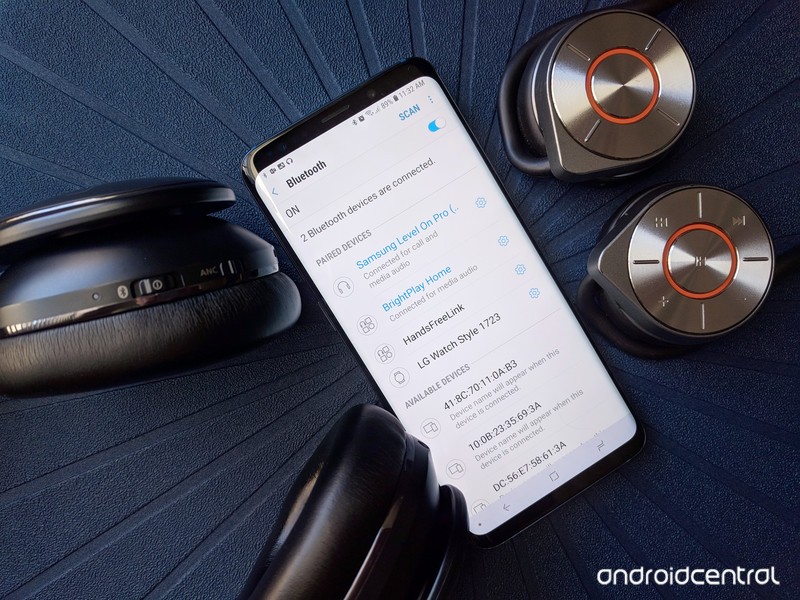
Samsung’s brought some Bluetooth magic to the Galaxy line with Dual Audio.
We’ve all tried to share what we’re listening to with someone. We’ll split earbuds with our partner while watching a movie on a flight, and it seems romantic, right? Then reality sets in, and it’s just awkward. It’s cramped. It’s also gross because you’re sharing nasty earbuds.
There’s a better way to share your listening, and you can both have your own headphones for it. It’s called Dual Audio, and it’s one of the best Samsung Galaxy S9 features you’ve never heard about — even though it was introduced last year on the Galaxy S8, S8+ and Galaxy Note 8.
Here’s how it works.
Dual Audio allows you to send your media audio to two different Bluetooth devices at once. This means that not only can you use two pairs of headphones at one time, but you get to ditch the wires, too! After pairing both Bluetooth headphones to your Samsung Galaxy S9, you just need to enable Dual Audio so that both phones can receive the media audio at once.
Open Settings.
Tap Connections.
Tap Bluetooth.
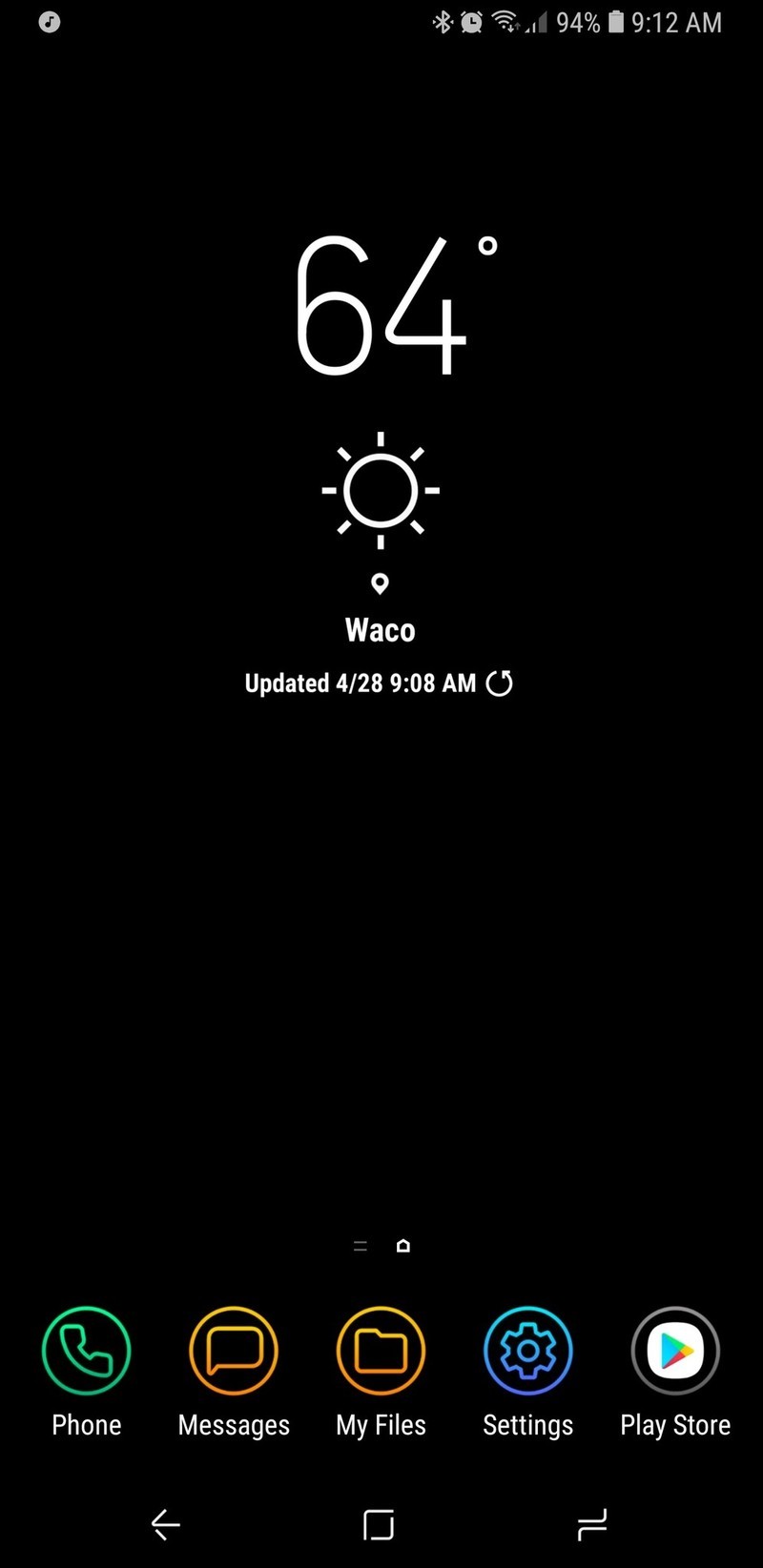
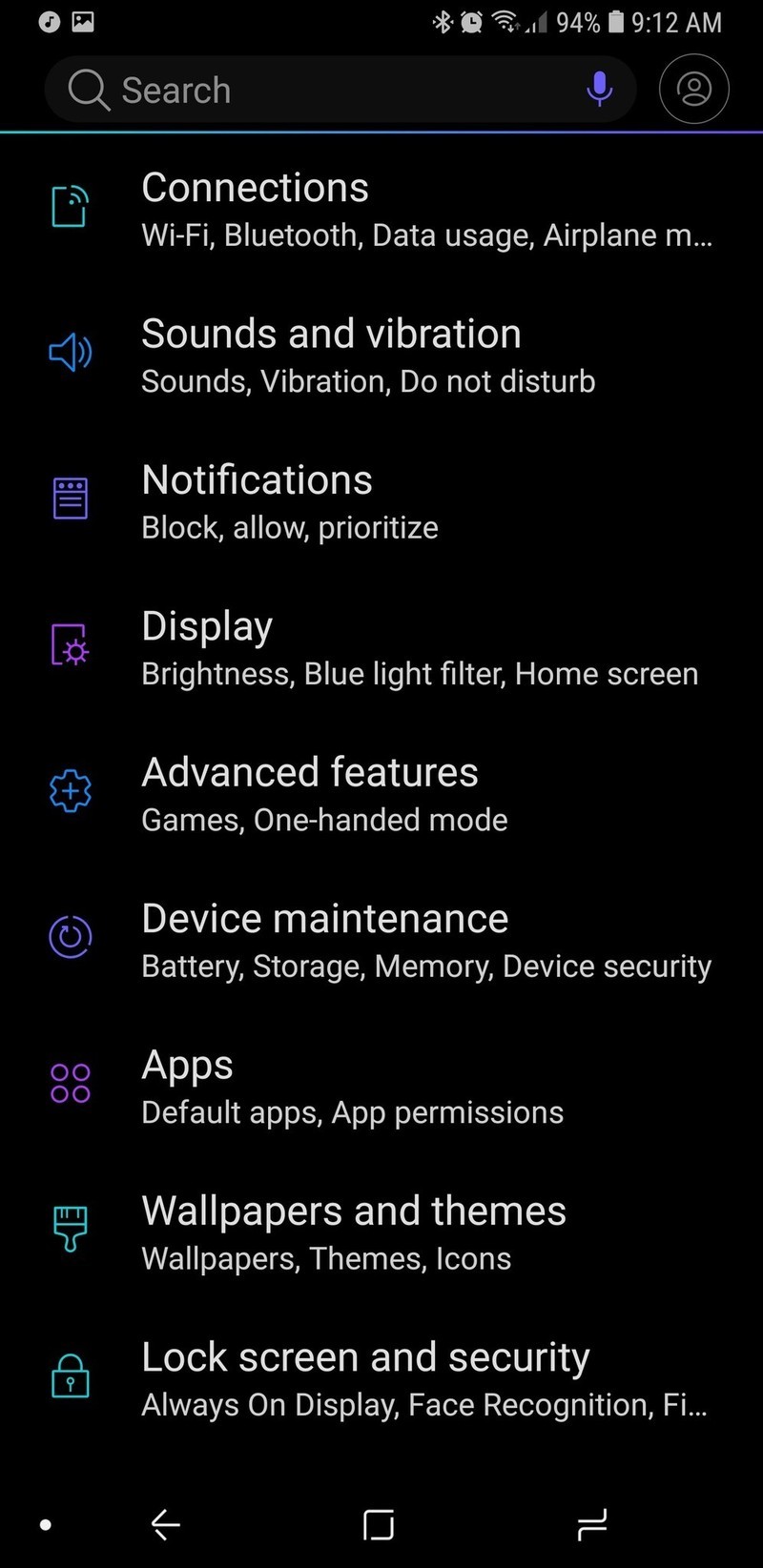
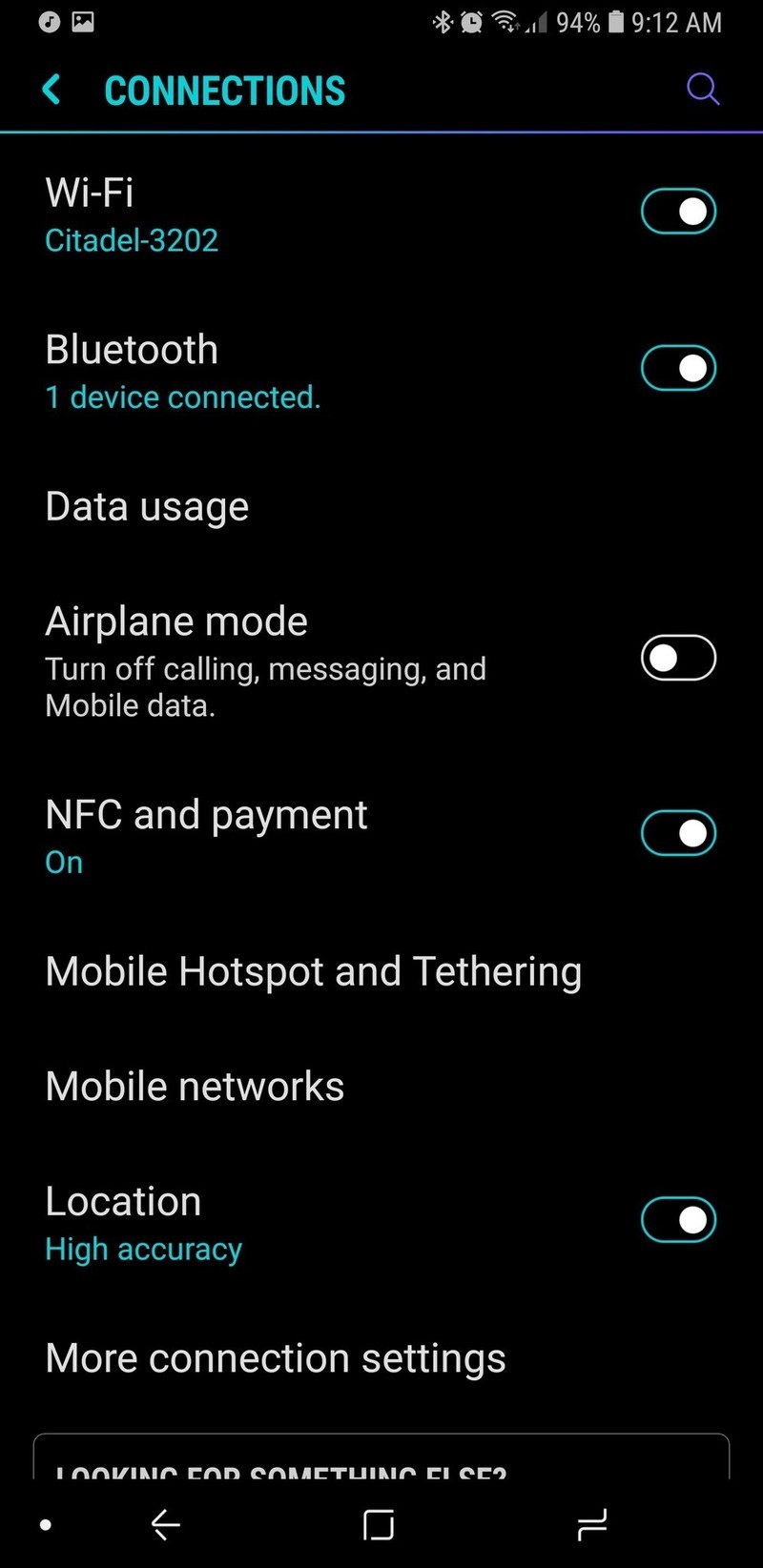
Tap the three-dot menu icon in the top right corner of the screen.
Tap Dual audio
Tap the toggle in the top right corner of the Dual audio page.
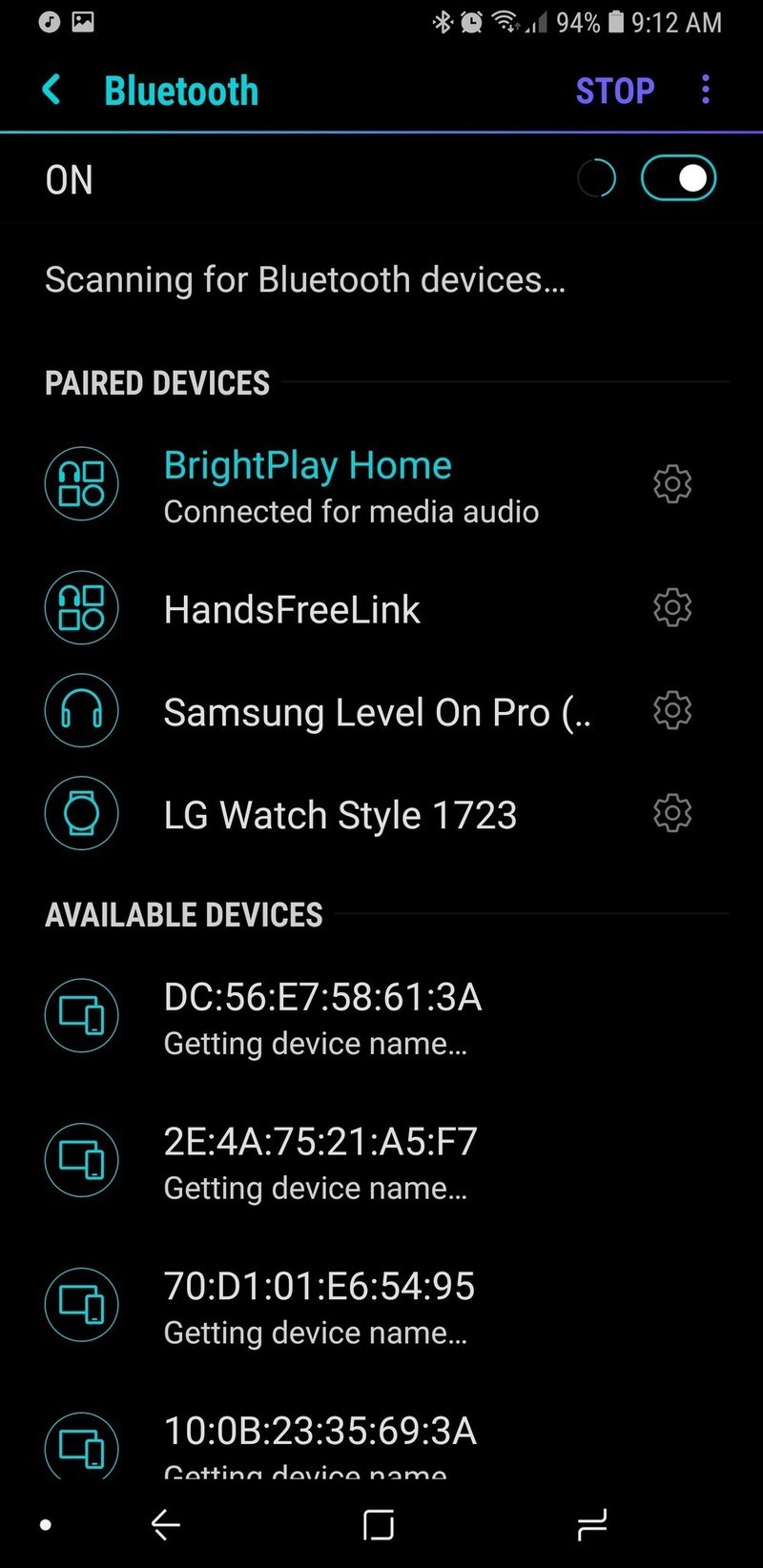
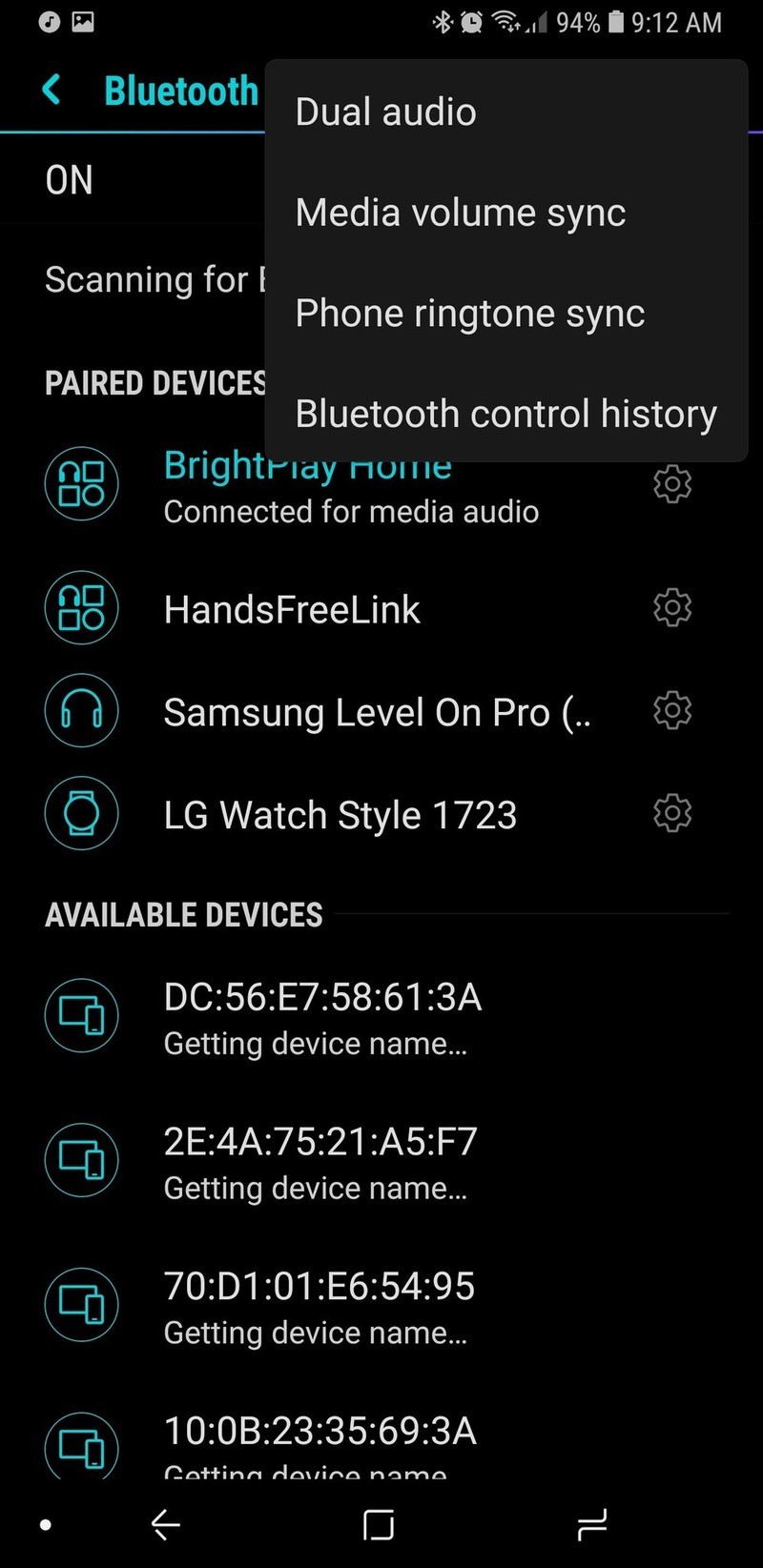
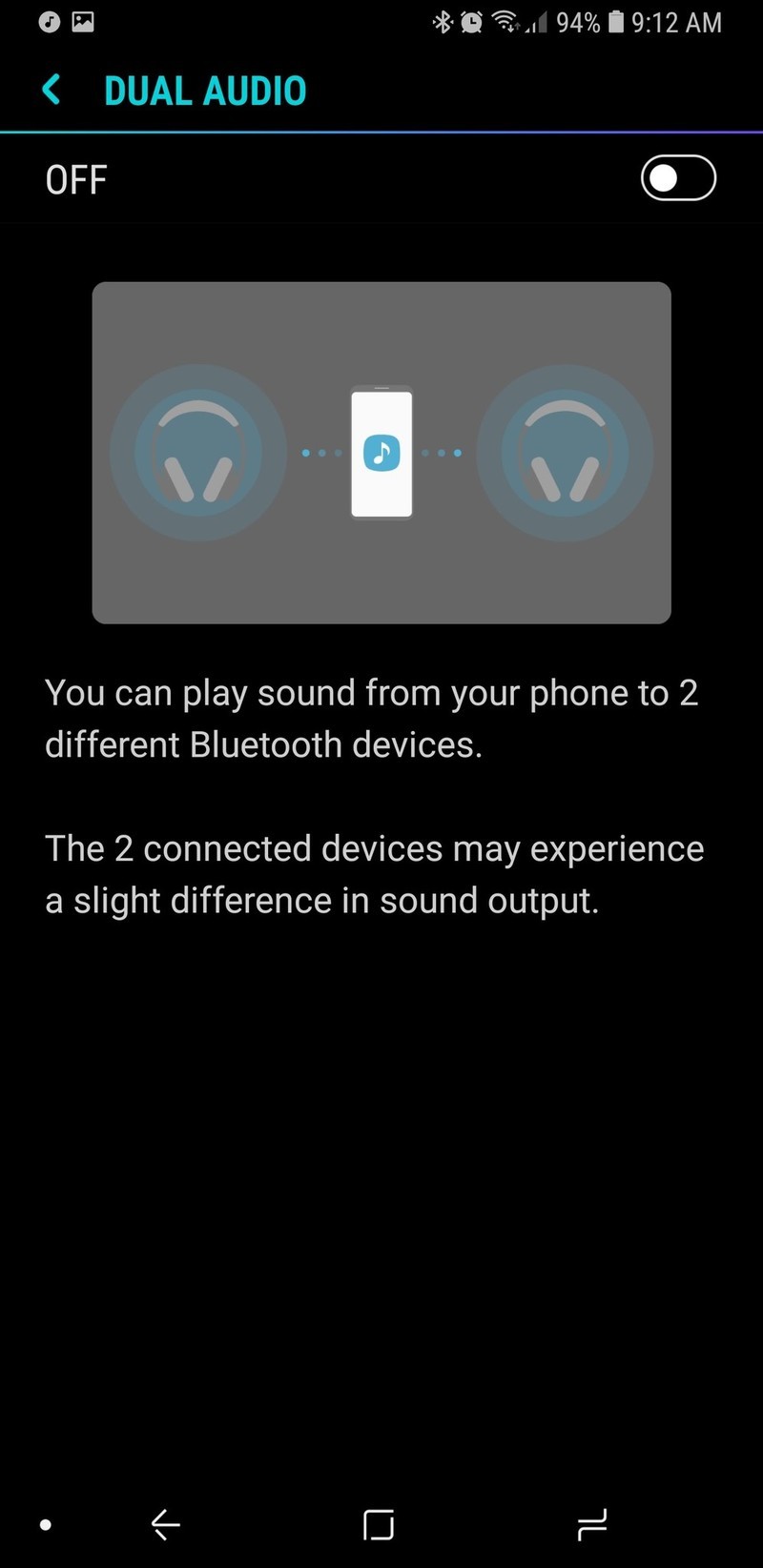
It’s worth noting that there may be some slight differences in audio between two headphones, such as slight delay on one or the other. Samsung doesn’t have any calibration tools to fix this, the way Google’s Chromecast Audio does, so it probably won’t work well if you use it with two speakers in the same room. The primary function here is to let two Bluetooth headphones hear what you’re listening to at the same time, like if you’re watching a movie on a flight or jamming out to Spotify.
Even if you don’t plan to share your Bluetooth with anyone else, having Dual Audio can be useful to keep on. For instance, if you forget to turn off your Bluetooth headphones before getting into the car, Dual Audio can let the music play over both your head unit and the headphones you don’t want to dig out of your backpack.
Samsung Galaxy S9 and S9+
- Galaxy S9 and S9+: Everything you need to know!
- Galaxy S9 review: A great phone for the masses
- Complete Galaxy S9 and S9+ specs
- Galaxy S9 vs. Galaxy S8: Should you upgrade?
- Join our Galaxy S9 forums
Verizon
AT&T
T-Mobile
Sprint
Cambridge Analytica is shutting down following Facebook scandal
Today, Cambridge Analytica was shut down following the Facebook scandal and subsequent investigations, The Wall Street Journal reports. During a conference call today with the tech firm’s employees, chairman Julian Wheatland of parent company SCL Group announced the news, according to Gizmodo. But it isn’t just the tech firm: SCL Group is closing down too, its founder Nigel Oakes told The Wall Street Journal. Shortly after the news broke, Cambridge Analytica itself issued a press release announcing it and SCL would stop operating, and the former would begin bankruptcy proceedings.
Due to the ongoing investigations and ongoing scandal, Wheatland said according to a documents Gizmodo received, the corporate board determined that rebranding Cambridge Analytica was “futile.” The loss of reputation and clients was too costly. Workers were instructed to return their keycards immediately.
Cambridge Analytica was struggling to emerge from under the scandal, but reports and inquiries have kept expanding the firm’s privacy sins. Twitter admitted it had sold user data to the researcher who had originally passed along Facebook personal info to Cambridge Analytica, though the latter denied it received any from the former. Combined with evidence of suspended CA CEO Alexander Nix’s blackmail tactics and involvement with the Trump campaign, along with the eventual hearing before Congress, it’s hard to argue with SCL Group’s decision to deem the firm beyond salvaging.
In its press release, Cambridge Analytica maintained its innocence and “has been vilified for activities that are not only legal, but also widely accepted as a standard component of online advertising in both the political and commercial arenas.” While its own internal investigation concluded that allegations against the company weren’t factually supported, the “siege of media coverage has driven away virtually all of the Company’s customers and suppliers,” necessitating a shutdown.
We’ve reached out to Cambridge Analytica and will add their response when we hear back.
Source: The Wall Street Journal, Cambridge Analytica
Facebook trained image recognition AI with billions of Instagram pics
Training deep learning models to recognize images, as well as objects within those images, takes quite a bit of effort. Often, each training image has to be labeled by humans and when you’re using millions of images, that process becomes rather labor-intensive. Scaling up to billions of images becomes nearly impossible. So, Facebook has been working on a way to train deep learning models with limited human supervision. Instead, its researchers have turned to public images that are, in a way, already labeled — with hashtags.
With this method, Facebook researchers and engineers trained image recognition networks with up to 3.5 billion Instagram images labeled with as many as 17,000 hashtags. After training the computer vision system with one billion images and 1,500 hashtags, it was able to achieve 85.4 percent image recognition accuracy on the popular benchmarking tool ImageNet. It beat out the previous state-of-the-art model, which achieved an accuracy rating of 83.1 percent.
The work shows that weakly supervised training is a valid option moving forward, opening up deep learning model training to larger data sets and, possibly, more accurate image recognition and classification. Better image recognition could improve AI-generated audio captions of photos for the visually impaired, but Facebook says there are other useful applications as well. Using hashtags as labels for computer vision could impact how Facebook ranks images in feeds and improve an AI system’s understanding of video footage.
“As training data sets get larger, the need for weakly supervised — and, in the longer term, unsupervised — learning will become increasingly vital,” said Facebook. “Understanding how to offset the disadvantages of noisier, less curated labels is critical to building and using larger-scale training sets.”
Click here to catch up on the latest news from F8 2018!
Source: Facebook (1), (2)
 AIVAnet