


Amazon Alexa: Everything you need to know about the heart of the Echo
You wouldn’t have the Amazon Echo (or Echo Dot, or Echo Show, or whatever) without Amazon Alexa. Here’s what you need to know about the two.
Latest News
April 18, 2018 — A new Call of Duty skill delivers personalized coaching, tips on objectives to complete, and more
We don’t blame you if you never thought of pairing Alexa with Activision’s Call of Duty: WWII, but someone apparently did and made a skill just for that.
The new Call of Duty Alexa Skill can connect to your Call of Duty account, and after doing so, you can ask your Echo about how to improve your game based on the last match you just played, get updates on new Contracts you should complete, see which friends are playing, and more. Activision says the skill allows for personalized responses to over 2,500 questions and can dish out 250,000 responses using a custom “solider” voice.
Although it’s still in beta, you can start using the skill right now by enabling it and then saying “Alexa, Ask Call of Duty ___”
What is Alexa?
Amazon Echo. Or Alexa. They’re one and the same, really. That is, an Amazon Echo without Alexa really isn’t any more than just a speaker. And Alexa without a speaker is just … Well, nothing.
Confused yet. I don’t blame you. Let’s explain the difference this way:
Echo is hardware, Alexa is software
Amazon Echo — and all of its permutations — is hardware. Alexa is software. She (and I have zero problem if you refer to Alexa as a she) is the brains behind the Echo, and all the things you can do with it. And because she’s software, she’s available on more than just Amazon’s own devices.
Anyone can put Alexa on anything. You can make your own Alexa speaker for just a few bucks and a little bit of nerdy know-how. There are third-party Alexa speakers that look like Amazon’s own Echo Dot. There are third-party Alexa speakers that look like speakers. You can get Alexa baked into a smart thermostat. She’s built into the HTC U11 smartphone.
The point is, Alexa can be built into pretty much anything these days.
But that’s just half of the story.
It’s all about the Alexa Skills, baby …
Alexa starts out by knowing what Amazon tells it. She already knows how to tell the time, and set alarms and timers, or answer general questions and read headlines. But Alexa also has the ability to learn more. A lot more.
Or, more precisely, you have the ability to teach Alexa new things.
See all of Amazon’s Skills here
Amazon calls these things “Skills,” and there are hundreds of them.
Want to teach Alexa to turn on your smart lights, or open your garage door, or do anything she doesn’t already know how to do? You need a Skill. That’s where developers come in. Amazon has made it so that anyone can write an Alexa Skill, and companies and their developers have been doing so for years now.
Think about the things you do every day. Listen to satellite radio? There’s a Skill for that. Lock your house after you’re already at work? It’s a little daunting, actually. There are hundreds and hundreds of Skills, of varying degrees of usefulness. (Dog facts, uh, OK.)
How to enable and disable Alexa Skills
Support for Sonos speakers
Amazon Echo speakers are pretty decent, but Sonos speakers are better! The latest version of the Sonos One speaker has Alexa built right in, making it arguably the best sounding Alexa speaker you can buy.
If you’ve already got a bunch of Sonos speakers set up around your home, don’t fear — simply use the Sonos Skill and you’ll be able to control all the different speakers around your home. It’s not the greatest experience with some very mixed reviews from users, but it’s still the best way to connect your high-end smart speakers with Alexa.
Alexa Routines makes life easier — now with music!

One of the coolest parts of smart speakers is the ability to get the latest news, play music, and control your connected smart home devices all with your voice. With Alexa and your Amazon Echo products, you have the option to do so on an individual basis or group actions together using Routines.
Routines are built right into the Alexa app and are entirely customizable. You can create your own Alexa Routines right in the app which can be triggered by a phrase you say (ex: “Alexa, good morning”) or at a scheduled time.
Each Routine can trigger a combination of up to seven different action types, which are each customizable to some extent depending on what you need Alexa to do:
- Alexa Says: Mostly silly stuff. You can set Alexa to say a specific greeting, wish you a happy birthday, sing a song, or tell a story or joke.
- Music: The latest feature to be added to Routines, you can use an Alexa Routine to trigger music. For example, saying “Alexa, it’s party time” could automatically play your favorite party playlist on Spotify.
- News: Adding this to a routine will trigger Alexa to read out the latest Flash Briefing news reports.
- Smart Home: Get Alexa to toggle or control your connected smart home products. For example, I have a routine set up for when I say “Alexa, I’m leaving” that turns off all the smart lights in my house.
- Traffic: To add traffic updates to an Alexa routine, you’ll first need to dive into the Alexa settings and enter location information for your daily commute.
- Volume: You can set a routine to automatically adjust Alexa’s volume. For example, if you’re a really heavy sleeper you can have Alexa crank the volume when you say “good night”.
- Weather: Adds a weather update to your custom routine.
Alexa calling and messaging
All of that connected home stuff is great, and it’s important. But one of the more exciting avenues of potential lies in Alexa Calling and Messaging. As the name implies, it’s the ability to make calls and leave messages through Alexa. From the outset, it works with Echo devices and the Alexa app on phones and tablets. If you have an original Echo or Echo Dot, you can make voice calls. If you have an Echo Show, you can make video calls, or even “drop in” on a close acquaintance (they have to approve you first) without them having to hit a single button.
That’s where these $50 Echo Dots really make a lot of sense. Now Amazon has a means for you to communicate not just on that little Dot, but also on your phone. It’s two birds with one stone, and it’s really just the start of things. And it makes up for where Amazon failed in trying to make its own phone. Folks didn’t want a Fire Phone, but they do want an Echo — especially an inexpensive on — and in buying one they have to put the Alexa app on their phone.
It’s not quite a benevolent Trojan Horse, but it’s close.
Read: Amazon is getting close to being the king of all messaging
Update May 2018: Added sections on Sonos speaker support and Routines.
Amazon Alexa
- Which Amazon Echo should you buy?
- Get more Alexa Skills
- How to enable and disable Alexa Skills
- How to customize Flash Briefing
- How to get sports updates
- How to sync your calendar with Alexa
- How to shop with Alexa
- Send voice messages with Alexa
See more at Amazon
BlackBerry KEY2 shown off in hands-on photo
Ladies and gentlemen – meet your (possible) KeyONE successor.
The BlackBerry KeyONE turned out to be one of 2017’s most unique smartphones, and for some folks, remains as their go-to daily driver. It’s about time that we’re due for a successor to the device, and a new hands-on photo appears to reveal just that.

Shared in the CrackBerry Forums, the photo to the right showcases what’s apparently the KeyONE’s sequel. We can see that it retains the same general shape as last year’s phone, with the most notable changes including a matte finish for the keyboard, a new key whose functionality is currently unknown, and keys that have a larger and flatter look compared to the KeyONE.
The same image was also shared on Chinese social network Weibo, in addition to what’s likely a photo captured with the new phone with “BlackBerry KEY2” branding found near the bottom. The KEY2 name hasn’t been confirmed by BlackBerry, but this is one of the strongest contenders for what it’ll probably be called.
We still have no word on pricing or availability for the BlackBerry KEY2, but based on the current rumor mill for the phone, we shouldn’t be too far off from an official announcement.
Based on what we’re seeing here, are you excited for the phone?
Why I’m still using a BlackBerry KEYone in Spring 2018
BlackBerry KEYone
- BlackBerry KEYone review
- KEYone vs. Priv: Battle of the BlackBerry keyboards
- BlackBerry KEYone specs
- The latest KEYone news
- Join the discussion in the forums
Amazon
Best Buy
BlackBerry Mobile
How to completely disable Bixby

Get rid of the Galaxy S9’s most disappointing feature.
Ever since Samsung announced the Galaxy S8 with its onboard assistant, Bixby, people have been asking for ways to disable it and forget the button ever existed in the first place. With the Galaxy S9, that chorus is even louder.
While the hardware’s not going anywhere, we can definitely do something about the software. Here’s how to get rid of Bixby Voice and, if you’re using Samsung’s launcher, Bixby Home.
Why do you want to disable Bixby?
One of the biggest frustrations with the Bixby button is its placement; the button is right under the volume keys and nearly directly opposite the power buttons. On larger phones like the Galaxy S9+ and Note 8, this often leads to accidental presses and unintended Bixby launches, especially when double-pressing the power button to launch the camera.
The Bixby button is also not mappable to another action; Samsung wants you to use it for Bixby, or not at all. This isn’t ideal, so many people will inevitably choose to just forget it exists and move on.
How to disable Bixby Voice
Bixby is divided into two distinct categories: Bixby Voice and Bixby Home. Voice is the feature that lets you get stuff done by holding down the Bixby button for a moment, walkie-talkie-style. It’s useful but can get frustrating when it doesn’t work, so you’re going to want to turn it off before you disable Bixby Home (which is accessed by short-pressing the Bixby button).
While on the Samsung home screen, swipe right until you get to Bixby Home.
- Alternatively, press the Bixby button on the left side of the phone, right under the volume rocker.

On the top menu bar, tap the three vertical dots.
Tap Settings.
Uncheck Bixby Voice.

That’s it! Now Bixby Voice won’t bug you when you accidentally hold down your finger on the Bixby button. Next, we have to prevent the Bixby button from accessing Bixby Home.
How to disable the Bixby button
Now that Bixby Voice has been disabled, we have to disable Bixby Home from popping up whenever we accidentally press the side button.
Press the Bixby button on the left side of the phone, right under the volume rocker.
In the top menu bar, tap the Settings button (looks like three cogs).
Uncheck Bixby Key.

That’s it! Now when you press the Bixby button once, it won’t open the Bixby Home
How to disable Bixby Home from the home screen
Now, the final step to disabling Bixby entirely is to disable Bixby Home access from the home screen which, by default, puts it on the left-most panel.
From the home screen, hold down on empty space until the menu appears.
Swipe to the right to reach the left home panel.
Disable Bixby Home.

That’s it! Now neither the Bixby button nor the Bixby Home screen will work and you can move on with your life, Bixby-free.
Should you want to access Bixby again, though, you’ll need to follow these steps in reverse, first enabling Bixby Home from the launcher and then the Bixby button from inside the menu.
Questions? Comments?
Got any questions about this process, or just want to share your sheer joy at being able to disable Bixby? Let us know in the comments below!
Update, May 1: This article has been updated with the latest information about how to disable Bixby.
Samsung Galaxy S9 and S9+
- Galaxy S9 and S9+: Everything you need to know!
- Galaxy S9 review: A great phone for the masses
- Complete Galaxy S9 and S9+ specs
- Galaxy S9 vs. Galaxy S8: Should you upgrade?
- Join our Galaxy S9 forums
Verizon
AT&T
T-Mobile
Sprint
Pick up Anker’s ultra-slim Bluetooth keyboard for just $13 at Amazon
Grab one before the discount ends.

Anker is offering its black ultra-slim Bluetooth keyboard for $12.99 with coupon ANKER761, a savings of $7. If you prefer the white version, you can pick it up for the same price with coupon code ANKER762. The keyboard works with Windows and Mac computers, as well as Android and iOS devices, and has shortcut keys that work with all four operating systems.
It’s 30% smaller than other keyboards and weighs in at just 6.7-ounces. The keys are quiet and comfortable to type on, and the battery lasts for over three months on a single set of AAA batteries. It doesn’t come with any batteries, so you’ll want to make sure to have some on hand.
Anker backs the keyboard with an 18-month warranty.
See at Amazon
Take your Amazon Echo (2nd gen) wherever you go with the SKY battery base
Pre-orders are live right now for just $49.95.
Amazon’s 2nd-generation Echo is one of the best values in the smart speaker market, and if you’ve been longing to free it of its power cord and use it as a portable speaker, a new product from Ninety7 now has you covered.
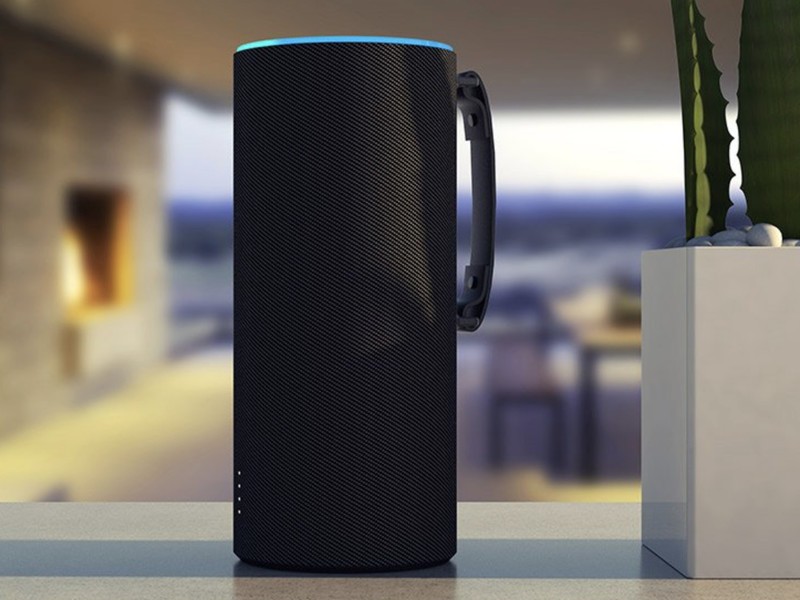
Ninety7 just announced the SKY battery base for the 2nd gen Echo, and it allows you to take the speaker anywhere with you for up to 8-hours of regular use – similar what we saw last year with the LOFT base for Google Home.
There are four LED lights on the front of SKY indicating how much battery life you have left, and a convenient handle on the back allows you to quickly pick it up for whatever adventure lies ahead. The SKY does add a bit of height to the Echo, but it’s nothing that hinders its portability.
Pre-orders for the SKY battery base are live right now, and you can currently reserve one for yourself for just $49.95. Shipments are expected to go out in early June, and once the pre-order phase is over, the price will go up to its regular $59.95 MSRP.
See at Ninety7
Amazon Echo
- Tap, Echo or Dot: The ultimate Alexa question
- All about Alexa Skills
- Amazon Echo review
- Echo Dot review
- Echo Spot review
- Top Echo Tips & Tricks
- Amazon Echo vs. Google Home
- Get the latest Alexa news
See at Amazon
Lumos bike helmet adds Apple Watch gestures to control turn signals
It’s been almost three years since we first came across the Lumos smart cycling helmet, which got our attention with its cunning automatic brake lights and wirelessly-controlled turn signal indicators. The helmet has since been shipping as of late 2016, but the Hong Kong startup didn’t stop there. Today — which happens to be the first day of Bike Month — Lumos is releasing an update that adds gesture control for the helmet’s blinkers via Apple Watch, along with Apple HealthKit integration for automatic cycling tracking.
To enable gesture control, the user simply has to install the iOS and watchOS apps, pair the iPhone with the helmet over Bluetooth, calibrate the watch with your left- and right-turn gestures using your watch-wielding hand, then you’re good to go. The turn indicators will continue to blink until you shake your hand. All of these actions should be much more intuitive — or at least easier to access — than the original wireless remote control.

As part of the update, the Lumos helmet can also be integrated with Strava and Apple Health apps, which enables automatic cycling tracking in iOS. For those who want to check out this $180 helmet in person, you’ll soon be able to see it at one of the 300 Apple Stores across the US and Europe, or you can simply order online.
Source: Apple
Science takes a step toward coding virus-resistant human cells
In 2016, scientists unveiled one of the most ambitious genetic engineering efforts yet: Genome Project-write wanted to do nothing less than create (not just edit) human cells immune to all known viruses. There was a rough start that included dramatic funding shortfalls, but it now looks like the initiative is getting underway in earnest. Harvard’s Wyss Institute and French immunotherapy company Cellectis have formed a partnership that will see Cellectis supply genome engineering tools to a Wyss team led by George Church. They’ll use custom enzymes to remove redundant codons (nucleotide “triplets” that produce amino acids for specific proteins) and prevent viruses with those codons from hijacking cells to produce copies of themselves.
It’s an important deal, but you won’t want to pop open the champagne just yet. STAT noted that the project needs to make a whopping 400,000 changes to the 20,000 genes in the human genome (for context, Church’s team made 321 changes to E. coli bacteria). And this won’t be affordable in the near term — it would currently cost about $30 million to recode a human genome, and even the plans to reduce that cost by a thousand fold would still make it a non-trivial exercise. There’s a good reason why Genome Project-write gave itself 10 years to reach its goal, and there’s no certainty the group will accomplish its goal in time.
Still, it’s easy to see why they want to try. Virus-proof cells could be used for stem cell therapies that could fend off dangerous viruses like HIV. There are broader applications, too. Scientists could replace codons that are more likely to produce cancerous tumors, and the approach could be used in non-human cells (such as virus-resistant crops). It wouldn’t mark an end to illnesses, but you might be far less likely to contract an illness or to deal with its effects.
Source: BusinessWire, STAT
Ford’s smart windows can help blind passengers take in the view
Ford has created a device that could help visually impaired travelers get a sense of what the scenery around them looks like. It’s called “Feel the View” and it turns a window into a vibrating depiction of what’s outside. First, with the push of a button, the device snaps a picture of the window’s view. It then turns that picture into a grayscale image and each shade of gray corresponds to a vibration of different intensity. Feel the View can generate up to 255 different levels of vibrations. The blind or visually impaired rider can then touch the window and feel what the outside looks like.
Along with the vibrations, an AI-powered vocal assistant connected to the car’s audio system can give a short description of what’s being felt. In the video below, you can see the vocal assistant tell a rider that she’s touching a snowy mountain as she traces it on the window. “We seek to make people’s lives better and this was a fantastic opportunity to help blind passengers experience a great aspect of driving,” Ford Italy spokesperson Alù Saffi said in a statement. “The technology is advanced, but the concept is simple – and could turn mundane journeys into truly memorable ones.”
Ford says Feel the View — which was conceived and developed by Ford’s Italian team, GTB Roma and Aedo, a start-up interested in devices for the visually impaired — is a prototype. We’ve reached out to Ford to see if there are plans to further develop and manufacture the device and we’ll update this post when we hear more.
Source: Ford
Two ‘Mega Man’ classics will be re-released on cartridge
Fans of Mega Man are being spoilt rotten at the moment. The game’s 30th anniversary has seen a slew of announcements, including the forthcoming arrival of Mega Man 11 and two new Mega Man Legacy Collection compilations. Now Capcom and iam8bit are upping the ante with the release of limited edition cartridges for Mega Man 2 and Mega Man X.

Each cartridge costs $100 is available in one of two colours, opaque light blue or translucent glow-in-the-dark blue (although which you’ll get is a surprise). They’re not just collector’s items either, as both are fully playable. Pre-order on iam8bit.com now for shipping in September, but be quick, each game is restricted to a run of just 8,500 units.
Lumos Smart Bike Helmet With Smart Gesture Turn Signal Support Now Available From Apple Retail Stores
The Lumos Smart Bike Helmet, which got its start as a Kickstarter project back in 2015, is the first bike helmet to make its way to Apple retail stores.
Available from the online Apple Store and in retail locations in the United States and Europe as of today, the $180 Lumos Helmet has integrated LEDs to keep you safe when riding at night and built-in gesture controlled turn signals.
There are 10 white LEDs on the front, 38 red LEDs on the back, and 11 amber LEDs that serve as the aforementioned turn signals. You control the turn signals built into the helmet with a connected Apple Watch, with the helmet able to interpret your hand gestures to activate the lights on the helmet.

Previously, the helmet’s built-in turn signals were controlled via a remote attached to the handlebars of a bike, but the new Apple Watch integration makes it simpler than ever to signal your intentions to drivers on the road.

The Lumos Helmet also has a beta feature that’s able to detect when you’re using the hand brake on your bike, flashing the lights on the helmet to a bright red.
Through a Bluetooth connection to the iPhone, the Lumos Helmet records your bike riding activity and uploads it to the Apple Health or Strava app.

Design wise, the helmet is safety certified and meets gold standard safety certifications in the United States and Europe, and it has been created to be durable and weatherproof so it can be used in rain, snow, and fog. There’s just a single size available, which can fit most adult head sizes in the range of 21.3 to 24.4 inches.
The Lumos Helmet can be purchased from the online Apple Store or through an Apple retail store for $179.95.
Tag: Apple retail
Discuss this article in our forums
 AIVAnet