


The iPhone Do Not Disturb While Driving feature cut down on distracted driving
Julian Chokkattu/Digital Trends
Despite the threat of fines, the emergence of ad campaigns, and even the introduction of new features, it would appear that we’re having quite a bit of trouble when it comes to cutting back on phone-related distracted driving. As per a new study based on data from Everdrive, an app from car insurance company Everquote, 37 percent of car trips include “at least some significant phone usage” while the car is in motion. In fact, during these trips, folks were apparently using their phones for as much as 11 percent of the time, which translates to about three minutes during a 29-minute average drive.
The Everdrive study, which was released on Wednesday, April 17, took into account 781 million miles of driving data collected from sensors like built-in GPS and accelerometers in your phone. And while the results are sobering, there does appear to be one potential fix — Apple recently released a “Do Not Disturb While Driving” feature in iOS 11, and this can apparently reduce phone usage on the road by up to 8 percent.
The feature detects when you’re in a moving vehicle, and automatically shuts off all notifications, and allows you to set an automatic response to incoming messages letting folks know that you’re temporarily out of commission because you’re operating heavy machinery.
Luckily, it would seem that folks are actively using the new feature. In its study, Everquote found that 70 percent of participants have kept the DND While Driving option turned on since it was released last September. Consequently, between September 19 and October 25, those who used DND on their iPhones used their mobile devices 8 percent less than those who did not have a similar feature.
Another great way to prevent distracted driving, of course, is to mandate it by law. The study found, unsurprisingly, that states with laws that forbid using a phone while driving also saw the least instances of phone use while driving — in fact, the states with the best non-distracted driving statistics included Montana, Wyoming, South Dakota, Alaska, and Idaho.
On the other hand, the worst states for distracted driving were all in the East Coast or northeast — they were Maryland, Delaware, Pennsylvania, Rhode Island, and Connecticut.
Editors’ Recommendations
- What is a hard drive?
- The best external hard drives
- The best solid state drives
- What’s the difference between four-wheel drive and all-wheel drive?
- Shift it yourself: How to drive stick in a manual transmission car
Strava’s ‘Relative Effort’ levels the playing field across a variety of sports
The eternal debate of who works out harder — runners, cyclists, or swimmers — may finally be over. A new premium feature that arrived for Strava looks to level the playing field in terms of how we measure the intensity of our activity while exercising, making it easier than ever to compare different types of workouts. Best of all, these new features will not only compare the different types of activities you do as part of your fitness regimen but can also compare results across workout groups to determine who was working the hardest.
Dubbed Relative Effort, the new feature is being called “the ultimate activity metric” by Strava. It is built upon the research of Dr. Marco Altini and uses heart-rate monitoring to offer a new take on how to compare different types of activities. According to Strava, the metric is highly accurate for running and cycling and has been shown to offer consistent measurements in other types of sports, too.
According to Strava, Relative Effort also works well for swimming, skiing, indoor rowing, and most other aerobic activities. Any data collected while using a heart-rate monitor while doing those types of workouts will work with this new system, providing users with insights on how all of their workouts compare with one another, even though they are completely different in terms of intensity, duration, and distance.
When they log in to their Strava accounts starting, premium users will see Relative Effort as a new option on their web dashboard or mobile app (iOS/Android). A simple chart will offer a visual display of an athletes weekly activity compared to their recent averages. Tapping on that graph will allow them to dig a bit deeper into their weekly numbers, providing weighted averages for the past 12 weeks. The data can then be used to offer suggestions on how to maintain current fitness levels, increase workouts, or to allow more recovery time.
But, the Relative Effort feature can be used in other ways. For instance, Strava says that participants in regular cycling and running groups can use the feature to compare their numbers, which provide a more accurate measurement of not who is the fastest, but who is working the hardest and putting more into their workout. In this way, it has the potential to completely change who has bragging rights among friends.
Editors’ Recommendations
- Wear OS vs. Apple Watch: Which one will ‘wow’ your wrist?
- Here’s everything you need to know about Apple’s new education tools
- How to choose an iPad: A practical guide to Apple’s tablets
- CAT’s FLIR-packing S61 Android smartphone is your tough new best friend
- Watch a drone lose control and crash onto Apple Park’s solar roof
Huawei P20 + P20 Pro review: Camera kings

Huawei’s latest flagships are the best Android phones you can’t buy in the U.S.

Smartphones — even shiny, expensive, high-end smartphones — are a commodity. And that means it’s hard to justify what makes them worthy of attention, and perhaps even your money, compared to all the competition. But with the Huawei P20 and P20 Pro, the value proposition is pretty simple: Gorgeous, iridescent glass construction, and two of the best phone cameras out there.
But beyond aesthetics and photography, a big reason for Android fans to pay attention to the P20s, as opposed to any other Huawei phone, is the software. Huawei’s EMUI, though not radically redesigned in its latest incarnation, has reached an important milestone in terms of maturity and stability. That’s not a sexy new feature you’ll find in any ads for these phones, but it’s just as important to the overall experience — and a big part of what makes these phones worth buying.
About this review
We’re publishing this review after a little over two weeks with the Huawei P20 and P20 Pro. I (Alex Dobie) have been using the P20 Pro (model CLT-L29) on the EE network in the UK, and the P20 (model EML-L29) on the Vodafone UK network, mainly in areas with average or above 4G LTE reception. Our phones were running software build 106, which Huawei tells us is not fully finalized.
Our review devices were dual-SIM models; the versions sold in most of Europe are single-SIM.
Moving pictures
Huawei P20 + P20 Pro Video Review
Oh so pretty
Huawei P20 Hardware
As in previous years, Huawei has two P-series flagships. You’ve got the P20 with a 5.8-inch display, and the P20 Pro with 6.1-inch screen. The aspect ratio is a slightly odd 18.7:9, because, as you can’t fail to have noticed, both have iPhone X-style screen notches up top. However, the notch is considerably smaller than the iPhone’s, since it just needs to house the earpiece, front-facing camera and a a couple of other sensors. If the notch bothers you, you can “disable” it in software, so you just see your status bar icons on a black background.
As we’ll note later, the notch does manage to trip up a few apps, including Android staples like Instagram. Outside of one or two bugs in a couple of apps, though, the notch really hasn’t bothered me at all. I’m not in love with it as a way to maximize screen real estate — there are some compromises there, like the way the split status bar can become cramped with lots of pending notifications. Overall, I don’t feel like it’s particularly a good thing or a bad thing… it’s just a thing. It’s there; I can deal with it.
If the front of the P20 is a demonstration of the design compromises necessary in a 2018 flagship, the back is a display of unrestrained spectacle.

From the front, a few necessary compromises. Around the back, unrestrained spectacle.
In other words, this is where the P20s quite literally shine.
The P20 Pro has a gorgeous curved glass panel that blends cleanly into the polished metal rim. There are a few different colors available including blue and black, but I’ve been using the “twilight” gradient color — and trust me, this is the one you want. It’s extremely shiny — a bit of a fingerprint magnet, too — but the twilight finish looks phenomenal, starting off as purple up top, and shifting through blue to a blue-green hue lower down. The effect is topped off by an iridescent transition between these three colors that’s most noticeable around the sides.
This is nothing like the generic, by-the-numbers phone designs we were seeing from Huawei just a couple of years ago.
For the first time, Huawei has built a phone that’s not only smart and well-built, but really beautiful.

Over on the standard P20, I’ve been using the “pink gold” color, the finish of which also has a slight color gradient, and some unique color-shifting properties of its own. The iridescent effect isn’t quite as overt as the twilight P20 Pro, but it still has an almost rainbow-like pearlescent sheen when it’s tilted through the light, and from the right angle, it’s stunning. The regular P20 doesn’t have the same curved glass on the back, though — unfortunately there’s a quite noticeable plastic join between the metal and the glass. That’s not a huge deal, but it does make it look just a bit less premium than the Pro, even if the in-hand feel is largely the same.
There’s also a pronounced camera hump around the back of both P20s, which I don’t particularly mind, despite the fact that this area quickly accumulates dust and lint when you take it out of your pocket.

On the inside, the hardware specs of P20 and P20 Pro also diverge a little. Both phones are powered by Huawei’s high-end Kirin 970 processor — a speedy, AI-focused chip last seen in the Mate 10 — and both have Full HD+ displays. However, the standard P20 uses an LCD panel, whereas the Pro goes with OLED, trading sharpness for a little extra daylight visibility. Neither screen is as good as the Galaxy S9’s SuperAMOLED, however, which remains the smartphone display champion.
The step up to the P20 Pro also gets you 6GB of RAM, up from 4GB in the smaller model, and full IP67-rated water and dust resistance. The standard P20, unfortunately, is only rated IP53 for splash resistance. Individually, these compromises aren’t a big deal. But overall, they clearly demonstrate why the Pro costs a couple hundred extra euros.
| Operating System | Android 8.1, EMUI 8.1 | Android 8.1, EMUI 8.1 |
| Processor | Huawei Kirin 970 | Huawei Kirin 970 |
| RAM | 4GB | 6GB |
| Storage | 128GB | 128GB |
| microSD | No | No |
| Battery | 3,400mAh non-removableHuawei SuperCharge | 4,000mAh non-removableHuawei SuperCharge |
| Display | 5.8-inch 2240×1080 RGBW LCD 18:9 aspect ratio | 6.1-inch 2240×1080 OLED 18:9 aspect ratio |
| Front camera | 24-megapixel f/2.0 | 24-megapixel f/2.0 |
| Rear cameras | 20MP (mono) f/1.6 + 12MP (RGB) f/1.8 1.55-micron pixels | 40MP RGB (1/1.7-inch sensor) + 20MP mono 8MP f/2.4 OIS 3X telephoto |
| Headphone jack | No | No |
| Wireless charging | No | No |
| Fingerprint scanner | Front | Front |
| Face recognition | Yes | Yes |
| Water resistance | IP53 (splash resistant) | IP67 (water + dust-resistant) |
| Colors | Twilight, Black, Midnight Blue, Pink Gold | Twilight, Black, Midnight Blue, Pink Gold |
| Weight | 165g | 180g |
| Dimensions | 149.1 mm x 70.8 mm x 7.65 mm | 155.0 mm x 73.9 mm x 7.8 mm |
There’s a radical new triple-camera setup in the P20 Pro too, compared to the P20’s dual-camera rig, which is basically an upgraded version of the cameras from the Huawei Mate 10. We’ll get to cameras a bit later in this review, but suffice to say the cameras are a big part of what makes the P20 Pro in particular so special.
Step up to the P20 Pro for extra RAM, a bigger screen, water resistance and sharper design.
A couple other caveats while we’re talking hardware: There’s no headphone jack on either P20 model, which shouldn’t be too much of a surprise given Huawei’s track record with the Mate 10 Pro. You’ll need to use the flimsy type-C dongle provided for any wired audio needs. (Unless you have a pair of Type-C buds you’re particularly fond of. By now you probably know whether the dongle life is a deal-breaker for you personally. For me, it’s an inconvenience, but not unbearable.)
And to its credit, the built-in speaker system is solid, particularly in the P20 Pro. You’ll find a Dolby-tuned audio system in both models, and the sound produced by the Pro in particular is rich and voluminous, about matching the Galaxy S9’s dual-speaker combo.
Huawei takes after Apple with its display notch, and P20 has its own answer to the iPhone X’s Face ID technology too. Huawei’s face unlock system uses the 24-megapixel front-facing camera, as opposed to Apples infra-red sci-fi laser blaster, but the results are quick and reliable. I wasn’t able to fool it with a photo, and unlocking, even in low light, was pretty speedy. The only time I could reliably trip it up was in very dark conditions, with lots of motion thrown into the mix.
As a secondary unlock method, you’ve also got the tried-and-true fingerprint scanner down below, which has worked flawlessly for me. If you want to free up even more display realestate, you can also set this up to use gestures instead of the standard Android software keys. It’s worth at least trying this feature, which uses a tap for back, a long press for home and a swipe for recent apps, but after years of using Android soft keys I found I couldn’t quite wrap my brain around it.
The fact that a fingerprint scanner is here at all is undoubtedly a good thing. But it does seem a little out of place on the front of a device that’s so focused on maximizing screen space at all costs — not least because it’s flanked on either side by two big chunks of non-functional bezel. It’s an odd blemish on what’s otherwise a beautiful device. And it does make me a tad envious of the Porsche Design Mate RS, with its in-screen fingerprint scanner. (Though as we’ll discover in our review of that device, in-screen fingerprint comes with its own set of compromises.)

It doesn’t suck
Huawei P20 + P20 Pro Software
Next, we get to the part of a Huawei phone review where I have to balance all the praise I’ve just dished out with some cautionary words about the software… right?
Well in this case, not so much. EMUI 8.1 is only a point release up from what I’ve been using on other recent Huawei phones, but the extra polish and attention to detail is a welcome surprise. A huge number of small but annoying bugs have been cleared up: UI scaling works properly. You can expand notifications on the lock screen — finally. Huawei has also tuned up its software to feel more responsive. The new phone is 60 percent more responsive and 50 percent smoother, according to its own numbers — and side-by-side with a Mate 10 Pro, it turns out you can actually tell the difference.

The new EMUI bumps up to Android 8.1, and clears up a great many small but annoying bugs.
As a bonus, the P20s’ software based on Android 8.1 Oreo, so you can use Netflix picture-in-picture — the app still requires 8.1 for that, for some reason, to the exclusion of Galaxy S9 owners. Android 8.1 also lets AI-equipped apps take advantage of the NPU through Android’s neural networking APIs.
That’s a pretty obscure and nerdy thing on the face of it, but there’s an easy way to demo what this is all about. Huawei’s own app store has an NPU-enabled demo version of Prisma, the AI photo app that normally processes its images remotely, leading to lengthy delays when changing filters. The NPU-optimized version does everything locally, and an it’s an order of magnitude faster.
Uses cases for AI hardware are still few and far between, but that’ll surely change throughout the lifespan of these phones.

In places, this still feels more like iOS than Android.
The P20 has the most polished and least objectionable version of EMUI I’ve used to date, but it remains quite heavily customized, with many visuals and behaviours that are more iOS than Android. A particular pet hate of mine is the way the lock screen only shows you notifications that have arrived since you last unlocked. There are a few bizarre visual choices too, like the way music player notifications pull colors from the app icon, not the album art. Huawei’s continuing penchant for bad-looking text shadows in many of its home screen widgets is another small cosmetic complaint.
But really, these are minor gripes, and shouldn’t detract from what is a version polished, and dare I say it even enjoyable software experience. Don’t get me wrong, I’d still drop this for stock Android in a heartbeat. It’s just that basically all the roadblocks that stopped me using Huawei phones as a daily driver basically no longer exist anymore. That’s not something I could say even of the Mate 10 Pro

OOO
Huawei P20 + P20 Pro Cameras
The camera experience makes up the bulk of what’s new in the P20 and P20 Pro. The standard P20 goes with an iterative update to the dual-camera rig of the Mate 10 — another 12-megapixel-plus-20-megapixel setup. The big difference, aside from the lack of optical image stabilization (OIS), is the move to a new main sensor with 1.55-micron pixels, to absorb more light than earlier Huawei cameras. There’s also a 20-megapixel monochrome sensor (behind an f/1.6 lens) to add in more detail and enable 2X hybrid zoom.

The cameras: competent in the P20, exceptional in the P20 Pro.
The P20’s rear camera setup is highly capable in its own right, producing 12-megapixel photos with ample dynamic range and clear color detail even in low light. The lack of OIS means photos can appear softer in darker conditions. But Huawei’s AI stabilization — an electronic stabilization system that works with its Neural Processing Unit chip — steps in to clear things up. Overall image quality is, in my opinion, close to that of the Google Pixel 2, though not quite as simple to use. (More on that later.)
The P20 and P20 Pro also share a comprehensive camera app with a ton of features. Some of them we’ve seen before, like the depth-sensing aperture and portrait modes. Others, like the completely wild handheld night photography mode, are new.
I’m glossing over the regular P20’s camera a little here, mainly because in day-to-day use it’s basically a slightly better version of the Mate 10’s camera. There’s a lot more to say about the triple-camera rig of the P20 Pro, which combines a massive 40-megapixel main sensor (measuring 1/1.7 inches, which is huge by phone standards) with its own 20-megapixel black-and-white camera, and an 8-megapixel, optically stabilized 3X telephoto camera.
The main camera sits behind an f/1.8 lens, and takes 10-megapixel images by default, in a downsampled mode that allows it to shoot with an equivalent pixel size of 2 microns at that lower resolution. (A technique known as pixel binning turns a 40 megapixel sensor with 1-micron pixels into a 10-megapixel shooter with 2-micron pixels.) That’s huge for low-light photography, as well as just being able to produce a high-quality image at 10 megapixels without fine detail becoming mushy. It’s an ambitious camera setup to be sure, and to Huawei’s credit, for the most part it works incredibly well.
AI magic on a 40-megapixel sensor helps the P20 Pro take stunning low-light shots, leapfrogging the Pixel 2.
Meanwhile, that monochrome sensor, behind an f/1.6 lens, is used to add in fine detail. And by combining this with the dedicated 3X telephoto camera, the P20 Pro can achieve 5X hybrid zoom. That gives you zoomed images with a unique field of view that really don’t look like they were taken on a smartphone. Huawei’s camera setup also sticks with the telephoto camera even in relatively dark conditions, unlike the Samsung Galaxy S9+, which quickly reverts back to a digital crop of the main sensor in even middling light. Generally that’s a good thing, however the point at which the P20 Pro does switch to a digital crop of the 40-megapixel main sensor is highly noticeable, because a 3X digital crop is significantly grainier, even with that larger sensor size.
Regardless, 3X telephoto gives the Huawei P20 Pro a unique strength — you can zoom further with more detail than any other phone camera.
But where the P20 series truly excels is in the handheld night mode. Both models have it, but that’s strongest on the P20 Pro, thanks to that pixel-binning magic. In this mode, the phone shoots a series of exposures over around 4 seconds, then does some number-crunching, uses AI to counteract hand motion, and normally leaves you with a mind-blowingly awesome low-light photo. (It’s not unlike the HDR+ “enhanced” mode from Google’s Pixel 2 phones, only shot over a longer period of time.)
In full auto mode, the P20 Pro is pretty great at low-light photography. But with this new dedicated night mode, it leapfrogs the Pixel 2 and pulls in light and colors that your eye can’t even see, all while keeping fine details clearly rendered. In night mode, the P20 Pro captures all the color and bright, vivid highlights that the Pixel 2 camera does, but with reduced noise and sharper fine details.

At least… it does that most of the time. The beauty of the Pixel’s camera is that there are no separate modes to worry about, just take your photo and it’ll always look great. Same deal, to a large extent, with the Galaxy S9. On the P20 and P20 Pro, you need to think a little more about which mode is appropriate for the shot you’re after. That trade-off gives you more control, and as a result the ceiling for image quality is arguably higher on the P20 Pro than the Pixel 2, but the effort needed to get there is also that much higher.
Artificial Intelligence is part of what makes the P20’s low-light skills so formidable, and the burgeoning AI capabilities we saw in the Mate 10 have been further enhanced in the P20 and P20 Pro. The phones can now recognize more scenes automatically, and Huawei even claims it can tell the difference between different kinds of food — though I didn’t really notice this in my couple weeks of use. The same goes for the phone’s AI assistance with scene composition — it’s supposed to help you figure out where to put the horizon line in shots, and how to frame up different kinds of scenes. Either I’m just unusually good at composition, or these features are less prominent than Huawei claims.
Huawei can’t beat Samsung or Google’s latest in video mode.
Overall, however, the AI Master feature, which is turned on by default, is a bit of a mixed bag. Two of the AI modes, greenery and blue sky, seemed to excessively oversaturate blues and greens, and add vignette effects while crushing blacks in a way that obliterates shadow detail. In many situations it made shots look worse, not better. It’s easy to disable this feature entirely, but it’s all or nothing. You can’t selectively kill the AI modes you don’t like, nor can you remove the AI tweaks once you’ve shot your photo.
And while I’m complaining, I’ve experienced a few instances where the P20 Pro’s camera will way over-sharpen certain outdoor scenes, even with the AI turned off. This doesn’t happen very often, but when it does, certain parts of images with fine detail, such as tree branches, become mired in artifacts. I noticed no such trouble with the same shots taken on a Galaxy S9.


Tucked away in the P20’s screen notch is a 24-megapixel selfie camera, behind an f/2 lens. The front-facer is a solid improvement on the Mate 10’s, with the usual caveats around very-low-light situations, where competitors like the Pixel 2 pull ahead. Fine details appear slightly softer than rivals too, but that’s not necessarily a bad thing. I was less impressed with Huawei’s attempt to copy the iPhone’s studio lighting features. Half the time I couldn’t even tell they were on. The other half turned out looking weird, and in some cases comically bad.
The video feature of the P20 are more or less the same as the Mate 10 Pro — you can record at up to 4K resolution at 30 frames per second, which is a step below the 4k60 that the Galaxy S9, iPhone X and others can shoot. And worse still, video stabilization is only supported at 1080p, which is a shame because it does work very well — you just have to make do with a lower resolution.


The big new video feature is 960fps slow motion capture, which you’ve probably seen by now in ads and reviews for the Galaxy S9. Huawei’s version of this super slow-mo feature, like Samsung’s, is limited to 720p resolution, and also needs a good deal of light to work well. The videos produced are also pretty much the same quality as the S9’s, with the same trade-offs, although you miss out on one crucial feature that Samsung’s built into the S9 to make slow-mo easier to capture.
On the S9, you get a handy little targeting reticule that helps you line up where the action’s going to be, and when it detects motion there your slow-mo burst starts. On the P20, it’s all manual — a split second after you press the trigger, you get a quarter of a second of super-slow-mo footage. Having used both, Samsung’s version is just way easier — on the P20, manually timing that button press down to a fraction of a second requires superhuman reflexes. You’re guaranteed to have to take a few trial runs before you get the shot you’re after.
The bottom line for the P20 and P20 Pro cameras is that they’re excellent overall, though not as capable as Samsung and Google’s phones in video. For straight-up photography, you’ll get extremely impressive results, particularly from the P20 Pro in low light. But doing so involves more tinkering around and fiddling with settings than you’re probably used to. And the much-hyped AI Master feature causes at least as many problems as it solves, while Huawei’s slow-mo video feature doesn’t really bring anything new to the table.

Super Charged
Huawei P20 + P20 Pro Battery Life
Despite their similar footprint and in-hand feel, the roomier chassis of the P20 Pro bags you a significantly bigger battery — the larger body is filled out by an ample 4,000mAh cell up from 3,400mAh in the standard P20.
The smaller phone manages perfectly fine with this power pack, getting me to the end of the day with the standard three-to-four hours of screen-on time. Meanwhile, the Pro’s battery life has also been commendable, with a one or two weird inconsistencies. Weak network connections, and camera use in particular, will quickly tank even the larger of the two batteries.
My real-world numbers have been all over the map, but at the low end you’re looking at about four hours screen on time, at the high end somewhere around six. That’s assuming you’re not using any of Huawei’s power-saving modes, which scale back the CPU and background tasks to save juice.
Note quite Mate 10 Pro good, but still well above average.
Battery life on the Pro is by no means bad, but after two weeks of use I did find myself finishing each day with slightly less power to spare than the Mate 10 Pro. On travel days I could push it into the danger zone by early evening. That’s a bit weird, and perhaps speaks to software wonk as a root cause — again, I didn’t experience this on the Mate 10 Pro, which shares a lot of the same hardware specs. With lighter use, it’s absolutely possible to push a second day out of the P20 Pro in particular.
Although there’s no wireless charging included, your main refill option is the excellent Huawei SuperCharge — which hasn’t changed since its introduction on the Mate 9, but is still one of the fastest fast charging methods for any phone. Even if you forget to charge overnight, 30 minutes plugged into the bundled SuperCharger will guarantee you a day’s worth of juice.

The bottom line
Should you buy the Huawei P20 or P20 Pro?
Buy the Huawei P20 or P20 Pro if you want a phone with striking design and cameras which, once tamed, can produce jaw-dropping telephoto and low-light photos.
If you do splash the 680-900€ required to pick up one of these phones, you’ll also get excellent performance, above average battery life and Huawei’s most polished software yet, running on the latest version of Android.
With such a significant price gap between the two models, and a relatively minor difference in size, the choice between P20 and P20 Pro mainly comes down to feature set and cost. If in doubt, I’d say just get the Pro — the in-hand size difference is fairly small. If you want to save some cash, you’ll mainly lose out on true telephoto zoom and some of the Pro’s more exotic low-light capabilities.
The Good
- Gorgeous design
- Impressive battery life
- Strong telephoto zoom (P20 Pro)
- Amazing low-light cameras
- Software significantly improved
The Bad
- Software copies iOS in some areas
- No water resistance (small P20)
- Some AI camera modes can be hit-and-miss
- Video features not as strong as rivals
Huawei P20 Pro
Huawei P20
For me personally, the Huawei P20 Pro will be my daily driver for the foreseeable future. (Or at least until the next big thing I’m reviewing comes along.) That’s a little surprising even to me, and it’s a result of the additional software polish as much as the epic battery life or impressive camera features. I think we might eventually look back on the P20 series — and the P20 Pro in particular — as a milestone device for Huawei. It’s not free from imperfections by any means, but this is one hell of a phone.
Take the $18 Anker Soundcore mini portable Bluetooth speaker everywhere

Amazon is offering the Anker SoundCore mini Super-Portable Bluetooth Speaker for only $17.99 when you use the code R46TM4H9 during checkout. These regularly sell for $30. Over 1,500 Amazon customers gave this a collective rating of 4.6 out of 5 stars. The code is valid on the black color.
This powerful, compact little speaker is extremely portable, but that doesn’t compromise the audio quality it puts out. It features an advanced 5W driver and a passive subwoofer to keep your music sounding great. You can also use it as a hands-free speakerphone, and if you don’t want to stream music via Bluetooth, this has support for microSD cards, an AUX jack, and an FM radio. The Bluetooth range is 66 feet and the battery will last for 15 hours with continuous playtime, too.
See at Amazon
The Galaxy S9 and its Hyperknit case are a match made in heaven

Strange name. Great case.
It’s not often that a case speaks to me, but when the Galaxy S9 was unveiled in Barcelona and the beautifully-lit, cavernous demo area was opened up, I was almost (almost!) as intrigued by the first-party accessories as the phone itself. And I was not disappointed.
After gazing longingly at Samsung’s Alcantara case last year — I bought one for the Note 8 — I wondered what else would be available, the alongside the practical, colorful silicone coverings I saw the true winner of the accessory crown, the oddly-named Hyperknit cover.


It’s difficult to describe exactly why it works so well, but the so-called “woven material” it’s made from feels like nothing else I’ve ever used. It’s light and grippy, almost cloth-like but coarser, with what appears to be a houndstooth pattern lending to its airiness.
Like this year’s Alcantara case — an improvement over last year’s model — there are real, reinforced plastic buttons on the sides, and the bottom is open, leaving the headphone, charging, and speaker ports open. Some have criticized this move, but I prefer it: the phone is already water-resistant, and the corners are reinforced to absorb any impact to the bottom part of the frame.
Of course, being open this isn’t a protective case — Samsung has its own (cheaper) Military Grade Case with Kickstand for that — but it’s already saved my Galaxy S9 from more than a couple ignominious falls in the few weeks I’ve had it.
I also think it looks great. I have the grey model to accompany my purple S9, but there is a red version that would look fantastic with a black or grey phone. I particularly like the way the lilac glint of the fingerprint sensor contrasts with the muted ashen case.

If there’s a minor criticism to level at the Hyperknit cover, it’s the difficulty in activating the swipe-down notification gesture on the fingerprint sensor. The actual gesture requires the whole sensor to be covered, and such an action requires a bit of finesse, and maybe one or two repeats, with the case turned on. Andrew noticed the same thing on the Alcantara model, too, so it’s not unique to this model, but it does hamper the experience somewhat if it’s a common gesture, which it is for me.
The Galaxy S9, even the smaller model, is so slippery I actually feel like a case makes the phone better. I bought the GS9 with the Hyperknit cover and haven’t felt the need to remove it which, given the number of cases I receive, is high praise indeed.
The Hyperknit cover runs for around $35, but it’s a bit less than that on Amazon right now.
See at Amazon
Samsung Galaxy S9 and S9+
- Galaxy S9 review: A great phone for the masses
- Galaxy S9 and S9+: Everything you need to know!
- Complete Galaxy S9 and S9+ specs
- Galaxy S9 vs. Google Pixel 2: Which should you buy?
- Galaxy S9 vs. Galaxy S8: Should you upgrade?
- Join our Galaxy S9 forums
Verizon
AT&T
T-Mobile
Sprint
Amazon Alexa: Everything you need to know about the heart of the Echo
You wouldn’t have the Amazon Echo (or Echo Dot, or Echo Show, or whatever) without Amazon Alexa. Here’s what you need to know about the two.
Latest News
April 18, 2018 — A new Call of Duty skill delivers personalized coaching, tips on objectives to complete, and more
We don’t blame you if you never thought of pairing Alexa with Activision’s Call of Duty: WWII, but someone apparently did and made a skill just for that.
The new Call of Duty Alexa Skill can connect to your Call of Duty account, and after doing so, you can ask your Echo about how to improve your game based on the last match you just played, get updates on new Contracts you should complete, see which friends are playing, and more. Activison says the skill allows for personalized responses to over 2,500 questions and can dish out 250,000 responses using a custom “solider” voice.
Although it’s still in beta, you can start using the skill right now by enabling it and then saying “Alexa, Ask Call of Duty ___”
What is Alexa?
Amazon Echo. Or Alexa. They’re one and the same, really. That is, an Amazon Echo without Alexa really isn’t any more than just a speaker. And Alexa without a speaker is just … Well, nothing.
Confused yet. I don’t blame you. Let’s explain the difference this way:
Echo is hardware, Alexa is software
Amazon Echo — and all of its permutations — is hardware. Alexa is software. She (and I have zero problem if you refer to Alexa as a she) is the brains behind the Echo, and all the things you can do with it. And because she’s software, she’s available on more than just Amazon’s own devices.
Anyone can put Alexa on anything. You can make your own Alexa speaker for just a few bucks and a little bit of nerdy know-how. There are third-party Alexa speakers that look like Amazon’s own Echo Dot. There are third-party Alexa speakers that look like speakers. You can get Alexa baked into a smart thermostat. She’s built into the HTC U11 smartphone.
The point is, Alexa can be built into pretty much anything these days.
But that’s just half of the story.
It’s all about the Alexa Skills, baby …
Alexa starts out by knowing what Amazon tells it. She already knows how to tell the time, and set alarms and timers, or answer general questions and read headlines. But Alexa also has the ability to learn more. A lot more.
Or, more precisely, you have the ability to teach Alexa new things.
See all of Amazon’s Skills here
Amazon calls these things “Skills,” and there are hundreds of them.
Want to teach Alexa to turn on your smart lights, or open your garage door, or do anything she doesn’t already know how to do? You need a Skill. That’s where developers come in. Amazon has made it so that anyone can write an Alexa Skill, and companies and their developers have been doing so for years now.
Think about the things you do every day. Listen to satellite radio? There’s a Skill for that. Lock your house after you’re already at work? It’s a little daunting, actually. There are hundreds and hundreds of Skills, of varying degrees of usefulness. (Dog facts, uh, OK.)
How to enable and disable Alexa Skills
Alexa calling and messaging
All of that connected home stuff is great, and it’s important. But one of the more exciting avenues of potential lies in Alex Calling and Messaging. As the name implies, it’s the ability to make calls and leave messages through Alexa. From the outset it works with Echo devices and the Alexa app on phones and tablets. If you have an original Echo or Echo Dot, you can make voice calls. If you have an Echo Show, you can make video calls, or even “drop in” on a close acquaintance (they have to approve you first) without them having to hit a single button.
That’s where these $50 Echo Dots really make a lot of sense. Now Amazon has a means for you to communicate not just on that little Dot, but also on your phone. It’s two birds with one stone, and it’s really just the start of things. And it makes up for where Amazon failed in trying to make its own phone. Folks didn’t want a Fire Phone, but they do want an Echo — especially an inexpensive on — and in buying one they have to put the Alexa app on their phone.
It’s not quite a benevolent Trojan Horse, but it’s close.
Read: Amazon is getting close to being the king of all messaging
Amazon Alexa
- Which Amazon Echo should you buy?
- Get more Alexa Skills
- How to enable and disable Alexa Skills
- How to customize Flash Briefing
- How to get sports updates
- How to sync your calendar with Alexa
- How to shop with Alexa
- Send voice messages with Alexa
See more at Amazon
Best Galaxy S9 Cases

Find a sleek and stylish case to keep your S9 protected.
Whether you bought your Samsung Galaxy S9 at launch or have decided to upgrade to the S9 after reading the reviews, you’re going to want to buy a case to keep it safe. here, which means it’s time to ruminate over which accessories to buy!
Here are the best cases we’ve found for the Galaxy S9. We’ll be updating this article as more awesome options become available.
- Samsung S-View Cover
- Samsung Hyperknit Cover
- Samsung Alcantara Cover
- Otterbox Commuter Series
- RhinoShield CrashGuard bumper
- Lifeproof SLAM case
- Speck Presidio case
- BodyGuardz Ace Fly clear case
- Spigen Rugged Armor case
- VRS Design Clear Slim case
- Ringke Fusion Clear Case
- SUPCASE Unicorn Beetle Series case
- dbrand skins
Samsung S-View Cover

We’ll start out with some of Samsung’s own cases, although they’re not yet available for purchase.
The first one is the perennially awesome S-View case. This folio-style flip case features a clear cover for the screen that keeps it protected from scratches while also letting you see notifications and accept calls with a swipe. It can also be folded up as a hands-free stand.
Samsung hasn’t listed a price, but the Note 8 S-View cover launched at $60 so we can probably expect similar pricing here.
See at Samsung
Samsung Hyperknit Cover

Google seemed to start the fabric case trend, but we’re happy to see Samsung also embracing it.
Made of woven nylon, this case looks brilliant in red with a nice, soft finish. Everyone’s going to want to see your brand new phone, so why not add a bit of extra flash while keeping it safe? With extra protection in the corner and clean cutouts around the camera and fingerprint sensor on the back you’ll love the functional and stylish design on display here. You can get yours for just $35.
The Galaxy S9 and its Hyperknit case are a match made in heaven
See at Samsung
Samsung Alcantara Cover

First-party accessories are always on the more expensive side, so they really need to offer customers something unique. Samsung’s Alcantara covers have been recent standouts, offering a combination of sound protection and a cozy finish for your Galaxy devices.
The Alcantara case won us over with the Note 8, so we’re pretty happy to see it offered by Samsung for the S9. Made of Alcantara, a lightweight material that’s rugged and durable while keeping a slim form factor, you’ll get a stylish and grippy case that won’t add much bulk to the phone. It’s not yet available to buy but would be worth keeping an eye out for.
Samsung offered the Alcantara case for $50 for the Note 8, so we’d expect something similar for the S9.
Samsung’s Alcantara case is the most luxurious way to protect your Galaxy S9 or S9+
See at Samsung
RhinoShield CrashGuard bumper

If you would really prefer not to put a bulky case on your phone but still want some added peace of mind for those rare times where your phone slips out of your hand, consider the CrashGuard bumper from RhinoShield.
This is a really well-designed bumper that’s rugged and shock absorbing in the corners and along phone’s edges — exactly where you need it most. It’s quick and easy to install and lets you still fully show off the design of your phone.
You can get this minimalist case solution for just $25.
See at Amazon
OtterBox Commuter Series

Few names are as symonymous with phone cases as OtterBox. They’re built a reputation as a trusted brand by designing really rugged cases and backing their products with superior customer service.
We’d recommend the Commuter series case which is a pocket-friendly case that still delivers the rugged protection you’ve come to expect from an OtterBox case. It’s got one big cutout on the back for the camera and fingerprint sensor and includes port covers to keep dirt out. You can get yours for just $33 from Amazon.
We’ve highlighted the Commuter Series here, but OtterBox has over 10 different case styles available for the Galaxy S9 which you can check out on their site.
See at Amazon
Lifeproof SLAM case

When you’re dropping over $700 on a brand new phone, you want to protect it from everything life might throw at it, especially if you plan on spending a ton of time outside this summer.
Lifeproof cases typically offer protection from dirt and snow, but the SLAM case focuses exclusively on drop protection. Lifeproof says this case can survive drops from up to two meters (6.5 ft) thanks to the reinforced bumpers. It’s also got a rugged backplate that’s clear to show off the phone’s design and also compatible with wireless charging. While it’s not quite as Lifeproof as you’d expect, it’s also not as expensive as other Lifeproof cases at only $50. Plus, it looks pretty cool with the black and neon green, do you think?
Looking for the classic FRE Lifeproof case? That is slated to start shipping from the Lifeproof website at the end of the month for a whopping $89. You can preorder it so you’re one of the first to get it when it’s available.
See at Lifeproof
Speck Presidio

Speck has a full line of cases available for the Galaxy S9, but we’ll focus on the Presidio case here because it’s a great place to start. It’s got a simple design with smart features where it counts like double protection in the corners and a slim profile that’s compatible with wireless charging. It’s been drop tested up to 10 feet and the matte finish is scratch resistant so it shouldn’t show wear. Get this classic looking case for just $35.
This is just one of the many case styles Speck offers, so check them all out if you want something with a bit more flair.
See at Amazon
BodyGuardz Ace Fly clear case

Looking to show off your Galaxy S9 without leaving it prone to drop damage? BodyGuardz offers a clear case they say is built using the same impact gel used in padding and helmet technology for athletes.
Whether or not that marketing talk sways you, the Ace Fly clear case looks like a reliable clear case. BodyGuardz backs their products with a lifetime warranty and you have a 30-day money back guarantee so if you don’t love it you can simply return it.
Available for $35, these cases are also compatible with the Pure Arc Tempered Glass screen protector, so if you’ve used BodyGuardz screen protectors before and trust the brand this would be a good combo to keep your Galaxy S9 fully protected right out of the box.
See at Amazon
Spigen Rugged Armor case

The Spigen Rugged Armor case is my go-to phone case. It’s a sleek, one-piece case that adds good protection to your phone without much bulk. Thin enough to not impede wireless charging, this is a great minimalist case that still offers rugged protection.
More importantly, it always comes in at a great price. At just $11.99, it’s one of the cheapest options currently available from a brand we trust.
See at Amazon
Spigen Liquid Crystal clear case

Looking for a clear case option under $20? Spigen’s got you covered there, too. Just like the Rugged Armor case, the Liquid Crystal is slim and pocket-friendly. Made of flexible TPU, it’s easy to slip on and will provide quality protection while still letting you show off your phone’s design.
You can get the Liquid Crystal for $11.99 or add a funky print or some sparkles for just $12.99.
See at Amazon
VRS Design Clear Slim case

These clear cases from VRS Design basically offer it all. It’s a clear case that shows off the body of the Galaxy S9 with a shockproof bumper available in the exact color to match your device.
Better still, these cases are thin enough to be fully compatible with wireless charging. Make sure you get the right color for your phone to complete the look.
You can get this case for just $15 on Amazon.
See at Amazon
Ringke Fusion Clear Case

The best way to protect your phone from drop damage is to not drop your phone. The latest Fusion clear case from Ringke includes a handy wrist strap built into the case.
Whether or not you want to use the wrist strap is up to you, but it’s a thoughtful addition to a consistently stellar case style. Available as a clear case or with a Orchid Purple or Smoky Black bumper accent, you can get this case for just $11 on Amazon.
See at Amazon
SUPCASE Unicorn Beetle Series case

The Unicorn Beetle case is one of those phone cases that people buy with every new device. It’s got that classic rugged design with ridges to help with grip and it includes a built-in screen protector to keep your S9 in pristine condition.
Port plugs keep dust and pocket lint out of your charging port and headphone jack, and it also comes with an optional belt-clip holster. Rugged enough to keep your phone protected and yet thin enough to work with wireless charging, get your Unicorn Beetle Series case starting at just $14.99.
See at Amazon
dbrand Skins

Dbrand Skins are a consistently popular option for phone enthusiasts who want to customize the look of their phone without adding any bulk. They of course offer an awesome level of customization for creating a skin for your Galaxy S9.
You can pick between nine different texture styles for the back, the minimal bezels on the top and bottom of the display, and even around the camera sensor! You can mix and match and create your dream skin. Didn’t get the phone color you wanted? Make it your own with dbrand!
See at dbrand
Update April 18, 2018: Added the RhinoShield CrashGuard and updated pricing and images. This is still your best options (and best prices) for protecting your Galaxy S9.
Samsung Galaxy S9 and S9+
- Galaxy S9 review: A great phone for the masses
- Galaxy S9 and S9+: Everything you need to know!
- Complete Galaxy S9 and S9+ specs
- Galaxy S9 vs. Google Pixel 2: Which should you buy?
- Galaxy S9 vs. Galaxy S8: Should you upgrade?
- Join our Galaxy S9 forums
Verizon
AT&T
T-Mobile
Sprint
Learn how to code for free with Area 120’s new app ‘Grasshopper’
Available now for Android and iOS.
Google’s a company that wears many different hats, and for all of those one-off projects that are especially experimental, they’re dreamed of and made at Area 120. Area 120 made news most recently for its intuitive Reply app that brought Smart Replies to all of your messaging apps, and now it’s back in the spotlight with Grasshopper.

Grasshopper is a new app that’s available for Android and iOS, and its main goal is to teach you how to code in JavaScript for free.
Upon opening the app and logging into your Google account, you’ll be asked whether you’re new to coding or if you’ve coded before. After selecting this and completing a brief tutorial, you’ll be able to choose a practice schedule. Grasshopper recommends that you practice daily to build a habit of doing so, but you can also choose to be reminded every other day, twice per week, or not get any reminders at all.


You’ll start out learning the fundamentals of coding, and as you complete increasingly difficult puzzles, you’ll unlock Animations and Animations II. You can also take quizzes at any time to test your knowledge about what you’re learning.
Rounding out the experience is an Achievements tab that shows you your coding streaks, the JavaScript keys you’ve learned, and all of the concepts you’ve unlocked. There’s also a Code Playground section that gives you free range to create whatever you’d like.
Grasshopper is available for download now, and while it’s still a little rough around the edges, does a great job at creating a warm and welcoming environment that makes you want to keep coming back for more. I’ll likely be keeping it on my Pixel 2 to check it out from time to time, and I’d love to hear your thoughts on the app down in the comments below.
Download: Grasshopper (free)
Today’s best deals you won’t want to miss
Whether you’re looking for new tech gear or household items, we’ve got you covered.
Today you can get big discounts on on the Nest learning thermostat, pressure washers, PlayStation VR, and more! Don’t pass these up.
View the rest of the deals
If you want to know about the deals as soon as they are happening, you’ll want to follow Thrifter on Twitter, and sign up for the newsletter, because missing out on a great deal stinks!
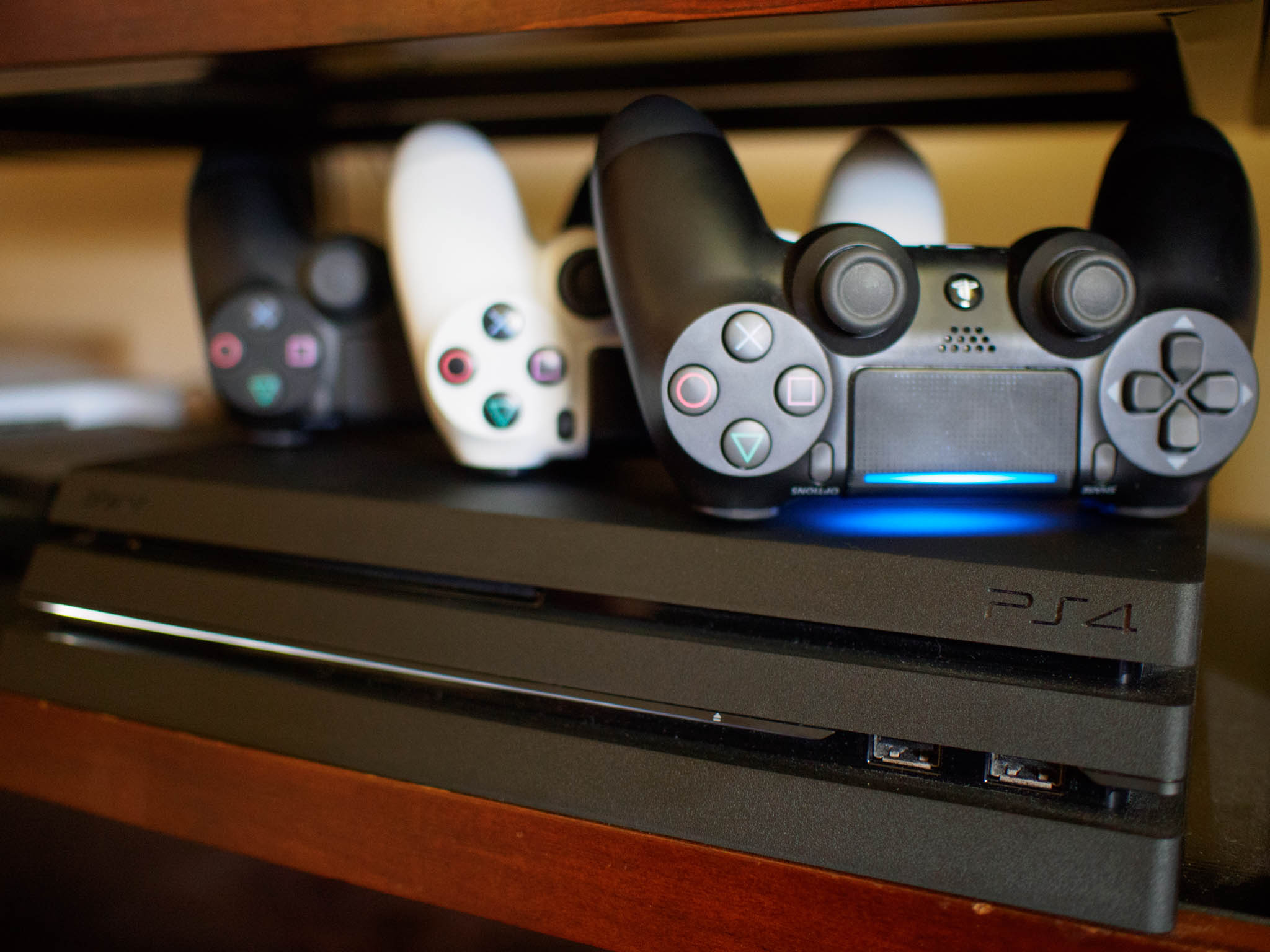
How to organize your games on the PlayStation 4
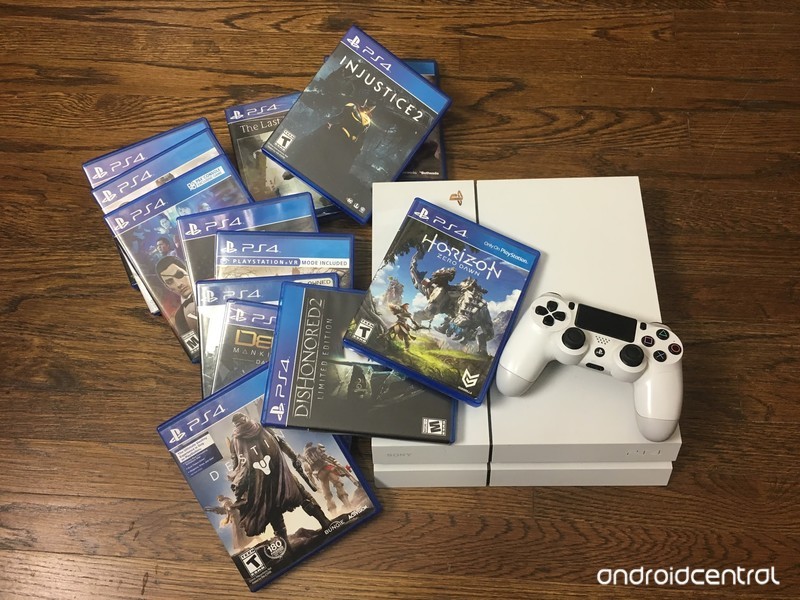
Customize your PlayStation home menu to the best of your ability
If you’re anything like me you love a well-organized screen. Currently, your home screen on your PlayStation 4 will show all of your games and apps in order of the ones that were last used. Well… Everything from my computer to my phone is organized, so why not my PS4 as well? This option is handy for organizing your PSVR games as well, that way they’re not cluttering your home screen when you aren’t in the mood to play them just yet!
Creating folders in the main menu
1000 games or apps will fit into each folder. You can start making a folder at any time on your PS4. After they are made, you can add any one of the games and apps to each folder. This way you will be able to separate them by genre!
Select the game or app you want to add to a folder and press the “options” button on your DualShock controller.
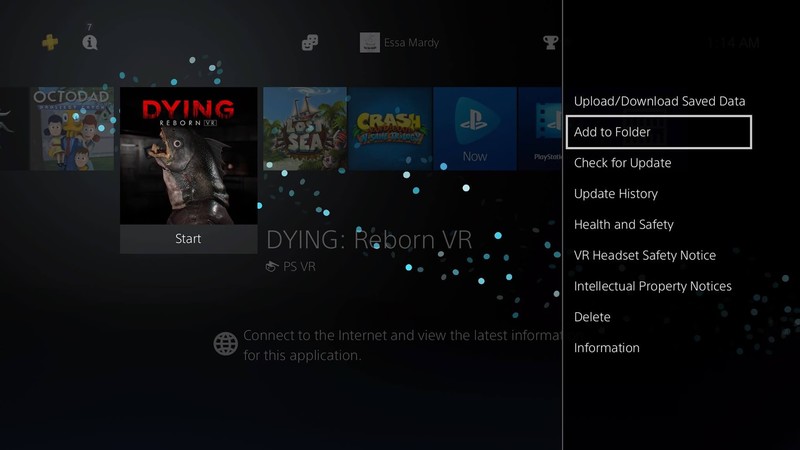
Select the “Add to folder” option.
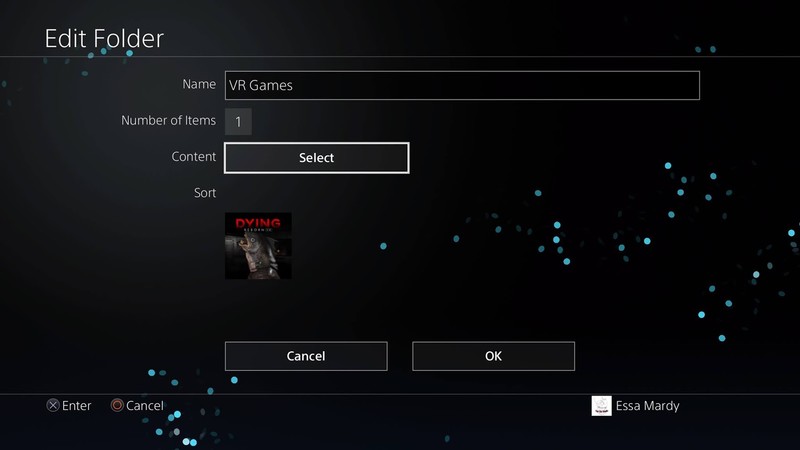
Name your folder based on the organization you plan on using and select “OK”.
Creating folders in the Library
Creating folders from the main menu isn’t the only place you’ll have the option. You can also do this directly from your Library!
Select “Library” from your home menu.
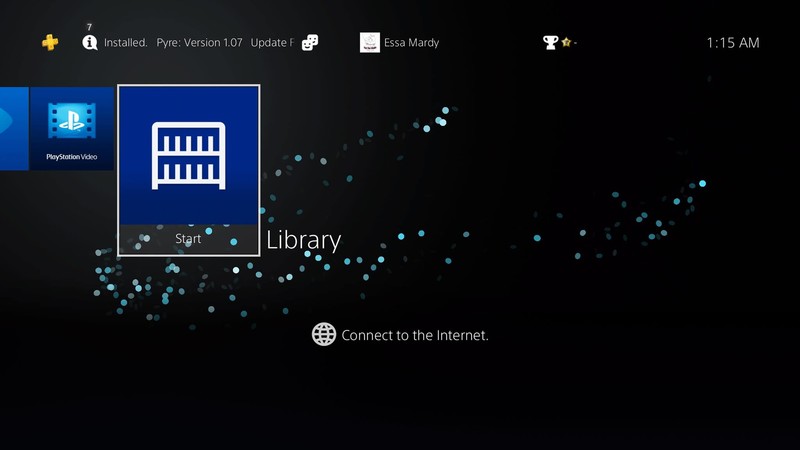
Select the “Folders” tab.
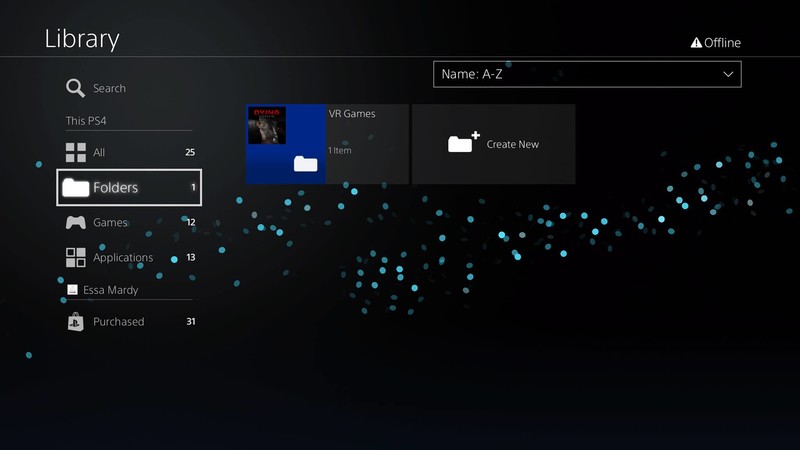
Select “Create New” by pressing the “Options” button on your controller, then name the folder what you wish.
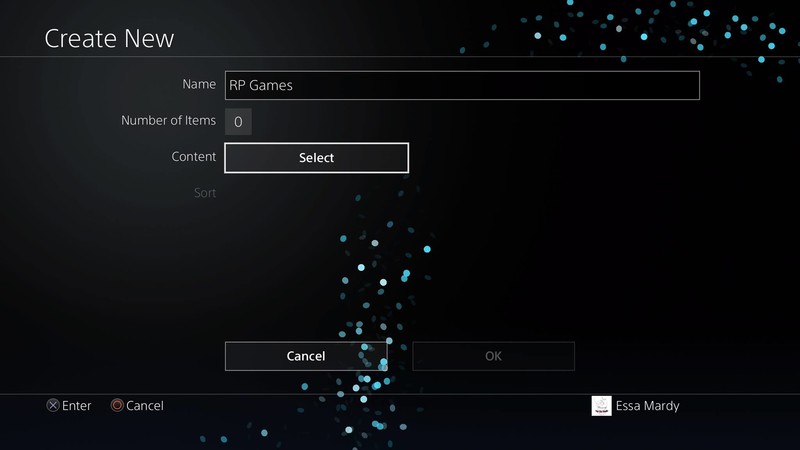
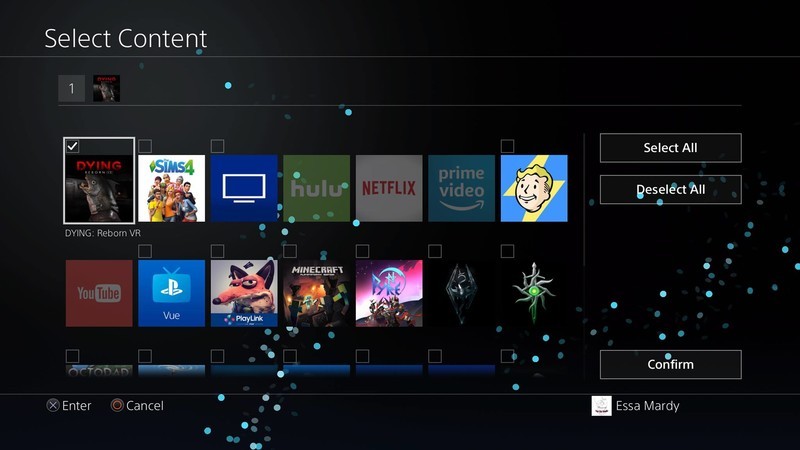
Select “Content” and add the content you wish to be in this folder and press confirm.
Then select “OK”
Adding more content to a folder
Press the options button when hovered over the desired folder.
Select “Edit”
Select the “content” option.
Select each game and app you wish to add to a folder.
Select “Confirm”
Deleting a folder
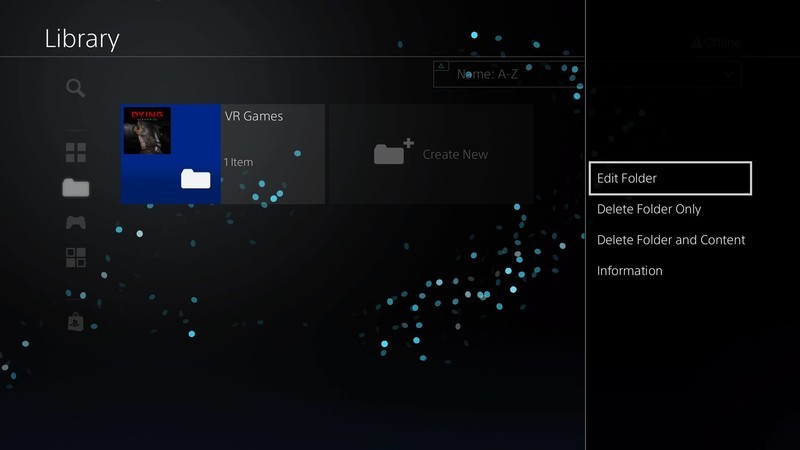
This will work from either your main menu or the Library, as long as you have the option to select the folder in question!
Press the “Options” button on your DualShock controller while you have the Folder in question highlighted.
Select “Delete Folder Only.” This option will ONLY delete the folder and re-locate the games and apps back to being on your home screen.
Select “Delete folder and content.” This option will delete the folder AND the games and apps inside. If you select this option you will have to re-download all of your games and apps, so make sure you select the right one!
What are your favorite ways to organize your PlayStation 4?
Show us screen captures in the comment section below of what your home screen looks like!
PlayStation 4
- PS4 vs. PS4 Slim vs. PS4 Pro: Which should you buy?
- PlayStation VR Review
- Playing PS4 games through your phone is awesome
Amazon
 AIVAnet