


Snapchatters, how do you like the sound of unskippable video ads?
Hey, Snapchatters, how do you like the idea of six-second ads that you can’t skip through?
Snap, the company behind Snapchat, is looking for ways to finally turn a profit, and sources with knowledge of the matter suggest such ads are about to start running in a selection of Snapchat Shows.
Called “Commercials,” the ads will start showing as part of a trial period from May 15, an unnamed Snap spokesperson told Digiday this week.
The company apparently considers six seconds as a sweet spot for both users and advertisers, giving the latter enough time to get their message across before the average user becomes disengaged. And the longer the ad runs, the more Snap can charge.
To most folks, six seconds will feel like nothing at all and pass by in a few blinks of an eye. In fact, if brands can come up with some truly clever concepts to catch the attention of viewers, it could be a winning formula for all. Perhaps the top creators from the now-defunct Vine platform can offer their services, after all, the very best ones became highly skillful at producing engaging six-second clips.
Digiday notes that up to now, Snapchatters have been noticeably reluctant to view ads on the platform, with a 2017 study indicating that nearly 70 percent of U.S.-based users “always” or “often” skip such content on the app. The figure is even higher — 80 percent — when you drill down to one of its key demographic groups, namely 18- to 24-year-olds.
With Snap currently struggling with user growth, the company will be watching carefully to see how its community responds to unskippable ads. Following the outcry over more substantial changes to the platform in recent months, it really can’t afford another rebellion among its user base.
Snapchat’s redesign kicked up a storm when it launched in earnest earlier this year, with more than a million people signing an online petition calling for the changes to be reversed.
The level of upset likely took Snap by surprise, evidenced by news this week that the company is testing ways to reintroduce small parts of the old design.
Editors’ Recommendations
- Advertisers can soon slide three images inside Instagram Stories
- Snap, then shop — Snapchat rolls out Shoppable AR filters
- Hang out via video chat, then tag friends in Stories with Snapchat’s new tools
- YouTube Live’s new geotags allow world exploration from your couch
- YouTube will add factual links to conspiracy-theory videos — using Wikipedia
Prepare your face: Snapchat Spectacles 2 will be announced this week
They’re here. On Thursday, April 26, Snap showed off an updated version of its Spectacles, and they’ll set you back $150. The second-generation camera-equipped sunglasses were previously confirmed by Snap Inc. CEO Evan Spiegel in an interview with Wired, and now, we know that the wearables are able to take still images and are water-resistant. They’re available to order now through Snap’s website.
Rumors of Spectacles 2 have spread for some time, but it was never certain the product would be released, given the massive volume of unsold pairs of original Spectacles the company was rumored to have hidden away. However, this new model may prove more popular among customers. The second generation eyewear is thinner than its predecessor and generally sleeker. There’s no more yellow ring wrapping around the camera lens on the Spectacles, and rather than solid colored arms, the sides of the Spectacles fade to a clear finish.
You can buy the Spectacles 2 in three colors: onyx, ruby, and sapphire. Previously, the variants were black, teal, and coral.
In addition to still photography support and water resistance, these new wearables also feature two microphones, which should help up the ante on audio quality for far-field voices, and should also aid in canceling out extraneous noise. Plus, there’s a new Wi-Fi chip so that you can easily move content to your companion Snapchat app. Photos and videos, in fact, will automatically be imported in HD over Wi-Fi, and overall, image quality should improve as well, given that this new model has 25 percent more pixels in its camera sensor.
Nothing has really changed in terms of battery life, so you can still capture around a week’s worth of content, or about 70 videos and up to 280 (or so) photos. The new charging case can provide up to four charges for the wearable, and if you wear glasses, Snap is also giving you the chance to buy prescription lenses for the Spectacles thanks to a new partnership with lens seller Lensabl.
Spectacles are developed separately from the Snapchat app, allowing the two to evolve without interference. The eventual plan is for the two to meet, with Spiegel saying that, “Over the next decade or so, the way these pieces fit together will probably be what defines our company.” He’s conscious of augmented reality’s limited success elsewhere, and says hardware restrictions — batteries, screens, and design — hold it back.
Previous rumors suggested that Snap was developing two new versions of Spectacles. The first pair were said to be a slight improvement over the first-generation model, with a performance boost, added water resistance, and a choice of new colors (and that seems to be what we have now). However, another pair was rumored to be yet more desirable.
Those Spectacles, which have yet to come to fruition, were said to have dual cameras with depth-sensing technology, GPS, a new design, and be made out of aluminum rather than plastic. We’ll just have to see if that even further improved version ever makes its debut.
Updated on April 26: The Spectacles 2 have arrived
Editors’ Recommendations
- Spectacle speculation? Snap FCC filing points to ‘Model 002’ for camera glasses
- Making a Spectacle: Snap may release two new versions of its smartglasses
- ‘Pacific Rim Uprising’ review
- You can now buy that dancing hot dog plush toy from the Snapchat Store
- The LG V30: Everything you need to know about LG’s flagship smartphone
How Samsung tapped Hollywood talent to bring AR Emoji to life
Embedded into the Samsung Galaxy S9’s camera app, AR Emoji allows you to use the front-facing camera to create and send digital cartoon avatars. Similar to Apple’s Animojis in concept, AR Emoji captures your facial movements and mirrors them in the form of a character or animal. But with its “Create My Emoji” feature, you can also create one of yourself by simply taking a selfie — allowing you to choose a skin tone, outfit, hairstyle, hair color, and glasses.
With AR Emoji, Samsung set out to solve what it sees as a problem — finding a way to replace existing emojis with ones that are interactive. The company wanted to do this in a way that was simple, by providing users with the right tools to capture emotion but still allowed them to easily share the result on a variety of messaging platforms.
So, how did Samsung create its AR Emojis? For starters, it went straight to the 3D animation experts who brought to life some of Hollywood’s most popular characters.
From big screen to smartphone camera
To power the new feature, Samsung collaborated with Loom.ai — a San Francisco-based startup specializing in 3D animation. The company’s software allows users to create fully personalized and customizable 3D avatars from a single photograph, without custom hardware or depth sensors.Through a partnership and a software development kit (SDK), Samsung combined Loom.ai’s technology with the S9’s camera tech (augmented reality and facial recognition) to make custom AR Emoji possible.
Samsung wants to find a way to replace existing emojis with ones that are interactive.
The vision behind Loom.ai all started with movies — cartoons and superheros to be exact. Having previously worked at popular visual effects companies like DreamWorks and Lucasfilm, Loom.ai’s founders –Mahesh Ramasubramanian and Kiran Bhat — have helped bring well-known characters, such as Shrek and the Hulk, to the big screen.
To inject personality into those characters, they used performance-capture technology to incorporate the actors who played them — recording the movements of the actor, not their visual appearance. But after seeing how movie audiences reacted to their 3D creations, Ramasubramanian and Bhat decided to take that technology further — beyond Hollywood — by starting Loom.ai, which focuses on smartphones.
“People instantly react to having these characters come to life when it’s driven by human actors,” Ramasubramanian, who serves as CEO and co-founder, told Digital Trends. “We started Loom.ai with the goal that we need to be able to find an easy way for every individual to be able to see themselves in 3D, and for that we had to build a new technology.”
With feature films, creating a 3D avatar requires tons of equipment — expensive hardware and software, makeup, and a studio setting. But Loom.ai found a way to simplify the process of capturing a person’s features without the usual tools; instead, its patented technology uses a single photograph and deep learning to analyze an image. If a photograph is free of any facial expressions, the deep-learning algorithm looks at the pixels and automatically produces a face that encapsulates the correct muscle movement.
“When Samsung’s partnership rolled around we had a chance to implement that sophisticated technology on a device, which we feel is already a pretty compelling engineering task by itself,” Bhat, Loom.ai’s CTO and co-founder, told Digital Trends. “It’s a big technology jump in being able to take some of those ideas and aspirations from the big screen and bring it to mobile.”
To power AR Emoji, Samsung enlisted the help of Loom.ai — a San Francisco-based startup specializing in 3D animation.
Incorporating this technology into the Galaxy S9 hardware required Loom.ai to restructure its algorithms, in order to run on the device. But Loom.ai did not create AR Emoji alone: Both Ramasubramanian and Bhat credit Samsung in dedicating tremendous effort into optimizing the software. By providing the SDK to integrate into smartphones, the Loom.ai founders think Samsung can make the framework much richer by adding more content and customizability options in the future.
How the Galaxy S9 creates a digital avatar
So, how exactly does the S9 (and S9 Plus) create AR Emojis? While Samsung didn’t reveal its secret sauce, it gave Digital Trends a look under the hood.
Working off Loom.ai’s technology, the phone’s camera captures and processes a 2D image into 3D. To enhance this further, the S9 uses additional software — facial tracking and Samsung’s Blend Shape technology — to provide facial expressions for the AR Emoji.
You’re then left with a cartoon-like version of yourself that can emote 18 different expressions — which Samsung plans on slowly expanding to 54 — ranging from joy and pleasure, to sorrow and anger. All data is also local to the device, and doesn’t get stored anywhere else.
Both working together, facial tracking technology tracks over 100 facial features in real time (such as winking or smiling) to capture individual emotions, while Blend Shape helps to deliver a greater range of them — which blends expressions together based on 75 basic human facial features. Samsung says, for Blend Shape, it conducted at least 100 tests on a weekly basis within its labs, in order to make sure there is enough data that would entice its users. (Blend Shape is also used to create its Disney AR Emojis, like Mickey and Minnie Mouse.)
In our own AR Emoji test, a majority of us felt our characters looked extremely inaccurate. One writer felt there was a lack of skin-tone options available, with no dark-skinned tones to choose from. Others felt their AR Emoji didn’t look anything like them, which made editing the avatar seem like more of a chore than an enjoyable task.
According to Loom.ai, creating an accurate AR Emoji relies heavily on the way the selfie is shot. Users should go about taking the photo the same way they’d take a passport photo. “You want even lighting, nothing covering your face, and a neutral expression so that we can add the expressions later,” Ramasubramanian explained. “It’s a matter of people getting a little accustomed to it and then seeing the possibilities of animating it and using it.”
Ramasubramanian also said that users should treat it the way they would while taking any selfie — meaning, you can take tons of photos until you’re satisfied with the photo. Since AR Emoji allows you to create multiple avatars, you can compare them to find the one you like best. Each one you create also saves to your phone, so you can switch up the version you use depending on your mood.
The latest update to AR Emoji includes additional hairstyles, headwear such as a hijab, and other options. The update is currently rolling out to unlocked versions of the Samsung Galaxy S9 and S9 Plus in Korea, China, and Europe. Those in Europe and the U.S. with a device registered to a carrier, should have the update available for download later this week. Samsung says AR Emoji will continue to evolve in the future, but for now, is staying tight lipped on exact details.
Editors’ Recommendations
- Why am I the only one that loves Samsung’s AR Emojis?
- Cringe along as we turn ourselves into Samsung AR Emojis
- Samsung could offer AR Emoji chatting as an alternative to video
- ModiFace replaces makeup brushes with neural networks, and it’s coming to the S9
- 5 features you may not have heard about on the Samsung Galaxy S9
Case made from twisted car-crash metal will stop you from texting while driving
How about carrying around a solid, everyday reminder about the dangers of texting while driving? That’s the idea behind Crashed Cases, phone cases that cover your device in the twisted metal recovered from car crashes. Slightly morbid, certainly, but feeling the cool, scratched, and dented surface under your fingers should stop you going any further when you take one hand from the steering wheel to pick it up.
Crashed Cases are the work of brand management company NordDDB and Volkswagen cars in Stockholm, and are designed to mark the introduction of a law that made using a phone while driving illegal in Sweden, passed at the beginning of February. It’s not a celebratory action, though, because the country’s accident rate hasn’t changed.
For now this is a limited edition run, consisting of 153 cases, a number not arbitrarily chosen, because it represents the number of serious road accidents in Sweden during February this year — the first month of the new law. Volkswagen brand manager Johan Karlsson says the cases are a, “silent reminder,” about keeping focused on the task of driving, and not checking your phone. Texting while driving increases the risk of having an accident by 23 times, says VW.
Buying a Crashed Case, which are only available for the Apple iPhone 8 at the moment, will see the proceeds go to Swedish accident survival and rehabilitation group Trafikskadefonden. There it will be put to work helping people who have been injured in a road accident. NordDBB told Digital Trends shipping to the United States shouldn’t be a problem, and the Crashed Case can be ordered online for 600 Swedish crowns, or about $70. Each case is handmade, and has its own unique number engraved in it.
Drivers distracted by phones recently topped a U.S. survey as the group most likely to have an accident, beating out those that speed or drive aggressively, and we’ve seen horrific images of drivers using not one but two phones while behind the wheel on more than a single occasion. It’s not all bad news. Another study found that among people with Apple’s Do Not Disturb While Driving feature in iOS 11 switched on, instances of using a phone while driving dropped by 8 percent.
Why not activate this feature on your iPhone now, and consider wrapping it in a Crashed Case for some extra protection, if you’re trying to resist the temptation to drive and text?
Editors’ Recommendations
- Tesla says driver ignored warnings from Autopilot in fatal California crash
- Cops use fingerprint pulled from a WhatsApp photo to nab drug traffickers
- How to send a text message from a computer
- How to print from an iPhone and iPad
- How to download music from YouTube
Apple iPad (2018) vs. iPad Pro 10.5: Is the iPad Pro worth the extra cash?
Apple’s latest iPad boasts a number of new features like support for the Apple Pencil, a much better processor, and more — all at the same price as last year’s iPad. It’s so good that it tops our list of the best tablets.
But it’s not the only iPad currently available. In fact, there are a few other iPads available that come at a slightly higher price — like the iPad Pro. But just how does the new 2018 standard iPad compare with the 10.5-inch iPad Pro? We put the two head-to-head to find out.
Specs
iPad (2018)
iPad Pro (10.5-inch)
Size
240 x 169.5 x 7.5 mm (9.45 x 6.67 x 0.30 inches)
250.6 x 174.1 x 6.1 mm (9.87 x 6.85 x 0.24 inches)
Weight
469g (16.8oz)
469g (16.5oz)
Screen size
9.7 inches
10.5 inches
Screen resolution
1,536 x 2,048 pixels
1,668 x 2,224 pixels
Operating system
iOS 11.3
iOS 10.3.2 (upgradeable to iOS 11.3)
Storage space
32GB, 128GB
64GB, 256GB, 512GB
MicroSD Card slot
No
No
Tap-to-pay services
No
No
Processor
Apple A10 Fusion
Apple A10X Fusion
RAM
2GB
4GB
Camera
Rear 8MP, front 1.2MP
Rear 12MP, front 7MP
Video
1,080p at 30fps, 720p at 120fps
2,160p at 30fps, 1,080p at 60fps, 1,080p at 120fps, 720p at 240fps
Bluetooth version
Bluetooth 4.2
Bluetooth 4.2
Ports
Lightning
Lightning
Fingerprint sensor
Yes
Yes
Water resistance
No
No
Battery
8,827mAh
8,134mAh
App marketplace
Apple App Store
Apple App Store
Network support
All major carriers (Cellular version only)
All major carriers (Cellular version only)
Colors
Silver, Gold, Space Gray
Space Gray, Rose Gold, Gold, Silver
Price
$329-plus
$649-plus
Buy from
Apple
Apple
Review score
4.5 stars
4.5 stars
Performance, battery life and charging
Both of these devices are relatively new, so they’re both going to perform pretty well — but not totally the same. The two iPads offer similar, though slightly different specs when it comes to performance. For starters, the 2018 iPad features an Apple A10 Fusion chip coupled with 2GB of RAM, while the 10.5-inch iPad Pro boasts an A10X Fusion chip with 4GB of RAM.
What does that mean in terms of raw performance? The iPad Pro will be able to handle things like multitasking, video editing, and so on a little better. For most people, however, the standard 2018 iPad will still do everything they need just fine.
When it comes to battery, it seems like the 2018 iPad should do a little better than the iPad Pro. After all, it offers a slightly larger battery, as well as a smaller screen size. Still, Apple says both of these devices will provide up to 10 hours of web surfing over Wi-Fi, so don’t expect a big difference.
In terms of charging, there’s not much to report. Both devices will charge through their Lightning port, but neither of them offer the wireless charging that you get in the Apple Watch and recent iPhone models.
Because of its better performance, the 10.5-inch iPad Pro is the winner here.
Winner: iPad Pro 10.5
Design and durability
Julian Chokkattu/Digital Trends
Not surprisingly, the 2018 iPad and the 10.5-inch iPad Pro both feature a very Apple design sensibility. Perhaps the biggest difference here is their size — the iPad Pro is slightly bigger than the 2018 iPad in all aspects but one — thickness. If you’re looking for a super slim device, the iPad Pro may be a better choice for you. Another major difference is what colors the devices are available in — both come in space gray, silver, and gold, but the iPad Pro is also available in Rose Gold. Both devices feature a rear-facing camera on the top left, as well as a very minimalist design with a home button on the front.
These two devices are pretty much equally durable. Unlike the iPhone, the iPad series is not waterproof — so if you want to use it in the bath, be very careful while you do so.
Winner: Tie
Display
Julian Chokkattu/Digital Trends
The displays on these two devices differ in size. On the 2018 iPad, you’ll find a 9.7-inch display, while the display on the iPad Pro is 10.5 inches. That’s almost an inch difference, which can be a big deal for some users. The resolution is also a little different, — the 2018 iPad has a resolution of 1,536 x 2,048 pixels and the iPad Pro 10.5 offers a display resolution of 1,668 x 2,224 pixels — but because of the size difference, both have a pixel density of 264. They’re both sharp, but the display on the iPad Pro is bigger, so it’s the winner here.
Winner: iPad Pro 10.5
Camera
Julian Chokkattu/Digital Trends
The rear-facing camera on your iPad isn’t as important as the camera on your phone — but it’s still handy in a pinch. The front-facing camera, on the other hand, is probably going to be used much more regularly for video chatting.
Let’s start with the rear-facing camera, which comes in at 8 megapixels on the 9.7-inch iPad with an aperture of f/2.4, and 12 megapixels on the 10.5-inch iPad Pro with an aperture of f/1.8 The iPad Pro camera will be able to capture more detail and perform better in low-light conditions.
On the 2018 iPad, the front-facing camera comes in at 1.2 megapixels with an aperture of f/2.2. Those specs are a little disappointing in 2018. The front-facing camera on the 10.5-inch iPad comes in at 7 megapixels with an aperture of f/2.2.
The cameras on the iPad Pro are much better all-around.
Winner: iPad Pro 10.5
Software and updates
Julian Chokkattu/Digital Trends
As Apple devices, both tablets have access to the latest version of iOS 11, and will both get the new operating system as soon as it becomes available. Because of that, the only difference is how long Apple will support the devices for. Generally speaking, Apple supports tablets for 2 to 3 years. The iPad Pro 10.5 came out first, but it’s also slightly more powerful, so we don’t think there will be much difference between these two in terms of how long they’re supported for.
One difference is that schools and teachers can order the 2018 iPad with education apps — though that won’t affect most standard consumers.
Winner: Tie
Special features
Julian Chokkattu/Digital Trends
Surprisingly, there aren’t that many special features that differentiate the two iPads. Both of the devices support the Apple Pencil, and they both have a home button with Touch ID, though as some reports note, the iPad Pro features the second generation of Touch ID, and should react a little quicker than the 2018 iPad.
In general, these two devices are very similar when it comes to special features — though the iPad Pro does things a little better and a little faster.
Winner: iPad Pro 10.5
Price
There’s a clear winner in the price department, and that’s the 2018 iPad. While the 10.5-inch iPad Pro is available for $649, the 2018 iPad comes in at far less, with a price tag of $329, or nearly half as much. That’s a pretty massive price difference — and it highlights the fact that the iPad Pro is really built for professionals who need a lightweight and easy-to-use device, while the 2018 iPad is built for the average consumer.
Winner: iPad (2018)
Overall winner: iPad Pro 10.5
There are no surprises here — the 10.5-inch iPad Pro is better in almost every way, but the differences aren’t overly important for the average person. The iPad Pro is more powerful, has a slightly better screen, a better camera, and more — but the iPad (2018) still offers more than enough power for most average users.
If you’re looking for a tablet that will work perfectly for web browsing, social media, and a little mobile gaming, then the 2018 iPad will serve you well. If, however, you’re a media professional who needs something a little more powerful, then the 10.5-inch iPad Pro is an excellent tablet to go for.
Three tips and tricks for settling into the new Gmail

Gmail’s recent redesign introduces a few new features you’ll want to familiarize yourself with.
Google’s Inbox might be in a state of limbo right now, but Gmail is alive and well, with a fresh new coat of paint and a handful of new features focused on productivity and security. While this may not be a big deal to those who use dedicated apps to manage their emails, there are still a ton of people who are happy to check their email straight from their web browser, and these changes could be a big deal to those people.
Some of Gmail’s new features won’t be rolling out for another few weeks (namely confidential mode), but if you’re itching to test out the redesign, there’s still plenty to enjoy right now. Here are some of the first things you might want to do.

Upgrade to the new Gmail
You can’t enjoy Gmail’s new features until you’re using the new version! Luckily, making the switch only takes a few clicks, but again, the option to upgrade is still rolling out, so you may not be able to follow these steps just yet.
From the main Gmail screen, click the gear icon in the upper right corner.
In the dropdown menu, click Try the new Gmail.
You’ll be taken to the redesigned homepage. Click Next on the welcome splash screen.
From here, you can choose your display density. If you manage a lot of emails, you may want to try the compact view. If, like me, you make liberal use of the archive and trash tools and try to keep a clean inbox, you’ll get the most information at a glance from the default view.
Once that’s all said and done, you should be looking at the fancy new Gmail interface! Don’t worry if you change your mind on the display density or the redesign itself — both options sit in the same gear icon as before.

Customize your sidebar
One of the first things you might notice with the new Gmail interface is the addition of a column of apps on the righthand side. This is different from the grid icon at the top of screen, which houses shortcuts to Google’s other services — instead, this sidebar is home to mini apps that extend out from the side for quick access.
By default, the sidebar holds miniaturized versions of Google Calendar, Keep, and the new Tasks, but you can add more apps by clicking the plus button beneath the other icons.
The best part about these apps is that you can still click and scroll through the rest of the Gmail interface without the column collapsing. This can be useful for anything from taking notes from certain emails and Hangouts conversations to checking your calendar for prior appointments before making plans.

Snooze now to remember later!
If you’re like me, you forget to reply to important emails from time to time. Don’t worry, I won’t tell, but Gmail’s new snooze feature can help minimize unhappy clients and missed appointments. Just hover your mouse over any email you might need to remember, then click the rightmost icon.
You’ll see a popup window prompting you to choose how long to snooze the email. You can choose from presets like tomorrow or this weekend, or set the exact time and date yourself. Once that time comes, the email will move from your snoozed folder back to the top of your inbox as if it had just been sent out. If you can get yourself into the habit of snoozing important emails, you might never forget to pay a bill or respond to your boss again.
Hold out for new features
Most of Gmail’s new privacy-focused features, including expiring emails and two-factor authentication on a per-email basis within confidential mode, still haven’t rolled out just yet. You’ll have to wait a few more weeks for those features, but it never hurts to get familiar with the new interface in the mean time.
Are you using Gmail’s redesigned interface yet, or are you holding onto the classic view until Google has finished rolling out every new feature? Let us know in the comments below!
SanDisk’s $56 200GB microSD card is a must-have for all Galaxy S9 owners
Expand the capacity.
This 200GB card normally sells for closer to $70 and this is the lowest price drop on it since Black Friday. You can use it to expand the storage in your phone, tablet, action camera and much more. It has transfer speeds of up to 100MB/s and it is shockproof, waterproof and can even withstand X-rays.

If you are looking for more storage, Amazon has the 400B variant of this card down to just $190 today. This deal is part of a larger one-day sale at Amazon, so be sure to check out all those discounts before they expire.
See at Amazon
How to make sure your phone calls sound as good as possible
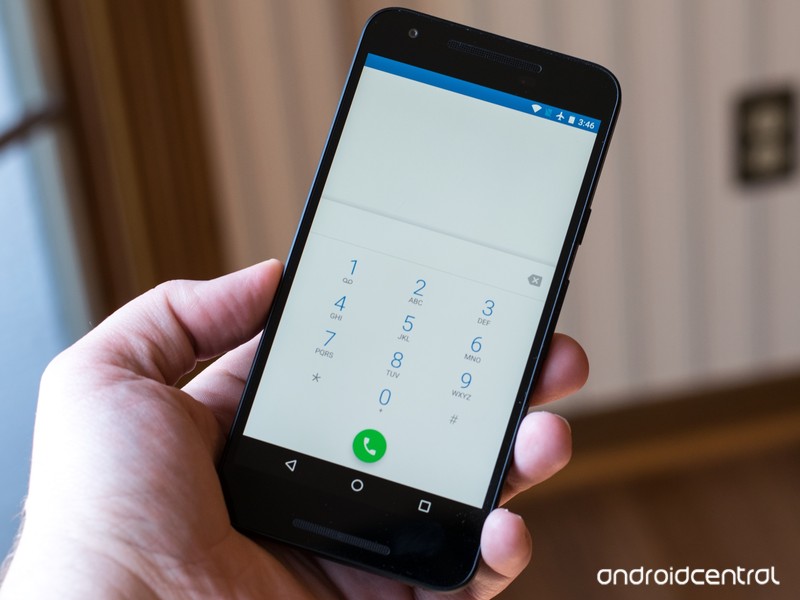
Make your voice calls sound better on both ends with these tips.
For some, phone calls are an important feature of a phone. There’s always a lot of discussion about which messaging app is the best or why you would want to use one SMS app over another, and those things are worth talking about to be sure. But voice calling is a primary feature of the gadgets we have in our hands and when you need to make a call, you’ll want it to sound decent.
There are a couple things you can do to improve call quality, especially if it’s poor to begin with. The jump from bad to fair is a lot more noticeable than it is from good to great. We can’t promise that you’ll be able to hear that proverbial pin drop by following these tips, but following a few simple pointers should have an effect.
- Make sure your microphone and earpiece are clear (and clean). This is something so simple it’s often the last thing you’d check — are the mic and/or ear speaker blocked by anything? Anything means literally anything here. If you use a case make sure it’s not covering any holes that shouldn’t be covered (the same goes for your finger when you’re holding it) because your phone probably has more than one microphone and uses one away from your mouth for noise reduction. The same goes for the clear plastic clingy wrap stuff that covers a new phone — peel it off or at least away from all the holes. While you’re at it make sure no gunk is blocking any of the holes, too.
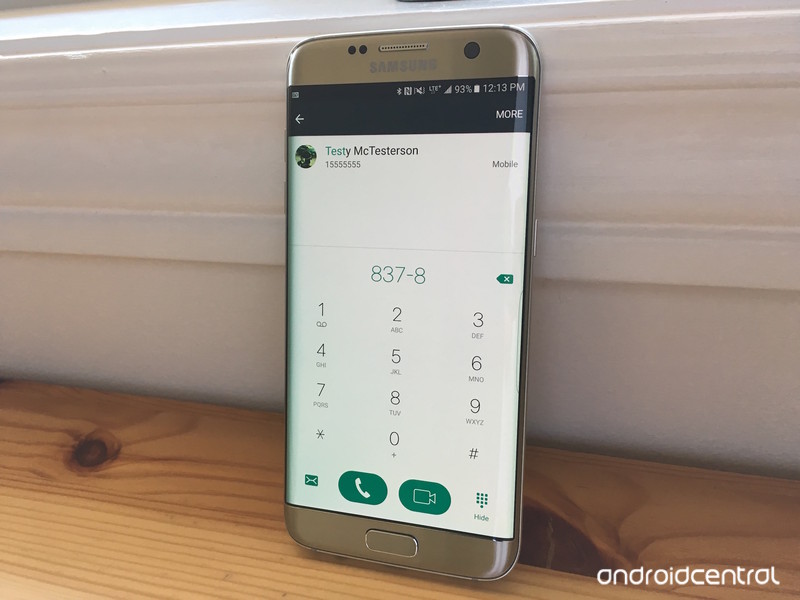
- Check to make sure any High Quality calling settings are enabled. All four major U.S. carriers offer some sort of enhanced voice calling on phones sold through their stores. This might be called HD Voice or VoLTE (Voice over LTE) or Enhanced Calling or something similar depending on your network and your phone. You’ll find a setting for it in the network settings or in the phone dialer settings (or both), again depending on your specific phone and carrier. When enabled it sends and receives audio at a much higher quality than without it enabled because it sends voice data over a fast connection.
There are a few things to know here. While High Quality calling isn’t usually a thing you need to pay extra for, this wasn’t always the case. If you’re holding on to an old service plan from your carrier for one reason or another you might not just be able to flip a switch in the settings and will have to contact your carrier. And this will probably only work if you’re calling someone on the same carrier because all four U.S. networks do things a bit differently. Finally, an unlocked phone might not be able to use any of this because the phone didn’t go through carrier sales channels.
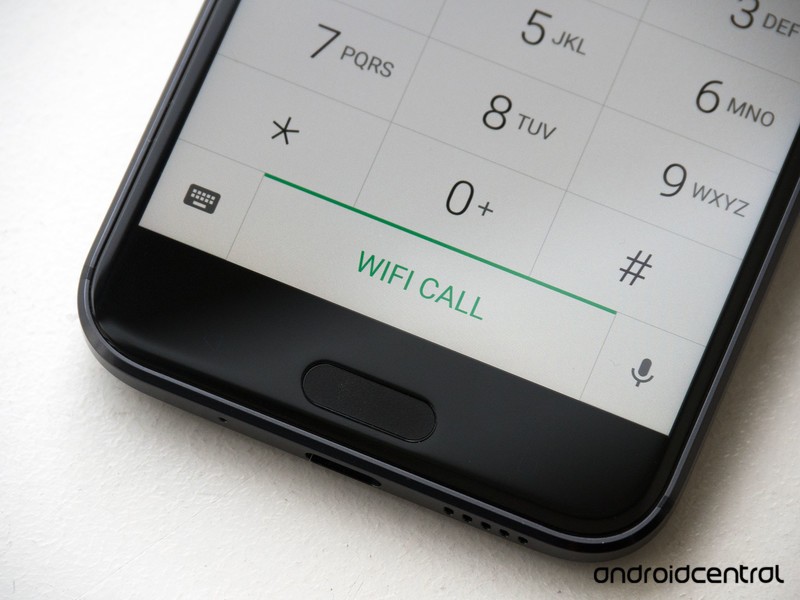
- Wi-Fi calling can make a big difference. Wi-Fi calling is a thing on all major U.S. carriers and it can do wonders when calls sound bad because of your connection. They’re not the best sounding calls — they can be a bit flat and have a tinny echo from the caller’s end — but they are clear and you’ll be able to understand each other, which can be a major improvement sometimes. Like advanced calling features, you’ll find a setting to enable Wi-Fi calling in different places on different phones. Check the network settings for your carrier, the Wi-Fi settings themselves and the phone dialer settings and you’ll find it in one of those places. It will be clearly labeled with the words Wi-Fi calls so it’s not too tricky.
Of course you’ll need to be connected to a Wi-Fi network with internet access to use Wi-Fi calling. Two other things to know is that sometimes (this depends on your area), SMS and MMS won’t send if you have Wi-Fi calling enabled, and that you need both phone and carrier support. Most newer Androids support Wi-Fi calling, but unlocked phones might not be able to use it because of carrier restrictions. But that’s OK, because there are ways around that and it’s next on our list.
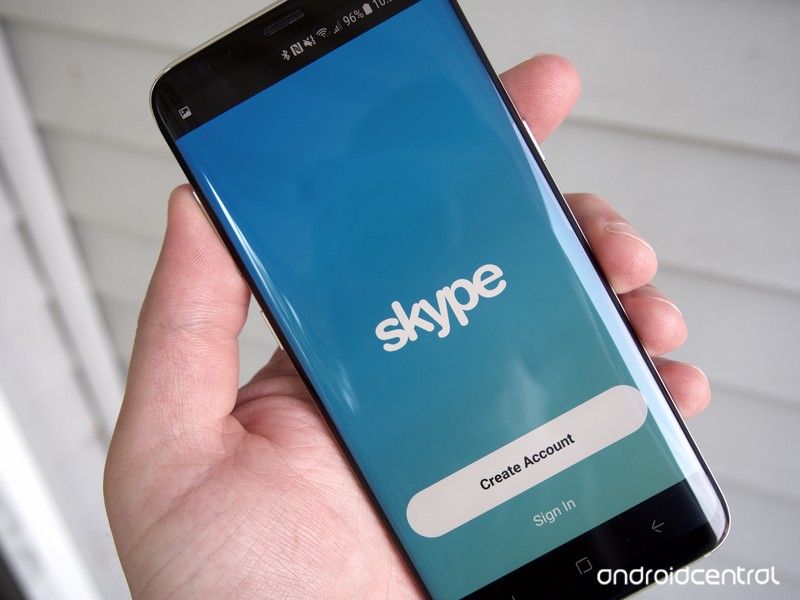
- Use an app that makes voice calls over a data connection. By this we mean either Wi-Fi or LTE (or even 3G if that’s you). A data connection is a data connection as far as these apps care, and as long as you’re connected to the internet they’ll work. Our choices for apps here are Hangouts, Skype, and Duo, but each have their own drawbacks.
Hangouts works great, lets you call any phone number, and calls from the U.S. to other U.S. and Canadian numbers are absolutely free using the Hangouts Dialer add-on, as are calls to anyone with the Hangouts app installed. The problems with Hangouts are that it can be a little intimidating the first time you use it (there are a lot of settings!) and nobody is exactly sure how long it’s going to stay because google has said it would be phased out for all but business users in the future. You can check out Hangouts calling rates at Google.
Download: Hangouts (free)
Skype works great, too, and outbound call rates are cheap (or free if both parties use Skype, which is a free app). You can call any phone, mobile or landline, anywhere in the world, though rates are a bit higher outside of North America where unlimited calls can be made for $2.99 per month. See Skype’s calling rates on its site.
Download: Skype (free)
Google Duo is great for voice calls, too! We know it as a video calling app, but the option for voice calls is there and they sound really clear on any good connection. The major hurdle is that both parties need to have the Duo app, but if you call someone without it, they’ll be prompted through their dialer to install it, so finding it isn’t hard. Since Duo is app-to-app-based, all calls are free.
Download: Duo (free)
There are plenty of other apps that have a calling feature built in that uses your Wi-Fi or data connection, and plenty of people make calls over WhatsApp or Viber every day. Be sure to explore all your options here.
Nobody is happy when phone calls sound like you’re talking through mud. If you find yourself making them often enough for it to be more than just a minor nuisance, try these tips for a better experience.
Are Google’s Pixel phones better than Samsung Galaxy ones?
Google’s got its sights set on Samsung’s throne.
If you venture out to buy a new smartphone, there’s an awfully good chance you’ll pick up one made by Samsung. Between its Galaxy S flagships, Note phablets, and abundance of budget handsets, Samsung’s secured itself as one of the biggest players in the smartphone world for a number of years.

Despite Samsung’s dominance, Google’s quickly trying to make just as big of an impression with its Pixel phones. The first Pixel and Pixel 2 have proven that Google knows how to construct one heck of a phone, and while Google’s sales may not be as impressive as Samsung’s, it’s already apparent that some consumers are willing and eager to make the jump from Galaxy to Pixel.
One of our forum users recently asked if they should replace their Galaxy phone with something from the Pixel line, and this is what our community had to say.
LeoRex
04-25-2018 03:00 AM“
I’ll just speak to one specific trait here… Feel… I’ve been using Pixel and Nexus phones since the Nexus 5 and they all have a fluid, responsive feel to them that you are not going to have in most any other phone, especially Samsung’s. Some other phones may have more power, or be able to open apps a tick quicker, but they won’t feel like they do… Animations are a bit jerky, or there are a…
Reply
doggy2965
04-25-2018 06:27 AM“
I had S8 switched to pixel XL 2. i like it better. wasn’t a big fan of S8 curved screen. No bloat so pixel is smoother. Biggest factor is updates S8 they were non existent. pixel you get the aroun the first of every month
Reply
Theot
04-25-2018 10:49 AM“
I left Samsung after years of their phones because I was constantly disabling tons of apps just to clean up the OS as much as I could in search of less lag and better battery life which I rarely got and would factory reset everything 3 months or so anyway just to keep it running fast-ish.
I’m not saying Samsung phones are bad, but they are a different experience. If you use a lot of their…
Reply
Mr Segundus
04-25-2018 07:19 PM“
Samsung has great hardware, but its software is always lacking. Software updates are few and far between (quarterly?). I have a Pixel 2 XL and I had the S9+ for a few days. I returned the S9+ just because I couldn’t get past the security patch still being stuck on February 1 in mid-to-late April.
Reply
Now, we want to hand the mic over to you – Do you think Google’s Pixel phones are better than Samsung Galaxy ones?
Join the conversation in the forums!
Huawei is being criminally investigated by the U.S. Justice Department
The department claims Huawei violated sanctions with Iran.
Like it says above the title of this article, the hits really do keep coming against Huawei. According to a new report from The Wall Street Journal, Huawei is now being criminally investigated by the United States Justice Department for violating sanctions the U.S. has with Iran.

Unfortunately, that’s about all we know for the time being. It’s uncertain how deep into the investigation the Justice Department is, and when asked for comment, Huawei declined to say anything.
This news follows Huawei’s recent announcement on April 18 that it would be shifting its focus to existing markets and away from the U.S., and that came as a response to back-to-back attacks against the company from the U.S. government since the beginning of the year.
ZTE has also been faced with similar heat, albeit more damaging as the Department of Commerce hit it with a seven-year ban from using any software or hardware components that are exported from the United States – effectively stopping its smartphone business in the country.
It’s possible that further allegations against Huawei could result in a similar fate as we saw with ZTE, but since so little is known about this new investigation, we can’t make too great of assumptions for the time being.
Based on what we’ve seen so far, do you think the United States’ hostility towards Huawei is warranted?
ZTE is DOA, but has the U.S. government gone too far?
 AIVAnet