


UE Blast Wireless Speaker Review – Does it blast away the Boom?
Ultimate Ears makes some of the best Bluetooth speakers (and headphones) out there. The UE Boom 2 and Megaboom really made an impact on us, and judging by the reviews on Amazon, we’re not the only ones.
We didn’t know how UE would come to one-up themselves, but now have the answer. The new Blast and Megablast are relative successors, which in a nutshell, introduce current smarts into a familiar package. This review will cover what the regularly-sized Blast is all about, and a look at the XL variant will come soon after. Let’s get rolling!
Design
 The Blast comes in a new array of color choices – we chose the deep, cherry-like Merlot.
If you’ve gandered at one of UE’s Bluetooth speakers before, the new Blast will look pretty iterative. And deep-down, that really is the story. This isn’t necessarily a bad thing. There was nothing wrong with the original design – it worked excellently from both a functional and audio respect.
At a close look, UE did in fact incorporate a tweak here and there. The largest change is the size of the unit. Side-by-side with its predecessor, the Boom 2, the difference isn’t stark but visible. On paper, it’s a 1mm increase in diameter and 8mm in height.


The growth in size isn’t a significant con, but something to take note of if you carry your speaker in a small/tight bag. Smaller changes you’ll catch at a close look are the now flat-edged and slightly thicker plastic caps at the top and bottom of the cylindrically-shaped unit. The materials are still the same as before. The plastic is robust and rubbery in feel. The substantial thickness makes the device feel sturdy as heck. The same can be said of the super tightly weaved fabric that dominates the speaker’s exterior.

The arrangement looks similar to that on the Boom 2. The braiding is so tight that it feels like plastic in-hand. It efficiently gives the speaker ingress protection (IP67 water/dust-proof rating, to be exact) while still allowing audio to flow through.
Speaking of which, we’ve come to adore this 360-degree output from the cylindrical design. You don’t have to be strategic on where you place the speaker, unlike most of the single direction-firing speakers out there. And indoors, the sound bounces off the walls from multiple directions and fills out the space.


The exterior features of the Boom 2 are carried over for the most part, such as the extra large volume buttons on the side and the bottom attachment ring. The charging port still hides under a thick flap on the bottom (which is sadly still microUSB instead of the current USB-C standard). One thing that’s missing is the adjacent aux port for the optional wired input. UE is now going all-in with wireless.
New with the Blast is also an optional, custom dock that enables wireless charging. No, it’s not Qi, induction charging, but essentially the same practice. The pad has electrical pins that contacts an included metallic bottom attachment ring that you have to install.

And that’s it. Simply plug in the dock with the charger supplied with the Blast and plop the speaker on top – just like a full-on wireless pad. There’s a tiny LED on the front of the pad to indicate charging status.

Charging cable and adapter included with the Blast.

How the speaker sits on the dock to charge.
The unfortunate thing is that the dock doesn’t come cheap. A $40 price tag makes it a total luxury. It’s not that much more inconvenient to just plug in physically; we’re sure most people would rather keep the $40.
Function

The top of the Blast is still basic with a large power button (and status LED) and tiny pairing button.

MicroUSB charging port in 2018…ugh.
So if the design is essentially the same as before, what’s the purpose of this update? That question is answered from the inside. The Blast isn’t just a “Bluetooth” speaker. It’s now WiFi-enabled. This means that it can pull music from online sources all by itself, no mobile device dependency needed. Well…kinda.
For WiFi control, UE partnered with the popular Alexa cloud-based voice service from Amazon. The good thing is that ups the speakers competence from just a music player to a virtual assistant. Despite not being an Amazon-made device, it has full-on Alexa access. This means you can do all things like request information, update your calendar or todo-lists, order items, and vocally control your smart home.
There is a significant drawback, however, when it comes to music. You’re limited to what Amazon’s service offers, which is somewhat…limited. You can’t simply ask Alexa to play music from your Play Music or Spotify accounts. Alexa can only tap into Amazon’s streaming apps.
 Amazon’s limited supported music streaming services, at the time of this writing.
This is fine if you’re well-invested in Amazon’s ecosystem. But for the rest of us, we’ll have to revert back to the primitive Bluetooth audio method, defeating the purpose of this upgraded device.
As far as using the device itself, the Bluetooth functions is as simply utilized as before. It boots up in pair-mode; real easy to unbox and get playing. There’s a tiny button atop that you hold down to re-enter pair mode and connect another source. Battery life takes a small hit (probably because the extra tech), from a 15-hour rating to 12 – bummer.
The WiFi bit takes a little more effort, but still easy. UE developed an app in order for you to log into your Amazon account and start utilizing Alexa. The setup process is only a few steps, and the app is pretty basic. Bear in mind, the app is primarily for establishing the speaker and Amazon link; it’s not something you’ll be using regularly.

App and WiFi setup process is quick and easy.

Home screen of UE app – pretty basic.

Status menu in UE app.
The integration of Alexa is done well. It essentially functions like an Amazon Echo or Dot smart speaker would, with Alexa summoned vocally to respond to or execute a vast array of inquiries. In this case, you’ll primarily be using the service to play music, and it does so as advertised.
We must mention that we observed some iffy connection reliability, which wasn’t present at all in the old model (in our experience). At times, playback via Bluetooth would just stop and we would have to re-pair. It seemed to happen more when the music was buffering. Streaming through WiFi wasn’t exempt from the issue either. The drops didn’t happen enough to drive us mad; just a minor annoyance.
It’s important to note that UE can administer updates through their app, so it’s possible that the connection concerns get addressed that way.
Sound

The speaker’s internal updates weren’t just limited to functional additions. We adored the audio quality of the Boom 2, but still saw how it could be improved. The most noticeable tweak is the tamed bass. The Boom 2 leaned on the boomy side (go figure), which was sometimes overpowering. The Blast’s sound is more balanced and cleaner on the low-to-mid ranges.
Bassheads will prefer the former; the Blast’s bass is lighter in comparison. But this doesn’t mean it’s of lesser quality. There’s still plenty of punch and sub-bass depth to appreciate. The magnitude is now really determined by the track. As an audiophile, I much prefer this cleaner and refined reproduction. It gives the full-bodied mid-range a better chance to shine. Vocals, in particular, are tonally excellent and engaging, especially when you have the 360-degree sound filling the room.
The treble range is equally rich. It doesn’t have perfectly crisp extension and detail, but it’s well done and one of the best for a portable speaker of this class. Same goes for clarity on a whole. We can see how it can still be improved upon. We feel like UE tries to strike the best balance with power and sharpness, and they’ve done a great job.
Final Thoughts

The UE Blast isn’t as easy as a recommendation as the Boom 2 was. Not saying it’s not an excellent wireless speaker – most of my expression for it has been positive. It’s just that it doesn’t bring a lot to table from the Boom 2. The design is the same, for all intents and purposes. While the sound is noticeably refined, it’s not a big change – certainly not worth the upgrade if that’s the main reason.
What the Blast really has on the Boom 2 is the WiFi and standalone capabilities (along with Alexa support), but it comes with a big caveat. Amazon’s streaming service support is limited, not having access to many popular music apps. Alexa’s abilities are certainly helpful, but this is first and foremost a music-playing device.
We also can’t ignore the substantial price difference between the new and old models. The Boom 2 is about half the price of the new model. It’ll be up to you if the Blast is twice the speaker.
Coming XPS notebooks could have niche 3:2-aspect ratio monitors
Bill Roberson/Digital Trends
Dell reportedly may conduct trials on new ideas for the aspect ratios of its laptop monitors, specifically for the XPS range. Looking at alternatives like the 3:2 aspect ratio leveraged by Microsoft and Google with their Surface and Pixelbook lines, Dell believes it can offer a better tablet experience for its 2-in-1 customers by opting for non-traditional aspect ratios.
With 1080P the baseline resolution for most laptops, 16:9 has become the most typical aspect ratio found on most consumer notebooks. However, it’s not the only one and thanks to the success of certain ranges in recent years, Dell’s vice president and general manager of the company’s Alienware and XPS ranges, Frank Azor, believes experimentation could be good for the company.
Citing the Surface range of Microsoft convertible laptops, which use a 3:2 aspect ratio, Azor said during a recent conference call that Dell was interested in supporting some less common resolutions on the XPS range. Alternative ratios that allow for more vertical screen space can improve website viewing, especially in tablet mode.
As NotebookCheck highlights, another one that could be of potential interest to Dell is the 256:135 aspect ratio for support of the DCI 4K standard (4,096 × 2,160) which would make laptops perfectly suited to viewing cinema media without the need for any black bars. And this could make the laptops great not only for watching movies, but also for creating them, giving filmmakers the ability to watch their content full-screen without any borders.
Such aspect ratios might seem a little strange to those used to the widescreens so common on desktops and laptops now, but adding more vertical space arguably makes a laptop more aligned with the smartphones which have become a far more common device to most people. Indeed as websites improve their mobile support, it could be that laptops with larger vertical displays than wider ones ultimately offer a more uniform experience.
At least that’s what Dell will be banking on should it debut its own laptops with such niche aspect ratios. Although there has been no indication of when such a move would happen, it does appear to be a field that Dell is interested in exploring. Perhaps such a change could make us love the XPS 13 even more when its next iteration arrives.
Editors’ Recommendations
- The XPS 15 2-in-1 is Dell’s version of a concept car. Here’s how it was built
- Dell XPS 13 9370 review
- Dell XPS 13 2-in-1 review
- Dell XPS 13 vs. Dell XPS 15 2-in-1
- Dell XPS 15 2-in-1 vs. Surface Book 2 15
The Best PlayStation Exclusives
- Best Horror
- Best Adventure
- Best Action RPG
- Best Story
- Best Action
Best Horror
Hellblade: Senua’s Sacrifice

See at Amazon
There is a reason that Hellblade: Senua’s Sacrifice received so many nominations at the 2017 Game Awards. Ninja Theory put out a game that is nothing short of stunning. With stellar voice acting a motion captured performances it takes elements of Norse mythology and weaves a fantastic narrative exploring the nature of psychosis.
The game blends hack and slash combat elements, horror, and puzzles in a way that provides excellent gameplay all on its own. When you add the surprisingly moving performances from first-time actor Melina Juergens, the powerful score, and tight writing you end up with a game that edges dangerously close to the realm of art.
Bottom line. Do yourself a favor and give this game a spin. I think it does a fantastic job of pushing the envelope of what a video game can be. It is to gaming what art films are to blockbuster cinema.
One more thing Play it with headphones. The clever use of binaural audio design gives you a small taste of psychosis and only serves to deepen the experience.
Best adventure game
Yakuza 0

See at PlayStation Store
The Yakuza series has been quietly plugging away at the construction of a vast gaming world since 2005. With a release nearly every year since its inception one might think that the series has done everything possible within its framework. However, Yakuza 0 released in Japan in 2015 and slipped onto western shores in 2017 and there is plenty of new stuff to keep you busy.
Yakuza 0 acts as a prequel to the Yakuza series. Set in the late 80’s you will follow Goro Majima and Kazuma Kirya as they find themselves wrapped up in a battle between various nefarious underworld entities for control of a small piece of property. This seemingly small issue is just a jumping off point for a winding and interesting plot which boasts all the earmarks of a great Yakuza film.
There is absolutely no dearth of things to keep you busy in the world of Yakuza 0. Aside from the quests directly related to the main storyline, there are plenty of fun and goofy side quests and a boatload of genuinely fun mini-games which have the potential to keep a player busy for hours.
Bottom line. Yakuza 0 has a ton to offer and makes for a fantastic addition to any PS4 library. If you are a fan of the series it is not to be missed.
One more thing. If you have ever wanted to run a cabaret club or own an ever-expanding real estate empire then Yakuza 0 is definitely the place to be.
Best Action RPG
Bloodborne

See at PlayStation Store
Thus far, From Software has done one thing and done it quite well. They have managed to relentlessly brutalize gamers and leave them begging for more. Bloodborne is not a sequel to the “Souls” series but more of a spiritual successor… Or blood successor if you will. Infused with a Lovecraftian-cum-Bram Stoker vibe Bloodborne feels similar to the “Souls” series but switches things up in a number of ways.
You will hack and slash your ways through the streets of Yharnam, a gothic analog for a 19th-century European city, which has been infested by a plague. As you battle your way deep into the city you will have to make strategic use of your wits and your arsenal. You will also die. A lot.
Bottom line. If you love a game that doesn’t hold your hand and rewards you for patience, persistence, and precision then you are going to have a great time in the world of Bloodborne.
One more thing. Bring a snack, those load times are brutal.
Best Story
Horizon Zero Dawn

See at Amazon
If you want a beautiful looking game with a great story, you should look no further than Horizon Zero Dawn. It is chock full of gorgeous visuals and the combat mechanics are intuitive while also managing to be incredibly satisfying. Guerilla Games managed to make a game that had me want to find every unexplored corner of its lush world.
Aside from being fun to play and really good looking they also managed to tell a rip-roaring story. The way the story plays out had me wanting to know more throughout my entire playthrough. As you progress through the game, the story builds and the world deepens. The universe of Horizon Zero dawn seems to be ripe for sequels but it also can stand up all on its own as an example of stellar storytelling and world building.
Bottom line. Horizon Zero Dawn has a lot going for it. It totally justifiably made a ton of 2017’s best-of list. It’s exclusives like this that can draw gamers to specific consoles.
One more thing. The main character is one of the best examples I have experienced in recent years of a well rounded, powerful female lead. I hope to see lots more characters like Aloy in the future.
Best Action
God of War 4

See at Amazon
The wait for the newest entry in the God of War franchise is finally over and it’s a real stunner. Eight games into the series and one might think that it’s gone a bit long in the tooth. However, developer, Santa Monica Games has managed to breathe a whole new life into the series.
Aside from some mechanics and camera changes, one of the biggest adjustments in God of War 4 is in the character of Kratos himself. Santa Monica Games actually managed to humanize a god and that is a herculean feat in and of itself. The humanity of Kratos is expressed in the very real feeling relationship with his son. Kratos intends to lead a normal life with his son. However, just like another famous father once said, “Just when I thought I was out, they pull me back in.”
Bottom line. It is still relatively early in 2018 and there are a lot of games on the schedule for the rest of the year, but you can be certain that God of War 4 will be making a few best of 2018 lists.
One more thing. I spoke a lot about characters in God of War 4. If you’re concerned that I didn’t mention combat and buckets of blood, rest easy. You will be hacking and slashing your way to glory and by the time you’re done, you will be absolutely coated in the viscera of anyone who stood in your way.
Conclusion
There are plenty of exclusive games on PlayStation, and these are just some of the best. As we move forward there are more excellent exclusives coming to the fore. As you begin to explore these games and the many others that can only be played on PlayStation there will be laughs, tears, and furious curses waiting for you. Is there a PlayStation exclusive that should have made our list? Are any of your favorites here? Be sure to leave us a comment and let us know about it!
Update, April 2018: Updated to inlclude God of War 4!
Severe Weather and Android: Everything you need to know
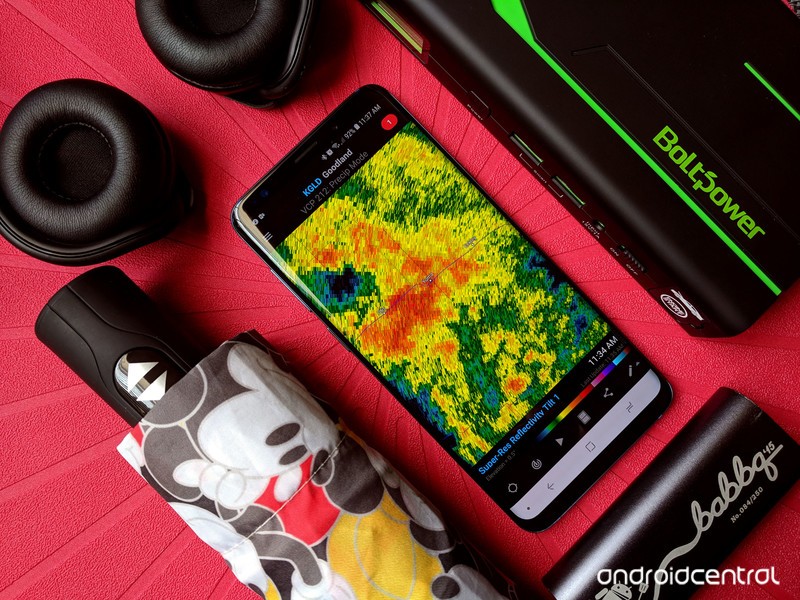
Whether the weather you need to weather is coming by land or by sea, we’re here to help you prepare for it.
We’re right in the thick of tornado season, and hurricane season is just days away. We can’t know how severe this severe weather season will be, but we can be prepared, and in an uncertain world, luck favors the prepared. Your Android phone is a tool that helps you through most major events in your life, and severe weather is no exception, so long as you properly prep your phone and have a plan in place to follow with it. We are here to help you through whatever storms are to come, so let’s batten down the hatches and get the barn doors shut.
- Weather Essentials
- Tornadoes and Severe Thunderstorms
- Hurricanes
- Severe Weather Accessories
Weather Essentials
Regardless the kind of weather you’ll face when you step outside your door, there are some weather essentials everyone should have ready on their phones, and that starts with a reliable weather app. Whether you check your forecast once a day, once a week, or once and hour, a good weather app will keep you from getting caught in the rain — or far worse conditions.
Read more: Here are our favorite weather apps
There are dozens of weather apps on the Play Store, and while they have various layouts and features, the most important aspect of a weather app can’t really be reviewed for everyone: how accurate it is for you. See, weather apps can pull their data from a variety of weather services, and some are better in some regions than others. To this end, if you live in an area prone to severe weather, it’s important to find a weather app that doesn’t just look good, but one that’s accurate for your area, so that you get the best forecasts available and can be better prepared.
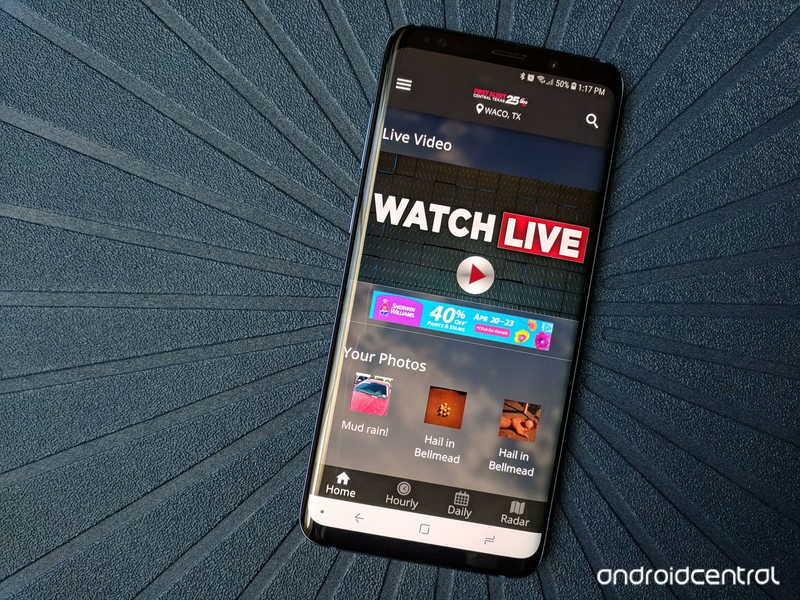
This brings me to the second requirement on our phones for severe weather: a meteorologist you trust. Many local TV stations have weather apps that offer up forecasting directly from their team of meteorologists, and they usually offer live streaming during severe weather events. Even if your chosen station or meteorologist doesn’t have an app, chances are they have a social media page they’ll be active on during severe weather. Whatever the case, make sure that during a severe weather event, you have a way to listen to what your meteorologist is saying. They’re going to give you the most up-to-date information and warn anyone in the storm’s path more efficiently than a simple NWS alert from a national or international weather app.
Beyond having a weather app and a meteorologist you trust, there are a few things that are useful to have on your phone at all times:
- Get the number for your local Emergency Management Office, as this is the office that will run things when an event happens in your county. Find their number and put it in your Contacts.
- While you’re at it, add in the numbers for your insurance companies, because trying to look them up on spotty, overloaded networks after a major weather event could be difficult or impossible.
- A current photo of yourself, your loved ones (including pets), and your vehicles.
Tornadoes and Severe Thunderstorms
We’re in the thick of tornado season here in the south, and while there may be a few days heads up that some kind of severe weather might happen, usually you’re lucky if you get 30 minutes warning before a tornado hits. This is why proper watch and warning settings on your weather app of choice is critical.
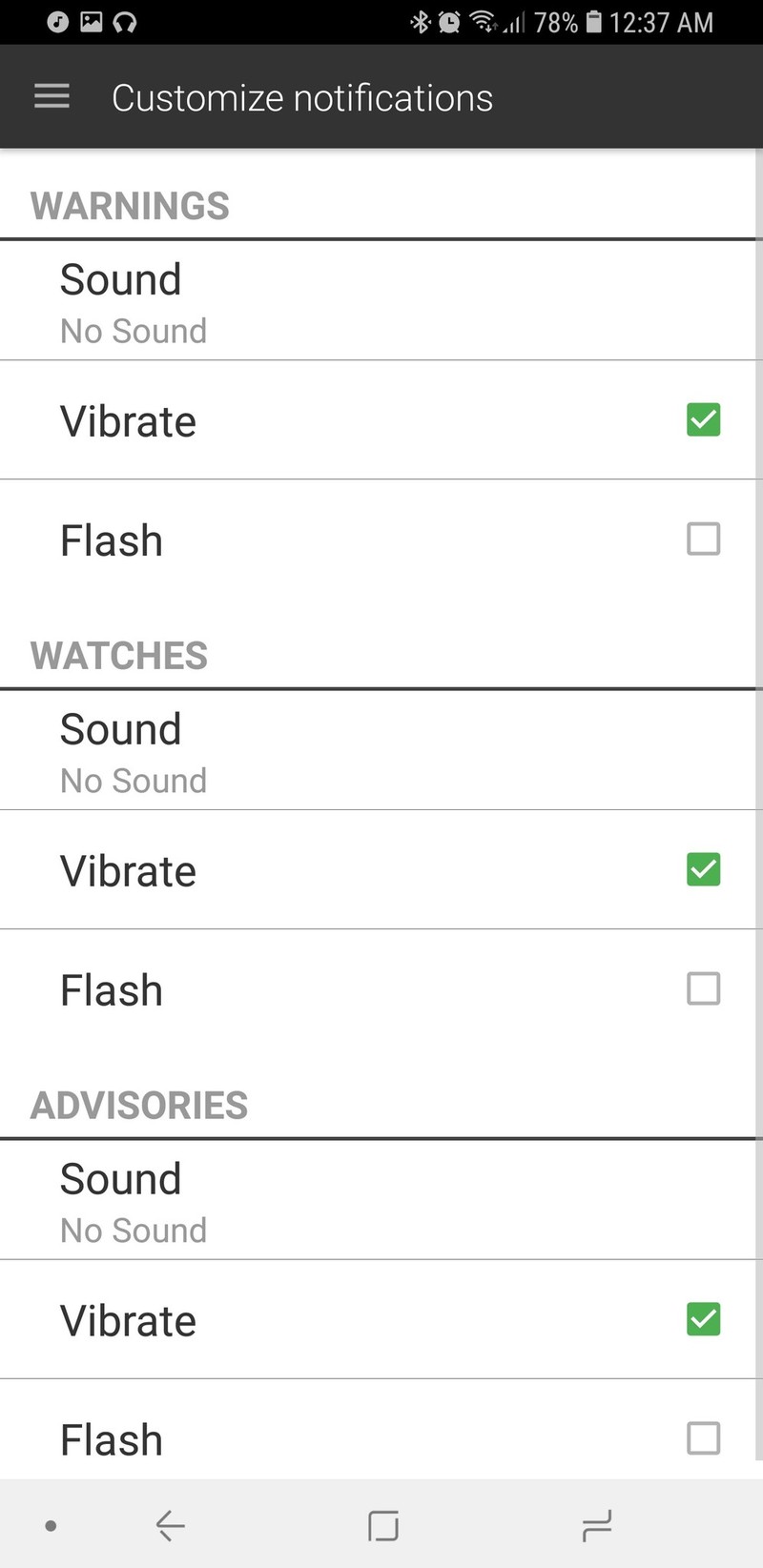
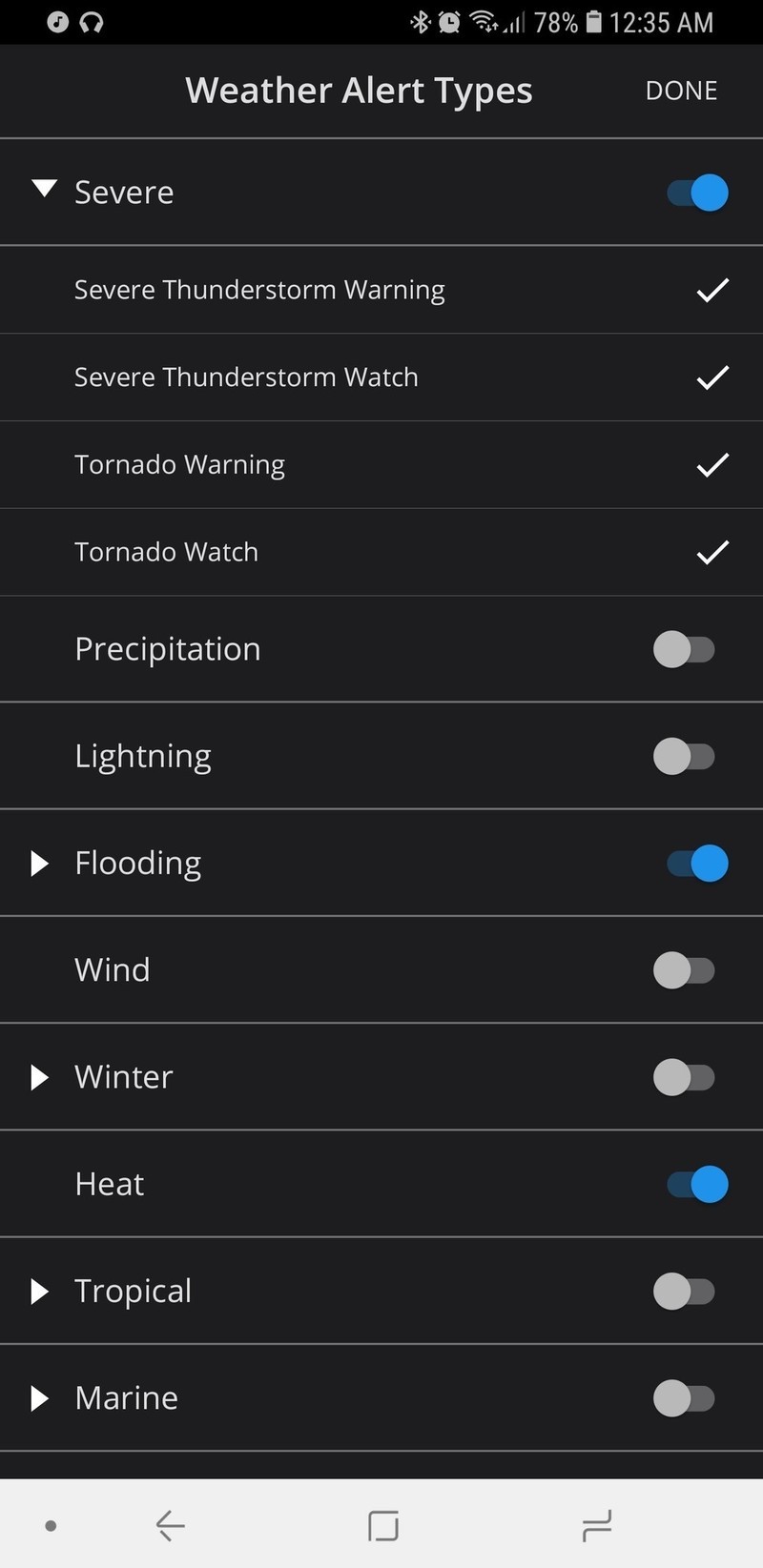 Alert settings in 1Weather and First Alert 25
On many weather apps, Severe Weather Alerts are an all-or-nothing setting — a single toggle — but some apps understand that different levels of weather alert warrant different levels of alarm. For instance, on 1Weather, you can set different sounds and dictate which levels of alert trigger a Vibration or Flash to alert you.
This means that for a Watch, when severe weather is possible, you can have your phone just vibrate but not play a sound, while a Warning, when severe weather is expected or already arriving, gets to cue the lights and sirens. Meanwhile, on the First Alert 25 app used in Central Texas allows you to pick which watches and warnings you are notified for, but they all notify you the same way. If you don’t want to be bothered with thunderstorm warnings but do want to know about tornado watches and warnings, you can do that.
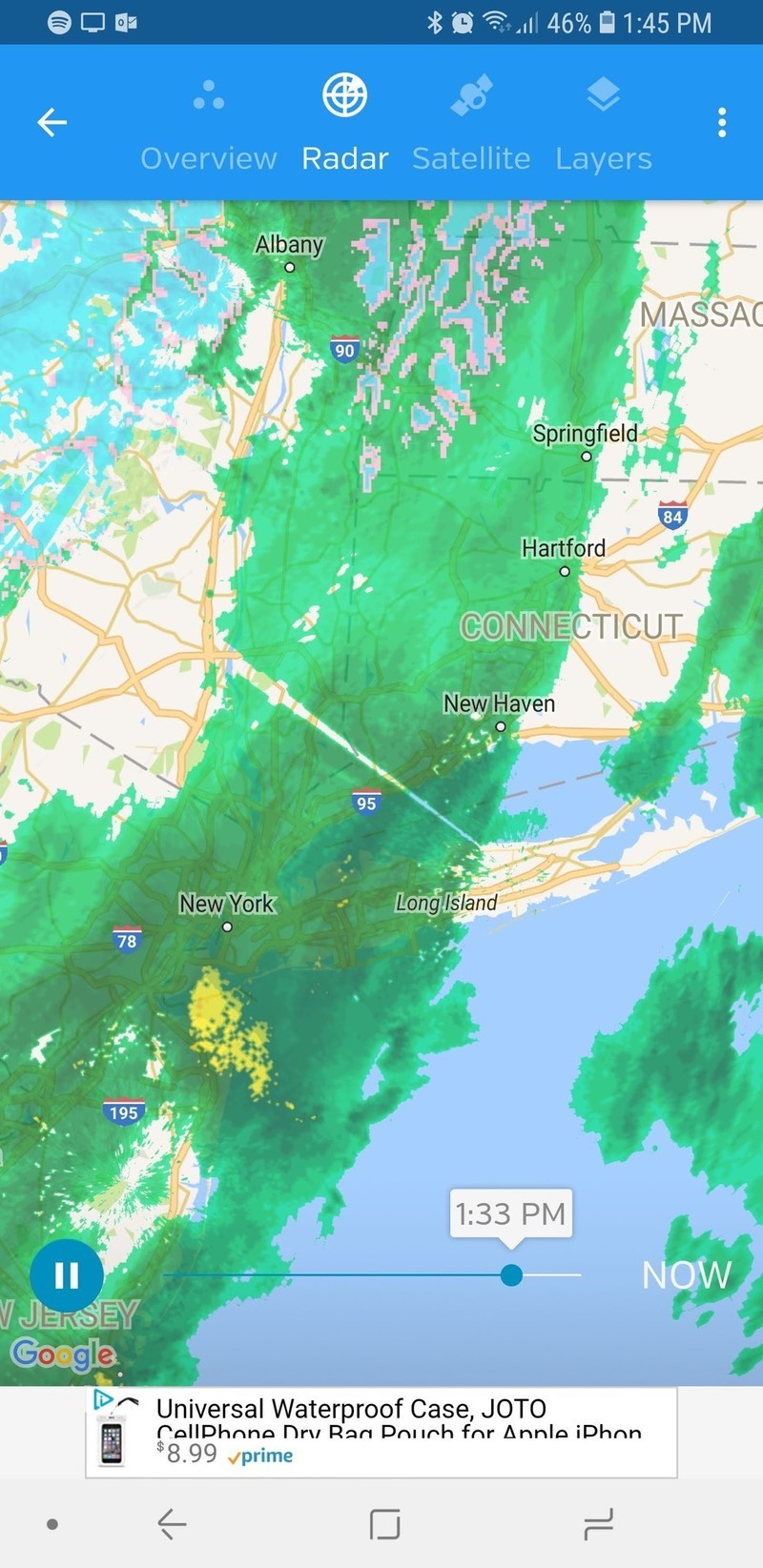
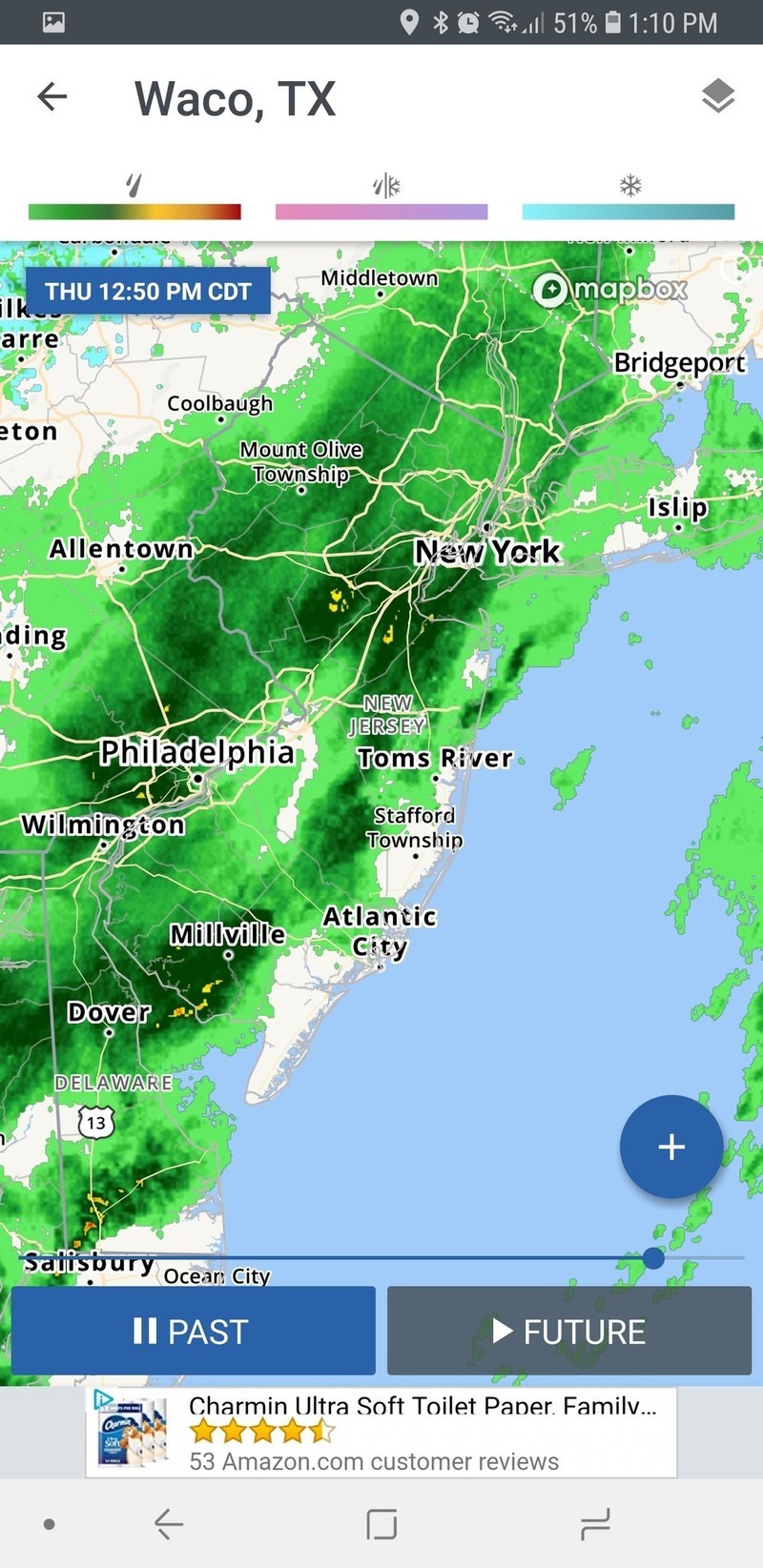 Radar pages in Weather Underground and The Weather Channel
Broken lines of supercells and isolated tornadic storms are quick to develop, quick to move, and quick to change, and having a good radar app is extremely useful. Nothing quite convinces you to get back inside like a nasty mess of yellow and red bearing down on your little location icon on a radar map.
Most weather apps have some kind of radar included, but some are more robust than others. Not everyone needs the professional-level radar of $10 (and then a subscription) RadarScope, unless you’re foolhardy enough to go storm chasing, but Weather Underground offers an hour loop on its radar as opposed to the half-hour radar loop on most weather apps. The Weather Channel sports a two-hour radar loop. Some apps offer “future radar” rain forecasts, but during severe weather, that isn’t going to be all that accurate.
Hurricanes
Hurricanes are powerful, devastating, and — for better or worse — slow-moving. If you are in the path of a hurricane, you will (hopefully) have days to prepare, but you, unfortunately, will have far more you need to prepare for. Radar and weather alerts are slightly less helpful in a hurricane considering how large an area tends to fall under Tropical Storm and Hurricane Watches and Warnings, but there are a number of things you can and should do with your phone to prepare:
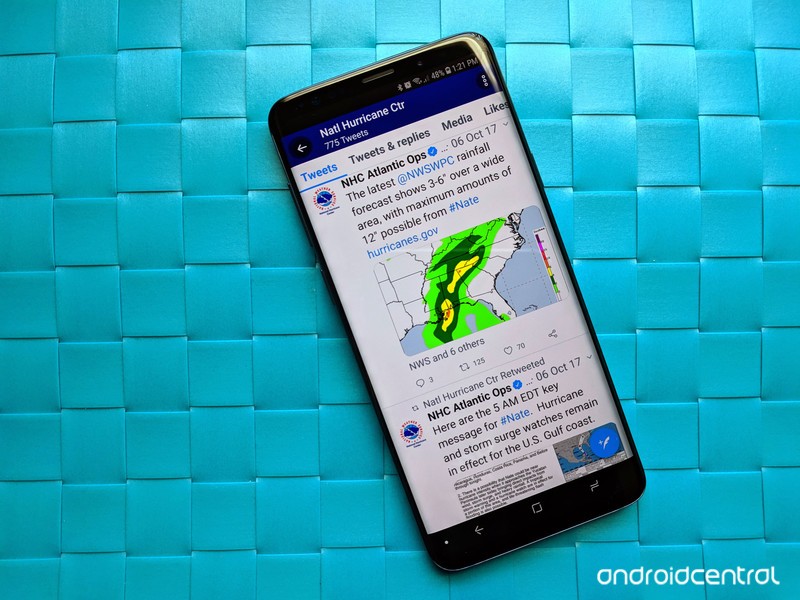
Go to your mobile browser of choice and bookmark The National Hurricane Center’s website. It’s going to spit out new predictions every six hours, and there are a variety of ways to keep up with those predictions, but the easiest are Twitter or email. Here’s the American Red Cross’s Hurricane app, if you need step-by-step tips and guidance through your first hurricane. The Red Cross’s app isn’t infallible, but it can be a resource.
If you haven’t already turned on photo backups in Google Photos, do it right now and start photographing everything for insurance. Your home, your cars, your tech, your loved ones. Turn on Google Photos’ free backups and photograph everything, throw it in a folder in Google Photos, and hope that you don’t need to use them to convince your insurance agent that there was not, in fact, a tree on top of your car before the hurricane came. While you’re taking photos, switch over to a Google Sheets document as you go and inventory things.
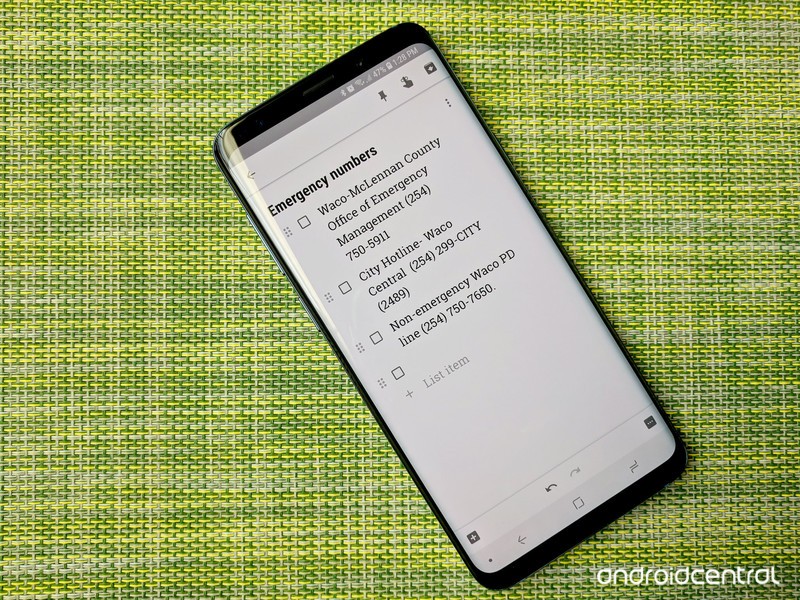
If the network goes down, the network goes down, and while it’ll be back quicker than power in most places, make sure you have what you need while it’s down: the emergency numbers we mentioned back at the beginning of this article, and whatever music/books/movies will keep you and your brood sane. If you have old/spare phones and tablets, load them up with media so you don’t kill the batteries on the phones that matter once the power’s out and you’re relying on portable batteries.
Severe Weather Accessories
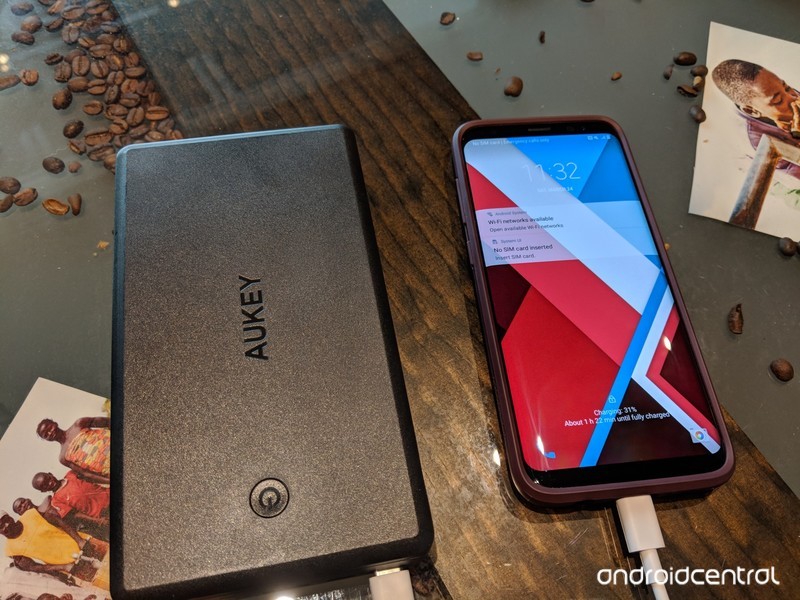
Portable batteries are a lifeline for our technology in many, many situations, but during severe weather, they can turn into lifelines, so if you haven’t invested in one or five yet, now is the time. Portable batteries are getting smaller and cheaper every year, it seems, and whether you just need a pocket-friendly battery to last you through a lightning-caused blown transformer or PowerHouse to keep you powered through days of darkness, there’s a portable battery out there for every power — and price — point, so charge up accordingly.
Check Thrifter for deals on battery packs. Seriously, there’s a portable battery of some shape or size on sale almost every day.
Most importantly, charge early and often. Once the power’s out, you don’t know when it’s coming back on.
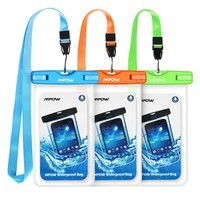
Of course, you also need your phone to stay dry, and while waterproof phone pouches are marketed more for beach vacations than flash flooding, they’re three for ten bucks and can protect your thousand dollar phone and possibly your only method of communication. They even come with handy lanyards for making sure your phone stays within reach. And if you don’t need them this season, you can use them the next time you go to the water park.
See Mpow Waterproof Case at Amazon
Are you ready for the storm?
What other preparations do you make with your phones for severe weather season? And what non-phone preparations have you made? Is there a storm kit in your car or your house? What severe weather alerts do you have set up on your phone? Let us know your severe weather setup in the comments, and if you have any tools in your prep kits that served you well during last year’s very active hurricane season, share them!
How to transfer data from your old PlayStation 4 to your new one

Moving your saved games, trophies, and more is easy with PlayStation 4.
So your PlayStation broke and you had to get a new one, or you’ve taken the dive by upgrading to a PlayStation Pro. Regardless, all your hard work and save files are really important, and you probably want to keep them on your new device. Thankfully Sony has made this process pretty easy for the users to do themselves. This process will take some time, so the sooner you set it up to happen, the better! If you don’t have both PlayStations available to transfer them, we’ll show you how to back up data instead!
Connect your PS4 to the internet
There are two ways to connect your PS4 to the internet, but because you are going to be doing a decent amount of downloading I recommend using a connection through a LAN cable. If WiFi is your only option that is also fine but might take a bit more time to complete. Remember both of your consoles have to be connected to the internet, so these steps have to be done twice!
Connecting through LAN cable

Plug an ethernet cord directly into your modem.
Plug the other end of the ethernet cord into your PS4 LAN cable outlet.
Go to the Settings Menu from your home menu and select “Network”.
Select “Set up internet connection”.
Select “Use a LAN cable”.
Select “Easy” and follow the set-up steps.
Just to be sure all is well, go back to your Network menu and select “Test Internet Connection.”
This will let you know if all went well. Now that you’re connected you can move on to updating.
Connecting through WiFi

Go to the Settings Menu from your home menu and select “Network”.
Select “Set up internet connection”.
Select “Use WiFi”.
Select “Easy”.
Select the WiFi network you wish to connect to and input the password.
Just to be sure all is well, go back to your Network menu and select “Test Internet Connection.”
This will let you know if all went well. Now that you’re connected you can move on to updating.
Make sure both consoles have the proper updates

Both consoles will require having the most updated version of the PS4 Software Update in order to transfer data. If your current console already has the 5.53 update, you can move on to make sure your new PlayStation has it as well. Thankfully, the same steps to check the updates will also automatically install them if they are needed.
Select “Settings” from your PlayStation home menu.
Select “System Software Update”.
Check to see if an update is available. If there is, the update will automatically start.
Now that you’re updated move on to syncing your trophies or transfering data
Take your trophies with you!

Trophies must be manually synced to your account so that they transfer to your new PlayStation. Even if you have synced them before, you need to re-sync them again to ensure all of your updated trophies are connected to your account.
Go to the Trophies from the main menu
On the top left, it will show it auto-syncing to the PlayStation Network
If it does not press the “Options” button on your DualShock controller.
Select the “Sync to PlayStation Network” option.
How to transfer your data

Sony has made transferring your data from one PlayStation 4 console to another pretty simple to do. You’ll need both consoles, an internet connection, and a LAN cable in order to do it, but that’s all. With the Software 5.53 update, transferring data is essentially built into your console.
Transferring your data means that your saves, trophies, downloaded games, folders, screenshots, and more all get copied from your original console over to your new PlayStation 4. This does not cover your passwords or un-synced trophy data, so you’ll want to ensure everything is up to date before starting your transfer.
Easy Set-Up
This set up will be automatically triggered when you follow these steps!
Check that both consoles have received the 5.53 software update.
Turn on both consoles, and make sure they are connected to the same network using Wi-Fi or LAN cables.
Sign into your PlayStation Network account on the new console.
Select Transfer data to a new console at the bottom of your screen.
Press and hold the PlayStation button on the controller connected to your old console until you hear a beep.
Select the data you want to transfer, and select Next.
Activate your new PS4 as your primary console.
Manual Set-up
If for some reason the transfer did not trigger with the above steps, or you have dismissed the options before, here’s how to manually pull up the option to transfer data.
Go to the “Settings” menu from your main screen.
Select “System”.
Select “Transfer Data.”
Select “Transfer.”
Make sure both of your PS4’s are connected to the same internet, then hit continue.
Select the new PS4 from the list and continue.
Follow the transfer steps and leave both PlayStations on for the duration of the download.
Backing up and restoring a PS4

If the internet is not an option at all for you, or you keep receiving an error, fret not. There is another option for you to try out! This process will take twice as long as each download will have to run separately instead of at the same time. But if it saves all that precious data, it’s worth it!
Backing up
The first step is getting all of your information onto a USB port so that you can move on to restoring it to your PlayStation!
Put your USB storage into a USB port on the PS4.
Sync your trophies by following the instructions above
Go to the “Settings” option from the main menu.
Select “System”.
Select “Back Up and Restore”.
Select which data you would like to back up and continue.
Name the backup file something you will easily remember and select “Back up”.
When the progress bar is finished loading, your backup is complete.
Restoring
Now that you have all the information pulled, it’s time to install it to your new PS4.
Go to “Settings” from your main menu.
Select “System”.
Select “Back Up and Restore”.
Insert your USB with your data.
Choose “Restore”.
Select the backup file.
Select “Yes.”
Questions?
Do you still have questions about how to transfer your data? Have you had issues with this method? Be sure to let us know about it in the comments below!
If you are still experiencing issues transferring the data from your PlayStation 4 be sure to give Sony a call at 1-(800)-222-7669 between the hours of 6am-8am.
Update April 2018: We’ve updated this article with information on how to update with the new 5.53 update as well as a backup and restore option!
PlayStation 4

- PS4 vs. PS4 Slim vs. PS4 Pro: Which should you buy?
- PlayStation VR Review
- Playing PS4 games through your phone is awesome
Amazon
Best lighting accessories for Android photography

Light up your life, or at least your selfies!
Have you ever tried to shoot some video or photos with your Android phone in lower light, only to have them come out dark and blurry? Then when you turn on the flash, suddenly they’re all over-exposed and washed out?
An external light source is a great tool to keep in your pocket if you want to have more control over the amount of light that floods into your shots – and depending on whether you’re shooting portraiture, nature shots, or selfies, there’s a light accessory to match everyone’s needs!
Here are a number of lighting accessories to keep your Android photos and videos looking sharp and professional.
- Xuma balanced LED
- Bower Smartphone LED light
- Lume Cube
- Ocathnon ring light
Xuma Mobile Daylight Balanced LED

The Xuma Mobile is as simple as portable lighting gets. Just plug it into the headphone jack that your phone totally still has, turn on the light, and start shooting away! Since the headphone jack isn’t specific to one direction, you can angle the light towards your front camera, rear camera, or anywhere in-between. If you don’t have a headphone jack, don’t worry — the light comes with a clip and a suction cup mount, too.
The Xuma light puts out a whopping 46 lumens from its 48 LEDs, and is rated to last for four hours per charge. Once it dies, you can recharge it through Micro-USB instead of fussing with batteries. If 46 lumens is too bright for you, you can reduce the intensity, and the light comes with a warm filter to change your color temperature.
See at B&H
Bower smartphone LED light

If you’re shooting in extremely low light, you might prefer the LED video light from Bower. This 50-LED kit is considerably bigger than the light from Xuma, and lasts for up to 18 hours per charge. It ships with warm and cool tone filters, and has a wide range of brightness levels for different shooting situations.
The larger size means that the Bower light illuminates a wider shot, and the included cold shoe mount means that you can attach it to your DSLR or mirrorless camera when it comes time to step up your image quality. Bower also includes a retractable claw to attach the light to your phone, regardless of whether or not it has a headphone jack.
See at Amazon
Lume Cube

And though she be but little, she is fierce.
While that line comes from a classic chunk of Shakespearian dialogue, it can also be attributed to the Lume Cube.
The Lume Cube is a durable, rugged, waterproof, resilient little box that makes illuminating your videos and photos a hell of a lot more fun. If you’re someone who likes to shoot action or adventure photos and videos with your phone, then the Lume Cube is absolutely the next logical step.
With the Lume app, control the cube’s brightness from 1 to 1,500 lumens and the duration of the light from 1/8000 of a second to a continuous flow. Then simply attach the cube to a tripod, mount it to your phone, or simply use it on its own to get the best-lit results.
You can even control up to five different Lume Cubes with the app. The lighting possibilities (and adventures!) are endless!
See at B&H
Ocathnon ring light

If you’ve ever noticed a ring of light in your favorite vlogger’s eyes, that comes from … well, a ring light! Ocathnon’s ring light attaches easily to the top of your phone to augment your selfies and vlogs, with 36 LEDs aligned in a circular configuration. It comes in a variety of colors, and the inside of the clip is padded to avoid scratching your phone.
The Ocathnon ring light requires two AAA batteries, but on the bright side LED is so power efficient that you won’t need to replace the batteries very often. If you often find yourself in poor lighting while taking selfies or live-streaming on Instagram, this cheap ring light could be the perfect solution!
See at Amazon
How do you light up your life?
Are you a fan of using external light sources, or do you think they’re a useless accessory and hassle?
Have you gotten some incredible shots using any of the products above? If so, let us know in the comments below!
Replaced some discontinued products with newer lights like the Xuma Mobile, Bower LED, and Ocathnon ring light.
Development of eSIM tech halted thanks to legal feud with Verizon and AT&T
The Justice Department’s been conducting an investigation since February.
Trying to switch carriers is a royal pain the butt, and it was recently discovered that Verizon and AT&T are trying to make this process even more difficult. According to a report from The New York Times, the two carriers are under investigation by the U.S. Justice Department for working with GSMA to develop a technology that’ll allow them to lock eSIMs to their networks.

The antitrust investigation is said to have begun this past February after Apple and an unnamed carrier filed complaints to the Justice Department regarding the matter. AT&T says it’s “aware of the investigation” and Verizon notes that it has been working with the Department regarding –
A difference of opinion with a couple of phone equipment manufacturers regarding the development of eSIM standards.
As a quick refresher, eSIM is a new technology that’s aiming to eliminate the need for physical SIM cards by allowing you to switch carriers as you please thanks to an embedded chip – making it much easier for folks to flee the clutches of Verizon, AT&T, etc. if they so choose. The Pixel 2 was the first Android phone to feature this technology with Project Fi, and it still is in late April of 2018.
GMSA says it’s been cooperating with the Justice Department as much as possible, but even so, will be putting the development of eSIM tech “on hold” throughout the rest of the investigation. There is already a version of eSIM that can be locked to a specific carrier, but customers would be required to give carriers permission to do this on their behalf.
It’s unclear at this time when GSMA will continue its work on eSIM technology and if Verizon and AT&T will be granted with their locked-down versions. As policy expert Ferras Vinh points out –
The actions would limit choice for consumers and harm competition.
What’s your take on all this?
Carriers

- Which unlimited plan should you buy?
- Verizon’s Unlimited plans: Everything you need to know
- Everything you need to know about the T-Mobile ONE unlimited plan
- Everything you need to know about the AT&T Unlimited plan
- Everything you need to know about Sprint’s Unlimited Freedom plan
- Join the Discussion

Best Universal Car Mounts for 2018

Keep your phone safely in sight and secure with a car mount.
When you’re on the go, your phone is more than just a tool for keeping in touch. It’s your road trip playlist and your GPS, too. For safety’s sake, mounting your phone to your dashboard, windshield, or air vents is the best way to keep it in view while keeping your hands on the wheel and your eyes on the road. We’ve gathered up a list of some excellent options for universal car mounts, and trust us, there’s no shortage of choices out there.
Note: Before you consider a windshield mount for your phone, you should make and check that windshield mounts are allowed in the states you’ll be driving most frequently in. As it stands, most states outlaw windshield mounted GPS or phone holders due to visibility and safety concerns.
- iOttie Easy One Touch 4 Qi Wireless Car Mount
- iOttie Easy One Touch Qi Wireless CD Slot
- Spigen Kuel OneTap Car Mount
- iDoo Qi Car Charger Mount
- Affordable Universal Car Mount
- New Trent Arcadia Magnetic Mount
- Koomus Eco-CD One Touch Car Mount
- WizGear Universal Air Vent Magnetic Mount
- Spigen Style Ring
- Nite Ize Steelie
- Baseus Wireless Car Charger
iOttie Easy One Touch 4 Qi Wireless Car Mount

iOttie has been a leading brand for car mounts for years, and their latest dashboard/windshield mount, the Easy One Touch 4, is the best mount they’ve yet released.
The Easy One Touch 4 can be oriented any way you like your car with a swiveling telescopic arm. The suction cup mount that’s installed on the mount out of the box is ideal for smooth surfaces such as a windshield. However, since a majority of states and provinces have imposed a ban on windshield mounts that can obstruct a driver’s vision, iOttie also includes an adhesive pad to attach the mount to the textured surface of your dashboard.
Simply press the tabs on the side of the mount in then tap your phone to the button in the middle of the mount to spring it closed. The Easy One Touch 4 also includes Qi wireless charging technology, which is great if your phone supports wirelessly charging. It’s easy to use and can accommodate even the largest phones out there with or without a case. At $50 it’s a pricey accessory, but it’s also one of the best out there!
iOttie Easy One Touch 4 Qi Wireless Car Mount at Amazon
iOttie Easy One Touch Qi Wireless Fast Charge CD Slot

iOttie gets another mention on our list because they make great accessories, and they have a couple different styles of car mounts for you to consider. As the name implies, this one clips into the CD slot you haven’t used in ten years. This not only takes advantage of an otherwise unused space in your car, but — depending on the layout of your dash — keeps your view of the road unobstructed. There’s fast charge support for compatible iOS and Samsung devices, and an additional USB port for charging your passenger’s phone as well.
Everything we said about how easy iOttie’s mounts are to use is just as true with this model, so you won’t have to fiddle with your phone every time you hop in for a drive. This accessory is the same $50 as the other model, so pick one that best fits in your car.
iOttie Easy One Touch Qi Wireless Fast Charge CD Slot at Amazon
Spigen Kuel OneTap Car Mount

Love the style of the iOttie One Touch 4 but don’t need the Qi wireless charging tech? Consider the Spigen Kuel OneTap Car Mount. It’s got a similar set of features and design, but because it’s just a car mount the price is way lower at $19.
The mount is capable of holding even the largest phones securely, and there’s a telescopic arm for orientating the arm precisely where you need it in your vehicle. This mount will not work on a leather dashboard so keep that in mind. It’s also available in black or white.
Spigen Kuel OneTap Car Mount at Amazon
iDoo Qi Car Charger Mount

The car mount from iDoo is one fantastic multitasker. It offers wireless charging for your Qi-enabled phone, or space for a charging cable if you need to plug in.
You have three installation options: dashboard mount, air vent clips, or windshield mount. Take the time to experiment a little with the best sight lines for your phone when you’re ready to get set up so you’ll know which variation works for you. The cradle arm is completely adjustable, so you can avoid glare, and the frame rotates 360 degrees. No matter where you put it, the mount will be an essential part of your commute. It’s a great option that’s available for just $17.
iDoo Qi Car Charger Mount at Amazon
Affordable Universal Car Mount

This offering from Affordable is as minimalist as they come, and you know what that means: no obstructed view. It’s ideal for dashboard or windshield installation.
It’s simple to install and remove when you’re switching vehicles. Bonus points are also awarded to this mount for living up to the name Affordable. It’s also been favorably reviewed for some time now; it won’t drop your phone when you’re traveling bumpy roads, and potholes won’t shake its grip. It’s available for $12 before shipping costs.
Affordable Universal Car Mount at Amazon
Koomus CD-Eco Car Mount

Remember when you kept stacks of CDs in the backseat so that you’d always have your favorite tunes close by? Well, your phone takes care of the songs these days, but your CD player can still be put to good use. The Koomus mount uses it to hold your phone in a very convenient place.
The low-profile mount is easy to install, and your CD player won’t be damaged or even recognize that it’s in use. The flexible clamps hold your phone securely with or without its case. You can also rotate your phone 360 degrees for easier viewing. Give your CD changer new life with this $15 car mount.
Koomus CD-Eco Car Mount at Amazon
New Trent Arcadia Magnetic Mount

For something completely different, check out the mount from New Trent. It holds your phone with a strong magnet and installs onto your air vents. You don’t have to worry about snapping your phone into a cradle, just stick it to the magnetic pad and you’re on your way.
The base mount is available in black or blue and comes with two magnetic plates you can stick to the back of two devices, especially handy if you share your car with other family members. The magnetic plates are thin enough to fit into your phone’s case and strong enough to adhere to the base without having to constantly remove the case every time you get in the car. At just $6, it’s the cheapest mount on this list!
New Trent Arcadia Magnetic Mount at Amazon
WizGear Universal Air Vent Magnetic Mount

Wizgear produces another magnetic car mount we’re a fan of. The magnet is strong on this one, and if you take the mount out of the car, it doubles as a kickstand for your phone. The magnet can be concealed inside most phone cases, so you won’t have to constantly remove the case before sticking your phone to the mount.
The air vent clips keep your phone highly visible without obstructing your view. The base swivels your phone into your preferred position and promises to keep it there until you move it, even when going over rougher terrain. It’s perfect if you just need to jump in the car and go with your phone at the ready. Get yours for just $7.
WizGear Universal Air Vent Magnetic Mount at Amazon
Spigen Style Ring

An inexpensive alternative to car mounts is the Style Ring. The mount is a tiny black hook that sticks to your dashboard, and the ring sticks to the back of your phone. If you’re not wild about sticking things to your car or device, this may not be the right choice for you, but it’s convenient.
The ring that attaches to your phone doubles as a kickstand in both portrait or landscape. It hooks to just about anything, so you might find yourself hanging your phone from a variety of places. Positioning the car mount might take some patience to get it just where you’d like it to stay, but it works well for hands-free calling and accessing music. Your phone snaps into place and swivels 360 degrees. It’s the smallest car mount you can find, so if space on your dashboard is at a premium, the Style Ring is a solid option. Get yours for just $14.
Spigen Style Ring at Amazon
Nite Ize Steelie

This is definitely one of the coolest mounts on this list. The Steelie is a two-piece mounting system wherein a circular magnet adheres to the back of your phone or its case, and a spherical magnetic base adheres to your car’s dashboard or console.
Hop in the car, and your phone mounts in a snap. This is about as minimalist as it gets in terms of car mounts. Making sharp turns and hitting potholes? No worries: The magnet is super strong and the magnetic ball moves with your phone to prevent it from falling off.
If you want a mounting system that barely noticeable, the Nite Ize Steelie is your slick solution for just $18.50.
Nite Ize Steelie at Amazon
Baseus Wireless Car Charger

More and more phones are including Qi wireless charging, so if you’re in the market for a car mount, you may as well get one that charges your phone while you drive. Baseus’s wireless car charger fits that bill exactly. It’s powerful enough to fast charge compatible Samsung phones, and clips into your air vent so your view of the road is unobstructed. The one-touch design helps you get your phone in and out without fuss, meaning you can get on the road that much faster.
Baseus’s wireless car charger is available for $28.
Baseus Wireless Car Charger at Amazon
The bottom line
First and foremost, you need to know the details of your local laws, in terms of whether or not you are allowed to mount anything on your windshield. Next, you need to consider how often you’ll use a car mount and where in your vehicle it’s going to be. Each of these car mounts has distinct advantages all their own, but we think that versatility and durability are the most important qualities to look for.
Which universal car mount are you using these days? Tell us about it in the comments!
Update April 2018: Added the iOttie Easy One CD Slot and Baseus Wireless car charger mount to our list.
Facebook explains what advertisers know about you
Facebook is still facing heat over its privacy controls in the wake of the Cambridge Analytica scandal, and it’s trying to reassure users that their personal info isn’t on the open market. The social network has posted a detailed Q&A explaining just what advertisers know about you — and importantly, what they don’t. It stressed that it doesn’t personally identify you, and that it’s only selling “space” for ads in the same way a TV network might, not the data itself. Marketers get the generic demographics for their ads, the pages you like, the articles you visit and information they already had from elsewhere (such as existing purchases or a third-party app).
The company also emphasized that you can opt out of ad targeting (though not advertising as a whole). It also insists that its social network is the product, not you — it’s the “ability to connect” that matters, Facebook said.
While these are important points and may help assuage the fears of those convinced Facebook is harvesting every ounce of personal data, it doesn’t entirely address the concerns that prompted Mark Zuckerberg’s testimony before Congress. The concern wasn’t that Facebook was selling data, but that it didn’t keep close tabs on what data apps could collect (“Thisisyourdigitallife” collected info about users’ friends without consent) and didn’t notify users when it discovered that the data had been compromised.
And while Facebook is refuting the notion that it’s treating users as products, it’s still true that Facebook’s business model revolves around advertising — with customized ads whenever possible. That’s why ad targeting is opt-out rather than opt-in, after all. It might be difficult to completely escape privacy concerns so long as Facebook has reason to share something about you, even if it’s something as simple as a page like.
Source: Facebook Newsroom
Google Assistant’s routines are an easy way to automate your home
Since Amazon’s Echo arrived in late 2014, voice assistants have become increasingly important in making sense of the disparate smart home devices like speakers, light bulbs, thermostats, security cameras and more. But in the last few months, Alexa and the Google Assistant started letting users do multiple things — like turning down the thermostat, lowering the lights and telling you what’s on the calendar — with a single command.
It’s been a key addition that has made managing a variety of different smart home devices easier. We tried out Amazon’s implementation of routines back in October alongside new Echo hardware, but Google didn’t launch its version until last month. If Google’s going to keep Amazon from dominating the voice assistant market, it needs to be as good at tying a smart home together.
If you’ve set up any smart home devices to work with the Google Assistant, you won’t be surprised to learn that everything involving routines (and smart devices in general) is routed through the Google Home app for iOS and Android. The app’s “home control” settings area lets you add devices from a wide variety of manufacturers. I tested it with a TP-Link light bulb and smart plug, an Ecobee 3 thermostat, the Nest Camera IQ and multiple Google Home and Chromecast devices. While the Google Assistant can control all of these, not all of them actually work with the routines feature — you can’t have the Nest Cam automatically start broadcasting its feed to a Chromecast, for example.
Fortunately, the thermostat, smart plug and light bulb were all supported, along with a number of other Google services. Once I dove into the routine process, I encountered the first notable difference between Google and Amazon. With Alexa, you can build as many routines as you want, while Google offers a total of six customizable ones for specific times like waking up, going to bed or leaving the house. The Alexa app has one example to get started with, but otherwise it’s a blank slate for you to customize. Beyond that, Google and Amazon offer very similar capabilities: you can control supported smart home devices as well as get information from Alexa or the Google Assistant.
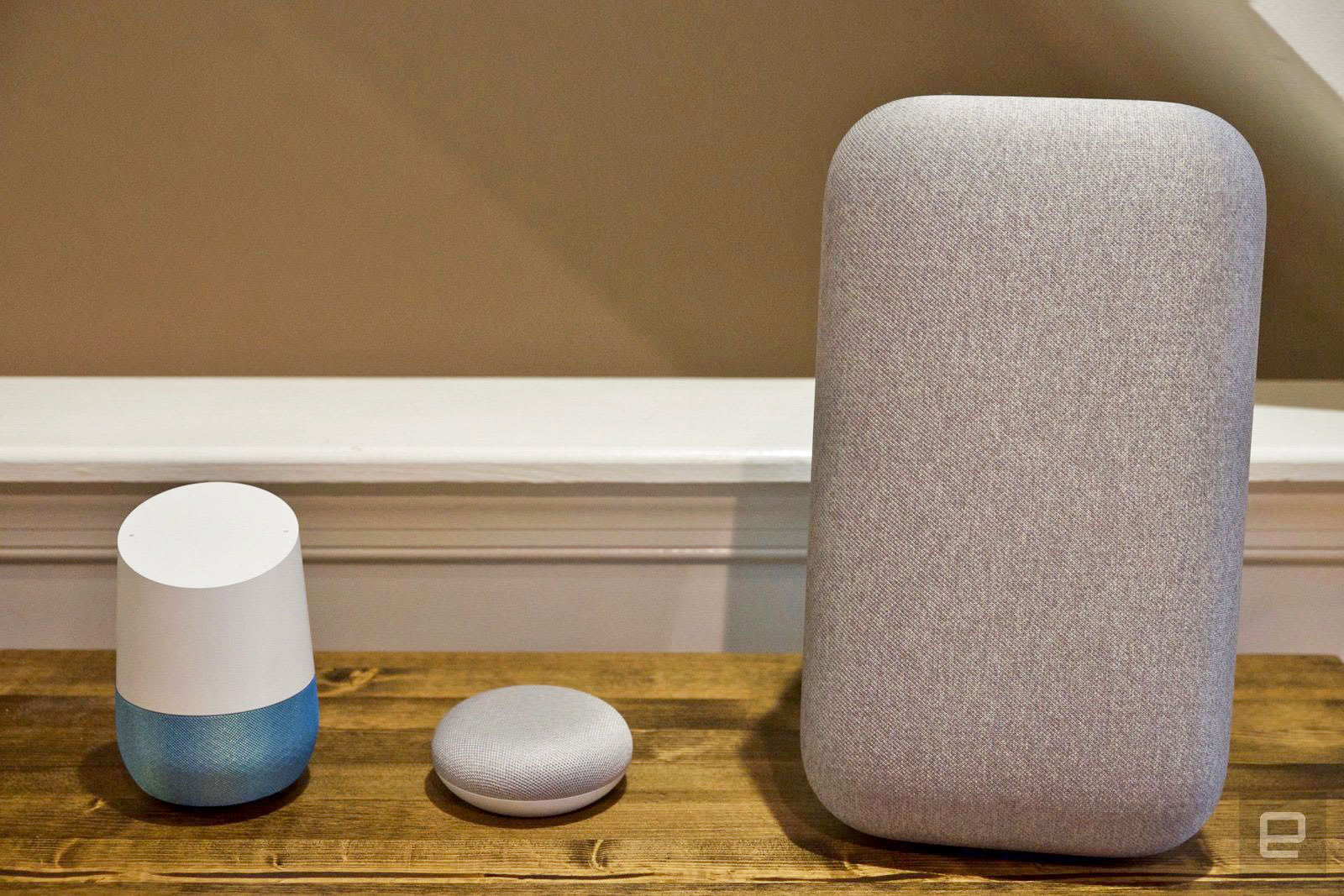
The first one I made was a variation on Google’s “Good Morning”. At the top of the routine’s header, you choose what you want the key phrase to be — default options were “good morning” or “tell me about my day,” but you can specify your own. From there you’ll see a list of actions Google Assistant can do; unfortunately, some activities are restricted to specific routines. For example, the “commuting home” includes an option to send a text or read unread texts, but those aren’t available in “good morning” or “good night.” For most people, it won’t be a problem, but it makes it hard to build a completely custom routine outside of the parameters Google laid out.
The morning routine features a total of eight different actions. I customized mine to take my Pixel phone off of silent, turn on the light bulb (to a warm white light that wasn’t too bright) and smart plug (which my record player and speakers are hooked up to) and turn up the thermostat. Then Google would tell me the weather, what my commute looked like, what was on the calendar and my reminder list. Once that was done, it set the “media” volume on my Pixel to 50 percent and started playing a news briefing from NPR. If you don’t want to hear the news in the morning, you can also choose music from Spotify or Google Play, radio stations, podcasts or an audiobook.

As someone with only a small set of smart home devices, I can’t say that routines really reinvented my day. My smart thermostat is already programmed to my liking, so I don’t really need it to be part of a routine. Smart lights, on the other hand, could be incredibly useful — I’ve always liked having a dimmer, and being able to just tell my phone or Google Home to adjust the lights is pretty handy. (Not to mention changing the color to purple or green is just fun.) However, with a house full of recessed ceiling lights, changing all the bulbs would be an expensive and time-consuming project — and it’s not really solving anything. That’s my issue with most smart home gadgets; I still feel like the majority are solutions in search of a problem.
Many of these features were already available when using the Google Assistant as a “daily briefing” feature, but routines add the ability to tie in the many other smart home devices consumers might have. Assuming you’ve properly linked your smart home devices to the Google Assistant, controlling them is pretty easy. The Google Home app has handy settings that let you see what devices are connected and their status. And while this isn’t directly related to routines, you can now string together a few commands in one go. You can say “Hey Google, dim my light and play Stranger Things on Netflix” and it’ll parse both commands. This doesn’t always work, and you need to use a Google Home speaker rather than a phone to recognize multiple commands. But it’s better than having to say “hey Google” over and over again.
While Google’s default set of customizable routines should make sense for most people, I wish the company had taken Amazon’s approach of letting users craft their own routines from scratch (Google had nothing to say about future plans for routines). Having examples to get started makes a lot of sense, but people whose days don’t quite fit into the neat boxes Google provides would benefit from more flexibility. There’s no reason that sending or reading texts should be restricted to when you’re commuting, for example. I generally work from home, so a commuting routine doesn’t really apply to me, but I can think of several other scenarios in which I’d want to automate sending a text.
On the other hand, this feature just rolled out, and it’s not a stretch to imagine Google will iterate and improve it before long. When the Google Home first launched, there were plenty of concerns about Amazon and Alexa supporting more smart home devices, but that changed pretty quickly. Google’s routines work well with many smart home devices, although it’s not quite as flexible as Alexa. If you’re looking to automate your home, the two platforms are similar enough that you should pick whichever assistant you prefer — either way, your smart home devices will finally work better together.
 AIVAnet