


Spotify Valued at $29.5 Billion as Stock Begins Trading at $165.90 Per Share
Spotify, Apple Music’s main competitor, this morning opened on the New York Stock Exchange at $165.90 per share, valuing the company at $29.5 billion.
When Spotify filed to go public in February, CNBC estimated the company’s valuation at ~$23 billion based on private trades that had reached as high as $132.50. Spotify used the $132 per share figure as its reference price, which would have given the company a $23.5 billion valuation.
As noted by TechCrunch, Spotify is not selling its shares on the stock market and is not raising money today. Its direct listing is instead a collection of transactions from existing shareholders selling shares to stock market investors.
Spotify employees are allowed to sell their shares right away, unlike with a traditional IPO, which could lead to volatility in the coming weeks.
As of December 31, 2017, Spotify had 159 million active monthly users and 71 million premium subscribers, which Spotify says is “double the scale” of Apple Music. Apple as of February boasted 36 million paying subscribers.
In an appearance on CBS This Morning, Spotify cofounder and CEO Daniel Ek today discussed the company’s public offering and a recent report from The Wall Street Journal suggesting Apple Music is on track to overtake Spotify in U.S. subscribers.
In response, Ek said that because Spotify is twice the size as Apple Music, the company “still has some room.” Ek said that he’s “very happy” with the growth that Spotify is seeing. The music industry, he says, is too big for Spotify alone.
“What we’ve found is that when we’ve got competition, it actually grows the market because more people are now talking about streaming. It’s easy to forget that just three years ago, even in the U.S., streaming wasn’t a thing,” he said.
Tags: Spotify, Apple Music
Discuss this article in our forums
How to pick the right MicroSD card for the Nintendo Switch
Nintendo took an old-school approach to the Nintendo Switch by using cartridge-based games. The benefit of cartridges is that you won’t need to install them directly on the system. When you pick up your console and a game — namely, Breath of the Wild — you can just pop the cartridge in and play without having to install any data. If you choose to download Breath of the Wild, on the other hand, the file size will devour a whopping 13.4GB. Even if you plan to buy physical copies of most AAA games, if you account for system updates, game patches, eShop games, and Virtual Console classics (when it comes to Switch), the console’s 32GB of storage space will evaporate rather quickly.
Thankfully, the Switch has a MicroSD card reader that allows you expand onboard storage. Here’s what you should consider when picking out a MicroSD card for your Switch, along with a few recommendations.
MicroSDXC vs. MicroSDHC
The Switch supports MicroSDHC cards as well as MicroSDXD cards. What’s the difference? Storage limits.
SDHC stands for Secure Digital High Capacity, but these cards top out at 32GB. SDXC stands for Secure Digital eXtended Capacity, and these cards store anywhere between 64GB and 512GB.
Depending on your gaming habits, 32GB of additional storage via MicroSDHC may be enough for you, but for those who plan to use the eShop and Virtual Console, MicroSDHC probably won’t cut it for very long.
How much storage space will you actually need, though?
So you’ve decided to pick-up a MicroSDXC card with your Switch, but you’re unsure which size to purchase? It’s hard to predict, but here’s some general guidelines:
If you tend to buy AAA releases physically, and only purchase eShop and Virtual Console titles occasionally, a 64GB card should do the trick.
For those who download eShop and VC titles regularly and the occasional AAA game digitally, it’s probably best to jump up to a 128GB card.
Dragon Quest Heroes
If you expect to download a good portion of AAA games, you may want to consider at least 200GB. For instance, Dragon Quest Heroes 1 and 2 will eat up 32GB on its own.
As of now, the largest MicroSDXC cards available at retail are 512GB, but as that number jumps, keep in mind the Switch supports up to 2TB MicroSDXC cards.
Speed class
Besides storage, another incredibly important factor for choosing the right MicroSD card is speed. Speed classes are assigned a grade — 2, 4, 6, or 10 — to note a card’s minimum baseline speed. A grade of 2 means a baseline speed of 2MB/s, a 4 means 4MB/s, and so on. For the Switch, however, you will want to only buy cards graded with a class 10 speed. Since the console will read games stored on the card, a class 10 speed card will likely mitigate lag and slowdowns.
Now, just because a card is graded class 10, it doesn’t mean it’s only capable of reading and writing data at 10MB/s. Each MicroSD card also has a rated speed, which notes the maximum transfer rate, usually significantly higher than 10MB/s. Since we cannot predict how MicroSD cards will perform in the Switch — and it’s entirely possible that they will vary game-to-game — your concern should mainly be the class 10 speed.
Also, if you find a MicroSDXC card with a UHS class grade, you’re in the clear. The grades range from UHS-1 (10MB/s) to UHS-3, sometimes with a 1, 2, or 3 printed on the front of the card instead of a 10. Nintendo recommends cards that are UHS-1-compatible and that have a transfer speed between 60 and 95 MB/sec.
Oppo R15 Pro hands-on: Notch too bad
Oppo is slowly creeping into just about every region of the world. Whether in China or India, the company has become synonymous with the rapidly expanding Asian phone market. This isn’t a company that makes flagships though (that’s OnePlus‘ job); it makes affordable mid-ranged devices for everyone. But what happens when the line between a high-end and budget device begins to blur?
That’s what Oppo is trying to accomplish with the new R15 range. This is the Oppo R15 and R15 Pro hands-on.

Oppo wants to blur the line between budget and flagship by sacrificing small features it thinks people will overlook.
Generally, we judge a smartphone’s worth by the age of its SoC. Does it have the newest Snapdragon? Flagship. Latest Exynos? Flagship. Last year’s Snapdragon? LG. What Oppo is trying to do with the R15 is create a mid-range device that, besides the chipset, is so similar to other current high-end devices that the line between them gets seriously blurred.
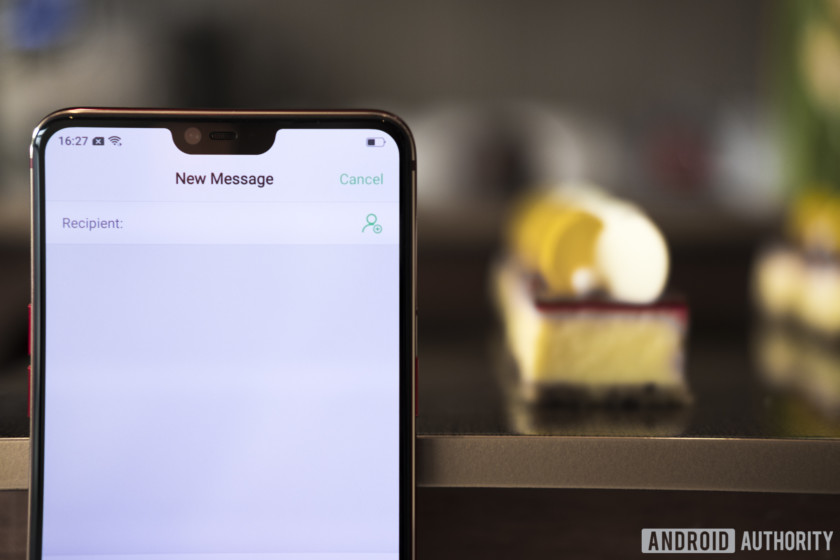
The Oppo R15 and Oppo R15 Pro use the Mediatek Helio P60 and Qualcomm Snapdragon 660 respectively, which are, by definition, mid-range options. If you take the brains out of the equation, the 128GB of storage and 6GB of RAM will likely throw you for a loop. The number-crunching SoCs don’t run at the highest clock speeds, but you’ll be able to store your entire media library on this thing (with optional expandable storage) and jump between apps faster than you can blink.
See also:
Everything you need to know about Qualcomm’s Snapdragon 845 (video)
Following yesterday’s keynote teaser, Qualcomm has followed up by lifting the lid on its latest mobile platform – the Snapdragon 845. The chipset sports improvements across the board, ranging from new processing technology to an …
Oppo wants this phone to be full of compromises you don’t really notice. This phone isn’t QHD. It’s got the oh-so strange resolution of 2,280 x 1,080. But… it has an OLED panel.
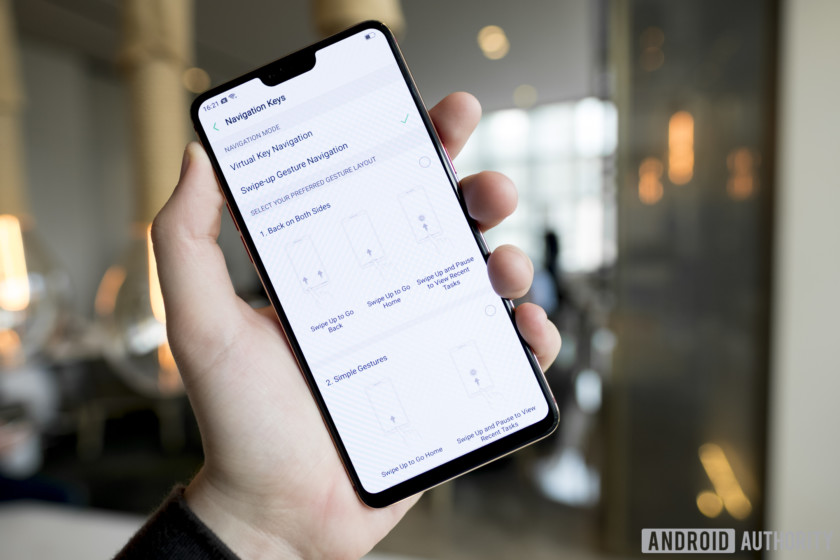
Do you see what I mean? The OLED screen overshadows its relatively low resolution. The 20MP front-facing camera and 18.99:9 (or 2.11:1) aspect ratio make the phone’s notch seem like a less of a problem. The compromises at the core of this phone make it affordable, and the “misses” are almost always overshadowed by a benefit the average user will likely care about more.

That front-facing camera I mentioned earlier is paired with some “AI” tech that can map cat ears to your face and help soften your skin. It’s a gimmick and will probably get old after one or two photos, but it’s still fun. Oppo can brand the features whatever it wants as long as they map accurately to my face, which they do.
USB Type-C needs to become the standard for every device.
The rear cameras (I say this casually as dual cameras are normal now) are high quality too. The standard model carries resolutions of 16MP and 5MP, and the Pro variant sports 16 and 20MP shooters. The resulting images looked good, though a bit washed out, during our hands-on time with the devices. Oppo also showed us the phones in an extremely well lit and photogenic room, so we’ll have to take this thing out into the real world to test it in a more realistic environment.
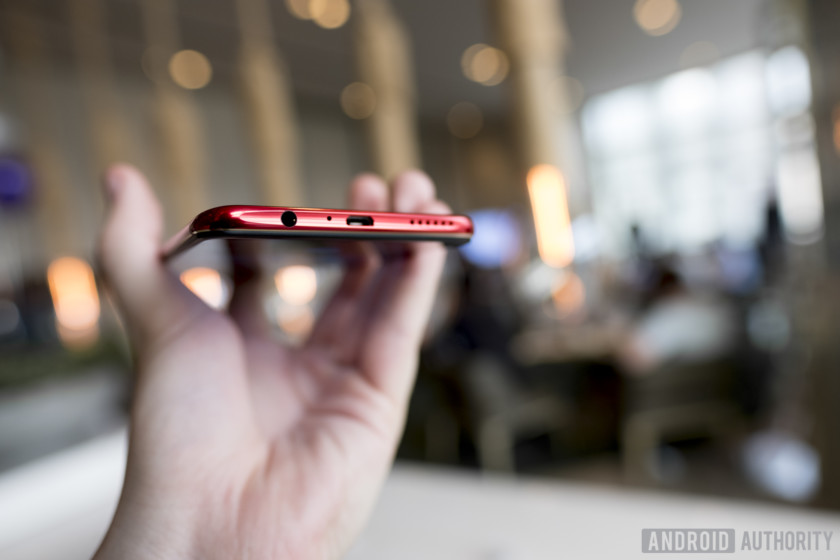
The bottom of the phone houses a speaker, Micro-USB port, and a headphone jack. The lack of USB Type-C is something I personally don’t think Oppo has any excuse for, but it’s just another compromise, this time overshadowed by being able listen to your music with normal headphones, instead of having to rely on Bluetooth or dongles. VOOC Flash Charge is also available on this device, so while I will not forgive the abandoning of a reversible connector, it will still be able to get a quick battery boost from a few minutes on the brick.
Biometric security options include an elongated fingerprint reader on the rear (the correct placement) and a face unlock feature. The face unlock feature is already acting inconsistently in my first day with the phone, so I would likely just use the fingerprint sensor to avoid unnecessary annoyances.
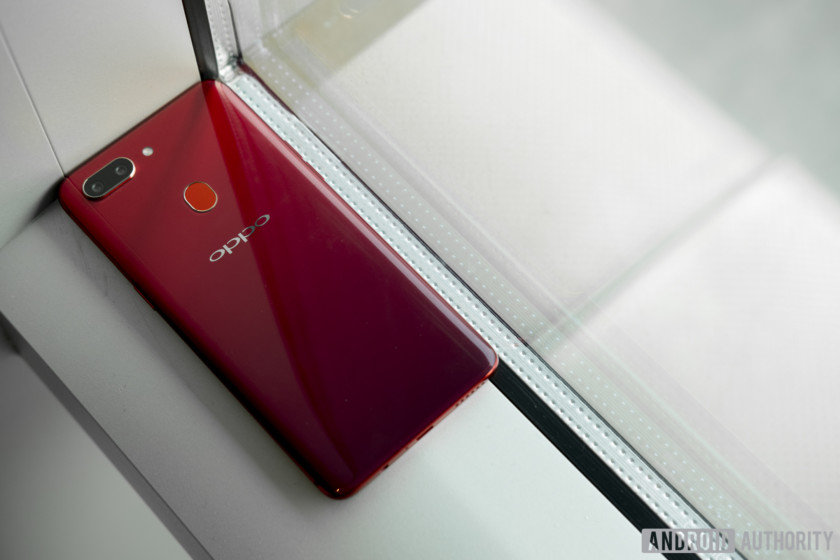
Other compromises include a lack of proper waterproofing (forgivable) and NFC capabilities (unforgivable), though Oppo told me it may add these features to select markets as it releases the device in new regions. The severity of these compromises are obviously tailored to the user, but an NFC chip should be included in every phone on the market, no matter the cost. I live in San Fransisco, but contactless payments and NFC chips are everywhere!
See also: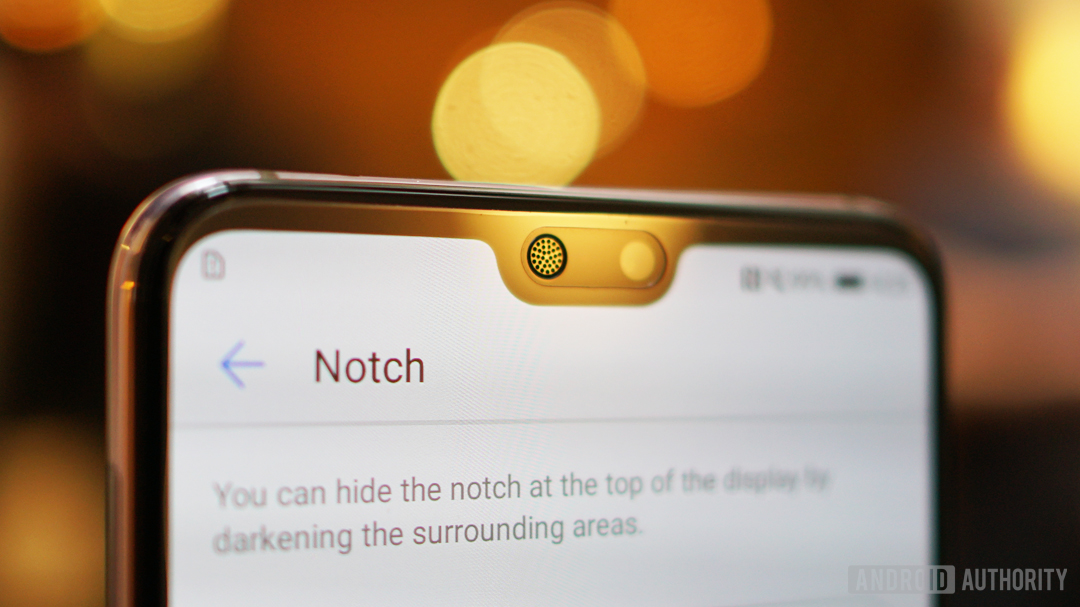
Turned off by the notch? Cover it up with this free app!
Love it or loathe it, the notch is 100% here to stay. Whether you blame Essential or Apple for popularizing the notch, the reality is that more and more OEMs are opting for display cutouts. …
If you like iOS, you’ll like the Oppo R15’s ColorOS 5.0. There is no app drawer and swiping to the left reveals an eerily familiar set of widgets and quick functions. You can even enable swipe-up gestures to get rid of the navigation bar and take advantage of the extremely small bezels. I don’t really care if this is a blatant copy, I like it. This OS is based on Android 8.1, so kudos t0 Oppo for at least giving us the latest Google has to offer (for security’s sake).
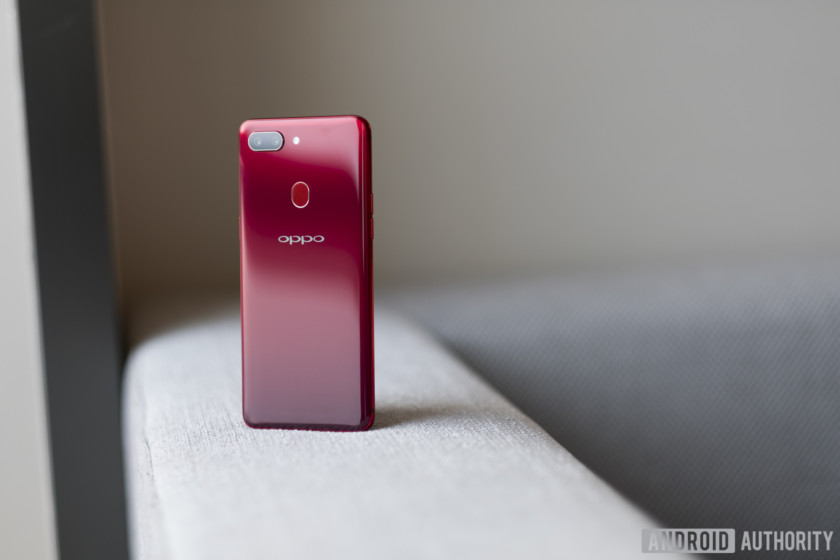
The Oppo R15 and R15 Pro are very attractive phones, depending on how you feel about the notch. The standard model comes in three colors including Rogue Red, Frost White, and Nebula Purple (a gradient from dark purple to black). The Pro comes in Infinity Black and Ruby Red (another gradient from red to black). Why all these companies got together and decided to make gradient phones I will never know, but I’m very happy they did.
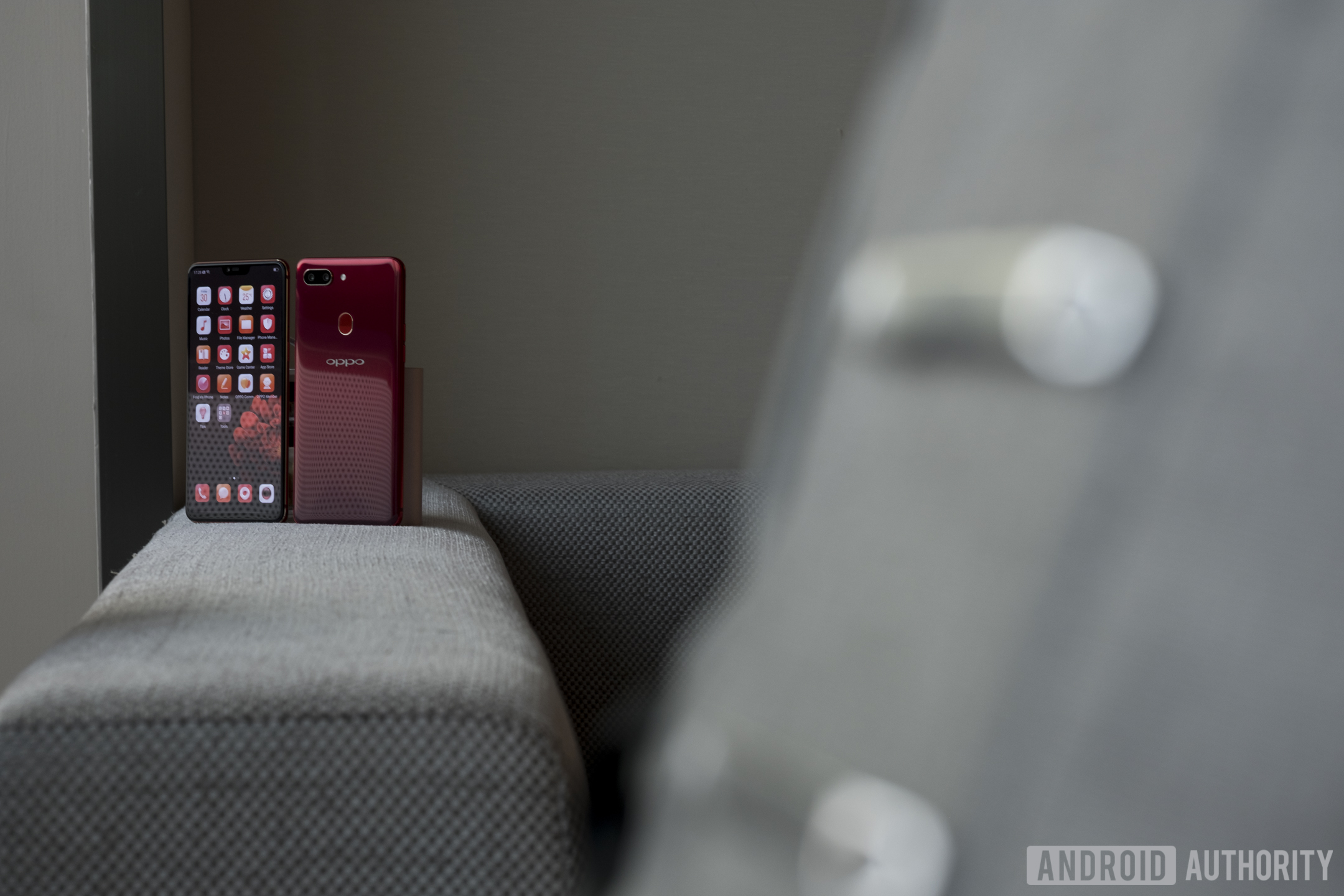
We’ll have the opportunity to spend much more time with the Oppo R15 and Oppo R15 Pro in the coming weeks. Until then make sure you watch the video above to get a good sense of what the phone looks like and stay tuned to Android Authority for more gradient-colored notch device news and reviews.
Is it still worthwhile to buy a ThinkPad?
Bill Roberson/Digital Trends
Once upon a time, the ThinkPad was among the most recognized notebooks in the industry, both aesthetically and in a design that promised superior performance, build quality, and business acumen. If you wanted to be sure you were getting one of the best Windows notebooks on the market, you could simply choose a ThinkPad and rest easy. Things have changed, however, and the answer to the question, “Is it still worthwhile to buy a ThinkPad” is no longer so clear cut.
It’s not that the ThinkPad has gotten any worse than it’s ever been. Far from it, in fact. The ThinkPad is (mostly) just as robust as ever, with the same kind of MIL-STD 810g certification process and, in some models, the advanced carbon-fiber alloy material with that nifty soft-touch feel. We reviewed the latest ThinkPad X1 Carbon clamshell and X1 Yoga convertible 2-in-1 models and found them, as always, to be fine examples of premium Windows notebooks.
And yet, we assigned neither our “Recommended” badge. How can that be, you ask, if we basically liked the notebooks and gave them decent enough seven out of 10 scores? It’s because both machines are very expensive, and while they’re excellent notebooks for ThinkPad fans, they’re no longer so much better than the competition that their high prices are automatically justified.
Consider the ThinkPad X1 Yoga, for example. Its most expensive configuration comes in at $2,740, netting you a quad-core eighth-generation Intel Core i7-8650U (a very fast chip), 16GB of RAM, a 1TB PCIe solid-state drive (SSD), and a luscious 14-inch WQHD+ (2,560 x 1,440 or 210 PPI) display with Dolby Vision HDR support. While we absolutely loved the display — even without HDR enabled, which is coming in an update, it has glorious colors — the rest of the notebook was rather ho-hum. It’s very nice, mind you, but it may not leave you thinking you made a wise investment.
So, no, it’s not that the ThinkPad has gotten worse, it’s that the competition has gotten so much better. Microsoft’s Surface Book 2 13, for example, is “just” $260 more with the same CPU, RAM, and storage space. Its awesome display may not be as colorful as the ThinkPad’s, and it doesn’t support HDR, but it has higher resolution and is thus considerably sharper, it’s in the very productivity-friendly 3:2 aspect ratio, and it enjoys significantly better contrast. And the Surface Book 2’s Nvidia GeForce GTX 1050 GPU makes it much faster in gaming and in creative apps like video editing.
And even if you’re a business looking for a highly secure notebook, there are more options than in the past. HP has its EliteBook line, for example, that has equally strong security and offers the same MIL-STD 810g robustness. While the ThinkPad can physically block your webcam for enhanced privacy, the EliteBook offers a privacy screen that makes your display unreadable to the left and right — perfect for airline flights and coffee shops where corporate spies might be sneaking a peak.
We haven’t even mentioned that you can spend half as much money on a variety of notebooks and get builds that are nearly as robust, performance that’s even better, and battery life that puts the X1 line to shame. Consider the HP’s Spectre, Dell’s XPS, and Asus’s ZenBook lines as examples of premium notebooks that challenge the best ThinkPads in the ways that matter most while costing significantly less money.
ThinkPads remain great options for those who’ve been fans for years. They’re just as iconic as always, just as well-built, and they’re still innovative. But they’re simply not quite so drool-worthy for everyone else, no matter how much money someone has in their budget.
Editors’ Recommendations
- Lenovo ThinkPad X1 Carbon vs. Apple MacBook Pro 13
- Lenovo ThinkPad X1 Yoga 3rd-gen hands-on review
- LG updates its svelte Gram 15Z980 notebook with 8th-gen Core, Thunderbolt 3
- LG Gram 15Z980 vs. Microsoft Surface Book 2 15
- Lenovo ThinkPad X1 Yoga Gen 3 vs Microsoft Surface Book 2 13
How to use speech to text in Windows 10
Are you ready to start dictating your documents and text with your voice? Instead of offering separated dictation or speech-to-text capabilities, Windows 10 conveniently groups its voice commands under Speech Recognition, which interprets the spoken word across the operating system for a variety of tasks. We’ll teach you how to get everything ready and ultimately, how to enable speech to text in Windows 10 set up so you can start chatting away to your favorite OS and improve Windows’ “ear” for your voice.
Note: Speech recognition is only currently available in English, French, Italian, Spanish, German, Japanese, Portuguese, Simplified Chinese, and Traditional Chinese.
Finding a mic
The first step is to make sure you have the right hardware for speech-to-text options. These days, you may not think much about this step – after all, nearly all devices come with built-in mics, included as a required accessory to today’s computers.
The problem here is one of quality. While built-in mics work well for more simple tasks — such as Skype conversations and quick voice commands — you have to consider distortion and mic quality if you really want to capitalize on speech-to-text. In the past, Microsoft has warned that its speech recognition features are best suited for headset microphones that interpret sounds with greater clarity and are less susceptible to ambient noise. If you’re serious about using speech recognition for Windows 10, it’s a good idea to pick up a headset that is compatible with your computer.
If you are going to buy hardware, do it sooner rather than later, as the speech features tend to work best if you don’t switch devices after training. If you do decide to get a new mic, follow these steps to make sure Windows knows you want to use it over any previous microphone you may have had:
Step 1: Using the Windows 10 search box, type in “microphone.” This will allow you to go directly to the “Set up a microphone” section of your Control Panel.
Step 2: Windows will ask you what the problem with using Cortana is. Select “Cortana can’t hear me.”
Step 3: From the list that appears, choose your new microphone. Then select “Set up the mic.”
Step 4: Follow the on-screen prompts and repeat the spoken phrases to help calibrate your microphone for speech-to-text.
Setting up speech recognition
With your mic ready, it’s time to start configuring your various speech recognition capabilities. In Windows 10, this is a more seamless process than it has been in the past. These steps and tutorials will affect an array of Windows programs, but you may also want to make sure dictation is enabled in any writing apps that you prefer to use. Begin with the steps below.
Step 1: Open Windows 10’s “Control Panel,” by searching for it in the Windows search box.
Step 2: Click the menu for “Ease of Access., and then click “Start speech recognition.” Follow the on-screen instructions to set up your microphone.
Step 3: You can set up document review if you want, though it’s worth reading the privacy statement that goes along with it before making that decision.
Step 4: Decide whether you want speech-to-text to be activated with a keyboard or vocal command and click “Next.” Use the reference sheet to familiarize yourself with commands you can make and continue through the other preferences. If you want, you can run the Tutorial to give you an idea of how it all works.
Once completed you should now be ready to go. You can enable or disable speech to text by pressing “Ctrl” + Windows key at any time.
Training your computer and more
At this point, you can venture into Windows docs and use speech-to-text with a variety of Microsoft files. You’re all set! However, you may want to improve Windows’ voice recognition capabilities even further. Microsoft’s latest software has the ability to learn your voice with a little training, and that can really pay off with a few sessions.
Step 1: Navigate back to the “Ease of Access” menu and select “Speech recognition.”
Step 2: Choose “Train your computer to better understand you.”
Step 3: You will be given the task of reading out extended sequences of text to help Windows better understand your voice. By the end of it, it should have a better grasp of your particular accent and vocal traits.
Also, note the option at the bottom of the Speech recognition menu that allows access to the Speech Reference Card. This gives you all the vocal shortcuts you need to get around in a small side screen/printout. It’s a great tool for beginners who also want to control programs and software commands with their voices.
Editors’ Recommendations
- This hearing aid will read your brain to help you understand what’s being said
- Elon Musk calls for colony on Mars to prevent new dark age
- Amazon is reportedly designing its own A.I. chips to make Alexa respond faster
- Here’s how to turn off the Narrator feature on an Xbox One
- How to use Amazon’s Alexa app on your smartphone
Lenovo ThinkPad X1 Yoga Gen 3 vs Microsoft Surface Book 2 13
Mark Coppock/Digital Trends
Two notebook brands are perched at the very pinnacle of the Windows mainstream notebook ecosystem. Lenovo’s ThinkPad line has occupied this rarifed air for decades, and Microsoft’s Surface is a recent addition. If you want to spend more money, you’ll need to either switch to MacOS or configure an ultra-powerful gaming notebook that’s going to be limited to doing just one thing really well.
The ThinkPad X1 Yoga Gen 3 is the latest convertible 2-in-1 to carry the brand’s moniker, and to a certain extent is a relatively minor upgrade of the previous generation. Does it maintain enough power and prestige to hold off the upstart Surface Book 2 13? Check out our Lenovo ThinkPad X1 Yoga Gen 3 vs. Microsoft Surface Book 2 13 throwdown to find out.
Lenovo ThinkPad X1 Yoga
Surface Book 2 13
Dimensions
13.11 x 9.01 x 0.67 (in)
i5 version: 12.3 x 9.14 x 0.51-0.90 (in)
i7 version: 12.3 x 9.14 x 0.59-0.90 (in)
Weight
3.08 pounds
13.5-inch starts at 3.38 pounds
Keyboard
Full-size backlit keyboard
Full-size backlit keyboard
Processor
Up to eighth-generation Intel Core i7
Up to eighth-generation Intel Core i7
RAM
Up to 16GB RAM
Up to 16GB
Graphics
Intel UHD 620
Intel UHD 620
Nvidia GeForce GTX 1050
Display
14-inch IPS touch display
13.5-inch PixelSense touch display
15.0-inch PixelSense touch display
Resolution
Full HD (1,920 x 1,080 or 157 PPI)
WQHD (2,560 x 1,440 or 210 PPI) w/optional Dolby Vision HDR
3,000 x 2,000 (267 ppi)
Storage
Up to 1TB PCIe SSD
Up to 1TB PCIe SSE
Networking
802.11ac, Bluetooth 4.2
802.11ac, Bluetooth 4.1
Connectivity
USB-C 3.1 Gen 2 with Thunderbolt 3 (x2), USB-A 3.1 Gen 1 (x2), HDMI, microSD card reader, 3.5mm combo jack
USB-A 3.0 (x2), USB-C 3.1, Surface Connect, SD card reader, 3.5mm combo jack
15-inch only: Xbox Wireless built-in
Windows Hello
Fingerprint scanner
Optional infrared camera
Infrared camera
Operating System
Windows 10
Windows 10
Battery
54 watt-hours
70 watt-hours
Price
$1,650+
13.5-inch i5: $1,200
13.5-inch i7: $2,000+
Availability
Now
Now
Review
3.5 out of 5 stars
4 out of 5 stars
Design
The ThinkPad X1 Yoga plays strongly to the line’s iconic design aesthetic, taking on the usual black chassis with red accents throughout. The branding has been made a bit subtler, but you’ll still notice the LED “i” on the ThinkPad lid logo and the usual red TrackPoint nubbin in the middle of the 7-row keyboard (if you include the row of three arrow keys). The notebook is constructed of the carbon-fiber alloy that’s typical of the X1 line, and it’s mostly as rigid as usual with the same soft-touch feel that we like, a lot. There’s some flex in the lid and keyboard deck if you go looking for it, but the ThinkPad X1 Yoga still meets the robust MIL-STD 810g certification for protection from the environment.
Microsoft’s Surface Book 2 13 couldn’t be more different. First, it’s thicker than the ThinkPad X1 Yoga — which is a bit thick itself at 0.67 inches — with its rear fulcrum hinge hump coming in at 0.90 inches. And, the Surface Book 2 is heavier at 3.38 pounds, beating out ThinkPad’s 3.08 pounds (also heavy for a 2-in-1). The Surface Book 2 13 also enjoys an aesthetic that is a bit more modern and simplified than the ThinkPad — both are striking machines without being ostentatious, and they couldn’t be more different. Microsoft’s 2-in-1 is distinctly more innovative in how it morphs from a notebook to a tablet and various formats in between, sporting a tear-off display that houses the main computing components and acts as a surprisingly thin tablet for inking and consuming media.
We think the Surface Book 2 enjoys a more futuristic design and is just as solidly built as the ThinkPad, albeit without the certifiable robustness. We give Microsoft the win here, but it’s by a narrow margin.
Winner: Microsoft Surface Book 2 13
Performance
The ThinkPad X1 Yoga is equipped with the excellent quad-core eighth-generation Intel Core i7-8650U, the fasted version of this powerful and efficient CPU. With 16GB of RAM and a fast PCIe solid-state drive (SSD), the convertible 2-in-1 churns through productivity tasks without hesitation.
The Surface Book 2 uses the same CPU, and can also be equipped with up to 16GB of RAM and an equally fast PCIe SSD. So far, it’s the ThinkPad’s equal. However, Microsoft also packed in a bona fide discrete GPU, the Nvidia GeForce GTX 1050 that’s suitable for entry-level 1080p gaming and can also speed up photo and video editing in supported applications.
Both 2-in-1s are productivity powerhouses, but only the Surface Book 2 13 lets you get your game on when you’re taking a break.
Winner: Microsoft Surface Book 2 13
Keyboard, mouse, and pen
As a convertible 2-in-1, the ThinkPad X1 Yoga is typically input-diverse. There’s the usual ThinkPad keyboard with its extensive seven-row keyboard and generally solid feel — it has plenty of travel and a comfortable bottoming action, but it’s a bit loose and lacks the precision of its ThinkPad X1 Carbon sibling. That’s perhaps due to its utilizing Lenovo’s “Wave” mechanism that sucks the keys into the chassis to make for a flatter surface to hold onto in tablet mode.
The Microsoft Precision touchpad has good gesture support and is more than effective, although it’s a bit smaller due to the two buttons supporting the very iconic red TrackPoint nubbin in the middle of the keyboard. That works just as well as always for people who are into that kind of think. And then there’s the obligatory touch display and the ThinkPad Pen Pro that’s smaller than we like but slots into the chassis for recharging and safe keeping. Windows 10 Hello support is via a fingerprint scanner, and you can opt for either an infrared camera for facial recognition or a physical cover for webcam privacy.
The Surface Book 2 is equally well-endowed when it comes to input options. The keyboard is excellent, with copious amounts of travel and very precise feel, and the large Microsoft Precision touchpad is perhaps the best you’ll find this side of a MacBook Pro. The PixelSense display provides perfect touch responsiveness, and the updated full-size Surface Pen is more precise with 4,096 levels of pressure sensitivity (compared to the ThinkPad’s 2,048 levels), tilt support, and the fastest response time in a Windows 2-in-1. Finally, an infrared camera scans your face almost instantly and logs you in via Windows Hello without asking you to lift a finger.
Both 2-in-1s make entering information quick and easy, but the Surface Book 2 13 is simply more refined.
Winner: Microsoft Surface Book 2 13
Connectivity
Mark Coppock/Digital Trends
The ThinkPad X1 Yoga is well-stocked with ports, offering two USB-A 3.1 Gen 1 ports, two USB-C 3.1 Gen 2 ports without Thunderbolt 3 support, a full-sized HDMI port, and a microSD card reader. You’ll connect wireleslly via 2×2 MU-MIMO 802.11ac Bluetooth 4.1.
The Surface Book 2 isn’t quite so well-equipped. It has two USB-A 3.0 Gen 1 ports to go with a single non-Thunderbolt 3 USB-C 3.1 Gen 1 port. That’s an improvement over previous Surface models that bypassed USB-C completely, but isn’t exactly future-proof thanks to the lack of Thunderbolt 3. There’s also usual Surface Connect port for charging and expansion (one in the keyboard base and one in the tablet), a full-size SD card reader, and 2×2 MU-MIMO 802.11ac Wi-Fi and Bluetooth radios.
The ThinkPad X1 Yoga has more ports, and they’re more modern. It takes this round.
Winner: Lenovo ThinkPad X1 Yoga
Display
The ThinkPad X1 Yoga offers a trio of display options, including a 14-inch Full HD (1,920 x 1,080 or 157 PPI) display and a WQHD (2,560 x 1,440 or 210 PPI) panel. However, the real winner — and one that adds basically $500 to the price — is the WQHD option that adds in Dolby Vision high dynamic range (HDR) support (coming in a future update) and an extra boost in brightness. In our testing, it was a spectacular display, with dynamic and accurate colors in a very wide gamut, excellent contrast, and blinding brightness. It’s the best display for photo professionals that’s not attached to a MacBook Pro.
The Surface Book 2 13 has its own excellent display, specifically a very sharp 13.5-inch 3,000 x 2,000 resolution (267 PPI) that’s incredibly sharp. It also uses the very productivity-friendly 3:2 aspect ratio that’s a bit taller and shows more vertical information (while causing some video letterboxing). The color gamut is just average, but accuracy and gamma are good and so images are true to life. Contrast and brightness are excellent, however, and in fact unparalleled on any other machine that we’ve tested, lending real depth to images and rendering incredible black text on white backgrounds. It’s a productivity user’s dream.
This one’s hard to call. The Surface Book 2 13’s display is better for getting productivity work done, and it’s also much more comfortable in tablet format — important given that both of these are convertible 2-in-1’s that are meant to be used in portrait mode for inking and drawing. The ThinkPad X1 Yoga’s display is better for watching video (although 4K would have been welcome) and photo editing, but we still think Microsoft still managed to make the more useful display.
Winner: Microsoft Surface Book 2 13
Portability and battery life
The ThinkPad X1 Yoga packs in 54 watt-hours of battery capacity, and it utilizes a CPU that sucks power when working hard but allows a battery to stretch its legs when the system is performing less intensive tasks. Oddly enough, though, while the 2-in-1 posted solid battery life in our most intensive battery test, it fell short on web browsing and playing video. It’s a result shared by the ThinkPad X1 Carbon, and it’s hard to explain.
The Surface Book 2 13 stuffs in a whopping 70 watt-hours of battery, split between the tablet and the keyboard base. It also sports Intel’s efficient eighth-generation CPU with its usually consistent efficiency. There were no surprises with the Surface Book 2 — it boasts some of the best battery life you’ll find in this notebook class. No matter your use case, you won’t find many 2-in-1s that offer stronger all-day battery life.
Neither machine is exactly thin and light, but the ThinkPad X1 Yoga is certainly better in these dimensions than the Surface Book 2 13. However, battery life is a vital statistic, and Microsoft is the winner here.
Winner: Microsoft Surface Book 2 13
Availability and price
The ThinPad X1 Yoga starts at a hefty $1,650 for an eighth-generation Intel Core i5-8250U, 8GB of RAM, a 256GB PCIe SSD, and a Full HD display. It tops out at $2,740 for a Core i7-8650U, 16GB of RAM, a 1TB PCIe SSD, and that luscious WQHD display with Dolby Vision HDR. It’s a premium notebook, and then some.
As is usually the case with the Microsoft’s PC hardware, The Surface Book 2 is also a true premium 2-in-1. It starts out at at $1,200 for a seventh-generation Core i5-7300U, 8GB of RAM, and a 128GB SSD. But, your stuck with Intel integrated graphics in that configuration. Be prepared to spend more for the Nvidia GeForce GTX 1050, a minimum of $2,000 for a Core i7-8650U, 8GB of RAM, and a 256GB SSD. If you want to max things out, you can spend a whopping $3,000 for 16GB of RAM and a 1TB SSD.
Microsoft doesn’t often win the pricing battle, but in this case the Surface Book 2 13 comes out ahead. Not only is it available with a less expensive entry-level option, but it provides significantly more value at the high end given its much better performance and battery life.
Winner: Microsoft Surface Book 2 13
Microsoft’s performance, battery life, and modern design wins out
Mark Coppock/Digital Trends
The Surface Book 2 13 remains perhaps the most innovative convertible 2-in-1 around, with a tear-off display that seems like something from the Jetsons and some of the best performance you’ll find in a 14-inch or smaller machine. Both machines offer quality builds, but the Surface Book 2 13 is more modern, and its input options are second to none.
Given that both of these 2-in-1s are incredibly expensive, the Surface Book 2 13 doesn’t even have to hold its head in shame at its exorbitant pricing. It wins this shootout handily.
Editors’ Recommendations
- Lenovo ThinkPad X1 Carbon vs. Apple MacBook Pro 13
- Asus ZenBook 13 vs. HP Spectre 13
- Samsung Notebook 9 Pen vs. Microsoft Surface Book 2 13
- Asus ZenBook Flip 14 vs. Lenovo Yoga 920
- Asus ZenBook Flip 14 vs. Microsoft Surface Book 2 13
Lenovo ThinkPad X1 Yoga Gen 3 review
Research Center:
Lenovo ThinkPad X1 Yoga 20LD0017US
The ThinkPad line remains one of the most iconic and recognizable Windows notebooks. Its design, solid build quality, and performance are legendary, and the brand usually brings some nice innovations along for the ride. But 2018 is a new year in more ways than one — the Windows ecosystem has become remarkably robust, with a vast array of excellent options in all kinds of form factors.
Take the convertible 2-in-1, for example, a flexible notebook style where a machine can act as a legitimate clamshell notebook but convert into tablet, presentation, and multimedia modes. The ThinkPad X1 Yoga 3rd generation is the brand’s most recent entry into this increasingly popular class, and it comes at the usual premium price.
Our review unit came with an eighth-generation quad-core Intel Core i7-8650U CPU, 16GB of RAM, a 1TB PCIe solid-state drive (SSD), and a 14-inch WQHD+ (2,560 x 1,440 or 210 PPI) Dolby Vision HDR-capable display, all sold at a whopping $2,740. You’ll spend at least $1,640 for the base configuration with a Full HD display, Core i5-8250U, 8GB of RAM, and 256GB PCIe SSD.
Does Lenovo bring enough to the table to justify such a high price compared to an increasingly excellent stable of 2-in-1 options?
The iconic ThinkPad design no longer class-leading
The ThinkPad X1 Yoga isn’t terribly different in its third generation, and it’s very much a ThinkPad. It’s a sleek black sports sedan of a convertible 2-in-1, built with Mercedes-like tolerances that grant it some rigidity and contribute to its MIL-STD-810G certification for robustness and protection from the elements. Aiding to its mostly solid build — although there is some flex in the very thin display and in the keyboard deck – is a mix of carbon fiber, glass fiber, and magnesium alloy that makes up the chassis.
In-hand, the ThinkPad X1 Yoga has a unique feel. Unlike many all-metal competitors such as Lenovo’s own Yoga 920 and HP’s Spectre x360 13, which are cold and hard to the touch, the ThinkPad enjoys the usual X1 coating that feels warm and soft. It’s a pleasure to carry around, and the palm rest is unusually comfortable.
As far as its convertibility goes, the hinge is mostly comfortable to swivel around from notebook to tablet, but it has a clunkiness thanks to the “Wave” keyboard that uses a “rise and fall” mechanism to pull the keys into the chassis as the display is rotated. That means that the keys are protected and the rear of the “tablet” is nice and flat, but it does create an action that’s far less smooth than the competition.
Overall, the ThinkPad is a convertible 2-in-1 that’s just a little chunkier than we’re used to seeing.
Aesthetically, the updated branding is sleeker and modern, maintaining the lit red dot on the ThinkPad logo that indicates operating status. It’s as recognizable as every ThinkPad, and it’s a look that remains iconic even as it’s become slightly more modern. Yet it’s simply no longer such a standout, given options like the elegant and sleek HP Spectre x360 13-inch.
We call it a sport sedan, though, to highlight its relatively heavy (3.08 pounds) and thick (0.67 inch) dimensions. It’s not the slimmest or lightest convertible 2-in-1 around, beat handily by Lenovo’s own Yoga 920 in thinness (0.5 inches), and the Spectre x360 13, which is both thinner and lighter at 0.53 inches and 2.78 pounds. Both of those feel much more streamlined in the hand, and while they don’t sport the same soft-touch feel, they’re less to carry around and are more effective as tablets.
Mark Coppock/Digital Trends
Overall, this is a convertible 2-in-1 that’s just a little chunkier than we’re used to seeing, and it drops the ThinkPad line a little farther back into the pack. It’s clearly a quality machine, but it’s no longer the standout design that it might have been in some previous generations.
A real strength of the ThinkPad X1 Yoga, on the other hand, is its connectivity. There are two USB-A 3.1 Gen 1 ports for legacy support, two USB-C 3.1 Gen 2 with Thunderbolt 3 ports for the future, a full-size HDMI port, a microSD card reader, a microSIM slot, and a 3.5mm audio combo jack. An Ethernet Extension Connector is also on hand, but the required dongle for native Ethernet connectivity is sold separately. Wireless connectivity is provided by the usual 2×2 MU-MIMO 802.11ac Wi-Fi and Bluetooth 4.1 radios.
Great security meets so-so input options
ThinkPads are renowned for their keyboards, and usually for good reason. They tend to offer one of the most comfortable and precise typing experiences around, and that’s been true for years. The ThinkPad X1 Yoga is nearly as good as usual, but it does stumble just a bit. While it has decent travel and a soft bottoming action, it’s also a touch loose. It lacks the snappiness of the ThinkPad X1 Carbon, and it isn’t as precise as the Spectre x360 13. We guess that’s due to the unique Wave keyboard mechanism, and while it’s a good keyboard, it’s not as great as it could be.
According to our colorimeter, this is one spectacular display with incredibly brilliant colors.
The touchpad is better, with a comfortable surface and good Microsoft Precision Touchpad gesture support. It’s also a bit smaller than it could be, thanks to the extra buttons up top to support the iconic red ThinkPad TrackPoint nubbin that’s nestled in the middle of the keyboard and that provides precise controls for ThinkPad fans who demand its presence.
This is a 2-in-1, so of course its sports a comfortable multitouch display. The usual ThinkPad Pen Pro slides into its holder and enjoys the same in-port charging as always. It’s therefore smaller than we like, which mitigates somewhat the pleasure of using its 2,048 levels of pressure sensitivity — more than the Spectre x360 13’s 1,024 levels, but less than the Microsoft Surface Book 2 13’s 4,096 levels.
Mark Coppock/Digital Trends
Finally, The ThinkPad X1 Yoga supports Windows 10’s Hello password-less login via a fingerprint reader on the keyboard deck. This is a particularly secure option because Lenovo has opted for “Match-in-Sensor” technology whereby fingerprint data is isolated on a System-on-Chip (SoC) and therefore can’t be hacked at the operating system level. There’s also a special ThinkShutter camera switch that physically covers the webcam for privacy from video snoopers, but you can opt for an infrared scanner with facial recognition support instead.
We’ll add that Lenovo has baked Amazon Alexa support into the ThinkPad X1 Yoga, making it one of the first PCs to support the retail giant’s increasingly popular digital assistant. Or, at least, it will be, once Lenovo ships the required update in late April.
Oh, my, but those colors are bright!
The previous ThinkPad X1 Yoga generation offered one of the few OLED displays you’ll find in a notebook, but Lenovo has dropped that option in the third generation due to battery concerns. Instead, there’s now a 14-inch WQHD+ (2,560 x 1,440 or X PPI) panel at the high end that will support Dolby Vision high dynamic range (HDR) with a software update in late April. That’s the display in our review unit, and we were excited to give it a look.
According to our colorimeter, this is one spectacular display. It aced all our tests, with 454 nits of brightness, a very strong 1050:1 contrast ratio, 96 percent of AdobeRGB color gamut, 0.68 color accuracy (under 1.0 is considered excellent), and a perfect 2.2 gamma. The only display that comes close to these across-the-board results is the Apple MacBook Pro with Touch Bar which normally serves as a benchmark, and although its brighter and has slightly better contrast, its colors aren’t as wide or as accurate.
The ThinkPad X1 Yoga’s more pedestrian competition doesn’t come close. The Surface Book 2 13 has great contrast and brightness, but not nearly the same kind of color gamut and accuracy. And the Yoga 920 and Spectre x360 13 displays aren’t even in the same ballpark. Lenovo knocked this one out of the park, albeit at a price — it adds almost $500!
Mark Coppock/Digital Trends
We note that Lenovo has included a small utility that switches the color profile of the display for user and task preference, from the “Native” setting with the most vibrant colors to a “Standard” setting that’s muted somewhat, with additional settings for photo editing, video editing, and reading modes. The setting makes a huge difference not only in color saturation and brightness but also in white point, and you’ll likely want to play around with it — colors can be a little too saturated at the “Native” setting.
This is an incredibly nice display for productivity and creative tasks and you’ll love watching movies and TV thanks to deep blacks and bright colors. That will only get better once the Dolby Vision HDR support is released, which will be supported by Windows 10 and Netflix and should make for a truly dynamic binging experience. We’ve tested HDR on some past monitors, and while it’s not perfect on the PC, it does raise the bar on image quality drastically when paired with movies or games that embrace HDR.
Lenovo ThinkPad X1 Yoga 20LD0017US Compared To
Acer Swift 3 SF314-52-517Z
Apple MacBook 12-inch (2017)
HP ZBook 14u G4
Dell Precision M3800
HP EliteBook 820 G1
Lenovo ThinkPad T420s
HP EliteBook 2560p
Lenovo ThinkPad X300
ASUS U6S
Lenovo 3000 V200
Gateway E-100M
Gateway NX100X
Sharp Actius MM20
Sony VAIO V505BX
Sony VAIO TR1A
You’ll also enjoy surprisingly loud audio to go with that awesome picture. Lenovo touts its Dolby Audio certification, “bass enhancer,” and “device orientation tuning,” but nevermind the names — we’re impressed that so much sound can be squeezed out of such a relatively small machine without distortion. It’s lacking in bass, as usual, but there’s plenty of high and midrange clarity to go with all that volume.
Fast, thanks to 8th-gen Intel silicon
The ThinkPad X1 Yoga sports the very fast and efficient eighth-generation Intel Core I7-8650U processor. This is the fastest member of an excellent family of quad-core CPUs that’s proven its high-end performance and low-end efficiency on just about every notebook we’ve reviewed.
Things were no different this time around. In both our synthetic benchmarks and our real-life tests, the ThinkPad X1 Yoga led its competition. Whether we’re talking about other 2-in-1s like the Yoga 920 or Spectre x360 13, or its ThinkPad X1 Carbon clamshell cousin, Lenovo’s premier convertible was just as fast or faster.
The same is generally true for the ThinkPad X1 Yoga’s Samsung PM981 PCIe SSD, which provided solid performance in both reading and writing data. It was beat out by the ThinkPad X1 Carbon, but at these speeds it hardly matters. If you’re doing the usual productivity or creative tasks, then the ThinkPad X1 Yoga will be plenty fast at accessing your information.
You won’t have a problem with just about any task you throw at this premium 2-in-1. At least, you won’t as long as we’re talking about the usual CPU-intensive processes.
Gaming is no better than you’d expect
The ThinkPad X1 Yoga is limited to an Intel UHD 620 integrated GPU, meaning that you have little reason to hope for anything other than casual gaming. If you want to game on your 2-in-1, then you’ll want to look for an option with a discrete GPU.
This fact is born out by synthetic benchmarks, where the ThinkPad X1 Yoga scored right in line with most other 2-in-1s. If you want better gaming performance, you’ll need to choose the Asus ZenBook Flip 14 with its Nvidia GeForce MX150, or Surface Book 2 13 with the much faster Nvidia GeForce GTX 1050.
In our real-world gaming, you’ll find yourself limited to lower-end games like Rocket League, where the ThinkPad X1 Yoga managed a playable 57 frames per second (FPS) on “Performance” settings at 1080p but dropped down to 25 FPS on “High quality.” The 2-in-1 was completely unplayable in our other test games including Civilization VI and Deus Ex: Mankind Divided.
Curiously mixed — and disappointing — battery life
Lenovo packed a 54 watt-hour battery into the ThinkPad X1 Yoga, which is a decent capacity when mated with the very efficient eighth-generation Intel Core processors. The WQHD+ resolution display did give us reason to pause, however.
As it turns out, the ThinkPad X1 Yoga followed in the footsteps of its sibling, the ThinkPad X1 Carbon, in providing some oddly mixed battery life throughout our testing. Usually, we see notebooks with eighth-generation Intel processors do best on power-sipping tasks and struggle a bit when the CPU was being well-utilized. The ThinkPad had the equation reversed.
The ThinkPad X1 Yoga had some oddly mixed battery life result throughout our testing.
It performed quite well on our most demanding Basemark web benchmark loop, lasting for just over five hours. That’s a very good score that beats out much of its competition including the Yoga 920 and Spectre x360 13. Among 2-in-1s, only the Surface Book 2 13 lasted longer.
On our web browsing test, however, the ThinkPad X1 Yoga dropped to well below average at just over six and a half hours. And in our least-demanding video test, Lenovo’s 2-in-1 barely made it past eight hours, thoroughly trounced by the Yoga 920’s nearly 14 hours, the Spectre x360 13’s just over 14 hours, and the Surface Book 2 13’s roughly 17 hours.
In short, the ThinkPad X1 Yoga will likely last you much of a working day on a charge, but it may fall short for surfing and Netflix binging compared to its competitors. And given that it’s also a rather heavy 2-in-1, that makes for a less portable option than we expected.
Our Take
The ThinkPad X1 Yoga is a curious mix of awesome and meh. That high-end display is to die for, and it will only get better when its Dolby Vision HDR support arrives. But its chassis, though typically robust, is heavier and thicker than it needs to be. It’s not that the ThinkPad X1 Yoga is a bad convertible 2-in-1, it’s just that its design no longer justifies its high price compared to such stiff competition.
Is there a better alternative?
If you’re will to give up a little bit of display size, you can opt for the excellent HP Spectre x360 13, a favorite convertible 2-in-1. While the HP doesn’t have the Lenovo’s military certification, it’s nevertheless a well-built 2-in-1 that’s significantly thinner and lighter and thus more comfortable as a tablet. It’s just as fast, has better battery life, and is much less expensive at $1,150 ($1,000 on sale) for a Core i5-8250U, 8GB of RAM, and a 256GB SSD (360GB SSD with a free upgrade).
If you insist on a 14-inch 2-in-1, then you could also consider the Asus ZenBook Flip 14. It’s less expensive at $1,300 even when configured with a Core i7-8550U, 16GB of RAM, and a 512GB SSD, but it also includes a discrete Nvidia GeForce MX150 GPU for some decent lightweight gaming. The display isn’t as nice, but it’s average for today’s premium notebooks — meaning it’s still good.
Buyers with a serious budget must consider the Microsoft’s Surface Book 2 13. It has a nice display of its own that’s just as bright, has higher contrast, and enjoys a more productivity-friendly 3:2 aspect ratio, while not having quite so many colors at its disposal. It also offers a very fast Nvidia GeForce GTX 1050 GPU for real gaming, and its battery life is significantly better. It’s expensive at $3,000 for a Core i7-8650U, 16GB of RAM, and a 1TB PCIe SSD, but that’s only $300 more than the ThinkPad. And it starts at a more palatable $1,200.
How long will it last?
The ThinkPad X1 Yoga has modern components, a robust build, and is built like a tank. It’ll easily last for years of productive service, and we only wish it was covered for longer than a year’s warranty given its premium pricing.
Should you buy it?
No. The ThinkPad line has lost some of its cachet given the upward mobility of Lenovo’s competition, and there are thinner, lighter, and longer-lasting convertible 2-in-1s available for significantly less money.
Intel shows off world’s first six-core mobile CPUs, adds Optane to everything
Intel’s eighth-generation Core processors first debuted in late 2017, but the launch covered a limited number of processors. Notably missing was a successor to the top-tier seventh-generation quad-core chips, as well as a fully filled line-up of desktop processors. The company’s new announcement bulks up its chip line and offers the first ever six-core CPUs for mobile.
Core i9 leads six-core chips for laptops
The eighth-generation of Intel Core threw a bit of a wrench into its processor line. The new mainstream, U-Series processors were upgraded from dual-core to quad-core. That meant they performed nearly as well as seventh-generation H-Series chips, which target gaming laptops and mobile workstations. People who need serious portable power have long awaited their own upgrade, and Intel has handed them two extra cores for waiting.
Intel’s Core i9-8950HK is the headliner. It’s not only among the first six-core chips for mobile, but also the first Core i9 for a laptop. Its maximum clock speed of 4.8GHz is absurd for mobile hardware, and it’s even unlocked, so daring owners can try to overclock it for even better performance.
Processors lower in the line also benefit from an upgrade to six cores. The Core i7-8750H is the chip to watch, because it’s the one we think will appear as standard in most high-end gaming and workstation laptops. The Core i5-8400H and 8300H only have four cores, and will likely appear in entry-level gaming laptops like the new Dell G series laptops.
All these processors have hyper-threading, too, so they’ll operate as if they have twice as many physical cores as they do. Intel claims an up to 29 percent improvement in overall performance versus a 7th-generation Intel Core H-Series. The new chips also have Optane support, integrated Intel Wireless-AC with Gigabit Throughput, and integrated USB 3.1 Gen2 support.
Intel U-Series with Iris
Next up are Intel’s new additions to the mainstream U-Series line. These processors, most of which have four cores, are different from previous U-Series hardware because they include Intel Iris Plus graphics. They also have a higher thermal design power — up to 28 watts from 15 watts.
Processors like this have been in Intel’s line-up for the past few generations. They don’t appear in many laptops, but they do appear in one popular model: Apple’s MacBook Pro 13 with Touch Bar.
The desktop line is expanded, too
In addition to the new mobile processors, Intel’s also added desktop chips – nine of them, in fact. Most of them target low power envelopes, which means they’ll primarily appear in all-in-ones.
With that said, the new Core i3-8300, with its base clock of 3.7GHz and four cores and suggested price of $138, could be a great pick for budget gaming rigs. It’s also interesting to see Intel is rolling out Optane support for all of these chips, even the least expensive of the bunch.
The plus is for Optane
In fact, while this announcement seems processor-focused on the surface, Intel’s Optane storage technology is a major part of it. All the processors announced have Optane memory support, and Intel is rolling out a new piece of branding called ‘Intel Core +.’
The “+” stands for Intel Core paired with Intel Optane. The company says this new branding with its own distinctive blue badge, will be found on laptops and desktops that have Optane included from the factory. Of course, we wouldn’t see this new badge if Intel didn’t intend for Optane to appear in a lot of systems over the remainder of 2018.
Intel also boasted specifically of Optane’s performance when paired with hard disk drive in a system that also has a solid state drive. The company claims that, in this configuration, games load up to 4.7 times more quick, and media loads up to 1.7 times more quick, than on a hard disk alone. We do find it hard to believe many laptop makers will sign up to add a third drive, but this configuration could be popular in high-end gaming laptops that need both storage space and speed.
Security patched
While Intel is making big claims about the performance of its new hardware, you may be just as worried about security. The company says all of these new processor will be patched to handle the Meltdown and Spectre flaws.
It’s only a patch, though – not an architecture change, which will be needed to address the problems without any ding to performance. Intel says all performance claims relating to its new processors are based on post-patch numbers.
Editors’ Recommendations
- Unannounced 8th-gen Intel Core i7 processor for laptops lands on Geekbench
- Eight new Intel Coffee Lake CPUs could replace chocolate this Valentine’s Day
- VR developers will soon be able to make their friends jealous with the Core i9-equipped HP Z4
- Dell teases new rugged Chromebooks, daring young students to rough them up
- Lenovo’s updated ThinkPads include T480s with Nvidia MX150, affordable X-Series
Apple Watch heart rate data used as evidence in murder trial
Data collected from the Apple Watch has been used as evidence in a murder trial taking place in Australia. Chillingly, the Watch allegedly gives prosecutors a digital glimpse of the victim’s last moments, as the heart rate monitoring information could be interpreted as a timeline leading up to death.
On trial for murder in Adelaide, Australia, 26-year-old Caroline Nilsson claimed her mother-in-law, Myrna Nilsson, had been attacked and killed following a home invasion by a group of men angered in a road rage incident. Prosecutors, however, presented evidence that showed the crime scene and story was fake, and used forensically tested Apple Watch data to illustrate the time and style of attack.
The Apple Watch’s heart rate and movement tracking showed Myrna Nilsson had a sudden burst of heightened activity on the day of her death, followed by a dramatic slowdown in movement, which prosecutor Carmen Matteo said were, “Consistent with someone being attacked.” Moments after the drop in activity levels, the heart rate monitoring system stopped recording a heart beat. The prosecution used the data to establish the attack took place around 6:38 p.m., and her death followed at 6:45 p.m.
Caroline Nilsson said an argument had taken place with the attackers for at least 20 minutes leading up to her murder, which the Apple Watch data refutes. Despite Caroline Nilsson being found distraught and tied up in the street after Myrna Nilsson’s death, and stating two men had entered the home, stolen property, tied her up, and killed her mother-in-law; police at the time were unconvinced and eventually arrested Caroline Nilsson, saying, “careful investigation of this matter has led to this arrest being made.”
It’s not stated whether Apple assisted police with the investigation and release of the Watch’s data, or if it was gained through other means. At the beginning of 2018 similar Apple Health data was used as evidence in a murder trial held in Germany, where a third-party company examined data to recreate the accused man’s movements.
Caroline Nilsson’s trial will continue in June, when it will be established if the Apple Watch data will be accepted as accurate evidence.
Editors’ Recommendations
- Apple Health App data being used as evidence in murder trial in Germany
- The best true crime podcasts offer chilling insights into humanity
- Not on my watch: How to fix the most annoying Apple Watch problems
- Check out 30 of the best iPhone games you need to be playing
- Quentin Tarantino’s Manson murders movie casts Margot Robbie as Sharon Tate
Dell rebrands Inspiron gaming laptops to G Series, serves up four new models
Dell has announced a name change for its Inspiron-branded laptops for gamers: the G Series. With the new brand come four new laptops starting at $749 and packing features like the latest eighth-generation Intel Core processors, discrete GeForce graphics with Max-Q technology, and Ultra HD screen resolutions. They arrive in three Dell-icious flavors: the G7 family, the G5 family, and the G3 models.
Right now, Dell only serves up one 15.6-inch G7 laptop, one 15.6-inch G5 laptop, and two laptops under the G3 banner sporting 17.3 and 15.6-inch screens. First, let’s start with the G7 and G5 models that are mostly the same save for a few slight differences, which you’ll find below in italics.
G7 and G5 15.6-inch laptops
Dell G7 15
Dell G5 15
Screen size:
15.6 inches
Screen type:
In-Plane Switching
Resolution:
3,840 x 2,160
1,920 x 1,080
Processor:
Core i9-8950HQ
Core i7-8750HQ
Core i5-8300HQ
Core i7-8750HQ
Core i5-8300HQ
Graphics:
GeForce GTX 1060 with Max-Q
GeForce GTX 1050 Ti
GeForce GTX 1050
Memory:
4GB to 16GB DDR4 @ 2,666MHz
*supports 32GB
4GB to 16GB DDR4 @ 2,400MHz
*supports 32GB
Storage:
256GB SSD
512GB PCIe SSD
1TB Hybrid (8GB cache)
128GB SSD + 500GB HDD
128GB SSD + 1TB HDD
256GB SSD + 1TB HDD
256GB SSD
512GB PCIe SSD
1TB HDD
1TB Hybrid (8GB cache)
128GB SSD + 500GB HDD
128GB SSD + 1TB HDD
256GB SSD + 1TB HDD
Audio:
2x speakers
Waves MaxxAudio Pro
Camera:
720p Webcam
Connectivity:
Wireless AC
Bluetooth 4.2
Ports:
1x HDMI 2.0
3x USB-A 3.1 Gen1
1x Thunderbolt 3
1x SD card reader
1x Ethernet port
1x headphone / microphone jack
Security:
None
Optional fingerprint reader
Battery:
56WHr
AC adapter:
130-watt (GTX 1050, 1050 Ti)
180-watt (GTX 1060)
Dimensions:
15.32 x 10.82 x 0.98 inches
Weight:
Starting at 5.82 pounds (GTX 1050)
Starting at 6.28 pounds (GTX 1060)
Colors:
Licorice Black
Alpine White
Matte Black
Beijing Red
Starting price:
TBD
TBD
You’ll see a few differences between the G7 15 unit and the G5 15 version. For starters, you can only get the Core i9-8950HQ processor in the G7 version, along with system memory clocked at 2,666MHz: the G5 unit only includes DDR4 memory clocked at 2,400MHz.
Other differences include an additional 1TB 5.400RPM hard drive option for the G5 laptop, and a different set of colors between the two units: Matte Black or Beijing Red for the G5, and Licorice Black or Alpine White for the G7.
Note that both laptops support Nvidia’s GeForce GTX 1060 with Max-Q technology. This essentially means Nvidia turned down the chip’s power consumption so it can run inside thin notebooks without the need for bulky cooling fans. But due to the power reduction, the chip has a 10 percent lower performance than the non-Max-Q version installed in larger, bulky gaming laptops. The trade-off, of course, is a quieter, cooler gaming laptop without reverting to integrated graphics.
Finally, the G5 provides an optional fingerprint scanner, whereas the G7 doesn’t appear to have any additional security-related hardware.
 AIVAnet