


Samsung lets us in on some of its Galaxy S9 960 fps slow-motion secrets
This is how the GS9 slows down time.
Amazingly slow motion video capture is the latest big differentiating feature on smartphones. And Samsung is one of the leaders right now, pushing to 960 fps on the Galaxy S9 — only matched by the Sony Xperia XZ2. But Samsung actually released its phone already, and it isn’t hard to see why people are excited about using the 960 fps slow motion mode.
Now that we’re over a month removed from the Galaxy S9 and S9+ launch, Samsung’s pulling back the curtain a little bit to give us more details on how it achieved 960 fps slow motion, overcoming issues of light, sensor types and user experience.

This is not a small change or improvement — it’s a big shift.
Modern camera sensor technology already put Samsung in a good starting position, as CMOS sensors were already capable of rapidly exposing images and lowering distortion. And using them up until this point Samsung was able to offer 240 fps slow-motion without issue, as was just about every other phone maker. But in order to have slow motion on the level of the Galaxy S9, it had to switch things up to support a typical CMOS sensor with new technology underneath.
Samsung Galaxy S9 review
The result is a three-layer stacked camera module, which uses a CMOS sensor at the top, but also backs it up with a four-times faster readout circuit to take in the data and dedicated DRAM just for the camera. Having the dramatically faster circuit and dedicated memory is the only way the Galaxy S9 can capture 960 fps video — and even at this point it can only be capture for 0.3 seconds at a time.

Even if you don’t shoot slow-mo, the new camera tech dramatically improves low-light photos.
But even if you don’t use the 960 fps video mode (though I really recommend you give it a shot), this new stacked camera module with dedicated memory also enables the Galaxy S9’s fantastic low light photo performance. The same technology that lets the sensor capture 960 fps video also lets it capture a dozen frames simultaneously for still shots, processing them in batches and outputting a single photo with dramatically lower noise and smoother details. And the results are pretty clear to see: the low-light photos on the Galaxy S9 are great, and a substantial improvement over the Galaxy S8.
Samsung Galaxy S9 vs. Google Pixel 2: Camera comparison
If you’re been using a Galaxy S9 you may not really care about how the phone gets this advanced camerawork done, but smartphone (and photography) nerds among us can appreciate how big of an improvement this all is. The next step, of course, is to get the resolution higher (960 fps is just 720p) and potentially improve the low light performance further with new lens technology. Samsung seems pretty proud of its advancements in photography, so I wouldn’t expect it to stop here.
Samsung Galaxy S9 and S9+
- Galaxy S9 review: A great phone for the masses
- Galaxy S9 and S9+: Everything you need to know!
- Complete Galaxy S9 and S9+ specs
- Galaxy S9 vs. Google Pixel 2: Which should you buy?
- Galaxy S9 vs. Galaxy S8: Should you upgrade?
- Join our Galaxy S9 forums
Verizon
AT&T
T-Mobile
Sprint
Google’s adding free Wi-Fi and Chromebooks to school buses across the U.S.
The Internet can be incredibly easy to take for granted at this day in age. Most everything we do is online, and thanks to expansions from mobile networks and home internet providers, more people are connected than ever before. However, for folks that live in rural parts of the United States, getting online can still be a challenge.

To help combat this, Google’s been soft-launching a program over the last couple years called “Rolling Study Halls — an initiative that outfits school buses with free Wi-Fi and Chromebooks so students can get online and complete homework on the way to and from school each day.
Thanks to its successful early runs, Rolling Study Halls is now expanding to “thousands” of students across 16 school districts in 12 states — including Alabama, Colorado, Georgia, Kansas, Minnesota, New Mexico, Oregon, Pennsylvania, South Carolina, Tennessee, Texas, and Virginia.
Why use school buses as a way to connect students? There are numerous kids in rural parts of the country that don’t have Internet access at home, and at some districts like Gamewell Middle School in North Carolina, school bus rides can take a long time:
Approximately 67 percent of the Gamewell Middle School population is assigned to one of the nine standard yellow buses. More than 400 miles are logged on the Gamewell Middle School buses each day, and throughout the district, the average bus route is 1.5 hours in the morning and in the afternoon.
I can certainly vouch for the lack of reliable Internet connectivity as someone that grew up in a farm town of fewer than 1000 people, so I think it’s great that Google’s able to expand this program to so many more students.
What’s your take on this?
Essential’s 360-degree camera drops to only $30 at Amazon
Every degree for every shot.
The Essential 360 degree camera is down to just $30 on Amazon. It was selling as high as $100 in February, and some retailers still sell it for as much as $200. This is the first time we’ve ever seen it go lower than $50.
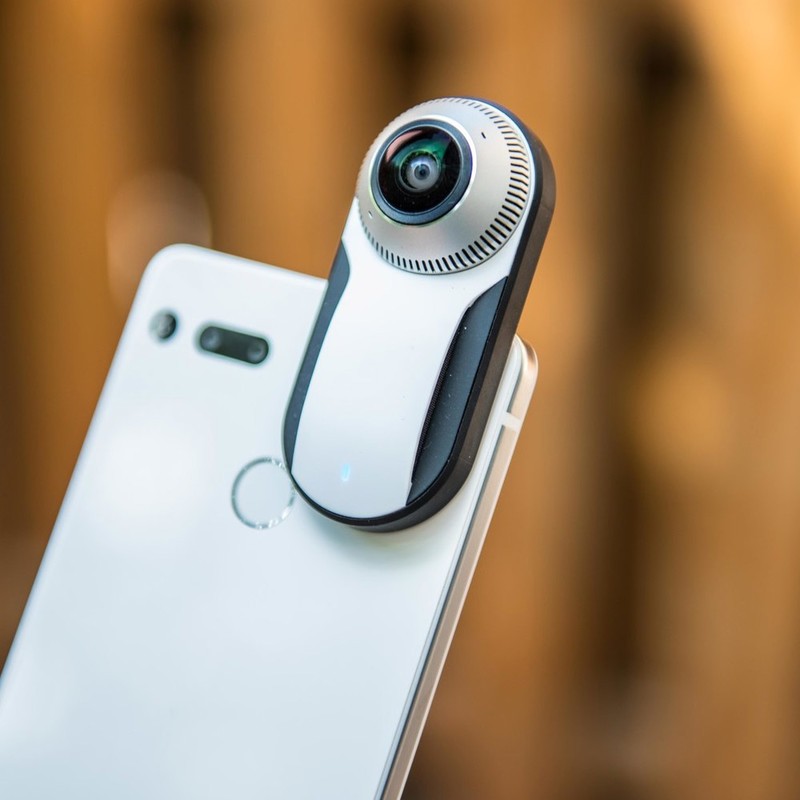
You can capture awesome 360-degree shots showing off everything around you right from your phone. This camera mounts right to the phone using Essential’s magnetic connector and doesn’t require any dongles or cables. It has dual 12MP fish-eye imagers and can capture video at 30fps.
This is the lowest this camera has ever dropped by quite a bit so we don’t expect this to stick around for long. Be sure to grab one now, before they are gone!
If you don’t have the Essential Phone you can grab one for $500 right now, although we do see them drop to $450 pretty often.
See on Amazon
April 2018 security patch released with multiple Pixel 2 improvements
There are 56 non-security-related fixes.
For some people, a new month means a new beginning. A new month to focus on goals, tasks, and projects. For Android users (specifically those with a Nexus or Pixel device), a new month also means a brand-new security patch.

Google just released all of the details for the latest April 2018 security bulletin, and it should be available soon for the Pixel 2, Pixel, and older Nexus hardware.
Like with all monthly security patches, there are a number of fixes for various bugs and vulnerabilities that have popped up over the last month. However, April’s patch also comes with a total of 56 “functional updates” that aren’t directly related to security.
You can browse through the entire list on the Android Source website, but some of the highlights include fixes for performance delays after opening certain apps, better lock screen performance, improved Wi-Fi stability, and plenty more. Some of these updates are specific to the Pixel 2/2 XL, whereas others apply to all supported Pixel and Nexus devices.
The April 2018 security patch should be rolling out soon, so be sure to keep an eye out for an incoming update.
Android Security Bulletin: Everything you need to know!

Fixing the latest bugs and exploits in Android every month.
Google has detailed the latest Android Security Bulletin and released the fixes for Nexus and Pixel devices.
These are exploits and other security concerns that affect Android as a whole. Issues with the operating system, kernel patches, and driver updates may not affect any particular device, but these need to be fixed in the Android base by the folks maintaining the operating system code. That means Google, and they’ve detailed the things they have improved for this month.
Updated factory images for Pixel and Nexus devices that are supported are available, and over-the-air updates are rolling out to users. If you don’t want to wait, you can download and flash the factory image or OTA update file manually, and here are some handy instructions to get you started.
How to manually update your Nexus or Pixel
The company that made your phone uses these patches to send an update out to you.
These changes have been released to the people making Android phones for at least 30 days, but Google can’t force anyone to deliver them to you. If you’re using a phone from Samsung, LG, or anyone besides Google, you’ll need to wait for them to send an update and shouldn’t try to flash any of the above files.
Of course, Google has safety checks in place to prevent any problems on your phone because of any security exploits. Verify Apps and SafetyNet are at work anytime you add an app to your phone, and seamless updates to Google Play Services will keep them up to date regardless of any hold up from a manufacturer or carrier. Details and incident numbers can be found in the yearly Android Security Review (.pdf file).
Highlights for April 2018
April 2018’s update comes with two patch dates: 04/01/2018 and 04/05/2018.
- As with other months, the bulk of the fixes in April are patches to the Android runtime, Android framework, and media framework parts of the OS to prevent remote attackers from using specialized code to initiate attacks.
- Google specifically calls out Qualcomm in this month’s bulletin for “their dedicated efforts to improve the security of mobile devices.” This is a result of Qualcomm’s inclusion of all patches sent upstream to Android (both closed and open source) between 2014 and 2016, which are now part of the public record.
- Google also patched a number of Nexus and Pixel-specific issues in this month’s bulletin, which can be seen here.
Previous bulletin highlights
Here are summaries and highlights of recent patches from the monthly Android Security Bulletin. As with the current bulletin, these issues were also mitigated by Google’s Verify Apps, Safety Net, and seamless updates to Google Play Services.
Highlights for March 2018
March 2018’s update comes with two patch dates: 03/01/2018, and 03/05/2018.
- The most severe vulnerabilities addressed in this month’s patch are again tied to the media framework and an attacker’s ability to run arbitrary code using a specially crafted media file. This has been and always will be an issue for all operating systems until a better way to package up media files is invented.
- This patch also includes patches made to the upstream Linux kernel to address vulnerable issues in the USB driver
- As usual, Android hardware vendors are doing their part, too and we see new fixes from NVIDIA and Qualcomm that will make our gear safer.
If you get an update with a patch date of 03/05/2018, you also have every issue addressed by the 03/01/2018 update in place.
Highlights for February 2018
February 2018’s update comes with two patch dates: 02/01/2018, and 02/05/2018.
- The most severe vulnerability addressed in this month’s small patch is once again tied to the media framework and an attacker’s ability to run arbitrary code using a specially crafted media file.
- A second fix in the 02/01 patch blocks a malicious app from escalating its privileges or running code as a privileged user.
- The 02/05 update entails device-specific patches from HTC, NVIDIA, Qualcomm and the Linux Kernel maintainers to address issues in the Bootloader, Wi-Fi driver(s), and media framework.
If you get an update with a patch date of 02/05/2018, you also have every issue addressed by the 02/01/2018 update in place.
Highlights for January 2018
January 2018’s update comes with two patch dates: 01/01/2018, and 01/05/2018.
- January 2018’s most severe vulnerability addressed is a patch for the Android runtime that could let an attacker gain access to certain OS features without user interaction
- Vulnerabilities that allowed code execution through the Media Framework were patched, like every month.
- A vulnerability specific to the LG bootloader that allowed elevated privileges was patched. Life’s Good, once again.
- A vulnerability specific to the NVIDIA driver that allowed elevated privileges was found and fixed
- Qualcomm provided a handful of closed-source fixes in addition to patches for the display driver and bootloader
If you get an update with a patch date of 01/05/2018, you also have every issue addressed by the 01/01/2018 update in place.
Highlights for December 2017
December 2017’s update comes with two patch dates: 12/01/2017, and 12/05/2017.
- If your device didn’t get updated with the November 6 patch last month, December’s update also comes with a fix for the KRACK WPA2 Wi-Fi vulnerability.
- A vulnerability with Android’s framework that allowed malicious apps to get past user interactions requirements to access greater permissions has been squashed.
- The media framework has also been updated to patch a threat that allowed a remote attacker to send out an arbitrary code to your device.
- Components for numerous MediaTek, NVIDIA, and Qualcomm components have been updated with security fixes.
If you get an update with a patch date of 12/05/2017, you also have every issue addressed by the 12/01/2017 update in place.
Highlights for November 2017
November 2017’s update comes with three patch dates: 11/01/2017, 11/05/2017 and 11/06/2017.
- This month’s patch updates the network stack to patch the KRACK Wi-Fi exploit.
- The Android framework has once again been patched to prevent an exploit that bypass user interaction requirements in order to gain access to additional permissions.
- The media framework and the Android system itself were again patched to combat the ever-present attacks through media containers. This has been a monthly thing for over a year and will certainly continue.
- Critical updates were applied as far back as Android 5.02 for OEMs to use to patch their existing devices if they wish.
- Broadcom, MediaTek, NVIDIA, and Qualcomm have each patched a number of drivers that could potentially allow remote attackers to execute code.
If you get an update with a patch date of 10/05/2017, you also have every issue addressed by the 10/01/2017 update in place. Devices that receive a patch with the 11/06/2017 date have all the November fixes in place as well as all previous patches. This is something new and we’re hopeful that it continues.
Highlights for October 2017
October 2017’s update comes with two patch dates: 10/01/2017 and 10/05/2017.
- This month’s patch updates several critical components to prevent privileged code execution, both locally and remote.
- The Android framework has been patched to prevent an exploit that bypass user interaction requirements in order to gain access to additional permissions.
- The media framework and the Android system itself were patched to prevent execute arbitrary code within the context of a privileged process.
- Critical updates were applied as far back as Android 4.4
- Broadcom, MediaTek, and Qualcomm have each patched a number of drivers that could potentially allow remote attackers to execute code.
If you get an update with a patch date of 10/05/2017, you also have every issue addressed by the 10/01/2017 update in place.
Highlights for September 2017
September 2017’s update comes with two patch dates: 09/01/2017 and 09/05/2017.
- The main issue this month revolves, once again, around a vulnerability in the media framework that, when paired with exploitative code, could remotely execute malware on a user’s device.
- Some of these patches go back to Android 4.4 KitKat.
- A runtime bug has been patched that would allow a remote user to execute code that could cause an app to hang.
- Broadcom has once again issued a number of patches for its Wi-Fi drivers.
- MediaTek and Qualcomm have each patched a number of drivers that could potentially allow remote attackers to execute code.
If you get an update with a patch date of 09/05/2017, you also have every issue addressed by the 09/01/2017 update in place.
Highlights for August 2017
August 2017’s update comes with two patch dates: 08/01/2017 and 08/05/2017.
- A moderate issue in the Android runtime that could enable privileged code execution has been patched.
- Again we see numerous issues that could allow remote code execution through the media libraries patched, with some changes going back to Android 4.4.
- Qualcomm has patched numerous escalation of privilege issues in the Snapdragon platform. These include moderate vulnerability patches for video, the GPU, and USB input/output. Since these include closed source changes, new versions are available from Qualcomm for your device manufacturer to implement as needed.
- MediaTek and Broadcom have also supplied patched device drivers for a range of issues rated from low to moderate. Any of these binaries that are applicable to Nexus or Pixel devices are available at the Google Developer site.
If you get an update with a patch date of 08/05/2017, you also have every issue addressed by the 08/01/2017 update in place.
Archives of all previous Android Security Bulletins are available at the Android Security website.
See the Android Security website for details on all bulletins
Updated April 2018: Google has detailed the latest Android Security Bulletin and released April 2018 security updates for the Pixel and Nexus devices.
How to get the latest version of Android 8.1 Oreo on your Pixel or Nexus

Get the latest version of Android on your phone on your own terms.
Update March 2018: We now have a whole new version of Android to try as the Android P Developer Preview has begun. All the steps and methods here still apply; the only difference is if you’re looking to sign up for the Android Beta Program, when it begins, you’ll get P and not O. And hey, if you’re looking to be a beta tester you wanted the latest bleeding edge anyway, right?
We’re also pretty sure these steps for manually flashing your phone aren’t going to change once Android P (please let it be Pringles) becomes an official not-beta thing. We’ll make sure to get everything up to date as soon as we have the skinny on it all, because we flash our phones on day one, too.
Now that we’re well into the cycle of Android Oreo updates, Pixel and Nexus owners are clamoring to get the latest updates to Android 8.1 as soon as possible. But Google doesn’t always push these over-the-air updates as soon as people would like, which is where this guide comes in. Using the tips below, you can sign up for the Android beta program*, sideload factory images, or OTA updates to your Nexus or Pixel device as soon as they are available.
These phones aren’t just bought by developers. If there’s a single reason for consumers to buy a Pixel or keep using a Nexus device, it’s this: the newest software first. Period.
- The easiest way
- A few things to know
- Unlocking your bootloader
- Flashing the stock Nexus or Pixel image
- Flashing the OTA update image
The Beta program

If you don’t want to mess with unlocking your bootloader or the command line, you will get an update to the latest version of Android if you’re part of the Android Beta program. That means that if you have one of the eligible devices, you can simply visit the Android Beta portal and opt-in to the beta, which will then prompt Google to send your phone or tablet an over-the-air update.
Right now, the beta program is closed. When the beta program is active for Android P, you can sign up to get the latest builds over-the-air.
Head to Android Beta program portal on your Pixel or Nexus phone..
Sign into the Google account associated with that phone.
Scroll down to Your eligible devices.
Find the device you want to enrol in the Beta program and tap Enrol device.
Follow the prompts to accept the over-the-air download.
Note: To leave the beta program, simply press the button on the Android Beta program page to unenroll. Your phone will receive an over-the-air update to return to the latest stable version of Android, but your phone will be wiped clean upon rebooting, so back up your stuff.
Which devices are eligible for the Android beta program?
The preview is supported on the following phones and tablets:
- Pixel 2
- Pixel 2 XL
- Pixel
- Pixel XL
If you can’t wait, sideload
If you simply can’t wait for the Android beta, flashing the new version of Android is going to be your best bet.
But before we go into the steps of sideloading Android updates, it is strongly recommended that you have previous knowledge of working with the Android SDK (software development kit) and Terminal (OS X or Linux) or Command Prompt (Windows), as it is possible to harm your device if something were to go wrong in the following process.
If you need to download the Android SDK you can grab it from the Android Development website and follow their instructions on how to install it correctly. For the following process, all you will need is the adb and fastboot files which are located in the Platform Tools folder.
Additionally, all the following commands are written as they would be in Terminal on a Linux or OS X platform. If you are following this guide and using a Windows machine, you will not need to use the “./” seen in the guide.
Enable developer settings and USB debugging
Go to your Settings and scroll down to About Phone/Tablet.
Tap on the Build number seven times until the dialog box says you are now a developer.
Go back to the Settings menu and you should find a new option called Developer options. Click into the Developer options.
Make sure that the developer options are turned on and that USB debugging is checked on.
If you’re upgrading a device running Lollipop or higher, make sure Enable OEM unlock is checked.
Plug your device into your computer and click “OK” on the dialog box asking you to Allow USB debugging while connected to the computer. You can also select to always allow access on that computer.
If done correctly, this will be everything you will need to do on your phone or tablet for the moment.
Unlocking your bootloader
Nexus devices and Pixel phones bought from Google directly have a bootloader you can unlock. If you want to manually flash software, you’ll need to do this.
To do this you must first boot into your bootloader. You can either manually turn off your phone or tablet and hold down the power button and the volume down button to enter your device’s Bootloader Menu or you can enter the following commands into your terminal or command prompt.
Run the following command to make sure your device is properly connected to your computer. If it returns a string of characters it means that you are all set to start updating your device.
./adb devices
Now to enter into the Bootloader menu just run the following command.
./adb reboot bootloader
At the bottom of the screen, there will be several things listed including the lock state of the device. This should say locked unless you have unlocked your bootloader in the past and never went back and locked it again.
To unlock your bootloader, which is required only when flashing a stock firmware image (not sideloading and update, which we’ll get to soon), you must enter the following commands. Remember that when unlocking your Nexus’ bootloader it will factory reset your device, so you will lose everything stored on it. If you have not yet backed up anything important on your device you can hit the power button while Start is highlighted in the Bootloader menu and this will boot you back into your device like normal. Now back to unlocking your bootloader.
Now type:
./fastboot flashing unlock
A dialog will appear on the device asking if you are sure about unlocking. Again this will factory reset your device, so if you want to back out of the process you just need to select no with the power button. If you are ready to unlock your bootloader you press the volume up button and then the power button to confirm that you wish to unlock your bootloader.
./fastboot reboot-bootloader
It is recommended to reboot the bootloader just to give itself a check to make sure everything is working correctly before moving on to the next step.
Flashing the stock firmware image
Now that your bootloader is unlocked, it’s time to flash the new firmware. To find the system images, head on over to the Factory Images page, find your device, and download the latest factory image available. It is easiest to then uncompress the file in the Platform Tools folder where the adb and fastboot files are so that you don’t have to type the path to the different files when flashing the firmware. (Or if you know that you can drag a file into a terminal window to copy the path, just do that.)
To begin, make sure you are still in the bootloader menu on your device and double check that your bootloader is in fact unlocked.
First, make sure that your computer is communicating correctly with your phone or tablet. As long as your device’s serial number comes back as a connected device you are ready to begin updating your device.
./fastboot devices
Now it is time to flash the updated bootloader with the following command.
./fastboot flash bootloader [bootloader file].img
You will not see anything on the screen of your device but there should be a dialog in your terminal or command prompt. When it is done flashing the bootloader you should reboot back into the bootloader as to make sure everything is still working correctly.
./fastboot reboot-bootloader
Next, you flash the updated radios. This step is only necessary if you are updating the firmware of a phone or tablet that has cellular radios built into it.
./fastboot flash radio [radio file].img
./fastboot reboot-bootloader
Finally, it’s time to flash the actual system image to your phone or tablet.
Warning: The following line of code will wipe your device. If you do **not* want your device to be wiped, remove the “-w” from the command. The update should still take just fine, and it will not wipe your user data.
./fastboot -w update [image file].zip
When this is done, your phone will restart itself and boot up normally. As this process clears all data from your device, it will take slightly longer for your device to boot up for the first time. Once you have been greeted with the device setup walkthrough process, you know you have successfully flashed a new version of the firmware.
If you do not want to enter the commands manually there are scripts included inside the compressed folder containing the system image that will do most but not all of the heavy lifting for you. The flash-all script files will automate the flashing of the bootloader, radios (if needed), and the system image. The problem with this process is that you must first make sure that your phone is in the bootloader menu and its bootloader must be unlocked before starting the script. Of course, if these are not already done the script will fail to run and nothing will happen.
Flashing an OTA update image
If you don’t want to unlock your bootloader, you can sideload an OTA update. That is, you’re going to download to a computer the update file your phone normally would grab itself over the air (thus OTA), and then push it over via the command line.
It used to be that we’d have to hunt for the OTA file location when a phone would download it, and use that to pull the file from Google’s servers. And we can still do that if we want … but Google now provides OTA images for download. (You can find them here). This is a smaller file that just brings you from the previous version to the latest version — it isn’t a complete operating system that could be loaded onto a phone fresh.
Just as is the case with the factory image update, put the OTA file in the Platform Tools directory to simplify the process of sending the file to your phone.
First, make sure that your computer is communicating correctly with your phone or tablet. As long as your device’s serial number comes back as a connected device you are ready to begin updating your device.
./adb devices
Next, put your device into the bootloader menu by either the following command or by holding down the power button and the volume down button while it is turned off.
./adb reboot bootloader
Now use the volume down button twice until you have scrolled to Recovery mode, and press the power button to select it. It will look like your phone is restarting itself but an image of an Android with a red exclamation mark over it will appear. Next hold down the power button and press the volume up button, and you will be in recovery mode.
Now that you are in the Android system recovery, use the volume down button to highlight apply update from ADB and press the power button to select it. The text on your Nexus’ screen will now say that you can send the OTA to the device using adb.
./adb sideload [OTA file].zip
In your terminal or command prompt you will see a dialog that shows you the progress of transferring the update to your phone or tablet and once it has been completely transferred you can read what is happening with the update live on screen. Again, once the process is done your phone will restart itself and attempt to boot normally. You have successfully updated!
Getting the newest software updates on your Nexus or Pixel is easy to do but understandably difficult the first time. Once you’ve gone through this process several times it will become second nature to you, so don’t be discouraged. Luckily Nexus devices are extremely easy to get back into working order if something gets installed wrong or flashed incorrectly — so don’t be alarmed if you’ve pressed the wrong button.
If you have any trouble along the way, be sure to hop into the forums and ask for help!
Update, March 2018: This post was updated with current links to the Android P Developer Preview.
Android Oreo
- Android Oreo review!
- Everything new in Android Oreo
- How to get Android Oreo on your Pixel or Nexus
- Oreo will make you love notifications again
- Will my phone get Android Oreo?
- Join the Discussion
Facebook promises to delete unpublished videos
Now that Facebook has been outed as keeping videos you’ve recorded but never published, the social media has promised to actually delete them. Last week, the sister of a New York Magazine writer found old videos that should have been cleaned off the site buried in her downloaded Facebook data archive. Facebook today apologized for this issue and told Select/All that it would delete the video content it should have in the first place.
“We investigated a report that some people were seeing their old draft videos when they accessed their information from our Download Your Information tool,” a Facebook spokesman told New York Magazine. “We discovered a bug that prevented draft videos from being deleted. We are deleting them and apologize for the inconvenience.” It’s not clear how widespread the issue is, nor whether there is a way to make sure that videos have been deleted. We’ve reached out to Facebook and will update this post when we hear back.
Source: New York Magazine
Chrome Web Store no longer allows crypto-mining extensions
Google announced today that it will be doing away with Chrome extensions that mine cryptocurrencies. Until now, the Chrome Web Store has allowed these sorts of extensions provided that crypto-mining is their only purpose and that users are fully informed of what they will do. But Google says that around 90 percent of the crypto-mining extensions developers have tried to bring to the Chrome Web Store haven’t abided by those rules. Those not complying have been rejected or removed from the store, but now they won’t be allowed in at all, even if they adhere to earlier standards.
Starting today, no crypto-mining extensions will be accepted by the Chrome Web Store and those already in the store will be removed in late June. “The extensions platform provides powerful capabilities that have enabled our developer community to build a vibrant catalog of extensions that help users get the most out of Chrome,” Google said. “Unfortunately, these same capabilities have attracted malicious software developers who attempt to abuse the platform at the expense of users. This policy is another step forward in ensuring that Chrome users can enjoy the benefits of extensions without exposing themselves to hidden risks.”
Cryptocurrency mining has become a popular strategy for raising funds. There have been a number of instances of cryptojacking, which companies like Tesla and Showtime, governments and Android phones have fallen prey to. Earlier this year, Salon began giving readers the option of turning off their ad blockers or letting the site mine cryptocurrency with their computer’s processing power. In January, an updated version of Opera gave users the option of blocking cryptocurrency mining scripts through its ad-blocking software.
Source: Google
Apple will reportedly replace Intel chips in Macs with its own in 2020
Apple has been manufacturing chips to use in its Macs for a while now, though the ARM-based silicon mostly backs up Intel’s main CPUs during laptop “Power Nap” sessions. The company also makes its own silicon for iOS and Apple Watch devices. Now, according to a report at Bloomberg, Apple plans to replace Intel’s Mac chips, starting as early as 2020.
The process to replace Intel processors, called Kalamata internally, is still in the early stages, say Bloomberg‘s sources. Apple-made chips make sense for the tech company, especially in the wake of some recent high-profile security issues around Intel (and other manufacturers’) chip architecture. It won’t be the first time Apple has switched the chips that power its computing devices, of course, with the switch to PowerPC architecture in the early ’90s and then Intel in the mid-2000s. We’ve reached out to Apple for comment and will update this post if we hear back.
Source: Bloomberg
10 years later, ‘SpyParty’ hits Steam Early Access on April 12th
Chris Hecker, the creator of SpyParty, is smiling and gesturing wildly over the open lid of a laptop showcasing the game’s six new, upgraded maps. After 10 years of development, SpyParty is finally going to land on Steam Early Access on April 12th, and Hecker is barely containing a cacophony of emotions — not all of them bad.
“That’s fucking crazy and I’m terrified, like literally, abject terrified, and my anxiety level is through the fucking roof,” he says. “But I’m excited too, and we’ll see. There’s a whole bunch of things I’m concerned about with that and excited about that. Like the fact that I have the best online competitive gaming community ever.”
One of Hecker’s greatest concerns — and accomplishments — with SpyParty has been the community. He’s placed an emphasis on cultivating a welcoming, knowledgeable and non-toxic player base as the game has been put through its paces in beta on Hecker’s own website. In his mind, SpyParty can’t exist without an engaged pool of people helping each other out, and he might be right. It’s a dense competitive game with thousands of tiny rules essential to top-tier play.
SpyParty is the Turing Test in video game form. It’s a one-on-one battle of wits and detection, where one player is a spy and the other is a sniper. The spy attends a party packed with AI characters making small talk, wandering the room, drinking, and generally behaving as fancy humans would. The spy’s job is to blend in with these AI characters while stealthily completing a series of tasks for their mission.
Meanwhile, the sniper watches everything from afar, attempting to pick out the spy and shoot them on the spot. Certain spy moves will trigger sounds or actions at the party, while specific characters are known to behave in unique ways when they’re controlled by the AI — the sniper is looking for any inconsistencies or slip-ups by the sole human in the room.

With 21 fully fleshed-out characters and 10 maps, there are hundreds, if not thousands, of avenues for the spy to be caught in each round, and just as many opportunities for them to conceal their actions, complete the mission and win the game. Demos used to be accompanied by a printed, four-page user manual outlining the game’s most important intricacies. Thankfully, on Steam Early Access, the manual has been replaced by an interactive tutorial narrated by Hecker himself.
The tutorial is an attempt to emulate the successful formula Hecker has instituted at conventions like PAX and GDC, where he’s shown off SpyParty at booths staffed by some of his most dedicated beta players. These volunteers steer new players through the game in real-time.
“All the fans man the booth and they teach you to play,” Hecker says. “So I was like, I’m gonna try to emulate that. We know that at least works. People learn to play, they like the game when they play. So I narrate the tutorial with full voice.”


Alongside a shiny new tutorial, the Steam Early Access version of SpyParty will have a total of 10 updated maps built by Hecker’s partner in crime, artist John Cimino. As SpyParty has stewed in beta over the past decade or so, it’s largely featured placeholder art — blocky, 3D characters and environments plastered in primary colors. But today, SpyParty is gorgeous, featuring fully shaded and colored villas, restaurants, mansions and balconies, and a cast of striking, diverse characters.
These 10 maps are live today in the SpyParty beta, and they’ll be available in the Steam Early Access version when that launches April 12th. Anyone who buys into the beta via Hecker’s website will automatically receive the Steam version as well. This is notable for any interested spies and snipers, as the game’s price is set to rise when it hits Steam: The SpyParty.com beta is $15, while the Steam Early Access version will cost $25.
“The players told me to do it,” Hecker says about the price increase. “They were like, ‘Your game is way under-priced at $15.’ So, there you go. I mean, maybe not when it was the old art.”
“At indie scale, you can’t make something an eSport.”
That old art and a decade of playtesting has helped Hecker create a rich, competitive game unlike any title currently on the eSports market — a market that didn’t even exist when he began building SpyParty.
“At indie scale, you can’t make something an eSport,” he says. “That happens, that’s something the players do. I’m putting, obviously, all the stuff in there to make it possible to — I don’t even know what an eSport means, at some level, right? But I’m making an intensely competitive multiplayer game.”
With the inception of Twitch and eSports on a mainstream scale, the video game industry might finally be ready for SpyParty — just in time for SpyParty to finally be ready for prime time. It even has a ridiculously deep replay system, allowing players to relive their matches from all variety of perspectives and speeds, and slice together their most amazing moments for YouTube and beyond.

This is truly, really, the beginning of the end of Hecker’s 10-year journey to release SpyParty in its entirety.
As a former developer at Microsoft and Electronic Arts, Hecker began working on SpyParty with hundreds of thousands of dollars in big-name company stocks to back him up. After 10 years of development, including paying Cimino a AAA-level salary, he’s recently had to borrow some money from his mom to keep things rolling.
“But I can program a computer in the Bay Area. I’m not gonna starve, worst case, right?” Hecker says. “So that helps me not like, just die from the anxiety. But it is hugely scary. Because it’s the culmination of 10 years of creative work. I know the game is good, people love — the top players have 20,000 games. I know I made what I wanted to make.”
At 47, Hecker is living the indie life commonly associated with young, fresh-out-of-school developers. He’s living the life he built for himself, one spy and one sniper at a time.
“It’s weird to be 47 with a kid and a mortgage, and literally have like — I have literally no idea what my life is gonna be like in 30 days,” he says. “In less than 30 days this game ships and I’ll have some idea of how it’s doing, and it’s just a weird, that’s an 18-year-old feeling. Where you’re like, ‘I don’t know, I’m moving away from home, and what’s gonna happen?’ Who fucking knows?”
 AIVAnet