


Researchers create robotic fish that can swim underwater on its own
Observing fish in their natural ocean habitats goes a long way toward understanding their behaviors and interactions with the surrounding environment. But doing so isn’t easy. Using underwater vehicles to get a look at these species is one option, but they often come with a slew of limitations. Some are loud and use propellers or jet-propulsion that disturb fish and their surroundings. And many are designed in a way that doesn’t allow them to blend in with the marine environment. Controlling such vehicles is also a challenge and in many cases, they have to be tethered to a boat. But researchers at MIT’s Computer Science and Artificial Intelligence Laboratory (CSAIL) have come up with a potential solution — a soft robot that can swim on its own underwater.

The device, called SoFi, uses actuators to push water in and out of chambers in its tail, allowing the tail to move in a side-to-side motion much like that of a real fish. SoFi can also be controlled through an acoustic communication system that allows researchers to direct its motion. It can move forward, turn, dive up and down, swim up to 18 meters deep and last for up to 40 minutes at a time. It’s also designed to look a lot like a fish, isn’t very large and in tests was able to maneuver around reefs and swim alongside real fish without disturbing them. You can see it in action in the video below.
Next, the research team would like to boost the robot’s speed, use it to study marine life over long periods of time, see if it can be used to influence the behavior of marine life and create robot swarms. “To our knowledge, this is the first robotic fish that can swim untethered in three dimensions for extended periods of time,” CSAIL PhD candidate Robert Katzschmann, a researcher on the project, said in a statement. “We are excited about the possibility of being able to use a system like this to get closer to marine life than humans can get on their own.”
The work was published today in Science Robotics.
Image: MIT CSAIL
Source: Science Robotics
Kia’s Niro Hybrid is a great SUV, if you’re not in a hurry
Crossovers, SUVs, CUVs or whatever you want to call them will continue to dominate showrooms. You can’t blame automakers, the drivers of this country love a high-sitting utility vehicle — even if it’s really just a raised hatchback. It’s also the reason more hybrid and EV powertrains are making their way into these vehicles.
With that in mind, Kia introduced the Niro Plug-In Hybrid — an electrified version of its small crossover. It has an impressive EV-only range (26 miles), and a lot of tech that people expect from a new car including semi-autonomous features. With a starting price of $27,900, the SUV is an impressive vehicle… as long as you’re not in a hurry.
The best part of the Niro Hybrid is that many features that are usually options come as standard. For example, while BMW and Mercedes charge you for Android Auto and CarPlay support, Kia just throws it in for free. The company knows that people want to plug their phones into their cars.
Yet, even if you decide not to use your smartphone, the infotainment system is solid. It’s not breaking any new ground with its grid layout. But it accomplishes what these systems need to do: Give drivers quick access to navigation and media without too much clutter. This is the same system found in Hyundai vehicles, and in both instances, it’s adequate. This is still something of a ringing endorsement, though, since most systems are terrible to navigate or throw way too much information at the driver.
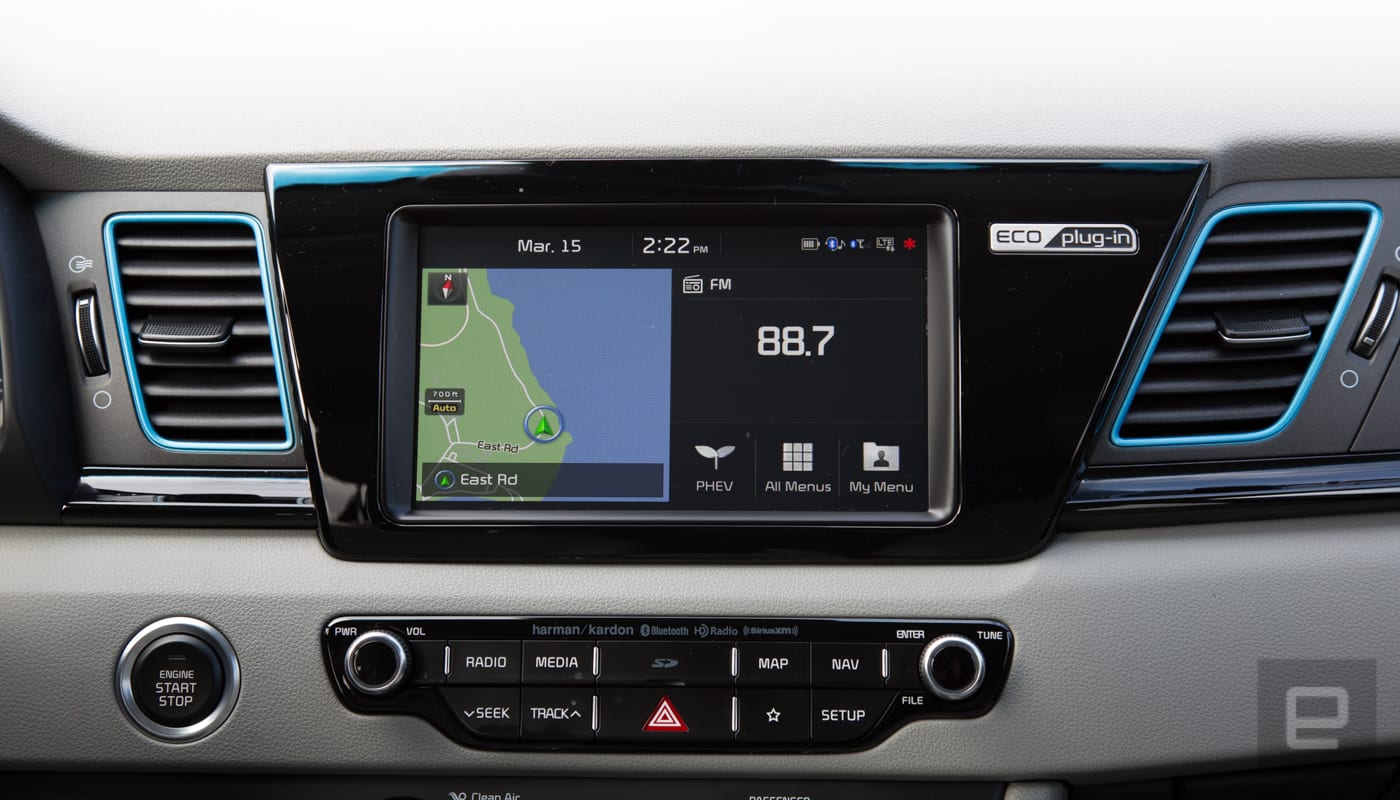
In addition to a solid infotainment system, Kia has the UVO app. I found it to be helpful for starting the car, warming it up and tracking its EV charge. Set up was easier once I realized there’s an eco version of the KIA UVO app. I spent an embarrassing amount of time trying to get the regular app to sync with the car. Bonus, the app is also available on the base model Niro.
The tech that’s available as standard in the base model extends to the adaptive cruise control and lane keep assist. The systems are not as polished as Nissan’s ProPilot Assist (found in the new Leaf and Rogue) or Tesla’s Autopilot, but it’s nice to see these features standard on a crossover. That said, the lane-keep assist on the Kia is really best on straight roads or very wide curves. Anything curvier and you’re going to be hassled audibly to get back in your lane, rather than actually “assisted.”
I’m also not a fan of how the adaptive cruise control system handles stopped traffic. When it encounters a car that’s stationary, the vehicle slows to a few miles an hour then disengages the cruise control. This means the car is still rolling forward towards the vehicle in front of it. Owners will probably get used to this, but the first few times it happens, it can be alarming.
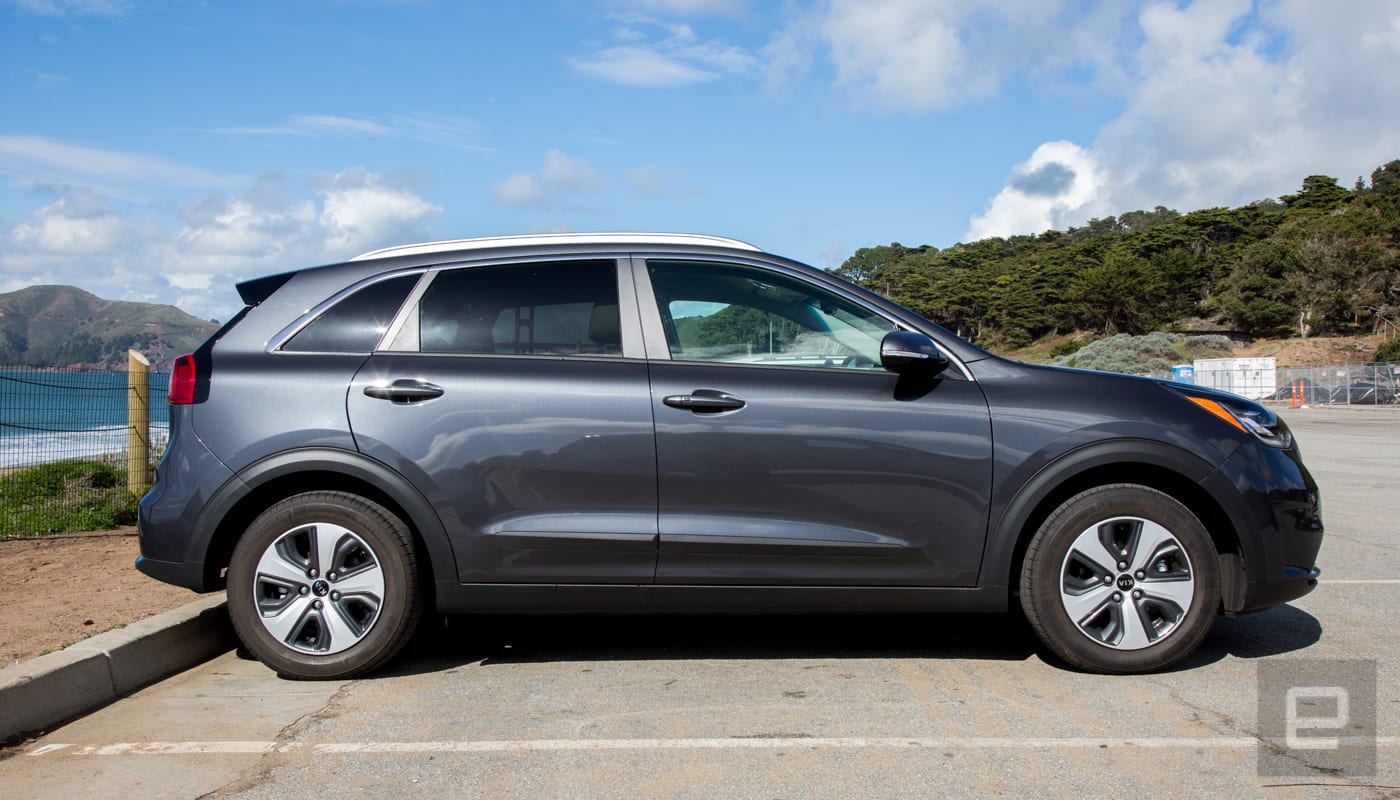
Another issue drivers may need to get used to is the acceleration of the Niro Hybrid. Or really, the lack thereof. Off the line, the Niro — in regular mode — takes its sweet time to get up to speed. Fortunately, there’s a sport mode that’ll get the 137 horsepower engine and 195 pounds of torque to go from zero to 60 in nine seconds.
Hitting the corners also isn’t the Niro’s strong suit. The suspension did an admirable job smoothing out the many potholes and cracks and in San Francisco’s roads, but the Niro’s body-lean around tight corners kept me from pushing it during spirited drives through the mountains.
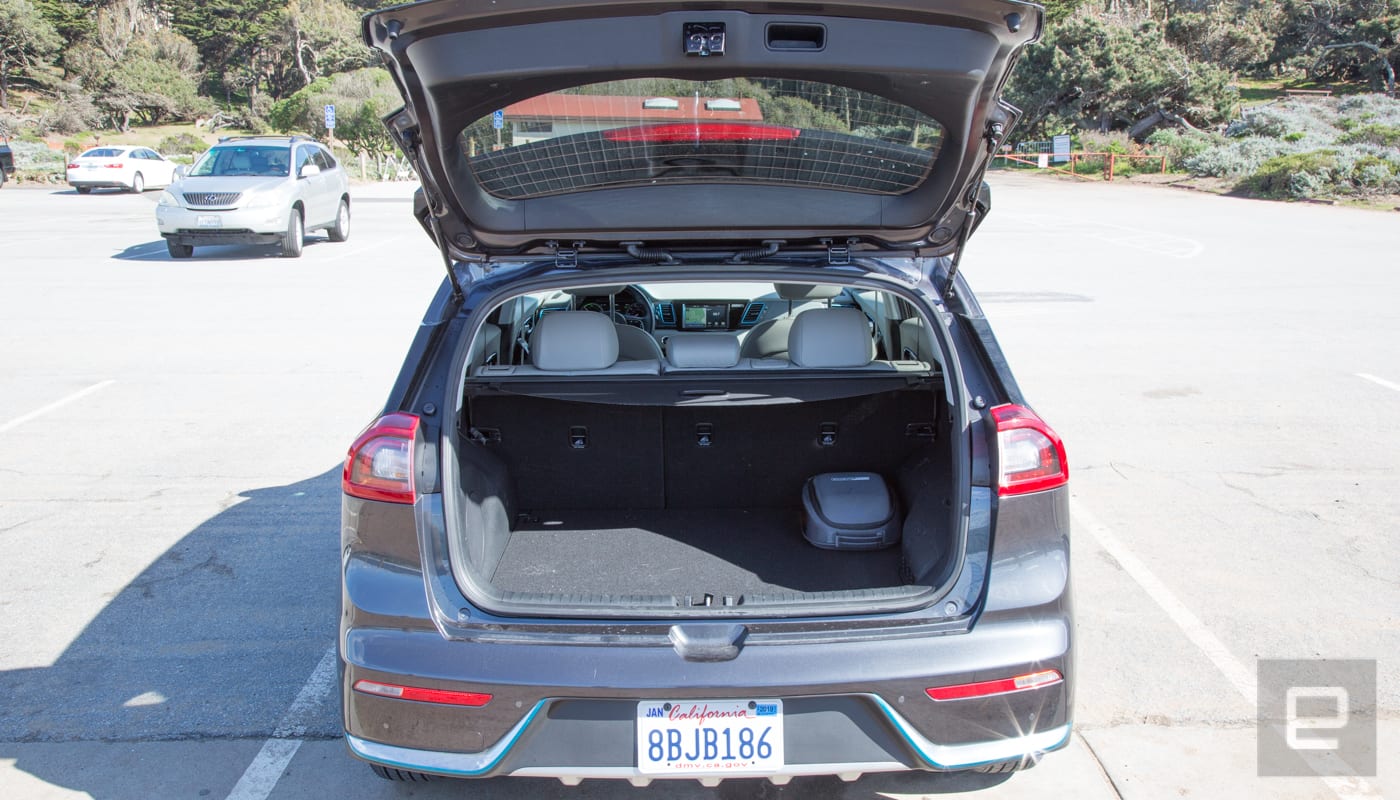
Even though it’s not going to win any drag races, being tuned for efficiency does have its advantages. In hybrid mode, I averaged 41 miles to the gallon. For a vehicle with enough storage to handle two keyboards, a synth and three drum machines in Pelican cases (as a musician, this is my “family”) without putting down the rear seats, that’s pretty great.
Kia rates the pure EV mode of the Niro plug-in hybrid as 26 miles per charge. Somehow, I got 26.3 in one instance. I rarely got the full promised range though, and I’ve never actually gone over that range in another car. That’s without altering my driving habits during a mixed road of highway (about 30 percent) and city streets. Additional tests, yielded mid to low 20s.
Which brings me back to the acceleration. If you’re not someone that needs the thrill of speed at every stop light, the tradeoff is great range. With a promised 26 miles and real-world tests getting close or even beating that number, for folks with short commutes, there might be weeks or even months between fill-ups.
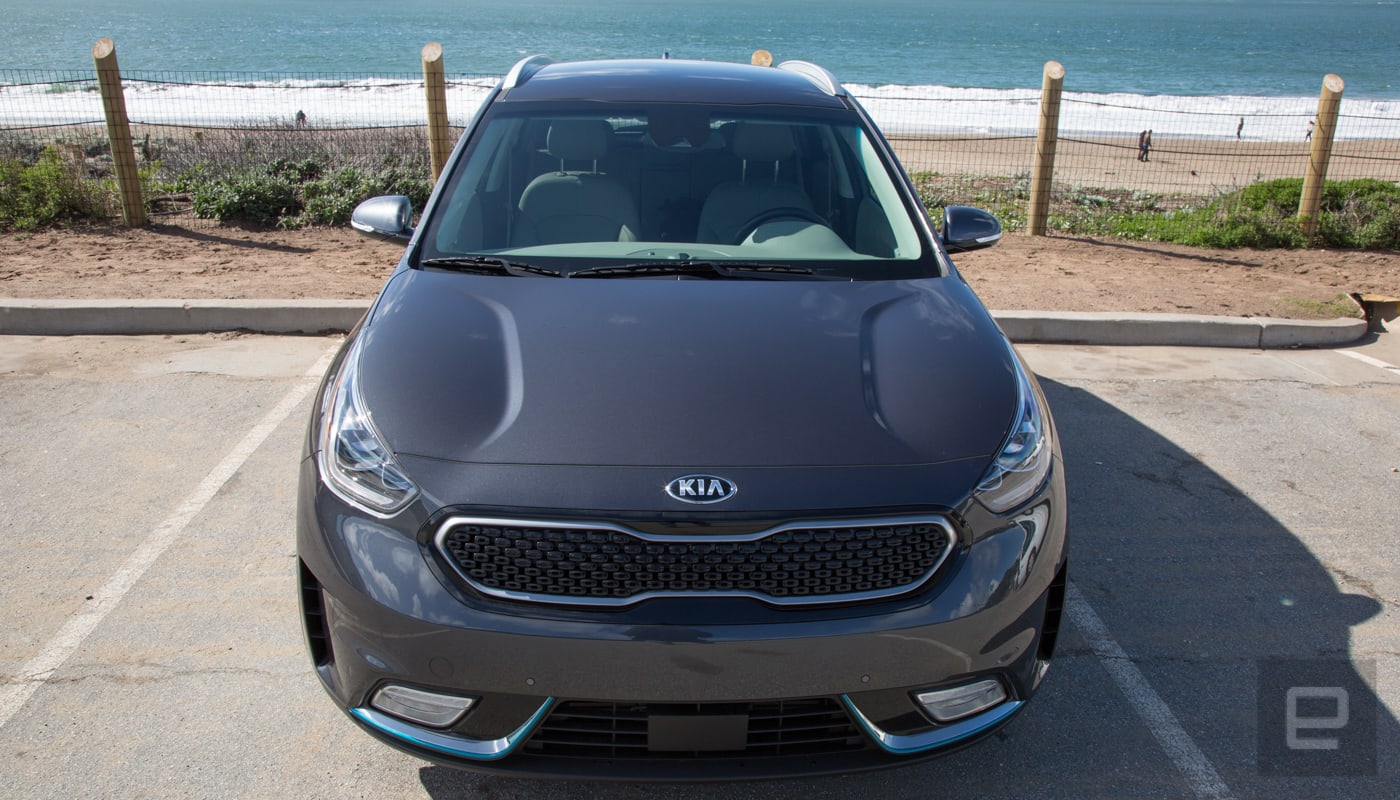
You will have to wait to get that EV range. Level 2 (the industry standard public charger) charging takes about two-and-a-half hours, while plugging the Niro into a typical 120-volt outlet requires about nine hours to get back to 100 percent. Unfortunately, there’s no DC fast charging option.
The additional options that are available for higher trim models can drive the price up to $34,500 (such as the EX Premium, which I drove for the review). It has heated seats, a slightly larger display (8 inches instead of seven), parking assist, blind spot assist, a better sound system and some other features. Yet the big ticket items (adaptive cruise control, smartphone support, lane keep assist etc) are all included on the base model. It’s worth noting that none of the upper trim levels offer any better performance options — they all have the same engine and electric motor.
So yes, the Niro Plug-in Hybrid can get pricey, quick, but it doesn’t have to if you focus on what makes this a great urban SUV with a small footprint (and with plenty of tech that doesn’t cost you extra). The inclusion of features like semi-autonomous modes, smartphone integration etcetera bodes well not only for Kia customers, but for anyone looking for a new car. Making these features standard forces other automakers to do the same. Let’s just hope they can pull it off in a car as charming (but maybe just a bit quicker off the line) as the Plug-In Niro.
Source: Kia
Study Confirms Apple Watch Can Detect Abnormal Heart Rhythm With 97% Accuracy
The heart rate monitors built into the Apple Watch and other wearable devices can detect abnormal heart rhythms with 97 percent accuracy, according to a new study conducted by the team behind the Cardiogram app for Apple Watch in conjunction with researchers at the University of California, San Francisco.
More than 139 million heart rate and step count measurements were collected from 9,750 users of the Cardiogram app who also enrolled in the UC San Francisco Health eHeart Study, with the data used to train DeepHeart, Cardiogram’s deep neural network.
Once trained, DeepHeart was able to read heart rate data collected by wearables, distinguishing between normal heart rhythm and atrial fibrillation with a 97 percent accuracy rate, both when testing UCSF patients with known heart issues and Cardiogram participants.
At a 97 percent accuracy rate, Cardiogram’s study suggests the Apple Watch alone does a better job of detecting abnormal heart rhythms than FDA-approved accessory KardiaBand. From Cardiogram co-founder Johnson Hsieh:
97% accuracy refers to the c-statistic, or area under the sensitivity-specificity curve. Surprisingly, both the sensitivity and specificity of DeepHeart were even higher than an FDA-cleared Apple Watch ECG attachment — 98% (vs 93%) sensitivity and 90% (vs 84%) specificity.
Published in JAMA Cardiology this morning, the study confirms the results from a similar preliminary study done in May of 2017. According to Cardiogram, today’s study marks the first peer-reviewed study in a medical journal that demonstrates popular wearables from companies like Apple, Garmin, Polar, LG, and others can detect a major health condition.
Atrial fibrillation, or an abnormal heart rhythm, is a condition that can be indicative of major health problems and it can lead to heart failure and stroke. Atrial fibrillation often goes undiagnosed, which is where the Apple Watch and other wearables can help. The Apple Watch won’t replace a traditional EKG, but it can alert people to a problem much earlier than it might otherwise be detected. From the study’s conclusion:
This proof-of-concept study found that smartwatch photoplethysmography coupled with a deep neural network can passively detect AF but with some loss of sensitivity and specificity against a criterion-standard ECG. Further studies will help identify the optimal role for smartwatch-guided rhythm assessment.
In addition to studies on the Apple Watch’s ability to detect atrial fibrillation, Cardiogram and UCSF have also been working to determine if the Apple Watch heart rate monitor can also detect conditions like hypertension, sleep apnea, and early signs of diabetes. Preliminary studies have suggested all of these conditions could be spotted in data collected by Apple Watch and other common wearable devices.
Apple has been working with researchers at Stanford on its own study to determine whether the heart rate sensor in the Apple Watch can be used to detect abnormal heart rhythms and common heart conditions. While in the study, if an abnormal heart rhythm is detected, participants will be contacted by researchers and asked to wear an ePath monitor to test heart health.
Apple Watch owners can sign up to participate in the Apple Heart Study by downloading and installing the Apple Heart Study app. Those who want to join Cardiogram’s studies can install the Cardiogram app and sign up to join the mRhythm study.
Related Roundups: Apple Watch, watchOS 4Buyer’s Guide: Apple Watch (Neutral)
Discuss this article in our forums
Apple Releases Safari Technology Preview 52 With Bug Fixes and Feature Improvements
Apple today released a new update for Safari Technology Preview, the experimental browser Apple first introduced two years ago in March of 2016. Apple designed the Safari Technology Preview to test features that may be introduced into future release versions of Safari.
Safari Technology Preview release 52 includes bug fixes and feature improvements for Service Workers, Loading, JavaScript, CSS, Web API, Accessibility, Web Driver, Web Inspector, WebAssembly, and Media. Today’s update also removes support for running legacy NPAPI plug-ins other than Adobe Flash.
The Safari Technology Preview update is available through the Software Update mechanism in the Mac App Store to anyone who has downloaded the browser. Full release notes for the update are available on the Safari Technology Preview website.
Apple’s aim with Safari Technology Preview is to gather feedback from developers and users on its browser development process. Safari Technology Preview can run side-by-side with the existing Safari browser and while designed for developers, it does not require a developer account to download.
Tag: Safari Technology Preview
Discuss this article in our forums
Instagram Now Allows Live Hashtags and Profile Links in Your Bio
Instagram today made a change to user bios, allowing “#” hashtags and “@” links to other Instagram users.
Starting today, when you add a @ or a # to your Instagram bio, it will become a live link that leads either to a hashtag page or to another profile.
Instagram says it has implemented this change to allow users to better express themselves and their interests in their profiles, adding information like #guitarlover, #pencilsketching, #makeuptutorial, and more.
To add a hashtag or link in your bio, you need to navigate to “Edit Profile” and select the “Bio” section. When typing a # or a @ here, you will see a list of recommended hashtags and accounts. Selecting a hashtag or an account you want to add will automatically link it in your bio.
For privacy reasons, Instagram says that when you mention someone else’s profile in your bio, they’ll receive a notification and can remove the link to their profile if desired.
Tag: Instagram
Discuss this article in our forums
Master of the Galaxy: Get the best from the Galaxy S9 Plus’ camera
One of the main reasons you’ll buy a Samsung Galaxy S9 Plus is because of the camera. It’s a considerable step beyond the camera on the Galaxy S8 and S8 Plus, incorporating the best aspects of the Galaxy Note 8’s camera, plus taking fantastic low-light shots, along with a host of new features to explore. The question is, where do you start? We’d suggest pulling on your boots, getting outside, and snapping away. Before you do so, however, here are some top tips and features to try out, ensuring you get the best from your new phone.
Galaxy S9 Plus camera modes
Open the Galaxy S9 Plus’s camera app and you’re greeted by a packed viewfinder screen, with plenty of icons to tap, and a row of modes across the top. Looking at the phone in portrait orientation, here’s what they all do, with some insider tips so you can get the best from them.
Live Focus
Andy Boxall/Digital Trends
By default, the camera app starts in Auto mode. Swipe right to enter Live Focus, which automatically blurs out the background to increase the depth-of-field in your picture. It uses both the camera lenses on the Galaxy S9 Plus to achieve this effect, and there is an on-screen slider to adjust the amount of blur it adds.
Top tip: You need to be less than a meter and a half away from your subject for the mode to activate. Watch for the on-screen notification — a yellow box with the words “Live focus ready” — before pressing the shutter button. If you’re taking a picture of a person, look for the palette icon in the bottom right of the screen. Tap it to alter the skin tone, like a basic beauty mode.
Pro Mode
Andy Boxall/Digital Trends
Swipe right from Live Focus mode to activate Pro mode. Here, you can alter ISO, focus, white balance, and exposure to create the best photo possible. It’s called Pro mode for a reason — we recommend learning all about how the values alter your photo before using Pro mode to take an important picture. Do this either by experimentation, or by using our guide here.
Top tip: Look for the icon saying Standard alongside the different values. Tap it, and you can select different filters in Pro mode, while still adjusting all the other properties as usual. Look for the two Tone settings to change the shadows, contrast, highlights, and other aspects of the scene in real time.
Panorama
Andy Boxall/Digital Trends
The next feature is Panorama. Presented with an expansive scene, this creates a widescreen-style photo to capture everything you see. Tap the shutter release and follow the on-screen instructions, which include a guide to make sure the picture is straight.
Top tip: Look for the yellow icon above the shutter release. It should be activated by default, and it’s for a feature called Motion Panorama. This captures a video at the same time as a still panoramic photo. Once the panorama has been taken, go into the Gallery app and find the photo, where the option to view it as a Motion Panorama will be added. Tap it, and a video version plays. Try tilting your phone left and right to control the playback. At the top of the screen is the option to save the video too.
Food Mode
The final swipe to the right enters Food mode. We all enjoy taking photos of great food before we eat it, and this adjusts the camera’s settings to make those images truly reflect the eventual tastiness. The good thing is, Samsung’s Food mode goes well beyond being a simple filter. We think it’s worth warning your dinner companions that it may take a while to snap your food using the Galaxy S9 Plus, because the effects are so impressive.
Top tip: When you activate Food mode, it automatically puts a tilt-shift-style blur around the focal point, isolating the dish without using Live Focus mode. Rather than fix the focal point in one place, Samsung lets you move it around the screen. Simply touch the box and slide your finger around, so you can better frame the shot. Patience is key here — swipe about in the wrong way and it’s a little too easy to flip the camera view round to the selfie cam.
If you don’t like the blur feature, look for the yellow drop icon and tap it. This switches the feature off. Another aspect we like here is activated using the palette icon, where you can adjust the color temperature using a simple slider. It’s really helpful when compensating for the different lighting conditions found in restaurants and cafes.
Super Slow Motion Video
Returning to the Auto mode, we’ll now look at the modes accessed by swiping to the left. The first is a major new feature for the Galaxy S9 — Super Slow Motion video. The phone will record short bursts of video at 960 frames per second (fps) at 1280 x 720 pixels, and the results can be dramatic and visually stunning. That is, if you get it right. This takes not only practice, but the right environment, and a good understanding of how the feature works.
Top tip: You can either capture slow motion video automatically or manually. To switch between the two, look for the button marked Manual or Auto (depending on the mode you’re already in) located at the bottom left of the screen in portrait mode. Auto mode waits for something to happen on screen before capturing a slow-mo video, ideal if you’re controlling the action; but manual mode is better when things are going on that you cannot control.
Hyperlapse
Alongside the Slow Motion Video mode is AR Emoji, which we’re not going to discuss, as Digital Trends already offers an entire guide for you to enjoy. The final camera mode is Hyperlapse, which may well be familiar to many out there already, as it has been a feature on several phones including iPhones. It lets you shoot video at high speed, compressing lengthier scenes down into more manageable times, and in a creatively interesting way.
Top tip: Check the icons at the bottom of the viewfinder, and you’ll see one that lets you alter the recording speed. You can keep it on Auto, which is the default, or choose between 4x, 8x, 16x, or 32x. Also, watch for the two time counters shown when you start recording. The time in brackets shows the amount of time you’ve been recording, while the other counter represents the length of the final video once you’ve finished.
Galaxy S9 Plus Auto camera tips
Andy Boxall/Digital Trends
Now you’re familiar with the different camera modes on the Galaxy S9 Plus, let’s take a closer look at some of the other settings and features available in Auto mode, as this is likely where you’ll spend most of your time.
There are five icons running along the bottom of the viewfinder.
- Use the second from the left to expand the view to use the entire screen.
- Use the second from the right to try some filters. The filters are split into categories, and are “live,” so you can see how the end result will look right in the viewfinder. While in the filter mode, tap the “+” icon on the far right to visit the Samsung store and download additional filters. There are many available for free, but most will only be available to add to images already taken, and will be found in the Gallery app’s edit mode.
- The Galaxy S9 Plus has a hybrid zoom feature, so you can zoom into your subject by 2x, without a loss of quality. Samsung helpfully has a button dedicated to this, and you can see it in the bottom right of the viewfinder.
- On the opposite side of the zoom button is a mysterious icon that looks like an eye. This activates Bixby Vision, a feature of Samsung’s AI-powered assistant, Bixby. Point it at something, and it’ll translate text, provide location information, read QR codes, identify wine, and more. Each category can be selected from a scrolling list along the bottom of the screen.
Take a moment to dig into the Settings menu, using the gear icon on the far left.
- We recommend activating the Grid, making it easier to frame and compose your pictures.
- Go to Edit Camera Modes and make sure Sports Mode is ticked. This will then show up in the modes along the top of the screen, and is designed to help take photos of fast moving objects.
- While in this setting, you can rearrange the way the modes are displayed, if you’d prefer them in a certain order. Or, alternatively, you can remove any modes you are unlikely to use, tailoring the menu for you.
Try out all these tips, modes, and settings, and you’ll quickly master the Galaxy S9 Plus’s camera, ready to take pictures like a pro. If you have your own tips, feel free to share them with all of us in the comments below.
Huawei MediaPad M5 and M5 Pro review
Android tablets have been seeing a steady decline in sales recently, but Huawei is still managing to find success in the diminishing tablet market. The previous MediaPad M3 offered a solid Android tablet experience and now Huawei is refreshing its tablet lineup with the MediaPad M5 and M5 Pro. If you’re on the market for a new Android tablet your options are admittedly slim, but are the MediaPad M5 and M5 Pro good enough to still warrant a purchase?
Design
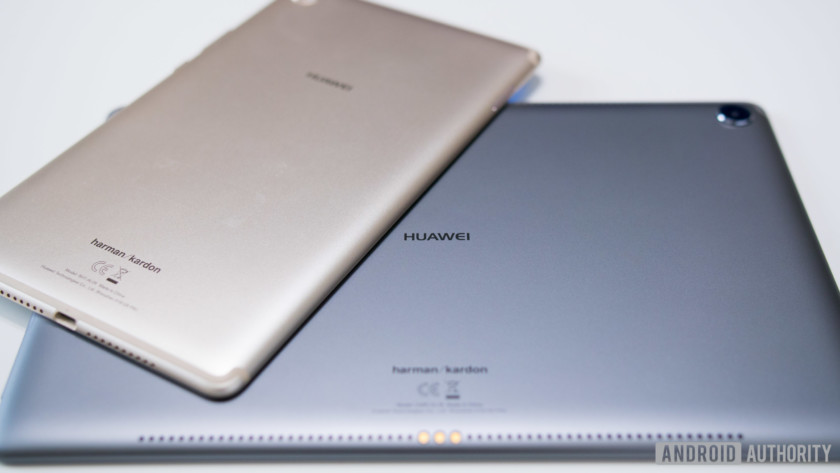
The designs of the MediaPad M5 and M5 Pro are fairly standard. After all, there isn’t a whole lot you can do in terms of aesthetics when designing a tablet. The M5 and M5 Pro feature all-metal unibody designs that are very smooth to the touch, but since these are much larger devices in comparison to a smartphone, having them slip out of your hands isn’t an issue. The corners are nicely rounded and the backside tapers down along the edges, providing a sleek appearance and comfortable feel in the hand. New to the MediaPad M5 lineup is the addition of 2.5 D glass on the front that compliments the rounded and curvy aesthetic of these tablets very well.
Plastic antenna bands can be found on both the M5 and M5 Pro along the top and bottom to help with radio signals and cell reception on the LTE variants. They’re never the prettiest things to look at, but Huawei has color matched them to the devices themselves. As such, they aren’t too much of an eyesore, especially on the darker devices, like the gray pictured above.
Unlike our smartphones where display bezels are increasingly getting smaller, the M5 and M5 Pro have thick bezels all around, but thick bezels make much more sense on tablets. The bezels give you an area ideal for properly resting your thumbs to comfortably hold these tablets without interfering with the display. This is especially useful on the larger M5 Pro which is more oriented towards landscape use.
There are several elements on the M5 Pro that encourage you to use this tablet primarily in landscape.
There are several elements on the M5 Pro that encourage you to use this tablet primarily in landscape. The front-facing camera is on the long side, the Huawei logo is in landscape, and the power and volume buttons are on the short side of the tablet. Using it in portrait is obviously possible, but it’s a much more awkward experience when interacting with the M5 Pro’s physical hardware. The front-facing camera ends up on the right or left side and the power and volume buttons will either be at the bottom or top when holding the tablet in portrait.
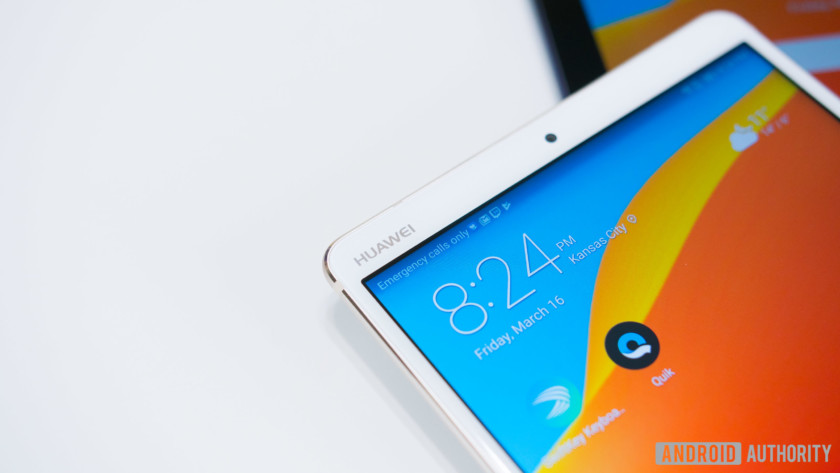
This contrasts dramatically with the 8.4-inch M5, which has a portrait style layout, with ports and buttons positioned to mirror our typical smartphones. When holding the tablet in portrait, the power and volume buttons are on the right side, the front facing camera is at the top bezel with a Huawei logo flanking the left side, and the USB type C port is on the bottom.
Display
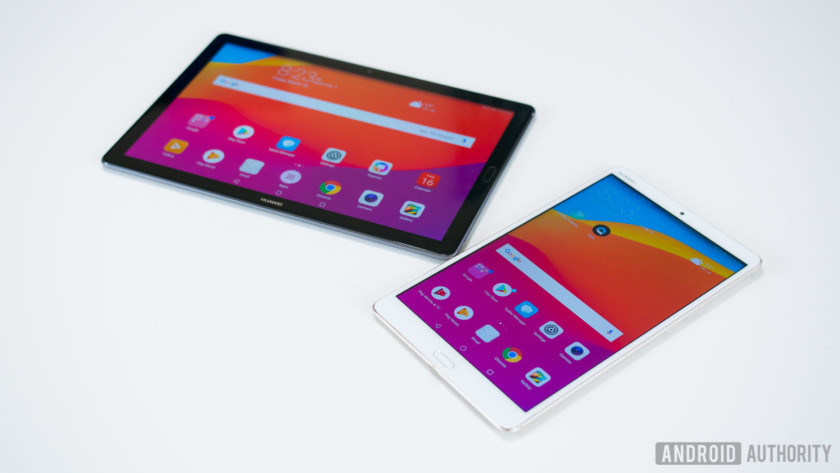
The beauty of the MediaPad M5 lineup is that no matter which one you get, they’re completely identical in specifications save for the physical size and battery capacities. Starting with the displays, both the M5 and M5 Pro feature IPS panels with 2,560×1,600 resolution. The M5 measures in at 8.4 inches while the M5 Pro will give you a much larger viewing experience at 10.8 inches.
With 2K resolution, both displays are incredibly sharp, which makes for a great experience no matter what you’re doing. The screens are also quite vibrant, rich in color and provide plenty of contrast which I did not expect from these IPS panels. Watching YouTube and Netflix, browsing the web, and playing games are fantastic and super enjoyable, especially on the larger M5 Pro.
Performance
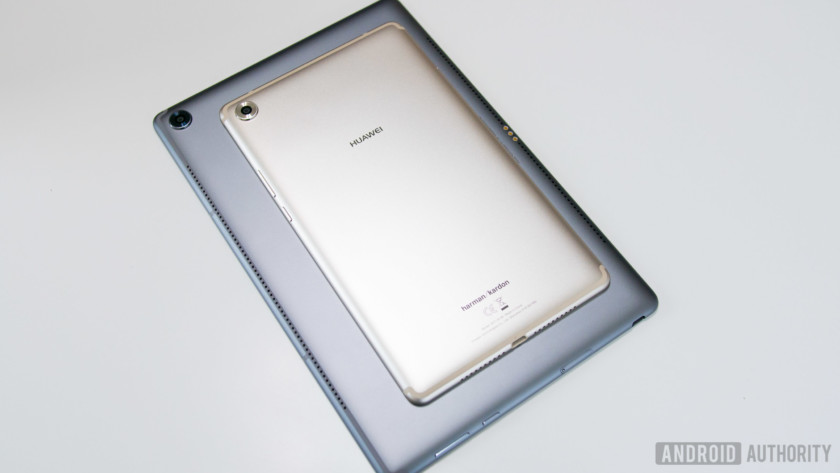
Both MediaPad M5 tablets use Huawei’s in-house Kirin 960 processor backed by 4 GB of RAM.
On the inside of the MediaPad M5 tablets is Huawei’s in-house Kirin 960 processor backed by 4 GB of RAM. This is Huawei’s last generation processor, but it’s still plenty powerful as performance has been very smooth in daily operation.
Swiping and scrolling through the interface, browsing the web, multitasking, or playing graphically demanding games is a pleasurable experience. These tablets are fast and responsive which is great to see on tablets that are designed for both work and play. How well will the performance hold up months down the road? Only time will tell, but for now they’ve done a an excellent job of keeping up with my daily demands.
Hardware
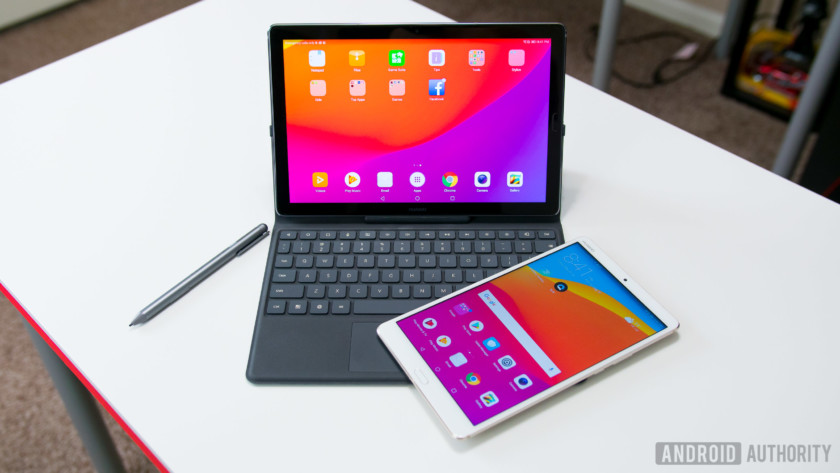
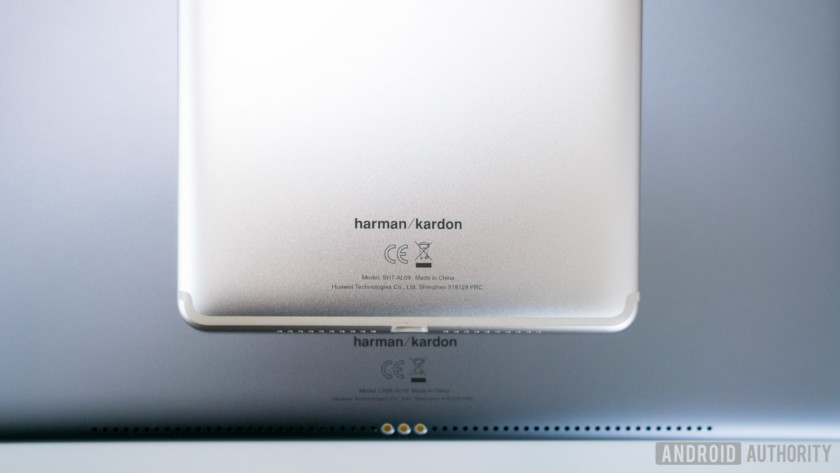
As for general hardware the M5 and M5 Pro are available in 32, 64, and 128 GB versions, with microSD expansion and the addition of a SIM card slot on the LTE variants. Fingerprint sensors can be found on the front bezels which are not only fast at unlocking but can also be used for navigating the OS in lieu of the on-screen soft keys. No headphone jack on either model, unfortunately, but they do come bundled with an adapter to allow you to use your headset of choice. Huawei does however make up for it with some very impressive speakers powered by Harmon Kardon. The 8.4-inch M5 comes with dual speakers, and the larger 10.8-inch models have an even more jaw-dropping quad speaker system.
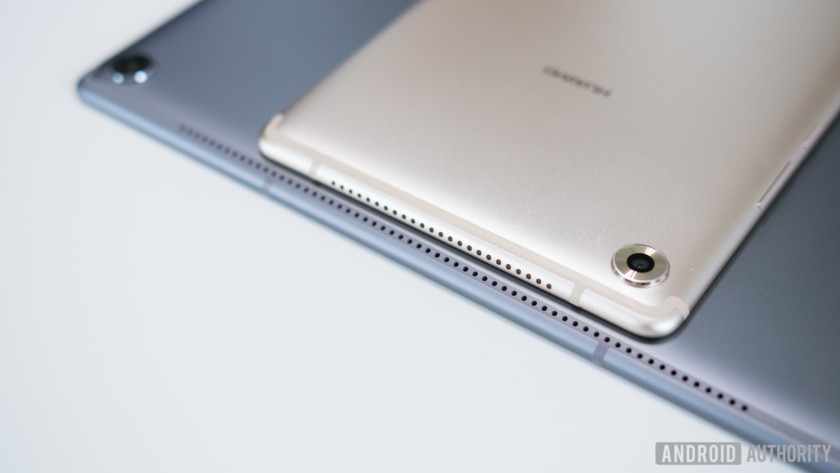
I was a little bit skeptical of the speaker placement, as they’re side-firing speakers on the 8.4-inch and rear-firing on the Pro model. But these speakers are so incredibly loud that it almost doesn’t matter. Not only are they loud, but the sound quality is very good. They’re crisp and clear, with no signs of distortion even at max volume and provide a nice amount of low-end punch. They’re some of the best speakers I’ve ever heard on tablets and makes the Netflix, YouTube, and music listening experience that much more enjoyable. These are very media-centric tablets after all, and these speakers complete the package.
The 8.4-inch M5 comes with dual speakers, and the larger 10.8-inch models have an even more jaw-dropping quad speaker system.
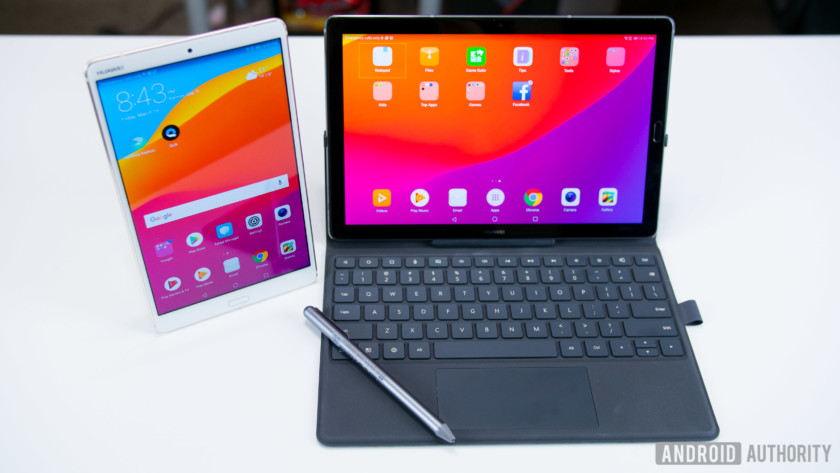
What makes the M5 Pro a “pro” tablet is the inclusion of a keyboard dock and an M Pen stylus with 4,096 levels of pressure sensitivity. The M Pen does exactly what you would expect from a stylus. You can create drawings, jot down notes, and even do handwritten calculations with Huawei’s calculator app, which I thought was one of the neater uses of this pen. The tablet will also detect when you’re using the pen and automatically default to a handwriting keyboard instead of the normal on-screen keyboard.
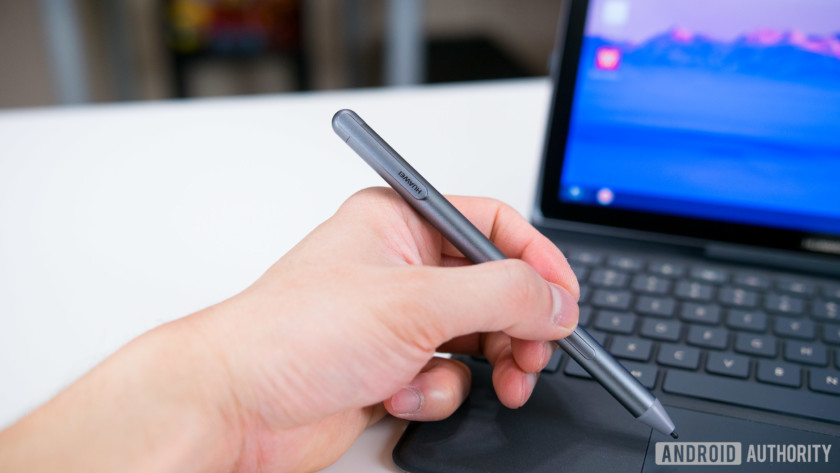
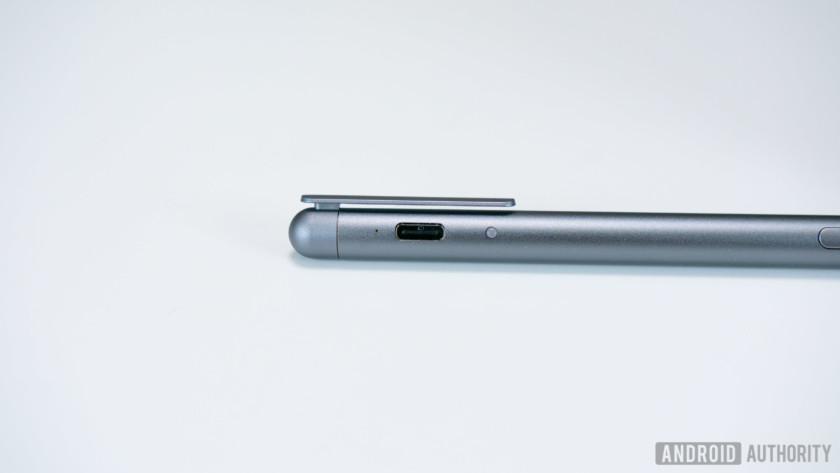
The M Pen is the size of a normal pen, making it comfortable to use, and it has solid weight so that it doesn’t feel cheap. The Pen has its own battery and is charged via its USB type-C port, which can be hidden by the pen’s clip when it isn’t in use. Huawei says a single charge is good for 50 days worth of use, and while I haven’t had the pen long enough to verify that claim, the only time I’ve charged it so far is when I initially took it out of the box, which, as I write this, was a week ago.
Editor’s Pick
ExpressVPN review
ExpressVPN is easily one of the most recognizable third-party VPNs (Virtual Private Networks) and for good reason. It claims to offer fast speeds, impressive security, complete privacy, competitive pricing, and everything else you’d expect from a …
Similar to Microsoft’s Surface Pen, the M Pen is magnetic, allowing it to hinge on the side of the tablet, but the magnet is pretty weak. It’s very easy for the pen to fall off.
There are two buttons on the side of the pen with one allowing you to select any portion of the screen to create and edit a screen grab. It’s basically Huawei’s knuckle sense gesture, executed with a pen. The other button serves as a “left click” and allows you to interact with the OS, open applications, etc. without having to lift the pen off of the display.
The keyboard dock, on the other hand, gives the M5 Pro an experience akin to a laptop. Unlike the pen, the keyboard dock does not have its own battery. It draws its power directly from the tablet. The keyboard connects to the tablet via copper connectors and is secured into place with plastic arms. It works fine, but sliding the tablet into place feels cheap and clumsy.
When the tablet is securely attached, the keyboard dock doubles as a protective case, giving the tablet protection on all sides. The backside can be folded in order to prop up the tablet when typing on your lap or desk. It’s made of a soft touch material both inside and out and feels nice and comfortable to the touch. My only concern is that it can possibly stain with prolonged use, especially the inside, which has a much more tacky feel.
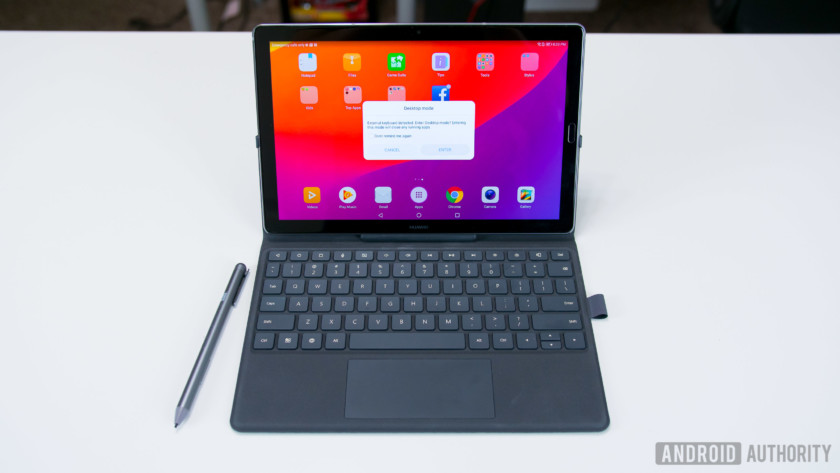
The main benefit of the keyboard dock is to give you a physical typing experience that allows for quicker and easier productivity when typing emails, creating word documents or spreadsheets. It’s not the most spacious keyboard but it’s a surprisingly comfortable keyboard to type on. The keys are clicky with a satisfying amount of travel, and it offers some of physical shortcuts for adjusting screen brightness, volume, multimedia playback controls, and the standard android navigation keys.
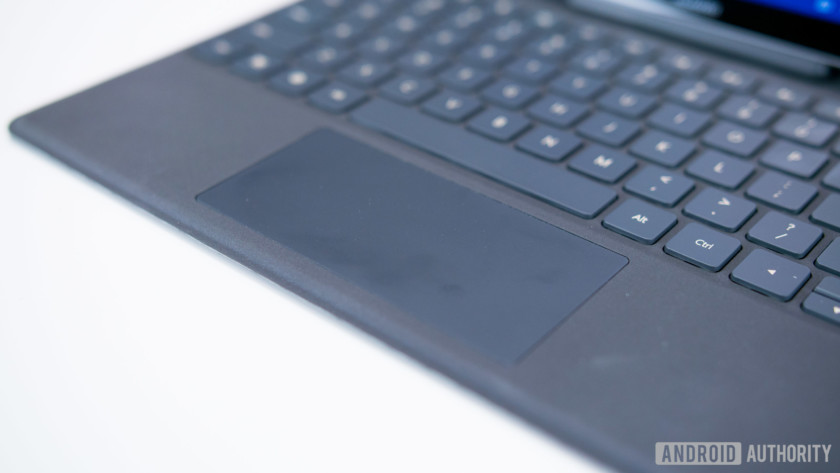
The keyboard does have a couple of downsides though. Huawei did the best they could with the trackpad given the size limitation, but it’s uncomfortable to use, and scrolling or moving windows around is laggy and slow in comparison to using the touch screen. There’s no noticeable input delay when typing, but when using the keyboard to control system functions such as volume the input response isn’t instantaneous and sometimes takes a couple of seconds or more before the keystroke wants to register.
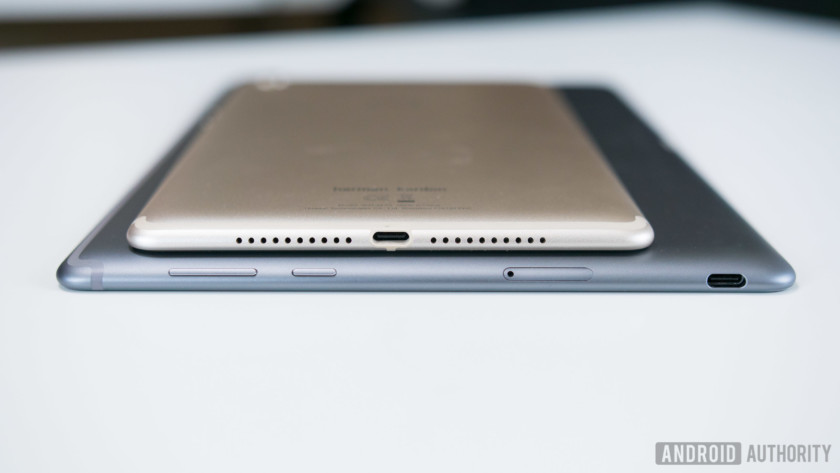
In terms of battery life, the M5 Pro and standard 10.8-inch M5 come with a 7,500 mAh battery. The 8.4-inch model runs on a 5,100 mAh cell. Both capacities are quite large for their respective sizes and have proven to be more than enough for several days of casual use and can easily last me an entire day on heavy use.
Both 10.8-inch models come with a 7,500 mAh battery. The 8.4-inch model runs on a 5,100 mAh cell.
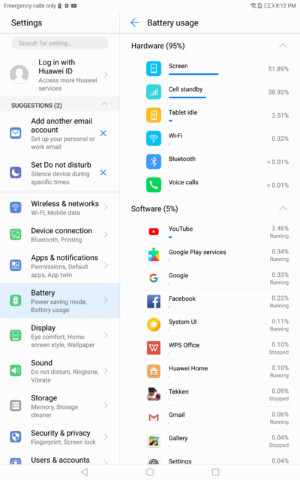
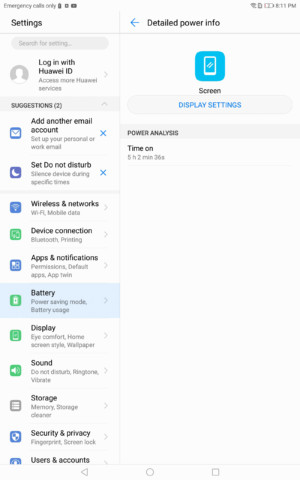
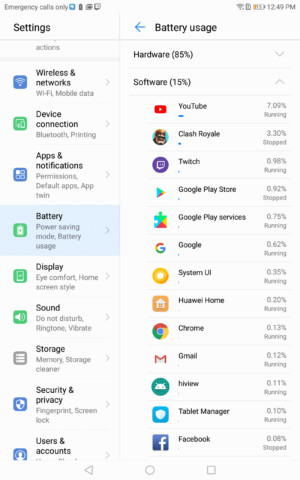
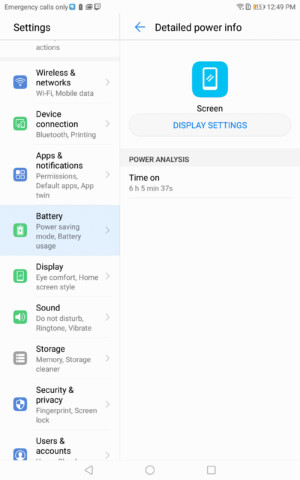
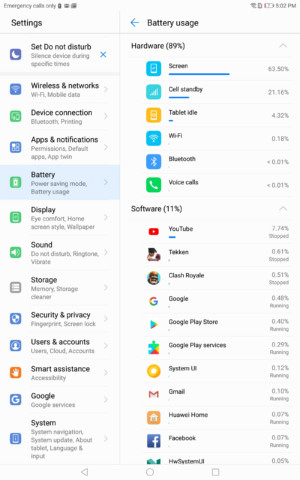
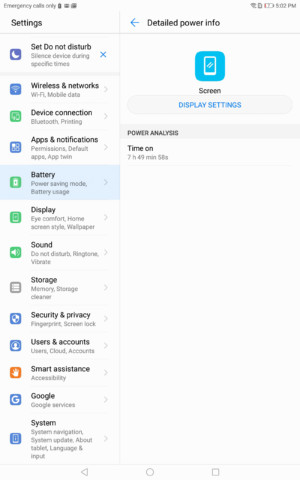
I primarily use my tablets for multimedia purposes, which consist of several hours of YouTube, watching livestreams on Twitch, and playing games on a daily basis. This typically means seven to eight hours of screen on time on the M5 Pro, and 5 to 6 hours on the M5. Battery-saving properties such as Huawei’s power saving mode and smart resolution for lowering the screen resolution can help extend these tablets’ batteries even further, but I haven’t felt the need to use them as of yet.
Camera

The entire MediaPad M5 lineup features the same cameras across the board with an 8 MP front-facing shooter and a 13 MP rear camera. Tablet cameras historically have never been all thatgood, and the MediaPad M5s don’t do much to change that. If you’re in a pinch, the photos are more than serviceable, but the quality isn’t going to compare to the smartphones that we have today.
There’s plenty of resolution with 13 MP, but photos do not appear very sharp, colors are washed out, and dynamic range is lacking with very little details in the shadows. Huawei does manage to keep the majority of the camera experience that you’d find on their smartphones intact on the MediaPads with all of the same shooting modes. The only exception is portrait mode and Huawei’s signature wide aperture mode, which is most likely due to the fact that the MediaPads don’t have dual rear cameras.
Software
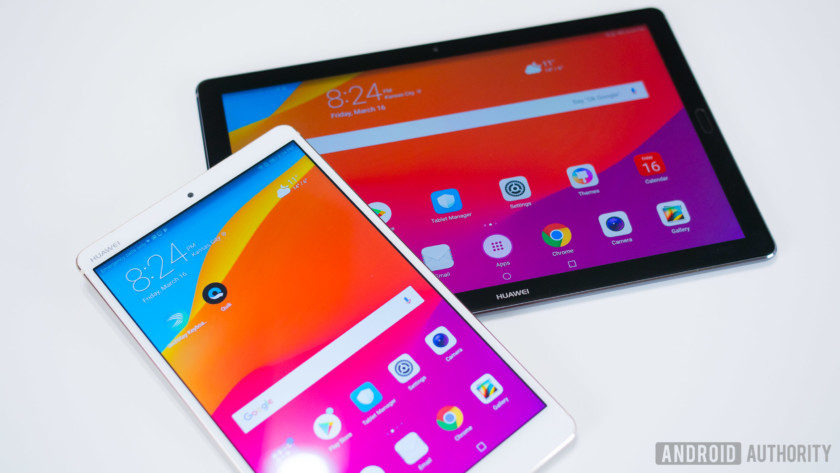
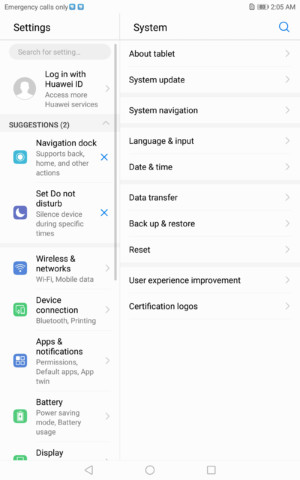
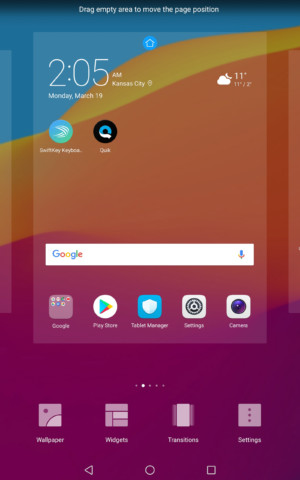
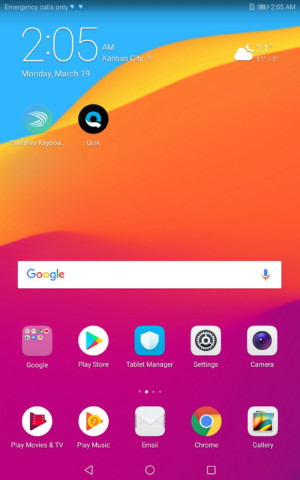
The MediaPad M5 and M5 Pro ship with Android 8.0 Oreo with EMUI version 8.0. It’s the same exact experience as Huawei’s smartphones, except blown up to a larger size. As usual, EMUI looks aesthetically very similar to Apple’s iOS, with rounded squared icons, a spotlight-esque search feature, and no app drawer by default. The app drawer can be reenabled through the system settings.
EMUI has never been a favorite skin of mine due to its similarity to iOS, but the heavy amount of bloatware that comes preinstalled on these tablets are more bothersome than the skin itself. You’ll find a handful of preinstalled games and other applications such as eBay and Booking.com. Thankfully, most of them can be uninstalled but it still creates an unnecessary hassle.
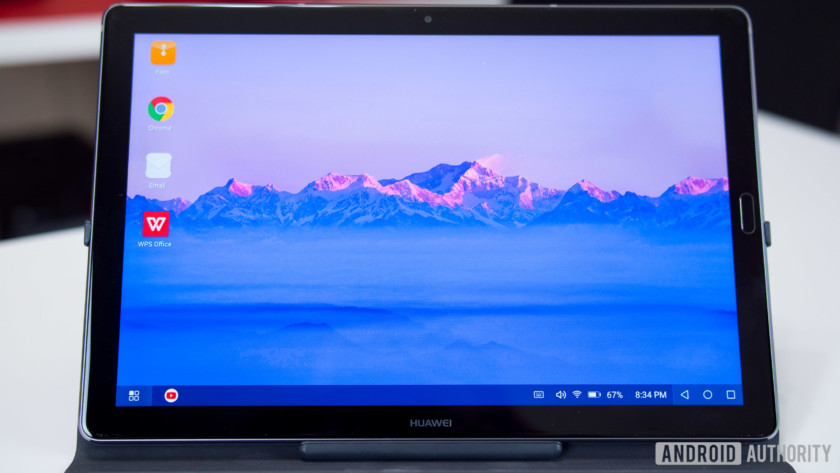
Specific to the M5 Pro’s software is the addition of a desktop mode. The desktop mode can be automatically launched when the tablet is inserted into the keyboard dock and will also work with a third-party bluetooth keyboard. As the name suggests, this turns the UI into a more traditional desktop experience such as Windows 10 or ChromeOS. There’s a task bar with apps stowed away in a drawer on the bottom left corner and other elements such as the time, notifications, and basic system functions, all accessible on the right side. The multitasking experience is also more like a desktop with all applications opening in windowed form and can be minimized and stacked on top of one another. This makes productivity even easier on the M5 Pro, but for some reason not every application that you download from the Play Store is accessible in desktop mode including the Play Store itself and many of Google’s other applications.

Gallery

Specifications
| Display | 8.4-inch IPS 2560 x 1,600 resolution 359 ppi 16:10 aspect ratio |
10.8-inch IPS 2560 x 1,600 resolution 280 ppi 16:10 aspect ratio |
10.8-inch IPS 2560 x 1,600 resolution 280 ppi 16:10 aspect ratio |
| Processor | HiSilicon Kirin 960 octa-core |
HiSilicon Kirin 960 octa-core |
HiSilicon Kirin 960 octa-core |
| GPU | Mali-G71 MP8 | Mali-G71 MP8 | Mali-G71 MP8 |
| RAM | 4 GB | 4 GB | 4 GB |
| Storage | 32/64/128 GB microSD expansion |
32/64/128 GB microSD expansion |
64/128 GB microSD expansion |
| Cameras | Rear: 13 megapixel AF Front: 8 MP FF |
Rear: 13 megapixel AF Front: 8 MP FF |
Rear: 13 megapixel AF Front: 8 MP FF |
| Battery | 5,100 mAh Non-removable |
7,500 mAh Non-removable |
7,500 mAh Non-removable |
| Connectivity | Wi-Fi 802.11 a/b/g/n/ac (2.4/5 GHz) Bluetooth v4.2, optional LTE |
Wi-Fi 802.11 a/b/g/n/ac (2.4/5 GHz) Bluetooth v4.2, optional LTE |
Wi-Fi 802.11 a/b/g/n/ac (2.4/5 GHz) Bluetooth v4.2, optional LTE |
| Sensors | Accelerometer Fingerprint Gyro Hall Ambient light |
Accelerometer Fingerprint Gyro Hall Ambient light |
Accelerometer Fingerprint Gyro Hall Ambient light |
| Authentication | Lock type: pattern, PIN, password
fingerprint scanner |
Lock type: pattern, PIN, password
fingerprint scanner |
Lock type: pattern, PIN, password
fingerprint scanner |
| Audio | Dual speakers with Harmon Kardon | Quad speakers with Harmon Kardon | Quad speakers with Harmon Kardon |
| Software | Android 8.0 Oreo, EMUI 8.0 | Android 8.0 Oreo, EMUI 8.0 | Android 8.0 Oreo, EMUI 8.0 |
| Dimensions and weight | 212.6 x 124.8 x 7.3 mm 316 g |
258.7 x 171.8 x 7.3 mm 498 g |
258.7 x 171.8 x 7.3 mm 498 g |
| Colors | Gold, Grey | Gold, Grey | Gold, Grey |
Pricing & Final Thoughts
Pricing for the MediaPad M5 starts at 349 Euros and ranges upwards to 599 Euros depending on size, storage, connectivity, and whether you opt for the Pro or standard versions. As we mentioned previously, when it comes to Android tablets, the amount of options out there are very limited, but the MediaPad M5 line is a very solid offering from Huawei. These are some of the best Android tablets we’ve seen in a while. They’re well designed with gorgeous displays and fantastically loud speakers that make them great for multimedia purposes. They certainly live up to the MediaPad name, and if you’re into turning your tablet into an on-the-go work station, the M5 Pro offers the appropriate peripherals for both work and play.
HTC’s Vive Focus standalone VR headset is coming to ‘global markets’
Ambiguity aside, this is still really exciting.
Although it may not have a prominent place in the smartphone market, HTC is currently dominating the VR world with its Vive headsets. Shortly after launching pre-orders for its new Vive Pro, HTC’s now confirmed that its Vive Focus headset will be expanding to ‘global markets.’

Per HTC’s official blog post –
Today at GDC 2018, HTC Vive announced that we are bringing Vive Focus to the global markets later this year. Vive Focus is the first 6DOF stand-alone VR headset to be commercially available. We also are making Vive Focus developer kits available to registered developers in most countries through our developer portal, starting today.
Unlike the Vive and new Vive Pro, the Vive Focus doesn’t need to be connected to a PC to deliver immersive virtual reality experiences. Instead, everything is done right within the headset itself.
While that is similar to what Lenovo’s currently working on with its Mirage Solo Daydream headset, the Vive Focus is different for a couple of key reasons. In addition to running its own custom software rather than Google’s Daydream platform, it also features “Six Degrees of Freedom” (6DoF) tracking.
Android Central’s Russel Holly recently got a chance to go hands-on with the Vive Focus while attending GDC 2018, and he describes the 6DoF system as follows –
Vive Focus is an untethered Six Degrees of Freedom (6DoF) headset, which means you can move around like you would if you were using an HTC Vive or Oculus Rift, but the headset isn’t attached to a phone or computer. All of the tracking, processing, and connectivity bits are contained within the headset, with its own battery and controller. Where Daydream, Cardboard, and Gear VR only let you turn your head to explore a virtual space, the Vive Focus lets you lean down to see more of the world.
It’s unclear at this time which ‘global markets’ HTC will target for the Vive Focus’s expanded release, but we’ll keep our ears to the ground and let you know as soon as we learn more.
HTC’s Vive Focus VR headset is super cool, but you can’t have one
PUBG for Android review: The hype is real

Stop what you’re doing and download this game.
Player Unknown’s Battleground (or PUBG for short) is a battle royale-style game that pits you against 99 other players in a heart-pounding survival scenario where you must scavenge for loot, explore the map and stay in the safe zone while taking out your competition. It’s a highly competitive game that offers game modes for Solo play, pairing up in Duo mode, or playing as a squad of four, and every playthrough will be unique in its own way.
Originally released in China, the mobile version is now available in North America and elsewhere around the world and, in short, the hype is real. I’ve been playing PUBG for Android on a Pixel XL and Galaxy S8 over the past few days and here are my first impressions of what I would already consider a contender for best Android game of the year.
The Good
Not a mobile version, but the full game for mobile: We’ve all played mobile ports of a favorite PC or console game that try to take the look and feel of the full game and then bog it down with loot boxes, in-app currencies, and energy meters to temper your ability to just play the game. PUBG for Android is essentially the full game that you could buy for Steam or Xbox One, simply scaled down for mobile devices. This would have been a golden opportunity to make this game pay-to-win with in-app purchases available to let you start with a kick-ass gun, but that would have also clearly broken the scavenger aspects of the game. You also have full access to use vehicles scattered around the map. Pretty much, if you’ve seen a streamer pull off some ridiculous stunt on the PC version, you can do it on the mobile version, too.
The fact this game has been released for free is just the icing on the cake.

Optimized for touchscreen: So the biggest thing that might hold back a mobile port of a third-person shooter would be brutal touch controls, but big props to the developers here for spending the time to not only offer really functional touch controls but for also including a bevy of settings to tweak things exactly the way you want. I’ve found the controls to be pretty stellar right from the start, but I love that you’re able to really finetune look and movement sensitivity, re-map all the button locations, and ultimately find the touch controls that work best for your play style. The game has streamlined some of the more finicky mechanics, so you will automatically pick up ammo and accessories for your equipped weapons, along with any other upgraded equipment. You can also set yourself to auto-sprint, so you can keep running while scanning your surroundings for enemies.
Frankly, I feel like third-person shooters like PUBG are perfectly suited for mobile, as you’re able to quickly scan around your surroundings while still moving towards your next target as opposed to first-person shooters where your viewpoint is locked.

They ease you into things: One point of discussion on the PUBG subreddit, if you find yourself winning your first matches on mobile — that was by design. Early on, the game a higher ratio of bots to players to make things a bit easier for brand new players. These bots are designed to not put up too much of a fight, so if you just won your very first PUBG battle and thought “boy, that was kind of easy”… It’ll only get harder from here.
While some might feel this point belongs in the “bad” column, or think the developers are duping new players, I think it’s a great way to introduce the massive scale of this game without having higher skilled players intentionally playing in the lower ranks simply to make a mess of things. The bots only stick around for the lowest Bronze-level games, and winning a match in your first few playthroughs is the best way to hook you in on that addictive rush of outlasting everyone.

It really looks great with the right phone: If you’ve got a newer device that allows you to play this game at the highest graphics setting, DO IT. I’ve been playing this on a Galaxy S8 and it plays like an absolute dream at the top settings compared to the medium settings recommended for my Pixel XL.
Reddit users have reported this game running fine on low settings on a Samsung Note 3, so you should be able to get this game to play on practically any Android phone — but it really shines the brightest on the max settings.
The Bad

Still a bit of a hot mess: If you’ve played PUBG before on PC or console, you’ll know this game is a bit of a crazy mess at times — but that’s also part of the charm. This game is crazy and gives you the freedom to play out every situation however you please.
Still, having started playing the mobile version from beta, I’ve encountered my fair share of bugs — from matches that never started to ridiculous glitches (like my car getting stuck in a tree) that had me laughing. I’ve also found some issues with the sound clipping, but again these are mostly minor bugs that should get squashed in time. You’re also able to report any bugs you find while playing with a few quick taps, which I’ve been sure to do anytime I come across something. Gotta help the developers out!
Games like this demand controller support: Currently, you can only play PUBG with touchscreen controls and that’s a bit of a downer. As I said above, the controls are pretty tight, but having to hold onto the phone to play means I got my neck down for maybe a half hour at a time. The option of Bluetooth controls would allow me to prop the phone up and play more comfortably. There are also some reports that you can connect a keyboard and mouse to your phone, and I will certainly be investigating that.
Currently lacks the cross-platform support of Fortnite: Fortnite is the biggest competitor to PUBG, and while it’s not yet available for Android it’s coming and it seems to be setting itself up for cross-platform play. You’re probably not going to be able to play against your friend on Xbox One while you play on your phone, but based on the iOS invite page asking for your existing Fortnite log-in details, we should expect your stats and experience to accumulate on your account regardless of which platform you’re playing on. It would be nice if the same features were extended to PUBG players.
Verdict

Download this game right now
This game is the real deal. If you’ve played PUBG on another platform, or have seen Twitch streamers playing the game and wanted to check it out, you can play PUBG on your Android for free. If you’re in the game, add me, mousemachine, and let’s go win some squad matches!
Download: Player Unknown’s Battleground (Free)
Android Gaming

- Best Android games
- Best free Android games
- Best games with no in-app purchases
- Best action games for Android
- Best RPGs for Android
- All the Android gaming news!
The New York Times brings its AR experiences to Android
There’s also a new David Bowie AR story.
Ever since Google officially launched its ARCore platform in late February, we’ve been seeing more and more unique implementations of it. Most recently, The New York Times announced that it’s now bringing new AR experiences to Android phones that support ARCore.


The New York Times has already been experimenting with AR on iOS using Apple’s ARKit, with one of its most popular creations being an experience that lets you get up close and personal with some of the most famous athletes that competed during the 2018 Winter Olympics.
Along with this, The New York Times is also launching a new AR story that’s centered around David Bowie and some of his most iconic outfits. Per The Times –
In addition to hearing from influential artists like Trent Reznor and Laurie Anderson, readers can now use their phones to project life-sized versions of Bowie’s iconic costumes into their own spaces, and to explore them as if they were physically there.
These AR experiences are available on The New York Times app starting today.
Download: NYTimes – Latest News (free)
 AIVAnet