


Today’s best deals you won’t want to miss
Whether you’re looking for new tech gear or household items, we’ve got you covered.
Today you can get great discounts on a variety of RAVPower 12000mAh power banks, TCL’s 49-inch Roku TV, Amazon Fire TV Sticks, DIRECTV NOW promotions, and more! Don’t pass these up.
View the rest of the deals
If you want to know about the deals as soon as they are happening, you’ll want to follow Thrifter on Twitter, and sign up for the newsletter, because missing out on a great deal stinks!
Facebook apologizes for privacy breach with full-page newspaper ads
Facebook isn’t just relying on TV appearances to apologize for its poor handling of Cambridge Analytica’s data sharing. The social network took out full-page apology ads in several major US and UK Sunday newspapers, including the New York Times, Wall Street Journal, Washington Post, Sunday Telegraph and Sunday Times. In each case, the ad included a missive from Mark Zuckerberg, who said he was “sorry” Facebook didn’t “do more” when it learned that Cambridge Analytica had harvested data on more than 50 million people without their permission.
The apology also reiterated that Facebook had already changed its data collection rules, and that it was looking into “every single app” that had access to large data sets. If it finds other offenders, it will “ban them and tell everyone affected.” The ads didn’t mention Cambridge Analytica or its profiling work for the sake of Donald Trump’s 2016 presidential campaign.
The ads represent an unusual step for Facebook and illustrate how much of a threat it sees from the reaction to the data sharing scandal. On top of investigations and lawsuits, it’s dealing with a cultural backlash as companies pull their Facebook pages and trends like #DeleteFacebook gain footing. There’s a genuine concern that it might lose favor with its vast user base, and it wants to convey its mea culpa to as many of those people as possible before there’s a serious hit to its bottom line.
Source: BBC
New web security standard promises safer, faster browsing
It’s safe to say that web security could use a tune-up given the deluge of malware attacks and data breaches. Thankfully, it’s about to get one. The Internet Engineering Task Force has approved Transport Layer Security 1.3, a new standard that makes some fundamental improvements to how and when web encryption kicks in. For the most part, int involves both shrinking the window of opportunity for intruders and preventing them from recycling code.
To begin with, the handshake between your client and the server will invoke encryption sooner, reducing the amount of unprotected data both sides send. Old encryption algorithms are no longer options, so a hacker can’t force the use of a legacy format to break security. Evildoers also can’t reuse decryption keys for future transactions.
Surfing should be a little faster, too. There’s a zero round-trip time mode that lets clients and servers get to business if they’ve already established preliminary details. The addition could speed up internet services whenever there are repeated connections.
You’ll only see the effect of this once sites start adopting the standard. However, the upgrade is arguably overdue. TLS 1.3 has taken over 4 years to produce, and a lot has changed since then — web encryption has become virtually mandatory, privacy has become a much larger issue and the consequences of security flaws can be severe. This certainly won’t put an end to online threats, but it could stop attacks that take advantage of basic flaws in how the internet works.
Via: TechCrunch
Source: IETF
What is VR?
VR, or virtual reality, has gone from a science fiction concept to a broad market of consumer devices in just a short span of years: It’s no surprise some of us have whiplash.
Now that VR technology is everywhere, you may have some questions. We’re going to answer them! Here’s everything you need to know about VR.
The Basics of VR
Virtual reality technology seeks to create a realistic three-dimensional image or environment that a human can perceive as real, and even interact with in realistic ways. Obviously we aren’t at holodeck levels of realism yet, but consumers do have easy access to VR headsets and controllers.
VR in devices like headsets is created entirely by a mixture of hardware and software. That makes it different from AR (augmented reality), which uses an overlay of the real world and adds objects to it, like the Microsoft HoloLens. VR tends to be a more difficult prospect: In AR, there are solid fixed points of reference that your eyes can use to track and navigate. In VR, the full environment is simulated and realism is harder to attain.
Cutting edge VR projects are working with tactile sensation and even smells, but in the consumer market VR is typically limited to vision, hearing, and handling simple objects: But you’d be amazed what can be done with just these senses.
The VR headset
The most ubiquitous VR product is undoubtedly the VR headset: We have seen many versions from top tech brands like Google and Sony, each with their own unique approach.
These headsets are easy to divide into categories based on the hardware they are designed to work with. Larger, high-end headsets are typically designed to work with PCs that have been enabled to run VR software. Close behind them are headsets designed for other machines like game consoles, notably PlayStation VR. Lately we are also seeing the rise of stand-alone headsets that include all necessary hardware onboard.
Then come along somewhat cheaper headsets that are designed to work with smartphones, with a slot in the headset to position the smartphone screen at the right distance from the eyes. These headsets are made to work with VR apps that offer simpler experiences, and have a wide price range between a couple hundred dollars and $15 for Google Cardboard.
However, to understand how these popular VR headsets function, we need to dive inside. Here are the components that make these devices work, and how it all fits together.
- Content feeds: Content feeds are supplied by hardware, typically the hardware in a computer, console, or phone. This is data that makes up the digital world, and it needs to come from somewhere. These days, you can find VR experiences contained within a single app or game.
- Controls: Very simple VR headsets allow basic exploration and interaction with a few buttons located on the headset (especially common in kid-friendly VR). More advanced headsets offer handheld controllers (a bit like the Nintendo Wii). The most advanced offer controllers that mimic real devices, such as the aforementioned guns and swords. They interact directly with the hardware that sends the feed.
- Displays: The display is where the VR image is pushed out to your eyeballs. In the old days, two separate displays, one for each eye, were included in the goggles, and this remains a popular approach for headsts like the Oculus Rift. But because of the extra cost and components, this is less common these days. Many inexpensive headsets simply use the full smartphone screen as a display, or a single OLED screen. That brings us to…
- Lenses: Many headsets include lenses that help focus your eyes on the screen so that it appears you are looking into a real environment. This is what allows VR to work on single screens like smartphones have. More advanced versions also allow for lens adjustment, which is very important for both eyestrain and realism.
- Field of view: A perfect field of view would, of course, be 360 degrees. Since this isn’t possible on a headset, most VR headset creators settle for around 100 to 120 degrees, which helps improve immersion.
- Frame rate: The higher the frame rate, the better the immersion, so the goal here is frequently 60 FPS to 120 FPS and powerful hardware to back it up. Less ambitious experiences may not worry much about frame rate, but if it starts slowing down then all immersion is lost and headaches often result.
- Tracking sensors: Advanced headsets need to know when you move your head, hands, and even body, so they can move the content feed in a similar fashion. So headsets also come with movement sensors on the headset — and sometimes also on additional hardware to map out your space, such as the PlayStation VR offers.
- Audio: Audio is either supplied as part of the content feed in the headset itself, or as a separate feed that uses an additional speaker headset that you need to wear.
VR and immersion
“Immersion” is a vital consideration in all virtual reality endeavors, as in, “How immersive does this experience feel? How easily can people suspend their doubts and really feel like they are in this reality?” That question drives all ambitious VR development. It also helps us divide VR into a few useful categories:
Non-immersive: Non-immersive VR allows elements of the real world to creep in…which can be a good thing if you tend to suffer from nausea. This includes headsets that include some of the real world at the corners, virtual windows that you see sometimes in offices, and some AR that tiptoes as close as it can to VR.
Semi-immersive: Semi-immersive VR simulations use a combination of and real-world objects to replicate an experience. The easiest and most common example of this is the cockpit simulation used for both games and flight training. It looks real, and the visuals are digital while the controls are physical — but you still have the sense of being in the real world.
Fully immersive: Fully immersive VR creates an almost entirely digital environment to explore (the exception being controls, such as a gun or sword-like object in your hands). These environments may be limited by space, as with today’s gaming console VR headsets, or they can include full 3D environments in the real world that you can explore, which are tracked, copied, and filled out inside the simulation. This can get just as crazy as it sounds.
Editors’ Recommendations
- Qualcomm’s Snapdragon 845 VR reference headset puts body tracking in mobile VR
- Apple AR glasses: News and rumors about ‘Project Mirrorshades’
- Qualcomm’s stand-alone VR headset design uses Tobii eye-tracking
- Yaw VR turns virtual driver’s seat into immersive experience
- The best VR innovations at CES 2018 so far
The only guide you need to get started with Google’s Wear OS
Julian Chokkattu/Digital Trends
Your new Wear OS smartwatch has been unboxed, charged, and strapped to your wrist. So, what next? Setting up and using Wear OS (formerly known as Android Wear) is a simple process, one that’s nearly identical across devices. We’ve put together a comprehensive user guide on how to get started with Wear OS, so that you don’t miss a single notification or alert. Wear OS is compatible with both Android and iOS smartphones, so we’ll be covering both in this guide. Watch at the ready? Let’s get started.
Basic requirements and apps
Julian Chokkattu/Digital Trends
If you own an Android smartphone, make sure it’s up to date — only Android 4.3 Jelly Bean and newer iterations are supported. For the iPhone, the baseline requirement is iOS 8.2 and above. And no matter which handset you’re sporting, you’ll have to keep Bluetooth enabled, as it’s how your watch communicates with your phone.
While almost any Android phone will work with your smartwatch, some older iPhones struggle. Initially, Google’s Wear OS app for iOS only supported the LG Watch Urbane, but subsequent updates have increased the number of supported watch models substantially. Compatible models include the TAG Heuer Carrera Connected, Fossil Q Founder, Moto 360 2nd Generation, Huawei Watch and many more. Almost all new watches support iOS as well. Google’s support page contains an exhaustive list of devices that’ll work with an iPhone, Android phone, or both.
Pairing your watch and smartphone
You can find the Wear OS app in the Google Play Store, and the iOS app in the App Store. Once installed, turn on your Wear OS watch. You’re going to need the charger just in case your watch is low on battery, so make sure you’ve got it nearby. Select your language of choice when prompted, then look for a Bluetooth pairing code and ensure it matches the one displayed on your phone. In iOS, enter it manually. If there are any software updates available for your watch, they’ll be installed at this time.
Using Wear OS on Android phones
Julian Chokkattu/Digital Trends
Wear OS’s features and the supporting app differ depending on which OS you’re using. We’ll concentrate on Android here, but there are differences that we’ll address in a later section. When you start your watch for the first time or after performing a factory reset, it’ll give you a quick rundown on how to use it.
Thankfully, it’s pretty simple. Information appears on cards that you view by swiping up and down, and dismiss by swiping to the right. If you accidentally dismiss a card, quickly swiping up on the screen brings up an Undo button that returns it. Notifications with additional options and settings will feature a triple circle icon (when you click on it) that lets you act on them — like deleting or replying to an email.
Wear OS can be controlled via simple gestures, though you’ll need to turn this on by swiping down, tapping on Settings, and then going into Gestures. Toggle Wrist gestures, and you can then flick your wrist away or towards you to move through the OS. Most actions revolve around big, finger-friendly buttons that you usually can customize by going to Settings > Personalization > Customize hardware buttons. New watches may feature a rotating crown, which Android Wear 2.0 added support for. Rotate it to scroll through most screens.
Press the main button on your watch to bring up a list of all the apps installed. Swiping left or right from the watch face lets you swap to a different face, and you can customize them further by adding complications or changing color options. Swiping down on the watch face, on the other hand, pulls up Quick Access controls. From here, you can select Do Not Disturb mode, which limits the number of notifications you get, or Theater Mode, which silences all notifications and turns your watch face black. You can adjust your watch the screen brightness here as well (if it’s not set to automatic), toggle airplane mode and sound, and glance at the battery percentage, date, and connection status.
To quickly dim your watch’s display, cover the watch for a few seconds with your palm.
Once you’re familiar with the basics, you’ll probably want to take a look at the available watch faces. Press and hold the selected face to customize it, or you can swipe left or right from the watch face to see more options. You can tap the gear icon below some watch faces if you want to customize them before switching.
Alternative watch faces
Simon Hill/Digital Trends
Third-party faces are available from both the Android Wear app and Google Play. There are hundreds of options available in Google Play, which you can access via the Wear OS app on your smartphone or Wear OS’s built-in Play Store.
When a watch face is installed, there’s no need to take further action. A notification will let you know and a tap will set the new face. Complications, introduced in Android Wear 2.0, are meant to mimic smaller subdials on a traditional watch. They offer information at a glance, such as the time of your next calendar event or how active you’ve been during the past week. You can change which one you’re viewing by tapping the dials when customizing the face — third-party apps can add their own complications, too.
Downloading apps
Malarie Gokey/Digital Trends
Installing apps in Wear OS isn’t all that different from installing faces. You can download them from Google Play on your smartphone or Wear’s built-in Play Store. The quickest way to find them is through the Wear OS Play Store — Google highlights featured and essential apps for your watch, and also categorizes them based on what the app does. For example, head over to the Health and Fitness section to find dieting apps.
A notification will show up when the app is finished installing. It’ll appear in the list of apps, directly under the main menu. To find it, tap the watch face, swipe left, and scroll down. Press and hold the app name here to pin it to the top of the apps list, so you don’t have to keep scrolling to find it.
Customizing apps
In Android, your watch can control the various functions of your phone. For a complete list of what your smartwatch can do, open the Wear OS app on your smartphone, tap the triple dot icon on the top right, and head to Help & feedback. Find the Tips & Tricks section as well as the What you can do with Wear OS by Google in the list of guides.
Google Play Music is a great example. When the app is running on your smartphone, you’ll be able to automatically access playback and volume controls on your watch. The same things goes for fitness apps, as well as ride-hailing apps like Uber. Taking the time to personalize your watch will make it more useful, so it’s time well spent. Check out our Wear OS tips and tricks for more.
Talking to the wrist
Julian Chokkattu/Digital Trends
Wear OS can be controlled using your voice, if you don’t mind shouting at your wrist in public. How well it works depends on what you’re asking, your accent, and the surrounding noise level. But if you’re up for giving it a try, it’s built directly into the operating system.
Google Assistant, introduced in Android Wear 2.0, can tell stories and trigger actions that allow you to find your heart rate, place calls, set reminders, send texts, and carry out a host of other actions. Tap the screen to wake it from ambient mode, and say “OK, Google.” You can then ask Assistant to perform an action, like send a text to a friend, call a friend if you have an LTE-connected watch, or tell you a joke. You can even use it to control smart home devices. For more Assistant settings, head over to the Wear OS app and tap Google Assistant.
Talking to your watch is also the easiest way of responding to notifications — tap on a notification, press the triple circle icon and tap Reply. You’ll see a mic option, and if you tap it you can say anything and it will be transcribed to text. If you’d rather let your fingers do the talking, there are options to scribble letters to make up words; scribble to send emojis, or even a virtual keyboard with swipe-to-text support.
Wear OS also packs an alternative: Smart Replies. Using a combination of machine learning and AI, Wear OS will serve up a list of contextually-appropriate replies.
Adding music for offline listening
Most Wear OS watches have a small amount of internal storage, which you can use to store some music. This means that, with a pair of Bluetooth headphones attached, you’re free to leave your phone behind when out for a walk or jog. If you have an LTE-connected watch, you can stream music from select music streaming services.
You can manage your watch’s library from the Google Play Music Wear OS app. If it’s installed on your watch, open the app and head to My Library, and click on Albums. Press and hold an album you want to download, and it will begin downloading. It tends to take a while, but once finished, you’ll receive a notification.
Within Wear’s Settings > Connectivity menu, choose Bluetooth, and pair the watch with your Bluetooth headphones. To play the tracks you’ve previously synced, launch the Play Music app, swipe down and then right for settings, and toggle Downloaded only.
Connecting to Wi-Fi
Malarie Gokey/Digital Trends
Most Wear OS watches have onboard Wi-Fi, which is useful for grabbing notifications if Bluetooth is out of range, or accessing the Play Store if you’re using the latest version of Wear OS. An easy way to check if your watch has Wi-Fi is by navigating to the Settings > Connectivity menu. If there’s an option labeled Wi-Fi Settings, you’re golden.
Tap Wi-Fi Settings and your watch will scan for local networks. Select the one you want and a prompt to enter the password will appear, along with a button to open the command on your phone. Tap this, pick up your phone, and enter your password. The watch will connect automatically when it’s within range and turned on.
Setting your watch as a trusted device
Android’s Trusted Devices feature negates the need to enter a PIN number or passcode every time you unlock your phone, provided it’s connected to your watch via Bluetooth. To enable said feature, navigate to Settings on your phone. Afterward, select Lock screen and Security and look for the Smart Lock option. Keep in mind that you’ll need to have set a PIN number to progress any further. Tap the option to add a Bluetooth device and you’ll see a list of paired devices. The app will be among them — tap it, agree to use it for smart unlocking, and you’re set.
Blocking notifications, silencing your phone
Once the novelty of receiving notifications on your watch has worn off, you can block individual apps from buzzing on your wrist. Open the Wear OS app and tap Notifications. Select Block app notifications, and tap the plus-shaped Add more icon. Choose the apps you want to disable notifications from. In iOS, you can also block apps via the Wear OS companion app.
In the Notifications setting, you can also tap Silence phone while wearing watch to make sure your phone doesn’t keep buzzing when you’re wearing a watch. You can customize this further to stop your phone from vibrating for incoming calls, or for alerts and notifications.
Customize your calendar alerts
Got a lot of calendars? You can pick and choose which ones to get alerts from in the Wear OS app. Just tap Calendar settings and you’ll get access to a list of all the calendars you have connected to your Google account. Tap on the ones you don’t want to see alerts from.
Checking battery life, other advanced options
While traditional watches can last months on end with coin-sized batteries, most Wear OS watches can only make it through a day — sometimes less. To get an idea of when your watch will need a charge, head to the Wear OS app. Tap Advanced Settings at the bottom, and go to Watch battery. Here, you’ll see a list of installed apps, along with the percentage of battery they’ve drained over the course of a day.
In Advanced Settings, you can also toggle off the always-on screen to conserve battery, as well as the tilt-to-wake screen option. Head to Watch storage to see how much space your watch has left in case you want to download some music to the watch, and tap Watch app data usage to see how much data the watch uses — handy if you have an LTE-connected watch.
Editors’ Recommendations
- Everything you need to know about Android 8.0 Oreo
- From Oreo to Jelly Bean, here’s how to turn off notifications in Android
- Fossil Q Commuter hybrid smartwatch review
- How to root Android phones or tablets (and unroot them) in 2018
- How to sideload an APK or install an Android app from outside the Play Store
Facebook collected call and text data from Android phones for years
Recent controversy towards the state of data safety and privacy on Facebook has been heightened by the discovery that the social media company scraped data on calls and texts made on connected Android smartphones, at least during the period of November 2016 and July 2017.
This comes courtesy of Twitter user and developer Dylan McKay. McKay, like many of us following the revelations surrounding Cambridge Analytica and Facebook, downloaded his entire Facebook archive to see what data the social media giant held on him. Amongst a record of all his posts, friends, and advertising data, McKay found entire call and SMS records from his connected Android smartphone.
Downloaded my facebook data as a ZIP file
Somehow it has my entire call history with my partner's mum pic.twitter.com/CIRUguf4vD
— Dylan McKay (@dylanmckaynz) March 21, 2018
The data contains dates of when calls and texts were made, whom they were addressed to, whether they were incoming or outgoing, and how long calls lasted. Further investigation by Ars Technica revealed other users who found their call and text metadata within their Facebook data archives, as well as within the reporter’s own archives.
So far, Digital Trends has not discovered call and text data within a Facebook archive, but it is important to note that the only Facebook archive we have accessed so far is based in the U.K., so geographical location may play a part in the data collection. McKay himself is based in New Zealand, and has set up a Google poll to gather evidence on which users have been affected.
Speaking to Ars Technica, a Facebook representative said: “The most important part of apps and services that help you make connections is to make it easy to find the people you want to connect with. So, the first time you sign in on your phone to a messaging or social app, it’s a widely used practice to begin by uploading your phone contacts.”
The issue presumably arises from previous versions of Android, which allowed apps access to parts of your phone in an “all-or-nothing” manner. So if Facebook requested access to a phone’s microphone, camera, and call data, users could not allow or deny specific permissions. These permissions were often required for installation, so if you didn’t want Facebook snooping on your phone, you couldn’t use the app on your phone. This changed in Android 6.0 Marshmallow, and now users can choose to selectively allow or deny specific permissions — it seems that the damage has been done, however. Apple has never allowed access to call metadata, so iOS users should not find any such data in their Facebook archives.
If these most scandals surrounding Facebook have chilled you to your core, then we’ve put together a guide on how to delete your Facebook account. If you’re still happy to stick around, we also have guides to boosting your Facebook privacy, and protecting yourself on Facebook — but it’s also worth noting that many of the biggest names in tech no longer support the social media platform. Elon Musk recently deleted associated Facebook pages after warnings from WhatsApp founder Brian Acton, who has loudly backed the #deletefacebook movement.
Editors’ Recommendations
- Here are five tips to keep your data private on Facebook
- How to delete your Facebook account
- Some Android games are listening in on your TV viewing habits
- 9 things to know about Facebook privacy and Cambridge Analytica
- Facebook was always too busy selling ads to care about your personal data
After data scandal, Zuckerberg promises to ‘do better for you’ in newspaper ads
It’s been four days since Mark Zuckerberg released his first statement regarding the Cambridge Analytica scandal, on the very social media platform where the problem started. On Sunday morning, the Facebook co-founder and CEO took to print to release a follow-up apology — a full-page ad in the New York Times, Wall Street Journal, and Washington Post. Across the pond, Facebook placed the ad in U.K. publications including the Sunday Telegraph, Sunday Times, Mail on Sunday, Observer, and more.
Albert Khoury/Digital Trends
In his initial statement, Zuckerberg took responsibility for the data mining of 50 million Facebook users, and gave a timeline of the events that led to the breach (to catch up on the scandal, here’s what you need to know about Facebook data and Cambridge Analytica). Facebook has since banned the analytics firm and its parent company, Strategic Communication Laboratories. Zuckerberg provided a list of steps the company has taken to secure user data, some of which were already in place.
Going forward, Facebook will investigate thousands of apps and perform full audits on any that show “suspicious activity.” If the developer does not consent to the audit, they will be banned. Facebook will also take steps to limit how much access developers have to your data. And finally, the platform will make it easier for you to see which apps you are using via a tool right at the top of your News Feed.
These steps were more briefly outlined in Zuckerberg’s printed apology:
“We have a responsibility to protect your information. If we can’t, we don’t deserve it.
You may have heard about a quiz app built by a university researcher that leaked Facebook data of millions of people in 2014. This was a breach of trust, and I’m sorry we didn’t do more at the time. We’re now taking steps to make sure this doesn’t happen again.
We’ve already stopped apps like this from getting so much information. Now we’re limiting the data apps get when you sign in using Facebook.
We’re also investigating every single app that had access to large amounts of data before we fixed this. We expect there are others. And when we find them, we will ban them and tell everyone affected.
Finally, we’ll remind you of which apps you’ve given access to your information — so you can shut off the ones you don’t want anymore.
Thank you for believing in this community. I promise to do better for you.
Mark Zuckerberg”
Cambridge Analytica obtained the private information from an app called “thisisyourdigitallife” by Global Science Research. The app was billed as a personality test and was downloaded by some 270,000 users. This download granted the developers access to user data including the city in which they reside, content they liked on Facebook, and more. The company then gained access to the same information from these users’ friends, and their friends, and so on, until 50 million people were exposed.
While there is a growing #deletefacebook movement that includes heavy hitters such as Elon Musk and Brian Acton, we have some steps you can take to protect yourself without having to delete your account. And if yo’re ready to cut the cord, here’s how to delete Facebook from your life.
Editors’ Recommendations
- 9 things to know about Facebook privacy and Cambridge Analytica
- Zuckerberg releases first statement on Cambridge Analytica, vows more security
- Facebook was always too busy selling ads to care about your personal data
- Elon Musk deleted Facebook after a challenge from another tech titan
- South Korea fines Facebook $300K for allegedly throttling its services
Best Google Pixel 2 Accessories
What are the best accessories for the Google Pixel 2?
Google launched a ‘Made for Google’ certification partnership with a wide range of accessory manufacturers to ensure there’s a good selection of accessories for the Pixel 2.
The best place to find certified Pixel 2 accessories is straight from the source — the Google Store. They offer proprietary accessories along with some third-party products, but there are also deals to be found on Amazon.
- Google-designed cases
- Peel Super Thin Pixel 2 Case
- Moment Photo Case & Wide Lens Kit
- Libratone Q Adapt USB-C Earphones
- USB-C Digital to 3.5mm headphone adapter
- dB MAGIX Mini Hi-Res Headphone Amplifier
- 18W USB-C Power Adapter
- Anker PowerLine USB-C cables [3-pack]
- Aukey USB-C Car Charger
Google-designed cases
Google has partnered with a number of different case manufacturers to get accessories certified as ‘Made for Google’, just another way for Pixel 2 owners to be confident in their accessory purchases.
Right now, there’s a limited number of third-party accessories available, but If you’re planning to order your phone straight from the source you should check out the cases designed in-house by Google.
Best Cases for the Google Pixel 2
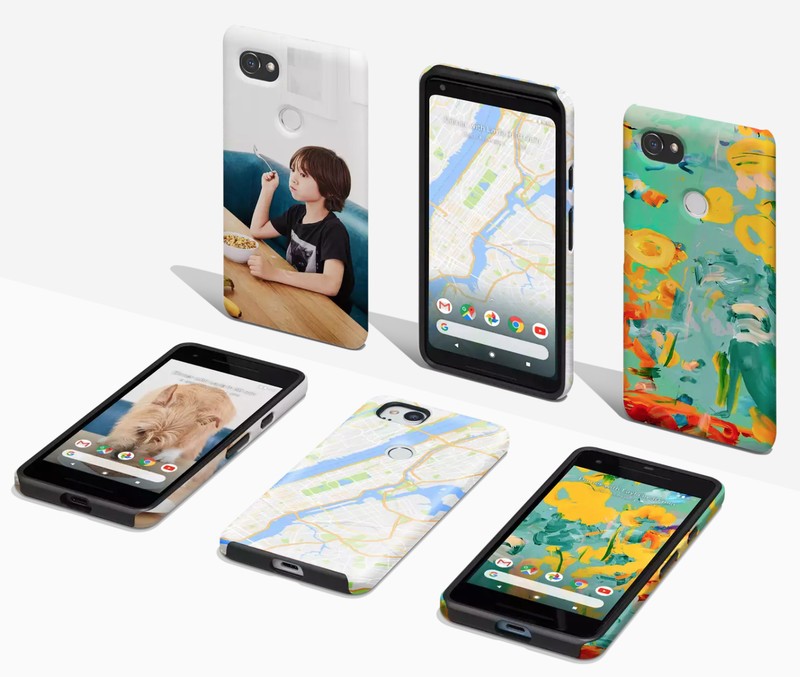
For the Google Live cases there are two case types to choose between — a slim one-piece shell or a more rugged dual-layer case. No matter which you go with, you get to customize the back of your Pixel 2 with a stunning shot from your own photo roll, from Google Earth, or sample a work of art.
Each Google Earth case can be paired with a matching live wallpaper for a cohesive look around your device that just looks gorgeous. And if you opt for the dual-layer case, you’ll be getting enhanced drop protection when compared to a single-layer case. Find yours starting at $50.
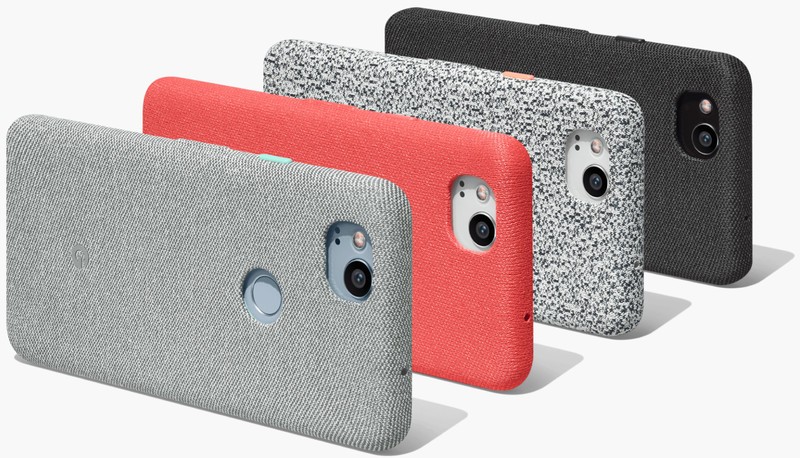
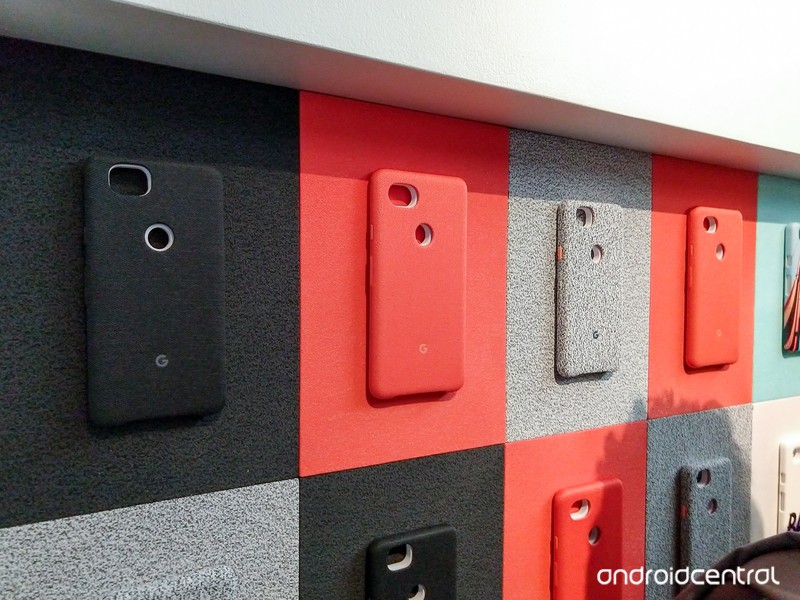
Another compelling option is the Google Fabric Cases which brings the look and most importantly the feel of that fabric finish found on other Google products, like the Home Mini and Daydream View. These cases offer a premium microfiber liner and will keep your Pixel 2 looking like a standout device no matter which color combination you decide on. They’re also available for $50.
See at Google Store
Peel Super thin Pixel 2 Case

If you’re looking for a way to protect the finish on your Pixel 2 with no extra bulk and no graphics or branding of any kind, Peel’s Super Thin Pixel 2 Case is exactly what you’re looking for.
This .35mm thin case is precision cut and formed to fit perfectly on your Pixel 2 and fits more like a glove than a traditional case. Once in place, you’ll barely notice it’s there while you’re using or carrying your phone but will definitely notice that your expensive Pixel 2 isn’t getting scratched up from rubbing against other things in your pocket or a table.
Take it from us: the back glass on your Pixel 2 will scratch if you give it a chance. Peel’s Super thin Case is the perfect medium between nothing at all and a thick case for people who just aren’t into cases.
See at Peel
Moment Photo Case & Wide Lens Kit

Photography is a big feature on the Pixel line, and the Pixel 2’s camera is positioned to be the best on the market. If you’re #teampixel, get ready to take your photos to the next level with the Moment Photo case, which lets you quickly and securely attach peripheral lenses to enhance the Pixel 2’s already outstanding camera setup.
Google is selling the Moment Photo case which includes an 18mm wide-angle lens made from premium materials that let the Pixel 2 camera capture more in crystal clarity. The case itself is pretty basic as a phone protector, but the lens is top-notch and accounts for the majority of the $130 price tag you can bet that this case is mostly a vessel for the high-quality camera lenses that Moment makes for mobile.
Check out Moment for more fancy camera lenses for your fancy new phone — Macro, Telephoto, and Super Fisheye. Quite the investment, but might be worth it if you want to add some uniqueness to your ‘Gram game.
See at Google Store
Libratone Q Adapt USB-C Earphones
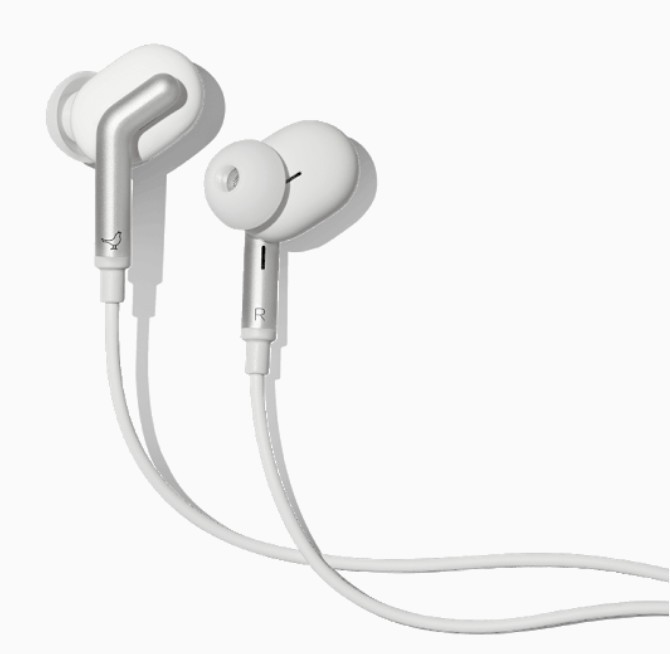
With the Pixel 2 ditching the headphone jack many of us are looking for a new set of headphones or earbuds. There are plenty of choices when it comes to wireless headphones, but if you’d rather go with USB-C connectivity, Libratone has a great pair in the Google Store.
The Libratone Q Adapt USB-C Earphones were built to work perfectly with the Pixel 2 and deliver clear clean sound without the hassle of pairing or recharging. With a braided cable and multiple tips, these earbuds will fit almost everyone and are built to last. They also include Libratone’s four-stage CityMix active noise cancellation that you can control through the four-button inline remote or through the Libratone Android app.
You can also trigger Google Assistant through the remote if you need some help picking out a song.
See at Google Store
USB-C Digital to 3.5mm headphone adapter

You may notice that a number of these accessory recommendations are centralized around coping with the loss of the headphone jack, a feature which many still consider an essential smartphone feature. Google will be including a headphone adapter with the new phones but look at that thing — assuming you’re not going to keep it plugged in all the time, there’s a good chance of this thing getting lost.
If that happens, you may need to bite the bullet and get a new one — for $20. Might be a good idea to buy a spare from the get-go and keep it in a safe place.
See at Google Store
dB MAGIX Mini Hi-Res Headphone Amplifier

Maybe you already have a good pair of headphones and aren’t ready to ditch them for a wireless option. You’re not alone and this little jewel of a headphone adapter can make those headphones sound better than ever.
The dB magix Mini Hi-Res Headphone Amplifier is the size of a regular USB-C to 3.5mm adapter but it packs a punch with a premium DAC and amp inside that outputs 2 volts worth of audio with a total harmonic distortion of just 0.0003%. That means it will drive almost any pair of cans and sound great while doing it.
It’s plug-and-play with any device using a USB-C port and best of all will bring premium audio support to your Pixel 2 for just $60.
See at Amazon
18W USB-C Power Adapter
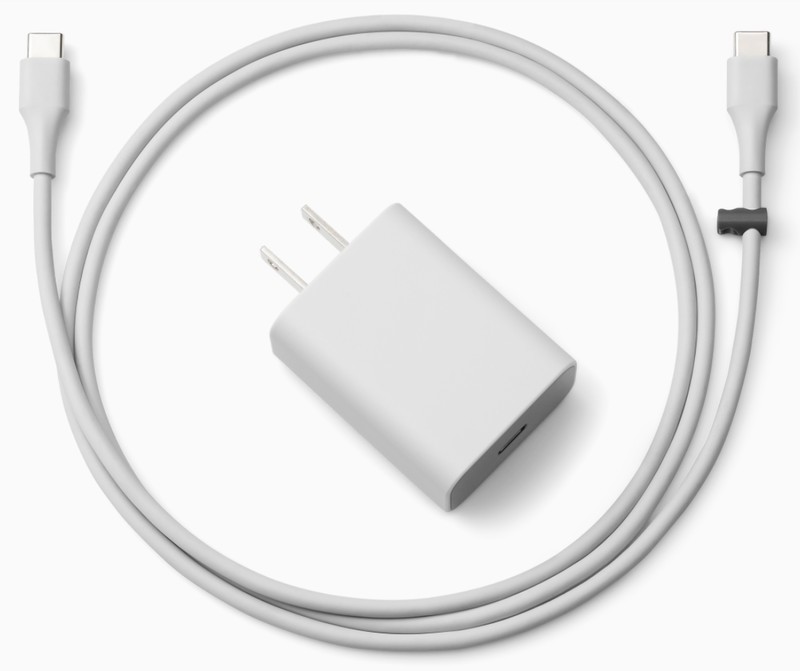
It’s always a good idea to stick with the charging accessories that came with your phone, and especially so with the claims Google has made regarding the Pixel 2 — seven hours of battery life after just 15 minutes on the juice.
Since you’re probably gonna need some extra charging accessories anyways, you can’t go wrong doubling up on the 18W USB-C Power Adapter. Of course, we’ll be keeping an eye out for any certified 27W chargers that might offer even quicker charging speeds.
See at Google Store
Anker PowerLine USB-C cables [3-pack]
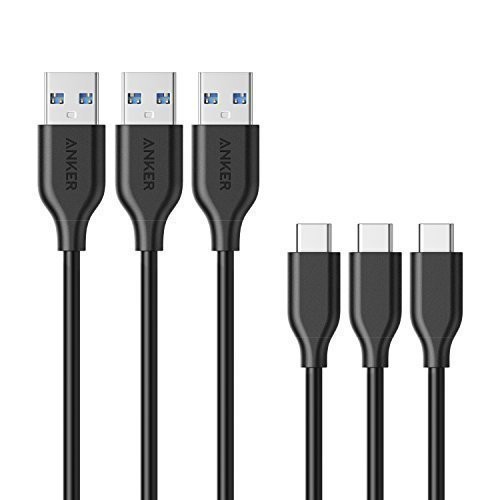
So you’re at a party and your phone is dying, and you ask around to see if anyone has a charging cable. If you’re lucky, someone may have a USB-C cable, but its not a guarantee.
That’s why you ought to grab this three pack of USB-A to USB-C cables from Anker. Beyond the cables that came with your phone, Anker is one third-party accessory maker that you can trust. The pack includes three 3-foot cables that offer transfer speeds of up to 5 Gbps, and they’re also backed by Anker’s worry-free lifetime warranty.
Available for just $14, it breaks down to under $5 per cable. Keep one at work, one in your car, and one in your laptop bag so you’ll always have a spare charging cable nearby wherever you are!
See at Amazon
Belkin USB-C Car Charger
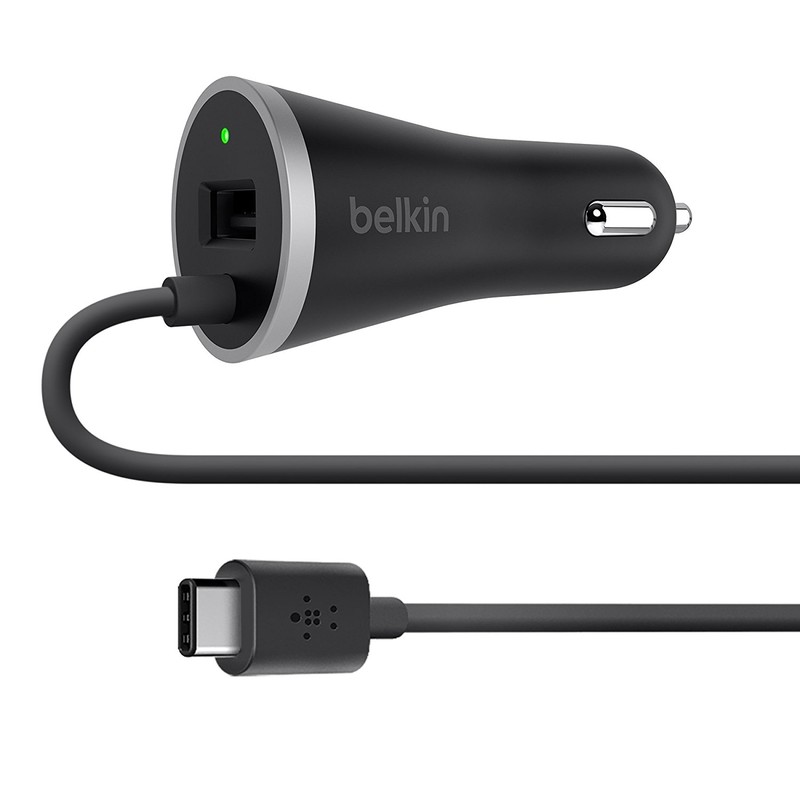
Keeping your phone charged while you’re on the go is important. Everyone hates when you realize you forgot to charge your phone and it’s time to go.
The Belkin USB-C Car Charger is a great option for the Pixel 2 that’s been promoted on the Google Store. It plugs right into the 12V port your car and offers two charging ports — a hardwired USB-C cable and a USB-A port for charging a second device.
You’ll be able to maximize your charging speeds thanks to Belkin’s 15W universal charging system that automatically detects and delivers the optimal charging speed for your Pixel 2. Get yours from Amazon for just $17 — a great price compared to what Google is selling this accessory for.
See at Amazon
What sorts of accessories are you looking for?
Did you get a Pixel 2? What are the go-to accessories you buy alongside a new phone? Let us know in the comments!
Update March, 2018: We’ve updated our list to ensure you have the best Pixel 2 accessories, including the Libratone Q Adapt USB-C earphones and the Peel 2 case!
Google Pixel 2 and Pixel 2 XL
- Pixel 2 FAQ: Everything you need to know!
- Google Pixel 2 and 2 XL review: The new standard
- Google Pixel 2 specs
- Google Pixel 2 vs. Pixel 2 XL: What’s the difference?
- Join our Pixel 2 forums
Best Buy
Verizon
Google Store
Project Fi
OnePlus 6: News, Rumors, Release Date, Specs, and more!
This is everything you need to know about the OnePlus 6!
OnePlus has been on a cycle of releasing two smartphones per year: a major release in the spring, and a minor tweak of that previous phone in the fall. It’s nearly spring 2018, which means it’s nearly time for another OnePlus phone. Here’s everything you need to know about the upcoming OnePlus 6!
The design

The OnePlus 5T was the first time the company increased the size of its displays, and it looks like there will be more refinements coming with the OnePlus 6. The 6 will keep the stretched out design, but will add a notch up top, similar to… some other phones you may have seen. In addition to a high-quality display, OnePlus is also expected to move to a glass back, hopefully including Qi wireless charging in the process.
According to the image, the fingerprint reader will still be mounted on the rear of the phone, though earlier rumors suggested there would be an in-display fingerprint sensor. The dual cameras are still present, though this time in the center instead of the upper left. Of course, this is a leaked image and should be taken with a grain of salt until the official announcement is made.
More: OnePlus 6 supposedly leaks with iPhone X notch and glass back
Specifications

Of course, a phone isn’t just a pretty external design. The internal hardware needs to be up to snuff to push pixels and take all of our lovely Instagram photos. Fortunately, it seems the OnePlus 6 will be up to the task. Early benchmarks suggest the phone will ship with Qualcomm’s Snapdragon 845, the same chip that will likely be found in every other flagship device this year. Benchmarks have been gamed in the past — so take this all with the same grain of salt as before — but it’s a safe bet for OnePlus to include all the latest internal hardware with the OnePlus 6, just like they’ve done in previous generations.
A new image recently popped up revealing numerous specs for the OnePlus 6, and while we can’t confirm any of the information presented, it does allow us to build the following spec sheet:
| Operating System | Android 8.1 with Oxygen OS |
| Display | 6.2-inch OLED with notch 2160x 1080 resolution, 18:9 aspect ratio |
| Processor | Qualcomm Snapdragon 845 |
| Camera | 12MP + 20MP rear combo |
| RAM | 8GB |
| Storage | As much as 256 GB |
| Battery | 3300mAhNon-removableDash charging (assumed) |
| Rear cameras | Dual cameras |
| Water resistance | No |
| Colors | Black |
More: Exclusive: OnePlus 6 has 19:9 notched display, Snapdragon 845, top benchmarks
The software

We haven’t seen any leaks for specific software features coming with the OnePlus 6, but it’s safe to expect the same vanilla Android style that OnePlus has used since 2014. OxygenOS is a known quantity at this point, featuring a few key improvements over what ships in Google’s Pixel line. There will surely be an Open Beta for users who like to live on the bleeding edge and try new features at the cost of stability. Expect a true dark theme, expect gesture controls and a few other little niceties that add up to a great software experience.
Price and availability
This is still up in the air at this point, but we can make an educated guess based on OnePlus’ previous devices. The OnePlus 5 retailed for $479, while the OnePlus 5T goes for a cool $499. It’d be nice if the OnePlus 6 kept that same price, but another small price increase isn’t out of the question.
That same leaked image mentioned above suggests that the OnePlus 6 will cost as much as $749, but it’s unclear what currency this is representing. The same post compares the OnePlus 6 against the iPhone X and Galaxy S9+ with $1517 and $1200 price tags, respectively, so either way, we can probably expect OnePlus’s next flagship to cost a good deal less compared to most other OEMs.
As for availability, the OnePlus 3 was released in June of 2016, and the OnePlus 5 in June of 2017. Some early reports suggest we may see an earlier release this year, but June is a safe bet.
Stay tuned for more!
This is what we know — and a bit of what we’re guessing — about the OnePlus 6 for now. We’re expecting an earlier than normal release this year, so stay tuned for more coverage!
OnePlus 5T and OnePlus 5
- OnePlus 5T review: Come for the value, not the excitement
- OnePlus 5T specs
- Should you upgrade from the OnePlus 3T?
- OnePlus 5T vs. Galaxy S8: Beast mode
- All of the latest OnePlus 5T news
- Join the discussion in the forums
OnePlus
Amazon
Updated 3/21/18 – Added new specs and pricing info.
RAVPower’s 12000mAh smartphone portable battery charger is only $14 right now
Feel the power.
This RAVPower 12000mAh power bank is down to $13.79 with code 40PB061S3 on Amazon. The price is one of the lowest we’ve ever seen and matches a deal that died rather quickly a couple days ago. Without the code, it sells for around $23 so you’re saving a nice chunk off that.

The device has two charging ports with a combined 3.4A output that work with both iOS and Android phones. It only takes around five hours to fully recharge. Your devices will be protected from over-charge or short circuit, and there are four LED indicators to let you know how things are going. Users give this 4.2 stars based on 701 reviews.
See on Amazon
 AIVAnet