


IBM’s Watson-based voice assistant is coming to cars and smart homes
IBM has officially launched the Watson Assistant at its annual Think conference, and you might encounter it in various locations in the future. It’s not tied to a single or even just a few products, you see — IBM’s partners can load it onto their cars, smart home devices, office gadgets, so on and so forth. In fact, one of its first partners Harman will demonstrate it at the event as a digital cockpit assistant aboard a Maserati GranCabrio, though the companies didn’t elaborate on what it can do. Also, IBM released a Watson-powered voice assistant for cybersecurity early last year.
Developing…
How to change the screen timeout option in MIUI
Changing the screen timeout option isn’t as straightforward as it should be in MIUI, but we’re here to lend a hand.

Normally, adjusting the screen timeout option is as easy as going into the display settings and changing the value. However, MIUI does things differently, and the setting is tucked away in the lock screen menu. What’s even more annoying is that the particular setting is labeled Sleep, which means you’re not going to be able to find the option if you search in the settings menu for screen timeout.
If you’re on a Xiaomi phone running MIUI 7 or higher, here’s how to change the screen timeout setting.
How to change the screen timeout option in MIUI
Open the Settings app from the home screen or app drawer.
Scroll down until you see the System & Device category.
Tap Lock screen & password.
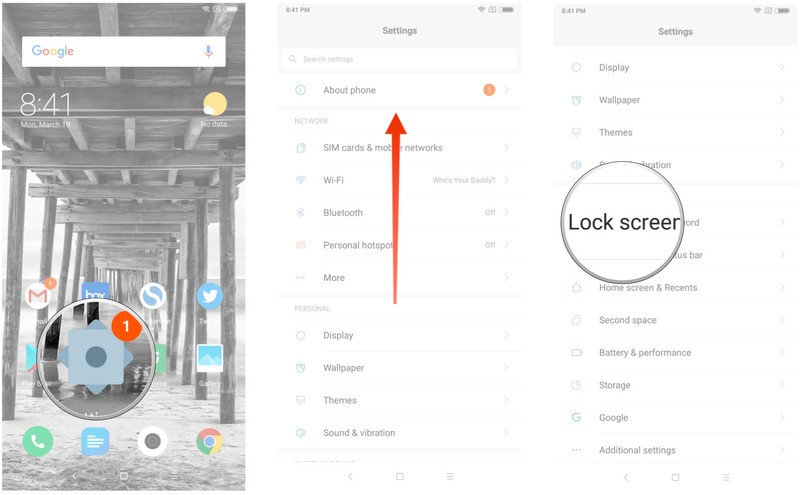
Tap the Sleep button.
Select your desired value to change the default timeout setting.
You should see the changes reflected in the settings.

That’s it! MIUI offers a ton of customization options, and with the ROM picking up new features at a steady pace, things aren’t always where you’d expect. For its part, Xiaomi does a great job of listening to the community when it comes to user suggestions.
For instance, the latest iteration of MIUI sees a retooled notification pane that works better with expanded previews and inline replies, and Xiaomi also introduced a host of optimizations and security features designed to speed up the interface. What do you like/hate the most about MIUI? Let me know in the comments below.
MIUI 9: Top nine features you need to know
FordPass dongle adds LTE, WiFi and app control to older cars
Last January, Ford introduced a new gadget it would test in a pilot program that added connected functionality to old cars. The SmartLink plugged into the On-Board Diagnostic-II (OBD-II) port to function as a 4G WiFi hotspot with other features. Today, they’re releasing it to the public, and 2010-17 model year Ford vehicles that don’t come with modems will be able to buy and use them.
Third parties like Samsung, T-Mobile and Verizon have sold these dongles for years, so it’s interesting that an automaker is releasing its own version since they presumably know more about their cars. That comes in handy for some of the SmartLink’s other features, like allowing smartphone control of existing key fob features, vehicle health and security alerts, and vehicle location tracking.
These cool features don’t come for free: You’ll have to pay $17 per month with a two-year commitment (plus the cost of installation) to get a SmartLink in your vehicle. It comes with a 1GB or 30-day (whichever comes first) trial for Verizon 4G LTE that turns your car into a WiFi hotspot; If you want to keep using it, you’ll have to add the service to their account with the telecom (or register a new one if they don’t already have one). Those interested can pick up a SmartLink at Ford dealerships starting in mid-2018.
eBay uses augmented reality to help you pick packaging
It can be a pain to sell your gear on eBay for many reasons, not the least of which is packaging. How do you know a box will be large enough without having it on hand? eBay can help: it just launched a previously teased, ARCore-based augmented reality feature for Android that helps you choose a shipping box for US deliveries. Point your phone at your item and you can overlay USPS box sizes to determine which one will fit your outgoing goods. This could save you time testing boxes, and might save you some cash if you can get away with buying a smaller box (or better yet, using one you already have).
The company tells us that there is a plan to eventually bring the box preview feature to iOS, although that will clearly involve changing augmented reality platforms (Apple’s ARKit seems like the logical candidate). Other mail carriers and countries are also on deck, although there’s no timetable for any of these expansions. Nonetheless, this is a good example of how AR can be a practical tool. You may only ever use this feature once in a blue moon, but it could be incredibly valuable when you do use it.
Source: eBay, Google Play
How to clean an Instant Pot quickly and effectively
Jenny McGrath/Digital Trends
Your Instant Pot has stood by you through many dinner parties, neighborhood potlucks, culinary successes, and cooking disasters, and all that hard work the appliance did on your behalf is starting to leave its mark. Maybe your Instant Pot is becoming unreasonably grimy, or maybe it still smells like those pork carnitas you made a month ago. The good news is that one easy way to get your Instant Pot working like new again is simply to clean it. That’s right, a good deep cleaning will get rid of all that built-up grime, food particles, and mineral deposits, and you’ll be back at it with the meal-prepping and Sunday night family dinners. We’ll walk you through an easy step-by-step guide on how to clean your Instant Pot quickly and effectively.
Step One: Unplug
First things first, make sure your Instant Pot is unplugged before you start cleaning. It’s a good idea to unplug your Instant Pot whenever it’s not in use, but on this occasion in particular, you’ll want to make sure it’s unplugged for the intensive cleaning you’re about to do, both for your safety and also for the safety of your appliance.
Jenny McGrath/Digital Trends
Step Two: Cleaning housing unit
While the outside housing unit definitely can’t go in the dishwasher, you should be able to clean it thoroughly with a rag. Get the rag good and damp with water and cleaning solution, and wipe down both the inside and outside of the main housing unit (the exterior of the appliance, which holds the inner pot). For an even more thorough cleaning, use a sponge to get those hard-to-remove food bits and mineral deposits. Don’t forget the nooks and crannies where little particles like to lodge!
Step Three: Wash lid
Next, you’ll want to give the lid a good wash. You can hand-wash it in the sink with warm water, and be sure to add a little dish soap to make sure you’re removing any and all bacteria and other nasty things you definitely don’t want in your food. You might need to use a vinegar solution to get rid of all residual smells.
Step Four: Check other crevices
The Instant Pot has some nooks and crannies that you might not think to clean all the time. Now is the time to get all those crevices and small parts where food residue may build up over time. Remove the Quick Release handle, and wash it with warm, soapy water. Check around the steam valve, which can get blocked if too much deposit builds up there. Remove the shield, located inside the lid, which blocks the valve. Depending on the model you own, the shield could pop off easily, or it may need to be unscrewed. Check your owner’s manual, or play around with it unless you’ve removed it. Wash the shield in the sink. Lastly, take a look at the condensation collection cup, which should be located on the side of your appliance. It may have collected food residue over time, so give it a scrubbing in the sink if it looks like it needs a cleaning.
Step Five: clean sealing ring
The silicone ring that can be found on the underside of the lid will likely need a thorough cleaning. After all, that’s what ensures your Instant Pot has a tight seal, and it’s an easy spot for food particles or residual smells to lurk. You should also check it for any signs of damage, as silicone can start to crack over time. If you notice any tears in the silicone ring, you’ll want to order a replacement immediately. The silicone ring is dishwasher-safe, so you can pop it in there on the top rack. Once it’s thoroughly cleaned, place it back on the underside of the lid, and make sure you’ve got a secure fit.
Step Six: Wash the inner pot
The inner pot is dishwasher-safe, so you should be washing this regularly anyway. But since you’re doing a deep clean, it doesn’t hurt to pop the inner pot into the dishwasher, along with any of the other dishwasher-safe accessories you use with your Instant Pot, such as silicone molds and wire racks. Once the inner pot is out of the dishwasher, dry it off with a paper towel and use some household vinegar to give it a thorough wipe-down. This gets rid of any built-up residue from things like minerals in your water, or dish detergent. After all, you want your Instant Pot to look nice and shiny, don’t you? This will help with any smells as well.
Jenny McGrath/Digital Trends
Step Seven: Steam clean and let dry
Now that everything is clean, you can reassemble everything. Don’t forget about those small, easy-to-miss pieces, like the sealing ring and shield. Those are extra important to ensure you’re using your Instant Pot safely, so definitely don’t forget about them. Just in case the sealing ring still has a strange food smell, you can go a step further and deodorize the part with a vinegar steam clean. It’s a simple process and can be done directly in the Instant Pot. Just add one cup of water, one cup of vinegar, and some lemon peels (for extra freshness!) to the inner pot, and run the Instant Pot’s “Steam” setting for a few minutes. Be sure to allow pressure to release naturally, and when the lid is safe to open, you can remove the sealing ring and let it dry on the kitchen counter.
Editors’ Recommendations
- Got an Instant Pot? Here’s how to use it
- These accessories will take your Instant Pot to a whole new level
- Instant Pot DUO60 pressure cooker review
- What is an Instant Pot? Here’s everything you need to know
- Here’s how to clean a Keurig in just a few simple steps
HTC slashes Vive price, starts taking Vive Pro pre-orders at $800
NurPhoto/Getty Images
HTC is now throwing open the pre-order doors for its upcoming next-generation “Vive Pro” virtual reality headset for the PC. The device will ship on April 5, 2018, but you can reserve your headset now at HTC and Amazon for $799. Everyone who purchases a Vive Pro before June 3, 2018 will receive a six-month subscription to Viveport, a $40 value.
If spending $799 on a virtual headset is a bit too steep for your wallet, HTC has reduced the cost of the previous Vive headset to $499. That’s still $100 more than the Oculus Rift, but based on our testing with the two headsets, you have a better experience with the slightly more expensive HTC Vive. The company’s Vive Pro should take those experiences to the next level.
To get you caught up, here are the difference between the first-generation Vive and its successor now available to pre-order:
Vive
Vive Pro
Display:
2x 3.6-inch OLED
2x 3.5-inch AMOLED
Display resolution:
1,080 x 1,200 each
1,440 x 1,600 each
Total resolution:
2,160 x 1,200 (448ppi)
2,880 x 1,600 (615ppi)
Refresh rate:
90Hz
90Hz
Field of view:
110 degrees
110 degrees
Tracking area:
15 x 15 feet
33 x 33 feet
Sensors:
Lighthouse laser tracking
Interpupillary distance
Gyroscope
Proximity
Acceleration
Lighthouse laser tracking
Interpupillary distance
Gyroscope
Proximity
Acceleration
Audio:
Integrated microphones
3.5mm audio jack
Integrated microphones
Removable Hi-Res Audio headphones
Connections:
1x USB-A 2.0
1x HDMI
1x Power
Bluetooth
1x USB-C 3.1 Gen1
1x DisplayPort 1.2
1x Power
Bluetooth
Controllers:
2x motion-sensing
2x motion-sensing
Current owners of the HTC Vive may feel somewhat frustrated given they just dumped $799 into the headset when it hit the market in 2017, but there is good news. HTC says the Vive Pro headset will be sold stand-alone, as well, and will work with existing Vive Tracker and Vive Controller hardware. What the company didn’t say, though, is how much the Vive Pro headset will cost alone, or when it’ll be available outside the bundle
The difference between the Vive and Vive Pro might be a game changer for VR enthusiasts. In our hands-on with the Pro unit at CES 2018 in January, moving from Vive to Vive Pro was similar to moving from a traditional SD television set to an HDTV. The visuals are “crisp and clear” although the Pro model still doesn’t expand your field of view, limiting the experience to 110 degrees. The human eye has a natural field of view of over 210 degrees.
Right now, there are no known minimum and recommended system specifications outside what you need to run the original Vive headset. Still, it will require a better machine to reach its maximum capabilities.
Pre-order now from:
Vive Amazon
Editors’ Recommendations
- HTC Vive vs. Vive Pro
- Oculus Rift vs. Vive Pro
- HTC’s Vive Focus mobile VR headset uses the same lenses, displays as Vive Pro
- HTC Vive Pro hands-on review
- HTC Vive review
Here’s what we want to see from the Surface Book 3
Bill Roberson/Digital Trends
Microsoft just recently released the latest iteration of its Surface Book 2-in-1, which converts from a clamshell notebook to a tablet thanks to an innovative tear-off display. Announced in October 2017 and released in November, the new version significantly improves the machine’s power and introduces a larger 15-inch model. With new high-end Nvidia GPUs on tap for enhanced gaming and a new USB-C port, the latest version checks off a few boxes for potential buyers.
What needs fixing?
At the same time, while the Surface Book 2 15-inch version is an innovative and potent 2-in-1, it does suffer from some design limitations that hold it back from being a perfect fit for every user. If Microsoft wants to appeal to the widest possible market, then here are a few improvements that it might want to strongly consider for the Surface Book 3.
To begin with, the 15-inch model utilizes a processor and GPU that can draw more power than the notebook’s power adapter can provide. That means that during gaming sessions and even when running some high-end creative tasks such as video encoding, the Surface Book 2 15 sucks power from the battery even when plugged in. We don’t know the specific reasons why Microsoft limited the power adapter to just 102 watts (with only 95 watts actually going to the system itself), but offering a more powerful adapter would go a long way to making power users happy.
Mark Coppock/Digital Trends
In another compromise, both Surface Book 2 models offer USB-C 3.1 ports that enable the ability to plug in some modern peripherals — but, it’s only a Gen1 USB-C port, meaning it’s limited to 5 gigabits per second (Gb/s) performance. There’s also no Thunderbolt 3 support, which would enable even faster (up to 40 Gb/s) connectivity as well as enhanced display support. That’s something that Digital Trend editor Matt Smith found limited the Surface Book 2’s ability to replace a desktop PC.
Finally, depending on who you ask, Microsoft still has work to do in making the Surface line as reliable and bug-free as it should be. If you visit the Reddit Surface sub or Microsoft’s Surface Community, you’ll find numerous discussions about Surface Book issues that would best be left behind when the Surface Book 3 rolls around. Reported examples include coil whine on the 13.5-inch model (which we noted in our own Surface Book 2 13 review), some problems with docking and undocking the tablet portion, and a few issues with the Surface Pen’s ability to draw straight lines.
What would be nice to have?
In addition to resolving the issues and limitations outlined above, Microsoft could consider some additional design changes that would greatly benefit the next version of the Surface Book. We have no idea if the company plans to implement any of these changes, but if it’s listening, here are a few things that what we think could elevate the Surface Book 3 to another level.
First, the 2-in-1’s tablet portion is incredibly thin and light in both the 13.5-inch and 15-inch versions, meaning it’s surprisingly easy to use for drawing, handwriting, and watching video. Even so, it’s not terribly fun to hold aloft for hours at a time, and adding a kickstand — making it work better as a standalone tablet as does the excellent Surface Pro — would be a welcome addition.
Mark Coppock/Digital Trends
Next, while the Surface Book 2’s maximum of 16GB of RAM is fine for productivity users, it falls short of what many power users need for ultimate performance. We’d like to see Microsoft build in support for up to 32GB of RAM, which would make the notebook even more competitive for photo and video editing professionals.
Finally, while we love Surface displays in general for their excellent brightness, contrast, and sharpness, they’ve never provided a particularly wide color gamut. The exception is the Surface Studio all-in-one desktop, which boasts both wide gamuts and very accurate colors. If Microsoft wants the Surface Book 2 to essentially perform as a mobile studio and better compete with the MacBook Pro, then it should source a panel with higher than just average color support.
What’s rumored?
Usually, we start seeing some rumors around the next iteration of Microsoft’s Surface line soon after a machine is released. That’s not been the case so far with the Surface Book 3 so far, though that’ll certainly change soon.
There are, however, a number of Microsoft patents have been recently discovered concerning the Surface Pen, and those could very well promise some improvements to Microsoft’s favorite input mechanism. One patent describes a Surface Pen with haptic feedback, making the act of writing on the display feel infinitely more realistic.
Another patent involves a Surface Pen with a scroll wheel, essential a u-shaped touch-sensitive retention clip that would make short work of thinks like scrolling through a page or zooming in and out on an image. And then there are Microsoft patents for a pressure-sensitive eraser and a new elastomeric pen tip that would improve sensitivity and feel.
USPTO
And then, on a completely different note, Microsoft has also been busy creating patents around new hinge designs that may or may not be relevant to the Surface Book 3. Of course, one of the most innovative aspects of the Surface Book in general is the fulcrum hinge that balances the heavy display/tablet portion while maintaining a normal clamshell format.
Another recent Microsoft patent involving a new kind of “modular hinge” hints that the company isn’t done yet. Specifically, the hinge would allow a notebook to gain new flexibility, perhaps allowing a Surface Book display to swivel 360-degrees rather than requiring the user to remove it and then reattach it in backwards orientation.
USPTO
Other than those pen-related improvements and some interesting tidbits about potential hinge improvements, however, we’re not seeing any speculation yet on other new Surface Book features that might make their way to the 2-in-1’s third iteration. While the Surface Book 2 is a great machine, it could still benefit from some improvements and we’re looking forward to seeing what Microsoft has planned for the Surface Book 3.
Editors’ Recommendations
- Dell XPS 13 vs. Microsoft Surface Book 2 13
- Samsung Notebook 9 Pen vs. Microsoft Surface Book 2 13
- Microsoft Surface Book 2 13-inch Review
- Asus ZenBook Flip 14 vs. Microsoft Surface Book 2 13
- Amazon is blowing out prices on the original Surface Book, starts at $790
Twitter joins Facebook and Google in banning cryptocurrency advertising
Cryptocurrency is having a tough time lately, with extreme volatility in its value and issues around fraud and abuse in cryptocurrency exchanges given it a bad name and causing governments and private organizations to take steps to limit its impact. Regarding the latter, both Facebook and Google are banning cryptocurrency advertising on their ad networks and now another social media giant, Twitter, is thinking of following suit.
The report comes via Sky News, and according to the outlet, Twitter will start banning advertisements for initial coin offerings (ICOs), cryptocurrency wallets, and token sales sometime within the next two weeks. Also under consideration is a ban on cryptocurrency exchange advertisements, although apparently, Twitter might consider some exceptions in this category. While Twitter’s overall share of the online advertising market is low, its decision to limit cryptocurrency advertising is a very visible action given its importance in the social media sphere.
The reasons given for these bans are varied, but they mostly involve deceptive or misleading activities that lead to trader losses. Regarding its own ban, Facebook said in a statement in January, “Two of our core advertising principles outline our belief that ads should be safe, and that we build for people first. Misleading or deceptive ads have no place on Facebook.” For now, Facebook’s ban is very broad, and it covers all of its platforms including Facebook itself, Audience Network, and Instagram.
Google’s ban, on the other hand, is aiming its own efforts on “unregulated or speculative financial products,” of which cryptocurrency is just one element. The search giant removed more than 3.2 billion ads in 2017 generated by roughly 320,000 ad publishers. Cryptocurrency ads are being categorized as “emerging threats” and Google’s concerns with them mostly involve the unregulated nature of cryptocurrency markets. Google’s ban will go into effect in June across its AdWords network.
With many government agencies looking to regulate and limit cryptocurrencies and the markets springing up around them, the future of the exchange medium remains uncertain. Twitter’s move is just one more in a long line of efforts to limit their impact and to minimize the damage to unprepared traders based on deceptive promotional activities.
Editors’ Recommendations
- Google will ban cryptocurrency ads from its AdWords network in June
- Facebook bans advertisements for cryptocurrency exchanges
- Protect your Bitcoin with the 10 best cryptocurrency apps for iOS and Android
- CryptoCelebs: Famous people who’ve bought the cryptocurrency craze
- Atari embraces cryptocurrencies and sees its stock prices soar
Fold it, stretch it, grip it! An origami-inspired arm gives drones grip
You don’t need arms to fly but engineers from Seoul National University in South Korea have developed a robotic appendage designed to give drones a better grip on the world. Inspired by origami, the innovative arm can be folded for transport and self-assembles into a rigid appendage when it’s needed for use.
In recent years, the ancient art of calculated folding has inspired designs for spacecraft, artificial muscles, and Kevlar shields, thanks to its ability to save space without significantly compromising functionality.
“Imagine using an origami-inspired design,” Kyu Jin Cho, a Seoul National University roboticist who led the project, told Digital Trends. “To make them easily foldable, the structure becomes weak. If you make the structures strong, they are either heavy or not easy to fold. Our design is lightweight and easy to fold and unfold, but can become very stiff. Meeting all these requirements at the same time expands the usage of origami designs. Not just the drone arm we have shown, but imagine a robot that folds itself into a packable size and, when needed, unfolds by itself to become a robot.”
The arm developed by Cho and his team is made up of seven actuators and a single wire that enables it to shift from folded to extended, sort of like an umbrella being opened and closed. When unfolded it can total 27.5 inches in length. This allows it to attach to drones, where it can remain packed during transport and flight, only to unfurl when needed. The arm can sport a gripper or camera on the end to suit its needs.
“If you attach a robotic arm to a drone you can now pick up stuff and perform various manipulations with the drone,” Cho said. “But attaching an arm will make the drone heavy, and bulky. This arm will solve this issue making it easier for drones to attach arms.”
In a video accompanying a paper published last week in the journal Science Robotics, Cho and his team’s drone can be seen flying with the arms packed neatly underneath, before extending downward a few times the length of the drone. The video shows the drone arm performing a number of tasks, including shooting video with a camera and picking up an object from a ditch.
Though the clever design offers a glimpse into the future capabilities of drones, Cho stressed that this is just an initial concept and his team will be working to strengthen and add joints to the arm moving forward.
Editors’ Recommendations
- The Sense Glove enables users to get a grip on virtual reality
- Outrageously quick Milidelta robot moves too fast for your brain to comprehend
- CEO takes ride in passenger drone to demonstrate that it’s safe
- This hammock transforms into a backpack that you can take anywhere
- Airbus’ delivery drone takes packages to ‘parcel stations’ run by robots
Haptic VR surgery isn’t for the faint of heart, but it could help surgeons
When surgeons are trained to perform a procedure, the old rule of thumb is “watch one, do one, teach one.” It’s a pretty unforgiving learning curve, which requires a big leap on the part of the trainee surgeon, and isn’t wholly reassuring to patients, either. I’m about to perform a sleeve gastrectomy, a weight-loss procedure in which the size of the stomach is reduced to a fraction (around 15 percent) of its original size. The problem is that I’ve never watched one. I’m diving straight into the “doing” part. Fortunately, that is not quite such an issue since the sleeve gastrectomy operation is a training simulation taking place in virtual reality.
It’s part of a new haptic VR system created by the London-based company Fundamental VR, demonstrated over the weekend as part of the Global Education and Skills Conference in Dubai, United Arab Emirates. Officially launching later this year, the tech uses cutting-edge haptic and VR technology to train the next generation of lifesaving surgeons. Or, in this case, a Digital Trends journalist.
Fundamental’s “Fundamental Surgery” employs off-the-shelf hardware and software that will run on most modern computers. In the case of this demo, that translated to an Acer Windows Mixed Reality VR headset and touch controller built by the company 3D Systems, which uses three motors to provide resistance. With this technology, the team has then built multiple training scenarios which replicate not just the visuals of an operating theater setup, but also the physical sensations that go along with the operation.
For the sleeve gastrectomy demo, this means that as you lift the stomach and start to cut away at it, you feel both its weight and the force of the cutting action. As Fundamental CEO and co-founder Richard Vincent told Digital Trends, it allows trainee surgeons to feel what they’re doing — and to do it over if they are struggling.
“If there’s a part of the operation you have difficulty with, you can repeat that step again and again and again,” Vincent said. “It means you could practice an operation 500 times if you wanted. There’s just no other way to do that. A person will typically make consultant based on 40 procedures.”
Vincent said that the technology is currently being targeted at both industry and also training hospitals. It has already racked up some big-name support from places like the Mayo Clinic, Duke University, Stanford University, and others in the U.S., as well as Guy’s Hospital, King’s College Hospital and more in the U.K.
Let’s hope it works well as a training tool; there is even a chance the surgeon who will operate on you in the future will have trained with it.
Editors’ Recommendations
- Displaylink is ready to make wireless virtual reality setups, well, a reality
- Lenovo Mirage Solo with Daydream hands-on review
- How ‘Coco VR’ convinced Pixar to put its pixels (and pride) into virtual reality
- HTC Vive Tracker Review
- HTC Vive Pro hands-on review
 AIVAnet