


The Google Lens app is now available on Google Photos for iOS
As announced via the official Google Photos Twitter account on March 15, users of Google Photos for iOS can now use Google Lens to analyze and extract text, hyperlinks, and other information from photos.
Originally announced at Google’s I/O 2017 event, Google Lens uses machine learning to extract text and hyperlinks from images, along with its ability to identify various landmarks from around the world and a host of other promised abilities. It first launched on Google’s Pixel phones at the tail end of 2017, before being launched for all Android phones in March 2018. As of today, March 16, iOS users can also access the deep learning of the Google Lens by accessing it through the iOS Google Photos app.
Starting today and rolling out over the next week, those of you on iOS can try the preview of Google Lens to quickly take action from a photo or discover more about the world around you. Make sure you have the latest version (3.15) of the app.https://t.co/Ni6MwEh1bu pic.twitter.com/UyIkwAP3i9
— Google Photos (@googlephotos) March 15, 2018
Anyone looking to play with Google Lens should make sure that their Google Photos app is updated to the latest version (3.15). Then, open your Google Photos app, open a photo, then tap the Google Lens logo. If you’re struggling to find it, Google has posted a small guide on its support website. Some Twitter users have been complaining that they have not yet been able to access the functionality, and it seems that the update is in the process of rolling out worldwide. It’s also worth noting that Google Lens can only be used if your iOS device’s language is set to English, for the time being.
But what can you do with Google Lens? It’s capable of extracting text from your Google Photos, and while that may not sound impressive, it’s then able to use that text to find businesses, extract hyperlinks, find addresses, or identify books, movies, and games. If you take a picture of a business card, Google Lens will offer to save the information as a new contact, taking some of the fuss out of business networking. Landmarks can also be identified, and information on ratings, tours, and history will be offered as a result.
Use Google Lens to copy and take action on text you see. Visit a website, get directions, add an event to your calendar, call a number, copy and paste a recipe, and more. pic.twitter.com/E4ww2cxVUd
— Google Photos (@googlephotos) March 15, 2018
The Google Photos account has been sharing more than a few ways to make your Google Lens work for you, and while that fact that it’s currently restricted to the Google Photos app on iOS means it’s a bit harder to use in everyday circumstances, it’s a really cool addition, and a great indication of what the future has in store for us.
Editors’ Recommendations
- How to use Google Lens to identify objects on your Pixel smartphone
- Google Lens’ landmark, text recognition expands to all Android devices
- Get ready for more AR apps — Google brings ARCore to version 1.0
- Google adds wheelchair-accessible routes to Google Maps
- Google merges Android Pay and Google Wallet into Google Pay
The first 5 things to turn off in the Galaxy S9’s software
Clean up that software as soon as you get the phone.
Samsung’s software on the Galaxy S9 and S9+ is super-powerful and filled with features, but it needs a little tweaking to harness that power for good rather than annoyance. There are lots of things turned on by default on these phones that isn’t very useful or only appeals to a small set of users — and that’s why we have a list of the first things you should turn off as soon as you get your Galaxy S9 or S9+ out of its box.
Disable parts (or all) of Bixby

Look, Bixby has improved a lot since it was first announced. But it still has a long way to go before it’s going to be considered as something you use every day. Thankfully Samsung has realized this, and given you several options for disabling part, or all, of Bixby on your Galaxy S9.
The one thing most people will want to do is disable the Bixby button on the side of the phone, which is very easy to accidentally hit and is always distracting when you do. Open Bixby Home by swiping over to it on your home screen, tap the gear icon in the top-right corner and tap the toggle for “Bixby Key.” Now, pressing the Bixby button does nothing — but if you want, you can still press-and-hold it for Bixby Voice commands.
If you also want to disable Bixby Voice, you can stay in the Bixby Home settings and look for the toggle next to “Bixby Voice” — tap that, and now even long-pressing the Bixby button on your phone will do nothing.
If you don’t want anything to do with Bixby at all on your Galaxy S9, make the two above tweaks and then turn off Bixby Home entirely. To do this, long-press on an empty spot of your home screen, swipe to the right to reveal the Bixby Home panel and tap the toggle in the top-right corner. Now, Bixby is off for good.
How to completely disable Bixby
Replace Samsung’s keyboard
Samsung’s keyboard has prediction and swiping algorithms that just feel antiquated, which may lead to lots of mistakes when you first get your phone. Don’t worry, it’s not just you! Longtime Samsung keyboard users have undoubtedly gotten used to how its stock keyboard works, and maybe you will over time also. But that doesn’t mean you shouldn’t look at your other options, because there are great replacement keyboards out there.
Our short list of great keyboards includes Google’s own Gboard, another big-name player SwiftKey, and a couple of lesser-known choices from Chrooma and Fleksy — give one, or all four, a try and see if any work better for you than Samsung’s keyboard.
You can manage and switch keyboards by going into Settings, General management and Language and input. You can also quickly switch keyboards anytime you have a keyboard open in an app by tapping the small keyboard icon in the navigation bar.
Best Keyboard for Android
Turn off the Edge screen
Samsung’s curved displays are gorgeous and provide a functional benefit in that they make the phone narrower. But the “Edge screen” software is … questionably useful. It’s also turned on by default. If you like the utilities it offers, that’s great — but much of what it does is either a gimmick or easily duplicated somewhere else on the home screen. If you don’t find it all that useful, here’s how you turn it off:
Swipe in on the side of your phone where the Edge screen handle is located.
- You can recognize it as the small grey tab, roughly two-thirds up the side of the screen.
Tap the gear icon in the bottom-left corner.
Tap the blue toggle switch in the top-right corner, so it turns grey.
Press the home button and the Edge screen has been turned off.

To turn the Edge screen back on, enter your Settings, Display, Edge screen and tap the toggle for Edge panels.
Hide apps you don’t use but can’t uninstall
Going to call this “one” thing to turn off, but really it’s a lot of things. Samsung’s launcher lets you “hide” apps from view, which can help you manage the several duplicate and unwanted apps that Samsung bundles that you can’t uninstall or even disable in most cases. Even though they stay installed, you don’t have to look at them in your app drawer. This way you could hide Samsung’s Calendar, Email and Contacts apps, for example — leaving just whatever apps you installed to replace them instead. Here’s how it works:
Long-press on a blank area of your home screen.
Tap Home screen settings on the right side.
Scroll down and tap Hide apps.
Select the apps you want to hide from view and tap Apply in the top-right corner.
- Any time you want to bring an app back to view, repeat these steps and uncheck those hidden apps.

You’ll want to do this after you’ve fully set up your phone, selected default apps and made sure you’ve managed any settings you may need to change in the bundled apps. Otherwise you’ll have to load up your home screen settings again and un-hide an app just to open it and change something. This is really a system designed to hide apps you never want to use.
Remove all of the quick settings you won’t use
The quick settings toggles available in the notification shade are immensely useful, but that doesn’t mean you have to keep them the way Samsung has it set up out of the box. By default you have very odd options like NFC, sync and mobile data in there, which aren’t things that you’re likely to toggle all the time. Instead, rearrange these quick settings so that you have access to the ones you do want and none of the ones you don’t.
Lower your notification shade, then swipe again to expand the quick settings.
Tap the three dots in the upper-right corner and tap Button order.
On the top, you have your active icons; on the bottom are available icons.
Long-press icons to move them between the top and bottom sections, or to rearrange them.
- If you add more icons than can be held on one page, a second page will automatically be generated.
- Note that the first six icons in the list are the ones you can see with just a single swipe on the notification shade.
When you’re finished, just tap Done and your quick settings are set!

You can rearrange these icons at any time, and even set a different button grid if you want to see fewer or more icons in each panel. The choice is yours.
Samsung Galaxy S9 and S9+
- Galaxy S9 review: A great phone for the masses
- Galaxy S9 and S9+: Everything you need to know!
- Complete Galaxy S9 and S9+ specs
- Galaxy S9 vs. Google Pixel 2: Which should you buy?
- Galaxy S9 vs. Galaxy S8: Should you upgrade?
- Join our Galaxy S9 forums
Verizon
AT&T
T-Mobile
Sprint
Galaxy S8 and S8+ on Verizon get Android Oreo update
The February 2018 security patch also makes an appearance.
Android Oreo has been rolling out to unlocked models of the Galaxy S8 and S8+ since February 22 after Samsung fixed a bug with its initial build, but there’s been no word as to when U.S. carriers would begin updating their versions of the phone. Thankfully, Verizon’s finally ready to issue its Oreo update.

Verizon recently updated its official support page for the Galaxy S8, indicating that Oreo started being pushed to the phone on March 15, 2018. The build number for the S8 is G950USQU2CRB9, whereas the one for the S8+ is G955USQU2CRB9.
Similar to what we’ve seen for past updates, Oreo adds picture-in-picture, the Autofill API, and much more to the S8/S8+. This changes the Samsung Experience to v9.0, and it also adds the February 2018 security patch. I’m not sure why we didn’t get the more recent March patch, but I digress.
If you’ve got a Galaxy S8 or S8+ on Verizon, have you gotten the Oreo update yet?
Samsung Galaxy S8 and S8+
- Galaxy S8 and S8+ review!
- Galaxy S8 and S8+ specs
- Everything you need to know about the Galaxy S8’s cameras
- Get to know Samsung Bixby
- Join our Galaxy S8 forums
Verizon
AT&T
T-Mobile
Sprint
Unlocked
Pick up a 12-pack of Soylent for as little as $24 and put an end to skipping meals
Here’s your impulse buy of the day.

Unless you live under a rock, odds are you’ve heard of Soylent before. This meal replacement drink has been the center of attention for quite some time, and people seem to really love it. Right now, you can save $10 on a variety of flavors by using coupon code 10TRYSOYLENT during checkout. These rarely go on sale during the year, and most of the discounts tend to take place during January for those kickstarting a New Year’s resolution.
This discount drops a 12-pack of the original flavor down to just $24, or you can try the coffee flavor or vanilla for $5 more. If you don’t need the premade drinks, you can pick up just over 2-pounds of the powder for $24 as well.
With Soylent being a full meal replacement, this is a great way to get those meals in during your busy times. We’ve all been there before, caught up at the office, sitting for long hours in front of our monitors, and the last thing on our mind is food. It’s not healthy, so stop doing it and put the excuses behind. Use this discount to make the first step towards a healthier you.
Our pal Mark Guim has had amazing success using Soylent. He says:
I’ve been drinking Soylent for about two years and I absolutely love it. When I have a busy schedule, I prefer to drink it rather than order delivery or cook a meal. Ordering out can get very expensive and cooking can take a long time.
When trying to lose weight in the past year, counting calories has been important. Tracking with Soylent is easy because I know every bottle is 400 calories. I don’t drink Soylent for all my meals, but I’ve lost over 30 pounds this year by going to the gym 3-4 times a week and keeping my intake to about 2,000 calories a day.
Not ready to fully commit yet? Amazon has a Soylent Sample Box which is just $6 and comes with 3 different flavors in it. Once you receive the sample box, Amazon will give you a $6 credit to spend on a future Soylent purchase. If you already ordered a sample box, your credit stacks with the $10 discount, so be sure to get your order in right now.
See at Amazon
Android Oreo is starting to arrive on the Galaxy Note 8
The update was first spotted in France.
It’s a well-known fact that Samsung and fast software updates go together like water and oil, so it really shouldn’t come as too much of a surprise that the Galaxy Note 8 is just now being updated to Android Oreo – seven months after the phone was released.

First spotted by SamMobile, Oreo appears to be rolling out to Note 8 handsets in France as part of the initial rollout. Other countries are expected to follow suit soon, but there’s no specific time frame in place just yet.
The Oreo update changes the Galaxy Note 8’s firmware number to N950FXXU3CRC1, and it comes with the latest March 2018 security patch.
You can check and see if you’ve got an Oreo update waiting for you by going to the Software Update tab in Settings, but even with this initial sighting, it could be a while before your particular unit gets the Oreo treatment. Along with waiting for Samsung to expand it to other regions, you’ll have to wait even longer if you bought the Note 8 through a wireless carrier.
Even with all that said, what are you looking forward to most with Oreo on the Note 8?
Samsung Galaxy Note 8
- Galaxy Note 8 review
- Galaxy Note 8 vs. Galaxy S8+
- Which Note 8 color is best?
- Complete Galaxy Note 8 specs
- Join our Galaxy Note 8 forums
Verizon
AT&T
T-Mobile
Sprint
Best Buy
These apps will help you make the most of St. Patrick’s Day
There are the apps to use to help you have a fun and safe St. Patrick’s Day!
Whether you like bar hopping, wearing green or just driving snakes out of places snakes shouldn’t be in, St. Patrick’s Day has something for everyone. If you are planning a night on the town, there are a few applications for your Android phone to help you!
Google Maps

The easiest way to find bars nearby is by firing up Google Maps and exploring spots nearby. You’ll be able to read reviews, see hours of business, and of course navigate to the business. Picking up some friends along the way? You can add multiple stops to your trip to make sure you get everyone. Taking public transit? You can browse transit schedules and find out which station to be at. Get separated from your group? Simply share your location.
Download: Google Maps
More: Google Maps: Everything you need to know!
Uber and Lyft

Drinking and driving is a terrible idea. If your group isn’t going to have a designated driver, be ready to use a ride-sharing service. Depending on your market, this could either be Uber or Lyft . Better still, you can get a ride from inside Google Maps. If neither of these is in your market, your local taxi company may have an app, or may be available from taxi aggregator Curb. Failing that, call a good friend if you have one too many. Just don’t get behind the wheel.
Download: Curb – The Taxi App (Free)
PubRally

If Google Maps doesn’t produce the best recommendations for your taste, or if you just want to be sure you follow the crowd, check out PubRally. You can find nearby pub crawls, chat with other participants, and even compete in challenges. Because the only thing better than getting belligerently drunk is getting belligerently drunk for points.
Download: PubRally (Free)
Allrecipes

You may need something filling the next morning to cure your hangover, or you could be like me and just want to make a dynamite corned beef and cabbage. Either way, there are plenty of applications to help you follow along with a recipe, and my favorite is Allrecipes. You can sort by your tastes, the type of meal you want to cook, and create a central shopping list from your recipes. There are even drink recipes for those that want to party from the safety of their own home.
Download: Allrecipes (Free with ads)

According to the Internet, all of the cool kids have moved from Snapchat to Instagram. If you want to share your St. Paddy’s Day journey from that cool green tie you wore at work to all those shots you did at the bar to your stack of pancakes the next day, you’ll obviously want to world to see each and every step along the way. Be one of the cool kids and do it on Instagram.
Download: Instagram (Free)
What are your picks?
Which apps do you use to help celebrate St. Patrick’s Day? Let us know down below!
Time to bust out your old NES/SNES cartridges with the $30 Hyperkin RetroN 2 gaming console
Go retro today.
The Hyperkin RetroN 2 Gaming Console for SNES/NES is down to $29.54 on Amazon. That price is the lowest it has ever been despite some recent fluctuations. It normally sells around $44 and has even gone as high as $48.

This is not a gaming emulator like those Raspberry Pi kits we’ve shared or the classic consoles Nintendo has released over the last couple years. This is hardware designed to play your old cartridges. If you have a huge collection of NES and SNES games that you haven’t touched in years, buy this system and play them again. The console can support up to two NES or SNES controllers and comes with one of each. It will connect with old controllers as well.
If you don’t have your own collection, time to start scrounging around on eBay or the local thrift shop. According to the reviews, it also plays Super Famicom games although that doesn’t seem to be officially supported.
See on Amazon
OnePlus 6: News, Rumors, Release Date, Specs, and more!
This is everything you need to know about the OnePlus 6!
OnePlus has been on a cycle of releasing two smartphones per year: a major release in the spring, and a minor tweak of that previous phone in the fall. It’s nearly spring 2018, which means it’s nearly time for another OnePlus phone. Here’s everything you need to know about the upcoming OnePlus 6!
The design

The OnePlus 5T was the first time the company increased the size of its displays, and it looks like there will be more refinements coming with the OnePlus 6. The 6 will keep the stretched out design, but will add a notch up top, similar to… some other phones you may have seen. In addition to a high-quality display, OnePlus is also expected to move to a glass back, hopefully including Qi wireless charging in the process.
According to the image, the fingerprint reader will still be mounted on the rear of the phone, though earlier rumors suggested there would be an in-display fingerprint sensor. The dual cameras are still present, though this time in the center instead of the upper left. Of course, this is a leaked image and should be taken with a grain of salt until the official announcement is made.
More: OnePlus 6 supposedly leaks with iPhone X notch and glass back
Specifications

Of course, a phone isn’t just a pretty external design. The internal hardware needs to be up to snuff to push pixels and take all of our lovely Instagram photos. Fortunately, it seems the OnePlus 6 will be up to the task. Early benchmarks suggest the phone will ship with Qualcomm’s Snapdragon 845, the same chip that will likely be found in every other flagship device this year. Benchmarks have been gamed in the past — so take this all with the same grain of salt as before — but it’s a safe bet for OnePlus to include all the latest internal hardware with the OnePlus 6, just like they’ve done in previous generations. Based on the available information and the specs from previous releases, this is our best guess for what will power the OnePlus 6:
| Operating System | Android 8.1 with Oxygen OS |
| Display | 6-inch OLED with notch 2160x 1080 resolution, 18:9 aspect ratio |
| Processor | Qualcomm Snapdragon 845 |
| RAM | 8GB (assumed) |
| Storage | 64/128GB (assumed) |
| Battery | 3300mAhNon-removableDash charging (assumed) |
| Rear cameras | Dual cameras |
| Water resistance | No |
| Colors | Black |
More: Exclusive: OnePlus 6 has 19:9 notched display, Snapdragon 845, top benchmarks
The software

We haven’t seen any leaks for specific software features coming with the OnePlus 6, but it’s safe to expect the same vanilla Android style that OnePlus has used since 2014. OxygenOS is a known quantity at this point, featuring a few key improvements over what ships in Google’s Pixel line. There will surely be an Open Beta for users who like to live on the bleeding edge and try new features at the cost of stability. Expect a true dark theme, expect gesture controls and a few other little niceties that add up to a great software experience.
Price and availability
This is still up in the air at this point, but we can make an educated guess based on OnePlus’ previous devices. The OnePlus 5 retailed for $479, while the OnePlus 5T goes for a cool $499. It’d be nice if the OnePlus 6 kept that same price, but another small price increase isn’t out of the question.
As for availability, the OnePlus 3 was released in June of 2016, and the OnePlus 5 in June of 2017. Some early reports suggest we may see an earlier release this year, but June is a safe bet.
Stay tuned for more!
This is what we know — and a bit of what we’re guessing — about the OnePlus 6 for now. We’re expecting an earlier than normal release this year, so stay tuned for more coverage!
OnePlus 5T and OnePlus 5
- OnePlus 5T review: Come for the value, not the excitement
- OnePlus 5T specs
- Should you upgrade from the OnePlus 3T?
- OnePlus 5T vs. Galaxy S8: Beast mode
- All of the latest OnePlus 5T news
- Join the discussion in the forums
OnePlus
Amazon
PlayStation Aim controller: Everything you can do!
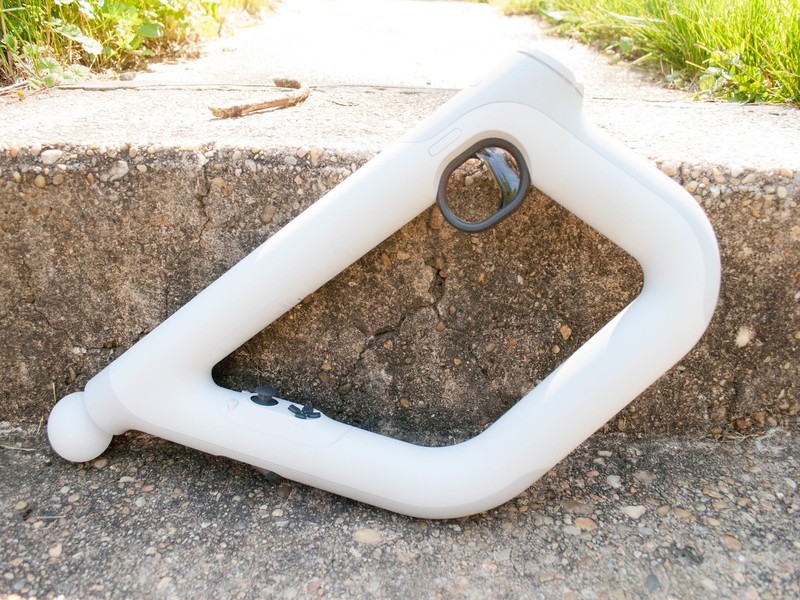
This is your rifle. There are many like it, but this one is yours.
The PlayStation Aim controller was built to bring a new layer of immersion to PlayStation VR games where you’re shooting anything that moves, but it’s good for much more than feeling like a gun when you can’t see the real world.
It’s got the functionality of a DualShock controller in an entirely new format, and we have the details on everything it can do here.
See at Amazon
Getting started with the Aim controller

When you first pick up the Aim controller, it does feel like the controller equivalent of a rifle. It’s light enough that the weight doesn’t make holding it for extended periods of time a drag. On that same note it’s also hefty enough that you won’t wear out immediately, although after extended play sessions your shoulders might disagree. Furthermore, it is armed with a trigger mechanism, two analog sticks, and buttons all over the place.
This controller was built for games like Farpoint on PlayStation VR, adding serious degrees of immersion when you are shooting things in VR. It operates like a Move controller, with far more functionality than a normal move controller. The most comfortable way of using it involves using both hands to figure out where everything is and find what you need by touch.
Buttons

The buttons on the PlayStation Aim controller are really what gives it the type of functionality that it has. There are L1, L2, R1, R2, Options, Share, and more built directly into the controller. So unlike a normal move controller, you have far more access to everything that you can do with a normal controller. In fact, when navigating the PlayStation menu, you’ll use those buttons and analog sticks to select the app or game you want to play.
This essentially means that using a combination of the buttons usually found on a DualShock 4 controller, and a Move globe, the Aim controller has all the functionality of both previous controllers. This allows you to share screenshots or video while shooting things in VR with the push of a button, as well as being able to jump completely out of a game and back to the home screen.
Where can I use it?

At release, the PlayStation AIm controller was only compatible with one game, Farpoint. While the selection started off small, more games have been added, making it more immersive than ever to play a shooter in VR.
- Arizona Sunshine
- Bravo Team
- ChromaGun
- Dick Wilde
- DOOM: VFR
- Farpoint
- Rom: Extraction
- Special Delivery
- The Brookhaven Institute
- Firewall Zero Hour
While you can try to use it in unsupported games, it really does not work out particularly well. Trying to use it like a two-handed move controller feels particularly unwieldy and doesn’t link up well, and trying to use it like a controller is difficult in the same way. It’s very obvious that the games with Aim support have put thought into ensuring that the controls sync up with the controller in your hand well.
Where do I buy an Aim controller?

The PlayStation Aim controller first hit the market on May 16th, 2017, and initially, finding one was a bit difficult. Thankfully that issue has been solved, and you can pick it up separately for about $60, or grab it in a Farpoint bundle for about $83!
This means you can order your controller offline, or head up to the store and pick one up in person. You should be able to find them at places like Best Buy, Target, Walmart, and of course GameStop if you prefer buying in person.
See at Amazon
PlayStation 4
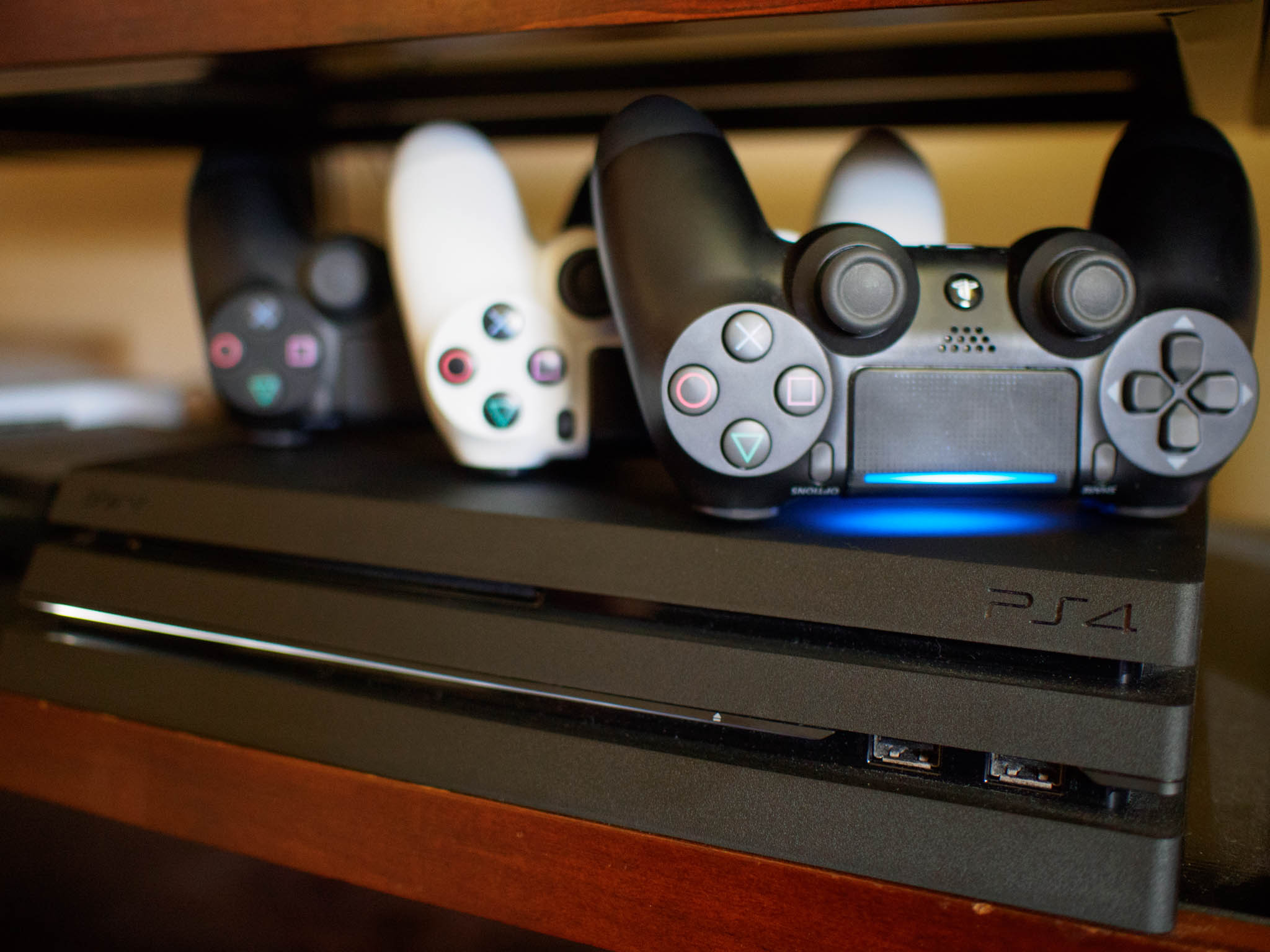
- PS4 vs. PS4 Slim vs. PS4 Pro: Which should you buy?
- PlayStation VR Review
- Playing PS4 games through your phone is awesome
Amazon
Samsung Galaxy S9 & S9+: Everything you need to know!

It’s been a long time coming, but the Galaxy S9 and S9+ are here.
Samsung’s latest phones are definitely iterative updates over last year’s dramatically redesigned Galaxy S8 series, but that’s OK: Samsung fixes a lot of the original’s issues while making drastic improvements to the camera and biometrics systems.
Want to learn more? Start here.
Read (and watch) our Galaxy S9 review!
The first place you’re going to want to start is with our full Galaxy S9 review, which gives you everything you need to know about Samsung’s latest phones. Before you read, watch the complete condensed version in video above!
Samsung Galaxy S9 review: A fantastic phone for the masses
Samsung Galaxy S9 India review: As good as it gets
What are the big changes over the S8 series?
In a word, the camera. Samsung has kept the primary sensor at 12 megapixels, but that’s where the similarities end. The S9 and S9+ have adjustable apertures, switching seamlessly between f/1.5 and f/2.4. The Galaxy S9+ also gets a second 12MP sensor with a “telephoto” lens that provides 2x lossless zoom, and facilitates Live Focus, Samsung’s version of portrait mode that debuted with the Galaxy Note 8.
In terms of specs, the Galaxy S9+ has an extra two gigabytes of RAM over the regular S9, which is different from last year’s models. And, obviously, the fingerprint sensors have been relocated to a much more sensible place on the back of the phone — below the now-vertical camera modules.
Samsung Galaxy S9 and S9+ specs
Should you upgrade?
The big question is whether you should upgrade to the Galaxy S9. If you’re running a Galaxy S6 or S7, the answer is absolutely. If you’re rocking a still-new Galaxy S8 or even a Note 8, the answer is no. While there are substantial differences that clearly make the Galaxy S9 a better phone, the S8 isn’t even a year old at this point, and is poised to get some major improvements when it’s updated to Android 8.0 Oreo.
Samsung Galaxy S9 vs. Galaxy S8: Should you upgrade?
Samsung Galaxy S9+ vs. Galaxy Note 8: Which should you buy?
Which phone is better?
There are so many phones on the market right now — how do you decide which one to buy? This section will get longer as we spend more time with the Galaxy S9 and S9+, but for now, here are our looks at the new phones compared to some of the best devices on the market.
The Galaxy S9 is the smaller of the flagships, and here’s how it compares to some of the other major phones on the market.
Samsung Galaxy S9 vs. iPhone X: The best of metal and glass
Samsung Galaxy S9 vs. Google Pixel 2: Which should you buy?
Samsung Galaxy S9 vs. Honor View 10
And how about the larger Galaxy S9+?
Samsung Galaxy S9+ vs. Google Pixel 2 XL: The true flagships
Samsung Galaxy S9+ vs. OnePlus 5T: Here’s what the extra $300 gets you
Which Galaxy S9 should you buy?

OK, so you’ve made up your mind to buy the Galaxy S9 — but should you get the S9 or the larger, slightly better S9+? That’s a difficult question to answer, but we tried to help you make that decision more easily.
Here’s why the Galaxy S9+ is worth the extra money over the GS9
What colors are available?

Like last year, there are multiple colors of the Galaxy S9 series to purchase: Midnight Black, Lilac Purple, Coral Blue and Titanium Gray. U.S. buyers only get access to three of the four — silver is only available internationally — and both blue and purple are slight updates over last year.
What color Galaxy S9 should I buy: Black, blue, purple, or silver?
When and where can you buy it?

The Galaxy S9 is now available worldwide, at carriers and, in some countries, unlocked.
In the U.S., the Galaxy S9 costs between $720 and $800, while the Galaxy S9+ goes for between $870 and $915. For all the details, take a look at our roundup of the best Galaxy S9 deals.
Where to buy the Galaxy S9: Best deals for your new phone
Getting started with the Galaxy S9

Once you pick up your new phone, there are a few things you should do immediately. Here’s how to make your GS9 experience great!
The first 9 things to do with your Galaxy S9
The first 5 things to turn off in the Galaxy S9’s software
Help me get started with accessories!

Once you have your Galaxy S9 or S9+, you’ll want to look into accessories like cases and screen protectors that make the phone even better. We’ve rounded up our favorites for you.
The best Galaxy S9 accessories
The best cases for the Galaxy S9
Samsung Galaxy S9 and S9+
- Galaxy S9 review: A great phone for the masses
- Galaxy S9 and S9+: Everything you need to know!
- Complete Galaxy S9 and S9+ specs
- Galaxy S9 vs. Google Pixel 2: Which should you buy?
- Galaxy S9 vs. Galaxy S8: Should you upgrade?
- Join our Galaxy S9 forums
Verizon
AT&T
T-Mobile
Sprint
 AIVAnet