


How do I know if my phone is unlocked?

An unlocked phone is the key to getting service from an alternative carrier.
We talk a lot about using MVNO carriers as a way to find a cheaper alternative for service. It’s something that’s gaining popularity and while it isn’t exactly mainstream just yet, it’s getting there. We think that’s great because having even more choices can’t be a bad thing. But in most cases, before you can try any other service provider, you’ll need to have a SIM-unlocked phone. That means you can use a SIM card from any company and as long as the hardware is compatible with the network, it just works.
While some of us already know if our phones are unlocked or how to check, here’s what you need to know if you are looking for a little help.
More: Best Unlocked Phone
Where did you buy it, and how?

In the U.S., Verizon is the only carrier who is consistent with selling all their smartphones unlocked. What we mean here is that if you walk into a Verizon store or use their website and buy a phone made for Verizon with their name on it, it’s probably going to be SIM unlocked. Note that this doesn’t mean you should buy a Verizon branded phone to use on a different network because SIM unlocked doesn’t mean fully compatible. Just that Verizon is OK with you putting another SIM in the phone and letting the hardware try to connect to a different network.
The other three networks, as well as Best Buy or other third-party carrier resellers, are not as reliable when it comes to selling unlocked phones. Some are, some aren’t — but every one of them can be unlocked, because that’s the law.

Advertisement
If you bought your phone from Amazon or B&H or another online retailer, it told you in the listing if it was unlocked. If you don’t remember, a quick call or email to customer service will help you find a copy of the listing to double check. Of course, if you bought your phone directly from the manufacturer, if it was listed as unlocked it will be and there is no need to check. All phones sold directly from Google and Apple (if paid in full at time of purchase) are unlocked, and many phones from other manufacturers are sold directly and SIM unlocked, too.
For the rest of the phones out there, there’s really only one fool-proof way to check — try it.
Use a SIM card from a different carrier

You’ll see references to the website imei.info that claim you can check online. While that might be true, the service costs money and has been incorrect five out of five times I have tried. I’ll come right out and say it — don’t bother.
You can call your carrier or the carrier or MVNO you’re thinking of switching to. There is a database of IMEI numbers and it says which phones are unlocked or blacklisted. You might not have any luck here, though, because the person answering the phone might not be able to give you that information. Either because they don’t have access to it or they aren’t allowed to tell you over the phone. It’s worth a try if you don’t have access to a SIM card from a different company, though.
If you do have access to a SIM card from a different carrier, checking is pretty simple.
- Make a phone call using the right SIM card if possible. This is to check that the phone is working properly. Call your mom and tell her hello; she’ll appreciate it.
- Shut off the phone and remove the SIM card. Look in the manual or online if you’re not sure how to do this, and if you need a SIM card removal tool, a paperclip works fine.
- Put the different SIM card in the phone and power it back on.
- If you’re greeted with a dialog box telling you to enter an unlock code, your phone is SIM locked to the carrier it was originally purchased from.
- If you don’t see this, check that it says you have service. If you do, your phone is probably unlocked. Try making another phone call. Mom won’t mind two calls on the same day.
If you can’t call using the different SIM card, you’ll probably get a recorded message with some error code. you can jot down the code and check online to see why the call can’t be completed so you know if it’s because of a SIM lock or because of incompatible hardware.
If your phone is SIM-locked, don’t fret. As mentioned, a carrier has to unlock a phone unless you owe money on it according to U.S. law. Give them a call and they will help you.
When you don’t need a SIM-unlocked phone

At the top of this article, we said in most cases you do need a SIM-unlocked phone to try another carrier. That’s true, but there is one popular use-case where it doesn’t matter: using a T-Mobile branded phone on an MVNO using T-Mobile’s network.
T-Mobile actively assists resellers, and they don’t require a reseller (that’s what an MVNO is) to require you to have an unlocked phone to connect. If your phone says T-Mobile on it or on the box, it will work on most MVNOs that use T-Mobile’s network. [And there are a lot of them](Complete List of T-Mobile MVNOs).
Alternative carriers (MVNOS)

- What is an alternative mobile carrier?
- What are the advantages of going with an alternative carrier?
- How to make sure your phone works on a prepaid alternative carrier
- 8 Important Considerations When Switching To An MVNO
- These are the cheapest data plans you can buy in the U.S.
- Mint SIM vs. Cricket Wireless: Which is better for you?

Setting up a kid-friendly Android device
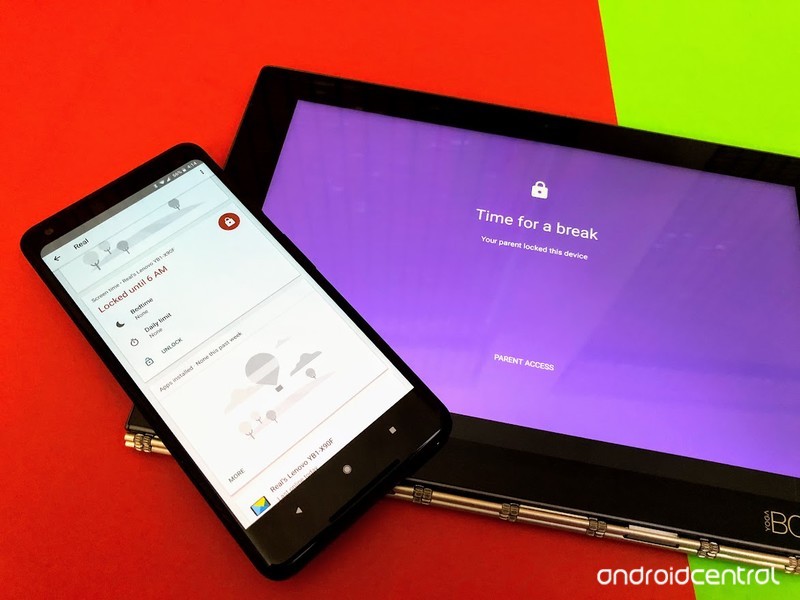
Be involved in your child’s digital life.
While handing your phone or tablet off to a child can offer a moment of peace while they are distracted by a game or video, there’s a lot more to the experiences children can have in Android. Choosing the right device for them to enjoy is only part of the process, though. Android is primarily made for adults, so there’s a little bit of setup necessary to make your average smartphone or tablet child-friendly.
Here’s a quick tour through those steps, and some tips on keeping your child safe through Android.
Creating a new account with Family Link
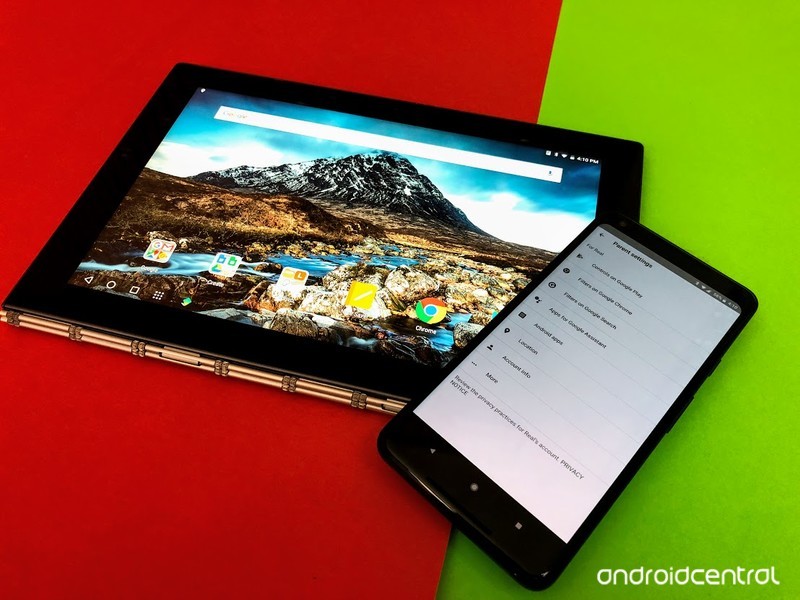
You used to have to jump through hoops and sort of lie to Google about your kid’s age if you wanted someone under 13 to have their own Google account, but nowadays we have Family Link. Through this app, you can create a kid-focused account for your child with lots of protections and features for parents to keep an eye on how gadgets are being used.
Want to learn more about Family Link before getting started? Here you go!
Step one for any kid having their own Android phone or tablet needs to be having a Family Link account, which you create by installing the Family Link app on your phone.
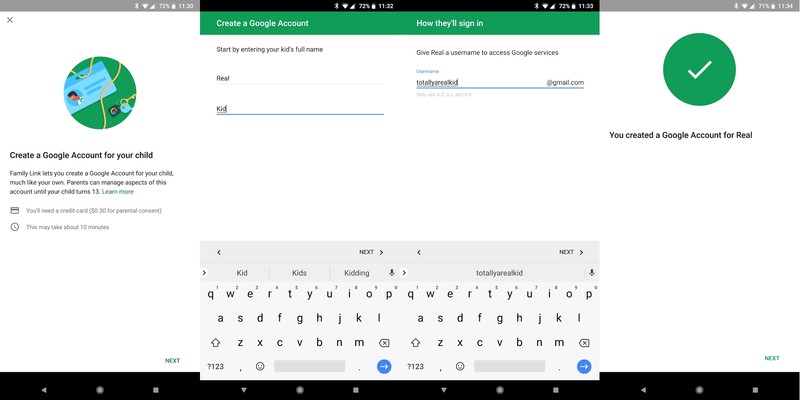
Family Link accounts are different from normal Google accounts. You create them from an app on your phone, and then the Family Link app walks you through setting that account up on the phone or tablet you want your child to use. As you log in to this account, Family Link lets you choose which apps your child has access to, and lets you set up a service that tells you what apps your child uses most throughout the week.
If you choose to allow it, this Family Link account has access to all of the basic Google apps and services. You can set up Gmail, messenger, Chrome, Google Drive, and more. There’s a lot of flexibility here, but it can take up to 25 minutes to go from creating the account to fully setting up your child’s device to suit your needs.
Using Family Link to create boundaries and keep your kid safe
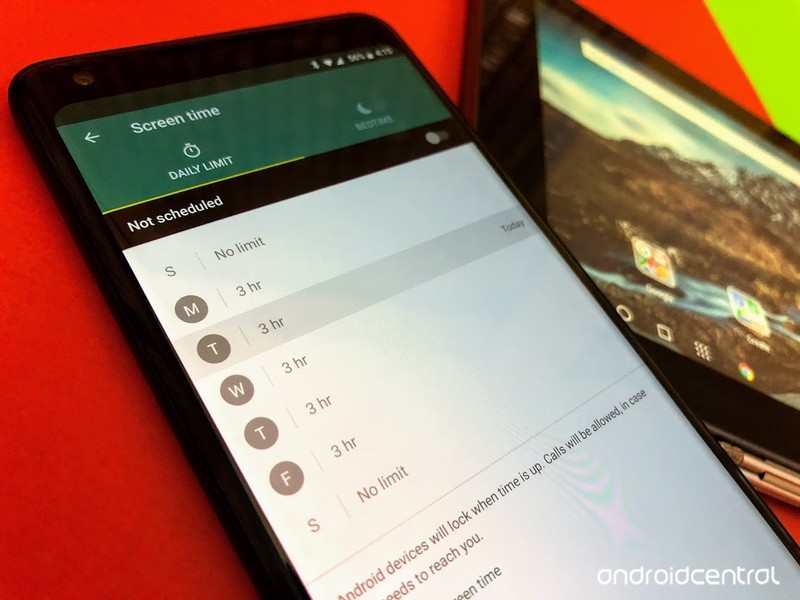
Now that you have a device set up with their account, you can start using your phone or tablet to monitor activity and employ restrictions as you see fit. This includes:
- Setting screen time limits
- Safe Search controls
- Permissions that apps have access to
- Activities this account has access to
- Password management
- Download and purchase controls in Google Play
Accessing these controls is easy. Open the Family Link app, select the child whose settings you want to edit, and select Manage Settings at the top of the app. From here you have access to controls and filters you can adjust. You can create a list of websites you don’t want your children to access, set filters on the kinds of results Google Search is allowed to offer, set age limits on apps and movies your child can see from Google Play, and even enable location tracking.
Perhaps the most important feature is time controls. This is located on the main page of the Family Link app, and it gives you the ability to limit how many hours per day your child can use their device. You can even set specific times of the day when the tablet is locked completely, just in case someone has a habit of using their tech after bedtime. If these time zones aren’t specific enough, you can press a button and lock the device from your phone. The lock is instant, and can’t be bypassed unless you either unlock it from your phone or enter a pin number in on the locked machine.
Using YouTube Kids responsibly
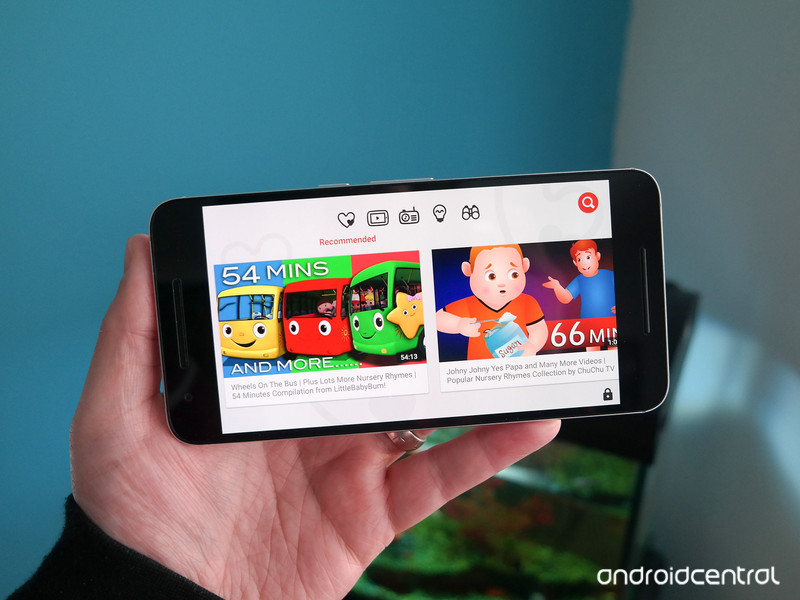
YouTube gives your kids unfiltered access to everything that exists on YouTube. Some adults don’t want that, much less making it available to children. To address this, Google made YouTube Kids. It’s a separate app to watching videos that Google has approved as child-friendly. It’s a free app and all ads are removed from the videos your child has access to, creating some relative safety for your child to explore YouTube.
Like anything that promises to be “kid safe” there’s a good chance your definition of appropriate doesn’t 100% line up with Google’s. On top of that, sometimes things slip through Google’s filters and are less than “kid safe” in practice. YouTube kids does a decent job filtering out the worst of YouTube, but this is not Disney Channel. You’re going to want to know what your kid is watching and keep an eye out for videos that could be problematic.
If you want to restrict this version of YouTube down even further, you can do so with Family Link.
Increased control through parent apps
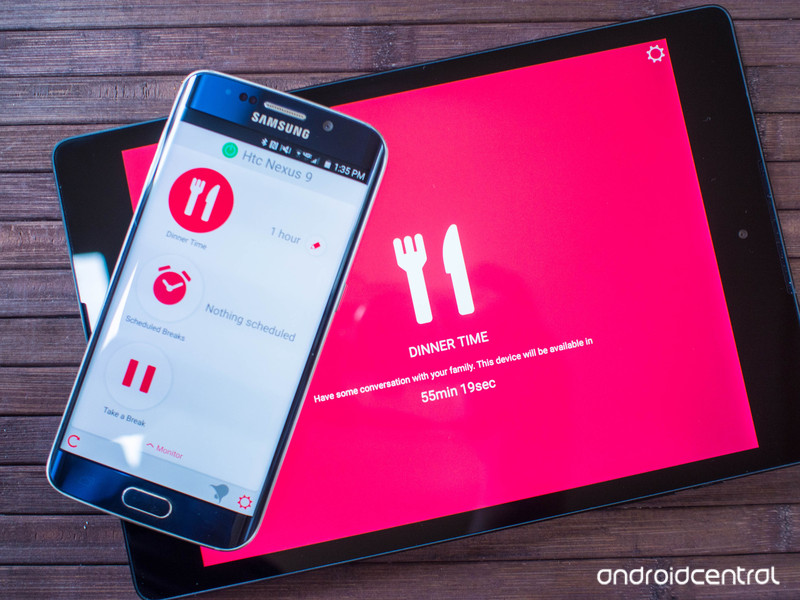
Gaining additional control of your child’s Android experience, especially if they are above age 13, requires some help from third-party apps. There’s no shortage of great apps to choose from when it comes to monitoring the mobile experience from another device, but the absolute best of the free solutions out there is DinnerTime Plus. The app is designed to let the parent monitor activity from their personal device, and make changes remotely. As the name suggests, you can even hit a button that flashes a bright red screen on your child’s device, letting them know it’s time for Dinner and to put the gadget down.
As cuts as the bright red auto-parenting tool is, the core functionality in DinnerTime Plus can be found in the reports the app generates and the control you as a parent are given over specific apps. If restricted accounts aren’t an option for you, being able to block apps is the next best thing. It’s also pretty useful to be able to set specific times for when the device can’t be used, and have a report generated to let you know when apps are being used and for how long. It’s the kind of thing Google may never make a native part of the OS, but as a parent can make a huge difference in how your child interacts with technology.
Best MetroPCS Phones of 2017

MetroPCS offers some great phones to go along with its affordable plans, including the latest flagship phone from Samsung.
MetroPCS gives you the opportunity to save some money when buying a phone without a contract, though most of its phones are mid- to low-end when considering specs. You don’t have to aim low, however: MetroPCS does offer some high-end devices, two of which are featured on this list. Coupled with their affordable plans, you might not be able to pass them up.

Advertisement
We’ll be updating this list regularly to keep current with new phones!
- Samsung Galaxy S8
- Samsung Galaxy J7 Prime
- LG Stylo 3 Plus
- Bring your own device
Samsung Galaxy S8

You don’t have to settle for less. The Galaxy S8 is the latest flagship from Samsung and it comes full of great stuff, like a 5.8-inch Quad HD Super AMOLED display and the latest Snapdragon 835 processor. It also has a capable 12-megapixel rear-facing camera, a stellar 8-megapixel autofocus front-facing camera, and 64GB of internal memory plus an expansion slot, so you can shoot as many selfies as your heart desires.
And if you’re worried about the lasting lifespan of the Galaxy S8, fear not: it’s IP68 water and dust resistant. One thing to note is that MetroPCS only offers the Arctic Silver color.
Samsung Galaxy S8 review
See at MetroPCS

Advertisement
Samsung Galaxy J7 Prime

The goal of the Galaxy J series of phones is to bring some of the unique Samsung style and features down to an affordable price point. For the most part, they succeed — especially in the top of the range with phones like the Galaxy J7 Prime. You don’t get the fancy curved display or glass chassis, but you do get a powerful octa-core Exynos processor, solid 5.5-inch display, 8MP f/1.9 camera and a really big 3300mAh battery.
Samsung Galaxy J7 Pro review
See at MetroPCS
LG Stylo 3 Plus

The LG Stylo series has carved out a neat little market of people who want a big phone with decent specs and a stylus, as it’s pretty much the only device to offer this set of features aside from an older Galaxy Note. With the LG Stylo 3 Plus you get a big 5.7-inch display, some capable internals and nice-to-have (at this price) 32GB of storage.
See at MetroPCS
Advertisement
Bring your own device

Like most prepaid carriers, MetroPCS also lets you buy a SIM card and bring your own unlocked phone to use on the network. While this isn’t as simple as just buying a phone directly from the carrier, it gives you many more phone choices. The only requirement is that the phone has the proper network bands to work on the network — thankfully, MetroPCS uses T-Mobile’s network, so it’s pretty easy to find devices that have the right bands for you.
When making a decision, be sure to read our recommendations for the best unlocked phones. Once you pick one out, you can buy a SIM kit for just $10.
See at MetroPCS

Facebook’s Year in Review confirms 2017 was terrible
Yesterday, Facebook unveiled its annual Year in Review, which highlights the biggest moments of 2017. And, unsurprisingly, most of them are pretty depressing, confirming what we all already knew: The year 2017 was pretty terrible.
Facebook tries to spin it as “highlighting the top ways people came together on Facebook to support one another,” but the list of events makes it clear that the year was just one terrible thing after another. The release mentions the violence in Las Vegas, the Mexico earthquake (which drove the highest number of interactions with Facebook’s Crisis Response feature), the Manchester terror attack (the benefit concert was the most viewed live broadcast and video on Facebook) and Hurricane Harvey (the biggest fundraising for one crisis).
The Year in Review also highlights women’s issues with both the Women’s March on DC and International Women’s Day, which was the top moment discussed in 2017. Finally, the social network highlights the Super Bowl and the total solar eclipse (which I maintain is a big deal) as big events of the year.
If you’re interested in your year in review, you can access your video on Facebook. Starting today, visit facebook.com/yearinreview for your personalized version of 2017 (though, at the time of this writing, the feature isn’t live.)

Qualcomm’s Snapdragon 845 doubles down on cameras and AI
The next-generation mobile processor that you’ll most likely find in many of next year’s major flagships is here. At its second annual tech summit today, Qualcomm unveiled the Snapdragon 845, which is its latest “premium” mobile CPU. The chipset will retain the same 10nm footprint as its predecessor, but feature revamped architecture that brings about new features like 4K HDR video capture on smartphones and improved AI processing. That’s in addition to the typical performance and power-consumption upgrades from last year’s chip. Qualcomm said it’s focusing on AI, Immersion, security, connectivity and immersion with the new chip.
The Snapdragon 845 will feature an Adreno 630 graphics processor and Qualcomm’s Spectra 280 image signal processor (ISP) which we previewed last year. The company’s graphics lead, Tim Leland, explained that the ISP allow for “Ultra HD premium” video capture at 60 (16-megapixel) frames per second. Qualcomm believes the Snapdragon 845 will be so good at photography that the phones powered by this chip will score above 100 on DxOMark.
With Ultra HD color capture, Leland says cameras can capture more color volume than before, whereas mobile photography in the past few years have focused on recording higher resolution. The Spectra ISP collects more color data with a combination of three methods – moving from 8-bit to 10-bit color, expanding its color gamut from Rec 709 to Rec 2020, and increasing luminance (the brightness of an object).
That’s a lot of jargon to parse through, but basically, the chip can process more shades of the same color, giving it more depth, more colors and different levels of brightness for the same hue. That allows for more nuance in image quality.
The first devices to pack Snapdragon 845 will arrive in early 2018, and we’re learning more about what the new chip can do from the event.
This story is developing…
The new ‘Portal’ game is a ‘Bridge Constructor’ spin-off
Fans have been waiting with little hope for a third entry in the beloved Portal franchise since the second game came out in 2011. It seems Valve has answered their prayers — kind of. Instead of another first-person teleporting puzzle adventure, the next Portal-branded title is a standalone spin-off of the popular Bridge Constructor game. If a marriage of both those franchises is up your alley, snag it for desktop or mobile on December 20th.
As the trailer illustrates, the game packs in the endearingly wild physics of Bridge Constructor with the titular teleporting ovals of Portal. Sure, it’s not the Portal 3 everyone really wants, but it’s probably the closest we’ll get since Valve doesn’t really make games anymore (they handed this one off to studios Headup and ClockStone Software).
Bridge Constructor Portal will cost $10 for the PC, MacOS and Linux versions and $5 for the iOS and Android apps, all of which come out December 20th. Console editions will follow in early 2018.
Via: Ars Technica
Source: ‘Bridge Constructor Portal’ trailer (YouTube)
Apple Releases Safari Technology Preview 45 With Bug Fixes and Feature Improvements
Apple today released a new update for Safari Technology Preview, the experimental browser Apple first introduced more than a year ago in March of 2016. Apple designed the Safari Technology Preview to test features that may be introduced into future release versions of Safari.
Safari Technology Preview release 45 includes bug fixes and feature improvements for Rendering, JavaScript, CSS, Web API, Media, Web Inspector, and Accessibility.
The Safari Technology Preview update is available through the Software Update mechanism in the Mac App Store to anyone who has downloaded the browser. Full release notes for the update are available on the Safari Technology Preview website.
Apple’s aim with Safari Technology Preview is to gather feedback from developers and users on its browser development process. Safari Technology Preview can run side-by-side with the existing Safari browser and while designed for developers, it does not require a developer account to download.
Discuss this article in our forums
Review: Ultimate Ears’ New Blast and Megablast Speakers Bring Alexa Integration But Sacrifice Features
Ultimate Ears is known for its line of rugged, waterproof speakers that come in bright colors and offer high-quality sound at prices that aren’t exorbitant.
In October, Ultimate Ears expanded its product lineup with two new flagship devices, the Blast and the Megablast, successors to the Boom 2 and the Megaboom, with revamped designs and, for the first time, Wi-Fi support with Amazon Alexa integration.
I tested the new Ultimate Ears speakers, and I liked the addition of Alexa integration, especially in a wire-free device. There were, however, some limitations and caveats that may not make this the best speaker for everyone.
Design
Blast and Megablast don’t look too different from previous-generation Ultimate Ears speakers, but they do sport a new, more modern design with a flatter top and less rounded edges for a decidedly cleaner and sleeker appearance.
They use the same cylindrical design as past speakers, offering 360 degree sound. The top and the bottom of the Blast and Megablast feature a soft rubber material with bluetooth/power/Alexa buttons and access to a charging port, while most of the rest of the speaker is made from a matching mesh.

Both speakers continue to feature prominent “+” and “-” buttons that are used for controlling volume. Some people don’t like these buttons because of the resemblance to a cross, but I’ve always been a fan of the bold look and easy-access volume controls. The speakers each come in a range of colors, including Blue Steel, Merlot, Blizzard, and Graphite. The Megablast I have on hand is Blue Steel, while the Blast is Merlot, and both colors are subdued and even elegant, able to match well with any decor.

Blast is about 7.4 inches tall and as thick as a soda can, while Megablast is about 9.3 inches tall and a good deal thicker, closer in size to a coffee can than a soda can. Blast fits well in a bag for travel, making it ideal for the beach or the pool, while Megablast is less portable. There’s nothing stopping you from lugging the Megablast around, though.

All of Ultimate Ears’ speakers are IP67 water resistant, which means they can be immersed in liquid up to 1m deep for up to 30 minutes. I took both speakers in the shower several times with me over the course of the testing period, and had no problems. Ports are well protected with a rubber covering at the bottom, but it’s worth noting that this rubber cover makes charging a chore. There are no other points of ingress for water to get into.

Charging ports are located on the bottom of the speakers, so the rubber covering needs to be pulled back while the micro-USB charging cord is inserted, and it can take a few seconds to get it oriented correctly. This isn’t new to the Blast and Megablast, though, and it’s a small price to pay for water resistance. Bottom charging ports means these speakers aren’t going to sit upright when charging, so it isn’t the most convenient port location.

Volume is controlled through the aforementioned large volume buttons, and the speakers can be turned on using a power button at the top. There are no physical controls for pausing music or changing songs — these things must be done using Alexa integration or your connected iOS device. No on-device control is something of a step back, because both the Boom 2 and the Megaboom have tap gestures for skipping and pausing songs, and I think that’s something a lot of people are going to miss.

Some may also miss the 3.5mm aux-in port that was present in the Megaboom. It’s been removed in the Megablast.
The Blast is meant to last for 12 hours on a single charge, while the Megablast is supposed to last for 18 hours. I got about that amount of battery life from the Blast, but the Megablast I had on hand seems to drain a good deal faster than that, and I’m not sure why.
Sound Quality
I’ve used several Ultimate Ears speakers over the years, and I’m a fan of the sound quality for the price. Evaluating sound is always tricky because there’s so much preference involved, but objectively, these speakers sound crisp and clean.
For my tastes, and with the Megablast especially, there’s too much bass and I do feel that with some songs, the bass can overwhelm some of the other notes.

These speakers are loud, and the sound absolutely fills a room. They’re so loud, in fact, that the maximum setting is too high for my apartment. The Blast has a maximum sound level of 90 dBC with a frequency range of 90Hz to 20kHz, and it comes equipped with two 35mm active drivers and two 81mm and 39mm passive radiators.
In comparison, the Megablast has a maximum sound level of 93 dBC with a frequency range of 60Hz to 20kHz. Inside, there are two 25mm tweeters, two 55m active drivers, and two 85mm and 50mm passive radiators. In practice, this means the Megablast is noticeably louder and clearer than the Blast. That’s not to say the Blast is lacking – it still offers great sound, but it’s not quite on the level of the Megablast.

To power the Alexa features, the Blast and Megablast have several built-in microphones to enable far-field voice recognition. I had a hard time getting the speakers to listen to me when music was playing except for when I was fairly close to them. Without music playing, they had an easier time understanding me.
Features
Alexa Integration
Blast and Megablast support Wi-Fi and Bluetooth, and with a Wi-Fi connection, the two speakers work with Amazon Alexa, a first for an Ultimate Ears product. Alexa integration is somewhat limited on third-party devices, though, so it’s worth noting that these can also be used as standard Bluetooth speakers.
With Amazon Alexa integration, when connected to Wi-Fi, you can use Alexa to play music and answer simple queries, much like using Alexa on an Amazon Echo device. Alexa works with Amazon Prime Music, Amazon Music Unlimited, iHeartRadio, and TuneIn, and that’s it. Ultimate Ears says Pandora and Deezer are coming soon, though, with more to follow in the future.

There is no support for Spotify or Apple Music, so if you subscribe to one of these music services, you’re going to need to use Bluetooth. I am an Apple Music subscriber, which only works over Bluetooth, so I signed up for a few months of Amazon Music Unlimited for testing purposes. Ultimate Ears includes a code for a free three month trial.
Alexa integration in Blast and Megablast is useful because you can just ask Alexa to play a particular song, music genre, album, or playlist, but unless you’re already a subscriber to an Amazon music service or willing to switch, it’s of limited utility as a way to play and control music.
I’m in the Apple ecosystem and use HomeKit, so I don’t get the full range of use out of Alexa, but the speakers can be used to control smart home products, offer weather and traffic information, set alarms, create to-do lists, offer up conversions, find recipes, get news updates, and more.

You don’t need to connect to power to use Alexa with Blast or Megablast, but you do need a Wi-Fi connection. Because power isn’t necessary, the Blast and the Megablast will go to sleep after a short period of time, so the Alexa feature is not always listening. You’ll often need to push the power button to wake the speaker back up when you want to use Alexa if it isn’t connected to power.
You can, however, enable an always-on Alexa mode through a standalone charging dock that charges the new speakers inductively.
Alexa features are limited to countries where Alexa is available, aka the United States, the UK, and Germany. An Amazon account is also required.
Bluetooth
When not connected to Wi-Fi, the Blast and Megablast function as standard Bluetooth speakers, and this is the connection method you’re going to need to use to play music from Spotify, Apple Music, or other sources. Connecting via Bluetooth is done in the Settings app, like any other Bluetooth device.
You can listen to music over Bluetooth and use Alexa, but expect some delays. When I listen on Bluetooth and then ask Alexa a question, there’s a long pause before my music resumes.
App
With previous Ultimate Ears speakers, the Ultimate Ears app enabled a lot of neat features like PartyUp/DoubleUp, which let multiple Ultimate Ears speakers be linked together. You can’t link Blast or Megablast with other Ultimate Ears speakers or even with each other. These are standalone speakers that can only be controlled separately, with no option to sync them.

There was also a Block Party feature for letting your friends queue up music with you, and that’s also unavailable in the Blast and Megablast. This is less of a loss when used with Alexa, though, because you can request songs vocally with a compatible music service.
A speakerphone feature was available with the Megaboom, allowing it to answer calls from a connected smartphone. That’s another feature that’s not available with Blast and Megablast.
Charging Dock
Ultimate Ears is offering a standalone “Power Up” charging dock that works with the Blast and the Megablast, and while it’s not required for charging, if you want always-on Alexa functionality that’s not completely inconvenient, you’re going to need the dock.

The dock is basically a simple white puck-style device that charges a speaker inductively. It’s the best way to merge always-on Alexa functionality with the portability of a battery-powered speaker, but it does cost an extra $40.

This is an almost necessary accessory for customers who want to get the most out of Alexa, so it’s disappointing that it wasn’t included in the price of the Blast and the Megablast, neither of which are cheap.
Bottom Line
I like the addition of Alexa functionality to the Ultimate Ears lineup, but I do wish Ultimate Ears hadn’t sacrificed so many features to add it. People accustomed to Ultimate Ears products are going to miss the auxiliary input, the ability to pair two or more speakers together, and the other fun features that used to be available.
Hopefully some of these missing functions can be re-added with software updates over time, but whether or not that will happen remains to be seen.
For someone like me who primarily uses Spotify, Apple Music, or another music service that’s not supported by Alexa, you’re not going to be able to get a lot out of this speaker’s Alexa integration unless you simply want it for non-musical functionality. Being able to request songs via voice is most of the appeal of these speakers, and not being able to use that feature puts Blast and Megablast on par with any other Bluetooth speaker.

I have Apple Music and HomeKit, as do many of us who have iOS devices, so while Alexa is fun to play with, it’s not something that I can up and use without tweaks to the products in my home. With HomeKit and Apple Music, I’m instead eagerly awaiting HomePod.
If you’re going to be using Blast or Megablast like a Bluetooth speaker, it’s probably a better choice not to shell out the extra cash and to get something like the Boom 2 or the Megaboom instead, which are as low as $124 and $188, respectively, on Amazon.
If you do have a supported music service and want to get into the Alexa ecosystem, this speaker is a great choice. You get all of the benefits of Alexa in a portable package that can go absolutely anywhere. I do recommend budgeting for the charging dock if you’re picking up a Blast or Megablast to use with Alexa, though, as it’s a must-have for always-on functionality at home.
How to Buy
The Blast is priced at $229.99, while the Megablast is priced at $299.99. Both can be purchased from the Ultimate Ears website, or from Amazon.com (Blast/Megablast).
Note: Ultimate Ears provided MacRumors with a Blast and a Megablast for the purpose of this review. No other compensation was received.
Tag: Ultimate Ears
Discuss this article in our forums
The colossal ITER fusion power facility is halfway finished
Fusion remain the ideal solution for energy woes: Limitless production with no harmful waste. Scientists haven’t managed to get a functional (and productive) installation up and running, but that hasn’t stopped them from trying. The biggest project is the colossal ITER tokamak fusion reactor, an international project based in France that aims to start its first experiments in 2025. Today, its handlers announced that the massive installation is halfway finished and headed toward a completion date of 2021.
ITER is the logical production of “what if we threw a bunch of money and scientists from all over the world at the fusion problem.” It’s funded by seven bodies: Primarily the EU, with small stakes from the US, India, China, Russia, Japan and South Korea. Construction began in 2013, but delays have led to a rough road for the massive project, leading to an inflated $22 billion price tag, ITER estimated back in March. But given that the project will attempt to replicate the energy reactions found in the sun and hydrogen bombs, complexity is expected.
Now ITER is halfway built and expected to finish construction in 2021. The installation aims to start experiments to produce fusion reactions in 2025. ITER will use a method called hydrogen fusion, The New York Times’ report on the facility describes: Deuterium and tritium nuclei fuse to form helium, which will release a lot of energy that bounces around the reactor chamber and strikes its walls, which makes heat. But since the installation will only prove the concept, it won’t turn it into energy.
Eventually, standard fusion power plants will use the heat to make steam, which turns a turbine to generate electricity. That’s essentially how traditional facilities produce energy, but fusion plants won’t have all the irradiated waste byproducts, carbon emissions, or danger of a meltdown. ITER’s scientists anticipate that fusion plants will start going online in 2040 once the concept is proved by the colossal institution.
Source: ITER
Oculus Rift Core 2.0 update is now available in beta
Today, Oculus announced that its Rift Core 2.0 VR interface, as well as its redesigned companion desktop app, are available in beta through a free software update — you just need to opt into the Public Test Channel if you haven’t already. This is the first major software update for Rift , and it’s a complete overhaul of the existing system.
Rift Core 2.0 includes a fully customizable Oculus Home, so you can decorate your VR space the way you want to, with interactive objects and furniture options. Dash is the new interface that allows you to interact with your computer in VR. While it will run on Windows 7 or later, you need Windows 10 to fully take advantage of the dashboard overlay. The updated desktop app is focused on discovery to make it easy to find new games and experiences, as well as to connect with friends. To learn more about using Rift Core 2.0, you can check out the Oculus Team’s Getting Started guide.


