


This is the OnePlus 5T Star Wars Edition
With the release of much-anticipated Star Wars: The Last Jedi upon us, OnePlus has announced the launch of a Star Wars-branded limited edition of the OnePlus 5T.
The latest episode of the epic space opera film series is the second film in the Star Wars sequel trilogy and releases on December 15. Interestingly, last year, SoftBank unveiled two Sharp phones in Japan with Star Wars theme (one for the light side, and other for the dark side) around the release of Rogue One: A Star Wars Story.
Interestingly, for this launch, OnePlus changed its tagline from ‘Never Settle’ to ‘Strong Enough To Rule The Galaxy’ which aligns just fine with the inter-galactic theme of the movie, and is also an obvious dig at the Samsung Galaxy series.
Design


OnePlus hasn’t really altered the design language we’ve seen on the OnePlus 5T but has introduced subtle changes to commemorate the Star Wars franchise. The OnePlus 5T Star Wars Limited Edition is clad in white like a Stormtrooper with black accents on the lock button and volume rocker. The alert slider stands out with a unique red finish. At the back, there’s the Star Wars logo emblazoned in red, matching that button.
The Star Wars edition’s phone design has been inspired by the planet Crait from Star Wars: The Last Jedi. Crait is a white mineral planet with red sediment under the surface, which explains the red alert slider.
Hardware

Well, apart from the cosmetic changes in the design, the Star Wars Limited Edition is a OnePlus 5T at heart. It’s got the same internals as the higher spec’d OnePlus 5T (8 GB + 128 GB), but that isn’t a bad thing. Star Wars or not, the OnePlus 5T is a solid smartphone and has a well-rounded appeal for a broad audience.
Editor’s Pick
OnePlus 5T review: it’s all about that screen
Buy now from OnePlus
With the OnePlus 3T, we got virtually the same body as the OnePlus 3, but packed with a new processor, more RAM, and a bigger battery. This year though, there isn’t a …
Specifications
- Operating System: Android 7.1.1 Nougat | OxygenOS
- Display: 6.01-inch Full HD+ (1080 x 2160) AMOLED | 401 ppi | 18:9 aspect ratio | 2.5D Corning Gorilla Glass 5
- Processor: 2.45 GHz octa-core Qualcomm Snapdragon 835, 10nm | Adreno 540 GPU
- RAM: 8 GB LPDDR4X
- Storage: 128 GB
- Rear Camera: 16 MP Sony IMX 398 sensor | 1.12 µm | f/1.7 aperture + 20 MP IMX 376K sensor | 1.0 µm | f/1.7 aperture
- Front Camera: 16 MP Sony IMX 371 sensor, 1.0 µm, f/2.0 aperture
- Battery: 3,300 mAh | Dash Charge (5V 4A)
- Dimensions: 156.1 x 75 x 7.3 mm
- Weight: 162 g
Software

Again, like the 5T, the OnePlus 5T Star Wars Limited Edition runs Android 7.1.1 Nougat with OxygenOS on top. Android Oreo out of the box would’ve been a nice highlight of the smartphone, but alas!

But of course, there’s enough Star Wars for you. There are ten limited-edition wallpapers and an exclusive red, black, and white Star Wars theme. It’s pretty neat, actually.
In The Box

The limited-edition smartphone comes in special packaging, too. There’s a nicely designed Star Wars-themed box which includes the OnePlus 5T, a Dash charger, and the OnePlus signature red USB Type-C cable.

There’s also a special Kylo Ren phone case which comes bundled with the device. It looks like a strong bumper that can take a fall easily, but is also big and adds quite an extra bit to the size of the phone – both in width and thickness.
Gallery

Summary
The OnePlus 5T Star Wars Limited Edition is a sleek tie-in for the movie. Star Wars is a massively popular franchise, especially amongst the geeks, and the launch around the movie release will give it quite a buzz.
Priced at ₹38,999 ($607) and with only a 1,000 rupees premium over the regular variant (with a case included), fans of Star Wars (well, who isn’t?) who’ve been eying a mid-range flagship smartphone should definitely be interested. OnePlus 5T packs a punch, and the force is strong with this one.
Availability

The limited-edition smartphone though is exclusive to India (along with select European countries including Finland, Sweden, and Denmark), which would annoy a lot of Star Wars fans in countries far, far away. A couple of weeks ago too, OnePlus launched a lava red color variant of the OnePlus 5T in China, while other countries were snubbed.
The OnePlus 5T Star Wars Limited Edition will be available starting December 15 exclusively on Amazon.in with some exclusive launch offers, apart from the official OnePlus brand store – oneplusstore.in.
Blackberry Motion review: A KEYone without the keyboard
BlackBerry made a triumphant return into the smartphone space with the BlackBerry KEYone, a phone that brought the modern Android experience with the classic BlackBerry physical keyboard. The new BlackBerry Motion looks to continue that momentum by bumping up the specs in a few key areas and losing the physical keyboard.
Although the keyboard is one of the best and most iconic features of a BlackBerry, it certainly doesn’t appeal to everyone. For those that want the BlackBerry KEYone experience, sans the keyboard the BlackBerry Motion is here to fill that void.
The question is: does a BlackBerry without a physical keyboard still feel like a BlackBerry or does it just turn into your average Android phone? Find out in our full BlackBerry Motion review!
Design

One thing that you have to commend BlackBerry for is not being afraid to do something different. In an era where bezel-less displays, dual cameras, and curvy, sleek pebble-like designs are all the rage, the BlackBerry Motion bucks those trends.
It all starts with the phone’s design. Instead of a rounded glass or metal slab, the Blackberry Motion goes for a more industrial look with chamfered edges and metal sides that are completely flat. The only exception is the top portion of the phone which is one of the few areas that has some sort of curvature.
One thing that you have to commend BlackBerry for is not being afraid to do something different
The backside features a faux carbon fiber pattern that not only looks great but is soft to the touch and gives the phone plenty of grip. It’s not the most comfortable or sleek feeling phone in the hand, as the hard, sharp edges makes the phone feel very blocky. But it’s refreshing to see a design that doesn’t fall in line with the Samsungs, LGs, and Apples of the world.
The build quality however rivals even the most top tier of smartphones. Every part of the BlackBerry Motion feels sturdy including the volume, power, and BlackBerry’s signature convenience key. They’re all constructed from metal giving them a satisfying click and the convenience key has a ridged texture to avoid confusion with the power or volume keys.

Due to the Motion’s all-touch screen design, there’s no physical space bar this time to function as a fingerprint sensor like there was on the KEYone. Instead, the Motion has a fingerprint sensor designated by the BlackBerry logo on the bottom chin. This doubles as a physical home button.
The fingerprint sensor is fast to unlock and very accurate but it was weird to use a phone with a physical clicking home button again as most phones with front facing fingerprint readers nowadays feature no moving parts. This home button also functions as a trackpad of sorts allowing access to the notification shade with a swipe down and the app drawer with a swipe up.
Flanking the home button are capacitive keys which fill up the bottom chin quite nicely. They are larger than on most other Android phones with capacitive keys and this also makes them much easier to press.
Display

With no physical keyboard, the Blackberry Motion has much more room for a larger display. The screen is an LCD panel that measures in at 5.5 inches and a resolution of 1080p making the Motion a much better smartphone for media consumption compared to the KEYone. The screen is fairly bright, vibrant in color, and has excellent viewing angles, but lacks the darker blacks and contrast ratio of an AMOLED screen. Due to its more traditional bezel size, it also won’t be an attention grabber if that’s what you’re looking for.
Despite the bezels, it’s still a very enjoyable display
Despite the bezels, it’s still a very enjoyable display and provides plenty of space for productivity and having fun in your downtime with the occasional game or YouTube video. The screen is constructed from DragonTrail glass for added toughness and resistance against scratches, but the durability coating is tacky to the touch and makes the screen much more difficult to keep free of fingerprints.
Performance

Inside, the BlackBerry Motion features the same Snapdragon 625 processor and 4 gigabytes of RAM as its keyboard-fitted brother KEYone, That might be a little disappointing if you were hoping for flagship-tier specifications. While it may not be the most powerful smartphone on the market and won’t blow your mind when it comes to benchmarks, the Motion still performs admirably in day to day use. You will notice the occasional stutter when the phone is under heavy load and some slight rubber banding when swiping or scrolling. but for most daily tasks such as launching applications, checking emails web browsing, or playing graphically demanding games, the Motion is more than capable.


Hardware

Where the Motion lacks in specifications, it makes up for it in hardware. On the bottom side is the standard USB Type-C port that’s flanked by a single speaker, and a 3.5 mm headphone jack, a port that has become a rarity in 2017.
In terms of storage the Motion comes in a 32GB configuration but is expandable via microSD. Without a porous physical keyboard, BlackBerry was able to make the Motion IP67 dust and water-resistant, a feature that has become more and more common place in smartphones.

One of the biggest pros to the Motion is its generous battery capacity. The Motion is equipped with a massive 4,000 mAh cell and that, combined with the Snapdragon 625’s battery sipping properties, is a recipe for long lasting battery life. The Motion consistently lasts me a full two days on a single charge and screen on time easily hits the 6 hour mark. My usage is quite heavy with several hours of gaming and YouTube watching per day on top of more typical activities such as reading emails, texting, and keeping tabs on social media and I’ve been very impressed with how long the Motion lasts despite my usage.
Wireless charging is not available despite a non-metal backside, but the phone does come with the standard Qualcomm QuickCharge 3.0 for easy top offs or fill ups.


Camera

The BlackBerry Motion comes with the same set of cameras as the KEYone. There’s an 8 megapixel front facing shooter that works decently enough for selfies and a 12 megapixel camera on the rear. In terms of features, the camera app is very basic offering only a handful of modes such as panorama and slow motion video. If you’re a fan of portrait mode or background defocusing effects that other smartphone cameras offer, you won’t find anything of the like on the Motion.
once the sun goes down or you move indoors, the camera is very quick to fall apart
In well-lit or bright outdoor situations, the Motion’s camera is more than capable of snapping some great shots. Photos are crisp, detailed, full of contrast, and colors are natural. However, once the sun goes down or you move indoors, the camera is very quick to fall apart. Shots become very overexposed, especially in the highlights, colors are washed out, there’s a ton of noise, and the camera constantly hunts for focus in low light that taking a photo can feel like a chore.
Unfortunately, the camera doesn’t offer optical image stabilization which would most likely improve the camera’s sluggish low-light performance.
Software

My favorite aspect of any BlackBerry Android smartphone has to be the software. Not only because the experience is very close to stock Android, but also because BlackBerry’s software add-ons provide a ton of utility without feeling gimmicky.
It all starts with the BlackBerry Hub, an application that makes checking your notifications a simple process. The Blackberry Hub aggregates your emails, social media, text messages, phone calls and more into one place, so you don’t have to jump back and forth between multiple applications. It’s one of those applications that works so well that it makes you wonder why other OEMs haven’t copied it.
Then there’s the productivity tab, which is another extremely useful tool for checking calendar events, unread messages, your daily tasks, and contact list. The best part is it can be easily accessed at all times with a swipe in from the screen’s edge, regardless of whether you’re within an application or on your home screen.

My favorite aspect of any BlackBerry Android smartphone has to be the software
The BlackBerry experience would not be complete with applications such as BBM and BlackBerry’s best-in-class DTEK security software, that is always monitoring the security status of your device and keeps all of your data encrypted. There are other useful additions that we’ve seen before in prior BlackBerry devices, such as the privacy shade to keep prying eyes from getting a good view of your display, and the elegant swipe up gesture on app icons to access widgets which practically eliminates the need for putting widgets on your home screen.
New to the BlackBerry Motion is the Locker application. This is similar to the secure folder that we’ve seen on Samsung devices as it lets you lock away sensitive or private information that can only be access via your fingerprint, pattern, or passcode. This all sits on top of Android 7.1.2 Nougat at the moment, and, as mentioned, the software is very close to stock. so hopefully the update to Android Oreo isn’t that far away for the Motion.


Gallery

Specifications
| Display | 5.5-inch Full HD IPS LCD 1,920 x 1,080 resolution 403 ppi DragonTrail glass 16:9 aspect ratio |
| Processor | Octa-core Qualcomm Snapdragon 625 2Ghz, 64-bit |
| GPU | Adreno 506 |
| RAM | 4 GB |
| Storage | 32GB microSD slot – up to 2TB |
| Cameras | Rear camera: 12 MP sensor, 1.55 μm pixel size, and f/2.0 aperture, phase detection autofocus Front camera: |
| Audio | 3.5 mm headphone jack |
| Battery | 4,000 mAh non-removable Quick Charging 3.0 USB Type-C |
| IP rating | IP67 water and dust resistance |
| Network | BBD100-1 LTE Home: B1/ 3/ 7/8/20/26/28/32/38/40/41 LTE Roaming: B2/4/5/12/13/17/19/39 BBD100-2 BBD100-6 |
| Connectivity | Wi-Fi 802.11 a, b, g, n, ac Bluetooth 4.2 LE NFC USB Type-C 2.0 |
| SIM | Dual SIM |
| Software*/ | Android 7.1.1 Nougat |
| Colors | Black |
| Dimensions and weight | 155.7 mm x 75.4 mm x 8.13 mm |
Pricing & Final Thoughts

The biggest downside to the BlackBerry Motion at the time of this writing is its limited availability. It’s only available in a few select markets such as the Middle East where it retails for around $460 and Canada for $599 CAD which converts to $465 USD. There’s no word on if or when the Motion is coming to the U.S. but you should be able to buy it for less than $500. And that would be a fair price taking into account all that the Motion offers.
The BlackBerry Motion is a simple formula. It’s essentially a KEYone but with a bigger battery, water resistance, and an all-touch screen experience instead of a keyboard. For those clamoring for a keyboard-less BlackBerry, the Motion is your answer. Let’s just hope BlackBerry makes it more widely available before it’s too late.
Google’s lightweight Maps Go app is built for low-end Android devices
It’s been roughly a week since Google announced the launch of Android Go — a pared-down version of Android 8.1 Oreo, designed to run on lower-end devices packing between 1GB and 512MB of RAM. Mostly useful in developing markets like Brazil and India, Android Go is focused on reducing the install size of the operating system to less than half of that of Android 7.0 Nougat, and ensuring that essential services can run on a device with significantly less power than most smartphones running Android 8.0 Oreo.
A big part of this drive is the creation of a number of smaller, “Go-style” Google apps, made to work on lower-end hardware. Essentially pared-down versions of existing Google apps, Google also announced that we should expect more compact versions of Google Maps, YouTube, Google Assistant, and Gmail. Files Go, a slim-line file managing app has already been launched, as has a lightweight search app, Google Go, and now low-end users can access a lightweight maps app with Google Maps Go on the Google Play Store. Google Maps Go gives users the ability to see their location, get directions to a place via car, train or bus, or by walking, and even allows users to add filters to their map to see satellite imagery, public transport, or an overlay of the current traffic.
A comparison between Google Maps Go (left) and Google Maps (right) on the Galaxy S8
The app will only be downloadable for a specific subset of Android smartphones; any device that has less than 1GB of RAM, and is running Android 4.1 or newer. It’s a very specific band of users, and unlike the implementation of Files Go, which was made available as a general file managing app for any Android smartphone.
Key to the low impact of the app is that it’s not really an app at all — the app icon is a link to a Progressive Web App (PWA) version of Google Maps (as noted by Android Police). PWAs allow users to access apps without downloading them, and this means that they’re extremely low-impact on a device’s resources. It also means you can try out the app for yourself without needing a compatible phone. Simply access this link on your phone or PC, and you should be able to access Google Map Go — it may try to send you to your normal Google Maps app, but you can circumvent that by holding the link and opening it in a new tab.
Editors’ Recommendations
- Google finally launches Android Go, a lighter OS for budget phones
- Everything you need to know about Android 8.0 Oreo
- When is your phone getting Android 8.0 Oreo? We asked every major manufacturer
- Which Android Wear smartwatches will get Android Oreo?
- Google Maps navigates its way to a cleaner, more useful design
First 6 things you should do with your Honor 7X
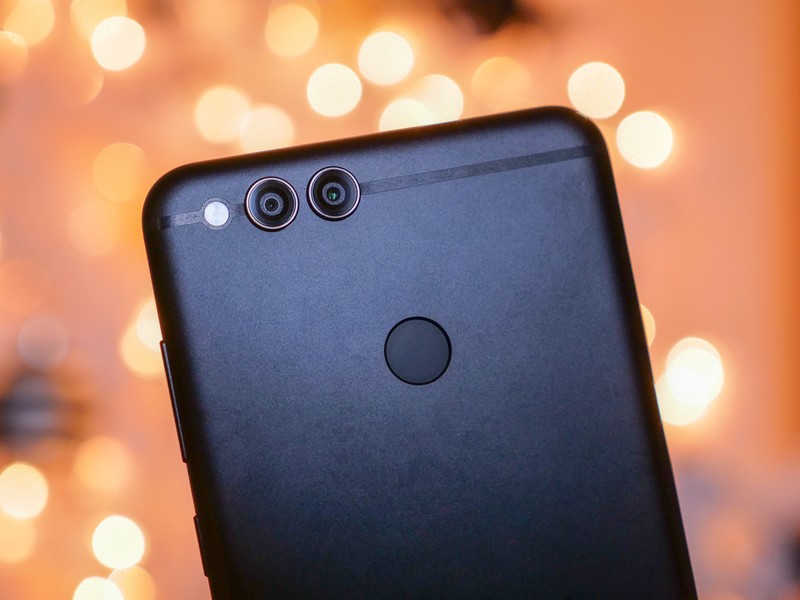
The Honor 7X is a great value, but it’s made even better with a few quick tweaks.
For $200, the Honor 7X has a lot going for it. Its metal build is exquisite, the new 2:1 aspect ratio gives it a modern look and helps squeeze a large 5.93-inch display into a hand- and pocket-friendly device, and the 3340mAh battery should keep it running for hours.
Here are a few tips on setting up your Honor 7X to make it an even better bang for your buck.
Set up the fingerprint scanner
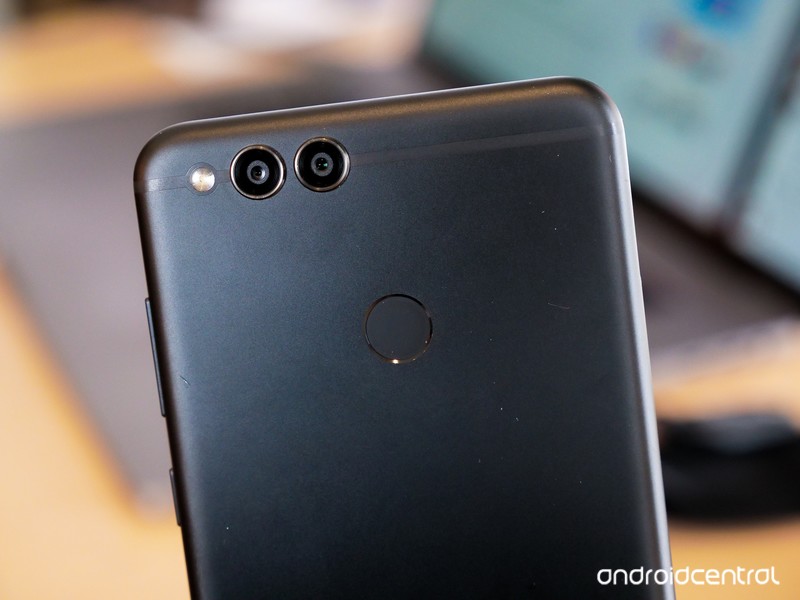
This one is pretty obvious, and EMUI will even prompt you to add a fingerprint during the initial setup process. Biometrics are an integral part of using just about any phone these days; even if you don’t care about lock screen security, when it comes to logging in to bank accounts or purchasing apps, a fingerprint scanner is significantly faster and more convenient than typing a password.
Jump into the settings and make your way to the Fingerprint ID section. You can enroll additional fingers via the fingerprint management tab, and we recommend you at least add both index fingers so you can unlock the Honor 7X with either hand. In the touch and hold gesture tab, you can toggle the options to take a photo or video, answer a phone call, or dismiss an alarm by leaving your finger on the scanner in the corresponding apps.
The third and final section includes toggles for slide gestures, allowing you to conveniently access the notification shade with a vertical swipe along the fingerprint scanner or move through photos in the stock gallery app with a horizontal swipe. These gestures are especially helpful given how large the Honor 7X is, and make using it with one hand much more manageable.
Fix the status bar
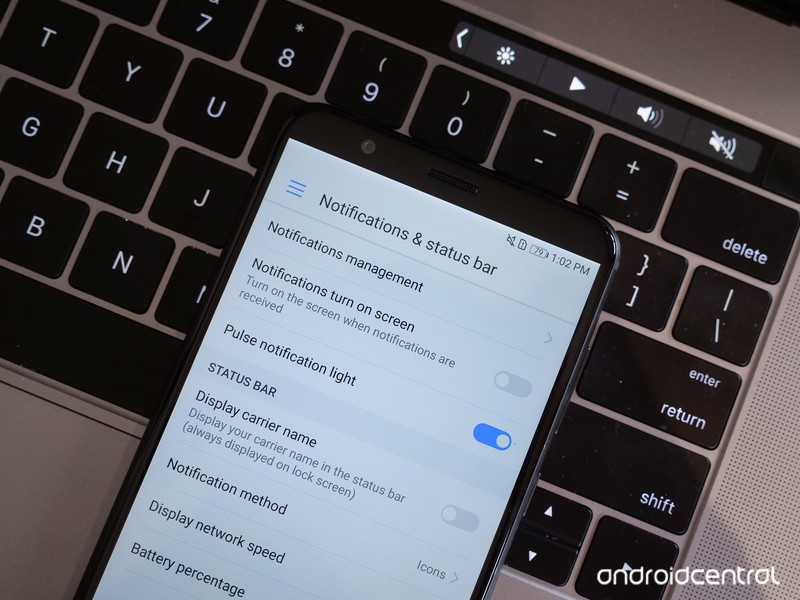
We’re not sure who Honor thinks would prefer not to see their battery percentage in the status bar, but luckily for the rest of us, it’s easy to toggle on in the settings. From the notifications & status bar section, you can simply tap the battery percentage option and choose whether you want the number show up next to the battery icon or inside of it.
You can also remove the carrier name from your status bar from within this section, and if you like to keep track of your network speed, you can choose to put that in your status bar as well. One more thing — this is also where you can fine-tune your notification behavior, so if there’s a certain app you don’t want notifications from, just tap notifications management and disable it.
Customize your home screen

Although Huawei Home (the default launcher) will put off stock Android purists as always, it’s still the launcher that comes preloaded on the Honor 7X, and it’s fast and responsive. By default, all of your apps are laid out on the home screen without an app drawer, but if that feels too messy you can re-enable the app drawer by going into the Settings app and tapping Home screen style.
There’s a separate set of settings for the launcher itself, accessed by long-pressing a blank space on the home screen and tapping Settings . From here, you can adjust the grid size, enable auto-align or shake-to-realign for quickly rearranging your apps, enable badge icons for notifications, or toggle suggestions for apps based on your usage. You’re also able to turn on home screen rotation, and looping for when you reach the home page.
Of course, if you just can’t stand the EMUI experience, you can always hop into the Play Store and download a replacement launcher. There are plenty of great options available, from the Google Now Launcher found on stock Android devices to great third-party alternatives like Nova or Action Launcher.
Set up App Twin
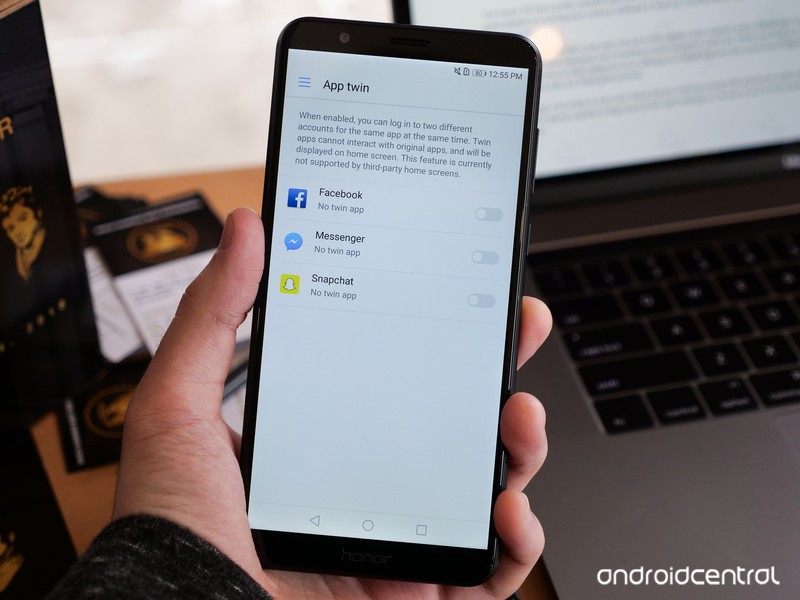
Whether you’re a social media manager who needs to be able to access multiple accounts for the same service quickly, or you just want to split your focus between two different save files for that game you’ve been playing nonstop, App Twin is an awesome and often underrated feature.
Scroll down in the Settings app until you find the App twin tab. From here, you’ll be given a list of supported apps, which in my case was limited to Facebook and Snapchat. Flip the toggle on for any app in the list, and the software will begin creating a duplicate app, which will appear on your home screen or in your app drawer, marked by a small blue icon. This duplicate acts completely independently of the original app, though be warned that this means the two apps aren’t able to interact with each other.
Play with themes
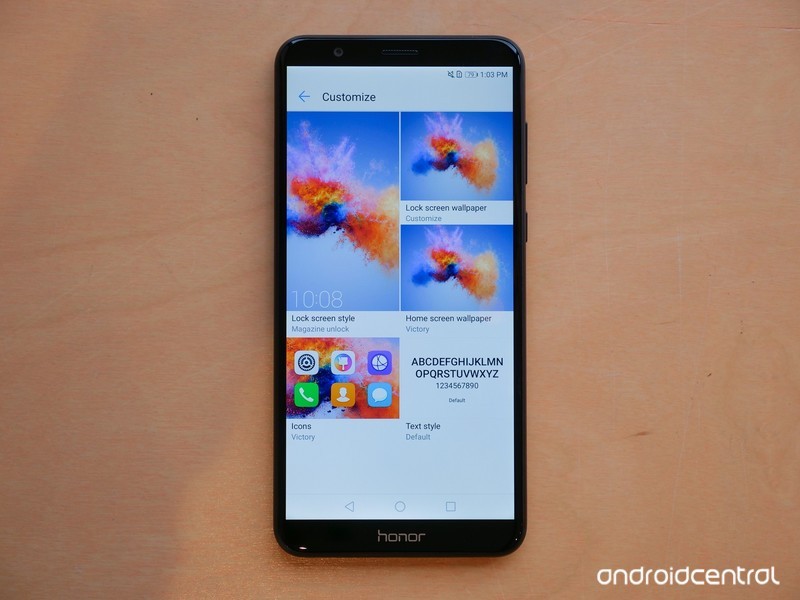
This isn’t entirely straightforward because out of the box, there’s only one theme on the Honor 7X, but it’s pretty easy to find new themes from the Play Store. With apps like Themes Manager by Deishelon Lab, you can browse through a long list of themes built for EMUI, then download your favorites to change the look of your home screen.
Once you’ve installed a third-party theme, it’ll show up in the stock Themes app, alongside the default Victory theme. If you want to use every aspect of the new theme, you can just tap it in the list and hit Apply, or if you’d rather pick and choose certain elements, you can tap Customize from the main screen and mix and match from each of your themes.
Master the camera app
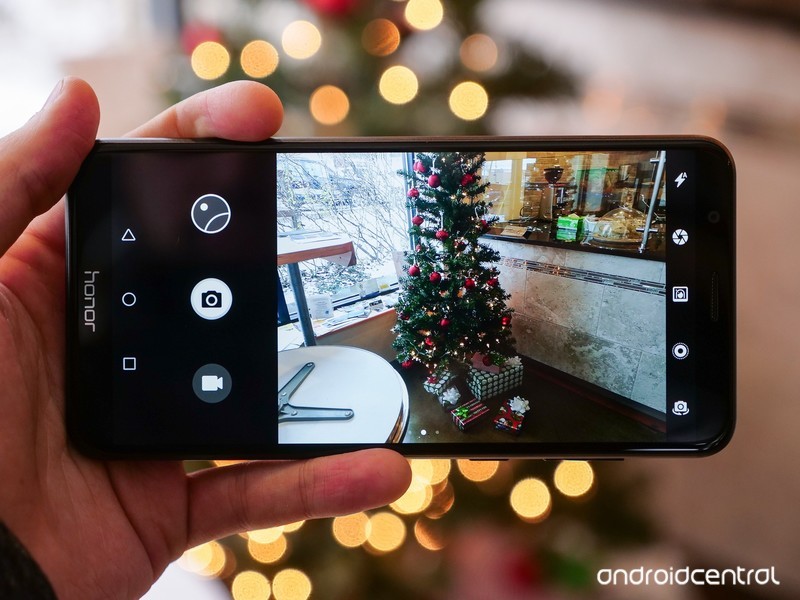
The Honor 7X has a pretty capable dual camera system, but one of the most crucial parts of taking good photos is knowing your camera software in and out. Luckily we’ve made that easy with a detailed guide.
The best thing you can do is just play around in the camera app; explore every option you can find and understand what scenarios each shooting mode would be useful for. While you’re at it, you should also take the time to customize your settings to enable features like quick launching or capturing photos with the fingerprint scanner.
Most importantly, if all of this is over your head, there’s nothing wrong with sticking to auto mode! The Honor 7X is plenty capable of figuring out the right settings on its own if you’re not one to fine-tune your shots.
Double tap to wake, mono portrait mode, and more coming to Essential Phone
Here’s what went down during the December 13, 2017 Essential AMA.
Although Essential has run into a few road bumps here and there throughout 2017, one of the company’s strongest aspects is the level of transparency it has with its fans/customers. The Essential team just held its latest bi-weekly AMA on Reddit on December 13, and as a result, we’ve got some new details on quite a few software features and fixes that are being worked on for the Essential Phone.

Jittery scrolling has been an issue with the Essential Phone pretty much since its release, and when asked about this once again, Software Program Manager Marcus responded with:
We are working diligently on it. As we mentioned in our previous AMAs Its a challenging issue to resolve given our touch panel HW 60hz sample rate. Because of this, there are trade offs in software we are investigating to improve latency without affecting overall touch performance.
Essential had planned to roll out the second beta for Oreo 8.0 to the PH-1 last week, but that unfortunately never happened. Thankfully, we won’t have to wait too much longer before it’s here.
Hi There, we had an Oreo Beta 2 candidate build ready on Monday we had planned on releasing this week. However, we encountered a few regressions we caught last minute that requires us to spin another candidate. Good news is this gave us the opportunity to push in a few more fixes and if all goes well with testing Beta 2 will drop early next week.
As for other features/fixes that are in the works for the Essential Phone:
- The Essential team is collecting logs on an issue with Miracast functionality not working
- A fix for echoes that are heard when making phone calls is on the way
- Double tap to wake is currently is Essential’s backlog of features, and while there’s no ETA for its release, it will be coming at some point
- Essential is working on a monochrome portrait mode
- More video stabilization improvements are coming at some point
This wasn’t the most exciting AMA the Essential team’s ever held, but it’s still nice to get information right from the horse’s mouth about what we can expect for the PH-1 in the near future. If you want to read through the full AMA, you can check it out here.
Essential Phone gains portrait mode, 2nd gen model in the works, and more
Essential Phone
- Essential Phone review
- Essential Phone specs
- The latest Essential Phone news
- Join our Essential Phone forums!
Amazon
Best Buy
Sprint
Telus
Video: OnePlus 5T Star Wars Limited Edition unboxing
What’s better than a plain old vanilla OnePlus 5T? How about a 5T that brings back the popular sandstone finish in a striking white color, along with red accents, Star Wars branding and some unique accessories.
That’s exactly what Indian customers get with the Star Wars Limited Edition OnePlus 5T. For ₹38,999 ($600), the Star Wars 5T offers the same internals as the 8GB / 128GB standard 5T, with a fresh coat of paint, an appropriately epic box, and a Kylo Ren-themed case to keep it in pristine condition.
After all, with a brilliant white finish, it’d be a shame to see this phone succumb to the dark side.
Check out Harish’s unboxing and hands-on impressions in the video above, and hit up our OnePlus 5T review to learn more about the phone it’s based on.
- Android Central on YouTube
- OnePlus 5T review
- OnePlus 5T video review
OnePlus 5T Star Wars Limited Edition review: The Force is strong with this one

OnePlus channels the Force with its latest phone.
OnePlus has always prided itself on listening to its community, and its latest device is a testament to that. As the name suggests, the OnePlus 5T Star Wars Limited Edition is a limited-run model that is aimed at OnePlus fans in India. The company has swiftly climbed up the ranks in the subcontinent over the course of the last three years, and is now the leading manufacturer in the premium category.
The company wanted to offer a device as a way of thanking its users in India, and in doing so created its most evocative phone yet. This is the OnePlus 5T Star Wars Limited Edition.
OnePlus 5T Star Wars edition What you’ll like

The OnePlus 5T Star Wars edition features a custom white color scheme that serves to differentiate it from the standard model. In addition to the paint job, OnePlus added subtle detailing touches in the form of a black power button, SIM tray, and volume rocker. As for that bright red Alert Slider… I’m going to need to lie down for a minute.
Unlike the glossy metal back on the standard variant of the OnePlus 5T, the Star Wars edition comes with a Sandstone finish à la OnePlus One and OnePlus 2. The textured coating makes the device incredibly grippy, and is generally a huge improvement over the standard 5T.
OnePlus has offered cases that mimic the Sandstone finish of its earlier devices, but the feeling isn’t quite the same as having that coating applied to the back of a device.
The 5T Star Wars edition has a white color scheme with a Sandstone finish.
OnePlus is also bundling a Kylo Ren-themed case in the box. The case is definitely bulky and adds considerable heft to the phone, and while it’s not the most practical design out there, it looks cool.
And given the Sandstone finish, you’ll need some sort of protection to ensure your device looks pristine. Otherwise, it will end up looking like something recovered from the plains of Tatooine.
There are new additions on the software front as well. OnePlus has bundled ten exclusive wallpapers with the device, and a new Star Wars theme. The theme should be immediately familiar to you if you used the company’s dark theme in the past, with the main difference being red accents. The accents are layered throughout the settings menu and the quick toggles in the notification pane, and they look great on the AMOLED panel.

Other than the cosmetic flourishes, the 5T Star Wars edition is the same as the regular variant. You get a 6.0-inch Optic AMOLED panel with excellent saturation and color accuracy, a Snapdragon 835, 8GB of RAM and 128GB of storage as standard, dual 16MP + 20MP cameras at the back, 16MP front camera, Wi-Fi ac, global LTE bands, Bluetooth 5.0, aptX, aptX HD, and a 3300mAh battery with Dash Charge.
The display, camera quality, and battery life are all identical to what you get on the standard OnePlus 5T, so be sure to check out our full review of the phone to get an idea as to what’s on offer.
OnePlus 5T Star Wars edition What you won’t

The main problem with the OnePlus 5T Star Wars edition is availability. The device will be sold primarily in India and a few Nordic countries, and even in these markets it will be available in a limited run.
This phone is going to sell out soon, and OnePlus won’t make any more.
OnePlus didn’t exactly reveal how many units will be going on sale, but it’s likely going to be very limited. The fact that the phone has global LTE bands makes it a prime target for grey market dealers (and a few Hutts).
But what was clear from the launch event was that the phone will be limited to a single production run, and once the units sell out, that’s that. It’s a shame that such an evocative device isn’t available more widely, but OnePlus has mentioned from the start that the collaboration was aimed at its fans in countries like India. The limited nature of the 5T Star Wars edition adds to its appeal.
OnePlus 5T Star Wars edition Bottom line

The standard 8GB model of the OnePlus 5T by itself is a fantastic deal at ₹37,999 ($580), and the fact that the Star Wars variant costs just ₹38,999 ($600) makes it an absolute steal. The white color option combined with the red and black accents and the Star Wars logo at the back make the device immediately stand out from the standard variant of the 5T and other devices in this segment.
In short, the OnePlus 5T Star Wars edition is a collector’s item that offers great value for money. There’s not a whole lot of products that fit that bill, so if you’re in the market for a phone under ₹40,000, act now and get your hands on the OnePlus 5T Star Wars edition while it’s still on sale.
OnePlus 5T Star Wars Limited Edition: In pictures

The OnePlus 5T Star Wars Limited Edition looks stunning from all angles.
The OnePlus 5T Star Wars edition is now official, and it is just as awesome as you’d expect. OnePlus switched out the standard black option for a white color scheme, and added subtle design flourishes in the form of a bright red Alert Slider along with a black power button and volume rocker. There’s also a Star Wars logo at the back to remind you the phone is from a galaxy far, far away.
A lot of attention went into the design of the OnePlus 5T Star Wars Limited Edition, as you can see from the images below.


The OnePlus 5T Star Wars edition will go up for sale in India starting later today for ₹38,999 ($600), which is a steal considering what it brings to the table. Still not sure if you should get one? Take a look at our review to find out everything there is to know about the device:
READ: OnePlus 5T Star Wars Limited Edition review
OnePlus 5T Star Wars Limited Edition launches in India for ₹38,999 ($600)

OnePlus teams up with Disney to launch one of the best phones of the year.
After teasing the device earlier this month, OnePlus has unveiled the Star Wars-themed variant of the OnePlus 5T. The OnePlus 5T Star Wars Limited Edition will go on sale starting later tonight on Amazon India for just ₹38,999 ($600), which is a mere ₹1,000 more than the regular 8GB variant of the OnePlus 5T.

The focal point of the OnePlus 5T Star Wars edition is the white color scheme, which looks stunning. Whereas the standard version of the OnePlus 5T offers a glossy metal back, the Star Wars variant comes with a Sandstone finish, a nice throwback to older OnePlus devices.
There are other design touches elsewhere — the power button and volume rocker sport a black paint job, and the Alert Slider on the right has been painted red. Oh, and there’s a Star Wars logo engraved at the bottom of the phone round the back.
- OnePlus 5T Star Wars edition review
- OnePlus 5T Star Wars edition: In pictures
Aside from the design changes, the OnePlus 5T Star Wars edition is identical to the standard version. You get the same software build (OxygenOS 4.7.4 based on Android 7.1.1 Nougat) as the regular 5T. OnePlus is offering exclusive backgrounds and a Star Wars theme with a black color scheme and red accents with the device.
Elsewhere, you get the same 6.0-inch Full HD+ Optic AMOLED panel, Snapdragon 835, 8GB of RAM, 128GB of storage, 16MP + 20MP rear cameras, 16MP front camera, and a 3300mAh battery. The phone will be available in limited quantities on Amazon India, and considering it costs just ₹38,999, you best get your hands on it while it’s still on sale.
OnePlus 5T and OnePlus 5
- OnePlus 5T review: Come for the value, not the excitement
- OnePlus 5T specs
- Should you upgrade from the OnePlus 3T?
- OnePlus 5T vs. Galaxy S8: Beast mode
- All of the latest OnePlus 5T news
- Join the discussion in the forums
OnePlus
Amazon
How to replace the back glass on the Samsung Galaxy S7

It might be tempting to get a new phone if you smash the back on your Galaxy S7. But it’s a lot cheaper to just replace the glass yourself.
Glass-backed phones are inherently more fragile than their plastic or metal-backed counterparts. Glass is more slippery, phones are more prone to just slide off surfaces, and while metal or plastic will chip, glass will crack and shatter.
That’s exactly what happened to my Samsung Galaxy S7, and while the Galaxy S8 is here and the Galaxy S9 won’t be too far away, the S7 is still a very good phone worth saving.
Replacing the front glass is a different story, but if all that’s wrong with your phone is some shattering on the back, you can fix it yourself relatively quickly and very cheaply.
It’s also worth pointing out that any kind of self-repair is probably going to affect the phone’s water resistance. So don’t go dunking it afterwards.
What you’ll need

Obviously, the first thing you need is a new back. These aren’t particularly expensive, and I got mine from Amazon for about £20 ($26). This also included a basic tool kit, which includes some small screwdrivers, a suction cup, and some plastic pry tools. You may or may not need to use these as you’ll see later on.
When choosing a back, also make sure to choose one with adhesive pre-applied. Because otherwise you’ll have to do this yourself and it’s honestly not something you should have to deal with. They’re no more expensive with adhesive, just be sure to choose the right one.
It’s also worth noting that there will be a bunch out there that aren’t the exact Samsung replacement parts. The one I linked above is the same exact back I used in this guide and while the black color match is perfect, it doesn’t make it an OEM part. I’m fine with it, but if you’re not then be sure to hunt down a genuine Samsung part.
I also recommend acquiring a replacement camera lens and housing. You don’t need to do this, but you’ll have to remove it from the old back and adhere it to the new one. It’s also pretty easy to bend, so for the few bucks it costs for one of these it’s worth doing. You’ll also get some fresh adhesive so it’s easy to apply.
The main tool you’ll need is a heat gun. If you don’t have one of these a hair dryer will work just fine.
How to remove the back glass on the Galaxy S7
Follow these steps to first remove the existing back from your Galaxy S7.
Apply heat around the edges of the phone to soften the existing adhesive. It helps to focus on one area first that you intend to pry the back up from.

Using a suction cup or a pry tool, work the back away from the phone on one edge.

Don’t expect much, all you’re trying to do first is get a small area to separate so you can move on. In my case, I ended up using a very small flathead screwdriver on the damaged corner.
Once you have an edge to work with, insert something stiff, like a business card, to keep it from settling back down on the phone.
Repeat the steps above to heat, lift and separate the back from the phone, being careful not to damage anything inside the phone.

When you’ve pryed the back off entirely you’ll be looking at something like the image above. Ensure you’ve removed all the adhesive and any colored film that came away from the phone before you move on.
If you’re going to try and reuse your camera lens and housing, you’ll need to follow the steps above to heat and separate this from your existing glass back. Since my camera lens was smashed anyway I automatically went with a replacement part, but if you’re reusing be careful not to bend it otherwise it won’t sit back in properly when you reassemble the phone.
Rebuilding the phone

The end result!
Now comes, technically, the easier part. Because the fresh parts already have their adhesive applied, it’s a case of sticking everything back together.
A word of caution though: Remember the back of this phone is glass. If you’re too rough or press too hard, expect it to break. I speak from experience.
First, attach the camera lens and housing to the new glass back. It’s impossible to get it in the wrong place, just make sure to press it down and that it has a nice tight seal.

Wipe down the inside surface of the new glass back. This is the last chance to remove any grease or dust before it goes down on the phone.

Remove the plastic from the adhesive around the edges.
Line up the back on the phone, and gently place it down.
Press down firmly around the edges only.
From here on out just peel off all the protective plastic on the outside and you’re good to go. It’s probably a good idea to rub round the edges with a microfiber cloth, too, as you may have some traces of adhesive to get rid of. Otherwise you’ll now have a shiny, crack free Galaxy S7!
Samsung Galaxy S7 and S7 edge
- Galaxy S7 review
- Galaxy S7 edge review
- U.S. unlocked Galaxy S7
- Should you upgrade to the Galaxy S7?
- Best SD cards for Galaxy S7
- Join our Galaxy S7 forums
Unlocked
AT&T
Sprint
T-Mobile
Verizon
 AIVAnet