


Asus Transformer Pro T304 Review
Research Center:
Asus Transformer Pro T304
Microsoft’s Surface Pro is the most iconic detachable tablet and has maintained a significant lead in the Windows 2-in-1 market in both performance and mindshare. That hasn’t stopped Microsoft’s OEM partners from jumping into the game with their own versions of the most flexible format, with varying success. In our Asus Transformer Pro T304 review, we’re taking a look at a near clone of the Surface Pro that hopes to use a lower price to carve out its own piece of the growing segment.
The main question is, can a machine that looks so much like the Surface Pro — seriously, you’d have a hard time telling them apart from across a room — differentiate itself enough to grab your hard-earned cash? It might if you look at the price. Our review unit offered a seventh-generation Intel Core i7-7500U, 8GB of RAM, and 256GB SATA solid-state drive (SSD) for a cool $1,000. Right now, our review configuration is the only one available at retail, except for a special version at wholesaler Costco with the Core i7-7500U, 16GB of RAM, and 512GB SATA SSD for $1,400 (on sale for $1,200).
The closest equivalent Microsoft Surface Pro runs $1,600, and the Asus Transformer Pro T304 includes a keyboard cover and active pen, whereas the Surface Pro does not. Add in the Microsoft Signature Type Cover ($160) and the Surface Pen ($100), and the Surface Pro comes in at $1,860. That’s approaching twice as much as the Asus alternative.
Price is only one consideration, however. We’ve seen many Surface imitators fall short. Does the Asus Transformer Pro T304 bring enough features and performance to turn its low price into real value?
Like the Surface Pro, only different
If you were to set the Surface Pro and the Transformer Pro T304 side by side on a table, the average person would have a hard time telling them apart from across the room. The Transformer Pro T304 uses a similar silver magnesium-aluminum alloy chassis, has an almost identical kickstand, and the Charcoal keyboard cover that shipped with our review unit is the spitting image of Microsoft’s Type Cover.
There are differences, however, when you get the machines in your hands. The Transformer Pro T304 doesn’t have the same “solid chunk of metal” feel about it. It doesn’t feel cheap or poorly made by any mean, but Asus doesn’t match Microsoft’s efforts at exuding elegant quality.
Also, the kickstand might look the same, and it extends out to a full 170-degree angle versus the Surface Pro’s 165 degrees — but it doesn’t feel the same. The action is not as smooth, and indicates a little less engineering prowess.
Even so, the Transformer Pro T304 feels like a quality product. It’s similar in weight at 1.79 pounds, versus around 1.7 pounds for the Surface Pro. It has smooth enough edges that it’s comfortable to hold as a tablet, and its keyboard cover offers the same magnetic auto-off (and auto-on, something the Surface Pro lacks) functionality. There were no creaks or twists to imply the Transformer Pro T304 won’t hold up to long-term use.
In other words, the Transformer Pro T304 is a well-made detachable tablet with all the same strengths and weaknesses of its class. It’s excellent as a tablet, and it can serve as a bona fide laptop as long as you use it on a stable platform. The tablet and keyboard are connected via strong magnets, so you won’t worry about them inadvertently coming apart, though you’ll still sense some instability when you’re using it in your lap.
Input options are diverse and good enough for productive work
Like all detachable tablets, the Asus Transformer Pro T304 has a plethora of input options that match the machine’s diversity. As a tablet, it begs to be used with just touch and a pen, yet there’s no better way to input copious amounts of information than a standard keyboard. The Transformer Pro T304 accommodates these needs quite well.
Asus offers two keyboards for the Transformer Pro T304, a version with an aluminum cover, and the Charcoal colored version that came with our review unit. That version has a soft-touch feel that’s similar to the original Microsoft Type Cover for the Surface Pro 3, and it has the same general bounciness when you type on it. Bounce is a common trait of these kinds of keyboard covers, so it’s not a knock against the Transformer Pro T304 specifically.
The generally snappy response should provide a comfortable experience for most touch typists.
The keys offer a solid 1.4mm of travel – almost as much as an average laptop — and a generally snappy response that should provide a comfortable experience for most touch typists. In addition, the keyboard layout is familiar. with all the right-sized keys in all the right places. It’s attached using magnets and a pogo pin connector, so it offers the typical flat and inclined typing positions. Best of all, it stays connected just as it should.
The touchpad is also good enough, and it’s a full 17 percent larger than the Microsoft equivalent. Its glass coating is smooth and comfortable for fast and efficient cursor control, and the buttons are responsive without being overly loud. Because it’s a Microsoft Precision touchpad, all the built-in gestures are available, and they’re just as precise as the name implies.
Asus includes its active pen with the Transformer Pro T304. This is one area where the Asus machine lags the Surface Pro, with the former offering 1,024 levels of pressure sensitivity compared to the latter’s 4,096 levels. And the Asus pen doesn’t respond as quickly as Microsoft’s latest, with just a hint of lag when you’re writing quickly across the touchscreen display. That leaves the Transformer Pro T304 near the rest of the detachable pack.
Finally, the Transformer’s 10-point multitouch display responds quickly and accurately, which is the norm with Windows 10 touchscreen machines today. It provides an excellent experience whether in tablet or laptop mode.
Windows Hello support is included, but Asus went with a fingerprint scanner rather than an infrared camera for facial recognition. The Transformer Pro T304 takes a unique approach, however, with the fingerprint scanner embedded within the power button for one-touch wake and login. It worked well, with fingerprints recognized consistently and quickly.
That’s a lot of ports (for a tablet)
Asus packed real connectivity into the Transformer Pro T304, paying attention both to the past and to the future. On the left side of the tablet you’ll find a microSD card reader beneath the volume buttons, which is a little more convenient than sticking it behind the keyboard as some vendors have done. On the right side, you’ll find a USB 3.1 Type-A port, a full-sized HDMI connection, and a USB 3.1 Type-C port. Unfortunately, the latter is not equipped with Thunderbolt 3.
Asus Transformer Pro T304 Compared To
Amazon Fire HD 8 (2017)
Xiaomi Mi Pad 3
Apple iPad 9.7
Apple iPad Pro 12.7
Samsung Galaxy Tab S3
Chuwi Hi12 Windows 10 2-in-1
Samsung TabPro S
Microsoft Surface Pro 3
Dell Venue 11 Pro
Microsoft Surface 2
Samsung ATIV Smart PC 700T
Sony Vaio Duo 11
Microsoft Surface Pro
Acer Iconia Tab W700
Microsoft Surface with Windows RT
You power the Transformer Pro T304 with a standard A/C adapter, which is unfortunate given the presence of the USB Type-C port. We tried a couple of USB Type-C power supplies from other manufacturers, and they did not charge the machine.
A high-resolution display that disappoints
Asus slipped a slightly larger 12.6-inch display into the Transformer Pro T304, up a bit from the more common 12.3-inch screens you’ll find in some other detachable tablets including the Surface Pro. The resolution is a bit lower, at 2,160 x 1,440 or 206 PPI. That’s below the 267 PPI provided by the Surface Pro’s 2,736 x 1,824 resolution. In a nod to productivity, Asus chose the 3:2 aspect ratio that’s great for documents and spreadsheets, but does cause some letterboxing with video.
When measured by our trusty colorimeter, the Transformer Pro T304’s display was of average to below-average quality. In terms of color gamut, the screen came in at 72 percent of AdobeRGB and 93 percent of sRGB. Color accuracy was 2.04, a decent score compared to the optimal of 1.0 or less. And a perfect gamma of 2.2 meant that video scenes won’t be too light or to dark. All of those were competitive with our comparison machines such as the Surface Pro and the Lenovo ThinkPad X1 Tablet Gen 2.
That’s the good news. Contrast,on the other hand, was significantly lower than average for the class at 620:1 at full brightness. That’s well below the Surface Pro’s excellent 1180:1 score and the Samsung Galaxy Book’s ultra-high contrast OLED display. Brightness was also low at 251 nits, which was only partially mitigated by the anti-glare screen. Most competing detachable tablets offer better screens, at least in purely objective terms.
Most competing detachable tablets offer better screens, at least in purely objective terms.
In use, the Transformer Pro T304’s display was good enough, with decent colors and acceptable video. And if you don’t like how things look, you can tweak the display using the Asus Splendid Technology utility, which lets you change color profiles between Normal, Eye Care (good for reducing blue light for better sleep), Vivid, and Manual modes. The latter could be particularly helpful for achieving a display that looks good to you personally.
In addition, Asus includes its Tru2Life video enhancement technology, which is supposed to improve clarity, color, and contrast when watching videos. Asus promises a more colorful, vivid, and sharper experience with up to 200 percent more contrast. We tried out some videos and couldn’t tell a significant difference, but this is subjective, and your experience might vary.
Overall, the Transformer Pro T304 has a display that’s pleasant to use but won’t knock your socks off when working, viewing photos, or watching video. It’s fine, but you’re not getting the kind of experience that you’ll get from the superior displays Microsoft uses in its Surface line.
Audio that promises a lot and delivers some of it
The Transformer Pro T304 offers dual speakers that flank the display on each side of the tablet towards the bottom. They fire to the side, which is better than firing backwards, but not as optimal as some tablets with front-firing speakers. Asus promises 96 decibels of sound, a “Smart Amplifier” provided by Texas Instruments aimed at maximizing volume without damaging the speakers, and Harman Kardon certification — all of which, on paper, should provide a superior audio experience.
In our testing, we found that volume could indeed be cranked up to decent levels without distortion and, overall, the sound quality was better than the typical tablet. Using the Asus AudioWizard presets was most effective with movies, where some nice simulated surround sound enhanced the experience. Music was less pleasant, however, with nice highs and a solid midrange but almost non-existent bass.
The bottom line is that you’ll want to keep a set of headphones handy for when you want to listen to your favorite jams, but you can nevertheless share a movie trailer or TV show with your friends in a pinch.
Good but not great performance
Our review unit shipped with a Core i7-7500U, the only processor currently available for the Transformer Pro T304. As such, it promises good performance for its class, and avoids the pitfalls of power-sipping processors that were once the norm for these kinds of machines.
In the Geekbench 4 synthetic benchmark, the Transformer Pro performed right in line with its CPU, scoring 4,153 in the single-core test and 8,322 in the multi-core test. The Surface Pro’s higher-end Core i7-7660U was the leader here, with the competing Core i5 coming in next, and the low-power Core i7-7Y75 in the Dell XPS 13 2-in-1 coming in dead last.
The Transformer Pro T304 did stumble a bit on our real-world Handbrake test, which converts a 420GB video file to H.265 format. Here, the machine took 1,453 seconds to complete the conversion, which is significantly slower than expected and second, only to the low-power Core i7 variant. The Handbrake test is more susceptible to heat and CPU throttling than Geekbench, and we can only guess that Asus dialed things back on the Transformer Pro T304 to keep things cool. Interestingly, we noticed this same issue with the Asus Zenbook 3, another thin notebook.
In terms of heat, the machine never got more than just warm anywhere on its surface, and fan noise was reasonable. That attests to the fact that the CPU speed might be scaled back during the longer Handbrake test.
Overall, performance is great for general productivity work, web surfing, and content consumption for which tablets are typically used. The Transformer Pro T304 might not be the machine you want to purchase, however, if you need to do more strenuous tasks like video encoding that might cause the machine to throttle down. That’s no real surprise, but it does show there’s a big gap between the T304 and the top-end Surface Pro, which aced our CPU tests.
Storage suffers from an unfortunate cost-cutting measure
If there’s one area where Asus dialed back the specifications and hampered performance, it’s in its choice of a SATA SSD rather than the increasingly common PCIe variants. SATA drives are significantly slower out of the box, and it’s disappointing to see one used here.
As expected, the Transformer Pro T304 suffered from some seriously below-average storage performance. In the CrystalDiskMark benchmark, the machine scored a poor 495 megabytes per second in the read test, and an even worse 268 MB/s in the write test. That’s destroyed by the very fast Samsung PM961 PCIe SSD in the ThinkPad X1 Tablet Gen 2, as well as the slower but still faster Toshiba XG4 in the Dell XPS 13 2-in-1.
For the most part, users won’t notice this kind of speed differential. Compared to much slower spinning hard disk drives, these are still fast scores. However, if a user needs to access large database files, then the Transformer Pro T304 won’t be a good choice.
In short, the Transformer Pro T304 is a good machine for general productivity work, but anyone who needs maximum oomph should look elsewhere.
Best for casual gaming, or not at all
Detachable tablets running Windows 10 don’t have a reputation for being great portable gaming machines. The reason is simple — most use the integrated Intel HD graphics that come with their CPUs, given the space and thermal management needs of discrete GPUs. The Transformer Pro T304 is no different, being equipped with Intel HD 620.
As expected, the Transformer Pro T304 scored right in line with other systems using a similar Intel HD integrated GPU. In 3DMark Fire Strike, the machine hit a 768, which is no better or worse than our other similarly-equipped comparison systems. The Surface Pro we tested did score much higher thanks to its Intel Iris Plus 640 graphics, as did the much larger HP Spectre x360 15, with its Nvidia GeForce 940MX discrete GPU.
To confirm the obvious, we ran Civilization VI in medium settings at Full HD resolution, and sat back to play a slide show at an average 11 frames per second (FPS). That’s par for the course for Intel HD 620 machines, and even Intel’s Iris Pro 640 could only muster 16 FPS.
You might be able to use the Transformer Pro T304 with some older games, or newer titles with resolution and graphics scaled way, way down. Or, you could just realize that gaming isn’t what this machine is made for and settle for some casual Windows 10 games instead.
Battery life is a real weakness
The Transformer Pro T304 packs in a relatively small 39 watt-hour battery and sports a relatively large and high-resolution display. It also utilizes a fast, full-speed Core i7 processor. Those specifications don’t promise the longest battery life.
Unfortunately, things fell right in line with our low expectations. On our most intensive Basemark battery benchmark, which runs a machine through a series of processor- and GPU-intensive web pages, the Transformer Pro T304 lasted for an underwhelming two hours and 14 minutes. That’s worse than the ThinkPad X1 Tablet Gen 2, and just barely better than the notoriously short-lived Surface Pro 4. The new Surface Pro lasted three hours and 12 minutes, almost an hour longer than the Asus.
On our least battery-intensive video looping test, the Transformer Pro T304 lasted a short seven hours and 53 minutes, again behind the Lenovo and barely ahead of the Surface Pro 4. The new Surface Pro killed the Asus here, coming in at a much stronger 10 hours and 16 minutes.
Battery life fell right in line with our low expectations, and won’t last you a full workday.
Finally, we also ran the Transformer Pro T304 through our iMacros test, which loops through a series of popular web sites. On this test, the machine once again gave a poor showing, coming in at four hours and 44 minutes. The ThinkPad X1 Tablet Gen 2 lasted five hours and 20 minutes in this test, and the Surface Pro five hours and 38 minutes. The Transformer Pro T304’s combination of small battery, high-resolution display, and fast processor means less time away from a charger.
Overall, the Transformer Pro T304 is a thin machine at 8.85mm thick, and it’s light at 1.79 pounds without the keyboard attached. It’s therefore a breeze to carry around with you. However, you won’t be able to work a full day without plugging in, and that significantly reduces the machine’s portability.
Warranty information
Asus offers a one-year warranty on the Transformer Pro T304. However, it also tosses in a year’s accidental damage protection, which covers spill and drop damage that results in the machine being unable to perform its intended functions. That’s way more than most competitors will give you.
Our Take
The Asus Transformer Pro T304 is a solidly built detachable tablet with a decent keyboard cover and pen. It performs well enough and offers superior connectivity. However, its battery life is subpar, and its display is average to below-average for its class.
Where it wins is price. At $1,000 as configured, including the keyboard cover and pen for complete productivity, it’s a solid value in this class of machines, while meeting the needs of the vast majority of people who will purchase a detachable tablet.
Is there a better alternative?
There’s a reason why this review spent so much time comparing the Asus Transformer Pro T304 to Microsoft’s Surface Pro. It’s obvious that Asus wants you to see the similarities between the two machines, and then opt for the Transformer Pro T304 because of its significantly lower price.
The Transformer Pro T304 is slower, has less battery life, and isn’t quite as robust as the Surface Pro. But at close to half the price, it offers some serious value that makes up for its deficiencies. In addition, the Transformer Pro T304 simply outclasses the Surface Pro when it comes to connectivity, offering a solid mix of legacy ports to go with a futuristic USB Type-C connector. We’d take the Surface Pro, but it simply isn’t affordable for everyone.
If you’re not sold on a detachable tablet, then there are other solid 2-in-1s that you can consider. The Lenovo Yoga 720 13-inch is a convertible 2-in-1 that’s in the same ballpark in terms of price, and the HP Spectre 13 2-in-1 costs a bit more, but also offers superior performance and battery life, and in fact is one of our overall favorite 2-in-1 machines.
How long will it last?
The Transformer Pro T304 is built well enough to last, is equipped with a fast processor that should keep up with connectivity tasks, and its equipped with a great selection of ports that should keep it connected well into the future. However, its storage speeds are slow enough that they might not keep up as well as the rest of the machine.
Should you buy it?
Only if you’re short on cash and can’t afford a Microsoft Surface Pro, and you don’t mind the small battery. Asus’ alternative is far more affordable, but make sure you don’t need what you’re giving up.
A leaked slide shows the pricing of Intel’s entire Core X-Series lineup
Why it matters to you
Although the information is based on a leaked slide, PC builders now have a better look at Intel’s four Core X-Series desktop processors rolling out soon.
A leaked slide recently surfaced showing the prices and specifications of Intel’s entire Core X-Series processor family. The news arrives after Intel updated its price sheet to reflect the 12-core i9-7920X processor arriving in August. There are three more Intel Core i9 chips slated to arrive in October as well, and now we know their current unofficial pricing.
Here is the entire list of Intel’s Core X-Series processor family:
Cores
Threads
Base Speed
Boost Speed
Max Speed
PCI
Express
Lanes
Power
Draw
Price
i9-7980XE
18
36
2.6GHz
4.2GHz
4.4GHz
44
165 watts
$1,999
i9-7960X
16
32
2.8GHz
4.2GHz
4.4GHz
44
165 watts
$1,699
i9-7940X
14
28
3.1GHz
4.3GHz
4.4GHz
44
165 watts
$1,399
i9-7920X
12
24
2.9GHz
4.3GHz
4.4GHz
44
140 watts
$1,199
i9-7900X
10
20
3.3GHz
4.3GHz
4.5GHz
44
140 watts
$999
i7-7820X
8
16
3.6GHz
4.3GHz
4.5GHz
28
140 watts
$599
i7-7800X
6
12
3.5GHz
4.0GHz
N/A
28
140 watts
$389
i7-7740X
4
8
4.3GHz
4.5GHz
N/A
16
112 watts
$339
i5-7640X
4
4
4.0GHz
4.2GHz
N/A
16
112 watts
$242
We are not exactly sure where the slide originated from but it definitely resembles an official slide Intel would typically release prior to an official announcement. It also puts to rest some of the rumors surrounding the speeds for the unreleased products. However, we like to point out that the pricing found on the slide slightly varies from what is shown on the price sheet dated July 14, 2017. For instance, the slide shows a $10 increase in the i9-7920X, i9-7900X, and i7-7820X per-chip cost versus what is listed on Intel’s pricing sheet.
Just for giggles, here is what we will see in the eight-core and higher desktop processor space this October once Intel’s three crazy high-end CPUs hit the market. By then, AMD’s two Ryzen Threadripper chips will have already simmered in the desktop market for two months.
Cores
Threads
Base
Speed
Boost
Speed
Max
Speed
Price
Core i9-7980XE
18
36
2.6GHz
4.2GHz
4.4GHz
$1,999
Threadripper 1950X
16
32
3.4GHz
4.0GHz
4.1GHz
$999
Core i9-7960X
16
32
2.8GHz
4.2GHz
4.4GHz
$1,699
Core i9-7940X
14
28
3.1GHz
4.3GHz
4.4GHz
$1,399
Threadripper 1920X
12
24
3.5GHz
4.0GHz
4.1GHz
$799
Core i9-7920X
12
24
2.9GHz
4.3GHz
4.4GHz
$1,199
Core i9-7900X
10
20
3.3GHz
4.3GHz
4.5GHz
$999
Core i7-7820X
8
16
3.6GHz
4.3GHz
4.5GHz
$599
Ryzen 7 1800X
8
16
3.6GHz
4.0GHz
4.1GHz
$399
Ryzen 7 1700X
8
16
3.4GHz
3.8GHz
3.9GHz
$299
Ryzen 7 1700
8
16
3.0GHz
3.7GHz
N/A
$269
As the chart shows above, the big war will be between the Ryzen Threadripper 1950X and the Core i9-7960X. Both will sport 16 cores and 32 threads, but AMD’s chip will have a higher base speed for $700 less. Then again, Intel’s chip will have a higher boost speed via Intel Turbo Boost Technology (ITBT) 2.0, and a higher maximum speed via ITBT version 3.0. The maximum Threadripper numbers stem the Extended Frequency Range (XFR) feature provided in AMD’s new “Zen” processor design.
Meanwhile, AMD’s Threadripper 1920X will also have a higher base speed than Intel’s Core i9-7920X for $400 less. Yet AMD’s Zen-based chip will have a lower boost speed and a lower maximum speed (via XFR) than Intel’s Core X-Series competitor. Currently, AMD does not have any desktop processors on its known roadmap to take on Intel’s 18-core i9-7980XE, 14-core i9-7940X, and 10-core i9-7920X processors. Everything else in AMD’s Ryzen arsenal are all eight cores and lower.
I.Am+ Buttons hands-on review
Research Center:
I.Am+ Buttons earbuds
Will.i.am should stick to music. We’re not snidely saying that because the famous musician’s previous tech projects haven’t been all that great, but because we’ve tried out his I.am+ Buttons Bluetooth earphones, and they are a very different product to what we’ve seen from Will.i.am before. How different? Well, they’re good. Really good. It’s immediately obvious music is his forte, and not huge, misjudged smartwatches.
The Buttons are marketed under his I.Am+ company name, and at their most basic are a pair of Bluetooth connected earphones, much like the many other pairs we’ve seen. The two earbuds are connected together by a short, braided cable with an in-line remote; but the design isn’t like a regular set. The disc-shaped cover really singles them out, and it’s a strikingly modern, unusual design, reminding us more of Audeze’s iSine 20’s than a set of Beats, or Samsung Level In model. They come in a wide array of colors, including a cool silvery grey and a fashionable, color-of-the-moment rose gold. Some of the color combinations, such as the beautiful black and space grey, are Apple Store exclusives.
Sound Quality
The design’s really cool, they sound top-notch, and fit superbly.
While design is important, especially when they’re from an obviously fashion-forward brand like I.Am+, if they sound like a set of tin cans strapped to your ears, no one will want to wear them. Here’s the surprise: They sound awesome. Having played with Will.i.am’s smartwatch in the past, I put the Buttons in my ears with relatively low expectations. The test tracks belting into my ears in a loud room sounded super crisp, with a balanced stage and no hint of an over-powering bass line. Vocals were natural, and there was plenty of detail in the midrange. This wasn’t my choice of music playing, yet I wanted to carry on listening, which says plenty about the quality of the Buttons.
Fit
On top of this, and perhaps the thing I liked the most, was the excellent fit. Buttons are in-ears, and with that comes all the associated problems. Getting them to stay in your ears can be a challenge. If you’re not messing around with different tips, you’re pushing the damn things back in to properly seal while at the gym or walking around town. The Buttons come with a box full of different tips and fittings, giving you the best chance of finding one that suits your ears. My ears are often awkward, and I can rarely find the right fit.
With Buttons, after trying a few different options, a set of small tips with wings did the job very well. Comfortable and quite secure, a workout would be possible wearing the Buttons, despite not being a sports earbud. They’re light too, and didn’t “hang” from my ears like some other models. The wing is a separate piece to the tip, so you can even mix and match to get them just right for you. It’s a solid benefit.
Downsides?
The design’s really cool, they sound top-notch, and fit superbly. Is there anything wrong with the Buttons? The battery life is a little disappointing, eight hours fully charged, which is similar to the competition and not outstanding; but they do have a 120-hour standby, and you won’t have to constantly turn them on and off to conserve battery life. The buds magnetically clip together when they’re hanging around your neck too, ready to show them off even when not in use like a piece of techy jewellery.
I.Am+ Buttons earbuds Compared To
Bragi Dash Pro
Sennheiser HD1 In-ear Wireless…
Advanced Sound Model 3
V-Moda Forza Metallo Wireless…
Here One
Nuheara IQbuds
Erato Muse 5
Jaybird X3
Apple AirPods
Sol Republic Amps Air
Erato Apollo 7
Bragi Dash
Jabra Sport Wireless Plus Bluetooth
Denon Globe Cruiser AH-W200
Phiaton PS 20 BT
How Much?
Then there’s the price. These are a premium product, with a big-name attached, and therefore you’re going to have to splash out. The Buttons cost $170, or 200 British pounds. That’s more than Apple’s AirPods, more than Bose Soundsports, the JayBird X3s, and the same as Beats Powerbeats 3. The Buttons are definitely targeting the big players, and by pricing itself above several very desirable models — the AirPods being the best example here — is a risk. It’s also unfortunate, because while the Buttons sounds great, they didn’t sound better than my Jaybird X3s. However, they genuinely do fit much, much better. If, like me, you’re frustrated by poorly fitting in-ear Bluetooth earbuds, then check out Will.i.am’s Buttons, and don’t be put off by his previous tech endeavours. He knows about music, and it really shows.
Google Home: Everything you need to know!

Get to know your Google Home!
Google Home works as a hub for making your life easier. From listening to music to getting the news, to using Google Home to stream videos through Chromecast, there is plenty that it can do. With so much going on it can be intimidating at first, so we’ve put together this handy guide to help you get acquainted.
Keep reading for all the details!
How to adjust the default apps on Google Home

Google Home makes it easy to keep track of your busy life and enjoy some music when you’re relaxing at home. When you’re ready for some music or you want to check up on the news, though, you’ll want to be sure that the default apps are the ones that you want to use.
How to change the default apps on Google Home
Do I need more than one Google Home?
Google Home makes it easy to control your connected home. So what do you do when multiple people in the house all want to use your Google Home at the same time? Well, you pick up a second — or third! Having multiple Google Homes only increases your benefits, and we have the details for you here!
Do I need more than one Google Home?
How to take advantage of Google Home offers

Google Home brings you a hub that lets you control your connected home, listen to music, and plenty more. Hidden inside of the menu in the Google Home app, you’ll also find a tab called “Offers” filled with special deals that can let you enjoy everything this accessory has to offer at a discount. These include Play Movie rentals for just $0.99 or discounts on a SmartThings lighting kit and more.
How to take advantage of Google Home offers
What countries support Google Home?
Google Home has been helping out Americans with scheduling, playing music, and bringing their connected home together since November of 2016. While this accessory started out in the States, it’s been slowly rolling out across the world. The United Kingdom and Canada are the two newest additions, but there are definitely more to come.
What countries support Google Home?
What you need to use Google Home

Google Home aims to make your life easier, but you will need a few things in order to use it. Don’t worry though, chances are you already have access to the three integral parts of using Google Home.
What you need to use Google Home
How to buy things with Google Home
It seems as though every year our lives get even busier than they were the year before. Between your commute, working, hitting doctor’s appointments, making it to the gym, and ensuring everything gets done on time, it can be hard to figure out the best time to run out to the store. That’s where Google Home wants to make things a bit easier for you.
You can set up voice purchasing and even reorder items that you’ve ordered previously. It only takes a few minutes to set up voice purchasing, and we have the details on how to do it right here!
How to buy things with Google Home
How to set up Google Home with multiple users

Google Home works by recognizing your voice, letting you listen to music, add items to your shopping list and even check the day’s news. With multi-user support, that goes a step further allowing up to six different accounts to link to a single Google Home. This means that every account can receive personalized responses from Google Home to help them on their day.
How to set up Google Home with multiple users
How to manage users on Google Home
Google Home makes it easy to control your connected home and linked accounts all with the power of your voice. While multiple accounts can use Google Home at the same time, the time may come when a roommate moves out and you need to remove their access. Have no fear.
We’ve got the details on how to add or remove a linked account from Google Home, and it only takes a few short minutes!
How to manage users on Google Home
How to listen to music with Google Home

Google Home has a great set of speakers, making it fully capable of filling the room with music. All you need to do is link up a music account, and you’ll be good to go. With options like Pandora, Spotify, YouTube Music and Google Play Music, you’ll always be able to listen to the music you’re craving, and all you have to do is ask Google Home to play what you want to hear.
How to listen to music with Google Home
How to get Google Home to lull you to sleep
Finding it hard to fall asleep with the blaring summer heat? Google Home is good for more than turning off the lights or playing back your favorite podcast. You can use it as a noise machine of sorts for when the current environment just isn’t your vibe. If you’re in the U.S., you can use these quick tricks to get the Assistant-enabled speaker to drown out the noise of the trains, planes, and automobiles outside your window and instead transport you to a serene nature scene — or whatever else you need to be to fall asleep.
How to get Google Home to lull you to sleep
These products and services work with Google Home

Google first introduced Google Home to the world back in May at Google I/O 2016, later revealing the final product alongside the Pixel in October. From everything we’ve seen, Google Home seems primed to eventually link up with any smart device in your home and allow you to control everything with just the sound of your voice.
Google has announced which products and services will be supported at launch, but there’s sure to be plenty more to come in the future. Continue to check back to this article in the coming months, as we’ll surely be updating this list as more products and services are added. We’ve broken things down into two categories — home automation products and supported services.
These products and services work with Google Home
6 Awesome Google Home commands you may not know about
Google Home has tons of great features that allow you to keep better track of things. If you aren’t sure what it’s really capable of, or how to use it, then it can be hard to get started. That’s why we collected the six great commands you may not know about. These include listening to music, checking your schedule, controlling your home, and more.
6 Awesome Google Home commands you may not know about
Top 8 things to know about Google Home in Canada

Google Home is now available in Canada, and it’s the first voice assistant-powered speaker to make the trip north (despite years of secret Amazon Echo smuggling). Available for $179, the diminutive speaker is terrifically cute and extremely useful, but there are a few differences between it and the U.S. or international versions that you’ll want to know about.
Top 8 things to know about Google Home in Canada
Top ten tips and tricks for Google Home
Using Google Home is fun. That’s not unique to just Google Home — telling any computer, no matter what size or shape, to do stuff by talking is fun. And the more you talk to your Google Home the more things you’ll find out about what it does and what it doesn’t do.
Top 10 tips and tricks for Google Home
Google Home
- Google Home review
- These services work with Google Home
- Google Home vs. Amazon Echo
- Join our Google Home forums!
Google Store Best Buy Target
How to deal with menu stutter on PlayStation VR
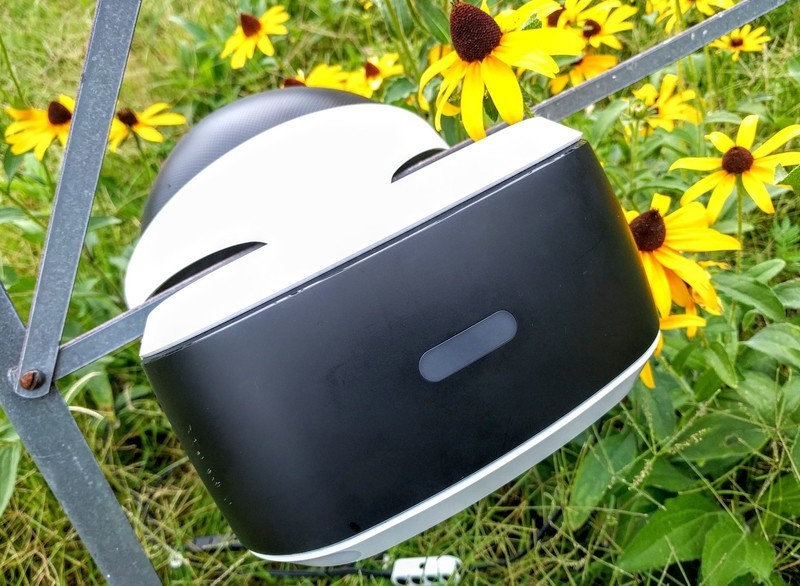
Menu stutter in VR is aggravating, but it can be fixed.
One common reason I hear for why people get a PlayStation instead of using a PC for their gaming exploits is that everything is easier. You don’t need to worry about drivers, or hardware updates, or the dreaded Blue Screen of Death. For the most part, PlayStation VR just works. But every once in a while gamers come across a bug or a quirk that causes frustration, and menu stutter is one of them. This happened to me recently when I was trying to show off VR to a family member, and it was quite irritating.
Fortunately, we have some tips and tricks to resolve this annoyance!
Read more at VRHeads
Add 2 USB ports to your existing outlets with these $15 replacement covers
The Thrifter team is back again, this time with an even easier way to add USB plugs to your existing outlets!
Not everyone out there wants to replace the electrical outlets in their home with ones that offer a USB connector, but luckily you don’t have to. Adding USB outlets can be as simple as grabbing a screw driver and replacing the outlet cover. You don’t need to turn off the power, you don’t have to hire an electrician, just swap them out and start plugging in your cables.
Using the coupon code THRFTRHOME5 you can grab one of these outlet covers just $14.99, or you can pick up two of them for $24.99. These are made by iPM, a smaller company that is beginning to appear in national retailers like Home Depot. Each cover has two 2.1A USB ports built-in, so you can plug in your phone, tablet, action camera, or any other gadget without any worries.

These outlets normally sell for as much as $22, which makes this deal pretty sweet. Daily Steals is offering free shipping on these orders as well, so be sure to get your orders in now.
See at Daily Steals
More from Thrifter
- Skip the expensive pet store options and make your own at home
- Tips for becoming an expert eBay seller
For more great deals be sure to check out our friends at Thrifter now!
Developers: A must-read to get your apps ready for Android O’s new shortcuts and widgets
Tapping and swiping can do so much more in Android O.
Google has showcased the new app and widget shortcuts coming in Android O on its blog, and while it’s a great explainer of how it all works it’s especially important for developers.

With Android O, users (that’s us!) will be able to long press an icon or portion of a widget and have access to specific shortcuts for an app. Examples are opening a blank or incognito page with Chrome, or composing an email with the Gmail app.
While these cool changes are part of Android O, they also require an app to support them. That means developers will have to update their apps, and that’s never fun.
Fortunately, the required changes aren’t a huge burden on developers, and Google makes things even easier with a full page in the documentation about pinning shortcuts and widgets — complete with code examples.
Android Developers: Pinning shortcuts and widgets
I love it when Google uses its developer blog this way. We get a small explainer and some insight on the new features while developers also get pointed to everything they need to implement them. It makes me look forward to Android O even more!
Android O
- Everything new in Android O
- Should you put Android O on your phone?
- How to get the Android O Beta on your Pixel or Nexus
- Join the Discussion
Bandsintown concert-discovery app amps up the artist interaction
If you’re looking to find a music performance in your local area, you might think about using Google or Eventbrite. If you want a dedicated concert-discovery app with an artist-centric big new update, you might want to give Bandsintown a try. Artists who have registered with the service — including Wiz Kalifa, Lorde, and Green Day — can now send updates to their fans through the app.
While this may sound a bit like Apple’s ill-fated Ping, Bandsintown boasts 35 million music fans and 420,000 registered artists, so at least there’s a community in place. According to Billboard, those artists can now set status updates to inform fans of new music and tour dates within the app itself. “Our fans rely on Bandsintown not only to track the artists they love today, but also to discover their next favorite performers and live music experiences,” Bandsintown’s Fabrice Sergent told Billboard in a statement. “Our new features further empower artists to build upon the connection with their core fans.”
The app connects you with your online music interests via Spotify, LastFM, YouTube and any songs you have on your phone. Once you’ve shared your musical tastes, Bandsintown will show you a list of all the artists coming your way, with buttons to purchase tickets and tell your friends whether you’re going or not
The update not only includes the improved connection between fans and musicians. The app has also gotten “an extensive redesign” to improve navigation and discovery of upcoming concerts. This version of Bandsintown (6.1) is available on both iOS and Android now.
Source: Billboard
Visit a kiosk in the UK to diagnose your cold
We have app doctors that can help diagnose you from your phone and in the future, we very well might have AI physicians, but the UK is now offering another option — medical kiosks. A company called MedicSpot has set up tiny clinics in pharmacies across the UK that virtually connect you to a real physician and are stocked with all of the necessary equipment for an examination. The mini clinic has a blood pressure cuff, stethoscope, pulse oximeter, thermometer and a camera that can give the doctor a look into your throat and ears. The doctor can even write you a prescription if need be.
The service is geared towards minor illnesses and the company says around a third of the consultations conducted so far have been about coughs, colds and ear infections. MedicSpot also says that approximately 20 percent of appointments have been booked by travelers. Its site has a specific section for tourists letting them know that they can use MedicSpot’s services without any hassle if they’ve become sick on their trip or if they forgot or ran out of necessary medications.
Consultations cost £30, last around 10-15 minutes and patients can choose to send notes about the visit to their regular doctor. For simple, non-serious medical issues, a quick visit to a kiosk certainly seems better than waiting forever in a doctor’s office.
Source: MedicSpot
Microsoft’s minimal Modern mouse and keyboard are now available
Microsoft revealed its Modern Keyboard and Mouse last month. Both are styled like the company’s Surface devices and the keyboard has Apple-style “chiclet” keys and a sturdy aluminum frame. It also has a fingerprint sensor tucked in between the Alt and Ctrl keys for Windows Hello biometric security. The keyboard and mouse peripherals are now available for $130 and $50, respectively.
As part of Windows 10, Hello can unlock your PC with your fingerprint or face, though you’d need a compatible camera for the latter. It works with the new keyboard, so you’ll be able to swipe your finger to access to your machine. It hooks up to your PC with either Bluetooth or a cable, giving you some flexibility of connection. The Modern Mouse matches the keyboard in styling and connects via Low Energy Bluetooth, too. Microsoft claims the keyboard has up to four months of use on a full charge; the mouse should last up to 12 months per charge, as well.
Source: Microsoft
 AIVAnet