


How to unlock your Mac with your Apple Watch
You’ve got an Apple Watch. You’ve got a Mac. Doesn’t it make sense to have them help each other out? One of the time-saving ways the two devices can coordinate is called Auto Unlock. It uses your Apple Watch to sign into your Mac computer, similar to the way a smart key fob can automatically unlock your car doors when you’re in close proximity. However, to make sure your Watch and Mac are best buds, you’ll have to review your settings and authorize the feature. Read on to find out how the pairing process is done, and the requirements for setting it up, as we explain how to unlock your Mac with your Apple Watch.
Check the requirements
 The Auto Unlock feature does have some system requirements, which mostly involve newer operating system updates. On the smartwatch side, you will need to be using WatchOS 3 or later. If you’ve never tried to update your Apple Watch before, it’s easy to do so. Just put the Apple Watch on its charger, make sure your iPhone is connected to a reliable Wi-Fi network, and place your phone and Watch beside one another. Then, access the My Watch app and download any available software updates.
The requirements for your Mac are a little more demanding. You need a mid-2013 model or newer to use this feature, so older Macs simply don’t qualify. If you have a Mac that has the right hardware capabilities, it also needs to be running MacOS Sierra 10.12 or later. You can click on your Mac Notification sidebar to catch a look at any outstanding updates that have yet to be applied, just in case.
Configuring your settings

Your next job is to check your settings and make sure that everything is set up so that your Apple Watch and Mac can talk to one another, even when your Mac is just waking up. Check and double-check this list before you move on.
Your Bluetooth is turned on — This isn’t a problem for the Apple Watch, but make sure Bluetooth is enabled on your Mac — sometimes Bluetooth ends up disabled, especially if you’ve had past trouble with accessories. You can turn on the feature from within the Bluetooth section of System Preferences.
Your Wi-Fi is on and connected — If you need to configure your Wi-Fi settings on your Mac for whatever reason, you can do so within the Network section of System Preferences.
You have the passcode turned on for your Apple Watch — We know the Apple Watch passcode isn’t the easiest login option, but it’s necessary if you want to start using Auto Unlock. To enable the feature, open the Watch app on your iPhone, tap My Watch at the bottom, and select the Passcode option. Then, tap Turn passcode on and enter your desired code twice on your Apple Watch.

You are using two-factor authentication — This one is a little trickier, because the terms are confusing. Your Apple ID originally used “two-step verification” for security when signing in. There is also an updated method called “two-factor authentication” that sounds like the same thing, but is actually a different process. You can turn on the “authentication” version if you have MacOS El Capitan — which isn’t a problem, thanks to the previous update requirements — and an iCloud account that allows you to turn on Two-Factor Authentication in the Security section of the iCloud menu. You can find your iCloud menu in System Preferences panel on your Mac. Yes, this does mean that you need to use iCloud in order to use Auto Unlock.
Internet Sharing is turned off — Internet sharing is a feature that allows you to share your internet connection with someone else. You can find the setting in the Sharing section of System Preferences. Make sure the box beside Internet Sharing is not checked, otherwise Auto Unlock will not work.
Setting up Auto Unlock
Step 1: Check that your Apple Watch and the Mac you want to unlock both use the same ID to sign into iCloud. Otherwise, the whole plan falls to pieces.
Step 2: Once done, head over to System Preferences and select Security & Privacy.

Step 3: The first open tab should be General, which has your basic login and password settings. If all your updates and connections have been validated, look for an option below the traditional password settings that says, Allow your Apple Watch to unlock your Mac. Make sure this option is checked, and enter your current password.
Step 4: Turn off your Mac and turn it back on again while wearing your Apple Watch. If everything works as intended, your Apple Watch will sign you in with a notification that says, Unlocking with Apple Watch. Sometimes, if you had to change some of your login or password settings in order to enable the feature, you may have to input your passcode one last time. If this happens, try logging out and logging back in again to see if Auto Unlock kicks into gear.
Troubleshooting
Throughout this entire process, keep in mind that your Apple Watch has to be fairly close to your Mac. Usually wearing it will enable Auto Unlock, but try holding your wrist closer when logging in to see if this solves any issues you may be facing.
If it still isn’t working correctly, head back to the Security & Privacy section of System Preferences and make sure that Disable automatic login is also checked, the option right above, Allow your Apple Watch to unlock your Mac. This should automatically be disabled when you turn on Auto Unlock, but if for some reason this isn’t happening, your login process could get messy, so it’s worth checking.
How to unlock your Mac with your Apple Watch
You’ve got an Apple Watch. You’ve got a Mac. Doesn’t it make sense to have them help each other out? One of the time-saving ways the two devices can coordinate is called Auto Unlock. It uses your Apple Watch to sign into your Mac computer, similar to the way a smart key fob can automatically unlock your car doors when you’re in close proximity. However, to make sure your Watch and Mac are best buds, you’ll have to review your settings and authorize the feature. Read on to find out how the pairing process is done, and the requirements for setting it up, as we explain how to unlock your Mac with your Apple Watch.
Check the requirements
 The Auto Unlock feature does have some system requirements, which mostly involve newer operating system updates. On the smartwatch side, you will need to be using WatchOS 3 or later. If you’ve never tried to update your Apple Watch before, it’s easy to do so. Just put the Apple Watch on its charger, make sure your iPhone is connected to a reliable Wi-Fi network, and place your phone and Watch beside one another. Then, access the My Watch app and download any available software updates.
The requirements for your Mac are a little more demanding. You need a mid-2013 model or newer to use this feature, so older Macs simply don’t qualify. If you have a Mac that has the right hardware capabilities, it also needs to be running MacOS Sierra 10.12 or later. You can click on your Mac Notification sidebar to catch a look at any outstanding updates that have yet to be applied, just in case.
Configuring your settings

Your next job is to check your settings and make sure that everything is set up so that your Apple Watch and Mac can talk to one another, even when your Mac is just waking up. Check and double-check this list before you move on.
Your Bluetooth is turned on — This isn’t a problem for the Apple Watch, but make sure Bluetooth is enabled on your Mac — sometimes Bluetooth ends up disabled, especially if you’ve had past trouble with accessories. You can turn on the feature from within the Bluetooth section of System Preferences.
Your Wi-Fi is on and connected — If you need to configure your Wi-Fi settings on your Mac for whatever reason, you can do so within the Network section of System Preferences.
You have the passcode turned on for your Apple Watch — We know the Apple Watch passcode isn’t the easiest login option, but it’s necessary if you want to start using Auto Unlock. To enable the feature, open the Watch app on your iPhone, tap My Watch at the bottom, and select the Passcode option. Then, tap Turn passcode on and enter your desired code twice on your Apple Watch.

You are using two-factor authentication — This one is a little trickier, because the terms are confusing. Your Apple ID originally used “two-step verification” for security when signing in. There is also an updated method called “two-factor authentication” that sounds like the same thing, but is actually a different process. You can turn on the “authentication” version if you have MacOS El Capitan — which isn’t a problem, thanks to the previous update requirements — and an iCloud account that allows you to turn on Two-Factor Authentication in the Security section of the iCloud menu. You can find your iCloud menu in System Preferences panel on your Mac. Yes, this does mean that you need to use iCloud in order to use Auto Unlock.
Internet Sharing is turned off — Internet sharing is a feature that allows you to share your internet connection with someone else. You can find the setting in the Sharing section of System Preferences. Make sure the box beside Internet Sharing is not checked, otherwise Auto Unlock will not work.
Setting up Auto Unlock
Step 1: Check that your Apple Watch and the Mac you want to unlock both use the same ID to sign into iCloud. Otherwise, the whole plan falls to pieces.
Step 2: Once done, head over to System Preferences and select Security & Privacy.

Step 3: The first open tab should be General, which has your basic login and password settings. If all your updates and connections have been validated, look for an option below the traditional password settings that says, Allow your Apple Watch to unlock your Mac. Make sure this option is checked, and enter your current password.
Step 4: Turn off your Mac and turn it back on again while wearing your Apple Watch. If everything works as intended, your Apple Watch will sign you in with a notification that says, Unlocking with Apple Watch. Sometimes, if you had to change some of your login or password settings in order to enable the feature, you may have to input your passcode one last time. If this happens, try logging out and logging back in again to see if Auto Unlock kicks into gear.
Troubleshooting
Throughout this entire process, keep in mind that your Apple Watch has to be fairly close to your Mac. Usually wearing it will enable Auto Unlock, but try holding your wrist closer when logging in to see if this solves any issues you may be facing.
If it still isn’t working correctly, head back to the Security & Privacy section of System Preferences and make sure that Disable automatic login is also checked, the option right above, Allow your Apple Watch to unlock your Mac. This should automatically be disabled when you turn on Auto Unlock, but if for some reason this isn’t happening, your login process could get messy, so it’s worth checking.
At $28K, the most expensive gadget we’ve ever reviewed is now … a hard drive
On your phone, right now, how many cloud storage apps do you have? Two, three? Juggling those accounts can be a bit of a hassle, and keeping them secure is even more of a pain. Luckily, peripheral manufacturer OWC has a solution that can free us from our cloud storage addiction.
Meet the Thunderbay 4 Mini, a remarkably unremarkable hard drive enclosure, and one of the most expensive pieces of hardware we’ve ever tested.
Don’t let that plain, unassuming exterior fool you — this little guy has a dark secret. Inside, it’s running four solid-state drives, each of which have 10TB of storage capacity, for a whopping total of 40TB. So, that begs the question — how much would you pay to never have to deal with a cloud storage service again?
The answer, oddly enough, is also the answer to another burning question. How can you store $27,700 in plain view without anyone stealing it?
That’s right. This featureless black box retails for nearly 30 grand. But is it really worth such an enormous, unbelievable price tag? Why? Let’s break it down.
A niche-within-a-niche market
Let’s get this straight right away – the Thunderbay 4 Mini probably isn’t built with you in mind. It’s not the kind of drive you’d pick up on your way out of Best Buy for those extra vacation photos nobody really wants to see. This is a hardcore, professional-grade storage solution, built for people who need to store tons of data and access it quickly, even if the internet isn’t available.
 Bill Roberson/Digital Trends
 Bill Roberson/Digital Trends
 Bill Roberson/Digital Trends
 Bill Roberson/Digital Trends
For anyone else, $27,700 for a hard drive is just absurd. For that price you could buy yourself, your spouse, and one of your kids an Acer Predator 21x — or about 5,000 avocado toasts. Or you could just go with regular hard disks, instead of solid-state drives, and net yourself about 500TB of — much slower — storage space.
Considering its luxury pedigree, this plain, black metal enclosure is surprisingly tame. 40TB is a lot of storage, but the use of four 10TB BlackDisk 2.5-inch solid state drives results in a compact box that measures just 7.6 inches deep, 3.8 inches wide, and 4.6 inches tall. The inconspicuous enclosure can find a home at any desk, but it does include a key lock, so no one can swipe the drives inside — though someone could just pick it up and walk off.
This sturdy but unremarkable hard drive enclosure is the most expensive piece of PC hardware we’ve tested.
Moving on to the actual features the drive has, the enclosure itself boasts an internal power supply and a fan, to keep things nice and cool. Internally, each drive bay is isolated from the others, in order to reduce sonic resonance and dampen vibrations — assisted by the vibration-absorbing rubber feet underneath the enclosure.
Aside from the 10TB drives, the goodness mentioned above can be obtained in more affordable packages than the amazing $27,700 incarnation we received. Solid state storage options range from 1TB to 40TB, and disk drive options range from 2TB to 8TB. The bare enclosure is also available for $417.50, if you’d like to bring your own drives to the party.
Kind of like a cheetah-elephant
There’s more to the enclosure than looks, or capacity. Performance is also part of the story. OWC can ship the drives in a variety of RAID configurations. Ours came configured in RAID4, for maximum performance.

Bill Roberson/Digital Trends
So, how does 30 grand worth of hard drive perform? Pretty well, it turns out. While it’s not as quick as an internal hard drive, the Thunderbay 4 Mini is among the quickest external hard drives we’ve ever tested.
The OWC Thunderbay 4 Mini managed 294 megabytes per second when writing files, and 841MBp/s when reading files. That’s about one gigabyte every four seconds, which is about 15 gigabytes per minute, and well, even at those speeds it would take you about 44 hours to completely backup your 40TB collection of Overwatch fan art — which is literally all of it ever, even the weird stuff. Especially the weird stuff.
Its performance does not disappoint.
Looking at speed and speed alone, that’s not bad for an external SSD. Most tend to fall well short of those numbers. For instance, the LaCie Rugged Type-C external drive only managed 134MBp/s write speed and 130MBp/s read speed.
The Samsung Portable SSD T3 comes closer, even eclipsing the Thunderbay’s write speed by a fair margin. The 2TB external drive, which is half the size of an iPhone, managed a write speed of 392MBp/s and a read speed of 422MBp/s.
Just think about that. The OWC Thunderbay 4 Mini, stuffed with a small data center worth of disk space, is almost as quick as a tiny, throw-in-your-pocket 2TB external drive. It’s like a fully-laden semi-truck that can barrel down the highway at 100 miles per hour — though a little less terrifying.
Thunderbolts and lightning
The OWC Thunderbay 4 Mini’s connectivity is straightforward. On the back there’s a power plug, and two Thunderbolt 2 ports.
During our tests, we didn’t notice any significant differences in read/write speeds when operating the Thunderbay 4 Mini directly via Thunderbolt 2, or through a Thunderbolt 2 to Thunderbolt 3 adapter. That’s important because Thunderbolt 2 isn’t a super-common port. Apple has since abandoned it in favor of the USB Type-C Thunderbolt 3 standard, and you won’t find it on most desktop PCs.

Bill Roberson/Digital Trends
Though the Thunderbay 4 Mini is easiest to work with on a Mac — since desktop Macs still offer Thunderbolt 2 ports — it’s also compatible with Windows, and includes a Windows version of its management software.
Also, if 40TB isn’t enough storage space, the OWC Thunderbay 4 Mini can be daisy-chained with other peripherals and indeed other external hard drives running on Thunderbolt 2 — including a second Thunderbay 4 Mini. In case you or your employer has another $27,700 just lying around.
Bottom line
If the Thunderbay 4 Mini with 40TB of storage is sitting in your Amazon shopping cart, you might as well buy it. Clearly, you’re a part of the very narrow market that would really benefit from a product like this.
But, if you saw the price tag and had to re-read it a couple times to make sure this wasn’t a much-delayed April Fools’ joke, then you’d be better off with any other external hard drive — or maybe just a big flash drive.
Available on:
B&H
Prototype device lets you easily switch between privacy options online
Why it matters to you
This device makes it easier to know how your data is being encrypted when you’re online.
Even people who consider themselves to be in the know about tech can get flummoxed when it comes to the subject of online privacy. Who is tracking you and how is something many users don’t follow, and there are few simple means of learning this information.
That’s something a nifty piece of hardware created by Spanish designers Roman Torre and Angeles Angulo hopes to address. What they’ve developed is a 3D-printed prototype of a desktop device, called Thero, that allows users to switch between encrypted communication methods simply by turning a dial.
“The idea is that everybody that has Thero will be aware of the importance of their own data and privacy,” Torre said. “Through the physical manipulation of the device we believe that is easier to [experience] … privacy, compared to solutions already available in the market, which are based exclusively around software. Those can be too abstract and tricky for the current medium internet user.”
Thero boasts four different privacy settings: one that offers mostly open internet access; another for total encryption using the Tor network; another that blocks social media; and a “total blackout” mode which only lets users navigate using an internal web server. Switching between these modes is as easy as using the click wheel on an old-school iPod to switch between songs. When users switch modes, they even receive a visual reminder on-screen to let them know of how they’re currently protected — or not protected. The device itself is powered by way of a Raspberry Pi 3, and programmed using Python.
“For now, this is just a concept, a prototype that is working but not for a commercial use,” Torre said. “We are now developing a better software solution, and we are open to proposals or new ideas to implement. We are also interested in bringing it to market. We would like to work with other collectives who are interested in finding the best applications for it.”
Prototype device lets you easily switch between privacy options online
Why it matters to you
This device makes it easier to know how your data is being encrypted when you’re online.
Even people who consider themselves to be in the know about tech can get flummoxed when it comes to the subject of online privacy. Who is tracking you and how is something many users don’t follow, and there are few simple means of learning this information.
That’s something a nifty piece of hardware created by Spanish designers Roman Torre and Angeles Angulo hopes to address. What they’ve developed is a 3D-printed prototype of a desktop device, called Thero, that allows users to switch between encrypted communication methods simply by turning a dial.
“The idea is that everybody that has Thero will be aware of the importance of their own data and privacy,” Torre said. “Through the physical manipulation of the device we believe that is easier to [experience] … privacy, compared to solutions already available in the market, which are based exclusively around software. Those can be too abstract and tricky for the current medium internet user.”
Thero boasts four different privacy settings: one that offers mostly open internet access; another for total encryption using the Tor network; another that blocks social media; and a “total blackout” mode which only lets users navigate using an internal web server. Switching between these modes is as easy as using the click wheel on an old-school iPod to switch between songs. When users switch modes, they even receive a visual reminder on-screen to let them know of how they’re currently protected — or not protected. The device itself is powered by way of a Raspberry Pi 3, and programmed using Python.
“For now, this is just a concept, a prototype that is working but not for a commercial use,” Torre said. “We are now developing a better software solution, and we are open to proposals or new ideas to implement. We are also interested in bringing it to market. We would like to work with other collectives who are interested in finding the best applications for it.”
Samsung Galaxy Book 12 review

Research Center:
Samsung Galaxy Book
Over the last few years, 2-in-1 and hybrid systems have gone a from clumsy pipe-dream to something of a creative outlet for normally stodgy computer makers. It’s also given traditionally smartphone-centric brands like Samsung and LG an entry point into the computing market, by leveraging existing skills building tablets.
Samsung’s previous attempt, the TabPro S, was alright. Its awkward design didn’t sit right with laptop users, but the Super AMOLED screen looked great. Samsung’s Chromebook Pro and Plus improved on the formula, but without Windows 10, they focused on budget buyers instead of competing with the Surface Pro 4.
The Galaxy Book hits the reset button on Samsung’s 2-in-1 line, with Windows 10, two size options, Intel Core i5 processors, and an improved Super AMOLED screens that promise deep black levels and unmatched contrast. Pricing starts at $1,130 for the 12-inch version, which has 4GB of RAM and a 128GB solid state drive. Our review unit, upgraded to 8GB of RAM and a 256GB SSD, retails for $1,330.
Is the Galaxy Book a new beginning for Samsung’s PC ambitions? Let’s find out.
Unbearably light
There are two distinct pieces to Samsung’s Galaxy Book — the tablet, and the detachable keyboard. The tablet itself shows off Samsung’s strong points, with a design language lifted directly off its Galaxy smartphone line. It has sleek, rounded edges, and a medium-dark silver color that users may recognize from the Chromebook Plus. It’s light enough to work well as a tablet, with a texture that doesn’t slip, although the buttons on the upper left aren’t exactly convenient.
 Bill Roberson/Digital Trends
 Bill Roberson/Digital Trends
 Bill Roberson/Digital Trends
 Bill Roberson/Digital Trends
The trade-off is that the Galaxy Book is so very, very light, it doesn’t feel like a sturdy system. There’s no panel flex, and there are no major gaps to speak of, but the Competiting Surface Pro keeps its weight below two pounds as well, and feels a lot more premium than the Galaxy Book. The shape is also very nondescript – which will work for some people.
Both systems suffer the same issues when used as a laptop. The Galaxy Book has a folio keyboard, so it wraps around the system like a hot dog bun, with magnetic points on the cover to stick to magnetic points on the tablet. Propping up the screen means scooting the back cover down to one of several points, as opposed to the kickstand on the Surface Pro, which adjustable to any position along its range of motion. While neither system sits well on your lap, the Galaxy Book takes up gobs of space, which makes it particularly hard to use in tight quarters.
A few good ports
The Galaxy Book has a pair of USB Type-C ports, and a 3.5mm headphone jack. That’s a common set of configurations for the category, and even beats out the new Surface Pro, which only boats a Type-A USB Port. The Galaxy Book charges over either of its Type-C ports, where the Surface’s magnetic power connection pops right out if someone trips on the cable. There are advantages on both sides, but the Galaxy Book certainly has the better set of wired plugs.
For wireless connections, the Galaxy Book packs in 802.11ac Wi-Fi, Bluetooth 4.2, and optional LTE.
Feeling awkward
As we mentioned above, the Galaxy Book’s detachable keyboard and touchpad don’t set the bar high for sturdiness and space.
Despite a physical connection to the system, we often saw lag in keyboard and trackpad response after the system was sitting idle for a short time. It didn’t take long, and even during our screen testing, we had issues when we didn’t touch either input for less than 30 seconds. It’s a minor inconvenience, but also one that shouldn’t exist.

Bill Roberson/Digital Trends
The keys themselves have solid travel, with a soft, linear action that will appeal to laptop users looking for something light for occasional typing. It’s backlit, as well, with three different color settings that illuminate the characters, and the keycaps around them, in a bluish off-white.
Active stylus support is the saving grace for the so-far-troubled Galaxy Book. The pen provides a sharp, responsive writing experience, although its’ drawings capabilities don’t quite match the sensitivity levels provided by the Surface Pen and PixelSense display.
The pen writes a familiar story. On its own, it feels comfortable and light, if not on the small side. It writes well, and Samsung’s handwriting wizardry is sharp and reliable. Sitting next to the Surface Pen, the difference is evident immediately. The Surface Pen’s sturdy, barrel-shaped design feels excellent in hand, writes and draws beautifully, and has a real button and eraser, where the Galaxy Pen only has a side button.
Movie and music machine
Finally, the Galaxy Book has its moment in the sun. Samsung’s displays have always been a strong point for the brand, and it was one of the first manufacturers to put OLED displays into laptops. Organic LEDs create their own light when powered, so there’s no glow in the dark areas of the screen, resulting in perfectly flat black levels.
No, the number isn’t a mistake — the Samsung really did hit a contrast ratio above 300,000:1, thanks to the perfect black levels provided by its Super AMOLED panel. It dunked on the Surface Pro 4, which boasted one of the best contrast ratios we’ve seen from a non-OLED screen at just over 1,000:1. The Surface Pro 4 must backlight the whole screen all the time, so even a completely black screen still has some brightness to it, where the Samsung has none.
Color accuracy was nothing to write home about, but that’s typically only important to those designing design or production work. The Samsung makes up for it by covering a whopping 99 percent of the AdobeRGB spectrum, a quality we’re only used to seeing in high-end desktop monitors, and the very best laptop screens.
The screen is a joy in everyday use.
Not only does the screen score exceptionally well in almost all our tests, it’s a joy in everyday use. Deep black levels are incredibly important when it comes to image quality and immersion, because they allow greater sense of depth, and greater detail in shadows. A simple, black jacket is the perfect example. Most laptops and 2-in-1s will display the jacket as dark grey, with little detail in the fabric. On the Samsung Galaxy Book 12, however, the jacket looked dark as night, and showed fine detail in the fabric’s texture. That makes Samsung’s device a superb choice for movies.
The Galaxy Book also manages to pack in some serious speakers for its size. Even at full volume, they produce loud, clear sound, with just a hint of distortion, something we’re not used to hearing from laptops in general, let alone a 12-inch 2-in-1. Bass is lacking, but we don’t expect great subwoofers in any laptop, even massive gaming machines.
Ready to sprint
Our review unit packed in the Core i5-7200U with 8GB of RAM, a step up from the 4GB of RAM found in the base 12-inch model. It’s bound to perform much better than the Core M chips that are becoming more common, but is far from a powerhouse.
Compared to similar systems, the Galaxy Book holds its own performance-wise. Granted, these are all a far cry from the sort of performance we see from higher-end laptops, but power tends to take a backseat to versatility and portability with 2-in-1s — a solid trade, if it’s fair on both sides. None of them are built for encoding video, so the slow times on the 4K conversion test shouldn’t be a major concern.
In everyday use, the Galaxy Book didn’t feel sluggish or unresponsive, which becomes the more pertinent question at this end of the performance spectrum. Snappy performance and fast boot times are critical, and the Galaxy Book 12 did not disappoint.
Just an SSD
The SSD in our review unit had 256GB of capacity, which is the other half of the upgrade from the base 12-inch model. The drive connects over the usual SATA standard. Some systems are moving towards the PCIe connection, which has performance benefits.
While Samsung’s read and write speeds were competitive, both the HP EliteBook and Surface Pro 4 beat them handily, thanks to their use of the faster PCIe connection. The Surface Pro 4 is a middle ground, with faster read speeds, but write speeds that fall in line with the Galaxy Book.
Given the price, we feel giving the Galaxy Book 12 a PCIe drive would’ve been the right call. It’s ironic, actually – Samsung itself produces some of the best solid state drives, but its 2-in-1 falls behind competitors in this area.
Game off
We have yet to see a 2-in-1 with any sort of graphical power, and the Galaxy Book is no different. Its Intel HD 620 integrated GPU is fine for 2D games and HD movies, but lacks the sort of power, and driver support, needed for modern 3D titles.

The 3DMark scores of the competitors fell close to each other, but were all well short of even the most basic dedicated GPU options found in larger systems. Not that we expect anywhere near that sort of performance, particularly in smaller, portable machines like the Surface Pro and Galaxy Book.
Its benchmark performance didn’t give us confidence in the Galaxy Book’s gaming prowess, and a quick test run in Sid Meier’s Civilization VI only confirmed that. The game ran at just over 10 frames per second on average at 1080p, with 2X MSAA on, and both sliders set to medium. At Ultra, it went from moderately unplayable to a complete slideshow, at five frames per second.
It might be able to play the odd round of Hearthstone, but if your first question is “can it game?” it’s unlikely you’ll be satisfied with the answer.
Compact size, compact battery
Coming in under two pounds, the Galaxy Book is exceptionally compact. It folds up neatly, and its small footprint means it shouldn’t have any issue fitting into a small back or laptop backpack. That’s only half the story.
The other half is battery life, an area where 2-in-1s don’t just need to be average, they need to be excellent. It’s one of the main draws in a lightweight laptop, and the Galaxy Book does fine, but that’s about the nicest we can say.
It falls behind the Elitebook G2 in longevity in all but the video playback loop, where both systems lasted just over 12 hours. Both Peacekeeper and a web browsing loop drained the Galaxy Book’s battery in less than five hours, well short of the Elitebook. The Microsoft Surface Pro 4 lasted six hours, 26 minutes in the Peacekeeper test – and its hardware is several generations older. We’ve not yet tested the battery life of the new Surface Pro.
We previously hoped that OLED screens would improve battery life, but in practice, that’s only been the case in certain situations. That said, the Galaxy Book packs plenty of battery life for a mixed workload, although you may still want to bring a charger to the office.
Ditch the screensaver
Samsung has kept its Windows 10 installation clean for the most part, although there were certainly some oddities right out of the box. For one, Samsung still insists on using a screensaver, which is just the default cheesy spinning text. As Microsoft has moved almost every system setting into the new Settings pane, screensaver options were left in the old dialogue menu, so turning it off requires a few steps.
Samsung Galaxy Book Compared To

Samsung Chromebook Pro

Asus Chromebook Flip C302CA

Dell XPS 13 2-in-1

Acer Spin 7

Lenovo Yoga Book

Samsung Notebook 7 spin

Dell Inspiron 17 7000 2-in-1 (2016)

Acer Switch Alpha 12

Huawei Matebook

Lenovo Yoga 3 Pro

Lenovo Yoga 2 Pro

Dell XPS 12 (2013)

Lenovo ThinkPad Helix

Lenovo ThinkPad X1 Carbon Touch

Lenovo IdeaPad Yoga 13
Apart from that, there’s no extra bloatware to speak of. Samsung includes a settings panel, but it rolls everything esoteric about the machine into one simple application, including screen options, keyboard and stylus options, and even customer support and warranty links. If manufacturers must include such a menu, that’s the way we prefer they do it.
Warranty
Samsung’s one year limited warranty on the Galaxy Book is typical of the category.
Our Take
Samsung’s Galaxy Book 12 aims squarely at Microsoft’s Surface Pro and similar 2-in-1s, and it lands at least one hit – display quality. For some users, the OLED screen will be the killer feature, and admittedly, there’s a lot of appeal to a system that makes watching movies and music videos an absolute pleasure. Yet you might not watch for long, because the tablet’s battery life is a sore spot.
Is there a better alternative?
Yes. In fact, that’s the Samsung’s biggest issue. It seems appealing at a glance, but loses when set next to the cheaper, more refined Surface Pro. HP’s EliteBook x360 G2 is more expensive, but has one of our favorite laptop keyboards and killer performance. There’s no shortage of competitive 2-in-1s, which means Samsung must really kill it to make a name for itself. The Galaxy Book doesn’t go far enough.
How long will it last?
Samsung’s adoption of cutting edge tech is limited to the Super AMOLED screen and active stylus support. It’s unlikely any major new features will come to the category in the next few years, and a full-power SSD also helps this system go the distance. Whether it will physically hold up is a question only time can answer, but that keyboard may need a replacement after a couple years.
Should you buy it?
No, unless the Galaxy Book will spend most its life playing movies. It’s not that the Galaxy Book is a bad option – but there are better options for a lower price.
Every paper has a unique fingerprint, and this algorithm can find it
Why it matters to you
This surprisingly straightforward technique could make life tough for counterfeiters.
One way to prevent forgery of official documents could be to check the “fingerprint” of the paper it is printed on, claims a new piece of research from the U.K.’s Newcastle University.
If you did not know that each piece of paper has its own individual fingerprint, you are not alone. The insight that the texture of each piece of paper is slightly different — and therefore a unique identifier — is something discovered by the researchers on the project, which included computer scientists and security experts Dr. Siamak Shahandashti, Dr. Feng Hao, and Ehsan Toreini.
“We were inspired by the simple fact that if you hold a piece of paper against the sun you can see patterns and imperfections in the texture of the paper,” Shahandashti told Digital Trends. “These patterns, which are visible even to the naked eye and are a natural result of the manufacturing process, look different in different pieces of paper, just like our fingerprints are different. We wondered if there was a way to extract this paper ‘fingerprint.’ We explored several techniques, and finally, we developed algorithms that are similar to those used in iris recognition from a very high-level point of view.”

The system the team developed requires just an off-the-shelf camera and light source, such as the lightbox one might use for tracing. By putting a sheet of paper against this light source and then taking a picture, an algorithm can then be used analyze the data to find out the document’s paper fingerprint. It is accurate even when the paper has been written on, crumpled up, or soaked with liquid.
“What makes it so exciting, with our scientist hat on, is the mere realization that if you see a paper pile that looks exactly the same, our algorithm is able to distinguish every single one of them from the others,” Shahandashti. “If we put our engineer hat on, the immediate applications this method can have range from providing an easy way to establish the authenticity of documents, receipts, and certificates to enabling alternative solutions for access tokens, and even ensuring chain of custody in forensic investigations.”
The team’s work is described in a paper, published in the new issue of the academic journal ACM Transactions on Information and System Security.
Give your desk — and devices — a boost with these playful novelty chargers
Portable chargers and power banks aren’t the most exciting pieces of technology, but there’s no reason these handy devices need to be boring. Below, we’ve rounded up some of our favorite deals on novelty chargers that can help you brighten up your daily routine and flash your nerd credentials to your friends and co-workers.
Pokémon Go Poké Ball power bank

Nothing puts a damper on your quest to become a Pokémon master like a dead Pokédex. Thankfully, Smart Electronics Solutions has you covered with this Poké Ball power bank. This portable charger packs a 10,000mAh internal battery for multiple charges of all of your tech, and the unit lights up to show off its Pokémon-themed cutout design. When not in use, it looks like the standard red-and-silver Poké Ball we all know and love.
The Smart Electronics Solutions Poké Ball power bank comes in an attractive gift box and would make a great present for any aspiring Pokémon trainer. This fun novelty charger rings in at just $23 on Amazon after a 15 percent discount.
Amazon
ThinkGeek BB-8 car charger
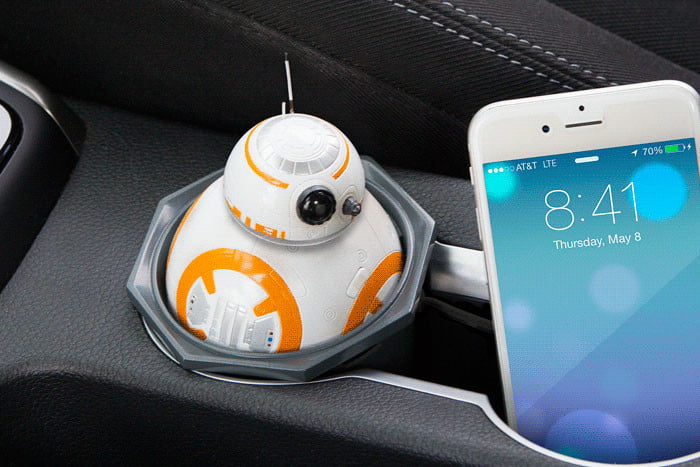
If you’re in the market for a car charger, then this might be the droid you’re looking for. Every good pilot needs a trusty astromech, and whether you’re making a trench run or a doughnut run, this BB-8 car charger has your energy needs covered with 2.1A USB ports that can charge two of your devices simultaneously. The unit plugs right into your vehicle’s 12V power outlet and fits neatly into any standard cup holder.
Available exclusively from ThinkGeek, the BB-8 car charger can be your wingman for just $28 after a limited-time $12 discount.
ThinkGeek
MimoPowerTube Star Wars V2 charger

The MimoPowerTube charger may not be a real lightsaber, but at least it won’t result in immediate self-dismemberment when you turn it on. Although its relatively small 2,600mAh battery won’t fully charge many devices, this fun little power bank is perfect for giving your tech a quick boost, especially if you happen to be a Star Wars fan. The included USB cable features multiple adapters for different connector types including micro USB, mini USB, and Apple Lightning.
Along with Darth Vader’s lightsaber, the MimiPowerTube Star Wars novelty charger is available with Boba Fett, Yoda, and R2-D2 skins. A 50 percent discount knocks the price down to $15 on ThinkGeek.
ThinkGeek
Warcraft Alliance and Horde power banks

Are you a member of the noble Alliance or a warrior of the mighty Horde? Show your allegiance (and taunt your friends) with these Warcraft-themed power banks. Available in both Alliance and Horde crests, these portable chargers are the perfect gift for Warcraft addicts, and offer 6,720mAh of power for when your mana is running low. Two USB ports allow for charging multiple devices.
The officially licensed Warcraft Alliance and Horde power banks are currently available from ThinkGeek for $60 each.
Alliance Horde
Emie kitten charger
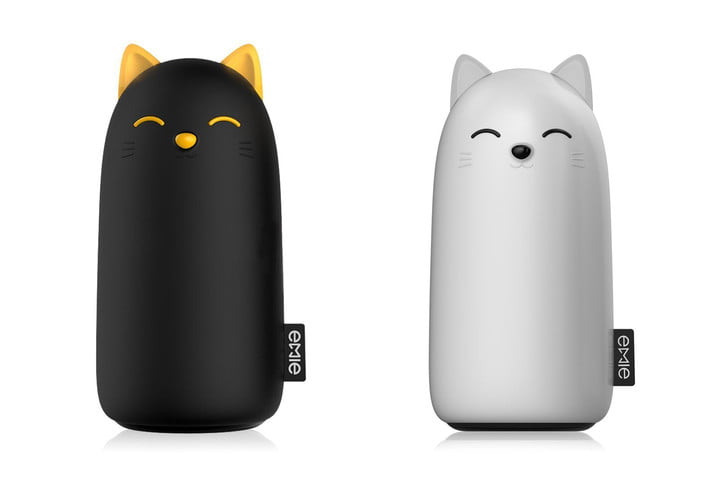
Unlike your real cat, the Emie kitten charger does more than lie around and get hair everywhere. This chubby charger contains a large 10,000mAh battery for multiple recharges, and built-in LED lights in the cat’s ears let you know when it’s “hungry” and needs a charge of its own.
The Emie kitten power bank is available in black and white for $30 on Amazon after a savings of $13, but you dog lovers aren’t forgotten: The 5,200mAh Samo dog charger is also on sale for just $20 after an even deeper 50 percent discount.
Cat Dog
Uforest Dog Power Bank

If animals are your thing but you want something a bit more plush, check out the adorable puppy power bank from Uforest. Its generous 10,000mAh battery and 2.1A power output delivers plenty of juice and snappy charge times for all of your USB, micro USB, and Apple Lightning devices. A free iPhone cable is included, and you can stow a charging cord away in the doggo’s backpack.
The puppy power bank even comes with a removable sweater, so you can lovingly dress him up while receiving concerned looks from your co-workers. The Uforest Dog Power Bank is on sale on Amazon for $30, giving you a $16 savings.
Amazon
Minecraft redstone torch USB wall charger
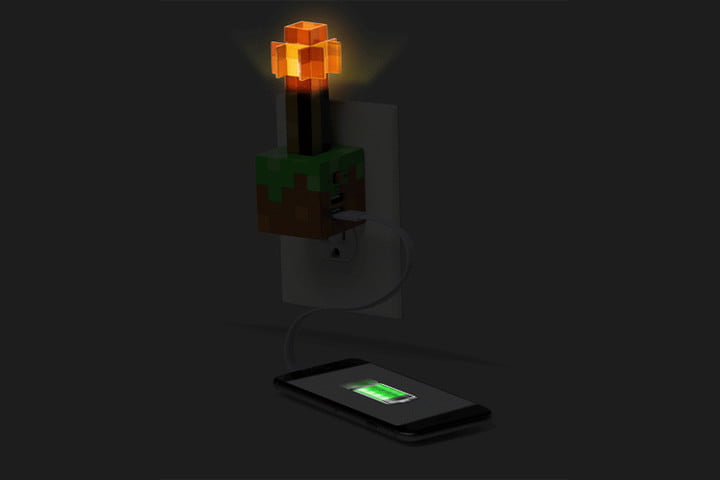
Looking for a way to keep the Creepers at bay? The Minecraft redstone torch wall charger, another exclusive gem from the folks at ThinkGeek, is just the ticket. Along with serving as a handy dual-USB power station, this wall charger doubles as a fun Minecraft-themed night light that puts out a warm glow with the flip of a switch.
Although not a portable power bank, the redstone torch USB wall charger is a great pick for any Minecrafters out there who want something to ward off things that go boom in the night. It’s priced right, too, at just $30 from ThinkGeek.
ThinkGeek
Fab WattzUp emoji chargers

If the other novelty charger deals on our roundup don’t tickle your fancy, check out these ones from Fab. The WattzUp series of portable chargers are based off of popular emojis including unicorns, a happy cat, and everyone’s favorite — the poop emoji. (If your boss asks, just tell him it’s ice cream.) The pocket-sized power banks feature 2,600mAh batteries, great for smaller devices or when you just need a quick boost to prevent your phone from dying.
The Fab WattzUp emoji chargers normally go for $40 but are currently on sale at a 25 percent discount, which shaves $10 off the price. Snag these fun power banks for $30 apiece from Fab’s online store.
Fab
Which phone are you using right now, and why? [Roundtable]

See what phones the people write about phones for a living are using.
A perk of working for Android Central is that you get to use a lot of different phones throughout the year. Of course, we all have a favorite that we keep going back to or never want to switch away from. In that respect, we’re just regular smartphone users like everyone else!
With 2017 almost half finished, see which phones the AC staff is using and why. Then let us all know which phone does it for you in the comments!
Russell Holly

The smaller Galaxy S8 is for me, because I don’t need that extra tall mess in my life right now.
I’m on the Galaxy S8 right now. The smaller one, since I don’t need that extra tall mess in my life right now. The battery life is exactly what I need, the camera is exceptional, and while I’m not a big fan of disabling all the extra Samsung crud to get the experience I want, I found that process less tedious this time around. I love that I have wireless charging again, and once I found a “case” I liked for the phone it became the phone I reached for most often.
It’s also a practical choice for work right now. The Galaxy S8 is soon to be the only Android phone with Gear VR and Daydream support, which means I can enjoy both and share those experiences with others. But if I’m honest, it’s mostly because of the other stuff.
Jen Karner

I kinda fell in love with my Pixel XL back in December, and it’s still my phone for the time being. Although, to be fair, the Samsung Galaxy S8 is definitely making me think that I might want to switch soon. The Pixel takes care of me in all the right ways, namely giving me access to Daydream, along with a great camera, and plenty of room for apps and games.
I’ve been in love with the Pixel XL since December.
I haven’t had any issues with my Pixel XL, and so far it hasn’t let me down. I take most of my photos using my phone so having a device with an excellent camera is always on my mind. The big pull for me is really being able to use Daydream View with it. I always want to be able to access the best in VR, and for the most part, my Pixel delivers on that. Until the Galaxy S8 gets that feature, too.
Ara Wagoner

Galaxy S8 and HTC 10 are how I roll.
I’d love to say that the Samsung Galaxy S8 is my daily driver right now… but I can’t put my AT&T SIM card in it, so I am dual-dailying right now. I keep the S8 for apps, music, gaming, and pretty much everything I do that doesn’t require my personal SIM, which is in my HTC 10. I switched from the Pixel back to the HTC 10 for some irking little reasons, but now that there’s an OTA beta for O out, I might stick my SIM back in there and dual-daily the Pixel and S8 so that I can play around with that.
I’ve loved the S8 so far, I’m even starting to get used to that stupid fingerprint scanner placement. My biggest issue with the phone so far are the weird bugs it’s been having with Google Play Music, but I don’t hold that against the phone… yet. Battery life has been steady, BT and call audio has been consistent, the camera is excellent. If I could stick my SIM card in it, it’d be the only phone I carry. And until it is, I’m gonna carry it around anyway.
Daniel Bader
via GIPHY
I’m actually using a super secret phone that I won’t be able to talk about until next week, but I really like it and I’m sure you will, too. Tease over.

Right before I switched, though, I was using the Galaxy S8+, which took over from the Galaxy S8 a few weeks back (yes, I have a problem). There are a few reasons I prefer the Plus, battery life aside: it feels like a small tablet, which means I have no issues at all watching TV shows, movies, and YouTube videos on the screen while traveling. I haven’t touched a tablet since I began using it.
The Galaxy S8 does everything better than the competition.
Ultimately, though, after all the nitpicking and minor criticisms over fingerprint reader placement and usability concerns with the curved glass, the Galaxy S8+ is just a competent smartphone. It does most everything well, better than the competition. I tried returning to the LG G6 for a few days after using the S8+ and just couldn’t; it felt somehow incomplete and flawed.
I am not impressed that the Galaxy S8 series shipped with Android 7.0, though: I’d have liked to see 7.1.1 at launch. And I don’t think the camera is quite as good as it could have been given Samsung’s previous year-over-year improvements. But every time I stop reviewing it and start using it, I realize how much I enjoy using the Galaxy S8+, and that’s a pretty steep hill to climb for a guy that uses dozens of phones every year.
Andrew Martonik

I’ve been using the HTC U11 since Google I/O last week. It’s an “amazing silver” model that is, unfortunately, a Taiwanese review unit (network bands don’t all line up with the U.S.), but despite a couple missing radio bands I’ve been sticking with it anyway.
The HTC U11 nails all the basics and is fast.
After not really caring for the U Ultra earlier this year, I’m super happy with the U11 right now. The phone is beautiful and built with typical HTC solidity, and the company just continues to nail the basics like its build quality, buttons, haptics, fingerprint sensor, and speakers (no, I won’t hear any more crying over not having the “old” BoomSound). The software is fast and responsive in a way that evokes memories of using the Pixel XL. And it turns out the camera is really good too.
The U Ultra’s design feels a bit last-gen set next to the Galaxy S8 and LG G6, but that’s not enough to put me off of a phone that’s otherwise really great in daily use. I’ll be sticking with it for a while.
Marc Lagace

I made the switch to the Galaxy S8 from the Pixel because new shiny things are awesome — though I’m tempted to switch back to the Google Pixel to check out the Android O beta. Samsung has sure made it tough to switch back to anything else, though, because the Galaxy S8 is the real deal. It’s blazing fast, feels great to hold and the infinity display lives up to the hype.
The Galaxy S8 is the real deal.
Really, the only thing that’s bothering me about using the Galaxy S8 is Bixby. I’d much prefer to use the superior Google Assistant, but I keep hitting the Bixby button on accident. I know there are apps and methods to remap the button, and Google Assistant is still accessible on the GS8, but I really fell in love with Google Assistant on the Pixel and really appreciate how Google built the Pixel’s software around it.
Harish Jonnalagadda

I switched to the Xiaomi Mi 6 earlier this month, and I’m liking it a lot. The phone is a huge improvement over the Mi 5 in several areas, and the murdered-out black color option, in particular, looks great. With the Indian variant of the Galaxy S8 powered by the Exynos 8895, the Mi 6 is the first phone I’ve used that runs the Snapdragon 835. It definitely runs smoother than both the Mi 5 and Mi 5s, and the 128GB of storage gives me more than enough room to install all the apps I need.
My murdered-out black Xiaomi Mi 6 is my go to.
The dual camera setup is a welcome addition, but more importantly, the main 12MP camera is leagues better than the Mi 5. The software situation has also been improved, with the phone running an MIUI 8 build atop Android 7.1.1 Nougat. The main drawback with the Mi 6 is that it doesn’t have a 3.5mm jack, but I recently picked up a Sony MDR-1000X, so its omission doesn’t annoy me as much as it used to.
Florence Ion

I still haven’t switched over from the Pixel XL, but why bother? This phone has carried me through many a trying time, as well many an International trip. This thing is the second-most reliable smartphone I’ve ever carried — the first was the HTC Incredible, which lasted me a whopping three years of use. How apropos, then, that the manufacturing brains behind the Pixel XL is HTC.
The Pixel XL is ready to go when I am.
Anyway, I know I’m kind of boring in my smartphone usage these days, but I’ve spent the last couple of years constantly switching back and forth between devices. And it’s true that there are now more worthy Android-powered smartphones than ever, but when it comes to daily life, I just need something that’s always ready to go when I am. Let’s hope that Google’s next smartphone release is just as reliable after eight months with it.
Jerry Hildenbrand

I’m using the BlackBerry KEYone. But because my “real” phone number is attached to Project Fi, I also keep my Pixel around. I’m just too busy lazy to port the number out and sign up for a new Fi number. That’s like a lot of hassle and I’d have to do it because some of my people still (gasp) make phone calls. That’s the number they have. It’s cool tho, the Pixel is a really damn good phone too. #firstworldproblems
You had me at QWERTY.
I just really dig everything the KEYone has to offer. Disable all the BlackBerry stuff (I just don’t use it and hate to try new things) and it’s close enough to plain-jane Android that I know where everything is and there’s nothing getting in my way that I don’t want. My needs in a phone are simple, yet I’m pretty picky and they have to be met: The phone has to have the latest software patch and not do secret things in the background that connect to some server from the company that made it. That’s hard to find, unfortunately, but the KEYone does it.
And that keyboard. I’m a sucker for a good keyboard.
Your turn
You probably have a phone in your hand reading this! Jump into the comments and let us all know which one, and why you love it.
Uber is free to operate in Italy on a long-term basis
If you’re in Italy, you can use Uber. A court in Rome today annulled a temporary ban placed on Uber in early April that prevented the company from advertising and operating throughout the country. This didn’t completely stop Uber from infiltrating Italy, though: The ban was suspended about a week after its implementation as the company appealed, and Uber has been allowed to operate since then. Today’s ruling deletes the ban from the books entirely.
“We are happy to announce that you will be able to keep using our app in Italy,” Uber Italy tweeted today, as translated by Reuters.
Italian taxi drivers claim Uber unfairly penalizes their businesses because the app is loosely monitored; taxi drivers in the country operate under stiff regulations. The fight between traditional taxis and app-based services doesn’t end with today’s ruling — the Italian government promises to introduce clear regulations for ride-hailing apps by the end of the year.
“We are thrilled for the thousands of drivers and riders who can continue using Uber in Italy,” a company spokesman tells Reuters. “However, Italy now needs to reform its outdated laws so that all its citizens and cities can benefit from modern technology.”
This isn’t Uber’s first dust-up with frustrated taxi drivers and government officials: France, the UK and cities around the world have attempted to suspend or ban the app. Generally, these battles end with Uber operating in these places anyway under a new set of regulations tailored to the region.
Source: Reuters
 AIVAnet