


Stem cell therapy makes sterile mice fertile again
Researchers at Shanghai’s Jiao Tong University have conducted an experiment involving stem cells and sterile mice. Germline stem cells — the building blocks of an egg — were taken from a young mouse and implanted into the ovary of a mouse that had been sterilized. Five to eight weeks later, and this implanted mouse was mated with a healthy to see if pregnancy would occur. The experiment, which tested eight such mice, found that six of the group managed to fall pregnant and deliver healthy offspring.
The thinking, as outlined by Science News, is that such a technique could eventually be used to help sterile women conceive. That’s probably a few decades away, but the fact that germline stem cells have been proven to work in this context marks a big step forward. Other projects, too, are seeing similar positive results. It was less than a week ago that news broke about a 3D-printed ovary that carried a mouse pup to term. In addition, researchers at Children’s Hospital, Philadelphia, developed an artificial womb that was used to help save the lives of premature infants.
Via: Science News
Source: Cell
Most U.K. Apple Pay Terminals Now Support Transactions Above £30
Most shop tills in the U.K. that take Apple Pay now accept mobile payments above £30, The Telegraph reported on Sunday. Jennifer Bailey, head of Apple’s payment arm, said over half of contactless payment terminals in the country are now able to take Apple Pay transactions of any value.
Previously, most contactless card readers have adhered to the £30 upper limit, which is meant to prevent fraud when a pin isn’t used. However, Apple’s Touch ID approval system on iPhones and iPads provides the extra security to enable payments of any value.
The upgrades, which Ms Bailey said applied to hundreds of thousands of terminals, means shoppers in many places can make payments of any value without taking their wallet with them.
Apple Pay’s ability to approve high-value payments could turn out to be a significant advantage over contactless cards, following some reports that mobile payments have struggled to gain traction among consumers. The mobile wallet also has to compete against rivals Android Pay and Samsung Pay.
However, Apple says Apple Pay transactions in the U.K. have grown by 300 percent in the last year, with 23 banks now supporting the service. “Our momentum has been fantastic. We’re really excited about the progress,” Bailey told the Telegraph.
Retailers in the U.K. now accepting the higher-value payments include supermarkets such as Waitrose and Sainsbury’s, and restaurants including Pizza Express and Nando’s.
Related Roundup: Apple Pay
Tag: United Kingdom
Discuss this article in our forums
Alleged Molds Purport to Show Relative Sizes of Apple’s 2017 iPhones
A series of photos claiming to show molds of Apple’s upcoming 2017 iPhone range appeared online over the weekend, providing a potential look at the relative sizes of the rumored new devices. Apple is expected to announce three new iPhone models this year: two LCD-based “S” cycle upgrades to the iPhone 7 and 7 Plus, alongside a radically redesigned tenth-anniversary “iPhone 8” with an edge-to-edge OLED display.
It’s worth bearing in mind that the molds shown in the images could simply be made for use in the production of third-party iPhone cases rather than actual handsets. Either way, they do appear to line up with unconfirmed details we’ve been hearing over recent months, particularly with regard to the dimensions of the devices.
The mold of the so-called “iPhone 8” is pictured between the two iterative models, which shows the redesigned handset isn’t much bigger than the 4.7-inch iPhone 7S chassis on the right hand side. Despite the similarity, reports suggest the redesigned phone could pack a 5.8-inch display that’s closer in size to the screen on the 5.5-inch iPhone 7 Plus. A lack of bezels at the top and bottom of the device are said to enable the larger OLED area.
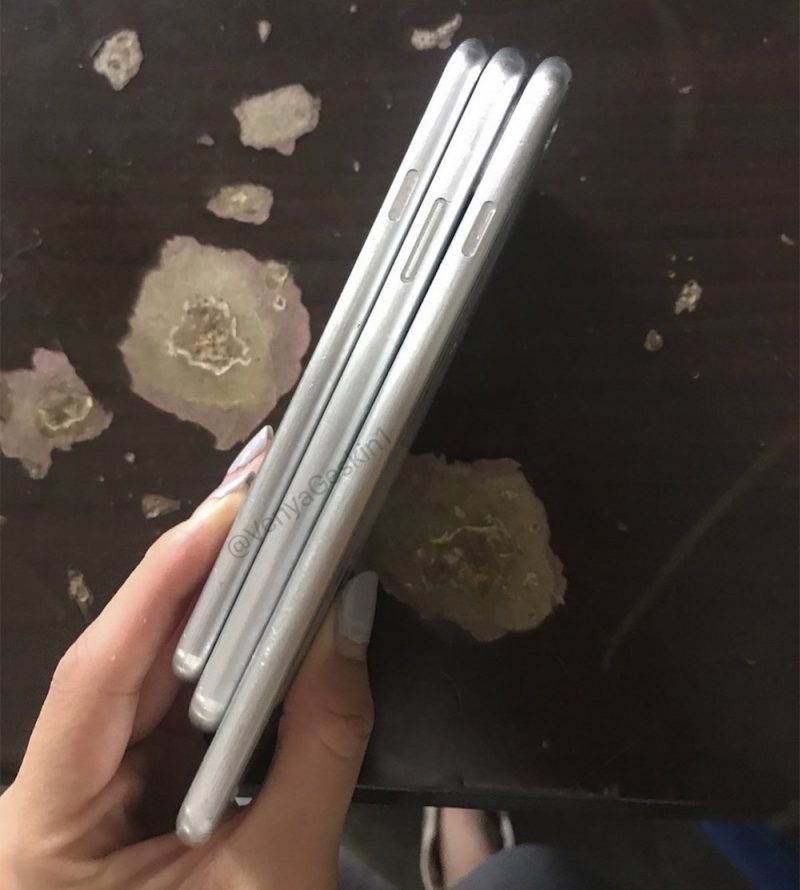
The side-on view offers another take on the relative dimensions, and also reveals a longer power button on the OLED iPhone in the middle. The appearance of the longer button in previous dummy images has led to speculation that it could act as a fingerprint recognition surface if Apple can’t implement Touch ID into the OLED display. Rumors say Apple has struggled to overcome the challenges involved in such a feat, but details are still sketchy.
Some sources suggest the company could resort to placing the sensor on the back of the handset, like on the Samsung Galaxy S8, but most agree this would be an inferior implementation compared to Touch ID’s current front-facing location on the home button.
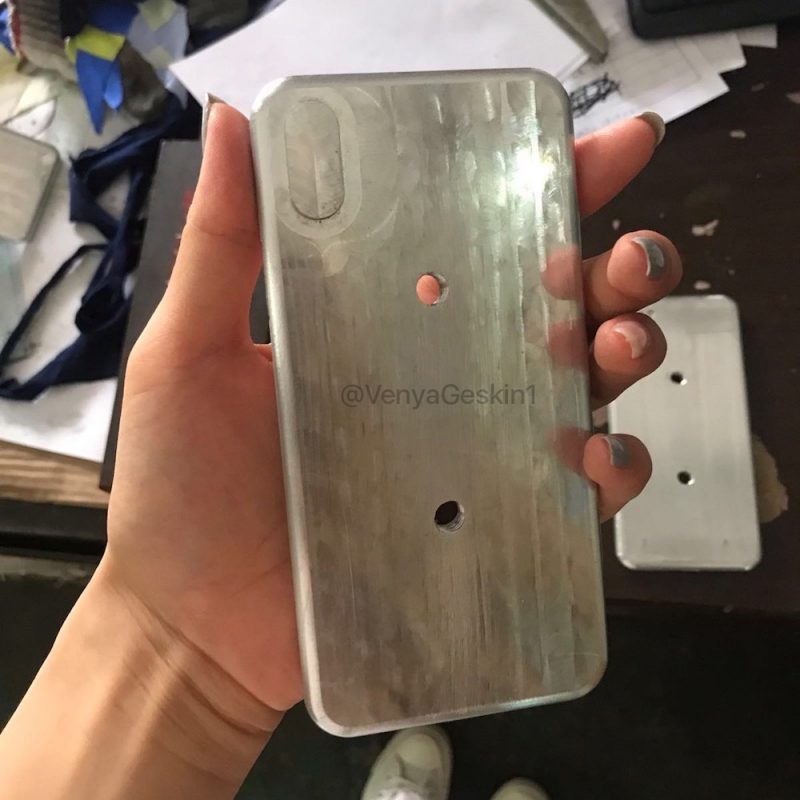
Cutouts for the rear camera in the middle mold line up with previous rumors that Apple will go with a vertical dual-lens orientation in the “iPhone 8”, in contrast to the horizontal layout on the iPhone 7 Plus, which is expected to remain on the 7S Plus.
The OLED iPhone is expected to be unveiled at a September event alongside the “S” cycle phones, and could feature new 3D-sensing technology in the front-facing camera, as well as a faster A11 chip, face and iris recognition, better waterproofing, some form of wireless charging, and a glass body.
Related Roundup: iPhone 8 (2017)
Discuss this article in our forums
Register your drone with DJI or it will throttle it
You might not have to register your drones through the Federal Aviation Administration anymore, but if your flyer of choice is a DJI model, you’ll have to activate it online, or take a hit in flight range and functionality. The company is adding a new application activation process, tied to a firmware update for its family of drones. It’ll come into effect at the end of this week, and is aimed at ensuring pilots use “the correct set of geospatial information and flight functions for your aircraft”, determined by your location and user profile.
The activation process will require users to connect to the internet through DJI’s app, to verify your account and activate the update. And if you don’t? Your drone won’t be able to access the geospatial info and flight functions, camera streaming will be disabled and flight range will be curtailed to a 164-foot radius, up to 98 feet high. These rules will apply to all of DJI’s “aircraft” running the latest firmware, whether you own a Phantom 4 or one of its cheaper drones. It’s the company’s attempt to curtail legal and trespassing issues that come into play when people can send flying robots pretty much anywhere.
Previously, the FAA said it expected companies, not government to solve the problems associated with drones. FAA Administrator Administrator Michael Huerta said earlier this year that the authority was “already working with industry to test tools that can detect unauthorized drone operations near airports and other critical infrastructure,” said Huerta. “[The drone industry] is going to do it more quickly and efficiently than the FAA ever could through regulations.” With over 770,000 registered users at last count, it makes sense.
Source: DJI
Remote control: This busy London airport is doing away with its control tower
Why it matters to you
The advanced system is expected to transform airfield management in the coming years, so we may as well get used to the idea.
A reassuring sight for many plane passengers is that of the air traffic control tower, its highly trained occupants casting a watchful eye over the airport from up high, ensuring the security of the runways while organizing the movement of aircraft on the tarmac and in the immediate airspace.
So how do you like the idea of a control tower with no one in it?
That’s exactly what’s being planned for London’s City Airport, whose controllers will soon be sitting in a building in a small English village 70 miles away, conducting their important work via live-streams sent direct from the airport.
London City Airport will be the first in the U.K to use the high-tech system when it begins trials in 2018. The setup, developed by Saab Digital Air Traffic Solutions, has already been tested in a number of countries, including Australia and Sweden.
The airport in London sits right alongside the River Thames, a short distance from the center of the city. Space, therefore, is extremely tight, so doing away with its physical tower will give the airport more options as it begins work on a major expansion program.
The technology will use 14 high-definition cameras to build a 360-degree view of the airport, with images sent via super-fast secure fiber connections to controllers at a new National Air Traffic Services (NATS) center in the Hampshire village of Swanwick.
The live-stream will provide a view of the airfield on huge displays “in a level of detail greater than the human eye and with new viewing tools that will modernize and improve air traffic management,” NATS says on its website. Controllers will be able to zoom in on any part of the airfield for a better view, and the system will even offer alerts when unidentified objects such as rogue drones are detected over or close to the airport. It also offers an enhanced view of the airfield at night or during bad weather, as well as live audio feeds to make the setup feel as real as possible
Users of the technology can overlay data such as weather information, on-screen labels, radar data, and aircraft call signs, all geared toward improving a controller’s situational awareness, “enabling quick and informed decisions that thereby offer safety and operational benefits for the airport.”
While reading this, the word “security” has probably already popped into your head, possibly accompanied by warning signs and the sound of a klaxon.. However, the airport insists the technology has been thoroughly stress-tested by independent security specialists, according to the BBC. For example, data will pass between the control center and the airport via three different routes, so if one goes down there’ll still be two others to work with.
London City Airport chief executive Declan Collier told the BBC he was “absolutely confident” that the system is able to withstand cyber attacks, adding, “No chief executive is complacent about threats from cyber security, but we are very confident that the systems we’re putting in place here are secure, they’re safe, they’re managed very well.”
How do you like the idea of using an airport where the tower personnel are based in another part of the country? Sound off in the comments below.
This is the size of the iPhone 8, next to iPhone 7s and 7s Plus
If you were wondering how large the much-rumoured iPhone 8 will be, pictures have emerged on Chinese website Weibo of alleged case mouldings for the new phone, alongside the new iPhone 7s and 7s Plus models.
All three handsets are tipped for release in the latter half of 2017, with the iPhone 8 being a new, premium handset with a curved OLED screen.
If true, you can see that it will be distinctly smaller than the iPhone 7s Plus, said to have a similar 5.5-inch display to the current 7 Plus. However, speculation has it that the iPhone 8 will sport a larger, 5.8-inch screen. But thanks to far smaller bezels the handset itself will be more compact.
- Apple iPhone 8 and iPhone 8 Plus: What’s the story so far?
- These amazing leaked photos show the real iPhone 8 in all its glory
- Apple iPhone 8 in pictures: Renders and leaked photos
The phone casing on the right of the main leaked image is said to be for the 4.7-inch iPhone 7s, which isn’t much smaller than the purported iPhone 8.
One of the major changes to the phone, as discussed before and evidenced in the new pictures, is that it will have a vertical, dual-lens rear camera rather than a horizontal one. We suspect that’s simply to fit a similar rear camera system to that currently found on the iPhone 7 Plus yet in a smaller body.
Other rumoured features of the iPhone 8 include a 3D-sensing front camera, upgraded waterproofing and aluminium rear casing.
BlackBerry KeyOne tips and tricks: Type and swipe
With the KeyOne, BlackBerry Mobile created an Android phone that’s unlike any other. The physical keyboard is the most obvious difference, but there’s plenty about this phone’s software that makes it different to most too. Read our in-depth tips and tricks list to find all the bits you need to know.
- BlackBerry KeyOne review: BlackBerry’s bold return to form
- BlackBerry KeyOne: Release date, specs and everything else you need to know
BlackBerry KeyOne keyboard
There’s no denying that the keyboard is easily the most important feature on the new BlackBerry Mobile phone. But it’s more than just a typing tool, it’s been equipped with a number of interesting features.
Add a shortcut – Each one of the keys is a potential shortcut key. From the home screen, just press one of the letter keys, then choose an action from the “Assign Shortcut” window that pops up. You can select to open an app, choose a contact, or choose a function like starting a time, viewing alarms, creating a calendar event, plus many more.
Add a long-press shortcut – The process is just the same as assigning a regular shortcut, except you press and hold the key you want to assign a shortcut to. After that, you get the same options.
Edit shortcuts – If you’ve made a mistake and want to change the shortcut for any of the keys, open the app drawer and tap the settings cog in the top corner. This is the BlackBerry Launcher settings menu – very much worth remembering. Choose “Keyboard shortcuts”, then scroll through your Long Press and Short Press lists to change the apps and functions assigned.
Swipe to choose predictive words – When you type, you’ll notice three predictive words on the screen, right above the top row of keys. You can choose one by making use of the touch sensitive surface of the keys. To select one of the words instead of typing it, swipe upwards on the corresponding part of the keyboard. For instance, swipe on anywhere on the left third of the keys to choose the first word on the left, swipe the middle to choose the middle word, swipe on the right side to choose the word on the right.
Swipe to delete words – To delete the last word you typed, just swipe quickly from right to left on the keyboard.
Swipe through menus – As well as being used for predictive typing, the touch sensitive surface of the keys can be used to navigate through various layers of phone’s software. Swipe left and right to scroll through the home screens, or up and down to read through an email, Hub inbox, or Settings menu.
Activate swipe-typing – Bizarrely, you can use the touch sensitivity to type, rather than pressing the actual keys. In the same menu as above, choose “Type by swiping”. Toggle this on and you can type by gliding from key to key without pressing them. It’s worth noting, it takes time to get used to this, and it will deactivate the other touch sensitive swiping.
Assign fingerprints – The spacebar also plays home to the fingerprint sensor. To use it, head to Settings > Security and choose “Fingerprint”. If it asks you to set another form of security first, go through that process, then you’ll get to the screen that lets you add a new fingerprint. Once you’ve chosen to do that, place your finger/thumb on the sensor then lift, and repeat until it tells you it’s done.
Switch on the software keyboard – If you want to use a software keyboard for whatever reason, head to Settings > Languages & Input, then choose “current keyboard” and toggle the switch for “show virtual keyboard”.
Add multiple languages – In the same settings menu choose “Keyboard settings” and then select “BlackBerry keyboard”. This list includes a multi-language keyboard option; select this and choose the languages you want to be able to type in.
Pocket-lint
Switch between languages – You can create more than one multi-language keyboard, and can switch between them pressing and holding the spacebar. Choose from the languages that appear on the screen. To switch back to the previous one, just hold Alt+Enter simultaneously.
Change add typing sounds – Sticking with the BlackBerry keyboard settings, choose “Key press feedback” and then toggle the “Sound” switch on. You can also choose to have a pop-up appear on screen when you press a letter.
View typing stats – In the same menu again you can access your typing statistics by tapping “Statistics”. Here it tells you how many words, emojis and symbols you’ve typed. It also shows you a breakdown of how many predictions and auto-corrections you’ve used, any learned words and if you prefer the physical or virtual keys.
Type to search – If you don’t mind losing keyboard shortcuts, you can choose to instantly start a search by just typing when you’re on the home screen. Tap and hold the home screen, choose “Settings”, then “Typing Action”, and choose “Start a Search”.
BlackBerry Hub
Like the keyboard, the Hub is an important part of the BlackBerry KeyOne’s experience. It gathers incoming messages and alerts from all your most used accounts into one inbox. It’s useful, and can be customised to look and work the way you want it to.
Create custom views – While the default Hub view is useful, you can create your own. Go to the Hub, open the side menu and scroll to Settings. Tap “Add view”, here you can choose which accounts and notifications you want to show. You can also add an “unread” filter so that it only shows you your unread notifications.
Change default email account – In the same Hub Settings menu, go to “General Settings” . The top option is the default email account, which lets you choose which email account you want to use by default to send a new message.
Enable dark theme – Underneath the default email account option is the toggle for switching on the dark theme. Switch it on and hub transforms from its clean, crisp white to a dark grey theme.
Customise gestures – By default, when you swipe left on a notification in the Hub, it deletes that message. Swiping right snoozes it. You can changes these gestures in the same General Settings list. Scroll down to the “Swipe Gesture Action”, and choose what you want each swipe to do.
Remove Conversation view – As a default setting, any replies within the same thread of emails are grouped together in the same conversation view. If you’d rather have an individual message for each reply, you can switch this off in the General Settings by switching the toggle off.
Create custom alerts – Back in the main Hub Settings, there’s a Custom Alerts option. This lets you create a custom alert within an email account. You can choose to create one based on who the email is sent to, or from, or based on what’s in the subject. In the next step, you can choose the alert sound, LED notification light colour, and even set it to override any notification settings.
Change account colours – Because the Hub can show messages from many accounts, including Instagram, WhatsApp, SMS, Facebook and more, it can be helpful to distinguish between them. You can add different colours to each one by selecting the account in the Hub settings, then choosing “Account Colour”, then selecting the hue you want.
Rearrange accounts – If you don’t like the default order of the accounts in Hub, tap “Rearrange accounts” and you can swap them around as you please.
BlackBerry KeyOne home Screen
Add shortcuts – Like the keyboard, you can add shortcut actions to your home screen. Tap and hold the screen, select “Widgets” then choose “Shortcuts” in the pop up window. Choose which shortcut you want and drag the icon onto the screen.
Swipe-up widgets – Any app that has an available widget will have three white dots beneath its icon on the home screen. Swipe up on the icon, and choose which widget view you want to see. Now you’ll see that widget every time you swipe up on the icon.
Customise app icons – BlackBerry’s launcher supports third party app icons. Press and hold on the home screen and select “icons”. This is where you’ll find any installed icon packs. If there’s only the default option, tap the Google Play Store icon in the top right corner, and it’ll take you to the downloadable icon packs. Download which ever ones you like, then you can use them.
Pocket-lint
Customise Productivity tab – Slide the Productivity Tab across from the right of screen, then tap the settings cog. Now you can alter the size of the tab, adjust its transparency, swipe sides or remove it completely.
Change recent apps style – Go to Settings > Display and scroll down to “Recents”. You can choose from three options, each offering a different style of view for when you access the recent apps screen.
Switch to Dark Theme – Press and hold your home screen, choose the Settings and then scroll to the Theme option.
BlackBerry KeyOne other bits
Camera manual mode – To enable the manual shooting mode in the camera, launch the app and open up the settings. The top option is “Control Mode”, tap the drop down box and then choose “Manual”.
Restrict power usage for apps – Launch the Power Centre app, tap “Apps and Games”, then choose an app. The next screen lets you choose between Performance, Balanced and Energy Saving modes. The later restricts performance in the name of making your battery last longer, the middle option has minimal impact on performance, but still saves battery juice. Performance disregards battery in favour of all-out fastness.
Convenience Key action – Assign a function to your Convenience Key (the button below the volume rocker switch) by heading to Settings > Convenience Key. You can assign any of the available shortcuts, or choose to launch an app.
Device Search – Launch the Device Search app and start typing for what you’re looking for. If it’s on your phone anywhere, it should show up. If not, you can choose to search online.
Check for software updates – You don’t have to dive into the Settings to check for new software. Just find the Updates app, tap it and it’ll check for any updates to the phone’s OS for you.
Boost charging – When you plug the phone in to charge, an option pops up on screen allowing you to select Boost mode. This restricts background processes to focus on filling up the battery as quickly as possible.
App permissions log – Open the DTEK app then choose Apps and Permissions, then choose the “Permissions” tab. Here you can see which permissions have been accessed and how many times. If you have an app that’s too location-hungry, you can then choose to limit that app’s access to your location.
Moto Z2 Play pictures and specs pop up again, 3,000mAh battery confirmed
We’ve seen leaked pictures of the alleged Moto Z2 Play in the last couple of weeks, but the latest to emerge are more official as they come from the TENAA, China’s mobile certification agency.
They show the front, sides and rear of the forthcoming device and the TENAA page also lists some of the specifications.
According to the site, the phone will measure 156.2 x 76.2 x 5.99mm and weigh 145g. It will also come in either black or white, which sort-of matches the previous picture leak (which showed a white-fronted handset with a gold rear casing).
Lenovo / TENAA
It will have a 5.49-inch (5.5-inch, basically) OLED screen with a Full HD, 1920 x 1080 pixel resolution.
Android 7.1.1 will be installed from the off, and the storage space on the device will be 64GB. There’ll be 4GB of RAM too.
The listing also suggests that the rear camera will sport a 12-megapixel sensor.
One bone of contention is the battery size. The TENAA lists it as 2,820mAh, as rated by the agency. However, as with the previous leak, Lenovo has confirmed that it’s actually, fractionally larger than that.
An official tweet from manufacturer Lenovo, posted on Friday 20 May, states that the battery size will be 3,000mAh, as previously thought.
@AnbhuleAnant Hi Anant. Moto Z2 Play has Non-removable Li-Ion 3000 mAh battery. Auxen_Lenovo
— Lenovo (@lenovo) May 20, 2017
That’s still smaller than the phone’s predecessor, which had a 3,150mAh battery, but maybe there’s more cunning battery saving techniques at play (no pun intended).
Sony XE90 4K TV review: Backlight bonanza
Most of us weirdos who spend the majority of our waking lives testing TVs seem to agree that LCD screens that use lights placed directly behind them (rather than around their edges) are best suited to the new high dynamic range (HDR) picture technology that’s currently taking the AV world by storm.
Sony appears to have noticed these weirdo musings, for tucked away in its 2017 range is the XE9005 series: a collection of HDR-capable TVs that don’t just use lights placed directly behind the screen, but also deploy local dimming technology to enable different segments of those LEDs to deliver different levels of light, as required by the image you’re watching.
Even better, they deliver this “catnip for AV fans” lighting solution at much lower prices than most direct-lit LED TVs. The 65XE9005 under scrutiny here costs just £2,500 in its post-Brexit socks – a mere fraction of the price you’re expected to pay this year for the likes of Samsung’s 65-inch QLED TVs or LG’s 65-inch OLEDs.
But is Sony’s new mid-range option really the answer to cash-strapped AV fan prayers it looks on paper like it might be?
Sony KD-65XE9005 review: Design
- 4 x HDMI, 3x USB
- Ethernet & Wi-Fi
- Optical digital audio output
The 65XE9005 cuts an attractive figure. It’s relatively svelte for a direct-lit TV, the ultra-narrow frame round the screen minimises the set’s impact on your living room, and the centrally-mounted metallic desktop mount looks and feels pretty opulent. It’s nice to find this stand delivering some really effective cable management, too, despite the decent bounty of connections on offer.
Sony
Headline picture features beyond the direct backlight and local dimming stem predominantly from Sony’s powerful X1 processor. This powers, for instance, Sony’s Triluminos technology, to deliver a wider and subtler colour palette, as well as carrying a unique picture reference database used to help the 65XE9005 decide more accurately how best to upscale sub-4K sources to the TV’s native 4K screen.
Sony KD-65XE9005 review: Picture Features
- High Dynamic Range (HDR) support: HDR10, HLG (no Dolby Vision)
- Sony X1 chipset, driving Triluminos & 4K X-Reality Pro system
It’s important to note that the 65XE9005 does not carry Sony’s most powerful X1 Extreme chipset.
This means it doesn’t carry the twin database upscaling engine found in step-up Sony models such as the previously tested 55XE9305 and 65ZD9 models, and can’t be upgraded via firmware to handle the Dolby Vision HDR format.
Its HDR support is thus restricted to the industry standard HDR10 platform plus, we’re assured, the Hybrid Log Gamma (HLG) HDR system likely to be deployed by a number of broadcasters in the next year or two.
Sony KD-65XE9005 review: Smart features
- Android TV, YouView
If you like your TVs to provide access to huge quantities of apps, the 65XE9005’s Android TV platform has got your back. If, however, you value ease of use and speed of access to the sort of services and features most TV viewers actually want to access, Android TV is much less successful.
Sony
Fortunately the clunky interface does at least run more stably than earlier Android TV generations, and Sony has worked round some of the platform’s limitations by incorporating the YouView platform for access to the BBC iPlayer, ITV Hub, All4 and My5 catch up TV services.
You also get full HDR and 4K streaming support for both Amazon and Netflix.
Sony KD-65XE9005 review: Picture Quality
Coming to the 65XE9005 hot on the heels of Sony’s step-up model, the 55XE9305, it has to be said that the XE9005 doesn’t make a great first impression. It’s nowhere near as bright as its more expensive sibling, meaning that HDR sources such as Ultra HD Blu-rays don’t explode off the screen with nearly the same intensity.
Backing this instant subjective impression up with some objective measurements reveals the 65XE9005’s brightness topping out at around 875-nits on a 10 per cent white HDR window, while the 55XE9305 manages nearly 1500-nits. No wonder the difference in HDR intensity looks so immediately clear.
Sony
Spending more time with the 65XE9005, though, sees that initial sense of disappointment fade away pretty quickly. So much so that by the time we were done it had actually turned into something of a mid-price TV hero.
The main reason for this is the way its combination of a less aggressive light output and direct LED lighting engine help it produce a really lovely black level performance by LCD TV standards. There’s far less general greyness over dark picture areas than we usually see with LCD TVs, even when watching HDR pictures that combine dark and bright areas in the same screen space.
Sony KD-65XE9005 review: Blooming good
Even better, while there is some faint backlight blooming that can extend a good few centimetres beyond the edges of stand-out bright objects (the 65XE9005 only has around 20 individual dimming zones), this blooming is typically so faint you scarcely notice it. It only becomes at all distracting with really extreme (and thus rare) HDR shots where an ultra bright object stands proud against a near black backdrop.
Certainly the 65XE9005’s blooming distracts you less often than the more strident light clouding issues on the brighter 55XE9305 model. And there’s no doubt that a certain type of movie fan, at least, will prefer this more generally immersive look to the XE9305 range’s more explosive, HDR-friendly brightness.
It’s worth reflecting at this point, too, that while the 65XE9005 might not be the brightest HDR TV around, it’s actually decently bright by the standards of similarly priced rivals.
However, with OLED panels offering deeper blacks, individual pixel brightness and reasonable brightness, LG’s competitor – while more expensive – might be an option to consider.
Sony KD-65XE9005 review: Look at all the pretty colours
The XE90 also benefits from the lovely combination of ultra-subtle toning and startling vibrancy delivered by Sony’s Triluminos colour technology. There isn’t as much luminous intensity and volume to the 65XE9005’s colour tones as you get with the brighter XE9305, but you’ll struggle to find a 65-inch TV that uses colour as deftly and effectively as the 65XE9005 for anything close to its £2,500 price.
Sony
The extended range of colour tones made available by Sony’s Triluminos processing also means there’s no sense of any texture being lost by any lack of colour precision. This helps the 65XE9005 deliver emphatically on the sharpness and detail potential of its native 4K resolution. Nor is there any sign of the striping/banding problems pretty much all non-Sony TVs occasionally exhibit in large areas of subtle HDR colour variation, such as skies and clouds.
The 65XE9005 may not have quite such powerful processing as the XE9305 range, but it still shows off Sony’s unique capabilities when it comes to handling motion. The True Cinema setting of the Motionflow motion processing engine is particularly excellent for movie viewing, gently attending to judder and blur without going so far that the picture becomes unnaturally fluid or suffers with distracting processing side effects. Even if you opt to leave the MotionFlow system turned off the 65XE9005 still dodges the LCD judder and blur bullets better than most.
Aside from its reduced brightness and colour intensity, the one other picture performance area where the 65XE9005 falls noticeably short of the XE9305 series is with its upscaling of HD sources. The dual database upscaling engine delivered by the X1 Extreme chipset inside the step-up models does a noticeably better job of adding more detail to and removing more noise from HD sources while translating them into 4K signals. So there’s a slightly more defined gap on the 65XE9005 between the look of native 4K and HD sources.
It’s important to stress here, though, that while the 65XE9005 might not measure up in HD upscaling terms to the XE9305, its upscaled images still out-detail those of many similarly priced other-brand rivals.
Sony
There’s also one more area where the 65XE9005 slightly outguns its step up XE9305 siblings: input lag. It takes just 31ms on average to render images versus 38ms on the 55XE9305 – and it delivers this figure more consistently than the step-up model, which sometimes strays beyond 50ms.
Sony KD-65XE9005 review: A couple of issues
Our 65XE9005 review sample did suffer with a couple of other issues, though – one expected, one not. The predictable one was that the 65XE9005’s pictures start to break down quite sharply once your viewing angle shifts beyond around 25 degrees. In particular, the halos of light around peak bright HDR picture objects become far more noticeable and distracting. So much so that this has to be a serious consideration for any household with a room layout that will routinely find one or more people watching the TV from down its sides.
The unexpected issue we spotted was some pretty eye-catching glowing noise over the very brightest parts of aggressive HDR images. Fortunately, the sort of content that shows up this problem is pretty rare, and you can make the glowing disappear by switching to the 65XE9305’s Custom picture preset. Weirdly, though, no other less “wholesale” picture adjustments seemed to make the glowing go away.
Sony
Sony has confirmed to us that this issue is not specific to our test sample, but claims it will fix it via a firmware update. This hadn’t materialised at the time of writing, though to be fair it’s a flaw that does strike us as being more of a fixable bug than an insurmountable screen limitation.
Sony KD-65XE9005 review: Sound quality
- Speaker configuration: Stereo, 10W + 10W
The 65XE9005’s audio is pretty uninspiring. It sounds reasonably rich and well-rounded with typical daytime TV-type content, but put it under more pressure with an action movie and it’s soon found wanting.
Treble sounds become harsh, small details sound brittle and thus exaggerated in the mix, and bass rumbles and explosions sound thin and unconvincing. Might want to consider a soundbar in the mix with this set, then.
Verdict
The 65XE9005 isn’t quite bright enough to be considered a classic HDR TV, and while its direct LED lighting is welcome overall, it’s implementation is pretty basic when it comes to the amount of local light control it offers.
However, put the 65XE9005 fairly into the context of its surprisingly affordable price and it becomes a really exciting option for serious movie fans unable to stretch their budget beyond £2,500.
The alternatives to consider…
Sony
Sony KD-55XE9305
- £2,399
If you can live with a 10-inch smaller screen, Sony’s step-up LCD range for 2017 gives you better video processing, much more HDR-friendly brightness and Dolby Vision HDR support. Though it can also suffer occasionally with slightly more backlight blooming.
Read the full article: Sony XE93 4K TV review
Pocket-lint
Samsung UE65KS9500
- £2199
Samsung’s flagship 65-inch TV from 2016 is still available at a discount price, and combines a direct LED lighting system with more effective local dimming than you get with the Sony and considerably more brightness. Stocks of this ‘classic’ HDR TV seem to be dwindling fast, though, so if you want one you’d better get a move on.
Read the full article: Samsung KS9500 4K TV review
Ford Motor Co. is reportedly firing CEO Mark Fields
Ford will fire CEO Mark Fields and replace him with self-driving car chief Jim Hackett, according to the New York Times. The news comes amid turmoil in the company, including a steep 25 percent drop in car sales so far this year and layoffs of 1,400 salaried employees, with possibly more to come. The announcement is expected sometime later today.
It’s not just the drop in sales, market share, earnings and the stock price (down 40 percent since Fields took the reins) that has Ford investors alarmed. The company is also lagging behind rivals in the pace of tech development areas now considered crucial for automakers.
For instance, it’s still three years from releasing a long-range electric vehicle, while GM already has one on the market (the Bolt). Ford is also well behind rivals in self-driving car tech, having launched its “mobility” subsidiary just over a year ago.
The fact that industry sales are down overall in the US after a two-year winning streak didn’t help Fields’ case either, the NYT says. Ford’s small and mid-size cars are particularly unprofitable compared to trucks and SUVs. The company has also dealt with a number of quality-control issues that have led to recalls this year.
Ford will announce other executive shakeups, appointing Americas head Joseph H. Hinrichs as executive VP for global operations. Chief Technical Officer Marcy Klevorn will reportedly take over Hackett’s job as head of autonomous vehicles.
Tesla, founded exactly 100 years after Ford, famously surpassed it in total market value last month. Though CEO Elon Musk believes the figure is out of whack, it is a sign that investors think autonomous and green tech are crucial for automakers. With the appointment of its autonomous chief as CEO, Ford obviously thinks so too.
Source: NY Times
 AIVAnet