


6 awesome web browsers for iPhone
If you’re like most of us at Digital Trends, the prospect of surfing the web on a cell phone never seemed tangible until iPhone entered the market in 2007. Sure, we all knew the LG Prada, Windows Mobile phones, and old Blackberries were capable of browsing the web, but none one of them popularized mobile browsers to the degree the iPhone would several years later. Older mobile browsers loaded pages and images at a glacial pace by today’s standards, drastically lagging behind Safari and other popular offerings from key developers like Google, Mobotap, and Opera. What could have been a convenient way to peruse the web on the go was, more often than not, simply more trouble than it was worth.
Then came the iPhone. Safari, Apple’s proprietary web browser, sported a streamlined interface, remarkable speed, and a toolset worthy of competing with even the most industrious desktop browsers on the market, but it’s no longer the only available option. Everyone from the aforementioned Google to Ghostery now touts an exclusive mobile app, bringing tabbed and private browsing, cross-platform syncing, and the utmost simplicity to the forefront of mobile web browsing. Now, it’s only a question of personal taste.
Here are our top picks for the best web browsers for the iPhone, so you can make the most of the web wherever you have a network connection.
Chrome

Chrome is Google’s answer to Safari, a heavy-handed counterpart offering a slew of valuable tools and reveling in a deep-seeded integration with the Google ecosystem. Once properly synced, Chrome grants you access to nearly all data associated with your account, including passwords, search history, bookmarks, open tabs and the like. It’s exceptionally quick, offering an address bar that conveniently doubles as a search box while touting the ability to swap between an infinite number of tabs or privately browse the web using the software’s built-in Incognito tab.
Chrome even takes a well-executed shot at Apple’s personal assistant with Chrome voice search, allowing you to enter search inquiries with your voice, even when using an older iPhone that doesn’t support Siri. The app’s interface is minimalist and simple, taking a direct cue from its desktop brethren and encasing a slew of functionality inside Chrome’s default, gray exterior. Like any mobile browser, an excess number of tabs can make navigation difficult on a small screen, but browsing is still done in such a way that it never feels burdensome – especially considering the app showcases your top sites whenever you choose to open a new tab.
Best for: Those already heavily immersed in the Google ecosystem.
Download now for:
iOS
Ghostery

Ghostery is the perfect mobile browser for anyone that doesn’t want advertising companies to know, or see, what they’re doing online. You can even allow the browser to catalog which trackers you encounter and the sites they appear on because the main goal of this browser is to maintain your privacy and anonymity. Cookies can also be completely disabled from the iPhone’s Settings. The browser gives users a list of trackers to enable or disable for whatever site they’re visiting — complete with a red-numbered notification in the bottom-right corner — and there are none of the usual search engine options (i.e. Google, Yahoo, Bing). Instead, there’s ‘Ghostery,’ which is powered by DuckDuckGo.
Ghostery isn’t as fast as other mobile browsers on this list, so if you really want to keep your browsing history safe, be prepared to sacrifice a bit of speed for it. The design isn’t particularly pleasing either, though the privacy and anonymity features do set it aside from other browsers. Ghostery also has a feature that lets people protect their Wi-Fi connection from advertisers, which can then be used to block trackers in other apps, provided you’re still using the same internet connection. The feature is in the experimental stage, meaning you might run into some problems while using it, and using it in combination with the Safari browser will likely lead to some performance issues. If you’re really serious about protecting yourself online, though, that may not be a huge issue.
Best for: Those who prefer privacy over speed and design.
Download now for:
iOS
Opera Mini Web Browser

Opera Mini began as a simple pilot project in 2004, derived from the king of open-source desktop browsers and built from the ground up to fetch all web content through a proxy server. Being the case, the mobile browser is one of the fastest — if not the fastest — pieces of software on our roundup, quickly compressing data by up to 90 percent before downloading and displaying webpages and similar content on even the most crowded of networks. It’s lightweight and designed to run on limited bandwidth, so it doesn’t offer the myriad of standard features that rivals bake in.
Although options are limited, bookmarks and top sites can still be synced between the mobile and desktop versions of the software, and various multimedia content can be saved by simply tapping and holding said image, link, text or another content type on the screen. The equipped interface, dark and adorned with larger icons than are typically present in mobile browsers, is also a nice touch, allowing you to easily navigate between tabbed webpages and the dashboard tray at a moment’s notice. If desired, you can view webpages in a welcoming full-screen mode or take a glance at various data usage statistics highlighting the amount of data used in the current session or during the entirety of the app’s lifespan on your phone. And then there’s the informative Help menu outlining each component of the app.
Best for: Those who seek speed and an easy-to-navigate interface.
Download now for:
iOS
Dolphin Browser

Mobotap’s mobile browser could be the most remarkable browser on our list based on the name alone, but it doesn’t stop there. Though it sports a somewhat high learning curve, it’s an incredibly stable browser, one coupled with a girth of valuable features and intrinsically rooted in social networking like Facebook, Twitter, and YouTube. Once synced with the appropriate accounts, you can share content across social networks with a single click, or save the content directly to their Evernote or Box account. Additional options for altering the homepage’s background image, adjusting the font size, and initiating full-screen mode are also present, as is the opportunity to privately browse the web and block unwanted ads and various pop-up content.
Despite the mobile browser’s stark contrasts with Safari, it’s just as fast in terms of speed and boasts syncing capabilities for saving your history, passwords, bookmarks, and other data across mobile and desktop accounts. Although more of a novelty than a crucial function, Dolphin incorporates a Pictionary-esque gesture navigation, encouraging you to draw a swath of recognizable symbols that will, in turn, initiate various actions. For instance, scribbling the letter “N’ on the dedicated input screen will automatically open a new tab, while drawing the letter “T” will direct the current tab to the main Twitter homepage. It’s not the most useful action, but it is inventive and surprisingly accurate. Dolphin also supports voice search thanks to its Dolphin Sonar feature, but users will have to pay $0.99 first before they can use it.
Best for: Those who desire greater customization and novelty navigation.
Download now for:
iOS
Firefox

Before Chrome took over our desktops, Mozilla Firefox was the go-to web browser if you wanted something more powerful than Internet Explorer. Firefox for iOS has all the features that other similar web browsers have, such as sign-in to sync settings, history, bookmarks, and passwords. Firefox’s private browsing mode prevents the browser from remembering your browsing history, and it will also allow you to delete any and all saved information with one tap.
If you dig a little deeper into the settings, you will see why you may prefer Firefox to other mobile browsers. For example, Firefox will let you choose whether or not you want to allow it to work with a third-party keyboard. Some third-party keyboards can transmit things that you type back to the developer, so it is good to have an option for this setting. Another very important privacy-related setting is the integration of Touch ID & Passcodes. An example of when this might be useful is if someone else has access to your smartphone. In Chrome, for instance, someone can borrow your smartphone and access the saved passwords section by going to the settings. In Firefox, you can turn on Touch ID & Passcodes, and when you want access to saved log-ins, Firefox will ask you for a passcode or fingerprint. We believe all mobile browsers should have this feature.
Best for: Those who share their smartphone with others.
Download now for:
iOS
Safari

It’s also the fastest web browser on our list thanks to its exclusive JavaScript engine while remaining feature-laden enough to compete with the best. Moreover, Safari offers voice search capabilities similar to Chrome, but being the software is an Apple product, it relies on voice assistance through Siri. The coupled iCloud Keychain is also a standout, saving and automatically inputting account names, passwords, and credit card numbers whenever you need to sign into a site or shop online, as is the ability to save images to the photo album by pressing said content for several seconds. Other features abound, but it’s the built-in convenience and Safari’s innate ease of use making it one of our top five picks.
Best for: Those seeking merely the bare minimum.
This article was originally published on 1-17-2014 by Brandon Widder, and last updated by Carlos Vega on 4-18-2017 to include Firefox. Kyree Leary also contributed to this article.
Hate the Galaxy S8’s unlocking options? Buy a Fitbit

The Galaxy S8’s fingerprint sensor placement has some people in a tizzy. Here’s how to avoid using it and still keep your device safe.
The Galaxy S8 is a great phone with a lot of ways to unlock the screen. That stems from the fact that Samsung relocated the fingerprint sensor from the front below the screen, which is easy to reach, to the back next to the camera, which is considerably harder. Then it added two new ways to unlock the phone with one’s face, but neither of them are as easy and seamless (though they’re pretty darn close) than a fingerprint sensor below the screen.
So what’s a person to do? How do you overcome this? Well, you could just adapt and learn to live with it, but that’s no fun, right? We like to complain and then find better ways to do the same thing! If that describes you to a tee, then let’s talk about Fitbit.
Fitbit? Daniel, you crazy

Hear me out. Samsung has included a popular Android feature called Smart Lock that uses an idea called persistent authentication to temporarily disable the phone’s lock screen for a period of time. The idea behind persistent auth is that once you prove to the phone that you are you, you shouldn’t necessarily have to continue doing so as long as that cycle of trust isn’t broken.
You can wear a Fitbit, or any Bluetooth wearable, to safely bypass the lock screen at any time.
So Google figured out a way to do this, and integrated it into Google Play Services a couple of years ago. It’s not necessarily the most popular Android feature, which is why it’s often overlooked, and perfect for a phone that makes it just a bit too difficult to quickly unlock using a biometric passcode.
While wearing a Fitbit, or any other Bluetooth-enabled device that has a persistent Low Energy (LE) connection to the Galaxy S8, Smart Lock allows users to bypass the unlock process entirely. This makes it easy just to push the invisible home button on the front of the Galaxy S8 (it’s always on, even when there’s nothing on the screen) to get to the home screen, or press the home button after quick-launching the camera without having to wait for the phone to unlock.
Smart Lock isn’t a perfect fix to your Galaxy S8 biometrics troubles, of course: for security reasons, you’re forced to re-enter a lock pattern or PIN after four hours of inactivity; and it doesn’t always detect the Bluetooth device, even when it’s right next to the phone. I wore a Fitbit Alta HR the entire time I reviewed the Galaxy S8 and only had this happen a couple of times, but it was annoying when it did.
Of course, you don’t have to use a Fitbit, or even a wearable, to engage in Smart Lock’s Trusted Devices feature. It can be any Bluetooth device, including a speaker, selfie stick, or something else entirely. As long as it is connected to your phone, it will work. I just recommend a wearable because, well, it’s generally attached to you and harder to steal than a selfie stick or a speaker. It would also be great if Trusted Devices worked with biometric persistent authentication, so it would automatically disconnect not with the Bluetooth connection but with the cessation of a readable heart rate.
See Fitbit Alta HR at Amazon
Other ways to Smart (un)Lock

Trusted Devices aren’t the only way to bypass Samsung’s lock screen hell. Google has incorporated three other methods, too, and all can work for you.
- On-body detection keeps the phone unlocked when the proximity sensor is engaged. The idea is that the phone is in your pocket, so Google trusts it’s you who has possession. Once you remove the phone from your pocket, you have a few seconds of freedom before the lock mechanism springs back into place. This doesn’t always work consistently with every phone, but it’s done a good job on the Galaxy S8.
- Trusted voice is a way to unlock your Galaxy S8 with your voice by saying “OK Google”, and it works well, but the screen has to be turned on (but still locked) for the feature to engage, which isn’t as useful.
- Trusted location puts a geofence around an area — your house, your work — where the phone will stay unlocked (for four hours, at least) when you’re there. Because it uses an approximate location to save power, Trusted Location isn’t a particularly secure method for maintaining authentication, but it’s convenient. Only use this when you’re sure your device is safe.
How to enable Smart Lock on your Galaxy S8
Want this on your phone? Here are the steps to enable Smart Lock.
Swipe down from the notification shade on your home screen.
Tap on Settings icon (cog shape).
Tap on Lock screen and security.
Tap on Smart Lock.
Enter your unlock code.

Select On-body detection, Trusted places, Trusted device, or Trusted voice.
Configure your Smart Lock settings.

No cure for the common outrage
None of these methods are complete solutions for your Galaxy S8 unlock vitriol. If you can’t overcome your absolute hatred for the placement of the fingerprint sensor or the perceived slowness of the iris scanner, you probably shouldn’t buy the phone.
But I can assure you that, after using both the Galaxy S8 and the S8+ for a number of weeks, the combination of fingerprint, facial and Google’s own Smart Lock procedures is a recipe for certain success. Even without Smart Lock, I’ve found a fairly good rhythm just using a combo of face unlock and the fingerprint sensor, but the addition of a trusted device like the Fitbit Alta HR improved that process immensely.
What do you think? Would something like Smart Lock be enough to overcome your hesitation in buying a Galaxy S8? Let us know in the comments!
Samsung Galaxy S8 and S8+
- Galaxy S8 and S8+ review!
- Galaxy S8 and S8+ specs
- Everything you need to know about the Galaxy S8’s cameras
- Get to know Samsung Bixby
- Join our Galaxy S8 forums
Verizon
AT&T
T-Mobile
Sprint
Get a lifetime of unlimited mobile backup for $20
At this point, your whole life is on your phone and it would absolutely suck if it died and you lost all of that valuable information. Your best option is to create an online backup of your device since a backup on your computer is still a physical backup and hey, if your Android phone dies and your computer dies, you’re gonna have a bad time.
Save big on a lifetime license! Learn More
iDrive is an online backup service that you can use to store all the information on your phone, like you photos, videos, texts, emails, and tons more. With an iDrive lifetime subscription, you get:
- Online backup of up to 5 devices
- 256-bit AES encryption with an optional user defined key
- Back up an Android device and restore it to an iPhone and vice versa
- Access backed up files from any mobile device, or through the web
- Share your files with your friends on Facebook, Twitter, and email
- iDrive features Facebook & Instagram backup

Online backup services can be very expensive (especially for something intangible), and if you go through iDrive directly, you could end up spending a mint.
That’s where Android Central comes in. Right now, through Android Central Digital Offers, you can get a lifetime subscription to iDrive Unlimited Mobile Backup for only $19.99. No, that’s not a joke. Unlimited backup. If you want just 250GB from iDrive directly, you’d pay upwards of $75.
So, you can back up your phone data over and over and over and keep backing it up to iDrive, FOR LIFE, for a one-time payment of $19.99. And you don’t need to worry about your information being kept safe; iDrive uses 256-bit AES encryption, which is virtually uncrackable.
Keep your stuff backed up! Learn More
You can also access your backed up files from any mobile device or on the web, share your files via social media and email, and you’ll even be able to back up your Facebook and Instagram accounts.
Your phone is a treasure trove of valuable information and memories. Don’t get caught with a bricked phone and nothing to show for it. Get a lifetime subscription to iDrive Unlimited Mobile Backup for only $19.99 at Android Central Digital Offers!
Seven Rickdiculous things you can do in Rick and Morty: Virtual Rick-ality
If you aren’t playing Rick and Morty in VR, you are wrong.

The folks behind Job Simulator, arguably the most popular game in VR today, have teamed up with Adult Swim Games to release Rick and Morty: Virtual Rick-ality. As the name suggests, it’s a Rick and Morty adventure with a unique VR twist. You play a clone of Morty, built to handle things at home while the real Morty goes on adventures with Rick. Don’t worry though, there’s plenty of shenanigans for you to get into at home. Also, with Rick’s portal tech laying around, you’re not going to be “at home” for very long!
We’re not going to spoil the actual story for you, but instead show you some of the silliness you can expect while roaming Rick’s legendary garage.
Read more at VR Heads!
With the Galaxy S8, Samsung grabs the smartphone design crown
In the interest of full disclosure, I’ll admit my bias right up front: I have never liked Samsung’s smartphones. The Galaxy and Note series have both been wildly successful — so much so that they basically cemented Samsung’s status as Apple’s equal in the smartphone war, at least here in the US. But the cheap plastic design and overwrought software found in early Galaxy devices turned me off, to the point that I thought I’d never take their phones seriously.
When a few colleagues started talking up the Galaxy S8 after an early preview, I remained skeptical. Yes, the company had been taking big steps forward in industrial design over the past two years, but I just couldn’t imagine how something with screens this large could be comfortable. (We all remember the tragedy that was the massive Nexus 6.)
How wrong I was.
Ever since Samsung first unveiled the Galaxy S8 late in March, I’ve had to eat my words. At first, a phone with a tall, 18.5:9 aspect ratio seemed to be a strange design decision, but it was the right one. Despite its massive screen size, the S8 is basically the same width as phones with much smaller displays. Keeping the S8 relatively narrow was probably the most important design decision Samsung made. The S8 measures 68.1mm wide, a scant 1mm wider than the iPhone 7. This size makes using the S8 with one hand is absolutely a reasonable prospect, something I didn’t imagine when hearing about a device with a 5.8-inch screen. It’s something you really need to hold to appreciate.
I can’t overstate how that completely changed my view on the S8. Don’t get me wrong, it’s still a Large Phone and not everyone will be able to use it comfortably in one hand. The tall aspect ratio also makes reaching UI elements at the top of the display challenging, for sure — getting to the notification pane is trickier than I’d like. But all told, it’s far more useable than I ever expected. (The S8 Plus manages a similar trick, packing a larger screen into a frame that’s basically the same size as the iPhone 7 Plus. It’s not a one-hand device, but it’s still much smaller than it has any right to be.)

Indeed, it’s not just useable — it’s downright enjoyable, more so than any other phone I’ve tried with such a massive screen. There will be some growing pains as app developers adjust to this odd new screen size, but the S8 is both immersive and beautiful. Holding and using the first iPhone was a magical and futuristic experience compared to every other phone that was on the market in 2007. Using the S8 feels the same — it’s the closest we’ve gotten to that sci-fi dream of having a glowing glass slate device to guide us through the universe.
Designing and then manufacturing such a device at scale was likely quite difficult, but it paid off. I’m far from the only one out there who now looks at Samsung as the undisputed hardware design master in the field. Quite a trick, considering most of the media coverage around the company in the last six months has focused on exploding phones. Assuming nothing goes wrong with the S8, I think we can safely say that the company has put its huge misstep behind it.

Even better for Samsung, it now has a good five or six months to bask in the glory. Apple will almost certainly unveil a new iPhone with an overhauled design, and it’s hard to imagine that Google’s next Pixel will keep its surprisingly large bezels, but neither of those phones are expected until the fall. That’s a long time for Samsung to crow about its revolutionary new phone design, and it wouldn’t be surprising if sales ended up reflecting that. Yes, LG’s G6 has a similar bezel-less design, but the fit and finish isn’t quite as excellent, and Samsung has been handily beating LG in terms of smartphone marketshare for a long time now. The S8 will only grow that lead.
Still, the Galaxy S8 isn’t a perfect phone. I’d still vastly prefer the stock Android experience that Google offers on the Pixel, even though the skin formerly known as TouchWiz is now polished and totally usable. Bloatware remains a problem, and Bixby is not at all ready for prime time. Also, what’s up with that fingerprint sensor?
But then again, no smartphone is perfect. And the good news with software issues is that they’re often fixable — particularly when you consider how relatively open and flexible Android has proven to be over the years. Software evolves and changes — but when you buy a phone, you’re usually committing to that hardware for a good two years. For the first time, I’d be willing to make that commitment with a Samsung phone.
The Morning After: Weekend Edition
My name is Christopher Trout, your new editor-in-chief. You may not recognize my name, but chances are you’ve read something I’ve written. When I arrived at Engadget nearly seven years ago, I was a freelancer fresh off of unemployment, our rivalry with Gizmodo was going strong and Josh Topolsky was planning an exit to start The Verge. In the coming years, I’d serve under three other editors, first as a full-time writer, then as the executive editor of our award-winning digital magazine, Distro. I’ve also been the managing editor of the whole damn thing, and, most recently, the main site’s second-in-command.
Oh, and, yes, I am that sex robot guy.
With each new editor at Engadget came a new direction, meant to reflect the state of technology. In those early days, we were the go-to place for exhaustive hardware news, and as gadgets went mainstream we followed suit. We broadened our vision beyond the narrow scope of gadgets, pushing the boundaries of what it means to be a tech blog. We took on gaming, entertainment, politics, culture and science. We acquired the archives and expertise of early digital publishing pioneers like TUAW, Joystiq and gdgt. We moved away from aggregating press releases and started focusing on original reporting, invested heavily in new formats like video and social. Some of those changes paid off; others proved to be a distraction.
Now it’s time to do what we do best. Going forward, we’ll concentrate on the areas where we have the deepest expertise: consumer electronics (“gear”), gaming and entertainment. That doesn’t mean we’ll give up on things like diversity in the tech industry or NASA’s latest milestone, but we’ll be more selective about how we cover culture and science. You’ll also see more of the stuff Engadget built its reputation on: authoritative reporting on the tech industry and the people, products and ideas that power it.
Of course, innovation doesn’t occur in a vacuum, and what happens today can change the course of tomorrow. The future is an exciting and unexpected place and our editors have front-row seats to the action. That’s why, after 13 years in the game, we’re leveraging our history to bring the future into focus. You’ll see more on the next phase of Engadget in the coming months, but in the meantime, allow me to introduce you to the people leading the charge.
Dana Wollman, our former managing editor and the person responsible for our industry-leading gadget reviews, has moved up the masthead to become our executive editor. You can expect her expertise to come in handy as we put the focus back on our core coverage.
Terrence O’Brien, news junkie, voice of the Engadget Podcast and our current managing editor, will remain in his position to oversee our East Coast headquarters. He’ll be joined by resident drone expert and audiophile James Trew, and Mat Smith, previously our man in Japan, who will oversee our West Coast and European operations, respectively.
Senior Editor Aaron Souppouris will be stepping up as features editor in an effort to bring you in-depth, long-form reporting on the topics you care most about. He’s the monster who’s been teaching AI to take our jobs.
Nathan Ingraham is moving up to become our deputy managing editor and will be joined by Senior News Editors Billy Steele and Richard Lawler in steering our daily news efforts. You already have these guys to thank for our 24-hour news coverage, breakneck event updates and liveblogs … all the liveblogs.
Director of Video Production Olivia Kristiansen is the woman who brought you the Webby Award-nominated documentary Super Humans: Inside the World’s First Cyborg Games.
Evan Rodgers, formerly of Vice, The Verge (because everything comes full circle) and a short retreat to the Deep South recently joined us as our social media manager.
Amber Bouman, our community manager, is the one putting the smack down in the comments, so be kind.
And then there’s you. As we look to the future, your input is more important than ever. You can get at us in the comments, on Twitter, Facebook, YouTube, Instagram, Snapchat, and wherever quality, ad-supported media is found. We may be strange, but don’t be a stranger.
– Christopher Trout, Editor-in-chief
They nailed it
Review: Samsung Galaxy S8 and S8 Plus

Unless you’ve been living under a rock all week, you’ve probably heard by now that Samsung’s new Galaxy S8 and S8 Plus are pretty fantastic. Chris Velazco called them “two of the best smartphones available right now,” praising their overall design, build quality and even Samsung’s custom interface. The only downsides are a half-baked personal assistant in the form of Bixby, no meaningful camera improvement and an oddly placed fingerprint sensor. Your move, Apple.
Old-school CGI
Remembering the first ‘photo’ of a black hole

As you read this, a team of scientists is trying to piece together 500TB of data into the first photo of a black hole. But back in 1979, Jean-Pierre Luminet created an “image” of black hole using nothing but an early computer, lots of math and India ink. The image was, we believe, startlingly accurate, and even served as inspiration for the black hole depicted in Christopher Nolan’s Interstellar. It’s also kinda beautiful.
Apple may be the latest to cram a giant screen into a smaller phone
Hope you like iPhone rumors

We’re entering prime iPhone rumor season, and the latest points to a 10th anniversary device with curved glass, stainless steel and the iPhone’s first OLED display. Bloomberg’s Apple guru Mark Gurman says this will be one of three iPhones coming out this fall; the other two will likely be a more traditional iPhone 7S and 7S Plus. But that flagship anniversary device may also have a lot in common with the Galaxy S8, including a screen that takes up nearly the entire front of the display. But unlike Samsung’s latest, only the glass will curve, not the screen itself. Whether this all comes to pass remains to be seen, but Apple fans will have a long five-ish months waiting to find out.
It has the power and speed to do itSony’s full-frame A9 mirrorless wants to put an end to the DSLR

Sony thinks its new full-frame A9 mirrorless camera is enough to dethrone the DSLR. It’s a beast of a camera, geared towards professional photographers — especially those who shoot sports and other fast-paced environments. Sony says the A9 is the fastest camera it has ever made, and it’s half the weight of the DSLRs that it wants to replace. Of course, all the power, speed and image quality (the A9 features a new 24.2-megapixel sensor) doesn’t come cheap. The A9 starts at $4,500 and hits stores on May 25th.
The headphone maker enters a new product category with help from an architect.
Master and Dynamic developed its own concrete for its first speaker

It’s important to make a statement when you branch into a new product family. Master & Dynamic has been designing some of the best-looking headphones you can buy for just under three years; today it’s introducing its first speaker, the MA770. It’s not just any wireless speaker, though. Rather than using wood, plastic or metal for the primary material on the MA770, Master & Dynamic chose concrete.
Bringing those awkward social interactions to VR
Facebook Spaces begs the question: why not just chat in real life?

If there was any question why Facebook paid a truckload of cash for Oculus, this week’s F8 developer conference cleared that right up. While the social network’s Spaces project may make social VR more compelling for friends in far away places, not everyone is convinced it’s a great idea.
But wait, there’s more…
- Mastercard adds fingerprint sensors to payment cards
- Go back to 1984 with Internet Archive’s Macintosh collection
- I don’t want to live inside Facebook’s vision for social VR
- Watch Facebook’s F8 keynote in under 10 minutes
How Google Earth helped Jane Goodall save a generation of chimpanzees
In the early 2000s, Jane Goodall and Lilian Pintea combed through Tanzania with Google Earth for the first time and were shocked to see the rate of deforestation affecting the area surrounding Gombe, home of the chimpanzees Goodall had so famously studied in the 1960s. If left unchecked, the deforestation would eventually destroy the habitat of the chimps.
Goodall, the primatologist who debunked the thought that humans are the only animals to use tools, believed she had to put a stop to the damage. So she began to engage with the surrounding communities, making local villagers “partners in conservation.” The habitat was important for the chimps, whose populations had dwindled from millions to below 300,000 in Africa over the span of just a few decades.
Goodall’s desire to engage with communities is also where a surprising relationship developed between Google and the Jane Goodall Institute (JGI). Goodall made a presentation at the tech company’s headquarters in 2006, describing the usefulness of tools such as Google Earth. Soon after, Google Earth Outreach was born. It’s a charity program Google uses to donate and promote non-profit organizations.
“I think the relationship was about recognizing that Google, as a tech company, was at the forefront of innovative technology,” Lilian Pintea, vice president of Conservation Science at the institute, told Digital Trends. “Google Earth Outreach is a group of people interested to asking the ‘so what’ question, ‘how can this help for good. We’re on the ground asking the same question.”
You don’t need a degree to explore Google Earth.
As Google began helping more, Pintea said JGI took part in the process of trying out new tools in collaboration with the Google Earth team. Some new features would work well, while others … not so much, but the collaboration paid off.
Google Earth played a crucial role in sharing geospatial information with the local decision makers in the Gombe area. It allowed them to map out where chimpanzees were sighted, and helped get villagers interested in preserving those areas. The service worked because it was made for local communities and didn’t require a strong internet connection, Pintea said, which are vital traits to have in rural Africa. You didn’t need to have a degree to explore Google Earth; and zooming into specific areas automatically cached (downloaded) the data for offline use.
“One decision maker asked me, ‘how many acres is my farm,’ Pintea said. “I provide that information [with Google Earth], and he says ‘okay, this is useful; now what did you want to talk about chimpanzees?’ We provided that connection.”
Smartphones for forest monitors
Goodall’s connection to Google evolved when JGI, in consultation with the local communities, began a program where local villagers acted as forest monitors in their areas. They were equipped with GPS devices, and they logged data every half hour about wildlife they saw, signs of tree cutting, and their location so it could be plotted onto Google Earth. The growing disconnect between the GPS equipment and Google Earth soon became a problem.
“GPS was working fine, but as you know GPS just gives you coordinates and the observations were captured on paper forms,” Pintea said. “One year, 16 village forest monitors collected more than 30,000 points [of interest]. Who is going to digitize it? Who is going to look through them?”
Those questions were answered with the 2008 launch of the T-Mobile G1, also known as the HTC Dream — the first smartphone from Google and HTC to run Google’s fledgling Android operating system. Rebecca Moore, director of engineering at Google Earth invited Pintea to Brazil in 2009, where local indigenous communities were using the G1 and an app called Open Data Kit (ODK) to log data helpful to inform land conservation decisions. He said it was “amazing,” to see people who had never use GPS or smartphones before easily use the G1.
So Google donated some Android devices to JGI. Together, the two organizations encountered some strange issues they never thought about, like how some villager’s fingers were so rough they couldn’t register the touch screen, or how locals would have to end up using generators to charge the devices. Fun fact — Google later donated 1,000 Nexus 7 (2012) devices when the tablet launched, and Pintea said he still has 50 or so left.
These G1 phones were stripped of most apps since the priority was to save battery power and keep forest monitors focused on using the ODK app to make note of “illegal human activities, as well as the presence of chimpanzees and other wildlife.” Their data was then sent to Google’s cloud service where Pintea and JGO colleagues in Tanzania would share it with local stakeholders and decision makers.
These Android smartphones gave village forest monitors power.
While data transparency is important, JGI, the local community, and the local government decided to password protect information collected by the village forest monitors. Otherwise it could potentially provide sensitive information for poachers, such as what areas were being monitored, and geographical points of where wildlife were sighted.
JGI’s ultimate goal is engaging and building the capacity of the community to enforce their land-use plans to protect the environment, Pintea said.
“The village government selects the person — we have no say,” Pintea said, about how forest monitors are chosen. “So when we give that mobile phone, it’s not to a person, it’s to the community and to a person, who the community trusted to monitor the forest on their behalf. There’s some social engagement there, and of course at some point there’s pride for him or her to have this phone.”
Training people how to use these phones was easy, but changing their perspectives to why data collection is important, why data should be used to make decisions, and why people need to change their lives to manage forests is hard, and takes time.


Still, these Android smartphones gave village forest monitors power. In the past, if someone went to the village chairman and mentioned a large tree cut, with GPS coordinates, the chairman could have brushed it off. Now, the capability to take georeferenced pictures empowers forest monitors to offer crucial evidence.
“One village monitor reported a bullet cartridge — he took a picture, and reported it to the cloud,” Pintea said. “He said, ‘I took the picture because I went to my village chairman, and said I never saw a bullet cartridge on our village land, but now it’s because the forest is restoring — wildlife is coming back, and so are wildlife hunters.’ He doesn’t need a sophisticated statistical analysis to convince the chairman that the village needs to deal with a new threat.”
Going back with Street View
Smartphones and tablets are just one part of the equation. Now, Pintea and the team are using drones, and he’s also working with the Google Street View team.
“It’s not necessarily obvious that Street View would be applicable for conservation.”
“It’s been really interesting watching this partnership evolve over the last 10 years in ways we never could have predicted,” Tanya Birch, program manager on Google Earth Outreach, told Digital Trends. “As we’re building the next new exciting thing that’s coming out from Google, I always think about how could JGI use this — you know it’s not necessarily obvious that Street View would be applicable for conservation.”
When Pintea saw Google’s Street View launch, he immediately thought of ways it could help JGI work in land-use planning and habitat conservation. It’s why in 2013, he and his colleagues carried backpacks equipped with cameras from Google in 2013 and trekked his way through Gombe, street view mapping areas JGI wanted to monitor in the future. The plan is to return this summer and do a similar trek, thankfully with a much smaller 360-degree camera. That way, they can compare the two data sets to see how the environment has changed on the ground level, complementing the perspective from the satellite level. Pintea called it “ground-truthing satellite imagery.”
What are the results?
Gombe acted as a testing ground for the village forest monitoring project, and JGI’s efforts to engage the community in following land-use plans has paid off. Take a look at the two pictures below:


Left: 2005; Right: 2014
Trees are growing again. The area surrounding Gombe is no longer just bare hills.
Google, JGI, Global Forest Watch, and the World Resources Institute also helped create a forest-monitoring app, which is now in a beta pilot program in Uganda and other countries around the world. The Forest Watcher app offers near real-time tree cover loss data via satellites, and it can send notification alerts to users about potential illegal logging activities. JGI expanded its village forest monitoring model to Uganda, where it now engages more than 200 community members and protected area rangers.
“I think with Google Earth and its storytelling capabilities — I see a lot of exciting promise for more stories we can develop, giving other people a global understanding of what’s happening in the world,” Birch said.
What technology and groups like JGI have done also democratize the process of research gathering all over the world. Before, a scientist would get a government’s approval, pay a fee, and hire locals as guides. Now, the process could involve engaging the local community to help gather data, while paying them as well.
“The word empowering is so overused,” Birch said. “But it really fits here. Suddenly, people are listening to you. It’s not just, ‘I saw some deforestation over there,’ ‘yeah, who cares?’ Maybe a few people, but when it’s many, many people all recording information which feeds into a global map of deforestation — then you can start talking about how that factors into climate change and global processes. Data collected on the ground is a critical piece of the puzzle.”
In other words, this data and work is influencing national and global decisions about climate change. But for the Jane Goodall Institute, it also goes back to saving the chimpanzees.
Missed out on the NES Classic? Don’t worry, building one is easier than you think
With Nintendo’s announcement of the end of production on the NES Classic, a lot of gamers are still wondering how to get their old-school fix. Thankfully, it couldn’t be easier to create your own out of a Raspberry Pi and some inexpensive electronics. This walkthrough will have you spinning up your favorite Mario titles in the span of an afternoon, with no soldering or coding required.
Parting it out
A Raspberry Pi 3 model B sits at the heart of our system. The tiny computer costs less than $40, and is more than powerful enough to emulate not just NES games, but a swath of older consoles and specialized software, including special versions of Minecraft and Doom.
A Raspberry Pi 3 model B sits at the heart of our system.
It doesn’t come with any of the necessary accessories, so we went ahead and picked up a USB power supply, HDMI cable, and MicroSD card, as well as a couple of heatsinks to keep the chips cool. There are kits available for those who don’t feel like sourcing the parts themselves.
While almost any USB controller will work, we found some that are very reminiscent of the original NES controllers. The Raspberry Pi 3 has built-in Bluetooth, so controllers like the Steelseries Stratus should work as well. It’s even possible to use Xbox and Playstation controllers, if they’re connected over USB.
While setting the naked Pi down next to the TV is certainly an option, a case provides a lot of benefits for ease of use, aesthetic appeal, and cable management. There are tons of options for generic Raspberry Pi cases all over the Internet, but we wanted something that looked like a NES, at least somewhat. With a suite of 3D printers at our disposal, we set about finding a design from Thingiverse and printing out our own.


We don’t necessarily recommend that course of action. The 3D printed case looks novel, but we spent a lot of time tweaking the model, printing multiple prototypes, and cleaning the final product of stray plastic strands. Even with experience, and the exceptional Lulzbot Taz, it took us a week of trial and error to print an acceptable case.
Users that don’t have a 3D printer, or just want to skip the tough stuff and start playing Mario, should look to Amazon for NES-inspired Raspberry Pi cases. We picked up an NES-inspired case for just $20 that’s built for just such a purpose.
It charges for the novelty factor, though. Literally hundreds of generic cases can be found for as little as five dollars. There’s even cases designed to attach to your TV, or hang on the wall, which might free up some space on your entertainment center. Buy whatever fits, slap an NES stick on it, and call it a day.
Some assembly required
The Pi should easily cover NES and SNES games.
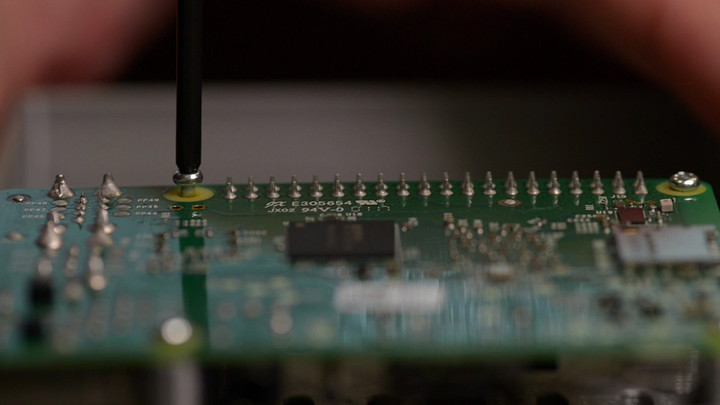
With our parts in hand, it’s time to put everything together. This is the simplest part of the process. Just up the Raspberry Pi with the holes in the case for the screw mounting holes in each corner, and tighten them down in a star pattern. Only apply enough pressure to hold the unit in place. There’s no need to clamp it too tightly.
Our 3D printed case used two clamps to keep the upper and lower half together, but that process may differ depending on each case. Again, there’s no need to tighten the mounting screws as much as possible.
Baking the Pi
Thankfully, someone else has done the legwork putting together a version of the Raspberry Pi OS that supports a large set of emulators right out of the box. It’s called RetroPie, and we’ll walk through the steps in general below, while you can find an up-to-date guide with troubleshooting and further details on the RetroPie Wiki.

At arm’s length, the process is simple. Download the complete OS image from the RetroPie site, and use a program to write that image file to the MicroSD card. A free program called Win32DiskImager will ask you to select the image file’s location, and the drive to write to. Keep in mind this will erase the MicroSD card, so backup any files that were already on it before imaging. Once Wind32DiskImager finishes its job, RetroPie is installed to the SD card. Slide it into the slot on the Raspberry Pi and plug in the HDMI and USB power to boot up.
On first boot, the system will head straight into controller configuration for Emulation Station, the name of the software that manages the emulators and configuration. Plug in a controller and follow the steps to define each button and stick on the controller. RetroPie’s installation guide has a few handy diagrams that can help assist with the process.
After configuration is complete, there still won’t be any systems listed in the main menu, but that’s to be expected – Emulation Station only shows systems that have games associated with them. Take a USB drive, formatted FAT32 (which should be most small thumb drives), and create a folder called “retropie” on it while plugged into a computer.
Plug the drive into the Pi, and wait for the green light on the front to stop blinking, indicating the Pi has finished creating a file structure on the thumb drive. Plug the USB drive back into the computer, and a handful of new subfolders will be waiting in the retropie folder. Choose the “roms” folder, then find the appropriate system – NES, in our case – and copy game files into that folder.
Once the transfer is complete, plug the USB drive back into the Pi, and once again wait for the green light on the front to stop blinking. Press whatever button is bound to Start, and choose Restart Emulation Station. The games are now copied to the system, so you can unplug the USB drive and game on.
Emulation software generally doesn’t cause any legal issues, whereas the actual game files tend to be protected by copyright and trademark law. A good rule of thumb is that users can keep a digital backup of a game they physically own, but you’ll want to check local laws and statutes for accurate information on the legality of emulation and ROMs.
Playtime is fun time
That’s all there is to it. RetroPie supports a wide array of older game systems, and users can add more if need be, assuming the Pi’s performance allows for it. That should easily cover NES and SNES games, and depending on cooling and power, may even include PSP or Dreamcast titles. We’ve selected our favorite emulators for each system, and many them are already included with the RetroPie installation described here.
The homebrew solution might cost slightly more than a NES Classic, depending on which parts are included, but the advantages over Nintendo’s now-discontinued offering are clear. Wireless controllers, a vast library of games, access to more systems, and a personal touch are all part of the package with a Raspberry Pi-based emulation system. With all that included, it seems more than worth an hour of assembly and a little extra legwork.
Missed out on the NES Classic? Don’t worry, building one is easier than you think
With Nintendo’s announcement of the end of production on the NES Classic, a lot of gamers are still wondering how to get their old-school fix. Thankfully, it couldn’t be easier to create your own out of a Raspberry Pi and some inexpensive electronics. This walkthrough will have you spinning up your favorite Mario titles in the span of an afternoon, with no soldering or coding required.
Parting it out
A Raspberry Pi 3 model B sits at the heart of our system. The tiny computer costs less than $40, and is more than powerful enough to emulate not just NES games, but a swath of older consoles and specialized software, including special versions of Minecraft and Doom.
A Raspberry Pi 3 model B sits at the heart of our system.
It doesn’t come with any of the necessary accessories, so we went ahead and picked up a USB power supply, HDMI cable, and MicroSD card, as well as a couple of heatsinks to keep the chips cool. There are kits available for those who don’t feel like sourcing the parts themselves.
While almost any USB controller will work, we found some that are very reminiscent of the original NES controllers. The Raspberry Pi 3 has built-in Bluetooth, so controllers like the Steelseries Stratus should work as well. It’s even possible to use Xbox and Playstation controllers, if they’re connected over USB.
While setting the naked Pi down next to the TV is certainly an option, a case provides a lot of benefits for ease of use, aesthetic appeal, and cable management. There are tons of options for generic Raspberry Pi cases all over the Internet, but we wanted something that looked like a NES, at least somewhat. With a suite of 3D printers at our disposal, we set about finding a design from Thingiverse and printing out our own.


We don’t necessarily recommend that course of action. The 3D printed case looks novel, but we spent a lot of time tweaking the model, printing multiple prototypes, and cleaning the final product of stray plastic strands. Even with experience, and the exceptional Lulzbot Taz, it took us a week of trial and error to print an acceptable case.
Users that don’t have a 3D printer, or just want to skip the tough stuff and start playing Mario, should look to Amazon for NES-inspired Raspberry Pi cases. We picked up an NES-inspired case for just $20 that’s built for just such a purpose.
It charges for the novelty factor, though. Literally hundreds of generic cases can be found for as little as five dollars. There’s even cases designed to attach to your TV, or hang on the wall, which might free up some space on your entertainment center. Buy whatever fits, slap an NES stick on it, and call it a day.
Some assembly required
The Pi should easily cover NES and SNES games.
With our parts in hand, it’s time to put everything together. This is the simplest part of the process. Just up the Raspberry Pi with the holes in the case for the screw mounting holes in each corner, and tighten them down in a star pattern. Only apply enough pressure to hold the unit in place. There’s no need to clamp it too tightly.
Our 3D printed case used two clamps to keep the upper and lower half together, but that process may differ depending on each case. Again, there’s no need to tighten the mounting screws as much as possible.
Baking the Pi
Thankfully, someone else has done the legwork putting together a version of the Raspberry Pi OS that supports a large set of emulators right out of the box. It’s called RetroPie, and we’ll walk through the steps in general below, while you can find an up-to-date guide with troubleshooting and further details on the RetroPie Wiki.

At arm’s length, the process is simple. Download the complete OS image from the RetroPie site, and use a program to write that image file to the MicroSD card. A free program called Win32DiskImager will ask you to select the image file’s location, and the drive to write to. Keep in mind this will erase the MicroSD card, so backup any files that were already on it before imaging. Once Wind32DiskImager finishes its job, RetroPie is installed to the SD card. Slide it into the slot on the Raspberry Pi and plug in the HDMI and USB power to boot up.
On first boot, the system will head straight into controller configuration for Emulation Station, the name of the software that manages the emulators and configuration. Plug in a controller and follow the steps to define each button and stick on the controller. RetroPie’s installation guide has a few handy diagrams that can help assist with the process.
After configuration is complete, there still won’t be any systems listed in the main menu, but that’s to be expected – Emulation Station only shows systems that have games associated with them. Take a USB drive, formatted FAT32 (which should be most small thumb drives), and create a folder called “retropie” on it while plugged into a computer.
Plug the drive into the Pi, and wait for the green light on the front to stop blinking, indicating the Pi has finished creating a file structure on the thumb drive. Plug the USB drive back into the computer, and a handful of new subfolders will be waiting in the retropie folder. Choose the “roms” folder, then find the appropriate system – NES, in our case – and copy game files into that folder.
Once the transfer is complete, plug the USB drive back into the Pi, and once again wait for the green light on the front to stop blinking. Press whatever button is bound to Start, and choose Restart Emulation Station. The games are now copied to the system, so you can unplug the USB drive and game on.
Emulation software generally doesn’t cause any legal issues, whereas the actual game files tend to be protected by copyright and trademark law. A good rule of thumb is that users can keep a digital backup of a game they physically own, but you’ll want to check local laws and statutes for accurate information on the legality of emulation and ROMs.
Playtime is fun time
That’s all there is to it. RetroPie supports a wide array of older game systems, and users can add more if need be, assuming the Pi’s performance allows for it. That should easily cover NES and SNES games, and depending on cooling and power, may even include PSP or Dreamcast titles. We’ve selected our favorite emulators for each system, and many them are already included with the RetroPie installation described here.
The homebrew solution might cost slightly more than a NES Classic, depending on which parts are included, but the advantages over Nintendo’s now-discontinued offering are clear. Wireless controllers, a vast library of games, access to more systems, and a personal touch are all part of the package with a Raspberry Pi-based emulation system. With all that included, it seems more than worth an hour of assembly and a little extra legwork.
Apple is issuing its Watch owners an Earth Day fitness challenge
Why it matters to you
Beyond the fact that stickers are cool, our planet is even cooler. Apple wants to raise awareness about the environment, and you can be part of the fun.
Earth Day is this Saturday, and in celebration Apple is launching the latest Apple Watch Challenge. As a part of the event, Apple Watch owners are challenged to get their butts outside and completely 30 minutes of exercise — after which they’ll unlock a slew of new iMessage stickers and special achievements.
“Get outside and celebrate Earth Day on April 22 and earn this award. Go for a walk, run, cycle, wheelchair, or swim workout of 30 minutes or more in the Workout app or any third-party app that writes these workouts to Health. You will also earn special stickers for Messages,” said Apple in a statement announcing the challenge.
The Apple Watch challenge isn’t the only thing Apple is doing in celebration of Earth Day. The company has also launched a video series featuring interviews with key Apple employees leading Apple’s effort to address climate change and use safer materials. The company also touted its new campus, which is highly climate-friendly. In fact, the campus will feature a hefty 9,000 native and drought-resistant trees, and is powered completely by renewable energy.
Apple has long made an effort to be among the more climate-conscious tech companies. At this point, 96 percent of its operations are powered by renewable energy — including retail stores, offices, distribution centers, and so on. As part of that, 100 percent of Apple’s operations are renewable in 24 countries.
Apple has also partnered with forestry companies to create more sustainably managed forests — and in partnering with WWF in China, Apple has helped transition a hefty 320,000 acres of forest toward Forest Stewardship Council certification. And, of course, the company has created Liam, a robot aimed at tearing down old Apple devices so that components can be reused for new Apple devices. Liam has so far been put to work on using the aluminum enclosures from the iPhone 6 to create Mac Mini computers.
And in terms of helping its own customers to pursue a healthy lifestyle, hopefully Apple’s latest Apple Watch challenge will be enough to get you outside for at least 30 minutes.
 AIVAnet