


Google retires Octane JavaScript benchmark, will focus on ‘real web pages’ instead
Why it matters to you
You can stop worrying about how your PC and web browser performs on Google’s Octane benchmark, because it hasn’t been giving realistic results.
Web browsing has become an increasingly intensive computing process over the years, moving from the simple display of static graphics and text to the running of sophisticated client-side applications using languages like JavaScript. Knowing how well a web browser can run today’s dynamic web experience on a given device is an important consideration for many people, and to that end, various benchmarks have been created to help test performance.
However, benchmarks have distinct life cycles, as technology advances and browser developers work around the benchmarks’ limitations. SunSpider was one of the first JavaScript benchmarks, and as its usefulness waned, Google’s Octane was introduced to take its place in 2012. Now Octane, as well, has reached the end of its usefulness and it, too, is being retired.
The reasons for Octane’s demise are fairly complex, and you can check out Google’s announcement at the V8 project blog for all of the details. In simple terms, starting around 2015, most JavaScript engines had optimized their compilers to score well on Octane tests. As developers worked to achieve ever-higher benchmark results, the actual benefits to real-life web page performance became increasingly marginal.
In addition, sites like Facebook, Twitter, and Wikipedia have demonstrated that the Octane benchmark wasn’t accurately reflecting how Google’s V8 JavaScript engine actually worked on real sites. Therefore, Octane wasn’t actually capturing important information on how V8 and other JavaScript engines perform in the modern web environment.
Finally, it became apparent that efforts to gain higher Octane benchmark results were actually having a deleterious effect on performance in real-world scenarios. The combination of Octane’s increasing disconnect with how web sites actually work with developers’ efforts to achieve higher and higher Octane scores meant an increasingly negative impact on how JavaScript engines were designed to perform when it really matters. Even bugs in Octane have been leveraged by developers to gain higher benchmark results.
All benchmarks suffer from similar problems, according to Google, meaning that the very process of making benchmarks to demonstrate performance eventually leads to performance decreases as developers write code that’s optimized for the benchmarks and not the real world. Google’s efforts going forward will be focused on improving performance measurements of browser performance on real web pages as opposed to merely running static test suites.
How to block calls on an iPhone
There’s no getting around it: There will always be people you just don’t want to talk to. For many of us, those unwanted calls come in the form of persistent ex-lovers trying to rekindle what has been lost, or telemarketers offering an all-expenses-paid luxury cruise to a tropical island off the southern tip of Costa Rica. Thankfully, Apple’s most-recent mobile operating system and the iBlacklist app have finally supplied a workaround method for blocking pesky callers. Whether the separation is merely temporary, or more permanent, is entirely up to you.
Here’s our how-to guide about how to block calls with an Apple iPhone regardless of your OS version. You won’t be able to block unlisted numbers and those blocked using other methods, but at least you’ll be able to bar any known number from contacting you via phone calls, messages, and FaceTime.
Block calls using iOS 7, 8, 9, or 10
It’s been a long time coming, but Apple has finally built an OS with built-in blocking utilities (and we are better for it). The feature, coupled with all versions of iOS since the release of iOS 7, allows users to quickly block calls, messages, and Facetime requests sans any unnecessary external software or third-party apps. It’s a welcome and convenient inclusion — one accessible through both your iPhone’s settings menu and contact list — but one also only available on the iPhone 4 and later, iPad 2 and later, iPad Mini, and fifth-generation iPod touch.
More: How to block phone calls on your Android phone
Once properly set up, blocked calls will automatically be routed to your voicemail. There will be no indication a call, text, or FaceTime request has been received on your end, but send receipts and other indications will still appear on the sender’s device as they would normally — meaning the sender will not be alerted of your decision to block them. Call-blocking is a one way street when using iOS 7 – 10, so you can still contact blocked numbers via phone call, text, and FaceTime with no hindrance, if you should decide that you want to.
Step 1: Download and install iOS 7, 8, 9, or 10 — If you haven’t already, back up your device and upgrade to iOS 7-10 via iTunes or your Wi-Fi network. To do so using the latter option, tap the main Settings icon from your smartphone’s home screen, select the General option near the top of the resulting menu, and then tap Software Update. Ensure your device is connected to a power source and tap the Download and Install button.

Step 2: Navigate to Blocked menu — Tap the main Settings icon when viewing the home screen. Depending on your version of iOS, you may find the call blocking menu in a different place. On iOS 10, it is accessed by scrolling down to Phone; on earlier versions, you’ll find it by tapping on General first, then Phone. On the following screen, under the Calls section, you’ll find a menu item listed as either Call Blocking & Identification or simply Blocked. Either will take you to a page where you can add a number. Alternatively, you may select either the Messages or FaceTime option from Settings to access the same Blocked menu offered through the Phone settings.

Step 3: Block the number — Tap the blue Block Contact button and select the desired number you wish to block from the resulting contact list. To unblock a user, simply tap the Edit option in the top-right corner of the Call Blocking & Identification page, followed by the red subtraction sign directly beside the user you wish to unblock. Afterward, tap the red Unblock button to confirm the changes.

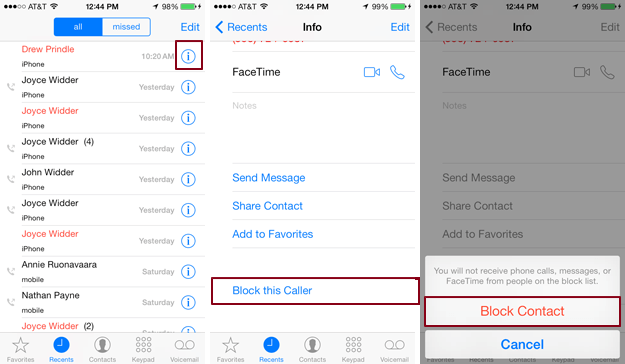
Alternative blocking method — Tap the Phone icon while viewing the home screen, select either all calls or missed calls and tap the information icon to the right of the number you wish to block. Now, scroll to the bottom of the resulting info panel, and tap the blue Block this Caller option, followed by Block Contact to confirm the request.
Best app deals of the day! 6 paid iPhone apps for free for a limited time
Everyone likes apps, but sometimes the best ones are a bit expensive. Now and then, developers make paid apps free for a limited time, but you have to snatch them up while you have the chance. Here are the latest and greatest apps on sale in the iOS App Store.
These apps normally cost money, and this sale lasts for a limited time only. If you go to the App Store and it says the app costs money, that means the deal has expired and you will be charged.
More: 200 Awesome iPhone Apps | The best Android apps for almost any occasion
DataFlow

DataFlow helps you keep track of network data usage in real time. Never worry about exceeding your data cap.
Available on:
iOS
Smart Weather

This application promises to use the most sophisticated algorithms to provide users with the most direct and clear weather information.
Available on:
iOS
hueTube

See what chemical reactions will happen when Philips hue meets YouTube. Ornament your home with light effects created by Philips hue.
Available on:
iOS
CodeCracker

You have a 0.001 percent chance of cracking this five-digit code. But there are a few hints embedded somewhere in the app. You just have to find them.
Available on:
iOS
Emoji Camera

Emoji camera makes it easy and fun to turn your favorite moments into cool-looking memories. Emoji camera provide unique emojis and filters to inspire your imagination.
Available on:
iOS
VoiceAdvisor

This app gives you insight into all the various commands you could ask of Siri. With 35 categories, there are more than 500 commands here.
Available on:
iOS
Unboxing the gorgeous Midnight Black OnePlus 3T!
The OnePlus 3T is one of the most exciting smartphones of the past six months, and it’s squaring up against the coming 2017 flagships with a fresh coat of paint. The exclusive, limited edition “midnight black” 3T comes with 128GB of storage, packaged in a luxurious matte black box, with all the essentials you’d expect from OnePlus — a Dash Charger, SIM tool, case, screen protector and even a welcome message from the company’s co-founder.
Check out our unboxing video for a quick first look at the hottest color for one of our favorite affordable flagships.
- Android Central on YouTube
- OnePlus 3T: What’s new in Nougat
- OnePlus 3T vs Google Pixel camera showdown
OnePlus 3T and OnePlus 3
- OnePlus 3T review: Rekindling a love story
- OnePlus 3T vs. OnePlus 3: What’s the difference?
- OnePlus 3T specs
- Latest OnePlus 3 news
- Discuss OnePlus 3T and 3 in the forums
OnePlus
Amazon
Galaxy S8 Active is (unsurprisingly) heading to AT&T later this year
Samsung is working on a ruggedized version of the Galaxy S8.
Samsung has released rugged variants of its flagships exclusively on AT&T for a few years, and it looks like the company will continue that trend with the Galaxy S8. According to the folks over at SamMobile, Samsung is working on the Galaxy S8 Active with a model number SM-G892A codenamed Cruiser that’s destined for AT&T.

Like its predecessors, the Galaxy S8 Active will likely be based on the standard Galaxy S8, albeit with a ruggedized exterior. The Galaxy S8 and S8+ are IP68 certified dust and water resistant, but Samsung in previous years has rolled out devices compliant with the U.S. military’s MIL-STD-810G rating for withstanding temperature extremes, altitude, shock, and other environmental variables. The S8 Active will likely retain the rating, but with the certification relying on simulated testing in lab conditions and not real-world usage scenarios, you shouldn’t rely on it too much.
That said, you can look forward to a device that is much more rugged than the standard GS8 or S8+. Unlike previous generations, the Galaxy S8 doesn’t have a home button at front nor any capacitive navigation buttons, so it’ll be interesting to see how Samsung refines its design aesthetic for the S8 Active considering it is marketing the Infinity Display as a core feature.
The manufacturer’s previous launch cycles suggest we’ll see the Galaxy S8 Active make its debut sometime in the month of June, and we’ll let you know once we hear more about the phone.
Prime members can grab third-gen Philips Hue bulbs for just $40 each
Our friends at Thrifter are back again, this time saving you on some new Philips Hue bulbs!
Update: It appears as though Amazon has removed the listing. We’ve reached out for clarification on this and will update when we have an answer!

If you aren’t already a member of Amazon’s Prime service, here is yet another great reason to sign up. Prime members can currently save 20% (automatically taken at checkout) on the purchase of the third-gen Philips Hue bulbs, dropping the price down to just $39.99 each. With these bulbs, you can choose from 50,000 different shades of white (from warm to cool) and over 16 million different colors. The lights can sync to your music, movies, video games and more for an immersive effect, which is pretty dang cool.
You can control the bulbs right from your phone (iOS and Android only), but if you are just looking to start your Philips Hue collection you’ll need a hub, and this starter kit is the way to go. Amazon offers a free 30-day trial of Prime so you can try it out before committing to the annual fee. Be sure to give it a shot so you can take advantage of these savings, free shipping, and so much more!
See at Amazon
For more great deals be sure to check out our friends at Thrifter now!
This is how our Google Pixels are holding up [Roundtable]

A six-month check-in to see how well the Pixel has fared from people who use it every day.
Most of your Android Central staff uses a Google Pixel or Pixel XL on a daily basis. We need to be able to see what Google has going on with Android so it’s something we use for our jobs, and we all agree it’s a great phone in either size. In either case, it’s a phone we carry around and do all the things you can do with an Android phone and we’ve been doing it for six months.
We already know Russell Holly’s Pixel XL is trashed on the outside but still going strong despite the scratches and scars. How it got there is something that Google needs to think about: we want our phones to work well and not look like they just came back from a war zone. Or maybe Russell just needs to try something different.
Anyhoo, since we wanted to know how your Pixel was faring, we need to tell you how ours are doing. Let’s go around the table and see!
 This is why we can’t have nice things.
Alex Dobie
My Pixel XL has aged about as badly as any smartphone I’ve ever wielded. Granted, it’s seen a fair amount of use in the four months that it was my daily driver. (I got it in mid-October, and switched to an LG G6 in mid-February.)
It’s worn poorly.
But still, it seems like this phone has picked up an unusual amount of wear and tear compared to other Samsung, LG and even other HTC-built phones I’ve used in years past. The oleophobic coating on the screen is just about gone. The back glass is scratched to hell. Even the display glass has managed to pick up a few gnarly scratches. And the anodized paint job seems to attract scuffs more than most competitors. That’s not usual for me after just four months.
Maybe it’s just unlucky, but I’ve spoken to many other journalists who’ve used Pixels since the beginning — sometimes in a case with minimal use — and theirs have worn equally poorly.
Jen Karner
It went right into a case.
My Pixel XL is still in pretty decent shape after months of use. It’s got a few small scratches, but they’re mostly near the fingerprint scanner, and the camera. Even those are small and not really visible unless I’m looking for them.
This is probably because as soon as I got it, I threw on a sturdy Incipio case to keep it safe. Especially because I have a tendency to kill phones by dropping them. The scratches that are on the back of the phone all tend to be where the case cut-out is, and I’m comfortable with trading a bulkier case for as few scratches as possible.
Daniel Bader

I have both a white Pixel review unit and personal Pixel XL unit and both look immaculate. I was worried, after reading about my coworkers’ brushes with scratches and coatings, that the same would befall my XL, but so far, so good.
What can I say? It’s a well-made phone, Brent.
Marc Lagace
It has a few scuffs.
I’ve been using the Pixel as my daily driver since day one, and I still regret not slapping a case on it right out of the box. I’m a huge klutz when it comes to phones, so my phone has a few scuffs around the corners from accidentally falling off a table or out of my pocket
I’ve been rolled with a slim clear case on my Pixel ever since, which lets me show off the unique look of the phone while drawing attention away from the scuffed corners. This phone has held up wonderfully to the daily wear and tear I can put phones through — including the glass panel on the back which appears to have only picked up a few microabrasions in the top-right corner.
Jerry Hildenbrand
Looks good to these eyes.
My Pixel and Pixel XL both look pretty good. I’m not saying there are zero scratches on the glass but there aren’t any to be seen at a glance and even holding them at funky angles under the light doesn’t show anything. Maybe it’s my eyes.
I think I know why. I always have my phone in my pocket by itself or on the desk/table face down. Being in a pocket without keys or garden tools or anything else that goes in pockets keeps it from getting scratched. My reasoning for always putting it face down when it’s not in my pocket? You can still use a screen with a few scratches, but if you gouge that camera lens you’re going to have a bad time.
Florence Ion
These are all the cases I own for the Pixel XL.

I swap them out depending on how I’m feeling at the beginning of each day. And if I’m traveling with the Pixel XL, I wrap it up in an Otterbox Defender case. This is to ensure the device stays pristine and still retains some resale value. You never know when you’re going to need to offload a smartphone.
So cases, being careful and lucky magic keeps our Pixel’s mostly in good shape. Take a minute and use the comments to tell us about yours, and anything special you might do to keep your Pixel looking good!
Google Pixel + Pixel XL
- Google Pixel and Pixel XL review
- Google Pixel XL review: A U.S. perspective
- Google Pixel FAQ: Should you upgrade?
- Pixel + Pixel XL specs
- Understanding Android 7.1 Nougat
- Join the discussion in the forums!
Google Store
Verizon
Did you know YouTube had a dark mode?
Not everything needs a “Dark Mode” but YouTube looks real nice in black.

Google has been flirting with a “Dark Mode” in Android for a little while now, but it looks like YouTube is taking that experience to the web. Reddit discovered a console edit in Chrome 57 for Windows and macOS that enables a toggle switch in settings to flip everything from the red and white you’re used to into shades of black and grey.
The text in the setting suggests you might use this feature when enjoying YouTube at night, but there’s more than a few people out there interested in using it like this all the time. While you can’t get this on mobile yet, here’s how you activate Dark Mode fin Chrome.
Go to Youtube in Chrome
Press Ctrl + Shift + I on Windows, or Option + Command + I on macOS to open the developer window
Click the “console” tab at the top of the window
Type document.cookie=”VISITOR_INFO1_LIVE=fPQ4jCL6EiE” into the console and hit enter
Close the developer window
Click refresh on the Chrome window
Click the Settings menu in YouTube and find the Dark Mode toggle

If that all sounds like too much work for you, there are already Chrome extensions like ImprovedTube that will add something similar to this mode. Really, this is just a cool way to see what YouTube may be including in future releases.
Are you a fan of this new color scheme? Would you like to have it on mobile as well? Get down there in the comments and let everyone know what you think!
The new CIA head hates WikiLeaks (when convenient)
The new director of the CIA has come out swinging against WikiLeaks, calling the organization a “hostile intelligence service.” In his first public speech, Mike Pompeo called Julian Assange a “narcissist who has created nothing of value,” adding that he “relied upon the dirty work of others to make himself famous.”
Pompeo went on to slam the site, saying that it was “often abetted by state actors, like Russia,” with the end goal of destroying “Western values.” At the same speech, the official repeated the accusation that Russian military intelligence, the GRU, helped tilt the result of the 2016 presidential election.
The tone of the speech is far removed from how Donald Trump himself refers to Wikileaks, which he often praised while on the campaign trail. The leaking organization is less popular these days after publishing a huge treasure trove of material on the CIA and openly considering a doxxing database for Twitter users.
Mike Pompeo was sharing Wikileaks documents on his Congressional Twitter account less than a year ago pic.twitter.com/cl5P6vnXSE
— Jessica Schulberg (@jessicaschulb) April 13, 2017
Pompeo’s tone, however, has changed significantly compared to July 24th, 2016, when he tweeted a report of WikiLeaks’ hack of the DNC, claiming it as proof of a “fix.” At his confirmation hearing in January, he then claimed that he never believed WikiLeaks was a “credible source of information.”
Source: Reuters, NYT
The Engadget Podcast Ep 36: Bad and Boujee
On this episode of the Engadget Podcast senior editor Cherlynn Low and executive editor Dana Wollman join host Terrence O’Brien to talk about some recent examples of bad corporate behavior. First the trio look the most recent developments at Uber, where days without controversy are increasingly rare. After that, they turn their attention to another perennial punching bag (and soon to be newest member of the Verizon family) Yahoo. The company’s troubles aren’t new. In fact the panel will be discussing just the latest fallout from a scandal surrounding political prisoners in China that dates back to 2007.
Finally, on the Wind Down, Cherlynn reveals that gratuitous nudity isn’t what makes an HBO show and Terrence wholeheartedly endorses the chaotic and experimental “pop.” Then Dana offers her review of 1986’s Little Shop of Horrors.
Relevant links:
- Uber’s ‘Hell’ program tracked and targeted Lyft drivers
- Yahoo misused millions meant for humanitarian aid, lawsuit claims
The Wind Down:
- Arca – Arca
- Little Shop of Horrors
- Big Little Lies
- Criminal
You can check out every episode on The Engadget Podcast page in audio, video and text form for the hearing impaired.
Watch on YouTube
Watch on Facebook
Subscribe on Google Play Music
Subscribe on iTunes
Subscribe on Stitcher
Subscribe on Pocket Casts
 AIVAnet