


‘Pokémon Go’ offering spooky bonuses for Halloween
If there’s one thing our (fictional) mom always told us, it’s that we shouldn’t go out walking at night with our smartphone on show. The folks at Niantic Labs feel differently, and think that poorly lit Fall nights around Halloween are the perfect time for everyone to catch some pocket monsters. The company is launching a “global in-game event” to encourage Pokémon Go players to go out and catch some spooky ‘mons.
From October 26th to November 1st, “spooky” Pokémon like Gastly, Gengar and Golbat will appear much more frequently. In addition, every monster you catch will net you double the number of candies — six, rather than the standard three. The game’s buddy system is also getting a Halloween tweak, with your buddy handing you four candies instead of one every time you walk a pre-set distance. Oh, and Professor Willow will give you two candies for every monster you give up. Best grab a scarf, it’s gonna be cold out there.
Apple Releases iOS 10.1 With New Portrait Mode for iPhone 7 Plus
Apple today released iOS 10.1 to the public, marking the first major update to the iOS 10 operating system that launched on September 13. In testing since September 21, iOS 10.1 saw Apple release five betas to developers and public beta testers before its public debut.
Today’s iOS 10.1 update is available as a free over-the-air update for all iOS 10 users. It is the third update to iOS 10, following iOS 10.0.3, a minor bug fix update.
iOS 10.1 introduces a new “Portrait” mode, designed to take advantage of the two cameras included in the iPhone 7 Plus, released in September. Portrait mode uses the wide-angle and telephoto lenses in the iPhone 7 Plus to create shallow depth of field portrait photos with blurred backgrounds.
To achieve the blurred look, the image signal processor in the device uses the wide-angle camera to create a depth map while the telephoto captures an image, dissecting the different layers of the photo to decide what to blur with an artful “bokeh” effect. It works on people, pets, and objects, but it does require good lighting to achieve the proper results.
Subscribe to the MacRumors YouTube channel for more videos.
The update also offers a long list of bug fixes and other under-the-hood improvements to address many problems that have been uncovered since iOS 10 was released, and it also brings Transit directions to Japan for the first time.
There have been some tweaks to the Messages app. It’s now possible to play Bubble and Screen effects in Messages with Reduce Motion enabled, something that wasn’t previously possible. There’s also a new option to replay Bubble and Screen effects. A full list of changes is available below:
Camera and Photos
– Introduces Portrait Camera for iPhone 7 Plus that creates a depth effect that keeps your subject sharp while creating a beautifully blurred background (beta)
– People names in the Photos app are saved in iCloud backups
– Improved the display of wide color gamut photos in the grid views of the Photos app
– Fixes an issue where opening the Camera app would show a blurred or flashing screen for some users
– Fixes an issue that caused Photos to quit for some users when turning on iCloud Photo LibraryMaps
– Transit support for every major train, subway, ferry, and national bus line, as well as local bus systems for Tokyo, Osaka, and Nagoya
– Sign-based transit navigation including layouts of all underground structures and walkways that connect large transit stations
– Transit fare comparison when viewing alternative transit routesMessages
– New option to replay bubble and full screen effects
– Messages effects can play with Reduce Motion enabled
– Fixes an issue that could lead to contact names appearing incorrectly in Messages
– Addresses an issue where Messages could open to a white screen
– Addresses an issue that could prevent the report junk option from displaying with unknown senders
– Fixes an issue where videos captured and sent in the Messages app could be missing audioApple Watch
– Adds distance and average pace to workout summaries in the Activity app for outdoor wheelchair run pace and outdoor wheelchair walk pace
– Fixes issues that may have prevented Music playlists from syncing to Apple Watch
– Addresses an issue that was preventing invitations and data to appear in Activity Sharing
– Fixes an issue that was allowing Activity Sharing to update over cellular when manually disabled
– Resolves an issue that was causing some third-party apps to crash when inputting textOther improvements and fixes
– Improves Bluetooth connectivity with 3rd party accessories
– Improves AirPlay Mirroring performance when waking a device from sleep
– Fixes an issue where playback would not work for iTunes purchased content when the “Show iTunes Purchases” setting is turned off
– Fixes an issue where certain selfie apps and face filters used with the FaceTime HD camera on iPhone 7 and iPhone 7 Plus did not display a live preview
– Fixes an issue in Health where individual strokes are converted to separate characters when using the Chinese handwriting keyboard
– Improves performance of sharing websites from Safari to Messages
– Fixes an issue in Safari that caused web previews in tab view to not display correctly
– Fixes an issue that caused certain Mail messages to be reformatted with very small text
– Fixes an issue that caused some HTML email to be formatted incorrectly
– Fixes an issue that in some cases caused the search field to disappear in Mail
– Fixes an issue that could prevent Today View Widgets from updating when launched
– Fixes an issue where Weather widget sometimes failed to load data
– Fixes an issue on iPhone 7 where Home Button click settings would not appear in search results
– Fixes an issue that prevented spam alert extensions from blocking calls
– Resolves an issue that could prevent alarm sounds from going off
– Fixes an issue where audio playback via Bluetooth would cause the Taptic engine to stop providing feedback for some users
– Resolves an issue preventing some users from restoring from iCloud Backup
iOS 10 has been described by Apple as the “biggest release ever” for iOS users, with features that include a redesigned Lock screen, a Siri SDK to allow third-party apps to integrate with Siri, and a completely overhauled Messages app with stickers, a full App Store, Digital Touch, Bubble Effects, and more.
Related Roundup: iOS 10
Discuss this article in our forums
Apple Releases tvOS 10.0.1 With Bug Fixes, Performance Improvements
Apple today released a new update for tvOS, the operating system designed to run on the fourth-generation Apple TV. tvOS 10.0.1 comes one and a half months after the release of tvOS 10 and marks the first minor update to the new operating system. tvOS 10.0.1 has been in testing since September 21, with Apple having seeded four betas to developers before releasing it to the public.
The new tvOS 10.0.1 update can be downloaded over the air through the Settings app on the Apple TV by going to System –> Software Update. Those who have automatic software updates turned on will be upgraded to the new operating system automatically.
As a minor 10.x.x update, tvOS 10.0.1 focuses on performance improvements and bug fixes to address issues discovered since the release of tvOS 10. During the beta testing process, no major outward-facing changes or obvious bug fixes were discovered.
The tvOS 10.0.1 update does not include support for single sign-on, a feature that will allow Apple TV users to sign in once with their cable credentials to access all live cable content included in a cable subscription. Apple has said single sign-on will be introduced in a future update.
tvOS 10 brings improved search, expanded Siri capabilities, a new dark mode, a Continuity option for using the iPhone for text input, automatic download of universal apps, easy access to live TV, and more. For full details on what’s new in tvOS 10, make sure to check out our tvOS 10 roundup.
Related Roundups: Apple TV, tvOS 10
Buyer’s Guide: Apple TV (Caution)
Discuss this article in our forums
Apple Releases watchOS 3.1 With Bug Fixes
Apple today released a new software update for the Apple Watch, upgrading watchOS 3 to watchOS 3.1. The new watchOS 3.1 update comes more than one month after watchOS 3 was first provided to the public, marking the first update to the new operating system. watchOS 3.1 has been in testing since September 21, with Apple having seeded three betas before launch.
watchOS 3.1 can be downloaded through the dedicated Apple Watch app on the iPhone by going to General -> Software Update. To install the update, the Apple Watch must have 50 percent battery, it must be placed on the charger, and it must be in range of the iPhone. An iPhone running iOS 10 or later is required to download the new software, but it is available for all Apple Watch models.
During the beta testing period, no major outward-facing changes or feature tweaks were discovered, so watchOS 3.1 focuses mainly on performance improvements and bug fixes to address issues that have popped up since the release of watchOS 3. The release notes list several bug fixes and improvements:
– New option to replay bubble and full screen effects in Messages
– Messages effects can play with Reduce Motion enabled
– Fixes an issue that could cause the notification for Timer complete to be delivered twice
– Resolves an issue that could prevent Apple Watch Series 2 from fully charging
– Resolves an issue where Activity rings may disappear from the watch face
– Fixes an issue that prevented Force Touch options from appearing in some third-party apps.
watchOS 3 is a significant update that brings a new interface to the Apple Watch, with a dedicated app dock, instant launch apps, and new watch faces. There are new Activity sharing features, a “Breathe” app guides users through deep breathing sessions to cut down on stress, and an SOS feature can automatically call emergency services. For more details on watchOS 3, make sure to check out our watchOS 3 roundup.
Related Roundups: Apple Watch Series 2, watchOS 3
Buyer’s Guide: Apple Watch (Buy Now)
Discuss this article in our forums
Apple Releases macOS Sierra 10.12.1 With Bug Fixes, Features for Upcoming Macs
Apple today released macOS Sierra 10.12.1, the first update to the macOS Sierra operating system that first launched on September 20. macOS Sierra 10.12.1 has been in beta testing since September 21, with Apple seeding five betas before releasing the final version to the public.
macOS Sierra 10.12.1 is available for free to all customers who are running macOS Sierra. It can be downloaded from the Software Update function in the Mac App Store.
macOS Sierra 10.12.1 features few outward-facing changes, instead focusing on bug fixes and improvements to address issues that have surfaced since the release of the operating system. It does include Photos support for the new iPhone 7 Plus Portrait feature introduced with iOS 10.1, and it also includes features designed for next-generation MacBook Pro models that are set to be released later this year. Here’s a full list of changes:
This update:
– Adds an automatic smart album in Photos for Depth Effect images taken on iPhone 7 Plus
– Improves the compatibility of Microsoft Office when using iCloud Desktop and Documents
– Fixes an issue that may prevent Mail from updating when using a Microsoft Exchange account
– Fixes an issue that caused text to sometimes paste incorrectly when using Universal Clipboard
– Improves reliability of Auto Unlock with Apple Watch
– Improves security and stability in Safari
Apple has been on an accelerated timeline to get macOS Sierra 10.12.1 released, and it has likely already been sent to Apple’s supply chain partners to be installed on new machines. New MacBook Pro models could be ready to launch as soon as late October.
macOS Sierra is a major operating system update that introduces Siri support, cross device copy paste options, new storage optimization tools, auto unlocking with the Apple Watch, and more. For full details on the features that are new in macOS Sierra, make sure to check out our full macOS Sierra roundup.
Related Roundup: macOS Sierra
Discuss this article in our forums
Xiaomi Mi Robot review: Your weekends just got lazier

The Mi Robot raises the bar for robot vacuum cleaners.
Xiaomi isn’t just a phone manufacturer. The Chinese brand has ventured into the home appliances category with its Mi Ecosystem products, launching utilities like light bulbs, air purifiers, rice cookers, fitness bands, and even a smart screwdriver. Xiaomi doesn’t make the products in the lifestyle category itself. Instead, it invests in or partners with startups in this segment, and then makes its vast supply chain available to these companies.
It’s a win-win for both parties as startups get valuable funds and access to Xiaomi’s supply chain. Xiaomi, meanwhile, gets to market the hardware under its own label, like it does with the Mi Band, which is designed and manufactured by Huami. The Mi Robot also follows the same path. The device itself is made by one of Xiaomi’s ecosystem partners Rockrobo, and is now selling in China for the equivalent of $250.
Why is AC reviewing this? Xiaomi’s ecosystem model is all about providing smart home solutions that are affordable. While it isn’t an Android device, the Mi robot is a neat bit of kit, and the ability to control your vacuum with your phone is just cool.

With its white color scheme and minimalist styling, the vacuum is very Apple-esque when it comes to the design. The Mi Robot features a total of 12 sensors that allow it to effectively navigate around your house, including an ultrasonic radar sensor, a cliff sensor, a gyroscope and an accelerometer. The data from these sensors is transmitted to three on-board co-processors, which use a Simultaneous Localization and Mapping algorithm to determine the most efficient cleaning route.
The vacuum has a suction rating of 1800Pa, more than that of the $900 Roomba 980. The brushless DC motor, controllers, and fans come from Nidec. The suction inlet is located at the bottom, and there’s a side brush to the right of the vacuum that directs dust towards the inlet as it navigates around a room. The vacuum has two wheels, and can adjust its height automatically to create more suction with the surface.
Here’s how it works: the vacuum creates a virtual map of the room by going around all four corners. Once it figures out the layout, it starts cleaning the room in a grid, going back and forth to ensure that all areas are covered. It is a very efficient system, and one that differentiates the Mi Robot from others in this category.
Xiaomi sells an optional virtual wall accessory that lets you create a restricted area for the device. The virtual wall is a magnetic stripe that can be placed on the floor, effectively creating a barrier for the vacuum.

The Mi Robot comes with a 5200mAh battery, which delivers a cleaning time of around two hours, after which the unit will automatically return to its charging dock to recharge. The vacuum remembers its last location, so even if the battery runs out in the middle of a cycle, the unit will recharge itself and come back to the same spot to re-commence cleaning.

There are two buttons on the vacuum: power and home. You can start the cleaning process with a short press of the power button, while the home button initiates a return to the charging dock. You can also control the vacuum through the Mi Home app, which lets you view the virtual map created by the vacuum and its current status. You can also schedule a cleaning session from the app.
Through the Mi Home app, you can set different modes for the vacuum: Quiet, Standard, and Strong. The standard mode is enabled by default, and it gets the job done for everyday cleaning. In standard mode, the vacuum produces around 64dB of sound. The dust picked up by the robot is collected in a tiny cleaning bin, which has a sensor that notifies you when it’s full. I thought I was fairly efficient at cleaning the house with a regular vacuum, but I scheduled the Mi Robot to run after vacuuming one day and it managed to pick up a significant amount of dust.
The biggest drawback with the vacuum is that the app and manual are in Mandarin, making it harder to set it up. While the Mi Home app itself is available in other countries, the Mi Robot is listed only when you select Mainland China as the region. You can navigate the settings by using Google Translate, but it is cumbersome to get started with the vacuum at first.
Overall, the Mi Robot is well worth its $250 asking price. The vacuum did a fantastic job of cleaning the house, and it tackled carpeted areas as well as tiled surfaces with ease.
Given that the product is limited to China, the best way to get your hands on the Mi Robot outside of China is through third-party resellers like GearBest, where it’s available for $379. That’s $130 more than the sticker price, but until Xiaomi starts selling the Mi Robot officially, sites like GearBest are your best recourse to getting your hands on the vacuum. You can score a $20 discount by using XIAOMIVAC at checkout, bringing the cost down to $360.
See at GearBest
Using a Motorola Atrix Lapdock to power a portable, VR-ready PC

Alright, this is just plain clever.
Building a gaming PC, especially something you wan to be VR-ready, is a fun challenge. You can try to make your kit as small and compact as possible so it doesn’t interfere with your play space, you can go all out and mount the whole thing in individual pieces on your wall, or you can go somewhere in between. Typically, being portable isn’t something you can actually pull off unless you want to sacrifice power and jack up costs by going with a VR-ready laptop.
Here’s a clever solution from one of our forum members that uses some surprisingly old tech with some cutting edge hardware to create something unique!
Read more at VR Heads!
Digital Offers: Grab the Immersive Angular 2 bundle for just $41
Coding languages continue to evolve, and there are several new players that have been introduced over the last couple of years. Keeping up with all of them can be difficult, and switching can be even harder. Google created a new Javascript framework called Angular 2, and odds are you want to see what it is all about. Well, you don’t have to spend a ton of cash to find out if it is right for you.
Luckily, you can save 88% on the Immersive Angular 2 bundle which gives you access to 82 lectures and more than 10 hours of content. From understanding the basics to setting up a production-ready build workflow, you’ll have access to all the information 24/7.

This bundle includes:
- Access 82 lectures & 10.5 hours of content 24/7
- Understand the basic Angular 2 concepts, like Components, Form Validation, Templates, Services, Dependency Injection & more
- Choose the best language for you, between JavaScript, new JavaScript, or TypeScript
- Make HTTP requests & integrate w/ backend
- Set up a production-ready build workflow using NPM & Webpack
- Write unit tests w/ Jasmine & run them w/ Karma
- Navigate w/ the Angular Router
- Receive downloadable code samples for the Angular 2.0.0 final release
Don’t get left behind because you missed out on a sweet deal. At just $41 for the bundle, there is very little reason not to pick it up and test the waters with Angular 2.
Whether you want to try and code your first app or just learn something new, don’t miss out on the 88% savings that drops the price to just $41 for all this digital information for a limited time.
See at Android Central Offers
How to take a screenshot on the Google Pixel

How do I take a screenshot on the Google Pixel?
The Google Pixel runs Android 7.1, which is pretty special. There are a whole bunch of new features, and there are rounded icons — for better or worse. If you’re using the new phone, you’re likely going to want to show off some of its awesome looks in the form of screenshots.
It’s easy to take a screen on the google Pixel. Here’s how.
How to take and find screenshots on the Google Pixel
Take a screenshot using the hardware buttons
Hold down the power button (top button) on the right side of the phone.
Immediately afterwards, hold down on the down volume button.
Release both buttons at the same time.


If you performed the combination properly, you should see a smaller version of the screen you took and a notification
How to access the screenshot you took
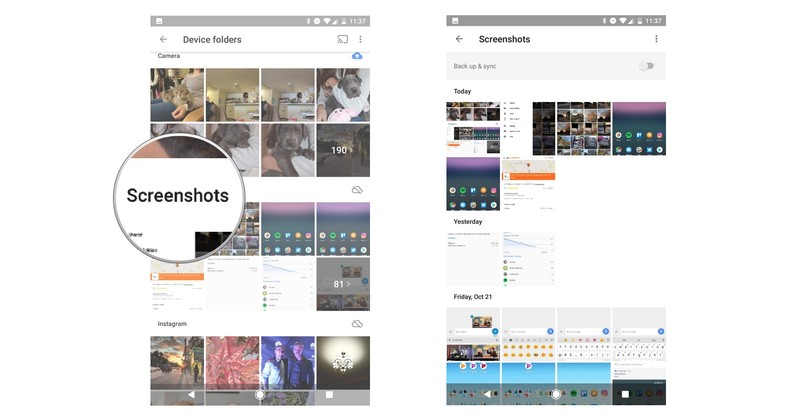
On the Google Pixel, screenshots are stored in a special folder, accessible through the Photos app.
Swipe down on the notification shade.
Tap on the screenshot to open it.
Tap on Share or Delete to action the screenshot.

How to access all of your screenshots
Open Google Photos from the home screen, folder or app drawer.
Tap the three-line menu button on the top left side of the screen.
Tap Device folders.

Tap the Screenshots folder.
Open or share the screenshot or screenshots you want.
How to take a screenshot with Google Assistant
Right now, Google Assistant doesn’t allow you to take screenshots using your voice, but the feature should be added soon, as it was available through Google Now on Tap in earlier versions of Android.
Questions?
Taking screenshots is often the easiest part of using a phone, but there are plenty of things you can do with them. We’re here to help answer any follow-up questions you may have.
Google Pixel + Pixel XL
- Google Pixel and Pixel XL review
- Google Pixel XL review: A U.S. perspective
- Google Pixel FAQ: Should you upgrade?
- Pixel + Pixel XL specs
- Understanding Android 7.1 Nougat
- Join the discussion in the forums!
Google Store
Verizon
Best Car Chargers for Google Pixel

Looking to keep your Pixel charged on the road? Here are our favorite car chargers!
We’ve all been there (some of us more than others): You hop in the car for a road trip or are on your way to work, you look at your phone, aaaand you’re at 33% — with the WHOLE day to go!
You need a car charger for your Google Pixel so that you never miss a message or a call. Here are some of the best you can buy for your Pixel.
- Tronsmart
- Pleson 3-port
- Maxboost
- Nekteck
- Vinsic
Tronsmart

Tronsmart’s car charger with a built-in USB-C cable is easily your best option for keeping your Pixel juiced on the road. This is a Benson-approved car charger — in fact, it’s the only one on the list. Benson Leung is an engineer at Google who takes it upon himself to test USB-C chargers and cables. This one passes!
The attached USB-C cable means no need to remember one every time you drive, and the USB Type A port is handy for charging another device at the same time via Quick Charge 2.0 or 3.0. Your Pixel will charge quickly and efficiently, thanks to USB 3.1 and its delivery of 5V at 3A.
If you want a car charger that has exactly what you need to keep your Pixel going, check out the Benson-approved Tronsmart 33W dual USB charger.
See at Amazon
Pleson 3-port

Pleson’s charger features two USB Type A ports and a USB-C, so you can charge up to three devices at the same time! The USB-C port is USB 3.1, so your Pixel will charge quickly, giving you a significant charge in about a half-hour.
This charger has built-in safeguards so that your Pixel doesn’t fry, with automatic shut-off in case of a power surge, overheating, or an overcurrent.
If you want to charge up your Pixel, as well as a couple other devices while you’re on the go, then check out Pleson’s 3-port charger.
See at Amazon
Maxboost

Maxboost’s 35W charger is another to feature a built-in USB-C cable, so you never have to worry about forgetting yours at home. The other USB port is great for any of your Quick Charge 2.0 devices and charges with up to 18W (12V/1.5A, 9V/2A, 5V/2A).
The handiest part of this charger is its muted light-up ring that shines when plugged in. It’s dimmed so as not to distract you while you drive.
This charger comes in black or white, each with a blue LED ring, so you can match it to any color Pixel you have!
See at Amazon
Nekteck

Nekteck is yet another charger that features a built-in USB-C charger, so you need only bring your Pixel when you hit the road — no extra cables needed!
The USB-C cable comes in a straight or curled version, which is handy if you happen to tangle your cables pretty often.
Your Pixel will be charged as quickly as possible, thanks to USB 3.1 and your other devices can be charged through the USB Type A port at up to 2.4A.
See at Amazon
Vinsic

Vinsic’s charger features both a USB-C port and a USB Type A port, so you can charge your Pixel and another device at the same time. You’ll need to bring cables along, since this charger doesn’t have anything built-in.
Your Pixel won’t be cooked, thanks to overcurrent, overcharge, and overvoltage protection, and the LED indicator lets you know when the charger is ready to juice up your devices.
See at Amazon
Your picks?
Are you using an awesome USB-C charger that we didn’t mention? Let us know in the comments below!
Google Pixel + Pixel XL
- Google Pixel and Pixel XL review
- Google Pixel XL review: A U.S. perspective
- Google Pixel FAQ: Should you upgrade?
- Pixel + Pixel XL specs
- Understanding Android 7.1 Nougat
- Join the discussion in the forums!
Google Store
Verizon
 AIVAnet