


The PlayStation VR includes a demo disc loaded with games
PlayStation VR is expensive enough by itself, so you probably don’t relish the idea of spending more just to get a taste of what the PS4 headset is like. Thankfully, you won’t have to. Sony has revealed that PSVR’s accompanying demo disc will include samples of eight games. A handful are definitely lighter releases that serve more as showcases (PlayStation VR Worlds most notably), but there are also tasters of games you might well buy later. You can play demos for Battlezone, Driveclub VR, the ubiquitous VR sampler EVE: Valkyrie and RIGS: Mechanized Combat League, among others.
This lineup surfaced on Sony’s European PlayStation Blog, so don’t be surprised if the lineup changes depending on your region. Should it remain largely intact from country to country, though, it’s good news for many future PSVR owners. Yes, the demos are ultimately there to get you to buy games, but the breadth is important. You won’t run out of things to try minutes after opening the box, and you’ll get a genuinely diverse range of experiences that will give you a feel for what’s possible in VR. That’s particularly important when many players will know very little about VR, let alone have first-hand experience.
Via: The Verge
Source: PlayStation Blog
Apple Partnering With Sony to Bring Apple Pay to Japan
Apple is partnering with Sony to bring its Apple Pay payments service to Japan, reports Japanese news site Nikkei. As has been previously rumored, Apple will make future versions of the iPhone compatible with Sony’s FeliCa technology to allow Japanese citizens to use Apple Pay for contactless payments at FeliCa-compatible terminals.
FeliCa is Sony’s tap-to-pay format, which has been widely adopted in Japan. It’s used to access the country’s railway and bus system, and it’s able to store e-money that can be used at vending machines, cafes, and other locations equipped with FeliCa systems. FeliCa is able to process transactions in a fraction of a second, making it suitable for use in a fast-paced transit environment.
Users will also be able to store train tickets on their iPhones, letting them enter gates with a wave. Other proposed uses for the technology include integrating membership cards and replacing security key cards. Apple’s foray into Japanese smartphone payment services will promote broader adoption of compatible terminals at retailers and event venues. Foreign travelers may be able to use foreign iPhones to make payments as well.
The new iPhone is expected to be equipped with the technology needed to allow it to interface with FeliCa payment terminals, but according to Nikkei, Apple Pay is not likely to launch until Japan until next year. Instead, a gradual rollout is expected.
Apple still needs to negotiate fees with financial institutions in Japan and establish deals with retailers and service providers that use the FeliCa readers, a process that will take some time.
Apple Pay is currently available in nine countries including the United States, United Kingdom, China, Australia, Canada, Switzerland, Hong Kong, France, and Singapore. Apple Pay vice president Jennifer Bailey has said Apple is “working rapidly” to expand the service to additional countries in Asia and Europe.
Related Roundup: Apple Pay
Tags: Sony, nikkei.com, FeliCa
Discuss this article in our forums
Kenmore Elite 41582 review – CNET
The Good Kenmore’s $1,100 Elite 41582 washer has an “Accela” setting that shortens a normal cycle to just 30 minutes. And its steam function and drum light give it high-end appeal.
The Bad Kenmore’s Elite 41582 does a decent job tackling stains, but it isn’t as impressive as some other washers we’ve tested.
The Bottom Line The Kenmore Elite 41582 is a reasonably good washing machine, but it definitely didn’t blow us away.
Visit manufacturer site for details.
Electrolux’s $1,099 EFLS617S is the current front-load washer to beat. With excellent stain removal and solid design, features and usability, it sets the bar high for other midrange front-loaders.
Kenmore’s $1,100 Elite 41582 washing machine is roughly comparable to the EFLS617S in terms of features, but it falls behind in everything else. It isn’t a bad washer — it was actually inspired by the Twin-Wash-compatible LG WM4270HVA — but I’d suggest looking at the competition before buying the front-load Kenmore Elite 41582.
Doing laundry with Kenmore’s Elite 41582…
See full gallery


1 – 5 of 7
Next
Prev
Up close with the elite
The $1,100 Kenmore Elite 41582 offers more in terms of features than the $1,000 Kenmore 41393 I just reviewed. That means you’ll get bonus cleaning cycles like Rugged and Small Load, as well as a steam setting.
On design, the 41582’s white finish is fine, but you can get a more premium looking gray finish for an additional 100 bucks — that’s model number 41583. Overall, the washer is pretty intuitive and easy to use. At the same time, I wish the right side of the display looked less cluttered.
Here’s a closer look at the Kenmore Elite 51582’s specs versus the competition:
Comparing washing machines
| Kenmore Elite 41582 | LG WM3575CV | Whirlpool WFW87HEDW | Electrolux EFLS617S |
| $1,100 | $1,100 | $1,199 | $1,099 |
| White, Metallic (model #41583 for $1,200) | Graphite Steel, White (for $1,000) | Chrome Shadow, White (for $1,099) | White, Titanium (for $1,199) |
| 4.5 cubic feet | 4.5 cubic feet | 4.3 cubic feet | 4.4 cubic feet |
| 14 | 12 | 10 | 9 |
| 105 kWh/year | 90 kWh/year | 109 kWh/year | 85 kWh/year |
| 27 x 38.69 x 29.75 inches | 27 x 38.69 x 29.75 inches | 27 x 38.75 x 33.13 inches | 27 x 38 x 31.5 inches |
| 1 year, limited | 1 year, limited | 1 year, limited | 1 year, limited |
| 120V; 60Hz | 120V; 60Hz | 120V; 60Hz | 120V; 60Hz |
| No | Yes, Android and iPhone | No | No |
There are a lot more similarities than differences in the above chart, but the 41582 definitely has more cleaning cycles to offer than others in the same price range. This Kenmore model also works with Kenmore Connect, a troubleshooting feature similar to LG’s Smart Diagnosis.
But instead of a related Android or iPhone app, the Kenmore version requires a call to customer service. Here’s how it works:
- Call 1-800-4MY-HOME and get a customer service representative on the line.
- Make sure your washer is powered on.
- Press and hold the “Wash Temp” button until you see a “6” appear on the washer’s digital display.
- When the washer starts to transmit dial-up internet-esque sounds, hold the phone close to the washer.
- The customer service representative will interpret the transmission and tell you what, if anything, is wrong with your washer.
DJI sets 27 September event likely for foldable ‘Mavic’ drone
DJI has sent invites to the media for a press event, following a series of leaks that seem to suggest it is working on a foldable drone.
The drone maker’s invite, which is for a 27 September event in New York City, teased things like “adventure at your fingertips” and “rediscover adventure with DJI”, but it failed to fully reveal what’s in store. However, according to new image leaks that go with a previous trademark application, DJI has developed a small, portable camera drone that collapses. It’s supposedly called Mavic.
Heliguy
Leaks posted by Heliguy and MyFirstDrone (via Slashgear) indicate the drone will feature a 4K camera, two-axis gimbal, foldable arms, removable 3,380mAh battery, and an LCD-packing controller running Android. It’ll also weigh just 1.43 pounds, making it DJI’s lightest camera drone. It’ll be interesting to see how this machine competes against GoPro’s first drone, called Karma, which is also set to debut this month.
Keep in mind DJI told Engadget recently that it believes the average consumer is concerned about size and ease of use when it comes to buying a drone, suggesting it thinks a compact, user-friendly option is needed in the unmanned aerial vehicle space.
Xbox One preview software gets new social features today
Xbox One Preview members will get their hands on a couple of brand new features making their way to the console today.
Both Clubs and Looking for Group features are being rolled out to Preview members on Xbox One today and then the Xbox app on Windows 10, iOS and Android devices in the near future. Both features’ existence were confirmed during E3 2016, but now there’s a chance to actually try them out now that they’ll be in the wild.
Clubs are exactly what they sound like: Groups created and managed by players meant to foster a sense of community among anyone getting together to play a certain game. Anyone can create or join different Clubs, and you can create one for nearly anything, such as a group for your inner circle of friends to best each other at Halo or something of that nature.
Club members can coordinate parties, play games, communicate via voice and text chat and share content across the Club together. All Clubs for a specific game will be grouped together in the Game Hub. If you’ve got a unique name in the hopper for one you want to put together, you’ll want to go ahead and grab it if you’re in the Preview because there can only be one with the same name.
Similarly, Looking for Group will assist you in finding someone to play with. You can create your own LFG post with requirements such as the game you need help with, how many people you require, rules, and other types of prerequisites you want to set to make the experience as pleasant as possible. You can browse other LFG requests to see if there’s anyone you want to join in and assist as well.
In addition to Clubs and Looking for Group becoming available today, the Gamerscore Leaderboard for Xbox One and Windows 10 app has been improved to display results for a 30-day rolling period. Plus, emojis are coming to the Xbox One’s virtual keyboard. When communicating with Clubs or others in Groups, you can utilize various emojis with a special keyboard of them.
More details on the online tournament Arena will be coming soon, but for now these updates should tide Xbox One owners over with new social options. Now get out there and make some Clubs for us to join.
Source: Microsoft
Star Trek’s iconic computer voice may live on in your phone
Whenever we talk about natural language voice assistants, we invariably draw parallels to the computer on Star Trek. Soon, those comparisons may be a bit more direct: Roddenberry Entertainment has revealed that it has a phonetic library for Majel Barrett-Roddenberry, the voice behind the Enterprise’s computer. “We’re working to get her voice for things such as Siri,” The company said in a recent Tweet. “Maybe [the] voice of the computer on [Star Trek Discovery]”
Majel’s voice is recorded phonetically, &we’re working to get her voice for things such as Siri, maybe voice of the computer on #STDiscovery
— RODDENBERRY (@roddenberry) September 4, 2016
If her voice does make it to the new series, it’ll be Discovery’s second nod to the work of the actress — the show’s main character will be nicknamed “number one,” a reference to Barrett-Roddenberry’s role in original series’ 1965 pilot. If it doesn’t, it’s still a win for fans: phonetic recordings are perfect for creating voice assistants. If Roddenberry Entertainment is successful, we could all be hearing Mrs. Barrett’s voice again sometime soon.
Via: iO9
Source: Twitter
How to make small shoes bigger — with a blow dryer – CNET

Grab some socks and your blow dryer to make your shoes fit just right.
Alina Bradford/CNET
Whether they’re heels, dress shoes, flats or sandals, leather shoes can be stretched to better fit your foot. You’ll need a blow dryer, some socks and two minutes per foot.
How to stretch your shoes
Put on two layers of thick socks –I used athletic socks — and stuff your feet into the too-tight shoes. Set your blow dryer to medium heat and point it at the area that pinches your foot. Be sure to move the dryer back and forth and keep the nozzle a few inches away to prevent scorching the shoe.
Warm the area for two minutes while wiggling your toes and flexing your foot. The combination of socks, foot stretching and heat will make your shoes expand. I felt the material on my shoes expand within the first 10 seconds, but continued the full two minutes to make sure the change was permanent.
Remember: leather only
Sometimes it is hard to tell if your shoe is really leather or just artificial leather. While the trick does work on some fake leathers, it doesn’t work on all of them. If you don’t know, don’t risk it.
Here’s some insurance, though, in case you misidentified your shoes’ material. If you’re heating your shoe and the material seems to be wrinkling, stop right away. Wrinkles can be a sign that your pleather is a vinyl or some type of synthetic leather that doesn’t respond well to heat.
Finish up
Wear the shoes with the socks still on until the material cools. This will keep the shoes from shrinking back to their normal size.
When cool, you should be able to wear the shoes normally with no pain. The number of socks you wear is up to you.
10 unexpected ways to use dryer sheets


1 – 5 of 10
Next
Prev
Best HTC 10 accessories
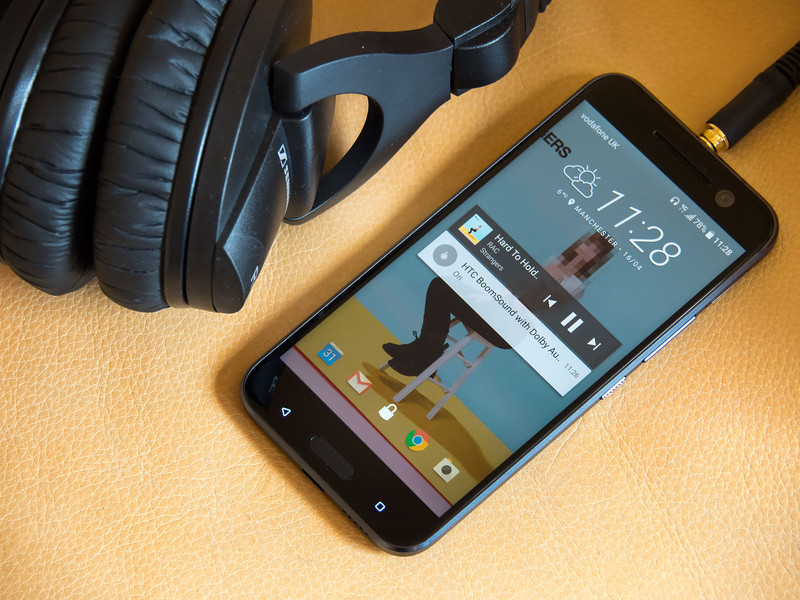
Get the most out of your HTC 10 with these great accessories.
The HTC 10 is one of the best Android phones you can own. If you’ve got one or are planning to get one, you’ll also want to get some accessories to compliment your new device. We’ve outlined some of the best options — from cases and screen protectors to car mounts and microSD cards — to protect and enhance your HTC 10 experience.
- Ice View Case from HTC
- G-Color Tempered Glass Screen Protector
- Samsung EVO Plus 128GB microSD
- Belkin 6ft 2.0 USB type-A to USB type-C charging cable
- TYLT Capio 2.0 Car Mount
- Samsung LEVEL in-ear stereo headset
Ice View Case from HTC
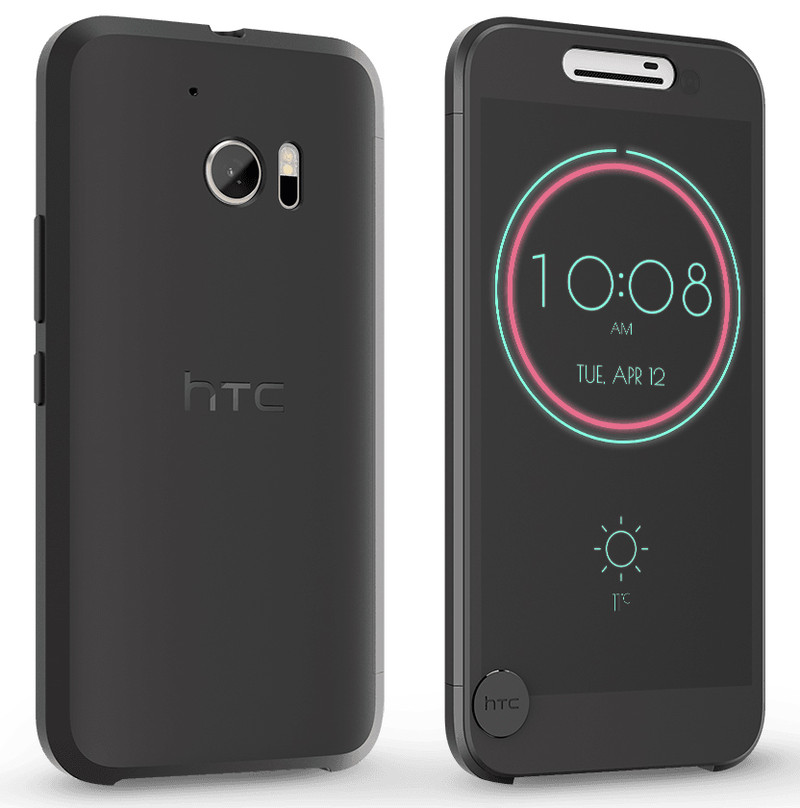
The Ice View Case is the perfect combination of protection and functionality, specifically designed by HTC for their flagship phone. With a transparent screen cover, you’re able take photos, read texts, switch between songs, and turn on the flashlight, while keeping your screen fully protected.
HTC Ice View also has support for third-party notifications, so you can keep up-to-date with social media at a glance.
See at HTC
Not quite your style? Looking for a more heavy duty case perhaps? Check out our breakdown of the best cases for the HTC 10.
G-Colour Tempered Glass Screen Protector

If you decide to forego HTC’s case with built-in screen cover, you’re still going to want protect that beautiful 5.2-inch screen. G-Color’s tempered glass offering for the HTC 10 is a great option.
It features an oleophobic coating to reduce smudges and fingerprints and, at only 0.24mm thick, you’ll know you’re protected without noticing the screen protector is there. We’ve also been keen on the Orzly’s tempered glass screen protector, which purports to address the screen’s curved edge. It’s another option to check out if screen coverage is an important factor for you.
See at Amazon
Want more options for protecting your HTC 10 screen? Check out our roundup of the best tempered glass screen protectors for the HTC 10.
Samsung EVO Plus 128GB microSD

The HTC 10 supports expandable memory up to 200GB, via microSD — a feature you’ll definitely want to take advantage of. One of the best options out there is the Samsung Evo Plus 128GB.
With write speeds of up to 80MB/s, this waterproof, magnet-proof microSD card will work great for storing your HD video, photos, music and games, and is a great choice if you’re considering adoptable storage. It’s an investment well worth the cost, especially if you’re planning to take full advantage of the HTC 10’s impressive cameras.
See at Amazon
Looking for more microSD options for your HTC 10? Check out our list of the best microSD cards for the HTC 10.
Belkin 6ft 2.0 USB Type-A to USB Type-C charging cable

The HTC 10 has a new USB-C port, and uses Type-C cables for charging, so unless you’ve owned other devices that use this newer charging cable, you’ll probably want to stock up on another for your car or office. With a length of 6 feet, this option from a trusted brand such as Belkin should give you all the versatility you require.
See at Amazon
TYLT Capio 2.0 Car Mount

The TYLT Capio 2.0 is a universal car mount that looks almost identical to the one HTC sells specifically for the HTC 10 — except at half the price. With a micro-gel suction cup that should securely adhere to any solid surface and a fully-adjustable swiveling arm, you should be able to set it up as you like in your car and be on your way.
See at Amazon
Still looking for another option for mounting your phone in your car? We’ve rounded up the best universal car mounts just for you.
Samsung LEVEL in-ear stereo headset

The HTC 10 features Boomsound technology, which means you’ll enjoy fantastic audio quality when listening to your favorite music through the built-in speakers or through headphones.
This recommendation comes from our own Jerry Hildebrand’s guide to choosing the best headphones. Samsung’s LEVEL earbuds are perfect if you want good quality in a small, portable package, and they come with a hard zip-up case for storage and travel.
See at Amazon
Have your say
Got an accessory you love that didn’t make our list? Mention it in the comments below!
HTC 10
- HTC 10 review
- HTC 10 specs
- All HTC 10 news
- These are the HTC 10 colors
- Join our HTC 10 forums
HTC
Best Buy
Verizon
Sprint
How to use Inking in Microsoft Office for Android

Create notes, sketches, drawings, and annotations in Microsoft Office using the Inking feature.
The new Inking feature on Microsoft Office apps – Word, Excel, and PowerPoint – for Android allows you to draw or write in documents using a pen or stylus – or even a finger.
The apps pack in a powerful feature that automatically senses the approach of an active pen and immediately let users start drawing, making inking intuitive and relatively easy.
The inking features work across all Android devices, both smartphones and tablets, across Microsoft’s suite of Office apps. Of course there is a slight difference in the experience on devices with Pen and without Pen – the former offering better experience , obviously.
Here’s a quick rundown of what you need to get started with Inking in the Microsoft Office apps.
- How to get Microsoft Office on Android devices
- What are key features of Inking
- How to turn on Inking mode on your pen device
- How to turn on Inking mode on your pen device
- How to turn on inking mode on touch device with no in-built pen
- How to use pen as a writing tool
- How to use highlighter and eraser

How to get Microsoft Office on Android devices
The Office apps for Android – Word, Excel, and PowerPoint are available from the Google Play Store and Samsung’s Galaxy Apps store, as well as popular app stores in China: Tencent, Baidu, Xiaomi, 360, Wandoujia, 91 and CMCC.
To use them, you’ll need an Android device running at least version 4.4 (KitKat) and 1GB of RAM.
Premium features
The Office apps allow reading of documents without signing in. You’ll need to sign in with a free Microsoft Account to create, edit, and save documents. And you’ll need an Office 365 subscription to unlock premium features mentioned below.
Microsoft Word
- Track and review changes
- Change page orientation
- Insert page and section breaks
- Highlight table cells with custom color shading
- Enable columns in page layout
- Customize headers and footers for different pages
Microsoft PowerPoint
- Save ink annotations from slide shows
- Highlight table cells with custom color shading
- Presenter View
Microsoft Excel
- Customize Pivot tables styles and layouts
- Apply custom colors to shapes
- Insert and edit WordArt
- Add shadows and reflection styles to pictures
The key features of Inking
So why would you want to use Inking features in Microsoft Office? The short answer is that it makes a bunch of drawing-related tasks easier and more intuitive to perform.
- You can use a pen or touch to ink in Word, Excel, and PowerPoint. When the pen hovers over the screen, inking options automatically show up.
- You can use the pen as a writing tool or as a highlighter.
- You can choose the thickness of the pen or the highlighter as well as choose from a variety of colors for the pen.
- You can use eraser to erase previously drawn ink. If you’re using a pen, you can press the button on the pen to erase without switching to Eraser.
- You can also interact with drawn ink as you would interact with shapes.
How to turn on Inking mode on your pen device.
Tap on the pen icon on the top toolbar (only available on mobile devices with a pen)
You’ll see that inking mode is on, and inking options show up in the contextual command bar.

How to turn on inking mode on touch device with no built-in pen
Tap on the inking icon on the top toolbar
Tap on the arrow next to Home for menu
Tap on Draw to get inking options
Tap on Draw with Mouse or Touch to draw on the document

How to use pen as a writing tool
When in Inking mode, tap on the Color icon to bring color options for the pen.
From the color palette, tap on your preferred color.
Tap on the Thickness icon to bring weight options for the pen.
From the thickness options, tap on your preferred weight.

How to use highlighter and eraser
When in inking mode, tap on the Highlighter icon.
In inking options, choose a preferred a color for highlighting.
From the inking options, tap on Eraser to use pen/touch for erasing drawn objects.

Office users, are you using these stylus-friendly options on your phone or tablet? Hit the comments and let us know!
Samsung Galaxy Note 7 recall: How to exchange or return your phone
Samsung has recalled and halted sales of the just-launched Galaxy Note 7 due to concerns over reported battery explosions.
Here’s what you need to know about the recall, including how to determine if your phone is faulty, with details on how to exchange or return your unit as soon as possible. We will update this piece with more information over time.
Why did Samsung recall the Note 7?
Samsung has confirmed that it is in the process of recalling all 2.5 million Samsung Galaxy Note 7 devices it has sold. It also stopped sales after it found potential issues with the smartphone’s battery. Keep in mind earlier reports had claimed that phones were catching fire and exploding, and low-quality battery cells tend to overheat or fail when used heavily. Recalling the new phone, which was already on sale in the US and supposed to go on sale in the UK fully on 2 September, is likely to cost Samsung dearly.
You can read more about the recall from here.
Do you have a faulty Note 7?
Samsung is replacing all existing Galaxy Note 7 units free of charge, so there’s no reason to determine if your actual device is affected. Besides, PhoneArena said the only way to see if your Note 7 is faulty is to crack open the device and peek at the battery’s label. It’s not 100 per cent though and basically not worth your time. Samsung also hasn’t detailed how to determine faulty units.
Should you ignore the Note 7 recall?
Although Samsung is recalling every phone it has sold, not every phone is at risk. According to Samsung’s announcement of the recall, there have been 35 cases reported. Still, from a safety perspective, you should not take a chance. Plus, Samsung has already released instructions on how to return or exchange your potentially faulty phone; you have a couple options available, and you’ll get a little something for your trouble.
How do you exchange/return your Note 7?
You have two immediate options: you can return the Note 7 to the carrier or retailer at which the device was originally purchased, or you can contact Samsung directly to initiate a mail exchange by calling 1-800-SAMSUNG (in the US) or 0330 7261000 (in the UK).
Further instructions for each method are below.
Samsung
Samsung is giving Note 7 owners the option to exchange their recalled model for a new unit that won’t have any battery issues. Customers will receive a $25 gift card or bill credit for their inconvenience. If you want a different device, you can exchange the Note 7 for a Galaxy S7 or S7 Edge, complete with a refund for the difference in price. If you choose that option, you can also exchange your accessories.
US carriers and retailers
- Best Buy: You can return the device to a Best Buy store for a full refund. You will also have the option to replace it with a new Note 7 (when the fixed units become available).
- Verizon: Verizon is waiving the restocking fee for any customers who purchased a Galaxy Note 7 and want to return or exchange it.
- AT&T: AT&T will let you return your Note 7 to the store for another smartphone. It will also refund any accessories purchased directly from it.
- T-Mobile: You can return your Note 7 to a T-Mobile store for a full refund of the purchase price and any accessories you may have bought. You’ll have the option to buy another phone or receive a new Note 7 (when the fixed units become available). T-Mobile is waiving its restocking fee, too.
- Sprint: Sprint CEO Marcelo Claure posted a statement on Twitter detailing Sprint’s plan. You should visit your local Sprint store to return your Note 7. The carrier will give you a “similar device” to use until Samsung resumes sales of the Note 7.
UK carriers and retailersSamsung stopped sales before the Note 7 actually released in the UK, but British networks had promotional deals that allowed pre-order customers to get their devices early. For more information, Samsung is asking UK customers to call its customer service line at 0330 7261000. It’ll start exchanging faulty Note 7 units from September 19 in the UK and Ireland.
Samsung also has this dedicated page about its Note 7 exchange programme.
 AIVAnet