


The FAA’s commercial UAV rules are now in effect
Look alive, stateside drone pilots: the Federal Aviation Administration’s initial set of operational rules for commercial UAV flights officially goes into effect today. Those rules were finalized back in June and govern any unmanned UAV under 55 pounds that is flown for “non-hobbyist purposes.”
As a quick refresher, drones that meet those qualifications can only operate during daylight hours (until dusk if the drone is equipped with warning lights) and must fly within the pilot’s line of sight. Commercial drone pilots are also required to be at least 16 years old and will need to pass an Aeronautical Knowledge Test at a certified testing center before they can get their remote pilot certificate. Fully automated flights like the Amazon’s planned delivery service or automated surveying devices are still not allowed.
Drones are also now subject to strict height limits and prohibited from flying over people, but the FAA will allow for exceptions to any of these rules if the pilot has been granted an official waiver. According to the FAA, the Administration has already issued 70 waivers right off the bat, the majority of them for night flights. Keep in mind, however, that the turnaround time for those waivers will depend on the complexity of your request and whatever backlog of waiver applications the FAA is currently sitting on.
Source: Federal Aviation Administration
Android 7.0 Nougat review: All about getting things done faster
After a surprise debut and months of previews, Android 7.0 Nougat is ready for primetime. The broad strokes haven’t changed since we first met Nougat back in March (when it was just “Android N”), which means it’s still not the game-changer of an update some people have been hoping for. Instead, what we got was a smattering of big (and overdue) features mixed with lower-level changes that make Android more elegant. That might not make for the most viscerally exciting update, but that doesn’t make Nougat any less valuable or useful.
The caveat
Before we go any further, let’s get on the same page about a few things. Yes, it might be a while before you get your OTA Nougat update. Yes, that wait will stretch out even longer if you’re not using Nexus hardware. Carriers and OEMs are keeping mum about their specific Nougat update plans, but if you do have a Nexus device, you can enroll it in the Android Beta program and install a full-fledged Android 7.0 build.
The first taste
I hope you weren’t looking of a dramatic revamp of Android’s stock look and feel — that definitely wasn’t in the cards for this first release. (Bigger interface changes might come with the launch of Google’s new Nexus devices, which will probably sport a sleek new launcher.) In fact, once you’re dumped onto your homescreen, you might notice anything new at all. That changes very quickly as you start to swipe around.
For all that Google has added to the Android formula in this release, there are two features that fundamentally changed how I used my Nexus. The first, dull as it might seem, is an improved take on notifications. In prior versions of Android, notifications would fill up the pull-down shade and just sort of sit there until you interacted with them. Then, pfft — they’d disappear. Nougat, however, does a much better job of bundling them up by app and let you get things done.

In the midst of writing this paragraph, two new emails popped up in my inbox. On a Marshmallow device, all I could do is tap on the notification to jump into Gmail and see what people were asking me. Fine. Under Nougat, though, I can expand that notification to see the full sender names and subject lines of a handful of my recent emails. Another tap lets me see the first few sentences of the email and (more importantly) archive or reply without ever jumping into another app. Google’s own apps all play nice with these expanded notifications, and other apps crucial for my life — like Slack, mostly — do the same. Even better, you can manage notifications for individual apps just by long-pressing one of their notifications. Your mileage may vary, but these changes have become crucial to me.

Then there’s split-screen multitasking, a feature that’s a big deal for big phones and gives Android tablets an extra edge. Here’s how it works: if you’re in a compatible app, you can long-press the Recent or Overview key (also known as “that square one”) to squeeze it into the top half of your display. The bottom half is taken up by the usual view of recent apps, and tapping one finagles it into the remaining free space. (If you’re working on a tablet, replace “top” and “bottom” with “left” and “right”.) In my experience, most apps worked in their diminutive forms pretty well. Sometimes they will make a fuss and proclaim they “might not work” properly running in a reduced size, but they’re usually fine — you’ll just notice some kludginess while apps try to figure out how to operate with such limited room.
Just for giggles, I ran Shazam in one window and Spotify in another, and wouldn’t you know it? The former could easily tell the latter was pumping out some Jacques Loussier. It’s a silly example, certainly, but it worked despite Shazam struggling to render all its interface bits in the right places. In time developers will (hopefully) smooth out the rough edges. The thing is, it can be tricky to work with both windows at the same time. I tried copying a bit of text from a Chrome window to a Hangouts window on the Nexus 6P for instance, and more often than not the necessary pop-up menus never appeared. Check this process out: I made Chrome full-screen, copied the text, went back to the split-screen view and then tried to paste into Hangouts. I didn’t get the pop-up option to do so, though, so I had to make Hangouts full-screen and finally pasted the text.

Of course, some apps don’t even try to adapt to smaller sub-displays. Games that take over the screen and obscure Android’s navigation keys certainly don’t and neither does image-heavy Instagram. When you try to force one of them into split-screen mode, they just sort of balk and refuse. Now, it’s understandable why the examples above don’t allow themselves to be contained in half a window: if they did, the experience would downright suck. What’s more puzzling is why Google didn’t extend this split-screen functionality to its own search app. You can have two Chrome windows working next to each other just fine, but you’re out of luck if you want to glance at info gleaned from Google’s search bar. It’s silly, arbitrary and more than a little annoying.

Thankfully, there are a few subtle features that help mobile multitasking work better. There’s an option to change the display size, for one, which scales everything on-screen up or down. For the people with lousy eyesight, display size can be cranked up three levels. For the folks who want maximum screen real estate, though, there’s a “small” setting below default size that neatly shrinks text, icons and more.
I always hated how big app icons were rendered on the Nexus 6P (one of the actual reasons I stopped using the phone), and this feature just fixed it all for me.
There’s also an option to clear all running apps when you’re sifting through the familiar stack of app cards (just like most other Android skins in recent years). Perhaps the single most useful Nougat addition falls under this category too — you can double-tap the Recents key to jump straight back into the app you were using last. It took maybe an hour for this to become second nature, and as far as I’m concerned, there’s no going back.
Diving deeper

Still other handy — though less exciting — features become apparent once you start digging around a little more. Nougat still offers the option of customizing your quick settings options, for instance. They’re arrayed in a 3×3 grid, with extra icons shunted onto another page. For even quicker access to your five most used settings, look to a new bar at the top of the notifications shade. It’s useful enough, especially when you’re in a rush to turn that flashlight or get that WiFi going.
For whatever reason, everyone finds themselves in their device’s settings eventually. Luckily for them, Google finally overhauled it a bit. While the old settings layout was basically just a list of categories you could dive into, the new one peppers the list with really helpful bits of context like remaining battery life, current ringer volume and how many apps were blocked from sending notifications. Settings sections like Display and Battery offer most of the same options, but now you can bring up a navigation sub-menu that lets you jump between those sections. Handy, but easy to miss. The main settings menu also offers suggestions that aren’t really all that helpful. It can tell you about setting up a fingerprint (on compatible devices) and change your wallpaper, but did we really need this? Most of the time Nougat just suggested I add another email account. Thanks, but no thanks.

The revamped Settings page, by the way, is where you’ll find more of Google’s new handiwork. Consider Data Saver, for instance: the feature lets you define which apps can use your data plan without limits and which ones can’t, which is all too handy if you haven’t migrated onto one of those unlimited data plans carriers have started talking up lately. And if you’re one of those fortunate polyglots, Nougat added support for 100 new languages. Maybe more important is how you can now also have multiple languages enabled at the same time, creating what Google calls a “multi-locale” — when Google searching, for instance, you’ll get results back in whatever enabled language you typed your query in.
Then there’s all the other stuff — the smaller changes that help Nougat feel more thoughtful and polished. At long last, you can set different lockscreen and homescreen wallpapers in stock Android. How it took this long to implement, I’ll never understand. There are 72 new emoji here because of course there are! (They’re part of the Unicode 9.0 standard). You can display emergency info like your name, blood type and allergies on your phone’s lockscreen, too, and Android Nougat also allows you to block calls and text messages from specific phone numbers. Oh, and the best part? Those numbers stay blocked across different apps.
Meanwhile, not everything Google planned for Nougat made the final cut. Remember that Night mode that showed up in the first developer preview? Well, it’s gone — sorry, folks. Google apparently chalked its excision up to poorer-than-expected performance, though you can re-enable it pretty easily if the thought of Dark Android does it for you.
Under the wrapper

Just as important in Nougat is all of the stuff you can’t “see”, strictly speaking. These foundational changes aren’t as eye-catching as some of Nougat’s other new features, but they’re more important — and more useful — than you might think. The most obvious of these low-level changes is Doze on the Go, which builds off of a similarly named feature that debuted in Android 6.0 Marshmallow. Think of it as a light sleep — when the device is locked but in motion, a set of rules kicks in that limit what apps can do and restrict their network access. Then, when the device can tell it’s staying put for a while, the original Doze rules from the Marshmallow update kick in, leading to still more restrictions meant to preserve battery life even further. The one-two punch of Doze and Doze on the Go might not blow your mind, but it should still move the needle — my Nexus 6P seemed to gain about an hour or two of standby battery life.
This year’s Android updates also folds in support for Khronos’ Vulkan API, which should make for some seriously good-looking mobile gaming. There’s a dearth of compatible games right now, though; here’s hoping more developers get to pushing performance and graphical limits soon. You might also notice apps installing and launching a little faster than usual, depending on what kind of hardware you’re working with. That’s thanks to Nougat’s just-in-time compiler, which works with existing systems to determine when to compile an app’s code.

The arcane stuff goes on. Encryption has been moved to the file level, which — among other things — means your secured device can boot up and compatible apps can do their thing before you even unlock your gear. It should also mean lower-end phones can be partially encrypted (and run a little better) since full-disk encryption can really screw with performance sometimes. Alas, I didn’t get to try this out on a low-end phone because who knows when Nougat will make it beyond the Nexus playground.
The value of other features won’t be apparent for a while, either. Consider the case of seamless updates: Nougat can support two system partitions, one for handling your day-to-day work and another that can install big software updates that quietly download in the background. Once those updates are installed, you’ll be told that Android will update itself next time it restarts, at which point the device starts using that updated partition (complete with all your stuff). It’s possible that some phone makers will never embrace this feature and existing devices like the Nexus 5X or 6P don’t play nice with it either. But we can at least assume it’ll pop up in this year’s new batch of Nexuses.
Those Nexuses, by the way, are likely to be the first devices to fully embrace features Google revealed at its 2016 I/O developer conference. Nougat ships with a VR mode, for instance, a sort of high-performance system that drives down the time gap between your head’s motion and the image on-screen updating. Neat, certainly, but we’ll get a better sense of the benefits VR mode brings to the table when Google’s Daydream virtual reality platform launches this fall. Meanwhile, we know that Google’s new intelligent Assistant will be baked into the company’s Allo messaging app and the Amazon Echo-like Google Home speaker, but recent evidence suggests it’ll also be made part of Android thanks to an upcoming maintenance release.
Wrap-up

After playing with Nougat for a week, one thing has become abundantly clear: Android is smoother, smarter and more elegant than ever. That doesn’t mean it’s completely issue-free — split-screen multitasking isn’t nearly as elegant as it could be and it kind of sucks that seamless software updates won’t happen on older hardware — but the platform’s foundation is in great shape. It’s a good thing, too. The version of Nougat you’re playing with now is just the first step, and you can bet the features we’re really looking forward too, like Daydream and Assistant, will build off of what was wrought in this update. Yes, chances are you’ll have to wait for a taste of Nougat, and yes, that blows. Just know that the improvements here, subtle though they may be, are worth the wait.
Surface Pro 3 battery issues disappear in today’s update
The Surface Pro 3 has been plagued with a software problem that causes some tablets to quickly lose power once unplugged from a charger, but a firmware update released today squashes the battery bug. Microsoft first acknowledged the problem in July and confirmed it was a software issue, rather than a flaw in the tablet’s hardware, earlier in August.
In an update FAQ, Microsoft explains that the battery levels in some Surface Pro 3s were being misreported to the operating system and firmware, meaning the tablets stopped charging well before they hit full capacity.
“Think of this like a fuel gauge in a car, where the car looks to the fuel gauge to determine how much to fill the tank,” Microsoft says. “In this case, if the fuel gauge isn’t working right, the car would also not be able to fill the tank — even though the tank is fine.”
After applying the update, the battery issues will self-correct over “the next several charge and discharge cycles,” Microsoft says, and any tablets that weren’t able to run on battery power will be able to do so.
Source: Microsoft
Instagram Stories fights Snapchat by recommending users to follow
Instagram Stories’ feature updates are no longer quite in lockstep with Snapchat’s. It’s gradually rolling out an update to the Explore section that displays a bar of Stories from people Instagram thinks you want to follow based on both your existing contacts and your favorite topics. The addition could give you extra Stories clips to watch even when your usual Instagram friends aren’t up to snuff. The concept isn’t entirely new (Snapchat’s featured Stories are slightly similar), but it’s uniquely tailored to you — you’re not just getting the same editor’s picks as everyone else.
The seemingly simple tweak could be important to keeping Instagram Stories in the limelight and reducing Snapchat’s first-mover advantage. Instagram tells our TechCrunch friends that 100 million people check out the Explore tab every day. When the social service has over 500 million people, that’s a large chunk of the audience seeing videos they’d otherwise have missed. Only a fraction of users are likely to follow others just for the sake of their Stories, of course, but that could be enough to keep you interested in the feature after the novelty wears off.
Source: TechCrunch
Now Google Cast is built into every Chrome browser
Like Gmail prior, it honestly seems like Google Cast has been in beta forever. Well, it’s actually only been two years according to Google, and that test period ends now. Cast is directly built into Chrome as of today and anyone can use it without having to install or configure additional add-ons or extensions. Now everyone can throw individual browser tabs to your Chromecast — or even your desktop — in addition to services like Netflix or Google Play Music.
Maybe now that the software is out of beta we can get a totally new Chromecast that has stronger innards all around. Maybe. The folks who Google says watched and listened to 50 million hours of media using the HDMI dongle in the last month would probably appreciate it.
Source: Chrome Blog
New iPad Pro With Faster Display and Wider Apple Pencil Support to Launch Next Year
Apple is planning new hardware and software features for iPad that cater to professional users, according to Bloomberg, including a a new iPad with faster display technology that allows for smoother on-screen zooming, panning, and scrolling.
KGI Securities analyst Ming-Chi Kuo previously said Apple would release a 10.5-inch iPad Pro model next year alongside a 12.9-inch iPad Pro 2 and a “low-cost” 9.7-inch iPad model. The fate of the iPad mini remains uncertain, but it is presumable that Apple could discontinue the 7.9-inch tablet due to its lack of Apple Pencil support and relatively close proximity in size to 5.5-inch Plus-sized iPhones.
The new hardware will be completed by wider iOS support for the Apple Pencil, the report adds. Apple is reportedly planning to introduce the new software features in a subsequent iOS 10 update in the first half of 2017, but may decide to hold back on the improvements until iOS 11 is released later in the year.
Apple has considered allowing users to annotate objects in many applications across the whole operating system, including in Mail, the Safari web browser, and iMessage, similar to what Samsung Electronics Co. offers on its Note smartphones, the person said. Currently, Apple only supports Pencil functionality in specifically developed apps.
Apple saw its iPad revenue grow slightly for the first time in 10 quarters in July, and these improvements could help the company continue that trend.
Related Roundup: iPad Pro
Tags: bloomberg.com, Apple Pencil
Buyer’s Guide: 12.9″ iPad Pro (Neutral)
Discuss this article in our forums
Apple to Release New MacBook Pro and Air as Early as October, AMD iMacs and 5K Display With LG Also in Works
Apple is planning to refresh its Mac lineup, including the MacBook Pro and MacBook Air, as early as October, according to Bloomberg. The report also claims Apple is working on a standalone 5K display in partnership with LG Electronics, while it plans to update iMac models with an option for new graphics chips from AMD.
The report reiterates that the new MacBook Pro will be thinner and include an OLED-based touchscreen strip along the top of the flatter keyboard, which will present functions that dynamically fit the current task or application, as well as integrate Touch ID to enable users to quickly log in using their fingerprint.
For example, if a user is on their desktop, the screen will show a virtual representation of the standard function row, which includes brightness and media controls. When in an application, the virtual row will show options specific to the task at hand, but volume controls and a switch to show the default functions will always be present.
Apple has reportedly named the feature “Dynamic Function Row” internally, but its official name may differ when announced.
The tweaked MacBook Air models, meanwhile, are said to include multipurpose USB-C ports, which makes the inclusion of Thunderbolt 3 a possibility. No other details were shared about the planned MacBook Air and iMac refreshes.
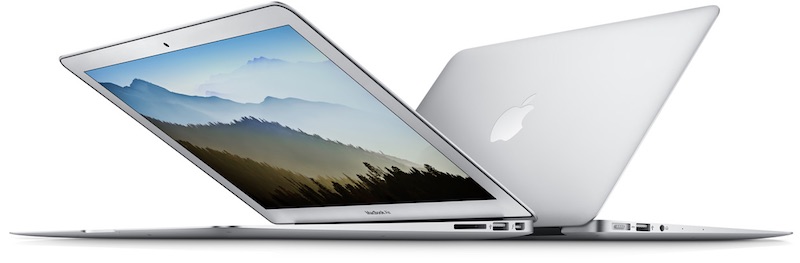
Apple’s plans to work with LG on a standalone 5K display surface two months after it discontinued the five-year-old Thunderbolt Display. It remains unclear if the monitor will be based upon the Retina 5K iMac, and it is also unclear if the report’s broad late 2016 timeframe for “some of the new Mac products” includes the display.
The report makes it nearly certain that the focus of Apple’s just-announced September 7 media event will be on the iPhone 7 and the second-generation Apple Watch, the latter of which has now been confirmed for the event. Apple will also provide updates about its software, including iOS 10, macOS Sierra, watchOS 3, and tvOS 10.
Related Roundups: iMac, MacBook Air, Thunderbolt Display, MacBook Pro
Tags: bloomberg.com, LG, USB-C, AMD
Buyer’s Guide: iMac (Don’t Buy), MacBook Air (Don’t Buy), Displays (Don’t Buy), Retina MacBook Pro (Don’t Buy)
Discuss this article in our forums
Garmin Fenix Chronos Release Date, Price and Specs – CNET
Garmin isn’t the first name that comes to mind when you think of luxury, but the fitness company is trying something new with its latest sport watch. The Fenix Chronos is a $1,500 (£1,100) multisport GPS watch with a titanium body and band, an ultra-durable sapphire crystal display, heart-rate sensor and a ton of tracking features. It’s strong, yet lightweight, but also very expensive and very big.
The Chronos also comes in a stainless steel option that is slightly more affordable: $900 (£850) with a leather strap or $1,000 (£950) when paired with a 316L stainless steel band. Aside from the titanium and stainless steel casing, all units are based on Garmin’s high-end Fenix 3 HR watch and have the sapphire crystal display, heart-rate sensor and other features.
Unboxing Garmin’s elegant Chronos sport watch…
See full gallery


1 – 4 of 21
Next
Prev
Features
The Chronos has an omni-directional GPS and GLONASS antenna for tracking a variety of different activities, including running, biking, swimming, triathlons, hiking, climbing, skiing, rowing, paddle boarding and golfing.
Other features include all-day activity tracking for things like steps, distance, calories burned, sleep and heart-rate, as well as smartphone notifications when connected to an iPhone or Android phone. The watch also includes auto stop, auto pause, running dynamics (a feature that can provide feedback on your runs when using a special heart rate chest strap), a recovery advisor, an altimeter, barometer and compass, and is waterproof up to 100 meters (about 328 feet).
 Sarah Tew/CNET
The Chronos is essentially a Fenix 3 HR (a watch I like a lot but find a bit too big) in a slimmer and more premium shell with some key differences. The optical heart-rate sensor on the back doesn’t bulge out as much, which makes it a little more comfortable to wear. It also doesn’t include Wi-Fi (it relies solely on Bluetooth to upload data) and has a smaller battery (180mAh on the Chronos compared to 300mAh on the Fenix 3 HR).
Battery life
You’re trading style for performance with Chronos when it comes to battery. Battery life is good, but not as good as the Fenix 3 HR. The Chronos will last up to 13 hours with an active GPS signal (3 hours less than the Fenix 3 HR) and up to a week as a watch and activity tracker.
A special UltraTrac mode will extend battery life to 25 hours when using GPS, but it disables the heart-rate sensor and reduces how often the GPS is pinging the satellite.
 Sarah Tew/CNET
Premium from the start
The Chronos is like no other Garmin device before it. Similar to the Huawei Watch and higher-end Apple Watch models, all three Chronos watches are packaged in a premium wood box. In addition to the watch, the box contains an instruction manual, charging cable and a second silicone watch strap (the straps have a quick release which makes swapping them quick and easy).
I’ve really enjoyed wearing the stunning Chronos the past few days. It has all of features that you could ever need for training, competing or walking around town, plus it doesn’t look like a normal sport watch. The Chronos can easily be paired with a dress shirt or suit jacket, although it is big and could look a little funny on smaller wrists.

Here’s the Chronos with the silicone watch band on.
Sarah Tew/CNET
Should you buy it?
Almost everyone reading this is better off getting a Fenix 3 HR or one of Garmin’s other watches. Technology is changing at a rapid pace, and $1,500 (or even $900) is a lot of money to spend on a device that will be outdated in the next two or three years.
The Chronos doesn’t do anything new, but if you put a premium on design and have some extra cash laying around, the watch has everything a budding athlete with a large checking account could ask for.
Alcatel Fierce 4 Release Date, Price and Specs – CNET
 Alcatel
Who says a big phone has to cost the moon? Alcatel’s Fierce 4, a 5.5-inch beast, offers large-screen lovers a budget deal. Really budget. In the US, it sells for $69 with prepaid carrier MetroPCS. T-Mobile will sell it in the fall, but we don’t have pricing yet.
That’s a shockingly low price. And with it comes the typical specs trade-offs to make the phone more affordable. Like the 720-pixel screen resolution, which is low for an expansive display, an 8-megapixel camera and the lower-powered processor. This is a phone for first-timers, for casual users and for people who really just need an inexpensive phone.
Hardware inside
- 5.5-inch HD display with 1,280×720-pixel resolution
- 8-megapixel camera
- 5-megapixel front-facing camera
- 1.1GHz quad-core Qualcomm Snapdragon processor (MSM8909)
- 16GB storage; 2GB RAM
- 2,500mAh battery
- MicroSD card up to 128GB
- Android 6.0 Marshmallow
Sensor tech predicts when senior citizens are at risk of falling
Falls are dangerous for anyone, but they can be particularly worrying for senior citizens whose bodies aren’t as resilient as they used to be. University of Missouri scientists may have a way to prevent those slips. They’ve developed a sensor system that measure changes in your gait speed and stride length to predict likely falls up to 3 weeks before they happen. If you slow down or shorten your stride in a significant way, it can alert health care workers (complete with imagery) so that they can take action before there’s an injury.
Unlike many motion sensors, you don’t need to wear anything on your body. You could string devices around the home, and wouldn’t have to change your behavior or remember to charge a device. And that’s particularly important given the team’s goals. The invention could not only save lives, but extend the independence of seniors by another few years — they could walk with greater confidence.
Via: EurekAlert, TechCrunch
Source: University of Missouri
 AIVAnet