


Apple’s Q3 2016 Revenue Drops 33% in Greater China as Europe Regains Position as Second Biggest Market
In today’s third quarter earnings report, Apple revealed a significant drop in revenue from Greater China, which is down 33 percent year over year. Revenue from China was at $8.9 billion in Q3 2016, down from $13 billion in Q3 2015.
During the followup earnings call, Apple CEO Tim Cook said the company continues to be encouraged about growth in the country despite the decline in revenue and remains “very optimistic about growth opportunities.”
He said Apple’s underlying business is stronger in China than the results imply, with the iPhone install base in the country up 34 percent year over year. Cook cited statistics from China Mobile, one of the largest carriers in the country, which says it sells more iPhones than any other smartphone.
According to Cook, channel inventory reduction and currency headwinds have impacted business in the region and presented some significant economic challenges. Despite this, Cook continues to feel “really good” about Apple’s business in China, pointing towards the opening of the 41st retail store in Greater China and a recent $1 billion investment in Didi Chuxing.
With revenue in China down 33 percent, Europe has regained its position as Apple’s second biggest market after the United States, bringing in $9.6 billion in revenue during the quarter.
Tag: China
Discuss this article in our forums
Your complete guide to Messages on iOS 10 – CNET
In iOS 10, iMessage looks a lot more like Facebook Messenger. Apple added features like Stickers, “Tapbacks” and even apps that you install within iMessage.
Is it overkill? Maybe. Or maybe it’ll do exactly what Apple wants — make you choose iMessage over the increasing number of competing apps like WhatsApp, Facebook Messenger and Google’s upcoming app, Allo.
While some of the features (like apps) won’t be completely ready until the fall release of iOS 10, here are the features we tested in the public beta.
Slam, Invisible Ink and other ways to say ‘I love you’
Now there’s more than one style for your messages. Bubble effects add a bit of personality and emotion to your iMessage conversations by letting you change the way they look to the recipient.
 Enlarge Image
Screenshot by Jason Cipriani/CNET
Four bubble effects are currently available:
- Slam: Message body slams into the conversation, with a puff of dust rising off the screen where it landed.
- Loud: Mimicking yelling at the person, the message body starts off huge, shakes a bit, then shrinks back to regular size.
- Gentle: Message body starts off small, really small, then ever-so-slowly it grows to regular size.
- Invisible Ink: The message body is covered with a pixelated overlay, where in order to view what’s hidden underneath the recipient has to swipe his or her finger across the message.
To use a Bubble Effect, compose an iMessage and then force touch on the blue up arrow (if you’re on a non-3D Touch device, long press on the send button).
To preview and select a Bubble Effect, slide your finger across or tap on the circular button next to each effect. As you select each one, a preview will play. Once you find the effect you want, tap on the send button and away it goes. Effects can be used on text and photo messages.
When the recipient(s) open the message, the animation will play and continue to play each time the conversation thread is opened until another message is sent.
Throw confetti all over their screens
Screen Effects are messages that take over the entire screen with an animation and sound. For instance, if you’re congratulating someone, you can make confetti rain all over their screen.
Just write a message, then use Force Touch or long-press on the send button until the Bubble Effect screen is activated. Then, tap on the Screen button at the top of the screen.

Enlarge Image
Screenshot by Jason Cipriani/CNET
There are five different Screen Effects (at least for now):
- Balloons: A series of colorful balloons float across the screen.
- Confetti: A blast of confetti falls from the top of the screen.
- Lasers: Disco lasers scan up and down, emanating from behind the text bubble.
- Fireworks: A series of colorful firework blasts take over the screen.
- Shooting Star: The nighttime sky lights up as a single shooting star streaks across the screen.
Swipe across the screen to switch between effects, then when you land on one that works for your message, tap on the send button.
The effect will remain active until a new message is sent.
Sticker packs and apps
With the official launch of iOS 10 this fall, you’ll see new and familiar apps available right there, within iMessage. You’ll be able to do things like send money through Square Cash or book lunch reservations while you coordinate with friends. Extra goodies like stickers and emoji packs can be downloaded, too.
To get these apps, you won’t go to the App Store — there’s an iMessage app store built right into iMessage.

Enlarge Image
Screenshot by Jason Cipriani/CNET
In an iMessage conversation, tap on the “>” button, then the App Store icon. The first view will be recently used stickers, with a swipe to the left scrolling through installed sticker packs and apps. Apple includes an images and Apple Music app by default. The images app searches Bing for GIFs and the Apple Music app lets you quickly share songs and albums with friends.

Enlarge Image
Screenshot by Jason Cipriani/CNET
You can send a sticker in a standalone message, or (my favorite use) is to drag-and-drop a sticker over a photo or text box of a previously sent message. Doing so adds a bit of life to a photo, or can be used as a response to a message.

Enlarge Image
Screenshot by Jason Cipriani/CNET
Tapping on the four app icons in the bottom-left corner will reveal the app icons for installed apps, along with a button that opens the iMessage App Store. In this view, you can rearrange the app icons or delete apps the same way you do on any iOS device: Long press until the icons begin to move, then drag and drop to rearrange or tap on the “X” to delete.
During the public beta, the iMessage App Store only contains sticker packs from Apple.
Words become emojis

Enlarge Image
Screenshot by Jason Cipriani/CNET
Emojis are getting a lot of attention in iMessage. For starters, Apple tripled the size of emoji displayed in a conversation. But the coolest feature is one that instantly translates text into emoji.
For instance, “beer” turns into the beer emoji. “Basketball” turns into a basketball emoji. And so on.
After composing a message, tap on the emoji button on your keyboard. Your iOS device will analyze the text, highlighting words with matching emoji. Tap on the highlighted word to convert the word into an emoji, either instantly or picking for a few different options. Fun stuff, right?
Link previews in Messages

Enlarge Image
Screenshot by Jason Cipriani/CNET
When you send links, they’ll (almost) instantly be replaced with thumbnail previews. If it’s a video from YouTube, for example, you can play the video directly in the conversation.
Or, you can tap on the link itself just below the preview to open the video or website in Safari.
Send a handwritten note

Screenshot by Jason Cipriani/CNET
Turn your phone to landscape orientation while in Messages and you’ll see one of two things: Either the keyboard will remain open where you can keep typing away your next message, or a blank canvas will show up for you to write or draw a message on. If the keyboard shows up, never fear — there’s a button with a squiggly line on it. Tap on it to open the handwritten notes interface.
Here you can write or draw with your finger, or select from a few of Apple’s own designs. However, writing “Thank You” or “I love you” in your own handwriting will undoubtedly earn bonus points with your SO. Messages will save your notes, so you can reuse that shrug emoticon you’ve spent countless hours perfecting (oops, maybe that’s just me).
Once you hit “send” the recipient will see it play back, from scratch.
To edit or remove old drawings, long press on the preview cards and then tap on the “X” to delete them.
A lazy way to reply to messages

Enlarge Image
Screenshot by Jason Cipriani/CNET
How many times in a day do you reply to a message with just “haha” or “OK”? With Tapbacks, you no longer have to write those words out. Instead, you can double-tap on a message, then select from a list replies.
A small chat bubble containing your Tapback is then placed atop the specific message. Currently there are six different Tapbacks: a heart, thumbs up, thumbs down, haha, exclamation point and question mark.
Better read receipt controls
As covered in our list of hidden features in iOS 10, you can turn read receipts on or off for specific contacts. Previously, the read receipts setting was either on or off for everyone. Now, you can leave it off by default, then turn it on for individual conversations (or vice versa).

Enlarge Image
Screenshot by Jason Cipriani/CNET
The default setting is still found in Settings > Messages > Send Read Receipts. To change the setting for a specific conversation, open the conversation thread then tap on “i” button > toggle Send Read Receipts. This setting automatically syncs across all Apple devices signed into your iMessage account, which is a nice touch.
Camera shortcuts

Enlarge Image
Screenshot by Jason Cipriani/CNET
The way you choose and send photos is a lot different in iOS 10.
To send a photo, tap on the “>” button next to the text field, then tap on the camera icon. You will have a preview thumbnail of your camera, allowing you to snap a photo and send it with relative ease. Or you can scroll to the left to view recent photos and videos from your camera roll; tap on one to add it to your message.
If you want to record a video, or view a larger selection of photos from your photo library, swipe to the right and select the appropriate option.
Draw on photos!

Enlarge Image
Screenshot by Jason Cipriani/CNET
Apple is adding its drawing tool, Markup, to more apps across iOS and that includes in Messages. After adding a photo to your message, but before hitting send, you can use the Markup tool to sketch on the image.
With a photo in the text field, tap on it to open the preview. Tap on the Markup button in the lower-left hand corner, then proceed to highlight, draw and write on the image. Keep in mind, anything you do here will not get saved to the image in your camera roll.
Send fake heartbeats. Because heartbeats?

Enlarge Image
Screenshot by Jason Cipriani/CNET
First introduced with the Apple Watch, Digital Touch was originally intended to be a cute (if not gimmicky) way to quickly draw someone a picture, send your heartbeat or tap away on the screen and in turn, his or her wrist.
It works almost exactly the same in iOS 10.
The Digital Touch icon is sandwiched between the Camera and iMessage App Store icons, to the left of the text field. Selecting it opens the Digital Touch app in place of the keyboard.
The big black void in the middle of the screen is where you can tap, draw, or place two fingers on there to send a fake heartbeat. You can also send a kiss by tapping with two fingers, or a broken heart by placing two fingers on the canvas and dragging them down once the heart is displayed.
Digital Touch effects can also be added to pictures or videos. Go into full-screen mode for Digital Touch, select the video camera icon, then record a video or capture a photo. You can record and send 10-second clips, but you’ll need to apply any Digital Touch effects while you are recording.
It’s a tricky implementation, but one that’s hopefully ironed out during the public beta.
How does this all look on a non-iOS 10 device?
With so many new features in Messages for iOS 10, it only makes sense the experience is going to look differently on a non-iOS 10 device. For example, a Tapback on an iOS 9 device sends reads “Jason Liked/disliked/etc.” instead of adding the Tapback icon to the message.
Placing a sticker on a photo or message already in a conversation simply sends the sticker to non-iOS 10 devices, lacking context or exact placement.
Don’t Blink — PlayStation VR is available for pre-order again in the UK!
This is not a drill!
If you’re interested in grabbing a PlayStation VR this year, pre-order is the way to do it. Sony has sold out of their pre-orders on multiple occasions now, but it looks like you can grab a spot in line right now if you’re in the UK. Take a look over at VR Heads for the details!
PlayStation VR is available to pre-order again in the UK!
BlackBerry DTEK50 priced at $429, launching in Canada with five carriers
While BlackBerry’s latest Android phone, the DTEK50, has something of an impenetrable and vexing name, it will be widely available in Canada when it arrives in early August.

There are two main ways to purchase the phone, and while we don’t have carrier pricing right now, ultimately the best place to buy it will be ShopBlackBerry, the company’s e-commerce store.
Direct from BlackBerry
Shipping August 8th for $429, which includes a 12,600mAh battery pack, the DTEK50 will come unlocked through the BlackBerry Store, compatible with all then major Canadian carriers.
See at ShopBlackBerry
From the carriers
While we don’t have carrier pricing just yet, we know which carriers the DTEK50 will be sold at in Canada:
- Rogers
- Bell
- Telus
- Wind Mobile
- SaskTel
If history is anything to go by, the phone will be roughly the same price as its unlocked counterpart — $430 or so — when purchased outright, and $0 on a 2-year contract.
It’s possible more carriers will be added to the list in the coming weeks, and we’ll update this page when links to the existing ones go live.
Do you listen to podcasts?

Podcasts are awesome, but not everyone listens to them.
It used to be that the only thing you really listened to on your phone or in the car was music. We’ve moved past that, though, and now you can listen to podcasts wherever you are. The good news is that there is a podcast, or multiple podcasts, for everyone, with topics ranging from comedy to history to, of course, technology! We host two fantastic ones right here: Android Central Podcast to Go Time —a Pokemon Go Podcast.
That’s why in this week’s poll we want to know whether you listen to podcasts. There are ones out there for everyone, no matter what you want to listen to people talk about.
Do you listen to podcasts?
Your turn!
Now it’s your turn! Do you have a favorite podcast? Do you think listening to podcasts is just a waste of time? Hop into the comments below and let us know about it!
Verizon rolls out small updates to the LG G5 and V10
Verizon has started rolling out a fresh set of updates to both the LG G5 and LG V10, bringing along some slight tweaks to both. For the G5, Verizon says that this update, which brings the software up to version VS98713A, adds the option to use an app drawer on the home screen.

As for the V10, the changes are much more on the minor side of things. The software version for the V10 after this update will tick up to VS99023A, and Verizon says you can expect some general Wi-Fi calling improvements. The update also includes “a clarification to the USB connection pop-up when the device is charging.”
Since the updates only just started rolling out, they may take some time to land for everyone. However, if you haven’t yet received a prompt, you can manually check from your phone’s Settings menu.
Have you seen an update yet? Be sure to let us know what you think in the comments and on the forums!
LG G5
- LG G5 review
- LG 360 CAM review
- LG G5 complete specs
- LG’s G5 Friends modules are a neat idea, but they won’t matter
- LG G5 Hi-Fi Plus w/ B&O
- Join the LG G5 discussion
AT&T
Unlocked
Sprint
T-Mobile
BlackBerry’s second Android phone is a toughened Alcatel
BlackBerry’s back! Again! And this time it’s rocking some hardened Alcatel hardware with an awful name. Oh, BlackBerry. If you’re one of the few remaining hardware keyboard enthusiasts hoping for the Canadian phone-maker’s trademark QWERTY, look away now as you’re going to be disappointed.
What the DTEK50 (codenamed Neon) does offer is a rather middle-of-the-road spec list that includes a Snapdragon 617 Octa-Core processor, 3GB RAM and a 13-megapixel camera. Internal storage is limited to a paltry 16GB, but it does support microSD cards up to 2TB.
BlackBerry’s leaning heavily on security features to sell this phone; primarily that means a hardened kernel, a hardware “Root of Trust,” full disk encryption, a more secure bootloader and a bunch of other features designed to keep you feeling safe.
The end-to-end encryption provided by that Root of Trust ensures only authenticated devices can connect to an organization’s network, which should help it appeal to its intended business audience.
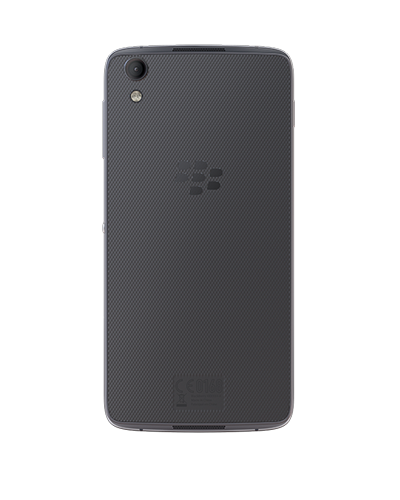
Unsurprisingly, the phone comes with BlackBerry’s own DTEK app that gives you a quick security overview and detailed feedback about which apps are accessing your details and when, is still present.
It’s available to pre-order now for $299, but before you whip out your card, you might want to just consider ordering the Alcatel Idol 4s. Why? Because it’s a slightly upgraded version of the same phone that comes with a VR headset and costs $350.
BlackBerry’s online store says the DTEK50 is due to start shipping the week of August 8.
Source: Inside BlackBerry
China’s LeEco buys Vizio in a $2 billion deal
Today at an event in Los Angeles, Vizio announced that it will sell to China’s LeEco (formerly LeTV) for $2 billion. Don’t expect to see much change on store shelves, as the company plans to continue operating under the Vizio name as a wholly-owned subsidiary. The exception to this is its viewer data business Inscape — we learned about it last year when Vizio filed plans for a now-unnecessary IPO — which will spin off and operate as a separate privately-owned company controlled by Vizio founder William Wang. Wang will own 51 percent of Inscape, with the rest going to LeEco attached to a 10 year license for the technology, which monitors what people are actually watching on their TV to help with things like targeted advertising.
Wang started Vizio fourteen years ago and rapidly built it into one of the largest TV companies by selling flat panel displays at a lower price than the competition. Now LeEco’s acquisition should help it gain a foothold in the US market, as it also develops products in other areas like electric vehicles and smartphones.
LeEco announced plans to invest heavily in R&D for the division, while Vizio CTO Matt McRae promised to continue the company’s strategy of delivering connected, multiscreen technology at affordable prices. The combination brings together the largest TV brand in China with the second largest one in the US, and it should be interesting to see what that combined might can do. The two expect the deal to close in the fourth quarter of this year.
Vizio + LeEco: A shared vision to shape the future. #LeEcoVIZIO pic.twitter.com/G7rgpEW0Bb
— LeEco Global (@LeEcoGlobal) July 26, 2016
Source: LeEco (PRNewswire)
The best portable induction cooktop
By Michael Sullivan
This post was done in partnership with The Sweethome, a buyer’s guide to the best things for your home. Read the full article here.
After putting in more than 40 hours on research and testing, we’re confident that the Duxtop 8100MC Induction Cooktop is the best for most people. This reasonably priced induction burner boils water quickly and cooks rice faster than the competition. Its easy-to-use interface allows you to choose between a power mode (for general cooking) and a temperature mode (for specific tasks like frying).
How we tested

We seared pieces of eye round beef to evaluate how evenly they would brown using induction burners. Photo: Michael Hession
Though full-size multiburner ranges are a great permanent option for many homes, for this guide, we focused on single burners between $60 and $140, as well as dual burners between $250 and $320. Dual burners are convenient for allowing you to cook two items at once: You can boil a large pot of water for pasta on one burner, while your tomato sauce simmers on the other.
However, after testing both models, we found that dual induction burners are less powerful overall and ultimately aren’t worth their steep price tag.
We tested induction burners by timing how long it took 2 quarts of water to come to a boil in a 4-quart saucepan. To test how hot the burners could get, we seared pieces of eye round beef to evaluate how evenly they would brown. We cooked batches of white rice to see if the burners could maintain a low simmer or would cause scorching. To see how evenly each burner distributed heat, we browned 2 tablespoons of flour in a 12-inch All-Clad skillet. We also tested models with automatic shutoff features and took note of any excessive buzzing or annoying beeps. Finally, we cooked many meals using the burners to get a feel for their overall practicality and ease of use.
The best induction burner

Our pick for the best induction burner is the Duxtop 8100MC Induction Cooktop. Photo: Michael Hession
If you need an extra burner for your kitchen, the reasonably priced Duxtop 8100MC Induction Cooktop is the best that we tested. Though it was not a leader in all of our tests, it ranked high in all of them and lacks any glaring drawbacks. It has a straightforward control panel that allows you to easily adjust the power mode, temperature, and timer. The Duxtop boils water quickly and cooks foods faster than other models we tested. It also comes with a number of user-friendly safety features to prevent overheating or to alert you if you accidentally use the wrong pan. Also, the single ceramic-glass top on this model makes cleanup a cinch.
The Duxtop makes an audible buzz caused by the electromagnetic field, which is an annoyance we encountered with every model we tested. However, it was one of the quietest, especially alongside the Max Burton 6400.
Speedy, but noisy and more expensive

The Max Burton 6400 Digital Choice Induction Cooktop boiled water slightly faster than the Duxtop, but it’s noisier and more expensive. Photo: Michael Hession
The Max Burton 6400 Digital Choice Induction Cooktop boiled water slightly faster than the Duxtop, but it’s noisier and more expensive. Photo: Michael Hession
Though we liked the Duxtop burner the best, the Max Burton 6400 Digital Choice Induction Cooktop performed well in nearly all of our tests. It’s a solid upgrade from our main pick, with a simple control panel, a bright digital display, and a sturdy base. The Max Burton 6400 boiled water the fastest and seared meat more evenly compared with the Duxtop. However, it has a noisier buzz than the Duxtop, it beeps loudly, and it’s more expensive.
Induction burners versus conventional gas or electric burners

Below the surface of the glass-ceramic top, an electric current passes through the magnetic wire coil to create a high-frequency electromagnetic field. Photo: Michael Hession
Unlike gas or electric stovetops, which heat using thermal conduction, induction burners heat using electromagnetic induction. Below the surface of the glass-ceramic top in an induction burner is a magnetic wire coil. Electricity running through this coil makes a magnetic field that points directly up at the ceiling. Put an iron pot on top and the magnetic field makes the electrons in the pot’s metal get up and dance. But iron (and iron-based metals like stainless steel) is a really poor electrical conductor, meaning that it’s bad at letting electrical currents run freely through it, unlike metals such as gold and copper. This pent-up energy has nowhere to go, so instead it’s released as heat. And—bangazoom!—the pot heats up to use as you please. What’s unique about induction cooking is that heat is created directly in the pan instead of on the cooktop’s surface, which allows for more immediate control of the heat source.
Induction burners are also more energy-efficient than conventional gas or smooth-electric burners. The US Department of Energy compared the efficiency of energy transfer in residential cooking products and found that induction burners were 84 percent efficient, versus about 74 percent for smooth-electric cooktops and 40 percent for conventional gas burners. Because less energy is lost in the surrounding air when you cook with induction, your kitchen will remain cooler than it would if you were using gas.
In our tests, induction cooktops brought water to a boil in almost half the time that conventional gas or electric burners did. The fastest induction burner brought 2 quarts of water to a boil in a 4-quart saucepan in about 7 minutes, versus about 13½ minutes using a conventional gas burner, and almost 16 minutes using a smooth-electric cooktop.
The speed, efficiency, and complexity of induction burners are what make them drastically more expensive than their portable electric or gas counterparts. Currently, the average single-burner induction cooktop goes for around $60, and electric models can cost as little as $10. Portable gas burners are usually around $30, but require butane tanks that are sold separately.
This guide may have been updated by The Sweethome. To see the current recommendation, please go here.
Owlet’s wearable SIDS alarm isn’t ready for the real world
The first thing every new parent does is worry: If you make a mistake, the consequences can be fatal. Biology has made our children resilient creatures, sure, but as a parent you never lose that constant, low-level panic. It’s one of the reasons there’s a cottage industry of baby gadgets designed to offload the burden of worrying onto an appliance. Owlet’s smart sock is one such device, a wireless pulse oximeter that you strap onto your rug rat before she goes to bed. Should her heart rate and oxygen level suddenly decrease in the night — a possible precursor to Sudden Infant Death Syndrome (SIDS) — the nearby base station will wake you up. It’s designed to help you sleep a little sounder, at least in theory.
The actual hardware is a curved piece of plastic with a pair of optical sensors installed on either side of the bend. Hanging on one end is a small, thick disk that holds a battery and wireless transmitter, which remain in contact with the base plate. The Owlet is inserted into a cloth sock, which is then strapped onto your baby’s left foot and held in place with two velcro straps: one across the plantar fascia and another around the heel. You’re meant to strap it on to your little one in the moments before you put her to bed, letting the device monitor her breathing while you sleep.
The base station, meanwhile, can operate independently of a WiFi network, as long as it’s close enough to the Owlet sock. It pulls the data from the wearable; should it notice a dip in oxygen and pulse levels, it will begin to flash red and squawk loudly. That information will also be pushed to the internet, with the data becoming available for use on your smartphone via a companion app. If the connection is lost, most commonly because your kid has decided to repel the foreign invader on her foot, you’ll be informed of that too.
As soon as you take the sock out of the box, it seems clear that at some point, the sock is going to come off. Following a cursory Google search, I’ve already disabled the disconnection alerts, given that being rudely awoken at 3 AM is the last thing I need. Once everything was set up, we embarked upon our first night with Owlet, taking slightly longer than expected to get it seated neatly on my four-month-old daughter’s foot. Those worrying about their kids outgrowing the device should note that there are four different socks in the box, with the largest measuring roughly 12cm (4.7 inches) from the big toe to the heel.
While the base station looks like it’s also a wireless-charging plate, the sock itself actually recharges over micro-USB. Each morning, you attach it to the base station using a short cable and then pull it out in the evening. There’s nothing particularly wrong with this state of affairs, although it’s hard to see why the base station needs to take up so much space on your nightstand given its limited purpose. But more on that later.

Getting the sock onto your child’s foot is only as difficult as your kid is wriggly, but ensuring it’s in the right place for a good connection is a different matter. The company seems to be aware of the obvious limitations of the hardware and includes a detailed leaflet in the box as well as a video tutorial in the app. Despite this, I wasn’t able to get it working each evening, and when I did, it didn’t always continue to work through the night. Babies have a habit of kicking off anything they consider to be an uncomfortable invader, and I’d frequently wake up to find the sock discarded at the foot of the cot.
The company sends several emails to its customers, and while I can’t fault its commitment to customer service, this too began to grate. Mostly because after our first night, the missive said that we would be feeling quite smug after getting a great night’s sleep. Except neither my wife or I did, thanks to the base station’s hideously bright night-light. The green induces such eye-watering that we struggled to sleep at all, eventually resolving to drop a thick towel over the base station. Scrolling down that “first night” email, there’s a prominent note revealing that you can dim the base station’s light. But even then, it’s still so bright that you’ll prefer to throw a towel over it rather than feel like you’re living in an alien’s bedroom.

As much as I like Owlet’s product and appreciate its founder’s goal of combating SIDS, there are problems. The base station doesn’t seem to have been built with any concessions to how sleep-deprived parents behave in the real world. If I’m throwing a towel over its status light, even when dimmed, then I’m probably taking the shortcut that most tired parents would take. If the sock gets kicked off, I’m not going to risk waking a sleeping baby — especially at night — to get it back on.
I’ve written before that a lot of parenting is about developing acceptable tolerances of risk, and Owlet simply doesn’t provide enough reward. It’s too fiddly to use on a regular basis, it fails too easily and it works better on paper than on your baby’s foot. Not to mention, of course, that using a gadget might make you less responsive to your child’s actual distress in the middle of the night. Then there’s the price, because $250 is a lot to spend on a product that requires so much attention for very little return. I’ll just have to keep sleeping lightly with one ear open and hope for the best.
 AIVAnet