


GOP platform praises NASA’s ability to foster innovation
The Republican party has officially adopted its platform (warning: PDF) for the 2016 election season. And inside is some slightly surprising praise for NASA and talk of investing in it as a means to foster innovation. Specifically the GOP called the agency (along with the Department of Defense) critical to maintaining the country’s edge in space. Of course, the specifics of the language are very carefully chosen. The platform doesn’t whole-heartedly embrace a government-driven path to space-based dominance. Instead it calls out the agencies, as well as their public-private partnerships with the likes of SpaceX, that it claims have saved tax payers money.
Still, it’s worth noting that NASA’s relationship with the Grand Old Party has always been a somewhat contentious one. Sure, there’s no greater demonstration of American exceptionalism than the parade of space-based firsts that the agency has racked up. It has been at the forefront of exploring our solar system, unlocking the mysteries of the universe and generally building things that would have sounded like science fiction just a few years ago. But, it’s also an easy program to target for budget cuts. Many of NASA’s missions don’t have an immediate impact on the lives of everyday Americans, except for maybe a sense of pride and patriotism.
The agency has also frequently butted heads with Republican lawmakers over its Earth-based research programs. Especially those that support the concept of man-made climate change. Knowing that, it’s hard not to take notice of the fact while the party platform does call for “launching more scientific missions,” it limits that call explicitly to space-based ones.
There is not a single mention of research into our planet.
However, this is still a change of tone from the one established early in the campaign by the presumptive nominee Donald Trump who said that NASA was “great” but that “right now, we have bigger problems.”
iOS 10 Beta 3 Tidbits: iOS 9-Style Touch ID Option, New Keyboard Sound, and More
With any major beta update, there are several small changes and tweaks as Apple aims to refine the operating system ahead of its public release, and iOS 10 beta three, seeded to developers this morning, is no exception.
Today’s update, available as an over-the-air download for those who installed the first two betas or the beta configuration profile, features new Touch ID accessibility options, new haptic feedback when locking the iPhone, better keyboard sounds, and more.
We’ve rounded up all of the new features in beta three in the video below, so make sure to check it out to get a quick look at what’s changed. We’re also listing the changes in the post below.
Locking haptic feedback – When locking an iPhone 6s or 6s Plus, there’s a small haptic vibration to let you know the device has been properly locked. On other devices, there’s a new sound when pressing the power button.
Touch ID – There’s a new Accessibility option that allows users to open an iPhone with Touch ID with just a finger on the button, which is the way Touch ID worked in iOS 9. The setting was initially added in beta two but wasn’t functional.

Keyboard sound – The muted popping-style keyboard sound that was introduced in beta one and removed in beta two has been reintroduced in beta three.
Siri – In Settings, there’s a new “App Support” section of Siri that will display information on which apps work with Siri and access your data.

Audio fix – Audio playback through the internal speaker will no longer stop because of haptic feedback.
Quick Actions – In iOS 10 beta 3, a 3D Touch on an app icon will now bring up a Share option that includes the name of the app. Previously, the app name was not included.

Health – There’s a new “Improve Activity” option that allows you to send anonymous health-related information to Apple under Settings –> Privacy –> Diagnostics and Usage. When you open the Health app for the first time in iOS 10, there’s also a pop-up that gives you the option to enable it.

iOS 10 beta three will likely be seeded to public beta testers later this week. Apple will release iOS 10 to the public at the end of the beta testing period, likely in September alongside new iOS devices.
Related Roundup: iOS 10
Discuss this article in our forums
Freetel Priori3: what does $100 get you in a smartphone? (Review)
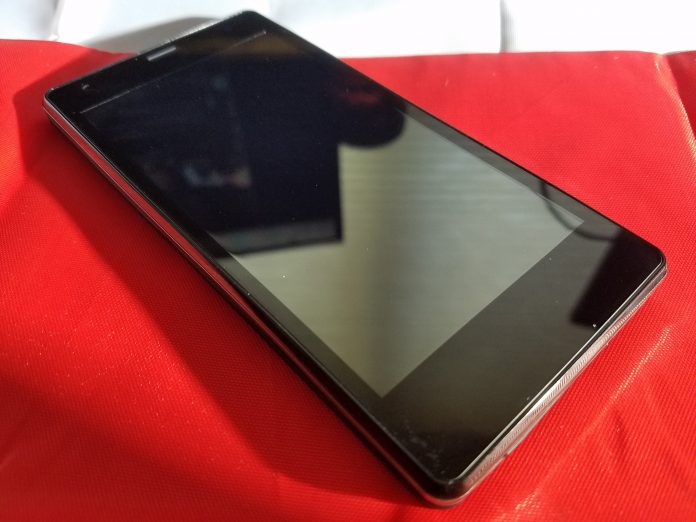
We’ve seen an influx of cheap, good, Asian smartphones here in the US. Gone are the days where the only phones you got to choose from were whatever Samsung, LG, Motorola, and HTC decided to put out. Now we have real choice. These choices come in the form of truly great phones like the Huawei P9 and OnePlus 3, all the way down to budget phones like the Freetel Priori3.
Freetel is targeting the “super-budget” area of $100 phones with the Priori3. The ridiculously low price of this phone does indicate that there will be compromises, though. You shouldn’t expect high-end features like a fingerprint read or water resistance, but that doesn’t mean you should immediately write the Priori3 off. Rarely do budget phones have those features anyway and if you’re buying this as a first phone for your teen or an elder family member, ask yourself if they really need those features to enjoy the experience of their first smartphone.
Let’s start out with some specs.
- Dimensions: 65 x 132 x 8.9mm
- Weight: 120g
- SoC: MediaTek MT6735M
- CPU: ARM Cortex-A53 1000 MHz Quad-core
- GPU: ARM Mali-T720 MP2, 500 MHZ Dual-core
- RAM: 1GB
- Storage: 8GB (expandable)
- Display: 4.5in TFT, 480 x 854p
- Battery: 2100 mAh (removable)
- Sim: Dual sim- Sim 1 is micro SIM, Sim 2 is standard SIM
- OS: Android 5.1
- Camera: 3264 x 2448, 8 MP
- Wifi: a, b, g, n, n 5GHz
- Bluetooth: 4.0
- Bands: 3G GSM 850, 900, 1800, 1900, LTE: 900, 1800, 2100, 800 (B19)
Software
The first pleasant surprise with the Freetel Priori3 was that it’s running a mostly unmolested version of Android 5.1 Lollipop. Sure, I’d love for it to have shipped with the most up-to-date version of Android 6.0 Marshmallow, but I doubt those interested in this phone really care that much about OS updates. Hopefully, Freetel will push an update in the future so users can take advantage of the security updates in recent versions of Android.
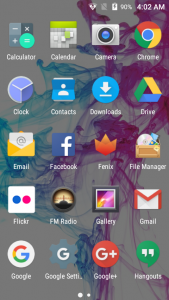
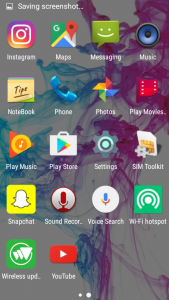
There are no fancy new icons or crapware loaded onto the phone like most manufacturers stain its phones with. There are a few common sense apps that Freetel added like FM Radio, Notebook, File Manager, SIM toolkit, WiFi Hotspot and Wireless Updates. The WiFi Hotspot app is little more than a shortcut to the WiFi Hotspot menu in the settings app, so nothing too fancy there.
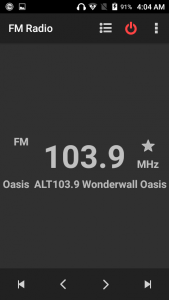
What I really love is the FM Radio app. All phones have an FM chip already, but there is no software available to leverage them. While the chip is very weak, it does the job of pulling in some strong stations. I could very easily see a kid using this to listen to their own music while playing some games on long road trips.
Freetel didn’t take the step of most OEMs and replace the standard Android apps with its own versions. If you were a big fan of the stock messaging app or gallery in 5.1 Lollipop, you’re in luck here because they’re all stock apps. OEMs regularly replace Google’s version of the apps with ugly or laggy versions so we love that Freetel skipped that.
Performance
We were very surprised at how well the Priori3 handled basic tasks. I’ve used some pretty crappy budget phones in the past that would lag simply from just swiping through the app tray (looking at you Samsung), but the OS is lag free. If you start bogging down the system with heavy CPU or GPU usage apps, it does slow down so those big games might be a no go, but for regular social media apps like Facebook or Instagram you’ll be fine once they’re loaded.
What you will notice, however, is how long apps take to load. The processor isn’t very powerful and since there isn’t an abundance of RAM apps regularly have to load fresh and that takes a bit of time.
Using the phone for my normal daily routine I noticed how many apps were knocked out of memory. If you’re able to keep more than four apps in memory at the same time, count yourself lucky. The FM radio app I mentioned earlier does play in the background so you can listen while you browse around on Imgur or Reddit, but it will regularly get knocked out of memory and require a fresh start. It’s not ideal but 1GB seems to be about the minimum phones can ship with these days to get by, and that’s exactly what the Priori3 does, it gets by.
Battery life is fine. You’ll get about 2.5 hours of screen on time and get through most of the day with light usage. You can thank the relatively power efficient processor and low-resolution screen for that. Again, it doesn’t sound like much stacked up against the flagships of the day but the Priori3 does its best to get every minute out of the 2100mAh battery. Since the battery is removable, in theory, you can pick up a secondary battery to pop if it gets low, but I was unable to find any for sale.
Hardware
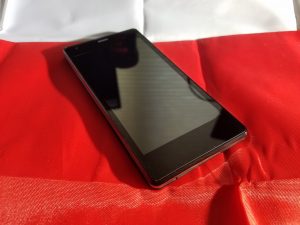
Where you see major compromises with the Priori3 is in the hardware. The display is just bad. The colors are washed out, it doesn’t get bright enough to use in sunlight and the viewing angles are slim at best. The interface for your phone is the display and while we understand that you’re not going to get a 2560 x 1440 Super AOMLED current generation Samsung panel for $100, even what we have here is a disappointment. It’s been a long time since we could pick out pixels with the naked eye, but we can here.
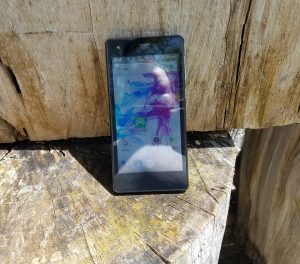
Under the display sits three capacitive buttons that light up red when they’re touched, but stay off otherwise. They give off a cool effect, but you have to know where you’re pressing since they don’t light up any other time. If these buttons stayed lit while the display was active it would be an improvement.
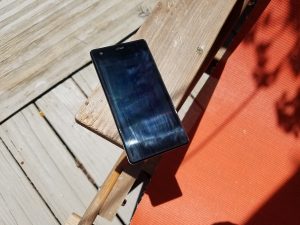 Low max brightness and hard to remove finger gunk is a difficult combo for outdoor use
The power button is on the right side of the device with the volume rocker just above it. While it’s not the ideal placement, it’s fine here and the buttons are clicky and give nice feedback when pressed. Nothing really to complain about other than their relative cheap feeling.
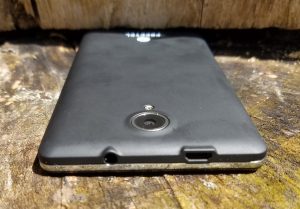
The body as a whole doesn’t feel great. Since the back is removable you don’t get that unibody, strong feel with the phone (Side note- the back and display pick up a TON of fingerprints and they’re really difficult to get rid of). The phone feels hollow like they didn’t use up the entirety of the body with components and when the vibration goes off, it only sees to compound the problem. If your kid drops this phone, they’re probably not going to break it due to how light it is but this won’t be a phone you keep long term due to durability sake.
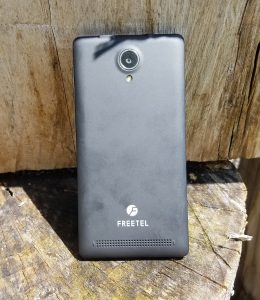
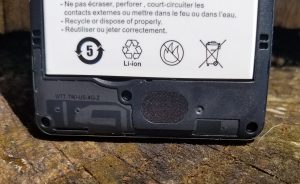
You also won’t be holding onto the Priori3 long term due to audio quality. The rear-firing speaker is very weak and distorts at higher volumes. It gives the appearance of a long speaker that stretches along the bottom of the battery cover, but when you remove the back you find a circular, half-inch sized speaker that doesn’t impress anyone. The 3.5mm headphone jack does fine to put out sound, although not the loudest. You won’t get the most out of your high-end headphones with this phone so stick with some cheapo Skullcandy earbuds.
Camera
The camera application is the stock camera app that comes with Android 5.1. It has enough features to get you by, but if you’re buying this phone for your kid you may want to research another app that will give them a little more functionality. It’s a pretty spartan app that lets you change the exposure, has a few color effects and scenes and has the ability to white balance. Not much there.
The 8MP camera is very modest by today’s standards. Pictures do some nice colors and decent exposure in good light. The story is different when you venture into very bright and dark situations. Over exposure is common where lots of light shines and the digital grain in low light photos can truly ruin any kind of scene you’re trying to pick up. Here is a gallery of some pictures we snapped with the Freetel Priori3.
1 of 8








Conclusion
So how much phone do you get for $100? Well, not too much. The Freetel Priori3 is a fine first phone for a family member, but there are certainly a lot of tradeoffs. With the rise in cheap phones, this is a decent option at the price point, but your options dramatically increase in numbers and quality when you raise your budget by another $100.
I hate some of the tradeoffs that Freetel had to make to stay at this price. There are almost no redeeming qualities about the phone aside from the battery benefits from it being such a low resolution. The camera did nothing to differentiate it from the pack and the speaker was flat out disappointing.
What did impress, however, is how well the software worked on such a meager CPU. The largely stock OS is lag free for most tasks and really didn’t get in the way of itself. The inclusion of the FM radio app was a great move from Freetel and we think it will be appreciated for those who are interested in the Priori3.
I’d recommend this to anyone looking for a first phone for their teen (or preteen!) or an elder family member that has been stuck to flip phones. If you’re in any way experienced with smartphones, I say pass and look to expand your budget a bit more to get something significantly better.
TCL UP130 series (Roku TV, 2016) review – CNET
The Good Roku TV delivers the simplest, most comprehensive smart-TV experience on the market. A superb user interface puts its thousands of apps and streaming video on the same plane as regular TV. These TCLs are relatively inexpensive for 4K TVs, and offer more 4K apps than most others.
The Bad 4K resolution doesn’t deliver a substantial improvement in image quality, making non-4K Roku TVs a superior value. Competing entry-level TVs from Vizio deliver better image quality for a similar price.
The Bottom Line Even though 4K resolution doesn’t improve their image quality, these TCL TVs’ Roku-powered apps and low prices heighten their appeal.
The original Roku TVs, the non-4K ones, have been among my favorite go-to budget picks for the last few years. The new 4K ones are great too, but not as good of a value as their lower-resolution counterparts.
That’s because 4K resolution by itself, as we at CNET have spent years documenting, does almost nothing to improve image quality on its own. There’s very little difference in performance between these 4K sets and the cheaper non-4K versions, despite all those extra pixels.
Then again, if you want a 65-inch Roku TV, your only option is to go 4K, and the 65-inch TCL 65US5800 is a great value. But for the 50-, 55- and 43-inch sizes, the standard 1080p Roku TVs are better deals.
The best part about these TVs is that Roku’s superb platform is baked right into the TV’s operating system, offering the simplest interface and the most apps of any smart TV on the market. Like the Roku 4 streaming box, they have access to more 4K streaming services than any non-Roku device, including Netflix, Amazon Instant, YouTube, Vudu, FandangoNow (formerly M-Go) and more. The TVs aren’t compatible with HDR, which unlike 4K actually does improve picture quality, but that’s not a surprise at this price.
These sets’ main competition, aside from other Roku TVs, comes from the 4K sizes in Vizio’s D and E series. The pricing is comparable, but from what I’ve seen the Vizios deliver better picture quality largely thanks to their local dimming backlights. Of course the main reason to get a Roku TV is for its superior streaming and app experience, and if that’s your aim, and you want 4K, these TCLs are just the ticket.
Series information: I performed a hands-on evaluation of the 50-inch 50UP130, but this review also applies to the other screen sizes in the UP130 series, as well as the two sizes in the US5800 series. All sizes have identical specs and according to the manufacturer should provide very similar picture quality. The only differences between the two series are the remote and styling; see below for details.
TCL US5800 and UP130 series 4K Roku TVs
| Size | Price | Remote |
| 55 inches | $549 | Standard |
| 65 inches | $999 | Standard |
| 43 inches | $449 | Enhanced |
| 50 inches | $549 | Enhanced |
| 55 inches | $648 | Enhanced |
 View full gallery
Sarah Tew/CNET
Simpler TV remote with optional headphone jack, voice search
I’ve always liked that Roku TVs come with Roku’s signature, ultra-simple remote. There’s just a few buttons, all easily navigable by feel, and a handful of direct-access channels that always include Netflix and a couple of other popular services. On the TCL UP130 series I reviewed, they were Amazon, HBO Now and Sling TV.
Unless you use the number keys to select channels, you’ll likely never miss the buttons Roku’s clicker omits. That’s because it has the best menu system on the market. It uses plain language and thorough explanations to make using the TV a piece of cake. I especially like that connected devices like cable boxes, game consoles and Blu-ray players are placed at the same level as apps like Netflix, and you can rename their tiles and move them around the home screen.
The main difference between these two series of 4K Roku TVs, aside from styling, is that the 5800 has a standard remote while the P130 gets the “enhanced” remote with voice search, a remote finder, and a headphone jack for private listening. Unlike the standard infrared clicker, the enhanced version uses wi-fi so you don’t have to aim it at the TV.

View full gallery
Sarah Tew/CNET
I tested all of these features and they worked as well as on other devices, like the Roku 4 streamer. Voice recognition was very good, lip sync was solid on the headphone jack, and the ping sound emitted by the remote was plenty loud from between my couch cushions. I did find myself fumbling behind the TV to activate the remote finder — a prominent, dedicated button would have been nice — but otherwise no complaints. You can also use the Roku app on your phone activate the remote finder.

View full gallery
Sarah Tew/CNET
The Roku you know and love, built into a 4K TV
A 4K Roku TV is largely the same as a regular Roku TV, and that’s a good thing. There still isn’t a whole lot of 4K TV shows and movies available, and to watch 4K streams you’ll need a relatively fast Internet connection. In many case you’ll also need to pay for the privilege; only Netflix’s highest tier, for example, offers 4K streams.
Roku’s interface does makes 4K easier to find than other systems. Its list of apps has a “4K UHD Content Available” section that only shows apps that can access 4K video. There’s also a dedicated “4K Spotlight” channel that surfaces individual TV shows and movies from many of those apps, with the notable exception of Netflix.

View full gallery
Sarah Tew/CNET
As of this writing these TVs don’t include the PlayStation Vue app found on Roku boxes. Roku says that app is coming in the next few weeks to Roku TVs. Otherwise every app found on Roku boxes and sticks is here. The selection runs circles around dedicated smart TV systems from Samsung and LG, and handily beats its next-closest competitor, Android TV (found on Sony sets). I also much prefer it to Vizio’s SmartCast system since you don’t need a phone to use it.
Roku TVs also get Roku’s best-in-class search, which allows you to search from multiple services simultaneously (and via voice from the remote, if you have a UP130 series). It presents results from 30 different services, more than any other platform. Click on a result, a movie or TV show title for example, and you’ll see pricing across all of the services Roku searches. The best part is that if you get the show “for free” as part of a subscription, it will be listed there too. One catch is that it doesn’t search HBO Now, Showtime, or Showtime Anytime (it does search HBO Go, however), so if the movie is available there, Roku’s search won’t find it.
Roku is also the best at presenting TV shows and movies across the different services. The My Feed feature allows you to tag shows, films and even actors and receive notifications for when they’re available to stream, and it shows the most popular TV shows and movies across all of the services Roku searches, updated four times a day. It’s a great way to find new things to watch, although I do wish there were a “Show only stuff I can watch for free” option.
The menus and apps loaded quickly on the TCL TV, which behaved every bit as speedily as the Roku Streaming Stick. For more on Roku in general, check out that review.
Features and connectivity
Ket TV Features
| LED LCD |
| Full array |
| 4K |
| No |
| Flat |
| Roku TV |
| Standard or “Enhanced” |
| No |
Aside from 4K resolution the list of options is short. The TV lacks the HDR compatibility, local dimming, video processing options and high refresh rates found on higher-end sets (these are all 60Hz displays).
One feature missing from previous Roku TVs, but available on this one, is expert picture settings. They aren’t found on Roku’s normal menu — which is just as simplistic and option-free as on other Roku TVs — but instead within the Roku app. There you can choose gamma presets, noise reduction and even adjust a color management system and 11-point white balance.
ZTE ZMax Pro Release Date, Price and Specs – CNET
What if I told you there was a smartphone you could buy for under $100? You may be a little skeptical. Surely such a low cost device would come with some sacrifices, right? Wrong.
The ZTE ZMax Pro is a mid-range Android smartphone with an impressive feature set. The $99 smartphone may come with a small price tag, but there’s nothing small about it. The phone features a 6-inch display with a pixel resolution of 1,920×1,080. It’s a massive device that can be quite difficult to operate with one hand.

Sarah Tew/CNET
The phone is equipped by an octa-core Snapdragon 617 processor, which felt speedy during my brief hands on, and is paired with 2GB of RAM. On the back you will find a 13-megapixel camera, while a 5-megapixel shooter sits on the front. The phone comes with 32GB of internal storage, but there’s also a microSD slot to add even more. To power this behemoth there’s a 3,400mAh nonremoveable battery to keep you going all day long.

Sarah Tew/CNET
Aside from the price, what shocked me the most was the USB- C port for charging and a fingerprint scanner on the back, two features that are more commonly found on devices triple the price. ZTE had to make some sacrifices, though. The phone doesn’t include NFC and can’t be used with Android Pay.
The ZMax Pro will be available exclusively from MetroPCS for $99 on August 1. Preorder begin today.
Specs
- 6-inch display with a 1,920×1,080-pixel resolution
- Octa-core Snapdragon 617 processor
- 13-megapixel rear camera
- 5-megapixel front camera
- 2GB of RAM
- 32GB of Storage
- MicroSD card slot
- 3,400 mAh battery
- Rear fingerprint sensor
- Android M (6.0.1)
- USB Type C
Logitech MX Anywhere 2 review – CNET
The Good The Logitech MX Anywhere 2 is a rechargeable wireless mouse for Macs and Windows PCs that offers smooth, precise operation, lots of customization options and decent ergonomics for a mobile mouse, and works on almost any surface. You can connect to up to three computers using Logitech’s included Unifying Receiver USB dongle or opt for Bluetooth connectivity. A speed-adaptive scroll wheel lets you autoshift from click-to-click to hyperfast scrolling. Battery life is good.
The Bad Ergonomics aren’t as good as on Logitech’s larger MX Master; the rechargeable battery isn’t user-replaceable (but should last several years).
The Bottom Line The MX Anywhere 2 is a top-notch mobile mouse.
Logitech’s MX Anywhere 2 Wireless Mobile Mouse is essentially a mini, travel-friendly version of the company’s flagship MX Master Wireless. This trimmed-down mobile version retails for $80, though it can be found for closer to $60 (£65; AU$130) online.
I tested the MX Anywhere 2 with both Mac and Windows laptops. I like it a lot, though ergonomically speaking it isn’t as comfortable to use as the MX Master. That said, it’s about as comfortable as you can expect from a smallish mobile mouse that’s designed to easily fit in the side pocket of your laptop bag. And it’s a nice weight at 3.7 ounces (105 grams).
Logitech MX Anywhere 2 Wireless Mobile Mouse
See full gallery


1 – 5 of 11
Next
Prev
As you might expect from a high-end mouse, it has plenty of bells and whistles. Thanks to Logitech Darkfield Laser technology, it works on just about any surface — everything from a glass table to the Formica-style finish of my work desk.
It has an integrated rechargeable battery that’s supposed to last up to 60 days on a single charge, which is almost double the battery life of the MX Master. You can continue using the mouse while charging with a Micro-USB cable, and just 1 minute of charging gives you 2 hours of usage. I wasn’t able to precisely test battery life, but I haven’t had to recharge it in the three weeks I’ve used it.
Like the MX Master, this mouse can connect to your Windows or Mac computer with the included Pico Unifying Receiver (a small USB dongle that will also work with Logitech keyboards) or via Bluetooth Smart technology.
If you go with Bluetooth, you can pair the mouse with up to three devices and switch between, for example, a laptop, desktop and tablet using the appropriately named Logitech Bluetooth Easy-Switch button.
Prynt review: Augmented Reality comes to photos
Whether or not you are an avid photo social media user or poster, it’s hard to deny that photography is an intrinsic part of the smartphone life. But in the digitizing of our everyday lives, it’s easy to forget how nice it is to make this data physical. Then, it no longer isn’t just a representation of zeros and ones but instead a physical manifestation of a memory. Well, a Kickstarter campaign looked to do just that – bridge the gap between old and present, while adding a little bit of the future. This is our review of the Prynt photo case.
The Prynt case is, well, a printer – and that is why it is a little than a conventional case. It comes in a few different colors, but this while one is made entirely of plastic with all the bits and pieces needed to make small Polaroid like pictures. The main portion of the device is the mount that is detachable and can be changed depending on what phone is being used. In the Android world, the only phones that will work with Prynt are Samsung Galaxy S devices after version 5. Thankfully, a very recent update came out that added support for the Galaxy S7 – a bit too little too late, unfortunately, for my trip to Hawaii.
Loading up a phone into the Prynt requires the right bracket, but before any of that can occur, we have to load some Zink paper into the printer first. Zink paper is a fascinating technology – there is no ink involved because everything that is required to make the image is embedded into the fibers and layers of the paper itself, and the Zink printer will just make the magic come out from within. The printer comes with 10 sheets of paper already, and the instructions to load the paper are simple – just put the correct sheet and side down first and bring the hatch down. After a calibration sheet comes out of the printer, you’re good to go.
When mounted into the Prynt, the camera of the Galaxy device protrudes out just enough that you can hold the entire setup just like a normal point and shoot camera, complete with shutter button. The grip meaty enough that everything feel secure, but since the phone is being held by just the mircoUSB port in the bracket, it’s probably good idea not to put the rig in a position for the phone to slide top first out of the case.

So, you then fire up the Prynt app, available for download in the Play Store. The app requires a bit of setup and an initial connection to the case, but after that you are greeted with a viewfinder that can be used standalone on the smartphone yet is responsive to the shutter button found on the grip. And this is where the magic happens.
Whether in the case or not, hitting the shutter button on the Prynt app triggers the initial capture – unless you change it later, this is the frame that will be printed on the Zink paper and you will get a photo much like a Polaroid that can be physically shared or kept for tangible memories. Of course it is a bit more satisfying to have the phone in the case already, but this might not be ideal in every situation – more on that later. After hitting the shutter button, a six second video is recorded – that’s the futuristic part that Prynt, well, prints.

Prynts are stored in the phone that took them, and after the capture, a number of effects or filters can be applied to the pictures that are eventually printed out of the case. When ready, the phone needs to be connected to the case and then in the Prynt app the photo is selected and is rendered. There’s a really nice effect where the photo in question slides from the phone display in sync with the actual picture that is printed. Once it pops out, the photo is officially a physical memory – give it to the person you took the picture of or keep it for yourself!
But within the Prynt app is a special scanner that, when opened, can unlock more from the printed photo. That six second video that was recorded after the shutter press is actually embedded into the photo! The Prynt app – yes, even ones that are downloaded on other people’s phones, no matter what kind they have – can download the short video from the cloud and play the video based on the photo it is scanning. The best part – the video plays on the actual photo itself in augmented reality style! It’s not perfect – the photo needs to be plainly in view and slight skews in the angle can make the video clip and flip out. But when it works, it’s a wonderful effect that generally gets an awe-filled response. It’s also a nice way of showing off AR.

I used the Prynt case in Hawaii, hoping to get a few good memories on paper – but in using the Galaxy S7 at first, I ran into the compatibility roadblock. For the trip, I had to borrow a Galaxy S5 in the meantime. A few good clips came out of it, and it was definitely fun to get some pictures in this different way. That said, Prynt tends to be a bit too chunky and is quite clunky to use when out and about. It’s hardly pocketable and takes up a fair amount of space in a bag, which is less than ideal.
At the very least, the Prynt app can be used to capture and store clips it takes, meaning that it can be connected to the case later on to properly print each one out. That isn’t ideal for people who want to use the Prynt properly in the moment, but it is an option. In the case of my Galaxy S7, however, that meant that all of the clips I took that were not initially printable can now be created – how fortuitous.

But this all brings out another issue that we have with the Prynt case. It is a great idea that is actually executed fairly well – that is, if you have a Samsung Galaxy S device or an iPhone. We can’t help but think that this could have been a Bluetooth or Wi-Fi Direct enabled printer instead, meaning that the Prynt app could just transmit the data over a universal connection and make this an accessory with high compatibility. As it stands right now, the Prynt case is a concept made real by Kickstarter – it just needs that next evolution to bring it to the masses and to move it away from just the loyal following of backers it grew from crowdfunding.
And at $149, it is rather tough to recommend this as an accessory when it can really only be used by a particular segment of the Android population. Galaxy S users are an abundant bunch, don’t get us wrong, but in making this product more universal to the masses, the recommendation would then be a no-brainer. Thankfully film isn’t too huge a pill to swallow, with the price of Zink paper basically coming in at about 50 cents a pop. That might sound like a slight penny, but consider for a moment that Polaroid cameras require film at much higher prices and none of them have the cool AR capabilities of Prynt.

We hope to see more accessories like this in the future, especially in a wireless solution that brings the fun to more than just some of the smartphone populace. We need to see more fun products like this that don’t just think in one direction – and in bucking that trend, Prynt takes advantage of current smartphone photography, makes it old-school tangible, and adds in a touch of our undeniably cool future.
What do you think of Prynt and do you like the idea of bringing AR to photos? How else could companies combine the past and the future in the present? Let us know your views in the comments below!
Buy the Prynt now
BuzzFeed and Washington Post turn to robots for RNC coverage
Both the Washington Post and Buzzfeed have sent robots to cover the Republican National Convention in Cleveland. Call it forward thinking, call it a gimmick, inventive, desperate… doesn’t matter. But it’s happening, and both outlets couldn’t be prouder of their efforts to modify their news gathering process and bring additional interactivity to their reporting.
The Post’s experiment involves a telepresence robot from Double Robotics and a partnership with Twitter. Basically, the machine is an iPad mounted on a Segway-style base. All week it’ll be roaming the floor of the convention, streaming live on Periscope. Viewers will be able to tune in and ask questions of delegates, politicians and anyone else who happens upon the bot. It will give those watching at home a much more candid look at the RNC than normal, but might also provide some excellent opportunities for the public to pepper officials with tough questions.
LIVE on #Periscope: Robot reporter rolls around the convention hall | Come 👀 #RNCinCLE https://t.co/t7RsZXLlh9
— Ryan Y. Kellett (@rkellett) July 18, 2016
BuzzBot is a little more elaborate. Rather than a physical robot, it’s a Facebook chat bot that both collects and delivers news from the ground in Cleveland. If you add the channel to your Messenger app it will, of course, deliver news updates from BuzzFeed reporters. But, more importantly, it’ll collect reports from delegates, protesters and anyone else who happens to be in Cleveland. You can choose to simply send pictures and other info to BuzzBot, but it will also occasionally ask you questions or request you submit details about your experience. What the bot asks will differ depending on why you’re in Cleveland. Not in town for the RNC? Well, do you live in the city? If so, BuzzBot is going to want to know what kind of impact the RNC is having on your daily life.

It’s also not hard to image that information pouring into BuzzBot could help shape the outlet’s coverage. Notices of protests, overheard conversations and the like could all be reported through Facebook Messenger and fed to reporters on the ground, who could then go digging for a story.
But journalists shouldn’t worry just yet. Neither the Washington Post’s nor BuzzFeeds bots are advanced enough to cover a convention on their own. In fact, without humans guiding them or feeding them information they’re pretty useless.
Source: BuzzFeed, The Washington Post
How to view two Safari tabs at the same time on iOS 10 – CNET
Apple dedicated all of 15 seconds to iOS 10’s addition of Split View Safari tabs on the iPad during this year’s WWDC keynote. Despite how brief the mention was, the ability to view two webpages at once is something that iPad users had begged Apple to add to iOS.
Apple listened, and now we can view two Safari tabs side-by-side. There are a few different options to use the new feature, so let’s take a look at how it works.
Long-press on a link
 Enlarge Image
Screenshot by Jason Cipriani/CNET
Placing your finger on a link on a webpage until a menu shows up will now give you the option to open the link in Split View. The page behind the link will immediately open in Split View and began loading.
Long-press on the tab overview button

Enlarge Image
Screenshot by Jason Cipriani/CNET
With a long press on the tab overview button, you can not only close all open tabs at once, but now you can open a blank page in Split View.
From there, you begin a brand-new browsing session while still having access to the page you currently have open.
Drag-and-drop gesture

Enlarge Image
Screenshot by Jason Cipriani/CNET
Have a bunch of tabs open already and want to view two of them side by side? Drag the tab down and to either edge of the screen and lift your finger. The tabs will resize, and you browse with double the efficiency.

Enlarge Image
Screenshot by Jason Cipriani/CNET
To place a tab back in the overall list of tabs, drag it back to the opposite side of the screen where it will fall in line with the other tabs.
Why is the Split View option missing?
If you’re trying to open a tab in Split View and the option is missing, it’s likely because you are already using Split View with another app. Meaning, you can’t have two tabs open in Split View, while at the same time having Messages pinned open in Split View.
Laziest Pokemon Go hack helps you hatch eggs without walking – CNET
 Enlarge Image
Use a turntable to hatch eggs in Pokemon Go without walking a step.
Justin Yu/CNET
Even though I’m the only fool in the world not playing Pokemon Go right now, I can still appreciate the fitness benefits the game offers by pushing players to walk around and find eggs at Pokestops.
But even the greatest Pokemasters have to battle laziness, so I also appreciate this clever trick for hatching eggs at home with the help of a turntable.
All you have to do is open the game, put your phone on the turntable with a little bit hanging off the edge (make sure it doesn’t swing around and hit the tonearm), and start it up using the fastest rotation speed available (bonus points if you have a 78rpm setting).
The spinning platter will produce enough movement to trick your phone’s accelerometer into thinking that it’s actually in motion, which is why the same principle could also work if you tape your phone to a ceiling fan or wedge it inside the spokes of a bicycle wheel.
You might have to leave your phone spinning around on the table for awhile to reach the 2, 5 or 10 km distances required to hatch your eggs, but it’ll get the job done eventually and should come in handy the next time it’s raining outside, or you just can’t gather the energy to get out and play.
 AIVAnet