


Astronomers scan for disappearing stars
Scientists are adept at spotting stars, even very old ones. But what about stars that disappear? A handful of researchers, led by Uppsala University’s Beatriz Villarroel, aims to find out. They’ve been comparing sky surveys to see if any light sources (usually stars) have disappeared between these scans. Out of the 300,000 sources in the study, they’ve found one that appears to have vanished without a trace.
The question is: assuming the data is accurate, why would a star disappear? Villarroel wonders if it could be the work of highly advanced alien civilizations, but that’s as uncertain as the notion of alien megastructures dimming a star — there’s no hard evidence to support it. Having said this, astronomers don’t need to find intelligent life for the data to be useful. It could help explain quasars, volatile stars and other cosmic phenomena that can go dark without much warning. If researchers can expand the data set (such as through Villarroel’s proposed crowdsourced searching) and refine it, they could both get a sense for both the frequency of these disappearing acts and their true causes.
Via: New Scientist
Source: ArXiv.org
Cancer patient receives a 3D-printed jaw
If you lose your lower jaw to cancer, you don’t have many options for prosthetics. At that size, traditional clay is so heavy and unwieldy that you can only wear it for a few hours at a time. Indiana University’s Dr. Travis Bellicchi and team have developed a much better alternative, though. He recently gave tongue cancer patient Shirley Anderson a 3D-printed jaw after losing his natural jaw to the side effects of radiation treatments. The digitally-modeled piece is not only much lighter, but far more natural-looking — the creators could create more natural borders and account for fine details like skin pores. The result is good enough that Anderson could comfortably wear the prosthesis in public without drawing significant attention.
Crucially, the technique is already paying dividends beyond Anderson. A man who lost an ear to an industrial accident got a natural-looking replacement just 6 weeks later, and there are five other patients who’ve received 3D-printed prosthetics. There may well be a time in the near future where the technology regularly helps patients restore missing features.
Via: Fast Company, Mental Floss, Gizmodo
Source: Formlabs (YouTube), Indiana University
AC editors’ apps of the week: iPlayer Radio, Sensor Sense, FIFA 16 and more

It’s Appday Sunday and that means we’re back with more of our favorites to share. Every week we bring a handful of great apps to the table and share them with everyone. Sometimes they are new apps, sometimes old standards, but every time they are apps we love to use.
Give these a look and then take a minute to tell us all about the apps you are using and love so we can give them a try. We all find some of our favorites right in the comments on these posts!
Alex Dobie — BBC iPlayer Radio

What to do if you find you’ve planned your time so poorly that you’re on a two-hour train ride during a crucial Euro 2016 match? If you’re like me, you turn to BBC iPlayer Radio. Like the TV service of the same name, iPlayer Radio lets you stream all the BBC’s radio output over Wi-Fi or cellular data, and because the bandwidth required isn’t anywhere near that of a video stream, it’s possible to listen without interference or signal drops — even in patchy areas.
The app itself lets you choose between the live output from any of the BBC’s stations, as well as allowing you to search back and browse past content by genre, airtime or station. Audio quality can be adjusted to save bandwidth, and like the main iPlayer app, you can save broadcasts to local or SD storage to listen on a plane, up a mountain or anywhere else you might not have a reliable data connection.
Download: BBC iPlayer Radio (Free, UK only)
Russell Holly — Sensor Sense

Sensor data apps are booooooooring. They never look good, and there’s a whole lot of numbers that spits out the raw data from all of the sensors on your phone, and as long as you know what you’re looking for there’s no problem. These aren’t apps you’re going to tell people who aren’t nerds to install, but that doesn’t mean they can’t look nice. This is where Sensor Sense comes in, it’s a nice Material package, and it’s free as long as you’re happy with a little banner ad at the bottom (of course if you don’t, pay the $3 to make the ads go away and support developers).
Download: Sensor Sense (Free with ads)
Ara Wagoner — XHangouts

Say what you want about how Hangouts has behaved recently (awkwardly), whether or not it’s days are numbered as we count down to Allo (they’re not), and how it handles SMS (clumsily), Hangouts is still one of my most used messaging apps. The majority of the friends I talk to regularly, I talk to through Hangouts, because they met me on Google+. So when I rooted my Nexus 5X, it made sense that the first customization I’d download would be something to make Hangouts easier on the eyes.
XHangouts is an Xposed module, and it is blissfully simple for an Xposed module. You enable the module, you enter the Theme subject, and you pick a new color to replace that Mean Green Hangouts color. You can also turn on a dark theme, and whenever I can replace the bland, bright white of a Google app with a softer, darker hue, I’m gonna do it.
XHangouts (root and Xposed required)
Andrew Martonik — FIFA 16 Soccer

Okay, I enjoy soccer. You may have figured that out. But I honestly haven’t ever bothered with the FIFA (or any other franchise) games on mobile devices … I always stuck to the console versions where I had a controller. But a couple weeks ago I picked up the massive download for FIFA 16 Soccer, and I’ve really started to enjoy it.
The controls are surprisingly good and intuitive for an all-touch interface, and the graphics and gameplay are above what I’d initially expected for a phone. Just like on the console you can start up with a low-end team, and play matches through a league as you build the squad and improve on your skills. It’s rather surprising how deep the off-field gameplay gets.
Sure it’s not the same experience you’ll get on your Xbox or Playstation, but when you have a little time to kill it’s great to be able to pick up a game that’s well put together and only takes a few minutes to play each match.
Download: FIFA 16 Soccer (Free, in-app purchases)
Jen Karner — Zombies, Run! (Free)
Every year when it gets warmed out, I convince myself that this is when I’m going to start going out on runs more often. I’v never really enjoyed running, but getting in shape is a regular goal that I fail to properly chase down. Until I remember that Zombies, Run! is a thing. It combines your own music, with a story about the zombie apocalypse, in which you are a survivor.
Each mission is a different part of the story, and in it, you are Runner 5. You’ll need to collect supplies, dodge zombies, and try to survive in a world gone awry. The best part though, is when you are running you can hear zombies chasing you. I don’t think I’ve ever sprinted so fast in my life, as I did the first time I heard the moans of a zombie in my ear. This app really brings out the motivation to run, especially since you want to continue the story and find out what happens next.
Zombies, Run! (free)
Daniel Bader — CloudPlayer

These days, I tend to get most of my music from streaming services like Spotify and Google Play Music, but there are still some essential albums that aren’t available online. For those, I use CloudPlayer by doubleTwist, a company many Android veterans will know for its best-in-class music player.
CloudPlayer takes the MP3s and other audio files stored in services like Dropbox, OneDrive and Google Drive and creates a catalog of tunes based on artist, album or song. Its most recent feature, launching this week, allows users to create playlists that are stored in the cloud, too, for streaming from any Android device.
CloudPlayer is great because it is easy; it handles thousands of remote music files easily, and even streams lossless FLAC files with no trouble. It also has a 10-band equalizer and Chromecast support, which is super handy. It even supports Android Auto, which Phil will appreciate.
While the basic version doesn’t cost anything, the premium version, which enables the cloud streaming feature, costs $7.99, after a 30-day free trial. It’s worth it, even for someone like me who only occasionally listens to his own collection. CloudPlayer is well-designed and reliable, and a great example of an Android app that does one thing really, really well.
CloudPlayer by doubleTwist (Free)
Mobile Nations Weekly: Name and release

N gets named, Autopilot turns deadly, and Huawei goes thin.
Android N finally has some branding clarity: N is for Nougat and the version is 7.0. It’ll still be a while before the next flavor (*ahem*) of Android starts hitting devices, but at least we now know what it will taste li— err, what to call it. Samsung did something we’ve long been asking for — they released unlocked U.S. versions of the Galaxy S7. BlackBerry went big with advertising the same week they got the disappointing, if envitable, news that the United States Senate would no longer issue BlackBerry phones to staffers — but it appears that a new Android-powered BlackBerry is on the horizon.
Huawei is pushing hard with their new Windows 10 tablet, the MateBook; it’s super thin and super impressive. Additionally, we finally have a date for the launch of the Windows 10 Anniversary Update (also known as Redstone): August 2 for PC, Mobile, and even Xbox. But one of the marquee features — Messaging Everywhere — didn’t make the release.
Those living on the bleeding edge of the Apple world are putting all of the upcoming software updates through their paces through developer previews. From iOS 10 to macOS Sierra, there’s a lot to take in. Not to mention the big updates coming for tvOS and watchOS 3
The Tesla community is grappling with the first fatal wreck in an Autopilot-driven vehicle. The tragedy is drawing more scrutiny of automated driving, but also highlighting the dangers that arise when we get too complacent with technology that we know isn’t yet ready to operate entirely on it’s own. People die when we get reckless, and in this instance we’re lucky only the driver of the Tesla was killed or injured.
VR took a tentative step forward into… reality? In a truly interesting experiment, the upcoming Ghostbusters movie put on a really unique VR experience. They called it “Ghostbusters: Dimension” and it took the stereoscopic 3D vision and audio and threw in some new senses: touch and smell.
Android Central — Android 7.0 New Name

Android 7.0 confirmed! Say hello to Nougat!
On the hardware front, Samsung did what we were all asking for — release a fully-unlocked U.S. model of the Galaxy S7 and S7 edge. It doesn’t have carrier bloatware, yet works on all U.S. carriers (yes, even Verizon), and you can just go buy one without any extra hassle. It’s wonderful.
As we continue our refreshed coverage of Chromebooks now that Android apps are here, we have a few more helpful articles — like how to make sure your Chromebook is up-to-date, what some of the best wireless mice are, how to use an external monitor, mouse and keyboard, and some general tips about making a buying decision.
For Project Fi users out there, you now have access to the U.S. Cellular network in addition to T-Mobile and Sprint. It won’t add service for too many people out there, but the best part about it is you don’t have to do anything special to get it — just update your Project Fi app.
Over in the UK, upstart phone company Wileyfox unveiled its latest affordable devices this week, packing solid specs, Cyanogen OS and great price tags. It’s great to see some solid innovation in the low-end space.
- Sony Xperia X Performance review
- Smartphone nerds, it’s time to start getting excited about Huawei
- Samsung Galaxy Note 7 preview: Specs, software, hardware and more!
- Two-factor authentication: What you need to know
- Quick comparison: 2016’s mid-range Android challengers
- OnePlus 3 vs. Nexus 6P: Who does clean, affordable and powerful better?
- On the prospect of a ‘Chromebook Pro’…
- How, exactly, would a ‘Google phone’ fix what Nexus hasn’t broken?
CrackBerry — Ad budgets
This week has been a rather interesting one for BlackBerry. In light of BlackBerry opening up their New York pop-up store, they’ve now also kicked a rather large (for BlackBerry) advertising campaign and sale to go along with it. The company also posted to YouTube what has got to be one of the best videos BlackBerry has ever created to showcase their latest efforts and offer a look into where BlackBerry is headed.
On top of that, news of the US Senate no longer offering BlackBerry smartphones caused quite a stir when the words ‘BlackBerry 10’ and ‘discontinued’ were used together in the same sentence. Ahh, yes. There was also a small flood of new device rumors. More on those soon. We’re not entirely hopping on that hype train just for the sake of it considering some of the hype doesn’t quite add up yet. But it’s safe to say that pieces of the new device rumors are based off of what could be considered old rumors with some truth now behind them regarding a possible partnership with Alcatel / TCL.
- BlackBerry amps up advertising efforts for their New York pop-up store
- Here’s the video John Chen showed at BlackBerry’s 2016 AGM
- BlackBerry has not informed Verizon or AT&T that BlackBerry 10 devices have been discontinued
- TCL-built BlackBerry Hamburg turns up Wi-Fi certification filings
iMore — Apple Jacks

We’re working our way through all the upcoming Apple software updates — iOS 10, macOS Sierra, tvOS 10, and watchOS 3 — but that doesn’t stop the rumors from rampaging anyone. Right now it’s all iPhone 7 all the time. Well, almost, Apple Music turned one, iPhone turned nine, and a whole lot more happened as well. Here are the highlights!
- tvOS first look: Taking Apple TV to the next level
- What iOS 10 hints at for iPhone 7
- Apple Music review: One year later, the catalog soars… and iCloud Music Library falls flat
- Here are the ten most underrated features in watchOS 3
- iPhone 7 and making Lightning strike twice
- How to switch from Evernote to Apple Notes
Tesla Central — Fatal autonomy

Tragedy struck the Tesla community in the form of the first fatality in a car driven by Autopilot. An accident in Florida took the life of prominent Tesla owner Joshua Brown and drew increased attention to the safety of the system (or lack thereof) and the role the driver is supposed to play in a semi-automated car.
As it turns out, it appears that the driver put too much faith into Autopilot and was engaging in some reckless behavior behind the wheel when attention should have been paid to the road. Autopilot isn’t yet 100% infallible — human supervision and intervention are required — and this sad accident is proof of that.
Sometimes it takes a tragedy to get our thinking straight on a topic about which many are passionate. There are perfectly reasonable arguments to both sides of the autonomous driving debate, and if anything this incident will help to clarify for drivers and manufacturers the limitations of current systems, inform the design of future systems, and help to form the basis for the regulations and standards that will be essential to the future development of true fully autonomous vehicles.
- Fatal Tesla Autopilot accident prompts NHTSA investigation
- Autopilot is amazing, but you shouldn’t trust it with your life
- Superchargers set to start popping up at gas stations and restaurants
- The Tesla Model 3 is damn sexy — here’s photographic proof
- Tesla Model 3 — the FAQ
VR Heads — Ain’t afraid of no ghosts
What is the next step for VR, after you’ve mastered walking around with a headset on and shooting monsters with plastic guns? The folks at The Void think it’s feeling and smelling the virtual world as though it were real, and we’re inclined to believe them. Take a look at our Ghostbusters: Dimension experience for more details!
- Every VR fan should try Ghostbusters: Dimension
- Building a PC vs Buying one, which is better?
- Final Wave of PlayStation VR pre-orders sold out in three minutes
Windows Central — Huawei does thin really well
Huawei has a new Windows 10 tablet coming to the market. We did a deep-dive review of the ultra-thin MateBook and came away impressed.
Microsoft revealed August 2 as the launch date for the Windows 10 Anniversary Update for PC, Xbox One, and Mobile. Not sure what’s coming? We have you covered. Not without controversy, however, Microsoft did pull Messaging Everywhere. It’s coming back though later in the fall with Skype support.
Now that Redstone 1 is nearly complete should you install the Windows 10 Preview on your laptop or PC? Here are the pros and cons.
- Inside Xbox One review: A Lynchian puzzle platforming masterpiece
- NuAns NEO is now on Kickstarter to let you fully customize your Windows phone
- How to join the Windows Insider Program
- ‘Double-tap to Wake’ is slowly being released to Windows Device Recovery for Lumias
Check out the best Windows 10 #DoMoreEveryDay Gems
Regenerative tooth fillings could put an end to root canals
You really don’t want a root canal, and not just because it’s potentially painful. Emptying the tooth of the infected tissue at its heart potentially weakens it, since you can’t grow that organic material back or put toxic fillings in its place. Researchers may have a solution, though. They’ve crafted fillings that get the tooth’s own stem cells to regenerate and repair tissue. This doesn’t mean that your pearly whites would return to normal, but the substance could heal the tooth enough to spare you a root canal or prevent fillings from going south.
You’re not going to have this option for a while, but it’s designed to be practical. You can cure the filling with light, so your dentist wouldn’t have to resort to exotic techniques to rescue your teeth. And importantly, it might be less expensive overall — you might not need a cap or crown to reduce the chances that the tooth will break after the surgery.
Via: Popular Science, Gizmodo
Source: University of Nottingham
Lizard Squad hacked thousands of cameras to attack websites
The hacking collective Lizard Squad isn’t relying solely on masses of compromised PCs to cause some grief online. Security researchers at Arbor Networks have discovered that the outfit compromised several thousand closed-circuit cameras and webcams to create a botnet that it promptly used for denial of service attacks against bank, gaming sites, governments and internet providers. Each device might not be as individually powerful as a PC, but they add up — some attacks flooded sites with as much as 400Gbps of data.
As to the reasons for infiltrating these cameras? Simply put, they’re easy targets. The cams tend to run minimal versions of common platforms like Linux, with relatively little built-in security (in part due to the limited hardware) and reused login details. Combine that with buyers who seldom install patches and it’s frequently just a matter of finding the cameras to install malware.
The findings underscore the problems with security in the internet of things. When seemingly every device is connected, it’s that much harder to keep everything up to date — and that’s assuming that hardware makers are committed to updates in the first place. These kinds of attacks may be commonplace until gadgets are more secure.
Via: Newsweek
Source: Arbor Networks
How to use Snapchat on Android

How do I use Snapchat on my Android phone?
The idea of Snapchat was first conceived in 2011 when founder Evan Spiegel was having a conversation with his friend Reggie Brown. Brown explained to Spiegel that even though he was enjoying exchanging messages with a girl, he wished all the photos he was sending her would vanish after she saw them.
Spiegel clearly liked what Brown was putting down, and over the summer of 2011, Snapchat began to pick up steam (back then it was called Pictaboo) with the help of Brown and co-founder Bobby Murphy. They even used the same cute little ghost icon that we know and love today!
After a bit of drama (what’s a successful start-up tech company without a little drama?), a name change, some people leaving, and a brand shift, Snapchat as we know it began to take shape.
Today, Snapchat has nearly 100 million daily users who send and receive snaps. In fact, every single second over 8,500 photos are shared across Snapchat. We’re here to help you set up Snapchat and get in on the fun!
Download: Snapchat (free)
- How does Snapchat work?
- Sign up for Snapchat and get started
- Getting familiar with the home screen
- Taking, sending and saving your snaps
- Your story/discover page
- Sending audio, text, photo and video messages
How does Snapchat work?

Think of Snapchat as messages meant for a secret agent, except instead of your video or picture message exploding when it’s done playing or times out, it simply disappears.
If you try and screenshot a photo or video that someone has sent your way, Snapchat will alert the person on the other end that you’ve screenshotted their snap, so don’t think you’re being sneaky — you’ll just end up embarrassing yourself!
You can use Snapchat for pretty much anything, although it was originally designed for dating (can you guess why?), but it’s recently become a more artistic medium for some people.
One of Snapchat’s newest features is the “story,” which broadcasts your snaps out to many other snappers for 24 hours rather than sending a snap to one person.
Some people spend a lot of time shooting interesting things, taking unique photos, and sharing their lives through their “story” because it’s not as permanent as posting something to Instagram but not as fleeting and temporary as sending out individual snaps.
Sign up for Snapchat and get started

Signing up for Snapchat is super simple. After downloading the app, open it from your home screen. You’ll see a bright yellow screen with a little white ghost on it. Underneath, tap on the red login bar (the little ghost will then stick his tongue out).
Enter your first and last name, your birthday, your username (this is how friends will add you on Snapchat), and your password. Enter in your phone number or email and wait for your confirmation code.
Once you’ve signed up for Snapchat and gone through the verification process, Snapchat will scan your contact list for other people using the app, so you can add friends. Then you’re ready to get snapping!
Getting familiar with the home screen

Your home screen in Snapchat isn’t the Stories/discover section like some people think (although that is where all the action happens), but the screen that shows what your camera sees when you first open the app.
On the home screen, you’ll see a few different icons that do different things, including a tiny ghost at the top that when you swipe down, shows a pull-down menu of extra Snapchat things like how to add friends, settings, and more.
Filters
Filters in Snapchat work similarly to filters in Instagram but with a fraction of the options to choose from. After you take your photo or video, swipe left to pick from all your filter options. At this time, there are four color-filter options to choose from:

Filter #1:
Slightly airbrushed and brightened effect throughout the filter. Also lowers the contrast a bit.

Filter #2:
A very light green/yellow tint to your photo or video. Makes things a bit darker, so it looks best with snaps that have brighter lighting.

Filter #3:
A ‘modern’ looking filter that gives your photo a blueish, cool tone. Makes colors pop and adds a bit of saturation to otherwise dull snaps.

Filter #4:
Your standard, run-of-the-mill black and white effect.

There are a number of other of filters to choose from that wont tint your pictures. You can add the speed into your snaps if you’re traveling on a car or bike, the temperature if it’s a particularly hot day, the date or time, and your phone’s battery percentage.
Your city or neighbourhood may even have a few geofilters designed for you to use (geofilters will only work if you’re in a certain space or area), so be sure to swipe through all of your filter options and explore!
Lenses
A lot of people get lenses and filters mixed up because they sound like similar things, but in reality they’re super different features on Snapchat.
While a filter works by laying a blanket tint, text, or design over your photo or video, a lens works by adding real-time sound effects and special effects directly onto your Snapchat screen as you pose and snap.
When the feature was first rolled out, people could take pictures with lenses that turned them into puppies, made them vomit rainbows, distorted their faces into hilarious caricatures of themselves and more, but as lenses have become more and more popular, the options you have seem to grow daily.
Singular-person lenses

Singular-person lenses first appeared in 2015 and do just what you think they do; produce a lens for a singular person.
These lenses are normally updated and changed every single day, and feature everything from cute and cuddly animal lenses, freaky demonic lenses, lenses that give you a full face of makeup, lenses that let you face swap with a photo in your camera roll, and much more.
Double-person lenses

Double-person lenses or “Try it with a friend” lenses are new to Snapchat, but they only appear on a couple of lens options and they change constantly, as in: one hour a double lens will exist and the next hour it’ll only be a single-person lens.
Double-person lenses work by masking both people in the frame with a similar effect but with a slight variation (one’s a brown dog and one’s a dalmatian or one’s a panda and one’s a koala, etc.) or they work by applying the same effect to both people, like the same flower crown or wreath or laurels.
Doodling

After you take a snap, you’ll notice a small white pencil in the upper right-hand corner of the screen. This lets you draw and add your own artwork to your Snapchat videos and photos.
You can even adjust and pick your colors as you draw, and on Android phones, you have the option to change the opacity (so if you want to draw a ghost chasing you, you totally can).
Pro tip: Use a stylus for more creative control over your drawings!
Text

Right beside the white pencil in the corner is a large “T” that stands for “text”. Tap on that icon to produce a text box on your snap and then go ahead and write whatever you want.
You can tap the T again to change the text from a panel to free-floating text. Here you can change your text color, size, and position on your snap. If you tap the T again, it centers the text for you but still keeps the text free-floating for you to adjust as you want.
Stickers & Emojis

On the other side of the white T and the pencil on your snap screen is a little box that looks like its edge is folded inward. This is the button for all the fun stuff – the stickers and emojis!
Tap on the icon and you’ll see some of Snapchat’s own stick designs, but if you keep swiping you’ll quickly see all of your favorite emojis displayed.
You can put stickers and emojis into your videos or photos on Snapchats, or you can “stick’” them to your video, which means the sticker or emoji would match movements with an item in the video.
Taking, sending and saving your snaps

After you’ve taken your desired snap and edited it, there are a few things that you can do with your Snapchat photo or video.
You can send your snap out to specific people by tapping on the big blue and white arrow in the lower righthand corner and selecting who specifically you’d like to send it to from your friends list; just don’t forget to adjust the length of the snap in the lower lefthand corner.
You can also save your snap directly to your camera roll by tapping on the little white arrow going into the box at the bottom of your screen, or send the snap directly to your story by tapping on the square with the plus sign icon beside it (you can also send a snap to your story through the same screen where you send individual ones. The “your story” option is at the top.)
Your story/discover page

If you swipe to the left of your Snapchat home screen, you’ll find the stories page, and if you swipe again, you’ll land on the discover page.
The discover page is a bit useless now that Snapchat has made all the outside news sources on that page appear on the stories page, but if you’re looking to cut through the noise and use Snapchat as a super convenient news source rather than a way to send and receive videos, then the discover page will be your best friend.
At the top of the page, you’ll see your stories – these are the snaps that you’ve set for all of your followers to see for 24 hours before they disappear. If we’re looking at this from a social media perspective, your story is almost like a temporary Facebook page that broadcasts the day’s shenanigans to all your followers.
You can also use the story page to scroll through all of your friends’ stories as they post them. Every time a friend posts something to their story, their story will jump to the top of your queue, so you can watch them in order. While you’re watching a story, you can tap on your screen to jump to the next snap in their story, or swipe to go to the next person’s story altogether.
Another cool thing Snapchat has is its news sources, entertainment sources, and publications that are updated daily on your discover and story page. Currently, Snapchat has regular feeds from Tastemade, Daily Mail, Buzzfeed, IGN, Refinery29, Cosmopolitan, VICE, MTV, People, Comedy Central, CNN, Bleacher Report Sports, Mashable, the Food Network, National Geographic, and Sweet Magazine.
Sending audio, text, photo and video messages

Snapchat isn’t just used for sending out snaps; it can also be used as an instant messaging service for audio and text messages, along with photo and video calls.
To start a conversation with a friend on Snapchat, simply find them in your friends list and tap on their photo. Tap on the little blue icon in the pop-up’s lower left-hand corner to bring up the conversation window.
Once the window is open, you can send pictures from your camera roll by tapping on the photo icon; send an audio note by holding the phone icon or make an audio call by tapping the phone icon; record a video note by holding the video icon or make a video call by tapping the video icon; and send emojis via the smiley face icon.
Anything tips for starting on snap?
Is there anything we missed about Snapchat that you’d love for us to cover? Let us know in the comments below!
Samsung Clear S-View Flip Cover review for Galaxy S7 edge

If you need a case that looks great with the Galaxy S7 edge, the Clear S-View Flip Cover might be what you’re looking for.
The Clear S-View Flip Cover is a stylish way to protect your phone, but you also get some extra features. The case lets you see through the cover to interact with calls, alarms, and events. Should you get it? Watch our review to find out.
The Clear S-View Flip Cover comes in three colors for the Galaxy S7 edge: Black, Silver, and Gold. We have the silver one to match our phone. The front and back are both made of a hard plastic, and they are joined by a leather-like fabric on the side.
Installing the case is very easy. Simply line up the bottom of your phone with the bottom clips of the case, and then push down on all four corners.

The front cover automatically wakes or puts the phone to sleep when the cover is opened or closed. This can save battery life and reduce the need to reach for the power button.
When you get a phone call, you see the name of the caller and their number through the cover. You can swipe right to accept the call or swipe left to dismiss. There’s no option here to dismiss the call with a message, which was available on the other S-View case by swiping up.
There’s a cutout for the earpiece so can still hear your callers when the cover is closed. The SIM card slot on top isn’t covered, so you can swap cards even with the case is still on. The audio jack, micro-USB port, microphone, and speakers at the bottom are also accessible. There are no cutouts for the volume buttons, but there’s a label, so you know where to press.
The back has the cutout for the camera and the flash, and I don’t see anything here that gets in the way of taking photos or videos.
When you press the power button while the cover is closed, you can see the time, notification bar icons, and other status items like missed calls and messages. If you tap the missed call or messages icon, the phone asks you to open the cover to view the message.

The Clear S-View Flip Cover is more style-oriented, so don’t expect other features found on the original S-View Flip Cover. For example, there’s no music playback control, access to quick settings, or viewing app notifications without opening the cover.
When it comes to taking photos, the front cover can be used to hold the phone with two hands to make it more stable. Just keep in mind that the cover will block the rear camera when it’s flipped all the way back.

Our biggest concern with this case is having something sharp get stuck under the cover and then scratch up the screen. The front cover also moves a lot even when it’s closed. However, we’ve had this case for a few weeks now and haven’t noticed any issues yet.
The Clear S-View Flip Cover is compatible with wireless charging. There were no problems placing our Samsung Galaxy S7 Edge with the case on the Fast Charge Wireless Charging Stand.

Overall, this is a beautiful case that gives you some protection for your Galaxy S7 edge. However, it doesn’t offer many useful features. The Clear S-view Flip Cover retails for $59.99, and we definitely don’t recommend paying that much. Fortunately, you can get it on Amazon for less than $30. Are you getting it? Let us know in the comments!
See at Amazon
How to back up photos and video to your computer or the cloud
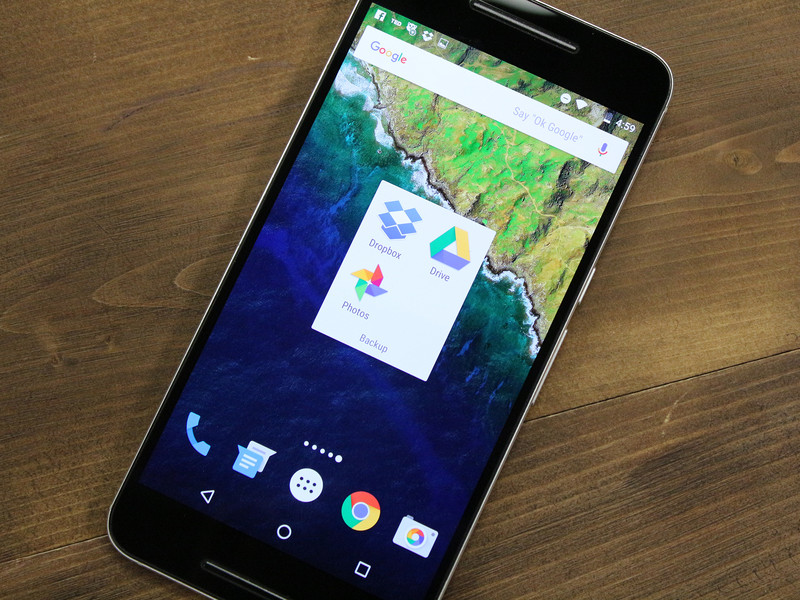
How do I back up my photos and video to my computer?
You have all these awesome photos and video on your phone, but what happens when you decide to buy a new phone or your storage becomes too full to take any more? Back it all up to your computer or the cloud!
There are a couple incredibly easy-to-use apps that let you store your photos and videos in the cloud or download them to keep forever.
- How to back up your photos and videos to the cloud or your computer using Google Photos
- How to back up photos and video to the cloud or your computer using Dropbox
How to back up your photos and videos to the cloud or your computer using Google Photos
Google Photos now comes standard on many an Android phone and it’s a great way to store photos on your phone or to seamlessly upload them to Google Drive. If you don’t have it, it’s a free download in the Google Play Store.
Once it’s downloaded, you just have to allow Google Photos access to your photo and video library, tap Backup and Sync and all of the photos and video on your phone will appear for you back up, share, and even edit!
How to back up your photos and video to the cloud using Google Photos
Launch Google Photos from your home screen or from the app drawer.
Tap the photo you’d like to upload to Google Drive or tap and hold a photo and select multiple photos to upload.
Tap the share button at the top of the screen. It’s a right-facing ‘V’ with dots on each point.
Tap Save to Drive.
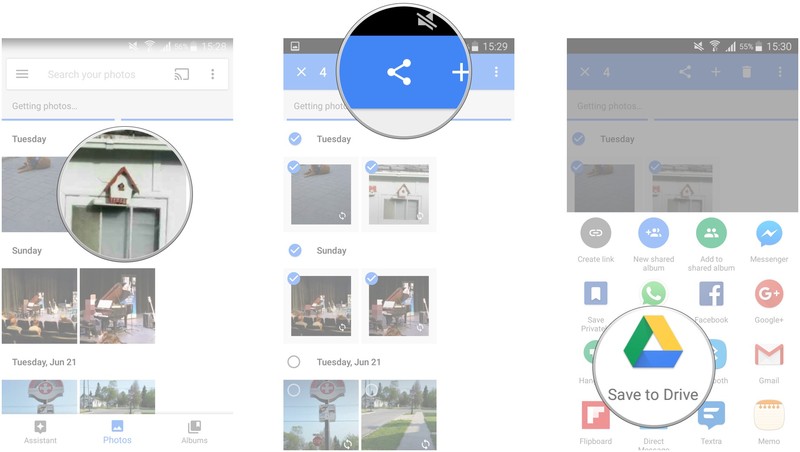
Tap Account to choose which Google account’s Google Drive you want to save to.
Tap Folder to select the folder within that Google Drive that you’d like to save to.
Tap the folder you’d like to save to and tap Select Folder in the bottom righthand corner of your screen.
Tap Save in the bottom right hand corner of your screen.
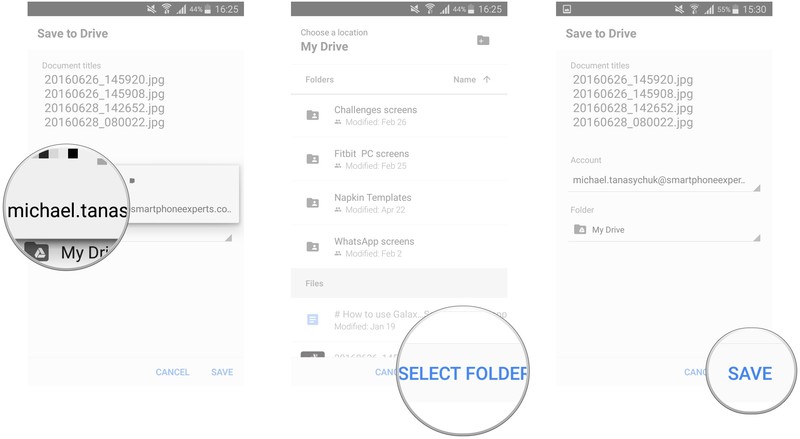
Your photos will then be uploaded to that location in your Google Drive and you’ll receive a notification when it’s complete.
Google Drive gives you 15GB of storage for free, so depending on the size of the photos and video you’re saving, you’ll likely be able to save thousands of photos and hundreds of videos.
How to back up your photos and videos to your computer using Google Drive
Once you’ve saved your photos to Google Drive via Google Photos, you can download them to just about any device with an internet connection. Here’s how to save them to your computer.
Launch your web browser on your computer.
Navigate to your Google Drive.
Click the folder or photo in the list that you’d like to download.
Click the more button on the upper right of your screen. It looks like three vertical dots.
Click Download.

The photo(s) or video will now save to the downloads folder on your computer. You can do this with as many items as your computer’s hard drive will hold. It may then be a good idea to transfer them to an external hard drive for safekeeping.
How to back up photos and video to the cloud or your computer using Dropbox
Dropbox is a free app that gives you up to 2GB of online storage for free. You can’t go wrong with double-free! All you need to do is create an account, download the app on your phone and on your computer, and you’re ready to start backing up your photos and video to both the cloud and your computer.
How to back up photos and video to the cloud using Dropbox
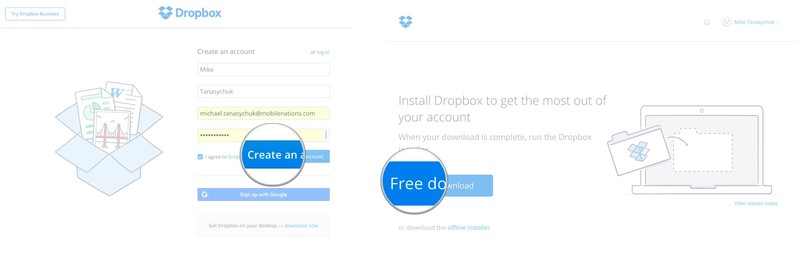
You’ll first need to sign up for and create an account with Dropbox on your computer.
Launch your web browser on your computer.
Navigate to Dropbox.com.
Click create an account.
Enter your first name, last name, and email address into the fields. You can also choose to Sign up with Google.
Click the checkbox to agree to the terms and conditions.
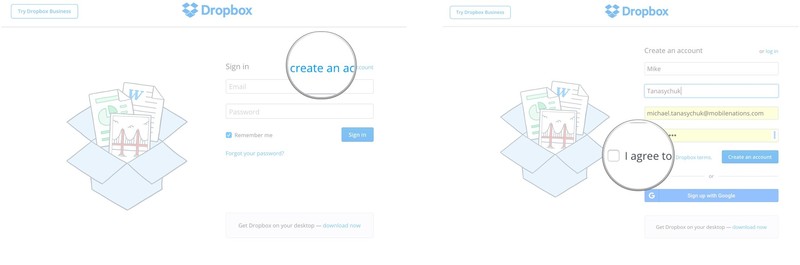
Click Create an account.
Click the Free Download button to install Dropbox on your computer.
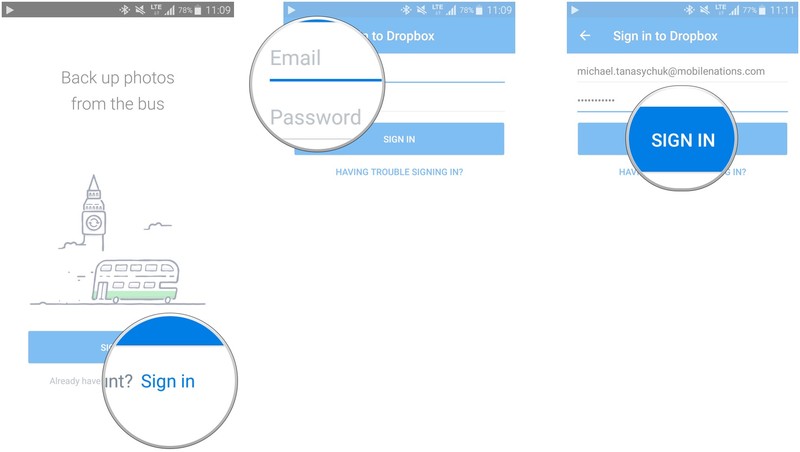
Next, you’ll want to install and set up Dropbox on your Android phone if it isn’t already. Then you can upload photos and video until your folder is full! Here’s how:
Download the Dropbox app from the Google Play Store.
Launch Dropbox from your home screen or the app drawer.
Tap Sign in.
Enter your email address and password.
Tap Sign in.
Tap the add button. It’s the plus sign in the blue circle.
Tap Upload photos or videos.
Tap the photo(s) and video you’d like to upload to Dropbox.
Tap Upload in the bottom righthand corner of your screen.

Your photos and video will now be uploaded to your Dropbox folder, which you can access from just about any device with an internet connection.
How to backup photos and video to your computer using Dropbox
Launch the Dropbox app on your computer or visit dropbox.com.
Sign in if you’re not signed in automatically.
Click the photo or video you’d like to download to your computer.
Click Download in the top righthand corner of your screen.
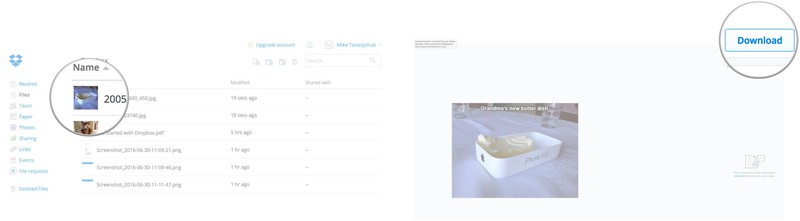
The photo(s) and video will now appear in your downloads folder on your computer. Now they’re yours to do with as you like! If you’d really like to save them, it’s probably a good idea to back them up again to an external hard drive.
If you’re using the Dropbox app on your computer, you can just open the file and save it like you would any other document.
Ben Heck visits Berlin #MTF Hack Camp

Ben and Felix bust out the bad jokes as they visit the Music Tech Fest in Berlin as part of the #MTF Hack Camp sponsored by element14. The event brought together talented musicians, singers and hackers for a 24-hour hackathon, and in this episode you can watch interviews with the makers at the event. Projects ranged from one that lets you slice audio samples in real time, to an artificially intelligent drummer that chimes in by itself. Discuss all that and more with other fans over at the element14 Community.
 AIVAnet