


Jet-powered hoverboard shatters world record
When footage of a flying hoverboard first emerged last month, many thought it was fake, because the relatively tiny device appears to be breaking the laws of physics. But the “Flyboard Air” from inventor Franky Zapata is real, spectacular and just set a world record for the longest hoverboard flight of all time. It traveled 2,252 meters or 7,388 feet, nearly ten times farther than the mark set last year by Catalin Alexandru Duru on a much larger device. The record has already been certified by Guinness, which attended the event.
Frenchman Zapata is the man behind the Flyboard, a watersports device that amounts to a firehose attached to boots. However, the Flyboard Air is completely untethered, and has mind-boggling specs — it can supposedly fly up to 10,000 feet high and hit 93 miles per hour. Zapata makes it look pretty easy to maneuver, as shown in a test run video (below) made earlier, though he is a jet ski champ with a lot of experience on the original Flyboard. In fact, he says that it would be insane to try the Flyboard Air without at least 50 hours of experience on the water-powered model.
Given the performance, the Flyboard Air makes every jet pack out there obsolete, as it has better range, height, speed and maneuverability. It took Zapata four years to create the device, which runs on four 250-horsepower RC jet engines, according to The Verge. It’s powered by Jet A1 kerosene held in a backpack, and engine power is controlled by a hand-held remote. There’s no steering wheel, obviously — the pilot turns by banking and shifting his body weight.
Zapata only flies the device above water, and was forced to deliberately splash down recently after the battery system failed. “It broke all the electronics on the board, so it will cost me money, but the rest of it is fine,” he told the The Verge. He adds that the system can run on three of the four jet engines in case one fails, and that the sensors and WiFi control channels have triple redundancy.
The company plans more demonstrations and will soon release additional footage. As for commercializing it, Zapata has already been approached by numerous companies, and thinks the Flyboard Air would be useful for government and security forces. He’s even working on a more advanced design that would be easier for the general public to use. “If everybody wants a Flyboard Air, we have to work with the government, we have to work with liability, we have to work on a thousand things. But why not?”
Source: Guinness
Craig Wright claims he is Bitcoin creator Satoshi Nakamoto
The search for Bitcoin creator “Satoshi Nakamoto” appears to be over. Almost two years since Newsweek erroneously doxxed a 64-year-old Japanese-American man living in California, the man himself has come forward. So, who is he? According to a joint-investigation between the BBC, The Economist and GQ, the man behind the cryptocurrency is Australian computer scientist Craig Steven Wright.
In a meeting with the three media organizations, Wright signed messages using keys that were created shortly after Bitcoin was developed. He also penned his own blog post detailing his involvement. Experts were able to link the keys back to blocks of bitcoins that were mined by Satoshi Nakamoto in 2009. There have always been trails to these transactions, or more specifically Nakamoto, but it’s the first time anyone has come forward with proof they own the keys.
If the name sounds familiar, it’s because Wright has been the leading candidate since August last year. With help from dark-web analyst Gwern Branwen, Wired trawled through email archives, transcripts and now-deleted blog posts and put Wright firmly in the crosshairs. The Australian reportedly said: “I did my best to try and hide the fact that I’ve been running Bitcoin since 2009,” and “People love my secret identity and hate me,” in some of his messages.
Just a day after he was publicly outed, Australian Federal Police raided the businessman’s rented home and registered offices and found “substantial computer system” that required a three-phase electrical setup for additional power. The raid wasn’t thought to be linked to his Bitcoin exploits, but the existence of a number-crunching computer stacked more evidence in his favor.
By coming forward, Wright hopes to put an end to press speculation about the identity of Satoshi Nakamoto. Since the December raid, he claims he has been hounded by reporters looking to confirm his secret identity and it’s begun to weigh heavy on relationships with friends and family.
“There are lots of stories out there that have been made up and I don’t like it hurting those people I care about. I don’t want any of them to be impacted by this,” he told the BBC. “I would rather not do it. I want to work, I want to keep doing what I want to do. I don’t want money. I don’t want fame. I don’t want adoration. I just want to be left alone.”
Source: BBC News
Own a Galaxy Note 5 for just ₹1 as part of Samsung’s ‘Make for India’ celebrations
Samsung has been voted the most trusted brand in India, and the vendor is marking the occasion by rolling out discounts on phones, home appliances, and TVs as part of its “Make for India” celebrations. Under the promotion, you can get your hands on the Galaxy Note 5, Galaxy S6, or the Galaxy A 2016 series by paying just ₹1 upfront, with the rest of the money paid by monthly instalments.
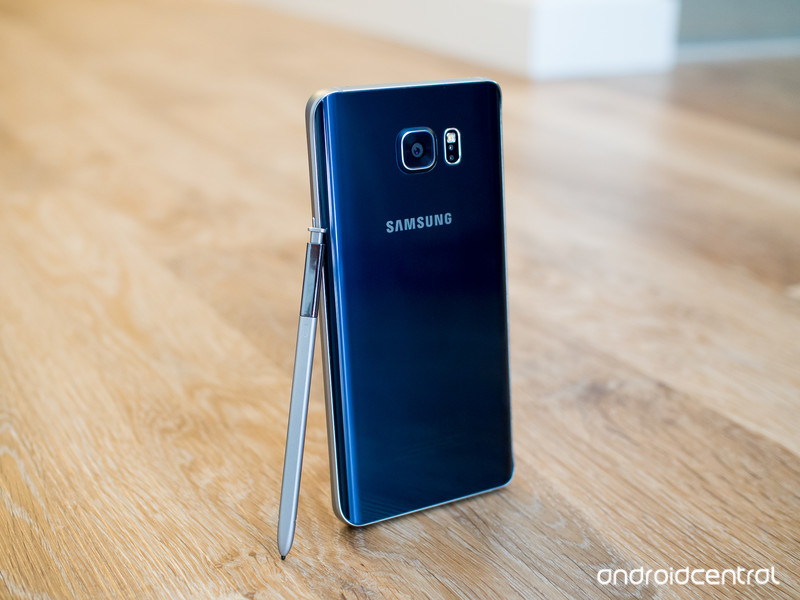
Interest-free EMI schemes are available when purchasing the aforementioned phones, with several plans offered by Bajaj Finserv and Capital First. The Galaxy S6 is listed for ₹33,900, and the Galaxy Note 5 for ₹42,900. Samsung is also offering a 10% cashback on all transactions carried out through debit and credit cards.
The vendor is also offering freebies with home appliances, including a Galaxy Tab E with all purchases of a refrigerator, as well as free home theater systems with select LED TVs. For all the terms and conditions behind the offer, head here.
The promotion is valid until May 15. See everything that’s on offer from the link below.
See at Samsung India
Cyanogen OS no longer exclusive to Yu in India as Lenovo plans foray
Micromax’s sub-brand Yu Televentures has been offering Cyanogen OS exclusively in India since November 2014, but that may not be the case for much longer. Lenovo is all set to introduce the ZUK Z1 in the Indian market, with the phone also set to offer Cyanogen OS 12.1.

Speaking to Gadgets360, Lenovo’s head of product marketing Anuj Sharma had this to say:
It [the deal] was there before that’s what I was told by Cyanogen team. But the team now said its ok now. So we are going ahead with the launch.
Based on the statement, it looks like the exclusivity agreement between Micromax and Cyanogen is no longer valid. As for the ZUK Z1, Sharma mentioned that the 64GB model will be available in the country, and that it will be priced aggressively.
Win a $1000 iTunes gift card for music, apps, games and more
The music world has seen more than its share of losses this year, and in celebrating the life and work of Prince, David Bowie and others, filling the gaps in our iTunes libraries can get pretty costly.
There’s good news, however: Pocket-lint readers now have a chance to win a $1000 iTunes Gift Card, to spend on all those classic albums, as well as movies, apps, premium-content subscriptions, and so much more.
A $1000 shopping spree can deliver an incredible range of options that go well beyond filling out your iTunes music library – though Prince alone has released 39 albums! You can also use your credit toward a range of premium monthly subscriptions to apps like Apple Music, Pandora, Netflix, and beyond, immersing yourself in the cutting edge of entertainment. You’ll also have the options of a wide range of apps, iBooks, games, and movies, which is pretty great timing, with the return of new Game of Thrones episodes.
Winning is simple – just head to the contest page and fill out the online entry form with a valid email address to be automatically entered. Share the giveaway on Twitter, and once you get some friends to enter, you’ll receive additional entries to win. One registration per person please!
Two black holes are defying the limits of science
Even astrophysicists are occasionally surprised at what they find in the cosmos. University of Cambridge researchers have discovered that two black holes are consuming their companion stars at rates much faster than currently established limits would allow — so fast, in fact, that the gas is ejecting at a quarter of the speed of light. To top things off, this is the first time that scientists have seen winds flowing away from ultra-luminous (and currently mysterious) X-ray sources.
So, what’s behind the behavior around these black holes? The team doesn’t have any firm answers, but it notes that what we see might be the result of less-than-straightforward phenomena. Those X-ray sources might be fed through discs inflated by intense pressures from the material going through it, making them look brighter than they really are. While physicists aren’t rewriting textbooks just yet, it’s evident that humanity has some big riddles to solve before it can truly understand space.
Source: University of Cambridge, Nature
10 tips every Kindle owner should know – CNET

The Amazon Kindle Oasis.
Sarah Tew/CNET
Your Kindle can do a lot more than just download books from Amazon. It can send documents, share books, play hidden games and much more.
1. Take screenshots
You can take a screenshot by pressing the two opposite corners of the screen at the same time on the Kindle Voyage and Paperwhite.
To take a screenshot on the Kindle Touch, hold down the Home button and tap the screen. On the original Kindle hold down alt+shift+G to take a screenshot. To access your screenshots, connect your Kindle to a computer using a USB and export the .png files.
2. Get library books
Don’t want to trudge to your local library? You can download ebooks for free from most libraries using your Kindle.
Go to the website of your local public library and head to the ebooks section of the site. Choose your books, go to the checkout and sign in to your Amazon account. Select the type of reader you’re using and send the books to it. Now that the books are stored, connect your device to Wi-Fi and download the title from the Archived Items or Cloud option.
3. Share an account
Sharing is caring and with Kindle you can share your books with another person through a Family Library account. This option links two Amazon accounts. To set it up go to the Home screen of your device, tap the Menu > Settings > Registration > Household > Family Library > Add a New Person > Add Adult.
Your friend or family member will then need to enter an Amazon account ID and password. Once the information is entered, the second person will be asked to enable sharing. Then, you will be prompted to enable sharing, as well. Both parties can choose to share all of their purchased books or just individual books with each other.
Careful who you share with, though. Amazon says that by choosing to enable sharing, both parties can use credit cards associated with the two accounts for purchases on the Amazon site.
4. Share content with kids
There’s no need to get your kids a separate account for their devices. You can share content with them for free, as well.
To set up a child profile on your Kindle go to the Home screen> Menu > Settings > Registration > Household > Family Library > Add a New Person > Add Child. From there, enter your parental controls password, enter your child’s name, birthday and gender then tap Next. Select the titles you want to be included in your child’s library, then tap Next and Done.
5. Or just lend a book
You can also just lend one book from your Kindle account for 14 days without sharing accounts. Go to Amazon.com/mycd. Select the title of the book you want to share and then click on the ellipses action button > Loan this title. Then, choose who you want to share the book with. Only books that are eligible for sharing will have an action button.
6. Send documents
You can send documents from any of your devices using the Kindle Personal Documents Service. This service works with Fire tablets, Kindle e-readers and supported Kindle reading apps registered to your Amazon account. All you do is email the documents to your Send-to-Kindle email address. Here are full instructions for sending documents using your Kindle email.
7. Convert those documents for Kindle
Sending documents to your Kindle is a great feature, but most document text will be too small or too big and hard to read on a Kindle unless you convert it to a Kindle format. When you’re sending documents to your Kindle using your Send-to-Kindle address you can instantly convert them into Kindle format (.azw) with one easy step. In your email subject line write “convert” and the document will be converted when it gets to your Send-to-Kindle address.
8. Read articles
You aren’t just limited to books on your Kindle. You can read articles by downloading a bookmarking app like Instapaper or Pocket on your phone, laptop or tablet. When you save an article online using the app, the article will get pushed to all of your other synced devices, like your Kindle, so you can read it later (even when you’re offline). After downloading the app, just go into Settings on the app and choose Kindle as your delivery option.
9. Play games
Newer Kindles, like Fire, let you download games. If you have an older Kindle with a physical keyboard, though, you can still get your game on. There are hidden, free games on the early Kindles. Minesweeper will pop up after holding down Alt+Shift+M at the home screen. After you get Minesweeper to pop up, hold the G key and GoMoku will pop up.
10. Have a story read to you
Want to multitask? Your Kindle can read text stories or documents to you while you do something else. Open the book or document, press the Menu button and select Start Text-to-Speech. Your Kindle will read the text to you like an audio book, but in a robotic voice.
Amazon Kindle Oasis (pictures)


1 – 5 of 63
Next
Prev
Terrence Malick’s universe documentary reaches IMAX October 7th
Director Terrence Malick’s movies frequently cover grand concepts (just ask anyone who saw The Tree of Life), but his latest might just top them all. After a long development process, his all-encompassing documentary Voyage of Time will reach IMAX theaters on October 7th. The studio is shy about Voyage’s exact contents, but the flick covers time from the “birth of the universe to its final collapse” — it doesn’t get more comprehensive than that. Brad Pitt is narrating the 40-minute IMAX version, while Cate Blanchett will do the same for the as-yet undated 2-hour movie version.
Via: The Film Stage, The Verge
Source: IMAX, Wild Bunch
‘Street Fighter V’ offline updates will go beyond a story mode
If you’re hoping that Capcom will do more to boost Street Fighter V’s solo play than add a full story mode, you’re in for a treat. The studio’s Yoshinori Ono tells Game Informer (only in the magazine so far) that June’s story update is just the start of things. There’s more free content coming for offline players in 2016 “and beyond,” and Capcom is “looking into” a versus mode that pits you against the AI — you know, like many other fighting games. Ono isn’t ready to provide a roadmap for these upgrades, but it’s good to see that the developer will take care of you when your friends aren’t ready to brawl.
Via: NeoGAF, Game Informer
Source: Event Hubs
AC editors’ apps of the week: Apple Music, Blendle, Minecraft VR

It’s Appday Sunday and that means we’re back with more of our favorites to share. Every week we bring a handful of great apps to the table and share them with everyone. Sometimes they are new apps, sometimes old standards, but every time they are apps we love to use.
Give these a look and then take a minute to tell us all about the apps you are using and love so we can give them a try. We all find some of our favorites right in the comments on these posts!
Daniel Bader — TD MySpend

I get a sick satisfaction knowing where all of my money goes each month. From utility bills and mortgage payments to the less essential purchases like monthly Netflix, Spotify and Hulu subscriptions (I know, I have a problem), it’s sometimes difficult to gain a wide, step-back view of your finances.
TD Canada Trust, Canada’s second largest bank, recently released a solution to this problem in the form of TD MySpend, a companion app to the company’s existing Android offering. At its core, the app plugs into your TD chequing and savings accounts, as well as any credit cards on file, to form a category-specific view of your spending. Didn’t realize you were throwing away $200 on extra-whip, no-whip, double-whip lattes every month? MySpend makes it easy to get a sense of what you’re spending, where you’re spending it, and, best of all, whether it conforms to your average for each category.
While it is only available for TD Canada Trust customers, U.S.-based users can get a similar experience from Moven, the company that helped TD build the app.
Download: TD MySpend (Free)
Russell Holy — Minecraft for Gear VR

It’s Minecraft. For the Gear VR. What else really needs to be said here?
You get a fully immersed Minecraft experience, allowing you to move your head and see the world you’re creating in, and the controller in your hand does all the rest. It’s still Pocket Edition features, but the whole world is there for you to run around in.
If you have a Gear VR, you need this game. If you’ve been waiting for a reason to get a Gear VR, this might put you over the line.
Minecraft for Gear VR is $6.99 and available in the Oculus Store.
Andrew Martonik — Blendle

I appreciate good reporting and well-crafted stories written online, but I also equally dislike the number of subscriptions necessary to get the best journalism out there from the top websites and newspapers. Blendle is a new app trying to help you out with that by taking articles that would normally be behind monthly paywalls online and bring them to you on a per-article basis and paid for in very small amounts.
You tell Blendle what categories of information you want to read about, and can receive insights from what your friends are reading, and you get a somewhat-tailored list of stories to check out. The stories come from sources you know well: The Economist, The New York Times, The Wall Street Journal … the list of big names just keeps going. When you read an article, it’ll cost you somewhere between $0.19 and $0.49. If you’re legitimately not happy with the amount you paid for an article, you can instantly be refunded with two taps — no issues. But if you do like it, you’re charged and you’ll move onto your next story. It’s likely far cheaper than having multiple $5 or $10 monthly subscriptions to see the same articles.
Blendle is still in beta right now so you’ll have to download the app and sign up, but it only took me a few days of waiting to get approved. And while I’m not quite sure yet if Blendle will be my go-to app for long-form and insightful stories, it sure beats paying for several monthly subscriptions to find out if I like the content from each provider.
Download: Blendle (Free)
Ara Wagoner —AMERICA

Android Wear had a lot of good faces out there, but one of my absolute favorite watches is coming back to my wrist yet again this week for a little thing called Captain America Civil War. This fave homages Cap’s famous shield in Day mode, but where I absolutely love it is in Night Mode. It’s sleek, it’s dark, it’s still patriotic, a bit like Cap’s shield from Winter Soldier. And it’s the face I reach for when I want a functional face that looks ready to kick some ass.
Download AMERICA watch face($1.99)
Alex Dobie — Apple Music Beta

I’ll be honest: I wasn’t expecting much from the Android version of Apple Music. After years of using iTunes on Windows in the pre-Android era — and Apple’s very public acrimony towards Google’s OS — I was ready for Apple Music on Android to be a second-class experience compared to its iOS counterpart. And yet I’ve bee pleasantly surprised so far. It’s still officially in beta, so there are a few bugs to watch out for. Nevertheless, Apple Music somehow manages to stay true to its own design language while also feeling like a native Android app.
You’ll start off the process by plugging in your Apple ID, tapping artists you like — or double-tapping ones you love — to build up a basic profile of what you’re into. From there, Apple’s curated playlists populate a “For You” section, which lives alongside sections for new music, radio (including the much-hyped Beats One) and tracks from your own library. Recent updates to the beta have brought a pretty slick home scree widget, as well as the option to save downloaded music to an SD card, not just internal storage.
The app itself is free, but you’ll need to sign up to a $9.99/£9.99 subscription plan to get involved. Fortunately, there’s also a free three-month trial.
Download: Apple Music (Free, subscription required)
Jerry Hildenbrand — Material Terminal

The most powerful tool on your Android doesn’t have to look ugly.
Material Terminal is a rewrite of the original open-source Android Terminal Emulator and brings a full Linux terminal emulation experience right to your phone. Extras like multiple windows, a customizable color scheme and full UTF-8 support make it usable as well as beautiful. Best of all, there are no ads and no functions behind a paywall — the app is free, but you can make an in-app donation.
Download: Material Terminal (Free)
 AIVAnet