


Lenovo ThinkPad Yoga review: a good (if slightly heavy) Ultrabook for business users

It’s pretty clear that Lenovo made a mistake with its original Yoga laptop. Don’t get us wrong, we liked — no, loved — it, but we could never get over how awkward it was to use in tablet mode: Every time you folded the screen over, you had your fingers pressed against the loose keys on the back. It was such a glaring oversight that even other companies have taken note: first Sony with its Flip line and now Toshiba with its 5-in-1 convertible that has a reversible keyboard.
Lenovo also seems to have learned its lesson: The new ThinkPad Yoga has a “Lift ‘n’ Lock” keyboard that flattens out as you flip the screen back into tablet mode, making exposed buttons a thing of the past (mostly, anyway). It also allows for pen input — something you still won’t find on the consumer version. Even then, the ThinkPad Yoga introduces some trade-offs of its own: It’s thicker and heavier than the new Yoga 2 Pro, which doesn’t have a self-flattening keyboard, and it makes do with a not-quite-as-sharp screen. Those compromises aside, could this be the Yoga you’ve been waiting for?
Look and feel

It’s exactly what it sounds like, folks: It’s a ThinkPad that looks like a Yoga, and a Yoga that looks like a ThinkPad. Got it? Good. Here’s a quick tour. Unlike ThinkPads of yore, which had a soft, rubbery finish, the ThinkPad Yoga sports a smooth magnesium lid, though certain key details (the red TrackPoint, the glowing ThinkPad logo) have carried over. Also like older ThinkPads, it’s fairly boxy, with blunt edges and straight lines (though Lenovo did sneak in some rounded corners). All told, it’s a blockier shape than you’ll find on Lenovo’s consumer laptops, many of which have been chiseled to resemble a physical book.
We already hinted at this, but the thing that makes the ThinkPad Yoga so special — that Lift ‘n’ Lock keyboard — is also the thing that makes it so heavy. At 3.52 pounds and 0.76 inch thick, it’s noticeably heavier than the new Yoga 2 Pro, which comes in at 3.06 pounds/0.61 inch. It’s even bulkier than the last-gen Yoga 13, which weighed in at 3.3 pounds and measured 0.67 inch thick.
Even without that newfangled keyboard, the Yoga had a sturdy hinge. Which makes sense, given how much bending the thing was supposed to withstand. With the ThinkPad version, that hinge grew even bigger, as it has to support not just the folding screen, but also a series of mechanisms that help lift the platform between the keys, and then lock the buttons in place. Though the impact on the weight and thickness might not be such a good thing, a bigger hinge at least means the machine handles well. As on the other Yogas, the screen here folds back in one fluid motion, without ever feeling too loosey-goosey. Though the hinge never feels rigid, per se, you will encounter what we’d call a speed bump — a little bit of resistance to remind you that you’ve officially entered tablet mode.
And what of that novelty keyboard? As promised, the Lift ‘n’ Lock system clamps the buttons into place, meaning you can’t depress them when the machine is in tablet mode. That’s not to say you can’t still feel the individual buttons: They’re definitely there, and it’s easy to tell one from the other just by running your hands over the back of the tablet. Even so, it’s definitely a less awkward setup than on the original Yoga, where you can feel the loose buttons on the back. But is it a more elegant solution than what Sony is offering with the Flip series? Or what Toshiba has planned for its 5-in-1 convertible? It’s hard to say, particularly with regards to the Toshiba, which isn’t even out yet. But it’s a question worth asking as you consider buying the ThinkPad Yoga, a machine that’s heavier (and no less compromised) than most.

If nothing else, it does seem to us that the self-flattening keyboard would be at home on a smaller, perhaps 11-inch Yoga. Even under the best of circumstances, a nearly 13-inch tablet would be a bit unwieldy, but this one is especially cumbersome, just given how heavy it is. All of which creates something of a catch-22: It’s heavy because of that Lift ‘n’ Lock keyboard, but due to that heft, we’re less likely to use the ThinkPad Yoga as a standalone tablet.
Fortunately, there are other poses for you to choose from, including regular laptop mode, “Stand” mode (screen facing away with the keyboard tucked under) and “Tent” mode, with the laptop standing in an upside-down “V” shape. We’ve always been a fan of Stand mode for watching movies in cramped coach seats, but Tent is well-suited for presentations and videos as well. Interestingly, though Lenovo added a rubber bumper to the Yoga 2 Pro, there’s no such gasketing here. That leaves the ThinkPad Yoga’s edges exposed when you stand it on its head in Tent mode, but so far, at least, we haven’t observed any damage on our review unit.
Finishing up our tour, the ThinkPad Yoga doesn’t bring many surprises in the way of ports. For a power adapter, you’ve got the same OneLink connector found on all new ThinkPads, which has a similar shape to a common USB port. Speaking of the sort, this thing has two USB 3.0 ports — one on each side — along with a mini-HDMI socket, headphone jack, SD reader, lock slot and a volume rocker/screen-orientation button to use in tablet mode. There’s also a slot for the active pen, located on the right side, toward the front where the palm rest is.
Keyboard and trackpad

Lenovo may have messed with the X1 Carbon’s keyboard, adding an adaptive panel with controls that change depending on the app you’re using, but in the case of the ThinkPad Yoga, the company’s design team didn’t take any chances. This is the same spill-resistant, island-style layout we’ve seen on the last few generations of ThinkPads, with six rows of U-shaped “Smile” keys and a large, buttonless trackpad sitting underneath. Lining the top, you’ll see a row of function keys that serve primarily as multimedia controls (read: You’ll need to hold down the Fn button to use it for something else). Throughout, the buttons are generously sized, with only a handful of keys (the arrows, PrtSc) that appear shrunken-down. Like other ThinkPads, too, there’s a good deal of travel here and the buttons are backed up by a sturdy panel that doesn’t bend or flex as you’re pecking away. And we’d expect nothing less, really: Given how thick this machine is, relatively speaking, there’d be no excuse not to have dense, cushy keys.

We’ll admit: We were initially skeptical when Lenovo said it was moving toward buttonless trackpads for its ThinkPad line. After all, there’s something so inherently tactile about the ThinkPad experience: those pillowy keys; the rubber TrackPoint that other companies have tried (and failed) to imitate. Truly, though, the glass touchpad here is easy to use, and Lenovo has refined it so that the learning curve is even smaller than it was last year. When we tested the ThinkPad Helix, for example, we initially encountered a dead zone in the middle of the touchpad — a no man’s land between the regular left/right click buttons and the two buttons up top, which are meant to be used with the TrackPoint. Now, though, Lenovo has painted thin red lines where the two upper touch zones are, so that you don’t even have to feel your way around; you’ll know from the beginning where your finger is supposed to go.
As before, there’s also a row of raised dots right below the TrackPoint, indicating the scroll zone. Beyond that, the touchpad is also easy to press, and it makes a low-pitched sound — not unlike the keyboard itself, which also makes minimal noise. Gestures work well, too, so much so that you can pinch to zoom very slowly, allowing the font to scale up and down in small increments (because nobody likes going straight from 10-point lettering to 72-point).
Display and sound

Unlike the Yoga 2 Pro, which comes standard with a 3,200 x 1,800 screen, the ThinkPad Yoga starts with a 1,366 x 768 Gorilla Glass panel, though you can upgrade to a 1,920 x 1,080 display for an extra 250 bucks. (Our review unit had the 1080p screen.) Setting the resolution aside, what we like most is the matte, anti-glare finish, which makes it easy to view the screen from any angle, whether it be from off to the side, with the lid dipped forward or with the machine lying face-up in tablet mode. As an added bonus, the screen also appears to be coated in some sort of finish that makes it feel slightly less slick, so that there’s just the littlest bit of resistance as you swipe your finger across it (that’s a good thing, in case you couldn’t tell).
That textured finish also seems to assist with pen input, creating a more paper-like canvas on which to take notes and draw mustaches on people. Even without that matte screen, though, pen input would still be quite good, thanks to the Wacom active digitizer inside. As you might expect, pen input is pressure-sensitive, so your markings will run the gamut from fine lines to thick smudges, depending on how hard you press (and what writing implement you choose). That would be the case with any active digitizer, really, though Wacom’s tend to be particularly sensitive to differences in pressure. The one used here also picks up on even the faintest swipes, so we never had to press harder than we would with a normal fountain pen. And, in case you needed a reminder, most competing convertibles don’t support pressure-sensitive pen input at all, so if that’s a key spec for you, well, this is very good news indeed: Your only option happens to be a very good one.
Unfortunately, with as much care as Lenovo put into the display and writing experience, the speaker setup feels like an afterthought. Like, even more so than on other Ultrabooks. The volume is loud, fortunately, but at almost any sound level, the audio is hollow. Distorted. It’ll do in a pinch, but if you’re using this on the road, you’ll be glad to have access to a set of Bluetooth speakers once you get back home (that’s assuming you don’t have room in your road warrior bag for a Mini Jambox or some such).
Performance and battery life
| PCMark7 | 3DMark06 | 3DMark11 | ATTO (top disk speeds) | |
|---|---|---|---|---|
| Lenovo ThinkPad Yoga (1.6GHz Intel Core i5-4200U, Intel HD 4400) | 4,782 | 6,005 |
E1,690 / P910 / X284 |
555 MB/s (reads); 139 MB/s (writes) |
| Lenovo IdeaPad Yoga 2 Pro (1.6GHz Core i5-4200U, Intel HD 4400) | 4,676 | 5,688 |
E1,713 / P914 / X281 |
546 MB/s (reads); 139 MB/s (writes) |
| Samsung ATIV Book 9 Lite (1.4GHz “quad-core” processor, AMD Radeon HD 8250) | 2,060 | 2,814 |
E749 / P530 |
550 MB/s (reads); 139 MB/s (writes) |
| Lenovo IdeaPad U430 Touch (1.6GHz Core i5-4200U, Intel HD 4400) | 3,845 | 4,499 |
E1,448 / P742 |
113 MB/s (reads); 110 MB/s (writes) |
| Samsung ATIV Book 9 Plus (1.6GHz Core i5-4200U, Intel HD 4400) | 4,973 | 5,611 |
E1,675 / P867 / X277 |
547 MB/s (reads); 508 MB/s (writes) |
| Acer Aspire S7-392 (1.6GHz Intel Core i5-4200U, Intel HD 4400) | 5,108 | 5,158 |
E1,724 / P952 / X298 |
975 MB/s (reads); 1.1GB/s (writes) |
| Sony VAIO Pro 13 (1.6GHz Intel Core i5-4200U, Intel HD 4400) | 4,502 | 4,413 |
E1,177 / P636 / X203 |
1.04 GB/s (reads); 479 MB/s (writes) |
| Sony VAIO Duo 13 (1.6GHz Core i5-4200U, Intel HD 4400) | 4,440 | 6,047 |
E1,853 / P975 / X297 |
546 MB/s (reads); 139 MB/s (writes) |
| Sony VAIO Pro 11 (1.8GHz Core i7-4500U, Intel HD 4400) | 4,634 | N/A |
E1,067 / P600 / X183 |
558 MB/s (reads); 255 MB/s (writes) |
The unit we tested has basically the same specs as every other Ultrabook we’ve reviewed recently — namely, a 1.6GHz Intel Core i5-4200U CPU, integrated Intel HD 4400 graphics, 4GB of RAM and a 128GB solid-state drive. Even the SSD appears to be the same Samsung-made one used in other ultraportable laptops, which means that in addition to every other benchmark we ran, the read and write speeds are basically identical. In this case, that means 555 MB/s reads and 139 MB/s writes, both of which are normal for SSDs that don’t use the PCI Express standard.
In real-world use, the only area where the ThinkPad Yoga seems faster than other Haswell machines is in its boot-up time: The machine takes just seven seconds to get to the login screen, which is even quicker than we’re used to. Otherwise, the machine multitasks and launches apps with the best of them, with a strong 802.11ac WiFi connection that performed reliably on various networks (even my home router, which can be sort of poky sometimes). That’s all well and good, but it’s worth noting that the Yoga 2 Pro offers the same specs for a lower starting price of $999 (versus $1,299 for the ThinkPad Yoga with the same processor and upgraded screen). So as you’re shopping around, consider that you can get equal performance at a lower price, even within Lenovo’s own lineup. Just be prepared to give up the pressure-sensitive pen input if you decide to go that route.
|
Battery life |
|
|---|---|
| Lenovo ThinkPad Yoga | 7:32 |
| MacBook Air (13-inch, 2013) | 12:51 |
| MacBook Pro with Retina display (13-inch, 2013) | 11:18 |
| Sony VAIO Duo 13 | 9:40 |
| Samsung ATIV Book 9 Plus | 8:44 |
| Sony VAIO Pro 13 | 8:24 |
| Lenovo IdeaPad U430 Touch | 7:53 |
| Acer Aspire S7-392 | 7:33 |
| Acer Iconia W700 | 7:13 |
| Sony VAIO Pro 11 | 6:41 |
| Lenovo IdeaPad Yoga 2 Pro | 6:32 |
| Microsoft Surface Pro 2 | 6:27 |
| Dell XPS 14 | 6:18 |
| MacBook Pro with Retina display (13-inch, 2012) | 6:07 |
| Lenovo IdeaPad Yoga 13 | 5:32 |
| Dell XPS 12 (2012) | 5:30 |
| Toshiba Kirabook | 5:12 |
| Lenovo ThinkPad Helix | 5:07 (tablet only)/7:24 (with dock) |
| Lenovo ThinkPad X1 Carbon | 5:07 |
| Samsung ATIV Book 7 | 5:02 |
| ASUS Transformer Book | 5:01 (tablet only) |
| Lenovo ThinkPad X1 Carbon Touch | 5:00 |
| MSI Slidebook S20 | 4:34 |
| Samsung ATIV Book 9 Lite | 4:33 |
| Acer Aspire S7-391 | 4:18 |
| ASUS TAICHI 21 | 3:54 |
| Microsoft Surface Pro | 3:46 |
Lenovo claims up to eight hours on the ThinkPad Yoga, which is pretty spot-on: Our review unit lasted through seven hours and 32 minutes of continuous video playback with WiFi on and the screen fixed at 65 percent brightness. Though it pains us to say it, that’s actually fairly short battery life, at least compared to other modern day Ultrabooks. To be fair, it outlasts the skinnier Yoga 2 Pro by about an hour, but even then, its endurance isn’t any better than the Acer Aspire S7′s — and that guy’s thinner than them all. Considering some Haswell laptops are capable of lasting nine or 10 hours, we expected a little more here, especially since the ThinkPad Yoga is heftier than most other machines in its class.
Software and warranty
As always with the ThinkPad line, you’ll find very little third-party software pre-installed, though Lenovo does tend to throw in a bunch of its own programs. These include Live Tiles for Lenovo Settings and Support, as well as one for QuickCast, an app that lets you share files between two ThinkPads. In order for that to work, though, both machines must have the app open, and be connected over the same WiFi connection, so it’s mainly useful in offices where the IT guys have issued ThinkPads all around. Meanwhile, Lenovo Reach is the company’s own cloud service. For that, by the way, you don’t necessarily need a ThinkPad: you can use it on computers, tablets and phones, none of which necessarily has to be made by Lenovo.
As for those third-party apps, the selection is, again, quite small. On board, we have Skitch Touch, Evernote Touch, AccuWeather.com, Kindle, Zinio’s magazine store, eBay and the streaming service rara.com. And that’s it — could be much worse. As for warranty coverage, you’re looking at a one-year plan, extendable to up to five years.
Configuration options and the competition

The ThinkPad Yoga starts at $999 with a Core i3 processor, 4GB of RAM and a 128GB SSD. From there, you can add a Core i5 or i7 processor, up to 256GB of storage ($150) and, of course, that 1080p screen for an extra $250.
As we’ve already hinted, the ThinkPad Yoga has some competition from within Lenovo’s own lineup. On the off-chance you find the whole convertible thing overrated, the newly refreshed X1 Carbon offers a higher-res 2,560 x 1,440 screen option, and weighs much less (around three pounds with a touchscreen). That said, for $1,299 and up, you’re giving up that versatile, shape-shifting design, and won’t get the active digitizer, either.
It’s a similar story with the Yoga 2 Pro, Lenovo’s flagship consumer Ultrabook. It starts at $1,199 (currently on sale for $999) with a 3,200 x 1,800 screen and the same Core i5 processor used in our ThinkPad Yoga test machine. All told, then, it has a sharper screen with a thinner, lighter design and similar performance (minus about an hour of battery life). Still, the lack of pen input is likely to put off some would-be buyers.

Whatever you do, we suggest you stay away from the ThinkPad Helix, if only because it’s still running 2012-era Ivy Bridge processors. It’s a shame, because in every other respect, this is the ThinkPad Yoga’s closest corollary: It has a 12-inch screen that detaches from the keyboard dock, and can be inserted with the screen either facing the keyboard or facing outward. Oh, and it supports pen input too, for a change.
Otherwise, we’re left with a mishmash of laptops that fall into one of two categories: business Ultrabooks that don’t bend and contort the way the Yoga does, and consumer models intended for a totally different audience. On the business side, you might want to check out the Dell Latitude 7000 series, available in 12- and 14-inch screen sizes, whereas HP, meanwhile, just announced the 14-inch EliteBook Folio 1040 G1. That machine doesn’t support pen input. None of these do, actually. In case you were wondering.
As for consumer models, our reigning favorites are the Samsung ATIV 9 Plus, the Acer Aspire S7, the Sony VAIO Pro 13 and the Dell XPS 12. Of the bunch, incidentally, only the XPS 12 has a convertible design (in fairness, it does many of the same things as the Yoga series, just not pen input). Sony also has the convertible Flip series — and believe it or not, these do support pen input — though we’d stick to the smaller sizes, if possible (read: the 11– and 13-inch models).
Wrap-up

More Info
The ThinkPad Yoga’s self-flattening keyboard is a neat idea. We’d just rather see it on a machine that was smaller and lighter. As is, the so-called Lift ‘n’ Lock system comes with a massive catch-22: It makes the entire laptop thicker and heavier, and therefore more cumbersome to use in tablet mode. Which… sort of defeats the purpose of having a laptop that’s more comfortable to hold as a standalone slate.
In the meantime, though, we’re still inclined to recommend the ThinkPad Yoga, if only because this is one of the only Ultrabooks we know of (business or otherwise) that allows for pen input. And what a nice experience it is, too: The Wacom digitizer allows for nuanced pressure sensitivity, while the display’s matte finish makes for some wide viewing angles. The screen is more pleasant to touch as well, thanks to that slightly textured coating.
All told, you can easily find Ultrabooks that offer sharper screens, longer battery life and comparable performance — sometimes for about the same price. If pen input is important, though, the ThinkPad Yoga is by far your best option, and lucky for you, it also happens to be a solid performer in its own right.
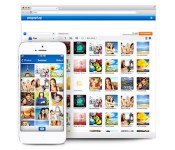
Sprint now lets you buy Pogoplug cloud storage through your phone bill

Sprint hasn’t had a cloud storage service to counter offerings from AT&T and Verizon, but it’s catching up quickly through a new deal with Pogoplug. The partnership makes it easier for Sprint customers to grab the Pogoplug app, giving them a fast track to 5GB of free online storage. They also won’t have to jump through hoops if they need more space — they can now pay for Pogoplug’s $5 unlimited plan through their phone bills. The offer won’t matter to Sprint fans who already rely on other cloud services, but it should help newcomers who don’t know where to begin.
Filed under: Cellphones, Storage, Internet, Mobile, Sprint
Source: Sprint

Red Nexus 5 may soon become a reality
A few days ago, rumors surfaced with a bogus rendition of colorful Nexus 5 variants. While it seemed as though the rumors were squashed, some more photos leaked from Twitter regarding the Nexus 5 in bright red.
Twitter user Skazki (@artyomstar) leaked the images at around 8AM this morning, and they actually seem legitimate. Not only did the front and back images on the box leak, but the bar code on the bottom also specifies the color.
Don’t get us wrong – this could absolutely be a hoax. But if it is, somebody went to great lengths to trick the heck out of everybody. Here’s to hoping they’re officially announced soon!
 Via: Android Central
Source: Skazki (Twitter) 1, 2
The post Red Nexus 5 may soon become a reality appeared first on AndroidGuys.

OS X 10.10 to Feature ‘Flatter’ Look, but Not as Stark as iOS 7
 OS X 10.10, the next version of OS X which carries the code name of “Syrah”, will take a few cues from iOS 7 with a somewhat flatter look compared to OS X Mavericks, but the changes will not result in as stark a look as seen on iOS 7, according to a new report from 9to5Mac. The report comes on the heels of comments from Apple executives reiterating that convergence of iOS and OS X is a “non-goal” for the company.
Instead [of a complete iOS 7-like overhaul], I am expecting OS X 10.10 to have user-interface tweaks that will make the interface “flatter,” but not as stark as iOS 7′s look. I’d also expect some blur and translucency effects in a few places, but not in anyway that is central to the experience like it is on iOS. There will be a little bit more white space, more defined menu bars, and squared-off window controls, but I would not expect a full color palette change and redesigns for every single application and icon.
The report indicates that internal build numbers for OS X 10.10 are currently around 14Z109 and that new features could include improved notifications, cross-platform AirDrop support to and from iOS 8, and possible Siri integration.
 Visitors to MacRumors.com via Apple’s networks from machines running OS X 10.10
MacRumors has been seeing fairly low levels of activity coming from machines running OS X 10.10 from Apple’s network, and that activity has unsurprisingly been beginning to ramp up this month following the holiday break. With Apple having accelerated its OS X release cycles over the past several major updates, a public release for OS X 10.10 could come late this year or early next year.
     |

Tesla Superchargers now cover drives from coast to coast

Tesla’s Superchargers, which can provide up to 170 miles of range with just a 30-minute charge, now cover trips between Los Angeles and New York, Elon Musk tweeted yesterday. The somewhat circuitous route brings drivers through states like New Mexico, South Dakota and Wisconsin during a journey from LA to NY, rather than the more direct I-40, I-70 or I-80 options that run farther south, so expect the cross-country adventure to take a bit longer than usual if you’re setting out within the next few months. Tesla will be adding many more Superchargers throughout this year, however, eventually enabling a more direct routing. And, come 2015, the entire country will be covered, making it possible to visit all 50 states and parts of Canada without going out of your way for a charge.
Filed under: Transportation
Via: Bloomberg
Source: Tesla

Russia’s second largest carrier resumes selling the iPhone after three-year split

You could say Apple’s had a pretty successful six months in Russia. After finally opening a localized version of its online store in June, it’s also seen three of the country’s biggest operators begin selling the iPhone again. Reuters reports that Megafon, Russia’s second-biggest carrier, today became the final provider to resume sales of the fruity smartphones, committing to a three-year deal after almost four years on the sidelines. Last year, MTS, VimpelCom and Megafon reportedly suspended sales following a dispute over unfavorable contract terms, but a relaxation in Apple’s distributor sales policy saw two of the three return to the fold by the end of 2013. While the deal isn’t likely to drastically boost Apple’s small share of Russia’s smartphone market (at least right away), competition can only be a good thing — especially given the high pricing on Apple’s online store.
Filed under: Cellphones, Wireless, Mobile, Apple
Source: Reuters

AndyTags NFC Bundle Giveaway
We’ve got some fun little NFC-ready tags to give away over the next few days that we think you’ll enjoy.
About AndyTags:
AndyTags are NFC Enabled Tags that combine both style and functionality. NFC (Near Field Communication) allows for a variety of commands, triggers, and more after being setup with you NFC-Enabled device. NFC tags require no battery power themselves and limited power from your device. To setup commands with your NFC Tags be sure to check out Trigger.
Prize Details:
We’re helping to give away two AndyTags Universal UltraMix Packs and two Universal MegaMix Packs for a total of four packages.
- Ultramix: 2 Blue/Gray, 2 Green/Gray, 2 Green/White, 1 Anti-Metal); 1 High Capacity Topaz 512 Tag; and 1 AndyTags NFC Key Chain
- Megamix: 9 NTAG203 Tags (3 Blue/Gray, 2 Green/Gray, 2 Green/White, 2 Anti-Metal); 2 High Capacity Topaz 512 Tags; and 1 AndyTags NFC Key Chain
How to enter
In the website comments below tell us which NFC-ready smartphone you own and your wireless carrier. We’ll let this run for three full days, ending at midnight on January 29, 2014. If you are not sure if your device is NFC capable, it probably isn’t. Contact your mobile carrier and device manufacturer for more details.
 Use a valid contact email address when you comment so that we can get these shipped out to you as fast as we can. We need to email you to get your shipping and other contact information for the delivery of these items. You do not have to post your email address in the comments section. In the name field, fill out your actual first and last name, not a screen name.
Please do not use the Google+ comments to enter as it makes it harder to pin down winners.
Winners will be chosen at random. We will email you when the winners are announced, only if you have one. You will be given approximately 48 hours to respond with your shipping address and any additional contact information. If there’s no reply we’ll have to pick another entry. One winner per household.
Contest is limited to residents of the United States of America (including Alaska & Hawaii). AndyTags will be shipping out the winning items.
Tell Your Friends!
The post AndyTags NFC Bundle Giveaway appeared first on AndroidGuys.
HTC M8 to feature on-screen buttons, report indicates
The upcoming HTC ‘M8′ smartphone will be HTC’s first handset to employ on-screen buttons. At least that’s what a recent tweet from evleaks tells us.
Generally speaking, it’s a mixed approach when it comes to navigation buttons on Android devices. Samsung has dabbled in various designs but lately seems relegated to a single home button with capacitive buttons. Sony likes to go all-in with the on-screen buttons and LG dances around with different approaches. It will be interesting to see if HTC goes all-in with on-screen or if they’re testing the waters.
Do you have a preference for your buttons? Does it even matter to you?
The post HTC M8 to feature on-screen buttons, report indicates appeared first on AndroidGuys.
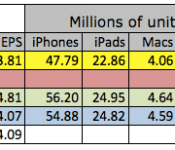
Analysts Predict Apple Will Report Single-Digit Earnings Growth in 1Q 2014
Analysts predict Apple will return to growth when the company announces its quarterly earnings later today, reports Philip Elmer-Dewitt of Fortune. Growth will be in the single digits and will be an improvement over the negative earnings growth the company reported for the previous three quarters. Apple is not, however, expected to return to the 50% growth it achieved between 2010 and 2012.

The consensus estimates among the 47 Apple analysts we’ve heard from so far — 29 Wall Street professionals and 18 Internet amateurs — are for earnings of $14.36 per share on sales of $58.1 billion. That represents year-over-year growth of 4.0% for earnings and 6.6% for revenue.
Eighty percent of Fortune’s surveyed analysts estimate Apple’s revenue will fall within the company’s guidance of $55 to $58 billion. Six analysts predict Apple will beat the street with revenue that tops $58 billion. Consensus estimates also predict Apple will sell a record 55 million iPhones and 25 million iPads in 1Q 2014.
Apple will report its quarterly earnings today after the close of trading, at approximately 4:30 PM Eastern / 1:30 PM Pacific. MacRumors will have full coverage of Apple’s earnings release and the conference call taking place at 5:00 PM Eastern / 2:00 PM Pacific.
| |

What Students Should Know About Cloud Printing
Tight deadlines, long nights at the library and the pressure to make good grades can wreak havoc on a student’s brain. Fortunately, modern technological advances provide students with tools to help make things just a little bit easier.
 “The cloud” is a term for services and abilities you can receive and perform online. One of those tools is cloud printing.
Cloud printing is a technology which allows users to print remotely. Users can issue a print command from anywhere – including their smart phone – and have it printed from a device located elsewhere. This is especially helpful for students as they can print from any location on or off campus and pick up their document at a central location. Not only is this convenient, but it also cuts down on missed deadlines and even makes it easier to acquire printable study materials.
Printing should be done over a secure network. With a lot of documents it doesn’t matter if you have security, but it’s good to get in the habit of looking for secure connections.
Private documents might include personal photos, personal letters, legal documents or anything else of a sensitive nature. These could end up in the wrong hands if someone else gets to the document before you do, especially if you send the document to the wrong printer or end up forgetting you printed something at all.
Personal documents are better sent to a private printer. Also, if at all possible, make sure you print to a device that has everything it needs in order to print successfully. It should be stocked with plenty of paper and HP toner.
Connections
The network is responsible for receiving and managing files. It uses an application or plug-in to communicate with the target printer.
It should work the same way as printing from anywhere else. The document is printed according to your specifications and is there for you to pick up. Like most web-based/cloud applications, cloud printing works without the use of a local operating system or drivers.
Almost any printer can work with cloud printing and can be connected to your cloud printing account, enabling you to print effortlessly and immediately. However, it is best to use a cloud-ready printer because it’s easier to set up and maintain. Most major brands have out-of-the-box, cloud-ready models.
Anything that connects to the web – a personal computer, tablet or smart device – is compatible with cloud printing. The number of apps that can work with cloud printing is increasing every day.
Share Printers
Another advanced feature of cloud printing is the ability to share printers across far flung workers. Sharing printers is as easy as pointing and clicking. Shared printers and printing jobs can be managed quickly and easily from your cloud printing account. Make sure you are only sharing printers with someone you trust.
Cloud printing is one way to make your student life easier and less expensive; no dorm room printer needed. Cloud printing works for: slides, class notes, syllabi, photos and study guides all with the click of a button. You can queue the print job before leaving and pick up the documents on your way to the bar or gym and you have extra time to work on assignments knowing that you do not have to work around your printing limitations.
When printing remotely, there are a few important things to keep in mind.
Pay close attention to which printer you are printing to. There will likely be more than one printer to choose from in the drop down menu when you queue a job. Make sure you know the name of your target printer and where it’s located.
Do not get caught with your proverbial pants down. With this technology, you can print from your home, office or even your car; so there is no excuse not to take advantage of it. Being able to print on the go gives you options, and options are the key to making your life as a student as smooth and as easy as possible.
 AIVAnet